UNIT
A
Concepts
Understanding Essential
Computer Concepts
Computers are essential tools in almost all kinds of activity in virtually every type of busi-ness. In this unit, you will learn about computers and their components. You will learn about input and output, how a computer processes data and stores information, how infor-mation is transmitted, and ways to secure that inforinfor-mation. Finally, you will learn about system and application software. Quest Specialty Travel is expanding its North American offices and just purchased Sheehan Tours, an established travel agency in Boston, Massachusetts. Sheehan Tours has been in business for over 40 years and has a large cus-tomer base. Unfortunately, its computer system is tremendously outdated. Its office con-tains a hodgepodge of computer equipment, most of which has been purchased used. The office staff still carries data between computers on floppy disks, and only one computer is connected to the Internet. Kevin O’Brien, the manager of the New York office, has been sent to the new Boston office to help them switch to Quest’s business practices. He has already ordered and installed new computer equipment. His next task is to teach the staff how to use the new equipment.
OBJECTIVES
Investigate types of computers
Examine computer systems
Examine input devices
Examine output devices
Investigate data processing
Understand memory
Understand storage media
Explore data communications
Learn about networks
Learn about security threats
Understand system software
Understand application software
No files needed.
Files You
Will Need:
Investigating Types of
Computers
A computeris an electronic device that accepts information and instructions from a user, manipulates the information according to the instructions, displays the information in some way, and stores the information for retrieval later. Computers are classified by their size, speed, and capabilities. Most of the staff at Sheehan Tours do not know anything about computers except for the ones that sit on their desks, so Kevin decides to start with a basic explanation of the types of computers available.
The following list describes various types of computers:
•
Personal computersare computers typically used by a single user, for use in the home or office. Personal computers are used for general computing tasks such as word processing, manipulating numbers, working with photographs or graphics, exchanging e-mail, and accessing the Internet.•
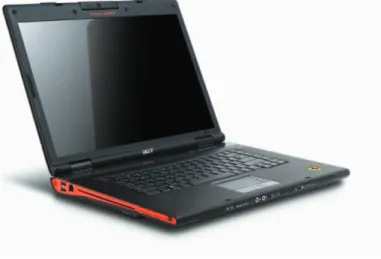
A personal computer is available as a desktop computer, which is designed to sit compactly on a desk; as a notebook computer (also referred to as a laptop computer), which is small, lightweight, and designed for portability; or as a tablet PC, which is also designed for portability, but includes the capability of recognizing ordinary handwriting on the screen. Figure A-1 shows a notebook computer. Desktop per-sonal computers can be purchased for as little as $300, but high-end notebooks can cost more than $3500. A notebook computer with similar capability is usually more expensive than a desktop computer, and tablet PCs are generally more expensive than notebook computers. Many computer users spend between $800 and $1500 when purchasing a new personal computer.•
Hand-held computersare small computers that fit in the palm of your hand. Hand-held computers have more limited capabilities than personal computers.•
PDAs(personal digital assistants) are generally used to maintain an electronic appointment book, address book, calculator, and notepad. See Figure A-2. High-end PDAs are all-in-one devices that can send and receive e-mails and make phone calls.•
MP3 players are hand-held computers that are primarily used to store and play music, although some models can also be used to play digital movies or television shows.•
Cell phones are another type of hand-held computer. In addition to being used to make telephone calls, cell phones store contact information. Many cell phones can take and store digital photos and video and play and store music. Most cell phones have additional capabilities such as built-in calcula-tor programs. High-end cell phones can also perform many of the same functions as a PDA.•
Mainframe computers are used by larger businesses and government agencies to provide centralized storage, processing, and management for large amounts of data. The price of a mainframe computer varies widely, from several hundred thousand dollars to several million dollars.•
The largest and fastest computers, called supercomputers, are used by large corporations and government agencies when the tremendous volume of data would seriously delay processing on a mainframe computer. A supercomputer, like the one shown in Figure A-3, can cost tens of millions of dollars.DETAILS
ConceptsMachines dedicated primarily to playing games, such as the Xbox and PlayStation, are also computers.
QUICK TIP
When an organization uses mainframes or supercomputers, each user inputs processing requests and views output through a
terminalor a terminal emulator. A terminal has a keyboard for input and a monitor for output, but processes little or no data on its
own. A terminal emulator is a personal computer, workstation, or server that uses special software to imitate a terminal so that the PC can communicate with the mainframe or supercomputer for com-plex data processing.
FIGURE A-1: Notebook computer
Concepts
FIGURE A-2: PDA
Examining Computer
Systems
A computer systemincludes computer hardware and software. Hardwarerefers to the physical compo-nents of a computer. Softwarerefers to the intangible components of a computer system, particularly the
programs, or lists of instructions, that the computer needs to perform a specific task. Kevin explains how computers work and points out the main components of a computer system.
The following list provides an overview of computer system components and how
they work:
•
The design and construction of a computer is referred to as its architectureor configuration. The tech-nical details about each hardware component are called specifications. For example, a computer system might be configured to include a printer; a specification for that printer might be a print speed of eight pages per minute or the capacity to print in color.•
The hardware and the software of a computer system work together to process data. Datarefers to the words, numbers, figures, sounds, and graphics that describe people, events, things, and ideas. Modifying data is referred to as processing.•
In a computer, processing tasks occur on the motherboard, which is located inside the computer and is the main electronic component of the computer. The motherboard is a circuit board, which is a rigid piece of insulating material with circuits, electrical paths, on it that control specific functions. See Figure A-4. The motherboard contains the following processing hardware:•
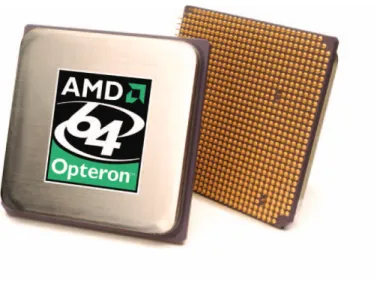
The microprocessor, also called the processor or the central processing unit(CPU), consists of transistors and electronic circuits on a silicon chip(an integrated circuit embedded in semiconductor material). See Figure A-5. The processor is mounted on the motherboard and is responsible for execut-ing instructions to process information.•
Cards are removable circuit boardsthat are inserted into slots in the motherboard to expand the capabilities of the motherboard. For example, a sound card translates the digital audio information from the computer into analog sounds that the human ear can hear.•
The data or instructions you type into the computer are called input. The result of the computer processing input is referred to as output. The computer itself takes care of the processing functions, but it needs addi-tional components, called peripheral devices, to accomplish the input, output, and storage functions.•
You use an input device, such as a keyboard or a mouse, to enter data and issue commands. Commandsare input instructions that tell the computer how to process data. For example, you might want to center the title and double-space the text of a report. You use the appropriate commands in the word processing program that instruct the computer to modify the data you have input so the report text is double-spaced and the report title is centered.
•
Output can be in many different forms, including reports, documents, graphs, sounds, and pictures. Computers produce output using output devices, such as a monitor or printer.•
The output you create using a computer can be stored either inside the computer itself or on an exter-nal storage device, such as a DVD. You will learn more about storage devices later in this unit.DETAILS
ConceptsFIGURE A-4: Motherboard
FIGURE A-5: Microprocessor (front and back views)
Concepts
How fast a computer can process instructions depends partially on the speed of the microprocessor, which is determined by its clock speed, word size, and cache size, and whether it is single or dual core. Clock speedis measured in megahertz(MHz), millions of cycles per second, or in gigahertz(GHz), billions of cycles per
second. Word sizerefers to the amount of data that is processed at one time. Finally, a dual-core processor, one that has two proces-sors on a single chip, can process information up to twice as fast as a
single-core processor, one with one processor on the chip.
Examining Input Devices
Before a computer can produce useful information, people must get data into the computer. This is accom-plished by using input devices. In a typical personal computer system, you input data and commands by using an input device such as a keyboard or a mouse. Computers can also receive input from a storage device. You will learn about storage devices later in this unit. As Kevin explains peripheral devices to the Sheehan Tours staff, they ask several questions about input devices. For example, one person doesn’t understand the difference between a mouse and a trackball. Kevin continues his explanation with a discus-sion of various input devices.
There are many types of input devices, as described below:
•
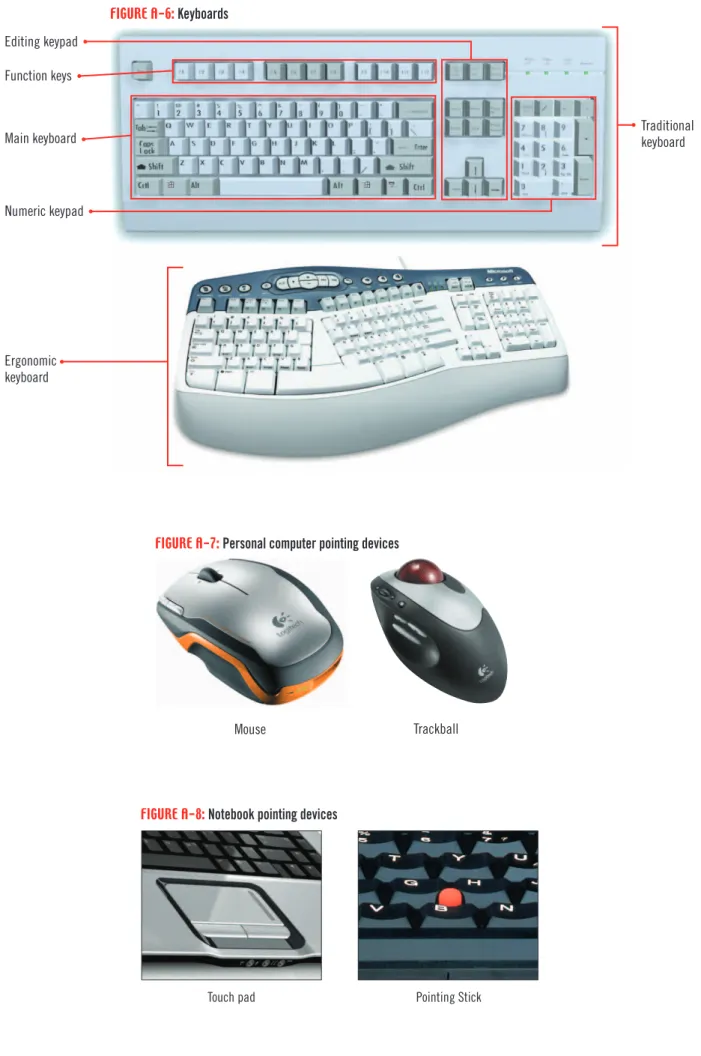
One of the most frequently used input devices is a keyboard. The top keyboard in Figure A-6 is a standard keyboard. The bottom keyboard in Figure A-6 is ergonomic, which means that it has been designed to fit the natural placement of your hands and should reduce the risk of repetitive-motion injuries. It also has sev-eral additional keys programmed as shortcut keys to commonly used functions.•
Another common input device is a pointing device, which controls the pointer, a small arrow or other sym-bol on the screen. Pointing devices are used to select commands and manipulate text or graphics on the screen.•
The most popular pointing device for a desktop computer is a mouse, such as the one shown on the left side in Figure A-7. An ordinary mouse has a rolling ball on its underside, and an optical mouse has a tiny camera on its underside that takes pictures as the mouse is moved. You control the pointer by moving the entire mouse. A mouse usually has two or more buttons for clicking commands. A mouse might also have a scroll wheelthat you roll to scroll the page on the screen and that may function as one of the buttons.•
The trackball, such as the one shown on the right side in Figure A-7, is similar to a mouse except that the rolling ball is on the top side and you control the movement of the pointer by moving only the ball.•
Notebook computers are usually equipped with a touch pad or a pointing stick. See Figure A-8. Atouch padis a touch-sensitive device that you drag your finger over to control the pointer. The but-tons are located in front of the touch pad. A pointing stickis a small, eraser-like device embedded among the typing keys that you push up, left, right, or down to move the pointer. Two buttons equiv-alent to mouse buttons are located in front of the spacebar.
•
Ascanneris a device that transfers the content on a piece of paper into memory. To do this, you place a piece of paper on the glass, a beam of light moves across the glass similar to a photocopier, and stores the image or words on the paper as digital information. You can scan a document or a photo and save it as an image file, or you can scan a document and have the text “read” by the scanner and saved in a document file for editing later.•
Microphones are another type of input device. You can use them to record sound for certain types of files, or, if you have the voice-recognition software, you can use them to input data and commands.•
Input devices can be connected to the computer with cables or wirelessly. Wireless input devices connect to the computer using infrared or radio frequency technology, similar to a remote control for a television.DETAILS
ConceptsAnother way to avoid repetitive motion injuries is to take frequent breaks when working at a computer and stretch your hands and wrists.
QUICK TIP
People with physical impairments or disabilities can use computers because of advances in making computers accessible to everyone. For example, people who cannot use their arms or hands instead can use foot, head, or eye movements to control the pointer. People with poor vision can use keyboards with large keys for input, screen
enlargers to enlarge the type and images on the monitor, or screen readers to read the content of the screen aloud. Computers are being developed that can be controlled by a person’s thoughts, that is, the brain’s electromagnetic waves.
FIGURE A-6: Keyboards
Concepts
FIGURE A-7: Personal computer pointing devices
FIGURE A-8: Notebook pointing devices
Pointing Stick Touch pad
Editing keypad Function keys
Main keyboard
Numeric keypad
Ergonomic keyboard
Traditional keyboard
Examining Output Devices
As stated earlier, output is the result of processing data; output devices show you those results. The most commonly used output devices are monitors and printers. Kevin continues his discussion of peripheral devices with an explanation of output devices.
Output devices are described below:
•
The monitordisplays the output from a computer.•
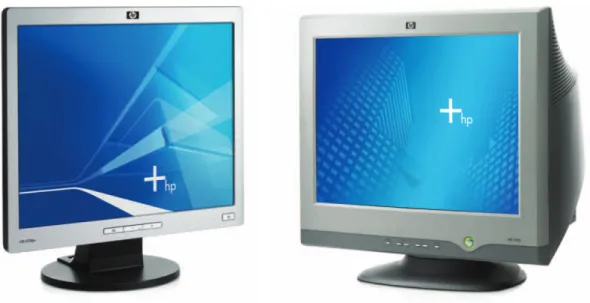
The monitor shown on the left in Figure A-9 is a flat panel monitor, a lightweight monitor that takes up very little room on the desktop. Most flat panel monitors use LCD(liquid crystal display) technology, which creates the image you see on the screen by manipulating light within a layer of liq-uid crystal. A CRT(cathode ray tube) monitor, shown on the right in Figure A-9, uses gun-like devices that direct beams of electrons toward the screen to activate dots of color to form the image you see on the screen. CRT monitors require much more desk space than flat-panel display monitors.•
Monitor screen sizeis the diagonal measurement from one corner of the screen to the other. In gen-eral, monitors on desktop computers range in size from 15" to 30", whereas monitors on notebook computers range in size from 12" to 20".•
Most monitors have a graphics display, which divides the screen into a matrix of small dots calledpixels. Resolutionis the number of pixels the monitor displays. Standard resolutions range from 640 ×480 to 1600 ×1200. If your screen is small, a 1600 ×1200 resolution will make the objects on the screen too small to see clearly. Dot pitch(dp) measures the distance between pixels, so a smaller dot pitch means a sharper image. A .28 or .26 dot pitch is typical for today’s monitors.
•
To display graphics, a computer must have a graphics card, also called a video display adapterorvideo card. The graphics card is installed on the motherboard, and controls the signals the computer sends to the monitor.
•
A printerproduces a paper copy, often called hard copy, of the text or graphics processed by the com-puter. There are three popular categories of printers: laser printers, inkjet printers, and dot matrix printers.•
Laser printers, like the one shown on the left in Figure A-10, are popular for business use because they produce high-quality output quickly and efficiently. In a laser printer, a temporary laser image is transferred onto paper with a powdery substance called toner.•
Inkjet printers, such as the one shown on the right in Figure A-10, are popular printers for home use. These printers spray ink onto paper and produce output whose quality is comparable to that of a laser printer.•
Dot matrix printerstransfer ink to the paper by striking a ribbon with pins. A 24-pin dot matrix printer produces better quality print than a 9-pin. Dot matrix printers are most often used when a large number of pages need to be printed fairly quickly or when a business needs to print multi-page contin-uous forms.•
Speakers, like speakers on a sound system, allow you to hear sounds from the computer. Speakers can be sep-arate peripheral devices attached to the computer, or they can be built in to the monitor.•
Like input devices, output devices can be connected to a computer using cables or a wireless connection.DETAILS
ConceptsFlat panel monitors are more expensive than CRT monitors.
QUICK TIP
The speed of laser and inkjet printers is measured in pages per minute(ppm). The speed of dot matrix printers is measured in
characters per second(cps).
FIGURE A-9: Monitors
FIGURE A-10: Printers
Concepts
CRT monitor Flat panel monitor
Investigating Data
Processing
In order to understand how data is processed in a computer, you first need to learn how the computer rep-resents and stores data. All data and programs are stored as files. A computer fileis a named collection of stored data. An executable filecontains the instructions that tell a computer how to perform a specific task; for instance, the files that are used while the computer starts are executable. A data fileis created by a user, usually with software. For instance, a report that you write with a word processing program is data, and must be saved as a data file if you want to access it later. Kevin gives a basic description of how information is represented inside a computer.
The following information will help you understand data processing:
•
The characters used in human language are meaningless to a computer. Like a light bulb, the computer must interpret every signal as either “on” or “off.” A computer represents data as distinct or separate numbers. Specifically, it represents “on” with a 1 and “off” with a 0. These numbers are referred to as binary digits, or bits.•
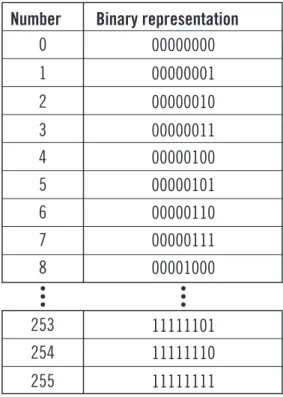
A series of eight bits is called a byte. As Figure A-11 shows, the byte that represents the integer value 0 is 00000000, with all eight bits “off” or set to 0. The byte that represents the integer value 1 is 00000001, and the byte that represents 255 is 11111111.•
A kilobyte(KBor simply K) is 1024 bytes, or approximately one thousand bytes. A megabyte(MB) is 1,048,576 bytes, or about one million bytes. A gigabyte(GB) is 1,073,741,824 bytes, or about one billion bytes. A terabyte(TB) is 1,024 GB, or approximately one trillion bytes.•
Personal computers commonly use the ASCII system to represent character data. ASCII(pronounced “ASK-ee”) stands for American Standard Code for Information Interchange. Each ASCII number represents an English character. Computers translate ASCII into binary data so that they can process it.•
The original ASCII system used 7 bits to represent the numbers 0 (0000000) through 127 (1111111) to stand for 128 common characters and nonprinting control characters. Because bits are usually arranged in bytes, the eighth bit is reserved for error checking.•
Extended ASCII uses eight bits and includes the numbers 128 (10000000) through 255 (11111111) to represent additional characters and symbols. Extended ASCII was developed to add codes for punctua-tion marks, symbols, such as $ and ©, and addipunctua-tional characters, such as é and ü, that were not included in the original 128 codes.•
Most computers use the original ASCII definitions, but not all computers use the same definitions for Extended ASCII. Computers that run the Windows operating system use the set of Extended ASCII def-initions defined by the American National Standards Institute (ANSI). Figure A-12 shows sample ASCII code with ANSI standard Extended ASCII characters.DETAILS
ConceptsFIGURE A-11: Binary representation of numbers
Number
0
Binary representation
00000000
1
00000001
2
00000010
3
00000011
4
00000100
5
00000101
6
00000110
7
00000111
8
00001000
253
254
11111110
255
11111111
11111101
FIGURE A-12: Sample ASCII code representing letters and symbols
Character
ASCII Code
(space)
$
A
B
a
b
?
£
®
é
32
36
65
66
97
98
129
163
217
233
Binary Number
00100000
00100100
01000001
01000010
01100001
01100010
10000001
10100011
11011001
11101001
Understanding Memory
In addition to the microprocessor, another important component of personal computer hardware is the
memory, which stores instructions and data. Memory is different from permanent storage in a computer. Your computer has five types of memory: random access memory, cache memory, virtual memory, read-only memory, and complementary metal oxide semiconductor memory. Kevin realizes that most of the Sheehan Tours staff don’t understand the difference between memory types, so he explains the dif-ferent types of memory.
Types of memory include the following:
•
Random access memory (RAM) temporarily holds programs and data while the computer is on and allows the computer to access that information randomly; in other words, RAM doesn’t need to access data in the same sequence in which it was stored. For example, if you are writing a report, the microprocessor temporarily copies the word processing program you are using into RAM so the microprocessor can quickly access the instructions that you will need as you type and format your report. The characters you type are also stored in RAM, along with the fonts, graphics, and other objects that you might use. RAM consists of chips on cards that plug into the motherboard.•
Most personal computers use synchronous dynamic random access memory(SDRAM), which is synchronized with the processor to allow faster access to its contents.•
RAM is sometimes referred to as volatile memoryor temporary memorybecause it is constantly changing as long as the computer is on and is cleared when the computer is turned off.•
Memory capacity, sometimes referred to as storage capacity, is the amount of data that the computer can handle at any given time and is measured in megabytes or gigabytes. For example, a computer that has 512 MB of RAM has the capacity to temporarily store more than 512 million bits of data at one time.•
Cache memory, sometimes called RAM cacheor CPU cache, is a special, high-speed memory chip on the motherboard or CPU itself that stores frequently accessed and recently accessed data and commands.•
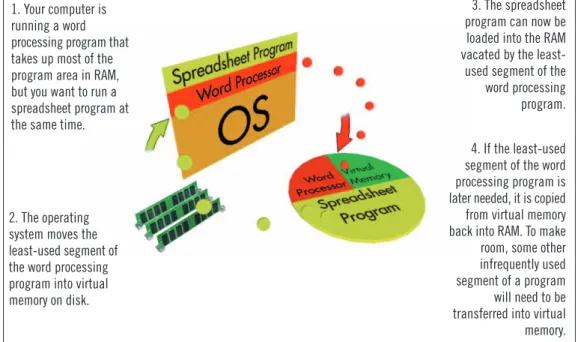
Virtual memoryis space on the computer’s storage devices that simulates additional RAM. It enables pro-grams to run as if your computer had more RAM by moving data and commands from RAM to the hard drive and swapping in the new data and commands. See Figure A-13. Virtual memory, however, is much slower than RAM.•
Read-only memory(ROM) is a chip on the motherboard that has been prerecorded with data. ROM per-manently stores the set of instructions that the computer uses to check the computer system’s components to make sure they are working and to activate the essential software that controls the processing function when you turn the computer on.•
ROM contains a set of instructions called the BIOS(basic input/output system), which tells the computer to initialize the motherboard, how to recognize the peripherals, and to start the boot process. The boot processis the set of events that occurs between the moment you turn on the computer and the moment you can begin to use the computer. The set of instructions for executing the boot process is stored in ROM.•
ROM never changes and it remains intact when the computer is turned off; therefore, it is called non-volatile memoryor permanent memory.•
Complementary metal oxide semiconductor (CMOS, pronounced “SEE-moss”) memory is a chip installed on the motherboard that is activated during the boot process and identifies where essential software is stored.•
A small rechargeable battery powers CMOS so its contents are saved when the computer is turned off. CMOS changes every time you add or remove hardware on your computer system.•
CMOS, often referred to as semipermanent memory, changes when hardware is added or removed, but doesn’t empty when the computer is shut off.•
Because CMOS retains its contents when the computer is turned off, the date and time are stored there.DETAILS
ConceptsWhen the computer is off, RAM is empty.
QUICK TIP
You can often add more RAM to a com-puter by installing additional memory cards on the mother-board. You cannot add ROM; it is per-manently installed on the motherboard.
QUICK TIP
The act of turning on the computer is sometimes called
booting up.
FIGURE A-13: How virtual memory works 1. Your computer is
running a word processing program that takes up most of the program area in RAM, but you want to run a spreadsheet program at the same time.
3. The spreadsheet program can now be loaded into the RAM vacated by the least-used segment of the word processing program.
2. The operating system moves the least-used segment of the word processing program into virtual memory on disk.
4. If the least-used segment of the word processing program is later needed, it is copied from virtual memory back into RAM. To make room, some other infrequently used segment of a program will need to be transferred into virtual memory.
Concepts
One of the easiest ways to make a computer run faster is to add more RAM. This enables the computer to access instructions and data stored in RAM very quickly. The more RAM a computer has, the more instructions and data can be stored there. Currently, you can
buy from 64 MB to 1 GB RAM cards, and usually, you can add more than one card. You need to check your computer’s specifications to see what size RAM cards the slots on your motherboard will accept.
Understanding
Storage Media
Because RAM retains data only while the power is on, your computer must have a more permanent storage option. As Figure A-14 shows, a storage device receives data from RAM and writes it on a storage medium, such as a CD. Later the data can be read and sent back to RAM to use again. Kevin explains the types of storage media available. He starts with magnetic storage because almost all computers have a hard disk.
The types of storage media are discussed below:
•
Magnetic storage devicesstore data as magnetized particles on mylar, a plastic, which is then coated on both sides with a magnetic oxide coating. Common magnetic storage devices are hard disks, tape, and floppy disks.•
A hard diskis the most common type of magnetic storage media. It contains several magnetic oxide-covered metal platters that are usually sealed in a case inside the computer.•
Tapeis another type of magnetic storage media. Tape storage is much too slow to be used for day-to-day computer tasks; therefore, tapes are used to make backup copies of data stored on hard disks. Tape provides inexpensive, though slow, archival storage for large companies who need to back up large quantities of data.•
A floppy diskis a flat circle of magnetic oxide-coated mylar enclosed in a hard plastic case; a floppy disk can store 1.44 MB of data. Floppy disks are sometimes called 31⁄2" disks because of the size of the
hard plastic case. The floppy disk has almost become obsolete, and most personal computers are now manufactured without a floppy disk drive.
•
Optical storage devicesare polycarbonate discs coated with a reflective metal on which data is recorded using laser technology as a trail of tiny pits or dark spots in the surface of the disc. The data that these pits or spots represent can then be “read” with a beam of laser light.•
The first standard optical storage device available for personal computers was the CD (compact disc). One CD can store 700 MB of data.•
A DVD, though the same size as a CD, currently stores between 4.7 and 15.9 GB of data, depending on whether data is stored on one or two sides of the disc, and how many layers of data each side contains. The term DVD is no longer an acronym, although it was originally an acronym for digital video disc and later was sometimes updated to digital versatile disc.•
New formats of optical storage include Blu-ray Discs and HD-DVD, which are capable of storing between 15 and 50 GB of data. They are used for storing high-definition video. Different companies support each format and it remains to be seen if one dominates the market.•
Flash memoryis similar to ROM except that it can be written to more than once. Flash memory cardsare small, portable cards encased in hard plastic to which data can be written and rewritten. They are used in digital cameras, handheld computers, video game controllers, and other devices.
•
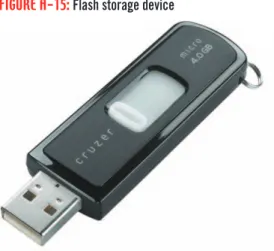
A popular type of flash memory is aUSB flash storage device, also called a USB driveor a flash drive. See Figure A-15.•
USB drives for personal computers are available in a wide range of sizes; they currently range from drives capable of holding 32 MB of data to drives capable of holding 16 GB of data. They are becoming more popular for use as a secondary or backup storage device for data typically stored on a hard disk drive.•
USB drives plug directly into the USB port of a personal computer; the computer recognizes the device as another disk drive. The location and letter designation of USB ports varies with the brand and model of computer you are using, but the physical port may be on the front, back, or side of a computer.•
USB flash storage devices are about the size of a pack of gum and often have a ring that you can attach to your key chain.DETAILS
ConceptsOptical storage devices, such as CDs and DVDs, are much more durable than magnetic storage media.
QUICK TIP
There is only one way to insert a flash drive, so if you’re having problems inserting the drive into the slot, turn the drive around and try again.
FIGURE A-14: Storage devices and RAM
Retrieve (read)
Store (write) DVD drive
RAM
FIGURE A-15: Flash storage device
Concepts
CD-ROMstands for compact disc read-only memory. CDs that you buy with software or music already on them are CD-ROMs—you can read from them, but you cannot record additional data onto them. In order to record data on a CD, you need a CD-R(compact disc recordable) or CD-RW(compact disc rewritable) drive and a CD-R or CD-RW disk. On CD-ROMs, data is stored in pits made on the sur-face of the disk; when you record data on a CD-R or -RW, a laser changes the reflectivity of a dye layer on a blank disk, creating dark spots on the disk’s surface that represent the data. On a CD-R, once the data is recorded, you cannot erase or modify it, but you can add new data to the disk, as long as the disk has not been finalized. In
contrast, you can re-record a CD-RW. CD-R disks can be read by a standard CD-ROM drive or a DVD drive; CD-RW disks can be read only by CD-RW drives or CD-ROM drives labeled “multi-read.” Recordable DVD drives are also available. As with CDs, you can buy a DVD to which you can record only once, or a rewritable DVD to which you can record and then re-record data. Recordable and rewriteable DVDs come in several formats; for example, recordable DVDs are available as DVD-R and DVD+R. Make sure you know which type of DVD your DVD drive uses. Newer DVD drives are capable of reading from and writing to both -RW and +RW DVDs and CDs, as well as DVDs with two layers.
Erasing and rewriting on CDs and DVDs
A storage device receives information from RAM, writes it on the storage medium, and reads and sends it back to RAM
Storage device Storage medium
Exploring Data
Communications
Data communications is the transmission of data from one computer to another or to a peripheral device. The computer that originates the message is the sender. The message is sent over some type of
channel, such as a telephone or coaxial cable. The computer or peripheral at the message’s destination is the receiver. The rules that establish an orderly transfer of data between the sender and the receiver are called protocols. The transmission protocol between a computer and its peripheral devices is handled by a device driver, or simply driver, which is a computer program that can establish communication because it contains information about the characteristics of your computer and of the device. The Sheehan Tours staff will use their computers to connect to the computers at the Quest headquarters in California as well as to surf the Internet, so Kevin next explains how computers communicate.
The following describes some of the ways that computers communicate:
•
The data path between the microprocessor, RAM, and the peripherals along which communication travels is called the data bus. Figure A-16 illustrates the data bus that connects a printer to a computer.•
An external peripheral device must have a corresponding portand cablethat connect it to the computer. Inside the computer, each port connects to a controller card, sometimes called an expansion cardorinterface card. These cards plug into electrical connectors on the motherboard called expansion slots or
slots. Personal computers can have several types of ports, including parallel, serial, SCSI, USB, MIDI, and Ethernet. Figure A-17 shows the ports on one desktop personal computer.
•
A parallel porttransmits data eight bits at a time. Parallel transmissions are relatively fast, but they have an increased risk for interference. A serial porttransmits data one bit at a time.•
One SCSI (small computer system interface, pronounced “scuzzy”) portprovides an interface for one or more peripheral devices at the same port. The first is connected directly to the computer through the port, and the second device is plugged into a similar port on the first device.•
A USB(Universal Serial Bus) portis a high-speed serial port which allows multiple connections at the same port. The device you install must have a USB connector, a small rectangular plug, as shown in Figure A-18. When you plug the USB connector into the USB port, the computer recognizes the device and allows you to use it immediately. You can connect multiple devices to a single USB port by “daisy chaining” them or by using a hub. USB flash storage devices plug into USB ports. For most USB devices, power is supplied via the port, so there is no need for extra power cables.•
The port for a sound card usually includes jacks for speakers and a microphone, which are designed to work with a MIDI(Musical Instrument Digital Interface, pronounced “middy”) card.•
You can connect to another computer, a LAN, a modem, or sometimes directly to the Internet using anEthernet port. Ethernet ports allow data to be transmitted at high speeds.
•
An internal peripheral device such as a hard disk drive may plug directly into the motherboard, or it may have an attached controller card.•
Notebook computers may also include a portable computer card(PC Card). PC Cards are credit card-sized cards that plug directly into the PC Card slot and can contain additional RAM, a fax modem, or a hard disk drive (similar to a USB flash storage device).DETAILS
ConceptsTypically, a printer that is near the com-puter is connected to a parallel port, and the mouse, key-board, and modem are connected to serial ports.
QUICK TIP
FireWire is another standard for trans-ferring information between digital devices similar to USB.
FIGURE A-16: Components needed to connect a printer to a computer
Printer port Cable Port
Motherboard Expansion slots Rear view of system unit Rear view of printer
Controller card
FIGURE A-17: Computer ports and connections
Concepts
FIGURE A-18: USB connector Keyboard port
Audio connection Monitor port
USB ports
Speaker and microphone connections
Power connection
FireWire port Mouse port
Phone line connection Network port
Learning about Networks
A networkconnects one computer to other computers and peripheral devices, enabling you to share data and resources with others. There are a variety of network configurations; however, any type of network has some basic characteristics and requirements that you should know. Kevin continues his discussion of how computers communicate with an explanation of networking.
Types of networks are described below:
•
Each computer that is part of the network must have a network interface card(NIC) installed. This card creates a communications channel between the computer and the network. A cable is used to connect the NIC port to the network.•
Network softwareis also essential, establishing the communications protocols that will be observed on the network and controlling the “traffic flow” as data travels throughout the network.•
Some networks have one or more computers, called servers, that act as the central storage location for pro-grams and provide mass storage for most of the data used on the network. A network with a server and comput-ers dependent on the server is called a client/server network. The dependent computers are the clients.•
When a network does not have a server, all the computers essentially are equal, and programs and data are distributed among them. This is called a peer-to-peer network.•
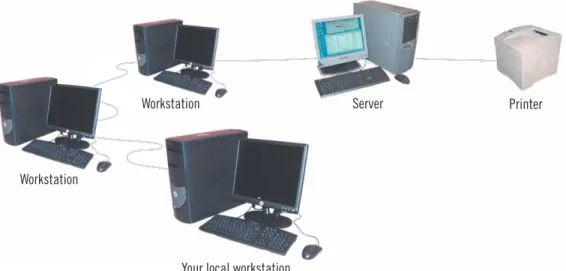
A personal computer that is not connected to a network is called a standalone computer. When it is connected to the network, it becomes a workstation. You have already learned that a terminal has a key-board and monitor used for input and output, but it is not capable of processing on its own. A terminal is connected to a network that uses mainframes as servers. Any device connected to the network is called anode. Figure A-19 illustrates a typical network configuration.
•
In a local area network(LAN), computers and peripheral devices are located relatively close to each other, generally in the same building.•
A wide area network(WAN) is more than one LAN connected together. The Internet is the largest exam-ple of a WAN.•
In a wireless local area network(WLAN), computers and peripherals use high-frequency radio waves instead of wires to communicate and connect in a network. Wi-Fi(short forwireless fidelity) is the term created by the nonprofit Wi-Fi Alliance to describe networks connected using a standard radio frequency established by the Institute of Electrical and Electronics Engineers (IEEE). Wi-Fi is used over short distances to connect computers to a LAN.•
A personal area network (PAN) is a network that allows two or more devices located close to each other to communicate or to connect a device to the Internet. In a PAN, devices are connected with cables or wireless.•
Infrared technologyuses infrared light waves to beam data from one device to another. The devices must be compatible, and they must be positioned close to each other with their infrared ports pointed at each other for this to work. This is the technology used in TV remote controls.•
Bluetoothuses short range radio waves to connect a device wirelessly to another device or to the Internet. The devices must each have a Bluetooth transmitter, but unlike infrared connections, they can communicate around corners or through walls.•
WiMAX (short forWorldwide Interoperability for Microwave Access), another standard defined by the IEEE, allows computer users to connect over many miles to a LAN. A WiMAX tower sends signals to a WiMAX receiver built or plugged into a computer. WiMAX towers can communicate with each other or with an Internet service provider.DETAILS
ConceptsFIGURE A-19: Network configuration
Workstation
Workstation
Your local workstation
Server Printer
Concepts
Telecommunicationsmeans communicating over a comparatively long distance using a phone line or some other data conduit. When it is not possible to connect users on one network, telecommunica-tions allows you to send and receive data over the telephone lines. To make this connection, you must use a communications device called a modem. A modem, which stands for modulator-demodulator, is a device that connects your computer to a standard telephone jack. The modem converts the digital, or stop-start, signalsyour com-puter outputs into analog, or continuous wave, signals(sound waves) that can traverse ordinary phone lines. Figure A-20 shows the telecommunications process, in which a modem converts
digital signals to analog signals at the sending site (modulates) and a second modem converts the analog signals back into digital sig-nals at the receiving site (demodulates). Most computers today come with a built-in 56 K modem and/or NIC (network interface card). 56 K represents the modem’s capability to send and receive about 56,000 bits per second (bps). Actual speed may be reduced by factors such as distance, technical interference, and other issues. People who want to use a high-speed connection either over phone lines, such as a DSL(digital subscriber line), or over a cable con-nection, usually need to purchase an external DSL or cable modem separately.
Understanding telecommunications
FIGURE A-20: Using modems to send and receive data
Digital signal Digital
signal
Analog signal
Modem Modem
Learning about
Security Threats
Securityrefers to the steps a computer owner takes to prevent unauthorized use of or damage to the computer. Once a computer is connected to a network, it is essential that the computer be protected against possible threats from people intent on stealing information or causing malicious damage. Kevin explains how important it is to be vigilant about keeping the office computers secure and reviews ways to do this.
Several types of security threats are discussed below:
•
Malwareis a broad term that describes any program that is intended to cause harm or convey information to others without the owner’s permission.•
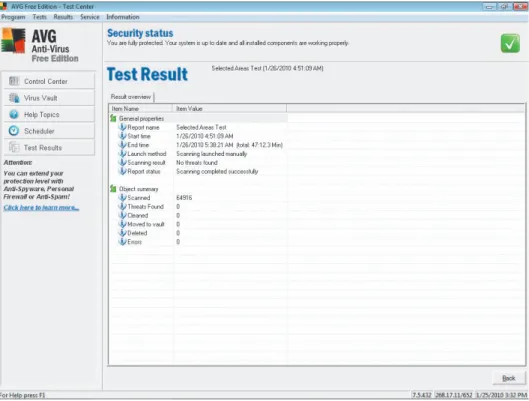
Unscrupulous programmers deliberately construct harmful programs, called viruses, which instruct your computer to perform destructive activities, such as erasing a disk drive. Some viruses are more annoying than destructive, but some can be harmful, erasing data or causing your hard disk to require reformatting. Antivirus software, sometimes referred to as virus protection software, searches executable files for the sequences of characters that may cause harm and disinfects the files by erasing or disabling those commands. Figure A-21 shows the screen that appears after AVG Anti-Virus Free Edition finished scanning a computer.•
Some software programs contain other programs called spywarethat track a computer user’s Internet usage and send this data back to the company or person that created it. Most often, this is done with-out the computer user’s permission or knowledge. Anti-spyware softwarecan detect these pro-grams and delete them.•
A firewallis like a locked door on a computer. It prevents other computers on the Internet from accessing a computer and prevents programs on a computer from accessing the Internet without the computer user’s permission. A firewall can be either hardware or software.•
A hardware firewall provides strong protection against incoming threats. A router, a device that con-trols traffic between network components, usually has a built-in firewall.•
Software firewalls track all incoming and outgoing traffic. If a program that never accessed the Internet before attempts to do so, the user is notified and can choose to forbid access. There are several free soft-ware firewall packages available. Figure A-22 shows an alert from Zone Alarm, a softsoft-ware firewall.•
Criminals are getting more aggressive as they try to figure out new ways to access computer users’ personal information and passwords.•
A Web site set up to look exactly like another Web site, such as a bank’s Web site, but which does not actually belong to the organization portrayed in the site, is a spoofedsite. The site developer creates aURL(address on the Web) that looks similar to a URL from the legitimate site. Usually, spoofed sites are set up to try to convince customers of the real site to enter personal information, such as credit card numbers, Social Security numbers, and passwords, so that the thief collecting the information can use it to steal the customer’s money or identity.
•
Phishingrefers to the practice of sending e-mails to customers or potential customers of a legitimate Web site asking them to click a link in the e-mail. The link leads to a spoofed site where the user is asked to verify or enter personal information.•
Sometimes a criminal can break into a DNS server(a computer responsible for directing Internet traf-fic) and redirect any attempts to access a particular Web site to the criminal’s spoofed site. This is calledpharming.
DETAILS
ConceptsSome specific types of viruses are called worms; another type is a Trojan horse. Antivirus software usually protects against both types.
QUICK TIP
Adwareis software installed with another program usually with the user’s permission that generates advertising revenue for the program’s creator by displaying targeted ads to the program’s user.
QUICK TIP
Never click a URL in a phishing message. Open your browser and type the URL of the organization into the Address or Location bar instead.
FIGURE A-21: Completed antivirus scan
Concepts
FIGURE A-22: Security alert from a software firewall
You can protect data on your computer by using passwords. You can set up accounts on your computer for multiple users and require that all users sign in with a user name and password before they can use the computer. This is known as logging in. You can also protect individual files on your computer so that people who try to open or alter a file need to type the password before they are allowed access
to the file. Many Web sites require a user name and password in order to access the information stored on it. To prevent anyone from guessing your password, you should always create and use strong passwords. A strong passwordis at least eight characters of upper and lowercase letters and numbers. Avoid using common personal information, such as birthdays and addresses.
Understanding System
Software
Sometimes the term software refers to a single program, but often the term refers to a collection of pro-grams and data that are packaged together. System software helps the computer carry out its basic operating tasks. Before Kevin describes the various types of software that people use to accomplish things like writing memos, he needs to describe system software.
The components of system software are described below:
•
System software manages the fundamental operations of your computer, such as loading programs and data into memory, executing programs, saving data to disks, displaying information on the monitor, and trans-mitting data through a port to a peripheral device. There are four types of system software: operating sys-tems, utilities, device drivers, and programming languages.•
An operating systemallocates system resources, manages storage space, maintains security, detects equip-ment failure, and controls basic input and output. Input and output, orI/O, is the flow of data from the microprocessor to memory to peripherals and back again.•
The operating system allocates system resources so programs run properly. A system resourceis any part of the computer system, including memory, storage devices, and the microprocessor, that can be used by a computer program.•
The operating system is also responsible for managing the files on your storage devices. Not only does it open and save files, but it also keeps track of every part of every file for you and lets you know if any part is missing.•
While you are working on the computer, the operating system is constantly guarding against equip-ment failure. Each electronic circuit is checked periodically, and the moequip-ment a problem is detected, the user is notified with a warning message on the screen.•
Microsoft Windows, used on many personal computers, and the MAC OS, used exclusively on Macintosh computers, are referred to as operating environmentsbecause they provide a graphi-cal user interface(GUI, pronounced “goo-ey”) that acts as a liaison between the user and all of the computer’s hardware and software. Figure A-23 shows the starting screen on a computer using Microsoft Windows Vista.•
Utilitiesare another category of system software that augment the operating system by taking over some of its responsibility for allocating hardware resources.•
As you learned earlier in the discussion of ports, device drivers handle the transmission protocol between a computer and its peripherals. When you add a device to an existing computer, part of its installation includes adding its device driver to the computer’s configuration.•
Computer programming languages, which a programmer uses to write computer instructions, are also part of the system software. The instructions are translated into electrical signals that the computer can manipulate and process.DETAILS
The operating sys-tem’s responsibility to maintain security may include requir-ing a username and password or check-ing the computer for virus infection.
QUICK TIP
Some examples of popular program-ming languages are BASIC, Visual Basic, C, C++, C#, Java, and Delphi.
QUICK TIP Concepts
Concepts
FIGURE A-23: Windows Vista starting screenWindows Vista, the successor to Windows XP, requires more memory and hard drive space and a faster processor than Windows XP. To take full advantage of all of the features and capabilities of Windows Vista, you need a computer with a 1 GHz processor, 1 GB of RAM, a DirectX 9 graphics processor, 128 MB of specialized graphics RAM, and a 40 GB hard drive with at least 15 GB of available space. To run Windows Vista without all of its features, you need a computer with
an 800 MHz processor, 512 MB of RAM, a graphics processor that is DirectX 9 capable (most computers come with this type of graphics processor), and 20 GB hard drive with at least 15 GB of available space. Keep in mind that these are the minimum recommendations. To prevent your computer from slowing to a crawl, you should con-sider upgrading the amount of RAM and the processor speed.
Examining Windows Vista hardware requirements
Start button Taskbar Icon (You might see additional icons on your screen)
Quick Launch toolbar
Gadgets (small programs; you might see additional or different gadgets on your screen)
Understanding Application
Software
Application softwareenables you to perform specific computer tasks. Some examples of tasks that are accomplished with application software are document production, spreadsheet calculations, database management, and giving presentations. Now that the Sheehan Tours staff understands operating systems, Kevin describes some common application software.
Typical application software includes the following:
•
Document production softwareincludes word processing software, desktop publishing software, e-mail editors, and Web authoring software. All of these production tools have a variety of features that assist you in writing and formatting documents, including changing the font(the style of type). Most offer spell checkingto help you avoid typographical and spelling errors, as shown in Figure A-24.•
Spreadsheet softwareis a numerical analysis tool. Spreadsheet software creates a worksheet, composed of a grid of columns and rows. You can type data into the cells, and then enter mathematical formulas into other cells that reference the data. Figure A-25 shows a typical worksheet that includes a simple calculation and the data in the spreadsheet represented as a simple graph.•
Database management softwarelets you collect and manage data. A databaseis a collection of infor-mation stored on one or more computers organized in a uniform format of records and fields. A recordis a collection of data items in a database. A fieldis one piece of information in the record. An example of a data-base is the online catalog of books at a library; the catalog contains one record for each book in the library, and each record contains fields that identify the title, the author, and the subjects under which the book can be classified.•
Graphicsand presentation softwareallow you to create illustrations, diagrams, graphs, and charts that can be projected before a group, printed out for quick reference, or transmitted to remote computers. You can also use clip art, simple drawings that are included as collections with many software packages.•
Photo editing softwareallows you to manipulate digital photos. You can make the images brighter, add special effects to the photo, add additional images to a photo, or crop the photo to include only relevant parts of the image.•
Multimedia authoring softwareallows you to record digital sound files, video files, and animations that can be included in presentations and other documents.•
Information management softwarekeeps track of schedules, appointments, contacts, and “to-do” lists. Most e-mail software allows users to add all the information about contacts to the list of e-mail addresses. In addition, some software, such as Microsoft Outlook, combines a contact list with information management components, such as a calendar and to-do list. The main screen of Microsoft Outlook is shown in Figure A-26.•
Web site creation and management softwareallows you to create and manage Web sites. They allow you to see what the Web pages will look like as you create them.DETAILS
ConceptsMost document pro-duction software allows you to per-form copy-and-paste
and cut-and-paste operations, which allow you to dupli-cate or move words around.
QUICK TIP
Some information management soft-ware allows you to synchronize informa-tion between a PDA and a desktop or notebook computer.
QUICK TIP
Many programs allow users to use data created in one application in a document created by another application. Object linking and embedding(OLE) refers to the ability to use data from another file, called the source. Embeddingoccurs when you copy and paste the source data in the new file. Linkingallows you to create a connection
between the source data and the copy in the new file. The link updates the copy every time a change is made to the source data. The seamless nature of OLE among some applications is referred to as integration.
FIGURE A-24: Spell checking a document
Concepts
FIGURE A-25: Typical worksheet with numerical data and a graph
FIGURE A-26: Information management software
A wiggly red line indicates a possible spelling error
Cell B5 contains result of calcula-tion performed by spreadsheet software
d
CONCEPTS REVIEW
Practice
Label each component of the desktop personal computer shown in Figure A-27.
FIGURE A-27
e d
c a
b
account (http://sam2007.course.com) to launch any assigned training activities or exams that relate to the skills covered in this unit.
1. Which component do you use to point to items on the screen? 2. Which component displays output?
3. Which component is used to enter text? 4. Which component processes data?
Select the best answer from the list of choices.
15. Which one of the following would not be considered a personal computer? a. Desktop
b. Notebook c. Mainframe d. Tablet PC
16. The intangible components of a computer system, including the programs, are called . a. software
b. hardware c. price d. peripherals
17. What part of the computer is responsible for executing instructions to process information? a. Card
b. Processor c. Motherboard d. Peripheral device
18. What are the technical details about each hardware component called? a. Configuration
b. Circuits c. Specifications d. Cards
19. Keyboards, monitors, and printers are all examples of which of the following? a. Input devices
b. Output devices c. Software
d. Peripheral devices
20. Which of the following is a pointing device that allows you to control the pointer by moving the entire device around on a desk?
a. Mouse b. Trackball c. Touch pad d. Pointing stick
Concepts
Match each term with the statement that best describes it.
a. Software that allocates resources, manages storage space, maintains security, and
controls I/O
b. The style of type
c. The design and construction of a computer
d. Magnetic storage media that is usually sealed in a case inside the computer e. Series of eight bits
f. A computer on a network that acts as the central storage location for programs
and data used on the network
g. A program that tracks a user’s Internet usage without the user’s permission h. A slot on the motherboard into which a controller card for a peripheral device is
inserted
i. Temporarily holds data and programs while the computer is on 6. configuration
7. byte 8. RAM 9. hard disk 10. expansion slot 11. server
12. spyware
13. operating system 14. font
b. network card c. graphics card d. sound card
22. What do you call each 1 or 0 used in the representation of computer data? a. A bit
b. A byte c. An ASCII d. A pixel
23. Another way to refer to 1024 bytes is a . a. byte
b. kilobyte c. megabyte d. binary
24. Which of the following is a chip installed on the motherboard that is activated during the boot process and identifies where essential software is stored?
a. RAM b. CMOS c. CPU cache d. ROM
25. Which of the following is space on the computer’s storage devices that simulates additional RAM? a. Cache memory
b. Virtual memory c. Read-only memory d. Volatile memory
26. Which of the following permanently stores the set of instructions that the computer uses to activate the software that controls the processing function when you turn the computer on?
a. RAM b. CMOS c. CPU cache d. ROM
27. Which of the following storage media is not a magnetic storage device? a. Hard disk
b. Floppy disk c. DVD d. Tape
28. The transmission protocol between a computer and its peripheral devices is handled by a . a. channel
b. data bus c. driver
d. controller card
29. Which of the following is the data path between the microprocessor, RAM, and the peripherals? a. Data bus
b. Data channel c. Data port d. Cable
Concepts
30. The computer that originates a message to send to another computer is called the . a. channel
b. sender c. receiver d. driver
31. A personal computer that is connected to a network is called a . a. desktop
b. workstation c. terminal d. PDA
32. Which of the following acts as a locked door on a computer? a. Antivirus software
b. Firewall c. DNS server d. Spyware
33. A consists of connected computers and peripheral devices that are located relatively close to each other.
a. LAN b. WAN c. WLAN d. PAN
34. The term that describes networks connected using a standard radio frequency established by the IEEE is .
a. WiMAX b. WAN c. WLAN d. Wi-Fi
35. A Web site set up to look exactly like another Web site, such as a bank’s Web site, but which does not actually belong to the organization portrayed in the site, is a site.
a. malware b. phished c. spoofed d. served
d
INDEPENDENT CHALLENGE 1
This Independent Challenge requires an Internet connection. In order to run the newest software, many people need to upgrade
their existing computer system or buy a brand new one. What do you do with your old computer when you purchase a new one? Most municipalities have enacted laws regulating the disposal of electronics. Research these laws in your city and state and write a brief report describing them.
a. Start your browser, go to your favorite search engine, then search for information about laws regarding the disposal of
electronics in your city and state. Try finding your city’s Web site and searching it for the information, or use electronics disposal lawsfollowed by your city name as a search term and then repeat that search with your state's name in place of your city’s name.
b. Open each Web site that you find in a separate tab or browser window.
c. Read the information on each Web site. Can some components be thrown away? Are there laws that apply only to
Advanced Challenge Exercise
■ Search for organizations to which you can donate your computer.
■ How do these organizations promise to protect your privacy?
■ Can you take a deduction on your federal income tax for your donation?
d. Write a short report describing your findings. Include the URLs for all relevant Web sites. (Hint: If you are using a word
processor to write your report, you can copy the URLs from your browser and paste them into the document. Drag to select the entire URL in the Address or Location bar in your browser. Right-click the selected text, then click Copy on the shortcut menu. Position the insertion point in the document where you want the URL to appear, then press [Ctrl][V].)
d
INDEPENDENT CHALLENGE 2
This Independent Challenge requires an Internet connection. New viruses are discovered on an almost daily basis. If you surf the
Internet or exchange e-mail, it is important to use updated anti-virus software. Research the most current virus threats and create a table listing the threats and details about them.
a. Start your browser, go to Symantec’s Web site at www.symantec.com, then click the Latest Threats link. (If you don't see that link, type threat explorerin the Search box on the page, then click the link to Threat Explorer in the list of search results. On the Threat Explorer page, click the Latest tab.)
b. Click links to the first five latest threats.
c. Open a new word processing document and create a table listing each virus threat, a description of what each virus does,
how widely it is distributed (the Wild value), and how damaging it is (the Damage Level value).
d. In your browser, go to the Security Advisor on CA’s Web site at www3.ca.com/securityadvisor, and then click the Virus Information Center link. If any of the first five latest virus threats are different from the ones on the Symantec site, add them to your table. (Hint: After you click a virus name, check the “Also known as” list.)
e. For any viruses that are already in your table because they were on the Symantec site, read the CA description to see if
there is any additional information describing how the virus could damage your system. Add this information to your table.
f. Save the word processing document as Latest Threatsto the drive and folder where you store your Data Files.
d
INDEPENDENT CHALLENGE 3
This Independent Challenge requires an Internet connection. One of the keyboards shown in this unit is an ergonomic keyboard.
Ergonomics is the study of the design of a workspace so that the worker can work efficiently and avoid injury. The U.S. Occupational Safety and Health Administration (OSHA) has developed guidelines that describe a healthy computer work environment. Research these guidelines and evaluate your workspace.
a. Start your browser, and then go to www.osha.gov/SLTC/etools/computerworkstations.
b. Read the information on the main page. Follow links to descriptions of the best arrangement for equipment you use
when working on a computer. (Hint: Look for the Workstation Components link, and point to it to open a submenu of links.)
c. Locate and print the checklist for evaluating your workspace. (Hint: Click the Checklist link, then click the View/Print the
Evaluation Checklist PDF link. A new tab or window opens and the checklist opens in Adobe Acrobat Reader, a program that displays PDF files. If a dialog box opens telling you that you need to install Acrobat Reader to continue, ask your instructor or technical support person for help.)
d. Using the checklist, evaluate each of the conditions listed. If a condition does not apply to you, write N/A (not applicable)
Concepts
FIGURE A-28Your Requirements Computer Retailer #1 Computer Retailer #2 Computer Retailer #3 Windows Vista (Edition)
Office 2007 (Edition) Brand of computer Processor (brand and speed) RAM (amount)
Video RAM (amount) Hard disk (size) Monitor (type and size) Printer (type and speed) Speakers
Antivirus software Firewall (software or router with built-in firewall)
System price Additional costs Total price
d
INDEPENDENT CHALLENGE 3 (CONTINUED)
Advanced Challenge Exercise
■ Use the OSHA Web site or a search engine to research repetitive motion injuries to which computer users are susceptible.
■ Evaluate your risk for at least three common injuries.
■ On the OSHA checklist, note what injury or injuries each applicable item or behavior will help prevent.
d
REAL LIFE INDEPENDENT CHALLENGE
You are buying a new desktop computer. You want the computer to run Windows Vista and Microsoft Office 2007, and you want to make sure you are protected against security threats. You would like a large flat panel monitor and you need a printer. However, you have a limited budget, and can spend no more than $800 for everything (all hardware and software).
a. To help you organize your information, create the table shown in Figure A-28.
b. Decide which edition of Windows Vista you want, Windows Vista Home Basic, Windows Vista Home Premium, Windows
Vista Business, or Windows Vista Ultimate, and enter it in the Your Requirements column of the table. To read a descrip-tion of the available edidescrip-tions, go to www.microsoft.com and search the Microsoft Web site for informadescrip-tion about the Windows Vista Editions.
c. Research the hardware requirements for running the edition of Windows Vista you selected. Search the Microsoft Web
site again for the minimum and recommended hardware requirements for running Windows Vista.
d. Decide which edition of Office 2007 you want and enter it in the first column of the table. Search the Microsoft Web site
to find a description of the software included with each edition of Office 2007, and then search for the hardware require-ments for running the edition of Office 2007 that you chose. If necessary, change the hardware requirerequire-ments in the table.