Remote Access Server
with Integrated
WAN Devices
Model MTASR3-200
S000334B Revision B RASFinder Model MTASR3-200
This publication may not be reproduced, in whole or in part, without prior expressed written permission from Multi-Tech Systems, Inc. All rights reserved.
Copyright © 2004-07 by Multi-Tech Systems, Inc.
Multi-Tech Systems, Inc. makes no representations or warranties with respect to the contents hereof and specifically disclaims any implied warranties of merchantability or fitness for any particular purpose. Furthermore, Multi-Tech Systems, Inc. reserves the right to revise this publication and to make changes from time to time in the content hereof without obligation of Multi-Tech Systems, Inc. to notify any person or organization of such revisions or changes.
Record of Revisions
Revision Description
A Replaces printed Quick Start 82072506 (5/31/00).
(2/25/04) Manual revised to remove coax cable connection.
B Updated the Technical Support contact list and
(6/20/07) warranty statement and corrected the pin out for the command cable. Updated CD image.
Patents
This Product is covered by one or more of the following U.S.
Patent Numbers: 5.301.274; 5.309.562; 5.355.365; 5.355.653;
5.452.289; 5.453.986. Other Patents Pending. TRADEMARK
The Multi-Tech logo and RASFinder are trademarks of Multi-Tech Systems, Inc. Windows is a registered trademark of Microsoft Corpora-tion in the United States and other countries.
Multi-Tech Systems, Inc. 2205 Woodale Drive Mounds View, Minnesota 55112 (763) 785-3500 or (800) 328-9717
Fax 763-785-9874 Tech Support (800) 972-2439 Internet Address: http://www.multitech.com
Contents
Introduction ... 4
Related Documentation ... 4
Safety Warnings ... 5
Unpacking your RASFinder ... 6
Cabling your RASFinder ... 7
Installing Your RASFinder Software ... 9
IP Routing Setup ... 14
Setting Up Your Remote User Database ... 17
Setting Up Remote Access Dial In User Server (RADIUS) ... 25
Introduction
Welcome to Multi-Tech's RASFinder™, Model MTASR3-200, a dial-up Remote Access Server (RAS) with three built-in 56K modems for connecting telecommuters and mobile users to a corporate LAN. A secondary capability of the RASFinder is LAN-to-LAN routing.
In its basic (remote access) function, the RASFinder supports up to three concurrent dial-in sessions and IP or IPX remote access. It also provides dial-out and faxing support for PC users on a Novell IPX network.
The RASFinder features a 10BaseT port for local LAN connection, a Command Port for configuration, and three internal V.90
modems*. System management is provided through the command
port using bundled Windows® based software which provides
easy-to-use configuration menus.
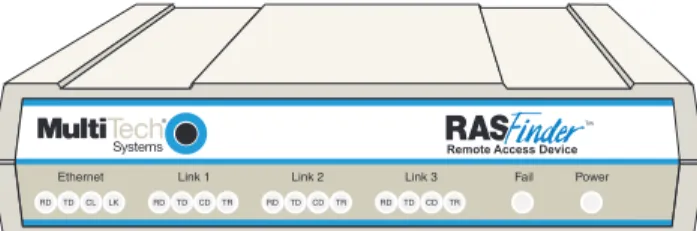
Remote Access Device
Figure 1. RASFinder Model MTASR3-200
Note: Although these modems are capable of 56K bps download performance, line impairments, public telephone infrastructure and other external technological factors currently prevent maximum 56 Kbps connections.
Related Documentation
The MTASR3-200 Quick Start Guide is intended to be used by qualified systems administrators and network managers. This quick start guide provides the necessary information for a qualified person to unpack, cable, load software, and configure the unit for proper operation.
Safety Warnings
1. Never install phone wiring during a lightning storm. 2. Never install phone jacks in wet locations unless
the jack is specifically designed for wet locations.
3.This product is to be used with UL and cUL listed computers. 4. Never touch uninsulated phone wires or terminals unless
the phone line has been disconnected at the network interface.
5. Use caution when installing or modifying phone lines. 6. Avoid using a phone (other than a cordless type) during an
electrical storm. There may be a remote risk of electrical shock from lightning.
7. Do not use the phone to report a gas leak in the vicinity of the leak.
8. To reduce the risk of fire, use only No. 26 AWG or larger
Unpacking your RASFinder
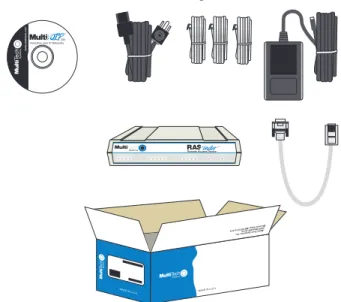
Remove all items from the box. See Figure 2.
MADE IN U.S.A MADE IN U.S.A
RD TDCLLK RD TDCD NS DS RD TDCD V35
Remote Access Device
www
.multitech.comVoice/Fax over IP Networks200
Remote Access Device
Cabling your RASFinder
Cabling your RASFinder involves making the proper WAN,
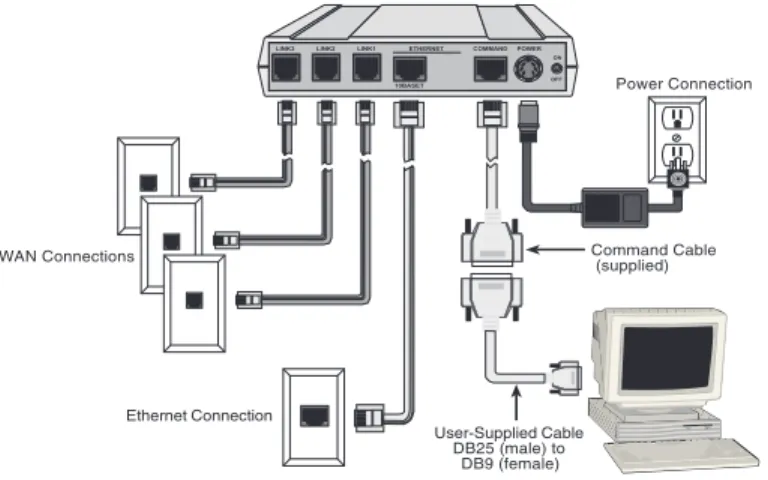
Ethernet, Command Port, and Power connections. Figure 3 shows the back panel connectors and the associated cable connections. TThe following procedure provides step-by-step instructions for connecting the cables to your RASFinder.
WAN Connections
Power Connection
Ethernet Connection
LINK3 LINK2 LINK1 ETHERNET COMMANDPOWER 10BASET10BASE2 ON OFF Command Cable (supplied) User-Supplied Cable DB25 (male) to
DB9 (female)
Figure 3. Cable Connections
1. Connect the RASFinder to a PC using the short RJ-45 to
DB9 (female) cable provided with your unit. Plug the RJ-45 end of the cable into the Command Port of the RASFinder and the other end into the PC's serial port. See Figure 3.
2. Connect an RJ-45 (UTP) cable to the 10 BASE-T
connector on the back of the RASFinder. Connect the other end of the cable to your LAN.
3. Connect one end of an RJ-11 cable to each of the LINK
Connectors on the RASFinder (labeled LINK 1, LINK 2, and LINK 3) and connect the other end to the phone jacks (as shown in Figure 3).
4. Connect one end of the power supply to a live AC outlet and connect the other end to the RASFinder as shown in Figure 3. The power connector is a 6-pin circular DIN connector.
5. Turn on power to the RASFinder by setting the backpanel
ON/OFF switch to the ON position. Wait for the Fail LED on the RASFinder to go OFF before proceeding. This may take a couple of minutes to go OFF.
At this time your RASFinder is completely cabled and powered on.
Installing Your RASFinder Software
The RASFinder software is set up to default to a Remote Access Server (RAS) application. Within the RAS application, you can configure the RASFinder to communicate with either a Radius Server for centralized network security or a proprietary Remote User Data base utility to establish your remote user profiles. You can also configure the RASFinder as a router for LAN-to-LAN routing.
The RASFinder CD-ROM contains your RASFinder software, this Quick Start, and the User Guide. The RASFinder CD-ROM is auto-detectable, and should start automatically when inserted into your CD-ROM drive. After configuring your RASFinder, you can view the User Guide by clicking the View Manuals icon and selecting either the Quick Start or User Guide.
1. Insert the RASFinder CD-ROM into the CD-ROM drive on your local PC. The CD-ROM should start automatically; however, it may take 10 to 20 seconds for the RASFinder screen to appear.
If the RASFinder Splash screen does not appear automatical-ly, click My Computer, right-click the CD-ROM drive icon, then click (Autorun or AutoPlay).
2. When the RASFinder screen appears, click the Install RAS Software button.
3. The welcome screen is displayed.
Press Enter or click Next> to continue.
4. The Choose Destination Location dialog box is displayed. Follow the onscreen instructions to install your RASFinder software.
You can either choose a different Destination Location for your RASFinder software by clicking Browse, or select the default destination by pressing Enter or clicking Next>.
It is recommended that you accept the default folder, C:\RASFind.xxx
5. The Select Program Folder dialog box appears.
Press Enter or click Next> to continue
6. The software is loaded onto your PC, then the next dialog box enables you to designate the COM port of the PC that is cabled to the RASFinder. On the Select Port field, click the down arrow and choose the COM port of your PC (COM1 --COM4) that is cabled to the RASFinder.
7. The Setup Complete dialog box is displayed.
Click Finish to continue.
8. The following message is displayed:
9. Click No to skip the upgrade process. The following message appears:
10. Click Yes to download the default setup. (Clicking No prevents you from setting up the defaults and downloading them to the RASFinder; instead, you are returned to the desktop, where
you will see a window with shortcut icons for the various utility programs in the software.)
11. The Default Parameters dialog box appears. This dialog box allows you to enable or disable IPX routing, assign the router name (required for IPX routing), establish the IP address and mask for the LAN port, set up the remote addresses for the WAN ports, and disable any WAN ports not used.
12. If your network protocol is IPX, continue with the following step. However, if your network protocol is IP, click the IPX Routing
Enable check box to disable IPX, then proceed to step 14.
IPX Routing Setup
13. Router Name: If this is the only RASFinder on your network, you can use the default Router Name (MTROUTER); other-wise, you must assign a new Router Name in this field. The Router Name can be any printable ASCII string of up to 8 characters (can be mixed uppercase and lowercase). The RASFinder will use this name to advertise its service in the IPX internetwork or as an AG Server, if that service is support-ed. Proceed to step 15.
IP Routing Setup
14. For IP Routing, after you have enter your unique LAN address, and the WAN Remote Addresses have to be in the same network as the IP Address.
In the IP group, change the default LAN IP Address that is assigned to your RASFinder’s LAN port. As you click OK, sequential addresses will appear in the Remote address fields for WAN1, 2, and 3. [See above, where the Ethernet IP Ad-dress was entered as 192.168.2.112, and the software applied
the next three sequential addresses (192.168.2.113,114, and 115) to WAN1, WAN2, and WAN3, respectively.]
15. The Checking Router dialog box is displayed with the message Ready to Download Wizard Setup displayed. Click OK to proceed
16. The Writing Setup dialog box (with the current date and the file size in bytes) is displayed as the setup configuration is written to the RASFinder.
17. Next, the Rebooting dialog box is displayed.
18. Check to ensure that the Fail LED on the RASFinder goes Off after the download is complete and the RASFinder is rebooted (the Rebooting dialog box goes away). This may take several minutes as the RASFinder reboots.
19. You are returned to the Multi-Tech RASFinder AutoRun screen where you can now install Acrobat Reader (by clicking the Install Acrobat Reader icon) or View Manuals.
To view the User Guide or this Quick Start, click the View Manuals icon.
20. If you are going to extablish your remote user profile database using the proprietary Remote User Database utility, proceed to the next section; if you are going to use a Radius server for centralized network security, proceed to the section entitled, Setting Up Remote Access Dail In User Server (RADIUS).
For Routing, proceed to the last section (Final Routing Setup) to set up the RASFinder as a router.
Setting Up Your Remote User Database
The proprietary Remote User Data Base supports remote dial-in users for user name, password, and port availability. Each dial-in user needs an entry in this database. You can add remote users, remove users, or edit information in the database.
1. From your desktop, click Start | Programs | RASFinder x.xx | Remote User Data Base, or double-click the Remote User Data Base icon in the RASFinder x.xx icon group window (below).
2. An Accounting Info - Read screen appears briefly, then the Users List dialog box is displayed.
3. The Add Users dialog box is displayed.
4. Build your user database by filling in the following fields for each user.
User Name
The User Name can have up to 39 characters. All printable characters are permitted, except no blanks are allowed in the user name. In dial-in and dial-out applications, the user name is treated as a case insensitive string.
Password
The Password can have up to 10 characters. In places where the password is used as a character string, it is treated as a case insensitive string. Elsewhere (PPP’s CHAP), it is treated as a case sensitive pattern. Filter
This drop-down list enables you to select a given user by means of the unique filter ID entry that was assigned to that user on the Add/Edit Filters dialog box. The filter IDs are unique alphanumeric Identifiers of up to 9 characters in length.
Call Back
Clicking this check box enables the Call Back function. Click ONLY this check box if the user can choose the number where he is to be called. That remote user would then use a standard PPP client or ASCII terminal dial-in.
To enable Call Back Security, check (activate) both the Call Back option and the Call Back Security Enabled option and fill in the call back number and delay fields. Call Back Security Enabled
This parameter is of use in dial-in applications where the user must always be called back at a specific phone number. For call back security, the administrator assigns the call back number and the call back delay.
Call Back Number
The call back number is active only if Call Back Security is enabled (checked). This is the pre-assigned number where the user will be called back. The user cannot choose the callback number while at the remote location.
Note: The Call Back Number can be entered either with or without dashes, the modem will simply ignore the dashes. Call Back Delay
Call back delay is active only if callback security is enabled. This entry specifies the duration (in seconds) after which the user will be called back at the
administrator-assigned number. Dial In Ports
The system administrator can enable (highlight) WAN Ports 1,2, and/or 3 to be made available for dialing in to the RASFinder.
Dial Out Ports
The system administrator can enable (highlight) WAN Ports 1,2, and/or 3 to be made available for dialing out from the RASFinder.
Click the Rights button to assign user permissions for the remote user.
5. The User Permissions dialog box is displayed.
6. Build your user permissions by filling in the following fields for each remote user.
Auto Protocols
This group enables the system administrator to assign either unrestricted LAN/intranet access or limited protocol access. The following three options are provided.
None
This option (the default setting) gives the user unrestricted access to the LAN/Intranet.
Telnet
This option allows Telnet sessions between the designated server (defined by the Host IP Address field) and the remote users. Telnet is an applications-level protocol commonly found in IP-based networks that allow terminal emulation at a remote workstation. If you select Telnet, you must enter an IP address in the Host IP Address field. This limits the user to only specific functions on the network. RLogin
This option allows the RASFinder to be used as an RLogin client for connecting to an RLogin Server (defined by the
Host IP Address field). RLogin is an application protocol that provides a terminal interface between Unix hosts using TCP/IP network protocol. Unlike Telnet, RLogin assumes that the remote host is a Unix machine. If you select RLogin, you are required to enter an IP address in the Host IP Address field. This limits the user to only specific functions on the network.
Host IP Address
Enter the IP Address for the Telnet or RLogin host
computer (server). The Host IP Address must be in dotted-decimal notation format.
Note: This field is only enabled (activated when either Telnet or RLogin has been enabled.
Protocols
The Protocols group enables you to limit the remote user to IP routing, IPX routing, or bridging (Spanning Tree); or a combination of any two or all three routing protocols. The default setting has all three protocols enabled.
User Service Types
The User Service Types group enables you to set the permissions for the remote user entry being configured. The systems
administrator can enable or disable the following options to customize the types of services for a particular remote user. By default, all permissions are enabled. To deny permissions to the entry being configured, click (check) the box to the left of the permission to disable the feature.
Outbound Permissions - grants dial-out rights to the remote user.
Inbound Permissions - grants dial-in rights to the remote user.
Framed Protocol Permissions - Grants the remote user framed protocol rights (e.g., Framed Protocol - PPP). When you enable (check) this option, the user becomes an unrestricted user (i.e., both framed and unframed protocols are allowed).
transfer rights.
RLogin Permissions - grants the remote user RLogin server connection rights.
Time Limits
The Time Limits group enables the system administrator to impose time-related restrictions to the entry being defined. Time of the Day Logins
The User Permissions grid enables the administrator to deny a remote user Internet access at certain times during the week. This would be applicable when the administrator wants to bring a system down for a particular reason and doesn’t want users to access the Internet at that time. By default, all time periods are color-filled with yellow indicating that the remote user has permission to access the Internet all the time. To deny permission for certain periods of time, click all applicable yellow boxes over the target time range to toggle them to red (Access Denied). 7. After each user is defined in the Add Users dialog box and all
the user parameters (Rights) are configured, click OK to display the updated User List dialog box. Click Filters to add filtering parameters for the remote user entry.
8. The Filters List dialog box is displayed.
9. The Add/Edit Filters dialog box is displayed.
10. Build your filtering parameters by filling in the following fields for each remote user.
ID
This field requires a unique ID identifying the remote user. The ID can be the name of a person, a work station, or a remote user identified simply as “User 1”. The ID can be up to 9 alphanumeric characters in length.
Default Action
This drop-down list enables you to select either filter or forward. If you select filter, then the entry will be transmitted with filtering properties. If you select forward, then the entry will be transmitted without filtering properties. The default setting is filter.
Filter Type
The Filter Type drop-down list enables you to select the filter type. The filter types are either IP Address, Protocol, or Do-main Name. The default setting for Filter Type is IP Address.
Address of the remote user in dotted-decimal notation format. Protocol - If you select Protocol as the filter type, the Add/ Edit Filters dialog box is displayed with Protocol and Port drop-down lists active. Select either TCP or UDP from the Protocol drop-down list and select either Telnet, FTP, or SFTP from the Port drop-down list.
Domain Name - If you select Domain Name as the filter type, the Add/Edit Filters dialog box is displayed with an active Domain Name field. Enter the domain name consisting of a sequence of names separated by periods (dots) followed by an entension; e.g., “pictures.computers.com”. The domain name can be up to 39 alphanumeric characters including periods.
Note: Current filter entries are displayed in the Existing Entries window.
Click OK to add the remote user to the Filters List dialog box and then click OK again to return to the User List dialog box. 11. Click Add User to continue adding users to your database. 12. After adding all current users to the database, click
Setting Up Remote Access Dial In User Server (RADIUS) RADIUS is an optional security feature that uses a single authenti-cation server to centralize security on networks with large modem pools, especially those with multiple communication servers.
1. From your desktop, click Start | Programs | RASFinder
x,xx | RASFinder Configuration, or double-click the RASFinder Configuration icon in the RASFinder x.xx icon group window when it is displayed on your desktop.
2. The main menu (Router Setup) is displayed.
Click PPP / SLIP to continue.
3. The PPP Port Setup dialog box is displayed; click the
Advanced tab.
4. The Radius Setup dialog box is displayed.
5. Click RADIUS Enable to enable Radius security services
for all ports on this RASFinder.
6. Click Accounting Enable if you want Radius to track
accounting information such as login and logout times, bytes sent and received, etc.
7. Leave Allow Call if Security Server Down unchecked
(disabled) to prevent users from logging in if the security servers are down.
8. Click Assign Remote Address Using RADIUS to enable
the Radius server to automatically assign the IP Address of the RASFinder WAN port that the user will dial into.
administrator. The shared Secret must be the same secret that is used on the Radius server whose address is being supplied for the Radius primary server address entry. 10. Obtain the Radius server address from the Radius
network administrator that will provide the security to the RASFinder. The Radius server address is to be entered in the Radius Primary Server Address field.
11. If additional servers are being used as backup servers, obtain their address(es) from the Radius network administrator and enter them in Backup Server group. Enter the address of the first backup server in the Backup Server Address 1 field. Enter the addresses of any additional backup servers in the Backup Server Address 2 and Backup Server Address 3 fields.
12. A set of default attribute values will be displayed in the Attribute Values group. These default values are used with the Multi-Tech Radius Server. You do not have to change these values if your RASFinder is communicating with Multi-Tech’s Radius Server. However, if you are using another vendor’s Radius Server to communicate with your RASFinder, you will have to check with your Radius Server network administrator to see how these attribute values are set up, then change the default values to the values used by that Radius server.
Final Routing Setup
1. From your desktop, click Start | Programs | RASFinder
x.xx | RASFinder Configuration, or double-click the RASFinder Configuration icon in the RASFinder x.xx icon group window when it is displayed on your desktop.
2. The main menu (Router Setup) is displayed.
Click PPP / SLIP to continue.
3. The PPP Port Setup dialog box is displayed.
Port Setup group in the bottom right corner; this enables Client or LAN and disables the default, Client only. Repeat this on the WAN 2 and WAN 3 tabs in turn.
4. If you are going to combine the three WAN ports together;
i.e., use a single IP address, check (enable) the MLPPP option on the Advanced tab.
Note: When the dialog box “When a PPP port is Client-or-LAN type:” appears, click the OK button each time the dialog box appears. You are returned to the Main Menu.
5. From the Main menu, click the IP button and the IP Port Setup dialog box appears with the Ethernet tab active and the Port Address displaying your LAN IP Address.
Click the WAN 1 tab.
6. On the WAN 1 tab, change the Port Address and Remote
Address groups to be on separate networks from the Ethernet LAN port.
dialog box, The IP addresses for all three WAN ports have to be identical and the remote WAN port addresses have to be within the same network and identical.
If you did not enable the MLPPP option, the WAN port addresses have to be on a different network from the LAN port address and have to be different from each other.
7. Click each of the WAN tabs and change the Port Address
group and Remote Address group to conform with the settings for WAN 1.
8. Click OK to return to the Main menu.
9. From the Main menu, click the Download Setup button to
write your configuration to the RASFinder. After your configuration is written to the RASFinder, you are returned to the Main menu. Your RASFinder is now configured for LAN-to-LAN routing.