Symantec AntiVirus™
Installation Guide
The software described in this book is furnished under a license agreement and may be used only in accordance with the terms of the agreement.
Documentation version 10.1.5.5000 PN: 10517969
Legal Notice
Copyright © 2006 Symantec Corporation. All rights reserved.
Federal acquisitions: Commercial Software - Government Users Subject to Standard License Terms and Conditions.
Symantec, the Symantec logo, LiveUpdate, Norton AntiVirus, Symantec AntiVirus, Symantec Client Security, Symantec Security Response, and Symantec System Center are trademarks or registered trademarks of Symantec Corporation or its affiliates in the U.S. and other countries. Other names may be trademarks of their respective owners.
The product described in this document is distributed under licenses restricting its use, copying, distribution, and decompilation/reverse engineering. No part of this document may be reproduced in any form by any means without prior written authorization of Symantec Corporation and its licensors, if any.
THE DOCUMENTATION IS PROVIDED "AS IS" AND ALL EXPRESS OR IMPLIED CONDITIONS, REPRESENTATIONS AND WARRANTIES, INCLUDING ANY IMPLIED WARRANTY OF MERCHANTABILITY, FITNESS FOR A PARTICULAR PURPOSE OR NON-INFRINGEMENT, ARE DISCLAIMED, EXCEPT TO THE EXTENT THAT SUCH DISCLAIMERS ARE HELD TO BE LEGALLY INVALID. SYMANTEC CORPORATION SHALL NOT BE LIABLE FOR INCIDENTAL OR CONSEQUENTIAL DAMAGES IN CONNECTION WITH THE FURNISHING PERFORMANCE, OR USE OF THIS DOCUMENTATION. THE INFORMATION CONTAINED IN THIS
DOCUMENTATION IS SUBJECT TO CHANGE WITHOUT NOTICE.
The Licensed Software and Documentation are deemed to be "commercial computer software" and "commercial computer software documentation" as defined in FAR Sections 12.212 and DFARS Section 227.7202.
Symantec Corporation 20330 Stevens Creek Blvd. Cupertino, CA 95014 USA http://www.symantec.com
Printed in the United States of America. 10 9 8 7 6 5 4 3 2 1
Technical Support
Symantec Technical Support maintains support centers globally. Technical Support’s primary role is to respond to specific queries about product feature and function, installation, and configuration. The Technical Support group also authors content for our online Knowledge Base. The Technical Support group works collaboratively with the other functional areas within Symantec to answer your questions in a timely fashion. For example, the Technical Support group works with Product Engineering and Symantec Security Response to provide alerting services and virus definition updates.
Symantec’s maintenance offerings include the following:
■ A range of support options that give you the flexibility to select the right amount of service for any size organization
■ A telephone and web-based support that provides rapid response and up-to-the-minute information
■ Upgrade insurance that delivers automatic software upgrade protection
■ Global support that is available 24 hours a day, 7 days a week worldwide. Support is provided in a variety of languages for those customers that are enrolled in the Platinum Support program
■ Advanced features, including Technical Account Management
For information about Symantec’s Maintenance Programs, you can visit our Web site at the following URL:
www.symantec.com/techsupp/ent/enterprise.html
Select your country or language under Global Support. The specific features that are available may vary based on the level of maintenance that was purchased and the specific product that you are using.
Contacting Technical Support
Customers with a current maintenance agreement may access Technical Support information at the following URL:
www.symantec.com/techsupp/ent/enterprise.html Select your region or language under Global Support.
Before contacting Technical Support, make sure you have satisfied the system requirements that are listed in your product documentation. Also, you should be at the computer on which the problem occurred, in case it is necessary to recreate the problem.
Product release level
■ Hardware information
■ Available memory, disk space, and NIC information
■ Operating system
■ Version and patch level
■ Network topology
■ Router, gateway, and IP address information
■ Problem description:
■ Error messages and log files
■ Troubleshooting that was performed before contacting Symantec
■ Recent software configuration changes and network changes
Licensing and registration
If your Symantec product requires registration or a license key, access our technical support Web page at the following URL:
www.symantec.com/techsupp/ent/enterprise.html
Select your region or language under Global Support, and then select the Licensing and Registration page.
Customer service
Customer service information is available at the following URL: www.symantec.com/techsupp/ent/enterprise.html
Select your country or language under Global Support.
Customer Service is available to assist with the following types of issues:
■ Questions regarding product licensing or serialization
■ Product registration updates such as address or name changes
■ General product information (features, language availability, local dealers)
■ Latest information about product updates and upgrades
■ Information about upgrade insurance and maintenance contracts
■ Advice about Symantec's technical support options
■ Nontechnical presales questions
■ Issues that are related to CD-ROMs or manuals
Maintenance agreement resources
If you want to contact Symantec regarding an existing maintenance agreement, please contact the maintenance agreement administration team for your region as follows:
■ Asia-Pacific and Japan: [email protected]
■ Europe, Middle-East, and Africa: [email protected]
■ North America and Latin America: [email protected]
Additional Enterprise services
Symantec offers a comprehensive set of services that allow you to maximize your investment in Symantec products and to develop your knowledge, expertise, and global insight, which enable you to manage your business risks proactively. Enterprise services that are available include the following:
These solutions provide early warning of cyber attacks, comprehensive threat analysis, and countermeasures to prevent attacks before they occur. Symantec Early Warning Solutions
These services remove the burden of managing and monitoring security devices and events, ensuring rapid response to real threats.
Managed Security Services
Symantec Consulting Services provide on-site technical expertise from Symantec and its trusted partners. Symantec Consulting Services offer a variety of prepackaged and customizable options that include assessment, design, implementation, monitoring and management capabilities, each focused on establishing and maintaining the integrity and availability of your IT resources.
Consulting Services
Educational Services provide a full array of technical training, security education, security certification, and awareness communication programs. Educational Services
www.symantec.com
Technical Support
Chapter 1
Introducing Symantec AntiVirus
About Symantec AntiVirus™ ... 13
What's new in this release ... 14
Components of Symantec AntiVirus ... 17
How Symantec AntiVirus works ... 20
Symantec AntiVirus servers and clients ... 21
Managed and unmanaged environments ... 21
Client groups ... 21
How clients and servers interact ... 22
Server groups ... 22
How to choose a primary management server ... 23
Managing your Symantec AntiVirus network with the Symantec System Center ... 24
How the Digital Immune System works ... 24
What you can do with Symantec AntiVirus ... 25
Where to get more information about Symantec AntiVirus ... 26
Chapter 2
Planning the installation
Plan your network architecture ... 29Network and system requirements ... 33
About setting administrative rights to target computers ... 33
About customizing installations by using .msi options ... 34
About configuring user rights with Active Directory ... 34
System time requirements ... 34
System requirements ... 35
About desktop firewalls ... 39
About Windows XP and Windows 2003 firewalls ... 42
Disabling Internet Connection Firewall ... 42
Disabling Windows Firewall ... 43
Prepare your clients and servers for installation ... 43
Create a list of computers that you want to protect ... 44
Remove virus threats and security risks ... 44
Evaluate antivirus and anti-adware or spyware software ... 44
Contents
Determine the programs that you can migrate ... 45
How to restructure your Symantec AntiVirus network ... 45
Install Symantec AntiVirus in stages ... 45
Chapter 3
Installing Symantec AntiVirus for the first time
Before you install ... 47About client installation ... 48
Symantec System Center installation on server operating systems ... 48
Installation sequence ... 49
Installing the Symantec System Center ... 49
Installing the primary management server ... 55
Configuring a primary management server ... 62
Backing up the server group root certificate ... 65
Installing management servers from the Symantec System Center ... 66
Configuring your server group ... 70
Configuring VDTM for a server group ... 71
Configuring scan schedules ... 72
Configuring Auto-Protect scans ... 72
Installing client software ... 73
About disabling the Windows XP firewall ... 74
Installing client software by using the Symantec System Center ... 74
Installing client software from the CD ... 76
Testing antivirus capabilities ... 77
Testing antivirus configuration ... 79
Testing Auto-Protect ... 79
Testing Risk Tracer ... 79
Chapter 4
Installing reporting
About planning the reporting installation ... 81About reporting server settings ... 83
Installing reporting for the first time ... 86
Installing the reporting server and MSDE database on one computer ... 86
Configuring a server group to use the reporting server ... 87
Installing reporting agents on Symantec AntiVirus servers ... 87
Logging in to the reporting server ... 89
Installing the reporting server and a local Microsoft SQL Server database ... 89
Installing the reporting server and a remote Microsoft SQL Server
database ... 90
Microsoft SQL Server 2000/2005 installation requirements ... 91
Microsoft SQL Server 2000 server and client configuration requirements ... 91
Microsoft SQL Server 2005 server and client configuration requirements ... 93
Installing the reporting server and a remote SQL database ... 95
Installing MSDE and reporting servers with non-default settings ... 96
Installing MSDE with non-default settings ... 96
Installing reporting servers with non-default settings ... 98
Uninstalling reporting servers ... 100
Chapter 5
Migrating to the current version of Symantec
AntiVirus
About migration ... 105About migrating Symantec AntiVirus 10.0 to 10.1 ... 106
About migrating to the SSL communications architecture ... 107
Disable security risk programs from other vendors ... 109
How migration works ... 109
Steps to migrating to the current version ... 109
Supported and unsupported server and client migration paths ... 110
Supported migration paths ... 111
Unsupported migration paths ... 112
Unsupported migration of Administrator tools ... 112
Custom settings may be lost ... 113
Quarantine items are automatically migrated ... 113
Symantec System Center upgrade scenarios ... 113
Upgrading the Symantec System Center ... 115
Before you upgrade the Symantec System Center ... 115
Upgrading the Symantec System Center for your scenario ... 116
Installing the Symantec System Center ... 118
Unlocking the migrated server group ... 118
Migrating management servers ... 119
Before you migrate management servers ... 120
Migrating the first management servers ... 121
About migrating subsequent servers ... 122
Migrating Symantec AntiVirus on NetWare platforms ... 123
Preventing errors when the logon script is used ... 124
About VPStart commands ... 124
About migration from other server antivirus products ... 125
Migrating client software ... 125
9 Contents
Before you migrate client software ... 126
Migrating clients by using the CD ... 126
Migrating clients by using the Symantec System Center ... 126
Additional client migration methods ... 127
How to determine parent management servers and policy ... 127
Other antivirus product client migrations ... 127
About migrating LiveUpdate servers ... 128
Chapter 6
Installing Symantec AntiVirus management
components
Before you install ... 129How to prepare for the Symantec System Center installation ... 130
Symantec System Center installation ... 130
Installing and configuring optional components ... 131
Installing and configuring the Central Quarantine ... 131
Installing and configuring the LiveUpdate Administration Utility ... 139
Uninstalling Symantec AntiVirus management components ... 143
Uninstalling the Symantec System Center ... 143
Chapter 7
Installing Symantec AntiVirus servers
Before you install ... 145TCP and legacy UDP communications ... 146
Management servers and certificates ... 146
Server installation methods ... 146
Why AMS2is available as an installation option ... 147
Preparations for Symantec AntiVirus server installation ... 148
Installing Symantec AntiVirus servers locally ... 152
Deploying the server installation across a network connection ... 154
Starting the server installation ... 155
Running the server setup program ... 155
Selecting computers to which you want to install ... 158
Completing the server installation ... 160
Checking for errors ... 163
Manually loading the Symantec AntiVirus NLMs ... 164
Installing with NetWare Secure Console enabled ... 164
Resolving failed server installations on Netware ... 165
Manually installing AMS2server ... 166
Chapter 8
Installing Symantec AntiVirus clients
Before you install ... 169
About creating a primary management server ... 170
About client installation methods ... 170
About customizing client installation files by using .msi options ... 171
About configuring user rights with Active Directory ... 172
About Symantec AntiVirus client on a Terminal Server ... 172
About Windows cluster server protection ... 172
About email support ... 173
About the client configurations file ... 174
Installing Symantec AntiVirus clients locally ... 175
Deploying the client installation across a network connection ... 179
Starting the client installation ... 180
Running the client setup program ... 180
Installing from the client installation folder on the server ... 184
Configuring automatic client installations from NetWare servers ... 185
Post-installation client tasks ... 186
Configuring clients with the Grc.dat configuration file ... 186
Copying the configuration files from a management server ... 186
Pasting the configuration files on the client ... 187
Uninstalling Symantec AntiVirus clients ... 188
Chapter 9
Symantec AntiVirus advanced installation options
About Symantec AntiVirus advanced installation options ... 189Advanced installation options for Symantec AntiVirus server ... 189
About customizing server installations by using .msi options ... 190
About configuring user rights with Active Directory ... 190
About deploying to a target computer without granting administrator privileges ... 190
Creating a text file with IP addresses to import ... 191
Importing a text file of computers that you want to install ... 191
Installing with the server installation package ... 193
About installing servers by using Microsoft SMS ... 193
Advanced installation options for Symantec AntiVirus client ... 194
Web-based deployment ... 194
Installing clients by using logon scripts ... 203
About installing clients using third-party products ... 205
11 Contents
Appendix A
Windows installer (.msi) command-line reference
Installing Symantec AntiVirus using command-line parameters ... 209
Default Symantec AntiVirus server installation ... 210
Default Symantec AntiVirus client installation ... 210
Windows Installer commands ... 211
Server installation properties and features ... 213
Symantec AntiVirus server properties ... 213
Symantec AntiVirus server features ... 214
Client installation properties and features ... 214
Symantec AntiVirus client properties ... 215
Windows Security Center features ... 216
Symantec AntiVirus features ... 216
Symantec AntiVirus client features ... 217
Using the log file to check for errors ... 217
Identifying the point of failure of an installation ... 218
Command-line examples ... 218
Appendix B
Applying a Symantec AntiVirus patch
About applying a Symantec AntiVirus patch ... 221Downloading the Symantec AntiVirus patch and ClientRemote Install Tool ... 222
Deploying the patch using the ClientRemote Install Tool ... 223
Starting the patch deployment ... 224
Running the ClientRemote Install Tool ... 224
Introducing Symantec
AntiVirus
This chapter includes the following topics:
■ About Symantec AntiVirus™
■ What's new in this release
■ Components of Symantec AntiVirus
■ How Symantec AntiVirus works
■ How the Digital Immune System works
■ What you can do with Symantec AntiVirus
■ Where to get more information about Symantec AntiVirus
About Symantec AntiVirus™
Antivirus protection alone is not a sufficient defense against today's complex Internet security threats. One breed of threats blend characteristics of viruses, worms, Trojan horses, and malicious code with server and Internet vulnerabilities. By using multiple methods and techniques, blended threats such as Code Red, Bugbear, and Opaserv can rapidly initiate, transmit, and spread, causing widespread damage. The newest breed of security risks includes adware and spyware, which can take control of computers without user permission or knowledge.
Effective protection from security risks requires a security solution that integrates multiple layers of defense and response mechanisms. This solution includes the management tools that simplify the collection of data and reporting of security events. Symantec AntiVirus is an integrated security solution that combines
1
Chapter
antivirus protection, security-risk protection, endpoint compliance, and reporting capabilities. From a single management console, Symantec AntiVirus provides a comprehensive view of network security and rapid response to security threats. Symantec AntiVirus provides the following features:
■ Automated security-risk protection against unwanted adware and spyware.
■ An enterprise-level view of workstation security, with tools enabling a rapid, integrated response to security problems across a network.
■ Security policy enforcement at the client level, which includes the endpoint compliance policies that ensure your clients are protected before they gain access to your network. Administrators can create, deploy, and lock down security policies and settings to keep systems up to date and properly configured at all times.
■ Simplified security threat response through centralized updating of antivirus and security risk definitions.
■ Reporting capabilities that simplify collecting data, analyzing risk trends, and creating reports of security events from your entire network.
■ Simplified management. Antivirus, reporting, and endpoint compliance are installed, configured, and updated from the same management console. The central management console enables administrators to audit the network, identify unprotected nodes, and apply the appropriate security protection before a threat occurs
■ Lower administrative and support costs when compared to the cost of managing several security products from individual vendors.
What's new in this release
Symantec AntiVirus includes new features, as well as improvements to existing features.
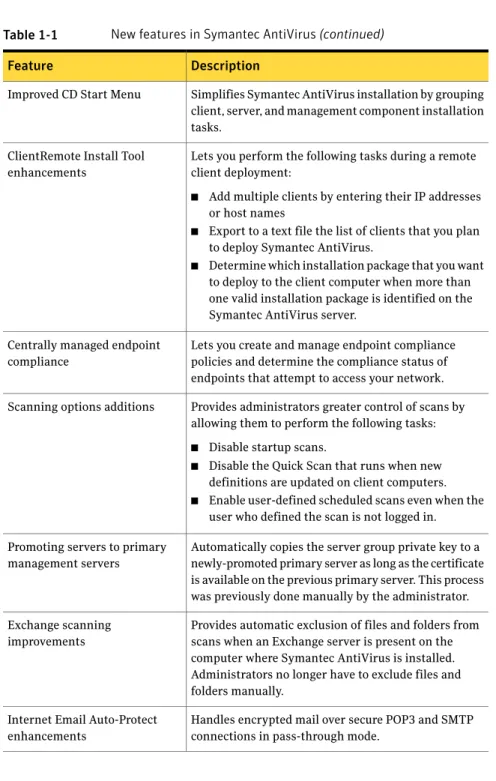
Table 1-1 New features in Symantec AntiVirus
Description Feature
Includes an integrated reporting system, which enables administrators to quickly and easily review Symantec AntiVirus events and configurations, and configure alerts. Administrators can also review the reports from a Web browser.
Includes a reporting agent that you can install on legacy Symantec AntiVirus servers, so that a reporting server can collect events from these servers as well.
Reporting
Protects your Symantec AntiVirus computers by blocking security risks before they install if Symantec determines that this action would not leave the computer in an unstable state.
Auto-Protect improvements
Repairs complicated risks, such as Winsock LSP and host file infections, stealthed user mode risks (rootkits), and persistent security risks that are difficult to remove or that reinstall themselves.
Anti-spyware improvements
Provides real-time antivirus file protection through Auto-Protect and file system scanning on supported kernels and distributions of Red Hat® Enterprise, SuSE™ Enterprise, and Novell® Desktop Linux. Client computers are unmanaged, but administrators can configure them by using the provided command-line interface. Users can display product information and initiate a LiveUpdate from client computers.
Symantec AntiVirus for Linux®
Lets administrators better define their company's security policies by allowing them to exclude security risks from on-demand scans and Auto-Protect scans. Security risks exclusions
Rates impact of security risks on several different factors including:
■ Privacy ■ Performance ■ Ease of removal
■ Amount of stealth risks display when they install You can use this information to decide what security risks should be excluded from scanning.
Security risk scanning improvements
15 Introducing Symantec AntiVirus
Table 1-1 New features in Symantec AntiVirus(continued)
Description Feature
Simplifies Symantec AntiVirus installation by grouping client, server, and management component installation tasks.
Improved CD Start Menu
Lets you perform the following tasks during a remote client deployment:
■ Add multiple clients by entering their IP addresses or host names
■ Export to a text file the list of clients that you plan to deploy Symantec AntiVirus.
■ Determine which installation package that you want to deploy to the client computer when more than one valid installation package is identified on the Symantec AntiVirus server.
ClientRemote Install Tool enhancements
Lets you create and manage endpoint compliance policies and determine the compliance status of endpoints that attempt to access your network. Centrally managed endpoint
compliance
Provides administrators greater control of scans by allowing them to perform the following tasks: ■ Disable startup scans.
■ Disable the Quick Scan that runs when new definitions are updated on client computers. ■ Enable user-defined scheduled scans even when the
user who defined the scan is not logged in. Scanning options additions
Automatically copies the server group private key to a newly-promoted primary server as long as the certificate is available on the previous primary server. This process was previously done manually by the administrator. Promoting servers to primary
management servers
Provides automatic exclusion of files and folders from scans when an Exchange server is present on the computer where Symantec AntiVirus is installed. Administrators no longer have to exclude files and folders manually.
Exchange scanning improvements
Handles encrypted mail over secure POP3 and SMTP connections in pass-through mode.
Internet Email Auto-Protect enhancements
Table 1-1 New features in Symantec AntiVirus(continued)
Description Feature
Improves network performance by allowing administrators to enable trust in remote versions of Auto-Protect and to use a network cache to reduce duplicate scanning across network drives and improve file transfer speed.
Network scanning options
Lets you configure Symantec AntiVirus clients and servers to automatically remove items from the Quarantine, Backup Items, and Repaired Items after a specified time interval or when the directory where they are stored reaches a certain size. You can also specify a client's local quarantine directory from the Symantec System Center.
Quarantine enhancements
Protects Symantec internal objects, as well as processes. Tamper Protection
enhancements
Components of Symantec AntiVirus
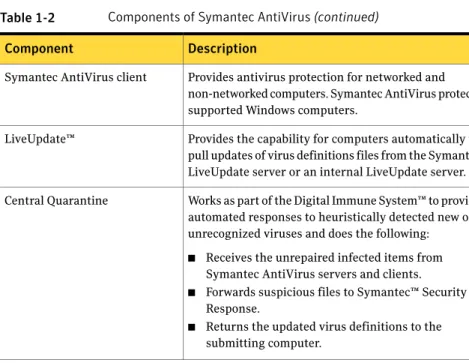
Table 1-2describes the main components of Symantec AntiVirus. Table 1-2 Components of Symantec AntiVirus
Description Component
Performs management operations such as the following: ■ Installing antivirus protection on workstations and
network servers.
■ Updating virus definitions.
■ Managing network servers and workstations running Symantec AntiVirus.
The Symantec System Center
Collects and organizes Symantec AntiVirus events, including virus and security-risk alerts, scans, definitions updates, endpoint compliance events, and intrusion attempts. Also lets you create and print detailed reports, and set up alerting.
Reporting
■ Protects the supported Windows® and NetWare® computers.
■ Pushes the configuration and virus definitions files updates to managed clients.
Symantec AntiVirus server
17 Introducing Symantec AntiVirus
Table 1-2 Components of Symantec AntiVirus(continued)
Description Component
Provides antivirus protection for networked and non-networked computers. Symantec AntiVirus protects supported Windows computers.
Symantec AntiVirus client
Provides the capability for computers automatically to pull updates of virus definitions files from the Symantec LiveUpdate server or an internal LiveUpdate server. LiveUpdate™
Works as part of the Digital Immune System™ to provide automated responses to heuristically detected new or unrecognized viruses and does the following: ■ Receives the unrepaired infected items from
Symantec AntiVirus servers and clients. ■ Forwards suspicious files to Symantec™ Security
Response.
■ Returns the updated virus definitions to the submitting computer.
Central Quarantine
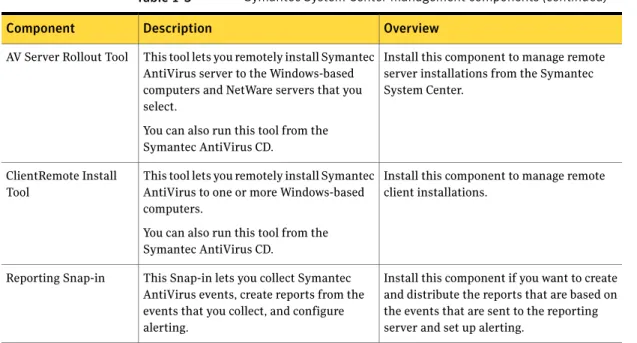
Table 1-3describes the Symantec System Center management components, which are installed by default except the Alert Management System2Console.
Table 1-3 Symantec System Center management components
Overview Description
Component
■ Install the Symantec System Center console to the computers from which you plan to manage Symantec AntiVirus. ■ Install to at least one computer to view
and administer your network.
If your organization is large or you work out of several offices, you can install the Symantec System Center to as many computers as you need. Rerun the installation program and select the appropriate option.
■ The Symantec System Center does not need to be installed on a network server or an antivirus server.
The Symantec System Center is the console that you use to administer managed Symantec products. The Symantec System Center is a stand-alone application that runs under Microsoft® Management Console. The Symantec System
Table 1-3 Symantec System Center management components(continued)
Overview Description
Component
■ Install the AMS2console to the same computer on which the Symantec System Center console is installed.
■ Install the AMS2service to one or more primary management servers on which Symantec AntiVirus server is installed. ■ If you choose not to install AMS2, you can
use the notification and logging mechanisms that are available from the Symantec System Center.
■ If you plan to implement Symantec Enterprise Security alerting instead of AMS2, you do not need to install AMS2. The AMS2console provides alerts from
AMS2clients and servers.
When you install the AMS2console, you can configure alert actions for Symantec AntiVirus servers that have the AMS2 service installed. When a problem occurs, AMS2can send alerts through a pager, an email message, and other means. Note:Reporting replaces AMS2as the recommended method of alerting. You still need the AMS2console to manage legacy alerting functionality.
Alert Management System2(AMS2) console
Install this component to do the following from the Symantec System Center: ■ Set up and administer Symantec
AntiVirus server and client groups. ■ Manage antivirus protection on the
computers that run Symantec AntiVirus. ■ Configure groups of the computers that
run Symantec AntiVirus. ■ Manage events.
■ Configure alerts.
■ Perform remote operations, such as virus scans and virus definitions files updates. This management Snap-in for the Symantec
System Center lets you manage Symantec AntiVirus on workstations and network servers.
Symantec AntiVirus Snap-in
Install this component to manage firewall policy packages.
This snap-in lets you create firewall policy packages for the workstations that run the Symantec Client Firewall.
Symantec Client Firewall Snap-in
Install this component to manage endpoints, view endpoint status, and determine the endpoint compliance that is based on the compliance policies that you configure. This Snap-in lets you configure compliance
policies and determine the compliance status of endpoints that have supported VPN or network access provider solutions installed.
Symantec Endpoint Compliance Snap-in
19 Introducing Symantec AntiVirus
Table 1-3 Symantec System Center management components(continued)
Overview Description
Component
Install this component to manage remote server installations from the Symantec System Center.
This tool lets you remotely install Symantec AntiVirus server to the Windows-based computers and NetWare servers that you select.
You can also run this tool from the Symantec AntiVirus CD.
AV Server Rollout Tool
Install this component to manage remote client installations.
This tool lets you remotely install Symantec AntiVirus to one or more Windows-based computers.
You can also run this tool from the Symantec AntiVirus CD.
ClientRemote Install Tool
Install this component if you want to create and distribute the reports that are based on the events that are sent to the reporting server and set up alerting.
This Snap-in lets you collect Symantec AntiVirus events, create reports from the events that you collect, and configure alerting.
Reporting Snap-in
How Symantec AntiVirus works
If you install, upgrade, or administer Symantec AntiVirus for the first time, you must understand how Symantec AntiVirus is organized in your network. A Symantec AntiVirus network consists of Symantec AntiVirus servers and clients. Like other networks, a Symantec AntiVirus network communicates to perform important tasks across your entire network. You can view and configure your Symantec AntiVirus clients and servers using Symantec-supplied administrator tools.
You must understand the following Symantec networking concepts to administer Symantec AntiVirus:
■ Symantec AntiVirus servers and clients
■ Managed and unmanaged environments
■ Client groups
■ How clients and servers interact
■ Server groups
■ How to choose a primary management server
Symantec AntiVirus servers and clients
Symantec AntiVirus's main purpose is to protect files on your network and client computers from viruses and other risks, such as spyware and adware. Symantec AntiVirus clients and Symantec AntiVirus servers protect each computer on your network and are the most important lines of defense against security threats. Because they perform many identical functions, you cannot install both on the same computer.
You should install either Symantec AntiVirus server or client on every computer in your network. Symantec AntiVirus client should be installed on most computers, while Symantec AntiVirus server installations should be limited to the number that is needed to manage the clients in your network. Symantec AntiVirus server performs additional functions, such as distributing virus and security risk definitions across your network.
Managed and unmanaged environments
Symantec AntiVirus clients can be installed as either unmanaged or managed. In an unmanaged Symantec AntiVirus network, you must administer each computer individually, or pass this responsibility to the primary user of the computer. The responsibilities include updating virus and security risk definitions, configuring antivirus settings, and periodically upgrading or migrating client software. This approach should be taken for the smaller networks that have limited or no information technology resources.
The managed Symantec AntiVirus network takes full advantage of Symantec AntiVirus's networking capabilities. In a managed environment, you must also install Symantec AntiVirus servers, in addition to clients. Each client and server on your network can be monitored, configured, and updated from a single computer. You can use a Symantec administrator tool that is called the Symantec System Center to verify which computers in the network are protected and working properly. You can also install and upgrade Symantec AntiVirus clients and servers from the Symantec System Center.
Client groups
In a managed Symantec AntiVirus network, Symantec AntiVirus clients can be organized into client groups. Client groups let you group together the Symantec AntiVirus clients that require similar access levels and configuration settings. You can simultaneously configure multiple clients by configuring the client group settings, rather than configuring each client individually. You can create, view, and configure client groups from the Symantec System Center.
21 Introducing Symantec AntiVirus
How clients and servers interact
In a managed network, every Symantec AntiVirus client is managed by a Symantec AntiVirus server, which you can assign during the client installation. A managed client's server is also called its parent management server. The Symantec AntiVirus parent management server provides its clients with virus and security risk definitions updates and configuration information, and keeps track of these settings. The managed clients, in turn, keep track of their parent management server. When you organize Symantec AntiVirus clients into client groups, you actually configure their parent management servers. The parent management servers then pass this information to their respective clients. Periodically, managed clients, in turn, check in with their parent management server to determine if new configuration information or definitions are available.
Server groups
A server group is a collection of Symantec AntiVirus servers and clients. If you make configuration changes at the server group level, they can apply to only servers, only the managed clients, or all the clients and servers, if the configuration change is applicable to both. A small network generally requires one server group. If you plan on deploying Symantec AntiVirus to multiple locations, you should consider creating at least one server group for each physical location. You should consider the speed of communication between multiple distinct networks to determine whether to create separate server groups. Separating networks into different server groups can minimize or eliminate the need to use internetwork communications including configuration file and virus definitions file transfers. Each server group must have at least one Symantec AntiVirus server, although it is recommended that a second server be used as a back up server. Typically, the rest of the computers in the server group should have Symantec AntiVirus client installed.
Each server group, regardless of whether it contains more than one Symantec AntiVirus server, must designate a server as the primary management server before any clients can be added. Only one primary management server can exist in a server group. Additional servers in the server group are considered secondary management servers. Both primary and secondary management servers can manage many or no Symantec AntiVirus clients.
The primary management server contains the server group configuration settings. Also, by default, the primary management server is the only computer in the server group that can run LiveUpdate to download definitions from Symantec Security Response. The secondary management servers and managed clients receive their definitions updates from the primary management server either directly or indirectly as a communication across your internal network. This
method of distributing virus definitions updates is known as the Virus Definition Transport Method (VDTM).
One or more server groups in your network are collectively referred to as your system hierarchy. From top to bottom, a system hierarchy consists of the following:
■ Server groups
■ Primary Symantec AntiVirus servers
■ Secondary Symantec AntiVirus servers
■ Symantec AntiVirus clients
Symantec AntiVirus clients can also be grouped together into client groups which introduces another layer in the system hierarchy between servers and clients. See“Client groups”on page 21.
How to choose a primary management server
The first decision that you should make when setting up your Symantec AntiVirus network is which computer to install the Symantec AntiVirus primary management server. Generally, you should install the primary management server on a computer that is not used by a particular user and is dedicated to the role of being the primary management server.
Do not install the primary management server onto a computer that acts as a server in some other capacity in your network. Doing so can cause installation errors and can introduce security vulnerabilities to your network.
You should not install the primary management server on to computers that include the following:
■ Microsoft Exchange server
For more information on protecting email servers, see the Symantec AntiVirus Reference Guide in the Docs directory on your installation CD.
■ Web server (except if it is used for the reporting server)
■ Programs that prevent you from restarting the computer at any given time The Symantec AntiVirus primary management server acts as a bridge for communication between itself and the other servers and clients that belong to the server group. For larger networks, the network traffic that the primary management server generates can become significant. This traffic may dictate which computer that you choose to install your primary management server and how many server groups that your network needs.
Generally, all other computers in the server group should have Symantec AntiVirus clients installed except for secondary management servers, which should be
23 Introducing Symantec AntiVirus
installed as a backup in case the primary management server fails or encounters problems.
Managing your Symantec AntiVirus network with the Symantec System
Center
In a managed Symantec AntiVirus environment, the Symantec System Center is the only administrator tool that you need to manage your network. You can install the Symantec System Center on any supported computer regardless of whether the computer is a Symantec AntiVirus client or server. The Symantec System Center is commonly installed on the same computer as the primary management server, although it is not necessary. You should install the Symantec System Center on the computer that is most convenient for your Symantec AntiVirus administrator to access. For added convenience, you can install the Symantec System Center on multiple computers.
The Symantec System Center mainly interacts with the server group's primary management server. Uninstalling and reinstalling the Symantec System Center does not affect the configuration settings that are made to your Symantec AntiVirus network.
How the Digital Immune System works
Symantec AntiVirus lets you deploy and centrally manage virus and security risk definitions files on clients according to the requirements of your enterprise. To protect against viruses and other threats that are not yet defined in files, you can use the Digital Immune System.
The Digital Immune System is a fully automated, closed-loop antivirus system that manages the entire antivirus process, including virus discovery, virus analysis, and the deployment and repair of files that could not be repaired on a client computer. This automated system dramatically reduces the time between when a virus is found and when a repair is deployed, which decreases the severity of many threats.
Note:The Digital Immune System is a complex system that benefits large networks only. It is not a required component in your Symantec AntiVirus network. You should not install the Digital Immune System in your network unless you protect at least 30,000 managed clients. Installing the Digital Immune System to a smaller network can decrease the efficiency of your Symantec AntiVirus network. The Digital Immune System works with the Central Quarantine and performs the following actions:
When a client computer that is configured to repair infected files cannot repair a specific file, it forwards the file first to the local Quarantine, and then to the Central Quarantine Server where more current virus definitions might be available.
Identifies and isolates viruses
If the Central Quarantine has more current virus definitions than the submitting computer, it might be able to fix the file. If so, it pushes the newer definitions to the submitting computer. If the file cannot be repaired, it is sent to a Symantec Security Response gateway for further analysis.
Rescans the file and submits viruses to Symantec™ Security Response
When the Digital Immune System receives a new submission, it analyzes the virus, generates the repair, and tests it. Then it builds new virus definitions files, including the new virus fingerprint, and returns the new virus definitions files to the gateway. Usually, this process occurs automatically. However, some cases require Symantec Security Response to intervene. Analyzes submissions, and
generates and tests repairs
The Quarantine Agent downloads the new virus definitions and installs them on the Central Quarantine Server. The updated definitions are then pushed to the submitting computer, if they are needed.
Deploys repairs
For details about configuring the Central Quarantine and about using the Digital Immune System, see the Symantec Central Quarantine Administrator's Guide.
What you can do with Symantec AntiVirus
Symantec AntiVirus lets you do the following:■ Protect against viruses, blended threats, and security risks such as adware and spyware.
■ Manage the deployment, configuration, updating, and reporting of antivirus protection from an integrated management console.
■ Manage Symantec AntiVirus clients based on their connectivity.
■ Quickly respond to virus outbreaks and deploy updated virus definitions.
■ Create and maintain the reports that detail important Symantec AntiVirus events that occur in your network.
■ Provide a high level of protection and an integrated response to security threats for all users that connect to your network. This protection includes
25 Introducing Symantec AntiVirus
telecommuters with connections that are always on and mobile users with intermittent connections to your network.
■ Obtain a consolidated view of multiple security components across all of the workstations on your network.
■ Perform a customizable, integrated installation of all of the security components and set policies simultaneously.
■ Establish and enforce security policies.
■ View histories and log data.
Where to get more information about Symantec
AntiVirus
Sources of information on using Symantec AntiVirus include the following:
■ Symantec AntiVirus™ Administrator's Guide
■ Symantec AntiVirus™ Reference Guide
■ Endpoint Compliance Implementation Guide
■ Reporting User's Guide
■ Symantec AntiVirus™ Client Guide
■ LiveUpdate Administrator's Guide
■ Symantec Central Quarantine Administrator's Guide
■ Symantec AntiVirus™ for Linux® Implementation Guide
■ Symantec AntiVirus™ for Linux® Client Guide
■ Online Help that contains all of the content that is in the guides and more The primary documentation is available in the Docs folder on the Symantec AntiVirus CD. Some individual component folders contain component-specific documentation. Updates to the documentation are available from the Symantec Technical Support and Platinum Support Web sites.
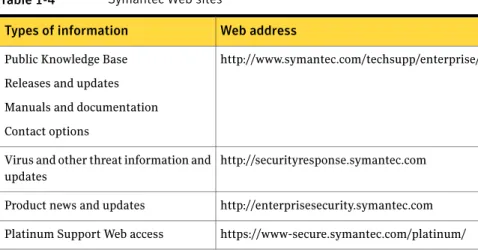
Table 1-4lists additional information that is available from the Symantec Web sites.
Table 1-4 Symantec Web sites
Web address Types of information
http://www.symantec.com/techsupp/enterprise/ Public Knowledge Base
Releases and updates Manuals and documentation Contact options
http://securityresponse.symantec.com Virus and other threat information and
updates
http://enterprisesecurity.symantec.com Product news and updates
https://www-secure.symantec.com/platinum/ Platinum Support Web access
27 Introducing Symantec AntiVirus
Planning the installation
This chapter includes the following topics:■ Plan your network architecture
■ Network and system requirements
■ About desktop firewalls
■ About Windows XP and Windows 2003 firewalls
■ Prepare your clients and servers for installation
Plan your network architecture
Symantec AntiVirus installation configurations scale from small to large deployments. In the small deployments that support up to 100 clients, you can install all management components and servers on one computer.
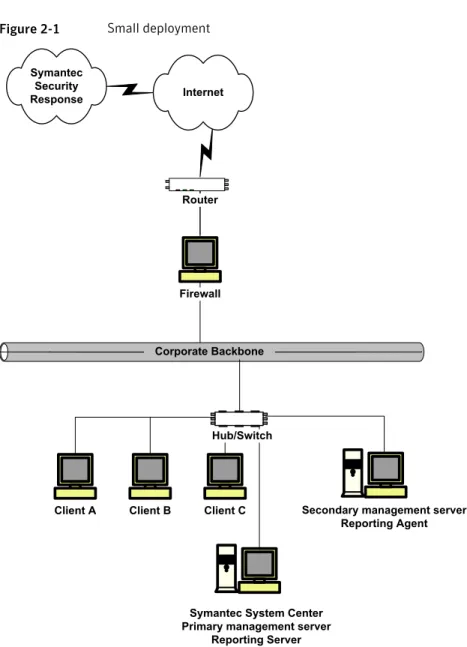
Figure 2-1illustrates how Symantec AntiVirus management and server software are collocated in a small deployment.
2
Chapter
Figure 2-1 Small deployment
Symantec System Center Primary management server
Reporting Server Symantec
Security Response
Corporate Backbone Internet
Router
Firewall
Hub/Switch
Client A Client B Client C Corporate Backbone
Secondary management server Reporting Agent
With this architecture, administrators use the Symantec System Center, a primary management server, and a reporting server on one computer to manage and update clients with virus definitions files. The reporting server lets you generate a variety of reports about client configurations and status, but must be installed on a supported Microsoft Server operating system. Clients might be attached to hubs, which create a flat network. Clients might be segmented with switches into different subnets, which is an efficient way to conserve bandwidth. You manage
this architecture with one server group, which you create by using the Symantec System Center.
This architecture also illustrates a best practice of creating a secondary
management server in a server group. When a server group contains two or more management servers, every server other than the primary management server is defined as a secondary management server. Symantec AntiVirus management servers do not require server operating systems, but do not support email scanning like the clients. If you install a reporting server, all other management servers require a reporting agent.
If your server group contains one management server only, which would be the primary, and if that server crashes, you cannot unlock and manage the server group from the Symantec System Center. If you have a secondary management server in the group, you can unlock the server group. You can then migrate the clients that were managed by the crashed server to a new or existing server in the group by copying a Grc.dat file from the new or existing server to the clients. See“Configuring clients with the Grc.dat configuration file”on page 186. You should back up the pki directory and all subdirectories of your primary management server even if you create a secondary management server. If your primary management server becomes corrupt, you can re-create it if you have the backup files to restore. For details, refer to the Knowledge Base articles on the Symantec Web site.
Note:For first-time installations, you should create and configure Symantec AntiVirus with one primary management server that is dedicated to managing a few clients and a secondary management server for disaster recovery purposes if the primary management server fails.
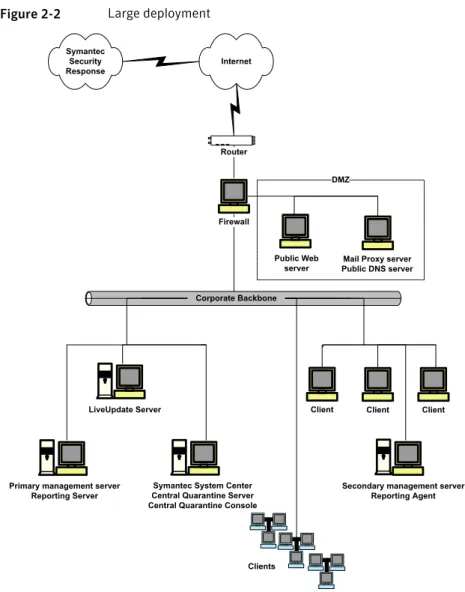
In large deployments that might support thousands of client computers, you can distribute Symantec AntiVirus across your enterprise. For example, you can install management components on different computers, install Symantec AntiVirus servers on multiple computers, and install a LiveUpdate server, which provides a single point for downloading virus and security risk definitions.
Figure 2-2illustrates how Symantec AntiVirus management and server software is distributed in a relatively large deployment.
31 Planning the installation
Figure 2-2 Large deployment Symantec
Security Response
Corporate Backbone Internet
DMZ
Public Web server Router
Mail Proxy server Public DNS server Firewall
Client Client Client
Secondary management server Reporting Agent LiveUpdate Server
Symantec System Center Central Quarantine Server Central Quarantine Console Primary management server
Reporting Server
Clients Corporate Backbone
With this architecture, one computer runs the Symantec System Center, which lets administrators manage multiple server and client groups and a Central Quarantine server. The Symantec System Center also lets you manage the reporting server. This architecture also deploys a separate LiveUpdate server from which antivirus servers and clients receive the latest virus definitions files. By using a LiveUpdate server, only one computer retrieves the virus definitions files over the Internet, which preserves firewall bandwidth.
It is possible to manage over 100,000 clients with each management server, both primary and secondary. It is possible to manage very large environments with
one server group. Most large environments, however, configure server groups by geographic location and might use one server group for email servers, which have special requirements. For details about email servers, refer to the Symantec AntiVirus Reference Guide. Each reporting server can manage up to 50,000 clients. In large deployments, you might also need to tune how definitions update files are distributed by specifying the number of threads to use on a server and the time intervals to wait before pushing out additional updates. You can set these options by using the Server Tuning Options tabs in the Symantec System Center.
Note:Every server group, which you create and manage by using the Symantec System Center, requires one primary management server. As a best practice, each server group should contain at least one secondary management server for disaster recovery purposes. Very large deployments might use multiple instances of the Symantec System Center in different geographic locations. You should also archive the private key that is installed on the primary management server in the pki\private-keys directory as a best practice.
Network and system requirements
Before you install Symantec AntiVirus servers and clients in your network, you should understand how certain network and system variables affect the ease of and ability to deploy the servers and clients.
You should consider the following concepts and requirements as you plan your installation:
■ About setting administrative rights to target computers
■ About customizing installations by using .msi options
■ About configuring user rights with Active Directory
■ System time requirements
■ System requirements
About setting administrative rights to target computers
To install Symantec AntiVirus servers and clients to computers that run supported Windows operating systems, you must have administrator rights to the computer or to the Windows domain to which the computer belongs, and log on as
administrator. The Symantec AntiVirus server installation program launches a second installation program on the computer to create and start services, and to modify the registry.
33 Planning the installation
If you do not want to provide users with administrative rights to their own computers, use the ClientRemote Install Tool in the Symantec System Center to install remotely Symantec AntiVirus clients to computers that run supported Windows operating systems. To run the ClientRemote Install Tool, you must have local administrative rights to the computers to which you install the program. See“About client installation methods”on page 170.
About customizing installations by using .msi options
The Symantec AntiVirus client and server installation packages are Windows Installer (.msi) files that you can configure and deploy by using the standard Windows Installer options. You can use the environment management tools that support .msi deployment, such as Active Directory® or Tivoli Enterprise Console®, to install clients on your network.
See“Installing Symantec AntiVirus using command-line parameters”on page 209.
About configuring user rights with Active Directory
If you use Active Directory to manage Windows-based computers on your network, you can create a Group Policy that provides the necessary user rights to install Symantec AntiVirus. You cannot create a Group Policy Object (GPO) package for software installation when the same version of the application is installed on the computer. You must create the Symantec AntiVirus installation GPO before you install Symantec AntiVirus to the server.
For more information on using Active Directory, see the Active Directory documentation that is provided by Microsoft.
System time requirements
Symantec AntiVirus now uses the SSL protocol to transmit configuration information securely between management consoles, servers, and clients. Symantec AntiVirus also uses digital certificates to authenticate users and servers. To authenticate users, a login certificate is issued to them with a default time validity value of 24 hours.
Because the login certificate expires after 24 hours, the system clocks of all management console computers, servers, and clients must be within 24 hours plus or minus of the system time on the primary management server. You can change this time by using the Symantec System Center. The login certificate is automatically reissued if it expires and the user account has not been revoked.
System requirements
Symantec AntiVirus requires specific protocols, operating systems and service packs, software, and hardware.
All of the requirements that are listed for Symantec AntiVirus components are designed to work with the hardware and software recommendations for the supported Windows and NetWare computers. All computers to which you install Symantec AntiVirus should meet or exceed the recommended system requirements for the operating system that is used.
Review the following requirements before you install Symantec AntiVirus:
■ Operating system requirements
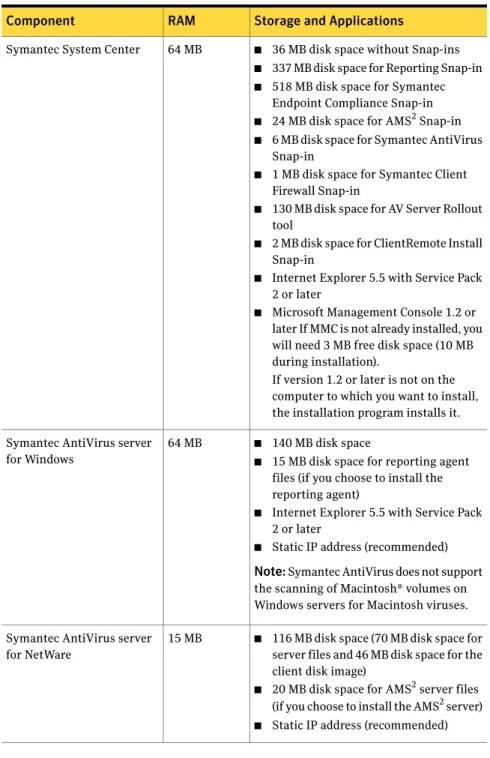
■ RAM, storage, and application requirements
Operating system requirements
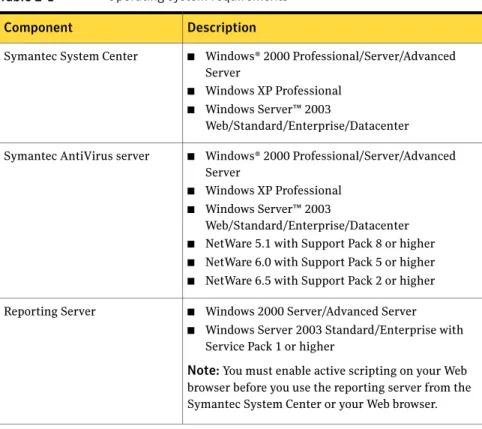
Table 2-1lists Symantec AntiVirus component operating system requirements. Table 2-1 Operating system requirements
Description Component
■ Windows® 2000 Professional/Server/Advanced Server
■ Windows XP Professional ■ Windows Server™ 2003
Web/Standard/Enterprise/Datacenter Symantec System Center
■ Windows® 2000 Professional/Server/Advanced Server
■ Windows XP Professional ■ Windows Server™ 2003
Web/Standard/Enterprise/Datacenter ■ NetWare 5.1 with Support Pack 8 or higher ■ NetWare 6.0 with Support Pack 5 or higher ■ NetWare 6.5 with Support Pack 2 or higher Symantec AntiVirus server
■ Windows 2000 Server/Advanced Server ■ Windows Server 2003 Standard/Enterprise with
Service Pack 1 or higher
Note:You must enable active scripting on your Web browser before you use the reporting server from the Symantec System Center or your Web browser. Reporting Server
35 Planning the installation
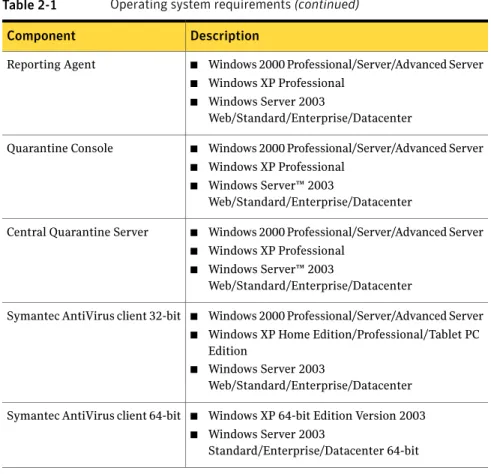
Table 2-1 Operating system requirements(continued)
Description Component
■ Windows 2000 Professional/Server/Advanced Server ■ Windows XP Professional
■ Windows Server 2003
Web/Standard/Enterprise/Datacenter Reporting Agent
■ Windows 2000 Professional/Server/Advanced Server ■ Windows XP Professional
■ Windows Server™ 2003
Web/Standard/Enterprise/Datacenter Quarantine Console
■ Windows 2000 Professional/Server/Advanced Server ■ Windows XP Professional
■ Windows Server™ 2003
Web/Standard/Enterprise/Datacenter Central Quarantine Server
■ Windows 2000 Professional/Server/Advanced Server ■ Windows XP Home Edition/Professional/Tablet PC
Edition
■ Windows Server 2003
Web/Standard/Enterprise/Datacenter Symantec AntiVirus client 32-bit
■ Windows XP 64-bit Edition Version 2003 ■ Windows Server 2003
Standard/Enterprise/Datacenter 64-bit Symantec AntiVirus client 64-bit
RAM, storage, and application requirements
Table 2-2lists RAM, storage, and application requirements for Symantec AntiVirus components.
Table 2-2 RAM, storage, and application requirements.
Storage and Applications RAM
Component
■ 36 MB disk space without Snap-ins ■ 337 MB disk space for Reporting Snap-in ■ 518 MB disk space for Symantec
Endpoint Compliance Snap-in ■ 24 MB disk space for AMS2Snap-in ■ 6 MB disk space for Symantec AntiVirus
Snap-in
■ 1 MB disk space for Symantec Client Firewall Snap-in
■ 130 MB disk space for AV Server Rollout tool
■ 2 MB disk space for ClientRemote Install Snap-in
■ Internet Explorer 5.5 with Service Pack 2 or later
■ Microsoft Management Console 1.2 or later If MMC is not already installed, you will need 3 MB free disk space (10 MB during installation).
If version 1.2 or later is not on the computer to which you want to install, the installation program installs it. 64 MB
Symantec System Center
■ 140 MB disk space
■ 15 MB disk space for reporting agent files (if you choose to install the reporting agent)
■ Internet Explorer 5.5 with Service Pack 2 or later
■ Static IP address (recommended) Note:Symantec AntiVirus does not support the scanning of Macintosh® volumes on Windows servers for Macintosh viruses. 64 MB
Symantec AntiVirus server for Windows
■ 116 MB disk space (70 MB disk space for server files and 46 MB disk space for the client disk image)
■ 20 MB disk space for AMS2server files (if you choose to install the AMS2server) ■ Static IP address (recommended) 15 MB
Symantec AntiVirus server for NetWare
37 Planning the installation
Table 2-2 RAM, storage, and application requirements.(continued)
Storage and Applications RAM
Component
■ 15 MB disk space for AMS2server files for Windows
■ 20 MB disk space for AMS2server files for Netware
10 MB AMS2server (optional, for
legacy support)
■ 1.5 GB disk space for 100 clients, or 2 GB disk space for 1,000 clients, or 40 GB disk space for 50,000 clients
■ MSDE 2000 with Service Pack 4 (installable), or Microsoft SQL Server 2000 with Service Pack 1 or later (existing), or Microsoft SQL Server 2005 or later (existing)
■ Internet Information Services 4.0 or later
■ Internet Explorer 5.5 with Service Pack 2 or later
256 MB for 100 clients 512 MB for 1,000 clients 1 GB for 50,000 clients Reporting Server
15 MB disk space 11 MB
Reporting Agent
■ 35 MB disk space
■ Internet Explorer 5.5 Service Pack 2 or later
■ Microsoft Management Console version 1.2 or later
If MMC is not already installed, you will need 3 MB free disk space (10 MB during installation).
64 MB Quarantine Console
■ 40 MB disk space for Quarantine Server ■ 500 MB to 4 GB disk space recommended
for quarantined items
■ Internet Explorer 5.5 with Service Pack 2 or later
■ Minimum swap file size of 250 MB Note:If you run Windows XP, system disk space usage is increased if the System Restore functionality is enabled. For more information on how System Restore works, see the Microsoft operating system documentation.
128 MB Central Quarantine Server
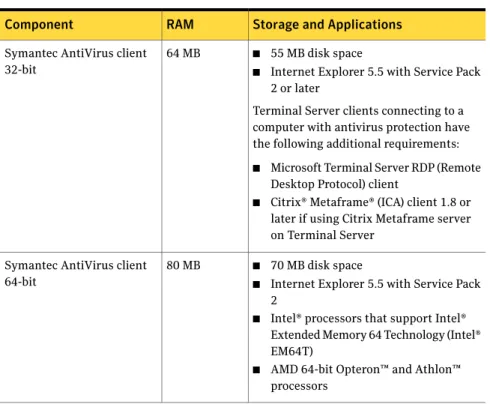
Table 2-2 RAM, storage, and application requirements.(continued)
Storage and Applications RAM
Component
■ 55 MB disk space
■ Internet Explorer 5.5 with Service Pack 2 or later
Terminal Server clients connecting to a computer with antivirus protection have the following additional requirements: ■ Microsoft Terminal Server RDP (Remote
Desktop Protocol) client
■ Citrix® Metaframe® (ICA) client 1.8 or later if using Citrix Metaframe server on Terminal Server
64 MB Symantec AntiVirus client
32-bit
■ 70 MB disk space
■ Internet Explorer 5.5 with Service Pack 2
■ Intel® processors that support Intel® Extended Memory 64 Technology (Intel® EM64T)
■ AMD 64-bit Opteron™ and Athlon™ processors
80 MB Symantec AntiVirus client
64-bit
Note:The ClientRemote Install Tool does not check to verify that Internet Explorer 5.5 with Service Pack 2 or later is installed on computers when it is required. If the target computers do not have the correct version of Internet Explorer, the installation fails without informing you.
About desktop firewalls
If your servers and clients run firewall software, and you want to manage these servers and clients, you must open certain ports so that communication between the servers, clients, and Symantec System Center is possible. Alternatively, you can permit Rtvscan.exe on all computers and Pds.exe on servers and consoles to send and receive traffic through your firewalls. Also, remote server and client installation tools require that TCP port 139 be opened.
39 Planning the installation
Note:Symantec AntiVirus uses the default ephemeral port range for TCP (1024 to 65535) to communicate between clients, servers, the Symantec System Center, and other management components. The ephemeral port range that is used, however, rarely exceeds 5000, and is configurable for most operating systems. Most firewalls use stateful inspection when filtering TCP traffic, so incoming TCP responses are automatically allowed and routed back to the original requester. Therefore you do not have to open explicitly the ephemeral TCP ports when you configure your firewall software.
See“About Windows XP and Windows 2003 firewalls”on page 42.
Table 2-3lists the network protocols and ports that Symantec AntiVirus client and server require for communicating and network installations.
Table 2-3 Ports for client and server installation and communication
Protocol and port Component
Function
TCP 139 Management server and target clients
Client deployment
TCP 139 UDP 38293 Management servers and target
servers Server deployment
TCP (Inbound) 2967
Note:This port number is configurable.
Servers and clients General
communication
TCP (Inbound) 2968
Note:This port number is configurable.
Netware servers General
communication
TCP (Outbound) 2967 and 2968
Note:These port numbers are configurable.
Symantec System Center General communication UDP 38293 Servers Discovery
Table 2-3 Ports for client and server installation and communication
(continued)
Protocol and port Component
Function
UDP 1024-5000
Note:You do not need to open these ports if your router or firewall recognizes UDP datagram program sessions. Symantec System Center
Discovery
TCP 80 (HTTP) 443 (SSL)
Note:If you set up a database on a remote machine, you must create an alias and ensure that port number is open. The default for SQL Server is TCP 1433.
Servers and agents Reporting
Table 2-4lists the network protocols and ports that optional components require to communicate and perform standard functions.
Table 2-4 Ports for optional components
Protocol and port Component
Function
TCP 2847 (HTTP) 2848 (HTTPS) Central Quarantine Server
Quarantine
TCP 38037 UDP 38292 Servers
AMS2alerts
UDP (Inbound) 2967
Legacy servers and clients Legacy management
UDP (Outbound) 2967
Symantec System Center Legacy management
41 Planning the installation
About Windows XP and Windows 2003 firewalls
Windows XP and Windows 2003 Server contain the firewalls that may prevent certain types of communication that are necessary in your Symantec AntiVirus network. If these firewalls are enabled, you might not be able to install server software or client software remotely from the Symantec System Center and other remote installation tools. If there are computers in your network that are running these operating systems, you need to configure the firewalls to allow for these communications.To use the Windows XP firewalls, you need to configure them to support Symantec AntiVirus communications by opening ports or by specifying trusted programs. You can enable communications by permitting Rtvscan.exe on all computers and Pds.exe on servers and consoles to send and receive traffic through your firewalls. Almost all communications traffic between Symantec AntiVirus servers and clients is initiated from source TCP ports 1024-5000 and sent to destination TCP port 2967. For example, clients initiate traffic from TCP ports 1024-5000 and send it to TCP port 2967 on servers. Servers initiate traffic from TCP ports 1024-5000 and send it to TCP port 2967 on other servers and clients. Therefore, to manage Symantec AntiVirus servers and clients, you need to permit outbound traffic from TCP ports 1024-5000 to TCP port 2967 and permit inbound traffic from TCP ports 1024-5000 to TCP port 2967 on all servers and clients.
If you want to install Symantec AntiVirus on clients remotely, you must permit servers to send traffic from TCP ports 1024-5000 to TCP port 139 on clients. Stateful inspection permits the return traffic automatically. You must also permit clients to receive traffic from server TCP ports 1024-5000 on TCP port 139, and permit clients to send traffic from TCP port 139 to TCP ports 1024-5000 on servers.Symantec AntiVirus servers perform discovery by using TCP port 39263. Legacy communications also require that UDP port 2967 be open on all computers. Depending on your XP operating system and service pack, you might be able to open individual ports or specify the programs that you want to trust to communicate through your firewall. Consult your Windows documentation for information on how to configure your firewalls.
Disabling Internet Connection Firewall
Windows XP with Service Pack 1 includes a firewall that is called Internet Connection Firewall that can interfere with remote Symantec AntiVirus installation, and communications between servers and clients. If any of your servers or clients run Windows XP, you can disable the Windows XP firewall on them before you install Symantec AntiVirus clients.
To disable Internet Connection Firewall
1
On the Windows XP taskbar, click Start > Control Panel.2
In the Control Panel window, double-click Network Connections.3
In the Network Connections window, right-click the active connection, and then click Properties.4
On the Advanced tab, under Internet Connection Firewall, uncheck Protectmy computer and network by limiting or preventing access to this computer from the Internet.
5
Click OK.Disabling Windows Firewall
Windows XP with Service Pack 2 and Windows 2003 Server include a firewall that is called Windows Firewall that can interfere with remote Symantec AntiVirus installation, and communications between servers and clients. If any of your servers or clients run Windows XP with Service Pack 2 or Windows Server 2003, you can disable the firewall on them before you install Symantec AntiVirus clients. To disable Windows Firewall
1
On the Windows XP taskbar, click Start > Control Panel.2
In the Control Panel window, double-click Network Connections.3
In the Network Connections window, right-click the active connection, and then click Properties.4
On the Advanced tab, under Windows Firewall, click Settings.5
In the Windows Firewall window, on the General tab, check Off (notrecommended).
6
Click OK.Prepare your clients and servers for installation
Before you install Symantec AntiVirus on your clients and servers, you should first determine the state of these computers. Symantec AntiVirus installation is more efficient and effective if you evaluate the following conditions before you begin the installation process:■ Create a list of computers that you want to protect
■ Remove virus threats and security risks
■ Evaluate antivirus and anti-adware or spyware software
43 Planning the installation