Informix Product Family
Informix
Version 12.10
IBM Informix DB-Access User's Guide
Informix Product Family
Informix
Version 12.10
IBM Informix DB-Access User's Guide
Note
Before using this information and the product it supports, read the information in “Notices” on page D-1.
Edition
This document contains proprietary information of IBM. It is provided under a license agreement and is protected by copyright law. The information contained in this publication does not include any product warranties, and any statements provided in this manual should not be interpreted as such.
When you send information to IBM, you grant IBM a nonexclusive right to use or distribute the information in any way it believes appropriate without incurring any obligation to you.
Contents
Introduction . . . v
About this publication . . . v
Types of users . . . v
Software dependencies . . . v
Assumptions about your locale . . . v
Example code conventions . . . vi
Additional documentation . . . vii
Compliance with industry standards . . . vii
Syntax diagrams . . . vii
How to read a command-line syntax diagram . . . viii
Keywords and punctuation . . . ix
Identifiers and names . . . ix
How to provide documentation feedback . . . x
Chapter 1. Getting started with DB-Access . . . 1-1
Requirements for the Informix server DB-Access utility . . . 1-1 Environment variables . . . 1-2 Requirements for the Informix Client Software Development Kit DB-Access utility . . . 1-3 Demonstration databases . . . 1-3 Creating a demonstration database . . . 1-4 dbaccessdemo command: Create demonstration databases . . . 1-4 Start DB-Access . . . 1-6 dbaccess command: Start DB-Access . . . 1-6 Run DB-Access in interactive mode without menus . . . 1-12Chapter 2. The full-screen menu interface . . . 2-1
The Query-language option . . . 2-1 SQL editor . . . 2-2 A system editor . . . 2-2 Statements that the Run option supports . . . 2-3 Redirect query results. . . 2-6 Choose an existing SQL statement . . . 2-6 Save the current SQL statement . . . 2-7 Support for SPL Routines . . . 2-7 What happens when errors occur . . . 2-9 The Database option . . . 2-9 List of available databases . . . 2-10 Retrieve nondefault locale information. . . 2-10 Close a database . . . 2-11 The Table option . . . 2-12 Display table information . . . 2-13 The Connection and Session options . . . 2-14 Implicit closures . . . 2-15Appendix A. How to read online help for SQL statements . . . A-1
Appendix B. Demonstration SQL . . . B-1
SQL files for the relational database model . . . B-2 The alt_cat.sql command file . . . B-2 The c_calls.sql command file . . . B-2 The c_cat.sql command file . . . B-2 The c_custom.sql command file . . . B-3 The c_index.sql command file . . . B-3 The c_items.sql command file . . . B-3The c_manuf.sql command file . . . B-3 The c_orders.sql file . . . B-3 The c_proc.sql command file . . . B-4 The c_state command file . . . B-4 The c_stock.sql command file . . . B-4 The c_stores.sql command file . . . B-4 The c_table.sql command file . . . B-5 The c_trig.sql command file . . . B-5 The c_type.sql command file . . . B-5 The c_view1.sql command file . . . B-5 The c_view2.sql command file . . . B-6 The d_proc.sql command file . . . B-6 The d_trig.sql command file . . . B-6 The d_view.sql command file . . . B-6 The del_stock.sql command file . . . B-6 The ins_table.sql command file . . . B-6 The sel_agg.sql command file . . . B-7 The sel_all.sql command file . . . B-7 The sel_group.sql command file . . . B-7 The sel_join.sql command file . . . B-7 The sel_ojoin1.sql command file . . . B-7 The sel_ojoin2.sql command file . . . B-8 The sel_ojoin3.sql command file . . . B-8 The sel_ojoin4.sql command file . . . B-8 The sel_order.sql command file . . . B-9 The sel_sub.sql command file . . . B-9 The sel_union.sql command file . . . B-9 The upd_table.sql command file . . . B-9 SQL files for the Dimensional Database Model . . . B-10 The createdw.sql file. . . B-10 The loaddw.sql file . . . B-11 User-defined routines for the object-relational database model . . . B-12
Appendix C. Accessibility . . . C-1
Accessibility features for IBM Informix products . . . C-1 Accessibility features . . . C-1 Keyboard navigation . . . C-1 Related accessibility information . . . C-1 IBM and accessibility . . . C-1 Dotted decimal syntax diagrams . . . C-1Notices . . . D-1
Trademarks . . . D-3Index . . . X-1
Introduction
This introduction provides an overview of the information in this publication and describes the conventions it uses.
About this publication
This publication describes how to use the DB-Access utility to access, modify, and retrieve information from IBM® Informix®database servers. Chapter 1, “Getting started with DB-Access,” on page 1-1 explains how to create and work with the demonstration databases provided with your Informix database server.
Important: Use DB-Access with the current version of an Informix database server. If you use DB-Access with a database server from a different version, you might obtain inconsistent results, such as when you use a version that does not support long identifiers with a version that does.
Types of users
This publication is written for the following users:
v Database users
v Database administrators
v Database-application programmers
This publication assumes that you have the following background:
v A working knowledge of your computer, your operating system, and the utilities
that your operating system provides
v Some experience working with relational databases or exposure to database
concepts
v Some experience with computer programming
If you have limited experience with relational databases, SQL, or your operating system, see the following IBM Informix manuals:
v IBM Informix GLS User's Guide v IBM Informix Guide to SQL: Reference v IBM Informix Guide to SQL: Syntax v IBM Informix Guide to SQL: Tutorial
Software dependencies
This publication assumes that you are using one of the IBM Informix, Version 12.10 database servers.
Assumptions about your locale
IBM Informix products can support many languages, cultures, and code sets. All the information related to character set, collation and representation of numeric data, currency, date, and time that is used by a language within a given territory and encoding is brought together in a single environment, called a Global Language Support (GLS) locale.
The IBM Informix OLE DB Provider follows the ISO string formats for date, time, and money, as defined by the Microsoft OLE DB standards. You can override that default by setting an Informix environment variable or registry entry, such as DBDATE.
If you use Simple Network Management Protocol (SNMP) in your Informix environment, note that the protocols (SNMPv1 and SNMPv2) recognize only English code sets. For more information, see the topic about GLS and SNMP in the
IBM Informix SNMP Subagent Guide.
The examples in this publication are written with the assumption that you are using one of these locales: en_us.8859-1 (ISO 8859-1) on UNIX platforms or en_us.1252 (Microsoft 1252) in Windows environments. These locales support U.S. English format conventions for displaying and entering date, time, number, and currency values. They also support the ISO 8859-1 code set (on UNIX and Linux) or the Microsoft 1252 code set (on Windows), which includes the ASCII code set plus many 8-bit characters such as é, è, and ñ.
You can specify another locale if you plan to use characters from other locales in your data or your SQL identifiers, or if you want to conform to other collation rules for character data.
For instructions about how to specify locales, additional syntax, and other considerations related to GLS locales, see the IBM Informix GLS User's Guide.
Example code conventions
Examples of SQL code occur throughout this publication. Except as noted, the code is not specific to any single IBM Informix application development tool.
If only SQL statements are listed in the example, they are not delimited by semicolons. For instance, you might see the code in the following example:
CONNECT TO stores_demo ...
DELETE FROM customer WHERE customer_num = 121 ...
COMMIT WORK DISCONNECT CURRENT
To use this SQL code for a specific product, you must apply the syntax rules for that product. For example, if you are using an SQL API, you must use EXEC SQL at the start of each statement and a semicolon (or other appropriate delimiter) at the end of the statement. If you are using DB–Access, you must delimit multiple statements with semicolons.
Tip: Ellipsis points in a code example indicate that more code would be added in a full application, but it is not necessary to show it to describe the concept being discussed.
For detailed directions on using SQL statements for a particular application development tool or SQL API, see the documentation for your product.
Additional documentation
Documentation about this release of IBM Informix products is available in various formats.
You can access Informix technical information such as information centers, technotes, white papers, and IBM Redbooks® publications online at http://www.ibm.com/software/data/sw-library/.
Compliance with industry standards
IBM Informix products are compliant with various standards.
IBM Informix SQL-based products are fully compliant with SQL-92 Entry Level (published as ANSI X3.135-1992), which is identical to ISO 9075:1992. In addition, many features of IBM Informix database servers comply with the SQL-92
Intermediate and Full Level and X/Open SQL Common Applications Environment (CAE) standards.
The IBM Informix Geodetic DataBlade®Module supports a subset of the data types from theSpatial Data Transfer Standard (SDTS)—Federal Information Processing
Standard 173, as referenced by the documentContent Standard for Geospatial Metadata, Federal Geographic Data Committee, June 8, 1994 (FGDC Metadata Standard).
Syntax diagrams
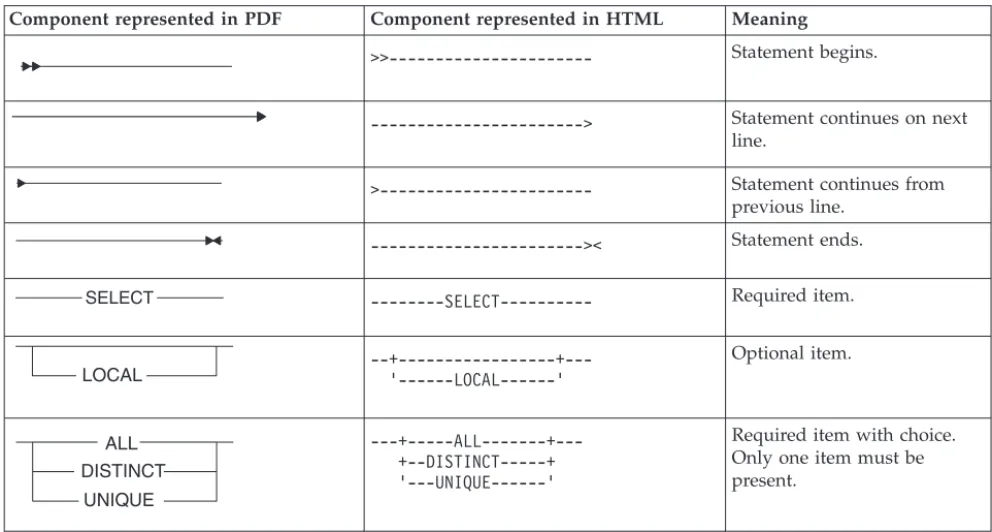
Syntax diagrams use special components to describe the syntax for statements and commands.
Table 1. Syntax Diagram Components
Component represented in PDF Component represented in HTML Meaning
>>--- Statement begins.
---> Statement continues on next
line.
>--- Statement continues from
previous line.
--->< Statement ends. ---SELECT--- Required item. --+---+---’---LOCAL---’ Optional item. ---+---ALL---+---+--DISTINCT---+ ’---UNIQUE---’
Required item with choice. Only one item must be present.
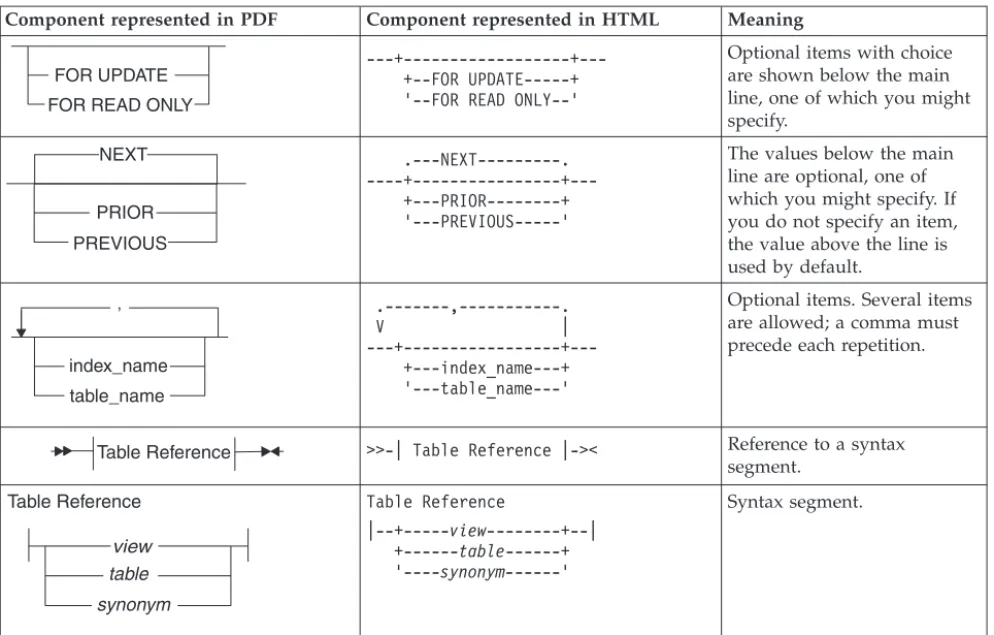
Table 1. Syntax Diagram Components (continued)
Component represented in PDF Component represented in HTML Meaning
---+---+---+--FOR UPDATE---+ ’--FOR READ ONLY--’
Optional items with choice are shown below the main line, one of which you might specify.
.---NEXT---.
----+---+---+---PRIOR---+ ’---PREVIOUS---’
The values below the main line are optional, one of which you might specify. If you do not specify an item, the value above the line is used by default. .---,---. V | ---+---+---+---index_name---+ ’---table_name---’
Optional items. Several items are allowed; a comma must precede each repetition.
>>-| Table Reference |->< Reference to a syntax
segment. Table Reference |--+---view----+--| +---table---+ ’----synonym----’ Syntax segment.
How to read a command-line syntax diagram
Command-line syntax diagrams use similar elements to those of other syntax diagrams.
Some of the elements are listed in the table in Syntax Diagrams.
Creating a no-conversion job
onpladm create job job
-p project
-n -d device -D database
-t table
(1) Setting the Run Mode -S server -T target
Notes:
1 See page Z-1
This diagram has a segment named “Setting the Run Mode,” which according to the diagram footnote is on page Z-1. If this was an actual cross-reference, you
would find this segment on the first page of Appendix Z. Instead, this segment is shown in the following segment diagram. Notice that the diagram uses segment start and end components.
Setting the run mode:
-f d p a l c u n N
To see how to construct a command correctly, start at the upper left of the main diagram. Follow the diagram to the right, including the elements that you want. The elements in this diagram are case-sensitive because they illustrate utility syntax. Other types of syntax, such as SQL, are not case-sensitive.
The Creating a No-Conversion Job diagram illustrates the following steps: 1. Typeonpladm create joband then the name of the job.
2. Optionally, type-pand then the name of the project. 3. Type the following required elements:
v -n
v -dand the name of the device v -D and the name of the database v -tand the name of the table
4. Optionally, you can choose one or more of the following elements and repeat them an arbitrary number of times:
v -Sand the server name v -Tand the target server name
v The run mode. To set the run mode, follow the Setting the Run Mode
segment diagram to type-f, optionally typed,p, ora, and then optionally type loru.
5. Follow the diagram to the terminator.
Keywords and punctuation
Keywords are words reserved for statements and all commands except system-level commands.
When a keyword appears in a syntax diagram, it is shown in uppercase letters. When you use a keyword in a command, you can write it in uppercase or lowercase letters, but you must spell the keyword exactly as it appears in the syntax diagram.
You must also use any punctuation in your statements and commands exactly as shown in the syntax diagrams.
Identifiers and names
Variables serve as placeholders for identifiers and names in the syntax diagrams and examples.
You can replace a variable with an arbitrary name, identifier, or literal, depending on the context. Variables are also used to represent complex syntax elements that are expanded in additional syntax diagrams. When a variable appears in a syntax diagram, an example, or text, it is shown in lowercase italic.
The following syntax diagram uses variables to illustrate the general form of a simple SELECT statement.
SELECT column_name FROM table_name
When you write a SELECT statement of this form, you replace the variables
column_name andtable_namewith the name of a specific column and table.
How to provide documentation feedback
You are encouraged to send your comments about IBM Informix user documentation.
Use one of the following methods:
v Send email to [email protected].
v In the Informix information center, which is available online at
http://www.ibm.com/software/data/sw-library/, open the topic that you want to comment on. Click the feedback link at the bottom of the page, fill out the form, and submit your feedback.
v Add comments to topics directly in the information center and read comments
that were added by other users. Share information about the product documentation, participate in discussions with other users, rate topics, and more!
Feedback from all methods is monitored by the team that maintains the user documentation. The feedback methods are reserved for reporting errors and omissions in the documentation. For immediate help with a technical problem, contact IBM Technical Support at http://www.ibm.com/planetwide/.
Chapter 1. Getting started with DB-Access
DB-Access provides a menu-driven interface for entering, running, and debugging Structured Query Language (SQL) statements and Stored Procedure Language (SPL) routines. You can also run DB-Access interactively from the command line. You use SQL and SPL commands to perform data-definition tasks, such as
specifying the number and type of data columns in a table, and data-management tasks, such as storing, viewing, and changing table data.
You can use DB-Access for the following aspects of database processing:
v Running ad hoc queries that you run infrequently
v Connecting to one or more databases, transferring data between the database
and external text files, and displaying information about a database
v Displaying system catalog tables and the Information Schema of databases v Practicing the SQL and SPL statements and examples that are provided in the
IBM Informix Guide to SQL: Tutorialor theIBM Informix Database Design and Implementation Guide
v Testing applications that you intend to store for use in a production environment v Creating demonstration databases
Important: DB-Access is not intended as an application-development environment. You cannot branch conditionally or loop through SQL statements when you run them within DB-Access.
The DB-Access utility is included with the Informix server and with the Informix Client Software Development Kit.
The IBM OpenAdmin Tool (OAT) for Informix is an alternative to the DB-Access utility.
Requirements for the Informix server DB-Access utility
Before you start DB-Access, prepare the Informix server environment.
Do the following tasks before you start the DB-Access utility that is included with the Informix server:
v Set environment variables
v If you require globalization, set up the Global Language Support (GLS) locale v Start the database server
To secure DB-Access connections with IBM Informix, you can use the Secure Sockets Layer (SSL) protocol.
Related concepts:
Secure sockets layer protocol (Security Guide)
Environment variables
As part of the installation and setup process, the system or database administrator sets certain environment variables that enable IBM Informix products to work within a particular operating-system environment.
You must have $INFORMIXDIR/binin your path if you use DB-Access on a UNIX operating system or %INFORMIXDIR%\binin your path if you use DB-Access on a Windows operating system. Your operating system uses the path to locate the initialization script and the dbaccessexecutable file.
In a UNIX environment, the database server must have the appropriate terminal that is set up from among the terminals that are listed by theINFORMIXTERM environment variable.
DB-Access uses the terminal definitions in the terminfodirectory unless the INFORMIXTERMenvironment variable is set to thetermcapfile. If DB-Access fails to initialize the menus that are based on theINFORMIXTERMsetting, DB-Access tries to use the other setting. For example, if DB-Access fails to initialize the menus using theterminfodirectory, DB-Access starts the menus using thetermcap file.
You can set the following optional environment variables: DBACCNOIGN
Rolls back an incomplete transaction if you run the LOAD command in menu mode.
DBCENTURY
Sets the appropriate expansion for DATE and DATETIME values that have only a two-digit year, such as 04/15/12.
DBDATE
Specifies the user formats of DATE values. DBEDIT
Sets the default DB-Access text editor without changing the default text editor that is associated with the operating-system shell.
For more information about how DB-Access uses the text editor that you specify as default, see “A system editor” on page 2-2.
DBFLTMASK
Sets the default floating-point values of data types FLOAT, SMALLFLOAT, and DECIMAL within a 14-character buffer.
The effect of this variable is limited to the DB-Access display size for numbers. DELIMIDENT
Causes the database server to interpret double quoted (“) text as identifiers rather than strings.
IFX_LONGID
Determines whether a client application can handle long identifiers.
If you use theIFX_LONGIDenvironment variable to support SQL identifiers with up to 128 bytes, some error, warning, or other messages of DB-Access might
truncate database object names that include more than 18 bytes in their identifiers. You can avoid this truncation by not declaring names that have more than 18 bytes.
Related concepts:
Environment variables (SQL Reference)
Requirements for the Informix Client Software Development Kit
DB-Access utility
Before you start DB-Access on a client, set up the client environment.
The DB-Access utility on a client can directly access Informix databases with which Client SDK has a client/server connection.
Do the following tasks before you start DB-Access utility that is included with Client SDK:
v Set thesqlhostsinformation.
v Set the INFORMIXDIR environment variable to the Client SDK installation
directory.
v Set the INFORMIXSERVER environment variable for a default server name. Related concepts:
The sqlhosts file and the SQLHOSTS registry key (Administrator's Guide) Related reference:
INFORMIXDIR environment variable (SQL Reference) INFORMIXSERVER environment variable (SQL Reference)
Demonstration databases
You can practice using DB-Access with a demonstration database.
If you use an IBM Informix demonstration database, you can add, delete, or change the provided data and scripts. You can restore the database to its original condition.
You can configure the following demonstration databases:
v Thestores_demodatabase illustrates a relational schema with tables about a
fictitious wholesale sporting-goods distributor, as well as other tables that are used in examples. Tables containing electricity usage and geographical location data illustrate time series and spatial information. Many examples in IBM Informix manuals are based on thestores_demodatabase.
v Thesuperstores_demodatabase illustrates an object-relational schema. The superstores_demodatabase contains examples of extended data types, type and table inheritance, and user-defined routines.
The scripts that you use to install the demonstration databases are in the
$INFORMIXDIR/bindirectory on UNIX and in the%INFORMIXDIR%\bin directory on Windows.
Some operating systems require that you have execute permissions to run SQL command files, read permissions to open these files or their contents in DB-Access,
or write permissions to save modified or new files. Use the UNIX chmod
command to enable execution of the SQL files that the initialization script installed. The demonstration scripts are designed for the default locale. If you use a
non-default locale, such as en_us.utf8, some features, such as the SET COLLATION statement, might not function correctly.
Related concepts:
The stores_demo Database (SQL Reference) The superstores_demo database (SQL Reference)
Creating a demonstration database
You create demonstration databases by running the dbaccessdemocommand. When you create a demonstration database, the script confirms that you want to copy sample SQL command files. Command files that the demonstration database includes have a.sqlextension and contain sample SQL statements that you can use.
To create a demonstration database: 1. Create a directory.
You must have UNIX read and execute permissions for each directory in the path name that you create.
2. Change directories to the new directory and run thedbaccessdemoor dbaccessdemo_udcommand.
3. The initialization script displays a series of messages on the screen as the database is created. PressYto copy the command files into the directory that you created. The demonstration database is created. You are the owner and database administrator (DBA) of that database.
If you want to discard changes that you made to your database or to the command files, rerun thedbaccessdemo ordbaccessdemo_udcommand and press Yto replace the existing command files with the original versions.
dbaccessdemo command: Create demonstration databases
Use thedbaccessdemoordbaccessdemo_udcommand to create the demonstration databases.
Syntax for stores_demo
dbaccessdemo
-log dbname -dbspace dbspace_name
-nots
Syntax for superstores_demo
dbaccessdemo_ud
-log dbname -dbspace dbspace_name
-log Requests transaction logging for the demonstration database.
dbname
Substitutes for the default database name. Must follow Identifier naming guidelines.
-dbspace
Requests a particular dbspace location for the demonstration database.
dbspace_name
Houses the demonstration database. If you do not specify a dbspace name, by default, the data for the database is put in the root dbspace. To create a dbspace, use theonspacesutility.
-nots Prevents the creation of the time series tables in the stores_demodatabase.
Examples
The following command creates a database that is namedstores_demo:
dbaccessdemo
The following example creates an instance of thestores_demodatabase named demo_db:
dbaccessdemo demo_db
The following command initializes the stores_demodatabase and also initiates log transactions:
dbaccessdemo -log
The following command creates an instance of the stores_demodatabase named demo_dbindbspace_2:
dbaccessdemo demo_db -dbspace dbspace_2
The following command creates a database that is namedsuperstores_demo:
Related concepts:
The stores_demo Database (SQL Reference) The superstores_demo database (SQL Reference) Related reference:
Identifier (SQL Syntax)
Start DB-Access
You start DB-Access by running thedbaccesscommand from the command line. You can choose whether to use the DB-Access menu interface or the command-line interface.
You can start and use DB-Access in the following ways:
v Start DB-Access at the main menu.
v Start DB-Access from a specific menu or screen.
v Run a file that contains SQL statements without showing the DB-Access menus. v Start and run DB-Access interactively at the command line, without the menu
interface.
On Windows, you can set up the DB-Access program icon to run any of the dbaccesscommands.
If theTERM,TERMCAP, orTERMINFOenvironment variables on UNIX do not enable DB-Access to recognize the type of terminal you use, the main menu does not show. Instead, a message similar to the following text is displayed:
Unknown terminal type.
If you use a window interface on a UNIX terminal, issue the dbaccesscommand from a nonscrolling console window.
If you use a Windows terminal to run DB-Access on a UNIX database server, the terminal-emulation window must emulate a terminal type that DB-Access can recognize, or the database server shows an unknown terminal-type message in the terminal-emulation window.
Tip: If your operating system cannot finddbaccess, include the full path before the program name, as follows:
$INFORMIXDIR/bin/dbaccess
Related concepts:
Environment variables (SQL Reference)
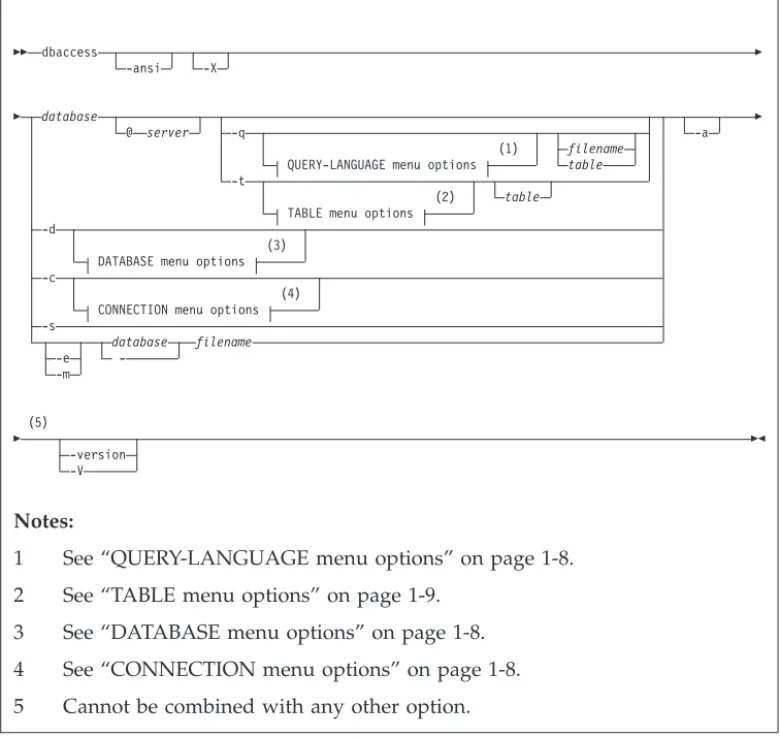
dbaccess command: Start DB-Access
Use thedbaccesscommand to start DB-Access. Include options to specify the database, command files, or to go to a specific menu screen.
Syntax
dbaccess -ansi -X database @ server -q (1) filename QUERY-LANGUAGE menu options table -t(2) table TABLE menu options
-d
(3) DATABASE menu options -c
(4) CONNECTION menu options -s database filename -e --m -a (5) -version -V Notes:
1 See “QUERY-LANGUAGE menu options” on page 1-8. 2 See “TABLE menu options” on page 1-9.
3 See “DATABASE menu options” on page 1-8. 4 See “CONNECTION menu options” on page 1-8. 5 Cannot be combined with any other option.
Thedbaccesscommand without options starts the main menu with no database selected and no options activated. You select submenus from the main menu. -ansi Causes DB-Access to generate a warning whenever it encounters an IBM
Informix extension to ANSI-compliant syntax. For more information, see “Example: Check for ANSI compliance” on page 1-11.
-a Stops a process directly after the first error is encountered. Stopping a process from continuing after the first error can ensure greater database consistency.
-c Starts with the CONNECTION menu as the top-level menu. -d Starts with the DATABASE menu as the top-level menu. -e Echoes each line from a command file designated byfilename.
-m Displays all error messages generated by multiple levels of the server that pertain to an SQL statement in command files.
-q Starts at the query-language menu (SQL-menu) as the top-level menu. -s Connects you to the main DB-Access menu and displays information about
the current session.
This information includes database server name, database server type, the host computer, server capabilities, and other settings.
-t Starts at the TABLE menu as the top-level menu.
-V Displays the version number and serial number for DB-Access without launching the application. You cannot use any other options with -V. -version
Displays the version number and build information for DB-Access, including the GLS library version, without launching the application. You cannot use any other options with -version.
-X Activates the hexadecimal format for LOAD and UNLOAD statements.
database
Name of the database that you want DB-Access to connect to at the startup of your current session. A hyphen (-) indicates that the database is
specified in a DATABASE statement in a command file.
filename
Names a command file to load with the SQL menu.
server Name of the database server.
table Specifies a table in the database.
If you exit from a submenu or option that you specified from the command line, you will exit directly to the operating-system command line.
CONNECTION menu options
The CONNECTION menu options for thedbaccesscommand represent short cut keys for the CONNECTION menu.
-cc Chooses the Connect option on the CONNECTION menu. -cd Chooses the Disconnect option on the CONNECTION menu.
DATABASE menu options
The DATABASE menu options for the dbaccesscommand represent short cut keys for the DATABASE menu.
-dc Chooses the Create option on the DATABASE menu.
-dcl Takes you to the LOG option on the CREATE DATABASE menu -dd Chooses the Drop option on the DATABASE menu.
-di Chooses the Info option on the DATABASE menu. With this option, you can add another letter as follows to go to the next menu level and view: -dib The dbspaces information for the current database
-din The NLS information for the current database -dip Stored procedures in the current database
If you do not include a database name before any-di option, you must choose a current database from the SELECT DATABASE screen.
-dl Chooses the CLose option on the DATABASE menu. -ds Chooses the Select option on the DATABASE menu.
QUERY-LANGUAGE menu options
The QUERY-LANGUAGE menu options for thedbaccesscommand represent short cut keys for the QUERY-LANGUAGE menu.
-qd Chooses the Drop option on the SQL menu.
-qi Chooses the Info option on the SQL menu. With this option, you can add another letter as shown in the following list (and specify a table) to go to the next menu level and view:
-qic Columns in the table
-qif Information about fragmentation strategy for the table -qig Information about triggers in the table
-qii Indexes on the table -qio Table constraints
-qip Access privileges on the table
-qir Table-level references privilege on the table -qis Table status information
If you do not include a table name with the -qioption, you must choose one from the INFO FOR TABLE screen.
-qm Chooses the Modify option on the SQL menu. -qn Chooses the New option on the SQL menu. -qs Chooses the Save option on the SQL menu. -qu Chooses the Use-editor option on the SQL menu.
If you do not include a database name before a-q option, you must choose a current database from the SELECT DATABASE screen.
When you select the Modify option on the QUERY-LANGUAGE menu, you must first select a command file to modify from the CHOOSE menu. The MODIFY screen is then displayed and shows the text.
Restriction: You cannot go directly to the Run or Output option on the SQL menu. Trying to do so results in an error message.
TABLE menu options
The TABLE menu options for thedbaccesscommand represent short cut keys for the TABLE menu.
-ta Chooses the Alter option on the TABLE menu. -tc Chooses the Create option on the TABLE menu. -td Chooses the Drop option on the TABLE menu.
-ti Chooses the Info option on the TABLE menu. With this option, you can add another letter as shown in the following list (and specify a table) to go to the next menu level and view:
-tic Columns in the table
-tif Information about fragmentation strategy for the table -tig Information about triggers in the table
-tii Indexes on the table -tio Table constraints
-tir Table-level references privilege on the table -tis Table status information
If you do not include a table name with the -tioption, you must choose one from the INFO FOR TABLE screen.
If you do not include a database name before a-toption, you must choose a current database from the SELECT DATABASE screen.
Example: Start DB-Access for a database
This example shows how to start DB-Access and specify a database to which to connect.
Assume that the database server that you have online contains a database named mystores. To make themystoresdatabase the current database, start DB-Access with the following command:
dbaccess mystores
You can specify a database on a database server that is not online. For example, either of the following commands selects thenewstoresdatabase on thexyz database server:
dbaccess newstores@xyz dbaccess //xyz/newstores
When DB-Access starts, the database and database server name that you specify are displayed on the dashed line, as the following figure shows.
Example: Run a command file
This example shows how to start DB-Access and run a command file that contains SQL statements.
The following sample command runs the SQL statements in a file named
sel_stock.sql on themystoresdatabase:
dbaccess mystores sel_stock
The following sample command runs the SQL statements in thesel_all.sqlfile on the database that file specifies:
dbaccess - sel_all.sql
Some operating systems require that you have execute permissions to run SQL command files, read permissions to open these files or their contents in DB-Access, or write permissions to save modified or new files.
Use the UNIXchmodcommand to enable execution of the SQL files that the initialization script installed.
Example: View the Information Schema
This example shows how to start DB-Access and view the Information Schema for the specified database.
DB-Access: Query-language Connection Database Table Session Exit - newstores@xyz Press CTRL-W for Help
Thexpg4_is.sql file in the$INFORMIXDIR/etcdirectory creates the Information Schema and installs the views for a specified database. The following command creates the Information Schema for databasemystores:
dbaccess mystores $INFORMIXDIR/etc/xpg4_is.sql
The Information Schema adds to the database four information-only views that conform to X/Open XPG4 with IBM Informix extensions. After you run
xpg4_is.sql, use DB-Access to retrieve information about the tables and columns that you have access to in the specified database.
Tip: Do not install XPG4-compliant views on an ANSI database, because the format of XPG4-compliant views differs considerably from the format of the ANSI-compliant Information Schema views that are defined by the SQL standards committee.
Related concepts:
Information Schema (SQL Reference)
Example: Check for ANSI compliance
This example shows how to start DB-Access and check whether a database is ANSI-compliant.
To check your SQL statements for compliance with ANSI standards, include the -ansi option or set theDBANSIWARNenvironment variable. Use the-ansioption with otherdbaccessoptions such as-dc(to create a database),-tcor-ta (to create or alter a table), or -qcfilename (to choose a command file). The following command checks for ANSI compliance while DB-Access creates the databaseresearch:
dbaccess -ansi -dc research
You do not need to specify the-ansioption on the command line if theDBANSIWARN environment variable is set.
DB-Access displays the SQLSTATE value with the warning under the following circumstances:
v You include the-ansioption or set theDBANSIWARNenvironment variable. v You access or create an ANSI database.
v You run DB-Access in command-line mode or specify a.sqlinput file. v Running an SQL statement generates a warning rather than an error. Related concepts:
ANSI-Compliant Databases (SQL Syntax) Related reference:
DECIMAL(p) Floating Point (SQL Reference) GET DIAGNOSTICS statement (SQL Syntax)
DBANSIWARN environment variable (SQL Reference)
Example: Show nonprintable characters in hexadecimal
This example starts DB-Access and activates the hexadecimal load and unload format (XLUF) so that the LOAD and UNLOAD SQL statements can format nonprintable ASCII signs in hexadecimal format.The following command activates the XLUF format for the mystoresdatabase:
A.unlfile that the UNLOAD statement produces contains the hexadecimal format changes.
Related concepts:
The LOAD and UNLOAD statements (Migration Guide)
Run DB-Access in interactive mode without menus
If you do not want to use the menus and do not have a prepared SQL file, use your keyboard or standard input device to enter SQL statements from the command line.
When you start DB-Access without a menu argument and with a hyphen as the final argument, DB-Access processes commands from the standard input device (on UNIX) or the keyboard (on Windows). DB-Access reads what you type until you indicate that the input is completed. Then DB-Access processes your input and writes the results to the standard output device (on UNIX), or the command window (on Windows).
DB-Access reads and runs SQL statements from the terminal keyboard interactively. While DB-Access runs interactively, the greater than (>) prompt marks the line where you type your next SQL statement.
When you type a semicolon (;) to end a single SQL statement, DB-Access processes that statement. When you pressCTRL-D to end the interactive session, DB-Access stops running. The following example shows user input and results in an
interactive session:
dbaccess
->database stores_demo; Database selected.
>select count(*) from systables; (count(*)) 21 1 row(s) retrieved. >^D dbaccess ->database stores_demo; Database selected.
>select count(*) from systables; (count(*))
21
1 row(s) retrieved. >^D
Batch command input (UNIX)
You can use an inline shell script to supply one or more SQL statements. For example, you can use the UNIX C, Bourne, or Korn shell with inline standard input files:
dbaccess mystores- <<EOT!
select avg(customer_num) from customer where fname matches ’[A-G]*’;
EOT!
You can use a pipe to supply SQL statements, as in this UNIX example:
echo ’select count(*) from systables’ | dbaccess mystores
DB-Access interprets any line that begins with an exclamation mark (!) as a shell command. You can mix shell escape lines with SQL statements and put them in SQL statements, as follows:
dbaccess mystores ->select
!echo hello >hello
count(*) from systables; >
(count(*)) 21
1 row(s) retrieved. >
Connect to a database environment in interactive mode
You can use the CONNECT . . . USER syntax in SQL statements that you issue in interactive mode. However, DB-Access does not support the USER clause of the CONNECT statement when you connect to a default database server.
When you include the USER ‘user identifier' clause in a CONNECT statement in interactive mode, DB-Access prompts you to enter a password.
The following two command examples show how to connect to a database server in interactive mode. The first example uses the CONNECT statement without specifying a user identifier.
dbaccess nohistory -> connect to ’@starfish’; Connected.
If you include the USER clause in a CONNECT statement, as the second example shows, DB-Access uses echo suppression to prompt you for a password:
> connect to ’@starfish’ user ’marae’; ENTER PASSWORD:
Connected.
Restriction: For security reasons, do not enter the password on the screen where it can be seen. Also, do not include the USINGpasswordclause in a CONNECT statement when you use DB-Access interactively. If you are in interactive mode and attempt to enter a password before the prompt, an error message is displayed.
You can run the USER clause of a CONNECT statement in a DB-Access file that includes the USER clause. The following example uses a command file that contains a CONNECT statement with a USING clause to connect to a database server:
dbaccess - connfile.sql
Important: An SQL command file that contains the following statement is protected from access by anyone other than theuser_idthat the USER clause identifies:
CONNECT TO ’@dbserver’ USER ’user_id’ USING password
For UNIX, the following example uses a shell file to connect to a database server. DB-Access prompts you for a password.
dbaccess - - <<\!
connect to ’@starfish’ user ’marae’; !
ENTER PASSWORD:
Here the delimiting quotation marks preserve letter case in the database server name and in the authorization identifier of the user.
Chapter 2. The full-screen menu interface
The DB-Access full-screen menu interface guides you through running SQL statements.
The DB-Access user interface combines the following features:
v A hierarchy of menus
v Screens that prompt you for brief responses and choices from selection lists v Contextual HELP screens
v The interactive Schema Editor that helps you structure tables
v An SQL programmer environment, which includes the following features:
– The built-in SQL editor where you enter and modify SQL and SPL statements – An option to use another editor of your choice
– The database server syntax checker and runtime debugger – Storage, retrieval, and execution of SQL and SPL routines
v A choice of output for database queries and reports
The Query-language option
Use the Query-language option to enter, modify, save, retrieve, and run SQL statements. DB-Access retains the statements, if any, in the editor. These statements are called the currentstatements.
Use the Query-language option to:
v Learn SQL and SPL.
For example, use the Query-language option to practice the examples in theIBM Informix Guide to SQL: Tutorial.
v Create and alter table structures as an alternative to the DB-Access Schema
Editor.
v Select, display, add, update, and delete data.
The SQL menu has the following options.
Option Purpose
New Clears current statements and positions cursor in SQL editor. Run Runs current SQL statements. A message is displayed or the data
that is retrieved by a query is displayed with the number of rows retrieved.
Modify Allows you to modify current SQL statements in SQL editor. Use-editor Starts a system editor so that you can modify current statements or
create new statements. Use-editor is interchangeable with New and Modify.
Output Redirects Run-option output to a file, printer, or system pipe. Choose Lists SQL command files so that you can choose a file to run or
modify.
Option Purpose
Info Shows table information, such as columns, indexes, privileges, constraints, triggers, status, and fragmentation strategy. Drop Deletes a specified SQL command file.
Exit Returns to main menu.
SQL editor
When you choose the New of Modify option, you see the SQL editor. You can type as many lines of text as you need. You are not limited by the size of the screen, although you might be limited by the memory constraints of your system. If you do not use the Save option to save your typed statements, they are deleted when you select an option that clears the SQL editor (such as New or Choose).
The SQL editor does not display more than 80 characters on a line and does not wrap lines.
v If you choose an existing command file in which the characters in a line extend
beyond the 80th column, DB-Access displays a percent sign (%) in the 80th column to indicate an overflow. You cannot see all the characters beyond the percent sign, but the statement runs correctly.
v If you type characters in a new command file so that a line extends beyond the
80th column, DB-Access overwrites all the characters in the 80th column. You cannot see the overflow, and the statement doesnotrun correctly.
To make the full text show on the screen, press Enterat a logical place in the first 80 characters of each line.
If you must type a quoted character string that exceeds 80 characters, such as an insert into a long CHAR column, use a system editor instead of the SQL editor. If you want to include comments in the text:
v Use double minus signs for ANSI-compliant databases.
v Preface each comment line with a double minus sign (--) comment indicator. The
comment indicator spans the entire line.
v Use braces ({ }) for databases that are not ANSI-compliant. Enclose the entire
comment indicator between the braces.
A system editor
When you want to enter or modify a long SQL statement or series of statements, you might prefer the flexibility and familiarity of a system editor to the SQL editor. Select the Use-editor option from the SQL menu to use the system editor.
If you have not set the DBEDITenvironment variable, you must select a text editor to use for the session. If you select Use-editor, DB-Access prompts you to accept or override the default system editor once each session.
The default editor that DB-Access displays depends on the preference that you establish for your operating system:
v Common UNIX system editors arevi andex.
v If you use a text editor as the system default, you must save the.sqlfiles as
PressRETURNto select the default editor you named after the USE-EDITOR prompt. To use a different editor, type the name of that editor and pressRETURN.
Statements that the Run option supports
After you exit the editor screen, the SQL menu reopens with the Run option highlighted and the statement text is displayed in the bottom of the screen. You can run most SQL statements with the Run option.
To run statements that are not listed, use the SQL menu options New (or
Use-editor) and Save to enter and save them, and then run the saved file from the command line.
The following is a list of SQL statements that you can run with the Run option.
v ALLOCATE COLLECTION v ALLOCATE DESCRIPTOR v ALLOCATE ROW v ALTER ACCESS_METHOD v ALTER FRAGMENT v ALTER FUNCTION v ALTER INDEX v ALTER PROCEDURE v ALTER ROUTINE
v ALTER SECURITY LABEL COMPONENT v ALTER SEQUENCE v ALTER TABLE v BEGIN WORK v CLOSE v CLOSE DATABASE v COMMIT WORK v CONNECT v CREATE ACCESS_METHOD v CREATE AGGREGATE v CREATE CAST v CREATE DATABASE v CREATE DISTINCT TYPE v CREATE EXTERNAL TABLE v CREATE FUNCTION
v CREATE FUNCTION FROM v CREATE INDEX
v CREATE OPAQUE TYPE v CREATE OPCLASS v CREATE PROCEDURE v CREATE ROLE
v CREATE ROUTINE FROM v CREATE ROW TYPE v CREATE SCHEMA
v CREATE SECURITY LABEL v CREATE SECURITY POLICY v CREATE SEQUENCE v CREATE SYNONYM v CREATE TABLE v CREATE TRIGGER v CREATE VIEW v CREATE XADATASOURCE v CREATE XADATASOURCE TYPE v DATABASE v DEALLOCATE COLLECTION v DEALLOCATE DESCRIPTOR v DEALLOCATE ROW v DECLARE v DELETE v DESCRIBE v DESCRIBE INPUT v DISCONNECT
v DROP ACCESS METHOD v DROP AGGREGATE v DROP CAST
v DROP DATABASE v DROP FUNCTION v DROP INDEX
v DROP OPAQUE TYPE v DROP OPCLASS v DROP PROCEDURE v DROP ROLE
v DROP ROW TYPE
v DROP SECURITY LABEL COMPONENT/POLICY/LABEL v DROP SEQUENCE v DROP SYNONYM v DROP TABLE v DROP TRIGGER v DROP TYPE v DROP VIEW v DROP XADATASOURCE v DROP XADATASOURCE TYPE v EXECUTE v EXECUTE FUNCTION v EXECUTE IMMEDIATE v EXECUTE PROCEDURE v FETCH v FLUSH v FREE
v GET DESCRIPTOR v GET DIAGNOSTICS v GRANT
v GRANT DBSECADM v GRANT DEFAULT ROLE v GRANT EXEMPTION v GRANT FRAGMENT v GRANT SECURITY LABEL v INFO v INSERT v LOAD v LOCK TABLE v MERGE v OPEN v OUTPUT v PREPARE v PUT v RENAME COLUMN v RENAME DATABASE v RENAME INDEX v RENAME SEQUENCE v RENAME TABLE v REVOKE v REVOKE DBSECADM v REVOKE DEFAULT ROLE v REVOKE EXEMPTION v REVOKE FRAGMENT v REVOKE SECURITY LABEL v ROLLBACK WORK
v SAVE EXTERNAL DIRECTIVES v SELECT v SET AUTOFREE v SET COLLATION v SET CONNECTION v SET CONSTRAINTS v SET DATASKIP v SET DEBUG FILE TO v SET DEFERRED PREPARE v SET DESCRIPTOR
v SET ENCRYPTION PASSWORD v SET ENVIRONMENT
v SET EXPLAIN v SET ISOLATION v SET LOCK MODE v SET LOG
v SET OPTIMIZATION v SET PDQPRIORITY v SET ROLE
v SET SESSION AUTHORIZATION v SET STATEMENT CACHE v SET TRANSACTION
v START VIOLATIONS TABLE v STOP VIOLATIONS TABLE v TRUNCATE v UNLOAD v UNLOCK TABLE v UPDATE v UPDATE STATISTICS v WHENEVER
Redirect query results
The output from a SELECT statement is normally displayed on the screen. You can use the Output option on the SQL menu to route query results to the printer, store them in a system file, or pipe them to a program. The Output option has the same result as the OUTPUT statement of SQL.
The SELECT statement must be on the screen as the current statement. Select the Output option from the SQL menu, which displays the OUTPUT menu.
You have the following output options:
v Send your query results directly to a printer. DB-Access sends the results to your
default printer and displays a message on the bottom of the screen that indicates how many rows were retrieved. The query results do not show on the screen. You can set theDBPRINT environment variable to specify a default printer.
v Write query results to a new file or append the results to an existing file. If you
do not specify a path when DB-Access prompts you for a file name, the file is stored in the directory that you were in when you started DB-Access.
v Send query results to a pipe. Specify a target program, such asmore, through
which to pipe output. DB-Access sends the results to that pipe.
On UNIX systems, you must have permission to run the target program. On Windows systems, thecatutility can serve as a target program through which to pipe output.
Choose an existing SQL statement
When you save SQL statements in a command file, you can retrieve the command file and run or edit the SQL statements at any time.
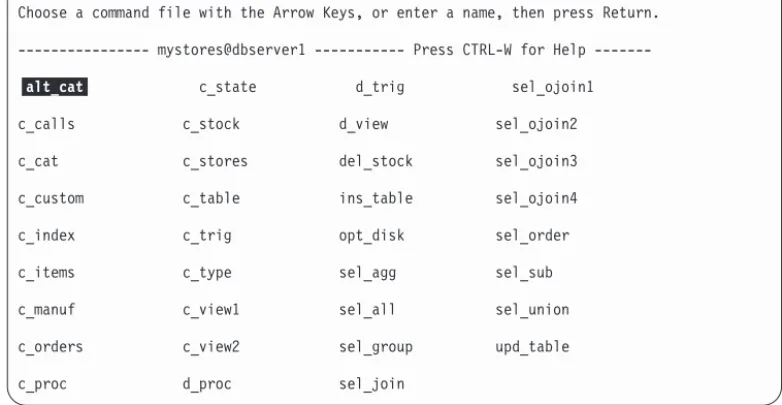
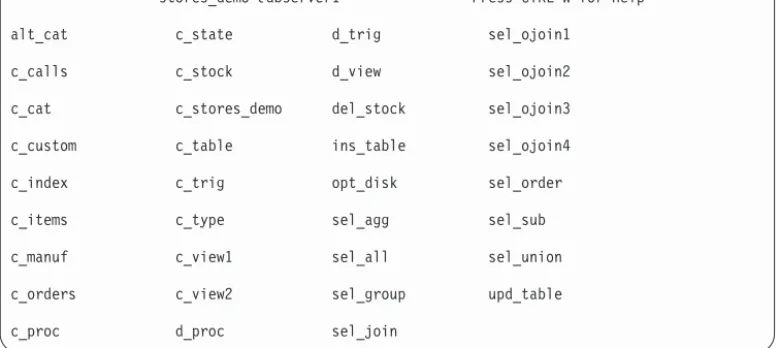
Select the Choose option on the SQL menu to display the CHOOSE screen with a list of the command files that you can access. These files have the extension.sql, although the extension is not shown. For example, the following figure lists the command files that are included in the demonstration database.
If no current database exists, the list includes all the command files in the current directory and in any directories that theDBPATHenvironment variable specifies. Important: This list includes only those file names that have the.sqlextension. If you create an SQL file outside of DB-Access and save it without the.sql
extension, the files does not show in the list of files to choose.
DB-Access can only recognize files that are stored in the directory from which you started DB-Access. If the Choose command results in an empty list, and you know that you have command files, exit DB-Access, change directories to the directory that contains your.sqlfiles, and restart DB-Access.
Save the current SQL statement
You can save SQL statements in a file for later use, such as to run the statements from the command line or retrieve the saved statements with the Choose option on the SQL menu.
To save the current SQL statement or statements in a file, select the Save option on the SQL menu. Enter a name for the command file:
v Use 1 - 10 characters. Start with a letter, then use any combination of letters,
numbers, and underscores (_). PressEnterto save the file.
v UNIX: File names are case-sensitive. The fileordersis not the same asOrdersor
ORDERS.
DB-Access appends the extension .sqlto the file name. For example, if you name your file cust1, DB-Access stores the file with the namecust1.sql. The CHOOSE screen still lists cust1, but the operating system identifies the same file as
cust1.sql if you list the directory files from the command line.
Support for SPL Routines
You can create and run routines that are written in SPL from the SQL menu. You can store the SPL routine in a separate command file and then call it from an application or run it as a stand-alone program. After you create the SPL routine, you can run it within DB-Access with the appropriate SQL statement. The following example details the steps.
CHOOSE >>
Choose a command file with the Arrow Keys, or enter a name, then press Return. -- mystores@dbserver1 ---- Press CTRL-W for Help
---alt_cat c_state d_trig sel_ojoin1
c_calls c_stock d_view sel_ojoin2
c_cat c_stores del_stock sel_ojoin3
c_custom c_table ins_table sel_ojoin4
c_index c_trig opt_disk sel_order
c_items c_type sel_agg sel_sub
c_manuf c_view1 sel_all sel_union
c_orders c_view2 sel_group upd_table
c_proc d_proc sel_join
To create and run an SQL routine
1. To create the text of the routine, type directly in the NEW screen or the Use-editor screen. Enter the SPL and SQL statements for your routine in the statement block of a CREATE PROCEDURE statement.
Use the CREATE FUNCTION statement if the routine returns values. 2. Use the Run option to create the routine and register it in thesysprocedures
system catalog table.
3. Use the NEW screen to enter an EXECUTE PROCEDURE statement that names the routine that you want to run.
If you use IBM Informix and created your routine with the CREATE
FUNCTION statement, enter an EXECUTE FUNCTION statement to run the function.
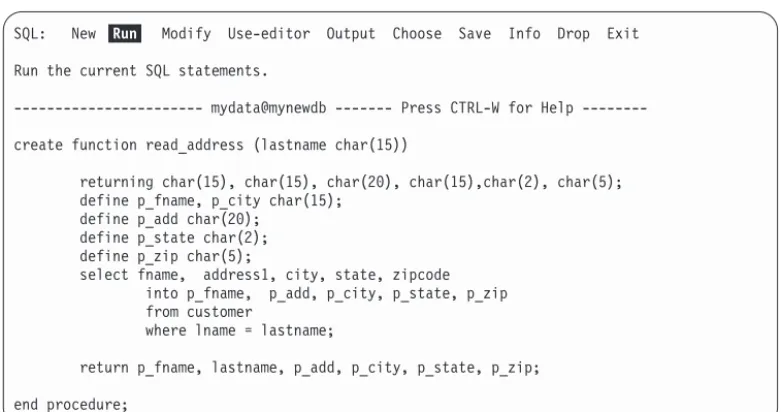
4. Use the Run option to run the routine and display the results. For example, thec_proc.sqlcommand file, which is supplied with the
demonstration database, contains an SPL. Before you can run the routine, change the word procedurein thec_proc.sqlfile tofunctionbecause the routine returns a value. Then use the Choose option and selectc_proc.
First you must register the routine in the database. Select the Run option, as the following figure shows.
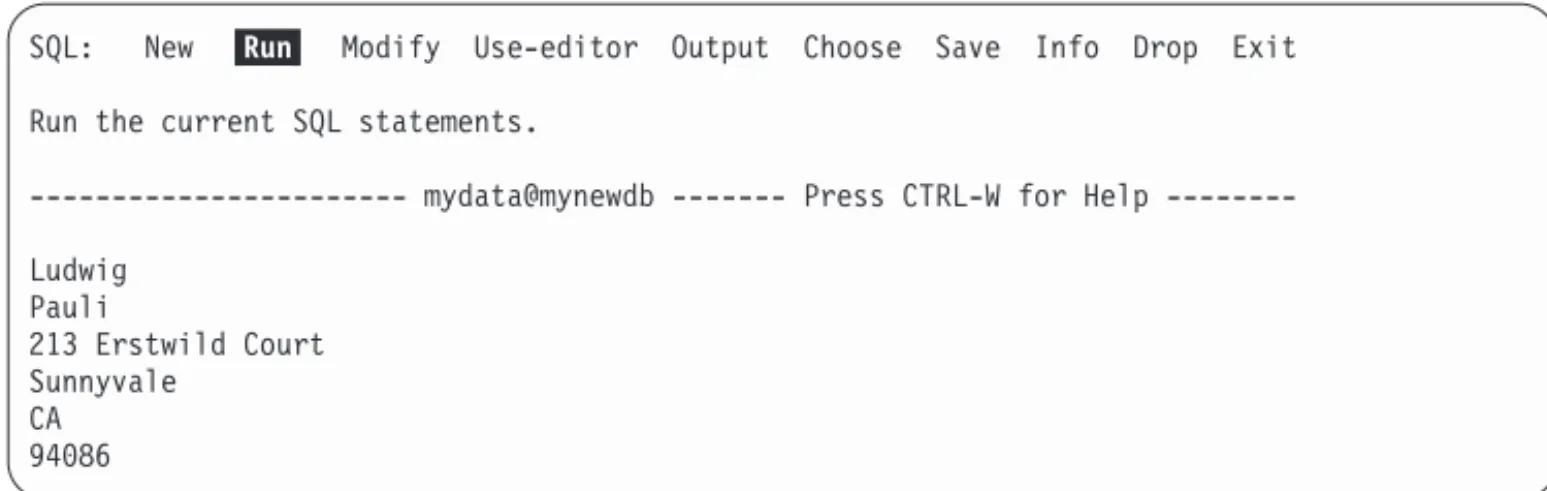
DB-Access displays a message to indicate that the database server created the routine. To run the routine, select New from the SQL menu and then enter the appropriate EXECUTE statement. In the following example, the user requests the address of a customer whose surname is Pauli:
EXECUTE PROCEDURE read_address ("Pauli")
After you enter the EXECUTE PROCEDURE or EXECUTE FUNCTION statement on the NEW screen, press Escto return to the SQL menu. Select Run from the SQL menu to run the routine. The following figure shows the result of running the routine.
SQL: New Run Modify Use-editor Output Choose Save Info Drop Exit Run the current SQL statements.
--- mydata@mynewdb --- Press CTRL-W for Help ---create function read_address (lastname char(15))
returning char(15), char(15), char(20), char(15),char(2), char(5); define p_fname, p_city char(15);
define p_add char(20); define p_state char(2); define p_zip char(5);
select fname, address1, city, state, zipcode into p_fname, p_add, p_city, p_state, p_zip from customer
where lname = lastname;
return p_fname, lastname, p_add, p_city, p_state, p_zip; end procedure;
Tip: SPL routines are stored in the system catalog tables in executable format. Use the Routines option on the DATABASE INFO menu to display a list of the routines in the current database or to display the text of a specified routine.
What happens when errors occur
If you make any syntax or typing mistakes in an SQL statement, DB-Access does not process the statement. Instead, it continues to display the text of the statement with a message that describes the error.
If an execution or runtime error occurs, DB-Access continues to process the statement and returns an error message. For example, if you try to create a table that was already created, the following message is displayed at the bottom of the screen:
310: Table (mavis.mystock) already exists in database.
If you try to run a statement that contains more than one SQL statement, you might not see an error message immediately. If, for example, the first statement is a SELECT statement that runs correctly and the next statement contains a typing error, the data that the first statement retrieved shows on the screen before the error message is displayed for the second statement.
When DB-Access detects an error, processing stops and the Modify option on the SQL menu is highlighted. Select one of the following methods to correct the statement:
v PressEnterto choose Modify, which returns you to the SQL editor. v Select the Use-editor option to use the default editor of your choice.
The Database option
Use the Database option to work with databases and transactions. Use the Database option to:
v Create a database or select a database.
The database that you work with is called thecurrentdatabase.
v Retrieve and display information about a database, such as available dbspaces
and the text of routines.
v Delete an existing database or close the current database. v Commit or rollback transactions.
You can access only databases that are on the current database server. To select a database server as current, you can specify a database server when you start
SQL: New Run Modify Use-editor Output Choose Save Info Drop Exit Run the current SQL statements.
--- mydata@mynewdb --- Press CTRL-W for Help ---Ludwig Pauli 213 Erstwild Court Sunnyvale CA 94086
DB-Access, you can use the Connection menu, or you can run a CONNECT statement from the SQL menu. If you do not explicitly select a database server, DB-Access uses the default database server that the$INFORMIXSERVER environment variable specifies as the current database.
If you select or create a database when another database is already open,
DB-Access closes that database before it makes your selection the current or new database.
The DATABASE menu displays the following options.
Option Purpose
Select Makes a database the current database
Create Builds a new database and makes that database the current database Info Displays information about the current database
Drop Removes a database from the system. You cannot delete the current database.
cLose Closes the current database
Exit Exits the DATABASE menu and returns you to the main menu
List of available databases
When you choose the Select option, the SELECT DATABASE screen opens. The first database in the list of available databases is highlighted, accompanied by the names of database servers.
The list is organized alphabetically by database server and then by database for each database server. You can display a maximum of 512 database names on the SELECT DATABASE screen.
Important: In the SELECT DATABASE screen, the names of databases are limited to 18 characters. If a database name is longer than 18 characters, you see the first 17 characters of the name followed by a ‘+' sign. Enter a ‘+' sign to display the complete long name in vi. To exit from vi, press ESC ZZ.
The list of available databases that is displayed depends on two factors:
v The settings of certain environment variables.
– If you use one database server, DB-Access displays the names of all databases on the current database server and in yourDBPATHsetting.
– If you use multiple database servers, theONCONFIGenvironment variable determines the current database server.
v The current connection. For example:
– If no explicit connection exists, DB-Access displays the databases in the DBPATHsetting.
– If a current explicit connection exists, all databases in theDBPATHsetting that pertain to the current database server are displayed.
Retrieve nondefault locale information
Globalization affects the order in which lists are displayed in DB-Access. Globalization enables the display and appropriate ordering of
non-English-language data. Informix supports globalization with Global Language Support (GLS) locales. Earlier database server versions used Native Language Support (NLS) for this purpose.
If the current database supports globalization, you can select the Nls option on the DATABASE INFO menu to display information about collating sequence and C CType (character classification type), as the following figure shows.
DB-Access does not provide an option on the DATABASE INFO menu for displaying the GLS collating sequence and character classification type. To obtain information about the GLS locale that is enabled for your database server, enter the following query with the SQL editor:
SELECT tabname, site FROM systables WHERE tabid = 90 OR tabid = 91
The row with tabid 90 stores the COLLATION category of the database locale. The row with tabid 91 stores the CTYPE category of the database locale. The following figure shows the result of the preceding query for the default US English locale.
For further information about the COLLATION and CTYPE categories in a GLS locale file, see the IBM Informix GLS User's Guide.
Close a database
To close the current database, use the cLose option from the DATABASE menu. If you begin a transaction but do not commit it or roll it back, and then you try to close a database with transactions, the TRANSACTION menu opens. The
TRANSACTION menu ensures that you either commit or roll back an active transaction before you close the current database.
Important: Select an option carefully. You might commit transactions that you do not want if you select Commit, and you do lose any new transactions if you select Rollback.
DATABASE INFO: dBspace Nls Routine Databases Exit Display NLS information for a database.
--- - stores_demo ---- Press CTRL-W for Help
---fr_fr.8859-1 Collating Sequence CType
Figure 2-4. The DATABASE INFO menu with globalization information displayed
SQL: New Run Modify Use-editor Output Choose Save Info Drop Exit Run the current SQL statements.
- mydata@mynewdb Press CTRL-W for Help
---tabname GL_COLLATE
site en_US.819
tabname GL_CTYPE
site en_US.819
2 row(s) retrieved
The TRANSACTION menu also opens whenever you attempt to open a new database or try to leave the DB-Access menu system without first terminating a transaction.
Important: If you begin a transaction in an ANSI-compliant database but do not issue a COMMIT statement or ROLLBACK statement, then try to close the database using a non-menu mode, DB-Access commits the transaction for you. If you do not want to commit the transaction, issue both a ROLLBACK statement and a CLOSE DATABASE statement from the command line.
The Table option
Use the Table option to work with tables.
Use the Table option to perform any of the following table management tasks without SQL programming:
v Create a new table
v Define fragmentation strategy for a new or existing table v Alter, delete, or display information about an existing table
Use the TABLE menu options as the following table shows.
Option Purpose
Create Enables you to define the structure of a new table. The CREATE TABLE menu provides data type options for built-in data types. To define a column with one of the extended data types, such as smart large objects, user-defined (opaque) data types, or a collection data type, use the SQL menu to enter and run a CREATE TABLE statement. DB-Access can construct only a nonclustered, ascending B-tree column index. If you want hash or hybrid fragmentation, use the SQL menu to enter and run the CREATE TABLE or ALTER TABLE statement.
Alter Enables you to alter the structure of an existing table, including columns, fragmentation, and constraints. You must have the Alter privilege to successfully alter a table. To use the LOAD statement to insert data into a table, you must have both Insert and Select privileges for the table. Info Displays information about the structure of a table
Drop Deletes a table from the database
Move Moves a table from the current database to another database. Exit Returns to the DB-Access main menu
Both the CREATE TABLE and ALTER TABLE menus have the same options, which are described in the following table.
Option Purpose
Add Displays the Schema Editor, from which you can add a new column to the table
Modify Displays the columns that you defined with the Add option so that you can modify the column structure before building the table
Drop Drops an existing column from the table
Screen Displays the next screen of column definitions in the Schema Editor