A Division of Microsoft Corporation One Microsoft Way
Redmond, Washington 98052-6399
Copyright © 2004 by Michael J. Young and Michael Halvorson
All rights reserved. No part of the contents of this book may be reproduced or transmitted in any form or by any means without the written permission of the publisher.
Library of Congress Cataloging-in-Publication Data Young, Michael J.
Microsoft® Office System Inside Out — 2003 Edition / Michael J. Young, Michael Halvorson. p. cm.
Includes index. ISBN 0-7356-1512-8
1. Microsoft Office. 2. Business--Computer programs. I. Halvorson, Michael. II. Title.
HF5548.4.M525M5253 2003
005.369--dc21 2003052693
Printed and bound in the United States of America. 1 2 3 4 5 6 7 8 9 QWT 8 7 6 5 4 3 Distributed in Canada by H.B. Fenn and Company Ltd.
A CIP catalogue record for this book is available from the British Library.
Microsoft Press books are available through booksellers and distributors worldwide. For further informa-tion about internainforma-tional ediinforma-tions, contact your local Microsoft Corporainforma-tion office or contact Microsoft Press International directly at fax (425) 936-7329. Visit our Web site at www.microsoft.com/mspress. Send comments to [email protected].
Encarta, FrontPage, Hotmail, InfoPath, Microsoft, Microsoft Press, MSN, NetMeeting, OneNote, Outlook, PivotChart, PivotTable, PowerPoint, SharePoint, Visio, Visual Basic, Visual FoxPro, Windows, Windows Media, and Windows NT are either registered trademarks or trademarks of Microsoft Corpora-tion in the United States and/or other countries. Other product and company names menCorpora-tioned herein may be the trademarks of their respective owners.
The example companies, organizations, products, domain names, e-mail addresses, logos, people, places, and events depicted herein are fictitious. No association with any real company, organization, product, domain name, e-mail address, logo, person, place, or event is intended or should be inferred.
Acquisitions Editor: Alex Blanton Project Editor: Sandra Haynes Series Editor: Sandra Haynes
Contents at a Glance
Part 1
Getting Going with Office
2003
Chapter 1
An Office 2003 Overview . . . .3
Chapter 2
Installing and Configuring
Office 2003 . . . .17
Chapter 3
Getting Expert Help on
Office 2003 . . . .25
Part 2
Using Shared Office 2003
Application Features
Chapter 4
Working with Office 2003 Applications, Documents, and Program Windows . . . .39
Chapter 5
Using Speech and Handwriting in Office 2003 . . . .83
Chapter 6
Adding Professional Graphics and Special Effects to Office 2003 Documents . . . .107
Chapter 7
Exchanging Data in
Office 2003 . . . .153
Chapter 8
Using Windows SharePoint Services in Professional Workgroups . . . . .177
Chapter 9
Customizing the Office 2003
Application Interface . . . .209
Part 3
Word
Chapter 10
Word Fundamentals . . . 241
Chapter 11
Efficient Editing in Word . . . 259
Chapter 12
Effective Formatting in Word . . . . 307
Chapter 13
Arranging Text Using Tables,
Columns, and Lists . . . 345
Chapter 14
Advanced Word Formatting
Techniques. . . 389
Chapter 15
Managing Large or Complex
Documents. . . 419
Chapter 16
Using Word in Workgroups . . . 447
Chapter 17
Proofing Word Documents. . . 479
Chapter 18
Designing and Printing
Professional-Looking Pages. . . 509
Chapter 19
Using Word to Automate
Mailings. . . 549
Chapter 20
Excel
Chapter 21
Excel Fundamentals . . . .605
Chapter 22
Advanced Worksheet Editing . . . .627
Chapter 23
Expert Formatting Techniques . . .647
Chapter 24 Power Organizing
with Workbooks . . . .679
Chapter 25
Customizing Excel to Work
the Way You Do . . . .705
Chapter 26
Crunching Numbers with
Formulas and Functions . . . .727
Chapter 27
Advanced Worksheet Charts . . . .747
Chapter 28
Power Database Techniques:
Lists, Filters, and PivotTables . . .771
Chapter 29
Advanced Business Analysis . . . .805
Chapter 30
Publishing on the Web and
Working with XML in Excel . . . . .823
Part 5
PowerPoint
Chapter 31
PowerPoint Fundamentals . . . .849
Chapter 32
Advanced Presentation
Formatting . . . .877
Adding Special Effects to a
Presentation . . . 909
Chapter 35
Setting Up and Presenting
the Slide Show . . . 923
Part 6
Outlook
Chapter 36
Outlook Fundamentals . . . 945
Chapter 37
Working with Outlook Items and Folders. . . 955
Chapter 38
Managing Messages and
Appointments. . . 999
Chapter 39
Managing Contacts, Tasks, and Other Types of Information . . . . 1047
Chapter 40
Customizing Outlook. . . 1077
Part 7
Access
Chapter 41
Access Fundamentals. . . 1097
Chapter 42 Setting Up Tables
and Relationships . . . 1113
Chapter 43
Using Queries to Select and
Combine Information . . . 1149
Chapter 44
Creating Forms and Data Access Pages for Working with Data. . . 1171
Part 8
FrontPage Fundamentals
Chapter 46
FrontPage Fundamentals . . . .1219
Chapter 47
Managing Your Web Site with
FrontPage . . . .1239
Chapter 48
Creating and Editing
Web Pages . . . .1279
Chapter 49
Formatting Your Web Pages . . . .1321
Chapter 50
Adding Advanced Features to Your Web Pages and Working
with Source Code . . . .1363
Part 9
InfoPath
Chapter 51
InfoPath Fundamentals . . . .1393
Chapter 52
Designing Forms in InfoPath . . . 1399
Chapter 53
Filling Out and Delivering Forms in InfoPath . . . 1417
Part 10
Customizing Office 2003
Using VBA
Chapter 54
VBA Fundamentals . . . 1427
Chapter 55
Using Variables, Operators, and Functions to Manage
Information . . . 1439
Chapter 56
Adding Logic and Computing Power with Control Structures . . . 1461
Chapter 57
Using Toolbox Controls to
Table of Contents
We’d Like to Hear from You . . . xxix
About the CD . . . xxxi
What’s on the CD . . . xxxi
Using the CD . . . xxxii
System Requirements . . . xxxii
Support Information . . . xxxii
Conventions and Features Used in This Book . . . xxxiii
Text Conventions . . . .xxxiii
Design Conventions . . . .xxxiii
Introduction . . . .xxxv
Who This Book Is For . . . xxxv
How This Book Is Organized . . . xxxv
Contacting the Author . . . xxxvi
Part 1
Getting Going with Office 2003
Chapter 1An Office 2003 Overview
3
A Rundown on Office 2003 . . . 3Advantages of the New Microsoft Office System . . . 4
An Office 2003 Map . . . 7
What’s New in Office 2003 . . . 10
New Shared Office 2003 Features . . . 11
New Word Features . . . 13
New Excel Features . . . 13
New PowerPoint Features . . . 13
New Outlook Features. . . 14
New Access Features . . . 15
New FrontPage Features . . . 15
New Application: InfoPath . . . 16
Chapter 2
Installing and Configuring Office 2003
17
Installing Office 2003 from the CD . . . 17Activating Office 2003 . . . 20
Getting Expert Help on Office 2003
25
Getting Help with the Assistant . . . 25
Getting Help with the Ask A Question List. . . 29
Getting Help Using the Help Task Pane . . . 30
Finding Resources on Office Online . . . 33
Part 2
Using Shared Office 2003 Application Features
Chapter 4Working with Office 2003 Applications, Documents,
and Program Windows
39
Running the Office Applications . . . 39Using the Task Panes in Office Applications . . . 42
Going to the Getting Started Task Pane . . . 44
Using the Research Task Pane . . . 44
Using Smart Documents . . . 47
Creating New Office Documents . . . 47
Creating a Document Using the New Office Document Dialog Box . . . 47
Creating an Empty Office Document in a Folder. . . 52
Creating a Document Using the New Document Task Pane . . . 53
Downloading and Using Templates from Office Online . . . 55
Opening Existing Office Documents . . . 56
Opening an Existing Document Using the Open Office Document Dialog Box . . . 57
Opening Documents Within Office Applications . . . 62
Finding Office Files or Outlook Items Using the File Search Feature . . 63
Saving Office Documents . . . 69
Saving a Document as a Web Page . . . 73
Working with Multiple Documents . . . 74
Comparing Two Documents Side by Side . . . 75
Using Office Document Properties . . . 76
Using Information Rights Management to Restrict Document Permissions. . . 80
Chapter 5
Using Speech and Handwriting in Office 2003
83
Using Speech in Office . . . 83Training Speech Recognition . . . 84
Using Handwriting in Office . . . 96
Accessing the Handwriting Interface . . . 97
Entering Handwriting. . . 97
Inserting Sketches . . . 103
Using the On-Screen Keyboards. . . 105
Chapter 6
Adding Professional Graphics and Special Effects to
Office 2003 Documents
107
Inserting Pictures into Office Documents . . . 107Inserting Pictures with the Clip Organizer . . . 107
Importing Pictures . . . 117
Modifying Pictures . . . 119
Using AutoShapes to Create Drawings . . . 123
Generating Conceptual Drawings Using Office Diagrams . . . 127
Creating an Organization Chart . . . 128
Creating Other Types of Diagrams . . . 130
Using WordArt to Produce Special Text Effects . . . 133
Constructing Charts Using Microsoft Graph . . . 136
Building Equations with Microsoft Equation . . . 139
Modifying Graphic Objects. . . 142
Using the Mouse to Resize, Reshape, Rotate, or Move Graphic Objects . . . 142
Using the Drawing Toolbar to Modify Graphic Objects . . . 144
Using the Format Object Dialog Box to Format Graphic Objects . . . . 149
Chapter 7
Exchanging Data in Office 2003
153
Different Ways to Exchange Data . . . 153Copying and Moving Data Statically . . . 155
Using the Office Clipboard. . . 158
Linking Data . . . 162
A Linking Example . . . 168
Embedding Data. . . 170
An Embedding Example . . . 174
Chapter 8
Using Windows SharePoint Services in Professional
Workgroups
177
Windows SharePoint Services Essentials . . . 177Connecting to a SharePoint Team Web Site in Your Browser. . . 179
Sharing Office Documents and Graphics on a SharePoint Site . . . 183
Participating in a Discussion Board . . . 193
Discussing an Online Document . . . 195
Exchanging Information on a SharePoint Site . . . 198
Customizing a SharePoint Site . . . 201
Creating New Site Components . . . 201
Customizing a Free-Form Web Page or the Home Page. . . 203
Customizing an Information Page. . . 204
Modifying a Team Web Site . . . 206
Chapter 9
Customizing the Office 2003 Application Interface
209
Customizing Toolbars, Menus, and Shortcut Keys . . . 209Creating and Managing Custom Toolbars . . . 210
Modifying Toolbars and Menus . . . 213
Using the Rearrange Commands Dialog Box . . . 220
Defining Shortcut Keys (Word Only) . . . 222
Recording and Running Macros . . . 224
Knowing When to Build a Macro . . . 224
Recording a Macro . . . 225
Running a Macro . . . 227
Setting Macro Security . . . 229
Setting Office Interface Options . . . 232
Saving and Restoring Your Office Settings . . . 235
Part 3
Word
Chapter 10Word Fundamentals
241
A Rundown on Word . . . 241Using the Word Workplace . . . 243
Setting Up the Word Interface . . . 248
Changing the View . . . 249
Modifying the Way Documents Are Displayed . . . 251
Creating, Opening, and Saving Word Documents. . . 255
Converting Groups of Files . . . 256
Storing Different Document Versions . . . 257
Automatically Fixing Your Text with AutoCorrect . . . 271
Using Smart Tags in Word . . . 276
Positioning the Insertion Point . . . 280
Editing Document Text . . . 281
Selecting the Text. . . 282
Editing the Selection . . . 287
Finding and Replacing Text and Formatting . . . 293
Replacing Text and Formatting . . . 298
Moving Quickly Through a Document . . . 300
Using Bookmarks to Label and Locate Text . . . 300
Moving the Insertion Point with the Go To Command . . . 302
Navigating with the Browse Buttons . . . 304
Chapter 12
Effective Formatting in Word
307
Directly Formatting a Word Document . . . 307Formatting Characters Directly. . . 308
Formatting Paragraphs Directly . . . 318
Applying Styles and Reusing Formats . . . 327
Checking the Consistency of Your Formatting . . . 330
Assigning Paragraph Styles, Character Styles, and Saved Formats . . 330
Removing All Formatting . . . 333
Selecting All Text with the Same Style or Formatting . . . 335
Working with Paragraph Styles. . . 336
Assigning Styles and Saved Formats Using the Formatting Toolbar . . . 337
Assigning Styles Using Shortcut Keys . . . 337
Using the Reveal Formatting Task Pane to View or Modify Formatting Features . . . 338
Formatting Your Documents Automatically . . . 340
Chapter 13
Arranging Text Using Tables, Columns, and Lists
345
Arranging Text with Tables . . . 345Creating a Table . . . 346
Adding Content to a Table . . . 347
Adding and Removing Table Cells, Rows, and Columns . . . 347
Resizing Table Cells . . . 350
Moving and Copying Table Cells, Rows, and Columns . . . 353
Creating Tables with the Table Drawing Tools . . . 355
Formatting Tables by Applying Table Styles . . . 357
Using Other Methods for Creating and Modifying Tables . . . 359
Arranging Text in Newspaper-Style Columns . . . 371
Applying Columns with the Columns Button . . . 372
Applying Columns with the Columns Dialog Box . . . 373
Fine Tuning Columns . . . 374
Ordering Text in Bulleted and Numbered Lists. . . 377
Creating Lists with the Formatting Toolbar . . . 377
Creating Lists with the Bullets And Numbering Dialog Box and List Styles . . . 379
Sorting Lists and Tables . . . 384
Chapter 14
Advanced Word Formatting Techniques
389
Customizing Styles . . . 389Customizing Paragraph and Character Styles by Example . . . 393
Customizing Styles Using the Modify Style Dialog Box . . . 394
Deleting a Style . . . 402
Creating New Styles . . . 403
Creating Paragraph Styles by Example . . . 404
Creating Styles with the New Style Dialog Box . . . 404
Reusing Your Styles by Making Copies . . . 406
Copying Styles from a Template to a Document . . . 406
Copying Styles from a Document to a Template . . . 407
Copying Styles from a Document or Template to Another Document or Template . . . 408
Customizing and Creating Document Templates . . . 408
Customizing Templates . . . 411
Creating New Templates . . . 414
Attaching a Template to a Document . . . 415
Loading Global Templates and Word Add-Ins . . . 416
Chapter 15
Managing Large or Complex Documents
419
Working with Documents in Outline View . . . 419Switching to Outline View . . . 420
Changing Outline Levels . . . 422
Moving Blocks of Text . . . 425
Collapsing and Expanding Outline Text . . . 426
Navigating Through an Outline . . . 429
Printing an Outline . . . 432
Inserting Footnotes and Endnotes . . . 434
Generating Indexes and Tables of Contents . . . 438
Chapter 16
Using Word in Workgroups
447
Tracking and Reviewing Document Changes . . . 447
Tracking Your Document Changes . . . 447
Reviewing Tracked Document Changes. . . 452
Merging and Comparing Documents . . . 458
Inserting Comments in Documents . . . 459
Inserting Comments . . . 459
Viewing, Editing, and Deleting Comments . . . 462
Working with Ink Annotations . . . 466
Highlighting Text . . . 466
Sharing Word Documents . . . 468
Sharing Word Documents on a Network . . . 469
Sharing Word Documents Using E-Mail . . . 470
Protecting Shared Documents . . . 472
Sharing Fonts. . . 477
Chapter 17
Proofing Word Documents
479
Using the Word Proofing Tools . . . 479Checking Spelling. . . 479
Checking Your Spelling as You Type . . . 479
Checking the Spelling of Existing Text . . . 482
Customizing the Spelling Checker . . . 485
Using Custom Dictionaries . . . 487
Checking Your Grammar . . . 490
Checking Your Grammar as You Type . . . 490
Checking the Grammar of Existing Text. . . 493
Customizing the Grammar Checker . . . 496
Finding Synonyms with the Thesaurus . . . 497
Translating Text . . . 499
Hyphenating Your Documents . . . 500
Automatically Hyphenating a Document . . . 501
Manually Hyphenating a Document . . . 503
Inserting Hyphen Characters . . . 504
Marking the Language . . . 505
Taking Advantage of Automatic Language Detection . . . 507
Chapter 18
Designing and Printing Professional-Looking Pages
509
Designing Pages . . . 509Using Text Boxes to Create Precise Page Layouts . . . 510
Setting the Margins and Page Orientation . . . 533
Adjusting the Paper Size and Source . . . 540
Adjusting the Page Layout . . . 541
Previewing and Printing Documents . . . 543
Chapter 19
Using Word to Automate Mailings
549
Using the Mail Merge Wizard to Automate Large Mailings . . . 549Generating Individual Envelopes and Labels . . . 559
Generating Individual Envelopes . . . 560
Generating Individual Labels . . . 563
Chapter 20
Creating Web Pages and Working with XML in Word
569
Online Documents . . . 569Using Reading Layout View . . . 571
Creating and Publishing Web Pages . . . 573
Adding Web Page Elements . . . 580
Formatting Web Pages . . . 591
Publishing Your Page . . . 593
Creating, Editing, and Viewing XML Documents . . . 594
Creating XML Documents in Word . . . 596
Part 4
Excel
Chapter 21Excel Fundamentals
605
Starting Excel and Getting Comfortable . . . 605Navigating a Worksheet . . . 608
Entering Information . . . 611
Entering Numeric Values . . . 611
Entering Text Values . . . 613
Entering Dates and Times . . . 614
Entering Comments . . . 616
Entering Formulas . . . 618
Adding Artwork. . . 621
Inserting Hyperlinks . . . 622
Creating a Hyperlink in Your Worksheet . . . 622
Activating a Hyperlink . . . 625
Chapter 22
Advanced Worksheet Editing
627
Essential Editing Techniques . . . 627
Selecting Cells and Ranges. . . 627
Clearing Cells and Deleting Cells . . . 630
Finding and Replacing Data. . . 632
Undoing Commands . . . 633
Using Cut and Paste to Move Data . . . 635
Using Copy and Paste to Duplicate Data . . . 637
Moving Cells by Dragging . . . 638
Adding Rows and Columns to the Worksheet . . . 639
Using Smart Tags in Excel. . . 640
Entering a Series of Labels, Numbers, and Dates . . . 641
Using AutoFill to Create a Series . . . 641
Checking for Errors. . . 644
Correcting Your Spelling . . . 644
Checking for Common Errors. . . 645
Chapter 23
Expert Formatting Techniques
647
Formatting Cells . . . 647Changing Alignment . . . 648
Changing Number Formats . . . 651
Changing the Text Font and Text Color . . . 656
Adding Borders to Cells . . . 658
Adding Shading to Cells . . . 660
Copying Formatting Using the Format Painter Button . . . 662
Changing Column Widths and Row Heights. . . 662
Adjusting the Height or Width Manually . . . 662
Using the AutoFit Command . . . 665
Applying a Combination of Effects Using AutoFormat . . . 665
Creating Conditional Formatting. . . 666
Using Styles . . . 668
Creating Your Own Styles . . . 669
Applying Existing Styles . . . 671
Merging Styles from Other Workbooks . . . 671
Creating and Modifying Templates . . . 672
Creating a New Template File . . . 673
Opening and Modifying an Existing Template File . . . 674
Changing Page Breaks . . . 675
Using Page Break Preview . . . 676
Changing Tab Color. . . 681
Deleting Worksheets . . . 681
Inserting Worksheets . . . 682
Moving or Copying Worksheets . . . 683
Referencing Cells in Other Worksheets . . . 685
Using More Than One Workbook . . . 687
Linking Information Between Workbooks . . . 688
Consolidating Worksheets with Identical Formats . . . 689
Managing Shared Workbooks . . . 693
Creating a Shared Workbook . . . 693
Monitoring a Shared Workbook . . . 695
Accepting or Rejecting Revisions . . . 696
Protecting Worksheets and Workbooks . . . 698
Protecting Worksheets . . . 699
Protecting Workbook Structure . . . 701
Requiring a Password for File Access . . . 702
Chapter 25
Customizing Excel to Work the Way You Do
705
Adjusting Views . . . 705Using the Zoom Command . . . 706
Saving Views Using the Custom Views Command . . . 707
Setting Printing Options . . . 708
Controlling Page Orientation . . . 709
Adjusting the Margins . . . 710
Adding Headers and Footers . . . 710
Adding Gridlines and Other Options . . . 716
Using Multiple Panes . . . 718
Splitting a Worksheet into Panes . . . 719
Freezing Panes in a Worksheet . . . 719
Customizing Excel Using the Options Dialog Box . . . 720
Controlling Calculation . . . 721
Customizing Worksheet Appearance . . . 722
Customizing Editing Options . . . 723
Installing Add-In Commands and Wizards . . . 725
Chapter 26
Crunching Numbers with Formulas and Functions
727
Building a Formula . . . 727Multiplying Numbers . . . 728
Using Functions to Analyze Finances . . . 737
Using PMT to Determine Loan Payments . . . 738
Using FV to Compute Future Value . . . 739
Using the RATE Function to Evaluate Rate of Return . . . 740
Using Function Error Values. . . 741
Using Names in Functions . . . 742
Creating Cell and Range Names . . . 742
Putting Names to Work . . . 744
Deleting and Modifying Names . . . 745
Chapter 27
Advanced Worksheet Charts
747
Planning a Chart . . . 747Choosing a Chart Type . . . 748
Understanding Chart Elements, Excel-Style . . . 750
Creating a Chart. . . 751
Creating an Embedded Chart . . . 754
Formatting a Chart . . . 758
Exploring the Chart Menu . . . 758
Using the Chart Toolbar . . . 759
Changing the Chart Type . . . 759
Changing Titles and Data Labels . . . 760
Adjusting Gridlines . . . 763
Modifying the Chart Legend. . . 764
Copying Chart Formats . . . 765
Adding Labels and Arrows . . . 766
Printing a Chart . . . 768
Chapter 28
Power Database Techniques: Lists, Filters,
and PivotTables
771
Using a List as a Database . . . 771Using a Form for Data Entry . . . 773
Validating Data as You Enter It . . . 775
Sorting Rows and Columns . . . 778
Sorting on More than One Column. . . 779
Creating Your Own Custom Sort Order . . . 781
Using a Custom Sort Order . . . 782
Using AutoFilter to Find Records . . . 783
Creating a Custom AutoFilter. . . 784
Analyzing a List with the Subtotals Command . . . 785
Working in Outline View . . . 788
Using the Page Area . . . 794
Changing the Function in a PivotTable . . . 796
Adjusting the Formatting in a PivotTable . . . 797
Displaying PivotCharts . . . 798
Using External Data Sources in PivotTables . . . 799
Using the New Excel List Commands . . . 800
Chapter 29
Advanced Business Analysis
805
Using the Goal Seek Command to Forecast . . . 805Using the Solver to Set Quantity and Pricing . . . 808
Setting Up the Problem. . . 808
Running the Solver . . . 810
Editing Your Solver Forecast . . . 813
Using the Scenario Manager to Evaluate What-If Questions . . . 815
Creating a Scenario . . . 816
Viewing a Scenario . . . 818
Creating Scenario Reports . . . 819
Chapter 30
Publishing on the Web and Working with XML
in Excel
823
Designing an Excel Web Page . . . 824Static Pages vs. Interactive Pages . . . 824
Publishing an Excel Web Page . . . 825
Running an Excel Web Page on the Internet . . . 830
Working with an Interactive Web Page in Your Browser. . . 830
Using Web Queries . . . 832
Importing Data from the Web . . . 833
Revising Web Queries . . . 835
Working with XML Data in a Worksheet . . . 838
Customizing an XML List. . . 844
Part 5
PowerPoint
Chapter 31PowerPoint Fundamentals
849
Exploring the PowerPoint Window . . . 849Creating a Presentation . . . 856
Using the AutoContent Wizard . . . 857
Starting a Blank Presentation . . . 859
Using a Design Template . . . 861
Using an Existing Presentation as a Model . . . 863
Other Ways to Start a Presentation from a Template . . . 863
Creating a Custom PowerPoint Template . . . 865
Entering and Editing Text. . . 866
Entering Text in Placeholders. . . 866
Working with Automatic Text Formatting . . . 867
Using Smart Tag Recognizers . . . 868
Editing Text . . . 869
Using Outlines . . . 870
Entering an Outline from Scratch . . . 871
Modifying an Outline . . . 871
Rearranging Slides on the Outline Tab . . . 872
Expanding and Duplicating Slides . . . 872
Creating a Summary Slide. . . 873
Adding Comments . . . 873
Checking Spelling and Style . . . 874
Saving a Presentation. . . 876
Chapter 32
Advanced Presentation Formatting
877
Formatting Text . . . 878Formatting Text Using the Formatting Toolbar . . . 878
Text Formatting Using the Font Dialog Box . . . 880
Replacing Fonts . . . 880
Copying Formatting . . . 881
Working with Bullets and Numbering . . . 881
Formatting Indents and Tab Settings . . . 883
Working with Color and Color Schemes . . . 886
Creating a Custom Scheme. . . 887
Changing the Background . . . 888
Working with Presentation Masters . . . 890
Chapter 33
Mastering Tables, Graphics, Video, and Sound
895
Creating Tables . . . 896Formatting a Table . . . 897
Adding Graphics . . . 898
Saving PowerPoint Elements as Pictures . . . 900
Inserting Video Clips . . . 903
Inserting Sound Clips . . . 905
Playing CD Audio Tracks . . . 907
Chapter 34
Adding Special Effects to a Presentation
909
Applying Animation . . . 910Customizing Animation . . . 911
Animating Diagrams and Charts . . . 914
Creating Motion Paths . . . 914
Applying Transitions . . . 917
Creating Hyperlinks . . . 918
Assigning Actions to Objects . . . 920
Chapter 35
Setting Up and Presenting the Slide Show
923
Picking a Presentation Medium . . . 923Using Overheads . . . 925
Ordering 35-mm Slides . . . 926
Preparing an Electronic Presentation . . . 926
Rehearsing the Show . . . 926
Recording Narration . . . 929
Creating a Custom Show. . . 930
Hiding Slides . . . 931
Using the Package for CD Feature . . . 932
Giving an Electronic Presentation. . . 933
Annotating Slides . . . 935
Printing Slides, Notes Pages, and Handouts . . . 936
Creating Handouts . . . 937
Publishing Your Presentation on the Web . . . 938
Previewing Your Presentation in a Browser . . . 938
Saving Your Presentation as a Web Page . . . 939
Part 6
Outlook
Chapter 36Outlook Fundamentals
945
A Rundown on Outlook . . . 945Setting Up Outlook . . . 946
Chapter 37
Working with Outlook Items and Folders
955
Working with Outlook Items . . . 955
Creating New Items . . . 955
Editing Items . . . 961
Moving and Copying Items . . . 966
Removing and Archiving Items . . . 969
Changing the Way You View Items . . . 973
Switching and Customizing Views . . . 973
Sorting, Filtering, and Grouping Items in Folders. . . 979
Quickly Arranging Folder Items. . . 983
Using the Reading Pane . . . 984
Finding Outlook Items . . . 986
Organizing Items Using the Organize Pane . . . 990
Working with Outlook Folders . . . 991
Printing Outlook Information . . . 994
Using Outlook Today to Get an Overview. . . 995
Chapter 38
Managing Messages and Appointments
999
Receiving and Sending E-Mail Messages Using the E-Mail Folders . . . 999Receiving and Viewing E-Mail Messages. . . 1001
Reading HTML Messages Privately and Safely . . . 1005
Using Quick Flags. . . 1007
Using Groups to Manage Several E-Mail Accounts. . . 1008
Composing and Sending E-Mail Messages . . . 1014
Sending Shared Attachments . . . 1018
Using Search Folders to Categorize Your Messages . . . 1019
Organizing Your E-Mail Messages. . . 1021
Handling Junk E-Mail . . . 1022
Using an Internet Fax Service . . . 1025
Maintaining Your Schedule with the Calendar Folder . . . 1026
Scheduling Appointments . . . 1027
Setting Up Events. . . 1032
Scheduling Meetings . . . 1033
Creating and Linking to a SharePoint Meeting Workspace . . . 1039
Working with Your Calendar Folder . . . 1043
Opening a SharePoint Calendar in Outlook . . . 1045
Chapter 39
Managing Contacts, Tasks, and Other Types of
Defining Tasks . . . 1061 Working with Your Tasks Folder . . . 1066 Recording Events with the Journal Folder . . . 1068 Recording Entries in Your Journal Folder . . . 1068 Storing Miscellaneous Information in the Notes Folder . . . 1074
Chapter 40
Customizing Outlook
1077
Customizing the Navigation Pane . . . 1077 Configuring the Navigation Pane Buttons . . . 1077 Customizing the My Folders Lists . . . 1078 Customizing the Favorite Folders List . . . 1078 Customizing the Shortcuts List . . . 1079 Adding, Modifying, and Removing Outlook Accounts . . . 1080 Managing Outlook Data Files. . . 1088 Creating and Modifying Outlook Data Files . . . 1091 Opening, Closing, and Working with Outlook Data Files . . . 1092
Part 7
Access
Chapter 41
Access Fundamentals
1097
A Rundown on Access . . . 1097 Designing and Planning an Access Database . . . 1100 Creating a New Database . . . 1104 Using the Database Window and Object Views . . . 1107 Saving, Closing, and Opening Databases in Access . . . 1110 Opening a Database . . . 1111 Backing Up Your Database . . . 1112
Chapter 42
Setting Up Tables and Relationships
1113
Chapter 43
Using Queries to Select and Combine Information
1149
Creating a Query . . . 1149 Creating a Basic Query with the Simple Query Wizard . . . 1150 Creating a Maintenance Query . . . 1154 Modifying a Query . . . 1154 Using Top-Value Queries . . . 1158 Summarizing Your Information . . . 1160 Adding Calculated Fields . . . 1163 Creating a Crosstab Query . . . 1166 Creating and Running Queries to Modify Data . . . 1168 Make-Table Query . . . 1170 Append Query . . . 1170 Delete Query . . . 1170 Update Query. . . 1170
Chapter 44
Creating Forms and Data Access Pages for
Working with Data
1171
Creating a Form . . . 1171 Creating a Form Using the Form Wizard . . . 1173 Customizing a Form . . . 1178 Formatting a Form . . . 1183 Viewing and Modifying Data in a Form . . . 1189 Publishing Data on an Intranet Using a Data Access Page . . . 1193 Creating a Data Access Page . . . 1195 Modifying a Data Access Page. . . 1197 Publishing a Data Access Page . . . 1197
Chapter 45
Generating Reports to Present Information
1199
Creating a Report . . . 1199 Using the Report Wizard . . . 1201 Modifying a Report . . . 1210 Understanding Report Sections . . . 1211 Controlling the Groupings . . . 1213 Previewing and Printing a Report . . . 1215
Part 8
FrontPage Fundamentals
Customizing and Creating SharePoint Team Web Sites . . . 1231 Navigating in FrontPage. . . 1233
Chapter 47
Managing Your Web Site with FrontPage
1239
Working with Your Web Site’s Folders and Files . . . 1239 Working with Folders. . . 1242 Adding Document Libraries, Lists, and Other Information
Components to a SharePoint Team Web Site . . . 1243 Working with Files . . . 1247 Importing Web Site Files and Folders . . . 1250 Setting Up Your Web Site’s Navigation Structure . . . 1254 Using Navigation View. . . 1255 Using Hyperlinks View . . . 1260 Managing Your Web Site Projects. . . 1262 Viewing Web Site Reports . . . 1265 Viewing, Verifying, and Repairing Hyperlinks . . . 1270 Publishing Your Web Site . . . 1273
Chapter 48
Creating and Editing Web Pages
1279
Chapter 49
Formatting Your Web Pages
1321
A Page Formatting Overview . . . 1321 Formatting Paragraphs . . . 1322 Applying Borders and Shading . . . 1329 Creating Dynamic HTML Effects. . . 1331 Formatting Characters . . . 1332 Formatting Images . . . 1336 Modifying Image Properties . . . 1337 Enhancing Images Using the Pictures Toolbar . . . 1340 Modifying a Video Clip . . . 1344 Positioning Paragraphs, Images, Tables, and Other Elements. . . 1346 Formatting Other Page Elements . . . 1349 Formatting the Whole Page . . . 1350 Modifying Page Properties. . . 1350 Using Themes to Quickly Change the Overall Page Format . . . 1353 Applying Dynamic Page Transition Effects . . . 1356 Modifying, Creating, and Using Cascading Style Sheet Styles . . . 1358
Chapter 50
Adding Advanced Features to Your Web Pages
and Working with Source Code
1363
Creating Interactive Forms to Collect Information . . . 1363 Using Frames to Display Multiple Pages . . . 1367 Adding Inline Frames . . . 1372 Adding Dynamic Content with Web Components . . . 1374 Inserting Advanced Controls . . . 1379 Working Directly with Source Code . . . 1382 Working with HTML Source Code in Design View . . . 1383 Directly Editing Source Code Files . . . 1384 Finding and Replacing HTML Elements. . . 1389
Part 9
InfoPath
Chapter 51
InforPath Fundamentals
1399
Designing Forms in InfoPath
1399
Opening a Form Template in Design Mode . . . 1399 Customizing a Form Template . . . 1403 Adding a Layout to a Form. . . 1404 Inserting Controls in a Form . . . 1406 Working with a Form’s Data Source . . . 1408 Managing Form Views . . . 1410 Using Other Form Design Tools . . . 1411 Saving a Form Template . . . 1412
Chapter 53
Filling Out and Delivering Forms in InfoPath
1417
Opening a New Form in Edit Mode . . . 1417 Filling Out a Form . . . 1419 Saving and Delivering a Form . . . 1423
Part 10
Customizing Office 2003 Using VBA
Chapter 54
VBA Fundamentals
1427
Using the Visual Basic Development Environment to Edit a Macro . . . 1427 Learning the Visual Basic Programming Tools . . . 1431 Using the Menu Bar . . . 1432 Using the Visual Basic Toolbars. . . 1433 Using Project Explorer. . . 1434 Using the Properties Window. . . 1436 Exiting Visual Basic . . . 1438
Chapter 55
Using Variables, Operators, and Functions
to Manage Information
1439
Using Object Variables to Process Text. . . 1454 Using an Object Variable to Copy Text . . . 1454 Building Formulas. . . 1456 Computing Formulas in Your Documents . . . 1456
Chapter 56
Adding Logic and Computing Power with Control
Structures
1461
Writing Conditional Expressions. . . 1461 Writing If…Then Decision Structures . . . 1462 Testing Several Conditions in an If…Then Decision Structure. . . 1462 Writing Select Case Decision Structures . . . 1466 Using Select Case to Determine a Document’s Paper Size. . . 1467 Writing For…Next Loops . . . 1469 Using a Loop to Manage Tables. . . 1470 Using For…Each Loops. . . 1472
Chapter 57
Using Toolbox Controls to Create a User Interface
1477
Getting Started with UserForms. . . 1477 Designing the User Interface . . . 1477 Setting Properties . . . 1481 Writing Event Procedures . . . 1484 Using the TextBox Control to Process Paragraphs . . . 1487 Processing Text in a Word Document . . . 1487 Reviewing the ParaScan Macro Code . . . 1489
We’d Like to Hear from You
Our goal at Microsoft Press is to create books that help you find the information you need to get the most out of your software.
The Inside Out series was created with you in mind. As part of our ongoing effort to ensure that we’re creating the books that meet your learning needs, we’d like to hear from you. Let us know what you think. Tell us what you like about this book and what we can do to make it better. When you write, please include the title and author of this book in your e-mail mes-sage, as well as your name and contact information. We look forward to hearing from you! How to Reach Us
E-Mail: [email protected] Mail: Inside Out Series Editor
Microsoft Press One Microsoft Way Redmond, WA 98052
About the CD
The companion CD that ships with this book contains many tools and resources to help you get the most out of your Inside Out book.
What’s On the CD
Your INSIDE OUT CD includes the following:
● Complete eBook. In this section you’ll find the an electronic version of Microsoft Office System Inside Out—2003 Edition. The eBook is in PDF format.
● Insider Extras. This section includes sample files referenced in the book. Copy these files to your hard disk, and use them to follow along with the books examples or as a starting point for your own work.
● Microsoft Resources. In this section you’ll find information about additional resources from Microsoft that will help you get the most out of the Microsoft Office System. Building on the familiar tools that many people already know, the Microsoft Office System includes servers, services, and desktop programs to help address a broad array of business needs.
● Extending Office. In this section, you’ll find great information about third-party utilities and tools you use to further enhance your experience with Office 2003.
● Microsoft Computer Dictionary, Fifth Edition, eBook. Here you’ll find the full elec-tronic version of the Microsoft Computer Dictionary, Fifth Edition. Suitable for home and office, the dictionary contains more than 10,000 entries.
● Microsoft Networking Encylopedia, Second Edition, eBook. Here you’ll find the full electronic version of the Microsoft Encyclopedia of Networking, Second Edition. This encyclopedia contains thousands of entries detailing the latest technologies, standards, products, and services.
The companion CD provides detailed information about the files on this CD, and links to Microsoft and third-party sites on the Internet.
Note Please note that the links to third-party sites are not under the control of Microsoft
Using the CD
To use this companion CD, insert it into your CD-ROM drive. If AutoRun is not enabled on your computer, run the StartCD.exe in the root of the CD.
System Requirements
Following are the minimum system requirements necessary to run the CD:
● Microsoft Windows XP or later or Windows 2000 Professional with Service Pack 3 or later
● 266-MHz or higher Pentium-compatible CPU
● 64 megabytes (MB) RAM
● 8X CD-ROM drive or faster
● Microsoft Windows–compatible sound card and speakers
● Microsoft Internet Explorer 5.01 or higher
● Microsoft Mouse or compatible pointing device
Note An Internet connection is necessary to access the some of the hyperlinks. Connect
time charges may apply.
Support Information
Every effort has been made to ensure the accuracy of the book and the contents of this com-panion CD. For feedback on the book content or this comcom-panion CD, please contact us by using any of the addresses listed in the “We’d Like to Hear from You” section.
Microsoft Press provides corrections for books through the World Wide Web at http:// www.microsoft.com/mspress/support/. To connect directly to the Microsoft Press Knowledge Base and enter a query regarding a question or issue that you may have, go to http:// www.microsoft.com/mspress/support/search.asp.
Conventions and Features
Used in This Book
This book uses special text and design conventions to make it easier for you to find the infor-mation you need.
Text Convention
Design Conventions
This icon identifies a new or significantly updated feature in this version of the software.
Inside Out
This statement illustrates an example of an “Inside Out” problem statement.
These are the book’s signature tips. In these tips, you’ll get the straight scoop on what’s going on with the software—inside information about why a feature works the way it does. You’ll also find handy workarounds to deal with software problems.
Convention Meaning
Abbreviated menu commands For your convenience, this book uses abbreviated menu
commands. For example, “Click Tools, Track Changes, Highlight Changes” means that you should click the Tools menu, point to Track Changes, and click the High-light Changes command.
Boldface type Boldface type is used to indicate text that you enter or type.
Initial Capital Letters The first letters of the names of menus, dialog boxes,
dialog box elements, and commands are capitalized. Example: the Save As dialog box.
Italicized type Italicized type is used to indicate new terms.
Plus sign (+) in text Keyboard shortcuts are indicated by a plus sign (+)
Tip Tips provide helpful hints, timesaving tricks, or alternative procedures related to the task being discussed.
Troubleshooting
This statement illustrates an example of a “Troubleshooting” problem statement.
Look for these sidebars to find solutions to common problems you might encounter. Trou-bleshooting sidebars appear next to related information in the chapters. You can also use the Troubleshooting Topics index at the back of the book to look up problems by topic.
Cross-references point you to other locations in the book that offer additional information about the topic being discussed.
This icon indicates information or text found on the companion CD.
Caution Cautions identify potential problems that you should look out for when you’re completing a task or problems that you must address before you can complete a task.
Note Notes offer additional information related to the task being discussed.
Sidebars
Introduction
Microsoft Office 2003 Edition has more power, more application integration, and greater sharing of features than any previous version of Office. Microsoft has worked hard to make the Office applications easy to use, but the new Office System’s sheer size and complexity can make it challenging to find your way around the software, to learn the applications and the ways they work together, and to solve the problems that result from the software’s intricacy. Microsoft Office System Inside Out—2003 Edition is designed to help you meet this challenge.
Who This Book Is For
This book is written for the power user, the software enthusiast, the consultant, the solutions developer, or the company guru—the one others come to for help. It’s designed for the per-son who wants to learn the essentials quickly and then go on to more interesting topics— advanced timesaving techniques, bug workarounds, troubleshooting advice, and insights into Office’s inner workings. It’s written for the computer user who needs to solve the prob-lems that will inevitably occur with software as complex as Office. And it’s targeted to the reader who wants an honest, objective evaluation of the different Office components, clarify-ing which features to use and which to avoid.
Rest assured that the book also covers the essentials. Contrary to the typical media depiction of a computer genius, even the savviest computer expert needs to learn the basics of a new program. In this book, however, the essentials are taught as they would be in a graduate seminar rather than in a freshman 101 course—quickly and concisely, relying on your general computer under-standing and your ability to translate your current insights and skills to the topic at hand. Consequently, to get the most out of this book, you should know the basics of computer hardware and software. You should know Microsoft Windows. You should know how to use the file system, how to access the Internet, and how to manage your e-mail. You should have used a word processor and spreadsheet program before, so that the essential concepts are familiar to you. But most important, you should be excited about exploring the fascinating territory that lies just beyond the surface of Office 2003.
How This Book Is Organized
Office applications and on the ways to take advantage of Office application integration. For instance, this part explains how to use the Office task panes, the search feature, the speech recog-nition and handwriting interfaces, the enhanced Office Clipboard, and the many commands for adding graphics to documents, including the Clip Organizer and diagram features. It also shows how to create compound documents that combine data from several applications; how to use Office applications to share documents and information on a team Web site on a server running the new Microsoft Windows SharePoint Services; and how to record macros and customize the menus, toolbars, and other features of the common Office application interface.
Parts 3 through 9 provide in-depth coverage of each of the major Office applications: Microsoft Word, Excel, PowerPoint, Outlook, Access, FrontPage, and InfoPath. For a brief rundown on each of these applications, see “An Office 2003 Map” on page 6, as well as the first chapter of each application part.
Finally, Part 10, “Customizing Office 2003 Using VBA,” covers the common macro and devel-opment language of the Office applications: Visual Basic for Applications (VBA). These chap-ters explain how to use Office’s Visual Basic Editor to enhance macros that you’ve recorded in Office applications, as well as to develop more sophisticated macros from scratch.
Keep in mind that Microsoft Office System Inside Out—2003 Edition isn’t the type of book you need to read through from the beginning. Nor must you read an individual chapter in its entirety. Rather, the book has been designed so that you need to consult only the specific sec-tion or secsec-tions that are relevant to completing your pending Office task or to solving your current Office problem. The sections in this book are concise, down-to-business, and are largely self-sufficient. If a section does depend on material found elsewhere, you’ll find a cross-reference to the chapter, section, or page containing that information.
In addition to cross-references, you’ll find many notes and sidebars that provide supplemen-tal and in-depth insights and techniques, as well as tips presenting advanced tricks and workarounds. You’ll also discover candid Inside Out elements in each chapter, which often point out flaws and shortcomings in the Office software and suggest ways to deal with them. And finally, the chapters include special troubleshooting sidebars to help you solve specific problems that you’re likely to encounter.
To quickly find the section or sections you need to read, be sure to take advantage of the book’s comprehensive table of contents and indexes, including a separate index of trouble-shooting sidebars, which should be the first resource you consult when Office trouble strikes.
Contacting the Author
Part 1
Getting Going with
Office 2003
1 An Office 2003 Overview
3
Chapter 1
An Office 2003 Overview
A Rundown on Office 2003 . . . .3 An Office 2003 Map. . . 7
A Rundown on Office 2003
The Microsoft Office 2003 Editions provide more applications and utility programs than ever before. Which ones you have depends on which edition of Office 2003 you own or which indi-vidual Office applications you’ve obtained. This book covers the following major Office 2003 applications:
● Microsoft Word (Part 3)
● Microsoft Excel (Part 4)
● Microsoft PowerPoint (Part 5)
● Microsoft Outlook (Part 6)
● Microsoft Access (Part 7)
● Microsoft FrontPage (Part 8)
● Microsoft InfoPath (Part 9)
The book also covers many of the valuable utility programs, add-ons, and Web server exten-sions that help you work with the major Office applications:
● Microsoft Office Application Recovery (Chapter 4).
● Microsoft Clip Organizer (Chapter 6).
● Microsoft Graph (Chapter 6).
● Microsoft Equation (Chapter 6).
● Microsoft Windows SharePoint Services (Chapter 8). See Figure 1-1.
● Save My Settings Wizard (Chapter 9).
Ch
a
p
te
r 1
F01of01
Figure 1-1. This figure shows the home page of a team Web site on a server running the new version of SharePoint, known as Windows SharePoint Services.
Even if you don’t have one or more of the applications covered in this book, you might want to read some of the information about these applications to help you decide whether to add an Office program to your software collection or whether you’re better off using the applica-tions you already have.
Advantages of the New Microsoft Office System
Obtaining and installing the new Microsoft Office System, rather than acquiring individual applications here and there, isn’t just a way to economize by buying programs “cheaper by the dozen.” The real advantages of a software suite such as Office 2003 lie in the common user interface and the application integration features.
In Office 2003, the individual applications share more common features than in any previous version of Office. An obvious advantage of a common user interface is that once you learn one application, it’s much easier to learn another. Also, as you switch between applications, you won’t have to switch working modes quite so radically. And, perhaps most important, a common user interface frees your focus from the individual applications and their idiosyn-crasies and lets you concentrate on the documents you’re creating. The following are exam-ples of important common features in Office 2003:
● The menus, toolbars, shortcut keys, and the methods for customizing these features.
Chapter 1 An Office 2003 Overview
● The task panes, such as the new Getting Started task pane, which is shown in Figure 1-2.
F01of02
Figure 1-2. Each application’s Getting Started task pane, a new feature in Office 2003, contains a basic collection of commands and features that are useful in that application.
● The speech and handwriting interfaces.
● The drawing features (the Drawing toolbar, AutoShapes, Diagrams, WordArt, and others).
● The methods for displaying and setting document properties.
● The ability to store and share documents and picture files on a SharePoint team Web site.
● The ability to fax documents using an Internet fax service. See Figure 1-3.
● The proofing tools (Spelling, Thesaurus, AutoCorrect, and others).
● Integrated access to the resources provided on the enhanced Office Web site, now known as Microsoft Office Online. These resources include help information, training, templates, clip art, and Web services.
● The help interface, including the new Help and Research task panes.
● The Check For Updates, Detect And Repair, and Activate Product commands, all found on the Help menu.
Ch
a
p
te
r 1
[image:42.531.129.373.64.265.2]F01of03
Figure 1-3. This figure shows the Message form that appears when you send a fax from an Office application using an Internet fax service.
The Office 2003 applications are also more tightly integrated than ever. Application integra-tion extends the usefulness of the individual applicaintegra-tions. It lets you combine applicaintegra-tions in a synergistic way to solve more complex problems and to easily accomplish otherwise difficult tasks. The following are examples of application integration features available in Office 2003:
● Commands for linking and embedding data from several Office applications in a single compound document.
● Features for inserting hyperlinks into Office documents, which allow you to link together different types of documents, files, or Web pages.
● The ability of Office applications to import and export each other’s documents (using the Open and Save As dialog boxes, as well as special-purpose commands for import-ing and exportimport-ing documents or data).
● Enhanced support for XML (Extensible Markup Language), which allows you to exchange data among different Office applications using XML as a common data format.
● Integrated access to a SharePoint team Web site, which allows you to store different document types, as well as information derived from various Office applications, in a single shared work environment.
Chapter 1 An Office 2003 Overview
● The capability of using data stored in Outlook or Access when creating mail-merge documents in Word.
● VBA, the common programming language of the Office applications and the most powerful way to create solutions using multiple Office applications.
An Office 2003 Map
If you’re not sure where to start with Office 2003, you can use Table 1-1 to select the best Office application to use for creating the type of document you want or for performing the task you need to complete.
Note For a more detailed rundown on an Office 2003 application, see the first chapter in
the part of the book that covers that application.
Table 1-1.
The Best Office 2003 Application to Use for Performing Specific Tasks
Task
Office 2003 Application to Use
● Create general printed or online documents of all kinds—for example,
memos, letters, faxes, reports, contracts, résumés, manuals, theses, and books.
● Enter and organize research notes, outlines, and other types of free-form
text information.
● Generate form letters, envelopes, labels, and other mail-merge documents.
● Print individual labels and envelopes.
● Create general-purpose, relatively simple Web pages, which can include
almost any Word document element, plus movies, sounds, forms, frames, visual themes, navigation bars, and components for accessing information on a SharePoint team Web site. Use templates to create personal Web pages and other types of pages.
● Create, edit, or view an XML document that conforms to any XML schema
that you supply.
● Read documents using a clear, book-like interface (the new Reading
Lay-out view). See Figure 1-4 on page 10.
● Translate words, phrases, or sentences into a different language.
Ch
a
p
te
r 1
● Organize, calculate, analyze, chart, and save numeric business or
per-sonal data in a spreadsheet (row and column) format; for example, bal-ance checking accounts, prepare invoices, plan budgets, track orders, or maintain general accounting ledgers.
● Store relatively simple text or numeric data in lists that organize the
infor-mation into records (rows) and fields (columns)—for example, a product inventory or descriptions of members of your rowing club. Sort, find, filter, automatically fill, summarize, group, outline, or subtotal data. Display data in varying combinations using pivot tables or pivot charts. Publish lists of data on a SharePoint team Web site.
● Publish static or interactive spreadsheets, charts, or pivot tables, for
dis-playing numeric, text, or graphic information on the Web. Publish forms on the Web for collecting data in lists or other databases.
● Import, view, analyze, modify, or export XML data that conforms to any
specified schema.
Excel
● Create multimedia presentations consisting of sets of slides to teach,
sell, communicate, or persuade. Include text, graphics, animations, sound, and video in your presentations. Present multimedia information using 35-mm slides, transparencies for overhead projectors, speaker notes, printed handouts, or live slide shows on a computer or computer projector.
● Publish presentations on the Web that consist of a series of multimedia
slides displaying text, graphics, animations, sounds, or videos.
PowerPoint
● Send, receive, and organize e-mail messages. Exchange instant Internet
messages.
● Send and receive faxes using an Internet fax service.
● Store and manage personal information (appointments, names and
addresses, to-do lists, journal entries, or free-form notes).
● Communicate and coordinate with members of your workgroup (schedule
meetings, create meeting workspaces on a SharePoint team Web site, manage group projects, or view shared calendars (events lists) or contacts stored on a SharePoint team Web site).
Outlook
Table 1-1.
The Best Office 2003 Application to Use for Performing Specific Tasks
Task
Chapter 1 An Office 2003 Overview
● Store, organize, select, and present data in a relational database, which
allows you to easily manage large amounts of complex or interrelated data and to divide data into separate, related tables to maximize storage effi-ciency and simplify data maintenance.
● Publish an interactive form on an intranet that allows users to view or
update information from a database.
● Store XML data in a database table, or export data to an XML document.
Access
● Create entire Web sites using templates or wizards—such as a site for
establishing a corporate presence, displaying personal information, con-ducting an online discussion, managing a project, or accessing shared information stored on a SharePoint team Web site (see Figure 1-5). Use visual themes to apply consistent formatting to all pages in your site.
● Create special-purpose team Web sites on a server running Windows
SharePoint Services—for example, an issue tracking site for a workgroup, a news and review site for an organization, or a Web log.
● Manage your Web site (maintain files and folders, display reports, create
and update hyperlinks, track tasks, copy files between a local and remote Web site or synchronize files, or control the source files in workgroups).
● Create a Web page quickly using a template or wizard (for example, a page
containing a bibliography, a feedback form, or a table of contents).
● Create Web part pages on a SharePoint team Web site. A Web part page is
a free-form Web page that you can quickly build by adding and customizing predefined components known as Web parts.
● Create or edit a Web page using a full-featured HTML (Hypertext Markup
Language) editor, which supports all standard Web page elements and provides ready-to-use Web-page components (date and time stamps, com-ments, interactive buttons and other dynamic effects, forms for searching the site, spreadsheets and charts, hit counters, galleries of photos, included files, link bars, tables of contents, site usage statistics, views of information stored on a SharePoint team Web site, and controls that dis-play information from Web sites such as MSN).
● Create or edit any type of plain text source file, such as a cascading style
sheet (CSS) file, an XML document, or a C++ source file.
FrontPage
● Design, fill out, and deliver electronic business forms that are stored in
the industry-standard XML format and are structured using any standard XML schema that you supply.
InfoPath
Table 1-1.
The Best Office 2003 Application to Use for Performing Specific Tasks
Task
Ch
a
p
te
r 1
[image:46.531.107.396.65.272.2]F01of04
Figure 1-4. Word’s new Reading Layout view is optimized for reading an online document.
F01of05
Figure 1-5. In FrontPage you can create a new SharePoint team Web site. This figure shows the home page of a newly created team site opened for editing in FrontPage.
[image:46.531.108.396.300.504.2]Chapter 1 An Office 2003 Overview
New Shared Office 2003 Features
Each of the following new features is available in most—or many—of the major Office 2003 applications.
Getting Started task pane Most of the major Office applications now have a Getting Started task pane, which contains a basic collection of commands and features that are useful in each application. For example, the Getting Started task pane in Word lets you open an existing document, create a new document, or access Word information and resources (such as templates) on the Microsoft Office Online Web site (see Figure 1-2).
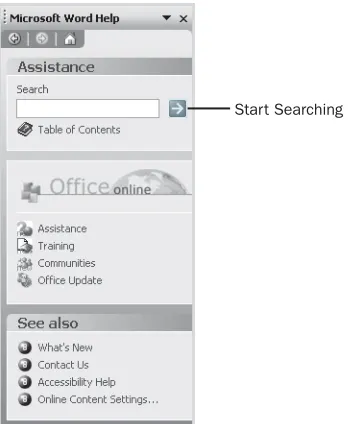
Help task pane The Help command in Office applications now opens the new Help task pane, which you can use to search for help information in local help files as well as from the Microsoft Office Online Web site.
Research task pane In Word, Excel, PowerPoint, and Outlook you can use the new Research task pane to look up information from local and Internet information sources.
Office Online Office applications now provide more integrated tools for locating and using resources on the Office Web site, known as Office Online. These resources include assistance (help information), Office training, templates for Office applications, clip art and other media clips, Office updates, and services from the Office Marketplace site. Most of the tools for accessing these resources are located in Office task panes.
Enhanced thesaurus An enhanced online thesaurus available in Word, Excel, PowerPoint, and Outlook uses the new Research task pane.
Templates from Office Online Office 2003 provides a larger collection of downloadable online templates and wizards for creating new Office documents—through the Office Online Web site—and it makes it easier to find, download, and use these templates.
Information Rights Management Word, Excel, PowerPoint, and the Outlook Message form now allow you to use Information Rights Management to restrict access to a sensitive document that you distribute or a sensitive message that you send. You do this by using the new File, Permission menu command or the Permission toolbar button.
My Recent Documents The Open and Open Office Document dialog boxes now include a My Recent Documents folder that lets you quickly reopen recently opened folders or Office documents.
Side by side document viewing Word and Excel now let you quickly display two documents side by side and synchronize scrolling in the two documents, making it easy to scan and visually compare the documents’ contents.
Ch
a
p
te
r 1
Internet faxing You can now send faxes from an Office application using an Outlook e-mail message and an Internet fax service.
Simplified customization You can use the new Rearrange Commands dialog box to custom-ize toolbars and menus, all by issuing commands within a single dialog box.
Windows SharePoint Services A new SharePoint version, now known as Windows Share-Point Services (WSS), provides enhanced features that can be accessed through a browser or from Office 2003 applications, including the following:
■ Document workspaces, which are special-purpose SharePoint Web sites designed for a group of colleagues to work together on a set of documents. You can create a document workspace within a SharePoint team Web site using your browser or through an Office application.
■ Meeting workspaces, which are special-purpose SharePoint Web sites designed for a group of colleagues to plan a meeting. You can create a meeting workspace within a SharePoint team Web site using your browser or through a Meeting form in Outlook.
■ Picture libraries for sharing collections of graphics files.
■ Form libraries for creating, storing, and sharing XML-based business forms managed by InfoPath or another Windows SharePoint Services-compatible XML editor.
■ Issue tracking lists for working with issues or problems that need to be resolved.
■ Custom free-form Web pages known as Web part pages, which are built from predefined components known as Web parts.
■ Customizing a team Web site’s home page using your browser.
■ Viewing the contents of a document library, list, or other information compo-nent in a datasheet format.
■ Creating subfolders within a document library, picture library, or form library.
■ Checking out a file in a document library, picture library, or form library so that only you can make changes to it.
■ Working with file versions in a document library, picture library, or form library.
■ Linking an events list to Outlook so that you can view your SharePoint events in an Outlook calendar folder.
■ Linking a contacts list to Outlook so that you can view your SharePoint contacts in an Outlook contacts folder. Also, importing contacts from Outlook to a SharePoint contacts list.
Chapter 1 An Office 2003 Overview
New Word Features
Reading Layout view Word’s new Reading Layout view displays a document in a format that’s optimized for online reading. It divides the document into small pages that fit completely within the screen, and features a large, smoothed font and a simpler appli-cation interface.
Formatting and editing restrictions When you protect a shared Word document, you can now restrict the types of formatting and editing actions that other users can perform in the document. You can also exempt specific regions of a document from editing restrictions.
Enhanced translation feature Word’s enhanced translation feature lets you translate a word, phrase, or sentence into a different language, using the new Research task pane together with bilingual dictionaries on your computer or on the Internet.
General XML document editing Word now lets you create, edit, view, or validate a custom XML document that conforms to any schema that you supply. Word also allows you to apply a custom transform to an XML document so that it can be displayed in Word using any Word formatting, text, or graphics.
New Excel Features
Enhanced List commands Excel 2003 provides a set of new commands for working with a List, most notably the ability to publish a List on a SharePoint team Web site.
Enhanced XML support You can now import, view, analyze, modify, and export XML data that conforms to any XML schema that you provide. You can import XML data from a variety of sources, including XML documents, Web services, or databases that can return data in XML format. You can now also work directly with the XML elements within the worksheet.
New PowerPoint Features
Smart tag recognizers PowerPoint now lets you use smart tag recognizers to convert spe-cific types of data in your presentations—such as dates, financial symbols, and names—to smart tags that you can use to perform useful actions on the data—such as looking up a stock quote for a financial symbol.