3Com
®
eXchange Call Center
Installation and
Getting Started Guide
Version 4.33
http://www.3com.com
3Com Corporation, 350 Campus Drive, Marlborough, MA 01752-3064
Copyright © 2004, 3Com Corporation. All Rights Reserved. No part of this documentation may be reproduced in any form or by any means or used to make any derivative work (such as translation, transformation, or adaptation) without written permission from 3Com Corporation.
3Com Corporation reserves the right to revise this documentation and to make changes in content from time to time without obligation on the part of 3Com Corporation to provide notification of such revision or change.
3Com Corporation provides this documentation without warranty, term, or condition of any kind, either implied or expressed, including, but not limited to, the implied warranties, terms, or conditions of merchantability, satisfactory quality, and fitness for a particular purpose. 3Com may make improvements or changes in the product(s) and/or the program(s) described in this documentation at any time.
If there is any software on removable media described in this documentation, it is furnished under a license agreement included with the product as a separate document, in the hardcopy documentation, or on the removable media in a directory file named LICENSE.TXT or !LICENSE.TXT. If you are unable to locate a copy, please contact 3Com and a copy will be provided to you.
UNITED STATES GOVERNMENT LEGEND
If you are a United States government agency, then this documentation and the software described herein are provided to you subject to the following:
All technical data and computer software are commercial in nature and developed solely at private expense. Software is delivered as “Commercial Computer Software” as defined in DFARS 252.227-7014 (June 1995) or as a “commercial item” as defined in FAR 2.101(a) and as such is provided with only such rights as are provided in 3Com’s standard commercial license for the Software. Technical data is provided with limited rights only as provided in DFAR 252.227-7015 (Nov 1995) or FAR 52.227-14 (June 1987), whichever is applicable. You agree not to remove or deface any portion of any legend provided on any licensed program or documentation contained in, or delivered to you in conjunction with, this guide.
Unless otherwise indicated, 3Com registered trademarks are registered in the United States and may or may not be registered in other countries.
3Com, the 3Com logo, NBX, and SuperStack are registered trademarks and NBX NetSet and pcXset are trademarks of 3Com Corporation.
Adobe is a trademark and Adobe Acrobat is a registered trademark of Adobe Systems Incorporated. Microsoft, Windows, Windows 2000, and Windows NT are registered trademarks of Microsoft Corporation.
C
ONTENTS
A
BOUTT
HISG
UIDE7
Conventions 7Related Documentation 8 How This Guide Is Organized 8
Documentation Comments 9
Registration, Warranty, and Support Information 9 Disclaimers 9
C
HAPTER1:
EX
CHANGEC
ALLC
ENTERS
YSTEMO
VERVIEW11
3Com eXchange Engine Main Features 123Com eXchange Visor Main Features 12 3Com eXchange Agent Main Features 13
Typical Call Processing Scenario 13
C
HAPTER2: I
NSTALLING THE EX
CHANGEC
ALLC
ENTERS
YSTEM15
Installation Prerequisites 15Hardware and Software Requirements 16 Network Requirements 16
Call Center Computers — Hardware and Software Requirements 16 Voice and Message Recording Workstation 16
Pre-Installation Preparations 17 IP Addresses 17
NBX Definitions 17 IVR Announcements 18 Database Backup Location 18 Fallback Policy 18
Installing the eXchange Call Center Software 19 Overview 19
Installation Summary Checklist 19 Set Up the NBX System 20
Install the CTI Software Package 20
Install the 3Com eXchange Call Center Server 20 Installing the eXchange Visor 23
Installing the eXchange Agent 25 Phones-ONLY Agent Positions 26
Setting Up Phone-ONLY Agent Positions 26 Testing the Installation 26
Predefined Call Flow for Tests 27
Setting Up the Testing Environment 27
C
HAPTER3: G
ETTINGS
TARTED31
Activating the Call Center Server 31 Deactivating the Call Center Server 32 Starting eXchange Visor Applications 33 Closing eXchange Visor Applications 34 Starting the eXchange Agent Application 34 Closing the eXchange Agent Application 34
C
HAPTER4: T
HE EX
CHANGEV
ISORA
PPLICATIONS35
The Administration Application 35The Call Control Scripts Application 35 The Real-Time Monitor Application 36
Creating a Call Distribution Graph 37 The Historical Reports Application 37
Creating the Agent Performance Report 38 Creating a Group Activity By Date Report 39 The Wall Board Administration 40
Defining a New Wall Board 41 Creating a New Message 41 Building a Message Scenario 42
A
PPENDIXB: I
NTEGRATINGNBX
AND EX
CHANGEC
ALLC
ENTERS
YSTEMS49
Overview of Installation and Integration 49Prerequisites 50
Installing and Configuring the NBX System 50 Create Route Points 50
Installing the CTI Software on the eXchange Server 51 Prerequisites 51
Installing Software on the eXchange Server 58 Add 3Com Licenses for Visors and Features 58
Download and Install eXchange Call Center Software 58 Integrating the eXchange Server and the NBX System 58
Add All WAV Phones 58 Create IRNs 58
Testing the Integrated Systems 59 Specific Required Configurations 59
IVR Ports 59
Intelligent Routing Numbers (IRNs) 61 IVR Port Connections and Definitions 61
Definition on Call Center Server 62 Definition on the NBX Systems 62 Defining Music Sources 63
A
PPENDIXC: U
PGRADE ANDD
OWNGRADEP
ROCEDURES65
Upgrading Current EPICLite Site to the 3Com eXchange Call Center 65Purpose 65 Preparations 65 Upgrade Steps 66
How to Downgrade from the 3Com eXchange Call Center to EPICLite Call Center 70 Preparations 70
Downgrade Steps 70
A
PPENDIXD: O
BTAININGS
UPPORT FORY
OUR3C
OMP
RODUCTS73
Register Your Product to Gain Service Benefits 73Solve Problems Online 73
Purchase Extended Warranty and Professional Services 73 Access Software Downloads 74
Contact Us 74
A
BOUT
T
HIS
G
UIDE
This guide describes the installation procedures for all components needed to run the 3Com® eXchange Call Center system. It also describes the basic configurations for setting up the system.
The guide also provides “Getting Started” information for Call Center administrators and other users of the system, as well as a basic overview of the applications that comprise the system. For more complete details on each part of the system, see the guides listed in
Related Documentation on page 8.
This guide is intended for the eXchange Call Center technician who installs the system at the customer site. The technician must be familiar with the physical hardware setup of the system, the physical connections between the system units, and basic IP Telephony and networking principles and practices.
This guide is not intended as a user guide for the 3Com eXchange Call Center system. It does not describe how to use the system’s applications in detail.
For information on the 3Com eXchange Call Center after product release, see the Release Notes in the readme.txt file on the 3Com Partner Access website.
For a description of 3Com eXchange Call Center terms and concepts used in this guide, see the Glossary in Appendix A: Glossary.
Conventions
Table 1 lists conventions that are used throughout this guide.
Table 1 Notice Icons
Icon Notice Type Description
Information note Information that describes important features or instructions
Caution Information that alerts you to potential loss of data or
potential damage to an application, device, system, or network
Related Documentation
The following documents are available on the 3Com Partner Access website for the 3Com eXchange Call Center system:
§ 3Com eXchange Call Center Hardware and Software Guidelines
§ 3Com eXchange Call Center Setup Worksheets
§ 3Com eXchange Call Center Quick Installation Guide
§ 3Com eXchange Call Center Installation and Getting Started Guide (this guide)
§ 3Com eXchange Call Center Administration Guide
§ 3Com eXchange Call Center Visor User Guide
§ 3Com eXchange Call Center Agent User Guide
Additional information can be found in the context-sensitive Help for each screen in the application, and in other technical documents related to the NBX system, as described in
Appendix B: Integrating NBX and eXchange Call Center Systems.
How This Guide Is Organized
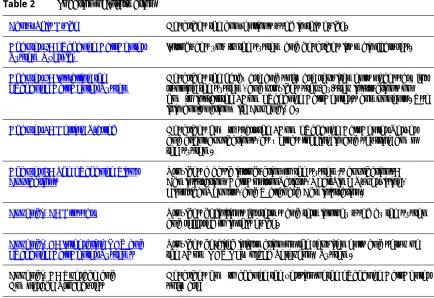
Table 2 can help you to find information in this guide.
Table 2 Location of Information
About This Guide Describes the conventions used in this guide.
Chapter 1: eXchange Call Center
System Overview Introduces you to the system and describes its main features.
Chapter 2: Installing the
eXchange Call Center System Describes the hardware and software requirements necessary forrunning the system, and provides step-by-step instructions on how to install the 3Com eXchange Call Center’s components. Use it in conjunction with Appendix B.
Chapter 3: Getting Started Describes how to start the 3Com eXchange Call Center Server and client applications, as well as logging in and shutting down the system.
Chapter 4: The eXchange Visor
Applications Provides a basic introduction to the system’s applications:Administration, Call Control Scripts, Real-Time Supervising, Historical Reports, and Wallboard Administration.
Appendix A: Glossary Provides definitions for terms and terminology used by the system and referred to in this guide.
Appendix B: Integrating NBX and
eXchange Call Center Systems Provides detailed information on the requirements and setup ofthe 3Com NBX Networked Telephony System.
Appendix C: Upgrade and
Appendix D: Obtaining Support
for Your 3Com Products Describes the many support options available to you after youregister your product.
Documentation Comments
Your suggestions are important to us because we want to make our documentation more useful to you.
Please send e-mail comments about this guide or any of the 3Com eXchange Call Center documentation and Help systems to:
Please include the following information with your comments:
§ Document title
§ Document part number and date (from the front page)
§ Page number
§ Your name and organization
Example:
3Com eXchange Call Center Installation and Getting Started Guide
Part Number 900-0149-01 Rev AA Page 25
Registration, Warranty, and Support Information
For details on how to register your product and get support from 3Com after the product release, see Appendix D: Obtaining Support for Your 3Com Products.
Disclaimers
§ The illustrations and other views, telephone displays, and screen captures appearing in this manual are examples used to explain how the system’s features and controls are used.
What appears in the illustrations may differ from what appears on your actual equipment and may not represent something that is possible in actual operation.
The functions that you can use and the information that you can display may differ on your system, depending on the telephony state and external equipment connected in your network and eXchange Call Center system.
Therefore, use the illustrations only as guidelines.
C
HAPTER
1:
E
X
CHANGE
C
ALL
C
ENTER
S
YSTEM
O
VERVIEW
The 3Com eXchange Call Center is a comprehensive call center solution designed to control, manage, monitor, and support the various activities required at a Call Center site.
The system is composed of these parts:
§ The eXchange Enginesystem includes a sophisticated Intelligent Routing mechanism. It also employs an integrated Interactive Voice Response (IVR) package that enables the Call Center manager to design a routing plan and accurately assesses Call Center activity trends. On the basis of this information, management can provide the most efficient personnel allocation plan to meet the Call Center’s requirements.
§ The eXchange VisorManagement Information System (MIS) monitors Call Center activities, generates reports that summarize the past performance of the system over a given time period, and provides statistical analysis of the Call Center system behavior within a specified period.
§ The eXchange Agent station provides a fully computerized environment, allowing easy operation of all telephone and software activities required by agents.
§ The system uses a networked client/server architecture, comprising server applications on the Call Center Server and client applications at the supervisors’ and agents’ stations. The modules of the Server software, which run on the Server computer continuously, are responsible for connecting to contact resources (for instance, the NBX system), routing and handling contact channels, and creating and storing performance data and statistics.
§ The client software applications are the user interface of the system. They run on client computers and enable supervisors and managers to configure the system and display and generate statistical reports. The applications also enable agents to perform their activities.
3Com eXchange Engine Main Features
The eXchange Engine’s Intelligent Router Package within the Call Center system includes these elements:
§ Enhanced RoutingMethods that useIntelligent Routing Numbers (IRN) as entry points to the routing system. The 3Com eXchange Call Center offers the Call Center
administrator several call routing methods from which to choose.
§ Call Control Scripts (CCS), together with the IVR, collect information on a caller (that is, what service is required), and provide information to the caller using recorded voice files (prompts). A Call Control Script defines a number of actions that can be applied to a call. As soon as a call enters the eXchange Engine, the IRN can send it to a Call Control Script. Announcers can also send callers, waiting in a queue for an available agent, to a Call Control Script.
§ Dynamic Updating of a Call Profile, during the call processing. Each call that enters the system via an IRN is assigned a Call Profile. A Call Profile is a list of fields and attributes associated with the call, whose number and content change dynamically as the call is routed through the system. The information in the Call Profile is used to route the call to the service and to collect information on the caller.
3Com eXchange Visor Main Features
The eXchange Visor station within theCall Center system includes these main features:
§ Allow authorized supervisors to define the parameters of different system entities such as Agents, Agent Groups, Trunk Groups and to modify their attributes.
§ Supports many types of optional third-party Wall Board devices, on which authorized supervisors can display messages. Supervisors can define different scenarios on Wall Boards.
The Real-Time Supervising features include these main elements:
§ An extensive range of predefined templates that enable supervisors to generate a wide selection of reports.
§ The Graphical Agent Status window, which displays the current ACD activity on supervisor screens.
The Historical Reports application includes these main features:
§ Creating historical reports that provide a statistical analysis of system performance, saved in a standard SQL database.
§ Generating reports that summarize past ACD activities. These reports help in detecting and solving problems, thus improving system efficiency. Data is displayed in table or graphical format.
§ Customizing reports based on predefined templates.
§ Scheduling report generation in nonworking hours, thus saving the waiting time for reports.
§ Sorting and filtering reports according to specified criteria.
§ Exporting generated reports to a wide range of file formats, including Microsoft Excel, HTML, Lotus files, text, and so on.
3Com eXchange Agent Main Features
This comprehensive Microsoft Windows software package provides the Agent with a unified, easy-to-activate environment for performing basic as well as sophisticated tasks with a simple mouse click.
The eXchange Agent includes these main features:
§ Performs all activities based on a unified task bar
§ Performs full telephony and window actions
§ Monitors incoming calls directed to relevant groups
§ Views related queues and selectively answers calls
§ Small task bar allows the concurrent use of applications
§ Supports basic Windows attributes (always on top, small icons, and so on)
§ Personal agent board
Typical Call Processing Scenario
Here is a typical scenario for processing a call:
§ The system receives a message from the NBX SYSTEM about a new call, and is given optional ANI information to decide on a target IRN for the call.
§ The server uses the IRN definitions to:
§ Define the next destination for the call, such as a Target Service or Call Control Script, based on shifts and the default destination.
§ The call enters the required service, where it may receive a mandatory announcer. If a mandatory announcer is not defined for that service, the server starts the procedure of matching an agent with the call, as follows:
§ If one agent is available in the group that provides the required service, the call is immediately routed to this agent.
§ If more than one agent is available in the group that provides the required service, the systemuses the service’s Agent Search Criteria to select the appropriate agent for the call.
§ If no agent in the group is available, the call is queued to wait for an agent to become available. While in the queue, the call may be transferred to the service’s music source, the First or Second Announcer, or the Call Control Script.
When an agent becomes available, the server uses the agent’s Call Answer Strategy to decide which call to route to the agent.
The Call Control Script can modify the behavior of the routing and call flow, as shown here:
1-800-800-Lite
DNIS 4001 ServiceSales
GroupSales Personnel
Route Policy:Longest IDLE Agent
Wrap Up: 5 sec.
Group
Front Desk
Overflow 90 sec.
+
Voice Mail No Agents
Interflow 180 sec.
Voice Mail
On Queue
Announcement Plan
•Mandatory Announcer •First Announcer
•Second Ann. #1 •Second Ann. #2 + VM Option
Cycle All Voice Mail
1-800-
-Lite
DNIS 4001 ServiceSales
GroupSales Personnel
Route Policy:Longest IDLE Agent
Wrap Up: 5 sec.
Group
Front Desk
Overflow 90 sec.
+
Voice Mail No Agents
Interflow 180 sec.
Voice Mail
On Queue
Announcement Plan
•Mandatory Announcer •First Announcer
•Second Ann. #1 •Second Ann. #2 + VM Option
Cycle All
Voice Mail
C
HAPTER
2: I
NSTALLING THE
E
X
CHANGE
C
ALL
C
ENTER
S
YSTEM
This chapter describes the step-by-step procedures for planning and installing the 3Com eXchange Call Center, including basic tests to ensure a successful installation.
The 3Com eXchange Call Center environment includes these components:
§ A 3Com NBX with IVR Ports. See Appendix B: Integrating NBX and eXchange Call Center Systems for specific information on your NBX version.
§ The Call Center Server computer
§ An optional Client IVR, although, in most cases, the Client IVR runs off the Call Center Server computer
§ One or more Supervisor workstations
§ Agent workstations
§ The network environment, which provides connectivity services to the system
The remaining sections in this chapter describe how to plan, perform, and test the installed system.
Installation Prerequisites
§ The installer must be familiar with the Windows NT or Windows 2000 environment, installation, and administration for installing the Call Center Server and Client IVR machines, which must be dedicated PCs.
§ The Call Center Server, Client IVR, and NBX SYSTEM IVR Port must be assigned static
IP addresses.
§ All servers must be members of the same network domain.
§ Virus Protection Software
Hardware and Software Requirements
This section describes the minimum hardware requirements necessary to install and run the 3Com eXchange Call Centersystem.
The Sybase SQL Anywhere Studio software that is installed by the Call Center installation program may be used for Call Center purposes only. Other uses violate your end-user license agreement.
Network Requirements
All server/client computers must be connected on a LAN that supports TCP/IP. You must assign static IP addresses to the Call Center Server and optional Client IVR. All other workstations (Supervisors or Agents) may use DHCP if available at the site.
Call Center Computers — Hardware and Software Requirements
For details about hardware and software requirements for the 3Com eXchange Call Center computers, see the 3Com eXchange Hardware and Software Guidelines manual.
The Call Center Server hard disk must be partitioned the following way:
§ Disk C: – A minimum of 4 GB. This is the Boot disk, including the Windows Operating System and basic software such as the CTC package, PcAnywhere, and so on
§ Disk D: – Contains the remainder of the software. This is the Application disk, containing the eXchange Call Center Server installation and data
Voice and Message Recording Workstation
Set up a workstation configured to record voice announcements, including the following hardware and software:
§ Sound card
§ Microphone
§ Speakers
Pre-Installation Preparations
Before you install the various components of the system, you must collect certain information related to the 3Com eXchange Call Center site, as described in this section:
§ Static IP addresses for the Call Center Server, the Client IVR, and the NBX SYSTEM IVR Ports
§ The name of the domain that all servers will be members of
§ Local site definitions related to Call Center and the IVR Port
§ IVR announcements, recorded as 16 Bit 8Khz PCM WAV files
§ The backup location for the Call Center database
§ Fallback policy
§ Routing policy required
§ Agent workstations information
The 3Com eXchange Call Center Setup Worksheets document may help you to organize the information that you collect.
IP Addresses
Ask the network administrator at your site to provide static IP addresses for the Call Center Server, the Client IVR server, and the IVR Port.
NBX Definitions
Follow the instructions in Appendix B to set up the NBX system at the site. Verify this information to integrate with the Call Center:
§ System resources and parameters
§ Two Intelligent Routing Numbers (IRNs) — for test purposes
§ IVR Ports
The following information must also be checked and saved:
§ Music sources
§ Other Dial Numbers to which the Call Center might refer
See Appendix B: Integrating NBX and eXchange Call Center Systems for how to set
IVR Announcements
Call processes on the eXchange Call Center may need to use some announcements, which you create as WAV files.
§ These files must be placed in the Call Center IVR folder before the Call Center installation.
§ Record the WAV files using a recording tool such as MS Sound Recorder and save them as 16Bit 8Khz PCM WAV files.
Database Backup Location
The eXchange Call Center uses a Sybase Database to save all information related to the system and site activities.
§ You or the customer must back this database regularly. Take the time now to define a reasonable backup policy before you install the Call Center.
§ 3Com strongly recommends that the customer regularly back up the database to a secured network location such as the company’s File Server, as supported by the backup policy and company processes. Ask the site system administrator to provide the appropriate backup destination.
Fallback Policy
Although the Call Center Server and optional Client IVR make use of highly redundant hardware and software components, the server may occasionally not function (maintenance, power failures, and so on). In preparation for such occasions, you or the client company must define a Fallback policy to support the Call Center’s basic activities. In most cases, the Fallback solution is based on the NBX route points and phone extensions as members.
Work with the Call Center manager to define the best possible Fallback policy, which will be activated, automatically or manually, in cases of Call Center inactivity. See Appendix B: Integrating NBX and eXchange Call Center Systems for details on the NBX Fallback policy.
Routing Policy
The routing policy is specific to each site and should conform to the Call Center manager’s requirements. Use the Call Center flexibility and its features and abilities to fit the
requirements.
Agent Workstations Information
Before installation, collect certain information related to each workstation on which the eXchange Agent application is to be installed. 3Com recommends that you make a list of the workstations and gather this information for each workstation:
§ Computer network name
§ Phone Extension
§ Network Drive ID — Mapped to Agents on the Call Center Server
Installing the eXchange Call Center Software
Overview
The installation procedure identifies the type of workstation that is required by reading the information found on the computer’s lock device (also called the “dongle”).
To install the system, you need:
§ 3Com eXchange Call Center Installation software. Place it in the Call Center directory on the Server computer’s D drive.
§ One 3Com eXchange Call Center Server Lock Device (USB). Install it on the USB port
on the Server computer.
§ One 3Com eXchange Call Center Supervisor Lock Device (serial) for each exchange
Visor workstation. Install the device on the Visor computer’s serial port.
• Verify that you have attached the appropriate lock devices to the Server and Visor computers. Without them, you cannot install the system software.
• Remove all other devices attached to the USB and serial ports before you install the lock devices. You can re-install the other devices later.
Installation Summary Checklist
Use this summarized checklist of the operations to verify that you perform each step in this order. The next sections in this chapter explain many of these steps in greater detail.
§ Set up the NBX system, and then define the IVR Port and related configuration.
§ Set up and check the basic software (for example, the Windows operating system, your antivirus software, and a remote PC monitoring software such as the PcAnywhere application) on the server, supervisor, and agent computers.
§ Set up the network and test it using the assigned network TCP/IP addresses.
§ Install the CTI software as required by the NBX system. See Appendix B: Integrating
NBX and eXchange Call Center Systems.
§ Install the eXchange Call Center Server software and check that it runs correctly. See the instructions that come with your Server dongle from 3Com.
§ Install the eXchange Call Center Visor workstations. See the instructions that come with your Visor dongle from 3Com.
§ Install the eXchange Agent workstations.
§ Configure the system for basic tests.
§ Perform the basic system tests and check that the Call Center runs correctly.
§ Complete the site definitions and activate the Call Center.
Set Up the NBX System
Set up the NBX system according to the instructions in Appendix B: Integrating NBX and
eXchange Call Center Systems.
Install the CTI Software Package
Install and set up the CTI Software package according to the instructions in Appendix B:
Integrating NBX and eXchange Call Center Systems.
Install the 3Com eXchange Call Center Server
This section describes how to install the Call Center Server lock devices and software.
On the Server computer, install the USB lock device (dongle):
1 Before you plug the USB lock device into the SERVER computer for the first time, install
the USB driver software:
NOTE: HINSTALL.EXE is located in the “USB LOCK DEVICE” folder.
a) Unzip the driver file into a folder of your choice.
b) Open a DOS command window.
c) Use the cd command to change to the directory where you unzipped the driver software.
d) Run this command: hinstall –i.
A message window appears and displays status messages during the installation of the driver software. After about 20 seconds, the message window displays the message “The operation was completed successfully.”
2 Insert the USB lock device into the USB connector on the Server computer and wait for
On each Visor computer:
1 Remove any device that was connected to the parallel port (such as a printer). You will
be able to reattach it later.
2 Attach the eXchange Visor lock device (dongle) to the parallel port on the Visor
computer.
3 Repeat for a second Visor computer, if needed.
To install the eXchange Call Center Server system:
1 Download the prerequisite software for the server from the 3Com website. Save and unzip it to this directory on the server:
D:\eXchangeCallCenter
2 Connect the Call Center Server to the network with a LAN adapter.
3 Connect the IVR Port to the Server’s second network LAN adapter as required by the NBX system. See Appendix B: Integrating NBX and eXchange Call Center Systems.
4 Connect the optional Wall Board device to the COM1 port on the Server computer.
5 Turn on the Server computer and log in as Local Administrator.
6 Navigate to Setup.exe and double-click the filename. The Setup program starts to run,
installs the software, and creates these directories:
§ 3COM exchange Call Center
§ Agents
§ Bin
§ Cfg
§ Db
§ DbProvider
§ IVR
§ Log
The Installation process begins by installing the Server lock device driver. A small window tracks this process and then closes when the driver has been installed.
If the device driver is installed but the Server computer finds no lock device, the system displays an appropriate message. Install the correct lock device and restart the
installation.
To complete the Installation wizard:
1 When a valid Server lock device is found, the installation program identifies the type of
installation to be performed from the lock device. Click Next to continue.
2 In case your system loses power, you can enable the Server computer to run
automatically after power is restored. In order for the computer to run automatically, it must bypass the Windows NT or Windows 2000 login procedure. Therefore, 3Com recommends that you select Enable Autologin in the Autologin window. Click Next.
3 The Administrator Login properties window opens. Enter the User ID. 3Com
recommends Administrator; it is case-sensitive. Enter the appropriate password. Click Next to continue.
4 The Destination location window displays the default destination folder where the Call Center Server is to be installed. Use the suggested default, or browse to select a different destination folder. Then click Next to continue.
5 The Network Configuration window shows the PC LAN adapter IP addresses. When more than one LAN adapter is available, select the one that is connected to the local LAN (that is, the one to which the eXchange Visors and eXchange Agents are connected). Click Next to continue.
If an unknown or incorrect IP address is displayed, consult your system administrator. When your network uses a DHCP server, verify that your
administrator has allocated a fixed (static) IP address for the Call Center Server.
6 The Server Name window prompts you for the server name (database and IP), which should be used by exchange Visors and exchange Agents to connect to the Call Center Server. Do not change the default name unless this name is in use on the network. Click Next to continue.
7 Obtain the IP address for your 3Com NBX from your system administrator and enter it.
8 Click the radio button that specifies the version of your 3Com NBX system.
9 At this point, the Call Center Server Installation setting is complete. This is the last stage
at which you can change settings.
a) To change previous settings, click Back.
b) To begin copying files click Next.
As the Installation wizard finishes the process, the system displays a progress bar while it copies files into the appropriate directories.
10 In the Setup Complete window, leave the first choice enabled and click Finish. The program reboots the Call Center Server computer.
Installing the eXchange Visor
The system installs only authorized eXchange Visor applications, that is, those for which you have installed license keys that the lock device detects.
To install the eXchange Visor software:
1 Turn on the eXchange Visor computer.
2 Verify that the prerequisite software and license keys required for the eXchange Visor
have been installed.
3 Use PING to check TCP/IP connectivity from the Visor to the Call Center Server.
4 Browse to the file Setup.exe in the Call Center Install folder. The Setup program starts
to run.
5 The Install process begins by installing the lock device driver, as shown on a small
process-indicator window, which closes when the driver has been installed.
6 If the device driver is installed but no lock device is found, the system displays an
appropriate message. Install the correct lock device and restart the installation.
If you perform the installation when no lock device is connected, the system installs an eXchange Agent Station.
Once a valid Visor lock device is found, the installation program identifies the authorized Visor features to install.
7 When you see this welcome message: “Welcome to eXchange Visor installation…” click Next to continue or <Cancel> to stop the installation.
The Cancel option is available at any time throughout the installation procedure should you decide to exit.
8 The eXchange Visor destination location window displays the default destination folder where the eXchange Visor should be installed. Accept the default C:\Program Files\eXchange Visor, or browse to select a different destination folder, and then click Next to continue.
To complete the Visor Installation Wizard:
1 In the Call Center Server Information window, enter the Call Center Server name and IP address to be used by eXchange Visor clients to connect to the Call Center Server. Set the Default name to the name selected during the Call Center Server installation process. Click Next to continue.
2 The Network Configuration window shows the PC LAN adapters’ IP addresses. If you see more than one LAN adapter, select the one connected to the local LAN, that is, the one to which the Call Center Server and Agents are connected. Click Next to continue.
If the system displays an unknown or incorrect IP address, consult your system administrator.
3 At this point, the eXchange Visor Installation settings stage is complete. This is the last time that you can change your settings.
a) To change previous settings, click Back.
b) To begin copying files, click Next.
As the Installation procedure continues, it copies files into the appropriate directories and displays a progress bar.
4 At end of the installation process, leave the first choice enabled, and then click Finish to end the installation procedure. The eXchange Visor computer reboots itself.
5 When all files have been copied, the eXchange Visor Shortcuts folder opens,
Installing the eXchange Agent
To install the eXchange Agentsoftware:
1 Turn on the eXchange Agent computer and browse to the Call Center Installation folder.
Double-click the Setup.exe file. The Setup program starts.
2 The eXchange Agent Destination location window shows the destination folder where you should install the eXchange Agent. Accept the default C:\Program
Files\eXchange Agents, or browse to select a different destination folder. Click Next to continue.
3 The Network Configuration window shows the LAN adapters’ IP addresses. If more than one LAN adapter is installed, select the one that is connected to the local LAN, that is, the one to which the Call Center Server and eXchange Visors are connected. Click Next to continue.
If the system displays an unknown or incorrect IP address, contact your system administrator.
4 At this point the exchange Agent installation settings stage is complete. This is the last
stage at which you can change the settings:
§ To change previous settings, click Back.
§ To begin copying files, click Next.
5 As the Installation runs, it copies the files into the appropriate directories, as shown in a progress bar, which closes when the file transfer is complete.
6 Leave the first choice enabled. Click Finish to end the Installation procedure. The eXchange Agent computer reboots itself.
7 When all files have been copied, the eXchange Agent Shortcut Folder opens, displaying the eXchange AgentApplication icon. This folder is created in both the Windows Start Menu and the Desktop.
To set up the eXchangeAgent Application:
1 To run the application, double-click the eXchangeAgent icon. A pop-up window prompts you to enter the extension number (the directory number of the telephone used by this Agent station). The Server address (that is, its IP address) is displayed.
2 Enter the appropriate information and click Continue.
3 In the dialog box, enter an Agent ID known to the Call Center and related password. The
Agent application is launched, displaying the Agent’s task bar.
Phones-ONLY Agent Positions
The 3Com eXchange Call Center supports Agent positions based on “phone only”
configuration. An agent using Phone-ONLY can perform these ACD management activities:
§ Log in to Primary Groups
§ Log out from Primary Groups
§ Release
§ Resume
Once logged-on, a Phone-ONLY agent receives calls as defined in the routing policy and is monitored as a regular agent by the eXchange Visor applications.
Setting Up Phone-ONLY Agent Positions
To set up the Phone-ONLY feature on the eXchange Call Center, take these steps:
§ Define four specific IRNs on the NBX system. See Appendix B: Integrating NBX and eXchange Call Center Systems for details.
§ Create each IRN on the Call Center, with the default destination being a predefined ACD IVR Script: 4001-Login, 4002 - Logout, 4003 - Release, 4004 - Resume).
§ The agent performs the ACD actions by dialing one of the IRN Dial Numbers and following the voice-prompt instructions.
Testing the Installation
To verify that the various components of the installed 3Com system are functioning as expected, first define the following components on the eXchange Server:
§ 2 IRNs. Example: 2000, 2001. For test purposes, these numbers should match real Dial Numbers that are defined on the NBX system.
§ 2 Services: Sales_srv and Support_srv
§ 2 Groups: Sales_grp and Support_grp
§ 3 Agents: Agent1, Agent2, Agent3, with IDs: 1000, 1001, and 1002 The testing environment includes:
§ The Call Center Server
§ 1 eXchange Visor
Predefined Call Flow for Tests
The following diagram shows the predefined flow for calls directed to IRNs 2000 and 2001
Setting Up the Testing Environment
Set up and define each of the workstations.
At the Call Center Server computer:
You can configure these parameters only with the eXchange Administration application when the Call Center Server is up and running. Use the information collected to enter the required data.
1 Activate the Server (See Activating the Call Center Serverin Chapter 3: Getting
Started).
Ignore the LEDs showing the state of the eXchange Console because significant system parameters are not yet set.
2 Start the eXchange Administration.
3 From the Entities Menu, select System > IVR Ports.
a) Set the parameters. For details, see Appendix B: Integrating NBX and
eXchange Call Center Systems or the Help for each screen.
b) Set Music devices/sources.
4 Enter the IVR Ports folder
5 Select the appropriate IVR server type
7 From the Entities menu, select IRN and set the local NBX SYSTEM, IRN, and DNs that you prepared for testing the system.
8 Close the eXchange Administration application.
9 Deactivate the Call Center Server. See Deactivating the Call Center Server in Chapter 3:
Getting Started.
10 Activate the Call Center Server. See Activating the Call Center Server in Chapter 3: Getting Started.
The Call Center Server is ready for to run the system tests.
At the eXchange Visor workstation:
1 Start the Real-Time Reports application. See Chapter 3. Enter this User ID and password:
User ID: ea Password: e1996
2 If the site supports a language other than English, select the required language from the drop-down list in the Set Language field.
3 When the Real-Time starts, define 2 new reports of type Group Agent Status for the Sales and Support groups. Select File > New, mark the report, and select the
appropriate group from the list.
The eXchange Visor is ready for system tests.
At each eXchange Agent workstation:
1 Start the eXchange Agent application
2 Log in to the eXchange Agent. Enter: ID: 1000, 1001, or 1002
Password: 1
The eXchange Agent workstations are now ready for system tests.
To run the system tests:
C
HAPTER
3: G
ETTING
S
TARTED
This chapter describes these procedures for the 3Com eXchange Call Center system:
§ Starting and closing the Call Center Server, eXchange Visor, and eXchange Agent applications
§ Logging in
Activating the Call Center Server
To start the server:
Turn on the server computer.
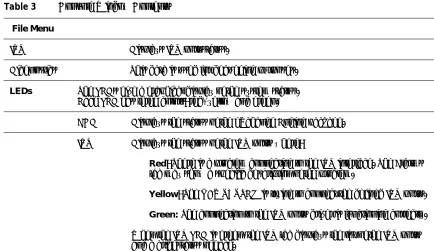
When Windows NT or Windows 2000 starts, it loads and runs the Call Center server via the Windows startup folder. During the startup process, the system displays the eXchange Console window, which has two tabs, three LEDs and one button, as described in Table 3:
Table 3 Console Window Contents
File Menu
IVR Displays IVR port status.
Diagnostics This data is used for debugging purposes.
LEDs The LEDs give a graphical display of the system status. Each LED has three colors: red, yellow and green.
ACD Displays the status of the eXchange Engine package.
IVR Displays the status of the IVR ports where:
§ Red: There is a problem connecting to the IVR interface. The Alarms tab may show a specific description of the problem.
§ Yellow: The NBX SYSTEM is trying to connect the defined IVR ports.
§ Green: The connection to the IVR ports driver is functioning correctly.
PBX Displays the status of the connection to the PBX (that is, the NBX system):
§ Red: There is no connection to the NBX system. See the alarm message on the Alarms tab.
§ Yellow: The eXchange Engine is trying to reconnect to the NBX system.
§ Green: The eXchange Engine is connected to the NBX system, and the IVR Port is working properly.
CHAT This feature is not available on the 3Com eXchange Call Server. Thus the CHAT LED shows gray
When the ACD, IVR and NBX LEDs are green, the system is operational.
When the Console window is open and all the LEDs are green, you can access the applications in the Call Center Program Group can be accessed.
To preserve computer resources, minimize the Activate and Console windows during normal system operation.
Deactivating the Call Center Server
To deactivate (stop) the Call Center Server Application:
1 Double-click the Deactivate Icon in the Call Center Program Group. A warning message box appears.
2 Press the Deactivate button to stop the server, or press Cancel.
• If you press no button within 15 seconds, the box disappears and the server remains active.
When the eXchange Server has stopped, the message box disappears.
Starting eXchange Visor Applications
You can start any of the eXchange Visor applications from the Startup menu icon group or from the desktop Program Group.
To run Supervisor applications, the Call Center Server must be up and running.
To run an eXchange Visor application:
Double-click the required icon in the Call Center Program Group:
Historical Reports
Administration
Real-Time Monitor
Wall Board Administration
Agent
Lock Device Viewer
The system displays the Login window.
To log in to a selected Visor application:
The System Manager must assign each supervisor a unique name and password. The default name is ea. The default password is e1996.
1 Enter your login name in the Login Name field.
2 Enter your password in the Password field.
3 Click OK.
4 If you enter an incorrect user name or password, the system displays an error message and you will not be able to access the selected application. Click OK to close the dialog box and try to log in again.
Closing eXchange Visor Applications
To close an eXchange Visor application:
Select File > Exit in the application OR click Close ( ) in the upper right corner of the screen.
Starting the eXchange Agent Application
To run eXchange Agent, the Call Center Server must be up and running.
To run the eXchange Agent application:
1 Start the eXchange Agent application from the Startup menu icon group or from the desktop.
A Dialog window appears asking for the Agent’s Login ID and Password.
2 Enter a valid Agent ID along with the appropriate password.
3 If you want to use a language other than English that is supported at your site, select it from the drop-down list in the Set Language field.
The eXchange Agent application displays the task bar.
To define Agents using the eXchange Administration application, see the 3Com
eXchange Administrator’s Guide or the Help for each Administration screen.
Closing the eXchange Agent Application
To close the eXchange Agent application:
C
HAPTER
4: T
HE E
X
CHANGE
V
ISOR
A
PPLICATIONS
The eXchange Visor is the Supervisor’s Management and Information System suite of tools.
Each of the tools is a separate entity that runs independently of the others. The system administrator provides each supervisor with a unique User Name and Password for logging on and activating these applications.
The eXchange Administration application also includes the Call Control Scripts (CCS), which can enhance the control of Calls and Contacts.
This chapter provides a brief description of each application and describes the basic tasks that supervisors can perform within each application.
For complete details on these applications and tasks, see the 3Com eXchange Visor Guide.
The Administration Application
The eXchange Call Center Administration allows authorized supervisors to define and modify the parameters of the system entities. The system configuration that is defined using this application determines how ACD calls are handled as well as the information that will be available for Historical and Real-Time reports.
For a detailed description of this application, see the 3Com eXchange Call Center Administration Guide.
The Call Control Scripts Application
The Call Control Scripts application is activated from within the eXchange Administration. Use it to define the behavior of routing calls, access external databases for routing purposes, and update the Call Profile parameters of calls. The scripts are used to process calls as well as to present information to callers, prompting them for input, digit collection, and so on. The Call Control Scripts are executed by the eXchange Engine router, which can dynamically allocate IVR ports when a script requires.
A script comprises a set of actions that are performed on a call, according to logical or physical events. Specific scripts can be created containing a variety of actions with the possibility to uniquely name each action and define its parameters (for example Voice Prompt file names). Scripts can also be linked together to build flexible applications.
the caller in user-defined fields, and so on. The caller can also change the call profile, when the script defines actions that require caller input, (for example the caller is required to enter the Customer Number). In this way, the caller can contribute to the routing process.
The Real-Time Monitor Application
The Real-Time Monitor application facilitates the gathering of online statistical and graphic information concerning different Call Center activities. The information can be displayed in tables and graphic formats, providing a clear picture of activity in the center.
The following section describes how to create two types of real-time windows in the Real-Time Supervising application:
§ Brief Agent Status Window, displaying the type of activity in which each agent is engaged, how long the agent is currently engaged in that activity, the login status of the agent and the total number of calls answered by the agent.
§ Call Distribution Graph, displaying graphical pie chart information about the distribution of calls received by a group within the current time interval. It displays, in real-time, how many calls from the agent group are currently being answered and how many are abandoned or overflowed.
For detailed information, see the 3Com eXchange Visor User Guide and the context-sensitive Help for each screen.
To open the Real-Time Supervising main screen:
1 Double-click the Real-Time Supervising icon in the eXchange Center Program Group.
2 In the Login Window, enter your login name and password. The Real-Time Supervising main screen opens.
To create a Brief Agent Status Window:
1 Select Real-Time Supervising > File > New.
2 In the New dialog box, select Real-Time from the Report Type drop-down list.
3 Double-click the Brief Agent Status template OR select the template and click OK.
4 In the New Agent dialog box, double-click the agent’s name to obtain agent status information OR select the agent and click OK.
5 To add agents to the report, click the Add icon.
The window is created with the information you requested.
Information displayed on the screen is constantly updated according to activity in the Call Center.
Creating a Call Distribution Graph
To create the Call Distribution Graph Window:
1 Select the New option from the Filemenu, in the Real-Time Supervising main screen. 2 In the New dialog box, select Real-Time from the Report Type drop-down list.
3 Double-click on the Call Distribution Graph template or select the template and click OK.
4 In the New Group dialog box that opens, either double-click on the group for which you want to obtain graphical call distribution information or select the group and click OK.
5 Information on the calls activity in this group is displayed in a window.
6 The window created with the requested information, the group presented in the report
can now be changed, this is done by selecting the Change option from the Contents menu.
7 To obtain information on a specific section of the graph (slice of the pie chart), double-click on the required slice.
8 A balloon showing information about this group of calls will be displayed. To close the balloon, click again on the pie chart slice.
9 To add/remove/change graphic entities in the graph, use the graphic toolbar.
10 To save the report click the Save As option from the FileMenu.
The Historical Reports Application
The Historical Reports application provides historical statistical information for analytical purposes. The application is a powerful reports creator and generator and also contains factory report structures that can be filled out and generated.
The following section describes how to create two types of historical reports in the Historical Reports application, and how to customize them according to your requirements.
§ The Agent Performance Report. This report is based on one of the factory templates provided with The Call Center. This report presents an analysis of the performance regarding a specific agent over a specified time period.
§ The Group Activity by Date Report. This report can be produced based on an existing category template and by adding columns as required. This report presents an analysis of the performance of an entire group over a specified time period.
The above reports can be created from the Historical Reports main screen.
To open the Historical Reports main screen:
1 Double click on the Historical Reports icon in the Call Center Program Group to access the application.
2 Enter your login name and password in the Login window; click OK and the Historical Reports main screen opens.
Creating the Agent Performance Report
Creating an Agent Performance Report involves first defining the report template parameters and then generating the actual report.
To define the report template parameters:
1 Select Historical Reports > File > Open.
2 From the list of default templates, select the first Agent Performance Report (RA1.1), and click OK. The Agent Performance Report template opens.
Notice that the only defined parameter is Requested By. You now define the remaining parameters for the report.
Define all the report parameters before you generate the report.
3 In the Parameters section, right-click to the right of a field to open a shortcut menu.
4 Select the Parameters option from this shortcut menu or from the Report menu. The Parameters dialog box opens.
5 To define a value for a parameter, click the parameter field and enter the required value.
6 When you finish defining all of the required parameters, click OK.
To define the Starting and Ending dates and times that the report will cover, click in the Date from/Time from or Date to/Time to fields. Specify the values in the Date dialog box.
7 To save the report, select File > Save as. To generate the Agent Performance Report:
1 Click the Generate icon or select Report > Generate. After a few seconds, the generated report appears in a new window. For a better view, select Tools>Zoom.
2 Scroll to the end of the report to see the sum total of the data.
Creating a Group Activity By Date Report
To create the Group Activity by Date template:
1 Select Historical Reports > File > Open. A list of templates is displayed.
2 From the list, select the Group Activity by Date Report (RG 1.2) template, and click OK. The RG 1.2 Group Activity by Date Report window is displayed.
This template currently contains only one column: Date. To generate the report to provide more information on the group performance, customize the data that appears in the template by adding columns to the data section of the template.
To add columns in the data section of the template:
1 To insert a column, right-clickon the required location to open a shortcut menu.
2 Select Insert Column. The Add New Column dialog box opens.
3 From the list of user-defined fields (shown in the next table), double-click one or more
required fields, or select the required field and click Add Column for each field that you want. The new column will be added to the report template.
Fields list :
Column Name Description
Total Calls Total number of calls.
Total Calls Abndn. Total number of abandoned ACD calls.
ACD Calls answered Number of ACD calls answered.
Agent RPH Average number of calls per hour answered by the group.
Cmltv. Wait Time on Queue
4 Define the report parameters with relevant dates and times. The system generates a meaningful report only after it has been running for the specified time period.
Date and Time Examples
Date From: Now − 4 (that is, Current date minus 4 days)
Date To: Now (that is, Current date)
Time From: 08:00 am
Time To: 08:00 pm
Group Name: Field Service
Group No: 1
Requested By: Sales Supervisor
5 Optionally, save the template under a new name. Select File > Save as.
6 Generate the report and view the results. To generate the Group Activity by Date Report, click the Generate icon or select Report > Generate. After a few seconds, the generated report appears in a new window on the screen.
The Wall Board Administration
The Wall Board Administration application enables supervisors to communicate with entire groups of agents simultaneously by means of messages that are displayed on third-party hardware called Wall Boards or personal Agent boards.
Use this application to:
§ Create and store new messages composed of text and real-time parameters
§ Modify existing messages
§ Customize messages for individual Wall Boards
§ Create customized message scenarios
Customized message scenarios may include messages and pop-up messages. Each message within a scenario is displayed on the Wall Board for a specific amount of time.
This section describes how to define the physical Wall Board, how to create a message library and how to build message scenarios for your Wall Board.
The above procedures can be performed from the Wall Board Administration main screen.
To open the Wall Board Administration Main Screen:
1 Double click on the Wall Board Administration icon in the Call Center Program Group and enter your login name and password in the Login window.
2 The Wall Board Administration main screen opens.
Defining a New Wall Board
To define a new physical Wall Board:
1 Click on the Wall Board icon in the Toolbar. OR
Select the Wall Board menu option, in the Wall Board Administration main screen. The Wall Board window opens.
2 Click the New button in the Wall Board window.
3 Define the Wall Board’s identification by entering a name and address in the appropriate
fields, and selecting the Wall Board type from the Type drop-down list.
4 Use the other fields in the configuration window to define the communication parameters.
5 Remember to click the Save button to save the newly configured Wall Board.
Thresholds are specific event values that, if exceeded, are marked by specific colors. These colors are used to show values that have exceeded the threshold values. Two colors are used to signify that a parameter has exceeded its threshold. The default colors are yellow and red.
Creating a New Message
To create a new message in the Message Library:
1 Click on the Messages icon in the Wall Board Administration main screen, to open the Messages Editor Screen.
2 Click the New button.
3 Using the fields in the Message Editor, define a name for the new message, and select,
from the drop-down list, a default group to which the message parameter will be directed.
4 Enter a message in the Message area located in the lower part of the Message Editor
screen.
5 To change the color of individual characters, right-click their boxes. Each of the two lines
comprises 40 characters. If the message comprises more than 40 characters, press the <Enter> key or click the mouse at the position where the message will continue on the second line.
Line 1 and Line 2 display any modifications made to the message appearing in the Message area. Each set of parentheses represents a parameter that has been included in the message.
6 Click the Param button to select a preset parameter to include in the message. Select the required parameter from the list of preset parameters and define its length (optional).
7 Click OK to accept the new parameter.
8 In the Message Editor screen, click Update to save the new message. The new message is displayed in the Message Library list of the Message Editor.
Building a Message Scenario
To build a message scenario for a physical Wall Board:
1 Select a Wall Board from the list in the Wall Board window and then click the Scenario tab. The Scenario window opens.
2 In the Message Library on the left side of the Scenario window, select a message to be
added to the message scenario and click the Add button. The Add Message window opens.
3 In the Time field, enter the amount of time, in seconds, that the message is to appear on
the Wall Board.
4 In the Default Group field, choose the appropriate group name. 5 Select a parameter using the spin buttons in the Param # field.
The selected parameter is highlighted in the message area and the parameter’s name appears in the Name field.
6 Change the names in either the Group field or Default Group field to modify the group to
which the selected parameter is directed. Continue to do this until satisfied with the parameters and their respective groups.
7 When all of the information has been entered, click OK to include the message in the scenario.
9 To change the position of a message within the scenario, highlight the message within
the scenario in the Message Scenario screen, and use the Up/Down arrow buttons to either promote or demote the selected message.
10 To implement the new scenario, click the Run button in the Wall Board Administration main screen. The message scenario that has been defined is sent and implemented on the corresponding Wall Board.
The Lock Device (Dongle) Viewer Utility
Use the Lock Device Viewer application to display the setup and type of lock device attached to the LPT1 or the USB port. This utility should help technical support personnel to identify and solve issues related to the lock device.
When a lock device is attached, a message box appears:
A
PPENDIX
A: G
LOSSARY
ACD Automatic Call Distribution - the method used to distribute calls in the Call Center. ACD calls are routed and monitored by the Call Center system.
Agent
Agent Station
The function of an agent is to handle contacts routed by the Call Center system.
Agents are using an Agent station composed of a Windows PC computer and a phone station or a phone station only.
Each agent should be defined in the Call Center and identified by a unique ID and password.
The eXchange Call Center supports the “free seating” concept in that it routes calls by the Agent ID. At start of work, each agent should log on entering his or her personal ID number.
Agent Group Agent Groups are used to form specialized units that are meant to receive and place calls. A Group is a destination of the Service entity in Call Center and calls delivered to the group are presented to the most appropriate Agent conforming the routing policy defined.
When all the Agents in a Group are busy or unavailable, Call Center places calls in a queue, and activates the Announcement Plan and also Overflow and Interflow actions as defined.
When no Agents are logged on to the Group, calls are routed to the No Agents destination defined on the Service.
ANI Automatic Number Identification. This is the series of digits that is sent by the PSTN to the NBX SYSTEM containing the Dial Number of the caller.
ASA Average Speed of Answer - The average time it takes a call to be answered, from the time it was received.
Agent Search Criteria
The method by which an available agent is selected for a call that enters the Service.
Call Answer Strategy
The method by which an incoming call is routed to the agent, when the agent becomes available. The strategy comprises two stages: firstly, determining the set of calls to be considered for routing and then, selecting from that set, a single call to route to the agent.
Call Priority A priority level assigned to each call on a scale of 1-100, where 100 is the highest priority. The priority is initially set to a defined value at the IRN level and increases by wait time as defined.
Call Profile A collection of dynamic properties attached to each individual ACD call.
Dial Numbers Dial numbers are used within the NBX SYSTEM environment to identify entities that can be a source of, or destination for, a call. For instance, an extension number specific to the group identifies an agent group. When this number is dialed, the call will enter the group as an ACD call. Incoming trunks will be routed to this extension number to connect callers to the agent group.
Extension Number
A NBX SYSTEM extension number or directory number.
First Announcer
An announcement that is heard once, when a caller first enters the queue for the service.
eXchange Engine
The eXchange Engine (Intelligent ACD Routing) provides intelligent routing for the Call Center, as well as enhanced skill based routing functionality for calls to agents.
Incomplete Call Destination
The destination of calls that have not been answered or handled to completion. This is a system wide destination that completes the handling of such calls.
Interflow An algorithm designed to improve the way waiting calls are treated by transferring calls waiting over the amount of ‘Interflow time’ to a different destination. The Interflow parameters are defined per service.
IRN Intelligent Routing Numbers – NBX SYSTEM dial numbers used as entry points to the routing system. Each number can be used to define rules for routing the incoming call to various destinations, including services, call control scripts and NBX SYSTEM devices.
Lock Device The software protection plug, or Locking Device, (HASP) attached to the parallel port. The Call Center Server and eXchange Visors will neither install nor run without this device.
Mandatory Announcer
An announcement heard by all callers upon entering the service, regardless of the availability of agents.
MIS The MIS (Management Information System), actually the eXchange Visor, supplies real-time online information and historical reports on the performance of the Call Center.
Overflow An algorithm designed to improve the way waiting calls are treated, by expanding the number of potential agents to answer the call. Overflow is activated after the overflow timeout by adding groups of agents as the destination of the call.
PABX Private Automatic Branch eXchange.
PBX Private Branch eXchange; the NBX SYSTEM.
Report To obtain information that provides an accurate picture of how the Call Center is operating and performing, System supervisors and management use reports. The information displayed can be either real-time or historical.
Real-time reports display the present status of ACD activity as it is happening, whereas, historical reports summarize past ACD activity as recorded in the database.
Report Template
The Call Center is supplied with a set of predefined report templates (default reports), which cover the full range of information available from the Call Center. In addition to predefined report templates, user-defined templates for historical reports can also be designed.
The purpose of templates is to provide the supervisor with a virtually unlimited reservoir of report formats that can be filled out and generated, in a simple and straightforward