MP/M-86"
OPERATING SYSTEM
MP /M-86 -r.M. Operating System
USER'S GUIDE
Copyright
©
1981Digital Research
P.O. Box 579 167 Central
Pacific Grove, CA 93950 (408) 649-3896
TWX 910 360 5001
COPYRIGHT
Copyright (c) 1981 by Digital Resealch. All rights reserved. No part of this publication may be reproduced, tJransmitted, transcribed, stored in a retrieval system, or translated into any language or computer language, in any form or by any means, electronic, mechanical, magnetic, optical, chemical, manual or· otherwise, without the prior written perm iss ion of Dig i tal Research, Post Of f ice Box 579, Pacific Grove, California, 93950.
This manual is, hoy/ever, tutorial in nature. Thus, the reader is granted permission to include the example programs, either in whole or in part, in his own programs.
DISCLAIMER
Digital Research makes no representations or warranties with respect to the contents hereof and specifically disclaims any implied warranties of me rchantabi 1 i ty 0 r fitness for any particular
purpose. Further, Dig i tal Research reserves the right to revise this publication and to make changes from time to time in the content hereof without obligation of Digital Research to notify any person of such revision or changes.
TRADEMARKS
CP/M is a registered trademark of Digital Research. CP/M-86 and MP/M-86 are trademarks of Digital Research.
The MP/M-86 User's Guide was prepared using the Digital Research TEX-80 Text Formatter and printed in the United States of America by Commercial Press/Monterey.
************************************
*
First Printing: September 1981*
FOREWORD
MP/M-8~Mis a multi-user operating system for a sixteen-bit
microcomputer. MP/M-86 supports multi-programming at each terminal.
The MP/M-86 hardware environment must include an Intel 8086, 8088 or compatible microprocessor, at least 64K bytes of random access memory (RAM), a clock/timer interrupt, a floppy disk drive, a nd a con sol e • Are a son a b Ie h a r d war e con fig u rat ion mig h t con sis t 0 f 64K bytes to one megabyte of RAM, a hard disk and one floppy disk or other back-up storage medium, two consoles and a printer.
MP/M-86 supports from one to sixteen logical or physical disk drives containing up to 512 megabytes of storage each, and up to 254 character I/O devices, including system consoles, terminals and printers. Of the consoles, MP/M-86 can reasonably support from four to sixteen system consoles, although more may actually be used. A system console is a device such as a CRT terminal or teletype from which programs can be initiated. MP/M-86 supports up to one meg a by t e ( 1 , 0 4 8 , 5 7 6 by t e s ) 0 f ran d 0 mac c e ssm emo r y ( RAM) and
requires about 36K bytes for itself.
Digital Research distributes MP/M-86 on two standard format IBM single density 8" floppy disks. The interface between the hardware and the software must be configured according to the instructions in the MP/M-86 System Guide. (That is, the MPMLDR and XIOS files must be customized for the target hardware, and the GENSYS program described in the System Guide must be used to generate an MPM.SYS file before MP/M-86 can be executed).
Properly written CP/M-86™tompatible programs run under MP/M-86 with little or no modification. The MP/M-86 Programmer's Guide provides the information needed to write MP/M-86 compatible programs.
The MP/M-86 User's Guide assumes that your MP/M-86 system is up. and running. It contains the information you need to use the MP/M-86 operating system and to run applications programs under MP/M-MP/M-86.
The Appendices offer brief encapsulated collections of MP/M-86 control characters, commands, options, error messages, and trouble-shooting suggestions. Appendix A supplies an ASCII and Hexadecimal conversion table. Appendix B is a reference for common MP/M-86 filetypes. Appendix C summarizes MP/M-86 control characters i ncl ud i ng command 1 ine edi ting controls and control character commands. Appendix D describes MP/M-86 error messages. Appendix E provides a trouble-shooting checklist for locating files. Appendix F is a brief summary of the MP/M-86 commands with some examples. Appendix G summarizes the MP/M-86 commands that display disk and
file status. Appendix H is a simplified glossary.
TABLE OF CONTENTS
I MP/M-86 Sign-On Messages
1.1 MP/M-86 System Generation • •
1.2 MP/M-86 Bootstrap.
1.3 The System Prompt
1.4 The Day-File Option.
2 Introduction To MP/M-86 Commands
2.1 MP/M-86 Command Format
2.2 MP/M-86 Command Summary
2.3 Control Character Commands
2.4 Attaching and Detaching Processes.
3 MP/M-86 Files
3.1 MP/M-86 File Specifications.
3.1.1 Drive Specifications
·
.
. .
.
3.1.2 Filenames· · · ·
·
·
.
.
. .
3. 1 . 3 Fi1etypes·
·
· ·
·
3.1.4 Passwords
·
·
· · ·
·
3.1.5 Special Characters in File Specifications
3.2 Ambiguous File Specifications.
3.3 File Attributes • •
3.4 XFCB Infol'mation
3.5 File Location Conventions
3.5.1 3.5.2 3.5.3
Command File Searches Data File Searches • •
Troubleshooting File Searches
1
2
2 3
5
6
8
9
11
12 12 13 13 14
15
16
17
17
18
TABLE OF CONTENTS
(continued)
4 Introduction to Utility Programs
4.1 Organization of Utilities • •
4.2 Conventions and Nomenclature
4.3 Options in Utility Command Lines
5 Dskreset, User, Console
5.1 The Dskreset Command
5.2 The USER Command
5.3 The CONSOLE Command • •
6 DIR, SDIR, STAT, SHOW
6.1 The DIR Command • •
6.2 The SDIR Command
6.3 SDIR Format • • • •
6.4 The STAT Command
6.4.1 6.4.2
Disk Attributes and Statistics • File Attributes and Statistics •
6.5 The SHOW Command
7 The SET Utility
7.1 Introduction to the SET Command
7.2 Password Protection
7.3
7.2.1 7.2.2 7.2.3
Turning Password Protection On Assigning Passwords to Files • The Default Password • • •
Date and Time Stamping of Files •
7.3.1 Time Stamping of New Files
7.3.2 Time Stamping of Existing Files
23
23
24
27
28
29
31
34
35
40
41 43
48
51
51
• 52 54 55
• • • 56
TABLE OF CONTENTS
(continued)
7.4 Setting File and Disk Attributes. • • • • • • • 59
7.4.1 7.4.2 7.4.3 7.4.4 7.4.5
The Read Only Attribute • ~ • The System Attribute • • • The Archive Attribute
The User-Definable Attributes Naming Disks • • • • • • • • •
7.5 The SET Help Option
7.6 Additional Examples
8 MPMSTAT, ATTACH, ABORT
8.1 The MPMSTAT Command •
8.2 The ATTACH Command
8.3 The ABORT Command.
9 TYPE, ERA, ERAQ, REN
9.1 The TYPE Command
9.2 The ERA Command.
9.3 The ERAQ Command
9.4 The REN Command • •
10 TOD, PRINTER, SPOOL, STOPSPLR, SUBMIT
10.1 The TOO Command
10.2 The PRINTER Command
.
.
.
.
.
10.3 The SPOOL Command. .
. .
.
. . .
.
10.4 The STOPSPLR Command
.
. . . .
. .
. .
.
.
. . . ·
·
.
. .
·
. .
.
• • 60 60
• • 61 . • • 61
.
.
.
• • 61
.
.
·
6262
65
67
68
71
72
74
75
77
78
79
TABLE OF CONTENTS
(continued)
10.5 The SUBMIT Command. 80
. 80 10.5.1
10.5.2 10.5.3 10.5.4
Creating the SUB File • Operation of SUBMIT • • Aborting SUBMIT • • • •
• • 81 . . 82
The INCLUDE SUBMIT Option • • • • • 83
11 The PIP Command
11.1 Introduction to PIP
·
.
. .
· · · ·
11.2 PIP and Disk Files
. ·
·
. · · ·
11.4 PIP and Other Peripheral Devices
·
· · ·
11.5 PIP Options
.
. .
. ·
·
· · · ·
11.6 PIP Console Messages
·
. .
·
. · · ·
· ·
12 ED, The MP/M-86 Editor12.1
12.2
12.3
12.4
12.5
Introduction to ED
ED Concepts and Operation
Starting with ED •
ED Commands
12.4.1 12.4.2 12.4.3 12.4.4 12.4.5 12.4.6 12.4.7 12.4.8 12.4.9
Line Numbers in the Memory Buffer • • • • • Inserting Text into the Memory Buffer • • • Displaying Buffer Contents at the Console • Moving the Character Pointer (CP)
Deleting Characters • • • • • Finding and Replacing Strings ED Macro Commands • • • • • • •
Moving Text Blocks • • • • • • • Saving or Abandoning Changes: ED Exit •
ED Error Messages
·
85 87·
90 92·
97• 103
• 105
• 107
• 109
APPENDICES
A ASCII and Hexadecimal Conversions
B File Types • • • • • . • ~ • • • • •
C MP/M-86 Control Character Summary
D MP/M-86 Error Messages • • •
E
F
G
Checklist for Using Files
MP/M-86 Command Summary
Drive and File Status Summary
H User's Glossary
· 132
• • 137
139
· 141
. • • • 145
• 147
· 153
SECTION 1
MP/M-86 SIGN-ON MESSAGES
1.1 MP/M-86 System Generation
Section 1 describes the messages that appear on the system consoles after bringing up the MP/M-86 system. Information in the messages is directly related to system generation, the process in which MP/M-86 is f i r s t brought up on a certain hardware configuration. System generation is covered in detail in the MP/M-86 System Guide. This section discusses the elements of system generation that affect MP/M-86's sign-on messages.
Over thirty utilities are supplied with MP/M-86. Some of them can be incorporated into MP/M-86 at system generation time, or executed as separate command files from disk. Besides specifying which utilities are to become part of MP/M-86, system generation also specifies many system parameters. Some of the system generation parameters are listed below.
• the size and confi9uration of memory
• the number of consoles
• the number of printers
• which drive will be the system drive, the one on which MP/M-86 looks for files if they are not found on the default drive.
• which drive will contain any temporary files generated by the system
•
the maximum number of locked records•
the maximum number of locked records per process•
the maximum number of open files•
the maximum number of open files per process• which utilities will be incorporated into the MP/M-86 system as Resident System Processes (RSP) which are always accessible even though they are not present on disk as program files.
MP/M-86 User's Guide 1.2 MP/M-86 Bootstrap Displays
1.2 MP/M-86 Bootstrap Displays
After system generation, when MP/M-86 is first transferred or "booted" into memory, a system status display appears on console zero. Figure 1-2 shows a sample of the shorter boot message that appears on all other consoles.
MP/M-86 2.0 [25 Sep 81]
Copyright (c) 1981 Digital Research
Figure 1-1. Sample Boot Message for Consoles
1.3 The System Prompt
The boot messages are followed by the MP/M-86 system prompt. The prompt consists of a number, an alpha character, and a right angle bracket or greater-than symbol,
>.
For example:SA>
The first character of the prompt is a number from zero to fifteen. This number is the current or default user number. The user number indicates a unique region on the disk. Files are marked with the user number in which they reside. Therefore, i t is not necessary to pre-allocate disk space to each user. No disk space is wasted if some user numbers are unused. Normally, you access only the files stored ih this user number. The files in your current user number can be displayed by typing the MP/M-86 command "DIR". If you change the user number with the USER command described in Section 5, the number in the system prompt changes to reflect the new user number selected.
The second character of the MP/M-86 prompt is an alphabetic character which indicates the default drive. The default drive is the drive into which MP/M-86 is currently logged. It is the drive on which MP/M-86 first looks for a command file if a particular drive is not specified in the file specification. After a cold boot, the default drive specification is always the system drive. You can change the default drive by typing the letter of the desired drive and a colon, followed by a carriage return as shown below.
5A>E: 5E>
MP/M-86 User's Guide 1.3 The System Prompt
can be in the same user number, but will not normally be using the same console. The maximum number of users supported by MP/M-86 is sixteen. If there are more than sixteen consoles attached to the system, the remainder will boot up in user number zero.
Table 1-1 shows typical console displays of the system prompt immediately after start-up when the default drive is A. It also shows the system prompts after the default drive has been changed from A to C.
Table 1-1. Sample System Prompts
User 0 User 1 User 2
Drive A OA) lA) 2A)
Drive C OC) lC) 2C)
1.4 The Day-File Option
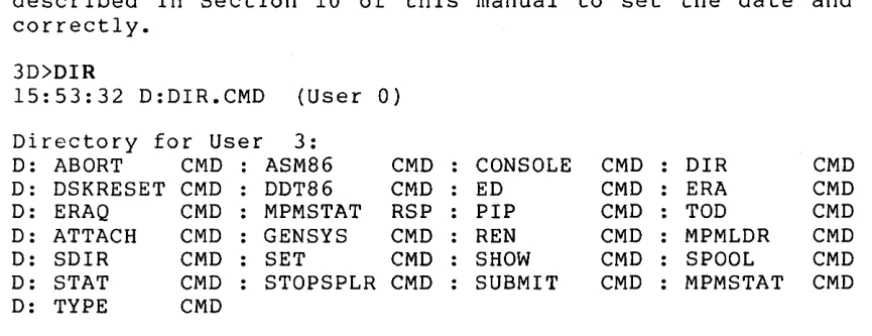
The day-file option enables the display of the current time, as well as the drive and user area from which a program is loaded. The display appears just after a command is entered at the console. Figure 1-3 shows a listing of a sample MP/M-86 disk directory in which the day-file option has been enabled. Use the TOD command described in Section 10 of this manual to set the date and time correctly.
3D)DIR
15:53:32 D:DIR.CMD (User 0)
Directory for User 3 :
D: ABORT CMD ASM86 CMD CONSOLE CMD DIR CMD
D: DSKRESET CMD DDT86 CMD ED CMD ERA CMD
D: ERAQ CMD MPMSTAT RSP PIP CMD TOD CMD
D: ATTACH CMD GENSYS CMD REN CMD MPMLDR CMD
D: SDIR CMD SET CMD SHOW CMD SPOOL CMD
D: STAT CMD STOPSPLR CMD SUBMIT CMD MPMSTAT CMD D: TYPE CMD
Figure 1-3. Sample MP/M-86 Directory
[image:14.617.138.479.191.294.2] [image:14.617.87.523.388.556.2]MP/M-86 User's Guide 1.4 The Day-File Option
Resident System Processes and built-in commands such as PRINTER and USER reside in the operating system. There is no actual physical file on the disk. Therefore, MP/M-86 cannot report a command prog r am f i 1 ename and f i letype. I f the command 1 i ne references a built-in command there is no day-file display. If the command line references an RSP, MP/M-86 returns the message:
15:55:10 Msg Qued
in the day-file option display.
SECTION 2
INTRODUCTION TO MP/M-86 COMMANDS
2.1 MP/M-86 Command Format
All MP/M-86 commands have the same basic parts and recognize the same filenames. The following sections explain in more detail MP/M-86 command format, MP/M-86 file specifications, and finally the actual use of the MP/M-86 commands.
In general, an MP/M-86 command line has three parts: the command keyword, the command tail, and a carriage return. In MP/M-86, the command keyword must be typed next to the system prompt on the console. In the example below, TYPE is the command keyword and B:DOCUMENT.LAW is the command tail.
OA>TYPE B:DOCUMENT.LAW
A qommand keyword identifies a program to be executed. The command keyword can be the name of a queue associated with an RSP,
(Resident System Process) or it can be a command filename that identifies a program to be loaded from the default, or system, or, spec i f i ed dr i ve. The command ta i I can incl ude s impl y a dr i ve specification, or a file specification (see Section 3), and/or a list of one or more utility parameters or options. Sometimes the command tail is optional. In some cases, an absent command tail is "understood" as indicating the default drive, or all the files in the default user area on the default drive.
MP/M-86 User's Guide 2.1 MP/M-86 Command Format
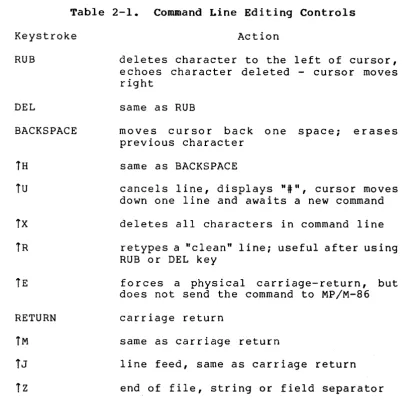
Table 2-1. Command Line Editing Controls
Keystroke Action
RUB
DEL
BACKSPACE
1H
1u
1x
1R
1E
RETURN
1M
1J
1z
deletes character to the left of cursor, echoes character deleted - cursor moves right
same as RUB
moves cursor back one space; erases previous character
same as BACKSPACE
cancels line, displays
"i",
cursor moves down one line and awaits a new commanddeletes all characters in command line
retypes a "clean" line; useful after using RUB or DEL key
forces a physical carriage-return, but does not send the command to MP/M-86
carriage return
same as carriage return
line feed, same as carriage return
end of file, string or field separator
MP/M-86 puts a few restrictions on command line length, but no restrictions on command letter case. The system internally translates all lower-case letters to upper-case, so you can enter MP/M-86 commands in either upper- or lower-case, or a combination of both. MP/M-86 command lines can be as long as 128 characters. Your command is not sent to MP/M-86 until you press the carriage return key or until your command line length exceeds 128 characters.
2.2 MP/M-86 Command Summary
[image:17.615.88.502.59.476.2]MP/M-86 User's Guide 2.2 MP/M-86 Command Summary
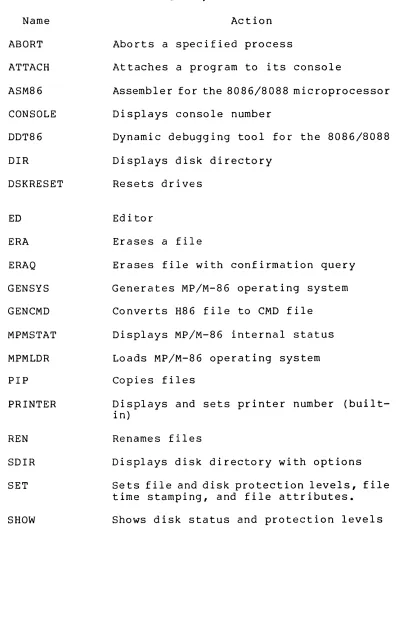
Table 2-2. MP/M-86 Utilities
Name Action
ABORT
ATTACH
ASM86
CONSOLE
DDT86
DIR
DSKRESET
ED
ERA
ERAQ
GENSYS
GENCMD
MPMSTAT
MPMLDR
PIP
PRINTER
REN
SDIR
SET
SHOW
Aborts a specified process
Attaches a program to its console
Assembler for the 8086/8088 microprocessor
Displays console number
Dynamic debugging tool for the 8086/8088
Displays disk directory
Resets drives
Ed i to r
Erases a file
Erases file with confirmation query
Generates MP/M-86 operating system
Converts H86 file to CMD file
Displays MP/M-86 internal status
Loads MP/M-86 operating system
Copies files
Displays and sets printer number (built-in)
Renames files
Displays disk directory with options
Sets file and disk protection levels, file time stamping, and file attributes.
[image:18.612.118.521.72.697.2]MP/M-86 User's Guide 2.2 MP/M-86 Command Summary
Table 2-2. (continued)
Name Action
SPOOL
STAT
STOPSPL
SUBMIT
TaD
TYPE
USER
Spools files to the list device
Displays and sets file and disk status
Aborts the spooler
Submits a batch processing file
Displays and sets the time and date
Displays ACSII file contents at the console
Displays and sets user number (built-in)
2.3 Control Character Commands
MP/M-86 has a set of control character commands that start and stop screen scrolling, echo console input at the printer, and detach and abort programs. Table 2-3 below summarizes these control character commands and their uses. As in Table 2-2, the
T
character i nd icates the CONTROL key on the keyboard. To enter a control keystroke, hold the CONTROL key down while depressing the desired alphabetic character.Table 2-3. Control Character Commands
Keystroke Action
Tp
Ts
TQ
Tc
TD
echoes all console output to the printer; a second Tp ends printer echo. This only works if your system is connected to a printer and the printer is not busy. See Section 10.2.
stops console 1 isting temporarily; TQ resumes the listing.
resumes console 1 isting after Ts, otherwise i t is ignored.
prompts to abort a program currently running at a given console.
MP/M-86 User's Guide 2.3 Control Character Commands
After you enter a
Ts
to stop a console display, you have two options: you can enterTQ
to resume the display or you can enterTc
to abort the process. After aTs,
MP/M-86 responds to any input character other thanTQ
orTc
by sounding the console bell or beeper.Note that some applications programs trap all the Control Characters for their own purposes. This is particularly true of word-processing programs. For example, in a word-processing application a
Tc
might cause a screenful of text to scroll by. In this case, theTc
does NOT abort the word-processing program. Exit the program using its own commands, or use the ABORT command from another console.2.4 Attaching and Detaching Processes
MP/M-86 supports multi-programming at each system console. You can initiate a process at a console and then detach the process from that console with the
TD
character. Then you can initiate another process at the same console. You can continue to initiate and detach processes until all of the system's existing memory partitions have been allocated. Memory becomes free again as processes finish executing or are aborted with theTc
or ABORT command, described in Section 8.To finish executing, processes that require console interaction must be re-attached to the console using the
To
or ATTACH command. TheTo
re-attaches the processes in the same order in which they were detached. The ATTACH command attaches the process you specify, independently of the order in which the process was detached (see Section 8).Tc
simply aborts the process and frees the memory space.It is recommended that you experiment with the
To
and ATTACH commands. Use the MPMSTAT command to display the status of various system functions to see in which memory segments the processes you have attached and detached are located.SECTION 3
MP/M-86 FILES
3.1 MP/M-86 File Specifications
A file is a collection of data stored on disk. A file is given a unique name and that name is used to access that file. Disk directories display a list of the filenames stored on the disk. A command file is an executable file, a series of instructions that the computer can follow step by step. A command file is generally referred to as a "program."
A command file sometimes requires a data file to process. A data file is generally a collection of data; a list of names and addresses, the inventory of a store, the accounting records of a business, a document, parts of a book, scientific weather information, or other collections of similar information. In a sense, a data file is the object of a command. Sometimes a data file is a command file, but in this case the command file is itself the object of another command file. This is the case when using a command to copy command files from one disk to another.
There are three ways to create a file. You can create a file
~y copying an existing file to a new location, perhaps renaming it In the operation (refer to Section 12, PIP, MP/M-86's Peripheral Interchange Program). The second way to create a file is by using a text editor. The text editor creates the file and assigns the name you specify to the file (see Section 11, ED, the MP/M-86 Text Editor). Finally, some programs create output files, for example, ASM86, MP/M-86's assembler.
MP/M-86 identifies every file by its unique file specification. A file specification can consist of four parts: a drive specification, a primary filename, a filetype, and a password as shown below.
d:filename.tYPipassword
MP/M-86 User's Guide 3.1 MP/M-86 File Specifications
Note: In the Syntax lines in the following sections of this User's Guide, the term "filespec" indicates any valid combination of the elements included in the file specification. That is, a drive specification, a primary filename, a filetype and a password. Valid combinations are:
• filename • filename.typ • d:filename • d:filename.typ
• filename.tYPipassword • d:filename.tYPipassword
A complete file specification with all possible elements included consists of a drive specification, a primary filename, a filetype, and a password, all separated by their appropriate delimiters, as shown below.
A:DOCUMENT.LAWiSecret
The following sections define each of the four parts of a file specification.
3.1.1 Drive Specifications
The drive specification, d:, designates the file's location. If the file is on your default drive, you need not enter a drive specification. "Default" indicates the current drive and the current user number. The default drive and default user number always match the drive and user number in the system prompt. These defaults are the drive and user number in which the system first searches for files if a particular drive is not specified.
To designate a file not on your default drive, replace d with the letter name of the drive that contains the desired disk file. This part of the file specification changes when you move the disk containing the file to another disk drive, or change logical drives on a hard disk.
3.1.2 Primary Filenames
MP/M-86 User's Guide 3.1 MP/M-86 File Specifications
3.1.3 Fi1etypes
Generally, a file specification includes a period and a three-letter filetype. Like a primary filename, a filetype can contain any letter or number, but not the special characters listed in Section 3.1.5.
Normally the filetype tells something about the file. Some programs require that their input files be a certain filetype. For example, MP/M-86 requires that an executable command file be in a certain format and have the filetype .CMD. Not all programs require specific filetypes. For example, the MP/M-86 text editor, ED, accepts any filetype. For this kind of program, you can give the input file any filetype that seems convenient, or give it no filetype at all.
The user assigns the filetype to the file when he creates it. When a program manipulates a file, it might change the filetype to indicate that the file has been modified. For example, when ED finishes editing a file, it changes the original filetype to .BAK, then gives the new, edited file the original primary filename and filetype. See Appendix B for a list of MP/M-86 filetypes and their general meanings.
3.1.4 Passwords
MP/M-86 supports password protected files. Passwords are valuable in a multi-user system because they enable each user to protect his files from accidental damage by other users. Passwords enable managers and systems personnel to allow limited access to certain files for security purposes.
A password is an optional part of the file specification. It always appears next to the filename in a command line. It is separated from the filename by a semicolon. Consider the password as part of the file specification when entering drive specifications or options in command lines.
The PASSWORD option of the SET command (see Section 7) can assign a password to any file. This means that all executable programs, commands and data files can have password protection. Furthermore, the command files ED, ERA, ERAQ, PIP, REN and TYPE accomodate passwords in their data filename. This means that a command line can require multiple passwords to execute properly. The first password is needed to access the command program. A second password may be necessary to access the file specified in the command ta il. In the following examples of command 1 i nes wi th passwords, assume that all files have been assigned the password "XYZ".
OA)TYPE;XYZ
OA)TYPE;XYZ B:CAT.ASM;XYZ
OA)REN;XYZ NEWNAME.TYP = OLDNAME.TYP;XYZ OA)ED;XYZ DOCUMENT.LAW;XYZ
MP/M-86 User's Guide 3.1 MP/M-86 File Specifications
Some MP/M-86 commands and most word processing, accounting packages and other applications programs running under MP/M-86 do not accept passwords in the command tail. If you wish to access password protected files without typing the password each time the file is accessed, set the default password before executing the application program. For example, you would not have to specify the password "XYZ" in the above examples if you first issued the following set default password command. (See the SET command described in Section 7 of this manual) •
SET [DEFAULT = XYZ]
MP/M-86 displays the following message when a required password is missing or incorrect.
Bdos Err On d: Password Error
File: FILENAME.TYP Bdos Function: NNN
Passwords can contain any characters except for those listed in Table 3-1. All passwords are converted to upper-case when entered in file specifications or in the standard MP/M-86 utilities. Application programs using the password protection features of MP/M-86, however, may distinguish between upper- and lower-case passwords.
3.1.5 Special Characters in File Specifications
The characters in Table 3--1 have special meaning in MP/M-86 command lines and should not be used in file specifications. All other special characters are allowed.
Table 3-1. Special Characters
Character Meaning
<
= ,
file specification delimiters tab spacecarriage return
drive delimiter in file specification
file type delimiter in file specification
password delimiter in file specification
*
? wildcard characters in file specification<
>
& reservedMP/M-86 User's Guide 3.1 MP/M-86 File Specifications
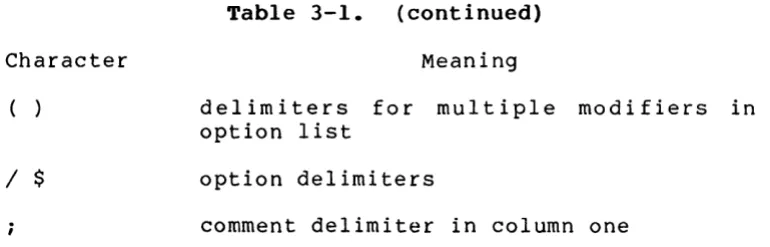
Table 3-1. (continued)
Character Meaning
( )
/ $
delimiters for multiple modifiers in option list
option delimiters
comment delimiter in column one
The less than, equal, comma, tab, space and carriage return characters separate file references and other items in the command line. The colon and period delimit drive specifications and filetypes in file specifications, respectively. A semicolon within a file reference delimits a password. The asterisk and question mark characters,
*
and ?, are wildcard characters in ambiguous file specifications (see Section 3.3). The less than and greater than characters,<
and>,
are reserved for future use. Square brackets, [ and], isolate an option or option list from its command keyword (global option) or from its file specification (local option). Parentheses, ( and ), are used to isolate a list of more than one modifier, inside the square brackets, for options which have modifiers (see the SDIR utility). The slash, /, and dollar sign, $,are reserved for the specification of options in the command line. A semicolon at the beginning of a command line indicates that the line is a comment.
3.2 Ambiguous File Specifications
The MP/M-86 commands can select and process several files whe n a spec i al filename is inc 1 uded in the command ta i 1 • Th is special ambiguous filename can refer to more than one file because it gives MP/M-86 a pattern to match: MP/M-86 searches the disk directory and selects any file whose filename matches the pattern. DIR, SDIR, ERA, ERAQ, STAT, PIP, REN and SET accept an ambiguous
filename in a file specification.
[image:26.613.138.523.60.183.2]MP/M-86 User's Guide 3~2 Ambiguous File Specifications
The wildcard characters can match certain parts of filenames. For example, to reference only the files with the primary filename PROG, use PROG.*. To reference only the files with the filetype BAK, use *.BAK in the command tail. To reference all files on the default drive or disk, use *.*. The reference APP?TXT selects all of the following if they exist on the current disk:
APPA.TXT APPI.TXT APP3.TXT
APPB.TXT APP2.TXT APP.TXT
APPC.TXT
but not these because they do not match the APP?TXT pattern:
APPI4.TXT APP APIP.TXT
1:\Tr1:\' 'JI.nn 'JI.nn"l m1:\V L".J.I.JJ.:I.J..O.t"".t"" o.t"".t""&' • .LJ.:In
The reference APP*.*, however, matches all filenames beginning with APP:
APPA.TXT APPB.LST APPC.TST APP14.APP
APP1.PRN APP2.BAK APP3.TEX APP.TXT
AP1P.TXT APP2.0AT APP
APP12345.ALL
Commands that accept ambiguous filename also accept a drive specification as a part of the reference; however, wildcard characters are not allowed in a drive specification. For example,
OA)DIR B:*.BAK
is acceptable and lists all .BAK files residing on drive B. However,
OA)DIR ?:*.BAK
is illegal and results in a "Bad entry" error message.
3.3 File Attributes
A file attribute is a characteristic that you can assign to a file. The attributes affect whether or not the file appears in normal directory displays (see Section 6, SDIR), whether or not the file can be accessed from other drives or user areas, and whether the file can only be read, or both read and written to.
MP/M-86 User's Guide 3.3 File Attributes
or in user area 0 of the default or specified drive. You can also access a command file that has the SYS attribute if it is in the default or user 0 area of the system drive.
The other attribute SET and STAT can assign to a file is either RO (Read Only) or RW (Read Write). If a particular file is set to RO, an attempt to write data to that file produces a Read Only error. A file with the RW attribute can be read or written to at any time unless it is password protected or the entire drive is set to Read Only, or the file is opened by another user in a protected mode.
MP/M-86 reads from any disk any time. However, if you change a floppy or removable hard disk and do not reset the drive with the DSKRESET command, the entire drive becomes Read Only and MP/M-86 will not write to that disk. Therefore, it is possible to lose an entire edit (a file to which you are writing changes) if you do not reset the drive when you change a disk.
A third file attribute, the archive attribute, is set by the PIP command with the [A] option. When you make a copy of a group of files using PIP with the [A] option, the files are marked ("archived") after copying is completed. The archive option in PIP only copies files which have not been already archived. It must be used with an ambiguous file specification. SDIR and STAT report archived files by listing an "A" in their file attributes column.
MP/M-86 also supports four user-defined file attributes labeled FI, F2, F3, and F4. A SET command can set each of ·these attributes to either on or off. SDIR and STAT list the number (1-4) of any of the user-defined attributes which are set to on.
3.4 XFCB Information
MP/M-86 can record certain optional information about a file in an Extended File Control Block (XFCB). MP/M-86 uses a File Control Block (FCB) to help locate a file on disk. In the XFCB, MP/M-86 can record a password and two time stamps for the file. One time stamp can record when the file was last updated. The other time stamp can record either when the file was created or last accessed. See the descriptions of the SDIR and SET commands in Sections 6 and 7 for a complete discussion of XFCBs, password creation, and time stamps.
3.5 File Location Conventions
MP/M-86 User's Guide 3.5 File Location Conventions
multiple drives and you might not be logged into the drive you need.
Remember also that there are sixteen available user areas on a single drive. Normally, a file cannot be accessed unless it is in the default (currently spec:fied) user area. If an optional drive reference is specified, the file must be in the same user area on the optional drive as it is on the default drive.
The following two sections describe how MP/M-86 searches for command files and data files. The last section offers a list of troubleshooting suggestions to help you if it appears that MP/M-86 cannot find your file.
3.5.1 Command File Searches
When you enter a command, MP/M-86 first checks its "message list" or queue list to see if the command is a Resident System Process (RSP), and therefore resident in memory and not on disk. If MP/M-86 does not find that the specified command references a queue associated with an RSP, it looks for the specified command as a file on disk. (Refer to the MP/M-86 Programmer's Guide for a discussion of queues and RSPs).
MP/M-86 searches four separate locations before returning a "?Can't Find Command" message.
MP/M-86 User's Guide 3.5 File Location Conventions
Table 3-2 shows the order in which MP/M-86 looks for a command file on the disk drives after it has checked for queues associated with Resident System Processes.
Table 3-2. Command File Search Order and Locations
Search Number For Filetype In User Number On D:-ive
1 CMD default default or
specified
2 CMD 0 default or
specified
3 CMD default system
4 CMD 0 system
There are cases when MP/M-86 does not perform all four searches. Of course when MP/M-86 finds the file, it searches no further. However, if the command file specification includes a drive specification the search pattern is changed.
If the command file specification includes a drive specification, MP/M-86 looks for the file only on the specified drive. First MP/M-86 looks for a file of type CMD in the default user area and then in user 0 of the specified drive. Then MP/M-86 looks for a file of type CMD in the default user area, and then in user 0 of the specified drive.
[image:30.617.113.536.135.291.2]MP/M-86 User's Guide 3.5 File Location Conventions
3.5.2 Data File Searches
MP/M-86 checks for data files in two locations only. First it looks for the data file in the default user area on the default or specified drive. Then MP/M-86 looks for the data file in user area
a
of the default or specified drive. Unless the default user area is 0, MP/M-86 can only find the file in user areaa
if the file has a SYS attribute. Table 3-3 summarizes how MP/M-86 searches for data files.Table 3-3. Data File Search Locations
Search Number In User Number
1 default
2
a
On Drive
default or specified
default or specified
If the data file is opened in unlocked mode, MP/M-86 does not look for it on the system drive. (Refer to Section 2 of the MP/M-86 Programmer's Guide for a complete discussion of the modes involved in opening and closing files. This is relevant to the number of users accessing a given file at one time, and whether or not a user is trying to write to that file). If the command program does not find the data file, it generally displays the following message:
"File not found"
3.5.3 Troubleshooting File Searches
If you are having trouble, the following checklist should help you remember the factors involved when accessing files. This list is reproduced in Appendix E.
• If the floppy drive is set to a different density than the disk inserted in it, MP/M-86 may return a Bad Sector error.
(See Appendix D, MP/M-86 Error Messages) •
• If the file is set to Read Only, you can read the file but you cannot write to the file.
• If the drive is set to Read Only, you can read from files on the driv~ but you cannot write to them. This might happen if you have forgotten to use DSKRESET before changing your disk.
[image:31.617.122.502.193.297.2]MP/M-86 User's Guide 3.5 File Location Conventions
• If you receive a "Not Enough Memory" message, use a TD to reattach a process to the console so i t can finish executing and free a memory segment. This situation could also occur
if you accidentally typed a TD and didn't realize i t .
• Files with the DIR attribute can only be accessed if they are in the default user area on the default or specified drive.
• Files with the SYS attribute can be accessed if they are in the default user area or user 0 of the default or specified drive.
• If a drive is specified in the file specification, MP/M-86 only looks for the file in the default and zero user areas of the specified drive.
• If the command line specifies a drive or a password and the command identifies a queue associated with a Resident System Process, MP/M-86 will not find the command.
• If the file is password protected, you might get a password error message.
• Is the password protection mode set to READ, WRITE, DELETE or NONE? (SDIR displays the protection mode, see Section 6).
- If the password protection mode is set to READ, then you need a password to read the file.
- If the password protection mode is set to WRITE, you can read the file without supplying the password, but you need the password to write to the file.
- If the password protection mode is set to DELETE, you can read or write to the file, but you need the password to erase it.
- If the mode is set to NONE, the password is erased; you no longer need i t at all.
• Does the drive label have a password assigned to it? (See the SET command in Section 7).
MP/M-86 User's Guide 3.5 File Location Conventions
The simplest method of locating a file under MP/M-86 is to use the global search facilities of the SDIR command. Suppose you wish to locate the file TWO.TEX. You think i t is somewhere on the system but you can't seem to find i t . The example below shows how SDIR can be used to locate a IIlostll file.
lA)SDIR [USERS=ALL, DRIVES=ALL] TWO.TEX
Directory For Drive E: User 10
Name Bytes Recs Attributes Prot Update Create
TWO TEX 10k 75 Dir RW Read
Directory For Drive M: User 9
Name Bytes Recs Attributes
TWO TEX 10k 75 Sys RW
SECTION 4
INTRODUCTION TO UTILITY PROGRAMS
4.1 Organization of Utilities
The utilities are grouped in the order you will need them, according to common characteristics, in order of importance to MP/M-86 and with the new ones in or near the beginning.
Section 5 begins the discussion of the MP/M-86 utilities with the DSKRESET, USER and CONSOLE commands. Section 7 introduces the SET command. Section 6 discusses the DIR and STAT utilities, and introduces the SDIR and SHOW commands. Section 8 continues with the MPMSTAT, ATTACH and ABORT utilities. Section 9 groups the TYPE, REN, ERA and ERAQ commands. Section 10 describes the TOO, PRINTER, SPOOL, STOPSPLR and SUBMIT utilities. Section 11 is devoted to PIP, the Peripheral Interchange Program. Section 12 is devoted exclusively to MP/M-86's text editor, ED.
4.2 Conventions and Nomenclature
The conventions for command line syntax in the descriptions of each utility are listed below.
• When there are several ways to enter a given command, each way is shown on a separate line. The minimum command is shown fir st, followed by longer var iations of the command, and finally by any optional items in the command line.
•
You can always replace lid: II with a drive specification.•
You can always replace II nil with a number.•
You can always replace "filename" with an actual filename.•
You can always replace "typ" with an actual filetype.•
When "typ" is not specified in the syntax example, no filetype is necessary.• The term "filespec" indicates any valid combination of file specification elements; the drive, the filename, the filetype, and/or the password (see Section 3.1).
MP/M-86 User's Guide 4.2 Conventions and Nomenclature
Special symbols represent the control key and the carriage return key in some examples in this manual. Do not enter these symbols as part of an MP/M-86 command. The special symbols are defined below.
T
<cr>
An up-arrow indicates that you should enter a "control" keystroke; hold down the control key and strike the desired character. The up-arrow appears only in descriptions in the text and in examples showing input. When you enter a control character, most terminals show the output character on the screen preceeded by a c i r cum fIe x, (f 0 rex amp 1 e, A C • ) The ref 0 r e , the examples sho~!ing a screen output
display in the following sections use a circumflex to show when a control character has been entered.
This symbol represents a carriage-return keystroke. This symbol appears only when an example needs clarification; for example when the user's only input is to press the carriage-return key. Remember, however, that every MP/M-86 command must be terminated by a carriage-return keystroke, whether or not <cr> appears in the example.
MP/M-86 User's Guide 4.3 Options in Utility Command Lines
4.3 Options in Utility Command Lines
MP/M-86 supports two kinds of options in the command line. A global option applies to the entire command line and is placed in square brackets just after the command keyword. A local option applies only to a specific file, and is placed in square brackets just after the filename or filename and filetype to which it applies.
An option can sometimes have a modifier. examples, "Pass" is the option and "secret" "Drive" is the option and liB" is the modifier.
SET [PASS
=
Secret] SDIR [drive=
B]In the following is the mod i fie r •
Sometimes a modifier can include more than one el'ement. In this case, the modifier is enclosed in parentheses. The examples below illustrate options with a modifier of more than one element.
In options.
SDIR [drive
=
(a,b,c,d)] SDIR [user = (0, I, 2), SIZE]the above examples, "drive," "user" and "size" are the Th e mo d i fie r s are ( a , b , c , d) and (0, 1 , 2) •
Generally, options can be strung together and separated by commas 0 r spaces wi th in one set of brackets. You only need to specify one or two letters of the option keyword to identify the option.
The examples below illustrate the global option. It is placed just after the command keyword and applies to the command keyword. SDIR is a utility that has global options.
SDIR [short]
SDIR [drive
=
all, user=
all] *.PRLSDIR [SYS, DIR, Drive
=
(a,b,c)] document.lawThe following examples illustrate local options. Local options are placed just after the filename to which they apply.
SET A:DOCUMENT.LAW [PASS
=
Secret] SET B:*.*[RO, SYS]SECTION 5
DSKRESET, USER, CONSOLE
5.1 The DSKRESET Command
Syntax:
DSKRESET DSKRESET d:
DSKRESET d:,d:,d: •••
The DSKRESET command enables the operator to change floppy or removable hard disks. The DSKRESET command with no command tail resets all the disk drives. DSKRESET with specified drives in the command tail resets only those drives. After turning on the system, MP/M-86 automatically resets all of the drives. It is important to reset a drive with the DSKRESET command before changing the disk in that drive. If the disk reset is successful, i t means no one else is using the disk and it can be safely changed.
The DSKRESET command checks the drive for any open files. If DSKRESET doesn't find any open files, it resets the drive. The following exchange demonstrates what happens if DSKRESET finds an open file on a drive.
OA)DSKRESET B:
Disk reset denied, Drive B: Console 2 Program PIP
MP/M-86 has denied the request to reset the disk in drive B because PIP, which was initiated at console 2, has an open file on drive B.
When changing disks, you must reset the drive to enable writing to the new disk. If you cDange a disk and forget to reset the drive and then try to write data to that disk, MP/M-86 will notice that the drive has not been reset, automatically set that drive to Read Only, and will not write data to any files on that disk. Therefore, if you forget to reset the drive when you change a disk, it is possible to lose an entire edit (changes that you are making to a file).
MP/M-86 User's Guide
5.2 The USER Command
Syntax:
USER USER n
5.2 The User Command
The USER command has two functions. When entered without a command tail, it displays the current (default) user number. This number is always the same as the number to the left of the drive specifier in the system prompt, as illustrated below.
OA)USER
User Number
=
0 OA)5E)USER
User Number
=
5 5E)The USER command entered wi th an argument n changes the current user area to the number specified by n. n can be any number from zero to fifteen. The examples below illustrate how to change user numbers.
08)USER 3
User Number
=
338)
2F)USER 1
User Number
=
1IF)
MP/M-86 uses the identific~tion or user number selected by a USER command to control file access. It assigns the selected user number to each file created in that user area. For example, if a file was created by user 8, MP/M-86 assigns the number 8 to that file, and generally allows only user 8 to access it later.
MP/M-86 User's Guide 5.2 The User Command
Only versions 2.0 and greater of CP/M and all versions of MP/M can create or access files on user numbers other than user
O.
However, a file created with an older version of CP/M can still be accessed by MP/M-86. Because such a file was not assigned a user number when i t was created, it in effect has a user number of
o.
Most MP/M-86 commands access only the current or default user's area of the directory. An ERA
*.*
erases only the current user's files. DIR lists only those files stored in the user's area, REN can change onl y those filenames, and TYPE can display only those files. The PIP command is an exception to this rule. PIP can copy a file from or to a different user area. Use the G option in PIP to specify the user number (see Section 11, The PIP Command) •5.3 The CONSOLE Command
Syntax:
CONSOLE
Each console attached to an MP/M-86 system is assigned a console number at system generation time. The console numbers range from zero to fifteen. The console at which the longer boot message appears is Console O. Other system consoles can be numbered 1 to 254. On bootstrap, the user number in the system prompt is set to match the console number. For example, console 3 is assigned user number 3. However, if there are more than sixteen consoles attached to the system, the remainder boot up in user number zero. You do not usually need to know what your console number is, although it may be displayed in certain error messages, such as the DSKRESET denied message described in Section 5.1. The ABORT and STOPSPLR commands described in Sections 8.3 and 10.5 use the console number. The user number is very useful and is displayed in the MP/M-86 prompt along with the default drive.
To learn your console number, use the CONSOLE command. The CONSOLE command returns the number of the console at which the command was entered. The example below illustrates a possible exchange using the CONSOLE command.
OA)CONSOLE
Console = 0
OA)USER 3
User Number
=
33A)CONSOLE
Console = 0
SECTION 6
DIR, SDIR, STAT, SHOW
6.1 The DIR Command
Syntax:
DIR DIR d:
DIR filespec
DIR filespec, filespec DIR filespec [SYS] DIR filespec [Gn]
DIR displays the filenames stored on a disk directory. DIR displays only the filenames assigned to the default user area of the disk directory. Remember that the default user area is indicated by the number, 0 to 15, that appears to the left of the drive letter (A,B,C,D,E,F, ••• P) in the system prompt. DIR alone does not display files with the system attribute, (SYS). Use DIR with the SYS option to display files with the SYS attribute turned on.
DIR needs no command t a i l , but accepts either a drive specification or a filename or both. The filename can use the
*
and ? to indicate wildcards. In response to DIR without a command tail, MP/M-86 displays the filenames on the default drive, in the default user area, as shown below:OA)DIR
Directory for User 0:
A: DIR CMD PIP CMD SUBMIT CMD ERAQ CMD
A: ED CMD ASM86 CMD DDT86 CMD ABORT RSP
A: STAT CMD TOO CMD DSKRESET CMD CONSOLE RSP A: TESTI DAT TEST2 DAT MPMSTAT CMD MPMSTAT RSP A: FORMS LIB INDEX LIB
If no command tail is given, as in the above example, MP/M-86 treats the command as if an ambiguous
*.*
filename were included and displays all the filenames on the default drive in the default user area. DIR with a drive specification is also treated as if*.*
were entered, but displays the directory of the requested drive, still in the same user area, as shown in the sequence below:OA)DIR B:
Directory for User 0:
B: DOCFILEI TXT DOCFILE2 TXT B: NEWPROG BAK ADDPROG A86 B: DOCFILE3 BAK CHECKPRG BAK
DOCFILE3 TXT DOCFILEI BAK ADDPROG BAK
MP/M-86 User's Guide 6.1 The DIR Command
DIR with a specific file specification searches the directory for the requested filename and displays it if it exists. Otherwise, the utility returns a "File not found" error message. DIR with an ambiguous filename displays any filename in the directory that matches, as the examples below show.
OA)DIR *.CMD
Directory for User 0: A: DIR CMD PIP
A: ED CMD ASM86
A: STAT CMD TOD
OA)OIR B:DOCFILE?* Directory for User 0:
CMD CMD CMD
B: DOCFILEl TXT DOCFILE2 TXT B: DOCFILE3 BAK : DOCFILE2 BAK
SUBMIT CMD DDT86 CMD DSKRESE1' CMD
DOCFILE3 TXT
ERAQ MPMSTAT
CMD CMD
OOCFILEl BAK
Use DIR not only to check the contents of your disk, but also to verify that any file operations such as renaming, erasing or moving have been performed correctly. If your disk directory is longer than your console screen can display at one time, you might need to type a
1s
to temporarily halt the console display before the top scrolls past you. To continue the display, type aTQ.
If you strike any other key during the directory display, DIR aborts immediately.You might want to make a printed copy of a disk directory to keep with the disk. To do this, enter a
Tp
before entering the DIR command. MP/M-86 then lists the directory at the printer as well as the console. Enter another1p
to stop the echoing of all console activity at the printer.OA)DIR *.CMD [SYS]
The [SYS] option shown in the example above causes DIR to display any system files residing on the drive. These files are normally invisible to the DIR command.
The System file attribute (SYS) is intended for command files with filetypes of CMD or RSP. Files with these types should be placed on the system drive (see Section 1) and assigned the special file attributes of System (SYS) and Read Only (RO). The SYS attribute allows the command files to be accessed from any valid drive or user number even though they are physically located in user
MP/M-86 User's Guide 6.1 The DIR Command
If the [SYS] option is not used and system files do exist on the directory, DIR displays a "System Files Exist" message. In the example below, the A drive has been designated the system drive and contains a number of utility programs of type CMD.
OA)DIR
Directory for User 0:
A: FORMS LIB: TESTI DAT TEST2 DAT INDEX LIB System Files Exist
With the [SYS] option, DIR also displays the system files.
OA)DIR [SYS]
Directory for User 0:
A: DIR CMD PIP CMD SUBMIT CMD ERAQ CMD
A: ED CMD ASM86 CMD DDT86 CMD LOAD PRL
A: STAT CMD TOD CMD MPMSTAT CMD CONSOLE RSP A: MPMSTAT RSP ABORT RSP
The system files are not normally displayed so they can be viewed as built-in to the MP/M-86 system.
OA)DIR *.A86 [G8]
Use the G option to get and display the directory from another user number. Follow G with the number of the user area you want to display. Valid user numbers range from 0 to 15. In the following example, the DIR command displays all the files of type A86 in user number 8 on the A drive.
OA)DIR *.A86[G8]
Directory for User 8:
A: PROGRAMI A86 : PROGRAM2 A86
OA)DIR *.A86, *.LIB
TEST A86
MP/M-86 User's Guide
6.2 The SDIR Command
Syntax:
SDIR SDIR d:
SDIR filespec SDIR [option]
SDIR [option
=
modifier] SDIR [option] d:SDIR [option
=
modifier] d: SDIR [option] filespec, filespec6.2 The SDIR Utility
SDIR [option = modifier] filespec,filespec
The following "exceptions" are allowed.
SDIR d: [option]
SDIR filespec [option]
SDIR filespec,filespec [option]
The SDIR utility is an enhanced combination of the DIR utility and the STAT utility. SDIR is equipped with all of the options needed to display MP/M-86 files in a variety of ways. SDIR can search for files on any or all drives, in any or all user areas.
SDIR supports only global options, those which modify the entire command line. Formal global options are allowed only after the command name on the command line. To be more "friendly," SDIR allows the option list to occur anywhere on the command line. However, only one option list is allowed.
Options must be enclosed in square brackets. The options can be used individually or strung together separated by commas. Only one or two letters are needed to unambiguously identify the option. The right hand bracket is needed only if the option is followed by a drive or file specification. SDIR with no specified options displays files in the default user area on the default drive.
SDIR searches on single file specifications or on combinations of up to ten file specifications. As explained in Section 3, a file specification consists of an optional drive specification and colon,followed by a filename, followed by an optional period and filetype, followed by any, necessary semicolon and password. SDIR ignores passwords. The filename and filetype can include asterisks and/or question marks for wildcard searching. SDIR treats d: as if it were the ambiguous filespec, d:*.*.
The most efficient way to become familiar with SDIR is to use it. Type the command:
OA)SDIR [HELP]
MP/M-86 User's Guide 6.3 SDIR Format
6.3 SDIR Format
The SDIR utility has three formats. The first is the default or "full" format. The second format is the "size" format. The third format is the "short" format.
The default or "full" format shows the name of the file, the size of the file in number of records and in number of kilobytes, and the attributes of the file. If there is a directory label on the drive SDIR shows the password protection mode and the time stamps. If there is no directory label, SDIR displays two file entries on a line, omitting the password and time stamp columns. The display is alphabetically sorted.
The following is an example of an SDIR display. Since Drive M has no directory label, SDIR displays two files per line.
6E)sdir m:
00:20:24 E:SDIR .CMD (User 0)
Directory For Drive M: User 6
Name Bytes Recs Attributes Name Bytes Recs Attributes
---
--- ------ ---
--- ------FRONT TOC
Total Total
PRN 5k 34 Dir RW FRONT TEX 3k 24 Dir RW PRN 6k 46 Dir RW TOC TEX 4k 29 Dir RW
Bytes = 18k Total Records = 133 Files Found
=
4 lk Blocks=
18 Used/Max Dir Entries For Drive M: 4/ 64SDIR displays the Read Only or Read Write, the Sys or Dir, the Archive, and the user defined (Fl,F2,F3,F4) attributes of a file. SDIR displays SYS if the System attribute of the file is on, and DIR if it is off. SOIR displays RO if the Read Only attribute is on, and RW if it is off. SDIR displays the number 1, 2, 3, or 4 corresponding to the number of any user attributes that are on.
The full format displays two measures of file size. The size of the file in kilobytes is the total amount of disk space allocated to the file by the operating system. The number of records is the actual file length in 128 byte units. Depending on the size of a block on the disk, the operating system in general allocates more storage than is needed by the file. The disk block size is the minimum allocation unit.
The second format is the size format. SOIR [SIZE] displays the file name and the file size in kilobytes.
MP/M-86 User's Guide 6.3 SDIR Format
shows the amount of storage needed to store the files on a single density diskette, or on any drive that has a block size of one kilobyte. The second line also shows the number of directory entries used per number of directory entries available on the entire drive. These totals are suppressed if only one file is found.
The third format is the short format. The short format is similar to the DIR command except that SDIR [SHORT] also displays files with the System attribute on. The short format does not sort the files alphabetically. This is because the short format does not collect the files in memory. For this reason, the short format will never run out of memory and can display any size directory.
Table 6-1 explains each of the SDIR options.
Table 6-1. SDIR Options
Command Result
SDIR
SDIR [SYS]
SDIR [RO]
SDIR [DIR]
SDIR [RW]
SDIR [XFCB]
displays all files on the default drive, in the default user area, in full format, sorted alphabetically. This command is the default display and is equivalent to SDIR [RO,RW,SYS,DIR,SORT,FULL,XFCB].
displays only the files that have the SYS attribute on.
displays only the files that have Read Only attribute on.
displays only the files that have the SYS attribute off.
displays only the files that are set to Read Write.