Photo Printer 4700 Series i
Contents
About This Guide... iii
Regulatory and Safety Information...v
Radio Frequency Interference ...v
Important Safety Information ... vi
Noise Emission Information ... vi
1 Getting Started ...7
Finding a Location for the Printer ...7
Unpacking the Printer ...9
Locating the Printer Parts ...10
Connecting the Cable and the Power Cords ...11
Loading the Ribbon Cartridge ...12
Removing the Ribbon Cartridge ...13
Loading the Paper ...14
Installing the Printer Drivers ...17
Installing the WINDOWS 95/98 Printer Driver ... 17
Installing the WINDOWS NT 4.0 Printer Driver ... 19
2 Operating the Printer ... 21
Looking at the Display Panel ...21
Removing Paper Trimmings (Photo Printer 4720 only) ...22
Keeping the Printer in Good Working Order ...22
Working with the Printer ...23
Choosing the Printer Features on WINDOWS 95 and WINDOWS 98 Systems ...24
What You Can Do on the Paper Tabbed Page... 25
What You Can Do on the Device Options Tabbed Page ... 27
Choosing the Printer Features on a WINDOWS NT 4.0 System ...28
What You Can Do on the Page Setup Tabbed Page ... 28
3 Troubleshooting and Maintaining the Printer ... 33
Handling Paper Jams ...33
Cleaning the Print Head and the Platen Roller ...35
Cleaning the Pick Roller ...38
Cleaning the Printer ...39
Resolving Error Messages ...40
Appendix A Printer Specifications and Site Requirements... 43
Printer Specifications ...43
Space Requirements ...43
Operating Environment ...43
Power Requirements ...43
Agency Approval ...43
Appendix B Accessories and Supplies... 45
Accessories ...45
Supplies ...45
Appendix C Image Sizes ... 47
Photo Printer 4700 Series iii
About This Guide
This guide provides the information that owners and operators of the KODAK Photo Printer 4700 Series need to set up, operate, maintain, and troubleshoot the printer.
This guide is organized as follows.
Regulatory and Safety Information—provides
important information you should read before using the printer.
Chapter 1 Getting Started—explains how to unpack and set up
the printer and how to get it ready to use. Also tells how to load ribbon, paper, and the printer drivers. Chapter 2 Operating the Printer—describes the functions of the
indicator lights on the display panel and how to work with the printer driver settings.
Chapter 3 Troubleshooting and Maintaining the Printer—
describes how to clear paper jams, clean the thermal print head, and handle error messages. Provides solutions to common printer problems.
Appendix A Printer Specifications and Site Requirements—lists
printer specifications and site specifications. Appendix B Accessories and Supplies—lists accessories and
supplies for the printer and tells how to order them. Appendix C Image Sizes—includes a table that lists recommended
Regulatory and Safety Information
This section lists important regulatory and safety information for the KODAK Photo Printer 4700 Series.
Radio Frequency Interference
NOTE: This equipment has been tested and found to comply with the limits for a Class B digital device, pursuant to part 15 of the FCC rules. These limits are designed to provide reasonable protection against harmful interference in a residential installation. This equipment generates, uses and can radiate radio frequency energy and, if not installed and used in accordance with the instructions, may cause harmful interference to radio communications. However, there is no guarantee that interference will not occur in a particular installation. If this equipment does cause harmful interference to radio or television reception, which can be determined by turning the equipment off and on, the user is encouraged to try to correct the interference by one or more of the following measures:
• reposition or relocate the receiving antenna.
• increase the separation between the equipment and the receiver.
• connect the equipment to an outlet on a circuit that is different from the one to which the receiver is connected.
• consult the dealer or an experienced radio/TV technician for help.
Requirements of the EMC directive 89/336/EEC were met through compliance with the following:
• EN 55022: 94 (class B) with Amendments A1:95 and A2:97 • EN 50082 - 1 (European - EU) consists of:
EN 61000-4-2:95ESD EN 61000-4-3:95rf immunity EN 61000-4-4:95EFT
EN 61000-3-2 Harmonics EN 61000-3-3 Flicker
“Changes or modifications not expressly approved by the party responsible for compliance could void the user’s authority to operate the equipment.”
This is a Class B product based on the standard of the Voluntary Control Council for interference from Information Technology Equipment (VCCI). If this is used near a radio or television receiver in a domestic environment, it may cause radio interference. Install and use the equipment according to the instruction manual.
vi Photo Printer 4700 Series
Important Safety Information
CAUTION: Use of controls, or adjustments or performance of procedures other than those specified may result in injury and/or damage to the printer.
• Read and understand all instructions before using the printer.
• The power outlet should be easily accessible and installed near the printer . • There are no user serviceable parts. To reduce the risk of electric shock, do not
disassemble the printer; contact your local Kodak representative if service or repair work is required. Incorrect reassembly can cause electric shock. • Do not expose the printer to moisture or water.
• Do not operate the printer with a damaged power cord. If the printer has been dropped or damaged, be sure a qualified service person examines the printer before you use it.
• Position the cord so that it will not be tripped over, pulled, or contact hot surfaces.
• Always unplug the printer from the electrical outlet before cleaning and servicing and when not in use. Never yank the cord to pull the plug from the outlet. Grasp the plug and pull it to disconnect.
• The use of an accessory attachment not recommended by Kodak may cause a risk of fire, electric shock, or injury to persons.
• Connect the printer to a grounded outlet.
Noise Emission Information
NOTE: All data measured in accordance with DIN 45 635, ANSI S12 10-1985, and ISO 7779 in a hemi-anechoic chamber.
Hot Surface Label
CAUTION: Hot surface. Avoid contact.
Operator Position Sound Pressure Levels (LA) Standby Full System Instantaneous Peak Values ≥ 130 dB(C) 43.5 dB(A) 51.0 dB(A) None
Sound Power Levels (LWA) Standby
Full System
51.4 dB(A) 65.5 dB(A)
1 Getting Started
The KODAK Photo Printer 4700 Series (referred to as the printer in this guide) is a thermal dye transfer device with superior printing speed and image quality. The printer uses KODAK photo paper and sticker paper to produce long-lasting printed images of photographic quality on a 102 x 178 mm (4 x 7 inch) print with protective coating in about one minute for the 4710 and the 4720 models and about 90 seconds for the 4700 model.
Finding a Location for the Printer
As you look for an appropriate location for the printer, keep the following guidelines in mind.
• Allow enough room around the printer to do the following. — Front Side - load paper and retrieve prints
— Back Side - insert cables and power on/off the printer — Right Side - load ribbon cartridge
You also need enough room to turn the printer on its side to clean the pick roller and open the paper jam access area on the bottom.
• Place the printer on a flat, smooth surface. Make sure airflow around the top and back is not blocked.
• Avoid areas where ventilation ducts, open doors, or frequent passers-by might expose the printer and paper to high levels of debris. Airborne dirt particles can cause image quality problems.
NOTE: If you are using the printer in an enclosed kiosk, filtered ventilation is required.
Model Print Speed Cutter
4700 90 seconds No
4710 1 minute No
8 Photo Printer 4700 Series Space requirements for the printer
For information on printer specifications, space requirements, operating environment, and power requirements, see Appendix A on page 43.
76 mm (3 inches)
254 mm (10 inches) 229 mm (9 inches)
Unpacking the Printer
The following items are included with the printer and packed in an accessory box. If any items are missing, contact your place of purchase.
• Universal photo/sticker paper tray
NOTE: Depending on your printer model you may have both a photo paper tray and a sticker paper tray.
• Output tray
• Power cords (United States, Europe, and Australia) • Print head cleaning kit
• User’s guide (in English)
• CD (labeled “KODAK Photo Printer 4700 Series Software and Documentation”) containing:
—ADOBE Acrobat Reader
—electronic version of the User’s guide (in Chinese, English, French, German, Japanese, Korean, Portuguese and Spanish)
—printer drivers for WINDOWS 95 (OEM Service Release 2) and
WINDOWS 98 systems, and WINDOWS NT 4.0 with a minimum of Service Pack 4 systems
• Quick setup card in multiple languages.
NOTE: The printer also requires a standard IEEE 1284 parallel cable which you may need to purchase. Select a high quality, well-shielded cable. Since cable length can affect the quality of communication between a computer and the printer, select the shortest cable length possible.
To unpack the printer:
1. Remove the accessory box from the shipping carton. Open the box and remove its contents.
2. Remove the printer from the shipping carton. 3. Remove the printer from the plastic bag.
10 Photo Printer 4700 Series
Locating the Printer Parts
Refer to the following illustrations to locate the main parts of your printer.
Front and Right Side of Printer
Back and Left Side of Printer
Door Pull
Ribbon Cartridge Door
Output Tray LED Display Panel
Paper Tray
Ventilation
DB-25 Connector
Power Receptacle and On/Off Switch
Connecting the Cable and the Power Cords
Standard power cords are provided. The printer also requires a 1284 parallel cable which you may need to provide.
To connect the 1284 parallel cable:
1. With the printer power and the computer power off, plug the cable’s DB-25 pin connector into the DB-25 (parallel port) connector on the back of the host computer. Tighten the screws on the connector to lock it into place.
2. Plug the cable’s Centronics-36 pin connector into the Centronics-36 connector (top connector) on the back of the printer. Adjust the cable clips on the pin connector to lock it into place.
To connect the power cord:
1. Turn the printer power off.
2. Locate the power cord for your geographic region. The following power cords are included with your printer.
3. Plug the appropriate end of the power cord into the port on the printer. 4. Plug the power cord into the power outlet.
5. Set the power switch to On.
United States Australia Europe Power Cord Connector 1284 Parallel Connector
12 Photo Printer 4700 Series
Loading the Ribbon Cartridge
The ribbon provides the dyes for printing images. The four-patch ribbon contains three dye patches (yellow, magenta, and cyan) and the protective coating patch. The three-color, XTRALIFE ribbon contains enough dye to make 100 prints.
To load a ribbon cartridge:
1. Remove the ribbon cartridge from its packaging.
2. Place your finger in the top opening of the printer’s ribbon cartridge door. Pull the door toward you to open it.
3. Slide the new ribbon cartridge, with the smooth, finished side facing you, into the open slot. (The ribbon cartridge only fits one way in the open slot.) Push the cartridge until it locks in place.
NOTE: If the ribbon cartridge does not insert fully, rotate the cartridge spools slightly and try again.
4. Close the door. Rotate here
Removing the Ribbon Cartridge
1. Place your finger in the opening at the top of the ribbon cartridge door. Pull the door toward you to open it.
2. Push up on the green lever to release the ribbon cartridge.
3. Remove the cartridge. Slide the new ribbon cartridge, with the smooth, finished side facing you, into the open slot. (The ribbon cartridge only fits one way in the open slot.) Push the cartridge into the printer until it locks in place. NOTE: Images remain on the ribbon after printing. If you need to maintain
confidentiality, dispose of the ribbon cartridge appropriately. 4. Close the door.
14 Photo Printer 4700 Series
Loading the Paper
Your printer will come with either: • One universal photo/sticker paper tray
Or
• Two separate trays: a photo paper tray and a sticker paper tray
When using a universal photo/sticker paper tray you must move the slider on the tray cover to reveal the correct paper type you are using as shown in the
illustrations below:
When you are using separate photo paper and sticker paper trays, the paper type must match the paper type as shown on the top of the tray. The photo paper tray has a blue label on the top and the sticker paper tray has a green label on the top. Each paper tray holds 100 sheets of either photo paper or sticker paper.
CAUTION: Make sure that you check the label on your paper tray top before you load paper. If the tray top does not match the paper you load, you may have poor image quality and damage the printer.
IMPORTANT: Do not remove the paper tray while the printer is printing. If you do, paper might jam inside the printer.
To load photo paper or sticker paper:
1. Pull the paper tray straight out of the printer.
2. Lift the left side of the paper tray cover.
IMPORTANT: Photo and sticker paper may be packed with a piece of cardboard on top. To avoid getting fingerprints on the paper, keep this cardboard in place while you load the paper. If your paper is not packed with a piece of cardboard on top, cover the top sheet with a clean piece of protective material to avoid getting fingerprints on the paper. Fingerprints on the image area will affect image quality.
Corner Nails
Internal Side Bias Spring
16 Photo Printer 4700 Series
3. Place a stack of no more than 100 sheets of paper, shiny side up for photo paper and sticker side up for sticker paper, (Kodak logo facedown for both) at a slight angle in the tray.
4. Push the paper against the internal side bias springs and under the right corner nail.
5. Lower the paper into the paper tray. Fit the left edge of the paper under the left corner nail.
6. Hold the paper down below the paper tray sides and close the paper tray cover. Discard the cardboard if you are loading photo paper. Discard the top sheet of protective material if you are loading sticker paper.
7. Line up the paper tray grooves with the printer grooves. Slide the tray straight back until it locks in place. The tray slides best on a flat, smooth surface.
Side Bias Springs
Installing the Printer Drivers
The KODAK Photo Printer 4700 Printer Driver for WINDOWS 95 and
WINDOWS 98 (referred to in this guide as WINDOWS 95/98 printer driver) and the KODAK Photo Printer 4700 Printer Driver for WINDOWS NT 4.0 (referred to in this guide as WINDOWS NT 4.0 printer driver) are included with the printer.
NOTE: To use these printer drivers you must have one of the following operating systems: WINDOWS 95 (OEM Service Release 2), WINDOWS 98, or WINDOWS NT 4.0 with a minimum of Service Pack 4.
Installing the WINDOWS 95/98 Printer Driver
IMPORTANT: The WINDOWS 95/98 printer driver requires the parallel port mode of your host computer to be ECP-compatible. Before you install this driver, you may need to configure the parallel port mode of your host computer to ECP mode.
To configure the parallel port mode of your host computer to be ECP-compatible:
NOTE: Different computers have different BIOS configurations. Therefore, the following steps only give you a general guideline for configuring the BIOS. You may need the assistance of your system administrator to perform this task.
1. Run your computer’s Setup program. (Typically, to do this you click a function key or the Delete key during the boot-up of your system.) Open the Main Page.
2. Follow the instructions on the Main Page to navigate to the page that lists your Parallel Port Type.
3. If necessary, change your Parallel Port Type to ECP mode.
4. Save and exit the Setup Program per your computer manufacturer’s instructions.
The BIOS automatically updates your Parallel Port Mode and restarts the system.
You are now ready to install the printer driver.
To install the printer driver:
1. To start the Add Printer Wizard do one of the following:
• Click Start, point to Settings, click Printers, and then double-click the Add Printer icon.
Or
• Insert the CD that came with your printer into your CD-ROM drive, select your language from the choices that appear on the screen, and then click
18 Photo Printer 4700 Series
2. Follow the on-screen instructions. When you are prompted to select a manufacturer and printer, insert the CD that came with your printer into your CD-ROM drive and click Have Disk.
3. Click Browse and locate the drive and folder that contains the
OEMSETUP.INF file for your printer. When the correct file name appears in the “Copy manufacturer’s files from” text box, click OK.
4. Be sure the drive listed in the “Copy manufacturer’s files from” list box is your CD-ROM drive and click OK.
5. Select your printer from the list and click Next.
6. When prompted, insert the WINDOWS Installation CD associated with your operating system, click Browse, select either the WIN95 folder or WIN98 folder, and then click OK.
7. Continue to follow the on-screen instructions. When you are prompted to select a port, select EKLPT1.
If the EKLPT1 port does not appear in your list, you must add it before you finish installing the printer driver.
If the EKLPT1 port does appear in your list, select it and proceed to the steps to finish installing the printer driver.
To add the EKLPT1 port:
1. Click Add Port.
2. Accept the default values for Port and Device and click OK. 3. Click OK in the next dialog box.
The EKLPT1 port is now selected. 4. Click Next.
To finish installing the printer driver:
1. The printer’s name appears. If you choose to change that name, enter a short (up to 31 characters) name.
2. Follow the online instructions to complete the installation.
The printer icon is labeled “Kodak photo printer 4700” or a customized name if you entered one.
Installing the WINDOWS NT 4.0 Printer Driver
IMPORTANT: The WINDOWS NT 4.0 printer driver requires the parallel port mode of your host computer to be ECP-compatible. Before you install this driver, you may need to configure the parallel port mode of your host computer to ECP mode.
To configure the parallel port mode of your host computer to be ECP-compatible:
NOTE: Different computers have different BIOS configurations. Therefore, the following steps only give you a general guideline for configuring the BIOS. You may need the assistance of your system administrator to perform this task.
1. Run your computer’s Setup program. (Typically, to do this you click a function key or the Delete key during the boot-up of your system.) Open the Main Page.
2. Follow the instructions on the Main Page to navigate to the page that lists your Parallel Port Type.
3. Change your Parallel Port Type to ECP mode.
4. Save and exit the Setup Program per your computer manufacturer’s instructions.
The BIOS automatically updates your Parallel Port Type and restarts the system.
You are now ready to install the printer driver.
To install the printer driver:
NOTE: It is recommended that you always install the WINDOWS NT 4.0 printer driver from the CD that came with your printer.
You must have administrator privileges to install a printer on a WINDOWS NT system. You may need the assistance of your system administrator to perform this task.
1. To start the Add Printer Wizard do one of the following:
• Click Start, point to Settings, click Printers, and then double-click the Add Printer icon.
Or
• Insert the CD that came with your printer into your CD-ROM drive, select your language from the choices that appear on the screen, and then click Printer Drivers.
If the screen does not appear, double-click My Computer, then double-click your CD-ROM drive.
2. Follow the on-screen instructions. When you are prompted to select a port, select EKLPT1.
20 Photo Printer 4700 Series To add the EKLPT1 port:
1. Click Add Port and New Monitor.
2. In the Installing Print Monitor dialog box that opens, if necessary, change the drive in the “Copy files from:” text box to your CD-ROM drive. Place the CD that came with your printer in your CD-ROM drive. Browse to the
MONITOR.INF file and click OK.
The Printer Ports dialog box opens with Kodak ECP Port highlighted. 3. Click New Port.
A progress bar appears while the files are downloading. A Setup Message also appears stating that you must restart your PC before the new ECP port will take effect. Complete the installation before restarting your PC.
NOTE: If you get an error message instead of the progress bar, see “Resolving Error Messages” on page 40.
4. In the next two dialog boxes that open, click OK. In the next dialog box, click Close.
The EKLPT1 port is now installed.
To finish installing the printer driver:
1. Click Next.
2. When prompted to select a manufacturer and printer, insert the CD that came with your printer into your CD-ROM drive and click Have Disk.
3. Click Browse and locate the drive and folder that contains the
OEMSETUP.INF file for your printer. When the correct name appears in the “Copy manufacturer’s files from” text box, click OK.
4. Be sure the drive listed in the “Copy manufacturer’s files from” list box is your CD-ROM drive and click OK.
5. Select your printer from the list and click Next.
6. If you choose to customize the printer’s name, enter a short (up to 31 characters) name.
7. Continue with the installation. When asked “Would you like to print a test page?”, select No, and then click Finish.
8. When prompted, insert the WINDOWS NT Workstation CD.
After the driver is installed, an icon labeled “Kodak photo printer 4700” or a custom name if you entered one, appears in the list of printers.
2 Operating the Printer
This chapter describes the printer’s display panel and the printing options available.
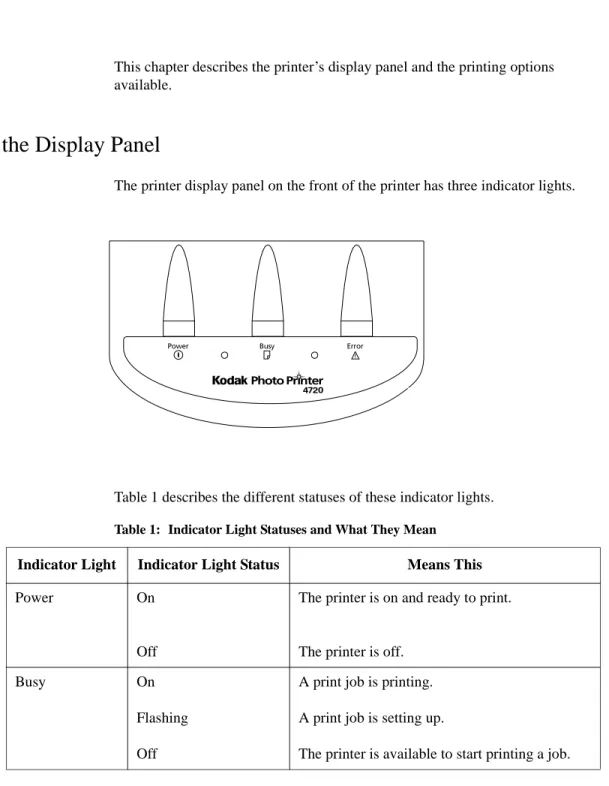
Looking at the Display Panel
The printer display panel on the front of the printer has three indicator lights.
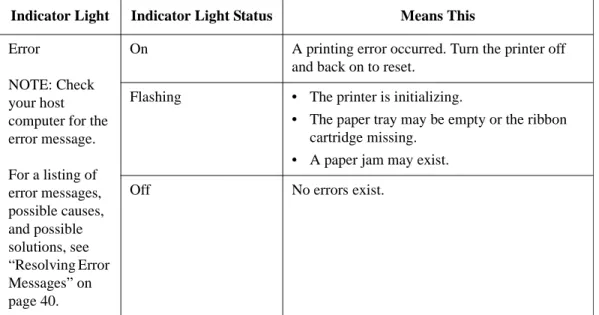
Table 1 describes the different statuses of these indicator lights.
Table 1: Indicator Light Statuses and What They Mean
Indicator Light Indicator Light Status Means This
Power On
Off
The printer is on and ready to print. The printer is off.
Busy On
Flashing Off
A print job is printing. A print job is setting up.
22 Photo Printer 4700 Series
Removing Paper Trimmings (Photo Printer 4720 only)
The trimmings bin sits on top of the paper tray. When your paper is cut, the trimmings drop into this bin. Be sure to remove the trimmings before you lift the paper tray cover to load paper.
CAUTION: Empty the bin every fifty cut prints to prevent the
trimmings from interfering with the operation of the cutter.
Keeping the Printer in Good Working Order
Follow these guidelines:
• Keep the printer clean.
• Keep the surrounding area vacuumed and litter-free.
• Protect the printer from tobacco smoke, dust, sand, and liquid spills. • Keep objects off the top of the printer.
Error
NOTE: Check your host computer for the error message. For a listing of error messages, possible causes, and possible solutions, see “Resolving Error Messages” on page 40.
On A printing error occurred. Turn the printer off and back on to reset.
Flashing • The printer is initializing.
• The paper tray may be empty or the ribbon cartridge missing.
• A paper jam may exist.
Off No errors exist.
Table 1: Indicator Light Statuses and What They Mean (Cont’d)
Indicator Light Indicator Light Status Means This
Working with the Printer
Follow these guidelines:
• Do NOT overload the paper tray. We suggest loading no more than 100 sheets of paper.
• Do NOT remove prints from the output tray until the printer ejects them. • Do NOT put a print back into the output tray or you may cause a paper jam. • Do NOT exceed the 10 print capacity of the output tray.
24 Photo Printer 4700 Series
Choosing the Printer Features on WINDOWS 95 and WINDOWS 98 Systems
On WINDOWS 95 and WINDOWS 98 systems, the Paper and the Device Options tabbed pages are the only ones in which the printer driver and the printer interact. The other tabbed pages are provided by the operating system and are not supported by the printer driver or the printer. These pages are not discussed in this manual. For additional information go to the web site for downloading driver updates:
http://www.kodak.com/global/en/service/software/thermalDrivers.shtml
You can access the Page Setup and Advanced tabbed pages from the Control Panel or from an application. To open one of these pages from the Control Panel, double-click the Printers icon. Right-click “Kodak photo printer 4700”or a customized name, if you entered one, and click Properties. Click either the Page Setup tab or the Advanced tab to open that tabbed page.
To open one of these tabbed pages from an application, select Print on the File menu and follow your application’s procedure for selecting a printer driver and its features.
What You Can Do on the Paper Tabbed Page
Paper size—allows you to specify the size of your output. 4x7 in—produces a 4 x 7 inch (102 x 178 mm) image. 4x6 in—produces a 4 x 6 inch (102 x 152 mm) image.
Border—produces a bordered, 4 x 6 inch (102 x 152 mm) print. The printed
image size is 3.5 x 5 inches (89 x 127 mm).
4x8.2 in—produces up to a 4 x 7 inch (102 x 178 mm) image. This selection is
appropriate for stickers and any uncut prints.
26 Photo Printer 4700 Series Orientation—allows you to specify a Portrait or a Landscape layout.
Paper source—standard WINDOWS 95/98 required feature. Default Tray is the
only option.
Media choice—allows you to make one of the following choices. Xtralife Auto—the printer applies protective coating to the print if an
XTRALIFE ribbon cartridge is loaded. If an XTRALIFE ribbon cartridge is not loaded, the job prints without the protective coating and no error message appears.
Xtralife On—the printer applies protective coating to the print if an
XTRALIFE ribbon cartridge is loaded. If an XTRALIFE ribbon cartridge is not loaded, an error message appears telling you to check the ribbon cartridge.
To resolve the error message:
• Load an XTRALIFE ribbon cartridge in the printer and click Retry. Or
• Click Cancel on the error message and resend the job with Xtralife Auto or Xtralife Off selected.
Xtralife Off—the printer does not apply protective coating to the print. Copies—the range is 1 - 150.
About—opens a window that lists the printer driver’s name and version number. Restore Defaults—returns all settings on the Paper tabbed page to their defaults.
• Paper Size—4x6 in • Orientation—Portrait • Paper Source—Default Tray • Media choice—Xtralife Auto • Copies—1
• Print quality—No Sharpening (see “What You Can Do on the Device Options Tabbed Page” on page 27.)
What You Can Do on the Device Options Tabbed Page
Print Quality—allows you to sharpen an image to make edges crisper and
details more noticeable. The following choices are available.
No Sharpening—no enhancement of details is added.
Normal Sharpening—adds one-half the amount of detail enhancement
possible.
Maximum Sharpening—adds the maximum amount of detail enhancement
28 Photo Printer 4700 Series
Choosing the Printer Features on a WINDOWS NT 4.0 System
On a WINDOWS NT 4.0 system the Page Setup and Advanced tabbed pages are the only ones in which the printer driver and the printer interact. The other tabbed pages are provided by the operating system and are not discussed in this manual. You can access the Page Setup and Advanced tabbed pages from the Control Panel or from an application. To open one of these pages from the Control Panel, double-click the Printers icon. Right-click “Kodak photo printer 4700”or a customized name, if you entered one, and click Document Defaults. Click either the Page Setup tab or the Advanced tab to open that tabbed page.
What You Can Do on the Page Setup Tabbed Page
Paper Size—allows you to specify the size of your output. 4x7 in—produces a 4 x 7 inch (102 x 178 mm) image. 4x6 in—produces a 4 x 6 inch (102 x 152 mm) image.
Border—produces a bordered, 4 x 6 inch print. The printed image size is
3.5 x 5 inches (89 x 127 mm).
4x8.2 in—produces up to a 4 x 7 inch (102 x 178 mm) image. This selection is
appropriate for stickers and any uncut prints.
Copy Count—the range is 1 - 150.
Orientation—allows you to specify a Portrait or a Landscape layout.
Color Appearance—a standard control provided by the printer driver. Allows
30 Photo Printer 4700 Series
What You Can Do on the Advanced Tabbed Page
Paper size—allows you to specify the size of your output. 4x6 in—produces a 4 x 6 inch (102 x 152 mm) image. 4x7 in—produces a 4 x 7 inch (102 x 178 mm) image.
4x8.2 in—produces up to a 4 x 7 inch (102 x 178 mm) image. This selection is
appropriate for stickers and any uncut prints.
Border 4x6 in—produces an image size that is 3.5 x 5 inches (89 x 127 mm).
Orientation—allows you to specify a Portrait or a Landscape layout. Copy Count—the range is 1 - 150.
Media—allows you to make one of the following choices.
Xtralife Auto—the printer applies protective coating to the print if an
XTRALIFE ribbon cartridge is loaded. If an XTRALIFE ribbon cartridge is not loaded, no error message appears and the job prints without protective coating.
Xtralife On—the printer applies protective coating to the print if an
XTRALIFE ribbon cartridge is loaded. If an XTRALIFE ribbon cartridge is not loaded, an error message appears telling you to check the ribbon cartridge.
To resolve the error message:
• Load an XTRALIFE ribbon cartridge in the printer and click Retry on the error message.
Or
• Click Cancel on the error message and resend the job with Xtralife Auto or Xtralife Off selected.
Xtralife Off—the printer does not apply protective coating to the print. Print Quality—allows you to sharpen an image to make edges crisper and
details more noticeable. The following choices are available.
No Sharpening—no enhancement of details is added.
Normal Sharpening—adds one-half the amount of detail enhancement
possible.
Maximum Sharpening—adds the maximum amount of detail enhancement
possible.
NOTE: The following two buttons are visible only if you select “Kodak photo printer 4700 Document Settings” at the top of the Advanced tabbed page.
Undo Changed Option—returns all settings on the Advanced tabbed page to the
previous settings.
About Raster Printer Driver—opens a window that lists the printer driver’s
Photo Printer 4700 Series 33
3 Troubleshooting and Maintaining the Printer
This chapter describes the problems you may occasionally have with the printer. Information on how to solve these problems as well as printer maintenance procedures are also included.
Handling Paper Jams
If a paper jam occurs, the printer attempts to eject the jammed paper automatically. If the paper jam clears, resend the print job.
If the printer is unable to clear the jam automatically, turn the printer power off and then on. This action may cause the printer to eject the partially processed paper. If the paper jam clears, resend the print job.
Sometimes a paper jam occurs as the paper is picked. For this type of jam, remove the paper tray and any paper caught in the printer.
If the paper jam still does not clear, remove the paper through the paper jam access area.
To clear a paper jam through the paper jam access area:
1. Turn the printer power off and unplug the printer.
2. Turn the printer on its left side. The paper/media jam label is now visible.
Paper/Media Jam Label
Open panel, remove jammed media, replace panel before operation.
3. Press down on the locking tab on the paper jam access area. Remove the paper jam access area door.
4. Remove the paper from the paper jam access area.
5. Replace the paper jam access area door. Make sure both locking tabs are secure.
6. Turn the printer right side up.
Photo Printer 4700 Series 35
Cleaning the Print Head and the Platen Roller
Lines or streaks on your prints indicate that the thermal print head and/or the platen roller need cleaning.
Ten alcohol pads for cleaning the thermal print head are included with your printer. For information about ordering extra pads, See “Supplies” on page 45.
CAUTION: Always use the type of alcohol pad provided with your printer.
Never rub or wipe anything, except the recommended alcohol pad, across the thermal print head.
To clean the thermal print head and the platen roller:
1. Turn the printer power off and unplug the power cord.
2. Place your finger in the opening at the top of the ribbon cartridge door. Pull the door toward you to open it.
3. Push up on the green lever to release the ribbon cartridge.
IMPORTANT: Do not touch the ribbon. Fingerprints on the ribbon can severely reduce your image quality.
If you do touch a part of the ribbon, advance the ribbon to the middle of the next magenta section.
4. Remove the ribbon cartridge and place it in a clean area. Close the ribbon cartridge door.
5. Turn the printer on its left side.
6. Press down on the locking tab on the paper jam access area. Remove the paper jam access area door.
7. Locate the thermal print head and the platen roller.
8. Remove an alcohol pad from its packaging. Move the pad along the complete length of the thermal print head, in one direction only, as follows.
—Apply firm, even pressure.
—Make three passes along the thermal print head. —Use a clean part of the pad for each pass.
9. Use a damp, lint-free cloth to clean the platen roller. Move the cloth, in one direction only, as follows.
—Apply firm, even pressure.
—Rotate the platen roller to an uncleaned area after each pass. —Use a clean part of the cloth for each pass.
10.Wait at least 2 minutes for the print head to dry. Replace the paper jam access area door.
11. Turn the printer right side up.
Platen Roller Thermal
Photo Printer 4700 Series 37 12. Open the ribbon cartridge door. Slide the ribbon cartridge, with the smooth,
finished side facing you, into the ribbon cartridge slot. Lock the cartridge in place.
13. Plug in the power cord and turn the printer power on. Print a copy. If you still see lines or streaks on this copy, clean the print head and the platen roller again. If a second cleaning does not correct the problem, contact your Kodak representative for service.
Cleaning the Pick Roller
Occasionally, dust and paper particles collect on the printer’s pick roller which pulls paper from the paper tray. These accumulations can prevent the pick roller from pulling the paper. A “Printer is out of paper” message, when there is still paper in the tray, may indicate that the pick roller needs cleaning.
To clean the pick roller:
1. Turn the printer power off and unplug the power cord. 2. Remove the output tray and the paper tray.
3. Turn the printer on its left side. 4. Locate the pick roller.
5. Wrap a pressure-sensitive tape, such as masking or cellophane tape, sticky side out, around three fingers.
6. Place the three taped fingers on the pick roller. Use these fingers to turn the roller several times, making sure that the tape touches all of the roller surface. 7. Turn the printer right side up.
8. Plug in the power cord and turn the printer power on. Make sure paper is loaded correctly in the paper tray. Print a copy. If the pick roller still does not pick the paper, contact your Kodak representative for service.
Photo Printer 4700 Series 39
Cleaning the Printer
To help ensure good printer performance and high-quality output, be sure the printer’s operating environment is clean and dust-free.
Clean the printer regularly as described below. Before you begin, turn the printer power off and unplug the power cord.
• Wipe the printer cabinet, the paper tray area, and the output tray with a damp, lint-free cloth. These steps eliminate dust buildup and prevent dirt from getting into the printer.
CAUTION: Never use abrasives or harsh chemicals to clean any part of the printer.
• Vacuum the exterior of the printer and the surrounding area to keep them dust-free.
Resolving Error Messages
Error messages appear on the host computer and indicate that a printer or system problem has occurred.
When an error message appears you can:
• Click Retry to resend the job. • Click Cancel to cancel the job.
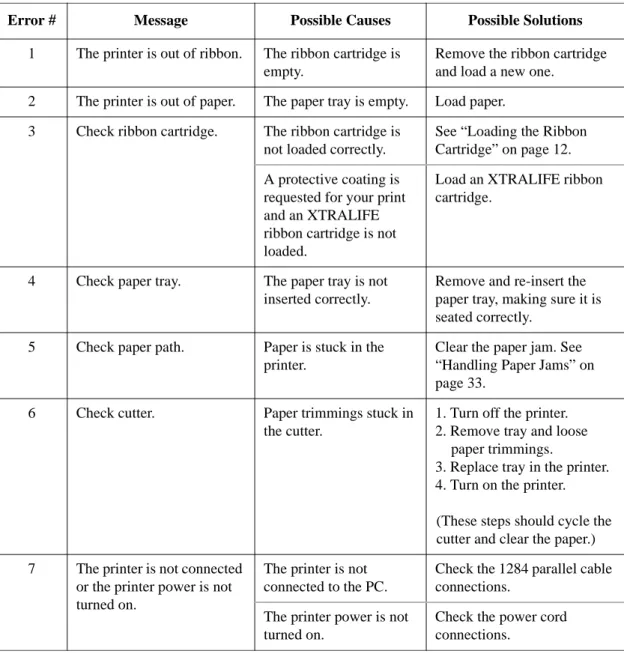
• Click neither button. Every 5 seconds the printer driver will retry the job. Table 2 will assist you in identifying and correcting printer problems. If you cannot solve a problem, contact your Kodak representative for service.
Table 2: Common Printer Driver Error Messages
Error # Message Possible Causes Possible Solutions
1 The printer is out of ribbon. The ribbon cartridge is empty.
Remove the ribbon cartridge and load a new one.
2 The printer is out of paper. The paper tray is empty. Load paper. 3 Check ribbon cartridge. The ribbon cartridge is
not loaded correctly.
See “Loading the Ribbon Cartridge” on page 12. A protective coating is
requested for your print and an XTRALIFE ribbon cartridge is not loaded.
Load an XTRALIFE ribbon cartridge.
4 Check paper tray. The paper tray is not inserted correctly.
Remove and re-insert the paper tray, making sure it is seated correctly.
5 Check paper path. Paper is stuck in the printer.
Clear the paper jam. See “Handling Paper Jams” on page 33.
6 Check cutter. Paper trimmings stuck in the cutter.
1. Turn off the printer. 2. Remove tray and loose
paper trimmings.
3. Replace tray in the printer. 4. Turn on the printer. (These steps should cycle the cutter and clear the paper.) 7 The printer is not connected
or the printer power is not turned on.
The printer is not connected to the PC.
Check the 1284 parallel cable connections.
The printer power is not turned on.
Check the power cord connections.
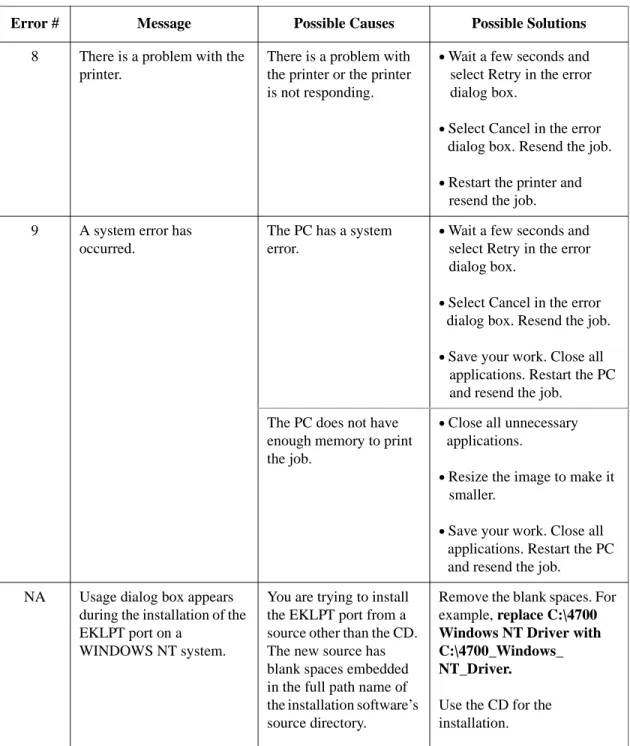
Photo Printer 4700 Series 41 8 There is a problem with the
printer.
There is a problem with the printer or the printer is not responding.
• Wait a few seconds and select Retry in the error dialog box.
• Select Cancel in the error dialog box. Resend the job.
• Restart the printer and resend the job. 9 A system error has
occurred.
The PC has a system error.
• Wait a few seconds and select Retry in the error dialog box.
• Select Cancel in the error dialog box. Resend the job.
• Save your work. Close all applications. Restart the PC and resend the job.
The PC does not have enough memory to print the job.
• Close all unnecessary applications.
• Resize the image to make it smaller.
• Save your work. Close all applications. Restart the PC and resend the job.
NA Usage dialog box appears during the installation of the EKLPT port on a
WINDOWS NT system.
You are trying to install the EKLPT port from a source other than the CD. The new source has blank spaces embedded in the full path name of the installation software’s source directory.
Remove the blank spaces. For example, replace C:\4700
Windows NT Driver with C:\4700_Windows_ NT_Driver.
Use the CD for the installation.
Table 2: Common Printer Driver Error Messages (Cont’d)
Appendix A Printer Specifications and Site
Requirements
Printer Specifications
Printer Dimensions Width: 295 mm (11.6 inches) Depth: 413 mm (16.25 inches) Height: 141 mm (5.55 inches) Printer Weight 6.4 kg (14 lbs.) Printer Resolution10.5 pixels per mm (267 pixels per inch)
Space Requirements
Front: 229 mm (9 inches) Back: 76 mm (3 inches) Left Side: 51 mm (2 inches) Right Side: 254 mm (10 inches)
Operating Environment
5ºC (40ºF) at 20% relative humidity (Minimum) 35ºC (96ºF) at 85% relative humidity (Maximum)
Power Requirements
Voltage/Frequency
90V to 250V/47Hz to 60Hz
Power consumption
Appendix B 45
Appendix B Accessories and Supplies
This appendix lists the accessories and supplies available for the printer. Ordering information is also included.
Accessories
Purchase printer accessories through your Kodak representative.
Supplies
Purchase printer supplies through your Kodak representative. • Photo Kit (200 sheets)
• Sticker Kit (200 sheets)
• Print Head Cleaning Kit (Order Number 172-1117)
Table 3: Accessories and Order Numbers
Accessory Order Number Printer Type
Universal Photo/Sticker Paper Tray 178-3323 4710 and 4720
Sticker Paper Tray 121-6712 4700
Photo Paper Tray 831-7554 4700
Appendix C Image Sizes
The following table lists recommended image sizes for optimum printing. This includes a 3 - 4% overfill required for borderless prints.
Image Size Table
Width Length
Pixels Inches mm Pixels Inches mm
Border 4 x 6 in. (102 x 152 mm) 936 3.506 89 1332 4.989 126.7
4 x 6 in. (102 x 152 mm) 1104 4.135 105 1656 6.202 157.5
4 x 7 in. (102 x 178 mm) 1104 4.135 105 1932 7.236 183.8
Photo Printer 4700 Series 49
Index
Numerics
1284 cable, connecting 11
A
accessories 45
adding, EKLPT1 port 18, 20
Advanced tabbed page options 30
agency approval 43
C
cartridge
loading 12
removing 13
characteristics of the printer 7
choosing printer features
on a WINDOWS 95 system 24
on a WINDOWS 98 system 24
on a WINDOWS NT 4.0 system 28
cleaning
pick roller 38
print head 35
printer 39
clearing
error messages 40
paper jams 33
components of the printer 9
configuring, parallel port 17, 19
connecting 11
1284 cable 11
power cord 11
D
Device Options tabbed page options 27
display panel, viewing 21
E
EKLPT1 port, adding 18, 20
environment for printer operation 43
environmental requirements 7
error messages
printer driver 40
resolving 40
H
handling paper jams 33
I
image sizes 47
indicator light statuses 21
installing
1284 cable 11
power cord 11
printer drivers 17
WINDOWS 95/98 printer driver 17
WINDOWS NT 4.0 printer driver 19
L
loading
paper 14
ribbon cartridge 12
locating printer parts 10
location for the printer 7
looking at the display panel 21
M
maintenance of the printer 22, 33
O
operating environment 43
operating the printer 21
options
Advanced tabbed page 30
Device Options tabbed page 27
Page Setup tabbed page 28
Paper tabbed page 25
order numbers for accessories 45
P
Page Setup tabbed page options 28
paper jams
clearing 33
handling 33
Paper tabbed page options 25
paper tray description 14
paper trimmings, removing 22
paper, loading 14
parts of the printer 9
pick roller, cleaning 38
platen roller, cleaning 35
power cord, connecting 11
power requirements 43
print head, cleaning 35
printer
accessories 45
characteristics 7
cleaning 39
components 9
keeping in good working order 22
location 7
maintenance 22, 33
operating 21
parts 10
specifications 43
supplies 45
unpacking 9
working with 23
printer driver error messages 40
printer drivers, installing 17
printer errors, troubleshooting 33
printer features
choosing on a WINDOWS 95 system 24
choosing on a WINDOWS 98 system 24
choosing on a WINDOWS NT 4.0 system
28
printer parts, locating 10
R
removing
paper trimmings 22
ribbon cartridge 13
requirements
for power 43
for space around the printer 7, 43
of the site 43
resolving error messages 40
ribbon cartridge
loading 12
removing 13
S
selecting printer features
on a WINDOWS 95 system 24
on a WINDOWS 98 system 24
on a WINDOWS NT 4.0 system 28
site requirements 43
space requirements 7, 43
specifications of the printer 43
statuses of indicator lights 21
T
thermal print head, cleaning 35
trimmings bin 22
troubleshooting 33
U
unpacking the printer 9
V
viewing the display panel 21
W
WINDOWS 95 system
choosing printer features 24
installing the printer driver 17
WINDOWS 98 system
choosing printer features 24
installing the printer driver 17
WINDOWS NT 4.0 system
choosing printer features 28
installing the printer driver 19
working with the printer 23