Grant Management User Guide
Version 9.0
February 2006
Document Number GMUG-90UW-01Lawson Enterprise Financial
Management
Legal Notices
Lawson® does not warrant the content of this document or the results of its use. Lawson may change this document without notice.
Export Notice: Pursuant to your agreement with Lawson, you are required (at your own expense) to comply with all laws, rules, regulations, and lawful orders of any governmental body that apply to you and the products, services or information provided to you by Lawson. This obligation includes, without limitation, compliance with the U.S. Foreign Corrupt Practices Act (which prohibits certain payments to governmental ofÞcials and political parties), U.S. export control regulations, and U.S. regulations of international boycotts. Without limiting the foregoing, you may not use, distribute or export the products, services or information provided to you by Lawson except as permitted by your agreement with Lawson and any applicable laws, rules, regulations or orders. Non-compliance with any such law, rule, regulation or order shall constitute a material breach of your agreement with Lawson.
Trademark and Copyright Notices: All brand or product names mentioned herein are trademarks or registered trademarks of Lawson, or the respective trademark owners. Lawson customers or authorized Lawson business partners may copy or transmit this document for their internal use only. Any other use or transmission requires advance written approval of Lawson.
Contents
List of Figures
11
Chapter 1
Overview of Grant Management
13
What Is the Lawson Grant Management Application?... 13
How Grant Management Integrates with Other Lawson Applications ... 13
Grant Management Process Flow ... 15
Chapter 2
Setting Up Grant Activities
19
Concepts in this Chapter... 20
Why is Activity Structure Important to Grant Management? ... 20
What Factors Impact Project Accounting Structures for Grant Management?. 21 What Other Project Accounting Setup Should I Consider for Grant Management?... 25
How Can I Handle Fringe Costs?... 26
How Are F&A Encumbrances Handled? ... 27
Procedures in this Chapter ... 28
DeÞning Account Categories ... 28
DeÞning an Account Category Structure ... 29
DeÞning an Activity Group ... 31
DeÞning an Activity ... 41
Overriding Account Category Assignments... 50
Chapter 3
De
Þ
ning Burdens for Grant Activities
53
Concepts in this Chapter... 54
What Are Burdens? ... 55
What Is a Burden Code? ... 56
Procedures in this Chapter ... 58
DeÞning a Burden Code ... 58
DeÞning a Burden Rate ... 61
Assigning Burden Codes ... 62
Chapter 4
De
Þ
ning Budgets for Grant Activities
65
Concepts in this Chapter... 66
What Is a Budget?... 66
What Are Methods for DeÞning Budgets? ... 67
What Are Budget Edits? ... 69
Procedures in this Chapter ... 72
DeÞning Activity Budget Headers... 72
DeÞning Activity Annual Budgets ... 74
DeÞning Activity Budgets by Activity... 78
DeÞning Activity Budgets by Account Category ... 82
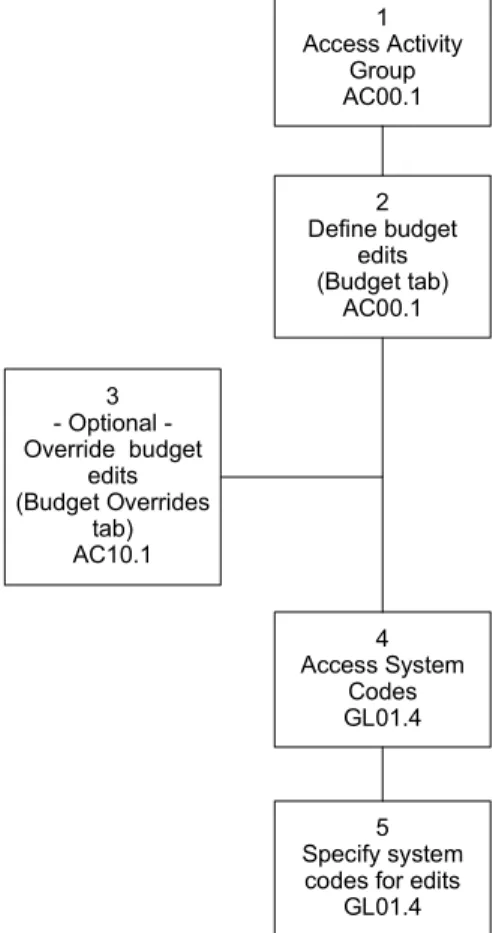
DeÞning Budget Edits ... 86
Chapter 5
Setting Up Contract Activities for Grants
91
Concepts in this Chapter... 92
What Accounts Receivable Setup is Required for Grant Management? ... 92
What Billing and Revenue Management Setup Should I Consider for Grant Management?... 93
Procedures in this Chapter ... 94
DeÞning Contract Parameters... 94
DeÞning Customer Invoice Options...103
DeÞning Billing Parameters and Detail ...107
Chapter 6
Setting Up an Award in Grant Management
113
Concepts in this Chapter...114
What are Grant Management Codes? ... 114
Can I Upload Award Information to Grant Management from a Pre-Award System? ... 114
What are Award Deliverables?... 115
What Is Cost Sharing? ... 115
What Is the Impact of Reorganization on Cost Share Records? ... 116
Procedures in this Chapter ...117
DeÞning Grant Management Codes ... 117
DeÞning Institution ProÞle and Location... 118
Setting Up an Award ... 119
DeÞning Award Personnel ...123
DeÞning Award Subcontractors ...125
Setting Up Award Protocols ...125
Setting Up Cost Sharing ...126
Setting Up Program Income ...129
Setting Up Award Deliverables...129
Changing an Award ...130
Chapter 7
Setting Up Labor Distribution and Salary
Encumbrance
133
Concepts in this Chapter... 134
What Is Labor Distribution?...135
What Are Salary Encumbrances? ...136
What Are Fringe Encumbrances? ...137
What Setup is Required in Lawson Human Resources for Labor Distribution and Salary Encumbrances? ...138
What Are Labor Distribution Templates?...140
What Is a Salary Cap Schedule? ...140
How Does Grant Management Handle Salary Cap Violations? ...141
What Happens When I Release Labor Distribution Lines? ...145
How Do I Approve Labor Distribution Templates? ...146
What Happens When I Approve Labor Distribution Lines? ...147
Procedures in this Chapter ... 148
DeÞning a Salary Cap Schedule ...148
DeÞning Labor Distribution Templates ...150
Importing Labor Distribution Templates from a Non-Lawson Source ...157
Copying Labor Distribution Templates ...159
Approving Labor Distribution Lines Immediately ...162
Approving Multiple Labor Distribution Template Lines at Once...163
Approving Labor Distribution Templates by Employee or Activity ...165
Approving Labor Distribution Template Lines with Lawson ProcessFlow ...169
Setting Up Lawson ProcessFlow for Labor Distribution Lines Approvals...171
Chapter 8
Processing Salary Encumbrances
173
Concepts in this Chapter... 174
What Happens When I Run Salary Encumbrance Processing (GM110)?...174
How Often Should I Process Salary Encumbrances? ...176
How Does Grant Management Work With Future Changes to Employee Pay and Distributions? ...176
Procedures in this Chapter ... 177
Processing Salary Encumbrances...177
Troubleshooting Salary Encumbrance Processing (GM110) ...180
Removing Outstanding Salary and Fringe Encumbrances...182
Chapter 9
Processing Labor Distribution with Lawson
Payroll
183
Concepts in this Chapter... 184
What Does Labor Distribution Processing Do? ...184
What Makes an Employee Eligible for Labor Distribution Processing?...185
How Do Labor Distribution Templates Work With Time Records? ...185
How Do I Use the Labor Distribution Detail Report?...190
Procedures in this Chapter ... 193
Processing Labor Distribution With Lawson Payroll ...193
Chapter 10
Overview of Non-Lawson Payroll Transaction
Import
195
Concepts in this Chapter... 196
What Is the Non-Lawson Payroll Transaction Import? ...196
What Happens When I Process Imported Records? ...196
How Are Imported Records Validated? ...199
How Does Labor Distribution Work? ...199
Procedures in this Chapter ... 208
Processing the Non-Lawson Payroll Transaction Import ...208
Chapter 11
Processing Labor Distribution with Non-Lawson
Payroll
213
Concepts in this Chapter... 214
How Do I Set Up My Lawson Applications for Non-Lawson Payroll? ...215
How Do I Populate the Import File for Non-Lawson Payroll? ...215
Procedures in this Chapter ... 218
Labor Processing Overview—Non-Lawson Payroll...218
Creating and Maintaining Employee Data in Lawson...220
Chapter 12
Processing Labor Distribution for Af
Þ
liate
Employees
225
Concepts in this Chapter... 226
What Are AfÞliate Employees and Organizations?...226
How Do I Set Up My Lawson Applications for AfÞliate Employees? ...226
How Do I Populate the Import File for AfÞliate Employees? ...228
Procedures in this Chapter ... 239
Labor Processing Overview—AfÞliate Employees ...239
Creating and Maintaining Employee Data for AfÞliate Employees in Lawson.241 Remitting and Reconciling AfÞliate Employee Costs ...246
Chapter 13
Effort Reporting and Certi
Þ
cation
247
Concepts in this Chapter... 248
What Is Effort? ...248
How Are Effort Transactions Created? ...249
What Is Effort Reporting and CertiÞcation? ...250
Procedures in this Chapter ... 251
Processing Effort ...251
Running the Effort Report ...254
Adjusting a Planned Effort or Salary Percentage ...260
Updating Actual Effort for an Employee...263
Certifying Effort ...266
Setting Up Lawson ProcessFlow for Certifying Effort...267
Setting Up Lawson ProcessFlow to Notify CertiÞers of Effort Variances ...268
Chapter 14
Setting Up Labor Cost Transfers
269
Concepts in this Chapter... 270
What Are Labor Cost Transfers? ...270
How Do I Set Up Labor Cost Transfer Templates? ...271
How Do I Approve Labor Cost Transfer Templates?...273
Should I Use Labor Cost Transfers for Retroactive Pay? ...273
Procedures in this Chapter ... 274
DeÞning Labor Cost Transfer Templates...274
Generating Labor Cost Transfer Templates Automatically ...278
Approving Labor Cost Transfer Template Lines Immediately ...282
Approving Multiple Labor Cost Transfer Templates at Once...283
Approving Labor Cost Transfer Templates...285
Approving Labor Cost Transfer Template Lines with Lawson ProcessFlow...288
Setting Up Lawson ProcessFlow for Labor Cost Transfer Approvals ...290
Chapter 15
Processing Labor Cost Transfers
291
Concepts in this Chapter... 292
What Happens During Labor Cost Transfer Processing? ...292
How Do Labor Cost Transfers Work with No Pro-Rating? ...295
How Do Cost Transfers Work with Pro-Rating? ...299
Procedures in this Chapter ... 303
Processing Labor Cost Transfer Distributions ...303
Chapter 16
Setting Up and Processing Procurement
309
Concepts in this Chapter... 310
How Does Grant Management Work with Lawson Procurement? ...310
What are Requisition Approval Types? ... 311
What Accounts Payable Setup Should I Consider for Grant Management? ..313
Procedures in this Chapter ... 315
Creating Requisitions for Equipment and Supplies ...315
Approving Requisitions Manually ...318
Creating Purchase Orders from Order Requests ...319
Creating Subcontractor Purchase Orders ...321
Approving Subcontractor Purchase Orders...324
Chapter 17
Processing Accounts Payable
325
Concepts in this Chapter... 326
How Does Grant Management Work with the Lawson Accounts Payable Cycle? ...326
Can I Exclude Unpaid Accounts Payable Invoices from Grant Draws? ...328
What Are Accounts Payable Cost Transfers? ...328
How Can I Use Asset Management with Grants?...329
Procedures in this Chapter ... 330
Updating Paid Invoice Activity Status ...330
Entering and Processing Cost Transfers in Accounts Payable ...333
Chapter 18
Processing Manual Commitments
335
Concepts in this Chapter... 336
How Do I Use Manual Commitments for Grants?...336
Procedures in this Chapter ... 337
DeÞning Manual Commitments ...337
Purging Manual Commitments ...339
Chapter 19
Processing Billing and Revenue Management and
Accounts Receivable
341
Concepts in this Chapter... 342
How Does Grant Management Work with the Lawson Billing Cycle?...343
How Does Grant Management Work with the Lawson Revenue Cycle? ...344
How Does Billing and Revenue Management Handle Unpaid Transactions in Grant Management ? ...345
What Are the Methods For Applying Cash with Grant Management? ...345
How Can I Process Billing and Apply Cash by Letter of Credit? ...346
Procedures in this Chapter ... 347
Calculating Invoice Amounts ...347
Creating an Invoice...351
Creating a Cash Batch ...353
Entering, Applying, and Releasing Cash...353
Putting Transactions on Hold...357
Calculating Revenue ...360
Chapter 20
Reports and Listings
363
Grant Management Listings ... 364
Institution Listing (GM200)...364
Award Listing (GM201) ...365
Code Listing (GM202)...365
Award Protocol Alert Report (GM203)...366
Award Deliverables Alert Report (GM204)...366
Salary Cap Schedule Listing (GM205) ...367
Labor Distribution Listing (GM210) ...367
Labor Cost Transfer Template Listing (GM212) ...368
Grant Management Reports ... 369
Effort Exception Report (GM265) ...369
Award Summary Report (GM400) ...370
Award Close (GM401) ...371
Labor Distribution Expiration Report (GM410) ...372
Labor Distribution Status History Change Report (GM411) ...373
Salary Cap Alert Report (GM412) ...374
Effort Variance Report (GM465) ...374
Effort Comparison Report (GM467) ...376
Salary Cap Analysis Report (GM468) ...377
Federal Compliance Reports ... 378
Financial Status Report (GM269)...378
Federal Cash Transaction Report (GM272) ...379
Other Application Reports ... 380
Other Application Reports ...380
Chapter 21
Closing an Award
383
Closing an Award...383Chapter 22
Maintaining Grants Activities
385
Grant Management Maintenance...385
Appendix A
Documentation Conventions and Support
387
Documentation Conventions ...387
Index
389
List of Figures
Chapter 2
Setting Up Grant Activities
Figure 1. Basic Grant Activity Structure... 20
Figure 2. Example Activity Structure for Multiple Years, With Carry Forward... 22
Figure 3. Example Activity Structure for Multiple Years, No Carry Forward... 23
Figure 4. Example Activity Structure for One Grant, Multiple Projects ... 23
Figure 5. Example Activity Structure for Cost Sharing ... 24
Chapter 3
De
Þ
ning Burdens for Grant Activities
Figure 6. Illustration: Burden calculation... 55Chapter 4
De
Þ
ning Budgets for Grant Activities
Figure 7. Illustration: Formula for budget edits... 69Figure 8. Procedureßow: DeÞning budget edits ... 86
Chapter 9
Processing Labor Distribution with Lawson Payroll
Figure 9. Overview of Lawson Payroll Cycle ...193Chapter 10
Overview of Non-Lawson Payroll Transaction Import
Figure 10. Overview of Processing Transactions with Non-Lawson Payroll ...209Chapter 11
Processing Labor Distribution with Non-Lawson Payroll
Figure 11. Overview of Labor Processing for Employees Paid Using a Non-Lawson Payroll System ....219Figure 12. Overview of Setup in Lawson Human Resources...221
Chapter 12
Processing Labor Distribution for Af
Þ
liate Employees
Figure 13. Overview of Labor Processing for AfÞliate Employees ...240Figure 14. Overview of AfÞliate Employee Setup in Lawson Human Resources ...242
Chapter 13
Effort Reporting and Certi
Þ
cation
Figure 15. Overview of Processing Effort ...252Chapter 16
Setting Up and Processing Procurement
Figure 16. Overview of Lawson Procurement Cycle... 311Chapter 17
Processing Accounts Payable
Figure 17. Overview of Lawson Accounts Payable Cycle...327Chapter 19
Processing Billing and Revenue Management and
Accounts Receivable
Figure 18. Overview of Lawson Billing Cycle...343 Figure 19. Overview of Lawson Revenue Cycle ...344
Chapter 21
Closing an Award
Figure 20. Overview of Closing an Award ...383
Chapter 1
Overview of Grant Management
The Lawson Grant Management application works in conjunction with Lawson Financials, Procurement, and Human Resources to provide a solution that integrates planning, payroll, purchasing, and accounting processes for the administration, tracking, and reporting of sponsored projects.
What Is the Lawson Grant Management Application?
The Lawson Grant Management application provides functionality to manage sponsored projects for universities, academic medical centers, research hospitals, research institutes, non-proÞt organizations, and K-12 school districts. Grant Management works in conjunction with the Lawson Financials, Lawson Procurement, and Lawson Human Resources to provide a solution that integrates planning, payroll, purchasing, and accounting processes for optimum administration, tracking, and reporting of sponsored projects. Lawson Grant Management is a post-award solution.
Grant Life Cycle
At a high level, the typical grant life cycle is divided into pre-award and post-award phases:
• The pre-award phase includes processes that occur before a grant is awarded, such as identifying funding sources, preparing, and submitting the actual grant application.
• The post-award phase includes processes that occur after a grant has been awarded such as grant setup, budgeting, transaction processing and control, and reporting.
How Grant Management Integrates with Other Lawson
Applications
This section explains how the Lawson Grant Management application interfaces with other Lawson applications and products and non-Lawson applications.
General Ledger
General Ledger is theÞnancial repository for the overall organization. It is the basis for producing departmentalÞnancial statements and enterprise-wide Þnancial reports.
Grant Management User Guide Chapter 1 Overview of Grant Management
Project Accounting
Project Accounting is theÞnancial data repository for grants. In Project Accounting, you will build an activity structure that supports the reporting requirements and processing rules for each grant, including budgets and system-wide budget checking rules. You may use burdens or allocations functionality to generate fringe and F&A costs. Inquiries and reports are available to help you manage and review grantÞnancial data.
Billing and Revenue
Billing and Revenue Management is integrated with Project Accounting and allows you to bill sponsors for and recognize revenue on cost-reimbursable andÞxed price grants. In Billing and Revenue Management, you will deÞne rules and process billing and revenue according to each grant’s requirements. You can create invoices or letter of credit draws, exclude unpaid Accounts Payable invoices, and use retainer functionality to manage grant advances.
Accounts Payable
In addition to standard Accounts Payable functionality for processing and paying invoices, you can create and maintain subcontractor vendors, charge invoices to grants, track paid invoices for billing and revenue recognition eligibility, and initiate and approve cost transfers on previously processed invoices.
Accounts Receivable
Standard Accounts Receivable features let you process cash receipts and manage outstanding balances owed on a speciÞc grant by sponsor, grant, amount, or days outstanding. You can also apply cash to outstanding grant draws by letter of credit.
Human Resources
Human Resources is the data repository for employees and supporting data. Grant Management uses employee information for salary encumbrances, labor distribution, and effort reporting. Lawson Human Resources is required if you use Lawson Payroll or a third party payroll application.
Payroll
In addition to standard payroll processing features, Payroll automatically charges salaries and wages to the appropriate grants (activities) and departments (accounting units) based on predeÞned labor distribution templates. Effort data is captured automatically for employees subject to effort reporting.
Purchase Order
Purchase Order lets you to create and issue purchase orders, including subcontract purchase orders, and manage the receiving process.
Requisitions
In Requisitions, you can create and process requisitions for equipment or services for grant projects. Principal Investigators can approve requisitions at the line level.
Lawson Enterprise Performance Management Suite
Analytic Architect
With Analytic Architect, you can analyze grant-related activity data from a variety of perspectives and present it in graphic views.
Reporting Services
Reporting Services lets you create customized, Web-deployable reports.
Lawson Extensions, Information Management
Lawson Add-ins for Microsoft OfÞce
Excel Upload Wizard is useful for loading grant data from a pre-award system, and can help streamline other data setup tasks. For more information about Lawson Add-ins, seeGetting Started with Lawson Add-ins for Microsoft® OfÞce.
ProcessFlow
Use ProcessFlow triggers and services to automate business processes, including over budget notiÞcations and spending and cost transfer approvals.
Non-Lawson Applications
Grant-related data and transactions can be uploaded from non-Lawson applications, such as patient billing systems, non-Lawson payroll systems, or pre-award software. Batch import jobs are provided in Lawson for uploading transactions, employees, activities, and so on. You can also use Lawson Add-ins for Microsoft OfÞce.
Grant Management Process Flow
The Grant Management application can be broken down into four main processes: setup, processing, reporting and auditing, and award close. This section provides an overview of each of these main processes.
Setup
Grant Management is closely integrated with the Lawson application suites. Some of the following tasks are pre-requisite setup, while others occur whenever a Notice of Grant Award is received.
Grant Management User Guide Chapter 1 Overview of Grant Management
In Lawson Financials:
• In General Ledger, set up one or more General Ledger companies, accounting units, and accounts.
• In Project Accounting, set up your activity groups, account categories, and burdens to use with Grant Management. When you receive a Notice of Grant Award, set up grant activities, budgets, and if needed, cost share and program income activities. Make General Ledger account and burden assignments at the activity level if needed, and set up any allocations you may need to perform. For more information, see"Why is Activity Structure Important to Grant Management?" on page 20.
• In Billing and Revenue Management, set up contract records and billing parameters when you receive a Notice of Grant Award. For more information, see"Setting Up Contract Activities for Grants" on page 91. • In Accounts Receivable, deÞne one or more Accounts Receivable
companies and process levels and set up customers to identify grant sponsors. An AR customer must exist for the grant sponsor before you can deÞne contracts and billing parameters in Billing and Revenue Management, or complete award sponsor information in Grant Management.
• In Accounts Payable, deÞne one or more Accounts Payable companies and process levels, and deÞne vendors. Subcontract vendors must exist before you can assign award subcontractors in Grant Management. In Lawson Procurement:
• In Requisitions, deÞne one or more Inventory Control (IC) companies and locations, requesting locations, requestors, and approval codes.
• In Purchase Order, deÞne one or more Purchase Order companies, buyers, and vendor agreements.
In the Human Resources Suite:
• In Human Resources, set up one or more Human Resources companies, process levels, employees, and supporting data (including pay plans, pay codes, and job codes).
• If you use Lawson Payroll, deÞne payroll parameters, including deduction codes for employee withholding and employer-paid expenses.
• If you use Lawson Personnel Administration and want to deÞne labor distribution templates by employee and position, set up position rules, positions, and related data.
Setup in Grant Management
When a Notice of Grant Award is received and grant activities are deÞned, set up detailed grant award information and labor distribution templates in Grant Management.
Award Setup
You deÞne and maintain detailed grant award information in Grant
Management. You can download award information from a pre-award system, or manually enter the information. Additional award information includes sponsor information, award dates, cost sharing parameters, program income parameters, award personnel, award subcontractors, award protocols, and award deliverables.
Labor Distribution Template Setup
Labor distribution templates determine how projected and actual salaries and wages are charged to grants. When a grant is received, deÞne a template for each employee who will spend time and/or effort on research funded by the grant. Percentage splits determine how each employee’s earnings and effort are charged to grants (activities) and departments (general ledger accounts). A template line must be approved to be eligible for salary encumbrance and labor distribution processing.
Processing
Once the grant award is setup in Lawson, your organization is ready to begin day-to-day processing that occurs throughout the duration of the grant, including:
• Encumbering salaries for grant personnel
• Paying employees and performing labor distribution • Tracking and certifying effort
• Purchasing materials and subcontractor services • Paying vendors for materials and subcontractor services • Entering manual commitments against grants as needed for
miscellaneous charges
• Billing the award sponsor, entering and applying payments received from the sponsor, and recognizing revenue
Reporting and Auditing
Grant Management includes several standard reports, including:
• Award Summary Report that shows expenses, recognized revenue, applied cash, budgets, and other information
• Reports for federal award compliance, including data required for the Financial Status Report (SF269) and Federal Cash Transactions Report (SF272)
• Labor distribution template reports, including listings, expiration, and status history reports
• Award setup listings
Standard reports and inquiries in Lawson applications, such as Project Accounting’s Activity Commitment Summary Report, can also be valuable.
Award Close
When a grant ends, completeÞnal processing steps in Lawson to close the award. Grant Management includes an Award Close Report that audits award data and provides a checklist ofÞnal processes to perform.
Grant Management User Guide Chapter 1 Overview of Grant Management
Chapter 2
Setting Up Grant Activities
This chapter explains setup considerations for Lawson Project Accounting. Because Grant Management uses activities and contracts as its base, grant setup begins in Project Accounting.
STOP Before you deÞne grant activities in Project Accounting, determine the budgeting, processing, and reporting needs for your grants. There are many options in activity setup that have a major impact on processing, subsystem interaction, and reporting.
Concepts in this Chapter
TIP To skip directlyto the procedures, see "Procedures in this Chapter" on page 28.
The following concepts provide background and conceptual information for the procedures within this chapter.
• "Why is Activity Structure Important to Grant Management?" on page 20
• "What Factors Impact Project Accounting Structures for Grant Management?" on page 21
• "What Other Project Accounting Setup Should I Consider for Grant Management?" on page 25
• "How Can I Handle Fringe Costs?" on page 26 • "How Are F&A Encumbrances Handled?" on page 27
Why is Activity Structure Important to Grant Management?
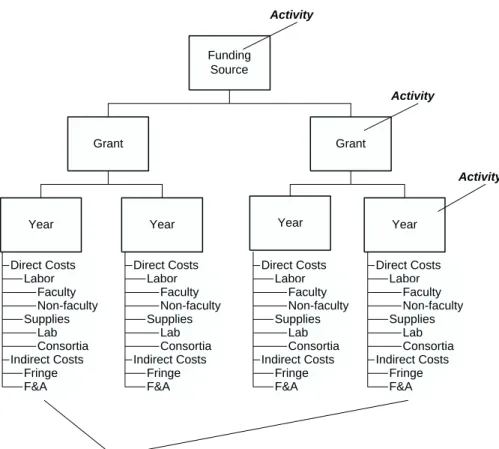
Grant Management uses activities as its base. Grant Management setup begins with deÞning an activity structure in Project Accounting to house grant data. The following diagram shows a basic grant activity structure.
Figure 1. Basic Grant Activity Structure
Activity Group
Funding Source
Grant Grant
Year Year Year Year
Activity Activity Activity Account Categories Direct Costs Labor Faculty Non-faculty Supplies Lab Consortia Indirect Costs Fringe F&A Direct Costs Labor Faculty Non-faculty Supplies Lab Consortia Indirect Costs Fringe F&A Direct Costs Labor Faculty Non-faculty Supplies Lab Consortia Indirect Costs Fringe F&A Direct Costs Labor Faculty Non-faculty Supplies Lab Consortia Indirect Costs Fringe F&A
Activity Groups
Activity groups are required in Project Accounting. They determine the number of levels in the activity structure, the account categories that can be used with activities in the structure, and processing rules such as how budgets, dates, and accounts are validated when transactions are processed. Most reports and inquiries can be run by activity group. You may want to use activity groups to identify funding sources, internal departments, or Principal Investigators (PI).
Activity
Activities provide the framework for establishing grant budgets, collecting costs, processing billings, and recognizing revenue on grant contracts. There are three types of activities:
• Posting activities are the lowest level in the activity structure. Activity transactions must contain a posting activity and account category. Posting activities are usually grant years in an activity structure for grants.
• Summary activities are higher level in the activity structure. Budgets, costs, revenues, and units from the posting activities are rolled up into balances in summary activities.
• Contract activities are like summary activities, but they also provide a framework for storing contract and billing information. A grant generally equates to a contract activity in the structure.
Account Category Structure
Account categories provide a way to break down costs and revenues in activities. Every activity transaction must contain an account category. Actuals, commitments, and budgets are stored in activities by account category.
An account category structure is a hierarchical organization of all the account categories you use to track costs and revenues for an activity group. It contains summary account categories, such as Direct Costs or Labor, and detail account categories, such as Faculty Salaries or F&A Costs.
You can assign the same account category structure to more than one activity group. This is important If you intend to do consolidated reporting for multiple activity groups because it ensures the account category roll-ups are consistent. You can override account category parameters by posting activity, including making an account category inactive. For example, if you don’t have a certain kind of labor, supplies, or subcontract on a grant, you can turn off the account category for that grant.
What Factors Impact Project Accounting Structures for Grant
Management?
Each new Grant Management award requires its own activities in Lawson Project Accounting. Setup in Project Accounting is subjective and will vary from organization to organization. Before you deÞne your activities in Project
Accounting, you should consider your account category structure, carry forward provisions for the grant, whether the grant funds multiple projects (known as program project), and program income for the grant. The following topics include examples of possible activity structures.
Carry Forward
A carry forward provision allows unspent grant funding to roll over into the next funding year. An activity structure that allows carry forward will be different than an activity structure without carry forward.
Example: Carry Forward
A research organization receives a grant (#142234) from the National Institutes of Health for two years with total funding of two million dollars, which will be distributed in one million dollar increments at the start of each year of the award.
If the research organization only spends $700,000 of the allotted one million dollars in theÞrst award year, then the unspent $300,000 is added to the one million dollars of funding for the second year.
Figure 2. Example Activity Structure for Multiple Years, With Carry Forward
Posting Activity Grant #142234
Year 1
Posting Activity Grant #142234
Year 2 Summary
Activity NIH Grants
Contract Activity Grant #142234
Contract: $2 Million
Sponsor: NCI
Billing Method: Cost Plus, No Markup
Revenue Recognition Method: Full Accrual
Budget: $1 Million Activity Dates: 11-01-2005 to 10-31-2006
Budget: $1 Million Activity Dates: 11-01-2006
to 10-31-2007
Example: No Carry Forward
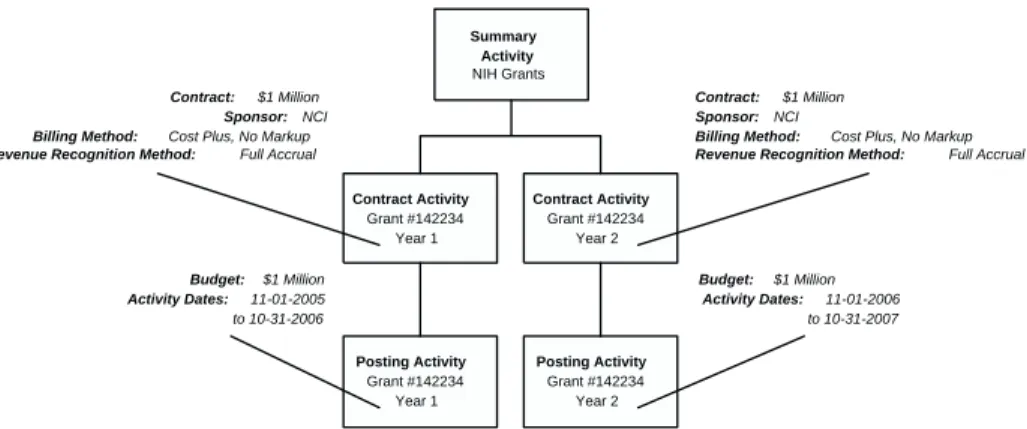
A research organization receives a grant (#142234) from the National Institutes of Health for two years with total funding of two million dollars, which will be distributed in one million dollar increments at the start of each year of the award.
The grant does not allow any unspent funds at the end of theÞrst year to be carried forward or added to the second year. So if the research organization only spends $700,000 of the allotted one million dollars in theÞrst award year,
then the unspent $300,000 is lost and not added to the one million dollars of funding for the second year.
Figure 3. Example Activity Structure for Multiple Years, No Carry Forward
Contract Activity Grant #142234 Year 1 Contract Activity Grant #142234 Year 2 Summary Activity NIH Grants Posting Activity Grant #142234 Year 1 Posting Activity Grant #142234 Year 2
Contract: $1 Million
Sponsor: NCI
Billing Method: Cost Plus, No Markup
Revenue Recognition Method: Full Accrual
Budget: $1 Million Activity Dates: 11-01-2005 to 10-31-2006
Budget: $1 Million Activity Dates: 11-01-2006
to 10-31-2007
Contract: $1 Million
Sponsor: NCI Billing Method: Cost Plus, No Markup
Revenue Recognition Method: Full Accrual
One Grant Funds Multiple Projects (Program
Project)
One grant can fund multiple projects of related research.
Example
The National Institutes of Health awards a grant (#625234) to an organization to fund two separate projects: a two-year project studying the effects on asthma symptoms, and a two-year project studying the effects on susceptibility to theßu.
The projects will share activities, such as administration, support staff, lab, and imaging.
Figure 4. Example Activity Structure for One Grant, Multiple Projects
Summary Activity Grant #625234 Year 1 Summary Activity Grant #625234 Year 2 Contract Activity Grant #625234 Posting Activity Asthma Project Year 2 Posting Activity Flu Project Year 2 Posting Activity Asthma Project Year 1 Posting Activity Flu Project Year 1 Posting Activity Grant #625234 Admin Posting Activity Grant#625234 Lab
Cost Sharing
NOTE To avoid
summarizing cost share costs and funded costs in the contract activity, Lawson recommends that you do not set up cost share activities in the same structure as the grant activity. You can map cost share activities to funded activities for effort reporting, presentation on the Financial Status Report, and invoices.
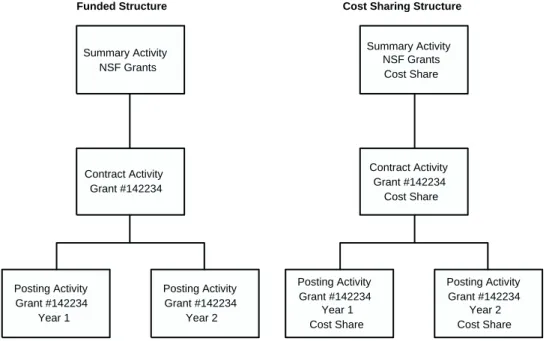
Cost sharing occurs when a portion of research costs is paid by the organization conducting the research. To track cost sharing, you can set up a replica of the grant activity structure. This enables you to track cost share amounts as they relate to each of the grant’s funding years.
Example: Cost Sharing
A research organization receives a grant (#142234) from the National Science Foundation for two years with total funding of two million dollars, which will be distributed in one million dollar increments at the start of each year of the award.
The grant requires a one percent cost share.
Figure 5. Example Activity Structure for Cost Sharing
Posting Activity Grant #142234 Year 1 Posting Activity Grant #142234 Year 2 Summary Activity NSF Grants Contract Activity Grant #142234
Funded Structure Cost Sharing Structure
Posting Activity Grant #142234 Year 1 Cost Share Posting Activity Grant #142234 Year 2 Cost Share Summary Activity NSF Grants Cost Share Contract Activity Grant #142234 Cost Share
Program Income
Program income is outside income generated by grant-funded activities. Examples include income from fees for services performed (such as laboratory tests), income from the use or rental of property acquired under federally-funded projects, the sale of commodities or items fabricated under the grant, license fees and royalties on patents and copyrights, or interest on loans made with an award. Program income must be recognized, tracked, and treated according to the terms of the grant.
To track program income, you can deÞne an activity structure similar to the cost sharing activity structure above. This is recommended if you need to present program income on grant invoices. As an alternative, you can track program income within the funded activity structure, depending if program income is additive or deductive and how you deÞne budget checking rules.
What Other Project Accounting Setup Should I Consider for
Grant Management?
As you deÞne activity groups and activities for grants in Project Accounting, there is additional setup to consider.
Burdens and Allocations
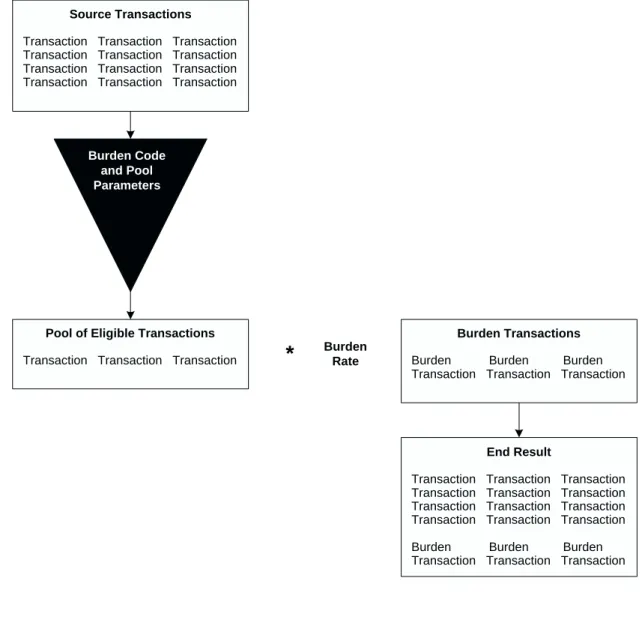
You can use Project Accounting application’s burden or allocation functionality for fringe and facilities and administration (F&A) costs on applicable grants. Burdens are recommended since they are automatically generated whenever you post transactions, giving you timely, accurate, and complete costs for reporting, billing, and revenue recognition. For more information, see"What Are Burdens?" on page 55. For more information, see"How Can I Handle Fringe Costs?" on page 26.
Award Budgets
Budget checking rules are established in activity groups and account category structures. You can enter budgets directly into Project Accounting, or import them. For more information, see"What Are Methods for DeÞning Budgets?" on page 67.
Attribute Matrix
Lawson provides many pre-deÞned activity attributes, including attributes speciÞc to grants such as contract number, direct sponsor award number, and award close date. You can also create and populate your own user-deÞned attributes. You can use attributes to group activities into sets to use for selecting data for reports, inquiries, or processing. For example, you can create a list of activities based on the letter of credit attribute. You can then use that list in Accounts Receivable to apply cash by letter of credit.
For information about system-deÞned attributes and creating user-deÞned attributes, see theProject Accounting User Guide.
How Can I Handle Fringe Costs?
Fringe costs are employer-paid payroll expenses such as payroll taxes, health insurance, pension plans, and worker’s compensation expenses. Fringe costs are best charged to grants one of two ways: You can automatically generate transactions for fringe costs when you post labor to grants (based on the current contractual fringe rate), or post actual employer-paid payroll expenses from payroll.
Charging Fringe Costs to Grants Using a Fringe
Rate
You can use Project Accounting’s burdens to generate fringe costs on eligible labor transactions. When labor transactions are posted to a grant, burdens automatically calculate fringe costs and create and post fringe transactions. With this approach, actual employer-paid payroll expenses are posted from the Lawson or non-Lawson payroll system to General Ledger.
However, to avoid overstating fringe costs in grants, the payroll expenses should not be updated to Project Accounting. If you use Lawson Payroll, you can avoid overstating fringe costs in grants by setting the Post Employer Paid Ded to ACÞeld to No on Company (HR00.1), Payroll page. If you use a non-Lawson payroll system, you can avoid overstating employer-paid expenses in grants by importing employer-paid expense transaction in summary and not by employee.
You can also set up an offset General Ledger account for the burden code you use for fringe. An offset activity is optional. When fringe burdens are created, they are charged to the appropriate grant activities and general ledger accounts (departments), and credited to the offset general ledger account. The offset general ledger account ensures that fringe costs are not overstated in the General Ledger and provides visibility of actual employer-paid fringe costs (from payroll) for comparison with fringe calculated at the contractual grant rate from burdens.
How Are F&A Encumbrances Handled?
Fixed and administrative costs (F&A, also referred to as Indirect Costs) are overhead costs typically charged to grants at a negotiated, set rate. Commitments that originate anywhere within Lawson applications (including salary encumbrances, requisitions, purchase orders and accounts payable) may be eligible for F&A. The Project Accounting burden feature accommodates charging F&A costs to grants when activity transactions are posted, but there is no current capability to encumber F&A on commitments. Instead, the Grant Management and Project Accounting applications provide you with the option to calculate encumbrances for F&A costs when you run Activity Commitment Summary Report (GM296) or Award Summary Report (GM400).
You can select the account categories eligible for FA encumbrance, specify an F&A rate, and determine the account category to which the F&A encumbrance should be charged. The F&A encumbrance is calculated on current commitments for the activities and eligible account categories selected for the report. These calculations are informational only and do not create actual records. They are used to provide a more complete picture of a grant activity’s total commitments and remaining budget.
Procedures in this Chapter
Use the following procedures to set up account categories and activities for Grant Management.
• "DeÞning Account Categories" on page 28
• "DeÞning an Account Category Structure" on page 29 • "DeÞning an Activity Group" on page 31
• "DeÞning an Activity" on page 41
• "Overriding Account Category Assignments" on page 50
De
Þ
ning Account Categories
TIP Consider using numeric account
category names to make data entry more efÞcient.
Account categories are required in activity transactions. Account categories break down costs and revenues in activities. After you deÞne account categories, you can assign them to an account category structure, and to speciÞc activity groups or activities. Use this procedure to deÞne a library of all of the account categories you will use in Project Accounting.
Need More Details? Check out the following concepts:
• "Why is Activity Structure Important to Grant Management?" on page 20
• "What Factors Impact Project Accounting Structures for Grant Management?" on page 21
STEPS
To deÞne an account category
1. Access Account Categories (AC05.1).
2. On the Main form tab, deÞne the account category. Consider the following Þelds.
Account Category Type a name and description to identify the account category. Account category names can contain up toÞve alphanumeric characters.
Type Select Revenue, Cost, Accrual or Pass Thru to identify the type of transactions that will be collected in the account category. You cannot change the account category type after you have deÞned the account category.
The Pass Thru type is used with the Lawson Billing and Revenue Management application.
TIP Name the error suspense account category ERROR to help prevent users from unintentionally keying activity transactions to Error Suspense.
3. DeÞne an Error Suspense account category on the Error Suspense form tab. Consider the followingÞelds.
Acct Cat Type the name of the error suspense account category. This account category is used during data entry when the activity group’s GL Acct AssignmentÞeld is set to Yes-substitute error suspense. If you process transactions containing invalid combinations of General Ledger and Project Accounting information, the account category in the transaction will be changed to the Error Suspense account category.
NOTEYou must deÞne an Error Suspense account category regardless of how the activity group’s GL Acct Assignment option is set.
Description Type a description for the error suspense account category.
Follow-up Tasks
Use Category Structure (AC08.1) to assign account categories to an account category structure.
Related Reports and Inquiries
To Use
List account categories Account Category Listing (AC205)
De
Þ
ning an Account Category Structure
Use this procedure to deÞne an account category structure.
STEPS
To deÞne an account category structure
1. Access DeÞne Category Structure (AC08.2). 2. Enter a name in Category Structure and click Add. 3. Access Category Structure (AC08.1).
4. Use the Add function code to add summary account categories to the account category structure. Consider the followingÞelds.
Category Type Select the type of account category you are adding to the structure.
Summary Category
Enter or select the summary account category you are adding to the structure.
Description Enter a description for the summary account category.
Depth Enter the account category depth level for the summary account category. You can have only one depth 1 summary account category for each category type. Up to 9 depth levels of account categories are allowed.
Budget Edit Select the type of budget edit for the account category: no edit (N), detail level (D), or summary level (S).
ThisÞeld is valid only when the LevelÞeld on Activity Group (AC00.1), Budget page is set to Activity-Summary Acct Cat (4). For more information, see"What Are Budget Edits?" on page 69.
NOTEThe summary level account category budget edit is limited to one level up from the detail account category. It will edit no higher. 5. Select Detail to accessAccount Category Detail (AC08.3) and assign
detail account categories for a summary account category. On AC08.3, consider the followingÞelds.
NOTE Use the Mass Add feature to add multiple detail account categories to a summary account category on Account Category Load (AC08.5).
Acct Cat (Account Category)
Type or choose the detail account category you are adding to the summary account category.
St (Status) Choose the status of the account category, Active (A) or Inactive (I).
Bl (Billable) Choose Yes if the account category is billable. The default is No.
NOTEIf you want to bill and the account category is assigned to a grant activity, choose Yes in this Þeld so you can bill on the costs you incur.
Rev (Revenue) Choose Yes if the account category is available for revenue recognition. The default is No.
NOTEIf you want to recognize revenue and the account category is assigned to a grant activity, choose Yes in thisÞeld so you can recognize revenue on the costs you incur.
TM (Time or Materials)
Use thisÞeld only with the T&M billing method. Choose if the account category is Time (T) or Materials (M). For example, if account category is used to track only time transactions, select T. If the account category is used to track materials information, select M.
Cap
(Capitalization)
Choose Yes if you want to capitalize costs collected in the account category. You must set this to Yes and assign asset parameters prior to running Asset Management Interface (AC160). The default is No.
Markup Percent If the account category is billable, you may
need to specify a billing markup percent. Add a markup percent to an account category. The actual costs posted to this account category plus the markup percent becomes the billable/revenue recognition amount. For example:
$60,000 (Actual Costs) + 15% (Markup) = $69,000 (Billable Amount)
6. Assign the account category structure to one or more activity groups on Activity Group (AC00.1).
Related Reports and Inquiries
To Use
List account category structures Structure Listing (AC208)
Follow Up Tasks
1. You can use the Move button to move detail account categories to another summary account category if needed. Use Move Detail Account Category (AC08.7) to select a new parent summary account category and effective date for the detail account category.
2. You can use the Attrib button to assign attribute values to account categories using Detail Account Category Attributes (AC16.2).
3. If you make any changes to the category structure, such as moving detail account categories, you must run Structure Reorganization (AC108).
De
Þ
ning an Activity Group
An activity group is the highest organizational component in Project Accounting. The activity group establishes controls, edits, and structure rules for the activities associated with it. You can establish as many activity groups as you need to meet your business requirements. Use this procedure to deÞne an activity group.
STOP Before you deÞne an activity group, consider the business
requirements and plan the activity structure that best meets those needs. You should also set up a calendar before deÞning an activity group.
When you use Grant Management, all activity groups should share the same calendar and account category structure to enable consistent reporting across activity groups. When you set up your calendar for grants, consider making the calendar January to December. Because grant start and end dates are ragged, it is easier for most users to think in terms of the calendar year for inquiries and reporting.
STOP You should deÞne your account category structures before creating an activity group. For more information, see"DeÞning an Account Category Structure" on page 29.
Need More Details? Check out the following concepts:
• "Why is Activity Structure Important to Grant Management?" on page 20
• "What Factors Impact Project Accounting Structures for Grant Management?" on page 21
STEPS
To deÞne an activity group
1. Access Activity Group (AC00.1).
2. Type a name and description for the activity group.
3. On the Main page, deÞne the information about the activity group. Consider the followingÞelds.
Category Structure
Identify the account category structure for the activity group. The account category structure determines which account categories are available for the activity group.
For consistent reporting, use the same account category structure whenever possible.
NOTEYou can set up speciÞc posting activity/account category assignments on Override Account Categories (AC06.1) if necessary. Any relationships set up on AC06.1 override the parameters of the account category structure you choose here.
Base Currency Identify the operating currency for the activity group. This is the currency used for reporting and inquiries at the activity group level. The activity group base currency determines the currency you must assign to summary level activities within the activity group.
Calendar Select the calendar you want to assign to the activity group.
TIP For consistent inquiries and reporting, use the same calendar for all activity groups. For ease of use, you may want to use a January to December calendar instead of aÞscal calendar.
Date Range Enter dates that identify the valid time period (dates of operation) for the activity group. You can use any dates you want, as long as they are supported by the years and periods in the calendar you assign to the activity group. Select POP to set up period of performance dates outside of the valid date range.
Security Enable security for the activity group by entering a 4-digit number.
Activities act as process levels in Lawson security. To set security on speciÞc activities within the group, name the activities carefully and set security on a range of activities. For more information on security, see your Lawson security administrator.
NOTE(LAUA users only) Because of its close integration with Project Accounting and Human Resources, Grant Management uses both activity/activity group security and Human Resources company/process level security. Anything driven by activities (for example, the grants setup) will use the Activity security; anything driven by employee (for example, Labor Distribution and Effort Reporting) will use the HR security. To take advantage of both, use a non-HR company here for the Project Accounting security company. Also, the two security setup structures (AC driven and HR driven) need to coexist in the same LAUA setup under system code GM.
Status Select the activity group status. The default status is Open. If you are using activities as a subset of General Ledger, this must be GL Only.
Output Measure Optional. Type a numeric activity group output measure and a description. The output measure is used on Activity Group Output Measure Analysis (AC93 and AC493) to calculate a per unit cost for the activity group. For example, if the activity group is for construction of a new store, you might use the store’s number of square feet as the output measure to get a cost per square foot.
Invoice Audit Select Yes (Y) or No (N) to indicate whether you want to keep an audit trail of invoice changes. The default is No. You do not have to select Yes to edit invoice amounts.
Change Order Audit
Indicate whether to keep an audit trail of budget change orders. The default is No. You do not have to set this to Yes to use change orders. 4. On the Process page, deÞne activity group process parameters to
determine how amounts in activities will be summarized, and how various validations will be performed for data entered in activities associated with the activity group. Consider the followingÞelds.
Balances
Summary Activity Select Yes to consolidate activity amounts in summary level activities and at the activity group level. It is recommended that you accept the default, which is Yes. To preserve data integrity, you cannot change this parameter from No to Yes.
Summary Acct Cat Select Yes to consolidate activity amounts in the lowest level summary account categories (not all levels). It is recommended that you accept the default, which is Yes.
Accounting Unit Select Yes to maintain balances in activities by account category, company, and accounting unit. This lets you acquire company and accounting unit balances without building them into your activity structure.
If you set this option to Yes, you will need to run Accounting Unit Balance Post (AC191) after you post transactions using Activity Posting (AC190).
Billing LTD Select Yes (Y) or No (N) to indicate whether you need to store billing LTD contract balances. If you select Yes, this information can be included on customer invoices.
Resource Select Yes to maintain resource balances in activities. If you selected Yes in the Acct Unit BalancesÞeld, balances are maintained by activity, account category, company, accounting unit, and resource. If you selected No in the Acct Unit BalancesÞeld, balances are maintained by activity, account category, and resource. To preserve data integrity, you cannot change this parameter from No to Yes.
If you set this option to Yes, you will need to run Accounting Unit Balance Post (AC191) after you post transactions using Activity Posting (AC190), or you will need to run Activity Posting (AC190) with the Post Acct Unit BalancesÞeld set to Yes.
Validation
Employee If you use the Lawson Human Resources
application, thisÞeld determines how employees used in transactions are validated during data entry.
If you choose Yes, you must assign employee resources to activities in order to enter transactions containing an employee and an activity. You deÞne resources on HR Employee Assignment (AC03.3).
Date Transactions posted to activities must fall within a date range assigned to the activity. Indicate whether you want the system to use the posting date or transaction date in the transaction record when the validation is performed. For example, you might incur time on an activity on June 7 (transaction date), but the time falls within the pay period ending June 15 (posting date). • Select Posting Date (P) to use the posting
date for the transaction. If the posting date is before the activity begin date or later than the activity’s end date, the transaction is not permitted.
• Select Transaction Date (T) to use the date when the transaction was incurred. If the transaction date is before the activity begin date or later than the activity’s end date, the transaction is not permitted.
NOTEIf you are using period of performance dates, the transaction or post date is compared against the POP dates for a system code, rather than the activity dates.
Resource Indicate whether you want to validate AC person and equipment resources in transactions.
Bill Rate Calc Select Posting (P) or Transaction (T) date to determine which date to use to calculate billing when you run Activity Posting (AC190).
The date type you choose determines which date on the ACTRANS record is used to compare against the effective date on resource rates, assigned resource rates, or billing category rates for the T&M billing method.
Vendor This determines how Lawson Accounts Payable vendors used in transactions are validated during data entry.
• Select Yes (Y), and vendor resources must be assigned to activities.
If you set this parameter to Yes, you must assign vendor resources to activities on Vendor Assignment (AC03.4) in order to enter transactions containing a vendor and an activity (including requisitions and purchase orders).
• Select No (N), and vendor resources do not have to be assigned to activities.
Burden Date Select whether to use the activity posting date (P) or transaction date (T) toÞnd the burden rate when burden transactions are created.
Asset If you use the Lawson Asset Management
application and plan to capitalize activities, this Þeld determines whether users are required to enter an asset Location and Division on the Defaults tab in Activity (AC10). When the location and division are known at the time the activity is created, set this option to Yes.
POP Date Choose Yes to allow the application to search for period of performance dates for the activity group. If thisÞeld is Yes, and a system code has period of performance dates, then the period of performance dates are used for the date edit.
GL Acct Assignment
Select the level of GL account validation for the activity group. The following options are available.
• GL Only Activity Group • No
• Yes-Substitute error suspense when assignment is not valid on Account Assignment (AC07.1)
• Yes-Require valid assignment on Account Assignment (AC07.1)
Other
Calculate Burdens Select Yes (Y) to process burdens for activities in the activity group.
Burdens are transactions generated automatically during Activity Posting (AC190) to track additional costs associated with activities.
For more information, see"DeÞning Burdens for Grant Activities" on page 53.
PR Commitment Select Yes (Y) to create Payroll commitments. 5. On the Budget page, deÞne budget edit parameters to prevent entry
of activity-related transactions in other Lawson applications when the budget is exceeded.
Consider the followingÞelds.
Budget Checking Select one of the following options to determine the budget time frame to use for budget edits: • Use Period Edit to perform the edit using the
active period-to-date budget.
• Use Annual Edit to perform the edit using the active year-to-date budget.
• Use Total Edit to perform the edit using the active life-to-date budget.
• Use No Edit (the default) if you do not wish to enable budget edits.
If budget amounts are validated, the system validates whether actuals plus commitments are less than or equal to the budget plus the budget tolerance. The edits are performed in the applications you select on System Codes (GL01.4).
NOTEPeriod Edit and Annual Edit options are not valid with a Life Only budget.
Level Choose one of the following options to determine the budget level to use for budget edits:
• Use Activity-Acct Cat (1) to perform the edit using the budget for the activity and account category speciÞed in the transaction. • Use Activity Group (2) to perform the edit
using the activity group budget. The system uses the budget for the activity group associated with the activity in the transaction. • Use Activity (3) to perform the edit using the
total budgets for all account categories in the activity speciÞed in the transaction.
• Use Activity—Summary Account Cat (4) to perform the edit using the budget for the summary account category in the activity speciÞed in the transaction.
Details on budget edits are found elsewhere in this user guide. For more information, see"What Are Budget Edits?" on page 69.
Tolerance Type a value to indicate the percentage by which the budget can be exceeded. For example, to allow budgets to be exceeded by 5 percent, enter 5.00.
Estimated Maximum
Type a value to indicate the budget maximum for the activity group. This is informational only, and produces a warning message during activity budget entry when the total activity budgets exceed the maximum.
6. (Conditional) If you use Databasics TimeSite or ExpenseSite web-based time and expense entry systems with Project Accounting, deÞne activity group time and expense parameters on the Time, Expense page. 7. On the Levels page, deÞne activity group levels to identify the rules for
structuring activities. Consider the followingÞelds.
Name Type a description of the activity levels you want in the activity group. Examples of levels are project, phase, task, contract, and so on. You can deÞne up toÞve levels of activities.
Size Type the size of each level, which determines the maximum number of activities you can deÞne at that level.
NOTEYou can change a level’s description at a later date, but you cannot change a level’s size. Be sure to allow enough room for all the activities you need at a given level.
8. On the Currency page, deÞne activity group currency parameters. Consider the followingÞelds.
Currency Table Select a currency table. The currency table stores currency relationships and exchange rates that will be used to convert transaction amounts to the activity group currency, the activity group’s report currencies, and the posting activity currency.
Report Currency Type up to two currency names and associate each with a currency code from the Lawson Currency application. You can inquire and report on activity amounts using the base currency or report currencies.
TIP The report currencies you choose in the activity group determine the report currencies you can have in activities. You cannot specify a different report currency in activities.
NOTEIf you are using Billing and Revenue Management, Lawson recommends you assign one of your reporting currencies or base currency to match the Invoice Currency on Contract Parameters (BR10.1). This lets you see balance amounts, such as cost and revenue, in the contract currency.
NOTE You purge history details when you run Activity Group Purge (AC300) for the activity group.
9. (Optional) If you want to keep an audit trail of changes or deletions made to speciÞc activity-related parameters, deÞne activity group history parameters on the History page. Consider the followingÞelds.
Activity ThisÞeld determines if changes made to activities are tracked. The default is No. You can view changes by running Activity Listing (AC210) or Activity Group Listing (AC200).
Asset ThisÞeld determines if changes made to activity assets are tracked. The default is No.
Resource Assignment
ThisÞeld determines if changes made to resource assignments are tracked. The default is No.
Attribute ThisÞeld determines if changes made to activity attributes are tracked. The default is No.
Billing ThisÞeld determines if billing changes are tracked. The default is No.
Contract Select Yes if you want the application to maintain an audit trail of changes to contract information.
Ceiling ThisÞeld determines if changes made to ceiling amounts are tracked. The default is No.
Related Reports and Inquiries
To Use
List activity group parameters Activity Group Listing (AC200)
De
Þ
ning an Activity
NOTE You can copy existing activities or import activities from a non-Lawson source. See theProject Accounting User Guide.
An activity is a phase, task, operation or other component within an activity group. Activities provide a framework for establishing and collecting budgets, costs, revenues and statistical information. You can structure activities to meet your speciÞc information and reporting needs.
STOP Before you deÞne an activity, deÞne an activity group and activity status codes.
Need More Details? Check out the following concepts:
• "Why is Activity Structure Important to Grant Management?" on page 20
• "What Factors Impact Project Accounting Structures for Grant Management?" on page 21
STEPS
To deÞne an activity
1. Access Activity (AC10.1).
2. In the ActivityÞeld, type a unique name for the activity and an activity description.
3. DeÞne information about the activity on the Main page. Consider the followingÞelds.
Activity Group Select the activity group to which the activity belongs.
Currency Select a currency code to identify the activity’s base currency. For posting activities, you may use any currency code. For summary activities and contract activities, the currency code must match the base currency code assigned to the activity group. The activity group’s base currency defaults.