TM
TM
Xanbus
™System Control Panel (SCP)
Owner’s Guide
T M
Trademarks
Xantrex, Xanbus, and Smart choice for power are trademarks of Schneider Electric Services International sprl, registered in the U.S. and other countries. Other trademarks, registered trademarks, and product names are the property of their respective owners and are used herein for identification purposes only. Notice of Copyright
Xanbus System Control Panel Owner’s Guide© March 2011 Xantrex Technology USA Inc. All rights reserved. No part of this document may be reproduced in any form or disclosed to third parties without the express written consent of: Xantrex Technology USA Inc., 541 Roske Drive, Suite A, Elkhart, Indiana USA 46516. Xantrex Technology USA Inc. reserves the right to revise this document and to periodically make changes to the content hereof without obligation or organization of such revisions or changes unless required to do so by prior arrangement.
Exclusion for Documentation
UNLESSSPECIFICALLYAGREEDTOINWRITING, XANTREX TECHNOLOGY USA INC. (“XANTREX”) (A) MAKESNOWARRANTYASTOTHEACCURACY, SUFFICIENCYORSUITABILITYOFANY TECHNICALOROTHERINFORMATIONPROVIDEDINITSMANUALSOROTHERDOCUMENTATION; (B) ASSUMESNORESPONSIBILITYORLIABILITYFORLOSSES, DAMAGES, COSTSOREXPENSES, WHETHERSPECIAL, DIRECT, INDIRECT, CONSEQUENTIALORINCIDENTAL, WHICHMIGHTARISE OUTOFTHEUSEOFSUCHINFORMATION. THEUSEOFANYSUCHINFORMATIONWILLBEENTIRELY ATTHEUSER’SRISK; AND
(C) REMINDSYOUTHATIFTHISMANUALISINANYLANGUAGEOTHERTHAN ENGLISH, ALTHOUGHSTEPSHAVEBEENTAKENTOMAINTAINTHEACCURACYOFTHETRANSLATION, THE ACCURACYCANNOTBEGUARANTEED. APPROVED XANTREXCONTENTISCONTAINEDWITHTHE ENGLISHLANGUAGEVERSIONWHICHISPOSTEDATWWW.XANTREX.COM.
Date and Revision March 2011 Rev A
Document Part Number 97-0022-01-01 Product Number 809-0921 Contact Information Telephone: 1 800 670 0707 Fax: 1 800 994 7828 Web: www.xantrex.com
About This Guide
Purpose
The purpose of this Owner’s Guide is to provide explanations and procedures for installing, troubleshooting, operating and maintaining the Xanbus System Control Panel (SCP).
Scope
The Guide provides safety and operating guidelines, procedures for installing the SCP, as well as information on configuring the SCP. It also provides information about troubleshooting the unit. It does not provide details about configuring every Xanbus-enabled device to which the SCP connects to within the Xanbus network. You need to consult these other Xanbus-enabled devices’ owner’s and installation guides.
Audience
The Guide is intended for users and operators of the Xanbus System Control Panel (SCP). The Installation section is primarily intended for qualified installers who need to install and configure an SCP. The installer should have knowledge and experience in installing electrical equipment, knowledge of the applicable installation codes, and awareness of the hazards involved in performing electrical work and how to reduce those hazards. A qualified technician or electrician has this knowledge and experience.
Conventions Used
The following conventions are used in this guide.
STATEMENT OF HAZARD
Contains statements of avoidance or strict compliance.
Failure to follow these instructions will result in death or serious injury.
STATEMENT OF HAZARD
Contains statements of avoidance or strict compliance.
Failure to follow these instructions can result in death or serious injury.
STATEMENT OF HAZARD
Contains statements of avoidance or strict compliance.
Failure to follow these instructions can result in minor or moderate injury.
Related Information
You can find more information about Xantrex Technology USA Inc. as well as its products and services at www.xantrex.com.
STATEMENT OF HAZARD
Contains statements of avoidance or strict compliance.
Failure to follow these instructions can damage the unit and/or damage other equipment.
IMPORTANT: These notes describe things which are important for you to know, however, they are not as serious as a danger, warning, or caution.
The product marking on the left when found imprinted on electrical and electronic units and appliances means that you are to refer to this guide for cautions and warnings.
Important Safety Instructions
IMPORTANT:
R
EADANDSAVETHISO
WNER’
SG
UIDEFORFUTURE REFERENCE.
This chapter contains important safety and installation instructions for the Xanbus System Control Panel (SCP). Each time, before using the SCP, READ ALL instructions and cautionary markings on or provided with the SCP, the batteries, and all appropriate sections of this guide.
NOTE: The Xanbus System Control Panel (SCP) contains no user-serviceable parts. For obtaining service, see “Warranty and Return Information” on page 38 for guidance.
FCC Information to the User
This equipment has been tested and found to comply with the limits for a Class B digital device, pursuant to part 15 of the FCC Rules. These limits are designed to provide reasonable protection against harmful interference in a residential installation. This equipment generates, uses, and can radiate radio frequency energy and, if not installed and used in accordance with the instructions, may cause harmful interference to radio communications. However, there is no guarantee that interference will not occur in a particular installation. If this equipment does cause harmful interference to radio or television reception, which can be determined by turning the equipment off and on, the user is encouraged to try to correct the interference by one or more of the following measures:
• Reorient or relocate the receiving antenna.
• Increase the separation between the equipment and receiver.
• Connect the equipment into an outlet on a circuit different from that to which the receiver is connected.
• Consult the dealer or an experienced radio/TV technician for help. EXPLOSION HAZARD
This equipment is not ignition protected. To prevent fire or explosion, do not install the Xanbus SCP in compartments containing flammable materials or in locations that require ignition-protected equipment. This includes any space containing gasoline-powered machinery, fuel tanks, as well as joints, fittings, or other connections between components of the fuel system.
Failure to follow these instructions can result in death or serious
injury. Unauthorized changes or modifications to the equipment could void the
Important Safety Instructions . . . .iv
Introduction . . . 1
Mechanical Features. . . 4
Xanbus System Control Panel Installation . . . 7
Xanbus-Enabled Device Configuration Using the SCP . . . 13
Operation of the Xanbus System Control Panel. . . 25
Troubleshooting . . . 31
Specifications . . . 34
Warranty and Return Information . . . 36
Contents
Introduction
Complete system control
The Xanbus SCP provides configuration and monitoring capability for a Xanbus system. The SCP:
• Monitors activity throughout your power system.
• Displays the settings and status of each Xanbus-enabled device. • Enables you to adjust settings for each Xanbus-enabled device.
System component The Xanbus SCP is part of a network communications protocol developed by Xantrex, to communicate its settings and activity to other Xanbus-enabled devices.
Xanbus-enabled products are:
• Easy to use. The Xanbus network simplifies operation and automates routine tasks.
• Reliable. Software control eliminates errors due to analog signaling. • Accurate. Digital information is less susceptible to interference and
line loss.
• Upgradable. Software upgrades mean your purchase will remain up to date.
System requirements
The SCP requires a Xanbus power supply to operate. Network power is carried by the network cables, and can be supplied by a Xanbus-enabled product (such as an inverter/charger) or an external Xanbus power supply. As a device that draws network power, the SCP consumes a maximum of 3 watts.
For detailed instructions and a complete list of Xanbus-enabled devices, visit the website at www.xantrex.com.
IMPORTANT: The Xanbus SCP is compatible with Xanbus-enabled devices such as Freedom SW 2012/2024 (PN: 815-2012/815-2024) and
Freedom SW 3012/3024 (PN: 815-3012/815-3024 ) inverter/chargers as well as the Xanbus Automatic Generator Start (PN: 809-0915).
The SCP is not compatible with Prosine, Freedom SW 2000, Freedom SW 3000, Freedom HW, and Freedom HF, or RV Series inverter/chargers from Xantrex.
Introduction
Operational Features
Other features of the SCP include:
• Time and date—has an internal clock that keeps time for the entire system.
• Audible alarm—if enabled, alerts you to a low battery condition in the system and notifies you when a fault condition arises.
• Low power consumption—automatically turns off the backlight and displays a screensaver after a period of inactivity to minimize battery drain.
• Non-volatile memory—preserves all its settings if network power is interrupted or network communication is disrupted.
Material List
The Freedom Sequenceshipswith the following items: • one Xanbus System Control Panel (SCP) unit, • owner’s guide,
• mounting template, • network terminator, and • mounting screws (4).
NOTE: Keep the carton and packing material in case you need to return the SCP for servicing.
owner’s guide and mounting template T M SCP unit mounting screws network terminator
Introduction
Xanbus-Enabled Products and Accessories
The Freedom SW Inverter/Charger is a true sine wave inverter/charger that can be used for mobile, marine and commercial applications. The Freedom SW Inverter/Chargers are designed to operate with a wide variety of generators and are capable of operating in parallel with a generator for short durations to assist with starting large loads. The Freedom SW is a
convenient combination of an inverter, multistage battery charger, and transfer switch in one electronic device.
The Xantrex Automatic Generator Start automatically starts and stops a generator using dry contact relays to operate the auto-start function of a generator.
The Freedom Sequence Intelligent Power Manager is a fully integrated power management system that provides automatic power and load management for use in recreational vehicles (RV) while receiving power from a generator or shore power.
Product/Accessory Product Number
Freedom SW Series Inverter/Charger 815-2012 (2kW power rating), 815-3012 (3kW power rating) Freedom Sequence Intelligent Power
Manager
809-0913 (four-circuit model), 809-0912 (six-circuit model) Xanbus Automatic Generator Start (AGS) 809-0915
25-ft network cable for Accessories 809-0940 75-ft network cable for Accessories 809-0942
FREEDOM SW 3012 FREEDOM SW 3012 Inverter Reset Enable Inverter AC/ On Charge F ault Freedom SW Inverter/Charger AGS Freedom Sequence power manager 25-ft cable 75-ft cable
Mechanical Features
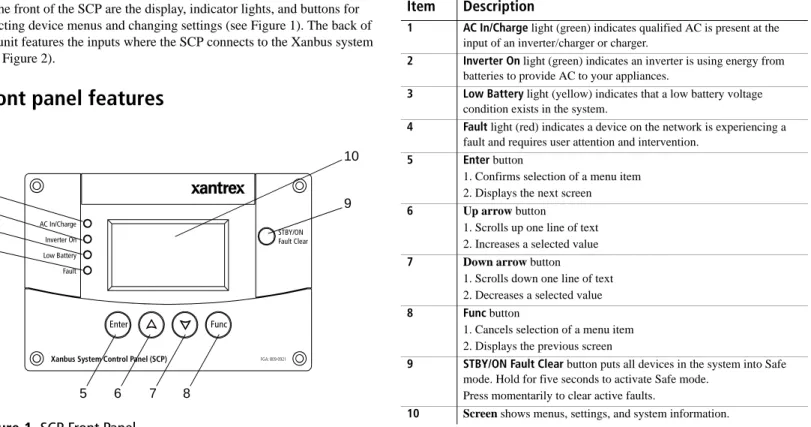
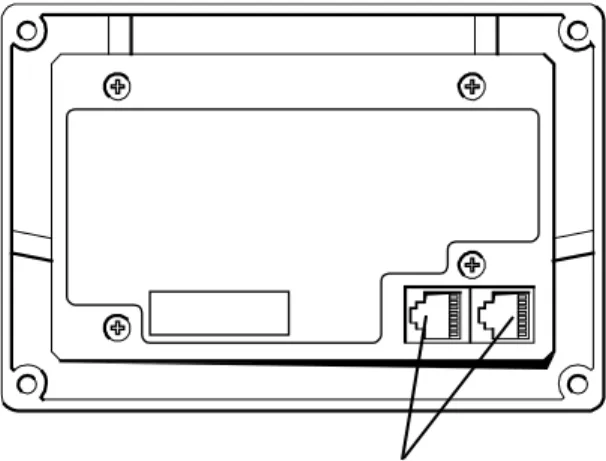
The SCP has important features on the front and back of the unit. Features on the front of the SCP are the display, indicator lights, and buttons for selecting device menus and changing settings (see Figure 1). The back of the unit features the inputs where the SCP connects to the Xanbus system (see Figure 2).
Front panel features
Figure 1 SCP Front Panel
Xanbus System Control Panel (SCP) FGA: 809-0921
AC In/Charge Inverter On Low Battery Fault STBY/ON Fault Clear T M Enter Func 2 1 3 5 4 6 7 8 10 9 Item Description
1 AC In/Charge light (green) indicates qualified AC is present at the input of an inverter/charger or charger.
2 Inverter On light (green) indicates an inverter is using energy from batteries to provide AC to your appliances.
3 Low Battery light (yellow) indicates that a low battery voltage condition exists in the system.
4 Fault light (red) indicates a device on the network is experiencing a fault and requires user attention and intervention.
5 Enter button
1. Confirms selection of a menu item 2. Displays the next screen
6 Up arrow button 1. Scrolls up one line of text 2. Increases a selected value
7 Down arrow button
1. Scrolls down one line of text 2. Decreases a selected value
8 Func button
1. Cancels selection of a menu item 2. Displays the previous screen
9 STBY/ON Fault Clear button puts all devices in the system into Safe mode. Hold for five seconds to activate Safe mode.
Press momentarily to clear active faults.
Mechanical Features
Back panel features
Two network connector inputs on the back panel let you connect the SCP to other Xanbus-enabled devices. See Figure 2.
Figure 2 SCP Back Panel
Mechanical Features
System Components
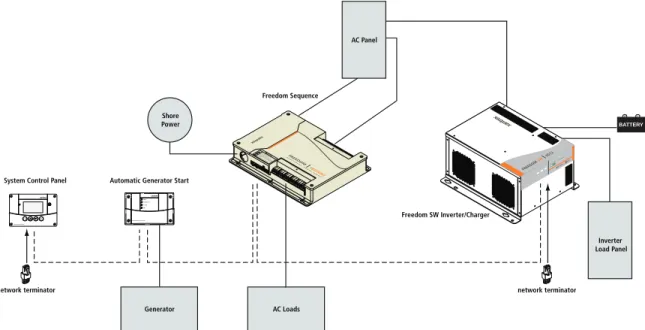
The Xanbus system includes the SCP and other Xanbus-enabled devices. Each device interacts and communicates with the other devices.
In Figure 3, network connections are represented by dotted lines and conventional electrical connections are represented by solid lines.
Figure 3 Sample Network Diagram Xanbus System Control Panel
Xanbus Automatic Generator Start System Control Panel
network terminator network terminator
Automatic Generator Start
Freedom Sequence Freedom SW Inverter/Charger FREEDOM SW 3012 FREEDOM SW 3012 Inverter Reset Enable Inverter AC/ On Charge Fault Generator Shore Power AC Loads AC Panel BATTERY Inverter Load Panel
Xanbus System Control Panel Installation
The Xanbus System Control Panel (SCP) is designed to be wall mounted and requires no connections other than Xanbus network cables or a terminator plugged into the back of the unit.
Because you cannot access the SCP network inputs once the unit is mounted, the Xanbus cables must be routed through the wall and connected before securing the SCP.
Materials and Tools Required
The following materials and tools are required to complete the installation:
❐
Mounting template (supplied)❐
Four mounting screws (supplied)❐
Cable clamps or hardware fasteners❐
Xanbus network cables or equivalent (CAT 5 or CAT 5e cable with RJ-45 connectors wired to T568A standard.❐
Network terminators (supplied)❐
Phillips head screwdriver❐
Jigsaw or small keyhole saw❐
Power drill with 1/8" bit (optional)Choosing a Location
Choose a location that allows unobstructed access to the SCP screen and buttons.
The location should be indoors, dry, and free from corrosive or explosive fumes.
Network Installation
This section describes requirements for installing the SCP as part of a Xanbus network-managed power system. For the system to function properly, requirements for network layout and termination must be followed.
EXPLOSION HAZARD
The SCP is not Ignition Protected. Do not install in areas requiring Ignition-Protected equipment, such as areas containing gasoline engines, tanks, or fuel-line fittings.
Failure to follow these instructions will result in death or serious injury.
Xanbus System Control Panel Installation
Network Components
A Xanbus network consists of the following components:
• Xanbus-enabled devices—these include the SCP, the Freedom SW Series Inverter/Charger, AGS (Xanbus AGS), and Freedom Sequence. The network can consist of up to eight Xanbus-enabled devices. A typical Freedom SW Power System can include three Freedom SW inverter/chargers, one power manager, one AGS and one SCP. • Xanbus cables—each Xanbus-enabled device is connected by a
standard straight-through Ethernet cable—CAT 5e. See Figure 4 on page 8. If more cables or a different length are required, these standard cables can be purchased from Xantrex Technology USA Inc. or any computer supply store.
• Network terminators (Figure 5)—the Xanbus network must be properly terminated at each end with network terminators. If the network is not properly terminated, signal quality is degraded and performance on the network is reduced. Permanent configuration without terminators is not supported by Xantrex Technology USA Inc. One terminator is included with the SCP. Depending on your network layout, this terminator may need to be inserted into another device elsewhere in the network.
EQUIPMENT DAMAGE
Do not use crossover cable for the Xanbus network cable. On crossover cable, the order of color-coded wires at each end of the cable is different.
Failure to follow these instructions can damage the unit and/or damage other equipment.
Figure 4 Xanbus Cable
Xanbus System Control Panel Installation
Network Layout
Xanbus-enabled devices are linked with separate lengths of Xanbus cable, depending on the distances between the components.
To ensure communication signal quality, each end of the network must be terminated. The Xanbus-enabled devices at each end of the network must have a male terminator inserted into their open network ports.
If the SCP is the last device on the network, the open port on the SCP must be terminated.
Guidelines for Routing the Xanbus Cables
To ensure maximum performance of your network, follow these guidelines when routing the Xanbus cables. Route the cables before installing the SCP. • Route the cables away from sharp edges that might damage the
insulation. Avoid sharp bends in the cable—no less than a 100 mm radius.
• Allow at least 57 mm of space behind the wall to accommodate the depth of the unit and allow room for the cables to bend.
• Allow for some slack in the cable tension.
• Keep the alignment of wire pairs inside the sheath as straight as possible.
• Allow separation between data and power cables (data cables should only cross a power cable at right angles).
• Do not staple the cable with metal cable staples. Use appropriate hardware fasteners to avoid damage to the cable.
ELECTRICAL SHOCK HAZARD
Do not route the Xanbus cables in the same conduit or panel as the AC and DC power cabling.
Failure to follow these instructions can result in death or serious injury.
Xanbus System Control Panel Installation
Connecting Xanbus Cables
Follow these guidelines for connecting Xanbus cables to the SCP. The cables are connected to the SCP at the same time the SCP is mounted. Read “Mounting the System Control Panel” on page 11 before performing the following procedures.
To connect Xanbus cables to the SCP:
1. Connect the Xanbus cable (or two Xanbus cables, if the SCP is located between two Xanbus-enabled devices) to a Xanbus network input in the SCP.
2. Route and connect the cable(s) to the nearest Xanbus-enabled device(s).
3. For additional devices, continue connecting cable as described above.
4. Ensure that male network terminators are inserted into the empty inputs in the Xanbus-enabled devices at the beginning and end of the network. When the network is completely connected, there should be no empty network inputs in any Xanbus-enabled device. See Figure 3 on page 6.
EQUIPMENT DAMAGE
• Connect the SCP only to other Xanbus-enabled devices.
• Although the cabling and connectors used in this network system are the same as Ethernet connectors, this network is not an Ethernet system. Equipment damage may result from connecting a Xanbus system directly to a personal computer.
• Do not connect one end of the network to the other to make a ring or loop.
Failure to follow these instructions can damage the unit and/or damage other equipment.
Xanbus System Control Panel Installation
Mounting the System Control Panel
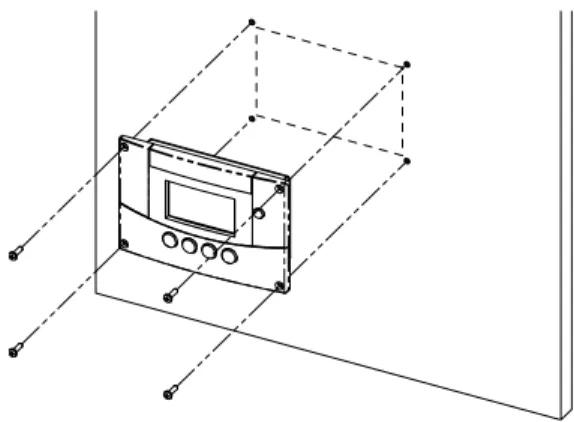
The SCP can be flush mounted through an opening in a wall and secured with four mounting screws.
To flush mount the SCP:
1. Take out the mounting template. Use the template to mark the location for the area to be cut out.
2. Pilot-drill the mounting holes (if necessary, depending on your mounting surface).
3. Using a jigsaw, cut out the hole in which the SCP will be inserted. See Warning before making a hole in the wall.
ELECTRICAL SHOCK HAZARD
Before making an opening in a wall or panel, ensure there is no wiring or other obstruction within the wall.
Failure to follow these instructions can result in death or serious injury.
EQUIPMENT DAMAGE
Provide adequate space within the wall for the Xanbus cables to bend. Do not bend the cable to one side after it leaves the Xanbus port. The mounting bracket itself does not provide enough space for the cables to bend. Attempting to route the cables through the side of the mounting bracket without providing space for the cables within the wall may damage the SCP Xanbus ports and cause network communication problems.
Failure to follow these instructions can damage the unit and/or damage other equipment.
1
3
Xanbus System Control Panel Installation
4. Route the Xanbus cable(s) from other Xanbus-enabled devices inside the wall and through the opening.
5. Connect the Xanbus cable(s) (and terminator if necessary) to either network input on the back of the SCP.
6. Connect a network terminator to the SCP if it is the last device at the end of a daisy chain network layout.
7. Place the unit in the opening and secure it with four mounting screws.
8. Peel off the protective plastic film covering the screen and indicator light.
Verifying the Installation
If network power (from an inverter/charger or external power supply) is present, the LCD backlight comes on and the SCP shows the startup screen. When the SCP is started up on the Xanbus system for the first time, it displays a fault message asking you to set the clock before proceeding. For procedures for setting the clock, see “Setting the Time” on page 21 and “Setting the Date” on page 22.
IMPORTANT: To ensure communication signal quality, the network must be terminated at each end with a terminator. See Figure 3 on page 6.
Xanbus-Enabled Device Configuration Using the SCP
The SCP can display and change the settings for any Xanbus-enabled
device in the Xanbus system.
Using SCP Buttons
The SCP has four buttons for moving between status screens and menus, highlighting settings you want to change, selecting and changing configurable values for Xanbus-enabled devices.
Button Function
Enter • Confirms selection of a menu item. • Moves you to the next screen.
Down and Up arrow buttons:
• Scrolls down (up) one line of text. • Decreases (increases) a selected value. When the Func button is pressed to select:
• “Shr” - the down (and up) arrow buttons increment (decrement) shore power breaker capacity on a Freedom SW inverter/chargera.
• “AGS” - the down (and up) arrow buttons switch between different AGS Start modes (Auto, Manual-On, Manual-Off).
• “Home” - the down (and up) arrow buttons enable or disable the inverter.
Func • Cancels selection of a menu item. • Returns you to the previous screen.
• Changes the functions of the Up and Down arrow buttons
Xanbus-Enabled Device Configuration Using the SCP
Reading Screens and Menus
The content of Xanbus System Control Panel (SCP) screens and menus varies depending on power system activity or the device you have selected to view information for.
Viewing the Xanbus System Control Panel (SCP) Home
Screens
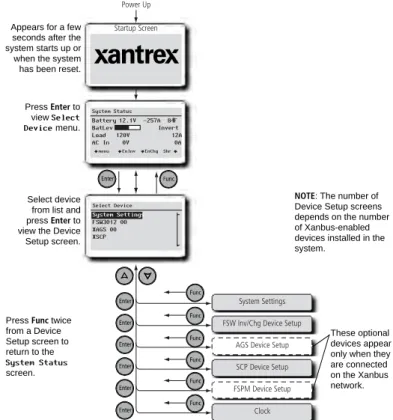
The top level screens on the Xanbus System Control Panel (SCP) are the Startup screen, the System Status screen, and the Select Device
Setup screens. After power is applied and the Startup screen appears, the
SCP displays the System Status screen. After pressing the Enter button,
the Select Device screen appears. The Device Setup screens can be
selected by pressing the up and down arrow buttons, choosing a device then pressing Enter, as shown in Figure 8.
Figure 8 Xanbus System Control Panel (SCP) Home Screens System Status Battery BatLev Load AC In 12.1V -257A 84”F Invert 120V 12A 0V 0A
menu EnInv EnChg Shr Power Up Startup Screen System Settings Select Device System Settings FSW3012 00 XAGS 00 XSCP
FSW Inv/Chg Device Setup AGS Device Setup SCP Device Setup FSPM Device Setup
Clock T M
Appears for a few seconds after the system starts up or when the system has been reset.
Press Enter to view Select
Device menu.
Select device from list and press Enter to view the Device Setup screen.
Press Func twice from a Device Setup screen to return to the
System Status
screen.
NOTE: The number of Device Setup screens depends on the number of Xanbus-enabled devices installed in the system.
These optional devices appear only when they are connected on the Xanbus network.
Xanbus-Enabled Device Configuration Using the SCP
System Status Screen
The System Status screen appears after the Startup screen. The System
Status screen displays aggregated status information for the entire
power system1.
The System Status screen always features a menu arrow pointing to the
Enter button. Pressing Enter displays the Select Device menu.
Select Device Menu
The Select Device menu displays a list of Xanbus-enabled devices in
the system, including the Accessories and the Xanbus System Control Panel (SCP). The Select Device menu is where you can access the Setup menus for each device in the system. The length of the Select Device
menu depends on how many Xanbus-enabled devices are installed.
The Select Device menu also contains the Clock menu (where the time
and date are set) and the System Settings menu (where system-level settings can be configured). The System Settings, XSCP, andClock
menus are always available from the Select Device menu, regardless of the number of Xanbus-enabled devices installed.
To display the Select Device menu:
◆
From the System Status screen, press Enter.Device Setup Menus
Device Setup menus display status information and changeable settings. Changeable settings are identified by the square brackets [ ] around values in the right-hand column.
To display the Setup menu for a device:
◆
On the Select Device menu, highlight the device name and pressEnter.
IMPORTANT: If you are uncertain which Xanbus System Control Panel (SCP) screen or menu you are viewing, you can always return to the starting point—the System Status screen—by pressing Func until the
System Status screen appears.
Select Device menu
FSW Inverter/Charger
Setup menu
Select Device System Settings FSW3012 00 XSCP Clock FSW3012 00: Setup Inverter Search Mode Charger Force Chg [Enabled] [Disabled] [Enabled] FSW3012 00: Setup Inverter Search Mode Charger Force Chg Equalize Mode Clear Faults/Warnings View Device Info[Enabled] [Disabled] [Enabled] [Disabled] [Operating]
To view Device Setup menu, highlight the device name and press Enter
NOTE: The Xanbus System Control Panel (SCP) displays only four lines of the Setup menu at one time. To view additional settings, press the Down arrow button.
Complete Device Setup menu list.
Xanbus-Enabled Device Configuration Using the SCP
Changing Settings for a Device
You can view and change device settings from the device setup menu.
Basic menu Each Device Setup menu can be displayed in Basic and Advanced formats. The Basic menu contains configuration items you may have to adjust routinely, or as part of initial setup.
Advanced menu The Advanced menu gives you access to the full set of configuration menus for that device, including everything displayed on the Basic menu. As a safeguard against unintended advanced configuration, the SCP displays the Basic menu by default. To view the Advanced menu, you must perform a special keypress.
To view the Advanced menu:
◆
On the Device Setup menu, press Enter + up arrow + down arrow at the same time.Identifying changeable settings A Device Setup menu displays changeable settings and commands to view other menus. Changeable settings are enclosed in square brackets.
To select and adjust a setting:
1. On the Device Setup menu, press the up arrow or down arrow button to highlight the setting you want to change.
2. Press Enter to highlight the current value of that changeable setting. The previously set value appears with an asterisk (*) beside it. FIRE AND ELECTRICAL SHOCK HAZARD
The Advanced settings for devices other than the SCP are intended for qualified installation/service personnel only. Before changing advanced settings, you must be familiar with the settings and the system-wide impact of changing those settings. Setting parameters incorrectly could damage connected equipment (such as batteries) or could severely affect the performance of your system. Incorrect charging configuration can lead to battery damage and risk of fire. Consult the local utility before enabling sell mode or changing sell mode settings.
Failure to follow these instructions can result in death or serious injury.
NOTE: This keypress combination, if applicable to the device, displays advanced menus for every device in the system.
FSW3012 00: Setup Inverter Search Mode Charger Force Chg [Enabled] [Disabled] [Enabled]
Xanbus-Enabled Device Configuration Using the SCP
3. Press the up arrow or the down arrow button to change the value. Hold down the button to scroll through a large range of values quickly. 4. Press Enter to select the value or Func to cancel the value selection. 5. If you have another setting to change, return to step 1.
Or
If you have no more settings to change, press Func twice to return to the System Home screen.
FSW3012 00: Setup Inverter Search Mode Charger Force Chg [*Enabled] [Disabled] [Enabled]
Xanbus-Enabled Device Configuration Using the SCP
Configuring the Xanbus System Control
Panel (SCP)
You can configure the SCP to suit your preferences and the requirements of the Xanbus system. Some settings, such as the system time, affect the entire system. Other settings affect only the SCP, such as the brightness of the display.
You can perform all these tasks on the SCP Setup menu, theClock menu, and the System Settings menu.
Configuring the SCP is done on the SCP Setup menu, which you can view in either basic or advanced formats.
To view the SCP Setup menu:
1. From the System Status screen, press Enter to view the Select Device menu.
2. On the Select Device menu, highlight XSCP and press Enter.
SCP Configuration Items
The SCP Setup menu contains settings for changing the appearance of the display, enabling button-press and alarm sounds, and setting the
temperature scale. Items in gray appear only on the advanced menu.
Select Device FSW3012 00 FSW3012 01
XSCP
Clock
Menu item Description Values/Action Default
Brightness Adjusts the brightness of the
display to suit interior light conditions and enhance visibility.
20% to 100% (increments of 10%)
60%
Contrast Adjusts the contrast of the display
to suit viewing angle and enhance visibility.
0% to 100% (increments of 5%)
60%
Light Timer Sets how long the backlight
remains on after the last button press on the SCP.
Off, 1mins–60mins (increments of 1 minute)
2mins
Button Beep Enables buttons to beep when
pressed.
On, Off Off
Fault Alarm Enables an alarm to sound when a
fault occurs.
On, Off Off
LoBatt Alarm Enables an alarm to sound when a
low battery voltage condition exists.
On, Off Off
Set Degrees Selects the temperature scale the
SCP will display.
Fahrenheit, Celsius Fahrenheit
Name Allows you to customize the name of the SCP as it is displayed on the setup menu and the Select
Device menu.
Press Enter to begin customizing the name. See “Setting the Device Name” on page 20.
Xanbus-Enabled Device Configuration Using the SCP
Clear Faults/ Warnings
Clears active faults and warnings generated by the SCP.
Press Enter to clear faults and warnings.
n/a
View Fault Log
Displays the Fault Log, containing the last 20 SCP faults.
Press Enter to view log. n/a
View Warning Log
Displays the Warning Log, containing the last 20 SCP warnings.
Press Enter to view log. n/a
View Event Log
Displays the Event Log, containing the last 20 SCP events.
Press Enter to view log. n/a
Restore Defaults
Restores the SCP to its original factory or installer settings. After restoring defaults, please ensure the clock is set correctly.
Press Enter to restore defaults.
n/a
Xanbus-Enabled Device Configuration Using the SCP
Setting the Device Name
The “Name” setting allows you to customize the name of the SCP as it is displayed on other screens and menus.
The characters available are: • A to Z
• a to z • 0 to 9 • space.
To customize the SCP name:
1. Select Name on the SCP Setup menu. 2. Press Enter.
The last letter of “XSCP” is highlighted.
3. Begin customizing the device name.
• To change the character, press the up or down arrow button. Holding down the button causes the characters to scroll more quickly.
• To delete the character, press Func. • To add characters, press Enter.
4. When the correct character is shown, press Enter to select it. 5. After pressing Enter to select the last character of your customized
device name, press Enter again to return to the Setup menu.
NOTE: Increasing the number of letters in a device name may cause other text on the same line to run off the edge of the screen. Device names should be limited to 10 characters or less.
XSCP: Setup Brightness Contrast Button Beep Name [100%] [60%] [Off] [XSCP]
Xanbus-Enabled Device Configuration Using the SCP
Using the Clock Menu
Use the Clock menu to set the clock, the date, and the time format you prefer.
The clock is listed as a separate device on the Select Device menu.
To view the Clock menu:
◆
On the Select Device menu, highlight Clock and press Enter.Clock Menu Configuration Items
Setting the Time
Because the SCP keeps time for the power system, setting the clock to the correct local time is essential for the system to operate as expected. The clock also provides the time stamps for the Warning and Fault logs. When you first power up the SCP, it will not begin operating normally until you set the time.
To set the clock:
1. On the Clock menu, with Set Time highlighted, press Enter. The hour value is highlighted.
2. Press the up arrow or down arrow button to change the hour.
3. When the correct hour is shown, press Enter to select it and highlight
NOTE: If a Freedom SW Gateway is installed in your system, network time configured on the Freedom SW Gateway overrides time configured on the SCP (or any other individual device) in the network-enabled power system.
Select Device FSW3012 00 FSW3012 01 XSCP Clock Clock Set Time Set Date 12/24 Hour Set Time Zone
[7:00AM] [Jan 13,11] [12hr] [GMT+8:00]
Menu item Description Values Default
Set Time Sets reference time for the power
system.
12:00 AM–11:59 PM, 00:00–23:59
n/a
Set Date Sets the reference date for the power
system.
month day year (Jul 1, 04, for example)
n/a
12/24 Hour Configures the SCP to use a 12-hour
clock or 24-hour clock.
12hr, 24hr 12hr
NOTE: The SCP does not automatically adjust for Daylight Savings Time or leap year.
Xanbus-Enabled Device Configuration Using the SCP
If you make an error, press Func to move back to the value you need to reset. If you decide to abandon resetting the time, press Func
repeatedly until you return to the Clock menu.
4. Press the up arrow or down arrow button to change the minute. 5. When the correct minute is shown, press Enter to select it and
highlight the AM/PM value.
If you are using a 24-hour clock, you will return to Set Time at this point. Proceed to step 8.
6. Press the up arrow or down arrow button to choose AM or PM. 7. When the correct value is shown, press Enter to select it and return to
the Clock menu.
8. Press Func to return to the Select Device menu.
If you make an error, press Func to move back to the value you need to reset. If you decide to abandon resetting the time, press Func
repeatedly until you return to the Clock menu.
Setting the Date
You can set the reference date for the Xanbus system from the Clock menu.
To set the date:
1. On the Clock menu, press the up arrow or down arrow button to highlight Set Date.
2. Press Enter to highlight the month.
3. Press the up arrow or down arrow button to change the month. 4. When the correct month is shown, press Enter to select it and highlight
the day.
If you make an error, press Func to move back to the value you need to reset. If you decide to abandon resetting the date, press Func
repeatedly until you return to the Clock menu.
5. Press the up arrow or down arrow button to change the day. 6. When the correct day is shown, press Enter to select it and highlight
the year.
7. Press the up arrow or down arrow button to change the year. 8. When the correct year is shown, press Enter to select it and return to
the Clock menu.
If you make an error, press Func to move back to the value you need to reset. If you decide to abandon resetting the date, press Func
Xanbus-Enabled Device Configuration Using the SCP
Using the System Settings Menu
The System Settings menu displays information related to the operation
of the entire Xanbus system.
To view the System Settings menu:
◆
On the Select Device menu with System Settings highlighted, pressEnter.System Settings Menu Configuration Items
Menu item Description Values/Action Default
Invert Enables or disables inverting for all inverters in the system. Press Enter to view and select values.
Enabled, Disabled Enabled
AC Charge Enables or disables charging on AC input for all inverter/chargers in the
Enabled, Disabled Enabled
Select Device System Settings FSW3012 00 FSW3012 01 XSCP System Settings Invert AC Charge System Mode Connection Names
System Mode Places all the devices in the system in the selected mode. Press Enter to view and select values. See “System Modes” on page 25.
Operating, Standby Operating
Connection Names
Customizes the names of AC and DC connections in the system. For example, “AC1” can be changed to “Grid Power.”
House Battery, Start Battery, Solar Array, Grid, Generator, AC Load
n/a
View Fault List Displays the Fault List screen, which shows active faults in the system (up to 20). See page 30.
Press Enter to view list.
n/a
View Warning List
Displays the Warning List screen, which shows active warnings in the system
(up to 20).
Press Enter to view list.
n/a
Clear All Flts/ Wrns
Clears active faults and warnings on all devices on the system.
Press Enter to clear faults and warnings
n/a
View Device Info Shows the model number, firmware serial number and firmware revision for each Xanbus-enabled device.
Press Down arrow to view information for each device.
n/a
Xanbus-Enabled Device Configuration Using the SCP
Viewing Device Information
The Device Info screen shows the model number, silicon chip serial number and firmware revision for each Xanbus-enabled device. You cannot select or change any information on this screen.
To view device information:
1. On the System Settings menu, with View Device Info highlighted, press Enter.
The Device Info screen appears.
2. Press the down arrow button to view information for each Xanbus-enabled device on the system.
3. Press Func to return to the System Settings menu.
Device info FSW3012 Model # Serial # F/W Rev. 815-3012 0000URCR8Z 1.00.00
Operation of the Xanbus System Control Panel
System Modes
The system modes described in this section affect the performance and behavior of the SCP and all other Xanbus-enabled devices. You will have to change the system mode when putting your system in storage or when installing a new Xanbus-enabled device.
Changing System Modes
System modes are changed using the System Settings menu (see “Using the System Settings Menu” on page 23). The system modes are:
• Operating and • Standby.
Operating Mode
The default state of the SCP is Operating mode. In Operating mode, the SCP communicates with other Xanbus-enabled devices and displays all the network information it is configured to display.
Standby Mode
While in Standby mode, the SCP remains powered, “listening” and
generator starting activity stops. Selecting Standby mode stops the generator (if it is running and a AGS is part of the system) and puts the SCP (and all Xanbus-enabled devices) into Standby mode.
When to use Use Standby mode when you are adding or removing devices from the network. Authorized service personnel must also put the network in Standby mode before performing software upgrades and diagnostics.
To put the power system into Standby mode:
4. On the System Settings menu, highlight “System Mode,” and press
Enter.
5. Select “Standby” and press Enter.
To return to Operating mode:
1. On the System Settings menu, highlight “System Mode,” and pressEnter.
Operation of the Xanbus System Control Panel
Using the STBY/ON Fault Clear Button
The STBY/ON Fault Clear button has two functions.
The STBY/ON Fault Clear button can disable inverting and charging functions for all SCPs in the system, or when pressed momentarily, can be used to clear all faults in the system.
Warnings and Faults
This section describes how fault and warning messages behave, and what you should do when they appear. For a complete list of fault and warning messages specific to the SCP, along with recommended actions to correct the fault or warning condition, refer to “Troubleshooting” on page 31.
Warning Messages
Warning messages appear when the SCP detects a condition that may eventually affect its continued operation. When a warning occurs, the SCP continues operating. However, you should consult the Troubleshooting chapter to find out what actions you can take to prevent the warning from escalating into a fault.
Figure 10 Xanbus SCP STBY/ON Fault Clear Button
Xanbus System Control Panel (SCP) FGA: 809-0921
AC In/Charge Inverter On Low Battery Fault STBY/ON Fault Clear T M Enter Func
STBY/ON Fault Clear
Button
IMPORTANT: The SCP displays fault and warning messages for all Xanbus-enabled devices in the system. For information about fault and warnings for other devices, refer to the Troubleshooting chapter in the Owner’s Guide or Operation Guide for each device.
Figure 11 SCP Warning Message
Warning: W250 System Panel The selected value failed to change. Try again.
Operation of the Xanbus System Control Panel
Types
There are two types of warning messages: manual and automatic. Each differs in its behavior and appearance. For a list of SCP warnings and their associated types, refer to “Troubleshooting” on page 31.
If you see a warning message on the SCP, you will have to acknowledge it and (if necessary) clear it. Acknowledging the warning allows you to continue operating the SCP. Clearing the warning message stops the warning condition from escalating into a fault.
Acknowledging Warning Messages
Automatic warnings Acknowledging an automatic warning message removes the message from the SCP screen.
To acknowledge an automatic warning message, press Enter. After you acknowledge the warning, the SCP displays the menu for the device that caused the warning.
The SCP removes an unacknowledged automatic warning message from the screen after three minutes. However, if the condition that caused the warning still exists, the warning message will reappear.
You can view a list of the last 20 warning messages from the SCP on the Warning log. See “Viewing the SCP Warning Log” on page 28.
Manual warnings A manual warning message requires you to make a choice (usually by pressing Enter for “yes” or Func for “no”) before you can proceed monitoring or configuring the SCP. It will not disappear after three minutes. After you respond to the warning message the SCP clears the
Clearing Warning Messages
Automatic warning messages clear when the warning condition on the SCP disappears or when the criteria for clearing the warning are met.
You can clear a manual warning message by pressing Enter or Func in response to the message.
Viewing Multiple Warning Messages
If several warning messages occur before you can acknowledge or clear them, they are displayed together on a warning list. The warning list contains messages from every Xanbus-enabled device, not just the SCP. You can select a message from the warning list and view its details.
To view a message from the warning list:
1. On the warning list, use the up arrow or down arrow button to highlight the warning message you want to view.
2. Press Enter.
The complete warning message appears.
After viewing the warning message, you can return to the warning list by pressing Func or continue to the menu for the device that caused the warning by pressing Enter. Each time you return to the warning list after viewing a complete message, the viewed message is removed from the list. If you have left the warning list, you can view it at any time from the
Operation of the Xanbus System Control Panel
To view the warning list:
1. On the Select Device menu, highlight System Settings and pressEnter.
2. On the System Settings menu, highlight View Warning List and pressEnter.
Viewing the SCP Warning Log
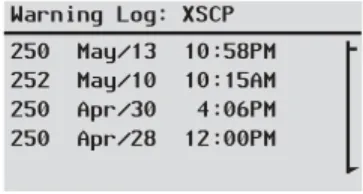
The SCP warning log displays the 20 most recent warnings that the SCP generated. These warnings can be both active and cleared. Each warning in the log is identified by a warning code and the time that it occurred. You may need to refer to the warning log before consulting “Troubleshooting” on page 31, or before you call technical support.
To view the warning log:
1. On the SCP menu, press the down arrow button to highlight View Warning Log.
2. Press Enter.
To return to the SCP menu:
◆
From the Warning log, press Func.Viewing Individual Warning Messages from the Warning
Log
On the warning log, you can also select an individual warning and view its details.
To view details for a warning:
1. Use the up arrow or down arrow button to highlight the warning message you want to view.
2. Press Enter.
The complete message appears.
To return to the warning log:
◆
Press Func (as indicated by the arrow marked “cancel”).To proceed to the device menu and adjust device settings to eliminate the warning condition:
◆
Press Enter (as indicated by the arrow marked “continue”). Figure 12 SCP Warning LogWarning Log: XSCP 250 May/13 10:58PM 252 May/10 10:15AM 250 Apr/30 4:06PM 250 Apr/28 12:00PM
Operation of the Xanbus System Control Panel
Fault Messages
Fault messages appear when the SCP’s operation is affected by a condition that requires immediate attention. When a fault occurs, the SCP stops operating until either the fault condition goes away or until you manually clear the fault and take action to eliminate the fault condition.
Types of fault messages
There are two types of SCP fault messages: automatic and manual. For a list of faults and their associated types, refer to “Troubleshooting” on page 31.
Automatic faults clear themselves automatically if the fault condition goes away.
Manual faults require you to clear them by:
• Selecting Clear Faults/Warnings on the menu of the device that generated the fault (if the fault condition still exists, the fault message will reappear).
Viewing the SCP Fault Log
The fault log lists the most recent SCP faults, up to a total of 20. On each line, the log shows the fault code, the date the fault occurred, and the time the fault occurred.
To view the fault log:
1. On the SCP advanced menu, press the down arrow button to highlight Fault log.
2. Press Enter.
To return to the SCP menu:
◆
Press Func. Figure 13 SCP Fault MessageFault: F504 System Panel
Ntewrok not available. Check connection, clear fault.
continue cancel
Figure 14 SCP Fault Log
Fault Log: XSCP 252 Apr/19 1:13PM 252 Apr/17 10:15AM 252 Mar/29 7:01PM 250 Mar/11 12:59AM
Operation of the Xanbus System Control Panel
Viewing Individual Fault Messages from the Fault Log
On the fault log, you can also select an individual fault and view its details.
To view details for a fault:
1. Use the up arrow or down arrow button to highlight the fault message you want to view.
2. Press Enter.
The complete fault message appears.
To return to the fault log:
◆
Press Func (as indicated by the arrow marked “cancel”).To proceed to the device menu and reconfigure the device to eliminate the fault condition:
◆
Press Enter (as indicated by the arrow marked “continue”). On the device menu, you can also attempt to clear the fault by selecting Clear Faults/Warnings.Viewing Multiple Fault Messages
If several faults occur before you can acknowledge or clear them, the SCP displays the accumulated messages on a fault list. The fault list displays messages from all network-enabled devices, not just the SCP. You can select a message and view complete information for it from the fault list.
To view a message from the fault list:
1. On the fault list, use the up arrow or down arrow button to highlight the fault message you want to view.
2. Press Enter.
The complete fault message appears. 3. To return to the fault list, press Func.
Or
To return to the SCP menu, press Enter.
Each time you return to the fault list after viewing a complete message, the message you viewed is removed from the list.
You can also view the fault list at any time.
To view the fault list at any time:
1. On the Select Device menu, use the up arrow or down arrow button to highlight System Settings.
2. Press Enter.
3. On the System Settings menu, use the down arrow button to highlight View Fault List.
Troubleshooting
Types of Faults and Warnings
The various types of fault and warning messages behave differently, and give you the option to treat them differently when they appear. For more information about the types of fault and warning messages, see “Types” on page 27 and “Types of fault messages” on page 29.
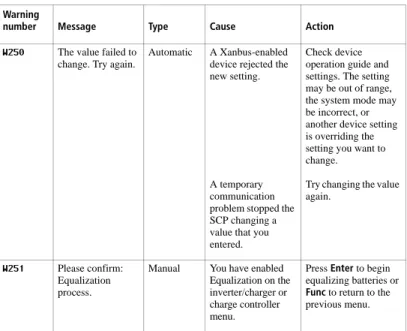
Warning Reference Table
Table 1 Warning Reference Table
Warning
number Message Type Cause Action
W250 The value failed to change. Try again.
Automatic A Xanbus-enabled device rejected the new setting.
A temporary communication problem stopped the SCP changing a value that you entered.
Check device operation guide and settings. The setting may be out of range, the system mode may be incorrect, or another device setting is overriding the setting you want to change.
Try changing the value again.
W251 Please confirm: Equalization process.
Manual You have enabled Equalization on the inverter/charger or charge controller menu.
Press Enter to begin equalizing batteries or
Func to return to the previous menu.
Troubleshooting
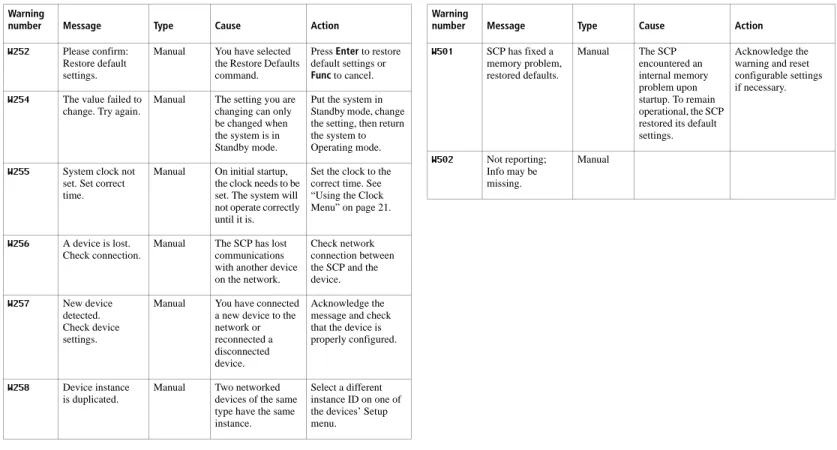
W252 Please confirm: Restore default settings.
Manual You have selected the Restore Defaults command.
Press Enter to restore default settings or
Func to cancel.
W254 The value failed to change. Try again.
Manual The setting you are changing can only be changed when the system is in Standby mode.
Put the system in Standby mode, change the setting, then return the system to Operating mode.
W255 System clock not set. Set correct time.
Manual On initial startup, the clock needs to be set. The system will not operate correctly until it is.
Set the clock to the correct time. See “Using the Clock Menu” on page 21.
W256 A device is lost. Check connection.
Manual The SCP has lost communications with another device on the network.
Check network connection between the SCP and the device.
W257 New device detected. Check device settings.
Manual You have connected a new device to the network or reconnected a disconnected device.
Acknowledge the message and check that the device is properly configured.
W258 Device instance is duplicated.
Manual Two networked devices of the same type have the same instance.
Select a different instance ID on one of the devices’ Setup menu.
Table 1 Warning Reference Table
Warning
number Message Type Cause Action
W501 SCP has fixed a memory problem, restored defaults. Manual The SCP encountered an internal memory problem upon startup. To remain operational, the SCP restored its default settings.
Acknowledge the warning and reset configurable settings if necessary. W502 Not reporting; Info may be missing. Manual
Table 1 Warning Reference Table
Warning
Troubleshooting
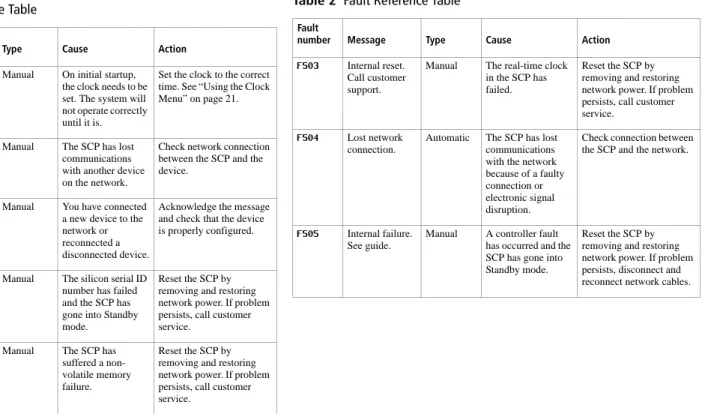
Fault Reference Table
Table 2 Fault Reference Table
Fault
number Message Type Cause Action
F250 System clock not set. Set correct time.
Manual On initial startup, the clock needs to be set. The system will not operate correctly until it is.
Set the clock to the correct time. See “Using the Clock Menu” on page 21.
F251 A device is lost. Check connection.
Manual The SCP has lost communications with another device on the network.
Check network connection between the SCP and the device.
F252 New device detected. Check device settings.
Manual You have connected a new device to the network or reconnected a disconnected device.
Acknowledge the message and check that the device is properly configured.
F500 Internal failure. Service required.
Manual The silicon serial ID number has failed and the SCP has gone into Standby mode.
Reset the SCP by removing and restoring network power. If problem persists, call customer service.
F501 Memory failure. Service required.
Manual The SCP has suffered a non-volatile memory failure.
Reset the SCP by removing and restoring network power. If problem persists, call customer
F503 Internal reset. Call customer support.
Manual The real-time clock in the SCP has failed.
Reset the SCP by removing and restoring network power. If problem persists, call customer service.
F504 Lost network connection.
Automatic The SCP has lost communications with the network because of a faulty connection or electronic signal disruption.
Check connection between the SCP and the network.
F505 Internal failure. See guide.
Manual A controller fault has occurred and the SCP has gone into Standby mode.
Reset the SCP by removing and restoring network power. If problem persists, disconnect and reconnect network cables.
Table 2 Fault Reference Table
Fault
Specifications
NOTE: Specifications are subject to change without prior notice. Electrical Specifications
Nominal input network voltage
12 Vdc
Maximum operating current 200 mA @ nominal input network voltage
Communication physical layer 2, CAN
Communication protocol Xanbus
Maximum cable length 40 m (130 ft)
Connectors 2 RJ-45—8 pins
Display Dot matrix 128 × 64 LCD with white LED backlight
Physical Specifications Dimensions (W × H × D) 152 × 103 × 40 mm (6 × 4 × 1 ") Shipping dimensions 267 × 210 × 63 mm (10½ × 8 ¼ × 2 ½") Weight 208 g (0.46 lb) Shipping weight 780 g (1.72 lb) Environmental Specifications Operating temperature -20 to 50 °C (-4 to 122 °F) Storage temperature -40 to 85 °C (-40 to 185 °F) 9 16
---Maximum case temperature 60 °C (140 °F)
Operating humidity 5% to 95%
Storage humidity 5% to 95%
Regulatory Approvals
Safety CSA certified to CSA 107.1-01 and UL 458 4th
Ed. including the marine supplement
EMC FCC Part 15, Class B
Industry Canada ICES-0003 Class B Environmental Specifications
Specifications
Figure 15 Xanbus SCP Dimensions
5 [127] 6 [152] 5.5 [140] 4.03 [102] 3.53 [90] 3.04 [77] 1.18 [30] .40 [10] .96 [24]
ALL DIMENSIONS IN INCHES [mm]
Enter Func
Xanbus System Control Panel AC In/Charge Inverter On Low Battery Fault STBY/ON Fault Clear 0.125 [3] TYP.
Warranty and Return Information
Warranty
What does this warranty cover and how long does it last? This Limited Warranty is provided by Xantrex Technology USA Inc.
(“Xantrex”) and covers defects in workmanship and materials in your Xanbus System Control Panel (SCP). This warranty period lasts for 24 months from the date of purchase at the point of sale to you, the original end user customer, unless otherwise agreed in writing (the “Warranty Period”). You will be required to demonstrate proof of purchase to make warranty claims.
This Limited Warranty is transferable to subsequent owners but only for the unexpired portion of the Warranty Period. Subsequent owners also require original proof of purchase as described in “What proof of purchase is required?”
What will Xantrex do? During the Warranty Period Xantrex will, at its option, repair the product (if economically feasible) or replace the defective product free of charge, provided that you notify Xantrex of the product defect within the Warranty Period, and provided that Xantrex through inspection establishes the existence of such a defect and that it is covered by this Limited Warranty.
Xantrex will, at its option, use new and/or reconditioned parts in performing warranty repair and building replacement products. Xantrex reserves the right to use parts or products of original or improved design in the repair or replacement. If Xantrex repairs or replaces a product, its warranty continues for the remaining portion of the original Warranty Period or 90 days from the date of the return shipment to the customer, whichever is greater. All replaced products and all parts removed from repaired products become the property of Xantrex.
Xantrex covers both parts and labor necessary to repair the product, and return shipment to the customer via a Xantrex-selected non-expedited surface freight within the contiguous United States and Canada. Alaska,
Hawaii and outside of the United States and Canada are excluded. Contact Xantrex Customer Service for details on freight policy for return shipments from excluded areas.
How do you get service? If your product requires troubleshooting or warranty service, contact your merchant. If you are unable to contact your merchant, or the merchant is unable to provide service, contact Xantrex directly at:
Direct returns may be performed according to the Xantrex Return Material Authorization Policy described in your product manual. For some products, Xantrex maintains a network of regional Authorized Service Centers. Call Xantrex or check our website to see if your product can be repaired at one of these facilities.
What proof of purchase is required? In any warranty claim, dated proof of purchase must accompany the product and the product must not have been disassembled or modified without prior written authorization by Xantrex.
Telephone: 1 800 670 0707 Fax: 1 800 994 7828 Website: www.xantrex.com
Warranty and Return Information
Proof of purchase may be in any one of the following forms:
• The dated purchase receipt from the original purchase of the product at point of sale to the end user; or
• The dated dealer invoice or purchase receipt showing original equipment manufacturer (OEM) status; or
• The dated invoice or purchase receipt showing the product exchanged under warranty.
What does this warranty not cover? Claims are limited to repair and replacement, or if in Xantrex's discretion that is not possible,
reimbursement up to the purchase price paid for the product. Xantrex will be liable to you only for direct damages suffered by you and only up to a maximum amount equal to the purchase price of the product.
This Limited Warranty does not warrant uninterrupted or error-free operation of the product or cover normal wear and tear of the product or costs related to the removal, installation, or troubleshooting of the customer's electrical systems. This warranty does not apply to and Xantrex will not be responsible for any defect in or damage to:
a) the product if it has been misused, neglected, improperly installed, physically damaged or altered, either internally or externally, or damaged from improper use or use in an unsuitable environment; b) the product if it has been subjected to fire, water, generalized
corrosion, biological infestations, or input voltage that creates operating conditions beyond the maximum or minimum limits listed in the Xantrex product specifications including but not limited to high input voltage from generators and lightning strikes;
c) the product if repairs have been done to it other than by Xantrex or its authorized service centers (hereafter “ASCs”);
d) the product if it is used as a component part of a product expressly warranted by another manufacturer;
e) component parts or monitoring systems supplied by you or purchased by Xantrex at your direction for incorporation into the product;
purchased; and
h) any consequential losses that are attributable to the product losing power whether by product malfunction, installation error or misuse.
Disclaimer
Product
THISLIMITEDWARRANTYISTHESOLEANDEXCLUSIVEWARRANTYPROVIDEDBY
XANTREXINCONNECTIONWITHYOURXANTREXPRODUCTANDIS, WHERE
PERMITTEDBYLAW, INLIEUOFALLOTHERWARRANTIES, CONDITIONS, GUARANTEES,
REPRESENTATIONS, OBLIGATIONSANDLIABILITIES, EXPRESSORIMPLIED, STATUTORY
OROTHERWISEINCONNECTIONWITHTHEPRODUCT, HOWEVERARISING (WHETHER
BYCONTRACT, TORT, NEGLIGENCE, PRINCIPLESOFMANUFACTURER'SLIABILITY,
OPERATIONOFLAW, CONDUCT, STATEMENTOROTHERWISE), INCLUDINGWITHOUT
RESTRICTIONANYIMPLIEDWARRANTYORCONDITIONOFQUALITY,
MERCHANTABILITYORFITNESSFORAPARTICULARPURPOSE. ANYIMPLIED
WARRANTYOFMERCHANTABILITYORFITNESSFORAPARTICULARPURPOSETOTHE
EXTENTREQUIREDUNDERAPPLICABLELAWTOAPPLYTOTHEPRODUCTSHALLBE
LIMITEDINDURATIONTOTHEPERIODSTIPULATEDUNDERTHISLIMITEDWARRANTY.
INNOEVENTWILLXANTREXBELIABLEFOR: (A) ANYSPECIAL, INDIRECT,
INCIDENTALORCONSEQUENTIALDAMAGES, INCLUDINGLOSTPROFITS, LOST
REVENUES, FAILURETOREALIZEEXPECTEDSAVINGS, OROTHERCOMMERCIALOR
ECONOMICLOSSESOFANYKIND, EVENIFXANTREXHASBEENADVISED, ORHAD
REASONTOKNOW, OFTHEPOSSIBILITYOFSUCHDAMAGE; (B) ANYLIABILITY
ARISINGINTORT, WHETHERORNOTARISINGOUTOF XANTREX'SNEGLIGENCE, AND
ALLLOSSESORDAMAGESTOANYPROPERTYORFORANYPERSONALINJURYOR
Warranty and Return Information
Exclusions
IFTHISPRODUCTISACONSUMERPRODUCT, FEDERALLAWDOESNOTALLOWAN
EXCLUSIONOFIMPLIEDWARRANTIES. TOTHEEXTENTYOUAREENTITLEDTO
IMPLIEDWARRANTIESUNDERFEDERALLAW, TOTHEEXTENTPERMITTEDBY
APPLICABLELAWTHEYARELIMITEDTOTHEDURATIONOFTHIS LIMITED
WARRANTY. SOMESTATES, PROVINCESANDJURISDICTIONSDONOTALLOW
LIMITATIONSOREXCLUSIONSONIMPLIEDWARRANTIESORONTHEDURATIONOFAN
IMPLIEDWARRANTYORONTHELIMITATIONOREXCLUSIONOFINCIDENTALOR
CONSEQUENTIALDAMAGES, SOTHEABOVELIMITATION(S) OREXCLUSION(S) MAY
NOTAPPLYTOYOU. THIS LIMITED WARRANTYGIVESYOUSPECIFICLEGALRIGHTS.
YOUMAYHAVEOTHERRIGHTSWHICHMAYVARYFROMSTATETOSTATE, PROVINCE
TOPROVINCEORJURISDICTIONTOJURISDICTION.
Return Material Authorization Policy
For those products that are not being repaired in the field and are being returned to Xantrex, before returning a product directly to Xantrex you must obtain a Return Material Authorization (RMA) number and the correct factory “Ship To” address. Products must also be shipped prepaid. Product shipments will be refused and returned at your expense if they are unauthorized, returned without an RMA number clearly marked on the outside of the shipping box, if they are shipped collect, or if they are shipped to the wrong location.
When you contact Xantrex to obtain service, please have your instruction manual ready for reference and be prepared to supply:
• The serial number of your product
• Information about the installation and use of the unit • Information about the failure and/or reason for the return • A copy of your dated proof of purchase
Record these details on page 39.
Return Procedure
Package the unit safely, preferably using the original box and packing materials. Please ensure that your product is shipped fully insured in the original packaging or equivalent. This warranty will not apply where the product is damaged due to improper packaging.
Include the following:
• The RMA number supplied by Xantrex Technology USA Inc. clearly marked on the outside of the box.
• A return address where the unit can be shipped. Post office boxes are not acceptable.
• A contact telephone number where you can be reached during work hours.
• A brief description of the problem.
Ship the unit prepaid to the address provided by your Xantrex customer service representative.
If you are returning a product from outside of the USA or Canada In addition to the above, you MUST include return freight funds and are fully responsible for all documents, duties, tariffs, and deposits. If you are returning a product to a Xantrex Authorized Service Center (ASC) A Xantrex return material authorization (RMA) number is not required. However, you must contact the ASC prior to returning the product or presenting the unit to verify any return procedures that may apply to that particular facility and that the ASC repairs this particular Xantrex product.