EVault Software
IBM i Agent 6.2
Revision: This manual has been updated for Version 6.2 Software Version: 6.2 beta (March 2011)
1997-2011 i365 Inc.
i365, A Seagate Company, makes no representations or warranties with respect to the contents hereof and specifically disclaims any implied warranties of merchantability or fitness for any particular purpose. Furthermore, i365 reserves the right to revise this publication and to make changes from time to time in the content hereof without obligation of i365 to notify any person of such revision of changes. All companies, names and data used in examples herein are fictitious unless otherwise noted.
No part of this document may be reproduced, transmitted, transcribed, stored in a retrieval System or translated into any language including computer language, in any form or by any means electronic, mechanic, magnetic, optical, chemical or otherwise without prior written permission of:
i365, A Seagate Company c/o Corporation Trust Center 1209 Orange Street Wilmington, New Castle Delaware 19801 www.i365.com
EVault, EVault Protect, and EVault DeltaPro, are registered trademarks of i365 Inc. All other products or company names mentioned in this document are trademarks or registered trademarks of their respective owners.
Acknowledgements: Two encryption methods, DES and TripleDES, include cryptographic software written by Eric Young. The Windows versions of these algorithms also include software written by Tim Hudson. Bruce Schneier designed Blowfish encryption.
"Part of the software embedded in this product is gSOAP software. Portions created by gSOAP are Copyright (C) 2001-2006 Robert A. van Engelen, Genivia inc. All Rights Reserved. THE SOFTWARE IN THIS PRODUCT WAS IN PART PROVIDED BY GENIVIA INC AND ANY EXPRESS OR IMPLIED WARRANTIES, INCLUDING, BUT NOT LIMITED TO, THE IMPLIED WARRANTIES OF MERCHANTABILITY AND FITNESS FOR A PARTICULAR PURPOSE ARE DISCLAIMED. IN NO EVENT SHALL THE AUTHOR BE LIABLE FOR ANY DIRECT, INDIRECT, INCIDENTAL, SPECIAL, EXEMPLARY, OR
CONSEQUENTIAL DAMAGES (INCLUDING, BUT NOT LIMITED TO, PROCUREMENT OF SUBSTITUTE GOODS OR SERVICES; LOSS OF USE, DATA, OR PROFITS; OR BUSINESS INTERRUPTION) HOWEVER CAUSED AND ON ANY THEORY OF LIABILITY, WHETHER IN CONTRACT, STRICT LIABILITY, OR TORT (INCLUDING NEGLIGENCE OR OTHERWISE) ARISING IN ANY WAY OUT OF THE USE OF THIS SOFTWARE, EVEN IF ADVISED OF THE POSSIBILITY OF SUCH DAMAGE."
The EVault Software Agent, CentralControl, and Director applications (version 4 and above) now have the added encryption option of 128/256 bit AES (Advanced Encryption Standard). Advanced Encryption Standard algorithm (named Rijndael, pronounced “Rain Doll”) was developed by cryptographers Dr. Joan Daemen and Dr. Vincent Rijmen. This algorithm was chosen by the National Institute of Standards and Technology (NIST) of the U.S. Department of Commerce to be the new Federal Information Processing Standard (FIPS). AES is not available when connecting to a Vault lower than version 4.1. S
The EVault Software Agent and Director applications (version 4 and above) also have the added security feature of an over the wire encryption method. Over the wire encryption is not available when connecting to a Vault lower than version 4.1.
IBM i Agent 6.2 User’s Guide Contents
Contents
1
Introduction ... 1
1.1 Additional Resources ... 1
2
Installing the IBM i Agent ... 2
2.1 Configuring the Network Connection ... 2
2.2 Installing the IBM i Agent from a CD ... 2
2.3 Installing the IBM i Agent from an FTP ... 3
Downloading the Files ... 3
Creating a Temporary Installation Library ... 3
Sending the Files by FTP ... 3
Restoring Objects ... 4
2.4 Installing the IBM i Agent ... 4
2.5 Upgrading an Existing IBM i Agent ... 5
2.6 Verifying the Installation ... 5
2.7 Obtaining a License ... 5
3
Working with the IBM i Agent ... 6
3.1 Prerequisites ... 6
3.2 Accessing the IBM i Agent Main Menu ... 7
3.3 IBM i Agent Main Menu Commands ... 7
4
Configuring the Vault ... 8
4.1 Accessing the Work with Vault Screen ... 8
4.2 Add Vault Configuration Screen Fields ... 9
4.3 Creating a New Vault ... 10
4.4 Changing a Vault Configuration ... 10
4.5 Testing a Vault Configuration ... 10
4.6 Re-Registering a Vault ... 11
4.7 Deleting a Vault Configuration ... 11
Contents IBM i Agent 6.2 User’s Guide
ii
5.4 Deleting a Retention Scheme ... 13
6
Throttling Bandwidth ... 14
6.1 Accessing the Bandwidth Throttling Screen ... 14
6.2 Bandwidth Throttling Screen Fields ... 14
6.3 Disabling Bandwidth Throttling ... 15
6.4 Configuring Bandwidth Throttling ... 15
7
Encrypting Backup Data ... 16
7.1 IFS Wildcard Exclusions ... 16
7.2 OBJ Backup Exclusions ... 17
7.3 Improving Performance with Multi-Threading ... 17
7.4 Threading Model Options ... 17
7.5 Disabling CRC ... 17
7.6 Setting Compression and Decompression Algorithms ... 18
7.7 Creating an Email Notification... 18
8
Working with Agent Licenses ... 19
8.1 Entering an IBM i Agent License Key ... 19
9
Working with Jobs ... 20
9.1 Add New Job Screen Object Backup Fields ... 21
9.2 Add New Job Screen IFS Backup Fields ... 22
9.3 Add New Job Screen SYS Backup Fields ... 23
9.4 Creating a Backup Job ... 24
9.5 Creating Custom Commands... 25
9.6 Changing Job Settings ... 25
9.7 Deleting a Job ... 26
10
Working with Safesets ... 27
10.1 Display Safeset Detail Screen Fields ... 27
10.2 Viewing a Safeset ... 28
11
Working with Log Files ... 29
11.1 Viewing a Log File ... 29
11.2 Converting an .XLOG File to a .LOG File ... 29
12
Working with Schedules ... 30
IBM i Agent 6.2 User’s Guide Contents
12.2 Creating a Schedule ... 31
12.3 Changing a Schedule ... 31
12.4 Deleting a Schedule ... 31
12.5 Enabling or Releasing a Schedule ... 32
12.6 Disabling or Holding a Schedule ... 32
13
Working with Backup Jobs ... 33
13.1 Run Backup Screen Fields ... 33
13.2 Running a Backup ... 33
14
Working with Hot Backups ... 34
14.1 Journaling ... 34
14.2 Triggering ... 35
15
Synchronizing Data ... 37
16
Automatic Job Creation ... 38
16.1 Viewing the AUTOJOB Main Menu ... 38
16.2 Select Libraries Screen Fields ... 38
16.3 Select Libraries Screen Commands... 39
16.4 Selecting a Library and a Job ... 40
16.5 Retention Schedule Screen Fields ... 40
16.6 Creating a Retention Schedule ... 41
16.7 Assigning Retention Schedules to Jobs ... 41
16.8 Create All Jobs Screen Fields ... 42
16.9 Creating a Job ... 43
17
Restoring Jobs ... 44
17.1 Run Restore Screen Fields ... 44
18
Completing a Bare Metal Restore ... 48
18.1 Prerequisites ... 48
18.2 Preparing the IBM i Agent for Recovery ... 48
18.3 Restoring SYS Objects ... 49
Contents IBM i Agent 6.2 User’s Guide
iv
18.9 Restoring IFS Objects ... 53
18.10Verifying Restores ... 55
18.11Restoring Authority ... 55
18.12Restarting the Computer ... 55
19
Uninstalling the IBM i Agent ... 56
19.1 Uninstalling an FTP Installation ... 56
19.2 Uninstalling a CD Installation ... 56
20
Recreating a Delta File ... 57
IBM i Agent 6.2 User’s Guide Introduction
1
Introduction
This Guide is intended for Administrators who use the IBM i Agent to back up IBM i computers. This Guide provides information and procedures for selecting backup data, configuring the IBM i Agent, and scheduling backups. This Guide assumes an intermediate knowledge of IBM i computer operation and administration.
You use the IBM i Agent to automatically backup IBM i data, across a local network, or the Internet, to a secure server called a Data Protection Vault. Tape devices or other backup media are not required. You can configure the backup to run automatically on a defined schedule. You use a 3270 or 5250 screen or a terminal emulator to schedule, configure, and monitor backups. You cannot control the IBM i Agent using Microsoft Windows or Web CentralControl. The Agent license is provided by your service provider.
1.1
Additional Resources
Press F1 to open general or specific (field-level) help. Field-level help is available in screens that show or request information. To display field-level help, place your cursor in the field and press F1.
Installing the IBM i Agent IBM i Agent 6.2 User’s Guide
Page 2
2
Installing the IBM i Agent
Use one of these methods to install the IBM i Agent: • From a CD
• From an FTP site
2.1
Configuring the Network Connection
A known issue is that the performance of the IBM 100MB Network Interface Card can degrade to 0.4 Mbps. To correct this issue, use *AUTO on the DUPLEX parameter on the CHGLINETH command. For optimal network performance, it is recommended that you set these values:
• On the Ethernet line desc (description): • GENTSTFRM(*NO)
• LINKSPEED(100M) • LINESPEED(100M) • DUPLEX(*AUTO)
• On TCP/IP interface: TOS(*MAXTHRPUT) • On TCP/IP Route: TOS(*MAXTHRPUT)
You should also install the current cumulative, hyper, and group program temporary fixes (PTFs) from IBM.
To verify that your network is running optimally, run an FTP transfer test from the IBM i computer to a local computer.
2.2
Installing the IBM i Agent from a CD
1. Download the CD image files from your service provider’s website to your computer. 2. Extract the files to a temporary folder. The extracted zip file is IBMi_AGENT.iso. 3. Create an installation CD from the IBMi_AGENT.iso file. For instructions on creating an
installation CD, refer to your CD writing software documentation. 4. Insert the installation CD into the IBM i computer.
5. Open a command prompt and run the LODRUN DEV<Optical device name> command.
IBM i Agent 6.2 User’s Guide Installing the IBM i Agent
2.3
Installing the IBM i Agent from an FTP
To install the IBM i Agent from your service provider’s website:
Downloading the Files
1. Open your Internet browser and enter the URL for your service provider’s web site. 2. Locate and then download these IBM i Agent files to a temporary location on your
computer:
• IBMi_Agent.zip • Agent_IBM_i.pdf • Agent_IBM_i.txt
3. Extract the IBMi_AGENT.zip file to a temporary location on your computer. The extracted file does not have a file extension because it contains the IBM i binary save file data.
Creating a Temporary Installation Library
1. Log on to the IBM i computer 5250 terminal session with the user ID QSECOFR or equivalent.
2. Run the CRTLIB EVSAVE command. You can enter a maximum of 10 characters for the library name.
Sending the Files by FTP
1. Click Start and then Run on the computer where you extracted the IBM i Agent files. 2. Enter FTP <IBM i computer IP address> in the Open field. Click OK.
3. Enter your IBM i computer user ID. Press Enter. 4. Enter your IBM i password. Press Enter. 5. Enter BIN. Press Enter.
6. Enter LCD C:\<IBMi_AGENT file location>. Press Enter.
7. Enter put AS400AGENT /QSYS.LIB/EVSAVE.LIB/IBMIAGENT.SAVF. Press Enter. Note:
Installing the IBM i Agent IBM i Agent 6.2 User’s Guide
Page 4
Restoring Objects
1. On the IBM i computer run this command:
RSTOBJ OBJ(*ALL) SAVLIB(TESETUP) DEV(*SAVF) SAVF(EVSAVE/IBMIAGENT)
MBROPT(*ALL) ALWOBJDIF(*ALL) RSTLIB(EVSAVE)
If you created a library with a different name, replace EVSAVE with the name of the library. 2. Press Enter.
3. Move your cursor to the message at the bottom of the terminal screen.
4. Press F1 and then F10 to open the Display All Messages screen. If the command executed successfully, the message XX objects restored. 0 not restored to EVSAVE appears below the RSTOBJ command.
5. On the IBM i computer run this command: CALL EVSAVE/ISSETUP
If you created a library with a different name, replace EVSAVE with the name of the library. 6. Install the Agent. See Installing the IBM i Agent.
2.4
Installing the IBM i Agent
To install an IBM i Agent:
1. On the IBM i computer run this command: CALL EVSAVE/ISSETUP
If you created a library with a different name, replace EVSAVE with the name of the library. 2. Press F6 on the IBM i Agent Setup Main Screen.
Note:
The F6 command is not available when an IBM i Agent is already installed on the computer. 3. Complete the fields on the Install IBM i Agent screen. The default library is BUAGENT
IBM i Agent 6.2 User’s Guide Installing the IBM i Agent
2.5
Upgrading an Existing IBM i Agent
To upgrade an existing IBM i Agent:
1. Log on to the IBM i computer with the user ID QSECOFR or equivalent.
2. Run a CALL LIBRARY/ISSETUP command (where LIBRARY is the library name where the Agent is installed).
3. Enter 6 to the left of an IBM i Agent. Press Enter.
4. Enter Yes in the Are you sure you want to upgrade field.
2.6
Verifying the Installation
After installing the IBM i Agent, complete these verification tasks:
• Run the WRKOBJ *ALL/BUAGENT command (where BUAGENT is the library name) to verify the product library exists. The library is listed on the Work with Objects screen.
• Run the WRKLNK ‘/BUAGENT’ (where BUAGENT is the product directory name) command to verify the product directory exists. The product directory is listed on the Work with Object
Links screen.
• Verify the Global.vvc file is in the product directory. Enter 5 on the Work with Object Links screen to confirm the Global.vcc file is in the product directory.
• Run the WRKUSRPRF AGENT command to verify the user profile AGENT exists. The AGENT user profile is listed on the Work with User Profiles screen.
• Run the WRKSBS command to verify the subsystem AGENT is available. The subsystem AGENT is listed on the Work with Subsystems screen.
• Run the WRKACTJOB to verify the subsystem AGENT is active. If it appears on the list, it is active.
2.7
Obtaining a License
When you install the IBM i Agent, it is installed with a 30-day trial license. The expiry date for the license is displayed in the Expiry Date field of the Work with License screen. With a trial license you can configure the Vault, and create retention schemes, jobs, and schedules. However, you cannot do backups or restores without a full license.
To obtain a full license, contact your service provider. To create a license key, you must provide your service provider with the model, processor feature, IBM i computer serial number, and software group of the computer on which the IBM i Agent is installed. This information is displayed on the Work with
Working with the IBM i Agent IBM i Agent 6.2 User’s Guide
3
Working with the IBM i Agent
You must install the Agent software on every IBM i computer that you want to back up and the IBM i computer must have a network connection. In addition, you must create an account on the Vault to receive the backup data. You use the IBM i Agent Command Line Interface (CLI) to setup Agents, jobs, scheduling, and monitoring.
Backup data is sent by the IBM i Agent directly to the Vault, over the network or the Internet. When you execute a backup or restore command, backup data is immediately sent to the Vault.
On an IBM i computer the Agent software is responsible for these tasks:
• Saving and restoring DBFiles, Objects and CommonFiles to and from the Vault, using Delta processing.
• Synchronizing catalog files between the local system and the Vault.
3.1
Prerequisites
Every IBM i computer must be configured with: • An IBM i Agent IBM i Agent.
• The Vault name and IP address. • A user name and password.
• *ALLOBJ rights to open and read libraries and objects.
After you configure the IBM i Agent, you must register every IBM i computer on the Vault. Registering the IBM i computer on the Vault allows the Agent to logon to the Vault, establish a connection, and backup data. Your system configuration may allow the Agent to connect to multiple Vaults.
When you create a job, it is registered and provides this information during a backup: • The profile (Vault) used.
• The data to be backed up. • The type of logs to create. • The encryption type (if any). • The backup schedule.
Note: The first backup is a seed, or complete backup. Subsequent backups are deltas that contain
only the changes made to the data since the last backup. A delta backup is equivalent to a full backup and you can use it to access and recover data in single or multiple files, libraries, or objects.
During a Disaster Recovery operation, when you recover your system to a new computer, you must re-register the new computer to recover and restore the Agent information from the Vault.
It is recommended that you review your email notifications (if enabled) and log files to verify that your scheduled backups have completed properly.
IBM i Agent 6.2 User’s Guide Working with the IBM i Agent
3.2
Accessing the IBM i Agent Main Menu
After you log on to the IBM i computer, the ISAGENT screen appears if your user profile for the Initial Menu parameter is set to ISAGENT.
If your user profile for the Initial Menu parameter is not set to ISAGENT:
• Open a command prompt and type GO LIBRARY/ISAGENT (where LIBRARY is the name of the library where the Agent is installed).
• Press Enter. The ISAGENT screen appears.
The user profile AGENT is the default user profile when you install the IBM i Agent. After you install the IBM i Agent, you can continue to use AGENT as your user ID and password. When you log on with the default user ID and password, you are automatically directed to the IBM i Agent main menu. It is recommended that you change the default user ID and password to protect against unauthorized access to the IBM i Agent. If you keep AGENT as your user ID, it is recommended that you change your password.
3.3
IBM i Agent Main Menu Commands
These are the IBM i Agent main menu commands: Select this command… To…
Agent Configuration Configure Agent settings
Work with Jobs
Create, change, and delete jobs and display safeset and log information. Note: You must configure an Agent before you can create a job.
Work with Schedules Create, change, delete, enable, and disable backup schedules. Note: You must create a job before you can create a schedule.
Backup
Create an immediate backup.
Note: You must configure an Agent and create a job before you can backup data.
Restore
Restore backup data.
Note: You must complete a valid backup before you can restore data.
Synchronize Synchronize the Agent and the Vault backup data.
Auto Job Creation
Create multiple jobs for backing up all libraries. Creating multiple jobs makes better use of CPU cycles and can result in faster backup processing.
Configuring the Vault IBM i Agent 6.2 User’s Guide
4
Configuring the Vault
Before you can back up data, you must configure these settings on the Agent: • The Vault name and password.
• The data to backup. • Email notifications. • Licensing information.
When you complete the Agent configuration, the scheduled backups run automatically, through the IBM i Scheduler.
4.1
Accessing the Work with Vault Screen
You use the Work with Vault screen to configure the Vaults that receive backup data from IBM i Agents. A valid Vault connection is required to complete a remote (network) backup.
To access the Work with Vault screen:
1. Open a command prompt and type GO LIBRARY/ISAGENT (where LIBRARY is the name of the library where the Agent is installed).
2. Press Enter. The ISAGENT screen appears.
3. Enter 1 in the Selection or Command field. Press Enter. 4. Enter 1 in the Selection or Command field. Press Enter.
IBM i Agent 6.2 User’s Guide Configuring the Vault
4.2
Add Vault Configuration Screen Fields
These are the Work with Vault screen fields:
Field Description
Vault Name
The name of the Vault where the Agent data is backed up. The name must be unique for each Agent backup you configure.
Vault names can be a maximum of 15 characters. You can use all of the letters of the alphabet and the numbers 0 to 9. Special characters #, @, _, and $ are allowed. The Vault name cannot begin with a number. There is a maximum of 10 connections for each Agent.
Account Name The account number or name (maximum of 40 characters) provided by your Vault supplier. More than one Agent may use this account.
User Name The user name provided by your Vault supplier.
Password The password provided by your Vault supplier.
Verify Password The password provided by your Vault supplier.
Network Address The network address (IP or DNS name) for the Vault, provided by your Vault supplier.
Port Number The port that the IBM i Agent uses to communicate with the Vault. The port is set up by your Vault supplier. The default is 2546.
Reconnect delay
The time, in seconds, that the Agent waits to reconnect to the Vault after a communication or session failure. The default is 30 seconds. The maximum value is 1800 seconds.
If a reconnection is successful, the backup will continue without a loss of data. If the reconnection is unsuccessful, the backup fails, an error message is added to the log file, and an email notification is sent (if email notifications are configured).
Retry Timeout
The time, in seconds, the Agent tries to reconnect to the Vault. The default is 3600 seconds. The maximum value is 43200 seconds.
When the retry timeout is reached, the backup fails, an error message is added to the log file, and an email notification is sent (if email notifications are configured).
Note: The Retry Timeout value must be greater than the Reconnect delay value.
Over the wire Encryption
Select YES to encrypt your backup data as it goes from the IBM i computer to the Vault. This is recommended when you are using an insecure network, such as the Internet.
Configuring the Vault IBM i Agent 6.2 User’s Guide
4.3
Creating a New Vault
To create a new Vault:
1. Open a command prompt and type GO LIBRARY/ISAGENT (where LIBRARY is the library name where the Agent is installed).
2. Press Enter. The ISAGENT screen appears.
3. Enter 1 in the Selection or Command field. Press Enter. 4. Enter 1 in the Selection or Command field. Press Enter. 5. Press F6.
6. Complete the fields on the Add Vault Configuration screen. For field descriptions, see Add Vault Configuration Screen Fields.
4.4
Changing a Vault Configuration
To change an existing Vault configuration:
1. Open a command prompt and type GO LIBRARY/ISAGENT (where LIBRARY is the library name where the Agent is installed).
2. Press Enter. The ISAGENT screen appears.
3. Enter 1 in the Selection or Command field. Press Enter. 4. Enter 1 in the Selection or Command field. Press Enter. 5. Select a Vault configuration and press 4.
6. Edit the fields on the Add Vault Configuration screen. For field descriptions, see Add Vault Configuration Screen Fields
4.5
Testing a Vault Configuration
To test an existing Vault configuration:
1. Open a command prompt and type GO LIBRARY/ISAGENT (where LIBRARY is the library name where the Agent is installed).
2. Press Enter. The ISAGENT screen appears.
3. Enter 1 in the Selection or Command field. Press Enter. 4. Enter 1 in the Selection or Command field. Press Enter. 5. Select a Vault configuration and press 8.
When the verification is successful, the message Vault was verified successfully appears. If the Vault verification is unsuccessful, recheck the Vault configuration information and the hardware and network connections.
IBM i Agent 6.2 User’s Guide Configuring the Vault
4.6
Re-Registering a Vault
Re-registration allows you to recover and restore job configuration information from a Vault to an Agent. To move the global and job files to a new disk on the Agent, you must re-register the new disk on the Vault. You use the Re-register with Vault screen to update the account, user name, and password information on the Vault.
For security reasons, any passwords or system information that might compromise the security of the system are not restored during re-registration. For this reason, some configuration files might be incomplete.
An IFS file, named Register.log is created in the IBM i Agent system log directory. Messages similar to the following appear in the log:
May12 10:44 PARS-W-0002 Due to a computer registration, configuration file "A" is missing the following information:
To re-register a Vault:
1. Open a command prompt and type GO LIBRARY/ISAGENT (where LIBRARY is the library name where the Agent is installed).
2. Enter 1 in the Selection or Command field. Press Enter. 3. Enter 1 in the Selection or Command field. Press Enter. 4. Press F8.
5. Complete the fields on the Re-Register with Vault screen. Note:
Enter *YES in the Is This a DR Test field to perform a disaster recovery test on the target system.
4.7
Deleting a Vault Configuration
Deleting a Vault does not affect any user data. To delete an existing Vault configuration: 1. Open a command prompt and type GO LIBRARY/ISAGENT (where LIBRARY is the
library name where the Agent is installed). 2. Press Enter. The ISAGENT screen appears.
3. Enter 1 in the Selection or Command field. Press Enter. 4. Enter 1 in the Selection or Command field. Press Enter. 5. Select a Vault configuration and press 4.
Working with Retention Schemes IBM i Agent 6.2 User’s Guide
5
Working with Retention Schemes
You create a retention scheme to define how many copies of a backup are stored on the Vault, how many days a backup is kept online, and how many days it is held in the archive.
There are always a minimum number of online copies and online days available, even if one is less than the other. For example, if you specify 7 online copies for 7 online days, there will always be 7 copies even if they are more than 7 days old. In addition, there will always be 7 online days, even if more days have passed.
The oldest retentions are deleted first. You cannot delete all backups. The most recent copy is always kept.
5.1
Create a Retention Scheme Screen Fields
These fields appear on the Create a Retention Scheme screen:
Field Description
Retention Name
The retention scheme name.
Retention scheme names can be a maximum of 32 characters. You can use all of the letters of the alphabet and the numbers 0 to 9. Special characters #, @, _, and $ are allowed. The retention scheme name cannot begin with a number.
You can create a maximum of 10 retention schemes for each Agent.
Online days (1-9999)
The number of days a safeset is stored on the Vault before it expires. When the expiry date is reached, the safeset is automatically deleted. There will always be at least the number of online copies (below), regardless of the setting for online days.
Online copies (1-999)
The minimum number of copies of a safeset to maintain online. When the number of copies is exceeded, the oldest copy is deleted. The safeset is kept for the number of days specified by the Online days field.
Archive Backup YES/NO Enter YES, to archive your backup for a specific number of days. You can choose a value from 365 to 9999.
5.2
Creating a Retention Scheme
To create a retention scheme:
1. Open a command prompt and type GO LIBRARY/ISAGENT (where LIBRARY is the library name where the Agent is installed).
2. Press Enter. The ISAGENT screen appears.
3. Enter 1 in the Selection or Command field. Press Enter. 4. Enter 2 in the Selection or Command field. Press Enter. 5. Press F6.
6. Complete the fields on the Create a Retention Scheme screen. For field descriptions, see Create a Retention Scheme Screen Fields.
IBM i Agent 6.2 User’s Guide Working with Retention Schemes
5.3
Changing a Retention Scheme
To change the settings of an existing retention scheme:
1. Open a command prompt and type GO LIBRARY/ISAGENT (where LIBRARY is the library name where the Agent is installed).
2. Press Enter. The ISAGENT screen appears.
3. Enter 1 in the Selection or Command field. Press Enter. 4. Enter 2 in the Selection or Command field. Press Enter. 5. Enter 2 to the left of a retention scheme. Press Enter.
6. Edit the fields on the Create a Retention Scheme screen. For field descriptions, see Create a Retention Scheme Screen Fields.
5.4
Deleting a Retention Scheme
You delete a retention scheme when it is no longer associated a job. To delete a retention scheme: 1. Open a command prompt and type GO LIBRARY/ISAGENT (where LIBRARY is the
library name where the Agent is installed). 2. Press Enter. The ISAGENT screen appears.
3. Enter 1 in the Selection or Command field. Press Enter. 4. Enter 2 in the Selection or Command field. Press Enter. 5. Enter 4 to the left of a retention scheme. Press Enter.
Throttling Bandwidth IBM i Agent 6.2 User’s Guide
6
Throttling Bandwidth
IBM i Agent 6.0 and later support bandwidth throttling.
You can choose to use all the available network bandwidth for backups and restores, or you can restrict the amount of bandwidth to a specific value.
6.1
Accessing the Bandwidth Throttling Screen
To access the Bandwidth Throttling screen:
1. Open a command prompt and type GO LIBRARY/ISAGENT (where LIBRARY is the library name where the Agent is installed).
2. Press Enter. The ISAGENT screen appears.
3. Enter 1 in the Selection or command field. Press Enter. 4. Enter 6 in the Selection or command field. Press Enter.
6.2
Bandwidth Throttling Screen Fields
These fields appear on the Bandwidth Throttling screens:
Field Description
Backup/Restore Priority The backup or restore priority. Available values are 1 to 9. The higher the number the greater the priority.
Use all available Bandwidth Select YES to use all available network bandwidth when creating a backup. Select NO to customize the bandwidth used during a backup.
Limit Bandwidth usage to The amount of bandwidth in kilobytes per second (kb/s) allocated to the backup.
All Day Select YES to apply the bandwidth settings to an entire day.
Select NO to specify the bandwidth settings to a specific day of the week.
Start Hours The hour the backup starts.
Start Minutes The minutes the backup starts.
End Hours The hour the backup ends.
End Minutes The minutes the backup ends.
IBM i Agent 6.2 User’s Guide Throttling Bandwidth
6.3
Disabling Bandwidth Throttling
To disable bandwidth throttling:
1. Open a command prompt and type GO LIBRARY/ISAGENT (where LIBRARY is the library name where the Agent is installed).
2. Press Enter. The ISAGENT screen appears.
3. Enter 1 in the Selection or command field. Press Enter. 4. Enter 6 in the Selection or command field. Press Enter.
5. Enter a number from 1 to 9 to indicate the backup priority in the Backup/Restore Priority field. The higher the number the greater the priority.
6. Enter YES in the Use all available Bandwidth field.
6.4
Configuring Bandwidth Throttling
To restrict the bandwidth used during a backup:
1. Open a command prompt and type GO LIBRARY/ISAGENT (where LIBRARY is the library name where the Agent is installed).
2. Press Enter. The ISAGENT screen appears.
3. Enter 1 in the Selection or command field. Press Enter. 4. Enter 6 in the Selection or command field. Press Enter.
5. Enter a priority number for the backup in the Backup/Restore Priority field. 6. Enter NO in the Use all available Bandwidth field.
7. Complete the fields on the second Bandwidth Throttling screen. For field descriptions, see Bandwidth Throttling Screen Fields.
Encrypting Backup Data IBM i Agent 6.2 User’s Guide
7
Encrypting Backup Data
Encryption prevents unauthorized access to backup data on the Vault. You can select these encryption types:
• *NONE • *DES56 • *BLOWFISH65 • *BLOWFISH128 • *TRIPLEDES112
• *AES128 - Advanced Encryption Standard
• *AES256 - Advanced Encryption Standard (strongest)
Note: You must remember your encryption password if you choose to encrypt your data. You cannot
recover data without your encryption password.
7.1
IFS Wildcard Exclusions
These are the valid exclusion formats: • ‘FOLDER*’
• ‘*FOLDER’ • ‘*FOLDER*
Only the last path element of the selection can contain a wildcard: * Supported: ‘/Projects/A*’
* NOT Supported: ‘/Projects*/Active’
A path element of a selection can only contain a wildcard: * Supported: ‘/Projects*’
* NOT Supported: ‘/P*j*’
The Wildcard can appear anywhere in the path element: * Supported: ‘/Projects*’
* Supported: ‘/*rojects’
The Agent supports one path element with a wildcard per selection: * Supported: ‘/Projects/User*’
* NOT Supported: ‘/P*/U*’
When a file appears on an exclusion list, the file is not backed up even if it appears in a folder that is backed up. The wildcard exclusion patterns allowed are ‘FILE*’, ‘*FILE’ and ‘*FILE*.
IBM i Agent 6.2 User’s Guide Encrypting Backup Data
7.2
OBJ Backup Exclusions
When an object appears on an exclusion list, the object is not backed up even if it exists in the library that is backed up. The allowed wildcard exclusion patterns are: ‘OBJECT*’, ‘*OBJECT’ and
‘*OBJECT*’.
7.3
Improving Performance with Multi-Threading
When the Agent is installed on a computer with multiple CPUs, you can use multi-threading to improve the performance of backups and restores of files larger than 32KB.
These threading models are available:
• Single threading. All the data processing is handled by a single thread. • Combined threading. Data processing is divided between two threads.
• Block Processor threading. Data processing is divided between four or more threads.
7.4
Threading Model Options
You can select these threading model options in the Threading Model field:
• Default
On a single CPU system, the Single threading model will be used.
On a multi-CPU system the backup settings determine what threading model is used. If compression or encryption is turned ON, the Block Processor threading model is used. If compression or encryption is turned OFF, the Combined threading model is used.
• Single
A single threading model is used.
• Combined
The combined threading model is used.
• Block Processor
The block processor threading model is used with up to four processing threads.
• Maximum Block Processor
Encrypting Backup Data IBM i Agent 6.2 User’s Guide
7.6
Setting Compression and Decompression Algorithms
To reduce the size of the data transmitted and the size of the data stored on the Vault, select one of these compression types:
• *NONE • *DEFAULT
• *STANDARD
• *NORMAL
• *MINIMUM
• *BETTER (Default)
• *MAXIMUM
• *FASTERRST (IBM LZ1)
The IBM LZ1 algorithm for compression and decompression improves the performance of restores, but slows backup performance. To use the IBM LZ1 compression and decompression algorithm, enter FASTERRST in the Compression Type field.
7.7
Creating an Email Notification
You can configure the Agent to send an email notification to one or more recipients, when a job fails or succeeds. You can only create an email notification for all Agent jobs. An email notification cannot be created for a specific job.
To create an email notification:
1. Open a command prompt and type GO LIBRARY/ISAGENT (where LIBRARY is the library name where the Agent is installed).
2. Press Enter. The ISAGENT screen appears.
3. Enter 1 in the Selection or command field. Press Enter. 4. Enter 4 in the Selection or command field. Press Enter. 5. Enter one of these options in the Email Notification field:
• *NONE - if you do not want to receive notifications.
• *ALL - to receive a notification when a job is successful or fails.
• *SUCCESS – to receive a notification when a job is successful.
• *FAIL - to receive a notification when a job is unsuccessful
6. Enter an email address in the From Email Address field.
7. Enter the email addresses of the recipients in the Recipients field.
8. Enter the address of the Simple Messaging Transport Protocol Server for sending the emails in the SMTP field.
IBM i Agent 6.1 User’s Guide Working with Agent Licenses
8
Working with Agent Licenses
When you install the IBM i Agent, it is installed with a 30-day trial license. The expiry date for the license is displayed in the Expiry Date field of the Work with License screen. With a trial license you can configure the Vault, and create retention schemes, jobs, and schedules. However, you cannot do backups or restores without a full license.
To obtain a full license, contact your service provider. To create a license key, you must provide your service provider with the model, processor feature, IBM i computer serial number, and software group of the computer on which the IBM i Agent is installed.
8.1
Entering an IBM i Agent License Key
You cannot change the information on the top of the Work with License screen. To enter an IBM I Agent license key:
1. Open a command prompt and type GO LIBRARY/ISAGENT (where LIBRARY is the library name where the Agent is installed).
2. Press Enter. The ISAGENT screen appears.
3. Enter 1 in the Selection or command field. Press Enter. 4. Enter 5 in the Selection or command field. Press Enter.
5. Enter the license key supplied to you by your service provider in the License Key field. The format of the license key is thirty (including hyphens) upper-case characters in the format XXX-XXXXXXXX-XXXXXXXX-XXXXXXXX.
Working with Jobs IBM i Agent 6.2 User’s Guide
9
Working with Jobs
You must create a job to backup data. There is no limit on the number of jobs you can create. You can select one of these types of data backup:
• OBJ – Backs up libraries and objects in native system.
• IFS – Backs up folders and stream files in Integrated File System.
• SYS – Backs up system state data that contains system security data (SAVSECDTA), configuration objects (by SAVCFG command), and system values.
• ALLUSR – Backs up all user libraries, including some libraries supplied by IBM. • IBM – Backs up all system (IBM) libraries.
A System State Backup includes the following IBM i System items: • System Values (WRKSYSVAL *ALL) with system API
• User Profiles, Authorities List (SAVSECDTA) • User Profiles
• Authorization Lists • Authority Holders
• Configuration Objects (SAVCFG) • Line descriptions
• Controller descriptions • Device descriptions • Mode descriptions
• Class-of-service descriptions • Network interface descriptions • Network server descriptions • NetBIOS descriptions
• Connection lists Configuration lists • Hardware resource data
IBM i Agent 6.2 User’s Guide Working with Jobs
9.1
Add New Job Screen Object Backup Fields
These are the fields that appear on the Add New Job – Object Backup screen:
Field Description
Job Name The job name.
Job names can be a maximum of 30 characters. You can use all of the letters of the alphabet and the numbers 0 to 9. Special characters #, @, _, and $ are allowed.
Vault Name The name of the Vault where the Agent data is backed up. The name must be unique for each Agent backup you configure.
Vault names can be a maximum of 15 characters. You can use all of the letters of the alphabet and the numbers 0 to 9. Special characters #, @, _, and $ are allowed. The Vault name cannot begin with a number.
ASP Device The name of the auxiliary storage pool (ASP) device where the Agent data is backed up. These are the available options:
• Name – The name of the ASP device to which you want to back up data.
• SYSBAS – Data is backed up to the system ASP.
Include Objects The objects to include in the backup. The list can include a maximum of 128 items. You can choose one of these options:
• *ALL - Saves all objects in the specified library.
• *ALLUSR - Saves all objects in the user libraries. QSYS becomes the only legal library name. If you include *ALLUSR more than once, all the other entries are removed.
• *IBM - Saves all objects in system (IBM) libraries. QSYS becomes the only legal library name. If you *IBM include more than once, all the other entries are removed.
• generic* - A character string with one or more valid characters followed by an asterisk (*). Saves a group of objects in the specified library.
• Library – Saves all objects in the library you specify. Enter QSYS to save all objects in all libraries.
• Type – Saves objects of a specific type. Enter *ALL to save all types. Exclude Objects The objects to exclude from the backup. The list can include a maximum of 128
items. You can choose one of these options:
• *ALL
• *ALLUSR
• *IBM
• generic name - Generic names start with one or more valid characters, followed by the wildcard.
• Library – Excludes all objects in the library you specify. Enter QSYS to exclude all objects in all libraries.
Working with Jobs IBM i Agent 6.2 User’s Guide
Field Description
Save savefile data Save file or header information.
Save active Specifies if backup triggers are added to PF-DTA objects contained in the job include list. During the creation or edit of an *OBJ Job with the *TRIGGER setting, a confirm screen is displayed. These options are available:
• NONE
• SYSDFN
• TRIGGER
Save active/trigger wait time The time in seconds that the trigger waits for database activity to stop, before starting the backup. You can enter a maximum value of 99999, or NOMAX (wait forever). The default is 120 seconds.
Trigger retry period The time in seconds that the trigger waits up to retry starting the backup. You can enter a maximum value of 99999, or NOMAX (wait forever). If the retry is unsuccessful, the backup does not start, and an error message is added to the log file. The default is 3600 seconds.
Threading Model On a multi-CPU computer, you can use multi-threading to improve backup and restore performance. Choose one of these options:
• DEFAULT
• SINGLE
• COMBINED
• BLOCK PROCESSOR
• MAXIMUM BLOCK PROCESSOR
9.2
Add New Job Screen IFS Backup Fields
These are the screens that appear on the Add New Job – IFS Backup screen:
Field Description
Include IFS stream files The objects to include in the IFS backup. The list can include a maximum of 128 items.
Exclude IFS stream files The objects to exclude from the IFS backup. The list can include a maximum of 128 items.
Threading Model On a multi-CPU computer, you can use multi-threading to improve backup and restore performance. Choose one of these options:
• DEFAULT
• SINGLE
• COMBINED
• BLOCK PROCESSOR
• MAXIMUM BLOCK PROCESSOR
Encryption The type of encryption standard to use to protect Agent data. These options are available:
• NONE
• DES56
IBM i Agent 6.2 User’s Guide Working with Jobs
Field Description
• BLOWFISH128
• TRIPLEDES112
• AES128
• AES256
Compression The compression type. Choose one of these options:
• NONE
• DEFAULT
• STANDARD
• NORMAL
• MINIMUM
• BETTER
• MAXIMUM
• FASTERRST
Deferring The time to wait in minutes before starting the next backup job. You can enter a value 15 to 2880. Enter NODEFER to keep the backup going until it is finished.
Quick File Scanning Backup any objects that have not changed since the last backup.
Update History Update the backup history. Enter YES to update the time and date of the backup data.
Log Detail The amount and type of backup information to include in the log files. Choose from these options:
• FILE
• NONE
• SUMMARY (default)
• DIRECTORY
Disable CRC Disable CRC can improve the performance of backups and restores.
9.3
Add New Job Screen SYS Backup Fields
These are the screens that appear on the Add New Job – SYS Backup screen:
Field Description
Threading Model On a multi-CPU computer, you can use multi-threading to improve backup and restore performance. Choose one of these options:
• DEFAULT
• SINGLE
• COMBINED
Working with Jobs IBM i Agent 6.2 User’s Guide
Field Description
• DES56
• BLOWFISH56,
• BLOWFISH128
• TRIPLEDES112
• AES128
• AES256
Deferring The time to wait in minutes before starting the next backup job. You can enter a value 15 to 2880. Enter NODEFER to keep the backup going until it is finished.
Compression The compression type. Choose one of these options:
• NONE
• DEFAULT
• STANDARD
• NORMAL
• MINIMUM
• BETTER
• MAXIMUM
• FASTERRST
Log Detail The amount and type of backup information to include in the log files. Choose from these options:
• FILE
• NONE
• SUMMARY (default)
• DIRECTORY
Disable CRC Disable CRC can improve the performance of backups and restores.
9.4
Creating a Backup Job
To create a backup job:
1. Open a command prompt and type GO LIBRARY/ISAGENT (where LIBRARY is the library name where the Agent is installed).
2. Press Enter. The ISAGENT screen appears.
3. Enter 2 in the Selection or Command field. Press Enter. 4. Press F6.
5. Enter a job name in the Job name field. 6. Enter a Vault name in the Vault name field. 7. Enter one of these values in the Data type field:
• *OBJ to backup libraries and objects in the native system.
IBM i Agent 6.2 User’s Guide Working with Jobs
• *SYS to backup system state data containing system security data (SAVSECDTA),
configuration objects, and system values. 8. Press Enter.
9. Complete the fields on the Add New Job screen. For field descriptions, see Add New Job Screen Object Backup Fields, Add New Job Screen IFS Backup Fields, or Add New Job Screen SYS Backup Fields.
10. Press F10 to display more options. For field descriptions, see Add New Job Screen Fields.
9.5
Creating Custom Commands
To create a custom command before or after a backup job:
1. Open a command prompt and type GO LIBRARY/ISAGENT (where LIBRARY is the library name where the Agent is installed).
2. Press Enter. The ISAGENT screen appears.
3. Enter 2 in the Selection or Command field. Press Enter.
4. Press 3 in the OPT column of the job that you want to add the custom command. Press Enter.
5. Enter a job name in the Job name field.
6. Enter one of these values in the Command class field: • *PRE to run the custom command before the backup runs.
• *POST to run the custom command after the backup runs.
7. Enter a valid command in the Command field. You can specify a batch file (script).
9.6
Changing Job Settings
To change the settings of an existing job:
1. Open a command prompt and type GO LIBRARY/ISAGENT (where LIBRARY is the library name where the Agent is installed).
2. Press Enter. The ISAGENT screen appears.
3. Enter 2 in the Selection or Command field. Press Enter.
4. Enter 2 in the OPT column of the job you want to edit. Press Enter.
Working with Jobs IBM i Agent 6.2 User’s Guide 6. Press F10 to edit more fields. For field descriptions, see Add New Job Screen Fields
Note:
If you modify the suppress archive bit processing setting, the Agent turns off QFS (Quick File Scanning) for the next backup. For *OBJ backups, this parameter is shown as Update History. When QFS is turned off, the backup can run longer than expected.
9.7
Deleting a Job
When you delete a job, the job information is deleted from your local Agent. Existing backup data is not deleted. To delete a job:
1. Open a command prompt and type GO LIBRARY/ISAGENT (where LIBRARY is the library name where the Agent is installed).
2. Press Enter. The ISAGENT screen appears.
3. Enter 2 in the Selection or Command field. Press Enter.
4. Enter 2 in the OPT column of the job you want to delete. Press Enter. 5. Press Enter.
IBM i Agent 6.2 User’s Guide Working with Safesets
10 Working with Safesets
When a job is executed and a backup is created, the backup data is held in a safeset that is stored in the Vault. A sequential number is assigned to each safeset after every backup. The date and time the safeset is created is also recorded, and you can use this information to select a safeset created on a specific date.
The Status column on the Display Safeset screen displays these values:
• Online – You can use the safeset for a restore.
• Work Area – The data is in transition to Online status. You can either wait for the system to change the status, or you can execute a Synchronize command
• Archived – The safeset is stored off-line from the vault. You cannot edit the fields on the Display Safeset Detail screen.
10.1
Display Safeset Detail Screen Fields
These are the fields that appear on the Display Safeset Detail screen: Field Description
Job Name The name of the job that created the safeset.
Catalog Number The sequential number assigned to this safeset.
Location The name and address of the Vault where this safeset is kept.
Status The safeset status. These options are available:
• Online – You can use the safeset for a restore.
• Work Area - The data is in transition to Online status. You can either wait for the system to change the status, or you can execute a Synchronize command
• Archived - The safeset is stored off-line from the vault. Backup Time The date and time the safeset was created.
Backup Type The type of backup. These options are available:
• Full
• Full-Delta
Storage Size The size of the backup. These fields are available:
• Original – The size of the original backed up data.
Working with Safesets IBM i Agent 6.2 User’s Guide
• Archived Days – The number of days an archive copy is kept. Encrypted Indicates if the backup data was encrypted.
Compressed Indicates if the backup data was compressed.
Media Type The type of media used to store the backup data.
Expiry The date the safeset will be deleted.
10.2
Viewing a Safeset
To view a safeset:
1. Open a command prompt and type GO LIBRARY/ISAGENT (where LIBRARY is the library name where the Agent is installed).
2. Press Enter. The ISAGENT screen appears.
3. Enter 2 in the Selection or Command field. Press Enter.
4. Enter 5 in the OPT column to display the safeset for the job. Press Enter. 5. Select a safeset and press 5.
IBM i Agent 6.2 User’s Guide Working with Log Files
11 Working with Log Files
A log file is created for every backup, synchronize, or restore. You can view the log file to determine if the backup, synchronize, or restore was successful, the date and time the event completed, and what objects were backed up or restored. The amount of detail included in the log file depends on your choice of log detail when you created the job.
You specify the amount and type of backup information to include in the log files when you create a job. To view the options available for the Log Detail field, see Add New Job Screen Fields.
The safeset number is used to name the backup logs. For example, 00000001.LOG. Restore logs are named RSTYYYYMMDD-HHMMSS. The SYNCH.LOG is the most current log file.
11.1
Viewing a Log File
To view a log file:
1. Open a command prompt and type GO LIBRARY/ISAGENT (where LIBRARY is the library name where the Agent is installed).
2. Press Enter. The ISAGENT screen appears.
3. Enter 2 in the Selection or Command field. Press Enter.
4. Enter 6 in the OPT column to display the log files for the job. Press Enter. 5. Select a log file and press 5.
6. Select one of these options to navigate through the log file: • Page Up
• Page Down
• Press B to move to the bottom of the log file • Press T to move to the top of the log file
11.2
Converting an .XLOG File to a .LOG File
You use the XLOGMAIN utility to convert an .XLOG file to a .LOG file. Open a command prompt and execute this command:
CALL PGM(XLOGMAIN) PARM('/file.XLOG' '/file.LOG')
The .XLOG file must be in the specified location and you must provide the complete path for the .LOG file generated by the XLOGMAIN tool.
Working with Schedules IBM i Agent 6.2 User’s Guide
12 Working with Schedules
You can create a schedule to run a backup or synchronize job at a pre-determined time. You can also run jobs manually (ad-hoc, or unscheduled).
To complete a backup, the IBM i Agent needs a minimum of *ALLOBJ rights. That is, the Agent needs enough rights to be able to open/read all libraries and objects.
Note:
Do not use the IBM Advanced Scheduler to submit Agent jobs. The Agent job scheduler requires multi-threading. The IBM Advanced Scheduler uses the RCLRSC command, which is not compatible with multi-threaded applications.
12.1
Work with Scheduler Screen Fields
These are the fields that appear on the Work with Scheduler screen:
Field Description
Command The type of job to run. These options are available:
• Backup
• Synchronize
• Custom
Custom Command The IBM i command to run.
Job Name The name of an existing job.
Retention Name The name of an existing retention plan.
Command Cycle The frequency that the schedule runs. These options are available:
• Weekly
• Monthly
Minutes/Hours The time the schedule starts.
Day of week The day of the week that the schedule starts.
Quick File Scanning Backup any objects that have not changed since the last backup.
Deferring The time to wait in minutes before starting the next backup job. These fields are available:
• Disable – Disables or enables backup deferring
• Times – The time to defer the backup job. You can enter a value from 15 to 2880. If the backup job does not complete in the specified time, the backup pauses and continues at the next scheduled Backup time.
To stop the backup, the operating system must abnormally stop the backup job (the Backup API). This creates errors in the Backup.log, but they are expected. The log will also have a message similar to:
“BKUP-W-0363 Backup window expired, intra-file defer.”
You can ignore all object related errors that appear after this line because the deferred object will be backed up during the following Backup.
IBM i Agent 6.2 User’s Guide Working with Schedules
12.2
Creating a Schedule
To create a schedule:
1. Open a command prompt and type GO LIBRARY/ISAGENT (where LIBRARY is the library name where the Agent is installed).
2. Press Enter. The ISAGENT screen appears.
3. Enter 3 in the Selection or Command field. Press Enter. 4. Press F6.
5. Complete the fields on the Work with Scheduler screen. For field descriptions, see Work with Scheduler Screen Fields.
12.3
Changing a Schedule
To change the settings of an existing schedule:
1. Open a command prompt and type GO LIBRARY/ISAGENT (where LIBRARY is the library name where the Agent is installed).
2. Press Enter. The ISAGENT screen appears.
3. Enter 3 in the Selection or Command field. Press Enter. 4. Select a schedule.
5. Press 2 and then Enter.
6. Edit the fields on the Work with Scheduler screen. For field descriptions, see Work with Scheduler Screen Fields.
12.4
Deleting a Schedule
To delete an existing schedule:
1. Open a command prompt and type GO LIBRARY/ISAGENT (where LIBRARY is the library name where the Agent is installed).
2. Press Enter. The ISAGENT screen appears.
3. Enter 3 in the Selection or Command field. Press Enter. 4. Select a schedule.
Working with Schedules IBM i Agent 6.2 User’s Guide
12.5
Enabling or Releasing a Schedule
You use the enable or release option to make a job active in the IBM i job queue. To enable or release a schedule:
1. Open a command prompt and type GO LIBRARY/ISAGENT (where LIBRARY is the library name where the Agent is installed).
2. Press Enter. The ISAGENT screen appears.
3. Enter 3 in the Selection or Command field. Press Enter. 4. Select a schedule.
5. Press 6 and then Enter.
12.6
Disabling or Holding a Schedule
You can pause a backup by holding it in the queue. To make the backup active, you must enable it. To disable or hold a schedule:
1. Open a command prompt and type GO LIBRARY/ISAGENT (where LIBRARY is the library name where the Agent is installed).
2. Press Enter. The ISAGENT screen appears.
3. Enter 3 in the Selection or Command field. Press Enter. 4. Select a schedule.
IBM i Agent 6.2 User’s Guide Working with Backup Jobs
13 Working with Backup Jobs
After you set up the Agent and create a schedule, the backups run automatically. The first backup that is run is a seed. This first time the backup runs, the backup copies everything you specify in a compressed format to the Vault. The next time the backup runs, only the data that has changed is copied to the Vault. This methodology reduces the time and resources required to backup data. When you review a backup log file, the size of the data that is copied to the Vault is less than the data in the files
The Vault constantly monitors the backups and identifies what data is new, and what data is unchanged. This ensures that the backup data is always current when you do a restore. To run a one-time backup, you can modify an existing Agent and job or create a new one.
13.1
Run Backup Screen Fields
These are the fields that appear on the Run Backup screen:
Field Description
Job Name The name of an existing job.
Retention Scheme The name of an existing retention plan.
Quick File Scanning Backup any objects that have not changed since the last backup. *YES is the default.
Disable Deferring Two options are available:
• NO - The backup runs until the time specified by the Defer after field is reached. The backup is paused until the next scheduled backup. You might select this option for a large backup that takes several scheduled periods, and you want the backup to run after hours when the computer is not busy.
• YES - The Backup runs until it is finished, even if it overlaps the time of the next scheduled backup. When you select Yes, the Defer after field is not visible.
Defer after The time in minutes to defer the backup. You can enter a value from 15 to 2880. The default is 480. If this time is reached and the backup is not finished, the backup pauses until the next scheduled backup time.
13.2
Running a Backup
To run a backup:
1. Open a command prompt and type GO LIBRARY/ISAGENT (where LIBRARY is the library name where the Agent is installed).
Working with Hot Backups IBM i Agent 6.2 User’s Guide
14 Working with Hot Backups
You can select two backup methods to backup open files on an IBM i computer: Journaling or Database Triggers. Backing up open files is known as a dynamic or hot backup.
When you select a trigger-based backup, a snapshot of the native data physical files (PF-DTA) is taken. The Agent saves any database changes made during the backup. The Agent can revert the changes to the time the backup started.
Trigger-based backups only support physical database files. Physical source files, logical files, save files, and device files are not supported. In addition, supported database files cannot contain these columns: CLOB, BLOB, DBCLOB, ROWID, Data link.
14.1
Journaling
If the database is not currently configured for journaling, refer to the IBM i user guide for instructions on setting up journaling on the database.
It is recommended that you create a single journal for each library to be backed up. This simplifies administration and adds the journal and receivers in the correct library.
Create the main job to backup all user objects and data and specify two exclusions for *JRN and *JRNRCV object types. Specify *SYSDFN in the save active parameter.
Create a job for *JRN and a job for *JRNRCV object types.
The proper sequence for running the jobs is very important. Jobs should be submitted to a job queue that allows only one active job.
The backup sequence is: • Run the main Backup Job • Run the *JRN Job
• Run the *JRNRCV Job
If the backup sequence is not run correctly, and data is updated while the backup is running, some journal receivers might not contain all the required data for point in time recovery.
The restore sequence is: • Run the *JRN Job • Run the *JRNRCV Job
• Run the main Restore Job (other objects)
IBM i Agent 6.2 User’s Guide Working with Hot Backups
14.2
Triggering
When you select a trigger-based backup, a snapshot of the native data physical files (PF-DTA) is taken. The Agent saves any database changes made during the backup. The Agent can revert the changes to the time the backup started.
Trigger-based backups only support physical database files. Physical source files, logical files, save files, and device files are not supported. In addition, supported database files cannot contain these columns: CLOB, BLOB, DBCLOB, ROWID, Data link.
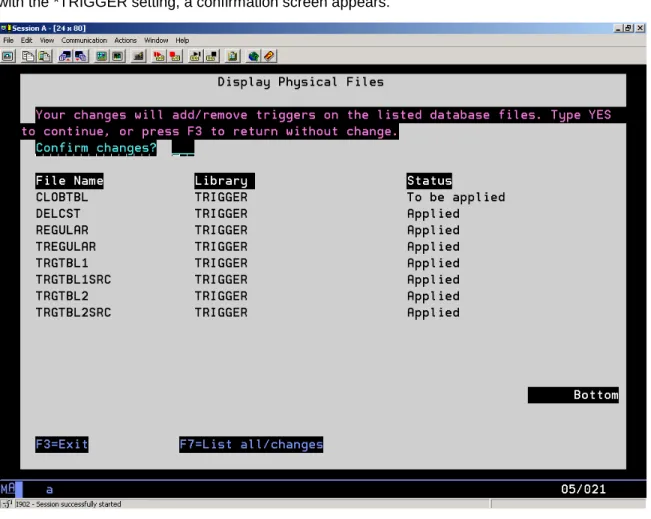
When you create a new job and specify *TRIGGER in the Save active field, backup triggers are added to PF-DTA objects contained in the job include list. When you create or change an *OBJ job with the *TRIGGER setting, a confirmation screen appears.
Figure 1. - Triggering
The confirmation screen lists objects and their trigger status. These are the trigger statuses: • To be applied – A trigger is applied to the object.
Working with Hot Backups IBM i Agent 6.2 User’s Guide Only physical database files are supported. Physical source files, logical files, save files, and device files are excluded.
Supported database files cannot contain the following columns:
• CLOB
• BLOB
• DBCLOB
• ROWID
IBM i Agent 6.2 User’s Guide Synchronizing Data
15 Synchronizing Data
You run the Synchronize command to ensure that the latest backup is available for an immediate restore.
When you run the Synchronize option, the IBM i Agent compares and updates the remote Vault files with the local safeset catalog files. You can configure the IBM i Agent to delete catalog files that are no longer required.
The Synchronize Job is submitted to the Agent System with the message: “Synchronize Job <name> has been submitted to the AGENT system.
To synchronize the IBM i Agent data with the Vault:
1. Open a command prompt and type GO LIBRARY/ISAGENT (where LIBRARY is the library name where the Agent is installed).
2. Press Enter. The ISAGENT screen appears.
3. Enter 9 in the Selection or Command field. Press Enter.