Software Support
Registration workflow
Schlumberger Information Solutions
March 2014
Copyright Notice
© 2014 Schlumberger. All rights reserved.
No part of this manual may be reproduced, stored in a retrieval system, or translated in any form or by any means, electronic or mechanical, including photocopying and recording, without the prior written permission of Schlumberger Information Solutions, 5599 San Felipe, Suite100, Houston, TX 77056-2722.
Disclaimer
Use of this product is governed by the License Agreement. Schlumberger makes no warranties, express, implied, or statutory, with respect to the product described herein and disclaims without limitation any warranties of merchantability or fitness for a particular
purpose. Schlumberger reserves the right to revise the information in this manual at any time without notice.
Trademark Information
Software application marks used in this publication, unless otherwise indicated, are
trademarks of Schlumberger. Certain other products and product names are trademarks or registered trademarks of their respective companies or organizations.
Purpose
This document is to show the multiple workflows for registering for online access to the Software Support site for Schlumberger.
Contents
Quick Guide ... 2
New registration ... 2
Known customer ... 2
Pre-registered ... 2
New registration ... 3
My Account ... 4
Known customer ... 8
My Account ... 10
Pre- Approved ... 12
My Account ... 15
Quick Guide
New registration
A customer who has not registered before with their existing
company.
Complete workflow
Go to http://support.software.slb.com • Click on Register
• Complete the email verification
• Click on the registration ID link within the sent email
• Complete your personal details, select the support option and chose your company
• Review
• Click Finish to Submit for approval
Known customer
A customer who has previously contacted the Customer Care Center for software support.
Complete workflow
Go to http://support.software.slb.com • Click on Register
• Complete the email verification
• Click on the registration ID link within the sent email
• Review the personal details, select the support option and review your company details
• Review
• Click Finish to Submit for approval
Pre-registered
A customer who has previously contacted the Customer Care Center for software support and has received an invitation to complete an online account.
Complete workflow
Go to http://support.software.slb.com
• Receive invitation to complete registration
• Click on Register
• Complete the email verification
• Click on the registration ID link within the sent email
• Review the personal details, the authorization support option, and your company details
• Review
• Click Finish
• Log-in
New registration
Site URL: http://support.software.slb.com
A new registration is defined as a customer who has not registered before with their existing company and has not contacted the Customer Care Center (CCC) for support.
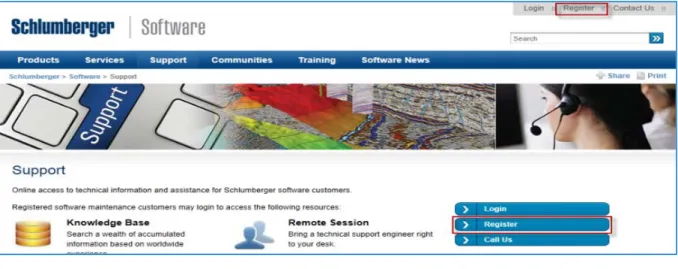
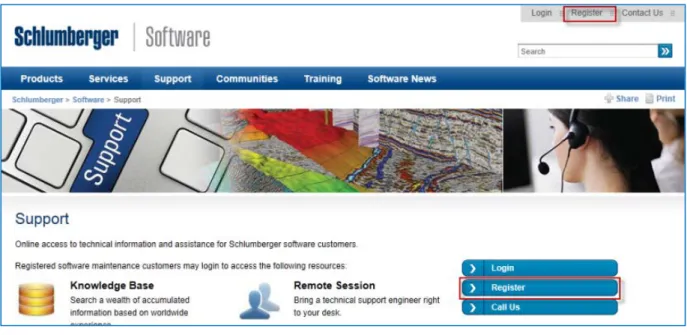
From the Support Home page, click on Register using either the link at the top right of the page or the Call To Actions (CTA) buttons on the middle right. Figure1
Figure 1 Support – Register link
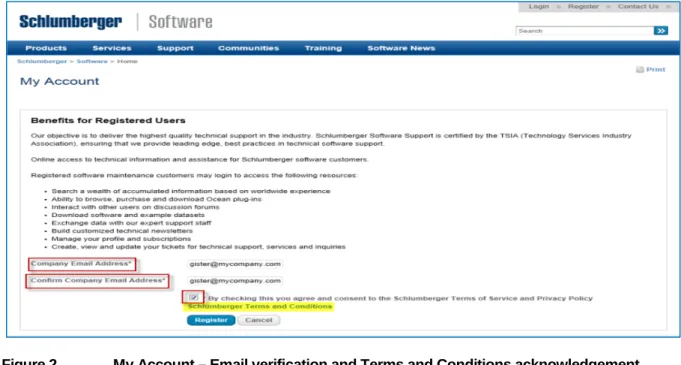
On the My Account page, enter and confirm your company email address.
NOTE: we recommend that you register the company email address that your company server uses to ‘Send out’ your messages. The auto-create ticketing system for the Customer Care Center can only recognize the server email account.
Read and Agree to the Schlumberger Terms of Service and Privacy Policy, tick the box indicating that you agree with the terms and conditions. (Figure 2)
Figure 2 My Account – Email verification and Terms and Conditions acknowledgement
• Click Register
The following message will be presented. Figure 3
Figure 3 My Account – email verification message
• Click OK
The message sent will include a registration ID link to complete your registration. Figure 4
Figure 4 Email registration ID link
• Click on or Copy & Paste the entire link into your browser.
My Account
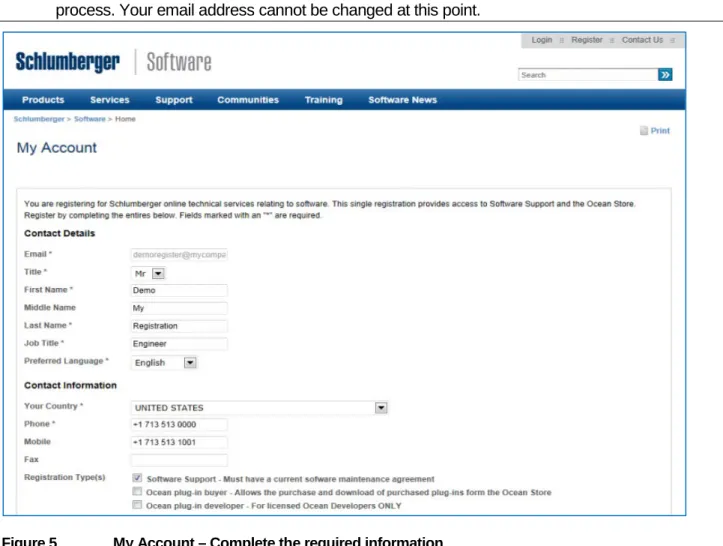
– Contact detailsYou are presented with a contact details page. Complete each of the fields. Figure 5
NOTE: your email address is pre-filled based on the information you provided in the email verification process. Your email address cannot be changed at this point.
Figure 5 My Account – Complete the required information NOTE: fields marked with an asterisk (*) are required
Registration options1
• Software Support – must have a current software maintenance agreement
• University – must have an academia license
• Ocean plug-in buyer – will allow access to purchase and download plug-ins from the Ocean Store
• Ocean plug-in developer – for current licensed Ocean Developers. You must have an Ocean SDK license to develop plug-ins for Petrel.
Create a password using the criteria indicated. Figure 6
• Click Next
1
The list of registration options are subject to change
5
Figure 6 My Account – creating a password
Choosing your company
To locate your company using the search tool, start typing the name of your company and wait for the auto-complete to display results. From the list of options, chose your company. Figure 7
NOTE: your country will be pre-filled based on the information you provided on the Contact Details page.
Figure 7 My Account – selecting your company
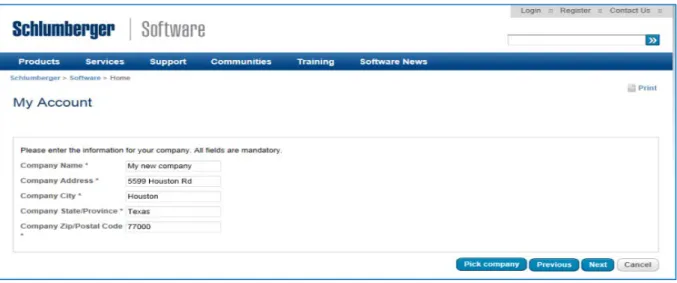
If your company is not listed in the search results, click on Add Company. You will be presented with a template to complete your company information. Figure 8
Figure 8 My Account – Add your company details
Once you have either chosen your company from the search results or added a company, click on Next.
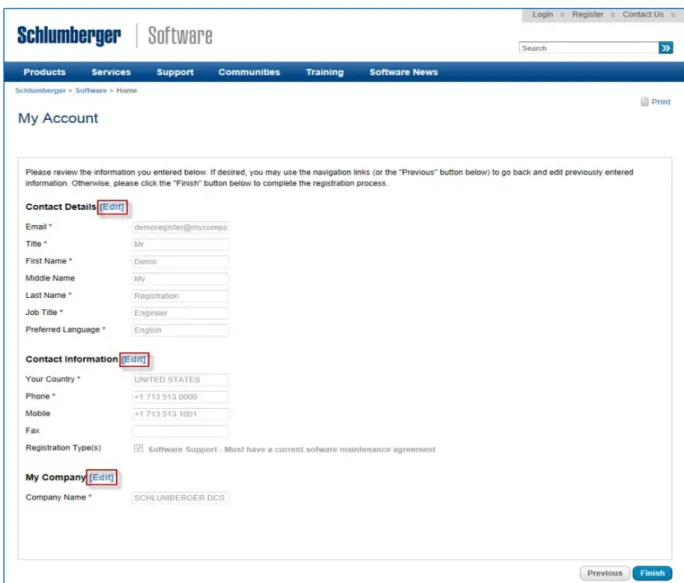
You will be presented with a page to review the information you have entered. To edit any section, click on the Edit links next to the section title. Figure 9
Figure 9 My Account – review information with Edit options
Your request for access is pending approval. The details you have provided will be verified against your company details and maintenance agreement for support. Figure 10
Figure 10 My Account – pending approval
Known customer
A known customer is a registering customer who has previously contacted the Customer Care Center (CCC) for software support via phone or by email. When you contact the CCC, your profile details are created in our customer database. This will reduce the amount of information you will need to provide when you register.
From the Support Home page, click on Register using either the link at the top right of the page or the Call To Action (CTA) buttons on the middle right. Figure 11
Figure 11 Support – Register link
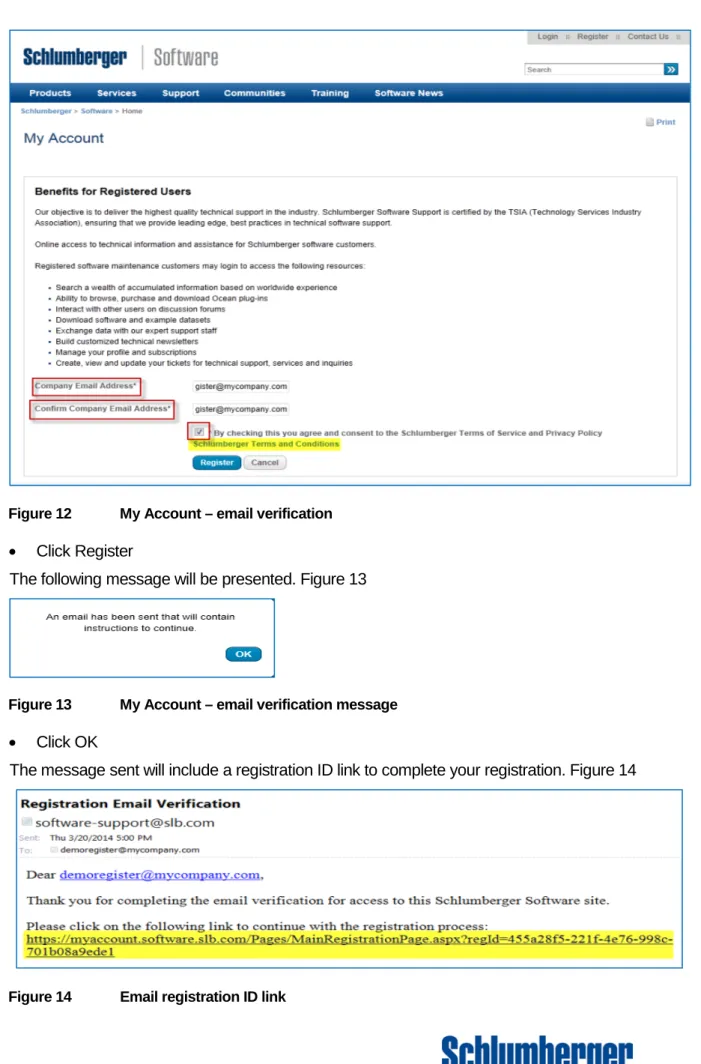
On the My Account page, enter and confirm your company email address.
NOTE: your profile information in our database will be associated with the email address you used to contact the CCC. Please refer to a past correspondence from the CCC to complete the email verification process.
Read and Agree to the Schlumberger Terms of Service and Privacy Policy, tick the box indicating that you agree with the terms and conditions. Figure 12
Figure 12 My Account – email verification
• Click Register
The following message will be presented. Figure 13
Figure 13 My Account – email verification message
• Click OK
The message sent will include a registration ID link to complete your registration. Figure 14
Figure 14 Email registration ID link
Click on or Copy & Paste the entire link into your browser
My Account
– Contact detailsYou are presented with a completed contact details page. Complete any required information or you may edit your details, except the email address. Figure 15
NOTE: fields marked with an asterisk (*) are required
Figure 15 My Account – pre-filled contact details
Registration options2
• Software Support – must have a current software maintenance agreement.
• University – must have an academia license.
• Ocean plug-in buyer – will allow access to purchase and download plug-ins from the Ocean Store.
• Ocean plug-in developer – For current licensed Ocean Developers. You must have an Ocean SDK license to develop plug-ins for Petrel.
2
The list of registration options are subject to change
10
Create a password using the criteria indicated
• Click Next
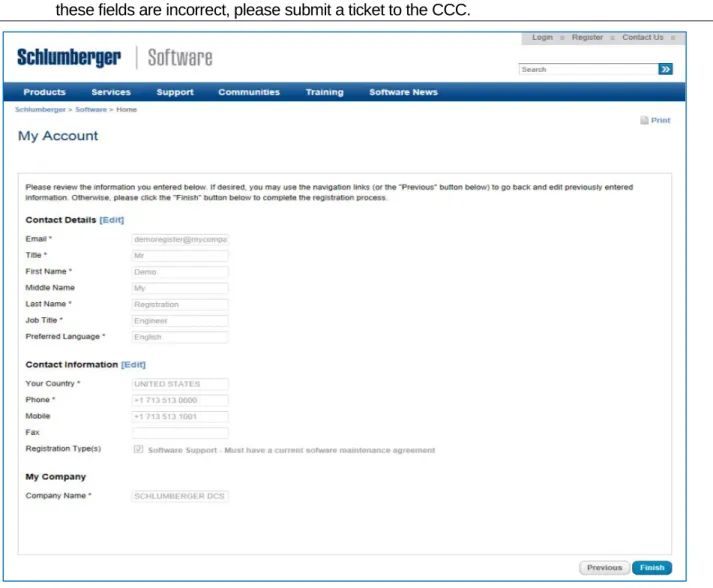
You will be presented with a page to review the complete profile details. To edit any section, click on the Edit links next to the section title. Figure 16
NOTE: your email address, your company information and your country will not be editable. If any of these fields are incorrect, please submit a ticket to the CCC.
Figure 16 My Account – final review with Edit options
• Click on Finish
Your request for access is pending approval. The details provided by you and the CCC will be verified against your company details and maintenance agreement for support. Figure 17
Figure 17 Pending approval message
Pre- Approved
A pre-authorized customer is someone who has previously contacted the Customer Care Center (CCC) for software support via phone or by email. When you contact the CCC, your profile details are created in our customer database. New customers that go through the verification process prior to registering will be pre-approved for access to the Software Support site without having to wait for an administrator to complete your request.
NOTE: you will have received an invitation to complete your registration by first completing an email verification step and then creating a password. Figure 18
Figure 18 Support – Pre-Approval invitation to complete registration
From the Support Home page, click on Register using either the link at the top right of the page or the Call To Action (CTA) buttons on the middle right. Figure 19
Figure 19 Support – Register link
On the My Account page, enter and confirm your company email address.
NOTE: your profile information in our database will be associated with the email address you used to contact the CCC. Please refer to a past correspondence from the CCC to complete the email verification process.
Read and Agree to the Schlumberger Terms of Service and Privacy Policy, tick the box indicating that you agree with the terms and conditions. Figure 20
Figure 20 My Account – Email verification
• Click Register
The following message will be presented. Figure 21
Figure 21 My Account – registration email verification message
• Click OK
The message sent will include a registration ID link to complete your registrations. Figure 22
Figure 22 Email registration ID link
• Click on or Copy & Paste the entire link into your browser
My Account
– Contact detailsYou are presented with a completed contact details page. Your registration type is already completed based on the pre-approval process.
Complete any required information or you may edit your details, except the email address and country. Figure 23
NOTE: fields marked with an asterisk (*) are required
Figure 23 My Account – pre-filled contact details and pre-approved registration option
Create a password using the criteria indicated
• Click on Next
You will be presented with a final review page, which will include your company information. You may edit most of your personal information by selecting the Edit button on this page. You will not be able to edit the email address, the company or the country information. Your approval for access is based on the information used to provide you support. Figure 24
If any of the non-editable information provide in this section is incorrect please contact us at
Figure 24 My Account – final confirmation
• Click Finish
You are presented with a Thank you page. Figure 25
Figure 25 My Account – Thank you page
• Click on Login
Enter your username/email address and the password you created during the registration process. Figure 26
Figure 26 Software Support – login page