TSU LT
User Manual
1202060L2 TSU LT with V.35 220 VAC 1202060L4 TSU LT with V.11 220 VAC
Trademarks
Any brand names and product names included in this manual are trademarks, registered trademarks, or trade names of their respective holders.
To the Holder of the Manual
The contents of this manual are current as of the date of publication. ADTRAN reserves the right to change the contents without prior notice.
In no event will ADTRAN be liable for any special, incidental, or consequential damages or for commercial losses even if ADTRAN has been advised thereof as a result of issue of this publication.
901 Explorer Boulevard P.O. Box 140000 Huntsville, AL 35814-4000
Phone: (256) 963-8000 ©2002 ADTRAN, Inc. All Rights Reserved.
Safety Instructions
When using your telephone equipment, please follow these basic safety precautions to reduce the risk of fire, electrical shock, or personal injury:
1. Do not use this product near water, such as a bathtub, wash bowl, kitchen sink, laundry tub, in a wet basement, or near a swimming pool.
2. Avoid using a telephone (other than a cordless-type) during an electrical storm. There is a remote risk of shock from lightning.
3. Do not use the telephone to report a gas leak in the vicinity of the leak.
4. Use only the power cord, power supply, and/or batteries indicated in the manual. Do not dispose of batteries in a fire. They may explode. Check with local codes for special disposal instructions.
Compliance
The socket-outlet shall be installed near the equipment and shall be easily accessible.
Save These Important Safety Instructions
Notes provide additional useful information.
Cautions signify information that could prevent service interruption.
Warnings provide information that could prevent damage to the equipment or endangerment to human life.
Affidavit Requirements for Connection to Digital Services
• An affidavit is required to be given to the telephone company whenever digital terminal equipment without encoded analog content and billing protection is used to transmit digital signals containing encoded analog content which are intended for eventual conversion into voiceband analog signals and transmitted on the network.
• The affidavit shall affirm that either no encoded analog content or billing information is being transmitted or that the output of the device meets Part 68 encoded analog content or billing protection specifications.
• End user/customer will be responsible for filing an affidavit with the local exchange carrier when connecting unprotected customer premise equipment (CPE) to 1.544 Mbps or subrate digital services.
Affidavit for Connection of Customer Premises Equipment
to 1.544 Mbps and/or Subrate Digital Services
For the work to be performed in the certified territory of ___________________ (telco name) State of ________________
County of ________________
I, _______________________ (name), ____________________________________ (business address), ____________________ (telephone number) being duly sworn, state:
I have responsibility for the operation and maintenance of the terminal equipment to be connected to 1.544 Mbps and/or ________ subrate digital services. The terminal equipment to be connected complies with Part 68 of the FCC rules except for the encoded analog content and billing protection specifications. With respect to encoded analog content and billing protection:
( ) I attest that all operations associated with the establishment, maintenance, and adjustment of the digital CPE with respect to analog content and encoded billing protection information continuously complies with Part 68 of the FCC Rules and Regulations.
( ) The digital CPE does not transmit digital signals containing encoded analog content or billing information which is intended to be decoded within the telecommunications network.
( ) The encoded analog content and billing protection is factory set and is not under the control of the customer.
I attest that the operator(s)/maintainer(s) of the digital CPE responsible for the establishment, maintenance, and adjustment of the encoded analog content and billing information has (have) been trained to perform these functions by successfully having completed one of the following (check appropriate blocks):
( ) A. A training course provided by the manufacturer/grantee of the equipment used to encode analog signals; or
( ) B. A training course provided by the customer or authorized representative, using training materials and instructions provided by the manufacturer/grantee of the equipment used to encode analog signals; or
( ) D. In lieu of the preceding training requirements, the operator(s)/maintainer(s) is (are) under the control of a supervisor trained in accordance with _________ (circle one) above.
I agree to provide ______________________ (telco’s name) with proper documentation to demonstrate compliance with the information as provided in the preceding paragraph, if so requested.
_________________________________Signature _________________________________Title _________________________________ Date Transcribed and sworn to before me
This ________ day of _______________, _______
_________________________________ Notary Public
My commission expires:
FCC regulations require that the following information be provided in this manual:
1. This equipment complies with Part 68 of FCC rules. On the back of the equipment housing is a label showing the FCC registration number and ringer equivalence number (REN). If requested, provide this information to the telephone company.
2. If this equipment causes harm to the telephone network, the telephone company may temporarily discontinue service. If possible, advance notification is given; otherwise, notification is given as soon as possible. The telephone company will advise the customer of the right to file a complaint with the FCC.
3. The telephone company may make changes in its facilities, equipment, operations, or procedures that could affect the proper operation of this equipment. Advance notification and the opportunity to maintain uninterrupted service are given.
4. If experiencing difficulty with this equipment, please contact ADTRAN for repair and warranty information. The telephone company may require this equipment to be disconnected from the network until the problem is corrected or it is certain the equipment is not malfunctioning. 5. This unit contains no user-serviceable parts.
6. An FCC compliant telephone cord with a modular plug is provided with this equipment. This equipment is designed to be connected to the telephone network or premises wiring using an FCC compatible modular jack, which is Part 68 compliant.
7. The following information may be required when applying to the local telephone company for a dial-up line for the V.34 modem:
8. The REN is useful in determining the quantity of devices you may connect to your telephone line and still have all of those devices ring when your number is called. In most areas, the sum of the RENs of all devices should not exceed five. To be certain of the number of devices you may connect to your line as determined by the REN, call your telephone company to determine the maximum REN for your calling area.
9. This equipment may not be used on coin service provided by the telephone company. Connection to party lines is subject to state tariffs. Contact your state public utility commission or corporation commission for information.
Service Type REN FIC USOC
1.544 Mbps - SF 04DU9-BN 6.0N RJ-48C
1.544 Mbps - SF and B8ZS 04DU9-DN 6.0N RJ-48C
1.544 Mbps - ESF 04DU9-1KN 6.0N RJ-48C
Federal Communications Commission Radio Frequency Interference Statement
This equipment has been tested and found to comply with the limits for a Class A digital device, pursuant to Part 15 of the FCC Rules. These limits are designed to provide reasonable protection against harmful interference when the equipment is operated in a commercial environment. This equipment generates, uses, and can radiate radio frequency energy and, if not installed and used in accordance with theinstruction manual, may cause harmful interference to radio frequencies. Operation of this equipment in a residential area is likely to cause harmful interference in which case the user will be required to correct the interference at his own expense.
Shielded cables must be used with this unit to ensure compliance with Class A FCC limits.
Industry Canada Compliance Information
Notice: The Industry Canada label applied to the product (identified by the Industry Canada logo or the “IC:” in front of the certification/registration number) signifies that the Industry Canada technical specifications were met.
Notice: The Ringer Equivalence Number (REN) for this terminal equipment is supplied in the
documentation or on the product labeling/markings. The REN assigned to each terminal device indicates the maximum number of terminals that can be connected to a telephone interface. The termination on an interface may consist of any combination of devices subject only to the requirement that the sum of the RENs of all the devices should not exceed five (5).
Canadian Emissions Requirements
This digital apparatus does not exceed the Class A limits for radio noise emissions from digital apparatus as set out in the interference-causing equipment standard entitled “Digital Apparatus,” ICES-003 of the Department of Communications.
Warranty and Customer Service
ADTRAN will repair and return this product within 5 years from the date of shipment if it does not meet its published specifications or fails while in service. For detailed warranty, repair, and return information refer to the ADTRAN Equipment Warranty and Repair and Return Policy Procedure.
Return Material Authorization (RMA) is required prior to returning equipment to ADTRAN.
For service, RMA requests, or further information, contact one of the numbers listed at the end of this section.
LIMITED PRODUCT WARRANTY
ADTRAN warrants that for 5 years from the date of shipment to Customer, all products manufactured by ADTRAN will be free from defects in materials and workmanship. ADTRAN also warrants that products will conform to the applicable specifications and drawings for such products, as contained in the Product Manual or in ADTRAN's internal specifications and drawings for such products (which may or may not be reflected in the Product Manual). This warranty only applies if Customer gives ADTRAN written notice of defects during the warranty period. Upon such notice, ADTRAN will, at its option, either repair or replace the defective item. If ADTRAN is unable, in a reasonable time, to repair or replace any equipment to a condition as warranted, Customer is entitled to a full refund of the purchase price upon return of the equipment to ADTRAN. This warranty applies only to the original purchaser and is not transferable without ADTRAN's express written permission. This warranty becomes null and void if Customer modifies or alters the equipment in any way, other than as specifically authorized by ADTRAN.
EXCEPT FOR THE LIMITED WARRANTY DESCRIBED ABOVE, THE FOREGOING CONSTITUTES THE SOLE AND EXCLUSIVE REMEDY OF THE CUSTOMER AND THE EXCLUSIVE LIABILITY OF ADTRAN AND IS IN LIEU OF ANY AND ALL OTHER
WARRANTIES (EXPRESSED OR IMPLIED). ADTRAN SPECIFICALLY DISCLAIMS ALL OTHER WARRANTIES, INCLUDING (WITHOUT LIMITATION), ALL WARRANTIES OF
MERCHANTABILITY AND FITNESS FOR A PARTICULAR PURPOSE. SOME STATES DO NOT ALLOW THE EXCLUSION OF IMPLIED WARRANTIES, SO THIS EXCLUSION MAY NOT APPLY TO CUSTOMER.
Customer Service, Product Support Information, and Training
ADTRAN will repair and return this product if within 5 years from the date of shipment the product does not meet its published specification or the product fails while in service.
A return material authorization (RMA) is required prior to returning equipment to ADTRAN. For service, RMA requests, training, or more information, use the contact information given below.
Repair and Return
If you determine that a repair is needed, please contact our Customer and Product Service (CAPS) department to have an RMA number issued. CAPS should also be contacted to obtain information regarding equipment currently in house or possible fees associated with repair.
Identify the RMA number clearly on the package (below address), and return to the following address:
CAPS Department (256) 963-8722
ADTRAN Customer and Product Service 901 Explorer Blvd. (East Tower)
Pre-Sales Inquiries and Applications Support
Your reseller should serve as the first point of contact for support. If additional pre-sales support is needed, the ADTRAN Support web site provides a variety of support services such as a searchable knowledge base, latest product documentation, application briefs, case studies, and a link to submit a question to an Applications Engineer. All of this, and more, is available at:
When needed, further pre-sales assistance is available by calling our Applications Engineering Department.
Post-Sale Support
Your reseller should serve as the first point of contact for support. If additional support is needed, the ADTRAN Support web site provides a variety of support services such as a searchable knowledge base, updated firmware releases, latest product documentation, service request ticket generation and trouble-shooting tools. All of this, and more, is available at:
When needed, further post-sales assistance is available by calling our Technical Support Center. Please have your unit serial number available when you call.
http://support.adtran.com
Applications Engineering (800) 615-1176
http://support.adtran.com
Installation and Maintenance Support
The ADTRAN Custom Extended Services (ACES) program offers multiple types and levels of installation and maintenance services which allow you to choose the kind of assistance you need. This support is available at:
For questions, call the ACES Help Desk.
Training
The Enterprise Network (EN) Technical Training Department offers training on our most popular
products. These courses include overviews on product features and functions while covering applications of ADTRAN's product lines. ADTRAN provides a variety of training options, including customized training and courses taught at our facilities or at your site. For more information about training, please contact your Territory Manager or the Enterprise Training Coordinator.
http://www.adtran.com/aces
ACES Help Desk (888) 874-ACES (2237)
Training Phone (800) 615-1176, ext. 7500 Training Fax (256) 963-6700
Table of Contents
Chapter 1 Introduction ...21
T1/FT1 Overview ...21
T1 Service Offerings ...21
Fractional T1 ...21
TSU LT Overview ...22
Functional Description ...22
TSU LT (P/N 1202060L2-1) Rear Panel ...22
TSU LT (P/N 1202060L4-1) Rear Panel ...23
TSU LT Features ...24
TSU LT Interfaces ...24
Network Interface (NI) ...25
Nx56/64 Serial Interface ...25
Control Port Input ...26
Chain Port Output ...26
Software Management ...26
Front Panel ...26
T-Watch Pro Management Software Program ...26
Testing ...26
Self-test ...27
Loopback Tests ...27
DTE Interface Loopbacks ...28
Pattern Generation ...28
Bridge/Router Application ...29
Chapter 2 Installation ...31
Inspecting for Damages ...31
Items Shipped by ADTRAN ...31
Items Provided by Customer ...31
Power Connection ...31
Power Up Testing and Initialization ...31
Self-Test ...32
Chapter 3 Operation ...33
Operation ...33
General Menu Operation ...33
Menu Structure ...33
Four Opening Menu Functions ...34
Menu Features ...35
Data Field ...35
Table of Contents TSU LT User Manual
Example Menu Operations ...36
Front Panel ...38
Chapter 4 Status Menu ...39
Status ...39
NI PERF RPTS ...39
CURR ERR/ALM ...40
Alarms and Errors ...41
ERR/ALM HIST ...41
Chapter 5 Configuration Menu ...43
Config ...43
Network (NI) ...43
Unit ...47
Port ...49
Chapter 6 Utility Menu ...51
Util ...51
Time/Date ...51
Software Rev ...52
Reinit Unit ...52
Address ...52
Set Passcode ...52
Fact Restore ...52
Chapter 7 Test Menu ...53
Test ...53
Network Tests ...53
Local Loopback ...54
Remote Loopback ...54
Test Pattern ...55
Clr Errors ...55
Insert 511 errors ...55
Run Self-test ...56
Port Tests ...56
Chapter 8 Example Operations ...57
Testing Examples ...57
Far End Looped Back Test ...57
Network Interface Test ...57
Wiring ...65
Network ...65
Control Chain-In ...66
Control Chain-Out ...67
Nx56K/64K DTE (V.35) ...68
List of Figures
Figure 1-1. TSU LT Unit - Front View ... 22
Figure 1-2. TSU LT (w/V.35) Rear Panel ... 22
Figure 1-3. TSU LT (w/V.11) Rear Panel ... 23
Figure 1-4. TSU LT Interfaces ... 25
Figure 1-5. Network Loopback Tests ... 27
Figure 1-6. DTE Interface Loopback ... 28
Figure 1-7. Simple Bridge Application on a T1 or FT1 Circuit ... 29
Figure 3-1. TSU LT Main Menus ... 33
Figure 3-2. TSU LT Main Menu Screen ... 34
Figure 3-3. Cursor on Menu Item ... 36
Figure 3-4. Submenu Fields ... 36
Figure 3-5. Front Panel Layout ... 38
Figure 4-1. Status Menu ... 39
Figure 4-2. Severely Errored Seconds Screen ... 40
Figure 4-3. Loss of Signal (Current Errors/Alarms) Screens ... 40
Figure 4-4. Clear History Screen ... 42
Figure 5-1. Configuration Menu ... 43
Figure 5-2. Network Submenu ... 44
Figure 5-3. Network Timed Clock Source ... 45
Figure 5-4. DTE Clock Source ... 46
Figure 5-5. Internal Clock Source ... 46
Figure 5-6. Configuration Submenu ... 47
Figure 5-7. Inband Remote Configuration ... 50
Figure 6-1. Utility Menu ... 51
Figure 6-2. Time/Date Screen ... 51
Figure 6-3. Address Screen ... 52
Figure 7-1. Test Menu ... 53
Figure 7-2. Local Loopback Screen ... 54
Figure 7-3. Clear Errors Screen ... 55
Figure 7-4. Self Test Results Screen ... 56
Figure 7-5. Loopback Setting Screen ... 56
Figure 8-1. Main Menu with TEST Selected ... 57
Figure 8-2. Test Menu with NETWORK TESTS Selected ... 58
Figure 8-3. Local Loopback Test Menu ... 58
Figure 8-4. Remote Loopback Test Menu ... 58
Figure 8-5. Test Pattern Screen ... 59
Figure 8-6. Clear Errors Screen ... 60
Figure A-1. TSU LT Menu Tree (Status and Config) ... 61
List of Tables
Table 1-1. Number Identification for TSU LT w/V.35 Rear Panel ... 23
Table 1-2. Number Identification for TSU LT w/V.11 Rear Panel ... 24
Table 5-1. Normal Mode Operation... 50
Table 6-1. Editing the Time/Date... 52
Table B-1. DTE Data Rate Chart ... 63
Table C-1. Network Pin Assignments ... 65
Table C-2. Chain-In Pin Assignments ... 66
Table C-3. Chain-Out Pin Assignments... 67
Table C-4. V.35 Pin Assignment ... 68
Chapter 1
Introduction
T1/FT1 OVERVIEW
T1 digital communication links have been used by the telephone companies (telcos) for voice transmission since the early sixties. The D4 channel bank is an example of a T1 digital carrier system that was
introduced in the mid-seventies and is still widely used by the telcos. Communication demands of businesses continued to grow to the point that the telcos began offering T1 service directly to the public. D4 channel banks began to be used for T1 in corporate network topographies for voice. The technological advances in computer development also created a demand for T1 data communication which now is a large part of the T1 traffic.
T1 Service Offerings
T1 is a digital service that is delivered to the user over two pairs of wires from the service provider. The signal operates at 1.544 mega bits per second (Mbps) and is usually extended by repeaters that are installed about every mile after the first 6000 feet. The T1 signal is divided into 24 time slots or digital signal level zeros (DS0s) which operate at 64 kilo bits per seconds (kbps). Each time slot is occupied by digitized voice or by data.
The T1 signal originally used a type of framing known as D4 Superframe which identifies how the T1 is multiplexed. Extended Superframe (ESF) is an enhancement of that framing format. ESF provides a non-disruptive means of full time monitoring on the digital facility. It was originally used by the service provider to monitor the performance of their service offering. Since the introduction of ESF, equipment that is installed in private networks can also provide the same performance information to the user.
Fractional T1
Fractional T1 (FT1) allows the buyer to purchase less than a full T1 circuit between two points. Most carriers offer fractional T1 in increments of 56 or 64 kbps. Connection is made to the same network elements. The network allows multiple users to share the same interoffice T1 bandwidth.
FT1 remains almost exclusively an inter-exchange carrier (IXC) service. Local exchange carriers (LECs) typically do not offer FT1, so the user’s proximity to the IXC’s point-of-presence (POP) is key in the savings that fractional T1 offers.
FT1 local access is available in two forms:
• 56 kbps - In 56 kbps, the required number of digital data service (DDS) lines is extended from the IXC POP and the bandwidth is combined at the office on an outbound T1 circuit. The user pays for the individual 56K lines and the amount of the interoffice T1 utilized.
Chapter 1. Introduction TSU LT User Manual
TSU LT OVERVIEW
This section provides a functional description of the TSU LT, describes its features, and illustrates its four interfaces. Figure 1-1 shows the TSU LT.
Functional Description
The ADTRAN TSU LT is one of several T1 multiplexers that offer complete flexibility for connection of various data sources to T1 or FT1 facilities. This family of TSU multiplexers includes the following:
• TSU and TSU LT - T1 CSU/DSUs with a single Nx56K/64K serial port.
• TSU 100 - Same as the TSU with the added feature of a slot in the rear panel to house an option module. Each module offers up to four additional data ports.
• TSU 600 - Same as the TSU with the added feature of six slots in the rear panel to house up to six option modules. Each module offers up to four additional data ports for a total of 24 possible data ports.
Figure 1-1. TSU LT Unit - Front View
The TSU LT serves as the link between user data sources such as local area network (LAN) bridges and routers, computers, CAD systems, and teleconferencing equipment. The amount of bandwidth allocated to the port is custom programmable. The data terminal equipment (DTE) data can occupy contiguous or alternate channels in the T1 stream, and the channels may start at any position.
TSU LT (P/N 1202060L2-1) Rear Panel
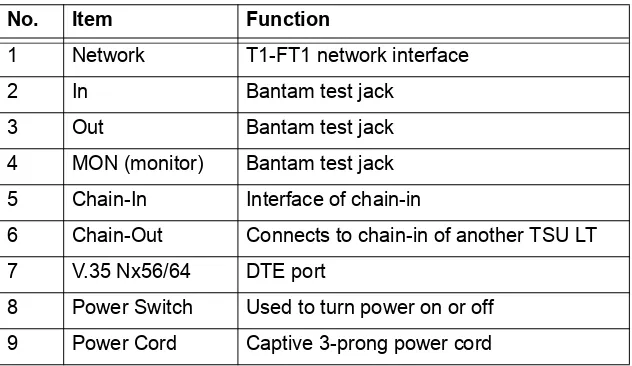
Table 1-1 on page 23 identifies the TSU LT rear panel components illustrated in Figure 1-2.
Figure 1-2. TSU LT (w/V.35) Rear Panel PWR ERR ALM TEST
TD RD RS CS CANCEL
ENTER
TSU LT
TSU LT User Manual Chapter 1. Introduction
TSU LT (P/N 1202060L4-1) Rear Panel
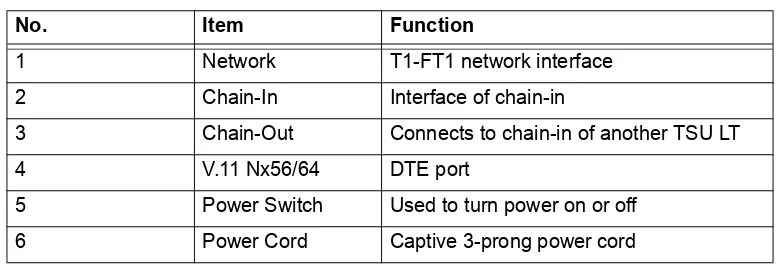
Table 1-2 on page 24 identifies the TSU LT rear panel components illustrated in Figure 1-3.
Figure 1-3. TSU LT (w/V.11) Rear Panel
Table 1-1. Number Identification for TSU LT w/V.35 Rear Panel
No. Item Function
1 Network T1-FT1 network interface
2 In Bantam test jack
3 Out Bantam test jack
4 MON (monitor) Bantam test jack 5 Chain-In Interface of chain-in
6 Chain-Out Connects to chain-in of another TSU LT 7 V.35 Nx56/64 DTE port
8 Power Switch Used to turn power on or off 9 Power Cord Captive 3-prong power cord
Chapter 1. Introduction TSU LT User Manual
TSU LT Features
• A DS1 interface and an Nx56/64 DTE serial interface port.
• Easy configuration capabilities using simplistic menus displayed in a liquid crystal display (LCD) window operated by a front panel keypad.
• Timing is selectable from the network, from the Nx56/64 DTE port, or internally. • All ones, all zeros, 511, and 1:8 test patterns.
• Extensive self-testing and monitoring ensures proper operation.
• Flexible channel allocation (any starting channel and alternate or contiguous).
TSU LT Interfaces
The TSU LT is equipped with four interfaces:
• Network DS1 interface per AT&T 62411
• Nx56/64 serial V.35 (P/N 1202060L2) or V.11 (P/N 1202060L4) high speed interface • Control input (EIA-232)/Chain port input
• Chain port output
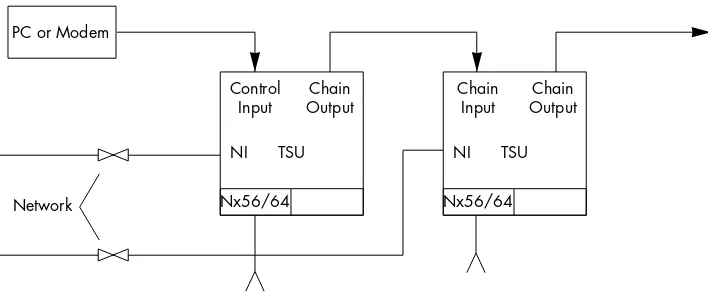
See Figure 1-4 on page 25 and descriptions in this section.
Table 1-2. Number Identification for TSU LT w/V.11 Rear Panel
No. Item Function
1 Network T1-FT1 network interface
2 Chain-In Interface of chain-in
3 Chain-Out Connects to chain-in of another TSU LT
4 V.11 Nx56/64 DTE port
TSU LT User Manual Chapter 1. Introduction
Figure 1-4. TSU LT Interfaces
Network Interface (NI)
The Network Interface (NI) port complies with the applicable ANSI and AT&T standards:
• Alternate mark inversion (AMI) or binary 8 zero suppression (B8ZS) coding • Automatic or manual line build-out
• Auto detect or manual settings for D4 or ESF framing • Network performance monitoring and reporting • Local and remote test loopbacks
• Extensive self-testing
Nx56/64 Serial Interface
Features of the Nx56/64 serial interface include:
• Data rates: N*56K or N*64K, where N=1 to 24 (DS0s) • Inverted data (inverted high-level data link control (HDLC) • Test loopbacks with 511 pattern generation and check • Extensive self-testing
P/N 1202060L2 also includes:
• V.35 interface
• Standard V.35 connectors
P/N 1202060L4 also includes:
• V.11 interface
• Standard V.11 connectors
TSU PC or Modem
Network Nx56/64
Control Input
Chain Output
NI TSU
Nx56/64 Chain
Input
Chain Output
Chapter 1. Introduction TSU LT User Manual
Control Port Input
Features of the control port input include:
• EIA-232 input from a personal computer (PC) or a modem for control of the TSU LT • Chain input from another TSU LT
• Up to 9600 baud operation
• Input for PC proxy agent control or for a chained connection
Chain Port Output
Features of the chain port output include:
• EIA-232 output to chain control to other TSU LTs • Up to 9600 baud operation
• Automatic setup; no user input required
Software Management
Front Panel
The front panel provides complete and easy control of all items that can be configured through menu-guided options. The front panel LCD also displays the status of operation and performance reports for the unit. A complete discussion of the operation of the front panel is found in Chapter 3. The menu options are found in Chapters 4 through 7.
T-Watch Pro Management Software Program
T-Watch Pro is the ADTRAN management software program that allows the user to control the TSU LT from a PC. It provides complete control over the configuration of the TSU LT using a graphic interface. The T-Watch Pro program displays the same status and performance data as the front panel LCD. This data is displayed as tables and graphs.
The T-Watch Pro program has the following capabilities:
• A modem interface permits dialing into a remote TSU LT location to configure the unit, read the unit’s status, or check its performance.
• The performance data read from the units can be exported to a file which is compatible with common spread sheet programs.
Testing
The TSU LT offers three forms of testing:
• Self-test • Loopback tests
TSU LT User Manual Chapter 1. Introduction
Self-test
The self-test checks the integrity of the internal operation of the electronic components by performing memory tests and by sending and verifying data test patterns through all internal interfaces. Although actual user data cannot be passed during these tests, the self-test can run with the network and DTE interfaces in place and without disturbing any external interface.
The self-test automatically executes upon power up. It can also be commanded from a front panel menu or from the control port.
In addition to the specified self-tests, background tests are also run on various parts of the internal
electronics. These run during normal operation to confirm continued correct functioning. The background tests include:
• Monitoring the phase-locked loop for lock.
• Standard background network performance monitoring, as required by ANSI T1.403 and AT&T 54016 for which the results are stored.
Loopback Tests
A number of different loopbacks can be invoked locally from the front panel, by T-Watch commands, or remotely by using special inband codes. These include AT&T D4 network loop up/loop down codes and V.54 loop up/loop down codes for the Nx56K/64K serial interface. Additionally the loopbacks can be remotely controlled by out-of-band commands via the T1 ESF facility data link (FDL), or from T-Watch via a modem connection. Network and DTE interface loopbacks are discussed in this section.
Network Loopbacks
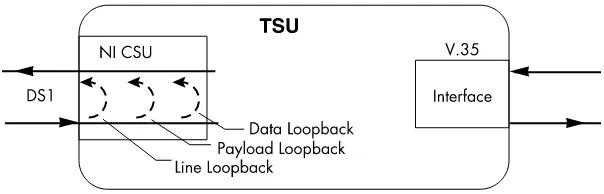
There are three types of network loopbacks. See Figure 1-5.
Line Loopback
Loops all of the received data back toward the network. The transmitted data is the identical line code that was received, including any bipolar violations or framing errors.
Payload Loopback
Similar to line loopback, except that the framing is extracted from the received data and then regenerated for the transmitted data.
Data Loopback
Chapter 1. Introduction TSU LT User Manual
DTE Interface Loopbacks
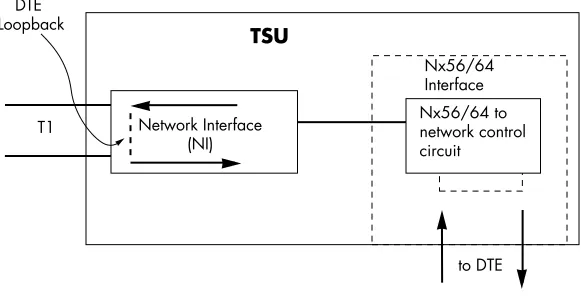
The Nx56K/64K serial interface offers a DTE loopback. See Figure 1-6.
DTE Loopback
Loops all data from the DTE back towards the DTE. This loopback may be initiated by the DTE asserting the local loopback (LL) input on the connector or by using the front panel or T-Watch commands. The DTE (or the external test equipment) must provide a test pattern to check the DTE interface.
Figure 1-6. DTE Interface Loopback
Pattern Generation
The TSU LT offers four available test patterns: 511, 1:8, All Ones, and All Zeros.
511
The 511 pattern is generated and checked by the Nx56K/64K serial interface. It only appears in the DS0s assigned to the Nx56K/64K port. When used in conjunction with the payload loopback at the far end, an end-to-end integrity check can be made on the DTE ports.
1:8
The 1:8 is a stress pattern which places the maximum number of 0s in the transmitted data. This is always done over all DS0s. This pattern is used in conjunction with external test equipment to
determine if the T1 line is performing acceptably under a stress condition. Each channel of the T1 has only one bit set.
All Zeros
Generates an all zeros pattern in every channel.
All Ones
TSU LT User Manual Chapter 1. Introduction
Bridge/Router Application
A bridge or router can be interfaced to the network by using the V.35/V.11 DTE interface. The bandwidth used is programmable at Nx56 or Nx64 data rates for T1 or FT1 service. The bandwidth can be selected as contiguous or alternate. Figure 1-7 shows a simple bridge application.
Chapter 2
Installation
INSPECTING FOR DAMAGES
Carefully inspect the TSU LT for any shipping damage. If damage is suspected, file a claim immediately with the carrier and then contact ADTRAN Customer Service. If possible, keep the original shipping container for use in shipping the TSU LT back for repair or for verification of damage during shipment.
Items Shipped by ADTRAN
The following items are included in the ADTRAN shipment:
• TSU LT unit
• Line interface cable: an 8-position modular to 8-position modular • TSU LT CD
• Loopback plug
Items Provided by Customer
• DTE cable(s)• Cable for supervisory port, if used
Power Connection
Each TSU LT unit is provided with a captive eight-foot power cord, terminated by a three-prong plug which connects to a grounded power receptacle.
Power Up Testing and Initialization
When shipped from the factory, the TSU LT is set to factory default conditions. At the first application of power, the unit automatically executes self-tests followed by an initialization sequence which sets up the unit.
Chapter 2. Installation TSU LT User Manual
Self-Test
When Then
A power-up or commanded self-test occurs
The LCD displays ADTRAN TSU INITIALIZING and the LEDs illuminate sequentially.
The self-test is completed with no failures detected
The LCD momentarily displays ALL TESTS PASSED.
A failure is detected
It is displayed in the LCD window.
The automatic self-test consists of the following tests: • Board level tests
• Random access memory (RAM) tests; erasable programmable read only memory (EPROM) checksum.
• On-board data path. Sending a known test pattern through an on-board loop.
• Unit level tests
Chapter 3
Operation
OPERATION
The TSU LT can be configured and controlled from either the local front panel or from a PC using the T-Watch Management Software Program.
General Menu Operation
The TSU LT uses a multilevel menu structure containing both menu items and data fields. All menu operations and data are displayed in the LCD window. The menu items are numbered and can be viewed by using the Up and Down arrows. See Figure 3-1.
Figure 3-1. TSU LT Main Menus
Menu flow is normally depicted from left to right. Arrows on the lower right of the screen indicate the direction of additional menu items. At every level of the menu, pressing Cancel returns the system to the previous menu level. Repeatedly pressing Cancel returns the system to the main menu.
The opening menu is the access point to all other operations. There are four main menu items: 1)STATUS,
2)CONFIGURE, 3)UTILITY, and 4)TEST. Each main menu item has several functions and submenus to identify
and access specific parameters. Each main item menu contains a complete menu diagram to identify the location of each operation.
Menu Structure
The TSU LT uses hierarchical menus to access its many features. The main menu level (Figure 3-2 on page 34) leads to submenus (see Figure 3-1). All menu operations are displayed in the LCD window. The complete TSU LT menu diagram is shown in Appendix A on page 61.
1) NI PERF REPORTS
1) STATUS 2) CURR ERR/ALM
3) ERR/ALM HIST 1) NETWORK (NI)
MAIN MENU 2) CONFIG 2) UNIT
3) PORT 1) TIME/DAY
3) UTIL 2) SOFTWARE REV
3) REINIT UNIT 1) NETWORK TESTS 4) ADDRESS 4) TEST 2) RUN SELFTEST 5) SET PASSCODE
Chapter 3. Operation TSU LT User Manual
Figure 3-2. TSU LT Main Menu Screen
Four Opening Menu Functions
STATUS
The STATUS menu provides the ability to view the status of the TSU LT operation. This menu includes
the following items:
NI PERF REPORTS
Used to view the user set of data on the Network Interface Performance Reports in compliance with ANSI T1.403 and AT&T document TR54016.
CURR ERR/ALM
Used to view current errors/alarms which are being reported by the TSU LT.
ERR/ALM HIST
Used to view and clear history errors and alarms.
CONFIG
The CONFIGURATIONmenu is used to set the TSU LT operational configuration. This menu includes
the following sub-items.
NETWORK (NI)
Used to set all of the parameters associated with the network interface.
UNIT
Used to control TSU LT control port baud rate and to set up the dial out function.
PORT
Used to configure the parameters associated with the DTE port.
UTIL
The UTILITY menu is used to view and to set system parameters. This menu includes the following
sub-items:
TSU LT User Manual Chapter 3. Operation
TIME/DATE
Accesses the display and allows the setting of the current time and date.
SOFTWARE REV
Displays the version number of the current software revision level. This information is required when requesting assistance from ADTRAN Customer Service or when updates are needed.
REINIT UNIT
Used to reinitialize the unit. This menu item is not used to restore the factory default settings for all parameters.
ADDRESS
Used to view and change the current UNIT ADDRESS used for control port access.
SET PASSCODE
Allows a passcode to be set.
FACT RESTORE
Restores factory default settings for all unit parameters.
TEST
The TEST menu is used to initiate different types of tests of the unit and to view test results. Test
results are displayed in the LCD window. The menu contains three sub-items.
NETWORK TESTS
Used to control the activation of loopbacks and the initiation of data test patterns.
RUN SELF TEST
Used to execute an internal self-test.
PORT TESTS
Used for the testing of the DTE port.
Menu Features
Data Field
A menu item followed by a colon (:) identifies an editable data field.
Display Field
A menu field followed by alarm or error information.
Chapter 3. Operation TSU LT User Manual
Arrows
Menus that display small Up or Down arrows in the lower right corner indicate there are more menu items than are viewable on a two-line LCD. The additional menu items are accessed with the Up or Down arrows. (Undisplayed menu items are also available by using the appropriate menu number.)
Example Menu Operations
SELECT A MENU ITEM
To select a menu item, perform the following steps:
1. Use the Up and Down arrows to place the cursor on the desired menu item (in this example
CONFIG). See Figure 3-3.
2. Place the cursor on the number 2 and press Enter.
The unit responds by displaying the first two available submenu fields. The cursor is on the first field. If there are more than two menu fields, a Down arrow is visible on the lower right corner. See Figure 3-4.
Figure 3-3. Cursor on Menu Item
Figure 3-4. Submenu Fields
SELECT A SUBMENU ITEM
To select a submenu item, perform the following steps:
1. Use the same operation used to select an opening menu item.
2. Use the Up and Down arrows to place the cursor on the desired menu item. In this example
NETWORK (NI).
TSU LT User Manual Chapter 3. Operation
SET THE DATA FIELD
Data fields that are available for editing are preceded by a colon (:).
1. Press Enter while the cursor is located on the submenu item number . The cursor moves to the data field, (to the right of the submenu item name).
You can use the Up and Down arrows to scan the available value settings which display in the data field position one at a time.
2. When the desired value is in the data field position, press Enter to set the value.
The unit is set for the value shown in the data field and the cursor moves back to the submenu item position indicating the operation is complete. You can select another submenu field or press Cancel to return to the submenu.
VIEW DISPLAY-ONLY DATA FIELDS
An example of a DISPLAY ONLY data field is found by selecting the following menu choices:
1. Select STATUS from the main menu.
2. Select submenu CURR ERR/ALM.
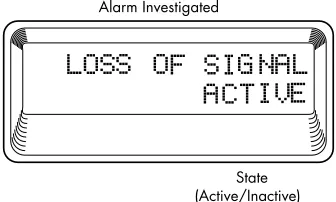
LOSS OF SIGNAL INACTIVE/ACTIVE is displayed giving the current state of the alarm.
EXIT ANY MENU FIELD OPERATION OR DISPLAY
Press Cancel as many times as required to return to the desired menu level.
Cancel is available any time during the operation. If used prior to pressing Enter after
Chapter 3. Operation TSU LT User Manual
Front Panel
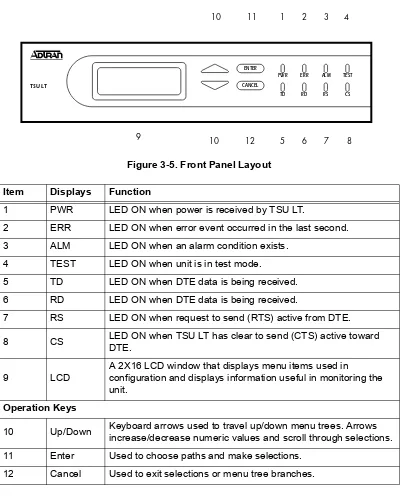
The TSU LT front panel is shown in Figure 3-5. Unit features are identified by call-outs.
Figure 3-5. Front Panel Layout
Item Displays Function
1 PWR LED ON when power is received by TSU LT.
2 ERR LED ON when error event occurred in the last second. 3 ALM LED ON when an alarm condition exists.
4 TEST LED ON when unit is in test mode.
5 TD LED ON when DTE data is being received. 6 RD LED ON when DTE data is being received.
7 RS LED ON when request to send (RTS) active from DTE. 8 CS LED ON when TSU LT has clear to send (CTS) active toward DTE.
9 LCD
A 2X16 LCD window that displays menu items used in
configuration and displays information useful in monitoring the unit.
Operation Keys
10 Up/Down Keyboard arrows used to travel up/down menu trees. Arrows increase/decrease numeric values and scroll through selections. 11 Enter Used to choose paths and make selections.
12 Cancel Used to exit selections or menu tree branches.
TSU LT
CS TEST ALM TD
PWR ERR RD RS ENTER
CANCEL
1 2 3 4
5 6 7 8 9
10 11
Chapter 4
Status Menu
STATUS
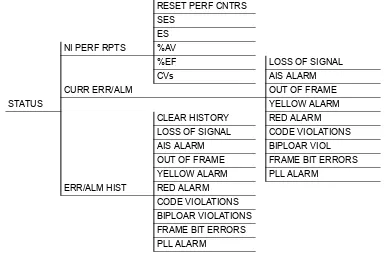
The STATUS menu branch provides the ability to view the status of the TSU LT operation. See Figure 4-1.
Figure 4-1. Status Menu
NI PERF RPTS
The Network Interface Performance Reports displays the user copy of the performance data. The TSU LT maintains this performance data on the network in compliance with ANSI T1.403 and AT&T document TR54016. The data displayed is data accumulated over the last 15 minutes and over the last 24 hours.
These fields cannot be edited, only cleared as previously discussed. Only the user copy of performance data is cleared. See Figure 4-2. Continue with standard operating procedures to exit the display.
RESET PERF CNTRS SES
ES NI PERF RPTS %AV
%EF LOSS OF SIGNAL
CVs AIS ALARM
CURR ERR/ALM OUT OF FRAME
STATUS YELLOW ALARM
CLEAR HISTORY RED ALARM LOSS OF SIGNAL CODE VIOLATIONS AIS ALARM BIPLOAR VIOL OUT OF FRAME FRAME BIT ERRORS YELLOW ALARM PLL ALARM
Chapter 4. Status Menu TSU LT User Manual
Figure 4-2. Severely Errored Seconds Screen
SES
Number of severely errored seconds
ES
Number of errored seconds
%AV
Percentage of available seconds
%EF
Percentage of error free seconds
CVs
Number of code violations
CURR ERR/ALM
The CURRENT ERROR/ALARM menu is used for viewing currently Active/Inactive errors and alarms (see
Figure 4-3).
Figure 4-3. Loss of Signal (Current Errors/Alarms) Screens
TSU LT User Manual Chapter 4. Status Menu
The Up and Down arrows are used to access the complete display of the errors/alarms that are currently active.
Alarms and Errors
The following are alarms and errors which can be seen.
Loss of Signal
No pulses received at NI
AIS Alarm
Unframed All-Ones received at NI
Out of Frame
No framing pattern sync at NI
Yellow Alarm
Receiving yellow alarm pattern from NI
Red Alarm
Loss of signal/out of frame (LOS/OOF) causing red alarm at NI
Code Violations
Cyclic redundancy check (CRC) errors in ESF, or bipolar violations (BPVs) in Superframe Format (SF) were received at NI
Bipolar Violations
BPV's in SF or ESF
Bit Errors
Frame Bits received incorrectly at NI.
PLL Alarm
Unable to sync up to selected clock
ERR/ALM HIST
The ERROR/ALARM HISTORY menu is used for viewing history of errors and alarms. If an alarm has
occurred since the last CLEAR HISTORY selection, the menu is active. If the condition has not occurred then
Chapter 4. Status Menu TSU LT User Manual
Figure 4-4. Clear History Screen
Chapter 5
Configuration Menu
CONFIG
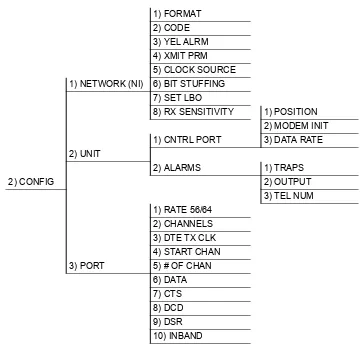
The CONFIGURATIONmenu is used to set the TSU LT operational configuration, including all of the
network interface parameters, and the allocation of the DS0s and the port parameters. See Figure 5-1.
Figure 5-1. Configuration Menu
Network (NI)
This menu is used to access the configuration of parameters associated with the network interface in the TSU LT. There are eight submenu items that include setting the format, the line build-out (LBO), and the clock source. See Figure 5-2 on page 44.
1) FORMAT 2) CODE 3) YEL ALRM 4) XMIT PRM 5) CLOCK SOURCE 1) NETWORK (NI) 6) BIT STUFFING
7) SET LBO
8) RX SENSITIVITY 1) POSITION 2) MODEM INIT 1) CNTRL PORT 3) DATA RATE 2) UNIT
2) ALARMS 1) TRAPS
2) CONFIG 2) OUTPUT
3) TEL NUM 1) RATE 56/64
2) CHANNELS 3) DTE TX CLK 4) START CHAN 3) PORT 5) # OF CHAN
Chapter 5. Configuration Menu TSU LT User Manual
Figure 5-2. Network Submenu
The fields and parameters available are:
FORMAT
Sets the frame format for the NI. Choices: D4, ESF, AUTO
CODE
Sets the line code for the NI. Choices: AMI, B8ZS
YEL ALRM
Enables and disables the transmitting of yellow alarms. Choices: ENA (enable), DISA (disable)
XMIT ALRM
Enables and disables the transmitting of performance report messages (PRM) data on the facility data link (FDL). The PRM data continues to be collected even if XMIT PRM is disabled (possible only with ESF Format).
Choices: ENA, DISA
CLOCK SOURCE
Selects the clock source for transmission toward the network from the NI. Choices: NETWORK, DTE, INTERNAL
TSU LT User Manual Chapter 5. Configuration Menu
TSU LT Clock Sources
The TSU LT is operable from various clock sources, permitting it to perform properly in many different applications. The network interface clocking options are set by using the Network Configuration menu options. Three clock source options are available:
• Network timing • DTE timing • Internal timing
Network Timing
The network is the source of timing. The received data clocking is looped back to the network where it is used to determine the transmission timing. This option is also referred to as looped timed as the transmission clock is derived from the received clock. See Figure 5-3.
Figure 5-3. Network Timed Clock Source
DTE Timing
The DTE is the source of timing. The TSU LT uses the incoming DTE clock to determine the transmission timing. This is typically used in applications such as limited distance line drivers, where it is necessary to have the DTE as the primary clock source. See Figure 5-4 on page 46.
Chapter 5. Configuration Menu TSU LT User Manual
Figure 5-4. DTE Clock Source
Internal Timing
The TSU LT is the source of timing. The TSU LT is configured to use its own internal oscillator as the source of timing. Applications include private line driver circuits where one end is set to network and the other to internal. See Figure 5-5.
Figure 5-5. Internal Clock Source
BIT STUFFING
When enabled, Bit Stuffing causes the TSU LT to monitor for ones (1s) density violations and insert a one (1) when needed to maintain ones at 12.5 percent. This option should be disabled if B8ZS is enabled, if Nx56 is selected, or if alternate channels are being used. All of these other options already ensure pulse density requirements.
TSU LT User Manual Chapter 5. Configuration Menu
SET LBO
Selects the line build-out for the network interface. In AUTO mode, the TSU LT will set the LBO based
on the strength of the receive signal.
Choices: 0dB, AUTO, -22.5dB, -7.5dB, -15dB
RX SENSITIVITY
Selects the desired receiver sensitivity setting. The factory default is NORMAL which is adequate for
most applications. The extended setting should be used only in applications where the NORMAL setting
will not suffice.
Unit
The UNIT submenu is used to change control port and alarm options. Follow standard operating procedure
to access the UNIT menu items. See Figure 5-6.
Figure 5-6. Configuration Submenu
CNTRL PORT
Used to set the unit up as the master or slave on a chain of units, and to initialize a modem and the control port data rate.
POSITION OF TSU LT
Determines if this TSU LT is at the head of a chain of units (directly connected to the modem or PC). The head of the chain is referred to as the master unit. Units down the chain are referred to as slaves or a slave unit. The setting of the Position Selection is necessary only when using a modem, in which case the head unit should be MASTER. For all other cases, select SLAVE. (The master is in charge of
control of the modem.) Choices: MASTER, SLAVE
MODEM INIT
The TSU LT is capable of initializing a modem. This menu selection is used to perform this initialization and should be selected only when the TSU LT is serving as the MASTER unit. Prior to
modem initialization it should be physically connected to the TSU LT and the power turned on. At this point, an industry-standard AT command string is used to initialize the modem. The string is also used following future power-up sequences.
Chapter 5. Configuration Menu TSU LT User Manual
DATA RATE
Selects the data rate for the control port. This should be consistent with all units on a chain and with the modem and/or PC/Proxy Agent serial port.
Choices: 1200, 2400, 9600
ALARMS
Used to initialize the method by which the control port handles alarm conditions.
TRAPS
Determines if alarm conditions should automatically send alarm messages (traps) to the controlling PC/Proxy Agent. The setting is for this unit, or for slaves if this unit is a master.
Choices: ENA, DISA
For applications where the AUTO INBANDselection is not acceptable, TRAPS should only be enabled
with the Inband selection set to ON or OFF.
OUTPUT
Selects whether the alarm traps (if enabled) are sent directly, or if the telephone number stored in the TSU LT should be dialed first (industry-standard AT dial command sent to modem).
Choices: DIRECT, DIAL
TEL NUM
This is the telephone number which is dialed to obtain alarm traps. The string can be up to 20
characters in length and is terminated with a semicolon (;) as the last character. A colon (:) character is used to represent a pause in the dial string.
For example, for number 9:5551212; dial 9, pause momentarily and then dial 5551212. This pause could be necessary to access an outside line, such as a PBX.
When editing a specific character, the arrows are used to scroll from 0 to 9, then colon (:) and
semicolon (;). The new telephone number is entered into the TSU LT only upon pressing Enter after typing the semicolon.
Choices: 20 digits (0-9, :, and ;)
TSU LT User Manual Chapter 5. Configuration Menu
Port
The menu item PORTis used to select and configure the parameters associated with the V.35/V.11 port.
RATE 56/64
This sets the base rate of the interface. The actual data rate depends on the number of DS0s assigned to the Nx port. The DTE data rate vs. the number of DS0s appears in the appendix DTE Data Rate Chart.
Choices: 56K, 64K
CHANNELS
This sets the unit to use ALTERNATE or CONTIGUOUS channels in the T1 data stream. If more than 12
channels are used, then CONTIGUOUS must be used. If not, then ALTERNATE channels may be used to
meet pulse density requirements (only necessary for Nx 64 without B8ZS). If other than a private network, the carrier must be notified of this choice.
Choices: ALT (alternate), CONT (contiguous)
DTE TX CLK
Controls the clock used by the TSU LT to accept the transmit (TX) data from the DTE. Most applications will allow for this to be set to INTERNAL. If the interface cable is long (causing a phase
shift in the data) the clock can be selected as INT-INV (Internal/Inverted). This switches the phase of the
clock which should compensate for a long cable. The factory default setting for this option is AUTO.
The AUTO DTE TX CLK setting will allow the TSU LT to automatically detect the delay from the DTE
device to the TSU LT and set the proper phase of the clock. This feature will automatically select between the INTERNAL and INT-INV settings. If the DTE provides a clock with TX data, the clock
selection is set to EXTERNAL. The TSU LT will depend on an externally supplied clock to accept the
TX data.
Choices: INTERNAL, INT-INV, EXTERNAL, AUTO
START CHAN
Used to select the channel in which the T1 stream will start. The setting must be consistent with carrier if using a public network.
Choices: 01 through 24
# OF CHAN
Used to select the number of DS0s (channels) that are to be used. The corresponding DTE rate will be this number times 56K or 64K, depending on Port Option number 1.
Choices: 01 through 24
DATA
Used to control the inverting of the DTE data. This inversion can be useful when operating with an HDLC protocol. Often used as a means to ensure ones (1s) density. TSU LTs on both ends must have identical option settings.
Chapter 5. Configuration Menu TSU LT User Manual
CTS
Used to control characteristics of CTS.
Choices: NORMAL (see Table 5-1), FORCE ON
DCD
Data Carrier Detect - Indicates to the DTE when a valid signal is being received at the Network Interface. Choices: NORMAL (see Table 5-1), FORCE ON
DSR
Data Set Ready - This signal indicates to the DTE when the DCE is turned ON and ready for
operations.
Choices: NORMAL (see Table 5-1) or FORCE ON.
INBAND
Inband Configuration Channel - Used to enable/disable an 8 kbps remote configuration channel. See Figure 5-7). When this option is set to ON, the first DS0 occupied operates in 56K mode and the DTE
clock rate is reduced by 8 kbps. The TSU LT uses this 8 kbps channel to send and receive configuration data across a T1 span. As shown in Figure 5-7, this allows the PC connected to the chain-in port on TSU LT A to monitor/configure both TSU LT A and B. This feature is useful when FDL connectivity is not available across the T1 span.
The 8 kbps channel is only taken out of the first DS0. If two 64K DS0s are mapped, the DTE rate would be 120 kbps instead of 128 kbps. This menu option can also be set to AUTO which activates the
Inband Channel only when commands are sent from T-Watch to the remote unit (TSU LT B in Figure 5-7). If no T-Watch activity is detected for 10 minutes, the Inband Channel is deactivated.
Figure 5-7. Inband Remote Configuration Table 5-1. Normal Mode Operation
NORMAL MODE OPERATION
Conditions which cause the Port Control Signals to be deactivated SIGNAL RTS V.54 LOOP BK 511 TST ON SELF-TEST
ACTIVE NETWK TEST ACTIVE NO DS0 MAPPED NETWORK ALARM
CTS Follows OFF OFF OFF OFF OFF OFF
DCD — — — OFF — OFF OFF
DSR — OFF OFF OFF OFF OFF —
Chapter 6
Utility Menu
UTIL
The UTILITY menu is used to view and to set system parameters. See Figure 6-1. This includes setting the
time and date and resetting all parameters to factory values or to re-initialize the unit. This menu is also used to view the unit’s software revision and the unit ID setting
Figure 6-1. Utility Menu
Time/Date
TIME/DATE is used to view or to edit the current time and date. The time and date are maintained during
power off conditions (see Figure 6-2). Table 6-1 on page 52 lists steps for editing the time and date.
Figure 6-2. Time/Date Screen TIME: HH:MM:SS 1) TIME/DATE DATE: MM/DD/YY
2) SOFTWARE REV Displays current software revision UTIL 3) REINIT UNIT
4) ADDRESS
5) SET PASSCODE
Chapter 6. Utility Menu TSU LT User Manual
Software Rev
Use the SOFTWARE REVISION submenu to access the display of the current software revision level. This
information is required when requesting assistance from ADTRAN Customer Service or when updates are needed.
Reinit Unit
REINIT UNIT submenu is used to reinitialize the unit. This menu item is not used to restore the factory
default settings for all parameters.
Address
ADDRESS is used to access the current UNIT ADDRESS setting. Unit identification numbers must be between
000 and 256. See Figure 6-3.
Figure 6-3. Address Screen
Set Passcode
SET PASSCODE allows a passcode to be added, changed, or deleted.
Fact Restore
The FACTORY RESTORE submenu is used to restore the factory default setting for all unit parameters. This
restores all parameters to the factory settings.
Table 6-1. Editing the Time/Date
To .... Do this ...
Record the entry and move to the next editing position
Press Enter (after any numeric change)
Move to the next editing position or field
Press Enter without making any changes at the cursor.
Chapter 7
Test Menu
TEST
The TEST menu is used to initiate different types of tests of the unit and to view test results (see
Figure 7-1). Test results are displayed in the LCD window. The menu contains three sub-items.
Figure 7-1. Test Menu
Network Tests
Network tests are used to control the activation of loopbacks and the initiation of data test patterns.
The network tests are run on the network interface (NI). Three different test configurations can be selected to determine the type of loopback and the pattern to run. Test results are displayed in the LCD window. See Figure 7-2.
Test execution will disrupt some of the normal operation. See individual menu items concerning tests before executing.
NO LOOPBACK
1) LOCAL LOOPBK LINE ON NO LOOPBACK PAYLOAD ON V.54 INBAND PLB
2) REMOTE LOOPBK ANSI FDL LLB
NETWORK TESTS AT&T INBAND LLB
3) TEST PATTERN NO PATTERN ANSI FDL PLB 1:8 ALL DS0s AT&T PLB
TEST 511 ACT. DS0s
ALL ZEROS ALL ONES 4) CLR ERRS (and error display) 5) INSERT 511 ERRRORS
RUN SELFTEST (Displays results)
Chapter 7. Test Menu TSU LT User Manual
Figure 7-2. Local Loopback Screen
LOCAL LOOPBACK
There are three choices available for setting the local loopback:
No Loopback
Deactivates the loopback.
Line On
Activates the line loopback.
Payload On
Activates the payload loopback.
REMOTE LOOPBACK
Activates the same loopbacks as the LOCAL but at the far end. This uses either the inband loopup code as
specified by AT&T 62411 for line loopback (ATT In-Band LLB), or the FDL as specified in ANSI T1.403 for payload and line loopback codes. An FDL (formerly TABS) maintenance message corresponding to AT&T TR54016 can be used for payload loopback as well.
No Loopback
Deactivates the loopback.
V.54 Inband PLB
Indicates inband transmission of V.54 loopup pattern in channels occupied by DTE data only. This choice should be used for public fractional network.
AT&T Inband LLB
Activates the line loopback using inband code.
AT&T Inband LLB
Activates the line loopback using inband code.
ANSI FDL LLB
Initiates the transmission of an FDL line loop-up code toward the far end.
AT&T PLB
TSU LT User Manual Chapter 7. Test Menu
TEST PATTERN
Sets the pattern for the test and initiates the transmission of the pattern. There are four patterns available. The test is terminated by selecting NO PATTERN.
1:8 ALL DS0s
Generates a 1 in 8 pattern in all DS0s.
511 Active DS0s
Generates a 511 test pattern and inserts the pattern into currently active channels.
All Zeros
Generates an all zero's pattern in every channel.
All Ones
Generates an all one’s pattern in every channel.
CLR ERRORS
CLR ERRORS has two functions.
1. It clears out the 511 error total when you press Enter.
2. It displays a total of the 511 errors. If 511 errors are being received, the display is updated accordingly. See Figure 7-3.
Figure 7-3. Clear Errors Screen
This menu function is very useful for testing end-to-end integrity of the network. First loop up the far end TSU LT. Then send a 511 pattern from the local TSU LT. The CLR ERRORS screen can then be
used to determine if the link is functioning properly by verifying that no errors are being counted.
INSERT 511 ERRORS
When running a 511 pattern test, press the Enter key to insert an error into the 511 pattern.
Chapter 7. Test Menu TSU LT User Manual
Run Self-test
This menu selection is used to execute an internal self-test. This is the same self-test that is performed automatically at power up. The results of the self-tests are displayed in the LCD. Upon invoking the command the LCD displays INITIALIZING and test failures are displayed in the LCD window (see Figure 7-4). To initialize a self test, proceed with the following steps:
1. RAM tests; EPROM checksum
2. On board data path; sending a known test pattern through an on-board loop 3. Front panel LED verification
4. Phase lock loop verify
If a failure is detected, note the failure number and contact ADTRAN Technical Support.
Figure 7-4. Self Test Results Screen
Port Tests
Port Tests are used to control the activation of a DTE loopback. This test loops data received at the V.35/ V.11 interface back towards the DTE. See Figure 7-5.
Figure 7-5. Loopback Setting Screen
Chapter 8
Example Operations
TESTING EXAMPLES
Before using the TSU LT to pass data, it is recommended to run tests on the circuit. Testing consists of sending a test pattern from end-to-end and checking for errors in the pattern. There are two types of tests used to accomplish this:
• Send the pattern from one end and loop back the far end. • Send the pattern from both ends and check at both ends.
Far End Looped Back Test
Two types of tests can be executed with the far end looped. The first is a check of the network and the network interfaces at both ends (511). The second is a check of the DTE port.
Network Interface Test
The Network Interface Test can be run with any channel setup because the 511 pattern is always sent in the occupied channels. Follow these steps to run this test:
1. Select TEST from the main menu. See Figure 8-1.
2. Use the Up and Down arrows to place the cursor on TEST.
3. Press Enter to select.
Result: The first two TEST submenu items display. See Figure 8-2 on page 58.
4. Use the Up and Down arrows to place the cursor on NETWORK TESTS.
5. Press Enter to select.
6. Press Enter again to enter the NETWORK TESTS menu.
Result: Beginning display of the submenu items. Each menu item can be selected with the Up and Down arrows.
Chapter 8. Example Operations TSU LT User Manual
Figure 8-2. Test Menu with NETWORK TESTS Selected
The LOCAL LOOPBACK TEST menu is shown in Figure 8-3.
Figure 8-3. Local Loopback Test Menu
The menu offers the following options:
• Line On • Payload On • No Loopback
The menu options for the REMOTE LOOPBACK TESTmenu are shown in Figure 8-4.
Figure 8-4. Remote Loopback Test Menu
The menu options for the REMOTE LOOPBACK are:
TSU LT User Manual Chapter 8. Example Operations
• AT&T Inband LLB • ANSI FDL PLB • AT&T FDL PLB
The Test Pattern screen is shown in Figure 8-5.
Figure 8-5. Test Pattern Screen
The menu options available for the TEST PATTERN SCREENare:
• No Pattern • 1:8 all DS0s • 511 Active DS0s • All Zeros • All Ones
1. Use the Up and Down arrows to place the cursor on REMOTE LOOPBK.
2. Press Enter to select.
3. Use the Up and Down arrows to set PAYLOAD in the data field. (Must use V.54 Inband PLB for
Fractional T1 on Public Networks.)
4. Press Enter to activate a REMOTE PAYLOAD LOOPBACK.
Results: This initiates the transmission of a loopup code toward the far end. When completed, do the following:
1. Use the Up and Down arrows or the number 3 to select TEST PATTERN.
2. Press Enter to activate the TEST PATTERN submenu
3. Use the Up and Down arrows to select 511 ACT. DS0S
4. Press Enter to activate the selection.
Chapter 8. Example Operations TSU LT User Manual
Figure 8-6. Clear Errors Screen
When through viewing the results, do the following:
1. Press Cancel to return to submenu item TEST PATTERN.
2. Select NO PATTERN to terminate the test and the 511 pattern generation.
Result: The far end remains in loopback until the network REMOTE LOOPBK is set to NO LOOPBACK
Appendix A
TSU LT Menu Tree
The complete menu tree for the TSU LT is shown in Figures A-1 and A-2.
Figure A-1. TSU LT Menu Tree (Status and Config)
NI PERF RPTS RESET PERF
CNTRS SES
LOSS OF SIGNAL ES
AIS ALARM %AV
OUT OF FRAME %EF
CURR ERR/ALM YEL ALARM CLEAR HISTORY CVs RED ALARM LOSS OF SIGNAL
STATUS CODE VIOLATIONS AIS ALARM
BIPOLAR VIOL OUT OF FRAME FRAME BIT ERRORS YELLOW ALARM PLL ALARM RED ALARM
CODE VIOLATIONS
ERR ALM HIST BIPOLAR VIOLATIONS FORMAT
MAIN MENU FRAME BIT ERRORS CODE
PLL ALARM YEL ALRM
XMIT PRM
NETWORK (NI) CLOCK SOURCE
BIT STUFFING
POSITION SET LBO
CONFIG CNTRL PORT MODEM INIT RX SENSITIVITY
DATA RATE UNIT
TRAPS RATE 56/64
ALARMS OUTPUT CHANNELS
TEL NUM DTE TX CLOCK
PORT START CHAN
Appendix A. TSU LT Menu Tree TSU LT User Manual
Figure A-2. TSU LT Menu Tree (Util and Test) TIME: HH:MM:SS
TIME/DATE DATE: MM/DD/YY
SOFTWARE REV Displays current software revision UTIL REINIT UNIT
ADDRESS SET PASSCODE
FACT RESTORE Returns all configurations to factory settings
NO LOOPBACK
MAIN MENU LOCAL LOOPBK LINE ON
PAYLOAD ON
NO LOOPBACK
REMOTE LOOPBK V.24 INBAND PLB
NETWORK TESTS ANSI FDL LLB
NO PATTERN AT&T INBAND LLB TEST PATTERN 1:8 ALL DS0S ANSI FDL PBL
511 ACT. DS0S AT&T PBL ALL ZEROS
TEST ALL ONES
CLR ERRS (and error display) INSERT 511 ERRORS
RUN SELF-TEST (Displays Results)
PORT TESTS DTE LOOPBK: OFF
Appendix B
DTE Data Rate Chart
The DTE data rate chart is shown in Table B-1.