Turbo PascafBJ
Version 6.0
Turbo Vision Guide
BORLAND INTERNATIONAL INC. 1800 GREEN HILLS ROAD
c
o
N
T
Introduction 1
Why Turbo Vision? ... 1
What is Turbo Vision? ... 1
What you need to know ... 2
What's in this book? ... 2
Part 1 Learning Turbo Vision Chapter 1 Inheriting the wheel 7 The framework of a windowing application . . . .. 7
A new Vision of application development. 8 The elements of a Turbo Vision application . . . .. 9
Naming of parts ... 9
Views ... 9
Events ... 9
Mute objects. . . .. 10
A common "look and feel" ... 10
"Hello, World!" Turbo Vision style ... 12
Running HELLO.P AS ... 13
Pulling down a menu. . . .. 14
A dialog box ... 15
Buttons ... 15
Getting out ... 16
Inside HELLO.PAS ... 16
The application object ... 17
The dialog box object .... . . .. 18
Flow of execution and debugging .... 19
HELLO's main program. . . .. 19
The Init method ... 20
The Run method . . . .. 20
The Done method . . . .. 21
Summary ... 21
E
N
T
s
Chapter 2 Writing Turbo Vision applications 23 Your first Turbo Vision application . . . .. 23The desktop, menu bar, and status line .. 25
The desktop . . . .. 26
The status line . . . .. 26
Creating new commands. . . .. 27
The menu bar ... 28
A note on structure . . . .. 30
Opening a window. . . .. 31
Standard window equipment . . . .. 31
Window initialization ... 33
The Insert method ... 33
Closing a window. . . .. 34
Window behavior . . . .. 34
Look through any window . . . .. 35
What do you see? ... 37
A better way to Write. . . .. 38
A simple file viewer .. . . .. 38
Reading a text file .. . . .. 39
Buffered drawing ... 40
The draw buffer ... 40
Moving text into a buffer ... 41
Writing buffer contents ... 41
Knowing how much to write ... 42
Scrolling up and down ... 42
Multiple views in a window . . . .. 45
Where to put the functionality ... 46
Making a dialog box. . . .. 47
Executing a modal dialog box ... 49
Taking control ... 50
Button, button... ... 50
Normal and default buttons ... 52
Focused controls . . . .. 52
Creating a cluster ... 53
Check box values ... 53
One more cluster. . . .. 54
Labeling the controls ... 55
The input line object. . . .. 55
Setting and getting data ... 56
Shortcut keys and conflicts ... 59
Ending the dialog box ... 61
Other dialog box controls ... 61
Static text ... 61
List viewer ... 61
List box ... 61
History ... 62
Standard dialog boxes ... 62
Part 2 Programming Turbo Vision Chapter 3 The object hierarchy 65 Object typology . .. . . .. .. .. . . .. .. .. ... 67
Abstract objects . . . .. 67
Abstract methods ... 68
Object instantiations and derivations ... 68
Instantiation ... 68
Derivation ... 69
Turbo Vision methods ... 69
Abstract methods ... 69
Pseudo-abstract methods ... 70
Virtual methods ... 70
Static methods . . . .. 70
Turbo Vision fields . . . .. 70
Primitive object types . . . .. 71
TPoint ... 72
TRect ... 72
TObject ... 72
Views ... 72
Views overview ... 73
Groups ... 73
The abstract group ... 73
Desktops ... 74
Programs ... 74
Applications ... 74
Windows ... 74
Dialog boxes ... 74
Terminal views ... 75
Frames ... 75
Buttons ... 75
Clusters ... 75
Menus ... 75
Histories . . . .. 76
Input lines ... 76
List viewers ... 76
Scrolling objects ... 76
Text devices ... 77
Static text ... 77
Status lines . . . .. 78
Non-visible elements ... ' .... 78
Streams ... 78
DOS streams ... 79
Buffered streams . . . .. 79
EMS streams ... 79
Resources . . . .. 79
Collections . . . .. 79
Sorted collections ... 80
String collections ... 80
Resource collections . . . .. 80
String lists ... 80
Chapter 4 Views 81 "We have taken control of your TV ... " .. 81
Simple view objects ... 82
Setting your sights ... 82
Getting the TPoint ... 83
Getting into a TRect ... 83
Turbo Vision coordinates ... 84
Making an appearance. . . .. 84
Territoriality ... 85
Drawing on demand ... 85
Putting on your best behavior ... 85
Complex views ... . . . .. 86
Groups and subviews ... 86
Getting into a group . . . .. 87
Another angle on Z-order ... 88
Group portraits . . . .. 89
Relationships between views ... 90
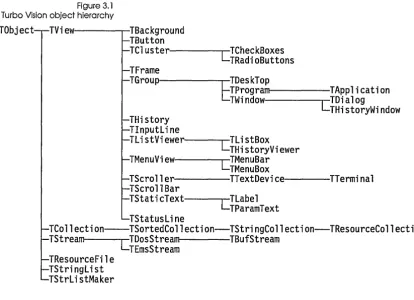
The object hierarchy . . . .. 91
Ownership . . . .. 91
Selected and focused views . . . .. 95
Finding the focused view ... 96
How does a view get the focus? ... . .. 96
The focus chain ... . . .. 97
Modal views ... 97
Modifying default behavior ... 98
The Options flag word . . . .. 98
of Selectable ... 99
ofTopSelect ... 99
ofFirstClick ... 99
ofFramed ... 99
ofpreProcess ... 99
ofpostProcess . . . .. 99
ofBuffered ... 100
ofTileable ... 100
of Center X . . . .. 100
ofCenterY . . . .. 100
of Centered . . . .. 101
The GrowMode flag byte ... 101
gfGrowLoX ... 101
gfGrowLo Y ... 101
gfGrowHiX ... 101
gfGrowHiY ... 101
gfGrow All ... 101
gfGrowRel ... 101
The DragMode flag byte ... 102
dmDragMove ... 102
dmDragGrow ... 102
dmLimitLoX ... 102
dmLimitLo Y ... 102
dmLimitHiX ... 102
dmLimitHiY ... 102
dmLimitAll ... 102
State flag and SetState ... 102
Acting on a state change ... 103
What color is your view? ... 104
Color palettes ... 105
Inside color palettes ... 105
The GetColor method ... 106
Overriding the default colors ... 107
Adding new colors . . . .. 108
Chapter 5 Event-driven programming 109 Bringing Turbo Vision to life ... 109
Reading the user's input ... 109
The nature of events . . . .. 111
Kinds of events ... 111
Mouse events ... 112
Keyboard events . . . .. 112
Message events ... . . . .. 112
"Nothing" events ... 112
Events and commands ... 113
Routing of events ... 113
Where do events come from? ... 113
Where do events go? ... 114
Positional events ... 114
Focused events ... 115
Broadcast events . . . .. 115
User-defined events . . . .. 116
Masking events ... 116
Phase ... 116
The Phase field ... 118
Commands ... 119
Defining commands .. . . .. 119
Binding commands ... 120
Enabling and disabling commands .. 120
Handling events ... 121
The event record ... 122
Clearing events . . . .. 123
Abandoned events ... 123
Modifying the event mechanism ... 124
Centralized event gathering ... 124
Overriding GetEvent. . . .. 125
Using idle time ... 125
Inter-view communication ... 126
Intermediaries ... 126
Messages among views . . . .. 127
Who handled the broadcast? ... 128
Is anyone out there? ... 128
Who's on top? ... 129
Calling HandleEvent ... 129
Chapter 6 Writing safe programs 131
All or nothing programming ... 131
. The safety pool ... 132
The ValidView method ... 133
Non-memory errors ... 134
Reporting errors ... 135
Major consumers ... 135
Chapter 7 Collections 137 Collection objects ... 138
Collections are dynamically sized ... 138
Collections are polymorphic . . . .. 138
Type checking and collections ... 138
Collecting non-objects ... 139
Creating a collection. . . .. 139
Itera tor methods ... 141
The ForEach iterator . . . .. 141
The FirstThat and LastThat iterators 142 Sorted collections ... 143
String collections . . . .. 144
Iterators revisited ... 145
Finding an item ... 146
Polymorphic collections ... 146
Collections and memory management 149 Chapter 8 Streams 151 The question: Object I/O ... 152
The answer: Streams ... 152
Streams are polymorphic. . . .. 152
Streams handle objects ... 153
Essential stream usage ... 153
Setting up a stream . . . .. 154
Reading and writing a stream ... 154
Putting it on . . . .. 155
Getting it back . . . .. 155
In case of error ... 156
Shutting down the stream . . . .. 156
Making objects streamable ... 156
Load and Store methods ... 156
Stream registration . . . .. 157
Object ID numbers ... 158
The automatic fields . . . .. 158
Register here ... 159
Registering standard objects ... 159
The stream mechanism ... 159
The Put process . . . .. 159
The Get process . . . .. 160
Handling nil object pointers ... 160
Collections on streams: A complete example ... 160
Adding Store methods. , ... 161
Registration records ... 162
Registering . . . .. 163
Writing to the stream . . . .. 163
Who gets to store things? ... 164
Subview instances ... 164
Peer view instances ... 165
Storing and loading the desktop ... 166
Copying a stream .... . . .. 167
Random-access streams ... 167
Non-objects on streams ... 168
Designing your own streams ... 168
Stream error handling ... 168
Chapter 9 Resources 169 Why use resources? ... 169
What's in a resource? ... 170
Creating a resource ... 171
Reading a resource . . . .. 172
String lists ... 173
Making string lists ... 174
Chapter 10 Hints and tips 175 Debugging Turbo Vision applications 175 It doesn't get there ... 176
Hiding behind a mask . . . .. 176
Stolen events .... . . .. 176
Blame your parents ... 177
It doesn't do what I expect ... 177
It hangs . . . .. 177
Porting applications to Turbo Vision ... 178
Scavenge your old code. . . .. 178
Rethink your organization ... 179
Using bitmapped fields . . . .. 180
Flag values. . . .. 180
Bit masks ... 180
Bitwise operations ... 181
Clearing a bit . . . .. 181
Checking bits ... 182
Using masks ... 182
Summary ... 182
Part 3 Turbo Vision Reference Chapter 11 How to use the reference 185 How to find what you want ... 185
Objects in general ... 186
Naming conventions ... 186
Chapter 12 Unit cross reference 189 The Objects unit ... 189
Types ... 190
Type conversion records ... 190
Objects unit types ... .. 190
Constants . . . .. 190
Stream access modes ... 190
Stream error codes ... 190
Maximum collection size . . . .. 191
Collection error codes ... 191
Variables ... 191
Procedures and functions ... 191
The Views unit ... 192
Types ... 192
Constants . . . .. 192
TView State masks ... 192
Views unit constants ... 193
TView Option masks ... 193
TView GrowMode masks ... 193
TView DragMode masks. . . .. 193
Scroll bar part codes . . . .. 194
Window flag masks ... 194
TWindow palette entries ... 194
Standard view commands . . . .. 194
Variables ... 194
Function . . . .. 195
The Dialogs unit ... 195
Types ... 195
Constants . . . .. 195
Button flags ... 195
Procedures and functions ... 196
The App unit . . . .. 196
Types ... 196
Variables ... 196
The Menus unit . . . .. 197
Types ... 197
Procedures and functions ... 197
TMenuItem functions ... 197
TMenu routines ... 197
TStatusLine functions ... 197
The Drivers unit ... 198
Types ... 198
Constants ... 198
Mouse button state masks ... 198
Event codes ... 198
Event masks ... 198
Keyboard state and shift masks ... 199
Standard command codes . . . .. 199
TDialog standard commands ... 199
Screen modes. . . .. 199
Variables ... 200
Initialized variables ... 200
UninitiaIized variables ... 200
System error handler variables . . .. 200
Procedures and functions ... 201
Event manager procedures ... 201
Screen manager procedures ... 201
Default system error handler function ... 201
System error handler procedures .. 201
Keyboard support functions ... 201
String formatting procedure ... 201
Buffer move procedures ... 202
String length function ... 202
Driver initialization ... 202
The TextView unit ... 202
Types ... _ . . . .. 202
Procedure. . . .. 202
The Memory unit ... 202
Variables ... 203
Procedures and functions ... 203
The HistList unit . . . .. 203
Variables ... 203
Chapter 13 Object reference 205
TSample object ... 206
Fields ... 206
Methods ... . . .. 206
TApplication ... 207
Methods . . . .. 207
TBackground . . . .. 208
Field ... 208
Methods . . . .. 208
Palette . . . .. 209
TBufStream ... 209
Fields ... 210
Methods . . . .. 210
TButton ... 212
Fields ... 212
Methods . . . .. 213
Palette ... 215
TCheckBoxes ... 215
Fields ... 215
Methods ... 216
Palette. . . .. 216
TCluster ... 217
Fields ... 217
Methods .. . . .. 218
Palette . . . .. 220
TCollection ... 221
Fields ... 221
Methods . . . .. 222
TDeskTop . . . .. 227
Methods .. . . .. 227
TDialog . . . .. 228
Methods ... . . .. 229
Palette . . . .. 229
TDosStream . . . .. 230
Fields ... 231
Methods ... 231
TEmsStream ... 232
Fields ... 232
Methods .. . . .. 233
TFrame ... 234
Methods .. . . .. 234
Palette . . . .. 235
TGroup ... 235
Fields ... 236
Methods . . . .. 237
THistory . . . .. 244
Fields ... 244
Methods . . . .. 245
Palette . . . .. 245
THistoryViewer ... 246
Field· ... 246
Methods . . . .. 246
Palette . . . .. 247
THistoryWindow ... 247
Field ... 247
Methods . . . .. 247
Palette . . . .. 248
TInputLine . . . .. 248
Fields ... 249
Methods . . . .. 250
Palette . . . .. 252
TLabel ... 253
Fields ... 253
Methods . . . .. 253
Palette . . . .. 254
TListBox . . . .. 255
Field ... 255
Methods . . . .. 256
Palette . . . .. 257
TListViewer . . . .. 258
Fields ... 258
Methods . . . .. 259
Palette. . . .. 261
TMenuBar ... 262
Methods . . . .. 262
Palette . . . .. 263
TMenuBox . . . .. 263
Methods . . . .. 263
Palette ... 264
TMenu View. . . .. 264
Fields ... 265
Methods . . . .. 265
Palette . . . .. 267
TObject ... 267
Methods . . . .. 267
Fields ... 268
Methods . . . .. 268
Palette . . . .. 269
TPoint ... 269
Fields ... 269
fProgram . . . .. 270
Methods . . . .. 270
Palettes . . . .. 274
TRadioButtons ... 276
Methods . . . .. 277
Palette . . . .. 277
TRect ... 278
Fields ... 278
Methods . . . .. 278
TResourceCollection ... 279
TResourceFile ... 279
Fields ... 280
Methods . . . .. 280
TScrollBar ... 282
Fields ... 282
Methods . . . .. 283
Palette . . . .. 286
TScroller ... 286
Fields ... 286
Methods . . . .. 287
Palette . . . .. 288
TSortedCollection . . . .. 289
Methods . . . .. 289
TStaticText ... 290
Field ... 291
Methods . . . .. 291
Palette . . . .. 292
TSta tusLine ... 292
Fields ... 293
Methods . . . .. 293
Palette . . . .. 294
TStream ... 295
Fields ... 295
Methods . . . .. 296
TStringCollection ... 298
Methods . . . .. 299
TStringList . .. . . .. .. .. . . .. .. . . .. . ... 299
Methods . . . .. 300
TStrListMaker ... . Methods ... . TTerminal ... . Fields ... . Methods ... . Palette ... . TTextDevice ... . Methods ... . Palette ... . TView ... . Fields ... . Methods ... . TWindow ... . Fields ... . Methods ... . Palette ... .
Chapter 14 Global reference
Sample procedure ... '.' .. Abstract procedure ... . Application variable ... . AppPalette variable ... . apXXXX constants ... . AssignDevice procedure ... . bfXXXX constants ... . ButtonCount variable ... . CheckSnow variable ... . ClearHistory procedure ... . ClearScreen procedure ... . cmXXXX constants ... . coXXXX constants ... . CStrLen function ... . CtrlBreakHit variable ... . CtrlToArrow function ... . CursorLines variable ... . DeskTop variable ... . DisposeMenu procedure ... . DisposeStr procedure ... . dmXXXX constants ... . DoneEvents procedure ... . DoneHistory procedure ... . DoneMemory procedure ... . DoneSysError procedure ... .
DoneVideo procedure ... 338
DoubleDelay variable ... 339
EmsCurHandle variable ... 339
EmsCurPage variable. . . .. 339
evXXXX constants ... 340
FN ameStr type ... 341
FocusedEvents variable ... 341
FormatStr procedure ... 341
FreeBufMem procedure . . . .. 343
GetAltChar function . . . .. 343
GetAltCode function ... 343
GetBufMem procedure ... 344
GetKeyEvent ptocedure ... 344
GetMouseEvent procedure ... 345
gfXXXX constants ... 345
hcXXXX constants ... 346
HideMouse procedure . . . .. 347
HiResScreen variable . . . .. 347
HistoryAdd procedure ... 347
History Block variable ... 347
HistoryCount function . . . .. 348
HistorySize variable . . . .. 348
HistoryStr function . . . .. 348
HistoryUsed variable ... 348
InitEvents procedure ... 349
InitHistory procedure ... 349
InitMemory procedure ... 349
InitSysError procedure ... 349
InitVideo procedure . . . .. 350
kbXXXX constants ... . . . . .. 350
LongDiv function ... 352
LongMul function. . . .. 353
LongRec type. . . .. 353
LowMemory function ... 353
LowMemSize variable . . . .. 353
MaxBufMem variable ... 354
MaxCollectionSize variable . . . .. 354
MaxViewWidth constant. . . .. 354
mbXXXX constants ... 354
MemAlloc function. . . .. 355
MemAllocSeg function ... 355
MenuBar variable ... . . .. 355
Message function ... 356
Min WinSize variable ... 356
MouseButtons variable ... 356
MouseEvents variable ... 357
MouselntFlag variable . . . .. 357
MouseWhere variable ... 357
MoveBuf procedure . . . .. 357
MoveChar procedure . . . .. 358
MoveCStr procedure ... 358
MoveStr procedure. . . .. 358
N ewItem function ... 359
NewLine function. . . .. 359
N ewMenu function ... 359
N ewSItem function ... 360
NewStatusDef function ... 360
NewStatusKey function ... 360
NewStr function ... 361
NewSubMenu function ... 361
of XXX X constants ... 361
PChar type. . . .. 363
PositionalEvents variable ... 363
PrintStr procedure ... 363
PString type . . . .. 364
PtrRec type ... 364
RegisterDialogs procedure ... 364
Registertype procedure ... 364
RepeatDelay variable ... 365
SaveCtrlBreak variable ... 365
sbXXXX constants ... 365
ScreenBuffer variable . . . .. 366
ScreenHeight variable ... 366
ScreenMode variable ... 367
Screen Width variable . . . .. 367
SelectMode type .... . . .. 367
SetMemTop procedure ... 367
SetVideoMode procedure ... 368
sfXXXX constants. . . .. 368
Shadow Attr variable ... 370
ShadowSize variable ... 370
ShowMarkers variable . . . .. 370
ShowMouse procedure ... 371
smXXXX constants ... 371
SpecialChars variable . . . .. 371
StartupMode variable ... 372
StatusLine variable . . . .. 373
StreamError variable ... 373
SysColorAttr variable ... 373
SysErrActive variable.· ... 374
SysErrorFunc variable ... 374
SysMonoAttr variable ... 374
SystemError function ... 375
TByteArray type . . . .. 375
TCommandSet type ... 376
TDrawBuffer type. . . .. 376
TEvent type ... 376
TItemList type . . . .. 377
TMenu type . . . .. 377
TMenuItem type . . . .. 378
TMenuStr type ... : ... 379
TPalette type ... 379
TScrollChars type ... 379
TSItem type . . . .. 379
TStatusDef type ... 380
TStatusItem type ... 380
TStreamRec type . . . .. 381
TStrIndex type ... 382
TStrlndexRec type ... 382
TSysErrorFunc type ... 382
TT erminalBuffer type. . . .. 383
TTitleStr type. . . .. 383
TVideoBuf type . . . .. 383
TWordArray type . . . .. 383
wfXXXX constants . . . .. 383
wnNoNumber constant. . . .. 384
WordRec type ... 384
wpXXXX constants ... 385
T
A
B
L
E
s
2.1: Data for dialog box controls ... 58 14.16: Special key codes ... 351
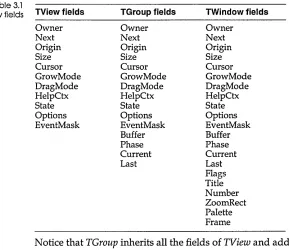
3.1: Inheritance of view fields ... 71 14.17: Alt-number key codes ... 351
5.1: Turbo Vision command ranges ... 120 14.18: Function key codes ... 352
11.1: Turbo Vision constant prefixes .... 187 14.19: Shift-function key codes ... 352
12.1: Turbo Vision units ... 189 14.20: Ctrl-function key codes ... 352
13.1: Stream error codes ... 295 14.21: Alt-function key codes ... 352
14.1: Application palette constants ... 329 14.22: Mouse button constants ... 354
14.2: Button flags ... 329
14.3: Standard command codes ... 331
14.23: Option flags ... 361
14.24: Scroll bar part constants ... 365
14.4: Dialog box standard commands ... 332 14.25: StandardScrollBar constants ... 366
14.5: Standard view commands ... 333 14.26: State flag constants ... 368
14.6: Collection error codes ... 334 14.27: Screen mode constants ... 371
14.7: Control-key mappings ... 335 14.28: Stream access modes ... 372
14.8: Drag mode constants ... 337 14.29: Stream error codes ... 372
14.9: Standard event flags ... 340 14.30: System error function codes ... 374
14.1 0: Standard event masks ... 340 14.31: System error function return 14.11: Format specifiers and their results .342 values ... 374
14.12: Grow mode flag definitions ... 346 14.32: SystemError function messages .. 375
14.13: Help context constants ... 346 14.33: Stream record fields ... 381
14.14: Keyboard state and shift masks ... 350 14.34: Window flag constants ... 384
F
G
u
R
E
s
1.1: Turbo Vision objects onscreen ... 11 4.8: Basic Turbo Vision view tree ... 92
1.2: The HELLO.PAS startup screen ... 13 4.9: Desktop with file viewer added ... 93
1.3: The HELLO.P AS Hi menu ... 14 4.10: View tree with file viewer added ... 93
1.4: The Hello World! dialog box ... 15 4.11: Desktop with file viewer added ... 94
2.1: Default TApplication screen ... 25 4.12: View tree with two file viewers 2.2: TVGUID04 with multiple windows added ... 94
open ... 35 4.13: The focus chain ... 96
2.3: TVGUID05 with open window ... 37 4.14: Options bit flags ... 99
2.4: Multiple file views ... 41 4.15: GrowMode bit flags ... 101
2.5: File viewer with scrolling interior .... 44 4.16: DragMode bit flags ... 102
2.6: Window with multiple panes ... 46 4.17: State flag bit mapping ... 103
2.7: Simple dialog box ... 49 4.18: TScroller's default color palette .... 105
2.8: Dialog box with buttons ... 51 4.19: Mapping a scroller's palette onto a 2.9: Dialog box with labeled clusters window ... 106
added ... 55 5.1: TEvent. What field bit mapping ... 112
2.10: Dialog box with input line added ... 56 13.1: GrowMode bit mapping ... 307
2.11: Dialog box with initial values set ... 59 13.2: DragMode bit mapping ... 307
3.1: Turbo Vision object hierarchy ... 66 13.3: Options bit flags ... 308
4.1: Turbo Vision coordinate system ... 84 14.1: Drag mode bit flags ... 337
4.2: TApplication screen layout ... 87 14.2: Event mask bit mapping ... 340
4.3: Side view of a text viewer window ... 88 14.3: Grow mode bit mapping ... 345
4.4: Side view of the desktop ... 89 14.4: Options bit flags ... 363
4.5: A simple dialog box ... 90 14.5: Scroll bar parts ... 366
4.6: Turbo Vision object hierarchy ... 91 14.6: State flag bit mapping ... 369
N T R
o
Du
c
To
NThis volume contains complete documentation for Turbo Vision, a whole new way of looking at application development. We describe not only what Turbo Vision can do and how, but also why. If you take the time to understand the underlying principles of Turbo Vision, you will find it a rewarding, time-saving, and productive tool: You can build sophisticated, consistent interactive applications in less time than you thought possible.
Why
Turbo Vision?
After creating a number of programs with windows, dialogs, menus, and mouse support at Borland, we decided to package all that functionality into a reusable set of tools. Object-oriented programming gave us the vehicle, and Turbo Vision is the result.
Does it work? You bet! We used Turbo Vision to write the new integrated development environment for Turbo Pascal in a fraction of the time it would have taken to write it from scratch. Now you can use these same tools to write your own applications.
With Turbo Vision and object-oriented programming, you don't have to reinvent the wheel-you can inherit ours!
If you write character-based applications that need a high-performance, flexible, and consistent interactive user interface, Turbo Vision is for you.
What
is Turbo Vision?
endlessly recreating the basic platform on which you build your application programs.
Turbo Vision is a complete object-oriented library, including:
• Multiple, resizeable, overlapping windows • Pull-down menus
• Mouse support • Dialog boxes
• Built-in color installation
• Buttons, scroll bars, input boxes, check boxes and radio buttons • Standard handling of keystrokes and mouse clicks
• And more!
Using Turbo Vision, all your applications can have this state-of-the-art look and feel, with very little effort on your part.
What you need to know
You need to be pretty comfortable with object-oriented
programming in order to use Turbo Vision. Applications written in Turbo Vision make extensive use of object-oriented techniques, including inheritance and polymorphism. These topics are covered in Chapter 4, "Object-oriented programming," in the User's Guide.
In addition to object-oriented techniques, you also need to be familiar with the use of pointers and dynamic variables, because nearly all of Turbo Vision's object instances are dynamically allocated on the heap. You may want to review the extended syntax of the New function, which allows the inclusion of a constructor as a parameter. Most instances of Turbo Vision objects are created that way.
What's in this book?
Because Turbo Vision is new, and because it uses some techniques that might be unfamiliar to many programmers, we have
This manual is divided into three parts:
• Part 1 introduces you to the basic principles behind Turbo Vision and provides a tutorial that walks you through the process of writing Turbo Vision applications.
• Part 2 gives greater detail on all the essential elements of Turbo Vision, including explanations of the members of the Turbo Vision object hierarchy and suggestions for how to write better applications.
p
A
R
T
1
c
H A p T E R1
Inheriting the wheel
How much of your last application was meat, and how much was bones?
The meat of an application is the part that solves the problem the application was written to address: Calculations, database manipulations, and so on. The bones, on the other hand, are the parts that hold the whole thing together: Menus, editable fields, error reporting, mouse handlers, and so on. If your applications are like most, you spend as much or more time writing the bones as you do the meat. And while this sort of program infrastructure can in general be applied to any application, out of habit most programmers just keep writing new field editors, menu
managers, event handlers, and so on, with only minor differences, for each new project they begin.
You've been warned often enough to avoid reinventing the same old wheel. So here's your chance to stop reinventing the wheel-and start inheriting it.
The framework of a windowing application
T Application, and you create a descendant object of T Application-call it MyApplication, perhaps-to act as your application. Then you add to MyApplication what it needs to get your job done.
At the very highest level, that's all there is to it. The entire begin .. end block of your application program looks like this:
begin
MyApplication.lnit: MyApplication.Run; MyApplication.Done; end.
{ Set the application up, .. . { ... run it, .. . ... and then put it away when you're done!
A new Vision of application development
You've probably used procedure/function libraries before, and at first glance Turbo Vision sounds a lot like traditional libraries. After all, libraries can be purchased to provide menus, windows, mouse bindings, and so on. But beneath that superficial
resemblance is a radical difference, one that is worth
understanding to avoid running up against some very high and very hard conceptual walls.
The first thing to do is remind yourself that you're now in object country. In traditional structured programming, when a tool such as a menu manager doesn't quite suit your needs, you modify the tool's source code until it does. Going in and changing the tool's source code is a bold step that is difficult to reverse, unless you somehow take note of exactly what the code originally looked like. Furthermore, changing proven source code (especially source code written by somebody else) is a fine way to introduce obnoxious new bugs into a proven subsystem, bugs that could propagate far beyond your area of original concern.
With Turbo Vision, you never have to modify the actual source code. You "change" Turbo Vision by extending it. The T Application application skeleton remains unchanged inside APP.TPU. You add to it by deriving new object types, and change what you need to by overriding the inherited methods with new methods that you write for your new objects.
shouldn't try to just "pull out" mouse support and use it-the "pulling out" would be more work than writing your own mouse bindings from scratch.
These two recommendations are the foundation of the Turbo Vision development philosophy: Use object-oriented techniques
fully, and embrace the entirety of Turbo Vision on its own terms. This
means playing by Turbo Vision's "rules" and using its component object types as they were intended to be used. We created Turbo Vision to save you an enormous amount of unnecessary, repetitive work, and to provide you with a proven application framework you can trust. To get the most benefit from it,let Turbo Vision do the work.
The elements of a Turbo Vision application
Naming of parts
Views
Views are covered in detail in Chapter 4.
Events
Before we look at how a Turbo Vision application works, let's take a look at "what's in the box" -what tools Turbo Vision gives you to build your applications with.
A Turbo Vision application is a cooperating society of views,
events, and mute objects.
A view is any program element that is visible on the screen-and
all such elements are objects. In a Turbo Vision context, if you can see it, it's a view. Fields, field captions, window borders, scroll bars, menu bars, and dialog boxes are all views. Views can be combined to form more complex elements like windows and dialog boxes. These collective views are called groups, and they operate together as though they were a single view. Conceptually, groups may be considered views.
Views are always rectangular. This includes rectangles that contain a single character, or lines which are only one character high or one character wide.
An event is some sort of occurrence to which your application
Events are explained in detail in Chapter 5.
Mute objects
A common ulook
and feel"
Turbo Vision's application skeleton as they occur, then they are processed in order by an event handler. The T Application object, which is the body of your application, contains an event handler. Through a mechanism that will be explained later on, events that are not serviced by T Application are passed along to other views owned by the program until either a view is found to handle the event, or an "abandoned event" error occurs.
For example, an F1 keystroke invokes the help system. Unless each view has its own entry to the help system (as might happen in a context-sensitive help system) the F1 keystroke is handled by the main program's event handler. Ordinary alphanumeric keys or the line-editing keys, by contrast, need to be handled by the view that currently has the focus; that is, the view that is currently interacting with the user.
Mute objects are any other objects in the program that are not
views. They are "mute" because they do not speak to the screen themselves. They perform calculations, communicate with peripherals, and generally do the work of the application. When a mute object needs to display some output to the screen, it must do so through the cooperation of a view. This concept is very
important to keeping order in a Turbo Vision application: Only views may access the display.
Nothing will stop your mute objects from writing to the display with Turbo Pascal's Write or Writeln statements. However, if you write to'the display "on your own," the text you write will disrupt the text that Turbo Vision writes, and the text that Turbo Vision writes (by moving or sizing windows, for example) will obliterate this "renegade" text.
All these items are described in Chapter 4, "Views."
Figure 1.1 lurbo Vision objects
[image:26.489.150.429.165.334.2]onscreen
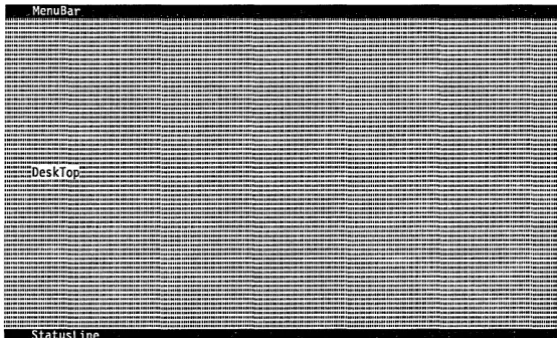
Figure 1.1 shows a collection of common objects that might appear as part of a Turbo Vision application. The desktop is the shaded background against which the rest of the application appears. Like everything else in Turbo Vision, the desktop is an object. So are the menu bar at the top of the display and the status line at the bottom. Words in the menu bar represent menus, which are "pulled down" by clicking on the words with the mouse pointer or by pressing hot keys.
MenuBar
... , . . . 1111 .. 111111.' .. 11111."" .. 111 . . . . " ... ' ... 1111111 ... 11111111111 .. 11 . . . 1111 . . . 11111111 .. 11 . . . 11111 . . . " . . . II .. llIlInllll . . . IIII ... II . . . ..
, . . . 10 . . . '" . . . 11 . . . 11 . . . 11 . . . .
••• ,11.111111 ... 111 . . . . 1."" .. ' .. " . ' ... 11 ... ' ... III.II."O . . . ".'" •• III .. II.' ... H .... II.I.I .. '"I ... 11.11 . . . . 11 .... 11.11.11.11 ... 11.11.11 ... 11 ... 11 ... 11.11 .. 11 ... " . . . 11.111 ... 11 ... 11 .. 11 . . . . 111111111 ... 11111 ... 11111111 . . . 1111 .... 11 .. 111111 . . . . 111.11 ... 11 . . . 11 ... 111111 . . . 111111 ... 111111111"".11 . . . 11 . . . 111" . . . 1 . . . , ... 11 ... M . . . .
... , ... , ... 11 ... 11 ... , ... M." ... II ... II ... 1 ... 11 . . . " . . . 1 ... " . . . 11 ... I1 . . . . I1 ... I .. " . . . I1 . . . . IIII ... M . . . 1 . . . 11 . . . . • 11 . . . 11 . . . 11 . . . 11 . . . 1 . . . . .
'n." ... II ... n'"IIII .. ' .. II ... III ... II.I . . . "" ... II .. lnll .. II" ... II ... IIIIII ... II . . . . 1I1I1 .. IIII'"I1 . . . I1 ... IIII . . . I1 ... MIII 1 .. ' . . . 11 ... 11 ... 1 ... 11 ... 11 ... 1 . . . 11 . . . 1 ... ..
. . . 11 . . . , . . . " . . . . . ... 1 ... " ... 11 . . . 1 .. 1 ...
. . . , . . . 1.1 . . . . 1 ... 11 ... 11 . . . 6 ... 1 . . . ,,, •••• 11 . . . , ... .. . . . 11 . . . , ... M . . . . .
.. ., . . . 1 ... " .. 1 .... 111111 ... 11 .. 11 ... 11 . . . 11 ... 11111111" . . . IIIIIII .. III .. III .. II ... I ... II . . . I1 . . . IIIIIIIII .. ' ... M . . . 11 ... 1 . . . " . . . . . . . 11 . . . ' . . . . 11111 .. 11 ... 11 . . 11 . . . 11 ... '.111111 . . . 6110 . . . 1 .. 1111 . . . 11 . . . . . . 6 . . . 11 ... .. ... '"' ... 11 ... 11 ... 1 . . . 11 ... 11.11 ... 11 ... ' . . . 11 . . . . . . . . ' ... 11 ... 11 ... 111 •• 1 ... 11 ... 1 .. ' . . . 11 . . . 11 ... ' ... 11 . . . II," . . . H . . . H .... II . . . ..
. . . 11 . . . . .
. . . 8 . . . 11 ... " ... " . . . 1 . . . 11 ... ... , . . . 11.11 .. 1 ... ' ... 11 ... , ... II, ... II.IIIII.II.n.II ... I ... ".I .. M . . . ' . . . H .... II ... I . . . H . . . . ... H . . . " ... H . . . . H . . . H . . . ..
... 1 ... 1111 .. 111 ... 1111 .. 11 ... 1" .. 111111 .... 11 ... 11 ... 111111.111111.1111 . . . . 1 . . . 11 • • 1111 .. 11 . . . " . . . 11 .. "" .. 11 .. 1 . . . " ... 1 . . . 11.1 . . . 111 ... , .. , ... , . . . 11 ... , . . . '.II.III . . . H . . . " ... " .... 11 ... " . . . , . . . 18 ... 11 ... 111.' . . . 111 . . . , . . . H ... II .... II . . . H . . . .. .... 11111111 .... 11 . . . ' ... 1 ... 1 .. 11111.11.111 ... , .. ,." ... , ... I1 ... I1 ... HI ... II.IIIII.II ... I1 ... II.M .... I1 . . . ' . . . I ... II ... I . . . III . . . '".II.II . . .
... , ... 1111 ... 111 ... 111 ... 11111 . . . , . . . 11 ... 11 . . . 1111111 . . . 1 . . . 11 ... " . . . 11111 .. 1 . . . . 1 ... "
. . . II . . . H . . . 'M . . . H . . . . .
. . . 11111' ... 111 .. 111 . . . , .. , ... ' .... I " .... II.H . . . , ... " ... II ... 11 ... "1 ... "
... II .. I1 .... N .. IIIII.IIIIII ... I ... III ... III . . . " .. 11'1111111111 ... 1111 . . . 1111 .. 111111111111111 . . . 11 . . . 11 . . . IIIIII.II . . . ".IIINIIIIIII ... .. . . . 11 . . . 1 . . . " . . . M . . . II . . . H . . . . .
::::::::::::DeskTop:::::::::::::::::::::::::::::::::::::::::::::::::?::::::::::::::::::::::::::::=::::::::::::::::::::::::::::::::E:::::::::::::::::::::::::::::::::::::::::::::::::::::::::::::::=:E:::::::::::Em
1 ... 11 . . . 11 ... 11 ... 1 ... 1111" . . . . 1 . . . 11 . . . 1111 .. ".1111 ... 1 ... 1 ... 11111111111 ... " . . . 1" . . . I . . . , . . . . ... 11 .. " ... 111 ... 111111 ... 1 ... 111111 .. 11 ... ''' ... 1111 . . . "" . . . . 11111 . . . 11 .. 111 ... '" ... 11.11 ... 11 . . . 11 .. 111 ... 1
. . . , . . . H . . . H . . . . .
... 11 ... 11 . . . " .. 1 ... 1111 . . . 11 . . . , . . . 11 . . . 11 ... 11 ... 1111' ... 11 . . . 11 . . . " ... 11 . . . 1 ... . .... 11' .. 11111 . . . 11 ... 111111 ... 1 .. 1 ... 1111 .. 11' ... 11.11 .. 1 . . . 11 ... 11111"1111 . . . 11 ... " ... 11 . . . 1 ... 1 . . . 11 ... . . . . II . . . II . . . M . . . . ... 1 .... " . . . " ... 11 ... 1 ... I ... II ... II'.H ... IIII ... I1 . . . I1 . . . IIM . . . 11 . . . " ... .. . . . " . . . 11 . . . . "" . . . . 11 ... 11 . . . . " . . . " . . . 11." ... 11 . . . 111 .. 1111 ... ' .... 1 . . . 11111111 . . . 1111 . . . . . ... H ... H ... , ... H . . . . H' ... I I . . . . . .... 0 ... 1 ... ' . . . 11 ... " . . . 11 . . . 11111 ... 1" .... " . . . 1111 ... 11 . . . 11" . . . 11 ... 11 .... . ... 1 . . . 1111111 . . 11111111 . . . 1111 . . . , ... ""11 ... 11111111 .. 111 ... 1 ... 11 . . . . 11111.11' ... 1 . . . 11 .... 11 .. " •• " ... ' . . . 111111 . . . ".""1111111 .. 1
. . . H . . . , .. , . . . H . . . . .
... ,11 ... 11111111111111 .... 11 . . . 1111 .. 111111 .... 1 ... IIIIIII .. IIIIIII .. ' ... IIII .. III .. ln.IIII ... II ... 1I11 . . . 11 . . . 11 . . . 11 . . . 11 ... .. ... " ... IIII".IIII ... H . . . III . . . IIIIII ... 11.11 .. 1 . . . 1 ... 1 ••• 11.111111 ... " . . . ""11 ... 1 . . . 1111111 ... 11 ... 11 ... 1"' . . . , . . . 1111 ... " . . . 11 . . . . ... , ... ' .. 1111 .. 11"11 .... 111 ... ' . . . 1111 .. ""11 ... 1 . . . 11 ... 1" ... 11 . . . , . . . . 11111 .... 1 ... 11" ... """11 .. 111111111 ... 1 ... 111' ... 11 ... 111111 ... " . . . 11.111111 . . . 1111 . . . . "'" .. ' ... 11 . . . " . . . . 111 .. 111.1111 . . . 11.11 ... .. ... , ••• H ... H . . . H ... ,,, . . . , H . . . H . . . .. ... IIII ... 'H . . . . I1'" ... I1 ... IIIII . . . 11 ... 1 . . . 111 ... 11" . . 1 . . . " . . . . 11 . . . 1 ... . ... 11.11 ... "1 .. 111111 .. 1 ... ' ... 11 ... 11.11 .. 11 .. 11 . . . ' .... 111111111.11111 .. 11 ... 11111 . . . . " ... ,,,.III . . . IHIII ... IIIIII ... ' ... ,
. . . 11 . . . H . . . , . . . II.H . . . H . . . . . .
. . . 11 . . . 1111 .. 11111111111 ... 111111 ... 11 .. 111 ... " . . . " ... 1111 •• 1111 . . . 1 ... 1 ... 111 .. ... 1111.' ... 1 . . . 1111 •• 11 . . . . 11 ... H ... ' ... I1 ... IIII ... H . . . , . . . II . . . '" ... " ... H . . . I ... " . . . .. . . . I . . . . I1 ... II.III .... I .... H ... 11 ... 1 . . . " .... 11 ... 11 . . . " . . . H, . . . .., ... II ... .. ... , ... H ... 11 . . . 1 ... I ... " . . . II.II . . . . " ... H .... II
.... H ... H ... H ... H . . . . H ... , ... , ... " . . . H." ... H . . . .. .. 11 . . . ..,11 .. 11111.1111 .. 11 .... ' ... 1111111 . . . . 111 . . . 111111 . . . 11 ... 11'" ... 1111 ... 11 .. 11' . . . 1111 .. 11 .. 111111111 . . . 11"' . . . "" . . . . , ... 1111 ... 11 ... 111" ... . . ... 1111 .... '"1 ... 11 . . . 1111 ... " ... I1 . . . IIII . . . I1 . . . II.II ... IIIHIII .. I ... IIIIII"I" . . . 1111 ... 111 . . . .. 11 . . . " ... 111 ... 11 . . . " ... HII . . . II . . . II ... II . . . I . . . 8 ... 11 . . . .. ... I ... IH ... III ... I .... ' ... I1." . . . 111111111" . . . " . . . 11111 . . . ' . . . 11 . . . H.HII" . . . .. .... 11 .. 1111 . . . 1111111 ... "" .. ,, ... 1 ... 1 ... 111 . . 11" .. '8 .... " . . . II.NINI . . . I1 ... IIIIII •
. . . 11 . . . . .
StatusLine
The text that appears in the status line is up to you, but typically it displays messages about the current state of your application, shows available hot keys, or prompts for commands that are currently available to the user.
When a menu is pulled down, a highlight bar slides up and down the menu's list of selections in response to movements of the mouse or cursor keys. When you press Enter or click the left mouse button, the item highlighted at the time of the button press is selected. Selecting a menu item transmits a command to some part of the application.
the bottom of the window, the right side of the window, or both. The scroll bar indicates the window's position relative to the entirety of the data being displayed.
Dialog boxes often contain buttons, which are highlighted words that can be selected by clicking on them (or by Tabbing to the button and pressing Spacebar). The displayed words appear to move "downward" in response to the click (as a physical push-button would) and can be set to transmit a command to the application.
"Hello, World!" Turbo Vision style
The "Hello, World" code is given in the file HELLO.PAS on your distribution disks.
The traditional way to demonstrate how to use any new language or user interface toolkit is to present a "Hello, world" program written with the tools in question. This program usually consists of only enough code to display the string "Hello, World" on the screen, and to return control to DOS.
Turbo Vision gives us a different way to say "Hello, World!"
The classic "Hello, World" program is not interactive (it "talks" but it doesn't "listen") and Turbo Vision is above all a tool for producing interactive programs.
The simplest Turbo Vision application is much more involved than a Writeln sandwiched between begin and end. Compared to the classic "Hello, World" program, Turbo Vision's HELLO.P AS does a fair number of things, including
• clearing the desktop to a halftone pattern
• displaying a menu bar and a status line at the top and bottom of the screen
• establishing a handler for keystrokes and mouse events
• building a menu object "behind the scenes" and connecting it to the menu bar
• building a dialog box, also "behind the scenes" • connecting the dialog box to the menu
• waiting for you to take some action, through the mouse or keyboard
Nowhere in this list is there anything about displaying text to the screen. Some text has been prepared, but it's all in the
Running
HELLO.PAS
Figure 1.2 The HELLO.PAS startup screen
something to keep in mind while you're learning Turbo Vision: The essence of programmIng with Turbo Vision is designing a custom view and teaching it what to do when it receives
commands. Turbo Vision-the framework-worries about getting your view the proper commands. You only have to worry about what to do when the keystroke, mouse click, or menu command finds its way to your view's code.
The meat of your program is the code that performs some meaningful work in response to commands entered by the user-and this "meaty" code is contained in the view objects you create.
Before we dissect HELLO.P AS in detail, it would be a good idea to load the program, compile it, and follow through its execution.
When run, Hello clears the screen, and creates a desktop like that shown in Figure 1.2. No windows are open, and only one item appears in the menu bar at the top of the screen: the command Hello. Notice that the "H" in Hello is set off in a different color from the "ello", and that the status bar contains a message: Alt-X Exit.
Hello
IIIIIIIHINI"'IIIIIIII.,,''''HI'' ••• 'OI,IIIII.IIIHI .. , •• ,.II.'III,III .. IIII ... , .. IIIIH." •••• I " " I I I I , I . ' " I ' " I I . " . I I I I I I I I I ' " 1 I I I " ' " ' . . . I .. IIIIII .... n ... "" ... I"" ... HIIIIHI ... '"IIII ... I " l n l .. I I I . H I "
. . . I . . . ' ' ' . . . III . . . II . . . IHI . . . O . . . 111 . . . ' " ' . . . 11.11 . . . 11 . . . . " ' " ' . . . ""11 . . . 111 . . . 1 . . ' . . . . .
IH ... '"III' ... IIII .. IIII .... II ... III.III •• III ... II", . . ' " ' " I I I I ' ' ' ' " I I I I ... I.IIII.'''''''N'"'"'"'.'.'"'N'"'NII'' •• 1I1 •• III . . . I1 ... '_' .... IIH . . . ' .. ' ... I • • • ' ... ,.""''''N
. . . " . . , . . , . . , . . , . . , ... , . . , . . , ... , . . . . , . . , ... " . , . . . , . . . ' ... 11 . . . ' . ' . . . . , . . . ,,, . . . 11, ... 11 ... II . . . , " , . . . , . . , . . . ' . . . H' . . . " • • • , . , •
... 11 ... , ... , ... , ... , ... , ... , ... ' ... 11 . . . , . . . . .
,111111 ... ' ••• 11.1 ... ,111111 ... 1111 . . . 1., ... 11' . . . . '11 . . . ' . . . , . . . ' " ' . . . . ' . . . " .... " ' . ' . . . , • • " ... , . . . . 1 .. 11 .... " . . . ' . . . . , ... , . . . . , . . . . 11 . . . , . .
, ... ' ... H .... H • • ' . . . , .. , . . . HII" . . . . ' . . . , . " .. , . . . . " . . . ' " ' • • • ' .. 1 . . . 1 ... 11 ... , .. ' . . . . '.11.' .. ' . . . , . . . , . . . . , ... '"1" .... 11'".11' .. '" ' .. , ..
' " . . . ' " . . . 11 . . . " . . . 11 . . . , . . . 11 . . . 11 ... 11.11 •• 11 . . . , . . . , . . . 11 . . . ' " . . . ' . . . . .
, ... H ... H ... ' . ' . . . H ... II ... , . . . ' ... ".11 . . . 1 . . ' . . ' " . . . 11 . . . ' . " . . . ' . . ' " .... 11'" ... , ... ' .. ' " . I I .... II ... II . . . ' . . 'H' . . ' . . ' . . . . .
' ... 11 •• " .. ' .... 111111 ... 11'".11 ••• 0' ... 11' ... 11.'.' ... 1 .. ' ... 'H'"' .. '"' ... II.'I.'" ... ' .. '"II ... '"'.'" ... , ... " .... '"' .. ' .. '" ... " .. " ... 11' .. ' ... ' .. ' ... 11 ... '.11.'" ... ' .. ' .... .
, ... 11.11.11 ... 111 ... '" ... 1111 .... ' ... 11 ... '" ' ... 11 .... 11111.11 ... 11 ... 11 ... ' .. , ... 11 ... 11 .. 11 ... 11 ... 11 ... 11 ... 1 ... 11 ... ..
, ... , . . . 11 . . . " ' . . . 11 . . . 11 . . . ' " .... 11 ... I1 . . . I1 .... II.II ... I1 .... II.II' .. ' ... ".IIIIII ... I1 .... H ... II.II' ... '" ' .. 'H'H ... II ... , ••••
• II ... II ... H.H ... , ... ' ... II ... ' .. II . . . II.II ... ' ... '" ... 11.11 ... 11 .... " . . . ' " •••• , . . . ' ... 0 . . . 11 ... .. ... , ... " ... 11 ... , ... , ... 11 . . . . 11 . . . . ' . . . 11.11 ... 1 ... 11.1111 ... 11.11' . . . 11 . . . , . . . 11 ... 11 ... ,II
.11 ... '" ... ' ... '" ... , . . . ' . . 11 •• " . . . ' " ' . . . ' . ' 11 ... '.'"'11111 ... ' ... .... 11 . . . , .... ' ••• 11 ... , . . . 11 ... '.'.11 .... 11 . . . , . . ' " ' " ' " ' " ' ' ' ' ' ' , . , " " ' ' ' ' ' ' ' ' " ' " ' " ' ' ' ' ' ' " ' ' ' " ' ' ' ' ' ' ' " ' ' ' ' ' ' ' ' ' ' ' ' ' " ' ' ' . " . ' . " , . . . , . . , . . . , ... ' . . . 11 ... , ... , ... . . . . ' . . '.1111'" ... '" ... '." ... " ... 11 ... ' .. 11 . . . 11 . . . , . . . 11 ... ' ... , ... ..
. . . 11 . . . 11.11 ... 11 . . . 11 ... 11 . . . ' ... 11 .... 1111 . . . 11 ... 11 ... ' " ... 11 ... ' ... 11.11 ... 11 ... .. ... ' ... 11 ... 1.11 ... ' ... 11' .. ' ... , ... ' .. '.11 ... ' .. '" .... 11'" ... , ... , ... , ... ' .. ' ... 11 ... ' .. ' . ' .. '.1111''' . . . ' . ' " ... 11.11 . . . . " . . . , . . , . . . ' . . '.11 ... '" ... 1 ... 11'"1 ... 11'.
n •• II ... II .... ' . . . IIII .. tllIlI.II' .. II . . . II ... ".III.IIIIIIII .. II ... 11 ... " ' .. '"1111.111111.1111111111'""'" ... 11.11' . . . 11' .. ' .. 1111 .. ' . ' " . . . " " . . 1 ... I 1 " " ' ' ' ' ' ' ' " ' . . . I ' . . ' . . ' . . ' " ' . . IIII .. IIIIIIII •• H ... 11.11 ... 11 .... 11 •• ' ... 1111 ... 11 ... 1 ... 11 •• 11.11.11 ... , ... 11 ... ' ... 11 ... 11 ... 1111 ... 11 ... 11 ... 11 .... 11 ... ..
, ... '" .... 11' .. ' ... 11 ... '" ' .. ' .. '"11 .... '".11 ... 11 ... • .... " ' . . . . ' " ... 1 ... 111 ... 111 ... ' .. '"'"'.""' .. '" ... 11 .... II ... II ... '" . I I ' " . . . ' . . . H .... II . . . ' " ' " . . . ' . . . ' " ' . . . 11'" .... 11.11 ... 1 .. ' ... ' ... ' " ' ... 11 .... 11 ... 11 . . . , . . . . ' " • • ' " . . . 11.11.11 ... 11 ... ' .. ' ... 11 . . . , ... ' . . . 11 . . . 11 ... 11 ... , ... ' ... 11 . . . . . .
, ... 11.11 ... 11 ... '" ... ' ... 11'".11 .... 11 ... 11."' ... 11' ... '" ... 11.11.11.11' ... 11 ... ' ... , . . . , ... 11 . . . 11 ... 11 ... ' ... 11 ... , .. , ... 11.11 .... 11 ... ' .. ' ... , . '".11 ... ' .. ' ... 11 ... 1 ... ' . . . . ' " ' " ' " ' ... " ... '" ' ... '", ... 11.11 .... 1111 •• 11 ... , .... , ... ' .. ' .. '"."' ... " ... ' .. 1 ... 11 ... ' ... ,", .. ' .. ' ... 11' .. 1111 .. ' . . . . ' ... , ... , .. ... ,""""".," •• , .. ,"''''"'''''''.''''''1'''"11"",,,,",,,'"'.11'' .. 1 ... 11 .... 11.11.11 . . . ' " ' . . ' . . ' . . ' . . ' . . . 11'"'" ... , ... , ... " ' " ' " ' ' ' ' " ' " ' . ' " ' ' ' ' " ' ' ' ' . ' ' ' ' ' ' ' ' ' ' ' ' ' ' ' ' ... 11 ... ' .. ' " ' " ' " ' ' ' ... 11 ... 11.11.11 ... , ... , ... , ... 11 ... 11 ... ' ... 11 ... 11 ... 11 ... '" ' ... 11 . . . . . ... ' •• 11'"11 ... '" ' .. '"1 .... '.'."111 ... ' ... 11.'"' .. '" ' .. 111'"111 ... 11'" ••• 11'"'"'.'.' .. ' ... 111 .. ' ... " ... '" .... 11 ... " ' " • • ' . . ' . . . 11' .... '.1 .. ' ... 11 ... ' .. ' . . . . ' ... 11' .. '.1 ... ' ... 11, ... .. ... ' ... 11'"' ... 11 . . . 11 ••• 11' .. ' ... 11' . . . , . . . , . . . 11 .... 11.11 ... ' ... , ... , ... 111 .... 11' ... 11 ... , ... 111 ... '".11 ... ' ... .. ... 11 .... 11 ... 11 . . . 11 ... , ... ' •• 11 . . . 111 ... 11 . . . ' • • 11 . . . , ... , ... 11 ... 11 ... ' ... ' .. ' ... 11 ... ..
11 . . . 11 . . . ' " ' " ' . . . 11 . . . " . . . . ' . . . 11 .. ' .. ' .. '. , .. , . ' .. ' ... 11 ... ' ... 1I . . . ' . . ' " . . . ' . ' . . ' . . III ... H' ... IIII ... ' ... I'"' ... ' ... 11' . . . 1 ... ' ... , .. ' .. ' .... 1111.".11 . . . '".11 ... 1 ..
, . . . 11 . . . . ' . . '".".11111 ... 11' ... 11 . . ' . . . 1 ... 11 ... " " . . . . 11 ... 11 ... , ... , .... , ... 11.11' ... 11 ... 11 .... N . . . , . . . , . . . , . . ' . . . II . . . ' . . . II . . . ' .
, ... 11 ... '" ... '".".11.11 ... " ... , ... 11 ... 11 .... _ ... 11 .... 11 . . . . 11 . . . , . . . 11 ... ' .. ' " ' ... ' .. '" ... '" ' .. ' ... " ... 1 .... 1 ... 1' ... '" ... 11 ... 1 .. 11I""",,,,,,, .. , " , I ' I ' ... II'"''''U, •• II,,,,o,, ... II'.'"' ... 1I ... ,.' ... 11' ... 111 ... ' " •• ' ... 11'"'"'" ... ' .. " ... " ' "
," ... ' ... I ... I ... ' .. '".I ... '" ... HIIIIIII ... , .. , . , . . . . ' .. '.'".111 ... 11 ... ' ... 11' ... 11 ... ' ... ' .. ' ... 11 ... 11 .... 11' ... ' .. , ... ' ... 11' ... ' ... .. ' " ... 11 ... , ... " ... 11 .... 11 . . . ' . . . , . . . ,.H .... II .... H ... I ... II ... 11 ... , .. , ... 11.11 ... , ... , . . ..
... ' ... ' " ... I1 .. ' .. ' ... ' ... ' " ... ' " ' " ' " ' " ... ' ... ' ... ' .. n'"'11 •• ' .. ' .... , ... , .. ' .. ' .. ' " ' . ' " ... '" . " ' .. ' .. '111"'"11.'"' .. III' .. II ••• I .. ' .. ' ... ' .. ' . ' l l n ' .. ' .... I •• '".II ... , ... ..
1 . . . . , ... 'n' ... , ... ' .. ' .. '".H.II ••• II ... ' 8 ... ' . . . II' ... H . . . 0.1I.1I . . . , " .... II .... I I ... 'H'H ... 11' .. ' ... '".".11' .. ' ... 11 ... 11'" ... ' • • • ... 11 ... 11 .... 11 ... 11 .... " ... , ... 11.11 ... 11 . . . , , , . . . 11 ... 11 .... " ... .. • II, .. ' .. ' . ' " ... '"."'"' .. I .. ' .. ' .. '"I .. '.'".II.II'HI" ... ' .. I"'I'"'"III ... , " , . , I .... II'.,I1''',I1''".,,,'''''''I'".II'.'H.II ... ' ... II.II ... II.II' .. ' " ... ' .. '".IIII.'".I1 ... H ... ' .. III'.'. 11.'" •• ' ... , .. ,",", .. ,", .. ," ... " ... 11 ... , .. , .. '".11'".11 ... 11 .... 11'.' .. ' ... 1 ... ' .. ' " ' " ' .. '"'11" •• 11'" ... 11 .... '" ... 11.11.1111 .. 1 .. '" ' ... ' ... 11 ... 1 ... ' .. 1 ... ' .. ' .. '" •• ' .. ' .
' . . . 11 . . . , . , . . , ... _ , . . . H . . . ' . . . II ... _ ... , .. ,,, ... , ... ,, ... H . . . , " . . . .
' .. ' " ... , .. '" ' .. '.1.' ... 11' .. ' " ... 1.' ... ' . , " , " ... '" .... " ... ' •• '.1111 .. '"' .. '" ... ' .... ,".11, .. 11 ... 1 ... ' ... , .. , .. ' .. '.1111"'.1"1111 .. ' ... '" .... 0 ... ' .... 1 ... ' . . . ' " ... , .. , .. '"'UII.II""IIIIIIIIII"''''"III'I' .. '"'"I",,,,,,,,,,"., . . . '" ' .. '.II •• 11 ... '" ... "' ... 11' ... " ' " ' " ' . ' .. 11.'.'11.11 ... '" .... "'.,.""''''" ... 1 .... 1 ... 11 • • • • "111"''',,,,,,,"",,,,,,", .. ,",,,,,,,,,,,,,,, ' ... 11.11 ... ' ... 11' .. ' ... 11 ... 11 ... ' ... , ... , ... 11 ... 11.11 ... ' ... , .. , .. , ... 11
... 11 ... 11.11 ... 11 ... 11 ... 11 ... 11 ... 11." ... , ... ' .. '" ' ... ' .. , .. , ..
• 1I . . . IIIII ... '"III ... II ... I1.' . . ' . . . I1' . . ' . . . . ' , . . " . , . . . " ' . . . H ... ' ... '.11 . . '.11 .. "' ... ' ... 11 . . . 1".11 ... , . , .. ' .. ' .. '".11.11' ... ' " ' ... 11 . . . , . . . ' . . ' " . . . ' . . ' . . . ' . . 11.' . . 1 .. ' ... 11 . . . , . .
.. 1.1111 ... , ... , ... 11 ... , ... , . . . . I ... II .... H ... II ... ' . . . . ' ... II'"' .. II .... ' ... II ... II.II.1I ... ' ... I1.' ... III.H.II' .. I ... I1 ... II.II .... II' .. ' ... II •• I1 . . ' ... , . . , . . ' .. ' . . ' . . III .... II.H' ... II.II . . . , . . . I1 ... , ... I1 ... ' ... II'HII . . . ' . . . . ' .. II •• I1' .. ' .. I11 . . . ' " ' . . . , . . . ' . . ' " • • • 11' ... , .. , •• 11 ... , . . . . , ... ' .. '" ' " ... ' .. ' ... .
'".II ... '"I ... II ... ," ... '"'" ... ' .. '" ... , ... 'HI ... ' " ' .. '" ' ... I1 ... '"I ... , .. , ... '"IH' .. '.III'"I1.'"' .. ' .. ' . . . . ' " •• II.' ... II' .. ' •• '".n' .... ' .. , .... ,I, . . . n.n.II' .. ' .. ' .. I ... " ' .. ,", ..
... ' " . H . . . " . . . II . . . 11 . . . , . . . ' . . . " . . . 11 •• 11 ... " ... ," ... 1 . . . ' " ' . . . ' . . . H
' " ' .. '.11"'.'0' .. ' ... ' .. '" ' " ' .. '" ' .... ," ... ' " ••• 11.1· .. ·' ... 111'.11".11"1 ... ' ... 11,11''''.'.' ... '" ' .. ' .. 1 ... 1,,,.,.'" ... 111' ... , ... 11' .... '"'.' .. ,11' ... 11 ••• 11 ... , .. , ..
. . . . 11'.1111' . . . 0.0 ... '" ... ' ... 11.11111 ... ' .. ' .. ,", ... 111' .. '" ' •• 11 .... 11 ... ' .. '" .... 11 ••• 11 ... "1.' ... '".11 ... ' .. ' ... II •• I .. ' ... II ... H.II . . . .. .... " ... 11 ... ' ... 11 ... 11 ••• 1111 ... 11 ... 11 ... , ... 11 ... ' ... 11 ... ' ... 11' ... ' ... 11' ... ' •• 11 ... , .. , ... , .. 111.11 ... ' " ... 11 ... ' " •• ' ••••• ' ... 11 ••• 11 . . . 111' ... ' . . . . ' ... '" ... 11 ... 11' ... '" ... ' .. '"'"' ... '" ... 11 .. '"11 . . . 11 ... , ... , .. , ... ," ... , ... ' .. 1 .. ' . . . . ' •• 11' .. ' .. ... ' .. ' .. ' .. 11111 .... ' .. 11 • • • ' . . 111 ... ' .. ' .. ' .. ' " ' . ' " .... " ... , ... , ... 11.11 ... ' ... '".11'"'" ... , .. , ... 11 ... 1 .. ' ... ' ... " ' " ... 1 ... 11'" ••• 111 ... ' ... '" ' .. ' ... 1 .... ' .. '., .. , ... , ... , ..
... ' .. 111 ... 11 ... 11 ... ' ... 11 ... ' ... 11 ... 11 . . . 11 ... 11 ... 11 ... "1111."" ... _ •• , ... 11 ... ..
... ' •• 11 .... 11'.' .. ' .. , ... '" ... 1111 .. '.1111'".'"11 ... ' ... , .. '" ... '"' ... 1 ... 11 .. ,." ... 0.11,",",.,,,,.,.,,,,"," .... 11"""'"'"''' ... '" ... ' ... 11 •• "'"'" ... , .. ' ... 11' ... ' ... , • • 11.1111 .... ,"",,,,,", .. ' ... 11.11'.11 .. ' ... 11'" ... ,,,", .. ,,,, .. , .. , .. ,11 ... 1"""",",",", .. ,11 ... ,", .... ,",",."",",",,,,",", . . . 111' .. '"' ... ' ... 11' .. 111'1 ... '" ' ... '0 •• ' .... 11 ... ' ... 11 .. ' .. ... 11 ... 1111 . . . 11 ... ' ... 11 ... ' ... 11 .... 11 ... 0111 ... ,11 ... ' ... 11 ... 11 ... 11.11 . . . . 11 .... " ... .. ... ' .. '"' .. ' ... 11 ... ' ... ' ... 1'.'".11' ... ' ... 11 ... 11 ... ' .. '" ' " ' " .... II ... 'H ... ' ... , .. , . . . . ,", ... , ... , ... ' .... 11"' ... • ... , ... , . . . ' " ' ... 11 ... 11, . .
, ... '"' ... 11 ... ' .. ' .. 11 ... 11 ... , .. , .. , ... '.' ... 11 ... ' ... '".I1' ... ' ... I1 ... '".I1 ... 'U ... III ... I1 ... , .. , .. , ... ," ... , ... " .... " ... ' .. 1 ... ' ... ' " ' " ... , ... .. , ... 1 ... ' ... 11 ... 1 ... '" ' ... 11' ... 11 ... 11 ... ' ... 11.11 .... 11 ... 11 ... ." ... 11 ... 11 ... , ... ' .. '"111' ... , ... 11 ... , .. ' " ' . ' " ' .. '".11.111 ... ' .. '" ... ' .. ' . . . 1'" .... ".111 ... 11.11 ... 1111'"' ... '".11 .... 11'" . . . , . , . . . ' . ' " ' . . ' . ' . . , . . . , ... II.II . . . ' . . ' . . , . . ' . . . 'HI ... II' ... ' .. , ... , .. , ... , .. ... I1, .. , .. , ... ' ... II.H ... 11.' ... II . . . III •• '" ... III ... " ... I .. ' ... ' ... ,", ... , I ' .. '".n ... II" .... , .. , ... ' .. '" ' ... II' .. , .. , .. , . ' ... "' .. 1 ... , .. , ... ,"'" .... 11."'" ... ' .. '"'"1 ... .. ... 11 ... ' ... 11.11.11 ... , ... , ... , ... 11' .. ' .. ' ... , ... , ... 11111 ... " ... ' ... 1 .. ' ... ' ... 11 ... ' ... , ... " ... 11' .. ' ... 11 .... .. ,",I, .. 'u, ... " . ' " ' . I I ' . " " ' " ' " .. I •• '" ••• I ... ' .. ' ... I.I""'"1"'.'"'"'"'"''''"'''''''"11"",",,,,",,,,",",",,,,",,,'".11'"'''.11, ... , ... '.1 .. ' .. ' .. 111' .. '" ' . . . . ' ... , ... ' .. " •• 11 ... .... II .... U ... , ... '" ' " ' .. ".I ••• ' .. '" ... ,", ... , .. ,"'.'"'"I .. '. ' ' ' ' . ' " ' ' ' ' ' ' " .. 'I''".II, .. I"II.'"'"III'I' .. 'H,.,",,,,,,,,,, .. 'H'"',,' ... 11'"' .. '"1.' ... , .. ' .. ' ... 11111 ... , ... ' ... 11 ... 1"' .. ' • ... " .... 11.11 ... 11 ... 11 ••• 11 ... 11 ... 11 ... 11.11 ... ' ... 11.11.11.11.11 ... 81 ... 11 ... ..
Alt-X Exit
This is a good time to point out two general rules for program-ming in any user environment: Never put the user at a loss as to what
to do next, and always give the user a way forward and a way back.
Pulling down a
menu
With that in mind, select Hello in the menu bar. There are actually three ways to do this:• Move the mouse pointer over Hello and click the left button. • Press F10 to take the cursor to the menu bar, where Hello
becomes highlighted. Then press Enter to select Hello.
• Press Alt-H, where H is the highlighted character in the menu command Hello.
In all three cases, a pull-down menu appears beneath the item Hello. This should feel familiar to you, as a Turbo Pascal programmer. It's the same way the Turbo Pascal IDE operates. You'll find that Turbo Vision uses all of the conventions of the Turbo Pascal integrated environment. After all, the IDE is a Turbo Vision application!
The menu that appears is shown in Figure 1.3. There are only two items in the menu, separated by a single line into two separate
panes. Hello is so simple that there is only one menu item in each
pane, but in fact there may be any number of items in a pane, subject to the limitations of the screen.
Figure 1.3 Hello
The HELLO.PAS Hi menu ~~~~~
A dialog box
An ellipsis ( .. .) after a menu Item Is used to indicate that the item invokes a dialog box.
Figure 1.4 The Hello World! dialog box
Buttons
However you select it, the Greeting item in the menu brings up a rectangular window called a dialog box, as shown in Figure 1.4. The dialog box appears in the center of the screen, but you can move it around the screen by moving the mouse pointer to the top line of the dialog box, pressing the left mouse button, and moving the mouse while you hold the button down. As soon as you let the button up, the dialog box will stop where it is and remain there.
[1]= Hello, World!
Terrific,
OK ,
How are' you? Lousy
I
Cancel
I
The dialog box has a title, "Hello, World!", and a close icon at its upper left corner. The close icon, when clicked by the mouse, closes the dialog box and make it disappear. Inside the dialog box is a short text string: "How are you?" This is an example of static
text, which is text that can be read but which contains no
interactive power. In other words, static text is used to label things, but nothing happens if you click on it.
The four rectangles on the right side of the box are the most interesting parts of the "Hello, World!" dialog box. These are called buttons, and are examples of controls. They are called controls because they resemble the controls on electronic instruments. Each button has a label, which indicates what happens when that button is pushed.
Monochrome systems indicate the default button with "" ((N characters.
Getting out
screen. When you release the mouse button, the action specified by the button takes place.
Notice that the title inside the Cancel button is colored differently than the others. The difference in color indicates that the Cancel button is currently the default control within the dialog box. If you press Enter while Cancel is the default, you are in effect pressing the Cancel button.
The default control within a dialog box can be changed by pressing the Tab key. Try Tabbing around in the "Hello, World!" dialog box. The distinctive default colors move from one button to the next with each press of the Tab key. This allows the user to press a button without using a mouse, by moving the default to the chosen button with the Tab key, and then pressing Enter or Spacebar to perform the actual "press of the button."
Pressing any of the buttons in Hello "puts away" the dialog box and leaves you with an empty desktop. You can pull down the Hello menu again, and bring up the dialog box again, any number of times. To exit the program, you can either select the Exit item in the Hello menu, or simply press the Exit shortcut, Alt-X. Note that this shortcut is presented both inside the Hello menu and in the status line at the bottom of the screen.
This is good practice: Always make it easy for the user to exit the
program. Frustrated users who can't find the door are quite likely
to reboot the system, preventing your application from closing files or otherwise cleaning house before shutting down.
Inside HELLO.PAS
The application
object
To understand a Turbo Vision application, start by reminding yourself that a Turbo Vision application is a society of objects working
together. Find the major objects and understand how they work
together. Then see how the lesser objects support the major objects.
Be sure you read and understand the object definitions before you read the method implementations. It's important that you first understand what an object contains and how it relates to the other objects in the system.
The cornerstone object of any application is the T Application object. Actually, you never create an instance of object type
T Application. T Application is an abstract object type-just bones, no
meat. It doesn't do anything. You use TApplication by creating a descendant object type of T Application that contains the meat of the program you're writing.
In Hello, that descendant object type is THelloApp:
PHelloApp = ATHelloApp;
THelloApp
=
object (TApplication) procedure GreetingBox;procedure HandleEvent(var Event: TEvent); virtual; procedure InitMenuBar; virtual;
procedure InitStatusLine; virtual; end;
As shown here, it's a good idea to define a pointer type to every object type that you define, since most serious work with objects operates through pointer references. Polymorphism works primarily through pointer references.
THelloApp contains much more than just these four methods, of
course; a descendant object inherits everything from its ancestor. In defining THelloApp, you define how the new object differs from its ancestor, T Application. Everything that you do not redefine is inherited unchanged from T Application.
If you think about it, the four method definitions in THelloApp pin down the ''big picture" of your entire application:
• How the application functions is dictated by what events it responds to, and how it responds to them. You must define a
HandleEvent method to fulfill this all-important requirement. A
The dialog box
object
generic events that occur within any application, but you must provide one that handles events specific to your own
application.
• The InitMenuBar method sets up the menus behind the menu bar for your application. T Application has a menu bar but no menus; if you want menus (and it would be a poor application indeed without them!) you simply define a method to define the menus. You might wonder why InitMenuBar's code isn't part of THelloApp's constructor. It could be, but a more advanced application might wish to choose among several possible menus for its initial menu display. Best to leave that outside of the constructor, and allow the constructor to set up only those things that are always done the same way every time the application is run.
• The InitStatusLine method sets up the status line text at the bottom of the screen. This text typically displays messages about the current state of the application, shows the available hot keys, or notifies the user of some action to be taken.
• The GreetingBox method brings up the dialog box in response to the menu item Greeting. GreetingBox is called from within the
HandleEvent method, in response to the event triggered by the
selection of the Greeting menu item. In more advanced applications, you would have separate methods to respond to each of the menu items defined in the initial menu.
In short, THelloApp's methods provide what all main-program objects must provide: a means to set the application up, an "engine" (the event handler) to respond to events, and methods to embody the responses to particular events. These three things are, by and large, what you must add to T Application when you create descendant object types of T Application.
The only other major object used in Hello is a dialog box object. Because the dialog box doesn't have to do anything special, Hello uses an instance of the TDialog object. There is no need to derive a special object from TD ia log.
TDialog itself contains no interactive elements. It is nothing more