The Portland Group
PGDBG
®
Debugger
Installation Guide
While every precaution has been taken in the preparation of this document, The Portland Group® (PGI®), a wholly-owned subsidiary of STMicroelectronics, Inc., makes no warranty for the use of its products and assumes no responsibility for any errors that may appear, or for damages resulting from the use of the information contained herein. The Portland Group retains the right to make changes to this information at any time, without notice. The software described in this document is distributed under license from STMicroelectronics and/or The Portland Group and may be used or copied only in accordance with the terms of the end-user license agreement ("EULA").
PGI Workstation, PGI Server, PGI Accelerator, PGF95, PGF90, PGFORTRAN, and PGI Unified Binary are trademarks; and PGI, PGHPF, PGF77, PGCC, PGC++, PGI Visual Fortran, PVF, PGI CDK, Cluster Development Kit, PGPROF, PGDBG, and The Portland Group are registered trademarks of The Portland Group Incorporated. Other brands and names are property of their respective owners.
No part of this document may be reproduced or transmitted in any form or by any means, for any purpose other than the purchaser's or the end user's personal use without the express written permission of STMicroelectronics and/or The Portland Group.
PGDBG® Installation Guide
Copyright © 2012 STMicroelectronics, Inc. All rights reserved.
Printed in the United States of America First Printing: Release 2012, version 12.1, January 2012
ID: 12261815
Technical support: [email protected] Sales: [email protected]
Contents
1. Release 2012 Introduction
... 1Product Overview ... 1
PGI Remote and PGI Local Debugging Comparison ... 1
Release Components ... 2
Co-installation Requirements ... 2
Supported Operating Systems ... 3
Java Runtime Environment (JRE) ... 5
Licensing ... 5
Product Support ... 5
2. Installation Overview
... 7Before You Begin ... 7
PGI Network Installations ... 8
3. PGI Installations on Linux
... 9Prepare to Install PGDBG on Linux ... 9
PGI Installations on Linux - gcc Compiler Requirements ... 11
gcc Compiler Availability ... 11
Installation Steps for Linux ... 12
Common Linux Installation Issues ... 14
4. Installations on Apple Mac OS X
... 15Preparing to Install on MacOS ... 15
Installation Steps for MacOS ... 17
End-user Environment Settings on MacOS ... 17
5. Installations on Microsoft Windows
... 19Preparing to Install on Windows ... 19
Installation Steps for Windows ... 19
Windows Firewall and PGI Debugging ... 20
Automatic Additions to Windows Firewall Exceptions List ... 20
Figures
1.1. Local Debugging Licensing ... 2
1.2. Remote Debugging Licensing ... 2
3.1. Linux Installation Overview ... 10
4.1. MacOS Installation Overview ... 16
Tables
1.1. Operating Systems and Features Supported in PGI 2012 ... 3Chapter 1. Release 2012
Introduction
Welcome to Release 2012 of the PGDBG debugger for 32-bit and 64-bit x86-compatible processor-based workstations, servers, and clusters running versions of the Linux, Apple Mac OS X, and Microsoft Windows operating systems. This installation information applies to the PGDBG installation package available from The Portland Group.
Product Overview
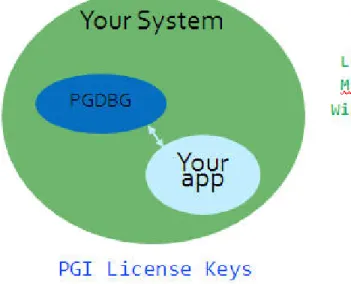
PGDBG is licensed software available from The Portland Group. PGDBG supports debugging programs running on local and remote systems. The PGI license keys that enable PGDBG to debug must be located on the same system where the program you want to debug is running.
Local debugging
If you want to debug a program running on the system where you have launched PGDBG, you are doing local debugging and you need license keys on that local system.
Remote debugging
If you want to debug a program running on a system other than the one on which PGDBG is launched, then you are doing remote debugging and you need license keys on the remote system. The remote system also needs an installed copy of PGI Workstation, PGI Server, or PGI CDK.
PGI Remote and PGI Local Debugging Comparison
The PGDBG install package includes the PGDBG debugger. It supports debugging applications locally as well as on a system other than the one on which PGDBG is installed.
Release Components
Figure 1.1. Local Debugging Licensing
Figure 1.2 illustrates remote debugging and its license key requirements..
Figure 1.2. Remote Debugging Licensing
Release Components
Release 2012 of PGDBG includes PGI’s multi-thread graphical debugger.
Co-installation Requirements
If the program to be debugged is running on the same system as PGDBG, then PGDBG and valid license keys are all you need to be able to debug locally.
If the program to be debugged is running on a different system than PGDBG, then PGI Workstation, PGI Server, or PGI CDK must be installed on that remote system and valid license keys must be in place there. The remote system must be running a Linux operating system. The license required to launch PGDBG on your local system (before beginning a remote debug session) is freely available from PGI.
Chapter 1. Release 2012 Introduction
Supported Operating Systems
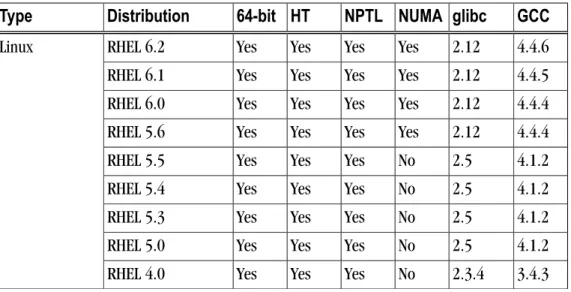
Table 1.1 lists the operating systems, and their equivalents, on which PGDBG is supported. To determine if PGDBG will install and run under a Linux equivalent version, such as Mandrake, Debian, CentOS, and so on, check the table for a supported system with the same glibc and gcc versions. Version differences in other
operating system components can cause difficulties, but often these can be overcome with minor adjustments to the PGI software installation or operating system environment.
• Linux operating systems with support for x64 compatible processors are designated 64-bit in the table. These are the only distributions on which the 64-bit versions of PGDBG fully installs.
• If you attempt to install the 64-bit/32-bit Linux version on a system running a 32-bit Linux distribution, only the 32-bit PGDBG is installed.
• If you attempt to install the 64-bit Windows version on a system running 32-bit Windows, the installation fails.
Most modern operating systems include support for Intel Hyper-threading (HT).
Most modern Linux distributions support the Native Posix Threads Library (NPTL). Distributions that include NPTL are designated in the table. Parallel executables generated using the OpenMP and auto-parallelization features of the PGI compilers will automatically make use of NPTL on distributions where it is available. In addition, PGDBG is capable of debugging executables built using either NPTL or earlier pthread
implementations.
Many modern multi-socket AMD Opteron processor-based servers use a NUMA (Non-Uniform Memory Access) architecture in which the memory latency from a given processor to a given portion of memory can vary. Newer Linux distributions, including SuSE 9/10 and SLES 9/10, include NUMA libraries that can be leveraged by a compiler and associated runtime libraries to optimize placement of data in memory.
In the table headings: HT = hyper-threading
NPTL = Native POSIX Threads Library NUMA = Non-Uniform Memory Access
Table 1.1. Operating Systems and Features Supported in PGI 2012 Type Distribution 64-bit HT NPTL NUMA glibc GCC
Linux RHEL 6.2 Yes Yes Yes Yes 2.12 4.4.6 RHEL 6.1 Yes Yes Yes Yes 2.12 4.4.5 RHEL 6.0 Yes Yes Yes Yes 2.12 4.4.4 RHEL 5.6 Yes Yes Yes Yes 2.12 4.4.4 RHEL 5.5 Yes Yes Yes No 2.5 4.1.2 RHEL 5.4 Yes Yes Yes No 2.5 4.1.2 RHEL 5.3 Yes Yes Yes No 2.5 4.1.2 RHEL 5.0 Yes Yes Yes No 2.5 4.1.2 RHEL 4.0 Yes Yes Yes No 2.3.4 3.4.3
Supported Operating Systems
Type Distribution 64-bit HT NPTL NUMA glibc GCC
Linux Fedora 14 Yes Yes Yes Yes 2.12 4.4.5 Fedora 13 Yes Yes Yes Yes 2.12 4.4.4 Fedora 12 Yes Yes Yes Yes 2.11 4.4.2 Fedora 11 Yes Yes Yes Yes 2.9 4.3.3 Fedora 10 Yes Yes Yes Yes 2.9 4.3.2 Fedora 9 Yes Yes Yes Yes 2.8 4.3.0 Fedora 8 Yes Yes Yes Yes 2.7 4.1.2 Fedora 7 Yes Yes Yes Yes 2.6 4.1.2 Fedora 6 Yes Yes Yes Yes 2.5 4.1.1 Fedora 5 Yes Yes Yes Yes 2.4 4.1.0 Fedora 4 Yes Yes Yes No 2.3.5 4.0.0 SuSE 11.3 Yes Yes Yes Yes 2.11.2 4.5 SuSE 11.2 Yes Yes Yes Yes 2.10.1 4.4.1 SuSE 11.1 Yes Yes Yes Yes 2.9 4.3.3 SuSE 11.0 Yes Yes Yes Yes 2.8 4.3.1 SuSE 10.3 Yes Yes Yes Yes 2.6.1 4.2.1 SuSE 10.2 Yes Yes Yes Yes 2.5 4.1.0 SuSE 10.1 Yes Yes Yes Yes 2.4 4.1.0 SuSE 10.0 Yes Yes Yes Yes 2.3.5 4.0.2 SuSE 9.3 Yes Yes Yes Yes 2.3.4 3.3.5 SLES 11 Yes Yes Yes Yes 2.9 4.3.3 SLES 10 Yes Yes Yes Yes 2.4 4.1.0 SLES 9 Yes Yes No Yes 2.3.3 3.3.3 RedHat 9.0 No No Yes No 2.3.2 3.2.2 Ubuntu 11.10 Yes Yes Yes Yes 2.13.20 4.6.1 Ubuntu 11.04 Yes Yes Yes Yes 2.13.0 4.5.2 Ubuntu 10.10 Yes Yes Yes Yes 2.12.1 4.4.5 Ubuntu 10.04 Yes Yes Yes Yes 2.11.1 4.4.3 Ubuntu 9.10 Yes Yes Yes Yes 2.10.1 4.4.1 Ubuntu 9.04 Yes Yes Yes Yes 2.9 4.3.3 Ubuntu 8.10 Yes Yes Yes Yes 2.8 4.3.2 Ubuntu 8.04 Yes Yes Yes Yes 2.7 4.2.1
Chapter 1. Release 2012 Introduction
Type Distribution 64-bit HT NPTL NUMA glibc GCC
Microsoft XP No Yes NA Yes NA NA
Windows XP x64 Yes Yes NA Yes NA NA
2003 No No NA Yes NA NA
2003 x64 Yes Yes NA Yes NA NA
2008 No Yes NA Yes NA NA
2008 x64 Yes Yes NA Yes NA NA
Vista No Yes NA Yes NA NA
Vista x64 Yes Yes NA Yes NA NA
Windows 7 Yes Yes NA Yes NA NA
HPC Server 2008 Yes Yes NA Yes NA NA
Apple Lion Yes No NA NA NA 4.2.1
Snow Leopard Yes No NA NA NA 4.0.1
Note
www.pgroup.com/support/install.htm lists any new operating system distributions that may be explicitly supported by the PGI compilers and tools. If your operating system is newer than any of those listed in Table 1.1, the installation may still be successful.
Java Runtime Environment (JRE)
The PGI debugger uses Java SE 6. On 64-bit systems PGDBG uses a 64-bit JRE; on 32-bit systems it use a 32-bit JRE.
Licensing
PGDBG is licensed software. You must agree to an End-User License Agreement when you install the software.
Product Support
All new purchased PGI licenses include 60 days of PGI Subscription Service. The PGI Subscription Service provides the following benefits:
• Ongoing technical support.
Support requests may be sent in a number of ways: • By electronic mail to [email protected]
• Faxed to +1-503-682-2637
Product Support
• Phone support is not currently available.
• Notification by email when maintenance releases occur and are available for electronic download and installation.
• Release upgrades for licensed Product(s) at no additional cost, except for any administrative fee that may apply.
• Full license fee credits on Product upgrades, except for any administrative fee that may apply. "Product upgrades" refer to exchanging one Product license for a more expensive Product license, and is not the same as a version or Release upgrade previously referenced.
• Full license fee credits on user-count upgrades, except for any administrative fee that may apply.
Important
To continue receiving these benefits after 60 days, you can purchase an extension to your PGI Subscription Service. Extensions are available in yearly increments.
Contact [email protected] if you would like information regarding the subscription service for the PGI products you have purchased.
Chapter 2. Installation Overview
This chapter provides an overview of the steps required to successfully install PGDBG. The remaining chapters provide the details of each of the steps. Licensing was covered in Chapter 1, “Release 2012 Introduction”.
Chapter 3, “PGI Installations on Linux” describes how to install PGDBG in a generic manner on Linux,
Chapter 4, “Installations on Apple Mac OS X” describes how to install on an Apple Mac OS X system, and
Chapter 5, “Installations on Microsoft Windows” describes how to install on a Windows system.
Before You Begin
Before you begin the installation, it is advantageous to understand the flow of the installation process. There are two stages of the process:
• Prepare to install – verifying that you have all the required information and software. • Install the software – installing the software appropriate for your operating system
PGI Network Installations
For more complete information on these steps and the specific actions to take for your operating system, refer to the corresponding chapters in this guide.
PGI Network Installations
Linux
On Linux, PGDBG may be installed locally on each machine on a network or it may be installed once on a shared file system available to each machine. If you select the second method, then after the first installation you can run a simple script on each machine in the group to add each new platform to the family of machines using the common installation. For more information on network installations, refer to Chapter 3, “PGI Installations on Linux”.
Mac OS X and Windows
On Mac OS X and Windows, PGDBG must be installed locally on each machine. A network installation using a shared file system is not supported.
Chapter 3. PGI Installations on Linux
This chapter describes how to install PGDBG in a generic manner on a Linux system. It covers local and network installs.
• For installations on 32-bit x86 systems, the PGI installation script installs only the linux86 versions of PGDBG.
• For installations on 64-bit x64 systems running a linux86-64 execution and development environment, the PGI installation script installs the linux86-64 version of PGDBG.
• If the 32-bit gcc development package is already installed on the system, the 32-bit linux86 PGDBG is also installed on a 64-bit x64 system.
The 32-bit and 64-bit PGDBG have the same command names, and the environment you target by default (linux86-64 or linux86) depends on the version of PGDBG that comes first in your path settings.
Prepare to Install PGDBG on Linux
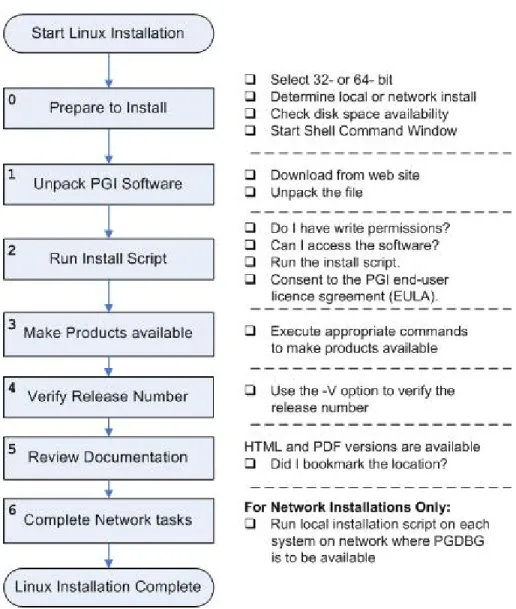
In preparation for installing PGDBG on Linux, first study the overview of the Linux installation process illustrated in Figure 3.1.
Note
For Linux installations, each user needs to set their environment variables properly to access the software, as described in section 4.4, End-user Environment Settings on Linux.
Prepare to Install PGDBG on Linux
Figure 3.1. Linux Installation Overview
Network Installations:
If you choose to perform a network installation, you should specify: • A shared file system for the installation base directory.
• A second directory name that is local to each of the systems where PGDBG will be used. This directory selection approach allows a network installation to support a network of machines running different versions of Linux.
To Prepare for the Installation:
• Bring up a shell command window on your system.
The installation instructions assume you are using csh, sh, ksh, bash, or some compatible shell. If you are using a shell that is not compatible with one of these shells, appropriate modifications are necessary when setting environment variables.
Chapter 3. PGI Installations on Linux
• Verify you have enough free disk space for the PGI installation.
• The uncompressed installation package requires 60 MB of free disk space. • The linux86 platform requires up to 77 MB of free disk space.
• The linux86-64 platform requires up to 77 MB of free disk space.
• To debug 32-bit applications on 64-bit Linux systems, the 32-bit ncurses libraries must be installed.
The name of this package varies across the Linux distributions, but it contains a file with a name like
libncurses.so.5.
PGI Installations on Linux - gcc Compiler Requirements
On Linux systems, PGDBG needs the gcc tool chain (ld,as,ar) and gcc libraries and header files to be
compatible with your version of Linux. Therefore, to successfully install on a Linux system, the system must already have gcc compilers installed.
• To successfully install the 64-bit PGDBG, gcc 64-bit compilers must be present and in the user's path. • To successfully install the 32-bit PGDBG, gcc 32-bit compilers must be present and in the user's path.
Note
32-bit Linux systems can only have 32-bit gcc compilers.
• To successfully install the 32-bit PGDBG on a 64-bit Linux system, gcc 32-bit compilers must be present and in the user's path.
gcc Compiler Availability
To determine if 32-bit or 64-bit gcc compilers are installed on the system, do the following: 1. Create a hello.c program.
#include <stdio.h> int main()
{
printf(" hello\n"); }
2. Execute the appropriate commands to determine if you have gcc support in your path:
For 64-bit gcc support:
% gcc -m64 -o ./hello_64 ./hello.c ! create a 64-bit executable % file ./hello_64 ! does the file exist, and is it 64-bit?
hello_64: ELF 64-bit LSB executable, AMD x86-64, version 1 (SYSV), for GNU/Linux 2.6.9, dynamically linked (uses shared libs), for GNU/Linux 2.6.9, not stripped
For 32-bit gcc support:
% gcc -m32 -o ./hello_32 ./hello.c ! create a 32-bit executable % file ./hello_32 ! does the file exist, and is it 32-bit?
Installation Steps for Linux
hello_32: ELF 32-bit LSB executable, Intel 80386, version 1 (SYSV), for GNU/Linux 2.6.9, dynamically linked (uses shared libs), for GNU/Linux 2.6.9, not stripped
Installation Steps for Linux
Follow these instructions to install the software: 1. Unpack the PGI software.
Download the software from www.pgroup.com or another electronic distribution site. In the instructions that follow, replace <tarfile> with the name of the file that you downloaded.
Note
The PGI products cannot be installed into the same directory where the tar file is unpacked. Use the following command sequence to unpack the tar file in a temporary directory before installation:
% mkdir /tmp/pgi
% mv <tarfile>.tar.gz /tmp/pgi % cd /tmp/pgi
% tar xpfz <tarfile>.tar.gz
2. Run the installation script.
Note
The installation script for PGDBG is install. These instructions refer to this as the installation script.
The installation script must run to completion to properly install the software. Execute the following script in the directory where you unpacked the tar file:
% ./install
To successfully run this script to completion, do the following: • Consent to the PGI end-user license agreement (EULA).
• Determine whether to perform a local installation or a network installation. • Define where to place the installation directory.
After the software is installed, the installation script performs system-specific customization.
If you are performing a network installation for PGDBG, you are asked for a common local directory on each system. The network installation uses this local directory, or creates it if it does not exist, on each system to store system-specific header files and libraries.
3. Make PGDBG accessible.
Chapter 3. PGI Installations on Linux
64-bit as default
To make the 64-bit PGDBG the default: In csh, use these commands:
% setenv PGI /opt/pgi
% set path = ($PGI/linux86-64/12.1/bin $path)
In bash, sh, or ksh, use these commands:
$ PGI=/opt/pgi; export PGI
$ PATH=$PGI/linux86-64/12.1/bin:$PATH; export PATH
32-bit as default
To make the 32-bit PGDBG the default: In csh, use these commands:
% setenv PGI /opt/pgi
% set path = ($PGI/linux86/12.1/bin $path)
In bash, sh, or ksh, use these commands:
$ PGI=/opt/pgi; export PGI
$ PATH=$PGI/linux86/12.1/bin:$PATH; export PATH
Note
PGDBG supports debugging both 32-bit and 64-bit programs. PGDBG automatically determines the architecture of the program and configures itself accordingly.
4. Verify the release number of the installed software.
To verify the release number of the products you have installed, use the -V option.
pgdbg -V
5. Review documentation.
You can view the online HTML and PDF documentation using any web browser by opening the file:
$PGI/linux86-64/12.1/doc/index.htm
or
$PGI/linux86/12.1/doc/index.htm
You may want to bookmark this location for easy future reference to the online manuals. 6. Complete network installation tasks. [Network Installations only]
For a network installation, you must run the local installation script on each system on the network where PGDBG will be available for use.
If your installation base directory is /opt/pgi and /usr/pgi/shared/12.1 is the common local
Common Linux Installation Issues
/opt/pgi/linux86/12.1/bin/makelocalrc -x /opt/pgi/linux86/12.1 \ -net /usr/pgi/shared/12.1
/opt/pgi/linux86-64/12.1/bin/makelocalrc -x /opt/pgi/linux86-64/12.1 \ -net /usr/pgi/shared/12.1
These commands create a system-dependent file localrc.machinename in both of these directories: /opt/pgi/linux86/12.1/bin and /opt/pgi/linux86-64/12.1/bin. The commands also
create the following three directories containing libraries and shared objects specific to the operating system and system libraries on that machine:
/usr/pgi/shared/12.1/lib /usr/pgi/shared/12.1/liblf /usr/pgi/shared/12.1/lib64.
Note
The makelocalrc command does allow the flexibility of having local directories with different names on different machines. However, using the same directory on different machines allows users to easily move executables between systems that use PGI-supplied shared libraries.
Installation of PGDBG for Linux is now complete. For assistance with difficulties related to the installation, send e-mail to [email protected].
Common Linux Installation Issues
If you are having problems executing PGDBG, you might want to examine the Java Runtime Environment on your system.
Chapter 4. Installations on Apple
Mac OS X
This section describes how to install PGDBG on an Apple computer running Mac OS X.
Note
PGI products for MacOS are only supported on Intel processor-based Macintosh computers running MacOS version 10.6.8 or greater. Previous versions of MacOS may be unstable for 64-bit programs. Using this release requires that Apple Xcode 3.2 or greater be installed. Xcode is available from http:// developer.apple.com.
• For installations on 32-bit x86 systems, the PGI installation process installs only the osx86 versions of PGDBG.
• For installations on 64-bit x64 systems running an osx86-64 execution and development environment, the PGI installation process installs the osx86-64 version of PGDBG.
• If the 32-bit GCC development package is already installed on the system, the 32-bit osx86 tools are installed on a 64-bit x64 system.
The 32-bit and 64-bit PGDBG have the same command names, and the environment you target by default, either osx86-64 or osx86, depends on the version of the debugger that comes first in your path settings. The default installation base directory is /opt/pgi.
Preparing to Install on MacOS
To prepare for the installation:
• Verify you have enough free disk space.
• On the osx86 platform, PGDBG requires 15 MB of free disk space. • On the osx86-64 platform, PGDBG requires 25 MB of free disk space. • Verify that Xcode 3.2 or greater is installed.
Preparing to Install on MacOS
• If you know how to run Xcode, start Xcode and click About Xcode to verify the version is 3.2 or greater. • If you do not know how to run Xcode or are uncertain if it is installed on your system, do the following:
1. From the Apple Menu, select About This Mac. 2. Click More Info.
3. Select System profiler | Software | Applications.
4. Scroll through the alphabetical list and verify Xcode is in it. 5. Verify the version is 3.2 or greater.
Note
PGI software for MacOS requires the Xcode application, which provides several components of the tool chain, including the system assembler, linker, and runtime libraries. However, PGI software runs in Terminal, not in the Xcode IDE, and PGDBG has its own GUI.
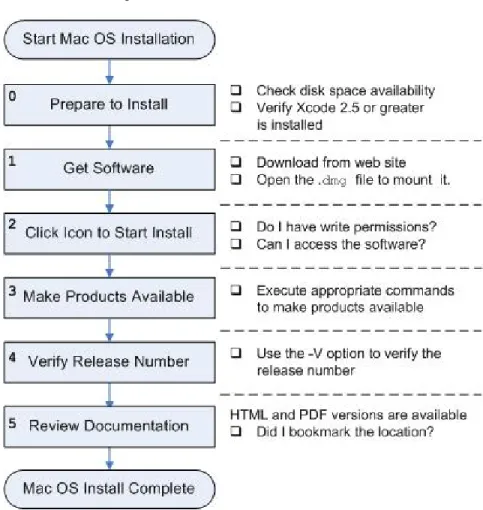
In preparation for installing PGDBG on MacOS, first review Figure 4.1, an overview of the installation process.
Chapter 4. Installations on Apple Mac OS X
Installation Steps for MacOS
Once you have prepared for the installation, follow these instructions to install the software: 1. Access the installation package.
Download the software from www.pgroup.com or another electronic distribution site. The file you download is PGI_Debugger_121.dmg. If it does not mount automatically, open this file to mount it.
2. Install the software.
Double-click the PGI Debugger 12.1.pkg, which is part of the mounted disk. Follow the
installation instructions.
1. When you see the initial system check dialog, click continue to allow the installation script to check that your system has the required components for installing the software, such as Xcode 3.2 or greater and gcc.
2. Select the drive and, if you want, also select an installation directory other than the default directory:
/opt/pgi.
After the software is installed, the installation script performs some system-specific customization, and then initializes for licensing.
3. Make PGI products accessible.
Once software installation is complete, you can bring up a PGI Terminal window by double-clicking the
PGI2012.terminal file in the installation directory, typically /opt/pgi. If Terminal is currently
open, you can bring up a PGI window by using the New Windows and New Tab commands, and then selecting PGI2012.
4. Verify the release number.
To verify the release number, use the -V option with the debugger command:
pgdbg -V
5. Review documentation.
You can view the online HTML and PDF documentation using any web browser by opening the file:
/opt/pgi/osx86/12.1/doc/index.htm
or
/opt/pgi/osx86-64/12.1/doc/index.htm
You may want to bookmark this location for easy future reference to the online manuals.
End-user Environment Settings on MacOS
Once software installation is complete, whenever you bring up a PGI command window by double-clicking on the PGI2012.terminal file, PGDBG is accessible and your environment is pre-initialized. You can,
End-user Environment Settings on MacOS
Make 32-bit PGDBG the default
The following commands make the 32-bit PGDBG the default. In bash, sh, or ksh, use this commands:
$ PGI=/opt/pgi; export PGI
In csh, use this commands:
% setenv PGI /opt/pgi
Make 64-bit PGDBG the default
The following commands make the 64-bit PGDBG the default. In bash, sh, or ksh, use this commands:
$ PGI=/opt/pgi; export PGI
In csh, use these commands:
% setenv PGI /opt/pgi
Note
PGDBG supports debugging both 32-bit and 64-bit programs. PGDBG automatically determines the architecture of the program and configures itself accordingly.
Chapter 5. Installations on Microsoft
Windows
This section describes how to install PGDBG on a system running a Microsoft Windows operating system. These instructions are valid for both 64-bit and 32-bit platforms.
For installations on 64-bit x64 systems running a 64-bit operating system, the PGI installer installs the 64-bit and 32-bit versions of PGDBG. For installations on 32-bit x86 systems, the PGI installer installs only the 32-bit versions of PGDBG.
Preparing to Install on Windows
Verify you have enough free disk space. PGDBG requires 150 MB of free disk space during the installation.
Installation Steps for Windows
Once you have prepared for the installation, follow these instructions to install the software:
Note
Administrator privileges are required to install PGI software. 1. Log in as Administrator.
Download the software from www.pgroup.com or another electronic distribution site. 2. Start the installation.
If you obtained your software from PGI, run the installation executable file on the target machine. The installation executables are:
pgdbg-121.exe 32-bit Windows pgdbgx64-121.exe 64-bit/32-bit Windows 3. Review documentation.
Windows Firewall and PGI Debugging
www.pgroup.com/resources/docs.htm
Tip
You may want to bookmark this location for easy future reference to the online manuals.
Windows Firewall and PGI Debugging
Microsoft Windows Firewall runs by default on some types of systems, such as Windows XP and Windows Vista. Suppose this application is running on your system. Unless the PGI debugger is included in the Windows Firewall Exceptions list, Windows Firewall may try to block the PGI debugger engine when you debug a program.
Automatic Additions to Windows Firewall Exceptions List
When PGI software is installed
If Windows Firewall is enabled when PGI software is installed, certain components are automatically added to the Exceptions list. These components appear as follows:
PGI Debugger 2012 (32-bit)
PGI Debugger 2012 (64-bit) - not added to the Exceptions list on 32-bit systems.
When PGI software is uninstalled
If Windows Firewall is enabled when PGI software is uninstalled, the components previously listed are automatically removed from the Exceptions list.
When using PGDBG to Debug
If PGDBG is not listed in the Exceptions list and Windows Firewall is enabled when you use PGDBG to debug, the Firewall displays a dialog that allows you to Unblock the application named pgdebug. If you choose the Unblock option, Windows Firewall adds the debugger (pgdebug) to its list of Exceptions and you do not see the pop-up dialog again unless you reinstall.
Tip
On rare occasions, this pop-up may prevent the debug session from starting correctly. If this occurs, use the Task Manager to end the debug session.
Note
Chapter 6. Contact Information
You can contact The Portland Group at: The Portland Group
STMicroelectronics, Inc. Two Centerpointe Drive Lake Oswego, OR 97035 USA
Or electronically using any of the following means: Fax Sales Support WWW +1-503-682-2637 [email protected] [email protected] www.pgroup.com
The PGI User Forum is monitored by members of the PGI engineering and support teams as well as other PGI customers. The forum newsgroups may contain answers to commonly asked questions. Log in to the PGI website to access the forum:
www.pgroup.com/userforum/index.php
Many questions and problems can be resolved by following instructions and the information available at our frequently asked questions (FAQ) site:
www.pgroup.com/support/faq.htm
All technical support is by e-mail or submissions using an online form at www.pgroup.com/support. Phone support is not currently available.
PGI documentation is available at www.pgroup.com/resources/docs.htm or in your local copy of the documentation in the release directory doc/index.htm.