by Joel Scott
GoldMine
®
8
FOR
GoldMine
®
8
FOR
by Joel Scott
GoldMine
®
8
FOR
GoldMine®8 For Dummies®
Published by
Wiley Publishing, Inc. 111 River Street Hoboken, NJ 07030-5774
www.wiley.com
Copyright © 2008 by Wiley Publishing, Inc., Indianapolis, Indiana Published by Wiley Publishing, Inc., Indianapolis, Indiana Published simultaneously in Canada
No part of this publication may be reproduced, stored in a retrieval system or transmitted in any form or by any means, electronic, mechanical, photocopying, recording, scanning or otherwise, except as permit-ted under Sections 107 or 108 of the 1976 Unipermit-ted States Copyright Act, without either the prior written permission of the Publisher, or authorization through payment of the appropriate per-copy fee to the Copyright Clearance Center, 222 Rosewood Drive, Danvers, MA 01923, (978) 750-8400, fax (978) 646-8600. Requests to the Publisher for permission should be addressed to the Legal Department, Wiley Publishing, Inc., 10475 Crosspoint Blvd., Indianapolis, IN 46256, (317) 572-3447, fax (317) 572-4355, or online at
http://www.wiley.com/go/permissions.
Trademarks:Wiley, the Wiley Publishing logo, For Dummies, the Dummies Man logo, A Reference for the Rest of Us!, The Dummies Way, Dummies Daily, The Fun and Easy Way, Dummies.com, and related trade dress are trademarks or registered trademarks of John Wiley & Sons, Inc. and/or its affiliates in the United States and other countries, and may not be used without written permission. GoldMine is a registered trademark of FrontRange Solutions USA Inc. All other trademarks are the property of their respective owners. Wiley Publishing, Inc., is not associated with any product or vendor mentioned in this book.
LIMIT OF LIABILITY/DISCLAIMER OF WARRANTY: THE PUBLISHER AND THE AUTHOR MAKE NO REP-RESENTATIONS OR WARRANTIES WITH RESPECT TO THE ACCURACY OR COMPLETENESS OF THE CON-TENTS OF THIS WORK AND SPECIFICALLY DISCLAIM ALL WARRANTIES, INCLUDING WITHOUT LIMITATION WARRANTIES OF FITNESS FOR A PARTICULAR PURPOSE. NO WARRANTY MAY BE CRE-ATED OR EXTENDED BY SALES OR PROMOTIONAL MATERIALS. THE ADVICE AND STRATEGIES CON-TAINED HEREIN MAY NOT BE SUITABLE FOR EVERY SITUATION. THIS WORK IS SOLD WITH THE UNDERSTANDING THAT THE PUBLISHER IS NOT ENGAGED IN RENDERING LEGAL, ACCOUNTING, OR OTHER PROFESSIONAL SERVICES. IF PROFESSIONAL ASSISTANCE IS REQUIRED, THE SERVICES OF A COMPETENT PROFESSIONAL PERSON SHOULD BE SOUGHT. NEITHER THE PUBLISHER NOR THE AUTHOR SHALL BE LIABLE FOR DAMAGES ARISING HEREFROM. THE FACT THAT AN ORGANIZATION OR WEBSITE IS REFERRED TO IN THIS WORK AS A CITATION AND/OR A POTENTIAL SOURCE OF FUR-THER INFORMATION DOES NOT MEAN THAT THE AUTHOR OR THE PUBLISHER ENDORSES THE INFOR-MATION THE ORGANIZATION OR WEBSITE MAY PROVIDE OR RECOMMENDATIONS IT MAY MAKE. FURTHER, READERS SHOULD BE AWARE THAT INTERNET WEBSITES LISTED IN THIS WORK MAY HAVE CHANGED OR DISAPPEARED BETWEEN WHEN THIS WORK WAS WRITTEN AND WHEN IT IS READ.
For general information on our other products and services, please contact our Customer Care Department within the U.S. at 800-762-2974, outside the U.S. at 317-572-3993, or fax 317-572-4002. For technical support, please visit www.wiley.com/techsupport.
Wiley also publishes its books in a variety of electronic formats. Some content that appears in print may not be available in electronic books.
Library of Congress Control Number: 2007936462 ISBN: 978-0-7645-9834-0
About the Author
Joel Scottis the president of the Computer Control Corporation, a technol-ogy consulting company founded in 1985. Mr. Scott began selling GoldMine software in 1991. The company has been awarded FrontRange’s “GoldMine Top-10 Dealer” award eight times since then and has received numerous other awards for GoldMine training and best practices.
In 2007, Computer Control Corporation joined with Core Solutions, Inc., headquartered in Newton, Massachusetts. The newly combined company continues to sell and support GoldMine as well as several other well-known CRM products, such as Microsoft CRM and SalesLogix.
This is Mr. Scott’s fourth GoldMine For Dummiesbook, and these sit on his bookshelf right next to the two Microsoft CRM For Dummiesbooks that he has co-authored.
Always happy to hear from readers, Mr. Scott can be reached at
Author’s Acknowledgments
This is my sixth For Dummiesbook. Wiley, the publisher, may contend it’s the fifth. Opinions vary on this issue. In any event, it’s been great fun, a great challenge, and a great learning experience. Each time it’s been different because the editors change, the rules change, and the software changes. I had two editors this time, and, to be honest, they were two of the best. Gary Klingler was, without a doubt, the best technical editor I have ever worked with. It makes a big difference working with someone who not only knows the product but also can make congenial and constructive suggestions rather than just saying “that’s stupid!”
Susan Christophersen had the unenviable task of turning my English into For DummiesEnglish. Those are apparently two separate dialects of the English language. I have to thank her for her patience and grace under pressure. But I still think “select” and “choose” are pretty much the same thing.
I also want to be sure I acknowledge the one and only FrontRange employee who understood that having another GoldMine For Dummiesbook could only be a good thing for everyone. The only person who made sure I had early copies of the software so that I could start writing. Politics at FrontRange being what it is these days, I think I will have to keep that name a secret so that I don’t get anyone in trouble. But, I do thank you.
In Memoriam:
GoldMine Standard has met its demise — a victim of negligent homicide. It didn’t need to be discontinued and surely not the way it was.
Publisher’s Acknowledgments
We’re proud of this book; please send us your comments through our online registration form located at www.dummies.com/register/.
Some of the people who helped bring this book to market include the following:
Acquisitions, Editorial, and Media Development
Project and Copy Editor: Susan Christophersen
(Previous Edition: Christine Berman and Jean Rogers)
Acquisitions Editor:Bob Woerner Technical Editor:Gary Klingler Editorial Manager:Jodi Jensen Editorial Assistant:Amanda Foxworth Sr. Editorial Assistant:Cherie Case Cartoons:Rich Tennant
(www.the5thwave.com)
Composition Services
Project Coordinator:Patrick Redmond Layout and Graphics: Melanee Prendergast,
Alicia B. South, Christine Williams, Erin Zeltner
Proofreaders:Susan Moritz, Sossity R. Smith Indexer:Valerie Haynes Perry
Anniversary Logo Design:Richard Pacifico
Publishing and Editorial for Technology Dummies
Richard Swadley,Vice President and Executive Group Publisher Andy Cummings,Vice President and Publisher
Mary Bednarek,Executive Acquisitions Director Mary C. Corder,Editorial Director
Publishing for Consumer Dummies
Diane Graves Steele,Vice President and Publisher Joyce Pepple,Acquisitions Director
Composition Services
Contents at a Glance
Introduction ...1
Part I: GoldMine Premium Basics...9
Chapter 1:GoldMine: An Overview...11
Chapter 2:Getting Around in GoldMine ...19
Chapter 3: Setting Up Your Preferences ...29
Chapter 4: Accessing GoldMine Remotely ...45
Part II: Managing Contacts ...51
Chapter 5: Creating and Viewing Client Records ...53
Chapter 6: Handling Notes and Secondary Contacts...65
Chapter 7: Details and Referrals...75
Chapter 8: Using Filters, Groups, and SQL Queries ...83
Part III: Managing Activities...97
Chapter 9: Scheduling Activities ...99
Chapter 10: Viewing Scheduled Activities...115
Chapter 11: Dealing with and Completing Scheduled Activities ...127
Chapter 12: Sales Forecasting...135
Part IV: Marketing and Support ...147
Chapter 13: Managing Your Leads...149
Chapter 14: Managing Your Marketing ...157
Chapter 15: Handling Cases ...167
Part V: Managing Documents ...177
Chapter 16: Integrating with Word ...179
Chapter 17: Sending and Receiving E-Mail ...187
Chapter 18: Using Outlook ...207
Chapter 19: Linking Documents ...213
Part VI: Organizing and Distributing Information ...221
Chapter 20: The Knowledge Base...223
Chapter 21: Graphical and Statistical Analysis...231
Chapter 22: The Reporting System ...245
Chapter 23: Opportunity and Project Manager ...261
Part VII: Customizing GoldMine ...281
Chapter 25: Creating New Labels and Fields...283
Chapter 26: Creating and Modifying Lookup Lists ...297
Chapter 27: Automated Processes ...305
Chapter 28: GM+View and GM+Browser...317
Chapter 29: Integrating GoldMine with Your Web Site ...327
Part VIII: The Part of Tens...333
Chapter 30: Ten Useful Add-Ons...335
Chapter 31: The Ten Most Important New Developments Since 6.0 ...341
Table of Contents
Introduction...1
The Various Flavors of GoldMine ...1
GoldMine Standard ...1
GoldMine Corporate ...2
GoldMine Premium...2
GoldMine Enterprise ...3
How to Use This Book ...3
Foolish Assumptions ...3
How This Book Is Organized...4
Part I: GoldMine Premium Basics ...4
Part II: Managing Contacts ...4
Part III: Managing Activities ...4
Part IV: Marketing and Support ...4
Part V: Managing Documents...5
Part VI: Organizing and Distributing Information ...5
Part VII: Customizing GoldMine...5
Part VIII: The Part of Tens ...5
Conventions Used in This Book ...6
Icons Used in This Book...6
Where to Go from Here...7
Part I: GoldMine Premium Basics ...9
Chapter 1: GoldMine: An Overview . . . .11
Discovering Everything that GoldMine Can Do...12
Consolidating all your prospect and customer information ...12
Keeping track of your life ...12
Communicating with your team and the world...13
Keeping tabs on opportunities and projects ...13
Setting up Automated Processes...14
Doing some great marketing ...14
Organizing your customer support...14
Investigating a Few of the Things GoldMine Isn’t Designed to Do...14
Integrating word processing and spreadsheets ...15
Faxing ...15
Quoting and accounting ...15
Planning a Successful Project...15
Chapter 2: Getting Around in GoldMine . . . .19
Understanding the GoldMine Interface ...19
The Main Menu ...20
The Global Toolbar ...21
The Navigation Pane ...23
The Work Area ...24
The status bar...25
Getting Help ...25
Getting help online ...27
The GoldMine forum ...27
Chapter 3: Setting Up Your Preferences . . . .29
Customizing Your Tabs...30
Customizing All Your Preferences...31
Personal Preferences ...31
Record preferences ...32
Calendar preferences ...34
Schedule preferences...36
Alarms preferences ...37
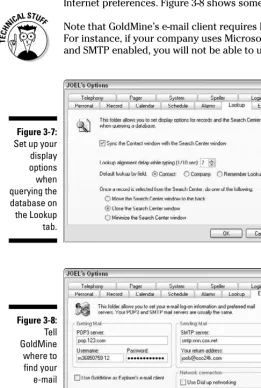
Lookup preferences ...38
E-mail preferences ...38
Login preferences ...40
Speller preferences...40
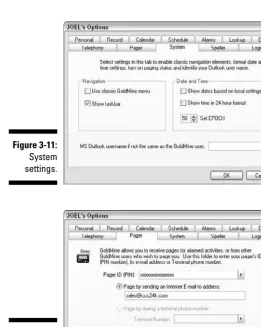
System preferences ...42
Pager preferences...43
Telephony preferences ...44
Chapter 4: Accessing GoldMine Remotely . . . .45
Securing Your Data...46
Syncing Up with GoldSync ...47
Adding iGoldMine Plus ...48
Accessing GoldMine with Remote Desktop ...49
Using Handheld Devices...49
CompanionLink...50
wMobile ...50
Part II: Managing Contacts...51
Chapter 5: Creating and Viewing Client Records . . . .53
Creating New Records ...53
Adding a new company ...53
Entering additional contacts...54
Dealing with Jr., Sr., and III...55
Entering U.S. telephone numbers...56
Entering telephone numbers for the rest of the world...56
E-mail addresses — you’ve got to collect ’em ...56
Entering Web site addresses ...57
Checking for duplicate records ...57
Finding a Record in Your Database...58
The semi-secret and fast way to find a record...58
More sophisticated searches...59
Using a Custom Field ...61
Who needs custom fields, anyway? ...61
How custom fields get on-screen ...62
Accessing field views ...62
Chapter 6: Handling Notes and Secondary Contacts . . . .65
The Main Notepad...65
What to put in the main notepad ...66
Starting a new note ...67
The Contacts Tab ...70
Entering a new secondary contact...71
Editing an existing secondary contact ...73
Swapping the secondary contact with the primary one ...74
Converting a secondary record to a stand-alone record ...74
Chapter 7: Details and Referrals . . . .75
Taking Care of the Details ...75
Using existing details ...76
Entering new details...77
Creating your own details ...78
More fields you can use with details ...79
Finding specific detail records...79
Making Use of Referrals...80
Chapter 8: Using Filters, Groups, and SQL Queries . . . .83
Building and Using Filters ...84
Accessing the filter system ...84
Creating and using a new filter ...85
Releasing a filter ...88
Counting records in a filter ...89
Building and Using Groups ...92
Building groups from filtered records ...93
Building groups from manually tagged records ...94
Building and Using SQL Queries...95
Part III: Managing Activities ...97
Chapter 9: Scheduling Activities . . . .99
Defining Activities ...99
Creating Activities...101
Entering Activities on the Calendar...102
Filling in the Scheduling Dialog Box ...104
The Contact field ...104
The Code field...104
The Primary User field...105
The Reference field ...106
The Notes field...106
The Date field...106
The Time field ...107
Using the Options...108
Rescheduling an Activity...109
Scheduling Activities for Other People ...110
Using the iCal Features...110
Scheduling a meeting with an Outlook user ...111
Responding to a meeting request...112
Scheduling Recurring Activities ...112
Chapter 10: Viewing Scheduled Activities . . . .115
Viewing Activities Using the Calendar...115
Viewing open activities with the Calendar...116
Viewing completed activities from the Calendar ...119
Modifying the listing within each Calendar activity ...120
Checking the Activity List ...122
Getting back to the account...124
Changing the focus of the Activity list...124
More actions you can perform on activities ...125
Viewing Groups of Users on the Calendar ...125
Chapter 11: Dealing with and Completing
Scheduled Activities . . . .127
Four Ways to Complete Your Activities...128
Delegating activities to other people...128
Rescheduling activities...129
Deleting activities ...129
Ignoring activities...130
The Best Way to Complete an Activity ...130
Completing from the Calendar ...131
Completing from the Activity list ...132
Completing from the Pending tab ...133
Chapter 12: Sales Forecasting . . . .135
Setting up Quotas...135
Entering Your Forecasts ...137
Viewing Your Sales Pipeline ...140
Analyzing sales in tabular format...140
Analyzing sales in graphical format ...142
Viewing individual items in the forecast ...143
Forecast reports ...144
Viewing a group forecast ...144
Completing Your Forecasts...145
Part IV: Marketing and Support...147
Chapter 13: Managing Your Leads . . . .149
Importing Leads into GoldMine...149
Assigning Leads to Users ...151
Using ZIP codes ...151
Using telephone area codes ...152
Using geography ...152
Other methodologies ...152
Analyzing Your Leads ...153
Using Automated Processes ...155
Chapter 14: Managing Your Marketing . . . .157
Using the Campaign Manager ...157
Using the Essential Fields for Marketing with GoldMine ...163
Source ...163
Priority...163
Products ...164
Interest...164
Merge codes ...164
Chapter 15: Handling Cases . . . .167
Configuring Your Case Setup ...167
Using Templates ...169
Handling Cases ...170
Assigning cases...170
Reassigning cases...170
Escalating cases...171
Resolving or abandoning cases ...172
Analyzing cases ...173
Using Your Knowledge Base ...174
Part V: Managing Documents ...177
Chapter 16: Integrating with Word . . . .179
Understanding What Versions Work Together ...179
Creating Templates ...180
Using Your Templates ...183
Chapter 17: Sending and Receiving E-Mail . . . .187
Configuring Your E-Mail System ...188
Entering your ISP’s account information...188
Setting options for composing your messages...190
Creating an e-mail signature file ...190
Sending E-Mail Messages...196
Addressing a message...197
Composing the subject and body of a message ...199
Completing a message ...199
Sending messages to a group...200
Getting Your Mail...202
I just wanna get my e-mail, already ...202
Defining rule conditions ...203
Defining rule actions ...205
Chapter 18: Using Outlook . . . .207
What Versions Work Together...207
The Three Options for Outlook ...208
Importing and Exporting ...208
GISMO ...209
GISME ...209
Using GISMO ...209
Receiving e-mails in Outlook...211
Sending e-mails from Outlook...212
Chapter 19: Linking Documents . . . .213
Exploring the Links Tab...213
Linking Files Automatically...216
Linking word-processing documents...216
Linking e-mails ...217
Linking faxes ...218
Manually Linking Files and Folders...218
Using the Links shortcut menu...218
Using drag-and-drop...220
Accessing Linked Documents...220
Part VI: Organizing and Distributing Information...221
Chapter 20: The Knowledge Base . . . .223
Navigating the Knowledge Base ...224
Understanding how the Knowledge Base is organized ...225
Searching the Knowledge Base...226
Creating New Knowledge Base Books, Folders, and Topics ...228
Creating a Knowledge Base book ...228
Editing entries in your Knowledge Base...229
Notifying Your Staff of Important Changes to the Knowledge Base — or Not ...230
Chapter 21: Graphical and Statistical Analysis . . . .231
Displaying Account Statistics ...231
Lying with Statistics...233
Using the Forecast Analysis...234
Using Graphical Analysis ...236
Using Leads Analysis ...238
Setting Quotas and Measuring Performance against Them ...240
Assigning a quota ...241
Analyzing sales versus quota...243
Chapter 22: The Reporting System . . . .245
Choosing a Report Category...245
Generating a GoldMine Report...246
Choosing the report type ...246
Sorting and selecting data for your reports...246
Displaying and Printing Reports ...252
Sending a report to a printer ...253
Sending a report to display on-screen...253
Modifying Existing Reports...254
Structuring your report ...254
Adding new fields ...257
Adding a label ...258
Creating Custom Reports...258
Using Alternatives to the Built-in Reporting System ...259
Excel ...259
Access ...260
Crystal Reports...260
Microsoft Reporting Services ...260
Other report generators ...260
Chapter 23: Opportunity and Project Manager . . . .261
The Opportunity/Project Manager ...262
The Opportunity Manager and its functions ...262
Influencers and Contacts...265
Forecasted Sales ...265
Team...266
Issues ...266
Competitors ...267
Tracking details ...268
The Finish Line ...268
Tasks ...269
Pending ...271
History ...271
Closing and Converting Opportunities ...271
Chapter 24: Managing Relationships . . . .273
Building Relationships...274
Activating a Section ...276
Doing a Rollup ...276
Part VII: Customizing GoldMine...281
Chapter 25: Creating New Labels and Fields . . . .283
Adding New Fields to Your Database...283
Creating a new field...285
Rebuilding your database ...287
Organizing and Creating Field Views ...287
Displaying New Fields...290
Changing Field Labels and Data On the Fly ...293
Modifying an Existing Field ...295
Assigning an account manager ...295
Changing the face of GoldMine with Record Typing...295
Chapter 26: Creating and Modifying Lookup Lists . . . .297
Using Existing Lookup Lists...298
Customizing Your Lookup Lists...298
Deleting the standard lookup entries ...299
Creating new entries ...299
Setting lookup list options ...300
Using the punctuation tools...301
Chapter 27: Automated Processes . . . .305
Designing and Implementing Automated Processes ...306 Developing Tracks ...308 Setting process options ...308 Programming event properties...312 Executing a Process ...314
Chapter 28: GM+View and GM+Browser . . . .317
Displaying the GM+View Tab ...318 Creating GM+View Templates...319 Inserting fields and text files...321 Inserting links ...321 Inserting pictures ...322 Selecting Your Template...323 Using GM+Browser...325
Chapter 29: Integrating GoldMine with Your Web Site . . . .327
Preparing to Link GoldMine and Your Web Site ...327 Designing Scripts...328 Designing Forms...331
Part VIII: The Part of Tens ...333
Chapter 30: Ten Useful Add-Ons . . . .335
Remote Access ...335 iGoldMine Plus...336 GoGlobal ...336 Remote Desktop ...337 Using Handheld Devices...337 CompanionLink...337 wMobile ...337 General Utilities...338 GoldBox-7 ...338 Inaport ...338 QuoteWerks...338 BounceLinker...339 KnowledgeSync and TaskCentre ...339 Honorable Mentions ...339
Chapter 31: The Ten Most Important New Developments
Since 6.0 . . . .341
New User Interface...341 Customer Support Module...342 Tabbed View ...342 Auto-Complete...343 GM+Browser ...343 Enhanced Reporting & Microsoft SQL Reporting Services...343 SQL Query Wizard...344 Web Integration ...344 Record Typing ...344 Several Other, Miscellaneous New Features...345 GoldMine Standard Bites the Dust...345
Index...347
Introduction
Y
ou finally decided to get your professional life organized! Great. You bought and installed a copy of GoldMine 8 (also known as GoldMine Premium), or your boss decided to buy it, had it installed on your computer, and then told you to figure out how to use it. If either of these situations applies, then GoldMine 8 For Dummiesis for you.GoldMine 8 is part of a larger family of GoldMine products. And GoldMine itself belongs to a larger family of CRM software. Most people believe that “CRM” stands for “Customer Relationship Management.” A better way to think of CRM is as “Client Relationship Management.” Clients are customers about whom you actually know something, and GoldMine will definitely help you keep track of what your clients are all about.
Reading this book and, more important, using this software will dramatically improve your life. You will soon be taller and thinner. Smarter and faster. Rich and famous (or richer and more famous), too. Anyway, it has worked for me.
The Various Flavors of GoldMine
Back in the day, that is, back in the late 1980s when GoldMine first appeared, it had just one flavor. It was based on an old, venerable file structure called “dBase.” Then, GoldMine was just called “GoldMine.” There was no need for any further distinctions.
As we speak (it’s the summer of 2007 as I finish this), GoldMine comes in sev-eral varieties. It depends on how you count. FrontRange, the manufacturer, calls them “editions.” Before you get any further into this book, it’s important to understand just a little of the history as well as the differences between the several editions.
GoldMine Standard
2
GoldMine 8 For Dummies
As Microsoft continues to develop new operating systems and as you inevitably convert your computers to these operating systems (for example, Vista), eventually your GoldMine Standard Edition may no longer even work. Perhaps a groundswell of public opinion could convince management at FrontRange to rethink its position.
GoldMine Corporate
GoldMine Standard’s big brother is the Corporate Edition, which is powered by Microsoft SQL. It made its first fledgling appearance back in the days of GoldMine 4 when it was originally called “Front Office” or “Service and Support.”
The SQL engine makes the Corporate Edition of GoldMine capable of handling more users and more records, and it has much more capacity for integrating with other applications.
On the surface, GoldMine Corporate and GoldMine Standard look and func-tion in very much the same way.
GoldMine Corporate has not been scheduled for sunsetting. In fact, there is a continuing development and support plan at least through 2009. The current version of GoldMine Corporate is 7.0.
GoldMine Premium
GoldMine Premium, also known as GoldMine 8, is the topic of this book. From this point on, I refer to GoldMine 8 simply as “GoldMine.”
If you are running any edition prior to GoldMine 8 or GoldMine Enterprise, you are about to begin reading the wrong book. GoldMine 8’s user interface is so dramatically different from its predecessors’ interface that you will find this book to be nearly useless as a navigational aid for any prior edition. Of course, if your intent is to learn the new features in case you might want to upgrade, just keep reading.
GoldMine Enterprise
GoldMine Enterprise is definitely not your mother’s GoldMine. In fact, it has very little to do with any other edition of GoldMine. It is a much higher pow-ered, more expensive, .NET product with more capability than any other edi-tion of GoldMine. Its table structure, its screens, its potential for
customization, and its price tag far exceed those of all its relatives.
How to Use This Book
GoldMine 8 For Dummiesis divided into eight parts. You should be able to comfortably read the book from start to finish, if you want, with one or two breaks. Well, maybe a few more than that. On the other hand, this book is designed as a reference book, with each chapter standing on its own. You’ll get the most benefit from this book by sitting in front of your computer with GoldMine on the screen. It’s easy to convince yourself that you’ve got it
by just reading, but you’ll find no substitute for trying the steps yourself. Experimenting with sample data is sometimes just the ticket to an epiphany. I try to provide the easiest method to accomplish any particular task. If you find another way, by all means use it.
Foolish Assumptions
I assume that you have some basic computer and Windows skills and that you’ve used some sort of e-mail before. Regarding CRM, however, I assume that you’ve just returned from a long mission to Mars and need to start using CRM by tomorrow.
I also assume that you have a basic understanding of database concepts. If you’re comfortable with fields, records, files, folders, and how they relate to each other, you’ll be fine. If this is already sounding bad, you can seek help at most community colleges or local computer-training facilities. Or just ask any 12-year-old.
If you intend to be your own CRM administrator (backing up files and assign-ing user names, passwords, and access rights), you need to understand records, files, folders, and networks. If you just want to be a good day-to-day user of CRM, make sure that you understand what a file is and how to locate one using Windows Explorer.
How This Book Is Organized
This book has too many parts. Each part stands on its own, but you’re best off if you at least skim through the basics before diving into the more com-plex material.
Part I: GoldMine Premium Basics
This part gives you an overview of what GoldMine is all about and provides a tour of the main GoldMine screen. I discuss navigating within the new user interface in detail. I explain how to set up all your custom preferences and your options for accessing your GoldMine data remotely.
Part II: Managing Contacts
This part shows you how to enter new records and find the ones that are already in the system. Additional contacts, a concept unique to GoldMine, is the next topic. You learn how to make use of the one-to-many Details and Referrals. And, to gather together similar kinds of records, I review filters, groups, and SQL Queries.
Part III: Managing Activities
In this part, you learn how to schedule activities for yourself and others and how to make sure that nothing ever falls through the cracks. All scheduled activities need to eventually be completed in some fashion, and I show you how to do this — five different ways. If you’re in sales, you will also want to visit the chapter on sales forecasting. If you’re in support, you’ll benefit from the special activities called “cases” that I discuss in Part IV.
Part IV: Marketing and Support
In this part, I discuss how to manage all your leads and how to monitor the marketing you do through GoldMine. The new Customer Support section is discussed in detail because it is one of the most important new features in GoldMine 8.
Part V: Managing Documents
GoldMine has long had its own e-mail client; it can also integrate with Outlook. I discuss the pros and cons of each and show you how to use both. Linking to Microsoft Word and using template documents is a very powerful feature of GoldMine; I discuss that here in Part V. Last, I show you how to handle documents that need to be linked to individual records in GoldMine.
Part VI: Organizing and Distributing
Information
The InfoCenter is a poor man’s intranet, and Part VI starts with this topic. The Opportunity Manager is essentially Sales Forecasting’s bigger brother, and that is the next topic along with the Project Manager. The Organizational Chart allows you to relate separate records to each other and is yet another organizational tool for you. Everyone likes graphics. Some people even like statistics. GoldMine has both, and I discuss them next. Everyone needs reports, and I discuss the many options you have to run and even develop reports.
Part VII: Customizing GoldMine
If you’re a bit of a do-it-yourselfer, you can use this part to get started on modifying GoldMine to precisely fit your organization. You learn how to create new fields and field labels and how to manage lookup lists. These are the most basic and common of customizations. Automated processes are my favorite part of GoldMine; these give GoldMine the power to do all the mun-dane tasks that we are supposed to do but rarely get around to. GM+Browser is a great place to attach a GoldMine record to the Internet or to some out-side data files. If you’d like to automate some of your lead collection by inte-grating GoldMine with your organization’s Web site, the last chapter in this part is for you.
Part VIII: The Part of Tens
Many programs work with GoldMine; some are from FrontRange and others from dealers or development shops. Chapter 30 discusses the top ten add-on products. Chapter 31 summarizes the most important changes in GoldMine since the last GoldMine For Dummiesbook, which covers version 6.0.
Conventions Used in This Book
We use some conventions throughout this book that merit a little explana-tion. When you see a phrase such as “choose File➪Edit My Profile,” it means to click through a given sequence of menu commands. In this example, those commands are File followed by Edit My Profile.
Whenever I tell you to click something (most likely it’s a button or an icon), you use the left mouse button and click just once. On those rare occasions when clicking twice is required to get the job done, I tell you to double-click. To selectan item, you either highlight it or click in a check box or radio button, depending on the item. Text that I tell you to enter (that is, type) into the program, such as in a text box, appears in boldfacetype. Web site addresses and on-screen messages show up in monofonttype. To signify hyperlinks, otherwise known as just plain links, I underline the text of the link. On your computer, clicking such links transports you to another loca-tion altogether, such as a Web page.
Finally, to avoid confusion (and to follow For Dummiesrules), I use title-style capitalization for option names and links, even when the program doesn’t.
Icons Used in This Book
You don’t want to skip the helpful reminders noted by this icon.
This icon lets you know that some particularly geeky, technical information is coming up. You can look past this if you want.
This icon points you to a trick that will save you time and effort.
Look to this icon to find out what to avoid if you don’t want your database to blow up or cause you other types of anguish.
Where to Go from Here
If you’re new to GoldMine and to CRM, in general, reading and planning will work a lot better right now than will just jumping in and implementing in haste. Those who fail to plan, plan to fail.
Any but the most trivial of implementations deserves some level of needs analysis. You can approach this by downloading a planning guide from one of several Web sites.
As your implementation grows beyond the “seat of the pants” level, paying a professional to do a formal needs analysis is usually worthwhile. I know one whom I respect, but most of the more experienced GoldMine dealers can help with this as well.
But if it’s reading this book that’s really on your mind right now, and you’re somewhat new to GoldMine 8, I recommend that you pay particular attention to Chapters 1–5 before jumping into the software. After you properly digest that material, you can pick and choose your chapters at will. They each stand on their own and are waiting for you.
Part I
GoldMine
In this part . . .
A
little planning goes a long way toward the success of any project. This part provides you with some of the basic building blocks needed to set yourself up for a successful implementation. In addition to a general overview of what GoldMine can do for you and how to navigate the main screen, this part also contains a discussion of user preferences.Chapter 1
GoldMine: An Overview
In This Chapter
Understanding what GoldMine can do
Examining some things that GoldMine isn’t designed to do
Preparing for a successful project
Providing training
G
oldMine 8 (also called GoldMine Premium) is a tool for sales, marketing, and customer support and is one of many CRM (Customer Relationship Management) systems available today. GoldMine is for you if you ever have contact with customers or with business prospects. Right out of the box, GoldMine lets you track all the basic information to manage your client rela-tionships. And with a little effort or money, you can customize it to your specific needs.In the late 1980s, my company was growing a bit too fast and was getting a little out of control. I began searching for some kind of tool that could help us sustain our growth without causing additional pain. I chose GoldMine
because it
Won’t let us forget to return a phone call
Ensures that we remember all our appointments and we never double-or triple-book ourselves
Provides a central place to store all client information
Links all our documents to clients’ records so that we can’t lose proposals
12
Part I: GoldMine Premium Basics
One of the advantages of joining the GoldMine community is the widespread level of expertise available to you from experienced GoldMine dealers all over the world. These dealers are trained professionals who have focused on CRM and GoldMine in particular. Admittedly, FrontRange has thinned the ranks of dealers and consultants today, but if you are looking for good and experienced dealers, they can still be found. Feel free to contact me for a local referral.
Discovering Everything
that GoldMine Can Do
GoldMine tracks all the names, addresses, phone numbers, and basic contact information you will ever need. If you never use GoldMine as anything more than an electronic Rolodex, you will have gotten your money’s worth. But if you use GoldMine in such a limited way, you will be missing out on most of the power for which your company paid good money.
Consolidating all your prospect
and customer information
You will reap tremendous benefits from consistently entering every lead and every account into GoldMine. And if you can convince everyone in your orga-nization to do the same, you have not only one organized location for all your data but also the following advantages:
Everyone with authorization in your organization can share data and schedules.
You can link e-mail and other documents to appropriate records, enabling you to maintain a complete audit trail.
When a salesperson leaves your company, you can easily transfer her accounts to her replacement without missing a beat.
You can set up all sorts of imaginative Automated Processes to help you with sales, marketing, and support.
Keeping track of your life
GoldMine lets you see what everyone else on your team is doing (although it also offers many provisions for privacy); at the same time, it lets everyone else track what you are doing. Or, at least what you claim you’re doing. GoldMine can even coordinate the data for remote salespeople who rarely venture into the office.
If your entire team uses GoldMine consistently to schedule both professional time and personal appointments, here are some results you may see:
You can eliminate most instances of overbooked or double-booked staff.
You can feel reasonably safe in scheduling appointments for others in your organization.
You can let GoldMine automatically find a time when everyone on your team is available to meet.
You have a complete audit trail of team members’ activities.
Communicating with your
team and the world
You can use GoldMine to send a single letter to a customer or to send batches of letters or e-mail messages. Twenty years ago, sending notices to your thousand best customers telling them about tomorrow’s price increase would have been an almost impossible task. Now you can name that tune in three notes.
To do all this, you can use GoldMine’s built-in e-mail client or you can use Outlook, which can be tightly integrated with GoldMine. I am stubbornly sticking with GoldMine’s e-mail client because I see no advantage to compli-cating my life with Outlook.
Keeping tabs on opportunities and projects
GoldMine has a simple sales forecasting system built-in, but that may not be enough to track your more complex sales. To meet that need, GoldMine has a much more sophisticated Opportunity Manager, designed to manage deals that may take months or even years to close and to involve multiple people in your organization — and possibly multiple people at your prospect’s orga-nization. The Opportunity Manager is also ideal when you want to link activi-ties and documents to one of these larger pending deals.
When you succeed at landing that behemoth deal, GoldMine can turn your opportunity into a project so that you can just as easily keep track of all the work that is being done. I like to refer to this as Microsoft Project “light.”
Setting up Automated Processes
My favorite feature of GoldMine is its Automated Processes, with which you can automate almost any business process you can design. With Automated Processes, you can have GoldMine send out follow-ups to sales calls or remind you to call a client or escalate an issue to your boss when you ignore GoldMine’s first or second notices.
There is a great example of a series of Automated Processes within the AdvisorsGold add-on for the financial services industry. You can read more on that in Chapter 30.
Doing some great marketing
GoldMine can gather leads from your Web site (see Chapter 29) and automati-cally turn them into records in your database. Then, with a little planning, you can set up marketing campaigns to clients and to prospects directly from your GoldMine database. GoldMine is just great at scheduling calls and send-ing batches of e-mails, faxes, and snail-mail letters. The best campaigns use combinations of several strategies. E-mails and faxes will both benefit from some add-on products discussed in Chapter 30.
Organizing your customer support
Along with a completely reworked user interface, GoldMine Premium now boasts a customer service module that allows GoldMine to manage service issues by associating each issue with an account. It also assigns issues to a queue until someone deals with it and maintains a library of service-related documents.
Investigating a Few of the Things
GoldMine Isn’t Designed to Do
There’s no point in reinventing the wheel and, for the most part, GoldMine hasn’t. Rather than build a word processor, a quotation system, or an expense reporting system, FrontRange has relied on other developers to build great products. Many of these products are now tightly integrated with GoldMine.
Integrating word processing
and spreadsheets
GoldMine has no built-in word processor, so you can’t really use GoldMine to write a letter. The designers long ago decided not to reinvent this wheel and have long relied on what has become the de facto word processor —
Microsoft Word. Just as GoldMine tightly integrates with Word, so it also inte-grates with Excel, just in case you need to output some data in that direction. Chapter 16 provides details on connecting GoldMine and Word.
Faxing
Faxing comes and goes. It was the hot technology before e-mail became so prevalent. Now that marketers are having more and more trouble penetrating everyone’s spam filters, faxing is hot again. GoldMine, however, relies on one or two well-established faxing programs to carry the load here. Chapter 30 discusses these.
Quoting and accounting
Don’t rely on GoldMine alone for help with accounting or with quotations. You can, and should, buy separate programs for these tasks. And again, you can refer to Chapter 30 for details about each of my favorites in these categories.
Planning a Successful Project
If you have five people in your office using GoldMine and your goal is to just consolidate your data and use GoldMine as an expensive Rolodex, you might be able to get away without too much planning. Plenty of people use this approach. Of course, that may be part of the reason that so many studies have cited CRM’s rather shocking failure rate.
Any but the simplest of systems must have a real, professional planning phase. My own rule is that any CRM implementation that might involve ten or more days of work should have a formal Needs Analysis done first. A good Needs Analysis is done by an experienced dealer and is almost always a bill-able event. But it’s money well spent to document goals, develop specifica-tions, and assign tasks and timetables.
Perhaps you don’t want to spend the money. Maybe you’re a Type A and just want to get on with it. Resist the urge. Invest 10 percent of the total project budget in the analysis phase, even if you do the analysis yourself.
Planning and analysis is one thing. Installation is another. Back in the day of GoldMine Standard Edition, it was relatively easy to install GoldMine. Now that GoldMine Premium runs on MS-SQL, installation is a lot more involved. Definitely not something you want to do by yourself at home. Call an experi-enced professional if the thought of doing it yourself makes you at all queasy.
Providing Training: The Key to Success
Don’t shortchange yourself or your company when it comes to training. At least 80 percent of my clients use less than 10 percent of GoldMine’s power. That’s usually because they just never made the effort to find out what else GoldMine could do after they solved their initial crisis.
You can get GoldMine training in several ways, and any one of them is cer-tainly better than expecting someone to just figure it out. The following list shows some effective training methods, starting with the most effective and ending with the least effective.
Send every user to an authorized GoldMine Dealer for training. In the old days, the manufacturer used to certify select dealers as Authorized Training Centers or Authorized Trainers. I am one. They don’t do this any more, so any dealers with that designation is telling you that they have been around a long time and may or may not be up-to-date. You will need to do your own investigation to find a good trainer, or, again, contact me for a referral.
Bring an experienced trainer to one of your regular company meetings and allocate a half day or a full day to GoldMine training.
Bring an experienced trainer to your facility for training (make sure to temporarily confiscate all cell phones and pagers).
Sign up for some Web-based training that several dealers offer. Some dealers actually specialize in Web-based training, and this is especially cost-effective if you have users in many locations or you want to sched-ule the training in bite-sized chunks.
Buy some computer-based training CD-ROMs and set aside time for each person to work through them. Note:It’s difficult to ask a CD a question if you’re confused about something.
Buy each staff member a copy of GoldMine 8 for Dummies. Tell each person that she will get a one-week paid vacation upon finishing the book.
Tell your staff to just figure it out. I’ve never seen this actually work very well, but it might for you.
GoldMine manuals are available electronically — either on the initial CD or as a download. Printing hundreds of pages may not be practical, but the option is there. One advantage is that you can print just the chapter related to the subject you are trying to master.
Chapter 2
Getting Around in GoldMine
In This Chapter
Understanding the GoldMine interface
Getting help
F
or almost fifteen years, even as features were added, the GoldMine screens always looked the same. No more. The most obvious enhance-ment in GoldMine 8 is the complete overhaul of the user interface.If you are a GoldMine veteran upgrading to the latest version, you will imme-diately be trying to figure out how to do all the things you used to do. In case these new screens are already making you nervous, be assured that every function you are used to is still there. You may have to press a different button or maneuver to a different area of the screen, but all the good stuff is still there. It took me about 15 minutes to accommodate myself to all this new navigation. It probably won’t take you any longer, except that you are
required to read this chapter first.
In this chapter I discuss and you discover how to navigate the corridors of GoldMine in the most efficient ways possible.
Understanding the GoldMine Interface
If you are sitting in front of GoldMine for the first time, you will quickly become comfortable with the navigation because it’s very much like many other twenty-first–century applications.
20
Part I: GoldMine Premium Basics
The Main Menu
The Main menu bar appears at the top of the screen just below the title bar. It contains all the general categories of functions, each of which displays a pull-down menu when you click the mouse over it.
Those of you coming from an older version of GoldMine can have your “old timers” menu structure back by choosing Tools➪Options➪System and select-ing the Use Classic GoldMine Menu option. Of course, doselect-ing so will delay your effort to get used to the new screens.
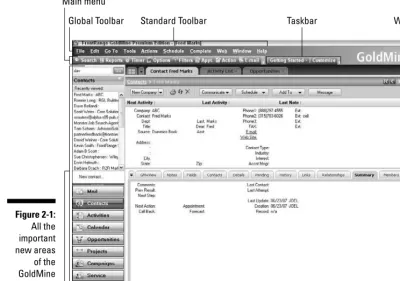
Main menu
Navigation Pane Status bar Global Toolbar Standard Toolbar Taskbar Work area
Figure 2-1:
The following list describes all the options available to you from the Main menu.
File: Create new contact records, print reports, Import/Export data, and log in options. You also exit GoldMine gracefully from here.
Edit:Cut, copy and paste your data; edit various record properties; edit, delete, and undo changes to Contact records.
Go To: Access all of Goldmine’s modules, as well as Analysis and Reporting tools.
Tools:Access tools and wizards for synchronization, configuring GoldMine, managing databases, creating and running Automated Processes, Server Agents, globally replacing data, Synchronization tools, territory realign-ment, and launching the Database Alias Manager and QuickStart Wizard.
Actions:Access GoldMine communication tools and timer commands, and manage mail merge functions.
Schedule:Access scheduling options for the contact record, including scheduling a call or an appointment, scheduling literature to be sent out, scheduling forecasted sales, follow-up actions, and GoldMine e-mails.
Complete:Access completed action options for scheduled and unsched-uled calls, appointments, sales, other actions, correspondence, and other pending activities.
Web:Access GM+Browser, Web publishing, and other online options.
Window:Window display and status bar display options. Also open new Contact Record windows.
Help:Online Help, the GoldMine Web site, NetUpdate, and important system information in About GoldMine.
The Global Toolbar
The Global Toolbar, shown in Figure 2-2, is located directly beneath the Main menu. It is completely customizable. It has two sections — the Standard Toolbar and the Taskbar. The buttons displayed throughout the Global Toolbar provide shortcuts to specific functions that you regularly perform.
The Standard Toolbar
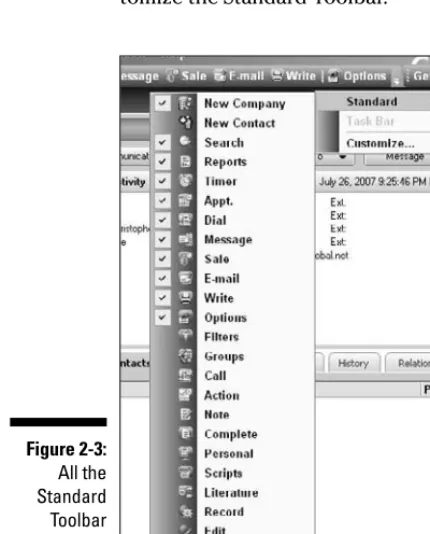
The Standard Toolbar contains a customizable selection of functions, some or many of which you probably want to use regularly. You can customize the Standard Toolbar by clicking the drop-down button at the far right of the toolbar. Select Add or Remove Buttons➪Standard. The Standard Toolbar list appears, as you can see in Figure 2-3. Using the checkboxes, select or deselect the elements you want to use.
The Taskbar
The Taskbar is comprised of the Getting Started and Customize tabs on the Global Toolbar. You control what options appear, the same way you cus-tomize the Standard Toolbar.
Figure 2-3:
All the Standard Toolbar options you can customize.
Figure 2-2:
The default Global Toolbar.
The Navigation Pane
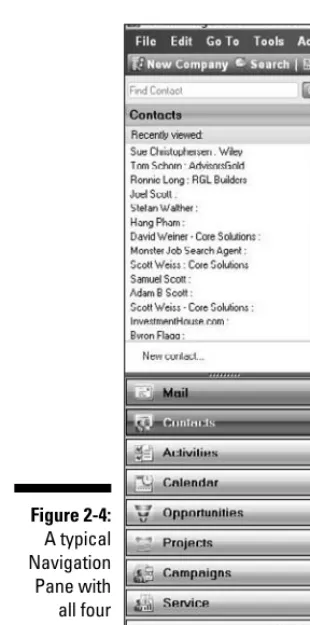
The Navigation Pane, shown in Figure 2-4, is a new feature in GoldMine Premium Edition. It essentially mirrors the Go To option from the Main menu.
The Navigation Pane also offers additional viewing and navigation options, depending on the module selected. The Navigation Pane contains the follow-ing four sections:
Search field:The Search field enables you to search for one or more records in your database. Enter a contact name and click the Go button or just click the Go button. The Contact Search Center appears in the work area with the search criteria you just entered already filled in. Clicking the Go button here, or the Search button in the Standard Toolbar, you get to the same place: the Search Center. From here, you can do simple or complex searches for individual records or for sets of records that match your criteria.
Figure 2-4:
A typical Navigation Pane with all four sections displayed.
Title bar:The Title bar displays the title for the currently selected module. Click the Title Bar or the double arrows to the right to minimize or maximize the Navigation Pane.
View window:The View window displays the most recent records you’ve accessed. The records you see here are context sensitive, chang-ing as you change categories from the section just below it. Selectchang-ing a record from this list is usually the most efficient way to return to a record you have recently been working with.
Module menu:If you reduce the size of the Navigation Pane by dragging down the dotted line that appears just above the Contacts list, the system replaces the menu options from the Navigation Pane with icons in the Module menu. If you are comfortable with using these icons, you can increase the real estate available in the View window.
The Work Area
The screen’s center is the official Work Area. The GoldMine Work Area dis-plays active windows, including the open contact records, Calendar, Activity List, and Contact Search Center. The Work Area also displays the scheduling dialog boxes, tools, and wizards. In short, this is where you do all your work. Each time you select a contact record or an activity, or have the Work Area display anything, GoldMine builds a screen for display in the Work Area. That is, if you elect the tabbing option by maximizing your Work Area. GoldMine tiles these screens, in effect putting the most current screen on top of all the previous screens and displaying a series of tabs, with each tab linking to a recent screen you’ve been to.
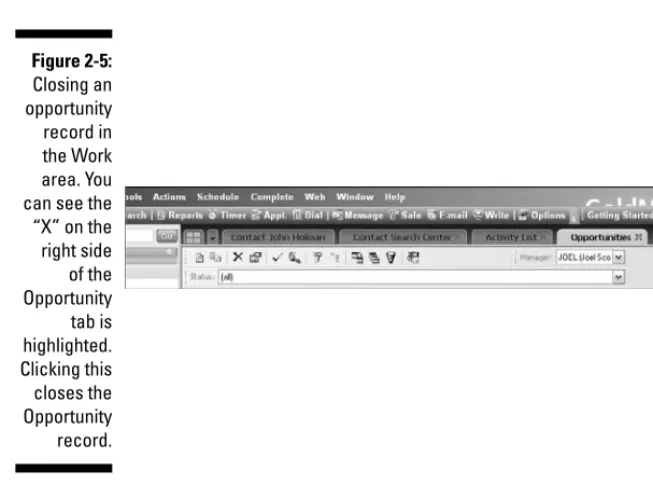
Over the course of a day, you could build up a very large number of screens on top of each other, taking up a lot of memory space and potentially causing yourself to get pretty navigationally confused. That’s why, when I finish with a screen in the Work Area, I usually close that screen. Just below the Global Toolbar, GoldMine displays the most recently accessed records or activities. You can close any of these screens by clicking the X on the right side of the tab. You can see these tabs in Figure 2-5.
The status bar
The bottom line of the window is called the status bar and contains the following information:
The name of the open Contact Set on the left side.
Whether the Caps Lock and Num Lock keys are activated.
When active, the timer, showing hours, minutes, and seconds.
The username for the logged-in user.
The date and time on the local computer.
Getting Help
GoldMine 8 includes a searchable Help Center. You can enter a keyword or a phrase and GoldMine displays all the relevant (and sometimes irrelevant) topics. For many topics, you get to see step-by-steps instructions, tips, and other miscellaneous reference materials. GoldMine’s Help Center should be the first place to go when you’re confused, frustrated, or just feel like reading.
Figure 2-5:
Closing an opportunity record in the Work area. You can see the “X” on the right side
of the Opportunity tab is highlighted. Clicking this closes the Opportunity record.
One way to navigate to the Help Center is to click Help➪GoldMine Help from the Main menu. However, the Help Center is designed to be context sensitive, meaning that you simply click F1 from whatever window or dialog box you’re in to go directly to the Help Center. GoldMine then highlights the topic most likely to help you.
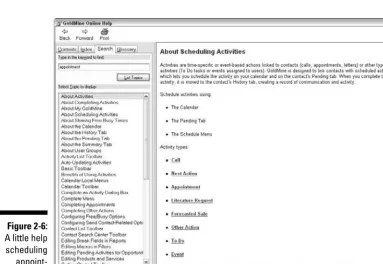
Figure 2-6 shows the Help screen you encounter if you click F1 while trying to schedule an appointment.
In the Navigation Pane of the Help screen you encounter the following tabs (as you can see in Figure 2-6):
Contents Tab:Displays a table of contents for Help. Topics are organized in “books.” Expand books to display topics. To view a topic, highlight it and see it displayed in the right pane of the HTML Help viewer.
Index Tab: Displays an index of Help topics. To locate a topic, scroll through the list or type a keyword or phrase for which to search. To view a topic, double-click the topic or highlight it and select Display. The topic displays in the right pane of the HTML Help viewer.
Figure 2-6:
A little help scheduling appoint-ments.
Search Tab: Search for words in topics. Once the word is located, the topics containing that word display in a list. To view a topic, select it and click Display. The topic displays in the right pane of the HTML Help viewer.
Glossary Tab: Displays a glossary of GoldMine terms. To display a defin-ition, select a term from the list; its definition displays in the lower pane.
Getting help online
The second choice you encounter when you select Help from GoldMine’s Main menu is GoldMine Online. Choosing this option takes you to the sup-port center at www.goldmine.com. From this area of the FrontRange Web site, you can select several options for getting additional help. Most of the choices here require you to have your credit card handy if you don’t have a current Maintenance and Support Plan in place.
Although you can eventually get to the GoldMine Support Center with a lot of clicking on the GoldMine Web site, a more efficient way is to go directly to
www.goldmine.com/micro.aspx?id=4403or call FrontRange at
800-755-2100. My clients report an average of about a 20-minute wait on hold when calling.
The GoldMine forum
The third choice on the GoldMine Help menu is the GoldMine forum, which you can also access at www.goldmine.com.. In this forum, dealers, consul-tants and other users share their insights, assistance, and complaints for free. Some of the advice here is quite good and usually very technical. Steel yourself for insults, however. Some of the more technical consultants have difficulty with social graces.
Chapter 3
Setting Up Your Preferences
In This Chapter
Customizing your Tabs
Exploring the various preferences tabs
T
he preference settings in GoldMine enable you to put your own stamp on your copy of the software. If you’re one of those eager beavers who just has to get right at it, you can probably skip this chapter. Read it later, or maybe never. Most of GoldMine works fine without your ever touching the settings. If you intend to use GoldMine’s e-mail, you definitely need to estab-lish your Preference settings.On the other hand, if you’re serious about making GoldMine work for you rather than the other way around, this is the chapter for you. In this chapter, you discover many interesting and powerful parameters you can set, and you don’t need any programming knowledge to do so.
You can control hundreds of settings and options in GoldMine. Many of them deal with pretty technical stuff, however, so I skip over some of those in favor of the most commonly used and important settings.
You can access all user preferences through the Toolbar by choosing Tools➪
Options, which gives you access to 12 separate areas. You can also get to your Option dialog box via Getting Started on the Taskbar. Behind each door of the Options settings are some of the secret tricks that GoldMine dealers use to set things up.
30
Part I: GoldMine Premium Basics
Customizing Your Tabs
Out of the box, GoldMine comes with 18 defined tabs, such as Fields, GM+View, Notes, and others. You can’t see all of them simultaneously unless you click the down arrow to the left of the tabs being displayed. You then see a drop-down list of all available tabs, and you can even navigate to each of these areas by clicking any item in the drop-down list.
Early versions of GoldMine had just one row of nine tabs. Over the years, as the number of features expanded, so did the number of tabs. Now there are just too many to see all at one time in a horizontal display.
The Links tab helps you keep track of all the documents and files associated with each record. I discuss the Links tab in detail in Chapter 19, but it is far too important to live in relative obscurity. In fact, the Links tab is generally more important and more often used than several of the original tabs that are displayed by default.
There are several candidates for demotion from the first tier to the second. My recommendation is to demote the Summary tab to the second tier and replace it with the Links tab. I’ve used GoldMine since the early 1990s and have never once felt a need for the Summary tab. My second choice for demotion is the Referrals tab. Although I do use the Referrals tab, I don’t use it all that often, and most of our clients don’t use it at all. The Notes tab is another candidate for demotion. You probably shouldn’t be using it, but as with most GoldMine users, you probably do.
Follow these steps to demote a tab and promote another tab at the same time.
1. Click the down arrow to the left of the tabs.
A drop-down list appears.
2. Click Customize at the bottom of the list.
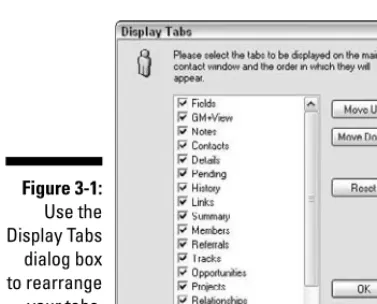
The Display Tabs screen appears, as shown in Figure 3-1.
3. Highlight the tab you want to promote or demote.
You do not need to touch the checkbox to the left of the tab description. Just highlight the name of the tab and then click the Move Up or the Move Down button as many times as you want. You can see the selected tab moving up or down as you click.
4. When you’re done rearranging all your tabs, click OK.
These changes apply only to the current logged-in user and do not affect anyone else. There is no global or company-wide setting for this.
If any of the tabs annoy you so much that you just want to eliminate them, you can do so from your Options screen by deselecting the box next to what-ever tab you want to remove. Click the Reset button to restore all the origi-nal, default settings in case you change your mind. You could use this feature to eliminate certain tabs from the reach of certain users. For example, you could remove the History tab from the office snoop’s system so that she can’t see any e-mails.
Customizing All Your Preferences
You can do a lot of customizing of GoldMine without knowing how to pro-gram at all. In addition to adding custom fields, reports, and automated processes, you can tell GoldMine exactly how you expect to work and make sure that GoldMine conforms to that. In the following sections, I discuss the 12 tabs for setting preferences.
Personal Preferences
From the Preferences dialog box, click the Personal tab to see a dialog box like the one shown in Figure 3-2. The Personal tab is one of the simplest of the Preferences tabs and enables you to see your user name and full name, and to change your title, department, phone number, and fax number. In addi-tion, by clicking the Change Password button, you can create a new password for yourself, thus preventing the resident office snoop from checking out too much of your stuff.
Figure 3-1:
Use the Display Tabs dialog box to rearrange your tabs.
Be sure to use upper- and lowercase letters when entering your title and department, because you may want to use these later as part of your e-mail signature file.
You can move to another level of personal preferences and change your pass-word by clicking the Change Passpass-word button from the Personal Preferences dialog box. In the dialog box that appears, type your current password in the Current Password text box. (Presumably, you know this password or you wouldn’t have been able to log on to GoldMine in the first place.) Then press the Tab key and type a new password in the New Password text box.
GoldMine asks you to confirm your new password by retyping it in the New Password Again text box.
Keep your GoldMine password cryptic and short, or you may become annoyed if you have to enter something long and complicated every time you start GoldMine.
The whole point to password protecting GoldMine is that your data is safe because the password is secret, which means that no one else can access your data. The downside to passwords is that if you forget yours, you’re going to be doing some reinstalling to get back to your data. You may want to write down your password and keep it in a safe place, such as in a locked cabinet in your office, or, like most people, on a sticky note stuck to your monitor.
Record preferences
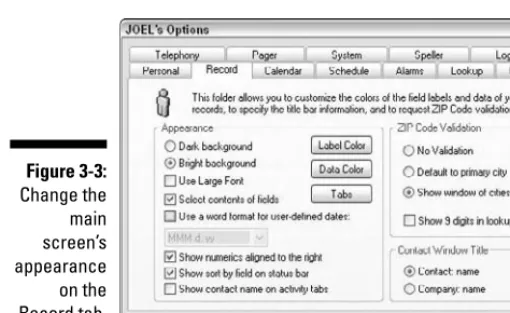
You can click the Record tab to customize the appearance of the main screen (see Figure 3-3). Two radio buttons enable you to set the shading of the screen background. You have two choices, either dark or bright background, and the one you choose is purely a matter of taste. Give each a try.
Figure 3-2:
Enter your personal information on the Personal tab.
GoldMine also gives you a choice on the font size. Selecting the Use Large Font check box makes the characters larger on-screen. If your eyesight isn’t quite what it used to be, using large fonts may be the best choice for you. You do pay a small price for this choice, however, because you can’t see quite as many lines in your browse windows as you can see with small fonts.
You can also change the colors that labels and data appear in by clicking the Label Colors or Data Colors buttons on the Record preferences dialog box. Be sure to use contrasting colors to distinguish the labels and data from the background. You can have some real fun by setting the labels and data to the exact same color as the background. (Please don’t actually do this, because it renders everything invisible!)
Following the Label Colors and Data Colors buttons, you see five check boxes that you can check to specify how data is entered or displayed:
Select Contents of Fields:If this box is checked when you enter a data field, the existing data is highlighted, and whatever you type immedi-ately overwrites the existing data. If this box is not checked, your new data is appended automatically to the existing data. Generally, you should leave this box checked.
Use a Word Format for User-Defined Dates:This option applies only to user-defined fields, not to standard date fields such as those that appear on your Pending or History tabs. If you select this box, a typical date appears as Apr 1, 03. If this box is not selected, the same date appears as 4/1/03. Take your pick.
Show Numerics Aligned to the Right:If you have a bunch of fields with numeric entries, sometimes the numbers are easier to read right-justified. Checking this box does just that for you.
Figure 3-3:
Change the main screen’s appearance on the Record tab.
Show Sort-by Field on Status Bar: If you check this box, the currently active index appears on the status bar.
Show Contact Name on Activity Tabs:Don’t select this option unless you plan to make major and frequent use of the Relationships feature. Relationships connect or relate separate records in GoldMine to one another. For example, if you have separate records for each location of Burger King, you might use the Relationships feature to show how they are each related. See Chapter 24 for more about relationships.
The next section of the Record preferences dialog box enables you to deter-mine how the system deals with entering ZIP codes. If you select the No Validation radio button, you then have to type the city, state, and ZIP code. Don’t do this.
Behind the scenes, GoldMine builds a ZIP code database for you as you enter records. GoldMine builds on its ZIP code file and continues figuring out what city goes with what ZIP code. This is a great feature: The second time you enter a record from the same ZIP code, GoldMine automatically fills in the city and state for you.
You can buy several ready-made ZIP code files that will save you consider-able effort. Check the Web site at www.ccc24k.comfor a utility called ZipCodes+ And, a word of caution: In the mid-90s, the then-GoldMine Software Corporation pulled a ZIP code utility off the market. The company had been selling it for less than $20, but it had become so obsolete at that point that it was no longer of much value. There is now a dealer selling this same database or giving it away and claiming that it’s worth $120. Let the buyer beware!
Make sure you select the Show Window of Cities radio button. With this option selected, you can
Enter the ZIP code and then enter the city and state.GoldMine auto-matically fills in the city and state if the city and state are unique.
Select the correct city and state.If multiple choices are possible, GoldMine displays a browse window that enables you to do this.
Calendar preferences
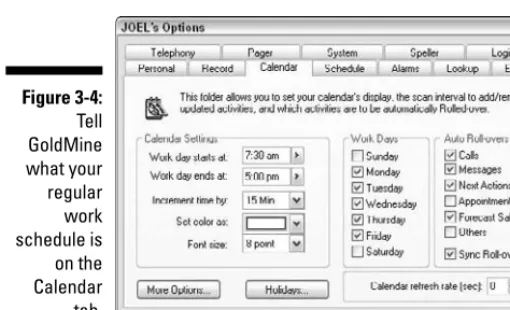
When you click the Calendar tab to display the Calendar preferences dialog box, most of the choices are pretty self-explanatory. You can set up GoldMine to reflect your normal working hours and the days of the week you usually work. These choices affect how your calendar is displayed, as shown in Figure 3-4.
Click the Holidays button, and on the dialog box that appears, enter company holidays so that GoldMine won’t schedule activities on those days. If you don’t have Master access rights, ask your system administrator to take care of this task. The holidays are entered only once and are then in place in the schedule for everyone in the company.
You can actually schedule holidays based on the country in which you operate, as well as schedule personal holidays, such as your birthday or anniversary. If you’re like me, you may find that the Auto Roll-Over options are some of the most significant ones available in the Calendar preferences dialog box. Many are the days when I come into the office and have an overwhelming number of phone calls scheduled for me. Try as I might, I never seem to be able to make them all. If I do manage to make most of them, I want the remaining ones to be on my schedule for the next day. That’s exactly what Auto Roll-Over does. It takes activities that you have not completed by the end of a particular day and moves