Telecommunication Systems Division
Stratagy Flash, IVP8
User Guide
®
Publication Information
Toshiba America Information Systems, Inc., Telecommunication Systems Division, reserves the right, without prior notice, to revise this information publication for any reason, including, but not limited to, utilization of new advances in the state of technical arts or to simply change the design of this document.
© Copyright 2002
Toshiba America Information Systems, Inc. Telecommunication Systems Division
TOSHIBA AMERICA INFORMATION SYSTEMS, INC. (“TAIS”)
Telecommunication Systems Division License Agreement
IMPORTANT: THIS LICENSE AGREEMENT (“AGREEMENT”) IS A LEGAL AGREEMENT BETWEEN YOU (“YOU”) AND TAIS. CAREFULLY READ THIS LICENSE AGREEMENT. USE OF ANY SOFTWARE OR ANY RELATED INFORMATION (COLLECTIVELY, “SOFTWARE”) INSTALLED ON OR SHIPPED WITH A TAIS TELECOMMUNICATION SYSTEM PRODUCT OR OTHERWISE MADE AVAILABLE TO YOU BY TAIS IN WHATEVER FORM OR MEDIA, WILL CONSTITUTE YOUR ACCEPTANCE OF THESE TERMS, UNLESS SEPARATE TERMS ARE PROVIDED BY THE SOFTWARE SUPPLIER. IF YOU DO NOT AGREE WITH THE TERMS OF THIS LICENSE AGREEMENT, DO NOT INSTALL, COPY OR USE THE SOFTWARE AND PROMPTLY RETURN IT TO THE LOCATION FROM WHICH YOU OBTAINED IT IN ACCORDANCE WITH APPLICABLE RETURN POLICIES. EXCEPT AS OTHERWISE AUTHORIZED IN WRITING BY TAIS, THIS SOFTWARE IS LICENSED FOR DISTRIBUTION ONLY TO END-USERS PURSUANT TO THIS LICENSE AGREEMENT.
1. License Grant. The Software is not sold; it is licensed upon payment of applicable charges. TAIS grants to you a personal, non-transferable and non-exclusive right to use the copy of the Software provided under this License Agreement. You agree you will not copy the Software except as necessary to use it on one TAIS system at a time at one location. Modifying, translating, renting, copying, distributing, transferring or assigning all or part of the Software, or any rights granted hereunder, to any other persons and removing any proprietary notices, labels or marks from the Software is strictly prohibited; You agree violation of such restrictions will cause irreparable harm to TAIS and provide grounds for injunctive relief, without notice, against You or any other person in possession of the Software. You and any other person whose possession of the software violates this License Agreement shall promptly surrender possession of the Software to TAIS, upon demand. Furthermore, you hereby agree not to create derivative works based on the Software. TAIS reserves the right to terminate this license and to immediately repossess the software in the event that You or any other person violates this License Agreement.
2. Intellectual Property. You acknowledge that no title to the intellectual property in the Software is transferred to you. You further acknowledge that title and full ownership rights to the Software will remain the exclusive property of TAIS and/or its suppliers, and you will not acquire any rights to the Software, except the license expressly set forth above. You will not remove or change any proprietary notices contained in or on the Software. The Software is protected under US patent, copyright, trade secret, and/or other proprietary laws, as well as international treaties. Any transfer, use, or copying of the software in violation of the License Agreement constitutes copyright infringement. You are hereby on notice that any transfer, use, or copying of the Software in violation of this License Agreement constitutes a willful infringement of copyright.
3. No Reverse Engineering. You agree that you will not attempt, and if you employ employees or engage contractors, you will use your best efforts to prevent your employees and contractors from attempting to reverse compile, reverse engineer, modify, translate or disassemble the Software in whole or in part. Any failure to comply with the above or any other terms and conditions contained herein will result in the automatic termination of this license and the reversion of the rights granted hereunder back to TAIS.
4. Limited Warranty. THE SOFTWARE IS PROVIDED “AS IS” WITHOUT WARRANTY OF ANY KIND. TO THE MAXIMUM EXTENT PERMITTED BY APPLICABLE LAW, TAIS AND ITS SUPPLIERS DISCLAIM ALL WARRANTIES WITH REGARD TO THE SOFTWARE, EITHER EXPRESS OR IMPLIED, INCLUDING, BUT NOT LIMITED TO, THE WARRANTY OF NON-INFRINGEMENT OF THIRD PARTY RIGHTS, THE WARRANTY OF YEAR 2000 COMPLIANCE, AND THE IMPLIED WARRANTIES OF MERCHANTABILITY AND FITNESS FOR A PARTICULAR PURPOSE. THE ENTIRE RISK AS TO THE QUALITY AND PERFORMANCE OF THE SOFTWARE IS WITH YOU. NEITHER TAIS NOR ITS SUPPLIERS WARRANT THAT THE FUNCTIONS CONTAINED IN THE SOFTWARE WILL MEET YOUR REQUIREMENTS OR THAT THE OPERATION OF THE SOFTWARE WILL BE UNINTERRUPTED OR ERROR-FREE. HOWEVER, TAIS WARRANTS THAT ANY MEDIA ON WHICH THE SOFTWARE IS FURNISHED IS FREE FROM DEFECTS IN MATERIAL AND WORKMANSHIP UNDER NORMAL USE FOR A PERIOD OF NINETY (90) DAYS FROM THE DATE OF DELIVERY TO YOU. 5. Limitation Of Liability. TAIS’ ENTIRE LIABILITY AND YOUR SOLE AND EXCLUSIVE REMEDY UNDER THIS LICENSE AGREEMENT SHALL BE AT TAIS’ OPTION REPLACEMENT OF THE MEDIA OR REFUND OF THE PRICE PAID. TO THE MAXIMUM EXTENT PERMITTED BY APPLICABLE LAW, IN NO EVENT SHALL TAIS OR ITS SUPPLIERS BE LIABLE TO YOU FOR ANY CONSEQUENTIAL, SPECIAL, INCIDENTAL OR INDIRECT DAMAGES FOR PERSONAL INJURY, LOSS OF BUSINESS PROFITS, BUSINESS INTERRUPTION, LOSS OF BUSINESS INFORMATION/DATA, OR ANY OTHER PECUNIARY LOSS OF ANY KIND ARISING OUT OF THE USE OR INABILITY TO USE THE SOFTWARE, EVEN IF TAIS OR ITS SUPPLIER HAS BEEN ADVISED OF THE POSSIBILITY OF SUCH DAMAGES. IN NO EVENT SHALL TAIS OR ITS SUPPLIERS BE LIABLE FOR ANY CLAIM BY A THIRD PARTY.
6. State/Jurisdiction Laws. SOME STATES/JURISDICTIONS DO NOT ALLOW THE EXCLUSION OF IMPLIED WARRANTIES OR LIMITATIONS ON HOW LONG AN IMPLIED WARRANTY MAY LAST, OR THE EXCLUSION OR LIMITATION OF INCIDENTAL OR CONSEQUENTIAL DAMAGES, SO SUCH LIMITATIONS OR EXCLUSIONS MAY NOT APPLY TO YOU. THIS LIMITED WARRANTY GIVES YOU SPECIFIC RIGHTS AND YOU MAY ALSO HAVE OTHER RIGHTS WHICH VARY FROM STATE/JURISDICTION TO STATE/JURISDICTION.
7. Export Laws. This License Agreement involves products and/or technical data that may be controlled under the United States Export Administration Regulations and may be subject to the approval of the United States Department of Commerce prior to export. Any export, directly or indirectly, in contravention of the United States Export Administration Regulations, or any other applicable law, regulation or order, is prohibited.
8. Governing Law. This License Agreement will be governed by the laws of the State of California, United States of America, excluding its conflict of law provisions.
9. United States Government Restricted Rights. The Software is provided with Restricted Rights. Use, duplication, or disclosure by the United States Government, its agencies and/or instrumentalities is subject to restrictions as set forth in subparagraph (c)(1)(ii) of The Rights in Technical Data and Computer Software Clause at DFARS 252.227-7013 (October 1988) or subparagraphs (c)(1) and (2) of the Commercial Computer Software - Restricted Rights at 48 CFR 52.227-19, as applicable.
10. Severability. If any provision of this License Agreement shall be held to be invalid, illegal or unenforceable, the validity, legality and enforceability of the remaining provisions hereof shall not in any way be affected or impaired.
Toshiba America Information Systems, Inc.
Telecommunication Systems Division
Limited Warranty
Toshiba America Information Systems, Inc., (“TAIS”) warrants that this voice processing equipment (except for fuses, lamps, and other consumables) will, upon delivery by TAIS or an authorized TAIS dealer to a retail customer in new condition, be free from defects in material and workmanship for twenty-four (24) months after delivery. This warranty is void (a) if the equipment is used under other than normal use and maintenance conditions, (b) if the equipment is modified or altered, unless the modification or alteration is expressly authorized by TAIS, (c) if the equipment is subject to abuse, neglect, lightning, electrical fault, or accident, (d) if the equipment is repaired by someone other than TAIS or an authorized TAIS dealer, (e) if the equipment’s serial number is defaced or missing, or (f) if the equipment is installed or used in combination or in assembly with products not supplied by TAIS and which are not compatible or are of inferior quality, design, or performance.
The sole obligation of TAIS or Toshiba Corporation under this warranty, or under any other legal obligation with respect to the equipment, is the repair or replacement by TAIS or its authorized dealer of such defective or missing parts as are causing the malfunction with new or refurbished parts (at their option). If TAIS or one of its authorized dealers does not replace or repair such parts, the retail customer’s sole remedy will be a refund of the price charged by TAIS to its dealers for such parts as are proven to be defective, and which are returned to TAIS through one of its authorized dealers within the warranty period and no later than thirty (30) days after such malfunction, whichever first occurs.
Under no circumstances will the retail customer or any user or dealer or other person be entitled to any direct, special, indirect, consequential, or exemplary damages, for breach of contract, tort, or otherwise. Under no circumstances will any such person be entitled to any sum greater than the purchase price paid for the item of equipment that is malfunctioning.
To obtain service under this warranty, the retail customer must bring the malfunction of the machine to the attention of one of TAIS’ authorized dealers within the twenty-four (24) month period and no later than thirty (30) days after such malfunction, whichever first occurs. Failure to bring the malfunction to the attention of an authorized TAIS dealer within the prescribed time results in the customer being not entitled to warranty service.
THERE ARE NO OTHER WARRANTIES FROM EITHER TOSHIBA AMERICA INFORMATION SYSTEMS, INC., OR TOSHIBA CORPORATION WHICH EXTEND BEYOND THE FACE OF THIS WARRANTY. ALL OTHER WARRANTIES, EXPRESS OR IMPLIED, INCLUDING THE WARRANTIES OF MERCHANTABILITY, FITNESS FOR A PARTICULAR PURPOSE, AND FITNESS FOR USE, ARE EXCLUDED.
Contents
Introduction
Organization ... v
Conventions ... vi
Action/Response Table ... vii
Related Documents/Media ... vii
Stratagy eBrochure and Advisor CD-ROM ... viii
Chapter 1 – The Grand Tour
Overview ... 2Features to Personalize Your Mailbox ... 4
Message Queues ... 4
New Message Queue ... 4
Saved Message Queue ... 5
Message Types ... 6
Forwarded Message ... 6
Reply Message ... 6
Greetings ... 7
Personal ... 7
Contents
Chapter 2 – Getting Started
Message Destination Selections ...9
Personal Distribution Lists ...9
System Distribution Lists ...10
Directory ...10
User Options ...10
User Prompts ...11
User Tutorial (New User) ...11
Chapter 2 – Getting Started
User Tutorial ...13Chapter 3 – Play Messages
Access Messages ...21Playback Controls ...22
Play Your Messages ...24
Special Functions ...27
Chapter 4 – Send Messages
Recording Controls ...32Send a Message ...33
Forward a Message ...37
Reply to the Current Message ...40
Special Delivery Options ...43
Future Delivery ...44
Chapter 5 – Manage Mailbox
Change Your Greeting ...46Create or Record Over a Personal Greeting ...47
Change Your Greeting Selection ...49
Review a Greeting ...50
Contents Appendix A – Using Stratagy with a Strata CTX
Create or Record Over Your Busy Greeting ... 55
Select Your Busy Greeting ... 56
Record Your Name ... 57
Change Your Message Notification ... 58
Review Your Option Settings ... 59
Manage Your Lists ... 60
Manage Guest User IDs ... 62
Use Guest User IDs ... 63
Appendix A – Using Stratagy with a Strata CTX
Call Forward ... 65Message Waiting ... 67
Responding to a Lit Msg LED ... 67
Turning On/Off Message Waiting LED on Another Extension ... 68
Call Record to Stratagy ... 68
Pause/Resume Recording ... 69
Direct Transfer to Voice Mailbox ... 70
Voice Mail Conference ... 70
Appendix B – Using Stratagy with a Strata Legacy System
Call Forward ... 72Set Call Forward to Stratagy ... 72
Cancel Call Forward ... 76
Cancel the Programmed Call Forward Voice Mail Code ... 76
Message Retrieval ... 77
Glossary
... 79Contents
Introduction
This guide describes the voice messaging capabilities and procedures for making the Stratagy Flash and Stratagy IVP8 Voice Processing Systems work for you.
Organization
This guide is divided as follows:
•
Chapter 1 – The Grand Tour is an overview of the Stratagy system. Topicscovered are: features to personalize your mailbox; an explanation of message queues, types and destinations; special delivery options; playback/recording controls; and available user options.
•
Chapter 2 – Getting Started provides instructions on those features you needwhen accessing Stratagy for the first time, including changing your security code and recording your name.
•
Chapter 3 – Play Messages contains step-by-step instructions on playingmessages.
•
Chapter 4 – Send Messages details how to send, forward, and reply to a message.•
Chapter 5 – Manage Mailbox provides step-by-step instructions on recordingIntroduction Conventions
•
Glossary defines frequently-used Stratagy voice processing system features andfunctions.
•
IndexConventions
Conventions Description
Note
Elaborates specific items or references other information. Within some tables, general notes apply to the entire table and numbered notes apply to specific items.
Important! Calls attention to important instructions or information.
Extension Number
Press to answer a call to the Extension Number. Each station can have multiple extension buttons. Incoming calls ring the extension button(s) from the top down. For example, station 10’s extensions ring 10-1 first, then 10-2, 10-3, and 10-4. A station is considered busy when all extensions are being used.
Note The naming convention for DKT assignments within Toshiba is Directory Numbers. For clarity and ease of understanding, the terms Extension Number and Phantom Extension Number will be used in this document in lieu of PDN and PhDN.
$ULDOEROG Represents telephone buttons.
Courier Shows a computer keyboard entry or screen display.
“Type” Indicates entry of a string of text.
“Press” Indicates entry of a single key. For example: Type prog then press Enter.
Introduction Related Documents/Media
Action/Response Table
Related Documents/Media
Note Some documents listed here may appear in different versions on the CD-ROM, FYI, or in print. To find the most current version, check the version/date in the Publication Information on the back of the document’s title page.
Important! Read this User Guide first, then use it with the Quick Reference Guide.
•
Stratagy Quick Reference Guide•
Stratagy Voice Processing General Description•
Stratagy Voice Processing Installation and Maintenance ManualTilde (~) Means “through.” Example: 350~640 Hz frequency range.
➤ Denotes the step in a one-step procedure.
➤
Denotes a procedure.See Figure 10
Grey words within the printed text denote cross-references. In the electronic version of this document (Library CD-ROM or FYI Internet download), cross-references appear in blue hypertext.
Actions you perform appear
in this column. They can consist of either a single step or a series of numbered steps.
The immediate response to the action performed appears in this column. Additional notes and comments are also included.
Introduction
Related Documents/Media
Stratagy eBrochure and Advisor CD-ROM
Packaged with every Stratagy shipped is a CD-ROM containing Stratagy eBrochure, and an end-user tutorial, Stratagy Advisor.
eBrochure
The eBrochure provides a description of each of the Stratagy products along with audio supplemented mini-demonstrations illustrating the capabilities of Stratagy voice processing. Also included on the CD-ROM is an electronic copy of this Stratagy
General Description.
Advisor
The Stratagy Advisor is an end-user tutorial that can be used as a learning tool for the new user or as a refresher course for existing Stratagy users.
The Stratagy Advisor program covers general topics—such as play messages, send messages, etc.—that are applicable to all models of Stratagy systems. All
The Grand Tour
1
This chapter provides an overview of the system and covers the following general topics:
•
Features to personalize your mailbox•
Message queues•
Message types•
Greetings•
Special delivery options•
Future delivery•
Message destination selections•
User options•
User promptsThe Grand Tour Overview
Overview
Stratagy manages multiple voice processing functions simultaneously 24-hours-a-day, 7-days-a-week. Your mailbox, referred to as a User ID in Stratagy, is always available for callers to leave private voice messages. In addition, you can update your greeting at your convenience or send and receive messages from any tone-dialing telephone.
Callers control their own progress through the system. They no longer have to wait for a person to answer the telephone. If your extension is busy or you do not answer, callers can transfer to an operator, call another extension, or record a private, detailed message.
A representative in your company has been assigned as the System Administrator for the system. The System Administrator is responsible for configuring the system and your mailbox to suit your company’s needs.
The configuration affects how and which features you can access. Whenever possible, this guide provides information concerning feature exceptions and which features may be configured to work differently.
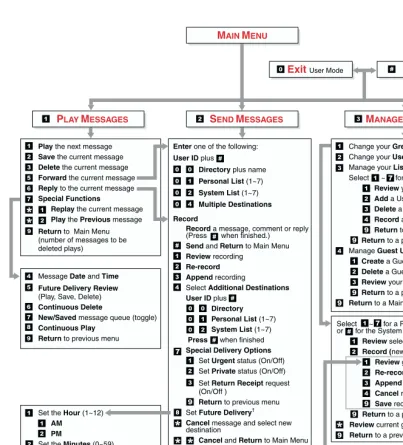
You can access your mailbox from any tone-dialing telephone using your security code. After you access Stratagy, you hear the number of messages you have in your message queue(s), followed by a prompt from the Main Menu options (see Figure 1). You can then:
•
Listen to your messages•
Send or forward messages•
Reply to messagesThe Grand Tour Overview
Play the next message
Save the current message
Delete the current message
Forward the current message
Reply to the current message
Special Functions
Replay the current message
Play the Previous message
Return to Main Menu (number of messages to be deleted plays)
Message Date and Time Future Delivery Review
(Play, Save, Delete)
Continuous Delete
New/Saved message queue (toggle)
Continuous Play Return to previous menu
Set the Hour (1~12)
AM PM
Set the Minutes (0~59) Set the Day (1~31)
Enter one of the following:
User ID plus
Directory plus name
Personal List (1~7)
System List (1~7)
Multiple Destinations Record
Record a message, comment or reply (Press when finished.)
Send and Return to Main Menu
Review recording
Re-record Append recording
Select Additional Destinations User ID plus
Directory Personal List (1~7)
System List (1~7)
Press when finished
Special Delivery Options
Set Urgent status (On/Off) Set Private status (On/Off) Set Return Receipt request (On/Off )
Return to previous menu Set Future Delivery† Cancel message and select new destination
Cancel and Return to Main Menu
Change your Greeting
Change your User Options
Manage your Lists
Select ~ for a Personal List
Review your current list
Add a User ID to the list
Delete a User ID from the list
Record a list Comment Return to a previous menu
Return to a previous menu Manage Guest User IDs†
Create a Guest User ID
Delete a Guest User ID
Review your Guest User IDs
Return to a previous menu
Return to a Main Menu
Select ~ for a Personal Greeting or for the System Greeting
Review selected greeting
Record (new) greeting
Review greeting
Re-record Append to recording
Cancel recording
Save recording
Return to a previous menu
Review current greeting
Return to a previous menu
Not available for System
greeting
Change your Do Not Disturb (On/Off)
MAINMENU
SENDMESSAGES
PLAYMESSAGES MANAGEMAILBOX
HANG UP
The Grand Tour
Features to Personalize Your Mailbox
Features to Personalize Your Mailbox
The Stratagy Voice Processing System offers a variety of features to personalize your User ID Mailbox. The following are a few of those features:
•
User ID Mailbox Security Code – Your User ID mailbox has a security code. Thecode must be entered by you in order to “log into” your User ID mailbox, giving you access to your messages, settings, greetings, etc. (see “Change Your Security Code” on page 18).
•
Name Recording – Your name is announced whenever you log onto your mailbox,the directory is accessed, the system greeting is selected, or when a message is sent by another Stratagy user. When you first enter your mailbox, you need to record your name (see “Record Your Name” on page 16).
•
Personal Greetings – You can record up to seven personal greetings that areplayed when you are unavailable (see “Change Your Greeting” on page 46).
•
Guest Users– You can create Guest User IDs that can be used by clients, friends,etc. Users frequently use this feature to create guest IDs for clients, so that they may easily exchange confidential information (see “Manage Guest User IDs” on
page 62).
Note The Guest User feature is not supported by all Stratagy systems. Check with your System Administrator to find out if your system is configured for this feature.
Message Queues
Your messages reside in one of two queues—new or saved. Messages play in FIFO (First In, First Out) or LIFO (Last In, First Out) order. Ask your System Administrator to find out how your mailbox is configured.
New Message Queue
The Grand Tour Message Queues
Messages that you have partially heard (five seconds or longer) are called Pending messages. They remain in the New Message Queue, the Message Waiting LED is turned off, and a Return Receipt is sent, if applicable.
Note The Pending messages feature is available on a mailbox-to-mailbox basis. Check with your System Administrator to find out if your mailbox is configured for this feature.
When you pressfrom the Main Menu to play messages, Stratagy automatically accesses the New Message Queue. A new message begins to play based on the type (urgent messages play first) and order received (FIFO/LIFO). If no new messages exist, Stratagy automatically accesses the Saved Message Queue. If you are in the Saved Message Queue, you can toggle back to the New Message Queue by pressing
.
After you play the last message in the queue, Stratagy prompts, “End of messages.” You can choose to return to the top of the queue, go to the top of the other queue, etc.
Saved Message Queue
Saved messages are messages that you saved or that were automatically saved by Stratagy at the end of the message.
Access the Saved Message Queue from the Main Menu by pressingor from the New Message Queue by pressing. Stratagy automatically accesses the Saved Message Queue when no new messages exist. Saved messages play based on order received (FIFO/LIFO).
After you play the last message in the queue, Stratagy prompts, “End of messages.” You can choose to return to the top of the queue, go to the top of the other queue, etc.
The Grand Tour Message Types
Message Types
New and Saved Messages can consist of the following special types of messages— forwarded and message reply.
Forwarded Message
Any message sent to you can be forwarded to a single destination or a personal or system distribution list. When forwarding a message, recording a message (comment) is optional.
Reply Message
Messages to which you want to send an immediate answer can be sent as a reply message. When replying to a message, Stratagy does not prompt you to select the destination since it “remembers” the source. The Reply feature only works if the original message is sent from a Stratagy user.
The Grand Tour Greetings
Greetings
You can select either a personal or system greeting to play to callers when you do not answer or when your telephone is busy.
Depending on how your system is configured, callers may hear a separate busy greeting—the system or the custom busy greeting. See “Change Your User Options”
on page 51 for details.
Personal
Personal greetings are greetings that you record for callers. Stratagy stores all
recorded greetings under the personal greeting number (1~7) for your mailbox. Using the greeting number, you can select the greeting which plays.
The System Administrator can also schedule your greetings to automatically play at different times. If you choose, you can override the automatic schedule using the
“Change Your Greeting Selection” on page 49.
System
The system greeting is a standard prerecorded greeting with all Stratagy systems. It cannot be recorded over or deleted. The greeting states, “Please leave a message for (name).” Stratagy adds your name from the name recording that you have made (see
“Record Your Name” on page 16).
Busy
The Grand Tour Special Delivery Options
Special Delivery Options
In addition to recording and sending a new message, you can mark the message urgent, private, or request a return receipt.
Urgent
Messages can be marked urgent by the sender and always play first in the New Message Queue. After the message plays, the urgent status is removed.
Private
Messages can be marked private by the sender. The same options, such as saving and deleting, apply to the private messages; however, a private message cannot be forwarded. Once a message is sent, the private status cannot be removed.
Return Receipt
You can mark a message Return Receipt if you want verification of its receipt. When a user plays (completely or partially) a message marked for Return Receipt, a
notification is sent back to the sender. Stratagy notifies the sender when and by whom the message was received and plays the original message.
Future Delivery
Stratagy can be configured so that your message is delivered at a future time and date specified by you. After marking the message for future delivery, you can review (play, save, delete) the message at any time before it is sent.
The Grand Tour Message Destination Selections
Message Destination Selections
At the beginning of the Send Messages menu, you are asked to enter the message destination(s).You can choose to enter a single destination (e.g., User ID) or multiple destinations (e.g., personal list, User ID, system list). Entering the Multiple
Destinations option enables you to address your message to all the recipients at the start of the menu.
You can then record your message and, if desired, add additional destinations when prompted later in the menu. Valid destinations are:
•
User IDNote If you don’t know the user’s User ID, you can locate the ID on Stratagy’s system-wide directory by pressing .
•
Personal distribution list•
System distribution list•
AMIS local node number•
AMIS Gateway number plus a remote mailbox numberSee “Send a Message” on page 33 for instructions on using these options.
Personal Distribution Lists
You can originate up to seven Personal Distribution Lists consisting of other system users. You can add or delete users at any time. The lists are for only your use.
At the time you create a list, you are given the option of recording a “list comment” that serves as the title or name for the list. The comment plays each time you use the list to confirm that you have chosen the correct distribution list.
The Grand Tour User Options
System Distribution Lists
In addition to Personal Distribution Lists, Stratagy supports system-wide distribution lists created by the System Administrator for use by everyone in your company. You should check with your System Administrator to find out which lists are available.
Whenever you enter the list number, the “list comment” for the selected system list plays to confirm that you have chosen the right list.
Directory
You can enter the Dual Tone Multi-frequency (DTMF) digits corresponding to the first few letters of a user’s name and Stratagy plays the recorded name (User ID and optionally the extension) that matches the combination of entered digits. You can then select the name or go on to the next name in the directory.
Each User ID can be identified with up to two names. These names are entered into the automated directory by the System Administrator and enhance the directory’s search/find capabilities. Common choices for the names are the first and last names of the user or the last name of the user and a commonly misspelled version of the last name.
User Options
You can set your telephone for Do Not Disturb (DND) or call screening, select or record a busy greeting (plays when your telephone is busy), and designate where or how you are notified of a message.
The following is a brief description of each of the options. Please see “Change Your User Options” on page 51 for more detailed information.
Important! The System Administrator must activate these features for them to be available.
•
DND – Stratagy automatically sends calls to your User ID (mailbox) without firstringing your telephone.
The Grand Tour User Prompts
•
Busy Greeting – You can record your own custom busy greeting that plays whencallers reach your extension, and it is busy.
•
Message Notification – Your User ID can have up to 10 notification recordsprogrammed by the System Administrator with a specific notification method (message waiting lights, stutter dial tone, pagers, voice, etc.) and the time/day when that notification record applies.
Once you have turned on a specific notification record, Stratagy automatically calls you at the designated number and with the chosen method to notify you of your messages.
User Prompts
The Stratagy system prompts only for menu options available to you. You do not hear prompts for options:
•
Not supported by your Stratagy system (e.g., future delivery)•
Not configured for your mailbox by the System Administrator (e.g., guest users, do not disturb).Check with your System Administrator to verify which user options are available to you.
User Tutorial (New User)
A first time user of Stratagy systems automatically hears a user-friendly Stratagy tutorial upon logging in to his/her mailbox. The tutorial walks the user through the process of:
•
Recording his/her name (if required)Getting Started
2
This chapter instructs you on accessing and exiting your mailbox and outlines the user tutorial steps.
User Tutorial
When you log on to the Stratagy Voice Processing system for the very first time, you hear a tutorial that walks you through the following basic steps:
•
Record your name (if required). Your name is announced whenever you log onto your mailbox (varies by system), the directory is accessed, the system greeting is selected, or when another Stratagy user sends a message to you.•
Record your personal greeting. Your personal greeting automatically plays when you are not available to answer your telephone.•
Change the default security code for your mailbox to ensure privacy. You should change it on a regular basis.Getting Started
Step 1: Access Your Mailbox
Step 1: Access Your Mailbox
The Main Menu (shown below) is your starting point for all of Stratagy’s messaging features. Pressingfrom most menus returns you to the Main Menu.
To access your mailbox, you need to know:
•
The telephone number to access Stratagy•
Your User ID number•
Your default security codePlease ask your System Administrator if you do not have this information.
Each time you access your User ID (mailbox), Stratagy announces:
•
Your name (and extension, if applicable)Note Some Stratagy systems may not be configured to play your name when you log on to your mailbox.
•
The number of new and saved messages you have in your message queue(s)•
The number of messages that will be purged upon exiting your mailbox, if applicableStratagy then plays the Main Menu options.
If you receive new messages while you are logged on to your mailbox, Stratagy informs you that you have new messages when you return to the Main Menu.
MAIN MENU
Play Messages Send Messages Manage Mailbox Exit user mode Hang Up
Getting Started Step 1: Access Your Mailbox
1. From an internal telephone, call Stratagy on ___________
...or from an external telephone, call Stratagy on ___________.
The system answers with your standard company greeting.
2. When Stratagy answers, press
.
Stratagy prompts you to enter your User ID.
3. Enter your User ID +. If your Stratagy system is designed with a fixed length number for your User ID, do not press after entering a User ID. See your System Administrator for specific operation of your system.
Stratagy prompts you to enter your security code.
4. Enter the default security code +.
If you make a mistake while entering the code, press
to re-enter.
If your Stratagy system is designed with a fixed length number for your security code, do not press after entering the security code. See your System
Administrator for specific operation of your system.
Getting Started
Step 2: Record Your Name
Step 2: Record Your Name
Your name is announced whenever you log onto your mailbox, the directory is accessed, the system greeting is selected, or when a message is sent by another Stratagy user.
Note Some Stratagy systems may not be configured to play your name when you log on to your mailbox.
When you first enter your mailbox, the Stratagy tutorial prompts you to record your name and walks you through the entire recording sequence. You can re-record your name at any time (see “Record Your Name” on page 57).
1. At the tone, state your name slowly and clearly (if you like, you can also state your extension).
2. Presswhen done. Stratagy plays your name recording.
3. After your name plays, press:
To accept the recording
Getting Started Step 3: Record Your Personal Greeting(s)
Step 3: Record Your Personal Greeting(s)
The tutorial now prompts you to record your personal greeting. This greeting becomes your Personal Greeting #1. You can record up to six other greetings (see “Create or Record Over a Personal Greeting” on page 47 for instructions).
Personal greetings should be informative and advise callers when you will be available to return their calls or respond to their messages. You can update personal greetings as often as you want.
Sample Greeting
“Hi. This is Mary Smith of the Toshiba Marketing Department. It is Monday, June 19, and I am in the office today. I am either on the telephone or have stepped away for a few minutes and your call has been forwarded to my voice mailbox. If at the tone you leave a detailed message and a telephone number where I can reach you, I will be happy to return your call.”
1. At the tone, begin recording your greeting.
The following information should be included in your Personal Greeting:
•
Your name•
Company and/or department•
Date•
Your availability•
Instructions to leave a detailed message•
Call coverage options 2. Press when done. Stratagy plays your greeting.Getting Started
Step 4: Change Your Security Code
Step 4: Change Your Security Code
The tutorial prompts you to change your mailbox’s security code from the preassigned code. You should change your security code on a regular basis thereafter to ensure the privacy of your messages and personal greetings (see “Change Your Security Code”
on page 54).
You have completed the tutorial. Stratagy announces “mailbox number xxx is enabled,” plays your recorded name and announces the number of messages in your mailbox. You can now perform any of the functions available on the Stratagy Main Menu or exit the mailbox.
1. Enter your new security code +.
The minimum and maximum number of digits for the security code are determined by your System
Administrator. Please ask your System Administrator for confirmation on the number.
Stratagy prompts you to re-enter your new security code for verification.
2. Re-enter your new security code +.
Getting Started Step 5: Exit Your Mailbox or User Mode
Step 5: Exit Your Mailbox or User Mode
➤ To exit your mailbox, pressto hang up from a Toshiba telephone system
When you pressto hang up, you hear “Thank you for calling. Good-bye.”
...or to hang up from another
manufacturer’s telephone system
...or to exit the user mode, press .
Stratagy can be configured so that you can exit your mailbox without leaving the Stratagy system. Please ask your System Administrator to find out if your system is configured for this or some other function when pressing.
Getting Started
Play Messages
3
This chapter explains how to use the Play Messages feature. It discusses:
•
Access Messages•
Playback Controls•
Play your messages•
Special functionsDepending upon your telephone system and telephone, a message waiting light is lit on your telephone when a voice message has been left for you on the Stratagy system.
If configured, Stratagy automatically turns off your message waiting light on your telephone when your new message queue is empty or only Pending messages remain (see “Message Queues” on page 4). The Message Waiting LED remains on only if there are new messages in the queue.
Access Messages
Once you press to play your messages, the following telephone keys assist you in going through your messages:
Play Messages Playback Controls
If new messages arrive while you are accessing your mailbox, Stratagy notifies you that a new message is in the queue upon returning to the Main menu.
Playback Controls
While playing a message, you can pause, control the volume, location, and speed of playback using the following keys (shown below).
Note Some Stratagy systems do not support the following message controls:
Turn Up volume, Turn Down volume, and Change Speed (toggle). See your System Administrator for specific operation of your system.
Press twice to
Change Speed (toggle) 3095
Go Forward (advance)
Turn Down volume Back Up (rewind)
Pause/Resume
(toggle or 30 secs.) Turn Up volume Play Next Message
(from last message go to first)
Play Messages Playback Controls
Play Next Message
Plays next message in queue. If you are at the last message in the queue, goes to the first message in the same queue.
Play Previous Message
Plays previous message in queue. If you are at the first message in the queue, goes to the last message in the same queue.
Pause/Resume (toggle or 30 seconds)
At any time while playing messages, you can pressto pause the playback for 30 seconds. The message resumes playing as soon as you pressor automatically at the end of 30 seconds. You can pause the playback as many times as necessary.
Turn Up Volume,
Turn Down Volume
Each time you pressor, the volume of messages adjusts one increment until the maximum number of increments is reached. Stratagy saves the current level when you exit.
Back Up (rewind)
The message backs up/rewinds and then begins playing. The default is five seconds (set by the System Administrator).
Go Forward (advance)
The message goes forward/advances and then begins playing. The default is five seconds (set by the System Administrator).
Change Speed (toggle)
Play Messages Play Your Messages
Play Your Messages
When you access your mailbox, Stratagy tells you the number of urgent, new and saved messages (if supported by your system; check with your System Administrator) you have in your mailbox. If your mailbox is empty, the Stratagy prompts do not include “press to play messages.”
When you press from the Main Menu to play messages (menu shown below), Stratagy automatically accesses the New Message Queue. If no messages exist in the New Message Queue, Stratagy automatically accesses the Saved Message Queue.
From the Main Menu:
Play Messages
Play the next message
Save the current mesage
Delete the current message
Forward the current message
Reply to the current message
Special Functions
Message Date and Time
Future Delivery Review (Play, Save, Delete)
Continuous Delete
New/Saved message queue (toggle)
Continuous Play Return to previous menu
Replay the current message
Play the Previous message
Return to the Main Menu
While playing a message, you can press:
Pause/Resume (toggle or 30 seconds)
Turn Up volume†
Turn Down volume†
Backup (rewind)
Go Forward (advance)
Change Speed (toggle)†
6232
Play Messages Play Your Messages
1. From the Main Menu, press Play Messages.
A message plays.
Once you play a message, Stratagy prompts you with the Play Messages Menu until you press to exit the menu or you activate another selection.
While the message plays, you can select pause/ resume, turn up volumeg, turn down
volumeg,
back up (rewind), go forward (advance), change speedg(toggle). gnot supported by all systems
2. (Optional) While the message plays or immediately after, you can select one of the following:
Play the next message Skips to the beginning of the next message.
Note If you reach the end of your messages, pressing
takes you back to the top of the same queue.
Save the current message
Saves the current message. The Play Messages Menu plays.
Delete the current message
Play Messages Play Your Messages
Forward the current message
With the exception of private messages, all messages can be forwarded to a single user, multiple users, or a destination list. See “Forward a Message” on page 37
for details on this feature.
Reply to the current message
Your reply is sent to the originator of the message. In addition, you can send your reply to a single user, multiple users, or a destination list. See “Reply to the Current Message” on page 40 for details on this feature.
Special Functions Stratagy prompts with the options. See “Special Functions” on page 27 for instructions on using this option.
Replay the current messageThe current message plays from the beginning.
Play the previous messageThe previous message plays from the beginning.
Note If you are at the top of the message queue, pressing
takes you to the bottom of the same queue.
Play Messages Special Functions
Special Functions
You can check the date and time a message was sent, or review a message set for future delivery in the Play Messages menu.
When you play a message, this option is available by pressing Special Functions.
Note Some Stratagy systems do not support the Future Delivery Review option. See your System Administrator for the specific operation of your system.
➤ Press an option number:
Message Date and Time
The date and time the message was received plays, followed by the entire message.
Note If your System Administrator programmed an automatic date and time stamp for all messages, the stamp plays automatically at the beginning of each message.
Future Delivery Review
Stratagy plays your name, the future delivery time/date the message will be sent and the entire message. Stratagy automatically saves the message for future delivery.
While the message is playing or
immediately after, you can select any of the following:
Play the next message
Skips to the beginning of the next future delivery message.
Save the current message
Play Messages Special Functions
Return to the Special Functions Menu
Stratagy tells you the total number of messages that will be deleted when you log out of your mailbox, and then returns to the Special Functions Menu.
Continuous Delete Deletes multiple messages at one time in your New or Saved Message Queue without additional action from you.
Note See the Continuous Play feature on page 28
before using Continuous Delete.
The number of messages deleted is based on a preset length of time (designated in minutes) set on a system-wide basis by your System Administrator.
Important! The deletion starts with the first message in the queue and continues until the preset time has expired. Both heard and unheard messages are deleted. If there are two queues—new and saved—the deletion occurs only in the queue you are in when you pressfor continuous delete.
Ask your System Administrator to verify that you have this option.
New/Saved message queue (toggle)
This feature operates as a toggle; use it to move back and forth between the New and Saved Message Queues.
Continuous Play Plays multiple messages at one time in your New or Saved Message Queue without additional action from you.
Play Messages Special Functions
Important! The playback starts with the first message in the queue and continues until the preset time has expired. If there are two queues—new and saved—the playback occurs only in the queue you are in when you pressfor continuous playback.
Ask your System Administrator to verify that you have this option.
Return to previous menu
Send Messages
4
From any tone-dialing telephone, you can record and send a message to a user, several users, or to a personal or system distribution list.
This chapter covers:
•
Recording controls•
Send a message•
Forward a message•
Reply to the current message•
Special delivery optionsSend Messages Recording Controls
Recording Controls
While recording a message, you can pause/resume the recording or end the recording using the following keys (shown below).
Pause/Resume (toggle or 30 seconds)
At any time while recording messages to another mailbox in the system, you can press
to pause for 30 seconds. The message resumes recording as soon as you press . Stratagy prompts you with, “Begin recording... (Beep).”
If within the 30 seconds you do not press , Stratagy restarts another 30-second pause. If during the second 30-second pause you:
•
Do not press any key, Stratagy assumes you have cancelled the message and returns to the Main Menu.•
Press , Stratagy returns you to the Send Messages Menu and you can send, review or record over the message.End Recording
After recording a message, press to end the recording.
3096
End recording Pause/Resume
Send Messages Send a Message
Send a Message
Using the Send Messages Menu (shown below), you can record a message and send it to a single mailbox or multiple destinations (e.g., personal or system distribution list), forward a message (with a comment), or reply to a message sent you.
Set the Hour (1~12)
AM
PM
Set the Minutes (0~59)
Set the Day (1~31)
Set the Month (1~12) While recording a message, you can press:
Pause/Resume (toggle or 30
seconds)
End recording
Select from the following:
User ID plus
Directory plus name
Personal List (1~7)
System List (1~7)
Press when finished From the Main Menu:
Play Messages
Forward the current message
Reply to the current message
Send Messages
Enter one of the following:
User ID plus
Directory plus name
Personal List (1~7)
System List (1~7)
Multiple Destinations
Record
Record a message, comment, or reply
Send and Return to Main menu
Review recording
Re-record
Append recording
Select Additional Destinations
Special Delivery Options
Set Urgent status (On/Off)
Set Private status (On/Off)
Set Return Receipt request (On/Off)
Return to previous menu
Send Messages Send a Message
1. From the Main Menu, press Send Messages.
Stratagy prompts you to enter the destination (i.e., User ID, Personal, System List, or Multiple Destinations).
2. Enter one of the following destinations:
Note A message can be sent to a total of 33
destinations, including destinations entered in the Additional Destinations option (see “ Select Additional Destinations” on page 35). A list counts as one destination.
•
User ID and press. Pressagain to record a message without playing the user’s name.Stratagy plays the user’s name or User ID for confirmation.
Note If your Stratagy system is designed with a fixed length number for your User ID, do not press after entering a User ID. See your System Administrator for specific operation of your system.
•
Directory You are prompted to enter the person’s name. Enter the first fewletters of the first or last name (Q=7, Z=9).
Stratagy plays the first name that matches the combination of letters you entered.
Pressto select the name as the
destination
...or to hear the next name
...or
to cancel your entry and re-enter.
•
Personal List Enter a list numberYou are prompted for the destination list number.
Send Messages Send a Message
•
System List Enter a list number (~).You are prompted for the destination list number.
Stratagy plays the list comment or number for confirmation. Ask your System Administrator for more information about System Lists.
•
Multiple DestinationsYou are prompted for the destinations: 8VHU,', ,
Personal List and/or System List. 3. Record a message after
the tone. When finished, press.
While recording, you can press to pause/resume (toggle or 30 seconds) the recording.
4. Press again to send the message immediately
Stratagy tells you that your message has been sent and returns you to the Main Menu.
Important! If you pressto send your message, you cannot use the special recording and sending options.
...or before sending the message, you can use any of the following options:
Review recording The recording plays.
Re-record
Presswhen done.
The system prompts you to record at the beep.
Send Messages Send a Message
Special Delivery Options
You can send a message as urgent, private, or with a return receipt request. The settings can be used in any combination and changed prior to sending the
message.
See “Special Delivery Options” on page 43 for instructions on using this option.
Set Future Delivery You can have your message delivered at a future specified time and date. See “Future Delivery” on
page 44 for instructions on using this option.
Cancel message and select new destinationCancels the message and returns you to Step 2 on page 34.
Cancel and Return to the Main MenuSend Messages Forward a Message
Forward a Message
Any message sent to you can be forwarded to a single destination or a personal or system distribution list. When forwarding a message, recording a message (comment) is optional.
1. From the Play Messages Menu, press Forward the current message.
Stratagy prompts you to enter the destination (i.e., User ID, Personal, System List or Multiple Destinations).
2. Enter one of the following destinations:
Note A forwarded message can be sent to a total of 33 destinations, including destinations entered in the Additional Destinations option (see “ Select Additional Destinations” on page 39). A list counts as one destination.
•
User ID and press. Pressagain to record a message without playing the user’s name.Stratagy plays the user’s name or User ID for confirmation.
Note If your Stratagy system is designed with a fixed length number for your User ID, do not press after entering a User ID. See your System Administrator for specific operation of your system.
•
Directory You are prompted to enter the person’s name. Enter the first fewletters of the first or last name (Q = 7, Z = 9).
Stratagy plays the first name that matches the combination of the letters you entered.
Send Messages Forward a Message
•
Personal List Enter a list number (~).You are prompted for the destination list number.
Stratagy plays the list comment or number for
confirmation. See “Manage Your Lists” on page 60 to create or revise a destination (distribution) list.
•
System List Enter a list number (~).You are prompted for the destination list number.
Stratagy plays the list comment or number for confirmation. Ask your System Administrator for more information about System Lists.
•
Multiple DestinationsYou are prompted for the destinations: 8VHU,', ,
Personal List and/or System List. 3. (Optional) Record a
message (comment) after the tone. When finished, press.
While recording, you can press to pause/resume (toggle or 30 seconds) the recording.
4. Press again to forward the message immediately
Stratagy tells you that your message has been forwarded and returns you to the Main Menu.
Important! If you press to forward your message, you cannot use the special recording and sending options.
...or before sending the message, you can use any of the following options:
Review recording The forwarding comment plays.
Re-record
Presswhen done.
Send Messages Forward a Message
Select Additional Destinations
Send the forwarded message to additional
destinations. Valid entries: 8VHU,', , and . You cannot enter Multiple Destinations.
Special Delivery Options
You can send a message as urgent, private, or with a return receipt request. The settings can be used in any combination and changed prior to sending the
message.
See “Special Delivery Options” on page 43 for instructions on using this option.
Set Future Delivery You can have your message delivered at a future specified time and date. See “Future Delivery” on
page 44 for instructions on using this option.
Cancel message and select new destinationCancels the message and returns you to Step 2 on page 37.
Cancel and Return to the Main MenuSend Messages
Reply to the Current Message
Reply to the Current Message
Stratagy lets you reply to a message that you are currently playing. When you reply to a message, you do not have to select the source of the message as a destination since Stratagy “remembers” it. You can send the reply to additional destinations.
When the originator(s) receives and plays the reply, he/she hears the prompt, “Reply message from [name or User ID].”
Important! The Reply feature only works if the original message is sent from a Stratagy user. When a Stratagy user that has not logged on to his/her mailbox leaves a message for you, you have to enter a destination to respond.
1. From the Play Messages Menu, press Reply to the current message.
You are prompted to record your reply to the message.
2. Record your reply after the tone. When finished, press.
While recording, you can press to pause/resume (toggle or 30 seconds) the recording.
3. Press again to send the reply immediately
Stratagy tells you that your reply has been sent and returns you to the Main Menu.
Important! If you press to send your reply you cannot use the special recording and sending options.
...or before sending the reply, you can use any of the following options:
Send Messages Reply to the Current Message
Append reply
Presswhen done.
The appended reply plays after the already recorded portion. The system prompts you to record at the beep.
Select Additional Destinations
Send the message to additional destinations. You may repeat this step as often as necessary.
Enter one of the following destinations:
•
User ID and press. Press again to record a reply without playing the user’s name.Stratagy plays the user’s name or User ID for confirmation.
Note If your Stratagy system is designed with a fixed length number for your User ID, do not press after entering a User ID. See your System Administrator for specific operation of your system.
•
Directory You are prompted to enter the person’s name. Enter the first fewletters of the first or last name (Q = 7, Z = 9).
Stratagy plays the first name that matches the combination of the letters you entered.
Pressto select the name as the
destination
...or to hear the next name
Send Messages
Reply to the Current Message
•
System List Enter a list number (~).You are prompted for the destination list number.
Stratagy plays the list comment or number for confirmation. Ask your System Administrator for more information about System Lists.
Special Delivery Options
You can send a message as urgent, private, or with a return receipt request. The settings can be used in any combination and changed prior to sending the
message.
See “Special Delivery Options” on page 43 for instructions on using this option.
Set Future Delivery You can have your message delivered at a future specified time and date. See “Future Delivery” on
page 44 for instructions on using this option.
Cancel reply Cancels the reply and returns you to Step 2 on page 40. Cancel and Return to the Main MenuSend Messages Special Delivery Options
Special Delivery Options
You can send a message as urgent, private, or with a return receipt request. The settings can be used in any combination and changed prior to sending the message.
When you send, forward or reply to a message, this option is available by pressing Special Delivery Options.
➤ Enter an option number:
Set Urgent status (toggle)
To remove the urgent status, pressthen again.
Urgent messages play first in the New Message Queue.
Set Private status (toggle)
To remove the private status, pressthen again.
Private messages cannot be forwarded.
Set Return Receipt request (toggle)
To remove the return receipt request, press
thenagain.
Stratagy notifies you when and by whom the message was received and plays the original message.
Note A message that is only partially heard (for five seconds or longer) sends back a return receipt to the sender.
Return to previous menu
Send Messages Future Delivery
Future Delivery
Stratagy can be configured so that your message is delivered at a future specified time and date. After marking the message for future delivery, you can review (play, save, delete) the message at any time before it is sent. See Chapter 3 – Play Messages for instructions on using the Future Delivery Review option.
When you send, forward or reply to a message, this option is available by pressing Set Future Delivery. You can choose any or all of the selections.
Note Future Delivery is not supported by all Stratagy systems. Check with your System Administrator to find out if your system is configured for this feature.
➤ Enter an option number and press.
Each of these settings default to the current time/date. To set a future delivery time, you do not need to enter all the options. For example, if you have recorded a message and want to have it delivered that afternoon at 2:30 PM, you only need to enter the hour (2), select PM and enter the minutes (30) using options 1 and 2.
Set Hour (~)
AM
PM
Stratagy prompts you to select AM or PM.
Set Minutes (~)
Set Day (~)
Set Month (~)
Set the Year (last two digits)
Two-digit numbers under 80 will be set for the next century. For example, enter to set 2059.
Return to previous menu
Stratagy plays the message delivery time and date and returns you to the previous menu.
Manage Mailbox
5
Stratagy provides special options to customize and manage your mailbox features (menu shown below).
From the Main Menu:
Manage Mailbox
Change your Greeting Change your User Options Manage your Lists
Manage your Guest User IDs Return to Main Menu
Manage Mailbox Change Your Greeting
Change Your Greeting
You can select either a personal or system greeting to play callers when you do not answer or when your telephone is busy.
This section discusses the three basic greeting controls (menu shown below):
•
Create or record over a personal greeting•
Change your greeting selection•
Review a greetingNot available for System
greeting From the Main Menu:
Manage Mailbox
From the Manage Mailbox Menu: Change your Greeting
Select ~ for a Personal Greeting or for the System Greeting
Review selected greeting Record (new) greeting
Review recording Re-record Append to recording Cancel recording Save recording Return to previous menu Review current greeting Return to previous menu
Manage Mailbox Change Your Greeting
Create or Record Over a Personal Greeting
Personal greetings should be informative and advise callers when you will be available to return their calls or respond to their messages. You can update personal greetings as often as you want. You can store up to seven different recorded greetings from which you can choose as your personal greeting. The System Administrator can also schedule your greetings to play automatically at different times.
1. From the Manage Mailbox Menu, press
Change your Greeting.
Stratagy prompts with a list of options from the Change your Greeting Menu.
2. Enter a number from
~.
Your greeting is identified by the number chosen. For example, you can record a general greeting as greeting 1, then record a greeting for holidays as greeting 2. Later, you can choose which one plays. You can re-record a greeting at any time.
3. Pressto record the greeting (speak slowly and clearly).
The following information should be included in your Personal Greeting: