eTrust
™
Audit
iRecorder Reference Guide for Microsoft NT
Event Log
1.5
This documentation and related computer software program (hereinafter referred to as the “Documentation”) is for the end user’s informational purposes only and is subject to change or withdrawal by Computer Associates International, Inc. (“CA”) at any time.
This documentation may not be copied, transferred, reproduced, disclosed or duplicated, in whole or in part, without the prior written consent of CA. This documentation is proprietary information of CA and protected by the copyright laws of the United States and international treaties.
Notwithstanding the foregoing, licensed users may print a reasonable number of copies of this documentation for their own internal use, provided that all CA copyright notices and legends are affixed to each reproduced copy. Only authorized employees, consultants, or agents of the user who are bound by the confidentiality provisions of the license for the software are permitted to have access to such copies.
This right to print copies is limited to the period during which the license for the product remains in full force and effect. Should the license terminate for any reason, it shall be the user’s responsibility to return to CA the reproduced copies or to certify to CA that same have been destroyed.
To the extent permitted by applicable law, CA provides this documentation “as is” without warranty of any kind, including without limitation, any implied warranties of merchantability, fitness for a particular purpose or noninfringement. In no event will CA be liable to the end user or any third party for any loss or damage, direct or indirect, from the use of this documentation, including without limitation, lost profits, business interruption, goodwill, or lost data, even if CA is expressly advised of such loss or damage.
The use of any product referenced in this documentation and this documentation is governed by the end user’s applicable license agreement.
The manufacturer of this documentation is Computer Associates International, Inc.
Provided with “Restricted Rights” as set forth in 48 C.F.R. Section 12.212, 48 C.F.R. Sections 52.227-19(c)(1) and (2) or DFARS Section 252.227-7013(c)(1)(ii) or applicable successor provisions.
2003 Computer Associates International, Inc.
Contents
Chapter 1: Welcome to the iRecorder for MS NT Event Log
5
What Is an iRecorder?...5
iRecorder Architecture ...6
Chapter 2: Installation and Configuration
1
1
System Requirements ...11Hardware Requirements...11
Software Requirements...11
Pre-Installation Steps...11
Installing the iRecorder ...11
Installing the iRecorder from the eTrust Security Command Center CD...12
Installing the iRecorder Downloaded from eSupport ...12
iRecorder Installation ...13
Silent Installation ...14
Silent Uninstallation ...15
How to Generate a Response File for Custom Silent Installation ...15
Configuration and Use ...16
Starting the iRecorder...16
Stopping the iRecorder...17
Configuring the eTrust Audit iRecorder for NT Event Log...17
Enabling Debugging...19
Testing the iRecorder for NT Event Log...19
Chapter 3: Adding the Default Policy Template for the iRecorder to the eTrust
Audit Policy Manager
21
Chapter 4: Report Selection Criteria
23
Chapter 5: eTrust Audit Field Mapping
25
eTrust Audit Mandatory Fields...25eTrust Audit Normalized Fields ...27
NT Event Log Product Specific Fields...27
Chapter 1: Welcome to the iRecorder
for MS NT Event Log
This guide describes how to install, configure, and use the eTrust Audit iRecorder for NT Event Log. This iRecorder harvests NT Event log data and forwards it to an eTrust Audit Client.
The application log records events generated by programs; the security log records security events, including logon attempts, object access, and changes to security, depending on what is audited; and the system log records operating system events.
What Is an iRecorder?
eTrust Audit 1.5 recorders can be deployed in two different ways:
Recorders
Recorders are one of the subcomponents packaged with eTrust Audit 1.5 Client components. These predefined recorders use the eTrust Audit Submit API (SAPI) to send log events to a Router and Action Manager for further processing as defined in the Policy Manager. This architecture leads to some restrictions in the Recorder development and deployment:
■ SAPI uses remote procedure calls (RPC), which makes recorders difficult
to be easily deployed across firewalls
■ Deployments of new recorders that are not predefined require you to
make manual changes to existing Routers and Action Managers
iRecorders
iRecorders are new to eTrust Audit. They are developed using the iRecorder SDK which is based on the iTechnololgy SDK. iRecorders can be easily deployed in an existing eTrust Audit environment without making significant changes to that environment.
iRecorders, just like recorders, send log events to a Router and Action Manager for event processing. They require an intermediate component, known as an iRouter, which is installed on an existing eTrust Audit Client. The iRouter provides a bridge between the iRecorder and the eTrust Audit Client. The iRouter converts tokens from XML format to SAPI format and submits them to the Router.
iRecorder Architecture
iRecorder Architecture
The iRecorder architecture allows easy deployment across firewalls and new iRecorder development does not require changes in the existing eTrust Audit deployment.
The following diagram illustrates the flow of information from the iRecorder to the eTrust Audit Client components:
As you can see, an iRecorder really consists of several components that help capture, route, and convert the event data to SAPI format so that it can be processed by an eTrust Audit Client.
iRecorder Architecture
The components of iTechnology are as follows:
iGateway
iGateway is a service that dynamically loads iSponsors and communicates with the other iGateways and iSponsors. The main features and functions of an iGateway are as follows:
■ Load the iSponsor
■ Locate and read .conf files associated for various iSponsors in its local
directory.
— Load the corresponding iSponsor DLLs (such as iControl or iRecorder) at iGateway start up or upon request from another iSponsor (local or remote).
■ Provide configuration data found in .conf file to the corresponding
iSponsor
■ Support Data Communication
The iGateway uses the HTTP/HTTPS protocol on port 5250 to handle all data communication as follows:
■ The data format for iGateway communication is based on XML.
■ An iGateway receives XML formatted data from the local iSponsors and
sends it to the specified iGateway for delivery to the appropriate iSponsor.
■ An iGateway receives XML formatted data from a remote iSponsor and
delivers it to the appropriate local iSponsor.
Note: Each iGateway can be associated with a digital certificate used by iRecorders to sign all outgoing events. In addition, iRecorders include the digital certificate with its associated thumbprint for the first outgoing event. For all other events, only the thumbprint is included.
iControl
iControl is an iSponsor DLL that is automatically loaded by the iGateway and supports the following functions:
Store and Forward (SAF) for guaranteed delivery of events as follows:
If the iGateway cannot deliver an event, it is passed onto the iControl component for SAF handling.
■ iControl stores the undelivered events in a file.
■ Periodically, iControl extracts events from the event file and attempts to
deliver them using iGateway.
■ All events that are extracted successfully are marked as “old,” and
periodically iControl deletes the “old” events.
iRecorder Architecture
Event validation
■ If it is the first event, save the digital certificate and the associated thumb
■ For all events, use the thumbprint included in the event to retrieve the
matching certificate. If the certificate is not found, generate an error.
■ Use the certificate to validate signature of the event. If the signatures do
not match, generate error.
Routes events to a remote iControl
The iControl.conf file contains information related to routing and which Event plug-in should be loaded.
Note: iControl can load multiple Event plug-ins and sends every event to each plug-in.
Event Plug-in (EP)
The Event plug-in is a DLL used by iControl to handle specialized tasks such as converting formats, applying filters, sending events to a database, and so on.
EPAudit Plug-in
If the EPAudit plug-in is configured, all events received by iControl are sent to the EPAudit plug-in to be delivered to the Router. The primary functions of EPAudit are to:
■ Convert events from XML format to eTrust Audit SAPI format. ■ Submit events to the eTrust Audit Router component running on the
localhost.
EPUnicenter Plug-in
If the EPUnicenter plug-in is configured, all events received by iControl are sent to the EPUnicenter to be delivered to the Event Management component of Unicenter. The primary functions of the EPUnicenter plug-in are to:
■ Convert events from XML format to Unicenter EM format.
■ Submit events to the Event Management component running on the
localhost.
EPDebug Plug-in
If the EPDebug plug-in is configured, all events received by iControl are sent to the EPDebug to be delivered to any Debug Viewer running on the local host.
iRecorder Architecture
iRecorder
iRecorder is an iSponsor DLL loaded by the iGateway running on the device generating log events. Its primary functions are as follows:
■ Extract the log events from the device or from an event log repository
using an API, ODBC, or file I/O.
■ Parse the event fields into tokens and create “Name–Value” pairs for
each parsed token in XML format.
■ Submit XML strings containing the events to a local or remote iRouter.
The iRouter sends the events to EPAudit plug-in, which in turn submits the events to eTrust Audit for further action.
■ For the first log event from the device, the iRecorder attaches the
iGateway certificate as an attribute.
■ For all log events, iRecorder includes the iGateway certificate
thumbprint (a unique ID for the certificate) and the signature (hash of the whole event signed by the certificate).
iRouter
An iRouter is a collection of following components installed on the eTrust Audit Client machine:
■ iGateway ■ iControl
■ EPAudit plug-in
The iRouter installation package is included with the iRecorder SDK and does not require any changes. It works with the existing and new iRecorders. The iRouter forwards all events to the eTrust Audit Client using SAPI.
Chapter 2: Installation and
Configuration
This chapter describes how to install and configure the iRecorder for MS NT Event Log.
System Requirements
The topics that follow describe the hardware and software requirements for the iRecorder assuming that MS NT Event Log is already installed and operational on some host.
Hardware Requirements
The following additional disk space is required:
■ Approximately 10 MB of disk space for the iRecorder installation.
Software Requirements
The following are operating system and software requirements:
■ eTrust Audit iRouter installed on a host where eTrust Audit Client
components are installed.
■ x86 PC running Windows 2000 with Service Pack 2 or 3 or Windows XP with
Service Pack 1 or Windows NT 4.0with Service Pack 5 or above.
Pre-Installation Steps
Ensure that native NT Auditing is enabled and set up correctly if it is required to process events from the Security Log.
Installing the iRecorder
The following topics describe how to install the iRecorder for MS NT Event Log from the CD or from the web.
Installing the iRecorder
Installing the iRecorder from the eTrust Security Command Center CD
To install the iRecorder from the eTrust Security Command Center CD, insert CD 5 into the CD drive. The Product Explorer should automatically start and display the installation menu. If the Product Explorer does not automatically start, click Start, Run and enter the following command:
[CD-Drive]:\PE_I386.exe
where [CD-Drive] is your CD drive letter designation.
All iRecorders available on the eTrust Security Command Center CD are located as follows eTrust, Audit, iRecorders.
To install an iRecorder, select the appropriate recorder from the list and follow the detailed install instructions provided in the following sections.
Installing the iRecorder Downloaded from eSupport
You can also download and install an iRecorder from the web. To install the downloaded package, you will need two components:
1. iRecorder installation package from http://esupport.ca.com 2. Appropriate (Windows, UNIX) iGateway package from
ftp://ftp.ca.com/pub/itech/downloads
Download these packages into the same directory and run the iRecorder install package. The iRecorder install package automatically installs the iGateway package, if needed. Detailed installation instructions for the iRecorder are provided in the next topic.
Installing the iRecorder
iRecorder Installation
If the install package for iRecorder for NT Event Log is not already running, run the package NTEventLog_<version number>.exe to start installation of the iRecorder. It starts a wizard that guides you through installation and configuration of the iRecorder as follows:
1. Enter the host name where the iRouter is installed. If the iRouter is on the localhost, enter localhost.
Installing the iRecorder
2. Next you are prompted for NT Event Log specific information:
3. Select all the sources that need to be monitored. If additional Event Logs are found on the system, then prompts appear after clicking Next to ask whether the additional sources should be monitored.
■ Selecting Include all existing events imports all existing events from all
sources that will be monitored the first time that the iRecorder is started.
■ The value set for the maximum number of events to be processed limits
the amount of events to be processed per source per second so that it does not consume too much of the system resources.
Silent Installation
The iRecorder can be installed silently by following these steps:
1. Download or copy the iRecorder and iGateway installation packages in one directory.
2. Create a response file by running the following command:
NTEventlog_<version_number>.exe /r
3. Modify the response file to suit your needs.
Installing the iRecorder
4. Run the following command:
NTEventlog.exe /s /v/qn /z"[options]"
where [options] can contain the following:
MonitorAllLogs
All logs in the Eventlog will be monitored
MonitorNoLogs
No logs will be monitored
GetOldEvents
All existing records in the logs will also be retrieved
The above example demonstrates the silent install capability provided by the iRecorder package. The response file in the example should be changed to reflect the particular conditions of the target environment.
See How to Generate a Response File for Custom Silent Installation.
Silent Uninstallation
Use the following command to silently uninstall the NT EventLog iRecorder using an InstallShield response file:
NTEventLog_<version>.exe /s /f1"nteventlog_uninstall.iss"
How to Generate a Response File for Custom Silent Installation
The response files provided with the package contain an example of a silent install session. It is often necessary to customize the silent installation to the particular needs of the enterprise.
The sections below provide instructions on how to customize silent installation. Windows Packages
Choose a system that is similar if not identical to the target system.
Configuration and Use
Note: The system must not contain the iRecorder for which you want to customize the silent installation. If the system has the iRecorder installed, uninstall the iRecorder using the Add/Remove Programs option of the Control Panel applet.
Proceed as follows to generate a custom response file: 1. Open a DOS window
2. Change directory to the folder that contains the iRecorder package 3. On the CD labeled “eTrust Audit 1.5 SP2 “ part of the eTrust Security
Command Center package, the iRecorder package folder is:
<CD Drive>:\eTrust\Audit\iRecorders\Winnt
For instance, if G drive is the CD drive, the iRecorder package folder is:
G:\eTrust\Audit\iRecorders
Enter the following:
<iRecorder package>.exe /r /f1"<pathname of response file>"
For example:
MSNTEvent Log_<version_number>.exe /r /f1"C:\Temp\uninstall.iss"
4. Follow instructions given by the installation procedure and install the package as you would do on the target system.
5. Click Finish.
The response file is generated. It can be used for silent installation on similar target systems.
Configuration and Use
The following topics describe how to configure and use the iRecorder.
Starting the iRecorder
The iRecorder is run as a sub-component of the iTechnology-iGateway service. To start the iRecorder on Windows 2000, start the iGateway service using either of the following methods:
■ Use the Services Management GUI (Start, Control Panel, Services or
Administrative Tools, Services).
■ Issue the following command:
net start igateway
Configuration and Use
Stopping the iRecorder
The iRecorder is run as a sub-component of the iTechnology-iGateway service. To stop the iRecorder on Windows 2000, stop the iGateway service using either of the following methods:
■ Use the Services Management GUI (Start, Control Panel, Services or
Administrative Tools, Services).
■ Issue the following command:
net stop igateway
Configuring the eTrust Audit iRecorder for NT Event Log
iRecorder configuration parameters are kept in a configuration file usually located in the iGateway installation directory. The iRecorder configuration parameters are automatically set during iRecorder installation and do not require any changes for the normal operation of the iRecorder . If you must change any parameters, you must stop the iTechnology iGateway service or daemon before making the changes. After making the changes, restart the service for changes to take effect.
The iRecorder configuration file is named NTEventLog.conf and is found in the installation directory of the iGateway, for eaxmple C:\Program
Files\CA\igateway.
The iRecorder rewrites its configuration file every time it shuts down. This is to update the last record read per event log so that it can restart from that point and not lose any events.
Configuration and Use
To make any changes to the config file follow these steps: 1. Stop the iRecorder.
2. Make the changes.
Note: Any changes made to the config file while the recorder is running will be lost!
By default the iRecorder monitors all NT Eventlogs.This includes DNS, File Replication, Directory, etc. To disable monitoring of a log add and entry to the config file as follows:
<Monitor Log="[logname]">false</Monitor>
The iRecorder throttles processing of events to avoid using to much CPU time. It defaults to sending a maximum of 150 events per second per event log being monitored. To change the throttling add an entry to the config file as follows:
< MaxEventsPerSecond>[number]</ MaxEventsPerSecond>
Sample Configuration File
<?xml version='1.0' encoding='UTF-8' standalone='no'?> <iSponsor> <Name>NTEventLog</Name> <ISType>DSP</ISType> <ImageName>NTEventLog</ImageName> <DispatchEP>iDispatch</DispatchEP> <ClsPath></ClsPath> <LibPath></LibPath> <Version>1.0.0.030624</Version> <PreLoad>true</PreLoad> <MaxEventsPerSecond>25</MaxEventsPerSecond> <SIDLookupTimeout>5</SIDLookupTimeout> <SearchStringFile>selogrec.str</SearchStringFile> <Monitor Log="Application">false</Monitor> <Monitor Log="System">false</Monitor> <Monitor Log="Security">false</Monitor>
<LastRecordRead Log="System">0</LastRecordRead> <LastRecordRead Log="Application">0</LastRecordRead> <LastRecordRead Log="Security">0</LastRecordRead> </iSponsor>
Configuration and Use
Enabling Debugging
You can configure the iRecorder to output debugging information to a debugging application or to a file. A file containing debug information can be useful for technical support purposes.
To enable debugging and log debug information to a file, follow these steps: 1. Stop the iRecorder by stopping the iTechnology iGateway Service.
2. Edit the iRecorder configuration file by adding the following <DebugLevel> tag between the <iSponsor> tags:
<DebugLevel>{level}</DebugLevel>
where {level} is one of the following:
ISP_NOLEVEL
Disables debugging.
ISP_FILE
Prints all debug messages to a debug application as well as writing it to a log file, irecordername.log, in the same directory as the iRecorder. The debug file may grow very quickly; to avoid possible disk space shortage, we recommend turning off the debugging option as soon as possible by replacing ISP_FILE by ISP_NOLEVEL.
3. Save the configuration file.
4. Start the iRecorder by restarting the iTechnology iGateway Service. 5. Send the debug file to CA Technical Support for further analysis.
Testing the iRecorder for NT Event Log
Using the following steps, you can verify that the iRecorder is installed properly and sending events to eTrust Audit:
1. Install the iRecorder and iRouter on a host as described in the installation instructions.
2. Start eTrust Audit Policy Manager and define a policy for NT Event Log events received by the host where iRouter and other eTrust Audit Client components are installed.
3. Create a test policy with a rule that sends all events to the eTrust Audit Security Monitor (no filter with Action set to Security Monitor). If there is no defined policy (rule and action), eTrust Audit ignores the events. You can find more details on how to create a policy in the eTrust Audit Policy Management Guide.
4. Verify that <Program Files>\CA\iGateway contains the following files: NTEventlog.dll and NTEventlog.conf
Configuration and Use
5. Create an event in the NT Eventlog – remember to set up NT Auditing if the Security log will also be monitored
6. Verify that the generated events are displayed in the eTrust Audit Security Monitor
iRecorders also support standard iTechnology SDK tools (like TestHarness and Spin interface) to query the iRecorder for current status and configuration information. For more details on these tools, see the iTechnology SDK Reference Guide.
Chapter 3: Adding the Default Policy
Template for the iRecorder to the eTrust
Audit Policy Manager
The eTrust Audit Policy Manager has default policies for this iRecorder.
Chapter 4: Report Selection Criteria
For events that are reported by the iRecorder and stored in the eTrust Audit Collector database, selected reports can be generated using a Report Generator. The following table describes suggested selection criteria for reports of general interest.
The first column of the table is the Report Name. The second column is the Audit Logname that can be specified to include all events for this Logname in the report. Additional Criteria column specifies one or more additional fields that may be used to further narrow the range of events to be included in the report. Finally the Comment column specifies whether the field name is in the Audit MSGTEXT field or not. The distinction is important because the MSGTEXT field is a free form text field that may contain several fields. Since the MSGTEXT column contains multiple field name and field value pairs, the MSGTEXT field must be searched using wild card characters to select the specific field names and values.
Sample Report Selection Criteria NT Event Log
Report Logname AND additional criteria (format field name : field value) Comment
Login NT Eventlog Taxonomy :
NT-Application.Winlogon.*.*.*
Taxonomy is in MSGTEXT field Dhcp NT Eventlog Taxonomy : NT-System.Dhcp.*.*.* Taxonomy is in
MSGTEXT field Netlogon NT Eventlog Taxonomy : NT-System.Netlogon.*.*.* Taxonomy is in
MSGTEXT field RemoteAccess NT Eventlog Taxonomy :
NT-System.RemoteAccess.*.*.*
Taxonomy is in MSGTEXT field
Chapter 5: eTrust Audit Field Mapping
The following topics describe how fields in the MS NT Event Log events are captured by the eTrust Audit iRecorder and mapped to a standard set of
normalized fields. eTrust Audit requires all iRecorders to follow a standard Data Model and Taxonomy. The following topics describe how the iRecorder maps the native MS NT Event Log fields into eTrust Audit fields.
eTrust Audit Mandatory Fields
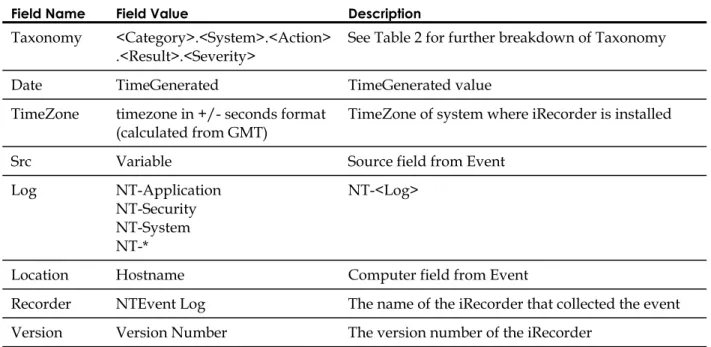
Mandatory fields are a fixed set of fields that are added to each event processed by any iRecorders. The following tables describe what values are assigned to the Mandatory Fields in the iRecorder for NT Event log.
Required Fields
Field Name Field Value Description
Taxonomy <Category>.<System>.<Action> .<Result>.<Severity>
See Table 2 for further breakdown of Taxonomy
Date TimeGenerated TimeGenerated value
TimeZone timezone in +/- seconds format
(calculated from GMT) TimeZone of system where iRecorder is installed
Src Variable Source field from Event
Log NT-Application NT-Security
NT-System NT-*
NT-<Log>
Location Hostname Computer field from Event
Recorder NTEvent Log The name of the iRecorder that collected the event Version Version Number The version number of the iRecorder
Table 1: Mapping of eTrust Audit Required fields
eTrust Audit Mandatory Fields
The table provides Field Names, Descriptions as well as Values (or possible values). Additional information about the Taxonomy field is provided in Table 2 below.
Taxonomy
Possible Values Description
Category NT-Application NT-Security
NT-System NT-*
NT-<Log>
System Variable Source field from Event
Action Variable Unknown or string defined in selogrec.str for Event ID Result N, S or F Based on NT EventType
EVENTLOG_AUDIT_SUCCESS: Result = Success
EVENTLOG_AUDIT_FAILURE: Result = Failure
Severity I, C or W Based on NT EventType EVENTLOG_ERROR_TYPE:
Severity = Critical EVENTLOG_WARNING_TYPE:
Severity = Warning
EVENTLOG_INFORMATION_TYPE: Severity = Info
Table 2: Details of Taxonomy Field
eTrust Audit Normalized Fields
eTrust Audit Normalized Fields
Normalized Fields are eTrust Audit field names that are mapped or translated from the native event field names according to the classification of the iRecorder. Normalized fields are common across all products in the same classification. The Taxonomy field, one of the mandatory fields, defines the classification of this iRecorder.
eTrust Audit Field Name Native Field Name Description
Category EventCategory
User domainname\username Native “ID” EventID & 0x0000FFFF
Info Description
NT Event Log Product Specific Fields
Product Specific fields are native event fields that are not mapped or translated by the iRecorder. These fields are sent to eTrust Audit with minor name change: all characters in the field name that are not letters, digits, or underscore are converted to underscores.