webpage4 Manual
Last changed August 11, 2008Table of contents
Overview...1 Features Overview...2 System Requirements...3 Upgrading...4 Support...6 Preferences...7Introduction to HTML...10
Frequently Asked Questions...14
Using Webpage...16
Quick start guide...17
Site design tips...19
Creating a new page...21
Opening an existing page...23
Importing pages...24
Page properties...25
Editing META Tags...26
Appearance...28
Scroll bar...30
Link settings...31
Headings...33
Entering and formatting text...34
Creating Forms...36
Form elements...36
Submitting form data...37
Inserting a Table...39
Creating a table...39
Border color and background image...40
Changing cell properties...41
Deleting, inserting and splitting cells...42
Autofit Rows or Columns...43
Creating lists...45
Creating Links and anchors...47
Links...47
Image links / existing text...48
Anchors...49
Unlink...49
Inserting Date and Time...50
Images...51
Editing the Image...54
Restoring the Image...54
Image Effects...55
Photoshop Plugins...55
Convert Image Format...56
Image Resampling...56
Spelling Check...58
Adding Java Applets...59
Inserting ActiveX Controls...61
Table of contents
Using WebpageInserting an IFrame...63
Marquee...64
Inserting Comments...65
Find and Replace Tool (Source and Split views)...66
Code Collapse (Source and Split views)...68
GIF Animator...69
GIF Animator Menu Options...74
Inserting JavaScript...78
Inserting HTML code...80
Aligning Objects and Text...81
Page Statistics...83 Page Links...83 Document Tree...84 Site Explorer...85 HTML validation...87 HTML tidy...87
Previewing a webpage...89
Saving a page...90
Exporting a webpage...91
Publishing a webpage...92
SEO (Search Engine Optimization) Tools...96
Interface...99
Menu Options...100
The Editor window...112
The Preview window...113
The Source Tab...114
Customizing the Interface...116
Customizing Toolbars...116
Overview
Trellian WebPage allows you to create your own web pages without having to learn complex scripting
languages. WebPage's WYSIWYG (What You See Is What You Get) interface makes editing pages as easy as using your favorite word processor. Webmasters and other advanced users can hand code HTML using the built in color highlighted source editor.
WebPage makes editing HTML a breeze. It doesn't matter if you are completely new to building web pages or if you have been building them for years, WebPage is a pleasure to use.
Features Overview
Intuitive Interface♦
Imports pages compatible with today's browsers ♦
Absolute positioning of HTML elements ♦
Color Highlighted HTML Editor ♦
Meta Tag editor ♦
Drag &drop interface ♦
Imports all major image formats including PNG &JPEG ♦
Support for current Internet technologies ♦
Built−in document spellchecker ♦
Support for 1000's of Photoshop Plugins ♦
Easy image conversion and resampling tools with unlimited undo's ♦
Create Search engine friendly pages, so that your site can be found. ♦
System Requirements
Operating Systems:Microsoft Windows 98/ME/2000/XP/Vista CPU/Processors:
Intel Pentium I, II, III, IV, AMD or compatible RAM/Memory:
64MB or greater Disk Space: 20MB Disk Space Web Browser:
Internet Explorer 5.5 or greater
Upgrading
To download the latest program upgrade, select the Upgrade option from the WebPage File menu.
or click on the Resources menu and select Upgrade.
WebPage will contact the upgrade server to check if there are any upgrades available. To install the new version, click the Install button. To install at a later date, click the Cancel button.
Support
If you are experiencing problems with the WebPage program itself, please send an email to [email protected] detailing the issue that you are experiencing.
Note: We do not provide coding or web design assistance. If you need help to upload your files, please contact your web hosting company
Support Hours:
Open Mon − Fri, 9:00am − 5:00pm (Melbourne, Australia − Eastern Standard Time) Please include some basic information about your computer, eg The version of Windows you are using. Before contacting support, please check the FAQ first, as 90% of all questions we receive are already answered on these pages. You can view the FAQ at
http://trellian.com/webpage/faq.htm.
Additional help resources can be viewed by clicking on the Resources menu, under Help.
HTML reference:
Displays HTML 4.0 Reference help file.
CSS:
Displays Cascading Style Sheets help file.
Preferences.
The preference settings lets you change various options for Webpage. To access it, click on the View menu and select preferences.
Re−open pages at startup − automatically opens the pages worked on previously when Webpage starts up.
Warn when opening read only files − warns when opening a read only file.
Use <strong> and <em> instead of <b> and <i> − uses replacement tags as specified. Set as default HTML editor − sets Webpage as the default HTML editor.
Make paragraph on enter − creates a new paragraph when enter is pressed. Turn this option off to create a new line instead
Show outlines for tables with zero value border − toggles display of a dotted table outline for tables with a zero value border.
Turn off the automatic html header insertion − Disables automatic insertion of HTML headers.
Show menu − Displays main toolbar menu
Use <div> tag for centering instead of <center> − Substitutes html <center> tags with <DIV align=center>
Tab size − Set Tab size in source and split views.
FTP client − Enter the path to your FTP client. eg. C:\Program Files\TRELLIAN\Trellian FTP\ftp.exe
Parameters − Enter any parameters required by the FTP program. .
Default extension − Sets the default file extension, eg. .html Default Document Type (DTD) − Sets the default document type. Default encoding − Sets the default encoding type, default is UTF−8.
Show wizard when creating a new page − Displays the new page wizard whenever a new page is created.
Introduction to HTML
A web site is a collection of web pages that are linked together. A web page (HTML file) is a plain text file that uses HTML code tags to instruct web browsers to display text and objects in specific ways. They can be prepared using any plain text editor (such as Notepad) or by using a visual editor such as WebPage.
The HTML code for any page can be viewed in a web browser by clicking on the Edit menu and selecting View source (Internet Explorer) or clicking on the View menu and selecting Page source (Firefox).
To create a web site using Webpage, you need to create multiple web pages and link them together. See the link section on this page for more information.
Required HTML tags
HTML files have some required elements. Every HTML file must begin with: <html>
<head>
<title>TITLE OF WINDOW</title> </head>
<body>
where "TITLE OF WINDOW" is the text that you want to appear in the title bar of the browser window.
The title text is also displayed by search engines when listing your site in the search results. Every HTML file must end with
</body> </html>
The page content (text, images etc.) is located between the <body> and the </body> tags. To enter the page title and other tags in the WebPage Editor tab, click on the Tools menu and select Meta Tag Editor.
Page text
Plain text content can be entered directly into the WebPage Editor tab and source tab, however it is important to realize that browsers will ignore all of the formatting and even the carriage returns, tabs, and multiple spaces between words in the source tab. For example, the
following text:
It is important to realize that browsers will ignore
all of the formatting and even the carriage returns,
tabs, and multiple spaces between words.
will be appear on a Web page like this:
It is important to realize that browsers will ignore all of the formatting and even the carriage returns, tabs, and multiple spaces between words.
In order to force a line break, you must insert a <br> into the text, and to create a paragraph separation (white space between paragraphs) you must insert a <p> between the paragraphs. This is not a concern when using the WebPage Editor tab, as WebPage automatically converts spaces into the relevant HTML code.
Text Formatting with HTML code
Text formatting options are controlled by pairs of tags which surround the effected text, such as:
Effect HTML tags What it looks like
boldface <b>example</b> example
Italic <i>example</i> example
bold italic <b><i>example</i></b> example
larger font <font size="+1">example</font>
example
larger font <font size="+2">example</font>example
smaller font <font size="−1">example</font> exampleLarge letter <font size="+3">E</font>example
E
example Color text <font color="#ff0000">example</font> exampleCentering <center>example</center> example
subscript H<sub>2</sub>O H2O
superscript cm<sup>2</sup> cm2
Symbol font <font face="symbol">abcde</font> αβχδε
Images
Images should be in gif or jpg format to ensure cross browser compatibility. png and bmp formats are not supported by all web browsers, whereas jpg and gif formats are supported by all browsers.
To insert an image in the Webpage Editor tab, click on the Insert menu and select Image. The HTML tags for images specify the image source (path and filename), alt tags and other aligning and size attributes, if required. Alt tags are displayed when image display is disabled, and the alt text is used for vision impaired viewers (e.g.. narrated by text readers etc). To edit image settings in the Editor tab, right click on the image and select Properties.
Note:To avoid issues with the image path, the image files should ideally be located in the same folder/directory as the HTML file itself. WebPage can export the images and HTML files in one folder to allow for easy uploading and will automatically convert the image paths to match the exported folder. See the Exporting a webpage section of the manual.
HTML code examples for images:
<img src="trellian.gif"> will display the GIF file "trellian.gif", if that file is in the same directory as the HTML file.
If the image file is in a subdirectory/folder, then the subdirectory name must be specified. For example, if the file "trellian.gif" is in a subdirectory called "img", then the image tag would be:
<img src="img/trellian.gif">
Ensure the file and subdirectory/folder names are exact, as some web servers are case sensitive and consider IMAGE.GIF to be a different file from image.gif
Links
Links are text or images that specify, or link, to another page, image or other element. Text links usually appear as underlined text on web pages.
To insert links using the WebPage Editor, click on the Insert menu and select Hyperlink. Enter the filename and path (if required − see below for an explanation).
HTML code examples for links:
To create a link to the HTML page "faq.html" which is stored in the same directory/folder as the current page, the code link tag would be:
Click Here to go to <a href="faq.html">FAQ page</a>. Would would appear on the page like this:
Click Here to go to FAQ page.
If the faq.html page is in a subdirectory/folder eg. the support folder, then the folder name must be specified. <a href="support/faq.html">
If faq.html is stored in a higher level folder (one level up from the current folder), then folder name would be prefixed with .. eg.
<a href="../faq.html">
To link to another website (URL) enter the entire URL, for example:
<a href="http://partner.vendercom.com/form.php">Click here to join now!</a>.
Images can also be links. To create a linked image in the WebPage Editor tab, first insert the image, then select the image, click on the Insert menu and select Hyperlink.
To link a small image (thumbnail) to a larger version, a standard link is used.
Small images should be used to reduce the loading time for pages. By linking the small image to a larger version, users can decide for themselves whether to access the larger, slower to load, full−size image.
To do this in the WebPage Editor tab, first insert the image, then select the image, click on the Insert menu and select Hyperlink. Enter the file name and/or path to the larger image.
Sound and video links
Sound and video links are constructed as per normal links. For example: <a href="sound1.au">[Click here to hear a sound bite]</a>
When the user clicks on the link, the browser downloads the file, looks at the file extension (".au"), determines which application to launch to run the file..
Video links work exactly the same way, except that the file name would be a .mov, .mpeg, .avi etc. type file
Alternatively, other elements, such as Flash, music players, video players etc. can be added to a page by embedding the element: To do this in the WebPage editor, click on the Insert menu and select Embedded plugin.
Headings
Headings can be used to create titles in various sizes.
Headings are available in 6 sizes (Note: the smallest heading size number is the largest, eg. H6 is the smallest heading size):
To select a heading in the WebPage Editor tab, select a heading size from the drop down menu on the toolbar. This menu displays "Normal" for non−heading text.
Frequently Asked Questions
What do I need to create my own web site? You will need:A web hosting account, which stores your web site files and makes them available for people to view on the Internet.
♦
A domain name, which is a unique address used to identify your web site on the Internet.
♦
Domain names can be purchased from Vendercom.com. Domain registration costs are usually less than $15 USD per year. Some ISP's provide space for your web pages with their ISP accounts, however if you are planning to run a business from your site, it will look much more professional with it's own domain name.
Web hosting can cost anywhere from $5 per month, up to several hundred dollars a month, depending on the size of your website and the amount of traffic (visitors) to your site (also known as bandwidth). When creating a new website, we recommend starting with a small web hosting plan and upgrading as the traffic and size of the site begins to grow.
What is the difference between a web page and a web site? A web site is a collection of web pages that are linked together. Are there any templates included with WebPage?
No, but there are lots of free templates available on the Internet.
Can you create a page for me ?
Sorry, we don't provide a web design service.
Can you help me with my site ?
Sorry, we don't provide coding /site design assistance.
Using Webpage
This chapter explains how to use Webpage
Quick start guide
Follow these steps to create a basic page 1. Create a new page
Click on the WebPage icon and select New to create a new page.
2. Set the page properties
Click on the View menu and select Properties.
In the Meta Tags section, enter a page title, description and a few keywords. (None of the meta tag fields are compulsory so feel free to leave some or all blank).
See the Meta tags section of the manual for more information on each item.
In the Appearance section, select a default font type and size to use on the page.
To set a background color, select a color by clicking the ... button next to the color field. To set a background image, select an image by clicking the ... button next to Image field. Select the image repeat options.
To set page margins, enter the margin values (in pixels) into the margin fields. See the Appearance section of the manual for more information on each item.
3. Enter a heading/title
Enter a heading for your page and format the font accordingly.
4. Enter page content
Enter the content for your page. eg. text, images and any other content you wish to provide.
5. Preview the page
Click on the Preview button to preview your page. To preview the page in a web browser, click on the WebPage icon and select Preview in browser, and choose a web browser. Make any changes, if necessary.
6. Export the page
If you linked to images or other files on your computer, the export function will place all the files in a single folder. This makes uploading much easier. To export the page, click on the
WebPage icon and select Export Page. Enter a file name for your exported page. Most web servers require that your page is called index.htm, index.html, home.htm or other variations. You may need to check with your web hosting company.
7. Upload / publish the page
To publish your page, click on the WebPage icon and select Publish. (note: FTP path must be set prior to publishing) WebPage will create a folder based on the file name you entered when exporting. eg. If the file name was "flowers.htm" the folder will be called "flowers_files". Upload the HTML file and its associated folder to your web hosting account.
8. Check your page
Visit your page on line to check that it has uploaded correctly.
Site design tips
A basic web page consists of : Title/logoA title and logo are usually situated at the top of the page. The title should be large enough to stand out from the rest of the page. An example of a title would be "John Smith Plumbing". Navigation
If you are creating a web site that contains more than one page, you will need to create links to the other pages on your website. These links are referred to as "navigation". The navigation links can be plain text links, or you can use different images for each page (link) by adding a link to the image.
Some common placement for the navigation links are horizontally underneath the title, or vertically down the left or right side of the page. Tables are commonly used to organise and display the layout of the page. It is also common to list the navigation links along the very bottom of the page in plain text.
Each page should have an easily accessible link back to the home (main/index/starting) page. The navigation should be in the same location on every page.
Color schemes
While a hot pink and lime green web page may appeal to you, it is important to pick a color scheme that is easy on the eye, and will not offend the majority of visitors.
Page content
Try not to put too many large images or videos on a page, as there are many people who are still using dial up (very slow) connections to the Internet. If a page takes too long to load, visitors may give up and go elsewhere.
Break up large blocks of text into paragraphs. Too much text in a large block can be difficult to read may put off some visitors.
Most visitors will read the first few sentences on the page before deciding whether the site is useful and they will stay on the site, or if they will leave. Make sure the first paragraph contains the important information that you wish to convey to your visitors.
Don't use a small font. By using a small font, you may deter visitors who are unable to read your page content.
While a Flash movie on the index page may look great, its important to remember that not all visitors will have the required Flash plugins installed. This also applies to other plugins such as video and audio codecs, and Javascript.
Creating a new page
To create a new page, Click on the WebPage icon and then New
or by clicking on the New page button
WebPage is a single page editor, multiple instances can be opened if you wish to edit multiple pages at the same time. Click on the View menu and select the New window icon to open a new instance.
Split
Switches to Split view. Arrange All
Tile WebPage windows vertically. Switch Windows
Switch to the desired webpage instance to edit.
Opening an existing page
To open an existing page, select Open from the WebPage menu, then locate the web page on your computer's hard drive.
You can also click the Open button on the toolbar.
Webpage can automatically open the previous page on start up. To toggle this setting, click on the View menu and select Preferences. Tick/untick the 'Re−open pages at startup' option.
Importing pages
To import a page from the Internet, click on the WebPage icon and select Import Page. Enter the URL (web address) of the page in the Internet Address field and click the Download button.
Webpage will prompt for a filename and location to save the page. Browse for a location and enter a file name, then click Save. Webpage will download the page and display the page in a new window. The web page can now be edited.
Note, WebPage will only import the page specified in the address field, it will not import the entire website. If you don't enter a page name in the Internet address field, WebPage will import the index (home) page. To edit other pages, you will need to import them individually.
Page properties
The page properties setting lets you specify the background colours, font settings, link settings, meta tags and margins.
To view the page properties window, click on the View menu and select the Properties icon.
Editing META Tags
Meta tags are HTML tags that don't appear in a web page, but provide information that describes the content of a web page. Meta Tags are used by search engines to help index and rank web sites on the Internet. If a page doesn't contain META tags, some search engines create a description and a keyword index based on the first few lines of text on a page. To enter meta tags, click on the View menu and select the Properties icon, then select the Meta tags item.
Title − The title of the page. eg. The fine wine store. Author − The author of the page. eg. John Smith Owner − The owner of the page. eg. The fine wine store
Copyright − Copyright information eg. Copyright to The fine wine store, 2008
Rating − The rating for the page. eg. General . (other options are mature, restricted, safe for kids)
Charset − The character set used on the page. Usually utf−8 unless the page content is in a language other than English.
Description − A description of the page content. eg. Current wine specials at The fine wine store
Keywords − A few keywords (separated by commas) to describe the page content. eg. wine,beer,spirits,online store
Revisit after − The number of days after which the search engines should revisit the page. Note that most search engines will ignore this tag.
Appearance
The appearance settings let you specify the background colour or image, font settings and margins.
To enter the page appearance settings, click on the View menu and select the Properties icon, then select the Appearance item.
Font − The font style. Click on the ... button to select from a list of fonts. A few different fonts should be selected as some visitors to the page may not have particular fonts styles on their computers. To select a Bold and/or Italic font, click the B button for Bold, and the I button for Italic.
Size − Specifies the size of the font. Select a unit of measurement, eg, pixels, em, points, inches etc. and enter the value. eg. 12 points.
Color − The default font color of the page. Either enter a color in hex format ( eg. #0099FF) or click the ... button to select a color from the color picker.
Image − The background image for the page. This can be left blank. Enter the path to the image, or click the ... button to browse for an image.
Repeats − Specifies if the image should be repeated thoughout the page (repeat), repeated horizontally only (repeat−x), repeated vertically only (repeat−y) or not repeated (no−repeat). Background color − The background color of the page. Either enter a color in hex format or click the ... button to select a color.
Left Margin − Defines the amount of space to use for the left margin, measured in pixels. Top Margin − Defines the amount of space to use for the top margin, measured in pixels. Right Margin − Defines the amount of space to use for the right margin, measured in pixels. Bottom Margin − Defines the amount of space to use for the bottom margin, measured in pixels.
Scroll bar
The scroll settings let you specify the scroll bar colours.
To enter the scroll bar settings, click on the View menu and select the Properties icon, then select the Scroll item.
Either enter a color in hex format such as #FF0000 or click the ... button to select a color from the color picker.
Link settings
The link settings let you specify the font color, size and styles to use on the page.
To enter the page appearance settings, click on the View menu and select the Properties icon, then select the Links item.
Font − The font style. Click on the ... button to select from a list of fonts. A few different fonts should be selected as some visitors to the page may not have particular fonts styles on their computers. To select a Bold and/or Italic font, click the B button for Bold, and the I button for Italic.
Size − Specifies the size of the font. Select a unit of measurement, eg, pixels, em, points, inches etc. and enter the value. eg. 12 points.
Link color − The color of unvisited links. Either enter a color in hex format ( eg. #0099FF) or click the ... button to select a color from the color picker.
Rollover color − The color of links when the mouse is moved over the link. Either enter a color in hex format ( eg. #0099FF) or click the ... button to select a color from the color picker.
Visited links − The color of visited links. Either enter a color in hex format ( eg. #0099FF) or click the ... button to select a color from the color picker.
Active links − The color of active links. Either enter a color in hex format ( eg. #0099FF) or click the ... button to select a color from the color picker.
Underline Style − The underline style of links. Select from None, Underline, Underline on rollover and Hide underline on rollover.
Headings
The heading settings let you specify the font color, size and styles. These settings can be left blank, and WebPage will use the default settings for the headings. Heading 1 is normally the largest heading, and heading 6 is the smallest.
To specify the heading settings, click on the View menu and select the Properties icon, then select the Headings item.
Font − The font style. Click on the ... button to select from a list of fonts. A few different fonts should be selected as some visitors to the page may not have particular fonts styles on their computers. To select a Bold and/or Italic font, click the B button for Bold, and the I button for Italic.
Heading 1 to 6 − Specifiy the size of the font and select a unit of measurement, eg, pixels, em, points, inches etc. . eg. enter the number 12 in the first field, and select points from the list. In the last field, either enter a color in hex format ( eg. #0099FF) or click the ... button to select a color from the color picker.
Entering and formatting text
To enter text on your page, check that you have selected the Home tab, and begin typing your text.
Fonts and formatting
To change the font of text on the page, highlight the text then change the font color, size and/or style using the menus
The font settings can also be changed via the Format menu (if show menu is enabled.)
To apply bold, italic or underline formatting to text, highlight the text, then click on the B, I and U buttons on the toolbar.
Removing Formatting
To remove formatting from text, highlight the text and de−select the options you wish to remove or click on Remove Formatting from the Format menu.
Paragraph Formatting
To apply paragraph specific formatting, click on the desired option under the Home menu.
Creating Forms
A form is used to obtain input and send it to a specific location. For example, a 'contact us' form that accepts a name, email address and comment/question from a visitor.
To insert a form, click on the Insert menu and select the Insert Form icon. This adds Form tags, in which the form elements must be added to. eg. text boxes, buttons, etc. To add form elements, select the element to add in the Form menu.
Form elements
Fieldset − Adds a border around the form elements inside the fieldset. Submit − A button that submits the form. More information below. Reset − A button that clears all data that has been entered into the form. Radio button − a selection element whereby only one option can be selected. Check box− a selection element whereby multiple options can be selected. Text Field− a single line input field for text.
Text Area − a multiple line input field for text.
Password field − a single line input field that displays the * character when typed into. Drop down selection − a selection element that allows a single selection from a list. List box selection − similar to a drop down selection, but allows for multiple selections. File upload field − an input field with a browse button for selecting files.
An example of a contact form and the various form elements:
To change element properties double click the element. The properties window will show options available for the element.
Submitting form data
To send the submitted form data to a destination, you need to specify a form 'action' and 'method'. The action tells the form where/how to send the data. There are two ways for the data to be sent from a form.
The form data can be sent to a CGI, Perl, asp or other type of script where the script will capture the data and send it to a specific email address, or the mailto method can be used.
Mailto
The mailto method uses the visitor's email client (program) to send the form data. To use this method, in the action field, enter the destination email address. When the submit button is clicked, the visitor's email program will open an email that contains the form data, and they will need to send the email to you.
To use the mailto method, right click in the form area and select properties. In the action field, enter mailto:[email protected] and form method as post.
Form elements must also have a Name to identify them. To add a name, right click the element and left click Properties.
To ensure the email is sent as a text message, include encType=text/plain in the form tag. For example, in source view <FORM action=mailto:[email protected] method=post encType=text/plain>
Using a script (program)
When a script is used, the form data will be sent to the script on your web server, and the script will send you an email that contains the data. A free, easy to set up mail script is 'Formmail'. Your web hosting company can help you set up the formmail script if needed. For information about Formmail, see http://www.scriptarchive.com/formmail.html
To enter the script action and method, right click in the form area and select properties. In the action field, enter the path to your script. eg. formmail.cgi
The form method to select will depend on what your script is expecting. (usually post)
Inserting a Table
Tables can be used to present data in an ordered fashion, or even to organize the layout of an entire page.
Creating a table
To insert a table click on the Insert menu and select Table.
A window with various settings and a preview is displayed. As the various settings are updated, the preview will reflect the changes, so you can see how your table will look on your page.
Table size
The table size value sets the amount/size of the page that will be used by the table.eg. 50% width would indicate that the table's width will be half the width of the page. Either pixels or
percentages can be used to specifiy the size.
Rows and columns
A table is defined by the number of rows and columns that it contains.
Spacing
Cellpadding refers to the amount of space between the cell contents and the border of the cell. Cellspacing refers to the amount of space between each cell. Both cellpadding and cellspacing are measured in pixels.
Border color and background image
To set the border colors and/or background image, select the table, right click and select properties.
Border
To hide the table border, set the border field to 0. To display the border, set the border field to 1.
Background color
To set a background color for the table, click the ... button and select a color.
Border color
To set the table border color, click the ... button and select a color.
Border color light
Table borders are rendered in a 3d style, where the top and left borders are light, and the bottom and right borders are dark. To set the light border color, click the ... button and select a color.
Border color dark
Table borders are rendered in a 3d style, where the top and left borders are light, and the bottom and right borders are dark. To set the dark border color, click the ... button and select a color.
Background image
To set a backgound image, click the ... button and locate an image.
Changing cell properties
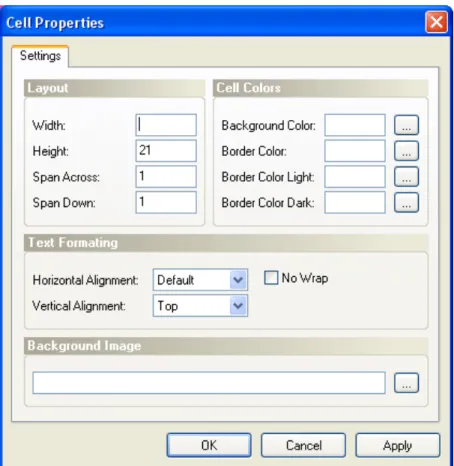
To change the cell size, color, background image and other properties, click inside the cell, then right click and select properties. The cell properties will be displayed.
Width
Specifies the width of the cell in pixels.
Height
Specifies the height of the cell in pixels.
Span across
Specifies how many cells this cell spans across.
Span down
Specifies how many cells this cell spans down.
Background color
To set a background color for the table, click the ... button and select a color.
Border color
To set the table border color, click the ... button and select a color.
Border color light
Table borders are rendered in a 3d style, where the top and left borders are light, and the bottom and right borders are dark. To set the light border color, click the ... button and select a color.
Border color dark
Table borders are rendered in a 3d style, where the top and left borders are light, and the bottom and right borders are dark. To set the dark border color, click the ... button and select a color.
Background image
To set a backgound image, click the ... button and locate an image.
Horizonal alignment
Specifies the horizontal text alignment within the cell.
Vertical alignment
Specifies the vertical text alignment within the cell.
No Wrap
Specifies if text should wrap within the cell.
Background image
To set a backgound image, click the ... button and locate an image.
Deleting, inserting and splitting cells
To insert or delete rows or columns, click on the Insert menu and select the relevant table option.
To split or merge a cell, click the relevant cell(s), click on the Insert menu and select the Split Cell icon or Merge Cells icon.
Autofit Rows or Columns
Rows and Columns can be automatically aligned to the same size of the largest row or column.
In the example below, column 1 is slightly larger than all other columns.
To ensure all columns are the same size, select the entire row of columns and right click to open the table menu.
Select Autofit and Distribute columns evenly. Resulting table is displayed below.
Creating lists
There are 2 types of lists. A numbered list and a bulleted list.
Example of a bulleted list:
Example of a numbered list:
To create a list, click on the Home menu, and select the type of list within the paragraph group of tools.
To finish/complete the list, press enter twice.
Existing text can be converted to a list by highlighting the text, then selecting the list type from the Home menu.
Creating Links and anchors
Links
A link is an element that points to other items on the Internet, for example, other web pages, web sites, movies, pictures etc.
To create a link, click on the Insert menu and select Hyperlink.
URL
To create a link to another website or web page, enter the URL eg. http://www.trellian.com If you are linking to a page on your website, you can just enter the filename of the page, eg. contact.html. (this is known as a relative link).
To link to a file from your computer, click the ... button and locate the file you wish to link to.
Link text
Enter the text to display for the link in the text link field. If you are creating an image link, leave this field blank.
eg. Entering the link text "Trellian Website" will create a link that looks like this:
Target
The target attribute lets you define where the link should be opened. The most common targets are _blank and _self
_blank will open the link in a new browser window. ♦
_parent will open the link in the immediate frameset parent. ♦
_self will open the link in the current browser window. ♦
_top will open the link in the full browser window. This is commonly used to break out of framed pages.
♦
This field can be left blank, and the link will be opened in the current browser window (same as the _self value).
Link title
The link title should be a brief description of the link. The link title does not appear on the page itself, but may be displayed in a tool tip, or read aloud by a reader program (used by blind visitors).
The link title can be left blank.
Image links / existing text
To create a link from existing text or an image, highlight the text / click on the image, then right click and select create link. See above for an explanation of the various link fields
Anchors
An anchor is a link to a particular position on a web page. Anchors are generally used when there is a large amount of text on a single page, and are used to skip quickly from a table of contents to the relevant section of the page.
To create an anchor, select/highlight the text to link to then click on the Insert menu and select Anchor . Enter a name for the anchor when prompted. This marks the section of text to skip to. To create a link to the anchor, create a link using the page name and append a hash symbol (#) to the end of the page name, followed by the anchor name. eg.
http://www.example.com/page1.htm#anchorname
Unlink
To unlink text (remove the link), highlight the text, right click and select Unlink from the menu.
Inserting Date and Time
To insert the date and time into the Webpage, select the Time/Date icon from the Insert menu. This is useful for displaying the last updated date and time.
The date and time appear as per this example:
Images
To insert an image, click on the Insert menu and select Image.
To insert a regular image, click on Insert Image.
Locate the image file to insert and click the Open button.
To edit the image properties, such as alt text, image size and alignment, right click on the image and select properties.
Source
Displays the path to the image source. To change the image source, click on the ... button and browser for an image file.
Alt text
Alt text is used in conjunction with image tags to provide a textual description of the image. The alt tag is useful for the visually impaired visitors who are using software to read out the page contents, and for people who have images turned off in their browser. Ideally all image tags should have an alt section.
Use Map
An image map is an image in which defined regions within the image are links to other items. To create an image map, enter a name for the image map and click the Create button. Mark out the regions with the shape buttons and enter a link. For example, in the image below, the horse's ears and eye have been mapped to link to http://www.example.com
To insert a rollover image, click on Insert Rollover Image from the Image menu.
Image Name
Enter a name for the rollover image.
Original Image
Insert the image that will be displayed first.
Rollover Image
Insert the rollover image that will appear when original image is moused over.
Alternate Text
Enter the alternate text.
When clicked, Go to URL:
Enter the link that will be visited when the rollover image is clicked. Example of a rollover image is displayed below.
Editing the Image
To edit the image, click on the image and select Edit.. from the Tools menu.
The default image editor will be opened with the image ready for editing. When finished, save the image, then close your image editor.
Restoring the Image
To restore the image to its original state, click on the image then click on the Tools menu and select Restore.
Image Effects
WebPage includes a variety of different image filters to add special effects to images. The filters can be found under the Filter menu in Tools.
For example this image uses the Wave filter located in the Real Time Filters.
Image colors, filters, transformation and other settings can be found in the Tools menu.
Photoshop Plugins
To apply photoshop plugins to an image, click on the image and select Plugin from the Tools menu.
Locate the Photoshop plugins directory (usually in c:\Program
Files\Adobe\Photoshop\Plugins) and click OK. Webpage will import any Photoshop plugins found in the specified directory. To apply a plugin, select Plugin from the Tools menu. Select the plugin from the list and click Apply.
Convert Image Format
To convert an image to a different format, select the image and select a new image format from the Convert submenu in the Tools menu.
Image Resampling
Resampling increases or decreases the resolution of the pixels in an image. To resample an image, click on the image and select Resample Image within the Transform submenu from the Tools menu.
Select a resampling algorithm from the drop down menu and click Ok to apply the selected algorithm.
Spelling Check
To check a webpage for spelling mistakes, click on the Check Spelling icon located at the top of screen .
Any spelling mistakes will be displayed with an option to insert the correctly spelt word.
Adding Java Applets
To add a Java applet to a webpage, select Java Applet from the Insert Script sub menu.
Locate the .class file and click Open.
Code
The path (URL) to the applet's class file.
Code base
The path (URL) to the applet if a relative path was specified in the code parameter.
Archive
The path (URL) to the Java archive or zip file.
Alt HTML
The text to display if the applet cannot be run/viewed.
Width
Specifies the applet width.
Height
Specifies the applet height.
Border spacing − Horizontal
Specifies the horizontal border spacing around the applet.
Border spacing − Vertical
Specifies the vertical border spacing around the applet.
If the applet requires parameters, click on the Parameters tab.
Enter the name and value pairs required by the applet.
Inserting ActiveX Controls
ActiveX controls are used to incorporate multimedia and other objects into webpages. To insert an ActiveX control select ActiveX Control from the Insert menu .
Select a control and click OK to insert the control.
Inserting an IFrame
An Iframe is an 'inline frame' that contains content from a different URL. To insert an IFrame, click on the Insert menu and select IFrame.
The URL of the IFrame can be set by double clicking on the IFrame.
For example the following image shows an IFrame of the Trellian website in an otherwise blue webpage.
Marquee
A marquee is text that scrolls across the webpage. To insert a marquee on a webpage select Marquee from the Insert menu.
To enter text and customize the scrolling, double click the marquee.
Inserting Comments
Comments are text in the source code that is not seen by visitors viewing the webpage. To enter comments, click on the Insert menu and select the Comment icon .
Enter a comment in the window and click OK. The comment will be shown in the source code.
Find and Replace Tool (Source and Split views)
Find and Replace tool is available under the Home menu.Find
Find patterns within the HTML source code of the page. Click on Options to view further search options.
Replace
Replace patterns within the HTML source code of the page.
Go to
Moves the cursor to the previous or next specified line number relative to the current position. For example, if the cursor is currently at line 14, entering 4 and clicking Next will move the cursor to line 18.
Clicking on Previous will move the cursor back to line 14.
Code Collapse (Source and Split views)
Code Collapse is a feature to collapse and minimize code blocks for easier nagivation. In the example below, we will collapse the <STYLE> </STYLE> block of code.
Bottom image displays the source code after it has been collapsed.
Expanding the code back to the original is a simple case of double clicking the html tag.
GIF Animator
Use GIF Animator to animate images. Select an image and click on the Animate button from the Tools menu.
Frame origin
Left Position/Top Position − Position the selected frame as desired. Undraw Method
Undefined/Leave − Frames will remain, new frames will be shown above them. RestoreBackground − Background will be restored after each frame ends.
RestorePrevious − Previous frame will be restored if that previous frame was set as leave.
Frame Delay − Delay frame display in milliseconds. Background Color − Change background color.
Insert Blank Frame − Insert a blank frame using the color picker. Insert Image − Insert an image.
Movie Properties − Displays movie properties.
In the following example, we will insert the same image five times to create a simple effect of it moving from top to bottom and vice versa.
In the screen above, we have already inserted the five images by clicking on the Insert button and selecting the same image.
Frame delay has been set to a 500ms delay for each individual frame.
Frame position for the second frame has been set to 45 to position it lower than the first frame.
Third frame position set to 90, fourth frame to 45 and fifth back to 0. UndrawMethod has been set to RestoreBackground for each frame.
To ensure the animation loops and repeats, tick these options in Movie Properties.
To save this as a GIF animation, click on the Export Compressed GIF option in the File menu.
Resulting GIF image is displayed below.
GIF Animator Menu Options
New − Creates a new animation. Open − Opens an image. Save − Save the current image.
Save As − Save the current image under a different name. Export Compressed GIF − Export the animation as a gif file.
Live Dragging − Set by default, this allows you to click and drag images. Close − Close GIF Animator.
Play Movie − Plays the current animation Stop Movie − Stops the current animation Cut − Cuts a frame.
Copy − Copies a frame.
Paste − Pastes a frame from the clipboard. Delete − Deletes a frame.
Duplicate − Duplicates the selected frame.
Crop to Frames − Crop frames to same size as image. Resize Canvas − Resizes canvas to preset sizes or a custom. Goto − Move to the next, previous, first or last frame.
Full Screen Preview − Previews the animation in full screen.
Movie Properties − Display animation properties. Default color, Looping and Repeat settings are set here.
Image − Inserts an image. Text − Inserts text.
Blank Frame − Inserts blank frame.
Create HTML Code − Creates HTML code to insert your animation. Apply Transition − Apply transition.
Flatten Current Frame − Flattens currently selected frame. Resize Frame − Resize frame.
Rotate Frame − Rotate frame.
Adjust Brightness − Adjust brightness settings. Adjust Gamma − Adjust gamma settings. Set Plugin Path − Set plugin path.
Plugins − Plugins.
Movie Frames − Display movie frames window. Movie Properties − Display movie properties window.
Inserting JavaScript
Internal JavascriptJavaScript is a script/programming language that can be embedded into a web page to add functionality.
To insert Javascript code directly into the webpage click on the Insert menu and select Internal Script from the Insert Script submenu.
The Javascript editor will be displayed.
Select the Javascript version from the drop down menu and enter the script code. When finished click OK and the script will be incorporated into the webpage. Other script languages can also be inserted in the same manner.
External Javascript
To insert Javascript from a .js file click on the Insert menu and select External Script from the Insert Script submenu. Locate the .js file and click Open to insert the script.
Visitor Javascript
To control webpage visitor access to some browser features, eg. right clicking, click on the Insert menu and select the desired option in the Visitor Access submenu from the Insert Script main menu.
Note: These functions provide basic access restrictions, however there are alternative methods that can be used to circumvent Javascript based restrictions.
Inserting HTML code
To insert HTML code from another file, click on the Insert menu and select the HTML Markup icon.
Select the file to insert, and click the OK button. The file contents will be inserted at the current cursor location in the Source window.
Aligning Objects and Text
TextTo align paragraphs of text and/or objects, highlight the text and select the desired alignment button.
Object Alignment
Objects can be moved between layers (uses the z scale), behind text and floated (aligned left or right with content flowing around the element). To apply object alignment, select the object and choose an alignment option from the Home menu. When an element is locked, it will not move between layers.
The image below shows 3 separate images of a red, blue and yellow rectangle at the top of the page. The separate rectangles were then floated, and dragged to overlap each other (shown at the bottom of the page). Using the Send to front and Send to back menu options, the
rectangles were arranged in layers, so what apears to be a single image is actually made up of 3 separate images.
Ruler
To assist in lining up objects, a ruler can be toggled by clicking on the View menu and clicking on Ruler.
Gridlines
Gridlines can be toggled by clicking on the View menu and then Gridlines. Snapping objects to gridlines and the size of grids can be managed within the Gridlines submenu.
Page Statistics
To view page statistics, click on the View menu and select the Page Statistics icon.
Page Links
To view link details of the current page, click on the View menu and select the Links icon.
Each link on the page is listed and highlighted when selected. Links can also be edited in this screen.
Document Tree
To view the document tree, click on the View menu and select the Source Tree icon.
The document tree shows the HTML tag layout for the webpage. The HTML code for each
tag can be viewed by clicking on the tag name.
Site Explorer
Site Explorer is a file system browser, click on the View menu and select the Site Explorer icon to open it.
To navigate, double click the desired folder or enter in the directory path.
HTML validation
Validating the HTML code of your webpage can be achieved by clicking on the Tools menu and selecting validate.
Validation is a process of checking your webpage against a standard, such as those published by the World Wide Web Consortium (W3C) for HTML.
HTML tidy
The tidy tool located in the same Tools menu, will "tidy" up the HTML code of the webpage. This is achieved by applying the desired filtering options.
Previewing a webpage
Webpages can be previewed in the Preview window or in a browser window. The preview window allows the webpage to be previewed in different screen resolutions. Checking a webpage this way ensures that a webpage will not display strangely in different resolutions.
To preview a webpage in a browser window, select the Preview in Browser from the WebPage menu. Alternatively you can click on the browser icons located at the top right corner of the toolbar. To change the preview resolution, select a resolution from the drop down menu.
Saving a page
To save the current page select Save from the WebPage menu or click on the save button.
To save the project with a different file name, select Save As from the WebPage menu.
Exporting a webpage
The export function converts your page so it is ready to be uploaded. The images will be copied to the export folder to make uploading images more convenient.
To export a webpage select Export page from the WebPage menu.
Select either htm or html format (either can be used) and click Save
You can now upload your work − simply upload your web page and its associated folder. eg. If you saved your page as "Johns website", upload the "johns website.html" file and the "johns website" folder.
Publishing a webpage
When you have finished working on your web page, you need to publish/upload it to the Internet.
Some ISP's provide space for your web pages with their ISP accounts, however if you are planning to run a business from your site, it will look much more professional with it's own domain name.
Web hosting and domain names can be purchased from Vendercom.com . Domain registration costs are usually less than $50 USD per year. Web hosting can cost anywhere from $5 per month, up to several hundred dollars a month, depending on the size of your website and the amount of traffic (visitors) to your site (also known as bandwidth). When creating a new website, we recommend starting with a small web hosting plan and upgrading as the traffic and size of the site begins to grow
To publish/upload website files, an FTP program (File Transfer Protocol) is required. Webpage has a built in FTP client, however you can configure Webpage to launch another FTP program.
To automatically launch a different FTP program when the Publish menu item is clicked, enter the path to the FTP executable file in the Webpage preferences. (click on the View menu and select Preferences).
Basic uploading instructions.
To publish(upload) a website/webpage, click on the WebPage icon and select Publish 1.
Click the Connect button. 2.
Enter a name for the connection in the FTP site name field. Enter the hostname, port, username and password to connect to your web host's server. Most servers will be listening on port 21, however you may need to contact your web hosting provider for instructions/settings. You can enter a remote path if you know it, or you can leave the field blank.
3.
Click the Connect button. 4.
Locate the files to upload on the Local computer side, and click the arrow button ( −>) to transfer the files to the relevant folder/directory on the server. (you may need to check the upload folder/directory name with your hosting provider)
5.
After uploading, check that the pages display correctly in a web browser. 6.
Disconnect from the web server. 7.
SEO (Search Engine Optimization) Tools
Search Engine Optimization is the process of optimizing your webpages to increase web site traffic and search engine visibility. WebPage offers easy access to the SEO Toolkit suite of programs to assist you in this process.
Click on the Tools menu and select the desired tool in the SEO Tools section. Mouse over the icons to view tool details.
SEO Toolkit − Opens SEO Toolkit main program.
Keyword Manager − Keyword Manager tool for keyword research.
Ranking Advisor − Provides SEO suggestions and advice by analyzing a webpage. Meta Tag Editor − Edit Meta Tags.
Reciprocal Link Checker − Easily check reciprocal links without wasting time doing it manually.
Keyword Density Tool − Checks the keyword density of a particular page. Domain manager − Manage and check domains with this tool.
Competitive Intelligence − Monitor your competitor's websites. Meta Tag Browser − Manager and Edit metatags of multiple pages. ROI Calculator − Return on Investment calculators.
Server Header Check − Checks the server header.
Submit Wolf − Opens the SubmitWolf website submission tool.
Further details on SEO Toolkit can be viewed at http://trellian.com/seotoolkit SubmitWolf and SEO Toolkit links can also be accessed via the Resources menu. This also includes a link to Keyword Discovery, a service that compiles keyword search statistics from over 180 search engines world wide.
You can take advantage of these statistics to:
Optimize the content of your web pages and your meta tags ♦
Maximize your pay per click campaigns ♦
Take traffic away from your competitors ♦
Further details on Keyword Discovery can be viewed at http://www.keyworddiscovery.com
Interface
WebPage's interface features four windows to view your webpage. Editor Window − WYSIWYG editing.
♦
Source Window − Source code editing. ♦
Preview Window − Preview of the webpage. ♦
Split Window − Combination of Preview and Source Window. ♦
Menu Options
Menu can be toggled by selecting the View menu, Preferences and enabling Show Menu
File
New Create a new page
Open Opens an existing page
Open Recent Shows a list of the recently opened pages Save Saves changes to the page
Save As Saves changes to the page with a different file name Revert Reverts to the saved version of the page
Import Page Imports the source code from a URL
Export Page Exports the web page to HTML only, complete web page, web archive file, or a text file
Preview in
Browser Previews the webpage in a web browser Publish Opens the specified FTP/upload program
Upgrade Connects to the Trellian upgrade server to check for software upgrades
Exit Exits the program
Edit
Page properties Displays the page property settings Undo Undoes the previous command Redo Duplicates the previous command Cut Cuts the selected item to the clipboard Copy Copies the selected item to the clipboard Paste Pastes the item from the clipboard Delete Deletes the selected item
Duplicate Duplicates the selected item Select All Selects all items on the webpage Select None Deselects all items on the webpage Unlink Removes a link from the selected text Find Searches the webpage for the text entered Find Next Finds the next occurrence of the text
Replace Finds and replaces text in Source or Split window Check spelling Checks the spelling on the webpage
Preferences Displays the options/preferences for the software
Insert
Header Inserts header tags into the source code Insert Image Inserts an image
Line Break Inserts a <BR> (line break) tag
Full line break Inserts a <BR clear=all> (line break) tag Horizontal Rule Inserts a horizontal line
Bulleted List Creates a bulleted list Numbered List Creates a numbered list Anchor Inserts an anchor
link Creates a link
Java Applet Inserts a java applet (.class file) Embedded
Plugin Inserts an embedded plugin
ActiveX Control Displays a list of activeX controls to insert
IFrame Inserts an IFrame (a frame in the center of the non−framed webpage)
DIV Element Inserts DIV tags Table Inserts a table
Marquee Inserts a marquee (scrolling text)
Comment Inserts a comment (text not displayed in web browsers)
JavaScript Insert a js file, create an internal script or insert visitor access restriction code
HTML Markup Opens codepad to allow insertion of HTML code Time/Date Inserts the current time and date
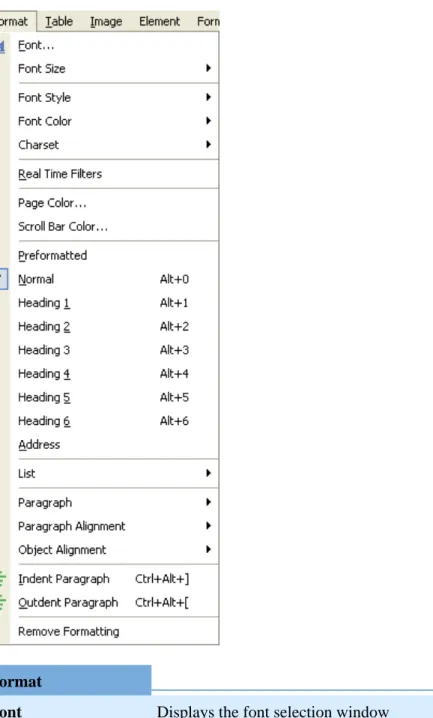
Format
Font Displays the font selection window
Font Style Sets the font style Font Size Sets the font size Font Color Sets the font color
Charset Select upper or lower case characters Real Time Filters Displays a variety of image filters Page Color Sets the page background color Scroll Bar Color Sets scroll bar color
Preformatted Sets the selected text to preformatted (<PRE> tags) Normal Sets the selected text to normal
Heading 1 Places the selected text in H1 tags Heading 2 Places the selected text in H2 tags Heading 3 Places the selected text in H3 tags Heading 4 Places the selected text in H4 tags Heading 5 Places the selected text in H5 tags Heading 6 Places the selected text in H6 tags
Address Formats the text in the address format (ADDRESS tags) List Formats the selected text to a list
Paragraph Sets the paragraph formatting, eg. heading 1 Paragraph Alignment Aligns the selected text left, center or right Object Alignment Aligns the selected object as specified Indent Paragraph Indents the paragraph
Outdent Paragraph Outdents the paragraph Remove Formatting Removes existing formatting
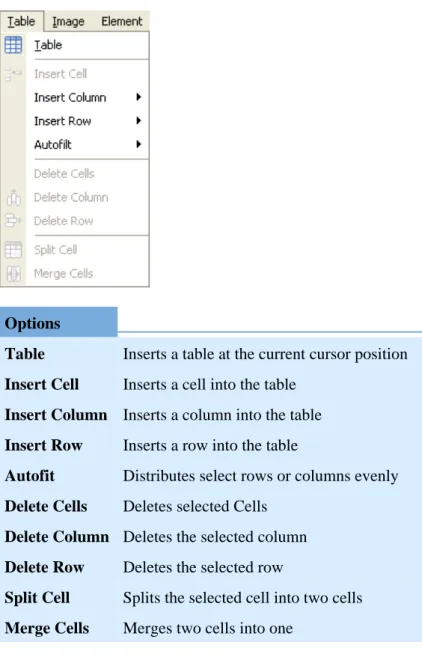
Options
Table Inserts a table at the current cursor position Insert Cell Inserts a cell into the table
Insert Column Inserts a column into the table Insert Row Inserts a row into the table
Autofit Distributes select rows or columns evenly Delete Cells Deletes selected Cells
Delete Column Deletes the selected column Delete Row Deletes the selected row
Split Cell Splits the selected cell into two cells Merge Cells Merges two cells into one