GlobalGuard Wireless Indoor
IP Camera
2
IMPORTANT PLEASE READ BEFORE YOU START
DECLARATIONNovar ED&S hereby declares that the wireless IP camera is in compliance with the essential requirements and other relevant provisions of the R&TTE directive (1999/5/EC).
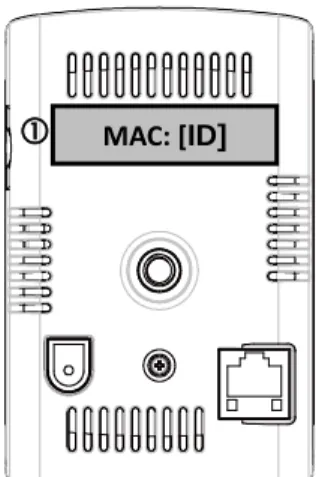
Your camera’s unique “MAC ID” is printed on a small label applied to the rear of the camera.
You will need this to view the camera. You can also copy the “MAC ID” to page 25 of this manual for security record purposes
Please also store this manual away in a safe place for future reference.
System requirements:
PC Operation System: Windows XP/Vista/Windows 7 Internet Explorer 6.x or higher Internet Web Browser
(Note: The IP camera requires IE Explorer for viewing the video CPU: Pentium 4, 1GHz or above
VGA Card Resolution: 800x600 or above Video Memory Size: 128Mb or above
Internet bandwidth: 512kbps recommended upload speed per camera SD card for recording: Minimum 2GB/Maximum 32GB
Note: This camera requires a GlobalGuard wireless alarm system to be set up in advance. Please ensure that you already have the system set up in advanced and have created an online web account.
Installation notes and tips:
Always follow manufacturers advise when using power tools, steps, ladders, etc and wear protective equipment (e.g, safety goggles and gloves) when drilling holes, etc. When using ladders ensure they are positioned on a firm stable surface at an angle and suitably secured. Check for hidden electricity wires or water pipes before drilling any holes. If in doubt use a cable/pipe locator.
This camera is designed for indoor dry use only. After drilling any holes through a wall for a cable(s), ensure the hole is sealed up using a suitable sealant to prevent drafts. To prevent a fire or electrical shock hazard, do not attempt to open the housing. Do not expose the camera to weathering.
There are no user serviceable parts inside. Refer servicing to qualified service personnel.
Please read before you start:
3
perceived policy. Enquire regarding local applications to the lawful installation of
video recording/surveillance. Third party consent may be required.
The camera should be position in view of a security detector such as a PIR movement detector or a door/window contact detector. This is because the camera has the ability to record video after a detector has been triggered by an intruder provided the camera has been setup with same location setting as the security detector(s).
The open field wireless operating range of the camera is approximately 100m. The amount by which the wireless range will reduce depends on the obstruction between the camera and your wireless router:
Wall Type Range Reduction
Dry-lined partition wall: 10 - 30% Single layer brick wall: 20 - 40% Double layer brick wall: 30 - 70% Metal panel/radiator: 90 - 100%
Note: The effect on the range of multiple walls is cumulative, i.e. if there are 2 brick walls in the way, the range will be reduced by up to 40% by each wall.
ROOM
DoorA
A
B
B
C
C
PIR Movement Detector IP Camera Magnetic Door/Window Detector ExampleWhen an intruder breaks in the house and
triggers the PIR (B) or magnetic door/window detector (C), the camera (A) will start recording video provided it is set to same location setting at either of those
4
1. Introduction
1.1. Pack Contents
IP Camera Bracket
Micro SD Card * 0.5m Ethernet Cable
User Guide Screws and Wall Plugs
5V DC Power Supply Adapter
* You can use micro SD cards of greater storage (up to 32GB). If replacing using an existing SD
card , ensure that you have formatted it to FAT32 format on a Windows based PC before installing
into the camera.
NEED HELP
Most issues can be solved over the phone. Call the customer helpline on
0844 736 9149 Monday to Friday 9.00am to 5.00pm
5
1.2. Product features
Plug & play using ID/password
H.264 video compression
Separate day&night sensors built in
Up to 10m night vision range
Built in microphone with effective distance of up to 5m
Records fixed size of approximately 33 second video clips (For 2GB SD card can store approximately 300 clips)
Micro SD card video recording with approximately 3 seconds pre-recording.
802.11n wireless with WEP and WPA/WPA2 security support.
Supports WPS (WiFi Protected Setup)
Video streaming on PC, mobile and micro SD card recording.
Open field operating range approximately 100m
1.3. Understanding the camera
1. Microphone – for receiving the audio. Effective distance is about 5 meters.
2. Lens – the lens is inside the camera body and the focus of the lens is fixed There are two sensors for day and night use separately.
3. WPS button – this optional function is to automatically synchronize the wireless WiFi connection to a WPS enabled WiFi router
4. Micro SD card indication LED (yellow) – this LED is to indicate the recording status of the Micro-SD card. It will be constantly lit when the Micro-SD card is inserted and will blink during recording.
5. Ethernet indication LED (blue) – this LED is to indicate if the Ethernet link is ok. When the
6
Ethernet cable is connected between the router and camera, the LED will be lit. When data is being transferred, the LED will blink.
6. Status indication LED (red) – this LED is to indicate the internet connection status. When connected to the internet, the LED will be a constant red light. If there is any connection problem, the LED will blink.
7. IR LED – Infra Red LED for night vision
8. Micro-SD card slot – for inserting the Micro-SD Card. (supports up to 32GB/ minimum 2GB)
9. Power jack – Connects to the 5V DC power supply adaptor
10. Bracket holder screw nut – Holds the bracket in place to the camera body. With the bracket, you can place the camera on a flat surface, or mount on the wall/ceiling.
11. Ethernet jack – Connects to an RJ45 Ethernet cable. When connected to the internet via the router, the blue LED with be lit on the camera
NEED HELP
Most issues can be solved over the phone. Call the customer helpline on
0844 736 9149 Monday to Friday 9.00am to 5.00pm
Calls charged at service providers national rate.
10
11
7
1.4. Quick installation and usage
Attach the bracket to the body
(1) Set up the bracket as indicated.
(2) Screw bracket holder nut of the camera onto the bracket. Rotate the camera 3-4 times so that the camera is loosely attached to the bracket. Adjust and “hold” the camera to a desired angle and turn the swivel A to fasten the camera. Then you can turn the upper part of the bracket (along with the camera) to an appropriate direction. Lastly turn the swivel B to fix the camera.
Viewing video from the camera
There are only three things that you need to do to view the video from the camera.
1. Connect the camera to your broadband router.
2. Log on to the web page “https://GlobalGuard.Friedland.co.uk
3. Enter your GlobalGuard HomeID, Admin/User ID and password details on the web page to login to your account so that the camera can be added
”. Swivel (A)
8
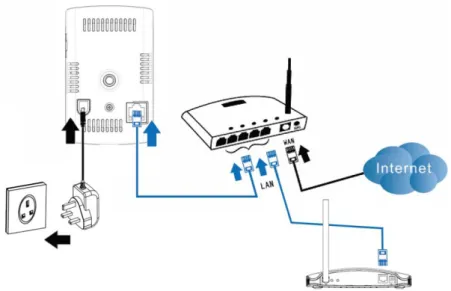
1) Connect the camera to your broadband router
Connect the camera as shown below in Figure 1-1.
Note: The IP camera must be connected to the same local network as the IP gateway to ensure recording when trigger. Ideally both should be connected to the same router.
Figure 1-1: Connect Ethernet cable to a LAN port on your router.
The status LED should appear as a stable red light which indicates connected to the internet (Figure 1-2).
Figure 1-2: Indication LEDs on the camera Micro SD card indication
LED (Yellow)
Ethernet indication LED (Blue)
Status indication LED (Red)
NEED HELP
Most issues can be solved over the phone. Call the customer helpline on
0844 736 9149 Monday to Friday 9.00am to 5.00pm
9
2) Log on to the web page “https://GlobalGuard.Friedland.co.uk”.
Enter your Home ID, Admin/User ID and password details to log into your account (Figure 1-3).
Figure 1-3: Log in the web page
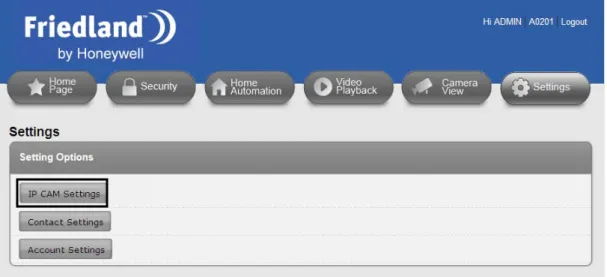
After entering the web page, click on followed by “IP CAM Settings” to enter the “IP
CAM settings” page (Figure 1-4):
Figure 1-4: Click on the link to enter IP Cam settings
10
You will then be prompted to enter the MAC code for the camera you purchased.
IMPORTANT: Remember to follow the on screen instructions in the
online web software for registering the camera to operate with your
system correctly
Locate the MAC code on the rear of your camera and key into the webpage during registration.
Figure 1-7: Location of MAC code for your camera
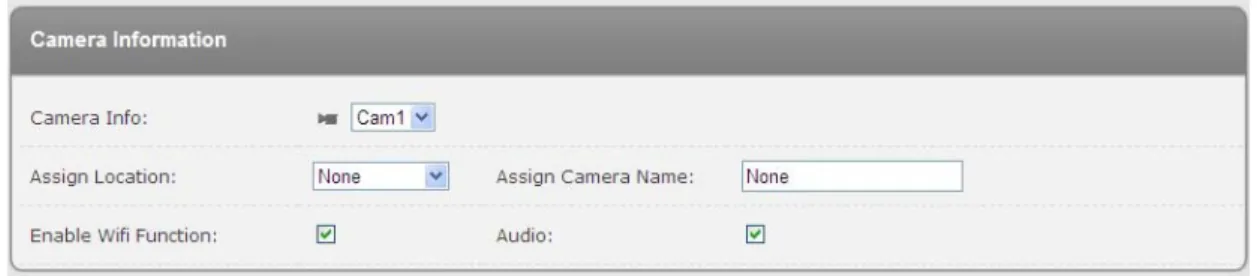
You can assign further settings to the camera after it is added (Figure 1-8):
Camera Info: A camera number is automatically assigned to the camera
Assign Location: This item determines where the camera should be installed in your home
Note:
a) When a PIR movement detector or other type of detector is triggered, the
MAC: [ID]
NEED HELP
Most issues can be solved over the phone. Call the customer helpline on
0844 736 9149 Monday to Friday 9.00am to 5.00pm
11
camera assigned to the SAME location will start recording. Therefore you should plan beforehand and assign the location group to the correct camera(s).
b) If the Location is set to ‘None’ this camera will record whenever ANY detector is triggered.
Assign Camera Name: Enter a name for easy identification.
Enable Wifi Function : Set wireless Wifi feature ON/OFF
Audio: Set audio ON/OFF.
Figure 1-8: Advanced settings for the IP camera
3) View the image from the IP camera
After a camera is added to your system, the LED on the Gateway will also light up to indicate that a new camera has been added to your system (Figure 1-9).
Figure 1-9: LED status on the Gateway
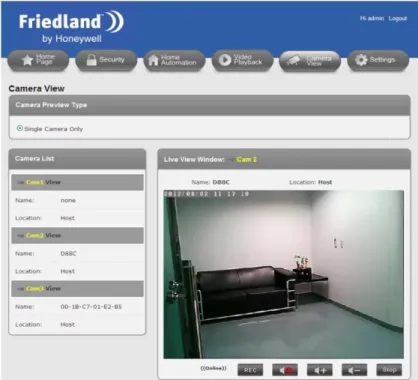
Click on to enter the camera view page. Select the camera added and click on
“View” to display live video. In this window, you can adjust the volume or stop the playing (Figure 1-10 on next page).
Note: If the volume setting on your PC is set too high and the camera is located close to it, then you may hear a loud whistling sound which is microphone feedback. Please
The 4 camera connection LEDs indicate the status of up to 8 cameras:
1. When connecting 1-4 cameras, LEDs 1-4 will turn green 2. When the 5th camera is added, LED 1 will turn amber
(and so on).
3. If camera 1 is disconnected but camera 5 is still active, LED 1 will turn red (and so on).
12
reduce the PC speaker volume or move your PC further away from the Camera before selecting “View”.
Figure 1-10: View the real-time image from IP camera
2. Wireless Connection Setup
2.1. Wireless connection (if your router has no WPS button)
Please read the following steps to setup the wireless connection with your router: 1. Have your router’s wireless network security information on hand using a PC 2. Enter the wireless security settings on the web configuration page.
3. Unplug the Ethernet cable.
1) Enter the wireless security settings on the web configuration page.
NEED HELP
Most issues can be solved over the phone. Call the customer helpline on
0844 736 9149 Monday to Friday 9.00am to 5.00pm
13
First ensure that your broadband router is wireless (Wifi) enabled. Write down the wireless security parameters, including the SSID, security type, encryption protocols and the “key” values (refer to below for details). This information can also be obtained from the settings in your PC or smartphone.
In order to use the wireless network, you need to fill in the following fields:
1. Wireless Network – this is the name of the wireless network of your wireless router (SSID) 2. Security type – You need to choose one of the followings: None, WEP, WPA/WPA2-PSK 3. WEP mode – when the WEP mode is chosen, you need also choose between 64-bit (5
char), 64-bit (10 hex), 128-bit (13 char) and 128-bit (26 hex) encryption mode, and then fill the WEP key correctly.
4. WPA-PSK mode - when the WPA-PSK mode is chosen, you need also choose between TKIP and AES encryption mode, and then fill the WPA-PSK key correctly. WPA2-PSK is also supported. But WPA Enterprise or WPA2 Enterprise is not supported.
2) Enter the wireless settings on the web page.
Using your PC launch the Internet Explorer browser and go to
“https://GlobalGuard.Friedland.co.uk
Note: The wireless network chosen for each camera must be on the same local network as the IP gateway to ensure the IP Gateway is able to activate the video recording when triggered.
”. Click on and then “IP CAM Settings” to
enter the camera settings page. Select the camera you added earlier from the “Camera Info” item. Then enter a name for your camera (optional), enable the Wifi function, select the audio feature to enable sound to be heard and enter the wireless settings information as requested on the page. All the fields in this page must be filled correctly with the same settings the wireless router. (Figure 2-1 on next page).
14
Figure 2-1: Wireless settings for the IP camera
Click on “Apply” to save the changes. Wait approximately 1 minute to allow for the wireless settings to save to the camera before proceeding to the next step.
3) Unplug the Ethernet cable
The wireless connection between the camera and router will begin when you unplug the Ethernet cable connecting your camera and router (Figure 2-2).
Figure 2-2: Unplug the Ethernet cable to enable the wireless (WiFi) connection
The camera will detect the Ethernet cable unplugged and start the wireless connection. During this period the LEDs on the camera will toggle. All the LEDs will turn off and the camera will
1
2
4
5
15
restart. The wireless connection will be successfully established when the blue Ethernet LED blinks and the Status LED remains red.
After the wireless connection is established, the camera will connect to the Internet immediately.
If you need to relocate the camera in another location of your home, first unplug the power supply adaptor of the camera from the wall socket. Locate the camera to the required location and power the adaptor on again. If locating much further away from the wireless router, use a WiFi enabled laptop or your Smartphone’s display to check the signal strength of the wireless (WiFi) connection in that location. Check the video from the live view web page can also be seen as a test. If wall/ceiling mounting, ensure a power socket is located near the camera’s power adaptor.
Note: If you want to switch back to the wired Ethernet connection, just plug in the Ethernet cable into camera again. Also it may be that if the wireless connection between the camera and router is poor due to obstructions in your home, you may require a wired connection, i.e a longer Ethernet cable than the one supplied
2.2. Wireless connection (if your router has a WPS button)
If your router or has a WPS button, then there are only three simple steps that you need to do to establish a wireless connection with your router:
Note: If this function does not automatically work with the WPS function on your router then follow the above process 2.1
1. Unplug the Ethernet cable from the camera.
2. Press and release the WPS button on the router. Press and release the WPS button on the camera within one minute.
3. The yellow/blue/red leds on the camera will begin toggling. The toggling should stop within one minute and the blue led should turn on to indicate a wireless connection is established.
16
3. Hardware Installation on wall/ceiling
(1) Use the bracket as a template to mark the position of fixing holes on the wall/ceiling. (Figure 3-1a & 3-1b)
Figure 3-1a Figure 3-1b
(2) Drill the holes using a 5mm drill and mount the bracket using the supplied wall plugs and screws. Alternatively use other suitable fixings for plasterboard walls/ceilings if required. (Figure 3-2a & 3-2b)
Figure 3-2a Figure 3-2b
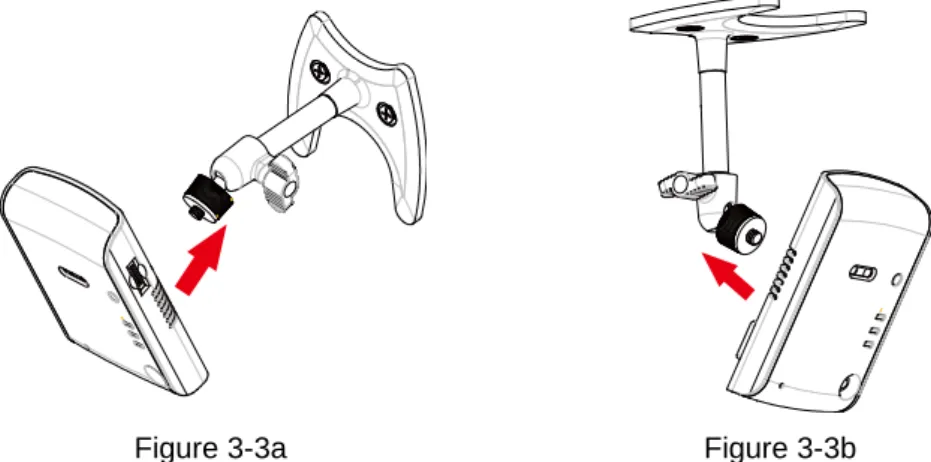
(3) Mount the main body of camera onto the bracket. (Figure 3-3a & 3-3b)
NEED HELP
Most issues can be solved over the phone. Call the customer helpline on
0844 736 9149 Monday to Friday 9.00am to 5.00pm
17
Figure 3-3a Figure 3-3b
(4) Adjust the angle of the camera and then fasten the body. (Figure 3-4a & 3-4b)
Figure 3-4a Figure 3-4b
(5) Connect the power adapter to the camera and power on the camera again. (Figure 3-5a & 3-5b)
Figure 3-5a Figure 3-5b
(6) View the live video on the web page. Re-adjust the angle of the camera if necessary.
Power Socket Power Adapter Power Socket Power Adapter
18
4. Operation
4.1. How to view the camera live
(1) On your PC, launch the browser and go to “https://GlobalGuard.Friedland.co.uk
(2) On the login page, enter your HomeID, Admin/User ID and Password followed by the verification code. Now click on the “Login” button.
”
(3) Click on to enter the camera view page.
(4) Select the camera and click on “View” to display the live video. On the right side panel you can adjust the volume or stop the playing.
Note: The Android/Apple IOS mobile “GlobalGuard” App can also now be used to view any cameras connected to your system. If not already done download and install this App from the marketplace or App store and use your GlobalGuard online account login details to sign in.
19
4.2. How does the camera record to the SD card
a) Manually recording video clips:
(1) After logging in to the web page, click on to enter the camera view page.
(2) Click on the “REC” button to start a recording for a period of approximately 30 seconds.
b) When a security detector is triggered:
(1) After a door/window contact detector or another type of security detector is triggered whilst your alarm system is armed, your IP gateway will locate the corresponding IP camera in that location and inform it to begin recording.
(2) The camera will start to record approximately 30 second video clips on to the SD card
Note: When a PIR movement detector or any type of security detector is triggered, only the IP camera assigned to the SAME location as the detector will start recording. If a camera’s Location is set to ‘None’, it will record whenever ANY detector is triggered. Note also all cameras will record when the control panel detects event conditions of Panic, Tamper, Fire & Duress regardless of any location it is set to.
The Android/Apple IOS mobile “GlobalGuard” App can be used to record video files and save to the SD card in the camera. First download and install this App from the
20
4.3. How to playback video files from the web
(1) After logging in to your account on the web page, click on to enter the video playback page.
(2) Select a connected camera, and then click on the (refresh) icon to refresh the playback list.
(3) Click on a desired filename (sorted by date and time) to view the playback. On the right side panel you can adjust the volume or stop the playback
Video file name format:
Example above means video file recrded on:
27th DEC 2011 at 15:32:40 (or 3:32pm and 40 seconds)
(A) Year (B) Month (C) Day (D) Hour (E) Minute (F) Second
21
4.4. Backing up video files from the micro SD card on PC
(1) Remove the micro SD card from the camera.
(2) Insert the micro SD card into a suitable SD card reader for your PC. Some PC’s have a built-in card reader. In that case you can simply insert the micro SD card into the built-in card reader.
Note: Use the suitable SD card adapter if your PC can not read micro SD cards directly. (3) After your PC detects the storage device, copy the folder containing the video files onto
your PC where required
(4) After the copy is complete, disconnect the adaptor from your PC and then remove the micro SD card.
(5) Insert the micro SD card back into the camera.
(6) Power off wait a few seconds and then power on the camera to ensure that the camera can reboot its functionality correctly.
4.5. GlobalGuard CamPlay software
Playing back video files stored on your PC
If video files are stored on your PC possible for evidence or backup purposes, then the files can be played back on the PC using the ‘GlobalGuard_CamPlay’ software.
(1) Download this software and the GlobalGuard software manual by visiting “www.GlobalGuard.Friedland.co.uk”
(2) Install and open the player
(3) Refer to section [GlobalGuard Camplay software] in the GlobalGuard software manual for details on using it.
Note: Not all features of this software are applicable for the GlobalGuard Camera
NEED HELP
Most issues can be solved over the phone. Call the customer helpline on
0844 736 9149 Monday to Friday 9.00am to 5.00pm
22
5. Specifications
Power supply 5V DC, 1A
Network interface Ethernet 10BaseT/100BaseTX, Auto-MDIX, RJ-45
Wireless interface IEEE 802.11n 90 - 150 Mbps IEEE 802.11g 6 - 54 Mbps IEEE 802.11b 1 - 11 Mbps
Transmit power: 14.5dBm typically @ 802.11g 17.5dBm typically @ 802.11b
Receiver sensitivity: 54Mbps: Typical -73dBm @ 10% PER 11Mbps: Typical -86dBm @ 10% PER Antenna gain: 0.01 dBi
Open field RF operating range
Approximately 100m
Image sensor RGB VGA 1/4 inch CMOS
Day and night separate sensors
Automatic exposure control, automatic white balance, automatic gain control, automatic brightness control.
Light sensitivity 0.2 Lux ( IR LED off )
0 Lux (with 10 meters IR LED on)
Automatically turn on the IR LED on low light environment.
Lens / viewing angle 3.2 mm, F2.0, viewing angle: 60.3°, fixed iris. Day and night separate lens
Night vision range Up to 10m
Buttons WPS button for optional automatic wireless (WiFi) setup for WPS enable routers only
Indicators Blue LED for Internet connection status indication Red LED for Ethernet connection indication Yellow LED for micro SD card recording indication
Video compression H.264, baseline profile level 3.1
Resolution VGA(640x480) ; QVGA(320x240)
23
Micro SD Card for recording
Minimum 2GB / Maximum 32GB
2GB stores approximately 300 x 33 second video files 3 seconds pre-recording
Operating conditions 0-50 °C
Humidity 20 – 80% RH (non-condensing)
Mounting conditions Dry indoor use only
Appendix A. Performance Information
1. Video Performance Information
The video quality is dependent on the speed of your internet connection (i.e, upload/download speed). For better video quality, you need to know and increase if necessary the internet connect speed (bandwidth). If the internet connection speed (bandwidth) is low, the video quality could be poor. In some worst cases, the video displayed could be disconnected. In order to acheive the best video quality, your ISP (internet service provider) should provide no less than 512kbps upload speed. Note that upload speed is different from download speed. Also note that when multiple users are viewing video from the same camera simultaneously, the basic video bandwidth (512kbps) multiplied by the number of users will be the
recommended total bandwidth required for the Internet upload speed to display good video quality.
2. Wireless (WiFi) Performance Information
The wireless connection performance is dependent on the following factors
• Distance between the camera and your wireless router
• The number of devices connected to the router.
• Obstructions between the camera and router such as walls
In general case, if there are no obstructions between the camera and the router, the open field operating range isapproximately 100m.
24
Appendix B. Trouble shooting
How many IP cameras can I add? You can connect up to 8 x IP cameras to the system.
What’s going on when the red led light on the camera is flashing?
When the camera is connected to the Internet and working correctly, the red led light will be on constantly. If the red led light is flashing, it’s probably because there is a connection problem. Please check the internet connection again
When the camera is connected to the router through wireless connection, the video quality is not good, how could I fix this problem?
When the camera is connected wirelessly and the video quality is poor, it’s probably because the camera is located too far from the router or that there are are too many devices connected to the router
I can view the video remotely, but the video quality is not good and
sometimes the video disconnects and reconnects again by itself.
It’s probably because the internet bandwidth (internet connection speed) is not big enough. Consider upgrading for a better internet connection from your IPS (internet service provider). The camera requires a minimum 512kbps upload speed for viewing the video smoothly.
Loud whistling sound heard on my PC from the Camera
The camera may be located too close to your PC. Please reduce the speaker volume on your PC or the volume of the camera
NEED HELP
Most issues can be solved over the phone. Call the customer helpline on
0844 736 9149 Monday to Friday 9.00am to 5.00pm
25
Disposal and Recycling (Directive 2002/96/EC)
The product is classified by the Waste Electrical or Electronic Equipment (WEEE) Directive. It should not be disposed of with other household or other commercial waste. At the end of its useful life the packaging and product should be disposed of via a suitable recycling centre. For information on available facilities, please contact your local authority or retailer from where the product was purchased.
WEEE bin logo here
Notes
Camera 1 MAC ID: Location:
Camera 2 MAC ID: Location:
Camera 3 MAC ID: Location:
Camera 4 MAC ID: Location:
Camera 5 MAC ID: Location:
Camera 6 MAC ID: Location:
Camera 7 MAC ID: Location:
26
Disposal and Recycling (Directive 2002/96/EC)
The product is classified by the Waste Electrical or Electronic Equipment (WEEE) Directive. It should not be disposed of with other household or other commercial waste. At the end of its useful life the packaging and product should be disposed of via a suitable recycling centre. For information on available facilities, please contact your local authority or retailer from where the product was purchased.
Guarantee
Novar ED&S undertakes to replace or repair at its discretion goods (excluding non rechargeable batteries) should they become defective within 1 year solely as a result of faulty materials and workmanship.
Understandably if the product has not been installed, operated or maintained in accordance with the instructions, has not been used appropriately or if any attempt has been made to rectify, dismantle or alter the product in any way the guarantee will be invalidated.
The guarantee states Novar ED&S entire liability. It does not extent to cover consequential loss or damage or installation costs arising from the defective product. This guarantee does not in any way affect the statutory or other rights of a consumer and applies to products installed within UK and Eire only.
If an item develops a fault, the product must be returned to the point of sale with : 1. Proof of purchase.
2. A full description of the fault.
3. All relevant batteries (disconnected).
Novar Electrical Devices and Systems Limited (A Honeywell company) The Arnold Centre, Paycocke Road, Basildon, Essex SS14 3EA. UK
www.friedlandproducts.com
© Novar Electrical Devices and Systems Limited. 2013
CE
50072730-001 Rev.B
CUSTOMER HELPLINE
Most issues can be solved over the phone. Call the customer helpline on