Debugging Concepts
Using Microsoft Excel
l a b
7
147
Objectives:
Upon successful completion of Lab 7, you will be able to
● Define the terms troubleshooting and debugging
● Describe the steps required to analyze and find a solution for an everyday problem or computer problem
● Use the following troubleshooting and debugging steps to analyze and find a solution for a simple everyday or computer problem
1. Identify the problem
2. Describe the expected behavior 3. Consider how the system works 4. Guess the possible causes 5. Eliminate the obvious causes 6. Expand the scope
Resources required:
● A computer running any version of Excel
Starter files:
● budget.xls● budget_exercise.xls
Prerequisite skills:
● General keyboarding skills
● Comfortable editing an Excel worksheet or another electronic spreadsheet application
● Ability to find files using Windows Explorer or Windows search feature
● Ability to open and save a file in a Windows application
NRC’s Top Ten Skills, Concepts, and Capabilities:
● SkillsUse a spreadsheet to model a simple process
• Starter files, which contain errors will be provided • Debugging and fixing the errors
● Concepts
Limitations of Information Technology Modeling and abstraction
● Capabilities
Find problems in a faulty use of IT Test a solution
Lab Lesson
In our everyday lives we encounter problems and try to solve them. We may have to come up with a solution to a problem, or we may have to troubleshoot something that has been working for a while and is suddenly broken. Troubleshooting involves examining a situation and trying to figure out what went wrong and how to fix it. For instance, perhaps your flashlight isn’t working. You replace the batteries and then it works perfectly. In Information Technology, troubleshooting is referred to as debugging. A computer program or computer system may have a bug. A bugis an error or some kind of failure that prevents the computer system from working properly.
Debugging is the process of finding and eliminating the bug, thereby fixing the problem.
Everyday Troubleshooting
Let’s look at some everyday problems and the steps we might use to troubleshoot them. We’ll look again at the flashlight example and outline the troubleshooting steps in detail.
● Identify the problem. When you move the flashlight switch to the on position, the light bulb does not illuminate.
● Describe the expected behavior. When the flashlight switch is moved to the on position, the light bulb should illuminate.
● Consider how the system works. A flashlight is a simple device consisting of a case with a switch, a light bulb, and batteries. When the switch is moved to the on position the batteries supply electricity to the light bulb and the light bulb
illuminates.
● Guess the possible causes. The most obvious causes are dead batteries or a burned light bulb. Of those two causes, the most common cause is dead batteries.
● Eliminate the obvious causes. You replace the dead batteries and test the flashlight. It works! Problem solved.
If changing the batteries had not solved the problem the next step would have been to change the light bulb, which was the next likely cause of the problem. This was a very simple example of troubleshooting or debugging an everyday problem. If the problem had been more complex a few more troubleshooting steps could have been taken. It may require further investigation, including research and asking for expert advice.
1. Identify the problem. Write the problem in your own words.
2. Describe the expected behavior. How should the desklamp function?
3. Consider how the system works. Describe how the desklamp works as a system. Include in your description the source of the electricity, the on/off switch, and the light bulb.
4. Guess the possible causes. Describe at least three possible causes for the problem.
Now, let’s say you eliminated the obvious causes, and the desklamp still doesn’t work. Further investigation is required. You would have to widen the scope of your investigation. Rather than concentrating on the desklamp, what are other possible causes? The problem could be the lamp, or the problem could be with the electrical source. Answer the following questions.
1. How would you determine if the problem was with the lamp?
2. How would you determine if the problem was with the electrical source?
This is how the scope of investigation broadens. Once the obvious causes have been eliminated, we must look for other causes with the knowledge we have of the system. We know that the lamp requires electricity from the wall socket. We could try plugging the lamp into a wall socket that we know is working. If the lamp works, then we know the problem is with the electrical source. Similarly, we could plug another lamp or other electrical device that we know is working into the wall socket. If the device does not work, we know that the problem is with the electrical source. If the device works, we know the problem is with the lamp itself.
Sometimes the problem cannot be fixed easily and we require a workaround. In the case of the desklamp, if the problem turns out to be the wall socket, further investigation is required. Again, using troubleshooting techniques, perhaps you check the fuse box and all fuses seem to be functioning. You may decide to call an electrician, but in the meantime, the workaround is to plug the lamp into a different wall socket.
1. Identify the problem.
2. Describe the expected behavior.
3. Consider how the system works (simplify—do not research how a freezer works).
4. Guess the possible causes.
5. Eliminate the obvious causes.
Debugging Computer Problems
Troubleshooting computer problems is referred to as debugging. The same techniques used for troubleshooting every day issues can also be used for debugging computer problems. Let’s look at a problem with an Excel spreadsheet.
Your friend, John Doe, gives you his budget spreadsheet.
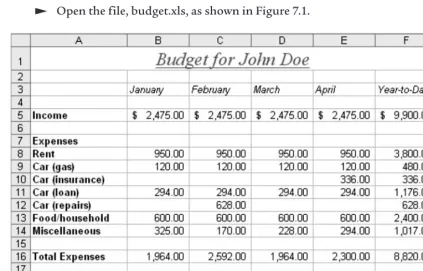
Open the file, budget.xls, as shown in Figure 7.1.
Figure 7.1 Excel budget.xls.
John tells you that he hates math. He meticulously entered the Miscellaneous expenses so he’s absolutely sure those figures are correct. He copies the other expenses from one month to the next, and he’s sure all expenses were correct for January. He tells you that the only change to his expenses is that his rent was increased to $982.00 in April. He also tells you that he has $31 in his bank account, not $1,080.00. Let’s go through the troubleshooting steps to debug the spreadsheet.
1. Identify the problem. The final Year-to-Date figure is incorrect, indicating that there is at least one problem with the spreadsheet calculations or data.
2. Describe the expected behavior. The final Year-to-Date figure should be $31.
3. Consider how the system works. The values are entered by hand. The calculations for Year-to-Date should result in the sum of the figures in each row. The Total Expenses calculations should result in the sum of the expenses for each column. The Net
4. Guess the possible causes. Well, John was adamant that the Miscellaneous expenses were correct so that’s not likely a cause of the problem. He did say that he hates math, so the cause of the problem could be in the formulas. He also mentioned that the Rent was increased in April, so that figure should be checked as well.
5. Eliminate the obvious causes. The obvious causes are data entry errors, and errors in formulas. He was sure that the Miscellaneous expenses were correct. As he copies the expenses from one month to the next and January expenses were correct, the only possible data entry error could be the rent increase in April.
Look at the Rent figure for April. John said that the Rent increased to $982.00. Make the correction on his spreadsheet.
So, you’ve fixed one of the problems, but the final Year-to-Date figure is still not correct. Let’s look at the formulas.
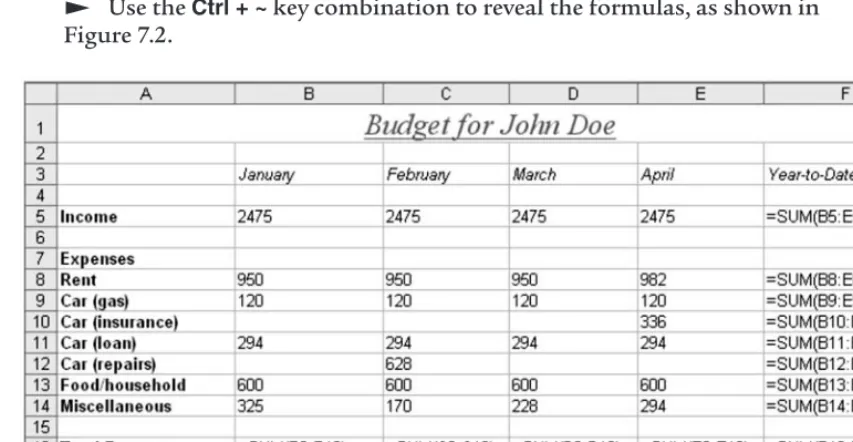
Use the Ctrl + ~key combination to reveal the formulas, as shown in Figure 7.2.
Figure 7.2 Excel budget.xls with formulas displayed.
When you activate the cells that contain formulas, the cells referred to in the formulas are outlined. Let’s use this method to determine whether the formulas are correct. The Year-to-Date formulas should add all values in the row. The Total Expenses formulas should add all of the expenses. The Net Surplus/Deficit formulas should indicate the Income minus the Total Expenses.
Click on each of the cells in column F and determine whether the formulas are correct (they are correct!). Notice that the cells referred to in the formulas are outlined each time you activate a cell containing a formula.
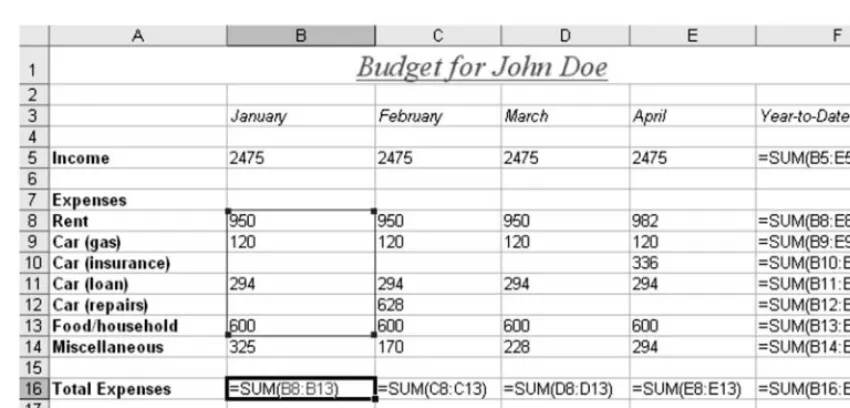
Click on cell B16, the Total Expenses formula for January.
Figure 7.3 Excel budget.xls with Total Expenses cell for January activated.
What do you notice about the formula?
If you said that the Miscellaneous figure should be included in the formula you are correct! John has missed a figure in his SUM formula.
Look at each of the formulas for Total Expenses for each month. What do you notice?
Again, if you noticed that each formula is missing the Miscellaneous Expense, you are correct!
Use the Ctrl + ~key combination to return the display to values.
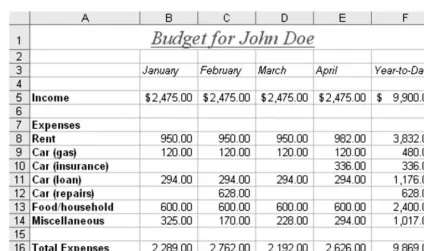
Correct the formula for the January Total Expenses to sum all expenses, including the Miscellaneous expense.
Copy the newly corrected formula to the other month columns.
Figure 7.4 Excel budget.xls with correct Total Expenses formulas.
Notice the Year-to-Date figure for Net Surplus/Deficit. It’s $31.00! Problem solved.
If fixing the formulas had not solved the problem, what would you have investigated next to broaden the scope? Certainly, the other formulas could be verified. The individual values which John entered could also be verified. Even though John insisted that his values were correct, that would be the next likely cause for error in this example. As it turns out, John was correct and his values had been entered correctly.
Let’s look at another example related to computing and hardware. The printer you’ve been using for months has suddenly stopped working. You are working on a Word document and click the
Printbutton. Normally the printer would begin printing, but the printer doesn’t even make a sound. Let’s look at the debugging steps we might use to fix the problem.
1. Identify the problem. You attempt to print a Word document and it does not print.
2. Describe the expected behavior. You click the Printbutton in Word, and the printer makes a noise as it prepares to print, and then it prints the document.
3. Consider how the system works. The printer has an electrical plug that is connected to a power bar. The printer also has a data cable connected to the computer. In addition, the computer has software that identifies this printer as the default printer and uses a printer driver to communicate with the printer. The printer itself is an inkjet printer and contains an ink cartridge that travels back and forth inside the casing and expels ink onto the paper.
5. Eliminate the obvious causes. You check the on/off switch and determine that the printer is turned on. Next, you check the plug and determine that it is plugged into the power bar. You check the plug for the power bar and determine that it is plugged into the wall. You notice a switch on the power bar and see that it has been turned off. You turn the switch to the on position and hear the startup noise from the printer. You click the print icon in Word and the document prints.
If investigating the power source had not fixed the problem, how would you have expanded your debugging? You could have tried plugging the printer into another wall outlet to determine if the problem was the power source. The problem could also have been a mechanical problem related to the on/off switch. If further investigation revealed that the cause was a mechanical problem with the printer, you may have had to call a technician or buy a new printer.
Review
This has been a busy lab! We have covered the following topics:
● Everyday troubleshooting to analyze and solve problems
● Debugging computer problems
● Six steps for troubleshooting and debugging 1. Identify the problem
2. Describe the expected behavior 3. Consider how the system works 4. Guess the possible causes 5. Eliminate the obvious causes 6. Expand the scope
Exercises
1. List the six troubleshooting steps and the specific details for each of the following problem scenarios. Explain how you would approach Step 6 to expand the scope of the investigation and possible workarounds.
a. Each day at 8:00 a.m. your friend Jim picks you up and drives you to work. Today, it is 8:15 a.m. and Jim has not arrived.
b. You pick up the television remote control and press the power button, but the television does not turn on.
2. Your friend John’s budget file has somehow been corrupted again! Open the