Step Servo Quick Tuner
Software Manual
920-0002 rev j1 2
1
Revision HistoryVersion Author Participator Date Changes
1.0 Austin 2013-7-19 Initial release
1.1 Jay Frank, Jimmy 2014-12-31 Update new features in Step Servo Quick Tuner 3.0
1.2 JK, MC 2015-1-21 Improved grammar and
920-0002 rev j1 3
2
Contents3.1 Step Servo Quick Tuner Overview ... 6
3.2 User Interface ... 8 4.1 Menu ... 9 4.1.1. Project ... 10 4.1.2. Configuration ... 11 4.1.3. Q program ... 11 4.1.4. Connect ... 12 4.1.5. Ping ... 12 4.1.6. IP Table ... 12 4.1.7. Option... 13
4.1.8. Restore Factory Default ... 16
4.1.9. Alarm History ... 17 4.1.10. Tools ... 17 4.1.11. Language ... 19 4.2. Tool Bar ... 19 4.2.1. Drive Model ... 19 4.2.2. Communication Port ... 20 4.2.3. Servo Status ... 20
4.2.4. Upload and Download ... 20
4.2.5. Stop ... 21
5.1 Motor Configuration ... 22
5.1.1 Maximum Currents ... 23
5.1.2 Maximum Speed ... 23
5.1.3 Maximum Acceleration ... 23
5.1.4 Reverse motor rotating direction ... 24
5.2 Control Mode Selection ... 24
5.3 Control Mode Settings ... 24
5.3.1 Position Mode (I/O Controlled) ... 25
5.3.2 Velocity Mode (I/O Controlled) ... 28
5.3.3 SCL /Q Mode (Streaming Commands/Stand Alone) ... 29
5.3.4 Modbus/RTU ... 30
5.3.5 Torque Mode ... 31
5.3.6 CANopen... 32
920-0002 rev j1 4
5.4 I/O Configuration ... 34
5.4.1 Digital I/O Configuration ... 34
5.4.2 Analog Input ... 35
6.1 Introduction ... 35
6.1.1 Velocity Control Loop (V Loop) ... 36
6.1.2 Position Control Loop (P Loop) ... 37
6.1.3 Notch filter ... 39
6.2 Get Ready for Tuning ... 39
6.2.1 Position Limit ... 41
6.2.2 Tuning the Velocity Loop ... 42
6.2.3 Tuning the Position loop ... 45
6.2.4 Using Auto Trigger Sampling ... 47
7.1 Q Programmer Page ... 49
7.2 Current Segment ... 50
7.3 Command Editing ... 50
8.1 Initialize Parameters ... 52
8.2 Point to Point Move ... 52
8.3 Jog ... 52
8.4 Homing ... 53
10.1 I/O Monitor ... 55
10.2 Drive Status Monitor ... 55
10.3 Alarm Monitor ... 56
10.4 Drive Parameter Monitor ... 56
10.5 Register Monitor ... 57 11.1 Commands ... 57 11.1.1 Buffered Commands ... 57 11.1.2 Immediate Commands ... 58 11.2 Using Commands ... 58 11.2.1 Commands in Q drives ... 59 11.2.2 SCL Utility software ... 60 11.3 Command Summary ... 61 11.3.1 Motion Commands ... 62 11.3.2 Servo Commands ... 63 11.3.3 Configuration Commands ... 65
920-0002 rev j1 5
11.3.4 I/O Commands ... 66
11.3.5 Communications Commands ... 67
11.3.6 Q Program Commands ... 67
11.3.7 Register Commands ... 68
11.4 Host Command Reference ... 69
12.1 Sample Command Sequences ... 69
13.1 CANopen Communication ... 75
13.2 Why CANopen ... 76
13.3 CANopen Example Programs ... 76
13.3.1 Profile Position Mode ... 76
13.3.2 Profile Velocity Mode ... 77
13.3.3 Homing Mode ... 78 13.3.4 Normal Q Mode ... 78 13.3.5 Sync Q Mode ... 79 13.3.6 PDO Mapping... 79 13.4 Downloads ... 79 14.1 Communication Address ... 80 14.2 Data Encoding ... 80
14.3 Communication Baud Rate & Protocol ... 80
14.4 Function Code ... 81
14.5 Modbus/RTU Data Frame ... 81
920-0002 rev j1 6
3
IntroductionThank you for purchasing an Applied Motion Products Step Servo product. The Step Servo is an innovative revolution for the world of step motors; it enhances step motors with servo technology to create a product with exceptional feature and broad capability. Applied Motion Products’ Step Servo family includes the SSM, TSM and TXM integrated drive+motor, plus SS and SSAC series stand alone Step Servo drives. TSM series integrated Step Servo motors
SSM series integrated Step Servo motors with Ethernet
TXM series IP65-rated integrated Step Servo motors for harsh environments SS series Step Servo drives
SSAC series Step Servo AC drives
3.1 Step Servo Quick Tuner Overview
Step Servo Quick Tuner is a Windows based software application to configure, perform servo tuning, program the Q programming, drive testing and evaluation of the Step Servo product. This help explains how to install Step Servo Quick Tuner and how to configure and tune your Step Servo system. For information regarding your specific hardware, such as wiring and mounting, please read the hardware manual that came with the product.
920-0002 rev j1 7 The features of Step Servo Quick Tuner include:
y Friendly Interface
y Easy setup within just three steps y Drive setup and configuration y Servo tuning and sampling y Built-in Q programmer y Motion testing and monitoring
y Write and save SCL command scripts y Online help integrated
y Support for all Step Servo products in TSM/SSM/TXM/SS/SSAC series
Remember, if you get in trouble with our motor, drive or software, or if you have any suggestions
about our products and this manual, please call Applied Motion Products Customer Support: (800)
525-1609, or visit us online at
www.applied-motion.com
.
Software Environment:
Microsoft XP (Service Pack 3), Windows 7/8,Vista with 32bit or 64 bit Microsoft .Net Framework 2.0
920-0002 rev j1 8
3.2 User Interface
To launch Step Servo Quick Tuner 3 on your Windows PC, click Start → Programs → Applied Motion Products → Step Servo Quick Tuner 3 → Step Servo Quick Tuner 3.
The main screen includes these sections: Menu, Tool Bar, Step 1: Configuration, Step 2: Tuning-Sampling, Step 3: Q Programmer (Only for –Q/-C Type) and Motion Simulation. See picture below.
Menu
The main menu provides some frequently-used operations for configuration and drive control.
Tool Bar
The tool bar is used to set the communication, drive model, Servo status control, Alarm Reset, Upload & Download.
Step 1: Configuration
This tab provides the drive configuration settings.
Step 2: Tuning-Sampling
This tab provides the tuning and sampling settings, start sample and display sampling curve diagram.
Step 3: Q Programmer
This tab provides the necessary functionality to develop and test Q programs, which are stored in the drive and can operate stand alone or with the interaction of a host device like a PC, PLC or HMI. It is only for –Q and –C type.
Motion Simulation
Step 3: Q Programmer Command History Response Monitor Menu Step 1: Configuration Tool Bar Motion Simulation Step 2: Tuning-Sampling920-0002 rev j1 9
This tab provides motion testing, such as point to point motion, jogging and homing.
SCL Terminal
The SCL Terminal allows you to send SCL commands to the drive. It’s a good way to learn how to use SCL commands before writing a custom software program to send SCL streaming commands the drive. The SCL Terminal can also be useful for diagnostics and debugging. For more information about SCL commands, please refer to the Host Command Reference, available at
http://www.applied-motion.com/products/software/scl-utility
Status Monitor
The Status Monitor can display I/O status, Drive status, Alarms, Parameters and Registers.
4
Connecting your Drive to Step Servo Quick TunerStep Servo Quick Tuner supports two connection types, serial port and Ethernet. For serial port drives, the connection includes following steps
y Connect the drive to your PC COM port y Launch Step Servo Quick Tuner
y Switch to RS-232 and select the COM port, see picture below y Power up the drive
y Step Servo Quick Tuner will recognize the drive model and revision
When launching Step Servo Quick Tuner, the software will search all COM ports available and load then into the drop down list.
After establishing the connection between the drive and Step Servo Quick Tuner, the software will switch the baud rate to 115200 bps, no matter what the baud rate was before.
For Ethernet drives, the connection includes following steps y Connect the drive and PC to your switch or router y Launch Step Servo Quick Tuner
y Switch to Ethernet and input the drive’s IP address, as pictured below y Power up the drive
Step Servo Quick Tuner will not detect the drive information automatically, you need to click "Upload" button in the main screen to get the drive model and revision.
920-0002 rev j1 10
1st Stage Menu 2nd Stage Menu Hot Key Function
Project
Open Ctrl+O Open the project file (.ssprj format) Save Ctrl+S Save the project file (.ssprj format) Upload from Drive Ctrl+U Upload the project from the drive Download to Drive Ctrl+D Download the project to the drive
Print Ctrl+P Print the current project
Exit Exit Step Servo Quick Tuner
Config
Open Config Ctrl+Shift+O Open configuration file (.ssc format) Save Config Ctrl+Shift+S Save configuration file (.ssc format) Upload from Drive Ctrl+Shift+U Upload configuration from the drive Download to Drive Ctrl+Shift+D Download configuration to the drive Print Ctrl+Shift+P Print current configuration
Q Program
Open Q Program Open Q program file (.qpr format) Save Q Program Save Q program file (.qpr format)
Open Segment Open Q segment file (.qsg format)
Save Segment Save Q segment file (.qsg format)
Upload from Drive Upload Q program from the drive Download to Drive Download Q program to the drive
Clear Q Program Clear Q program
Set Password Set password to secure Q program
Print Q Program Print Q program
Connect Connect or re-connect to the drive
Ping Ping the Ethernet drive
IP Table Edit the drive’s table of switch selectable IP addresses
Option Set Alarm, Regen, Communication and other options
Restore Restore the drive to the factory default settings
Alarm History Display drive’s alarm history
Tools
Firmware Downloader Upgrade the drive’s firmware
Move Profile Calculator Pilot motion profile based on target distance, velocity, acceleration/deceleration, etc. Export CANopen Parameters Export CANopen Parameters to a file
CANopen Test Tool Run CANopen Test Tool application (requires pre-installation)
Language English Set the application language to English
Chinese Set the application language to Chinese
Help Open the online help
4.1.1. Project
In Project menu, Step Servo Quick Tuner can allow you to upload and download both configurations and a Q program. Driver configuration and Q programs can be saved as a project file (.ssprj) to your local disk. It
920-0002 rev j1 11
can also download the project files to a different drive directly from the hard disk. In addition, it can also print out the detailed project files.
For drives that support Q programming capability, the project includes the configuration and Q program; see below:
For drives without Q programming, the project is the same as the configuration. 4.1.2. Configuration
In Config menu, Step Servo Quick Tuner allows you to upload and download configurations to and from the drive. It can also save as configuration file (.sscfg) to your local disk and download configurations to a different drive directly from the hard disk. In addition, it can print out the detailed configuration files.
4.1.3. Q program
If your drive is a Q, C or IP type, the Q Program menu can save driver’s Q program file (.qpr) to your local disk. It can also download a Q program to a different drive directly from the hard disk. In addition, it can print out your Q program.
920-0002 rev j1 12
4.1.4. Connect
Connect Step Servo Quick Tuner to the drive.
4.1.5. Ping
Pingwill verify your network configuration and ensure that the software can communicate with the drive. Click “Ping” button, the software will check drive's ARM build number and MAC ID.
4.1.6. IP Table
IP Table is used to edit the table of switch selectable IP addresses stored in drives with Ethernet ports. You can input up to 14 IP addresses for the rotary switch positions 1 through E.
Note: After saving the IP address table to the drive, you must power cycle the drive before a new address can take effect.
920-0002 rev j1 13
For TXM Ethernet drives, which have no IP address selection switch, there is only one IP address setting available, shown as 10.10.10.10 in the image above. You can set this to any valid IP address that suits the requirements of your network and application. Should you ever forget this address, you will need a way to recover the drive. All TXM drives include a permanently fixed recovery address of 10.10.10.10. The TXM will use this recovery address if it powers up and does not detect a network connection for some period of time. You can set this time delay period in the IP Address Table dialog.
Example: if you set the time delay for 5 seconds, you can force the drive to revert to the recovery address by powering it up with the Ethernet cable unplugged, then waiting for five seconds before plugging in the cable.
4.1.7. Option
Allows you to set the alarm mask, regeneration resistor, and other parameters 4.1.7.1 Alarm Menu
Sometimes you may see LED alarm codes displayed on your drive that you don’t want to see because they are part of the normal operation of your application, such as tripping an end of travel limit. In this case you can inhibit these alarms. Clicking the "LED Flashing" button in the menu will present the following dialog.
920-0002 rev j1 14
Uncheck the alarms you want to inhibit; if your drive encounters such alarms, it will not display the alarms by LED. However, the drive will record them and store them in the alarm history for future examination. 4.1.7.2 Regeneration Resistor
SS drives contain an internal regeneration resistor to safely capture kinetic energy returning to the drive from a rapidly decelerating load so that it does not damage the drive or power supply. This page will help you set it up.
4.1.7.3 Communication
920-0002 rev j1 15
Prefix all responses with address character: Instructs the driver to respond to SCL commands with an address character prefix.
Respond to all commands with Ack or Nack: Respond to all commands with Ack or Nak
Use CheckSum: Use CheckSum during communication
Full Duplex RS-485: Select this for full duplex, 4 wire RS-422/485 networks
4.1.7.4 Other
Velocity, Accel/Decel Unit: Unit settings for velocity, acceleration and deceleration: you can choose revolutions per second (rps) and rev/sec/sec (rev/s/s) or revolutions per minute (rpm) and rpm/s/s.
920-0002 rev j1 16
When drive is connected: You can choose whether to automatically upload the configuration and/or Q program from the drive when a drive is first connected to Step Servo Quick Tuner.
4.1.8. Restore Factory Default
The restore button will reset all the parameters on the drive to the default factory settings.
Note: This will erase all the parameters you have changed, so you may need to save them to a file first.
920-0002 rev j1 17
4.1.9. Alarm History
Applied Motion Products Step Servo drives store a log of previous alarm conditions. Each time there is an alarm, the drive stores the information of which alarms were triggered at this time. Since a fault may trigger more than one alarm condition, the drive stores all of them for reference. This information can then be extracted using Step Servo Quick Tuner to help with drive and system problem solving. The drive stores up to 8 sets alarm conditions.
4.1.10. Tools
The Tools menu includes Firmware Downloader, Motion Profile Calculator, Export CANopen Parameters and CANopen Test Tool, see picture below:
4.1.10.1 Firmware Downloader
Firmware Downloader is used to upgrade the drive firmware. Before upgrading please contact Applied Motion Products to confirm that you get the proper firmware version to download.
920-0002 rev j1 18 Please follow this sequence to perform a firmware update: Step 1: Select a firmware file
Step 2: Recycle the drive’s power and wait for 3 seconds Step 3: Click the “Download” button.
Note: So far Applied Motion Products’ drives do not support multi axis networking firmware updates for RS-485 field bus. You can only do the firmware updates for each single axis which must be offline from the network.
4.1.10.2 Move Profile Calculator
Move Profile Calculator provides an excellent tool for the customer to simulate move profiles. The motion parameters can convert between time and SCL parameters easily via click a button. When the drive is connected with the software, you can click “Test Profile” to try a move per your inputs.
4.1.10.3 Export CANopen Parameters
After tuning is done. Export CANopen Parameters provides a tool to export the tuning parameters such as KP , KD, VP, VI and etc. and save these parameters to a text file in a specific data format which is easy for the customer to immigrate to their program. Below is a saved file example.
920-0002 rev j1 19
4.1.10.4 CANopen Test Tool
This provides a quick link to the installed CANopen Test Tool software.
If you have installed CANopen Test Tool, click this will launch “CANopen Test Tool” software.
4.1.11. Language
Language button has 2 language options. You can click one of them to shift the language between English and Chinese.
4.2. Tool Bar
The Tool Bar includes the Applied Motion Products logo, drive model, drive firmware revision, communication settings, servo status, plus the alarm reset, upload, download and stop buttons.
4.2.1. Drive Model
The Drive drop-down list shows all of the available step servo drive model numbers.
The Revision window will display a drive's firmware version once the drive is properly connected to the PC and power is supplied.
920-0002 rev j1 20
4.2.2. Communication Port
Choose the correspondent communication port for the drive before any drive configuration. For RS-485 drives, it allows you to choose the address of the drive to which you wish to connect.
4.2.3. Servo Status
The servo enable switch is used to enable and disable the motor status. It also displays the current status: when the button is green, the motor is enabled.
“Force EN” allows you enable the motor when a drive is connected to Step Servo Quick Tuner regardless of the external enable input status.
Alarm reset allows you to reset the alarm, when they occurs.
NOTE: Alarms can only be cleared when the drive’s warning or fault problems are solved.
4.2.4. Upload and Download
Upload lets you copy the set up and tuning parameters from your Step Servo motor into Step Servo Quick Tuner. This is useful if you want to make changes to a system that has already been tuned.
The Download button is used to copy settings from Step Servo Quick Tuner to your drive. Use this if you make a change to a drive setting and want to transfer the information back to the drive.
“Upload All from Drive” and “Download All to Drive” will upload or download the whole project.
After performing an upload or download, the background of each parameter will change to a green color. This indicates the parameter in the software and the drive match. See below.
920-0002 rev j1 21
Then if a parameter is changed, the background of that parameter will change to yellow. This indicates the parameter in the software and the drive differs. See below.
Then if a download is performed after that parameter changes, the background of that parameter will change back to green. This indicates the parameter is downloaded successfully and the software and drive are again synchronized. See below.
If the driver is not powered up and connected to the software, or an upload or download has not been performed, the background color of the parameter is transparent or white, which means the software and driver have not been synchronized (by upload or download).
4.2.5. Stop
920-0002 rev j1 22
5
Step 1: Drive ConfigurationIn this tab, you can configure drive's settings and control mode in detail.
5.1 Motor Configuration
SSM, TSM andTXM Step Servo products are integrated motors which have a fixed motor model. Only SS/SSAC Step Servo series allow the user to select different motor models.
The integrated step servo models (SSM,TSM, and TXM) appear as follows;
Click “…”to activate the Motor Setup dialog. In this window maximum current, speed limit, and accel/decel limit can be set.
Checking the box marked “Reverse motor rotating direction” will reverse the default rotating direction of the motor (a power cycle is necessary before a change to this setting becomes active).
920-0002 rev j1 23
5.1.1
Maximum CurrentsThe drive current must be set to match the motor. First, determine the rated current for the motor according to your drive’s hardware manual.
If you are manually setting the current, type the value into the Maximum Current text box.
The step servo drive provides a peak current momentarily. This will provide greater acceleration rates than would otherwise be possible. To assure reliable motor operation, the drive will automatically ramp the current down after one second so that the average current does not exceed the motor’s rating. Never continuously operate a step servo motor above its rated current.
The peak current available varies from model to model, so check your product specifications before setting a value.
5.1.2
Maximum SpeedHere you can enter the maximum speed allowable in your application. If you attempt to command a speed that is higher than the maximum speed setting, the final speed achieved will be the speed set in the maximum speed parameter.
Note: Maximum Speed works with Velocity Mode and Torque Mode Only. In Pulse Input Mode these values will be limited by your controller’s software.
5.1.3
Maximum AccelerationThis will set the maximum level of acceleration for the motor. Even if the command input tries to demand a higher level of acceleration, the drive will only accelerate or decelerate at the maximum set level.
920-0002 rev j1 24
5.1.4
Reverse motor rotating directionIf this is checked, the motor rotating direction will be reversed without any other changes.
5.2 Control Mode Selection
Applied Motion Products’ drives support many control modes. You can select a control mode from the control mode list, as shown below:
5.3 Control Mode Settings
Some drives allow the user to select from a number of different operating modes. This may be either selecting from a type of command signal or selecting between different programming modes.
The particular modes available will depend on the drive model. If you have your drive connected and it has been detected by Step Servo Quick Tuner, only the options available on your drive will be shown. Alternatively, by selecting your model from the drop down list at the top of the screen the options screen for your drive will be displayed.
920-0002 rev j1 25
5.3.1
Position Mode (I/O Controlled)Position mode has two control options: digital input and analog input.
5.3.1.1 Position Control - Digital
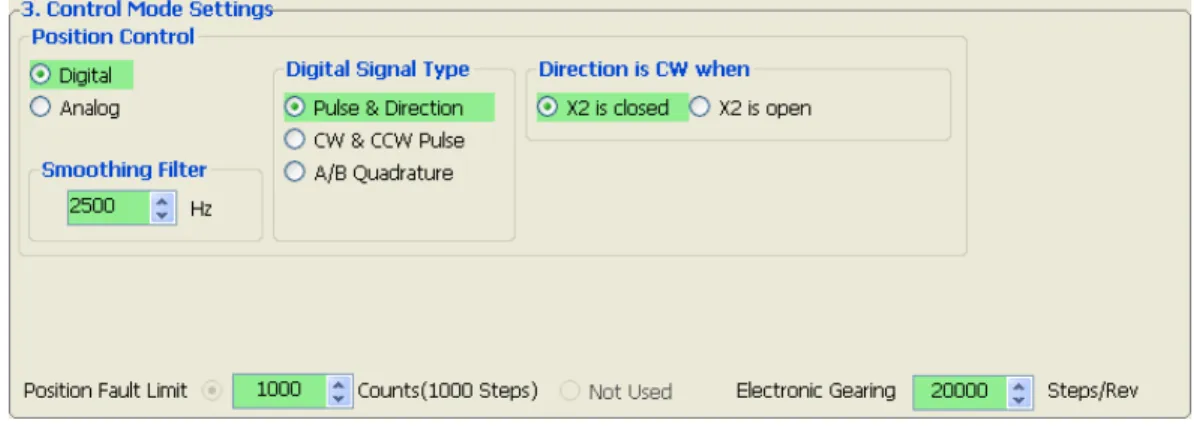
Pulse Input Mode is for systems where the position of the motor is determined by a digital input signal in the form of step pulses combined with another input signal that controls the motor direction. This is also known as “step direction mode”.
920-0002 rev j1 26
Fig 3.10 Digital Settings in Position Mode The three modes available are:
Pulse and Direction. Accepts a signal from a motion controller or PLC. With this mode the frequency of the pulses fed into one input (X1) determines the speed and position, while the direction of rotation is determined by a signal fed into another input (X2). You can configure whether the X2 signal should be closed or open to command clockwise motion.
CW and CCW Pulse. The motor will move CW or CCW depending on which input the pulse is fed into. The drive has two inputs allocated to this feature (X1 and X2); pulses fed into one input will generate CW motion and pulses fed into the other input will generate CCW motion.
A & B Quadrature. Sometimes called “Slave Mode”. The motor will move according to signals that are fed to the drive from a master encoder. This encoder can be mounted on a shaft on the machine or it can be another motor in the system. Using quadrature input mode it is possible for a number of motors to be “daisy chained” together with the encoder output signal from each drive being fed into the next.
For all the Pulse Input modes you will need to determine a value to enter into the Electronic Gearing box. An explanation on how to do this is given in the next section.
Direction is CW when
CW direction is determined by the polarity of input X2 which requires to be set in priority.
Smoothing Filter
Setting the electronic gearing (EG) to a low value (typically less than 2000 steps/rev) can result in rough motion, so set the electronic gearing to a high value if possible. Some PLC’s and motion controllers have a limited maximum pulse rate, so achieving a high move speed is only possible by setting EG to a low value. In such cases, smooth motion can still be achieved by using the Step Smoothing Filter.
1) Smaller values give smoother performance.
2) Smoothing filter technology will introduce a time delay; this doesn’t the positioning accuracy at the end of a move but can cause the actual motion to lag behind the command signal during the move.
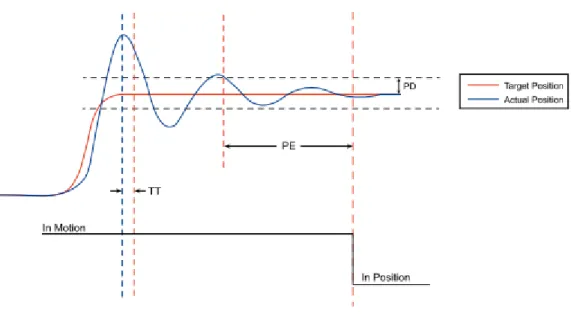
920-0002 rev j1 27 Pulse Input Complete Detection Time
Sets a period of time during which, if the drive doesn’t receive any more pulses, the move is considered to be complete. This parameter is used for determine whether the motor is in position or not. See detailed information on the TT command in the Host Command Reference.
5.3.1.2 Position Control - Analog
Analog position control instructs the step servo motor to position the motor according to an analog input command. For example, the configuration below would cause the motor to move 8000 counts clockwise from its current position if the voltage applied to the analog input changes from 0 volts to 5 volts. If the signal then changed to 2.5 volts, the motor would move 4000 counts CCW.
There is also option for an offset voltage and a dead band. The offset can be used to offset the position in case the 0 volt signal from your analog command does not represent zero position on your application. TUNING NOTE: Turning off the KD (differential gain) term will minimize analog noise affects. The higher the “Position” gain setting the more analog noise will cause dithering.
920-0002 rev j1 28
5.3.2
Velocity Mode (I/O Controlled)Velocity mode means that the drive uses the command input signal to set the motor speed.
Some options are needed in velocity mode.
Velocity Control Type: “Speed Only” (without position error) or “Position over time” (With position error check)
Velocity Control: Chooses whether the motor speed is fixed is proportional to the analog input voltage Accel: Sets the acceleration in velocity mode.
Decel: Sets the deceleration in velocity mode.
5.3.2.1 Fixed Speed
Motor will run at a fixed speed, run/stop and direction are controlled by external inputs.
920-0002 rev j1 29
The box labeled “Speed” enables you to define the speed that the motor will reach with the given analog settings. For example, if the speed is set to 10 rev/sec the motor will spin in the clockwise (CW) direction at 10 revolutions per second when the analog input signal is 5V. If the analog signal is set to 1 volt, the motor speed would be 2 rev/sec.
By setting the Speed to the maximum for your application, and not the maximum speed of the motor, you will achieve higher resolution on the command input and better control.
The speed value can be entered as a negative value. This will allow you to select which direction the motor will run with a positive command signal voltage.
5.3.3
SCL /Q Mode (Streaming Commands/Stand Alone) 5.3.3.1 SCLSCL or serial command language was developed by Applied Motion Products to give users a simple way to control a motor drive via a serial port. This eliminates the need for separate motion controllers to supply control signals, like pulse & direction, to your drive. It also provides an easy way to interface to a variety of industrial devices like PLCs, industrial computers, and HMIs, which most often have standard or optional serial ports for communicating to other devices.
SCL a host controller to send instructions to drives in real time. With SCL, the drives can be operated in RS-232 or RS-485 mode; the RS-485 option allows you to have multi-axis multi-drop applications with the drives “daisy chained” on one serial link. When this option is selected you will need to set an address for each drive that will share the network. Refer to Setting the Address in the next section.
Node ID
In SCL mode with RS-485 communications you will need to set the address for each drive in your system. Simply select the address character and perform a download; in this way up to 32 drives can be connected together on a single serial link.
920-0002 rev j1 30 Transmit delay
This sets up the transmit delay for communications between host controller and the drive. This is highly necessary for 2 wire configurations for RS-485 communication. The host must disable its transmitter before it can receive data. This must be done quickly before a drive begins to answer a query.
Baud rate
At power up, a drive will send a “power-up packet” to see if it can find the Step Servo Quick Tuner software. If, after one second, it does not receive a response from Step Servo Quick Tuner, the drive will enter SCL or Q operation, depending on the PM setting. The drive will set the baud rate according to the value stored in the Baud Rate NV parameter. Changing this parameter will take effect on the next drive power up.
Data format
This sets the numeric format for SCL immediate queries like IV and IT. You can choose hexadecimal and decimal. See the Host Command Reference for details.
Auto Execute Q Program at Power Up
If this is checked, the drive will execute stored Q program from segment 1 automatically at power up. 5.3.3.2 Q Program
The Q language is a superset of the SCL streaming language that allows a user to compose programs that can be stored and executed in the drive. These programs are saved in a drive’s non-volatile memory, and the drive can run these programs stand-alone, or with a connection to a host. The drive can be configured to automatically run the Q program at power up, or to wait for instructions from a host, which can start and stop the program on demand. Q programs can also be started and stopped using fieldbus commands in CANopen and EtherNet/IP models.
By combining the ability to run a sophisticated, single-axis motion control program stand-alone with the ability to communicate serially to a host device, Q drives offer a high level of flexibility and functionality to the machine designer and system integrator, with available commands for motion control, multi-tasking, conditional processing, math calculations, and data register manipulation.
Q programming is described in detail in the Host Command Reference.
5.3.4
Modbus/RTUNode ID
In a networked system, each drive requires a unique address. Only the drive with the matching address will respond to the host command. In a Modbus network, address “0” is the broadcast address. It cannot
920-0002 rev j1 31
be used as an individual drive’s address. Modbus RTU drives can drive addresses from 1 to 32. Applied Motion step servo drives use the same address for SCL and Modbus, but in a slightly different way for each. The relationship between the Modbus Node ID and the SCL address character is shown in the table below. Node ID 1 2 3 4 5 6 7 8 SCL Address 1 2 3 4 5 6 7 8 Node ID 9 10 11 12 13 14 15 16 SCL Address 9 : ; < = > ? @ Node ID 17 18 19 20 21 22 23 24 SCL Address ! " # $ % & ' ( Node ID 25 26 27 28 29 30 31 32 SCL Address ) * + , - . / 0
Auto Execute Q Program at Power Up
If this is checked, the drive will execute stored Q program from segment 1 automatically at power up.
32 bit word order
Big-endian: The most significant byte (MSB) value is stored at the memory location with the lowest address; the next byte value in significance is stored at the following memory location and so on. This is akin to left-to-right reading in hexadecimal order.
Little-endian: The most significant byte (MSB) value is stored at the memory location with the highest address; the next byte value in significance is stored at the following memory location and so on. This is akin to right-to-left reading in hexadecimal order.
When setting up a Modbus network, be sure to check the word order of your host device, then set your step servo drive to match. If the word order (also called endianness) does not match, the motor will move much farther than you command.
5.3.5
Torque ModeWhen the drive is set up for Torque mode, it allows you to define the current that will be delivered and thus the torque generated by the motor and the direction it will rotate. In this mode the speed that the motor runs at will depend on the load applied to the motor.
WARNING - If the motor is not connected to the load or has no load applied, downloading this mode while there is a command signal present may cause the motor to accelerate to a high speed.
920-0002 rev j1 32
Torque mode has two control types, Analog and SCL Commanded. 5.3.5.1 Analog
Torque mode has two analog input options: single ended and differential.
There are four settings that are required for getting the analog inputs to control the desired mode output: 1. Range – For SSM, TSM and TXM integrated motors the range is fixed at 0 to 5V; for SS and SSAC drives the range has 4 options: ±10V, 0 to 10V, ±5V, and 0 to 5V.
2. Current – Establishes a gain value that scales the input voltage to the output current. For example in Current Mode (Torque mode), if “Current” is set to 5, a 5 volt input will apply 5 amps to the motor. A 2 volt input will apply 2 amps to the motor.
3. Offset – Sets an offset value to the input that can null out a voltage bias or shift the input voltage value as needed. Often in analog systems it is difficult to get a true “0” value. Using the offset feature allows you to adjust out any unwanted offsets that disturb the desire for a true 0 volt input from an external controller. The “Auto Offset” function can automatically detect and correct voltage biases on the input. Click the button and follow the instruction to accomplish this task.
4. Dead band – Inserts a voltage region where the input is seen as “0”. Because of the sometimes imprecise nature of analog signals and input circuitry there may be a need to create a “dead” zone where the analog input has no effect on the output. This is normally needed around the “0” input. For example, when using a joystick to operate the motor the user may not want any torque output when the Joystick is at its “Null” position. Most joysticks are somewhat imprecise and may produce a small voltage at the neutral, adding a dead band can eliminate the effect of the small voltage.
5.3.5.2 SCL Commanded
SCL commanded torque mode works by accepting SCL GC commands from a host to control the motor’s output torque.
5.3.6
CANopenCANopen is a communication field bus standardized by the CAN in Automation Group (CiA). Applied Motion Products drives are compliant to CiA 301 and CiA 402 and use the CAN 2.0B passive physical layer.
920-0002 rev j1 33
Detailed information on the Applied Motion Products CANopen implementation can be found on our website.
Node ID
In a CANopen network, each drive needs to have a unique node ID. CANopen node ID addresses are represented as 7 bit binary numbers, ranging from 1 to 127 (hexadecimal 0x01 to 0x7F).
For Applied Motion drives, the low 4 bits of the node ID are set by the switch on the drive, and the upper 3 bits must to be set by Step Servo Quick Tuner.
TXM drives do not have rotary switch. The Node ID and CANopen Baud rate are all set by Step Servo Quick Tuner.
5.3.7
Positioning Error Fault & Electronic Gearing 5.3.7.1 Positioning Error FaultPositioning error is the difference, in encoder counts, between the actual position and the commanded position of the motor. A small amount of positioning error is a normal part of a servo system. But sometimes the unexpected can happen. A wire might break, a sensor could fail or the motor may encounter a physical obstruction. You might even one day forget to set up and tune a drive before installing it into a system. In all of these cases, you’ll want to know that something is wrong as soon as possible and without damaging anything. For this reason, the step servo drives include a position error fault limit. Anytime the position error (as reported by the encoder) exceeds this limit, the drive cuts power to the motor.
You can set the fault limit to as little as 10 encoder counts, or as much as 32000. When you’re first tuning the system, you should set this value high or select “Not Used” so that the drive doesn’t shut down as you experiment with tuning parameters. Once the drive is properly tuned and you know how much error to expect during normal operation, you can set an appropriate fault limit. For example: set Step Servo Quick Tuner’s scope to plot position error. Execute some aggressive sample moves, using the maximum speed and acceleration that you plan to use in your application. If the maximum position error is, say, 50 counts, then you could safely set the fault limit at 100.
5.3.7.2 Electronic Gearing
Electronic Gearing allows you to adjust the way that the drive responds to incoming step pulses. This is very useful if you are replacing a step motor drive with a step servo system, because you can make the drive have the same number of steps/revolution as the stepper. For example, you may have an 8000 count
920-0002 rev j1 34
encoder, but want the drive to operate at 200 steps/rev, like a full step drive. Or perhaps the system is working in degrees, so you want to operate the drive at 36,000 steps/rev so that there is an even number of steps (100) per degree.
Simply enter the number of steps/rev you want in the “Electronic Gearing” text box.
5.4 I/O Configuration
I/O configuration includes digital I/O configuration and analog input configuration.
5.4.1
Digital I/O ConfigurationDigital I/O configuration is to configure the digital inputs(X) and digital outputs(Y).
5.4.1.1 FI Input filter
Applies a digital filter to a given input. The digital input must be at the same level for the time period specified before the input state is updated. For example, if the time value is set to 100 the input must remain high for 100 processor cycles before the input state is consider to be high. One processor cycle is 200 µsec for a Step Servo drive. A value of “0” disables the filter.
5.4.1.2 Input Noise Filter
The Input Noise Filter acts as a low-pass filter, rejecting noise above the specified frequency. Set the Pulse Width, the software will calculate the frequency.
920-0002 rev j1 35
5.4.2
Analog Input5.4.2.1 Analog Input Filter
The analog input filter sets the frequency in hertz of the roll off point of a single pole low pass filter. When using any of the analog Input modes, this filter can be used to reduce the affects of analog noise on the mode of operation.
5.4.2.2 Analog Input Settings
1. Range – For SSM, TSM and TXM integrated motors the range is fixed at 0 to 5V; for SS and SSAC drives the range has 4 options: ±10V, 0 to 10V, ±5V and 0 to 5V.
2. Offset – Sets an offset value to the input that can null out a voltage bias or shift the input voltage value as needed. Often in analog systems it is difficult to get a true “0” value. Using the offset feature allows you to adjust out any unwanted offsets that disturb the desire for a true 0 volt input from an external controller. The “Auto Offset” function can automatically detect and correct voltage biases on the input. Click the button and follow the instructions to accomplish this task.
3. Dead band – Inserts a voltage region where the input is seen as “0”. Because of the sometimes imprecise nature of analog signals and input circuitry there may be a need to create a “dead” zone where the analog input has no effect on the output. This is normally needed around the “0” volts. For example, when using a joystick to operate the motor the user may not want any torque output when the joystick is at its “Null” position. Most joysticks are somewhat imprecise and may output a small voltage at the neutral position; adding the dead band can eliminate the effect of the small voltage.
6
Step 2: Tuning - Sampling 6.1 IntroductionLike most modern servo drives, ours employ sophisticated algorithms and electronics for controlling the torque, velocity and position of the motor and load.
920-0002 rev j1 36
Sensors are used to tell the drive what the motor is doing. That way, the drive can continuously alter the voltage and current applied to the motor until the motor does what you want. This is called “closed loop control.”
One of the control loops controls the amount of current in the motor. This circuit requires no adjustment other than specifying the maximum current the motor can handle without overheating.
Step servo drives employ two control loops for the actual motor motion. The first is a velocity loop which is designed to control only the speed of the motor. The second is a position loop that controls the position of the motor. The current loop is contained inside the velocity loop, and the velocity loop is contained within the position loop. Good position loop control requires first tuning the velocity loop. As mentioned above, current loop tuning is not required as it is already optimized for the motor.
6.1.1
Velocity Control Loop (V Loop)The velocity control loop is designed to operate the motor in a velocity-only type of servo control. This means that it can control the speed of the motor but cannot cause the motor to follow a commanded position. The jog commands available in the drive can employ only this loop for operation, which provides good stability even with very high inertia loads. Jogging can also use both the position and velocity loops. The JM (Jog Mode) command is available to set this feature or it can be configured when selecting the velocitycontrol mode. Selecting the “speed only”control type causes the velocity loop alone to be used in the jog or velocity control functions. JM2 (Jog Mode 2) does the same. The “position over time”control type adds in the position control loop for precise position control during the move and when stopped. JM1 (Jog Mode 1) also selects this setting.
The velocity control loophas four terms that can be configured for optimum performance with a given load. This loop can be set and tuned independently of the position control loop. These control terms are
described below.
6.1.1.1 Gain: The Velocity Proportional Term (VP)
The simplest part of the velocity loop is the proportional, or VP, term. The drive applies current to the motor in direct proportion to the velocity error. For example, if a motor is not moving, and the shaft is turned by hand or some other force, the drive will increase the motor current until the motor returns to “0” speed. The faster the motor is moved from “0” velocity, the more the opposing torque will increase. The VP term (also called VP gain) governs how much torque will be applied for a given amount of velocity error (Vn). In
920-0002 rev j1 37
general, more load inertia or load friction, requires more torque and therefore a higher VP gain. The torque provided by the VP term is:
T = VP * Vn 6.1.1.2 IntegGain: The Velocity Integral Term (VI)
In the previous example, applying the VP term alone will not result in perfect velocity control. If one ounce-inch of torque were applied to the motor, it would move at a slower speed. The VP term will increase the motor torque until it is producing as much torque as the force attempting to move it. The motor may slow down or even stop moving but there will still be error. The VI term adds up all the error the velocity calculation has reported and produces a torque that is added to the torque command from the VP term. The equation for this is:
T = VP * Vn + VIΣ(V)
In the example, the VP term allowed the motor to reach equilibrium at a speed where the applied torque equaled the torque of the VP term. Thus, the error was not zero. But the VI term continues adding up the error and increasing the torque until the motor returns to the true target position.
6.1.1.3 FF Gain: Acceleration Feed-forward Term (KK)
Larger loads typically generate larger load Inertia. These larger inertias can be more easily controlled by anticipating the system’s torque need. The acceleration feed-forward term does this by adding an acceleration value to the torque command. The acceleration value is derived from the trajectory calculation during the acceleration and deceleration phase. As can be seen in the equation below this increased torque command is added with the VP and VI torque command values:
T = KK * A + VP * Vn + VIΣ(V) 6.1.1.4 PID Filter: Torque Command Filter Term (KC)
This fi nal term in the Velocity control loop can be considered an over-all fi lter term. In fact this term is always used even when the drive has been placed in the Torque Control Mode where only the current control loop is active. The fi lter is a very simple single-pole low pass fi lter that is used to limit the high frequency response of the velocity and therefore the position control loops.
6.1.2
Position Control Loop (P Loop)The Position Control Loop is designed to provide the typical positioning control for a servo system. All positioning type operations use this loop including when operating in the Pulse & DirectionPosition Control Mode. The Position loop can also be used in the Velocity Control Mode when the Positionover time control type option is selection or the Jog Mode is JM=1.
The Position Control Loop has three terms that can be configured for optimum performance with the given load. These control terms are described below.
920-0002 rev j1 38
6.1.2.1 Gain: The Position Proportional Term (KP)
The simplest part of the position loop is the proportional, or KP, term. The drive applies current to the motor in direct proportion to the position error. For example, if a motor is not moving, and the shaft is turned by hand or some other force, the drive will increase the motor current until the motor returns to the commanded target position (rest position). The farther the motor is moved from its target position, the more the torque will increase. The KP term (also called KP gain) governs how much torque will be applied for a given amount of error (Un). In general, more load inertia or load friction, requires more torque and therefore a higher KP gain.
Because of the topology of the control loops, the position control loop output is actually a velocity
command that indirectly affects the torque command to the motor. The velocity command provided by the P term is:
V = KP * Un 6.1.2.2 The Position Integral Term (KI) - Not Implemented
There is no KI term as it is not required because of the velocity loop which contains an Integrator term. Any position error will taken up and corrected for in the velocity loop.
6.1.2.3 D Gain: The Derivative Term (KD)
A motor run with a pure PI controller would overreact to small errors, creating even larger errors and becoming unstable. By predicting what a motor will do ahead of time, the large errors and instability can be avoided. The derivative term determines this by analyzing the rate of change of the position error and including that in the torque calculation. For example, if the motor has a position error, but the rate of change of the error is decreasing, torque is lowered. The formula used here is:
V = KP * Un + KD * (Un – (Un-1)) where:
Un is the error in encoder counts Un-1 is the error of the previous sample
6.1.2.4 D Filter: Torque Command Filter Term (KE)
A derivative control term can be rather noisy and even though it is effective in damping the positioning control, it can cause objectionable audible or observable noise to the system. The filter is a very simple single-pole low pass filter that is used to limit this high frequency noise and make the system quieter and more stable.
920-0002 rev j1 39
6.1.3
Notch filterFor additional filtering, an over-all notch filter is added to the current command signal. This filter is similar to the PID Filter in that it is active even when the drive is used in torque control mode. Notch filters are typically used to filter at a particular frequency when there is a resonant component in the mechanical system that may oscillate at that frequency. Couplers between the motor and the load can commonly do this which may result in a control problem. When gains are increased to improve performance the system may resonate in an uncontrollable manner. Then notch filter allows gain reduction at only the problematic resonant frequency, allowing the over-all gain to be set higher for better system control.
The notch filter has two parameters that are described below. The notch filter can only be configured though the Step Servo Quick Tuner interface where the Step Servo Quick Tuner software calculates the filter constants used by the drive.
6.1.3.1 Frequency: Notch Filter Center Frequency
This defines the center frequency - the frequency where the most gain reduction occurs. For now, finding the center frequency is a bit of a guessing game and different frequencies can be tried until the system resonance is eliminated.
6.1.3.2 Bandwidth: Notch Filter Frequency Bandwidth
This defines the frequency span where the signal is reduced by at least 3dB. For example if the center frequency is set to 400Hz and the bandwidth to 200 the signal will be reduced by 3dB starting at 300 Hz. It will have the greatest reduction at 400Hz, and then will be greater than 3dB above 500Hz. When setting the notch filter a chart is displayed that provides an indication of the
filtering that will be accomplished. 6.2 Get Ready for Tuning
920-0002 rev j1 40
speed, acceleration and distance (or time) requirements of the sample move. The proper profile shape of the move is needed to operate the load in the same way as what will be expected during online operation. Accelerating the load quickly may induce significant ring into the motion profile.
Accelerating slower and going to a higher velocity can minimize the ringing. The best profile for a given move is sometimes arrived at more through experimentation than hard calculation.
Step Servo Quick Tuner provides easy entry of the profile parameters plus a display of the profile for verification.
920-0002 rev j1 41
represents what will be expected. The critical components include the coupler, mechanical interface, and similar frictional and inertial loads. As tuning can sometimes be an uncontrolled process where the mechanical system can be damaged, care must be taken to minimize this possibility. This could include having limit sensors or mechanical stops that help to prevent such damage.
Step Servo Quick Tuner contains a sampling oscilloscope that will display of variety of measurements of an executed move. Two plots can be displayed at one time and contain the real-time information about the move performance. Before performing the test move, make sure the desired move information is selected. This can include the typical information such as Actual Speed or Position
Error but also can include the Supply Voltage so that the power supply can be monitored for proper voltage during the move.
6.2.1
Position LimitBefore servo tuning, it is recommended to set CW and CCW position limit. Step Servo Quick Tuner allows you to set software position limit.
Switch the main configuration page to Tuning-Sampling page. You will see 4 tabs: Limit; Auto Tune; Fine Tune, and Notch Filter.
The soft limit setting is shown as follows;
Set JOG velocity, acceleration and deceleration values, then use the arrow and flag buttons to move to and define your soft limits:
:CCW JOG :CW JOG
:Set Current Position As Soft Limit
To set CW and CCW limit, please click and hold to move, and click to set limit for CW or CCW direction.
NOTE: In order to prevent accidents, please choose small JOG velocity and acceleration and deceleration value.
920-0002 rev j1 42
If new limit is required, please click on “clear limit” and the reset the required limits. NOTE: The limit setting will NOT be saved at next power up.
6.2.2
Tuning the Velocity Loop 6.2.2.1 Entering a Sample MoveStart by selecting the V Loop tab. This will cause the Sampling to perform moves that are based on Time and operates the drive in the Speed Only Velocity mode.
Now parameters may be entered for a Velocity based move.
Plot 1 & Plot 2: two different values can be selected for viewing in the scope window, in this case
Actual Speed and Velocity Error are selected. These are typical values for Velocity tuning.
Sample Move: move profile values are entered in the Sample Move section. This example sets a move Time of 300ms at a Jog Speed of 10 rev/sec and an Accel/Decel rate of 100 rev/s/s. In the window to the right of the Sampling data entry section the Desired Profile will be displayed. This provides a visual reference of what the expected move will look like.
Plot Zoom: the length of the plot values that are displayed can be set from 1 to 5 times the profile length. Direction: the direction of the move can be set to cw, ccw or alternate. These directions refer to the motor shaft as viewed from the front of the motor. Alternate toggles the direction after each move.
920-0002 rev j1 43 Start with a known direction before switching to toggle.
Sample Once: after the Start button is clicked, a single move is performed, the motor stops, and the results will be displayed.
Sample Continuously: after the Start button is clicked, the move will be repeated and the results
displayed until the Stop button is clicked. During continuous sampling the tuning gains can be changed at any time and will be updated automatically. This enables more dynamic adjustment of the gains for speeding up the tuning process.
6.2.2.2 Performing a Move
Once the move settings are correct the mechanism to be moved shold also be checked to ensure it is ready to move. It is especially important to make sure the direction is set correctly. In some cases it is wise to select alternate to avoid running the mechanism into a hard stop. Select the Sample Once button. Click the Start button and observe the results.
If problems occurred during the move an Alarm indicating a Fault or Warning may be displayed and need to be cleared. The drive may be left disabled until the Alarm is cleared and the Enable button is clicked. Note: Clicking the Alarm Reset button and then the Enable button will clear a fault and enable the drive.
Now the motion parameters will need to be adjusted to achieve the desired move profile. The move can be repeated by clicking the Start button. If the drive continues to fault it is possible the maximum current or position error parameters are being exceeded. These can be set in the DriveConfiguration tab.
The current setting can be checked by selecting Current in one of the Plot lists and clicking Start again to see what current is being required of the drive during a move. The current profile of the move will be displayed and may give a clue as to why a fault is occurring.
6.2.2.3 Adjusting Tuning Parameters
The two primary parameters for a Timed move are the Proportional (VP) & Integral (VI) gain parameters of the velocity loop.
Starting with these two terms is a good way to begin tuning as they are the minimum required terms in Velocity Loop tuning. The FF Gain is not required but adds to the tuning, this will be discussed later. Note 1: The Servo On button in the Menu bar of the Step Servo Quick Tuner window under the label Servo will disable the motor should a serious problem occur.
Note 2: The Gain values can be changed at any time during the tuning process. When the STEP SERVO Quick Tuner software detects a change in the value it will automatically download the new value. The Download button in the upper right of the window does not need to be clicked.
920-0002 rev j1 44
Once a successful move has been accomplished (no fault occurs) the motor is ready for tuning. Adjust the VP and VI parameters and observe the results. VP and VI shold be adjusted at the same time and in small increments. The following two figures shows responses with different VP and VI settings.
This first plot is performed with the default tuning values and no load added to the motor.
The second plot is performed with higher gain values for the VP (25000) and VI (3000), as can be seen the velocity error decreases as the gains are increased.
To get a good comparison between different plots where the gains have been changed, turn off the Auto Scale by clearing that check box below the plot screen. When auto scaling is turned off, the difference can be seen more clearly.
920-0002 rev j1 45
6.2.2.4 Adding in the FF Gain (KK) parameter
The Acceleration Feed Forward (KK) applies more current to the motor to help compensate for high inertia in the system. In a servo system more current is typically required during the acceleration and deceleration phases of the move profile.
A reduction in the Velocity Error peak values should then be seen. As seen in this plot with the KK set to 3000 the peaks in the Velocity error have been reduced. With loads that have greater inertia this can provide a significant improvement.
NOTE: The FF Term (KK) is not available when operating in the Pulse & Direction Control Mode. Setting this value will have no effect.
If the Velocity Error goes too positive during acceleration, the adjustment was too large and the value should be adjusted in smaller amounts until there is as near to zero error as possible. The
Rescale button next to the Auto Scale may be clicked at any time to re-scale the plot on the new Velocity Error value.
6.2.2.5 Filter parameter
Step Servo has a control loop filter for special situations where the motor may resonate or may have significant audible noise. This filter is designed as a low pass type for the control loop output. When a system is subject to mechanical resonance, this low pass filter can be set below the natural frequency of the system so that the control loop output does not excite the resonance.
With a large inertial load, the gain parameters, especially the VP and VI terms, may need to be set high to get a good response. The filter may then need to be decreased in value (lower frequency) to prevent ringing or oscillation. The default of 15000 works well in many cases but can be increased or decreased with little risk.
6.2.2.6 Verify the Drive Current
The amount of drive current can be verified at any time during the tuning process to make sure the current supplied to the motor is not being limited by the drive. If too much current is being required changes may be made to the move profile. Select Current in one of the Plot selection lists and repeat the move, from this the current can be evaluated.
6.2.2.7 Finishing up
If the Step Servo will only be operated in a Velocity Control Mode with a Speed only Control Type, the tuning is complete. The Position Loop (P Loop) does not need to be tuned as it is not used. After verifying the drive current, the Notch Filter may be the only setting still needing adjusting. See section on “Setting the Notch Filter”.
If the Step Servo will be operated in a Position Control Mode, proceed to section ”Tuning the Position Loop” below.
See Section below on “Using Auto Trigger Sampling” for tuning the Step Servo while using an external Pulse & Direction controller.
6.2.3
Tuning the Position loop 6.2.3.1 Entering a Sample MoveSelect the P Loop tab . This will cause the Sampling to do moves that are based on distance and operates the drive in the Point to Point Positioning mode.
Now the parameters for a Position based move can be entered. There is one consideration that must be addressed here. If the Step Servo is being operated in the Position Control Mode with a Pulse& Direction Digital Signal Type setting and being commanded by, for example, an external Pulse and Direction controller, the Auto Trigger option may be used to capture and plot the move. See Section on
920-0002 rev j1 46
“Using the Auto Trigger Sampling” for more details on this feature.
Plot 1 & Plot 2: two different values can be selected for viewing in the scope window, in this case
Actual Speed and Position Error are selected. For Position tuning these are typical values.
Sample Move: move profile values are entered in the Sampling section. This example sets a move Distance of 3.00 revs at a Max Speed of 20,000 rev/sec and an Accel/Decel rate of 200 rev/s/s. In the window to the right of the Sampling data entry section the Desired Profile will be displayed. This provides a visual reference of what the expected move will look like.
Plot Zoom: the length of the plot values that are displayed can be set from 1 to 5 times the profile length. Direction: the direction of the move can be set to cw, ccw or alternate. These directions refer to the motor shaft as viewed from the front of the motor. Alternate toggles the direction after each move. Start with a known direction before switching to toggle.
Sample Once: after the Start button is clicked, a single move is performed, the motor stops, and the results will be displayed.
Sample Continuously: after the Start button is clicked, the move will be repeated and the results
displayed until the Stop button is clicked. During continuous sampling the tuning gains can be changed at any time and will be updated automatically. This enables more dynamic adjustment of the gains for speeding up the tuning process.
6.2.3.2 Performing a Move
Once the move settings are correct the mechanism to be moved shold also be checked to ensure it is ready to move. It is especially important to make sure the direction is set correctly. In some cases it is wise to select alternate to avoid running the mechanism into a hard stop. Select the Sample Once button. Click the Start button and observe the results.
If problems occurred during the move an Alarm indicating a Fault or Warning may be displayed and need to be cleared. The drive may be left disabled until the Alarm is cleared and the Enable button is clicked. Note: Clicking the Alarm Reset button and then the Enable button will clear a fault and enable the drive.
Now the motion parameters will need to be adjusted to achieve the desired move profile. The move can be repeated by clicking the Start button. If the drive continues to fault it is possible the maximum current or position error parameters are being exceeded.
These can be set in the Drive Configuration tab.
The current setting can be checked by selecting Current in one of the Plot lists and clicking Start again to see what current is being required of the drive during a move. The current profile of the move will be displayed and may give a clue as to why a fault is occurring.
920-0002 rev j1 47
6.2.3.3 Adjusting the Gain (KP) and Deri. Gain (KD) parameters
Adjust the KP and KD parameters and observe the results. Increasing the KP may improve the positioning performance, but it may also cause the system to be more unstable. To counter this the KD can be
increased. The KD parameter is important: too little gain will cause the system to oscillate; too much gain may cause the system to squeal from a high frequency oscillation. If a very springy coupler is used between the motor and load, the KD parameter may need to be reduced until the system is stable or the Notch Filter may need to be used to reduce the system gain at the sensitive frequency where it oscillates.
6.2.3.4 The Deri Filter (KE) parameter
With a large inertial load, the KP and KD gain parameters may need to be set high to get good response. The filter may then need to be decreased in value (lower frequency) to prevent ringing or decrease the derivative noise.
6.2.3.5 Filter parameter (again)
Sometimes it may also be necessary to adjust the output filter when gain values increase. The filter frequency may then need to be decreased in value to prevent ringing or oscillation.
6.2.3.6 Verify the Drive Current
The amount of drive current can be verified at any time during the tuning process to make sure the current supplied to the motor is not being limited by the drive. If too much current is being required changes may be made to the move profile. Select Current in one of the Plot selection lists and repeat the move, from this the current can be evaluated.
6.2.3.7 Finishing up
After verifying the drive current, the Notch Filter may be the only setting still needing adjusting. See section on “Setting the Notch Filter”.
6.2.4
Using Auto Trigger SamplingIn cases where an external controller is used to perform move profiles, such as in the Position
Control Mode using Pulse & Direction input, the Auto Trigger will allow the Sampling to collect data and display the move profile.
This sampling technique is different in that it is not triggered by the start of a move profile as the drive cannot know when the move is actually started (remember the controller is external). Instead the Auto Trigger waits for a predefined set of conditions to tell it when to start collecting the move profile data. When using Auto Trigger, the primary effort is to select the conditions that will trigger the sampling. Begin by selecting the desired trigger value in the Plot 1 list. This selection is what is monitored by the Auto Trigger, Plot 2 is not monitored.