Integrated Solutions Guide
Version 2.2
SonicWALL, Inc.
1143 Borregas Avenue Sunnyvale, CA 94089-1306 Phone: +1.408.745.9600 Fax: +1.408.745.9300 E-mail: [email protected]All rights reserved.
Under the copyright laws, this manual or the software described within, can not be copied, in whole or part, without the written consent of the manufacturer, except in the normal use of the software to make a backup copy. The same proprietary and copyright notices must be affixed to any permitted copies as were affixed to the original. This exception does not allow copies to be made for others, whether or not sold, but all of the material purchased (with all backup copies) can be sold, given, or loaned to another person. Under the law, copying includes translating into another language or format.
Specifications and descriptions subject to change without notice.
Trademarks
SonicWALL is a registered trademark of SonicWALL, Inc.
Microsoft Windows 98, Windows NT, Windows 2000, Windows XP, Windows Server 2003, Internet Explorer, and Active Directory are trademarks or registered trademarks of Microsoft Corporation.
Netscape is a registered trademark of Netscape Communications Corporation in the U.S. and other countries. Netscape Navigator and Netscape Communicator are also trademarks of Netscape Communications Corporation and may be registered outside the U.S.
Adobe, Acrobat, and Acrobat Reader are either registered trademarks or trademarks of Adobe Systems Incorporated in the U.S. and/or other countries.
Other product and company names mentioned herein may be trademarks and/or registered trademarks of their respective companies and are the sole property of their respective manufacturers.
Limited Warranty
SonicWALL, Inc. warrants that commencing from the delivery date to Customer (but in any case commencing not more than ninety (90) days after the original shipment by SonicWALL), and continuing for a period of twelve (12) months, that the product will be free from defects in materials and workmanship under normal use. This Limited Warranty is not transferable and applies only to the original end user of the product. SonicWALL and its suppliers' entire liability and Customer's sole and exclusive remedy under this limited warranty will be shipment of a replacement product. At SonicWALL's discretion the replacement product may be of equal or greater functionality and may be of either new or like-new quality. SonicWALL's obligations under this warranty are contingent upon the return of the defective product according to the terms of SonicWALL's then-current Support Services policies.
This warranty does not apply if the product has been subjected to abnormal electrical stress, damaged by accident, abuse, misuse or misapplication, or has been modified without the written permission of SonicWALL.
DISCLAIMER OF WARRANTY. EXCEPT AS SPECIFIED IN THIS WARRANTY, ALL EXPRESS OR IMPLIED CONDITIONS, REPRESENTATIONS, AND WARRANTIES INCLUDING, WITHOUT LIMITATION, ANY IMPLIED WARRANTY OR
CONDITION OF MERCHANTABILITY, FITNESS FOR A PARTICULAR PURPOSE, NONINFRINGEMENT, SATISFACTORY QUALITY OR ARISING FROM A COURSE OF DEALING, LAW, USAGE, OR TRADE PRACTICE, ARE HEREBY EXCLUDED TO THE MAXIMUM EXTENT ALLOWED BY APPLICABLE LAW. TO THE EXTENT AN IMPLIED WARRANTY CANNOT BE EXCLUDED, SUCH WARRANTY IS LIMITED IN DURATION TO THE WARRANTY PERIOD. BECAUSE SOME STATES OR JURISDICTIONS DO NOT ALLOW LIMITATIONS ON HOW LONG AN IMPLIED WARRANTY LASTS, THE ABOVE
LIMITATION MAY NOT APPLY TO YOU. THIS WARRANTY GIVES YOU SPECIFIC LEGAL RIGHTS, AND YOU MAY ALSO HAVE OTHER RIGHTS WHICH VARY FROM JURISDICTION TO JURISDICTION. This disclaimer and exclusion shall apply even if the express warranty set forth above fails of its essential purpose.
DISCLAIMER OF LIABILITY. SONICWALL'S SOLE LIABILITY IS THE SHIPMENT OF A REPLACEMENT PRODUCT AS DESCRIBED IN THE ABOVE LIMITED WARRANTY. IN NO EVENT SHALL SONICWALL OR ITS SUPPLIERS BE LIABLE FOR ANY DAMAGES WHATSOEVER, INCLUDING, WITHOUT LIMITATION, DAMAGES FOR LOSS OF PROFITS, BUSINESS INTERRUPTION, LOSS OF INFORMATION, OR OTHER PECUNIARY LOSS ARISING OUT OF THE USE OR INABILITY TO USE THE PRODUCT, OR FOR SPECIAL, INDIRECT, CONSEQUENTIAL, INCIDENTAL, OR PUNITIVE DAMAGES HOWEVER CAUSED AND REGARDLESS OF THE THEORY OF LIABILITY ARISING OUT OF THE USE OF OR INABILITY TO USE HARDWARE OR SOFTWARE EVEN IF SONICWALL OR ITS SUPPLIERS HAVE BEEN ADVISED OF THE POSSIBILITY OF SUCH DAMAGES. In no event shall SonicWALL or its suppliers' liability to Customer, whether in contract, tort (including negligence), or otherwise, exceed the price paid by Customer. The foregoing limitations shall apply even if the above-stated warranty fails of its essential purpose. BECAUSE SOME STATES OR JURISDICTIONS DO NOT ALLOW
Table of Contents
SonicWALL Secure Wireless Network Integrated Solutions Guide
Wireless LAN Overview . . . 2
What is a WLAN?. . . 2
How Does a WLAN Work? . . . 2
WLAN Design Considerations . . . 3
WLAN Design Top Ten Checklist . . . 3
SonicWALL Secure Wireless Architecture . . . 5
SonicWALL Secure Wireless Architecture Components. . . 6
SonicWALL Secure Wireless Network Deployment Solutions . . . 16
Solution #1: Securing WLANs with SonicWALL Security Services . . . 19
Solution #2: Configuring a SonicWALL PRO Series Security Appliance
to Manage a WLAN
of SonicPoints and SonicWALL Long Range Wireless Clients. . . 26
Solution #3: Configuring Wireless Guest Services . . . 55
Solution #4: Configuring Wireless Intrusion Detection Services. . . 67
Solution #5: Configuring Microsoft IAS Server for WPA with PEAP . . . 71
Solution #6: Configuring Steel-Belted RADIUS Server
for WPA with PEAP . . . 84
Solution #7: Configuring a Wireless Client for WPA with PEAP . . . 96
Solution #8: Configuring a Lightweight Hotspot Messaging Network . . . . 106
Solution #9: Integrating SonicWALL SSL-VPN
and SonicWALL Secure Wireless Solutions . . . 117
Solution #10: Configuring a Secure Wireless Bridge
from a SonicWALL TZ 170 Wireless to a SonicPoint . . . 142
Device Characteristics . . . .180
SonicWALL PRO Series Device Characteristics . . . .182
SonicWALL TZ Series Wireless Device Characteristics . . . .184
Glossary . . . .186
Related Documents . . . .189
Product Datasheets . . . .189
User Guides . . . .190
TechNotes . . . .190
Contributors . . . .191
Index
Integrated Solutions Guide
Document Scope
This solutions document describes how to plan, design, implement, and maintain a SonicWALL Secure Wireless network. The Secure Wireless Network solutions presented in this document are based on actual customer deployments and are SonicWALL-recommended deployment best practices. These solutions were tested and verified in a lab environment.
This document contains the following sections:
• “Wireless LAN Overview” section on page 2
• “WLAN Design Considerations” section on page 3
• “SonicWALL Secure Wireless Architecture” section on page 5
• “SonicWALL Secure Wireless Network Deployment Solutions” section on page 16
– “Solution #1: Securing WLANs with SonicWALL Security Services” section on page 19
– “Solution #2: Configuring a SonicWALL PRO Series Security Appliance to Manage a WLAN of SonicPoints and SonicWALL Long Range Wireless Clients” section on page 26
– “Solution #3: Configuring Wireless Guest Services” section on page 55
– “Solution #4: Configuring Wireless Intrusion Detection Services” section on page 67
– “Solution #5: Configuring Microsoft IAS Server for WPA with PEAP” section on page 71
– “Solution #6: Configuring Steel-Belted RADIUS Server for WPA with PEAP” section on page 84
– “Solution #7: Configuring a Wireless Client for WPA with PEAP” section on page 96
– “Solution #8: Configuring a Lightweight Hotspot Messaging Network” section on page 106
– “Solution #9: Integrating SonicWALL SSL-VPN and SonicWALL Secure Wireless Solutions” section on page 117
– “Solution #10: Configuring a Secure Wireless Bridge from a SonicWALL TZ 170 Wireless to a SonicPoint” section on page 142
Wireless LAN Overview
This section provides an introduction to Wireless Local Area Networks (WLANs). This section contains the following subsections:
• “What is a WLAN?” section on page 2
• “How Does a WLAN Work?” section on page 2
After reading the Wireless LAN Overview section, you will be able to define the difference between a WLAN and a hard-wired LAN, obtain key design considerations for WLAN outdoor and indoor deployments, and learn the recent advancements in Wireless IPSec (WiFiSec) and WPA secure data transmission over traditional wireless deployments.
What is a WLAN?
A WLAN is a LAN that uses radio waves as the physical medium on which you are sending and receiving network data signals. In a conventional hard-wired LAN, client workstations are connected together with physical cables, such as shielded copper wire to fiber-optic cables. Hard-wired LANs are very expensive to implement due to the amount of effort required to install physical cabling. In addition to the high cost, you will face distance limitations depending on the type of cable you are using. Each type of physical cable has a length limitation or a maximum distance before the signal traveling on the wire deteriorates. In addition to high cost, cabling distance limitations, hard-wired LANs limit laptop client mobility, since you are leashed to your connection, to a modem, wall jack, or networking device, such as a hub, switch or routing device. Each time you want to move your laptop client from conference room to another conference room, you are required to disconnect and then reconnect once you have moved locations.
How Does a WLAN Work?
The standards used for WLAN communications are based on the Institute of Electrical and Electronic Engineers (IEEE) 802.11 series of standards. The IEEE 802.11 standards help to define and regulate the Physical and Media Access Control (MAC) layers of operation in a WLAN. For example, the IEEE 802.11b standard defines the use of the 2.4 Gigahertz (GHz) band in radio frequency (RF) for high-speed data communications, 802.11b supports data rates of 2 Mbps up to 11 Mbps. The IEEE 802.11g standard supports data rates up to 54 Mbps while also using the 2.4 GHz frequency band.
WLAN Design Considerations
Designing wireless networks opens up the door to an unbelievable array of connectivity options and benefits – anywhere from a shop owner wishing to provide free wireless Internet access to customers, to a large company wishing to free thousands of employees from their hard-wired workstations.
Unfortunately, the current state of wireless networking is far less secure than it needs to be, and improper installation of wireless networking equipment can lead to unforeseen security risks. The interim standard WPA is an interim solution that will be replaced.
SonicWALL security appliances provide a wide array of active and passive security features that can be enabled to deter attempts to gain unauthorized wireless access to your protected networks. The following is a top-ten checklist of SonicWALL-recommended deployment design considerations for your WLAN.
WLAN Design Top Ten Checklist
This section provides a top-ten checklist to securing your distributed wireless network with SonicWALL’s Secure Wireless Solutions.
Traditional ‘Wireless Security Tips’ lists recommend such actions as ‘Disabling SSID Broadcasts’, ‘Enabling MAC Filter’, and ‘Disabling DHCP Services’ for the sake of obscuring the wireless network. While this will likely minimize the chances wireless network trespassing, it will certainly make your wireless network more difficult to use for your authorized wireless users.
SonicWALL recommends better methods of network defense than security through obscurity, and goes to great efforts to ensure not only a secure network, but a secure network that is effortless and
uncomplicated to use. Although the three aforementioned tactics are possible with SonicWALL wireless equipment, SonicWALL instead recommends the following checklist for securing your wireless network:
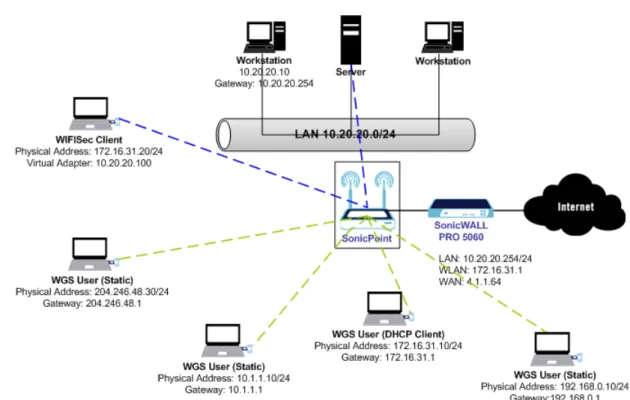
1. Install a SonicWALL security appliance at your network gateway, and secure your network with Wireless IPSec (WiFiSec). Enabling WiFiSec causes the SonicWALL security appliance to pass only IPSec packets to and from its wireless interface. Enforcing WiFiSec ensures that wireless users are authenticated and that their wireless traffic is fully encrypted. Running SonicOS 2.5 Software and higher, WiFiSec is enabled by default to provide your network with end-to-end wireless traffic encryption using standard IPSec security mechanisms. This method of deployment ensures that only authorized users are connecting to the SonicWALL security appliance, and that the wireless traffic of authorized users is truly secure against interception and decoding from undesired third parties.
2. Install the SonicWALL Global VPN Client on your wireless clients.
Note This will require your Wireless clients to connect to the SonicWALL security appliance using the SonicWALL Global VPN Client for remote access to policy-allowed LAN resources, policy-allowed WAN access, and to other wireless clients.
Enable Gateway Anti-Virus (GAV), Intrusion Prevention Service (IPS), Content Filtering
3. As an alternative to (or even in conjunction with) the use of the SonicWALL Global VPN client, use WiFi (WPA Protected Access) in either the WPA-PSK or the WPA-EAP variety, both of which are supported by SonicWALL wireless products. WPA-PSK allows for the use of a pre-shared key or password for associating and authenticating with the wireless network, while WPA-EAP uses an extensible authentication protocol scheme, typically with a back-end user database such as RADIUS. Since WPA-EAP requires an external authentication server, it can be fairly complicated to configure, and is generally used infrequently by smaller networks. Also, using WPA requires that your wireless clients are WPA capable – this requires WPA compatible client cards (such as the SonicWALL Long-Range/Dual-Band wireless card) with current drivers, and a WPA supplicant or natively WPA-capable operating system.
4. Use the radio scheduling feature on your SonicWALL wireless equipment to disable the
wireless radios when they are not in use. If your wireless network is only in use from 7am to 10pm,
you can schedule the radio to disable itself entirely during off-hours, completely eliminating the possibility of unwanted or unauthorized detection or access without impeding regular use.
5. Enforce the use of Wireless Guest Services (WGS). By enabling this feature, all wireless clients
must authenticate themselves to the SonicWALL security appliance using HTTP or HTTPS before they are allowed access to resources on the WAN. The user and password database can either be stored onboard the SonicWALL security appliance or, the SonicWALL security appliance can authenticate users from external RADIUS servers. A recent online review of WGS said “Instead of having visitors and conference room attendees locked out of Wi-Fi goodness, [WGS] shunts them to a different place, the Internet.” Using WGS, network administrators can configure their SonicWALL security appliances to allow wireless guests access to the Internet, but with blocked access to your corporate network.
6. Activate the SonicWALL security appliance’s Wireless Intrusion Detection Services (IDS)
features. This will allow your SonicWALL security appliance to perform active and passive scans
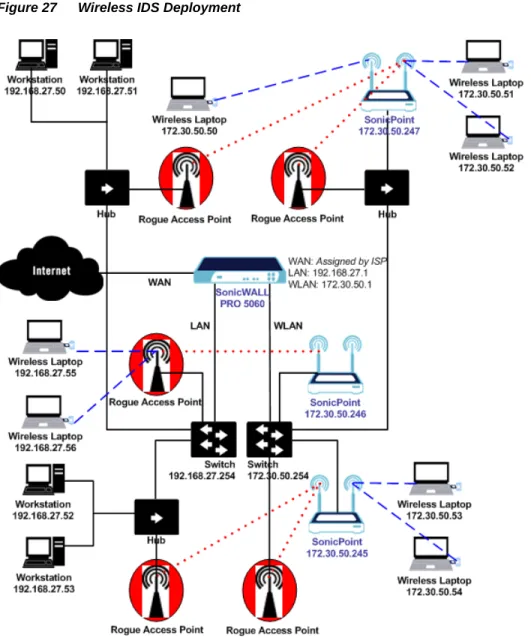
of the 802.11b wireless channels to detect rogue access points, wireless access points that were installed on your internal network without your corporate IT network administrator’s approval. It also allows the SonicWALL security appliance to protect itself against association flood attacks and to detect possible disassociation attacks launched against your wireless clients using sequence number analysis.
7. If you are not using WiFiSec, WEP, or WPA use applications that can be directly secured, such as HTTPS Web browser sessions, SSH, or SSL-enabled applications like SFTP. Make sure these applications are password-secured, use strong passwords, and have their passwords changed often.
8. Select an SSID that is recognizable by your authorized users, but which does not disclose any
sensitive information.
9. Adjust the SonicWALL security appliance’s wireless radio power settings and management
frame settings. Tuning these settings properly can prevent your wireless signal from bleeding into
unwanted areas (such as public areas with adjacent buildings occupied by other wireless users). Wardrivers often look for public spots into which a usable signal has leaked, so take this into account when adjusting your SonicWALL security appliance.
10. Do not advertise your wireless network unnecessarily. When possible, place your wireless radios
away from the perimeters of your premises to avoid the radio signal bleeding beyond required boundaries. And finally, to reach the zenith of physical security for your wireless network, consider an elemental Faraday cage in a can: http://www.forcefieldwireless.com/products.html
Tip Document a clearly defined network security policy. This will help you ensure your users have the
information they need in order to connect using wireless clients. Make sure your users understand why these settings are required, and make sure that the security policy does not directly conflict with their network access needs.
SonicWALL Secure Wireless Architecture
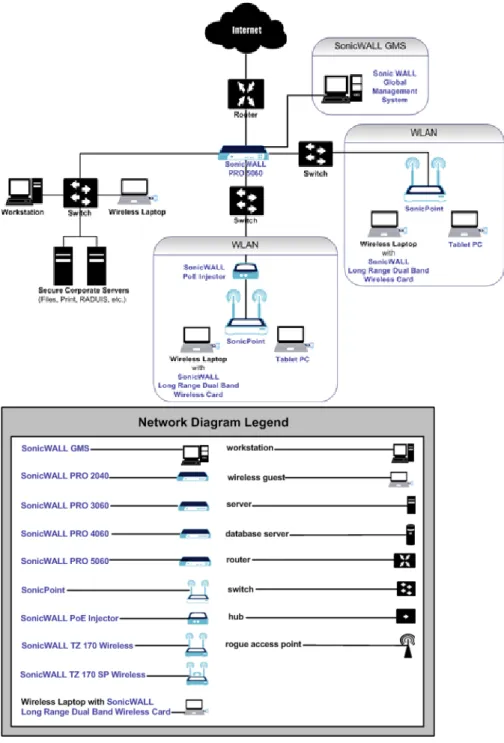
SonicWALL’s Secure Wireless solution provides a framework for the easy integration of all three IEEE 802.11 a/b/g standards for WLANs. At the center of the SonicWALL Secure Wireless network is a SonicWALL PRO Series (platform class) Internet security appliance that integrates IEEE 802.11a/b/g wireless management and security enforcement capabilities into an enterprise class firewall/VPN gateway. Figure 1 provides a network diagram of a SonicWALL Global Management System (GMS)-managed deployment of a SonicWALL Secure Wireless network.
SonicWALL Secure Wireless Architecture Components
SonicWALL’s Secure Wireless Architecture incorporates the following product components that create the fully integrated wireless network and security infrastructure:
• “SonicWALL PRO Series Security Appliances” section on page 6
• “SonicWALL SonicPoints and SonicWALL PoE Injectors” section on page 13
• “SonicWALL Long Range Dual Band Wireless Cards and the SonicWALL Global VPN Client” section on page 14
SonicWALL PRO Series Security Appliances
In addition to being an integrated firewall and VPN security appliance, a SonicWALL PRO Series appliance functions as a secure wireless switch and controller that automatically detects and configures SonicPoints as they are added to the network. Through the SonicWALL Discovery Protocol (SDP), the SonicWALL PRO Series security appliance and the SonicPoint automatically locate each other on the network. After this discovery, SonicWALL Simple Provisioning Protocol (SSPP) auto-provisions the SonicPoints with a predefined configuration through an encrypted tunnel between the SonicWALL PRO Series security appliance and the SonicPoint.
Benefits
For a list of SonicWALL PRO Series deployment benefits and latest platform features, refer to the
SonicWALL PRO Series product data sheets located in “Product Datasheets” section on page 189.
SonicWALL PRO Series Security Appliance Platforms
The SonicWALL PRO Series security appliances running SonicOS Enhanced 2.5 or greater are the security appliances that provides central security management of both wired and wireless networks while also automatically detecting SonicPoint access points as they are added to the network. This section contains the following subsections:
• “SonicWALL PRO 2040” section on page 7
• “SonicWALL PRO 3060” section on page 8
• “SonicWALL PRO 4060” section on page 9
• “SonicWALL PRO 4100” section on page 10
SonicWALL PRO 2040
The SonicWALL PRO 2040 utilizes a robust four-port architecture to deliver powerful firewall throughput and IPSec VPN in an affordable, rack-mounted appliance, making it an outstanding value for small to mid-sized networks. As a comprehensive network security, mobility and productivity solution targeting networks comprised of 200 or fewer nodes or 50 or fewer network locations, the SonicWALL PRO 2040 offers the configuration flexibility and redundancy features typically associated with more expensive appliances. In addition to firewall performance up to 200 Mbps, the PRO 2040 features the ability to run SonicOS Enhanced, enabling optional upgrades such as ISP failover, WAN redundancy and load balancing, and object and policy-based management. With the upgrade to SonicOS Enhanced, the WAN and LAN ports stay static while the other two ports are fully customizable as a second LAN, a second WAN, a DMZ, another customized network zone, or a hardware failover port. The SonicWALL PRO 2040 supports SonicWALL’s advanced security services, including Intrusion Prevention Service, Gateway Anti-Virus, Network Anti-Virus, Content Filtering Service, and Global Security Client and can be managed by SonicWALL’s award-winning Global Management System.
Benefits
For a list of SonicWALL PRO 2040 deployment benefits and latest platform features, refer to the
SonicWALL PRO 2040 product data sheet located in the “Product Datasheets” section on page 189. Figure 2 displays the front and back panel of the SonicWALL PRO 2040.
Figure 2 SonicWALL PRO 2040
Supports up to 8 SonicPoints.
SonicWALL PRO 3060
The SonicWALL PRO 3060 is a total security platform for complex networks featuring a deep packet inspection architecture and six fully configurable Ethernet ports that can be configured as multiple WANs, LANs, DMZs or user defined interfaces. This high performance ICSA-certified deep packet inspection firewall accommodates 128,000 simultaneous connections and comes standard with IPSec VPN, 25 concurrent VPN Client licenses and 1,000 site-to-site VPN policies. The SonicWALL PRO 3060 supports SonicWALL’s advanced security services, including Intrusion Prevention Service, Gateway Anti-Virus, Network Anti-Virus, Content Filtering Service, and Global Security Client and can be managed by SonicWALL’s award-winning Global Management System.
Benefits
For a list of SonicWALL PRO 3060 deployment benefits and latest platform features, refer to the
SonicWALL PRO 3060/4060 product data sheet located in the “Product Datasheets” section on page 189. Figure 3 displays the front and back panel of the SonicWALL PRO 3060.
Figure 3 SonicWALL PRO 3060
Supports up to 32 SonicPoints.
SonicWALL PRO 4060
The SonicWALL PRO 4060 is a total security platform for complex networks, utilizing a deep packet inspection architecture and six fully configurable Ethernet ports that can be configured as multiple WANs, LANs, DMZs or user defined interfaces. This high performance ICSA-certified deep packet inspection firewall accommodates 500,000 simultaneous connections and comes standard with IPSec VPN, 1,000 concurrent VPN Client sessions, 3,000 site-to-site VPN policies, and Hardware Failover. The SonicWALL PRO 4060 supports SonicWALL’s advanced security services, including Intrusion Prevention Service, Gateway Anti-Virus, Network Anti-Virus, Content Filtering Service, and Global Security Client and can be managed by SonicWALL’s award-winning Global Management System. Benefits
For a list of SonicWALL PRO 4060 deployment benefits and latest platform features, refer to the
SonicWALL PRO 3060/4060 product data sheet located in the “Product Datasheets” section on page 189. Figure 4 displays the front and back panel of the SonicWALL PRO 4060.
Figure 4 SonicWALL PRO 4060
Supports up to 64 SonicPoints.
SonicWALL PRO 4100
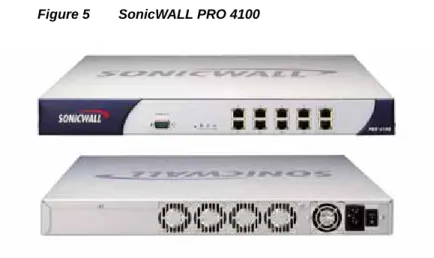
The SonicWALL PRO 4100 is a real-time unified threat management firewall appliance utilizing 10 gigabit interfaces to deliver internal and external network protection for corporate central sites, distributed environments and data centers. The PRO 4100 combines high-speed gateway anti-virus, anti-spyware, intrusion prevention and powerful deep packet inspection capabilities with an extensive array of advanced networking and configuration features in an affordable platform that is flexible to deploy and manage in a wide variety of environments. With 10 configurable gigabit Ethernet interfaces and built-in secure wireless LAN functionality, the PRO 4100 is an ideal solution for a host of wired and wireless applications requiring high-speed access and heavy workgroup segmentation. Using the innovative SonicWALL Clean VPN™, the PRO 4100 ensures mobile user connections and branch office traffic are decontaminated to prevent vulnerabilities and malicious code from being propagated. Robust “trusted network” protection is achieved across all Ethernet ports, virtual LANs and connected wireless LANs to eliminate threats originating inside corporate networks, between networked departments or data center zones. To extend flexibility and performance throughout the network, the PRO 4100 also supports virtual local area networks (VLANs), enterprise class-routing and QoS features as standard offerings.
The PRO 4100’s dynamic security platform incorporates real-time gateway anti-virus, anti-spyware, intrusion prevention and anti-spam technologies for application-level attack prevention against viruses, worms, Trojans, spyware, phishing schemes, spam and other malicious threats. The dynamically updatable architecture ensures around-the-clock security updates without any administrator
intervention. In addition to security and performance optimizations, the PRO 4100 ships with powerful SonicWALL SonicOS Enhanced firmware, enabling business continuity and flexibility features including onboard Quality of Service (QoS) features, advanced routing services such as Open Shortest Path First (OSPF) and Router Information Protocol (RIP), ISP failover, WAN redundancy, zone management and more. With SonicOS Enhanced, the ports are customizable as a second LAN, a second WAN, a DMZ, another customized network zone, or a hardware failover port for continuous network uptime. SonicOS Enhanced also features standards-based Voice over IP (VoIP) capabilities, enabling organizations to inexpensively transport audio and video media such as telephone calls and streaming video over wired and wireless IP-based networks.
The PRO 4100 integrates support for SonicWALL’s portfolio of advanced security services and can be managed by the award-winning SonicWALL Global Management System. Bundled with 1,500 Global VPN Client licenses, the PRO 4100 allows easy network access from any location, using any Internet connection, over any IP network. Every SonicWALL PRO 4100 comes standard with one year of Gateway Anti-Virus, Anti-Spyware and Intrusion Prevention Service, 30 days of Content Filtering Service (Premium Edition), 30 days of 50-user McAfee gateway-enforced Network Anti-Virus, ViewPoint reporting software and 90-day email and telephone support. Extended 8x5 and 24x7 hardware replacement and software upgrade support contracts are available. (Note: 8x5 support available in US, Canada, Europe and Japan. 24x7 support available in the US, Canada and EMEA only.)
Benefits
For a list of SonicWALL PRO 4100 deployment benefits and latest platform features, refer to the
Figure 5 displays the front and back panel of the SonicWALL PRO 4100.
Figure 5 SonicWALL PRO 4100
Supports up to 128 SonicPoints.
SonicWALL PRO 5060
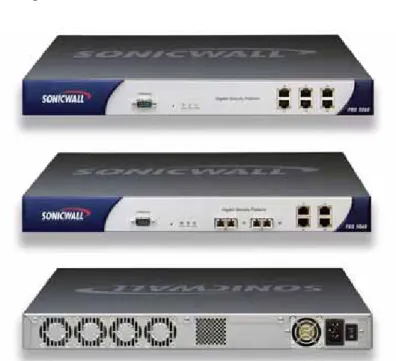
The SonicWALL PRO 5060 is a high-performance, multi-service gigabit security appliance designed for medium-to-large networks. The SonicWALL PRO 5060 integrates high-speed intrusion prevention, content filtering, enforced anti-virus, stateful firewall and IPSec VPN into a single solution that is easy to deploy and manage. Available in both 10/100/1000 copper and copper/fiber interface configurations, the SonicWALL PRO 5060 incorporates a wide array of networking and security features, making it an ideal solution for a multitude of applications.
In addition to gigabit stateful inspection performance, the SonicWALL PRO 5060 ships with SonicOS Enhanced, enabling business continuity and flexibility features such as ISP failover, WAN redundancy and load balancing, object and policy-based management and more. With SonicOS Enhanced, the ports are customizable as a second LAN, a second WAN, a DMZ, another customized network zone, or a Hardware Failover port. The SonicWALL PRO 5060 supports SonicWALL’s advanced security services, including Intrusion Prevention Service, Gateway Anti-Virus, Network Anti-Virus, Content Filtering Service, and Global Security Client and can be managed by SonicWALL’s award-winning Global Management System.
Benefits
For a list of SonicWALL PRO 5060 deployment benefits and latest platform features, refer to the
SonicWALL PRO 5060 product data sheet located in the “Product Datasheets” section on page 189. Figure 6 displays the front and back panel of the SonicWALL PRO 5060.
Figure 6 SonicWALL PRO 5060
Supports up to 128 SonicPoints.
SonicWALL SonicPoints and SonicWALL PoE Injectors
This section provides hardware and software specifications for the following SonicWALL Secure Wireless architecture components:
• “SonicPoint Access Points” section on page 13
• “SonicWALL PoE Injector” section on page 14
SonicPoint Access Points
The SonicWALL SonicPoint is a tri-mode, dual band, dual radio, IEEE 802.11a/b/g compliant, secure, satellite access point that is centrally managed and configured by any SonicWALL TZ 170 or
SonicWALL PRO Series security appliance. As a SonicWALL Secure Wireless Solution Enabler, SonicPoints deliver a secure wireless solution that scales to meet the specific wireless needs of mid- to large-sized networks. Utilizing SonicPoints, SonicWALL Secure Wireless Solution delivers features such as Wireless Intrusion Detection Services, wireless firewalling, secure wireless roaming and Wireless Guest Services (WGS).
The SonicPoint G provides 802.11b/g (2.4 GHz radio band) wireless connections, and provides detachable antennas. The SonicPoint G can be managed by a SonicWALL security appliance running SonicOS Enhanced 3.1.0.6, or higher.
Figure 7 displays the front and back panel of the SonicPoint and SonicPoint G.
Figure 7 SonicPoint and SonicPoint G
Benefits
For a list of SonicPoint deployment benefits and latest SonicWALL Secure Wireless Solution Enabler features, refer to the SonicWALL Secure Wireless Solution product data sheet located in the
SonicPoint
SonicWALL PoE Injector
The SonicWALL PoE Injector is an IEEE 802.3af compliant power injector featuring an advanced auto-sensing algorithm that automatically detects the presence of PoE-compatible devices and “injects” the appropriate power into the data cable. A plug-and-play device, the PoE Injector fits easily into wireless Ethernet infrastructures and requires no configuration or management. When deployed into a wireless network, the PoE Injector reduces costs, lowers downtime, and provides easier maintenance and greater flexibility than traditional cabling.
Figure 8 displays the front panel of the SonicWALL PoE Injector.
Figure 8 SonicWALL PoE Injector
Benefits
For a list of SonicWALL PoE Injector deployment benefits and latest SonicWALL Secure Wireless Solution Enabler features, refer to the SonicWALL Secure Wireless Solution product data sheet located in the “Product Datasheets” section on page 189.
SonicWALL Long Range Dual Band Wireless Cards
and the SonicWALL Global VPN Client
SonicWALL’s Secure Wireless Architecture incorporates the following products to enable long range wireless VPN networking and security for WLAN clients:
• “SonicWALL Long Range Dual Band Wireless Card” section on page 15
SonicWALL Long Range Dual Band Wireless Card
The SonicWALL Long Range Dual Band Wireless Card is a tri-mode, dual band, IEEE
802.11a/b/g-compliant CardBus PC card that complements the high-power wireless capability of SonicWALL's Secure Wireless solutions. When combined with any SonicWALL secure wireless appliance, the SonicWALL Long Range Dual Band Wireless Card delivers superior throughput, range and bulletproof wireless IPSec security. Included with the SonicWALL Long Range Dual Band Wireless Card is SonicWALL's Global VPN Client software, creating a complete secure wireless solution. Figure 9 displays the SonicWALL Long Range Dual Band Wireless Card.
Figure 9 SonicWALL Long Range Dual Band Wireless Card
Benefits
For a list of SonicWALL Long Range Dual Band Wireless Card deployment benefits and latest SonicWALL Secure Wireless Solution Enabler features, refer to the SonicWALL Secure Wireless Solution product data sheet located in the “Product Datasheets” section on page 189.
SonicWALL Global VPN Client
SonicWALL Global VPN Client (GVC) provides mobile users with secure, easy-to-use access to mission-critical network resources through broadband, wireless and dial-up connections. SonicWALL GVC software is supported on notebooks and desktop computers running Windows operating systems (Windows 98 SE, Windows Me, Windows NT 4.0, Windows 2000 Professional, Windows XP
Professional, Windows XPE, and Windows XP Home Edition) and on handheld devices running Microsoft PocketPC 2003. SonicWALL GVC is not compatible with VPN gateways from other vendors. Benefits
For a list of SonicWALL GVC deployment benefits and latest SonicWALL security upgrade software features, refer to the SonicWALL Global VPN Client product data sheet located in the
SonicWALL Secure Wireless Network Deployment
Solutions
This section provides multiple SonicWALL Secure Wireless network deployment solutions. For enterprise-class security for any size wireless network, the following are SonicWALL best-practice solutions that scale in network deployments from the small cafe hotspot to large enterprise and campus network deployments. The deployment solutions apply if you are adding WLANs to an existing network infrastructure or creating a new SonicWALL Secure Wireless network from the ground up.
SonicWALL recommended Secure Wireless network best practice solutions are described in the following subsections:
• “Solution #1: Securing WLANs with SonicWALL Security Services” section on page 19
• “Solution #2: Configuring a SonicWALL PRO Series Security Appliance to Manage a WLAN of SonicPoints and SonicWALL Long Range Wireless Clients” section on page 26
• “Solution #3: Configuring Wireless Guest Services” section on page 55
• “Solution #4: Configuring Wireless Intrusion Detection Services” section on page 67
• “Solution #5: Configuring Microsoft IAS Server for WPA with PEAP” section on page 71
• “Solution #6: Configuring Steel-Belted RADIUS Server for WPA with PEAP” section on page 84
• “Solution #7: Configuring a Wireless Client for WPA with PEAP” section on page 96
• “Solution #8: Configuring a Lightweight Hotspot Messaging Network” section on page 106
• “Solution #9: Integrating SonicWALL SSL-VPN and SonicWALL Secure Wireless Solutions” section on page 117
• “Solution #10: Configuring a Secure Wireless Bridge from a SonicWALL TZ 170 Wireless to a SonicPoint” section on page 142
Using the SonicOS Software Management Console Interface
The SonicOS Management Interface allows you to configure all aspects of the SonicWALL security appliance.
The SonicOS Web Management Interface provides an intuitive, easy-to-use graphical interface for configuring your SonicWALL security appliances and SonicPoints. Perform SonicOS management functions through a Web browser. The left-navigation panel on the SonicOS Web Management Interface includes a hierarchy of console settings. The management console on the SonicOS Enhanced software includes the console settings described in Table 1.
Table 1 SonicOS Enhanced Management Console Settings Console Setting Functions
System From the System > Administration page, set the administrative username and password.
Network From the Network > Interfaces page, configure the LAN, WAN, and Wireless (WLAN) interfaces. From the Network > Zones page, select a SonicPoint Profile for all SonicPoints on the Wireless (WLAN) zone.
From the Network > Zones page, enable or disable security services for each network zone.
From the Network > DHCP Server page, configure the DHCP server ranges for each network zone.
Wireless From the Wireless > SonicPoints page, configure and manage your SonicPoints.
From the Wireless > Station Status page, obtain reports on wireless clients connected to each SonicPoint.
From the Wireless > IDS page, obtain reports and block rogue access points and other wireless intrusions.
Firewall Configure and manage access policies.
VPN From the VPN > Settings page, configure and manage GroupVPN policies. GroupVPN is required on Wireless security zones for WiFiSec security.
Users From the Users > Settings page, manage the user authentication with a RADIUS server or configure management of all users locally.
From the Users > Local Users page, configure individual user access to resources with GroupVPN policies.
From the Users > Local Groups page, configure user groups and group access to resources with GroupVPN policies.
Hardware Failover Manage failover to a backup SonicWALL security appliance.
Security Services Manage subscription-based security services.
Log From the Log > View page, obtain log event message reports on network activity and user configuration on your SonicWALL security appliance.
Wizards Launch SonicOS Wizards to guide you through initial Setup, VPN configuration, and adding Public Servers to your network.
Help Access online help documentation on using the SonicOS management console interface.
Solution #1: Securing WLANs with SonicWALL Security Services
This section provides an introduction to SonicWALL Security Services that provide unified threat management against objectionable and inappropriate Web content, viruses, worms, Trojans, and malicious code for your wired and wireless networks.
This section contains the following subsections:
• “SonicWALL Gateway Anti-Virus/Anti-Spyware/Intrusion Prevention Service” section on page 19
• “SonicWALL Content Filtering Service” section on page 24
After reading the Deploying SonicWALL Security Services section, you will understand how these security services protect your network, how to activate the service on your SonicWALL security appliance, and how to enable the service to provide layered security for your WLAN.
SonicWALL Gateway Anti-Virus/Anti-Spyware/Intrusion Prevention Service
SonicWALL Gateway Anti-Virus (GAV), Anti-Spyware and Intrusion Prevention Service (IPS) is SonicWALL’s unified threat management solution that integrates gateway anti-virus, anti-spyware and intrusion prevention to deliver intelligent, real-time network security protection against sophisticated application layer and content-based attacks. Utilizing a configurable, high-performance deep packet inspection architecture, SonicWALL GAV, Anti-Spyware and IPS secures the network from the core to the perimeter against a comprehensive array of dynamic threats including viruses, spyware, worms, Trojans, and software vulnerabilities such as buffer overflows, as well as peer-to-peer and instant messenger applications, backdoor exploits, and other malicious code. Because new threats emerge daily and are often unpredictable, the deep packet inspection architecture is constantly updated to deliver the highest protection possible against an ever-changing threat landscape.
This unique solution features a powerful deep packet inspection engine that delivers threat protection directly on the security gateway by matching downloaded, e-mailed and compressed files against an extensive signature database created by a combination of SonicWALL’s SonicAlert Team and third-party sources. SonicWALL GAV, Anti-Spyware and IPS inspects over e-mail, Web, file transfer and a multitude of stream-based protocols as well as instant messaging and peer-to-peer applications, providing comprehensive network threat prevention and control. As an added layer of security, SonicWALL GAV, Anti-Spyware and IPS provides application layer attack protection not only against external threats, but also against those originating inside the network. Because files containing malicious code, viruses and worms can be compressed and therefore inaccessible to conventional solutions, SonicWALL GAV, Anti-Spyware and IPS integrates advanced decompression technology that automatically decompresses and scans files on a per packet basis. Supported compression formats include ZIP, Deflate and GZIP.
Unlike other threat management solutions, SonicWALL GAV, Anti-Spyware and IPS has the capacity to analyze files of any size in real-time without the need to add expensive hardware drives or extra memory. SonicWALL GAV, Anti-Spyware and IPS includes a pro-active alerting mechanism that notifies network administrators when a new threat is discovered. Granular policy tools and an intuitive user interface enable administrators to configure a custom set of detection or prevention policies tailored to their specific network environment. Available as a subscription-based security service for SonicWALL TZ and PRO Series security appliances, GAV, Anti-Spyware and IPS is a fundamental requirement for ultimate security protection and a key component of SonicWALL’s strategy of providing scalable, multi-layered security to networks of all sizes.
This section contains the following subsections:
• “SonicWALL IPS Protection for Your WLANs” section on page 20
• “SonicWALL GAV Protection for Your WLANs” section on page 20
• “SonicWALL Anti-Spyware Protection for Your WLANs” section on page 21
• “Activating SonicWALL GAV/Anti-Spyware/IPS” section on page 21
• “Enabling SonicWALL IPS” section on page 22
• “Enabling SonicWALL GAV” section on page 23
• “Enabling SonicWALL Anti-Spyware” section on page 24
Note When you activate SonicWALL IPS, SonicWALL GAV and Anti-Spyware are also activated. SonicWALL GAV/Anti-Spyware/IPS security services are managed directly from the SonicWALL security appliance.
SonicWALL IPS Protection for Your WLANs
SonicWALL IPS delivers a configurable, high performance Deep Packet Inspection engine for extended protection of key network services such as Web, e-mail, file transfer, Windows services, and DNS. SonicWALL IPS is designed to protect against application vulnerabilities as well as worms, Trojans, peer-to-peer, spyware, and back-door exploits.
The extensible signature language used in SonicWALL’s Deep Packet Inspection engine also provides proactive defense against newly discovered application and protocol vulnerabilities. SonicWALL IPS offloads the costly and time-consuming burden of maintaining and updating signatures for new hacker attacks through SonicWALL’s industry-leading Distributed Enforcement Architecture (DEA). Signature granularity allows SonicWALL IPS to detect and prevent attacks based on a global, attack group, or per-signature basis to provide maximum flexibility and control false positives.
Alternatively, SonicWALL Global Management System provides global management capabilities that enable administrators to manage SonicWALL IPS across multiple SonicWALL security appliances from a central location. SonicWALL GMS solutions allow administrators to create detailed reports based on attack source, destination and type of intrusion, such as “Top Intrusions,” “Destinations Over Time,” and “Intrusions Over Time.”
SonicWALL GAV Protection for Your WLANs
SonicWALL GAV delivers real-time virus protection directly on the SonicWALL security appliance by using SonicWALL’s IPS-Deep Packet Inspection v2.0 engine to inspect all traffic that traverses the SonicWALL gateway. Building on SonicWALL’s reassembly-free architecture, SonicWALL GAV inspects multiple application protocols, as well as generic TCP streams, and compressed traffic. Because SonicWALL GAV does not have to perform reassembly, there are no file-size limitations imposed by the scanning engine. Base64 decoding, ZIP, LHZ, and GZIP (LZ77) decompression are also performed on a single-pass, per-packet basis.
SonicWALL GAV delivers threat protection directly on the SonicWALL security appliance by matching downloaded or e-mailed files against an extensive and dynamically updated database of threat virus signatures. Virus attacks are caught and suppressed before they travel to desktops. New signatures are created and added to the database by a combination of SonicWALL’s SonicAlert Team, third-party virus analysts, open source developers and other sources.
SonicWALL GAV can be configured to protect against internal threats as well as those originating outside the network. It operates over a multitude of protocols including SMTP, POP3, IMAP, HTTP, FTP, NetBIOS, peer-to-peer, instant messenger applications, and dozens of other stream-based protocols, to provide administrators with comprehensive network threat prevention and control. Because files containing malicious code and viruses can also be compressed and therefore inaccessible to conventional anti-virus solutions, SonicWALL GAV integrates advanced decompression technology that
automatically decompresses and scans files on a per-packet basis.
SonicWALL Anti-Spyware Protection for Your WLANs
The SonicWALL Anti-Spyware Service protects networks from intrusive spyware by cutting off spyware installations and delivery at the gateway and denying previously installed spyware from communicating collected information outbound. SonicWALL Anti-Spyware works with other
anti-spyware programs, such as programs that remove existing spyware applications from hosts. You are encouraged to use or install host-based anti-spyware software as an added measure of defense against spyware.
SonicWALL Anti-Spyware analyzes inbound connections for the most common method of spyware delivery, ActiveX-based component installations. It also examines inbound setup executables and cabinet files crossing the gateway, and resets the connections that are streaming spyware setup files to the LAN. These file packages may be freeware bundled with adware, keyloggers, or other spyware. If spyware has been installed on a LAN workstation prior to the SonicWALL Anti-Spyware solution install, the service will examine outbound traffic for streams originating at spyware infected clients and reset those connections. For example, when spyware has been profiling a user's browsing habits and attempts to send the profile information home, the SonicWALL security appliance identifies that traffic and resets the connection.
Activating SonicWALL GAV/Anti-Spyware/IPS
If you do not have a SonicWALL GAV/Anti-Spyware/IPS Activation Key, you must purchase a license from a SonicWALL reseller or through your mySonicWALL.com account.
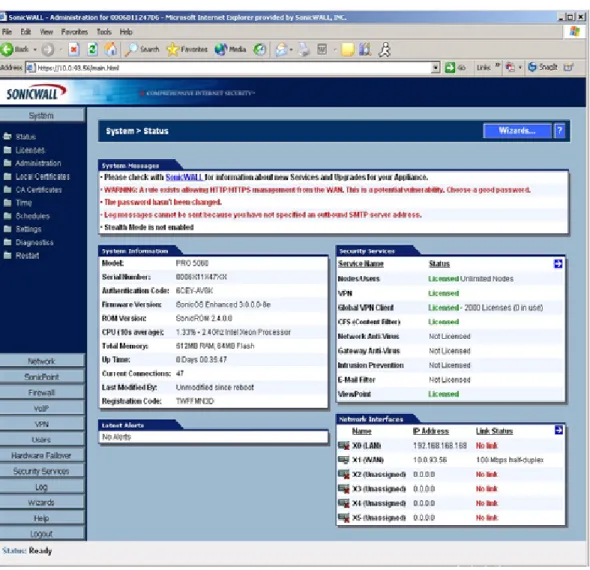
Note Your SonicWALL security appliance must be registered at mySonicWALL.com to activate any SonicWALL security service. You can create a mySonicWALL.com account and register your SonicWALL security appliance via the management interface on the System > Status page. For more detailed instructions on registering a SonicWALL security appliance, refer to the SonicOS Enhanced Administrator’s Guide located on the SonicWALL Web site:
<http://www.sonicwall.com/support/documentation.html>.
You must activate the bundled SonicWALL GAV/Anti-Spyware/IPS license for SonicWALL IPS first. The Activation Key for SonicWALL IPS is a parent key for SonicWALL GAV. When you activate the SonicWALL IPS license, the SonicWALL GAV child key is automatically activated on the SonicWALL security appliance.
To activate SonicWALL GAV/Anti-Spyware/IPSwith an Activation Key:
Step 1 Select the Security Services > Intrusion Prevention page in the SonicWALL security appliance management interface.
Step 3 Enter your mySonicWALL.com account username and password in the User Name and Password
fields, then click Submit. The System > Licenses page is displayed. If your SonicWALL security appliance is already connected to your mySonicWALL.com account, the System > Licenses page appears after you click the SonicWALL IPS Subscription link.
Step 4 Click Activate or Renew in the Manage Service column in the Manage Services Online table. Type in the Activation Key in the New License Key field and click Submit. Your SonicWALL IPS subscription is activated on your SonicWALL security appliance. The Security Services > Intrusion Prevention
page displays the configuration settings for tailoring the service to match your requirements. The
Security Services > Gateway Anti-Virus page displays the configuration settings for tailoring the
service to match your requirements. The Security Services > Anti-Spyware page displays the configuration settings for tailoring the service to match your requirements.
Enabling SonicWALL IPS
SonicWALL IPS must be enabled on the Security Services > Intrusion Prevention page. You must also specify the signature groups for which you want to globally prevent and detect attacks.
Note For detailed instructions on configuring SonicWALL GAV/Anti-Spyware/IPS on SonicWALL security appliance, refer to the SonicWALL Gateway Anti-Virus Administrator’s Guide, SonicWALL Anti-Spyware Administrator’s Guide and SonicWALL Intrusion Prevention Service Administrator’s Guide located on the SonicWALL Web site:
<http://www.sonicwall.com/support/documentation.html>.
To enable SonicWALL IPS:
Step 1 Check the Enable IPS check box in the IPS Global Settings section.
Step 2 Check Prevent All and Detect All for High Priority Attacks in the IPS Global Settings table. High
Priority Attacks are the most dangerous to your network. They can take down your entire network or
disable servers. With Prevent All enabled, the SonicWALL security appliance automatically drops and resets the connection, to prevent the traffic to reach its destination. With Detect All enabled, the SonicWALL security appliance logs and alerts any traffic that matches any signature in the group.
Step 3 Check Prevent All for MediumPriority Attacks in the IPS Global Settings table. Medium Priority
Attacks can cause disruption to your network, such as increased network traffic that slows down
performance. With Prevent All enabled, the SonicWALL security appliance automatically drops and resets the connection, to prevent the traffic from reaching its destination.
Step 4 Click Apply to save your changes.
Note You apply SonicWALL IPS protection to Zones on the Network > Zones page. Refer to “Configuring the WLAN Zone” on page 36 for applying SonicWALL IPS protection to the WLAN Zone.
Enabling SonicWALL GAV
SonicWALL GAV must be globally enabled on the Security Services > Gateway Anti-Virus page. Check the Enable Gateway Anti-Virus check box in the Gateway Anti-Virus Global Settings section.
Note Apply SonicWALL GAV protection to the WLAN Zone on the
Network > Zones page. Refer to the “Configuring the WLAN Zone” section on page 36 for applying
Enabling SonicWALL Anti-Spyware
SonicWALL Anti-Spyware must be globally enabled on your SonicWALL security appliance. Select the
the Enable Anti-Spyware check box (a checkmark is displayed), and then click Apply.
Note Checking the Enable Anti-Spyware check box does not automatically start SonicWALL
Anti-Spyware protection. You must also select a Prevent All action in the Signature Groups table to activate anti-spyware prevention at the global level on the SonicWALL security appliance, and then specify the interfaces or zones you want to protect. You can also select Detect All for spyware event logging and alerting.
SonicWALL Content Filtering Service
SonicWALL Content Filtering Service (CFS) enforces protection and productivity policies for
businesses, schools and libraries by employing an innovative rating architecture that utilizes a dynamic database to block objectionable and inappropriate Web content such as porn, hate, nudity and violence. At the core of SonicWALL CFS is an innovative architecture that cross-references all Web sites against a database of URLs, IP addresses and domains located at worldwide SonicWALL co-location facilities. A rating is returned to the SonicWALL appliance and then compared to the Content Filtering policy established by the administrator. Almost instantaneously, the Web site request is either allowed through or a Web page is generated by the SonicWALL appliance informing the user that the site has been blocked according to policy. SonicWALL CFS is available in 5, 10, 25, 50 and Unlimited node counts and is offered in one-year subscriptions.
This section include the following subsections:
• “Activating SonicWALL CFS” section on page 24
• “Enabling CFS” section on page 25
Activating SonicWALL CFS
If you do not have a SonicWALL CFS Activation Key, you must purchase a license from a SonicWALL reseller or through your mySonicWALL.com account.
Note Your SonicWALL security appliance must be registered at mySonicWALL.com to activate any SonicWALL security service. You can create a mySonicWALL.com account and register your SonicWALL security appliance via the management interface on the System > Status page. For more
detailed instructions on registering a SonicWALL security appliance, refer to the SonicOS Enhanced Administrator’s Guide located on the SonicWALL Web site:
<http://www.sonicwall.com/support/documentation.html>.
To activate SonicWALL CFS with an Activation Key:
Step 1 Select the Security Services > Content Filter screen in the SonicOS management interface.
Step 2 Click the SonicWALL Content Filtering Subscription link. The mySonicWALL.com Login page is displayed.
Step 3 Enter your mySonicWALL.com account username and password in the User Name and Password
fields, then click Submit. The System > Licenses page is displayed. If your SonicWALL security appliance is already connected to your mySonicWALL.com account, the System > Licenses page appears after you click the SonicWALL Content Filtering Subscription link.
Step 4 Click Activate or Renew in the Manage Service column in the Manage Services Online table. Type in the Activation Key in the New License Key field and click Submit. Your SonicWALL CFS subscription is activated on your SonicWALL security appliance. The Security Services > Content Filter page displays the configuration settings for tailoring the service to match your requirements.
Enabling CFS
To enable SonicWALL CFS:
Step 1 Select the SecurityServices > Content Filter page in the SonicOS management interface.
Step 2 To apply the filter to all computers on your LAN interface, select the LAN checkbox.
Step 3 Click Configure, select the categories to block in the URL List tab, and click OK.
Step 4 Click the Apply button in the top-right corner of the page.
Note Apply SonicWALL CFS protection to the WLAN Zone on the <Network > Zones page. Refer to the “Configuring the WLAN Zone” section on page 36 for applying SonicWALL CFS protection to the WLAN Zone.
For detailed instructions on configuring SonicWALL CFS on the SonicWALL security appliance, refer to the SonicWALL Content Filtering Service Administrator’s Guide located on the SonicWALL Web site: <http://www.sonicwall.com/support/documentation.html>.
Solution #2: Configuring a SonicWALL PRO Series Security
Appliance to Manage a WLAN
of SonicPoints and SonicWALL Long Range Wireless Clients
This section provides deployment procedures to configure a SonicWALL PRO Series security appliance for distributed wireless management.
The core of the SonicWALL Secure Wireless Solution consists of secure wireless access points, SonicWALL SonicPoints, managed by a SonicWALL PRO Series security appliance, such as a SonicWALL PRO 5060 security appliance. To manage a SonicWALL Secure Wireless network, you need to configure the SonicWALL PRO Series security appliance.
Basic Concepts
This section provides basic configuration procedures to manage a group of SonicPoints in a WLAN network zone managed by your SonicWALL PRO Series security appliance.
• “Configuring the SonicWALL Security Appliance for SonicPoint WLAN Management” section on page 27
• “Configuring a SonicPoint Profile” section on page 28
• “Configuring the WLAN Zone” section on page 36
• “Deploying SonicPoints” section on page 41
• “Enabling Secure Wireless Connections” section on page 43
• “Connecting SonicWALL Long Range Dual Band Wireless Clients to SonicPoints” section on page 47
Advanced Concepts
This section provides advanced configuration procedures to maintain SonicPoint profiles, provide SonicPoint automatic provisioning, and to add multiple wireless network zones with separate GroupVPN policies to your SonicWALL Secure Wireless network.
• “Managing SonicPoints After Initial Configuration” section on page 50
Configuring the SonicWALL Security Appliance for SonicPoint WLAN Management
Before you can manage a SonicWALL Secure Wireless deployment with a SonicWALL PRO Series security appliance, you must configure the SonicWALL PRO Series security appliance for initial network connectivity. To do this, you must configure:
• Administrative Password
• LAN
• WAN
• WLAN
• (Optional) DHCP server
• Management access policies
• Registration of the security appliance
You can perform all of these configurations in the SonicOS management interface, or you can use the Setup Wizard to configure the Administrative Password, the LAN and WAN interfaces, the DHCP server, and registration. You must configure the Wireless security zone (WLAN by default) with the SonicOS management interface.
For more detailed instructions on configuring a SonicWALL PRO Series security appliance, refer to the
SonicOS Enhanced Administrator’s Guide located on the SonicWALL Web site: <http://www.sonicwall.com/support/documentation.html>.
Using the SonicOS Setup Wizard
The SonicWALL Setup Wizard provides a guided setup configuration of your SonicWALL security appliance. Use the SonicWALL Setup Wizard, as depicted in Figure 11, when you need to perform the following routine setup configurations:
• Perform initial setup configuration for a new SonicWALL security appliance.
• Modify LAN or WAN network settings.
• Change the administrative password.
The SonicWALL Setup Wizard provides a Wizard-guided configuration of the functions described in Table 2.
Table 2 SonicOS Setup Wizard Guided Configuration Functions
Configure each SonicOS Setup Wizard function to meet your network design requirements, and apply the settings to your SonicWALL security appliance.
Note The SonicWALL Setup Wizard does not guide you through configuring the default WLAN zone or creating a new Wireless Zone. Use the Network > Zones page to configure Wireless zone.
Configuring a SonicPoint Profile
SonicPoint Provisioning Profiles provide a scalable and highly automated method of configuring and provisioning multiple SonicPoints across a secure distributed wireless architecture. SonicPoint Profile definitions include all of the settings that can be configured on a SonicPoint, such as radio settings for the 2.4GHz and 5GHz radios, SSID’s, and channels of operation.
Once you have defined a SonicPoint profile, you can apply it to a Wireless zone. Each Wireless zone can be configured with one SonicPoint profile. Any profile can apply to any number of zones. Then, when a SonicPoint is connected to a zone, it is automatically provisioned with the profile assigned to that zone. SonicOS includes a default SonicPoint profile, named SonicPoint. You can modify this profile or create a new one. The default settings for the SonicPoint profile are listed in Table 3.
Table 3 Default SonicPoint Profile Settings Function Description
Administrative password Sets the admin password.
Time settings Sets the time zone for the system clock.
WAN configuration Sets the WAN networking mode to static IP, DHCP client, PPPoE, or
PPTP. Configures the WAN interface network settings, depending on the selection of WAN networking mode.
LAN configuration Configures the IP address, netmask, and DNS servers for the LAN
interface.
LAN DHCP server settings Configures the DHCP server range for clients connected to the LAN
interface.
802.11a Radio 802.11g Radio
Enable 802.11a Radio
Yes Enable 802.11g Radio
Yes
SSID SonicWALL SSID SonicWALL
Radio Mode 54Mbps - 802.11a Radio Mode 2.4 GHz 54Mbps - 802.11g
ACL Enforcement Disabled ACL Enforcement Disabled
Authentication Type
WEP - Both
Open System & Shared Key
Authentication Type
WEP - Both
Open System & Shared Key
Data Rate Best Data Rate Best
Adding a SonicPoint Profile
You can add any number of SonicPoint profiles in the Wireless SonicPoints page of the management interface. The Add SonicPoint Profile window is divided into five tabs as illustrated in Figure 12:
• “General Tab” section on page 29
• “802.11a Radio Tab” section on page 30
• “802.11a Advanced Tab” section on page 31
• “802.11g Radio Tab” section on page 32
• “802.11g Advanced Tab” section on page 34
Figure 12 The Add SonicPoint Profile Window
General Tab
This section describes configuration elements on the General tab as illustrated in Figure 12. General SonicPoint configuration settings include the following:
• Enable SonicPoint: When checked, automatically enables each SonicPoint when it is provisioned
with this profile.
• Name Prefix: A prefix for the names of all SonicPoints connected to this zone. When each
SonicPoint is provisioned it is given a name that consists of the name prefix and a unique number, for example: “SonicPoint 126008.“
• Country Code: The country where the SonicPoint is operating. Thecountry code determines which
802.11a Radio Tab
This section describes configuration elements on the 802.11a Radio tab as illustrated in Figure 13.
Figure 13 The 802.11a Radio Tab
Radio settings for the 802.11a (5GHz band) radio include the following:
• Enable 802.11a Radio: When checked, automatically enables the 802.11a radio bands on all
SonicPoints provisioned with this profile. When the radio is enabled, the schedule determines when the radio is on. Select Always On, select an existing schedule, or select Create New Schedule to create a custom schedule. Schedules are configured in the System > Schedules page of the SonicOS management interface.
• SSID: The SSID of each SonicPoint using this profile. This is the name that will appear in clients lists of available wireless connections.
Note If all SonicPoints in your organization share the same SSID, it is easier for users to maintain their wireless connection when roaming from one SonicPoint to another.
• Radio Mode: The speed of the wireless connection, 54 Mbps or 108 Mbps (Turbo) mode.
• Channel: The channel the radio will operate on. The default is AutoChannel, which automatically
selects the channel with the least interference. Use AutoChannel unless you have a reason to use or avoid specific channels.
ACL enforcement settings include the following:
• Enable MAC Filter List: When selected, enforces Access Control by allowing traffic from devices
WEP/WPA encryption settings include the following:
• Authentication Type: The method of authentication for your wireless network, WEP - Both (Open
System & Shared Key), WEP - Open System, WEP - Shared Key, WPA - PSK, or WPA - EAP.
• WEP Key Mode: The size of the WEP encryption key.
• Default Key: Determines which key in the list below is the default key, which will be tried first
when trying to authenticate a user.
• Key Entry: Determines whether the key is alphanumeric or hexadecimal.
• Key 1 - Key 4: The encryption keys for WEP encryption. Enter the most likely to be used in the field
you selected as the default key. 802.11a Advanced Tab
This section describes configuration elements on the 802.11a Advanced tab as illustrated in Figure 14.
Figure 14 The 802.11a Advanced Tab
Performance settings for the 802.11a radio. For most 802.11a advanced options, the default settings provides optimum performance.
• Hide SSID in Beacon: Check this option to have the SSID broadcast as part of the wireless beacon,
rather than as a separate broadcast.
• Schedule IDS Scan: Select a schedule for the SonicPoint to automatically perform an IDS Scan.
IDS Scans can briefly interrupt wireless connectivity, so automatic scans should be scheduled for a time with a lower amount of network activity. You can select an existing schedule or create one of your own.
• Data Rate: Select the speed at which the data is transmitted and received. Best automatically selects
the best rate available in your area given interference and other factors. You can select: Best, 6
• Transmit Power: Select the transmission power. Transmission power affects the range of the SonicPoint. You can select: Full Power, Half (-3 dB), Quarter (-6 dB), Eighth (-9 dB), or
Minimum.
• Antenna Diversity: Select whether you want to use both antennas, one antenna, or have the
SonicPoint automatically select the best setup for the situation.
• Beacon Interval (milliseconds): Enter the number of milliseconds between sending out wireless
beacons.
• DTIMInterval: The Delivery Traffic Indication Message (DTIM) is a component of the beacon
sent by the SonicPoint to alert clients that are in sleep (power saving) mode that there is data waiting for them. The DTIM Interval specifies the number of beacons that are sent between Delivery Traffic Indication Messages.
• Fragmentation Threshold (bytes): Enter the number of bytes of fragmented data you want the
network to allow.
• RTS Threshold (bytes): Enter the number of bytes.
• Maximum Client Associations: Enter the maximum number of clients you want the SonicPoint to
support on this radio at one time. 802.11g Radio Tab
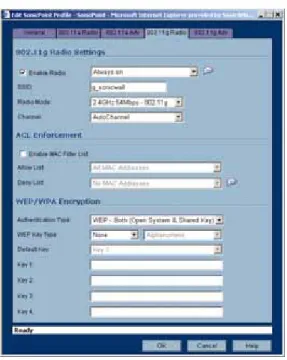
These settings affect the operation of the 802.11g and 802.11b radio bands. The SonicPoint has two separate radios built in. Therefore, it can send and receive on both the 802.11a and 802.11g bands at the same time.
The settings in the 802.11g Radio and 802.11g Advanced tabs are similar to the settings in the 802.11a
Radio and 802.11a Advanced tabs.
This section describes configuration elements on the 802.11g Radio tab as illustrated in Figure 15.