Expert .NET
Micro Framework
■ ■ ■
Expert .NET Micro Framework Copyright © 2008 by Jens Kühner
All rights reserved. No part of this work may be reproduced or transmitted in any form or by any means, electronic or mechanical, including photocopying, recording, or by any information storage or retrieval system, without the prior written permission of the copyright owner and the publisher.
ISBN-13: 978-1-59059-973-0
ISBN-10: 1-59059-973-X
ISBN-13 (electronic): 978-1-4302-0608-8
ISBN-10 (electronic): 1-4302-0608-X
Printed and bound in the United States of America 9 8 7 6 5 4 3 2 1
Trademarked names may appear in this book. Rather than use a trademark symbol with every occurrence of a trademarked name, we use the names only in an editorial fashion and to the benefit of the trademark owner, with no intention of infringement of the trademark.
Lead Editor: Dominic Shakeshaft
Technical Reviewer: Fabio Claudio Ferracchiati
Editorial Board: Clay Andres, Steve Anglin, Ewan Buckingham, Tony Campbell, Gary Cornell, Jonathan Gennick, Matthew Moodie, Joseph Ottinger, Jeffrey Pepper, Frank Pohlmann, Ben Renow-Clarke, Dominic Shakeshaft, Matt Wade, Tom Welsh
Project Manager: Richard Dal Porto Copy Editor: Heather Lang
Associate Production Director: Kari Brooks-Copony Production Editor: Liz Berry
Compositor: Susan Glinert Stevens Proofreader: Lisa Hamilton Indexer: Becky Hornyak Artist: April Milne
Cover Designer: Kurt Krames
Manufacturing Director: Tom Debolski
Distributed to the book trade worldwide by Springer-Verlag New York, Inc., 233 Spring Street, 6th Floor, New York, NY 10013. Phone 1-800-SPRINGER, fax 201-348-4505, e-mail [email protected], or visit http://www.springeronline.com.
For information on translations, please contact Apress directly at 2855 Telegraph Avenue, Suite 600, Berkeley, CA 94705. Phone 510-549-5930, fax 510-549-5939, e-mail [email protected], or visit http:// www.apress.com.
Apress and friends of ED books may be purchased in bulk for academic, corporate, or promotional use. eBook versions and licenses are also available for most titles. For more information, reference our Special Bulk Sales—eBook Licensing web page at http://www.apress.com/info/bulksales.
The information in this book is distributed on an “as is” basis, without warranty. Although every precaution has been taken in the preparation of this work, neither the author(s) nor Apress shall have any liability to any person or entity with respect to any loss or damage caused or alleged to be caused directly or indirectly by the information contained in this work.
xv
About the Author
■JENS KÜHNER works as principal software engineer for Vallon GmbH in Germany, a company that develops and manufactures metal detectors and ferrous locators. He creates software for data acquisition and evalu-ation using the .NET Framework and .NET Compact Framework. Since this software must be incorporated closely with the detectors’ hardware, an interest in embedded systems was only natural.
Jens has been involved with the .NET Micro Framework from the very start, when he saw it presented at MEDC Europe. Since then, he’s been an active beta tester of the technology and a regular contributor to the .NET Micro Framework forum.
47
■ ■ ■
C H A P T E R 4
Introducing the .NET Micro
Framework Base Class Library
T
his chapter gives you an overview of the basic features and classes of the .NET Micro Frame-work. The .NET Micro Framework is a subset of the full .NET Framework, but it also provides new namespaces and classes. This chapter considers the differences between the full .NET and .NET Micro Framework, so you will see what is possible and what features are not supported with the .NET Micro Framework. We will examine how you can output text for diagnostics, pause the program execution, and use timers. Further, you will learn how to effectively use strings, numbers, arrays, and lists. Finally, this chapter shows you how to handle exceptions.Text Output for Diagnostics
Since the .NET Micro Framework will run on many devices with no display, having the option to output text for debugging and tracing is enormously important. Probably the most frequently used method is to output text via the Print method of the Debug class from the Microsoft.SPOT namespace.
■
Tip
If you have no experience with .NET, you can write either Microsoft.SPOT.Debug.Print("Hello world")—where Microsoft.SPOT is the namespace, Debug the class name, and Print the method— or just Print("Hello world"). The namespace does not have to be placed at the beginning of the command if the namespace is given to the compiler with the line using Microsoft.SPOT; at the beginning of a file. The Print method of the Debug class is declared as static; that’s why a method call without previous creation of an instance of the Debug class is possible.With Visual Studio, it is possible to compile a project once as a debug version and again as a release version. The debug version is not optimized by the compiler. For example, no unnec-essary assignments on local variables are removed; otherwise, their values would not be visible in the debugger.
The System.Diagnostics.Debug.WriteLine method that’s used to output debug messages with the full .NET and.NET Compact Frameworks isn’t available in the .NET Micro Framework. Here, we output debug messages in both the debug and release version of an application, which is also a reason why the Debug class is placed in a different namespace in the .NET Micro Framework.
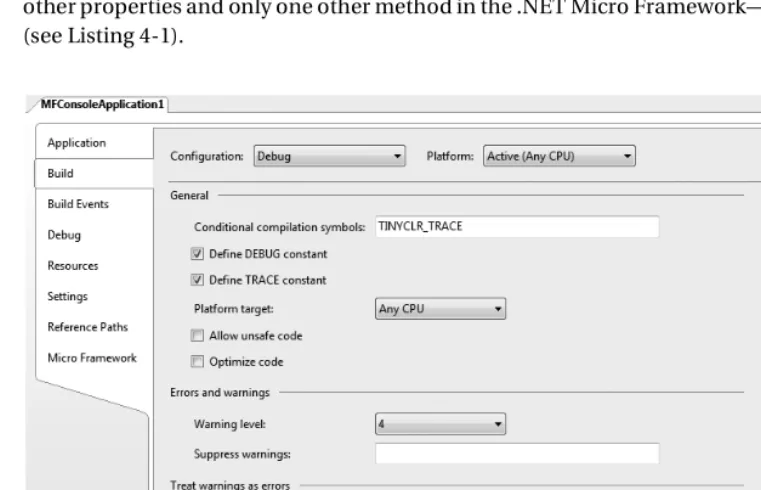
The Microsoft.SPOT.Trace.Print method offers a similar text-output functionality for diagnostic purposes in Visual Studio. The method is deactivated by default and will only be compiled into the program if the compiler constant TINYCLR_TRACE is defined. The constant is not set automatically in either the debug or release version and, therefore, must be declared manually in the project properties on the Build page (see Figure 4-1). The Trace class has no other properties and only one other method in the .NET Micro Framework—the Print method (see Listing 4-1).
Figure 4-1. Enabling trace output via the compiler constant in the project’s properties
Listing 4-1. The Microsoft.SPOT.Trace Class
public static class Trace {
[Conditional("TINYCLR_TRACE")]
public static void Print(string text); }
[image:5.612.65.446.206.451.2]Listing 4-2. The Microsoft.SPOT.Debug Class
public static class Debug {
[Conditional("DEBUG")]
public static void Assert(bool condition); [Conditional("DEBUG")]
public static void Assert(bool condition, string message); [Conditional("DEBUG")]
public static void Assert(bool condition, string message, string detailedMessage); public static extern uint GC(bool force);
public static extern void Print(string text);
public static extern void DumpBuffer(byte[] buf, bool fCRC, bool fOffset); public static extern void DumpHeap();
public static extern void DumpPerfCounters(); public static extern void DumpStack(); }
There are three overloaded Assert methods to guarantee certain assertions. For example, the instruction Debug.Assert(myVar != null); verifies that the myVar variable is not null. If this is not the case, the debugger will stop there. Assert methods are compiled only into the debug version.
The DumpXXX methods are for Microsoft’s for internal use. They show information about the managed heap and stack. They are available only in special debug versions of the .NET Micro Framework runtime environment for devices and the emulator. In the official release versions of the runtime environment, you can call the methods, but nothing will be output.
■
Note
The two classes Microsoft.SPOT.Debug and Microsoft.SPOT.Trace are in the assemblyMicrosoft.SPOT.Native.dll. If you create a new .NET Micro Framework project, a reference to this assembly is added automatically to the project.
Pausing Program Execution
Even if programs are executed relatively slowly on microprocessors, in comparison to those run on a PC, you may have the need to let the program execution pause for a certain amount of time nevertheless. You can do this by calling the static method Sleep of the Thread class from the System.Threading namespace (see Listing 4-3). The method expects the number of milli-seconds to pause as parameter.
Listing 4-3. Pausing Program Execution One Second
using System;
namespace SleepSample {
public class Program {
public static void Main() {
while (true) {
Debug.Print("Hello World!");
Thread.Sleep(1000); //1000 milliseconds = wait 1 second
} } } }
To pause a program an infinite amount of time, in this case until the battery is dead, you can call the method Sleep by passing the constant System.Threading.Timeout.Infinite, which represents the value –1.
This program would require some minor changes to the text output methods to work as a console application with the full .NET Framework on a PC and with the .NET Compact Frame-work on a Pocket PC or smartphone.
■
Note
The classes Thread andTimeout are in the mscorlib.dll assembly, just like in the larger frame-works. A reference to that assembly is also added automatically to a new .NET Micro Framework project, like theMicrosoft.SPOT.Native.dll assembly.
Setting and Getting the System Time
and Time Zone
You can query for the local system time and time zone information in the .NET Micro Frame-work similar to the way you can in the full .NET FrameFrame-work. Additionally, you are able to set the local system time and time zone with the .NET Micro Framework. With the full .NET Frame-work running on Windows, on the other hand, you cannot set them, because the time is changed under the Windows shell.
You can change the local system time in a .NET Micro Framework application with the SetLocalTime method of the Utility class from the Microsoft.SPOT.Hardware namespace and set the time zone with the ExtendedTimeZone class from the Microsoft.SPOT namespace. The class Microsoft.SPOT.ExtendedTimeZone inherits from the class System.TimeZone.
To change the time zone, the new time zone is specified by the Microsoft.SPOT.TimeZoneId enumeration.
All these classes—Microsoft.SPOT.Hardware.Utility, Microsoft.SPOT.ExtendedTimeZone, and Microsoft.SPOT.TimeZoneId—are located in the Microsoft.SPOT.Native.dll assembly.
Listing 4-4. Working with System Time and Time Zones
using System;
using Microsoft.SPOT;
using Microsoft.SPOT.Hardware;
namespace LocalTimeSample {
public class Program {
public static void Main() {
Debug.Print("Local Time: " + DateTime.Now.ToString()); DateTime newLocalTime = new DateTime(2007, 1, 2, 3, 4, 5); Utility.SetLocalTime(newLocalTime);
Debug.Print("New Local Time: " + DateTime.Now.ToString());
Debug.Print("Time Zone: " + TimeZone.CurrentTimeZone.StandardName); Debug.Print("Local Time: " + DateTime.Now.ToString());
ExtendedTimeZone.SetTimeZone(TimeZoneId.Berlin);
Debug.Print("New Time Zone: " + TimeZone.CurrentTimeZone.StandardName); Debug.Print("Local Time: " + DateTime.Now.ToString());
} } }
The following output in the debug window of Visual Studio 2005 is produced by the appli-cation in Listing 4-4:
Local Time: 01/07/2007 20:20:34 New Local Time: 01/02/2007 03:04:05 Time Zone: Pacific-US
Local Time: 01/02/2007 03:04:05 New Time Zone: Berlin,Rome Local Time: 01/02/2007 12:04:05
■
Note
So that the changes on the system time remain after power cycling a .NET Micro Framework device, the device must naturally have a built-in back-up battery clock.Using Timers
Listing 4-5. The System.Threading.Timer Class
namespace System.Threading {
public sealed class Timer : MarshalByRefObject, IDisposable {
public Timer(TimerCallback callback, object state, int dueTime, int period); public Timer(TimerCallback callback, object state, TimeSpan dueTime,
TimeSpan period);
public bool Change(int dueTime, int period);
public bool Change(TimeSpan dueTime, TimeSpan period); public void Dispose();
} }
When creating a timer, the timer callback method is passed via the callback parameter. Using the state parameter, you can pass any object that holds additional information or data. The object is handed over to the callback method when it is called. If you do not need this func-tionality, simply specify null.
The class has two constructors, which differ in the way the time span is specified. The first possibility is to pass the time interval directly as number of milliseconds. Alternatively, you can pass the time interval as an instance of the System.TimeSpan class, which describes an interval also. The parameter dueTime describes the delay to the first call of the timer callback method. A value of 0 milliseconds, or TimeSpan.Zero, causes the timer method to start immediately. The value –1, or new TimeSpan(-1), deactivates the Timer class instance. That means the method will never be executed.
The period parameter indicates on what time interval the method is to be called again and whether the call is repetitive. A value of –1 milliseconds, or new TimeSpan(-1), causes the method to be called only once.
The timer method is not executed from the same thread in which the timer was created and started. It is executed from a thread in the thread pool. Calling the Dispose method will stop a timer and free its reserved resources, for example, the used thread from the thread pool, for other usage.
The code example in Listing 4-6 creates a timer that calls the OnTimer method immediately after creation and then calls it every 500 milliseconds. Between the calls of the OnTimer method, the program, or more exactly the microcontroller, is in sleep mode and uses nearly no energy.
Listing 4-6. Using Timers
using System;
using Microsoft.SPOT; using System.Threading;
public class Program {
public static void Main() {
Debug.Print("Start");
System.Threading.Timer timer =
new System.Threading.Timer(new TimerCallback(OnTimer), null, 0, 500); Thread.Sleep(Timeout.Infinite);
}
private static void OnTimer(object state) {
Debug.Print("Timer"); }
} }
The second timer class, Microsoft.SPOT.ExtendedTimer (see Listing 4-7), adds to the func-tionality of the System.Threading.Timer class. First, it allows the timer method to be executed one time or repeatedly starting on a certain date. This can be used, for example, to create an alarm or reminder feature.
In addition, the ExtendedTimer class offers the possibility to call the timer method for certain time events, like a new second, minute, hour, or day, as well as after changing the time (using the SetTime method) or changing the time zone.
Listing 4-7. The Microsoft.SPOT.ExtendedTimer Class
namespace Microsoft.SPOT {
public sealed class ExtendedTimer : IDisposable {
public ExtendedTimer(TimerCallback callback, object state, ExtendedTimer.TimeEvents ev);
public ExtendedTimer(TimerCallback callback, object state, DateTime dueTime, TimeSpan period);
public ExtendedTimer(TimerCallback callback, object state, int dueTime, int period);
public ExtendedTimer(TimerCallback callback, object state, TimeSpan dueTime, TimeSpan period);
public void Change(DateTime dueTime, TimeSpan period); public void Change(int dueTime, int period);
public void Change(TimeSpan dueTime, TimeSpan period); public void Dispose();
public enum TimeEvents {
Second = 0, Minute = 1, Hour = 2, Day = 3, TimeZone = 4, SetTime = 5, }
} }
An ExtendedTimer can be triggered by exactly one time event. You cannot combine the values of the enumeration TimeEvents, and the callback method is always a TimerCallback delegate with only the state parameter of the object type. An ExtendedTimer that reacts to changes to the time zone follows:
ExtendedTimer timer = new ExtendedTimer(new TimerCallback(OnTimer), null, ExtendedTimer.TimeEvents.TimeZone);
■
Note
The class TimeEvents is an inner class of the ExtendedTimer class; therefore, you must prefix it with the outside class, ExtendedTimer.Using Strings
Nearly every application uses strings, which can stress the garbage collector if not used correctly. The following sections show you how to use strings and encodings effectively.
The System.String Class
Strings are represented in all .NET Frameworks by the System.String class. Strings are stored internally by the .NET Micro Framework runtime environment in the UTF-8 format. But the String class makes strings available to you in the Unicode format, like they are in the .NET Micro Framework.
■
Note
The keyword string of the C# language is an alias of System.String.Listing 4-8. The System.String Class
namespace System {
[Serializable]
public sealed class String {
public static readonly string Empty;
public String(char[] value); public String(char c, int count);
public String(char[] value, int startIndex, int length);
public static bool operator !=(string a, string b); public static bool operator ==(string a, string b);
public int Length { get; }
public char this[int index] { get; }
public static int Compare(string strA, string strB); public int CompareTo(object value);
public int CompareTo(string strB); public static string Concat(object arg0);
public static string Concat(params object[] args); public static string Concat(params string[] values); public static string Concat(object arg0, object arg1); public static string Concat(string str0, string str1);
public static string Concat(object arg0, object arg1, object arg2); public static string Concat(string str0, string str1, string str2); public static string Concat(string str0, string str1, string str2, string str3);
public static bool Equals(string a, string b); public int IndexOf(char value);
public int IndexOf(string value);
public int IndexOf(char value, int startIndex); public int IndexOf(string value, int startIndex);
public int IndexOf(char value, int startIndex, int count); public int IndexOf(string value, int startIndex, int count); public int IndexOfAny(char[] anyOf);
public int IndexOfAny(char[] anyOf, int startIndex);
public int IndexOfAny(char[] anyOf, int startIndex, int count); public static string Intern(string str);
public static string IsInterned(string str); public int LastIndexOf(char value);
public int LastIndexOf(string value);
public int LastIndexOf(char value, int startIndex, int count); public int LastIndexOf(string value, int startIndex, int count); public int LastIndexOfAny(char[] anyOf);
public int LastIndexOfAny(char[] anyOf, int startIndex);
public int LastIndexOfAny(char[] anyOf, int startIndex, int count); public string[] Split(params char[] separator);
public string[] Split(char[] separator, int count); public string Substring(int startIndex);
public string Substring(int startIndex, int length); public char[] ToCharArray();
public char[] ToCharArray(int startIndex, int length); public string ToLower();
public override string ToString(); public string ToUpper();
public string Trim();
public string Trim(params char[] trimChars); public string TrimEnd(params char[] trimChars); public string TrimStart(params char[] trimChars); }
}
Concatenating Strings
If you create one string out of several substrings, as can happen in a loop, then with each run, a new String instance is created. To avoid this, you can use the System.Text.StringBuilder class in the full .NET Framework to build strings. But the StringBuilder class is not available in the .NET Micro Framework.
To use strings efficiently, you should consider this way of concatenating code:
string s = a + b + c;
The previous line of code is translated by the compiler to the following code:
string s = String.Concat(a, b, c);
The static method Concat of the class String concatenates up to four substrings into one and returns the new string. The following code creates exactly the same string as the first sample; however, the compiled code is less efficient:
string s = a; s += b; s += c;
The previous instructions are compiled to the following code:
string s = a;
s = String.Concat(s, b); s = String.Concat(s, c);
Encoding Strings
You may want to convert strings into an array of bytes, or the other way around, to read from a stream or serial port, for example. You can do the conversion with the System.Text.Encoding class, as shown in Listing 4-9. In the .NET Micro Framework, only UTF-8 encoding is available, implemented by the UTF8Encoding class. The static property UTF8 of the Encoding class supplies an instance of the UTF8Encoding class.
■
Tip
If needed, further encodings can be added by deriving your own class from the abstract class Encoding.Listing 4-9. The System.Text.Encoding Class
namespace System.Text {
[Serializable]
public abstract class Encoding {
protected Encoding();
public static Encoding UTF8 { get; }
public virtual byte[] GetBytes(string s); public virtual char[] GetChars(byte[] bytes); }
}
Listing 4-10 demonstrates the usage of the Encoding class. Encoding does not own a method to convert a byte array directly to a string; it has only one method, for converting a byte array into a character array. The String class, however, has a constructor that takes a character array to create a string instance of it.
Listing 4-10. Using System.Text.Encoding
string text = "Hello World";
byte[] bytes = Encoding.UTF8.GetBytes(text);
Using Arrays
The following sections demonstrate how to use arrays efficiently.
Multidimensional Arrays
In C#, there are two kinds of multidimensional arrays. On the one hand, there are rectangular arrays, which are defined as shown in Listing 4-11.
Listing 4-11. A Rectangular Array
byte[,] rectArray = new byte[10, 3];
On the other hand, there are jagged arrays, which are arrays with elements that are arrays themselves. The subarrays can be of different lengths. The declaration and initialization of a jagged array is show in Listing 4-12.
Listing 4-12. A Jagged Array
byte[][] jaggedArray = new byte[10][]; for (int i = 0; i < jaggedArray.Length; ++i) jaggedArray[i] = new byte[3];
■
Caution
With the .NET Micro Framework, you can use only jagged arrays.Combining Byte Arrays
Often, you may need to copy or join arrays when working on a hardware-dependent platform. Since byte arrays are probably most frequently used to exchange data over streams or to access hardware components, the .NET Micro Framework delivers auxiliary functions particularly optimized for byte arrays. It is always more efficient to use these already implemented system methods of the base class library, instead of copying the data manually in a loop, since these built-in routines execute optimized native code on the microprocessor.
In the Utility class in the Microsoft.SPOT.Hardware namespace in the Microsoft.SPOT. Native.dll assembly, you can find the CombineArrays method, a special method for combining byte arrays. There are two overloads of the method. One is for joining two complete arrays, and one combines subranges. Listing 4-13 demonstrates the usage of the utility methods for joining byte arrays.
Listing 4-13. Using the Microsoft.SPOT.Hardware.Utility Class to Combine Byte Arrays
using System;
using Microsoft.SPOT.Hardware;
public class Class1 {
public static void Main() {
//combining two byte arrays
byte[] byteArray1 = new byte[] { 0, 1, 2, 3, 4, 5, 6, 7 }; byte[] byteArray2 = new byte[] { 8, 9, 10, 11, 12, 13, 14, 15 }; byte[] byteArray3 = Utility.CombineArrays(byteArray1, byteArray2); byte[] byteArray4 = Utility.CombineArrays(byteArray1, //array 1 2, //start index 1
3, //number of elements in 1 byteArray2, //array 2 5, //start index 2
2); //number of elements in 2 }
} }
After all statements are executed, byteArray3 contains the eight bytes from 0 to 15, and byteArray4 consists of the five values 2, 3, 4, 13, 14.
Extracting Ranges from Arrays
You can find a method in the Utility class for extracting a partial array from a total array. The method can only be used for byte arrays and has the following signature:
public static byte[] ExtractRangeFromArray(byte[] data, int offset, int count);
The method creates a new byte array with count elements and copies count elements, starting from the position offset, from the total array into the new array. Here again, native machine code is executed, and therefore, this approach is much more efficient than manually creating a new array and copying the elements in a loop.
Combining and Copying Nonbyte Arrays
You can use the Copy method of the Array class to copy any array in the .NET Micro Framework, exactly as in the full .NET Framework. For example, in Listing 4-14, two character arrays are combined using two copying operations. This approach requires you to create a target array first. The array items unnecessarily are initialized automatically with zero values; they are over-written immediately thereafter by the copying operations
Listing 4-14. Combining Nonbyte Arrays with the Array.Copy method
using System;
namespace ArraySample {
public static void Main() {
//concatenate two arbitrary arrays
char[] charArray1 = new char[] { 'A', 'B', 'C', 'D' }; char[] charArray2 = new char[] { 'E', 'F', 'G', 'H' };
char[] charArray3 = new char[charArray1.Length + charArray2.Length]; Array.Copy(charArray1, 0, charArray3, 0, charArray1.Length);
Array.Copy(charArray2, 0, charArray3, charArray1.Length, charArray2.Length);
} } }
Integer and Byte Arrays
The already mentioned Utility class allows you to insert the individual bytes of an unsigned 8-, 16-, or 32-bit integer into a byte array as well as to copy or extract an integer value from an array of bytes.
Inserting a byte or a 16- or 32-bit integer into an array is done with the following method:
public static void InsertValueIntoArray(byte[] data, int pos, int size, uint val);
You need to specify the target array, the start index in the target array, the size of the integer value, and the value itself. Valid sizes are 1, 2, or 4 bytes. The sequence of the bytes depends on the processor used by the .NET Micro Framework platform. Some processors handle data as Little Endian and others as Big Endian. With Little Endian processors, the least significant byte is stored first, and thus at the lowest memory address. With Big Endian byte order, the most significant byte comes first. When running an application on the emulator, the data, like with all Windows PCs with X86 compatible processors, is stored in the Little Endian format. Like-wise, all currently available .NET Micro Framework devices have Little Endian processors, but others (Big Endian processors) may come available later. Because this method relies on the processor’s byte order, you need to consider it.
You must consider the byte order when exchanging data with other devices. If the data is stored and used only locally, then this method offers a comfortable way for copying an integer value into a byte array.
The reverse is also possible. With the ExtractValueFromArray method, an unsigned integer can be extracted from an array of bytes. The same order of bytes and integer sizes are valid as with InsertValueIntoArray.
public static uint ExtractValueFromArray(byte[] data, int pos, int size);
With the help of the methods InsertValueIntoArray or ExtractValueFromArray, you are able to determine, at runtime, whether the platform on which your .NET Micro Framework application is running uses a Little or Big Endian byte order:
bool isLittleEndian =
Using Collections
The following sections demonstrate how to use the ArrayList class to manage collections.
Understanding the ArrayList Class
Arrays can be used, if you know in advance the number of items and if the number of items will not change. However, you may need more flexibility; for example, you may want the storage size to grow as more items are added to a collection.
Exactly for this purpose, .NET provides the ArrayList class (see Listing 4-15) in the System. Collections namespace. An ArrayList object increases its storage capacity when necessary.
An ArrayList holds elements of the type object. Since the type object is the base of all data types, an ArrayList can contain any element types, including items of various different types.
Listing 4-15. The ArrayList Class
using System;
using System.Diagnostics; using System.Reflection;
namespace System.Collections {
[Serializable]
[DebuggerDisplay("Count = {Count}")]
public class ArrayList : IList, ICollection, IEnumerable, ICloneable {
public ArrayList();
public virtual int Capacity { get; set; } public virtual int Count { get; }
public virtual bool IsFixedSize { get; } public virtual bool IsReadOnly { get; } public virtual bool IsSynchronized { get; } public virtual object SyncRoot { get; }
public virtual object this[int index] { get; set; }
public virtual int Add(object value);
public virtual int BinarySearch(object value, IComparer comparer); public virtual void Clear();
public virtual object Clone();
public virtual bool Contains(object item); public virtual void CopyTo(Array array);
public virtual void CopyTo(Array array, int arrayIndex); public virtual IEnumerator GetEnumerator();
public virtual int IndexOf(object value);
public virtual int IndexOf(object value, int startIndex, int count); public virtual void Insert(int index, object value);
public virtual void Remove(object obj); public virtual void RemoveAt(int index); public virtual object[] ToArray(); public virtual Array ToArray(Type type); }
}
■
Note
The use of the ArrayList class occurs similarly to the full .NET Framework. The ArrayList class is, however, the only class in the .NET Micro Framework for managing collections. The generic versions are not available, since generics are not available at all in the .NET Micro Framework.Using the ArrayList Class
You can create a list as follows:ArrayList myList = new ArrayList();
After that, you can add items to the list by calling the Add method:
myList.Add(1); myList.Add("Item");
The items can be addressed via the indexer, which begins counting at zero. The indexer always returns an object element. Therefore, you must cast an item to its appropriate data type before assignment and usage.
int i = (int)myList[0]; string s = (string)myList[1];
The Count property gives you the number of items stored in a list. Using a for loop, you can walk through the list and retrieve all items. It is assumed here that all items in the list are of the type int.
for(int i = 0; i < myList.Count; ++i) {
int item = (int)myList[i]; Debug.Print(item.ToString()); }
foreach(int item in myList) {
Debug.Print(item.ToString()); }
■
Tip
It is good practice to avoid foreach loops if possible, because they degrade performance. Iterating through items with a foreach loop requires additional method calls.Working with Numbers
Each application needs to process numbers. The following sections will explore limitations with the .NET Micro Framework and demonstrate how to output and parse numbers.
Real Decimal Numbers
The number type decimal is not available in the .NET Micro Framework. With this type, in the full .NET and .NET Compact Framework, you can calculate with decimal floating point numbers without rounding errors. With float and double numbers, rounding errors can occur when converting between the decimal and binary system. In addition, real decimal numbers are not natively supported on a PC by the processor; they’re only emulated. Emulating real decimal operations on a .NET Micro Framework system would make excessive demands of performance and create a too-large memory footprint. That’s why Microsoft decided to omit the decimal type.
■
Note
The C# keyword decimal is an alias of the Common Language Runtime (CLR) type System. Decimal; also, float stands for System.Single, and double can be used for System.Double in C#.Hexadecimal Number Output
You might encounter the need to convert integers into hexadecimal quite often when programming for hardware-dependent platforms, especially for diagnostic output. The .NET Micro Framework does not give you a possibility to convert these by using the "X" format with the ToString method.
The following code snippet, which works fine with the full .NET Framework, would cause an ArgumentException when calling the ToString method with "X" or "X8" for the format parameter:
int i = 16;
With the .NET Micro Framework, you need to implement this functionality by yourself. The method in Listing 4-16 shows how to convert a byte value into a hexadecimal string.
Listing 4-16. Converting a Byte Value into a Hexadecimal String
public static string ByteToHex(byte b) {
const string hex = "0123456789ABCDEF"; int lowNibble = b & 0x0F;
int highNibble = (b & 0xF0) >> 4;
string s = new string(new char[] { hex[highNibble], hex[lowNibble] }); return s;
}
Parsing Numbers
In the .NET Micro Framework, simple numeric data types, such as integers and floating point numbers, do not have Parse methods to parse numbers from strings. Therefore, I implemented a custom NumberParser class with the methods ParseInt64, ParseUInt64, ParseUInt64Hex, and ParseDouble—as well as a TryParse variant for each of these. The code base has its origin in the DotGNU project (an open source port of the .NET Framework to Linux similar to the Mono project). When I ported it to the .NET Micro Framework, I simplified and optimized it too.
The NumberParsingSample project (see Listing 4-17) demonstrates the possibilities.
Listing 4-17. Parsing Numbers with the Kuehner.NumberParser Class
using System;
using Microsoft.SPOT; using Kuehner;
namespace NumberParsingSample {
public class Program {
public static void Main() {
Debug.Print(NumberParser.ParseDouble("1.23e2").ToString()); Debug.Print(NumberParser.ParseDouble("1.23e-2").ToString()); Debug.Print(NumberParser.ParseDouble("123e+2").ToString()); double result;
if (NumberParser.TryParseDouble("1234.56a", out result)) Debug.Print(result.ToString());
else
Debug.Print("1234.56a is not a valid number.");
} } }
■
Note
You can find the source code of the NumberParser class in the NumberParsingSample project in the directory for Chapter 4, available from the Source Code page on the Apress web site.The NumberParser class can deal with floating point numbers with thousand separators and can handle scientific notation (exponents). The following static methods are exposed by the class:
• bool TryParseInt64(string str, out long result)
• long ParseInt64(string str)
• bool TryParseUInt64(string str, out ulong result)
• ulong ParseUInt64(string str)
• bool TryParseUInt64Hex(string str, out ulong result)
• ulong ParseUInt64Hex(string str)
• bool TryParseDouble(string str, out double result)
• double ParseDouble(string str)
■
Tip
Conditional compilation allows you to include or exclude code parts. Undefining the compiler constantMathematical Functions
Mathematical functions are implemented in the .NET Micro Framework in the same way as in the full .NET Framework—in the System.Math class. This class was substantially trimmed, however, for the .NET Micro Framework (see Listing 4-18). For example, for the methods Abs, Min, and Max, only the integer overloads are available. Floating point numbers such as float and double lack support, and trigonometric functions like the computation of sine and cosine were completely eliminated from the class.
Listing 4-18. The System.Math Class
namespace System {
public static class Math {
public const double E = 2.71828; public const double PI = 3.14159;
public static int Abs(int val);
public static int Min(int val1, int val2); public static int Max(int val1, int val2); public static double Round(double a); public static double Ceiling(double a); public static double Floor(double d);
public static double Pow(double x, double y); }
}
In addition to System.Math, there is a .NET Micro Framework–specific Math class, located in the Microsoft.SPOT namespace (see Listing 4-19). The Microsoft.SPOT.Math class exposes methods for the calculation of sine and cosine as well as for generating random numbers.
Listing 4-19. The Microsoft.SPOT.Math Class
namespace Microsoft.SPOT {
public static class Math {
public static int Sin(int angle); public static int Cos(int angle); public static void Randomize(); public static int Random(int modulo); }
Why did Microsoft create two Math classes? If you look carefully at the sine and cosine functions, you recognize that the method signatures are different from the methods in the full .NET Framework. In the full .NET Framework, the sine and cosine methods expect a radian angle as a floating point number and return a double value between –1 and 1. On the other hand, the .NET Micro Framework versions of the sine and cosine functions expect an integer angle in degrees and return an integer value between –1000 and 1000.
Random numbers are generated not by the System.Math class in the full .NET Framework but by a separate System.Random class with extended functionality. In the .NET Micro Frame-work, only two methods are available: Randomize for initializing the random number generator and Random for generating the random numbers. The Random method returns a random integer value. The generated number is greater or equal to zero and less than the modulo value.
■
Note
Microsoft could have assembled all mathematical functions in one class with the .NET Micro Frame-work. However, in the .NET Micro Framework, properties, methods, classes, or namespaces of the .NET base class library were just trimmed, but nothing new was added or modified. The .NET Compact Framework already uses this approach in the same way. The .NET Compact Framework for Windows CE is, likewise, a subset of the full .NET Framework for Windows. Microsoft uses this model consistently and selected it so that applications remain compatible to the full .NET Framework. If a method or property from the full .NET Frame-work was thus maintained, you can rely on the fact that it is compatible to the original of the full .NET FrameFrame-work. As an example consider, as previously mentioned, the Debug class for the output of diagnostic messages.Exception Handling
An exception is thrown in when an error occurs. The .NET Framework uses exceptions to signal an unwanted event, instead of using return values as was common practice in previous times. If an error occurs, the normal program flow is interrupted, and an instance of an exception is thrown to describe the error situation. The exception is passed on until it is caught and handled by an exception handler. If no exception handler exists, the exception is caught and handled by the operating system or, in the case of the .NET Micro Framework, by the runtime system. That means that the program is terminated when an exception is not caught.
A .NET Micro Framework application running on a microcontroller should never be termi-nated. The only cause to stop an embedded application should be switching off the device. Because of that, you should provide proper exception handling in your application.
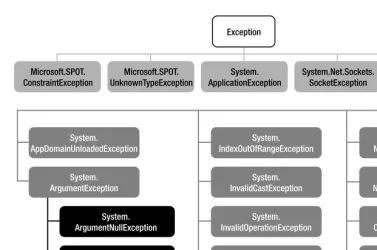
Figure 4-2. Hierarchy of the base class library exceptions in the .NET Micro Framework
Throwing Exceptions
An exception is thrown by using the throw keyword. A message can be passed to describe the error situation:
throw new Exception("Text to describe the error situation.");
■
Note
In the base class library of the .NET Micro Framework, all exceptions are thrown without passing an error message to the constructor, which keeps the runtime footprint small. When handling exceptions, they can be distinguished only by data type, so it is up to you to specify an error message, if necessary, when you throw exceptions.Here’s another example of throwing exceptions:
public MyClass(string str, int count) {
if(str == null)
throw new ArgumentNullException("str");
if(count <= 0)
throw new ArgumentOutOfRangeException("count", "Count must be positive.");
[image:25.612.64.441.62.312.2]You can use exceptions to check the parameters passed to your method. If they are invalid, the method or constructor throws an exception. Therefore, your method can never be called with invalid arguments. For throwing an exception because of an invalid argument, you should use ArgumentException or one of its subclasses (see Figure 4-2).
■
Note
Exceptions should be used rarely. Never use exceptions for controlling the execution flow (e.g., instead of an if statement). It is good practice to use exceptions when you cannot solve the problem by requesting invalid data again or when resources are missing.Catching an Exception
If an exception is thrown in a method, the exception bubbles up to the nearest exception handler. If there is no exception handler, the exception is handled by the runtime environment. If an exception is caught at runtime, the thread in which the method was called is terminated. If the throwing method was in an application’s main thread, the application is terminated.
If you want to catch an exception, you enclose the critical code in a try-catch block combina-tion. To catch all types of exceptions, you can write something like the following:
try
{
int a = 1; int b = 0;
int c = a / b; //division by zero will throw an exception here
}
catch
{
Debug.Print("Division failed."); }
The division fails, because a is divided by zero. The previous code is similar to the next code snippet:
try { ... }
catch(Exception) {
... }
Both samples will catch any exception type.
The finally Block
Sometimes, you have a code block that must be executed both after error-free execution and in an error situation. An example of this would be freeing a hardware component’s resources for use later on or in other parts of a program. You accomplish this with the finally block:
try {
//using resources }
catch {
//handling exceptions }
finally {
//freeing resources }
Even if you exit a method with the return keyword within a try block, the code in the finally block is executed before leaving the method.
You should protect the code in a finally block (e.g. freeing resources) with a try-catch construct if the code may throw exceptions too.
Handling Multiple Exception Types
You can implement different catch blocks to handle different exception types separately:
try { ... }
catch(IOException) {
... }
catch(NotSupportedException) {
... }
catch(Exception) {
... }
the catch(Exception) block first would make the other blocks useless, because all exceptions are derived from Exception, and therefore, this block will be executed whenever an execution is thrown.
Getting Information from an Exception
Instead of just catching an exception, you can inspect it and get more details about the error cause and information about where the exception occurs.
try {
throw new Exception("Text to describe the error situation."); }
catch(Exception ex)
{
Debug.Print("Message: " + ex.Message); Debug.Print("Stack Trace: " + ex.StackTrace); }
Every exception has a Message property, but if the exception is thrown by a method of the .NET Micro Framework runtime library, an error message is not passed to the constructor of an exception.
The StackTrace property provides useful information about where the exception was thrown.
Rethrowing Exceptions
After you have caught an exception in a handler and some handling code in a catch block was executed, you can rethrow this exception to pass it to another exception handler and inform other parts of the code about the error.
try { ... }
catch(Exception) {
//special treatment code
throw; //rethrow it by keeping the stack trace }
try {
//e.g. send data to hardware component }
catch(Exception) //catch all exceptions {
throw new IOException("Sending data failed."); //throw some special exception }
Summary
This chapter covered tracing techniques to debug your application, and you learned how to effectively use timers, numbers, arrays, lists, and exceptions. In doing so, this chapter compared the .NET Micro Framework to the full .NET Framework and explained why some types were moved to the specific namespace Microsoft.SPOT. You saw that you can use your existing .NET knowhow to program with the .NET Micro Framework.