Table of Contents
Before You Begin ... 3
Product Features at a Glance ... 3
Checking Box Contents ... 4
Checking System Requirements ... 4
Operating Systems Supported ... 4
Connectivity Interfaces Supported for the Drobo Mini ... 5
Checking the Hardware You Need ... 8
Selecting Drives ... 8
Determining Drive Space Requirements ... 10
Using Power Protection ... 10
Setting Up Your Drobo Mini ... 11
Installing Drobo Dashboard ... 11
Installing an mSATA SSD ... 15
Inserting the Drives ... 16
Connecting Cables on Your Drobo Mini ... 17
Connecting Directly to Your Drobo Mini ... 18
Daisy-chaining with Your Drobo Mini ... 18
Formatting the Drives ... 21
Selecting a File System and Volume Size for Your Drobo Mini ... 21
Turning On Your Drobo Mini and Formatting the Drives ... 22
Where to Go Next ... 28
Using Best Practices ... 28
Keeping Your Software Up to Date ... 28
Checking for Software Updates Automatically ... 29
Checking for Software Updates Now ... 30
Manually Updating Firmware from the Website ... 30
Safely Shutting Down Your Drobo Mini ... 31
Safely Shutting Down Your Drobo Mini Using Drobo Dashboard ... 32
Safely Shutting Down Your Drobo Mini Manually ... 34
Using the Online User Guide ... 34
Using Context-Sensitive Help ... 35
Using the Knowledge Base ... 35
Registering Your Drobo Mini ... 35
Getting Support ... 39
Before You Begin
Before you begin setting up your Drobo Mini, it’s a good idea to check system and hardware requirements.
This section covers the following topics: Product Features at a Glance Checking Box Contents
Checking System Requirements Checking the Hardware You Need
Product Features at a Glance
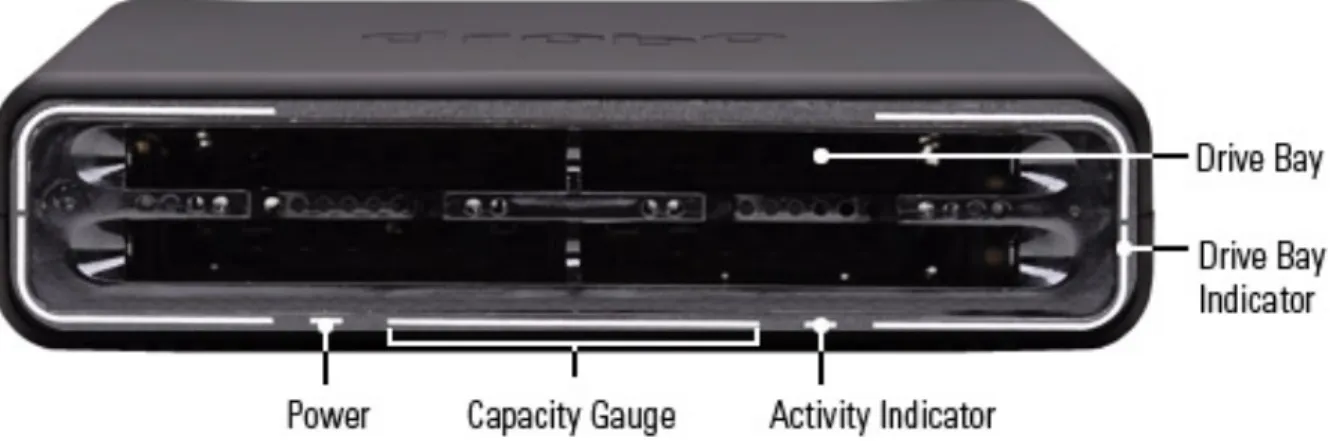
For a quick overview of features of the Drobo Mini, refer to the following images.
Figure 1: Front of the Drobo Mini with the bezel (faceplate) removed.
Note: On the side of the Drobo Mini, there is a connection available for a Kensington lock, enabling you to physically lock your Drobo Mini to a stationary object. See the instructions for a Kensington lock for more information.
Checking Box Contents
Check your product's box to ensure it contains all the components in the list below.
• Drobo Mini
• 1 m (3.3 ft) USB 3.0 cable
• 1.8 m (6.6 ft) power cord with power supply • Quick Start Card
• Safety and Warranty Guide
Checking System Requirements
Check to ensure your operating system and connectivity interface are supported. This section covers the following topics:
Operating Systems Supported
Connectivity Interfaces Supported for the Drobo Mini
Operating Systems Supported
Operating systems supported for the Drobo Mini are as follows.
• OS X 10.7.x Lion
• OS X 10.8.x Mountain Lion
• Windows 7 (Service Pack 1 or later, 32-bit and 64-bit) • Windows 8 (32-bit and 64-bit)
Notes:
- For best performance and interoperability, ensure you are running the latest service packs for the appropriate Windows operating systems.
- For the most current list of supported operating systems, check the specifications for your products online atwww.drobo.com/products/index.php.
Connectivity Interfaces Supported for the Drobo Mini
Your Drobo Mini connects directly to your computer using one of the following connectivity ports. We recommend that you use the fastest connection you have available on your computer.
Notes:
- You can only use one connection at a time.
- If you would like to use the USB 3.0 interface and it is not available on your computer, you can purchase and install an add-on adapter card. (This is a circuit board that fits into an expansion slot in your computer and provides the interface you want.)
Thunderbolt
Developed by Intel with collaboration from Apple, Thunderbolt is a flexible, high-performance interface that provides a high-speed connection to peripheral devices from a computer. It has the ability to combine data, video, audio and power all in a single connection, concurrently. Each Thunderbolt connector can provide two full-duplex channels, with each channel providing 10 Gbps of bi-directional bandwidth, meaning it can transmit and receive data at the same time. The Drobo Mini has two Thunderbolt ports, enabling you to take advantage of Thunderbolt's
daisy-chaining capabilities. With Thunderbolt, you can daisy-chain up to six peripheral devices
and one display from a single computer. Note that because Thunderbolt has dual-protocol support (with DisplayPort and PCI Express), you can connect your computer to Thunderbolt devices or DisplayPort products. You can also connect non-Thunderbolt devices at the end of a daisy-chain by using Thunderbolt technology adapters.
1. Your Drobo device directly connected to a computer (with no daisy-chain).
3. Your Drobo device connected to an external Thunderbolt monitor that is then connected to a computer (with the Drobo device at the end).
USB 3.0
USB (Universal Serial Bus) is a popular interface that allows you to attach additional hardware devices to your computer in a plug-and-play style. USB 3.0, also known as SuperSpeed USB, provides data transfer speeds of up to 4.8 Gbit/s, much faster than USB 2.0.
In order to take advantage of this technology, your Drobo Mini must be connected to a USB 3.0 port on your computer. If your computer does not have USB 3.0, you can consult with your computer manufacturer to find a compatible USB 3.0 card.
Note: If your computer only has a USB 2.0 connection, then Drobo Mini will auto-negotiate to USB 2.0 speeds.
Checking the Hardware You Need
To use your Drobo Mini, you will need at least two drives. If you plan to use Dual Disk
Redundancy, which protects your data against two drive failures, you will need at least three
drives.
This section covers the following topics: Selecting Drives
Determining Drive Space Requirements Using Power Protection
Selecting Drives
The Drobo Mini supports both standard 2.5” SATA hard disk drives (HDDs) as well as SATA solid state drives (SSDs) for added performance. For HDDs, these drives can be from any
manufacturer and with any capacity. For SSDs, please visit our web page for compatible drive
options.
In addition, the Drobo Mini has a Drobo Accelerator Bay, which accepts an industry-standard
mSATASSD(Solid State Drive). When the mSATA SSD is installed, Drobo’s Data-Aware Tiering
feature is enabled, accelerating performance when reading data from your Drobo device. Having an mSATA SSD installed leaves all drive bays available for high-capacity hard disk drives (HDDs) so that you can get both high-capacity and accelerated performance out of your Drobo device. Using only SSDs in the main drive bays of your Drobo Mini provides the fastest performance when reading and writing data to and from your Drobo device.
In summary, here are the recommended number and type of drives you can use with your Drobo Mini. Note that you need at least two drives in the drive bays to ensure your data is protected in the event of drive failure.
• 2 to 4 HDD(Hard Disk Drive) s in the main drive bays - enables you to maximize capacity • 2 to 4 HDDs in the main drive bays plus an mSATA SSD installed - enables you to
maximize capacity and accelerate read performance
• 2 to 4 SSD(Solid State Drive)s in the main drive bays with no mSATA SSD - enables you
to maximize read and write performance
Important Notes:
- If an incompatible SSD is inserted into the Drobo device, the drive light will blink red, indicating the need to replace that drive. Please refer to our web page on compatible drive options for more information.
- The mSATA SSD is not part of the disk pack of your Drobo Mini, allowing you to leave it installed even if you transfer drives from the drive bays to another Drobo device, for example. - When Data-Aware Tiering is enabled, an icon displays in Drobo Dashboard, the software
companion to your Drobo device.
- The Drobo Mini is not compatible with IDE(Integrated Drive Electronics), SCSI(Small Computer System Interface), PATA(Parallel ATA) or SAS(Serial Attached SCSI) drives. Warning! Any pre-existing data on the drives will be erased when inserted into the Drobo Mini.
Determining Drive Space Requirements
In order to protect your data from drive failure, your Drobo Mini requires more space than what you will use for your data, sometimes as much as double or more the amount of space.
The best way to determine how much usable, protected storage space you will have available for your data, based on the number and capacity of your drives, is to use our Capacity Calculator at
www.drobo.com/calculator.
A shortcut to estimating the capacity available for your data is to omit the largest drive and then add the capacity of the remaining drives. If you plan to use Dual Disk Redundancy, omit the largest two drives. See the following tables for examples, which apply to any Drobo device.
Single Disk (Default) Redundancy
Dual Disk Redundancy
Notes:
- Actual capacity is often less than what is shown in the examples above due to the different systems used for rating capacity. This has nothing to do with Drobo devices.
- Know that all Drobo devices enable you to easily increase storage capacity at any time by simply inserting additional drives or replacing smaller drives with larger ones.
Using Power Protection
We recommend using the following power protection with your Drobo device:
• An uninterruptible power supply (UPS), which protects against sudden losses in power • A power surge protector to protect against power surges
Setting Up Your Drobo Mini
Once you have unpacked your Drobo Mini from its box and ensured you meet all system and
hardware requirements, it is time to set up your Drobo Mini for use.
Note: Be sure to remove the "READ THIS" label from the front of your Drobo Mini before inserting drives and using your Drobo Mini.
Setting up your Drobo Mini can be done in just a few easy steps! 1. Install Drobo Dashboard.
2. Install an mSATA SSD (optional). 3. Insert the drives.
4. Connect the cables.
5. Turn on the power and format the drives.
Installing Drobo Dashboard
Drobo Dashboard is the software companion to your Drobo Mini, enabling you to easily set up and manage your Drobo device. Immediately following installation, you can choose to set Drobo Dashboard to automatically install version updates, which we highly recommend.
Drobo software and firmware updates can also be installed from
www.drobo.com/support/updates.
Note: You need to have administrator rights on the computer on which you install Drobo Dashboard, and have access to the Internet.
1. Navigate to www.drobo.com/start and click on the latest Drobo Dashboard for your Drobo product to run and install it.
Note: The first time you install Drobo Dashboard, you will be asked to select a language from the drop-down list. Please do this.
On a Mac, this screen appears as follows.
2. Click the Next (Windows) or Continue button (Mac), as appropriate.
Note: If the Microsoft iSCSI Initiator window appears, click the Yes button. Follow the instructions to install the Microsoft iSCSI Initiator, clicking the Next button as needed. When finished, you are returned to the InstallShield Wizard to continue installation.
3. Follow the directions of the Installer (or Installation Wizard), clicking the Next or Continue
button after each page, as appropriate.
4. When you reach the installation page, click the Install button. On a Mac, this screen appears as follows.
In Windows, this screen appears as follows.
Depending on your operating system, one of the following may result:
• On a Mac, you will be prompted for your administrator password. Enter it and click the
appropriate button.
• In some Windows operating systems, a Windows Access Control dialog box appears,
asking if you want to allow changes to your computer. Click the Allow or Yes button, as appropriate.
Drobo Dashboard installs on your computer.
5. If you are on a Mac, you will be prompted to restart your computer in order to complete installation. Do this.
6. After installation is complete, leave the Launch Drobo Dashboard check box selected and click the Finish button.
Note: Before Drobo Dashboard launches, you may be asked if Drobo can collect anonymous information on your usage. Click Yes or No, as desired. You may also be prompted to register your Drobo device now.
The Drobo Dashboard application launches and the All Drobos page opens. After a few seconds, Drobo "discovers" all Drobo devices currently connected and displays them on this page.
If you have no Drobo devices yet connected or powered on, a "No Drobos Detected" message displays until you do.
Installing an mSATA SSD
You can install an mSATA SSD into your Drobo Mini. Doing so provides accelerated performance when reading data from your Drobo Mini. For more information on drive requirements, see
Selecting Drives.
It is best to install the mSATA SSD before inserting drives into the Drobo Mini's drive bays.
Important Notes:
- The mSATA SSD is not part of your Drobo device's disk pack, so you can add or remove it at any time.
- Your Drobo device must be powered off and unplugged before installation.
- It is important to ground yourself before installing the mSATA SSD in order to discharge static electricity. To do so, touch a grounded metal object just before installation.
Warning! If there is any pre-existing data on the mSATA SSD it will be erased. If you wish to keep the data, copy it to another drive or medium before using with your Drobo device.
1. Gently turn the Drobo Mini on to its side to access the bottom of the Drobo Mini, and open the
Drobo Accelerator Bay door by turning the latch from lock to unlock using a coin. 2. Slide the mSATA SSD into the slot as depicted in the image below.
3. Make sure the mSATA SSD is aligned properly with its connector, and then close the Drobo Accelerator Bay door, turn the latch back to the lock icon, and return the Drobo Mini to its normal position.
Inserting the Drives
After installing Drobo Dashboard and, if needed, installing an mSATA SSD, you are ready to insert drives into your Drobo Mini. For more information on drive requirements, see Selecting Drives.
Warning! Any pre-existing data on the drives will be erased, as the drives will be formatted. If you wish to keep the data, copy it to another drive or medium before using with your Drobo device. Note: Once you insert the drives into your Drobo device, they function as a unit or “pack.” To access the data on them, you will need the entire pack.
1. Remove the bezel (faceplate) from the front of your Drobo device by pulling it off from the
bottom. (It is magnetically attached.)
2. If you haven't done so already, remove the "READ FIRST" card from Drobo Mini.
4. Slide the drive into a selected drive bay and push it into place until you feel it connect. It
should feel like clicking a ballpoint pen.
Note: If you are inserting an SSD (Solid State Drive), ensure that it is on Drobo, Inc.'s compatibility list.
5. Insert additional drives in the same manner, following steps 3 and 4.
6. When finished, replace the bezel.
Warning! You must replace the front bezel to ensure the Drobo Mini's cooling system functions properly.
You are now ready to connect cables and power on your Drobo device.
Connecting Cables on Your Drobo Mini
After installing Drobo Dashboard and inserting the drives into your Drobo Mini, you are ready to connect the power and data cables on your Drobo device. There are two ways you can connect the data cables:
• You can connect the Drobo Mini directly to your computer using the Thunderbolt port or
the USB 3.0 port. For information on the different connectivity interfaces available and their requirements, see Connectivity Interfaces Supported for the Drobo Mini.
• If you use the Thunderbolt port, you also have the option to connect the Drobo Mini to
another Thunderbolt-enabled device that is attached to your computer (including another Drobo device or a display monitor) in a daisy-chain manner. The Drobo Mini can be the first in the daisy-chain (directly attached to your computer), in the middle, or at the end. For more information and steps, see Connecting Your Drobo Mini in a Daisy-chain.
Connecting Directly to Your Drobo Mini
You can connect the Drobo Mini directly to your computer using the Thunderbolt port or the USB 3.0 port. For information on the different connectivity interfaces available and their requirements, see Connectivity Interfaces Supported for the Drobo.
If you are using a Thunderbolt port and would like to connect the Drobo Mini in a daisy-chain, see
Connecting Your Drobo Mini in a Daisy-chain.
As you follow the steps below, refer to the following image.
1. Plug one end of the USB or the Thunderbolt cable into the back of your Drobo Mini.
2. Plug the other end of the cable into your host computer.
3. Connect the plug of the power supply into a power source so that the LED light located on the
other end (the end which plugs into your Drobo Mini) lights green.
Note: We recommend plugging into an uninterruptible power supply (UPS) or surge protector. For more information, see Using Power Protection.
4. Align the green LED light of the power connector with the white dot on the back of the Drobo
Mini, push the connector securely into place, and then rotate it to the right (clockwise) until the green LED light faces down.
Locking the power cord into place prevents it from slipping out if you move the device. You are now ready to turn on your Drobo device and format the drives.
Daisy-chaining with Your Drobo Mini
With the Thunderbolt port, you can connect the Drobo Mini directly to your computer or to another Thunderbolt-enabled device in a daisy-chain manner. The Drobo Mini performs best when it is the first in the daisy-chain, but it can also be in the middle or at the end.
You can daisy-chain up to six peripheral devices and one display (which can be a DisplayPort monitor) from a single computer. The non-Thunderbolt display needs to be at the end of the chain.
Note: As long as they are plugged in, Drobo devices do not need to be powered on for Thunderbolt interfaces to remain active. This enables other devices in the chain to remain accessible by the computer.
1. Your Drobo device directly connected to a computer (with no daisy-chain).
3. Your Drobo device connected to an external Thunderbolt monitor that is then connected to a computer (with the Drobo device at the end).
1. Plug one end of the Thunderbolt cable into the back of your Drobo Mini.
2. Do one of the following:
• Plug the other end of the cable into your host computer, so that the Drobo Mini is the first
peripheral in the daisy-chain. Be sure to connect the next Thunderbolt-enabled peripheral or non-Thunderbolt display monitor to the second port on your Drobo Mini, as needed to extend the chain.
• Plug the other end of your cable into another Thunderbolt-enabled device that is
attached to your host computer. You can optionally connect another Thunderbolt-enabled peripheral or non-Thunderbolt display monitor to the second port on your Drobo Mini, as needed to extend the chain.
3. Connect the plug of the power supply into a power source so that the LED light located on the
other end (the end which plugs into your Drobo Mini) lights green.
Note: We recommend plugging into an uninterruptible power supply (UPS) or surge protector. For more information, see Using Power Protection.
4. Align the green LED light of the power connector with the white dot on the back of the Drobo
Mini, push the connector securely into place, and then rotate it to the right until the green LED light faces down.
Locking the power cord into place prevents it from slipping out if you move the device. You are now ready to turn on your Drobo device and format the drives.
Formatting the Drives
After installing Drobo Dashboard, inserting the drives into your Drobo Mini and connecting cables, you are ready to turn on your Drobo device and format the drives.
Before following steps for this, however, it is important to know what file system format and
volume size you will choose when you format the drives.
Selecting a File System and Volume Size for Your Drobo Mini
When you turn on your Drobo Mini, you will be prompted to format the drives in your Drobo Mini with a particular file system. What file system formats are available to you depend on your operating system. (See Figure 1 below.)You will also be formatting your Drobo Mini into at least one volume, and you will need to choose a size for that volume. A volume is a storage area that has been formatted with a file system format your operating system can recognize. In Windows, volumes are sometimes called “logical drives” or “partitions.”
The largest volume size you are allowed depends on the file system format you choose and the total capacity of the drives in your Drobo device. The following table (Figure 1) shows the maximum volume size allowed for each file system format.
Important Notes:
- Volume size does not represent how much actual storage space is available on your Drobo Mini. It represents virtual storage space. For example, your Drobo Mini may be loaded with 2TB of drive space, but you can create a volume of 16TB. What this enables you to do is add more capacity to your Drobo Mini (by inserting an additional drive or replacing a smaller capacity drive with a larger capacity one) without having to format an additional volume. The additional capacity becomes part of the same volume you formatted originally.
- Your operating system may show the virtual space you have available on your Drobo device, as defined by the volume size.
- If the amount of available, protected storage space in your Drobo Mini ever exceeds the size of the volume that you chose (this may occur when you add one or more additional drives to your Drobo Mini), then Drobo Dashboard will automatically create a new volume (or volumes) of the same size as the original volume. Drobo Dashboard will notify you when this occurs and ask you to format and name the new volume(s).
Tip: For most customers, we recommend choosing the largest volume size available for the selected file system. Note, however, that smaller volume sizes can be more efficient and manageable in certain situations, such as when indexing, scanning or searching volumes.
Turning On Your Drobo Mini and Formatting the Drives
With Drobo Dashboard installed on your host computer and cables connected, you are ready to turn on your Drobo device and format the drives.
1. With Drobo Dashboard open on your computer, press the power button on the back of your
Drobo device once.
Your Drobo device powers on and appears on the All Drobos page in Drobo Dashboard.
Note: Some Windows and Mac operating systems will also prompt you to format the drives. Click Cancel or Ignore, as appropriate, and continue with formatting from Drobo Dashboard.
2. Double-click on the Drobo Mini icon on the All Drobos page.
A message opens, asking if you would like to format the device. 3. Click the Yes button.
The Format Type page opens. Depending on your operating system the page displays with different options.
The File Format page for the Drobo Mini in Windows:
The Volume Size page opens.
5. Click and drag to slide the pointer to the size of the volume you would like to create, and then
click the Next button.
Tip: We recommend that you select the largest size available, enabling you to increase the number and capacity of your drives without having to format an additional volume.
The Volume Name page opens.
6. If applicable, from the Drive Letter drop-down list, select the drive letter to assign to the
volume.
7. In the Name text box, modify the default name for the volume as you like.
Tip: We recommend using the word “volume” in the name so as not to confuse the volume name with your Drobo device’s name.
8. Click the Next button.
The Confirm Format page opens. 9. Click the Format button.
A message appears, informing you that it can take up to 5 minutes to format your drives, and that this may require rebooting your Drobo device. Afterwards, the Format dialog box opens. 10. Click the OK button.
Note: Drobo Dashboard automatically assigns “Drobo” as the default name for your Drobo device, which you can rename later.
Warning! When operating your Drobo Mini, always place it on a hard, even surface. Placing the Drobo Mini on a carpet, towel or other uneven surface can block its ventilation holes and prevent the Drobo Mini's cooling system from functioning normally.
Where to Go Next
After you’ve set up your Drobo Mini, you’re ready to store and back up data onto it. Next steps include the following. Click on a topic to learn more.
• Implementing best practices to maximize the safety of your data
• Ensuring optimal performance by keeping your software (Drobo Dashboard and your Drobo device’s firmware) up to date
• Knowing how to safely shut down your Drobo device
• Using the Online User Guide and context-sensitive help to learn more about how to manage
and use your Drobo device
• Using our knowledge base to answer almost any additional question • Registering your Drobo Mini
• Getting the support you may need
Using Best Practices
Although your Drobo Mini provides redundancy and automatically protects your data against a drive failure, it should only be one part of an overall, digital asset management strategy.
To better safeguard your valuable data, we strongly encourage you to review our guide on best practices, which can be found at www.drobo.com/support/best_practices.
Our guide offers strategies to protect data beyond drive failures. Following best practices will help maximize the safety of your data.
Keeping Your Software Up to Date
To ensure optimal performance, we highly recommend that you set your Drobo device to automatically check for software updates. (You may have already done this during the initial setup.) This feature keeps both Drobo Dashboard and your product’s firmware current.
You can also install updates from www.drobo.com/support/updates. If you would like to install a firmware update from the Drobo website, see Manually Updating Firmware from the Website. This section covers the following topics:
Checking for Software Updates Automatically Checking for Software Updates Now
Checking for Software Updates Automatically
The following steps keep your Drobo Dashboard and your Drobo device’s firmware up to date automatically.
1. If it’s not already running, launch Drobo Dashboard from the host computer and select the appropriate Drobo device on the All Drobos page.
2. Click Dashboard Preferences on the Navigation menu. The Dashboard Preferences page opens.
3. Ensure that the Enable automatic check for updates check box is selected, and then click the OK button.
You can also deselect the Enable automatic check for updates check box, though we recommend that you keep it selected.
4. When one or more software updates are available, a message opens, asking if you would like to install the update(s). If so, click the Yes button and follow the prompts to install them.
Checking for Software Updates Now
The following steps ensure that Drobo Dashboard and your Drobo device’s firmware are up to date.
1. In Drobo Dashboard, select the appropriate Drobo device on the All Drobos page. 2. Click the Tools option on the Navigation menu to open the Tools page.
3. In the Software Updates area of the Tools page, click the Check for Updates option.
Note: If needed, ensure that you are logged in to this Drobo device.
4. If a software update is available, a dialog box opens, asking if you would like to install the update. Click the Yes button and follow the prompts to install the update.
Manually Updating Firmware from the Website
To manually update the firmware from the website, take the following steps.1. Go to www.drobo.com/support/updates and download the appropriate firmware file for your Drobo Mini, saving it to a folder that is not located on your Drobo device.
The firmware file ends in the file extension of .zip (e.g., 1.0.2.zip) and applies to both Windows-based computers and the Mac.
Please ensure that you have read and write privileges to this folder.
2. Launch Drobo Dashboard, select the Drobo Mini from the All Drobos page.
3. Click the Tools option on the Navigation menu for the selected Drobo device to open the
Tools page.
4. In the Software Updates area, click the Manual Update option.
5. Ensure that the Drobo device is not actively transferring data (blinking yellow and green), and then click the OK button.
A dialog box opens, asking you to locate the zip file on your computer. 6. Please do so and then click the Open or OK button.
Drobo install the firmware. When finished, a message opens, asking you to reboot your Drobo device to complete the installation.
7. Click the Yes button.
Drobo shuts down and restarts after the new firmware is installed.
Safely Shutting Down Your Drobo Mini
If you plan to shut down your Drobo device for any reason, it is very important that you always do so safely. Improper Drobo device shutdowns may cause file corruption and/or data loss.
Note: When the Drobo Mini is shut down, but still plugged in and connected to the computer via its Thunderbolt connector, the Drobo Mini will still be able to pass data through a Thunderbolt daisy-chain. This allows the Drobo device to be off while a device or monitor down the chain continues to function.
It is a good idea to shut down your Drobo device before any of the following situations:
• You are not going to be using your Drobo device for an extended period • You are going to disconnect the cable(s) or power cord
• You want to move your Drobo to another location • You are going to remove the entire disk pack • You are going to apply operating system updates
This section covers the following topics:
Safely Shutting Down Your Drobo Mini Using Drobo Dashboard Safely Shutting Down Your Drobo Mini Manually
Safely Shutting Down Your Drobo Mini Using Drobo Dashboard
This is the recommended method for safely shutting down your Drobo device.1. Check that the activity light on your Drobo device is off, indicating that no data is actively
being transferred to or from your Drobo device.
Note: If data is actively being transferred, the activity light will be blinking green.
2. Also check to ensure the drive bay action indicator lights (the ones along the corner borders
of the Drobo Mini) are not blinking alternately between yellow and green. This indicates that your Drobo device is busy working to protect your data. Wait until these lights are a solid green.
Note: If one or more drive bay lights are red, you need to add capacity or replace the current drive. However, you can still safely shut down your Drobo device.
3. In Drobo Dashboard, select the Drobo device that you would like to shut down from the All
Drobos page, and click the Tools option on the Navigation menu. The Tools page opens.
4. In the Drobo Operations area, select the Shutdown option.
A message box opens, asking you to confirm the shutdown. 5. Click the Yes button.
It can take up to two minutes for your Drobo device to power down. Afterwards, the power light turns off, indicating your Drobo device has shut down.
Safely Shutting Down Your Drobo Mini Manually
Although we recommend that you use Drobo Dashboard to shut down the Drobo device, you can also manually shut down the Drobo device safely using the following steps.
1. Check that the activity light on your Drobo device is off, indicating that no data is actively
being transferred to or from your Drobo device.
Note: If data is actively being transferred, the activity light will be blinking green.
2. Also check to ensure the drive bay action indicator lights (the ones along the corner borders
of the Drobo Mini) are not blinking alternately between yellow and green. This indicates that your Drobo device is busy working to protect your data. Wait until these lights are a solid green.
Note: If one or more drive bay lights are red, you need to add capacity or replace the current drive. However, you can still safely shut down your Drobo device.
3. Unmount or eject the Drobo device volume(s) by doing one of the following:
• On a Mac, click and drag the Drobo device volume(s) to the trash.
• In Windows, click on Safely Remove Hardware in your system tray (which is located in
the lower-right of your screen, and accessible by clicking an up arrow), and then select the appropriate Drobo device.
4. Press the power button on the back of your Drobo device once.
It can take up to two minutes for your Drobo device to power down. But afterwards, the power light turns off, indicating your Drobo device has shut down.
Using the Online User Guide
After you’ve set up your Drobo device, you’re ready to use it to store and back up data. To learn how to manage and use your Drobo device, refer to the Online User Guide for your product, which can be found within Drobo Dashboard by clicking the Help & Support option on the
Navigation menu, and clicking the View Drobo User Guide icon. The latest version can also be found at www.drobo.com/support/documentation.php.
Using Context-Sensitive Help
On the top right corner of Drobo Dashboard, you will find a ? button. Click this button to display context-sensitive help. The Help window opens in your Internet browser, providing information particular to the page from which you clicked for help.
Using the Knowledge Base
Our searchable knowledge base provides answers to almost any question related to your Drobo device that you cannot find in the Online User Guide. To access our knowledge base follow the steps below.
1. In the Drobo Dashboard, click the Help and Support option on the Navigation menu. The Help and Support page opens.
2. In the Check Drobo online resources! area, click the Search Knowledge Base link to open the Drobo Knowledge Base web page.
Note: You can access our knowledge base at http://support.drobo.com/app/answers/list.
Registering Your Drobo Mini
If you did not register your Drobo device during setup, you can do so from within Drobo Dashboard.
Note: You will need to be connected to the Internet to perform this action.
1. In Drobo Dashboard on the All Drobos page, select the Drobo device you need to register and click the Help and Support option on the Navigation menu.
2. In the Drobo Registration area, click on the Register my Drobo devices link.
3. Do one of the following:
• If you do not have a Drobo account, click the Create a new Drobo account link. A
one-page form opens in your web browser. Fill this in and click Create Account. Fill this in and create your account, and then return to this step to log into your account.
• If you already have a Drobo account, select the Register new Drobo with my Drobo
account option, and then enter your Drobo username and password. You can click the
Forgot username or password link if needed. Continue with step 4. 4. Click the Next button.
Your connected Drobo devices, and their serial numbers display.
5. Select the Drobo device you would like to register, enter its purchase date and select the region from where you purchased it. (See below.)
Tip: You can click the Skip this step for now check box at any time.
6. Click the Register Drobo button.
The next page shows with a check mark that your product has been registered.
Note: You can choose to purchase a DroboCare license by clicking on that link.
7. Repeat steps 5 and 6 to register additional Drobo devices. 8. When finished, click the Done button.
Getting Support
To get support, first be sure to register your product at www.drobo.com/registration, if you haven’t already done so. You can then go to www.drobo.com/support for details on how to contact support.
You can also find support in Drobo Dashboard.
• In Drobo Dashboard on the All Drobos page, select the Drobo device for which you need to
get support, and then click the Help and Support option on the Navigation menu.
The Help and Support page opens and allows you to register your Drobo, access the online user guide and knowledge base, contact the Drobo support team and create a diagnostics file.
You can also obtain additional hardware and phone support by purchasing DroboCare. The DroboCare™ support program extends your peace of mind beyond the standard warranty term and phone support that is included with your Drobo product purchase. To learn more about DroboCare visit: www.drobo.com/drobocare. Also see our DroboCare FAQ at:
Copyrig
ht, Safety and Limited Warranty
Copyright and Warranty
Drobo, Inc. supports lawful use of technology and does not endorse or encourage the use of its products for purposes other than those permitted by copyright law.
Copyright 2012 Drobo, Inc., Drobo, DroboShare, DroboPro, DroboElite/B800i, Drobo B1200i and BeyondRAID are trademarks of Drobo, Inc., which may be registered in some jurisdictions. All other trademarks used are the property of their respective owners.
Information supplied by Drobo, Inc. is believed to be accurate and reliable at the time of
publication, but Drobo, Inc. assumes no responsibility for any errors that may appear in this online documentation. Drobo, Inc. reserves the right, without notice, to make changes in product design or specifications. Information is subject to change without notice.
Drobo, Inc., 2460 North First Street, Suite 100, San Jose, CA 95131 USA. For more info, visit:
www.drobo.com.
Safety and Warranty
Safety
This product was designed and manufactured to meet strict quality and safety standards. There are, however, some installation and operational precautions of which you should be particularly aware.
Please read these instructions before operating Drobo, DroboPro, DroboElite, DroboFS, ProFS,B800i, B800fs, B1200i, Drobo 5D, Drobo 5N, or Drobo Mini and save them for future reference.
1. Read all instructions: All safety & operating instructions should be read and understood before operation.
2. Retain instructions: The safety and operating instructions should be retained for future reference.
3. Heed Warnings: All warnings on the appliance and in the operating instructions should be followed.
4. Follow Instructions: All operating and usage instructions should be followed.
5. Drobo, DroboPro,DroboElite, Drobo FS, Pro FS, B800i, B800fs, B1200i, Drobo 5D, Drobo 5N, and Drobo Mini are to be used with UL Listed ITE Equipment only.
6. Avoid Water and Moisture: Drobo, DroboPro,DroboElite, Drobo FS, Pro FS, B800i, B800fs, B1200i, Drobo 5D, Drobo 5N, and Drobo Mini should not be used near water (for
example,near a bathtub, washbowl, kitchen sink, laundry tub, in a wet basement, or near a swimming pool)
7. Provide Adequate Ventilation: Drobo, DroboPro,DroboElite, Drobo FS, Pro FS, B800i, B800fs, B1200i, Drobo 5D, Drobo 5N, and Drobo Mini should each be situated so that its location or position does not interfere with its proper ventilation. For example, Drobo should not be situated against a surface that may block the ventilation openings or placed in a built-in built-installation such as a bookcase or cabbuilt-inet that may impede the flow of air through the ventilation openings.
8. Protect from Heat: Drobo, DroboPro, DroboElite, Drobo FS, Pro FS, B800i, B800fs, B1200i, Drobo 5D, Drobo 5N, and Drobo Mini should be situated away from heat sources such as radiators,heat registers, stoves, or other appliances (including amplifiers) that produce heat. 9. Protect Power Cords: Power supply cords should be routed so that they are not likely to be
walked on or pinched by items placed upon or against them, paying particular attention to cords and plugs, convenience receptacles, and the point at which they exit from the product. 10. Avoid Object and Liquid Entry: Never push objects of any kind into Drobo, DroboPro,
DroboElite, Drobo FS, Pro FS, B800i, B800fs, B1200i, Drobo 5D, Drobo 5N, and Drobo Mini ventilation slots except drives compliant with the User Guide as they may touch dangerous voltage points or short the parts, resulting in the risk of fire or electric shock. Never spill liquid of any kind onto Drobo.
11. TO PREVENT ELECTRIC SHOCK, MATCH WIDE BLADE OF ELECTRICAL PLUG TO WIDE SLOT AND INSERT FULLY.
12. DROBO, DROBOPRO, DROBOELITE, PRO FS, B800i, B800fs, B1200i, Drobo 5D, Drobo 5N, AND Drobo Mini CONTAIN A LITHIUM BATTERY WHICH CAN EXPLODE IF
MISHANDLED. BATTERY IS NOT FIELD OR USER-SERVICEABLE. Please dispose of battery in a manner consistent with local jurisdictions.
13. DRIVES IN DROBO, DROBOPRO, DROBOELITE, DROBO FS, PRO FS, B800i, B800fs AND B1200i WILL RETAIN HEAT AFTER USE. PLEASE USE CAUTION WHEN
REMOVING DRIVES FROM DROBO, DROBOPRO,DROBOELITE, DroboFS, ProFS, B800i, B800fs, B1200i, Drobo 5D, Drobo 5N, OR Drobo Mini. TO SAFELY REMOVE DRIVES, PRESS THE DRIVE LATCH TO RELEASE THE DRIVE AND ALLOW THE DRIVE TO COOL IN THE DATA BAY FOR 10 MINUTES BEFORE COMPLETELY REMOVING THE DRIVE FROM DROBO, DROBOPRO,DROBOELITE, DroboFS, ProFS, B800i, B800fs OR B1200i. FAILURE TO FOLLOW THIS PROCEDURE MAY RESULT IN INJURY FROM HOT DRIVES.
14. Damage Requiring Service: Drobo, DroboPro, DroboElite, Drobo FS, Pro FS, B800i, B800fs, B1200i, Drobo 5D, Drobo 5N, and Drobo Mini should be serviced by an employee of Drobo, Inc. or a Drobo, Inc. Authorized Reseller ("qualified service personnel"), and should be serviced when:
A THE POWER SUPPLY CORD OR PLUG IS DAMAGED OR FRAYED;
B LIQUID HAS SPILLED INTO DROBO, DROBOPRO, DROBOELITE, DROBO FS, PRO FS, B800i, B800fs, B1200i, Drobo 5D, Drobo 5N, OR Drobo Mini;
C DROBO, DROBOPRO, DROBOELITE, DROBO FS, PRO FS, B800i, B800fs, B1200i, Drobo 5D, Drobo 5N, OR Drobo Mini HAS BEEN EXPOSED TO RAIN OR WATER;
D DROBO, DROBOPRO, DROBOELITE, DROBO FS, PRO FS, B800i, B800fs, B1200i, Drobo 5D, Drobo 5N, OR Drobo Mini DOES NOT OPERATE NORMALLY WHEN YOU FOLLOW THE OPERATING INSTRUCTIONS;
E DROBO, DROBOPRO, DROBOELITE, DROBO FS, PRO FS, B800i, B800fs, B1200i, Drobo 5D, Drobo 5N, OR Drobo Mini HAS BEEN DROPPED OR THE CHASSIS DAMAGED;
F DROBO,DROBOPRO, DROBOELITE, DROBO FS, PRO FS, B800i, B800fs, B1200i, Drobo 5D, Drobo 5N, OR Drobo Mini EXHIBITS A DISTINCT CHANGE IN PERFORMANCE.
15. Use only the supplied USB 2.0, USB3.0, FireWire 800, Ethernet, and power cables when operating Drobo, DroboPro, DroboElite, Drobo FS,ProFS, B800i, B800fs, B1200i, Drobo 5D, Drobo 5N, or Drobo Mini.
Servicing – The user should not attempt to service Drobo, DroboPro, DroboElite, Drobo FS, Pro FS, B800i, B800fs, B1200i, Drobo 5D, Drobo 5N, or Drobo Mini beyond that described as user service items in the FAQ section of this manual,the Troubleshooting sections of the Help Files, or the support Knowledge Base. All other servicing should be referred to qualified service personnel.
Cleaning – Unplug Drobo, DroboPro, DroboElite, Drobo FS,Pro FS, B800i, B800fs, B1200i, Drobo 5D, Drobo 5N, or Drobo Mini from the wall outlet before cleaning. Do not use liquid or aerosol cleaners; use a damp cloth. If Drobo, DroboPro, DroboElite, Drobo FS, Pro FS, B800i, B800fs or B1200icomes in contact with any liquid, unplug the power adaptor and let Drobo dry thoroughly before plugging back in.
Power Source – Drobo, DroboPro,DroboElite, Drobo FS, Pro FS, B800i, B800fs, B1200i, Drobo 5D, Drobo 5N, or Drobo Mini should be operated only from the type of power source indicated on the marking label or in this User Guide. If you are not sure of the type of power supplied to your home or business, consult your local power company.
Overloaded Power Outlets – Do not overload wall outlets and extension cords, this can result in risk of fire or electric shock.
Electric Shock – To reduce the risk of electric shock,do not disassemble Drobo,
DroboPro,DroboElite, DroboFS, ProfS, B800i, B800fs, B1200i, Drobo 5D, Drobo 5N, or Drobo Mini. Doing so will void the warranty. Take it to a qualified service person when service or repair work is required. Opening or removing covers may expose you to dangerous voltage or other risks. Incorrect reassembly can cause electric shock when Drobo is used.
Moving – Avoid moving Drobo, DroboPro,DroboElite, DroboFS, ProfS, B800i, B800fs, B1200i, Drobo 5D, Drobo 5N, or Drobo Mini while it is plugged in to avoid shock and vibration damage to the installed hard disk drives.
Electrostatic Discharge- The components inside your Drobo and disk drives are sensitive to static electricity, also known as electrostatic discharge. Before you install any disk drive, we recommend that you do the following: 1) Avoid static-causing surfaces such as carpeted floors,plastic, and packing foam; 2) Discharge yourself by touching an unpainted metal surface such as a desk or rack mount; 3) Remove disk drives from their antistatic bags only when you are ready to use them. Be sure to follow any additional recommendations that the disk drive manufacturers provides.
Repair Technician Warning! Before opening the DroboPro, DroboElite. B800i, or B800fs unit or removing the power supply assembly, the AC cord MUST be unplugged from the outside of the unit and the unit must be unpowered. The System Earthing connections of the internal AC cable must not be removed if the system is powered on for service access.
Drobo Specifications & Systems Requirements – Power Supply: AC Input:
100-240VAC~2.5A, 50-60Hz;DC Output: 12-17VDC6.6A & 80W Max.; Drobo Power Consumption:4A @ 12V (48W);Operating Temperature: 10°C-35°C (50°-95°F); Non-operating (storage): -10°-60°C(14°-140°F); Operating Humidity: 5%- 80%; Dimensions: 6.0” wide x 6.3” tall x 10.7” long (152.4mm wide x 160mm tall x 271.8mm long);Weight: 6 lb 11.3 oz (without power supply); Storage: Accepts up to four 3.5” SATA I or II internal desktop hard drives;Interfaces: USB 2.0 and FireWire 800 (2nd Generation Only); Drobo Dashboard Application (optional): Microsoft®
Drobo S Specifications & Systems Requirements – Power Supply: AC Input:
100-240VAC~2.5A, 50-60Hz;DC Output: 12VDC 8.33A & 100W Max; Drobo Power Consumption:4A @ 12V (48W);Operating Temperature: 10°C-35°C (50°-95°F); Non-operating (storage): -10°-60°C(14°-140°F); Operating Humidity: 5%- 80%; Dimensions: 5.9” wide x 7.3” tall x 10.3” long (150.3mm wide x 185.4mmtall x 262.3mm long); Weight: 8 lbs (without power supply); Storage: Accepts up to five 3.5” SATA I or II internal desktop hard drives;Interfaces: USB 2.0, FireWire 800, eSATA; Drobo Dashboard Application (recommended): Microsoft® Windows® Operating Systems XP SP3+, Apple® Macintosh® OS-X v10.5+;File system support: NTFS, HFS+, FAT32, and EXT3.
DroboPro Specifications &Systems Requirements – Power Supply: AC Input: 100/240VAC, 1.8/0.75 A, 50/60 Hz; Operating Temperature: 10°C-35°C (50°-95°F);
Non-operating (storage): -10°-60°C(14°-140°F); Operating Humidity: 5% - 80%; Dimensions: 12.17” wide x 5.46”tall x 14.1”long (309mm wide x 138.9mm tall x 357.4mmlong); Weight: 16 lb 3 oz.; Storage:Accepts up to eight 3.5” SATA I or II internal desktop hard drives;Interfaces: USB 2.0, FireWire 800, and iSCSI; Drobo Dashboard Application (required for iSCSI): Microsoft® Windows® Operating Systems, Apple® Macintosh® OS-X v10.4+ (10.5.6+ required for iSCSI); File system support: NTFS, HFS+, FAT32, and EXT3.
Drobo FS Specifications & Systems Requirements – Power Supply: AC Input:
100-240VAC~2.5A, 50-60Hz;DC Output: 12-17VDC8.33A & 100W Max.; Drobo Power Consumption: 5A @ 12V (60W); Operating Temperature: 10°C35°C (50°95°F); Nonoperating (storage): -10°-60°C(14°-140°F); Operating Humidity: 5%- 80%; Dimensions: 5.9” wide x 7.3” tall x 10.3” long (150.3mm wide x 185.4mmtall x 262.3mm long); Weight: 8 lbs. (without power supply); Storage: Accepts up to five 3.5” SATA-compliant internal desktop hard drives; Interface: Ethernet; Drobo Dashboard Application (recommended):Microsoft® Windows® Operating Systems XP SP3+, Apple® Macintosh® OS-X v10.5+;File system support: EXT3.
DroboPro FS Specifications & Systems Requirements – Power Supply: AC Input: 100/240VAC, 1.8/0.75 A, 50/60 Hz; Operating Temperature: 10°C-35°C (50°-95°F); Non-operating (storage): -10°-60°C(14°-140°F); Operating Humidity: 5%-80%;Dimensions: 12.17” wide x 5.46” tall x 14.1”long (309mm wide x 138.9mm tall x 357.4mmlong); Weight: 16 lb 3 oz.; Storage: Accepts up to eight 3.5” SATA I or II internal desktop hard drives;Interfaces:Ethernet; Drobo Dashboard Application (recommended): Microsoft® Windows®Operating Systems XP SP3+, Apple® Macintosh® OS-X v10.5+;File system support: EXT3.
DroboElite Specifications & Systems Requirements – Power Supply: AC Input: 100/240VAC, 1.8/0.75 A, 50/60 Hz; Operating Temperature: 10°C-35°C (50°-95°F); Non-operating (storage): -10°-60°C(14°-140°F); Operating Humidity: 5%-80%;Dimensions: 12.17” wide x 5.46” tall x 14.1”long (309mm wide x 138.9mm tall x 357.4mmlong); Weight: 16 lb 3 oz; Storage: Accepts up to eight 3.5” SATA I or II internal desktop hard drives;Interfaces: USB 2.0 (Admin only), and iSCSI; Drobo Dashboard Application (required for iSCSI): Microsoft® Windows®Operating Systems, Apple® Macintosh® OS-Xv10.5+;File system support: NTFS, HFS+, FAT32, and EXT3.
B800i Specifications & Systems Requirements – Power Supply: AC Input: 100/240 VAC, 1.8/0.75A, 50/60 Hz; Operating Temperature: 10°C35°C (50°95°F); Non operating (storage): -10°-60°C (14°-140°F); Operating Humidity: 5%- 80%; Dimensions: 12.17” wide x 5.46”tall x 14.1”long (309mm wide x 138.9mm tall x 357.4mmlong); Weight: 16 lb 3 oz; Storage:Accepts up to eight 3.5” SATA I or II internal desktop hard drives;Interfaces: USB 2.0 (Admin only), and
iSCSI; Drobo Dashboard Application (required for iSCSI): Microsoft® Windows®Operating Systems, Apple® Macintosh® OS-Xv10.5+;File system support: NTFS, HFS+, FAT32, and EXT3.
B800fsSpecifications &Systems Requirements – Power Supply: AC Input: 100/240VAC, 1.8/0.75 A, 50/60 Hz; Operating Temperature: 10°C-35°C (50°-95°F);
Non-operating (storage): -10°-60°C(14°-140°F); Operating Humidity: 5% - 80%; Dimensions: 12.17” wide x 5.46”tall x 14.1”long (309mm wide x 138.9mm tall x 357.4mmlong); Weight: 16 lbs 3 ozs.; Storage: Accepts up to eight 3.5” SATA I or II internal desktop hard
drives;Interfaces:Ethernet; Drobo Dashboard Application (recommended): Microsoft®
Windows®Operating Systems XP SP3+, Apple® Macintosh® OS-X v10.5+;File system support: EXT3.
Drobo 5D Specifications & Systems Requirements – Power Supply: AC Input:
100-240VAC~2.5A, 50-60Hz; DC Output: 12VDC 12.5A & 150W Max.; Drobo Power Consumption: 1.5A @ 12V (18W); Operating Temperature: 10°C35°C (50°95°F); Nonoperating (storage): -10°-60°C (14°-140°F); Operating Humidity: 5% - 80%; Dimensions: 5.9” wide x 7.3” tall x 10.3” long (150.3mm wide x 185.4mm tall x 262.3mm long); Weight: 8 lbs (without power supply); Storage: Accepts up to five 3.5” SATA I or II internal desktop hard drives; Interfaces: USB 3.0, thunderbolt; Drobo Dashboard Application (recommended): Microsoft® Windows® 7 SP1+, Microsoft® Windows® 8, Apple® Macintosh® OS-X 10.7.x, Apple® Macintosh® OS-X 10.8.x ; File system support: NTFS, HFS+, FAT32, and EXT3.
Drobo 5N Specifications & Systems Requirements – Power Supply: AC Input:
100-240VAC~2.5A, 50-60Hz; DC Output: 12VDC 8.33A & 100W Max.; Drobo Power Consumption: 5A @ 12V (60W); Operating Temperature: 10°C-35°C (50°-95°F); Non-operating (storage): -10°-60°C (14°-140°F); Operating Humidity: 5% - 80%; Dimensions: 5.9” wide x 7.3” tall x 10.3” long (150.3mm wide x 185.4mm tall x 262.3mm long); Weight: 8 lbs. (without power supply); Storage: Accepts up to five 3.5” SATA-compliant internal desktop hard drives; Interface: Ethernet; Drobo Dashboard Application (recommended): Microsoft® Windows® 7 SP1+, Microsoft® Windows® 8, Apple® Macintosh® OS-X 10.7.x, Apple® Macintosh® OS-X 10.8.x ; File system support: EXT3.
Drobo Mini Specifications & Systems Requirements – Power Supply: AC Input: 100-240VAC~2.5A, 50-60Hz; DC Output: 12VDC 4.16A & 50W Max.; Drobo Power Consumption: 1.5A @ 12V (18W); Operating Temperature: 10°C35°C (50°95°F); Nonoperating (storage): -10°-60°C (14°-140°F); Operating Humidity: 5% - 80%; Dimensions:7.25” wide x 2” tall x 7” long (184mm wide x 50.8mm tall x 178mm long); Weight:2.2 lbs (without power supply) ; Storage: Accepts up to four 2.5” SATA-compliant internal laptop drives; Interfaces: USB 3.0, Thunderbolt; Drobo Dashboard Application (recommended Microsoft® Windows® 7 SP1+, Microsoft® Windows® 8, Apple® Macintosh® OS-X 10.7.x, Apple® Macintosh® OS-X 10.8.x; File system support: NTFS, HFS+, FAT32, and EXT3.
FCC Compliance & Advisory Statement – This equipment has been tested and found to comply with the limits for a Class B digital device, pursuant to Part 15 of the FCC Rules. These limits are designed to provide reasonable protection against harmful interference in a residential installation. This equipment generates, uses and can radiate radio frequency energy and if not
which can be determined by turning the equipment off and on, the user is encouraged to try to correct the interference by one or more of the following measures: 1) Reorient or relocate the receiving antenna. 2) Increase the separation between the equipment and receiver. 3) Connect the equipment into an outlet on a circuit different from that to which the receiver is connected. 4) Consult the dealer or an experienced radio/TV technician for help. Any changes or modification not expressly approved by the party responsible for compliance could void the user’s authority to operate the device. Where shielded interface cables have been provided with the product or specified additional components or accessories elsewhere defined to be used with the installation of the product, they must be used in order to ensure compliance with FCC regulations.
This Class B digital apparatus meets all requirements of the Canadian interference-Causing Equipment Regulations. Cet appareil numeriquede la classe B respecte toutes les exigencesdu Réglement sur le materiel brouilleur du Canada. Please see http://www.drobo.com for additional compliancy information
Industry Canada Statement
Complies with the CanadianICES-003 Class B specifications. Cet appareil numérique de la classe B est conforme à la norme NMB-003 du Canada. This device complies with RSS 210 of Industry Canada.
This Class B device meets all requirements of the Canadian interference-causing equipment regulations.
Cetappareil numérique de la Class B respecte toutes les exigences du Règlement sur le matériel brouilleur du Canada.
VCCIClass B Statement
VCCI クラスB 基準について情報処理装置等電波障害自主規制についてこの装置は、情報処理装置等電波障害 自主規制協議会(VCCI)の基準にもとづくクラスB情報技術装置です。 この装置は家庭環境で使用されることを目的としていますが、この装置がラジオやテレビジョン受信機に近接し て使用されると、 受信障害を引き起こすことがあります。 説明書に従って正しい取扱いをしてください。B1200i Specifications & Systems Requirements – Power Supply: AC Input: 100/240 VAC, 8A/5A, 50/60 Hz; Operating Temperature: 10°C35°C (50°95°F); Non operating (storage): -10°-60°C (14°-140°F); Operating Humidity: 20% - 80%; Dimensions: 17.17” wide x 5.20”tall x 21.85 ” long (436.1 mm wide x 132.1 mmtall x 555.0 mm long); Weight: 47 lbs (21.3 kgs); Storage:Accepts up to twelve 3.5” SATA II, SATA III, or SAS drives; Interfaces: Three Gigabit iSCSI and one Gigabit Ethernet for management; Drobo Dashboard Application (recommended): Microsoft® Windows® Operating Systems,Apple® Macintosh® OS-X v10.5+;File system support: NTFS, HFS+, and EXT3.
FCC Compliance & Advisory Statement – This equipment has been tested and found to comply with the limits for a Class A digital device, pursuant to Part 15 of the FCC Rules. These limits are designed to provide reasonable protection against harmful interference in a residential installation. This equipment generates, uses and can radiate radio frequency energy and if not installed and used in accordance with the instructions, may cause harmful interference to radio
communications. However, there is no guarantee that interference will not occur in a particular installation. If this equipment does cause harmful interference
to radio or television reception, which can be determined by turning the equipment off and on, the user is encouraged to try to correct the interference by one or more of the following measures: 1) Reorient or relocate the receiving antenna. 2) Increase the separation between the equipment and receiver. 3) Connect the equipment into an outlet on a circuit different from that to which the receiver is connected. 4) Consult the dealer or an experienced radio/TV technician for help. Any changes or modification not expressly approved by the party responsible for compliance could void the user’s authority to operate the device. Where shielded interface cables have been provided with the product or specified additional components or accessories elsewhere defined to be used with the installation ofthe product, they must be used in order to ensure compliance with FCC regulations.
Industry Canada Statement
Complies with the CanadianICES-003 Class A specifications. Cetappareil numérique de la classe A est conforme à la norme NMB-003 du Canada. This device complies with RSS 210 of IndustryCanada.
This Class A device meets all requirements of the Canadian interference-causing equipment regulations.
Cet appareil numériquede la Class A respecte toutes les exigencesdu Règlement sur le matériel brouilleur du Canada.
VCCI Class A Statement
この装置は、クラスA情報技術装置です。この装置を家庭環境で使用すると電波妨害を引き起こすことがあ ります。
この場合には使用者が適切な対応を講ずるよう要求されることがあります。
Europe–EU Declaration of Conformity
The equipment complies with the EU directives89/336/EEC, 73/23/EEC, and 93/68/EEC. This equipment is in conformity with the essential requirements of EU directives:EN 55022:1998 plus A1:2000 & A2:2003, EN 55024: 1998 plus A1:2001& A2:2003, EN 61000-3-2: 2000 plus
A2:2005,EN 61000-3-3: 1995 plus A1:2001& A2:2005, and EN 60950-1:2000+A11:2004.
Hereby, Drobo, Inc., declares that this Disk Storage Array and Network Attached Storage link appliance are in compliance with the essential requirements and other relevant provisions of Directive 1999/5/EC.
European Union
The symbol above means that according to local laws and regulations your product should be disposed of separately from household waste. When this product reaches its end of life, take it to a collection point designated by local authorities. Some collection points accept products for free. The separate collection and recycling of your product at the time of disposal will help conserve natural resources and ensure that it is recycled in a manner that protects human health and the environment.
Battery Disposal
YourDrobo, DroboPro, DroboElite, Drobo FS, DroboPro FS, B800i, B800fs, B1200i, Drobo 5D, Drobo 5N, and Drobo Mini have internal batteries that preserve settings when the unit is off. Do not attempt to change the battery. Only a Drobo, Inc. certified technician can change the battery. When the product has reached the end of its useful life, please dispose of it according to your local environmental laws and guidelines.
本製品の寿命が尽きたときは、お住まいの地域の環境法と廃棄基準に従って本製品と電池を廃棄して下さい。
drobo, inc. のリサイクルプログラムについては、次のwebサイトを参照してください。
LIMITED WARRANTY – NORTH AMERICA AND ASIA PACIFIC
COVERAGE
The warranty obligations of Drobo, Inc. (formerly known as Data Robotics, Inc.) are limited to the terms set forth herein. This Limited Warranty applies only to: (i) product manufactured by or for Drobo; and (ii) replacement components sold by Drobo, of the product manufactured by or for Drobo; that can be identified by the "Data Robotics" or "Drobo" trademark, trade name, or logo affixed to them (collectively, "Product") and is provided only to the original end-user purchaser of the Product ("You" or "Your"). Drobo warrants against defects in materials and workmanship under normal use for a period of: (i) ONE (1) YEAR, for Product sold outside of Europe; and (ii) TWO (2) YEARS for Product sold in Europe; from the date of retail purchase by the original end-user purchaser ("Warranty Period").
Subject to applicable law, Drobo may require that You furnish proof of purchase details and/or comply with registration requirements before receiving any portion of these warranty
services. To register your product or to obtain warranty service, call or submit an online request to Drobo Support. Detailed instructions on how to contact Drobo Support and register your product are located at: http://www.drobo.com/support/contact-support.php. Additional details on this and other matters regarding obtaining warranty service are also available at
http://www.drobo.com/support.
Subject to the terms and conditions herein, if a Product hardware defect arises and a valid claim is received within the applicable Warranty Period Drobo will, at its option, either: (1) repair such defect at no charge, using new or refurbished replacement parts; or (2) replace the defective Product with a Product that is new or which has been manufactured from new or serviceable used parts and is at least functionally equivalent to the original Product; or (3) refund the
EXCLUSIONS AND LIMITATIONS
The Limited Warranty does not apply to any non-Product or any software, even if packaged or sold with Product. Manufacturers, suppliers, or publishers, other than Drobo may provide their own warranties to You, but Drobo, to the extent permitted by law, provides such manufacturer’s products "as is". SOFTWARE DISTRIBUTED BY DROBO WITH OR WITHOUT THE DROBO BRAND NAME (INCLUDING, BUT NOT LIMITED TO SYSTEM SOFTWARE) IS NOT COVERED UNDER THIS LIMITED WARRANTY. REFER TO THE LICENSING AGREEMENT
ACCOMPANYING THE SOFTWARE FOR DETAILS OF YOUR RIGHTS WITH RESPECT TO ITS USE.
DROBO DOES NOT WARRANT THAT THE OPERATION OF THE PRODUCT WILL BE UNINTERRUPTED OR ERROR-FREE. DROBO IS NOT RESPONSIBLE FOR DAMAGE ARISING FROM FAILURE TO FOLLOW INSTRUCTIONS RELATING TO THE PRODUCT'S USE AND/OR STORAGE.
In no event does this Limited Warranty apply: (a) to damage caused by use with non-Products; (b) to damage caused by accident, abuse, misuse, flood, fire, earthquake or other external causes; (b) loss passwords; (c) to damage caused by operating the Product outside the permitted or intended uses described by Drobo; (d) to damage caused by service (including upgrades and expansions) performed by a party other than an authorized representative of Drobo or a Drobo Authorized Reseller; (e) to a Product or Product part that has been modified to significantly alter functionality or capability without the written permission of Drobo; (f) to consumable parts, such as batteries, unless damage has occurred due to a defect in materials or workmanship; or (h) if any Drobo serial number has been removed or defaced.
TO THE EXTENT PERMITTED BY LAW, THIS WARRANTY AND REMEDIES SET FORTH ABOVE ARE EXCLUSIVE AND IN LIEU OF ALL OTHER WARRANTIES, REMEDIES AND CONDITIONS, WHETHER ORAL OR WRITTEN, STATUTORY, EXPRESS OR IMPLIED, AND DROBO SPECIFICALLY DISCLAIMS ANY AND ALL STATUTORY OR IMPLIED WARRANTIES OR CONDITIONS, INCLUDING, WITHOUT LIMITATION, WARRANTIES OR CONDITIONS OF MERCHANTABILITY, FITNESS FOR A PARTICULAR PURPOSE AND WARRANTIES
AGAINST HIDDEN OR LATENT DEFECTS. IF DROBO CANNOT LAWFULLY DISCLAIM STATUTORY OR IMPLIED WARRANTIES OR CONDITIONS, THEN TO THE EXTENT PERMITTED BY LAW, ALL SUCH WARRANTIES AND CONDITIONS SHALL BE LIMITED IN DURATION TO THE DURATION OF THIS EXPRESS WARRANTY AND TO REPAIR,
REPLACEMENT OR REFUND SERVICE AS DETERMINED BY DROBO IN ITS SOLE DISCRETION. No Drobo reseller, agent, or employee is authorized to make any modification, extension, or addition to this warranty. (Australia only: see note 1 below.)
EXCEPT AS PROVIDED IN THIS WARRANTY AND TO THE EXTENT PERMITTED BY LAW, DROBO IS NOT RESPONSIBLE FOR DIRECT, SPECIAL, INCIDENTAL OR CONSEQUENTIAL DAMAGES RESULTING FROM ANY BREACH OF WARRANTY OR CONDITION, OR UNDER ANY OTHER LEGAL THEORY, INCLUDING BUT NOT LIMITED TO LOSS OF USE; LOSS OF REVENUE; LOSS OF ACTUAL OR ANTICIPATED PROFITS (INCLUDING LOSS OF PROFITS ON CONTRACTS); LOSS OF THE USE OF MONEY; LOSS OF ANTICIPATED SAVINGS; LOSS OF BUSINESS; LOSS OF OPPORTUNITY; LOSS OF GOODWILL; LOSS OF REPUTATION; LOSS OF, DAMAGE TO OR CORRUPTION OF DATA; OR ANY INDIRECT OR
CONSEQUENTIAL LOSS OR DAMAGE HOWSOEVER CAUSED INCLUDING THE REPLACEMENT OF EQUIPMENT AND PROPERTY, ANY COSTS OF RECOVERING, PROGRAMMING, OR REPRODUCING ANY PROGRAM OR DATA STORED OR USED WITH DROBO PRODUCTS AND ANY FAILURE TO MAINTAIN THE CONFIDENTIALITY OF DATA STORED ON THE PRODUCT. (Australia only: see note 1 below.)
THE FOREGOING LIMITATION SHALL NOT APPLY TO DEATH OR PERSONAL INJURY CLAIMS. DROBO DISCLAIMS ANY REPRESENTATION THAT IT WILL BE ABLE TO REPAIR