iPIMS Software Manual
Enterprise Software for iDVR-PRO8 and iDVR-PRO16 Security DVRs
Page 2
Contents
Target Audience for this Document ... 6
Copyright, Trademarks and Important Information ... 6
Copyright ... 6
Disclaimer ... 6
Introduction ... 7
Tabs ... 7
Panes ... 8
View ... 8
Application buttons ... 9
What can you Do with iPIMS? ... 9
How Can User Rights Affect Your Use of iPIMS SW? ... 10
Minimum System Requirements ... 11
Installing the iPIMS SW ... 12
Installation from CD ... 12
Logging In to the iPIMS SW ... 14
Selecting Language ... 15
Views Explained ... 15
Difference between Private and Shared Views ... 16
Setup of Views ... 16
Creating Private Views ... 17
Creating a Group ... 17
Page 3
Creating Shared Views ... 19
Creating a Group ... 20
Creating a View within the Group ... 21
Renaming Views or Groups ... 22
Deleting Views or Groups ... 22
How to Add Content to Views ... 23
Adding Individual Cameras ... 23
Adjusting View Properties ... 24
Maintain Image Aspect Ratio ... 25
OSD settings (All views) ... 25
Adding Carousels ... 26
Adding Static Images ... 28
Further Configuration ... 28
The Options Dialog ... 28
Language Options ... 29
Application Options ... 29
Viewing Live Video ... 29
Live Video Is Not Necessarily Recorded ... 30
Views and their Content ... 31
Selecting a view ... 31
Camera Names and Colored Indicators ... 31
Carousel Positions ... 33
Enlarging Camera Positions ... 33
Recording for IP camera ... 33
Create the storage folder for recording. ... 34
Create Schedule profile ... 35
Page 4
Set motion recording profile. ... 35
Set Alarm in recording profile. ... 36
Set Recording quality for recording. ... 37
Set Audio recording. ... 38
Handling Sound Notifications ... 38
Audio (Microphones) ... 39
Listening ... 39
Audio when Camera is in Playback Mode ... 39
Digital Zoom ... 40
Digital Zoom Features ... 40
Zoom with Mouse Wheel ... 40
Using PTZ ... 41
PTZ Navigation Buttons ... 41
PTZ Preset Positions ... 41
Manually Activating Output ... 42
Viewing Recorded Video ... 42
Views of playback ... 43
Selecting a View ... 43
Video Playback Features ... 44
Timeline Browser ... 44
Time Navigation ... 45
Speed controller of playback ... 46
Digital Zoom ... 47
Exporting Single Images ... 47
Printing Evidence ... 48
Exporting in AVI and Still image ... 48
Page 5
Full Screen Viewing ... 50
Using Multiple Windows ... 50
Sending a View to Secondary Display ... 51
Sending a channel to a Floating Window ... 51
Closing Separate Windows... 52
Logging Out ... 53
Page 6
Target Audience for this Document
This document is aimed at users of iPIMS SW. This document provides detailed descriptions of iPIMS installation, configuration, and use. It furthermore provides a number of targeted “how-to” examples, guiding users through completing common tasks in iPIMS.
Copyright, Trademarks and Important Information
Copyright
CCTV Camera Pros, LLC
Disclaimer
This document is intended for general information purposes only, and due care has been taken in its preparation.
Any risk arising from the use of this information rests with the recipient, and nothing herein should be construed as constituting any kind of warranty.
CCTV Camera Pros reserves the right to make adjustments without prior notification. All names of people and organizations used in this document’s examples are fictitious. Any resemblance to any actual organization or person, living or dead, is purely coincidental and unintended.
Introd
The SW m
Tabs
The SW h
z T
z T
z T
duction
must be instal
has three mai The Live tab f The Playback The Setup tab
lled locally on
n areas. for viewing liv k tab for viewi b for configuri
P n your comput
ve video ng recorded v ing views.
Page 7 ter.
Page 8
Panes
Panes give you access to the majority of the SW. exactly which panes you will see depends on your task, for example on whether you are viewing live video on the Live tab or recorded video on the Playback tab.
Panes can be minimized to icons. This helps save space, and enables a better overview of the panes you use. You minimize a pane by clicking the ‘▲’ in the pane's title bar. When you need to use a pane which you have previously minimized, simply click the corresponding icon in the top left corner of the SW.
Pane icons from the live TAB.
View
The way in which video from your surveillance system’s cameras is displayed in the iPIMS SW is called a view. A single view may contain video from up to 64 cameras. Your SW can handle an unlimited number of views, allowing you to switch between video from various collections of cameras. Each view's layout can be customized to fit its contents.
Views can be private or shared with other users.
The SW also supports multiple windows and screens, allowing you to watch multiple views at a time on multi monitors.
Page 9
Application buttons
Let you select basic SW actions.
from the left to right the buttons are : Virtual keyboard
Options : configure language, Local path for backup/image, position of panes Log out
What can you Do with iPIMS?
With the SW, you are able to:
z View live videos from cameras on the surveillance system.
z Play back recordings from cameras on the surveillance system with a selection of advanced navigation tools, including a highly intuitive timeline browser
z Create and switch between an unlimited number of views, each able to display images from up to 64 cameras from multiple devices at a time Views can be placed in private groups (only accessible by the user who created them) or in groups shared with other users.
z Create special views for widescreen monitors.
z Use multiple screens as well as floating windows for displaying different views simultaneously.
z Quickly substitute one or more of a view’s cameras with other cameras.
z View images from several cameras, one after the other, in a single camera position ( a so-called carousel).
z Control PTZ (Pan/Tilt/Zoom) cameras.
Page 10 z Manually activate triggered events.
z Manually activate external outputs (e.g. sirens or light)
z Use sound notifications for attracting attention to detected events. z Skip gaps during playback of recordings.
z Print images.
z Export recordings (e.g. for use as evidence) in AVI (movie clip), JPEG/BMP/PNG (still image). The AVI file can include audio.
z Select between a numbers of language versions.
z Get a physical overview of the entire systems under surveillance.
How Can User Rights Affect Your Use of iPIMS SW?
The rights of an individual user will determine the user’s ability to use the iPIMS SW features. Basically, the administrator is able to restrict a user’s rights to the following:
z Access to each of the iPIMS tabs: Live, Playback, and Setup z Ability to use features on the iPIMS tabs
z Ability to create views (views determine the way in which images from one or more cameras are displayed)
z Ability to view images from specific cameras
The ability to use various features of the iPIMS SW may therefore vary considerably from user to user.
Page 11
Minimum System Requirements
Operating System Microsoft® Windows® XP Professional (32 bit or 64 bit*), Windows Server 2003 (32 bit or 64 bit*), Windows Server 2008 R1/R2 (32 bit or 64 bit*), Windows Vista® Business (32 bit or 64 bit*), Windows Vista Enterprise (32 bit or 64 bit*), Windows Vista Ultimate (32 bit or 64 bit*), Windows 7 Professional (32 bit or 64 bit*), Windows 7 Enterprise (32 bit or 64 bit*) or Windows 7 Ultimate (32 bit or 64 bit*). * Running as a 32 bit application. CPU Intel® Core2™ Duo, minimum 2.4 GHz or higher (more powerful CPU
recommended for iPIMS SW running high number of cameras and multiple views and displays).
RAM Minimum 1 GB (higher RAM recommended for SW running high number of cameras and multiple views and displays).
Network Ethernet, 100 Mbit or higher recommended.
Graphics Adapter AGP or PCI-Express, minimum 1024×768 (1280×1024 recommended), 16 bit colors.
Hard Disk Space Minimum 100 MB free.
Software Microsoft .NET 3.5 Framework with Service Pack 1 or newer, DirectX 9.0 or newer.
Tip: To check which DirectX version is installed on a computer, click Start, select Run..., and type dxdiag. When you click OK, the DirectX Diagnostic Tool window will open; version information is displayed near the bottom of its System tab. If your computer requires a DirectX update, the latest versions of DirectX are available from http://www.microsoft.com/downloads/
Page 12
Installing the iPIMS SW
The SW must be installed on your computer before you are able to use it.
Typically, you copy the executive file from the CD that is carried with device, and then install the file on your computer.
Installation from CD
To install the iPIMS SW from a CD, do the following:
1. Verify that your computer meets the iPIMS SW system requirements.
2. Insert the surveillance system software CD, wait for a short while, then click the iPIMS installation icon.
Tip: Depending on your security settings, you may receive one or more security warnings when clicking the link (Do you want to run or save this file? Do you want to run this software? or similar; exact wording depends on your browser version). When this is the case, accept the security warnings (by clicking the Run button or similar; exact button names depend on your browser version).
3. When the installation wizard starts, click ‘Next’ to continue the installation and follow the steps in the installation wizard.
Page 13
4. The wizard will suggest an installation path. Normally, you can simply go ahead and use the suggested installation path
5. Click ‘Next’ buttons and waiting progress of installation. 6. Complete.
Page 14
Logging In to the iPIMS SW
To log in to the SW, do the following:
1. Double-click iPIMS shortcut on your desktop. If no iPIMS desktop shortcut is available, select the iPIMS from Windows’ Start menu (exactly how you do this is determined by where and how you have installed the iPIMS on your computer, but you would typically select Start > All Programs > iPIMS > iPIMS).
2. A splash screen is displayed while the iPIMS loads; this typically takes a few seconds only.
4. A P
The Live t PC or eac your user
Selec
In the iPIM 1. C
2. I 3. T
l
Views
The way i
A view ma connect. T video from
After a short w Playback and
tab is used fo ch device rem rights, you m
cting La
MS SW, you a Click the Opti
n the Options The iPIMS SW
og in again to
s Explai
n which video
ay contain vid The iPIMS SW m various coll
wait, the iPIM Setup.
or viewing live motely, and the may not be ab
nguage
are often able ons button in
s dialog, selec W must be res o use the new
ined
o from one or
deo from up to W can handle
ections of cam
P S window wil
e video, the P e Setup tab is le to access a
e
e to select bet the right side
ct Language, started in ord w language ve
r more camera
o 64 cameras e an unlimited
meras.
age 15 l open. The iP
layback tab is s used for con all three tabs.
tween differen e of the iPIMS
then the requ er for the cha ersion.
as are display
s, depending o d number of vi
PIMS window
s used for bro nfiguring the i .
nt language v S top bar.
uired languag ange to take e
yed in the iPI
on the survei iews, allowing
w has three ta
owsing record iPIMS SW. D
versions.
ge.
effect: Close y
MS SW is ca
llance system g you to switc
bs: Live,
ded video on epending on
your SW, then
lled a view.
m to which you ch between
n
The illustr displaying cameras ( In order to navigate b are placed number of
Differ
Views can z P z SSetup
You creat z Pration to the r g a view, in th (view is highli o help you ma between vario d in folders ca f views and, i
rence be
n be private o Private views Shared views
p of View
te and manag Private and sh
ight provides is case with v ighted in red f aintain an eas ous views in y alled groups. f required, su
etween
or shared: can only be a
allow many u
ws
ge views on th hared
P an example o video from 10
frame). sy overview w your iPIMS SW
A group can ubgroups.
Private
accessed by t users to share
he iPIMS Setu
age 16 of a iPIMS 0 different
when you W, all views
contain any
e and Sh
the user who e the same vi
up tab.
hared V
created them ews.Views
m.Creatin
Views are To create then creat
Creating a To create
1.
2.
ng Private
e created on t your first priv te the require
a Group a group unde In the Setup
Click the Cre
e Views
he iPIMS Set vate view, you ed view within
er the Private tab’s Views p
eate New Gro
P tup tab. u first create a
the group.
e top-level fold pane, select t
oup button:
age 17 a group unde
der, do the fo he Private top
er the Setup ta
llowing on the p-level folder.
ab’s Private to
e Setup tab: .
3.
4.
You are n
Creating a To create
1.
2.
A new group
Overwrite the
now able to cr
a View within a view in a g In the Setup selected. Click the Cre
p is created. T
e default nam
reate a view w
the Group group, do the
tab’s Views p
eate View bu
P The new group
me New Group
within the grou
following: pane, make s
utton:
age 18 p is simply na
p with a group
up.
sure the group
amed New Gr
p name of you
p in which you roup.
ur choice.
3.
4.
5.
You are n Tip: A gro subgroups
Creatin
Views are To create then creat create theSelect the re to 64 (8×8) c A new view i New View.
Overwrite the
now able to ad oup can conta
s if required.
ng Shared
e created on t your first sha te the require e new view in
equired layout cameras in a s
s created und
e default nam
dd cameras to ain an unlimite
d Views
he iPIMS set ared view, you ed view within
an existing g
P t for your new single view. der the group
me with a view
o the view. ed number of
up tab. u first create a
the group. If group, or you
age 19 w view. You ar
p you selected
w name of you
views. You m
a group unde you have cre may create a
re able to sele
d. The new vie
ur choice.
may also crea
er the required eated shared a new group fo
ect layouts fo
ew carries the
ate any numbe
d shared top-views before or the view.
or displaying u
e default nam
er of
level folder, , you may
up
Creating a To create
1.
2.
3.
4.
a Group a group unde In the Setup required fold
Click the Cre
A new group
Overwrite the
er a shared to tab’s Views p er is simply c
eate Group bu
p is created. T
e default nam
P op-level folde pane, select t called Shared
utton:
The new group
me New Group
age 20 r, do the follo he Shared to ).
p is simply na
p with a group
owing on the S p-level folder
amed New Gr
p name of you
Setup tab: r (in this exam
roup.
ur choice.
You are n
Creating a To create
1.
2.
3.
4.
now able to cr
a View within a view in a g In the Setup selected.
Click the Cre
Select the re to 64 (8×8) c A new view i New View:
reate a view w
the Group group, do the
tab’s Views p
eate New View
equired layout cameras in a s
s created und
P within the grou
following: pane, make s
w button:
t for your new single view der the group
age 21 up.
sure the group
w view. You ar
p you selected
p in which you
re able to sele
d. The new vie
u want to crea
ect layouts fo
ew carries the
ate the view is
or displaying u
e default nam s
up
5.
Tip: A grou required.
Rena
To renam 1. 2. 3.Delet
IMPORTA Overwrite the cameras to t up can containming V
e a view or g Select the re Click the Ren
Overwrite the
ing View
ANT: Deleting
e default nam he view. an unlimited nu
iews or
roup, do the f equired view o name button:
e existing gro
ws or G
g a group will
P me with a view
umber of views
Groups
following on t or group in the
oup name with
Groups
delete all view
age 22 w name of you
s. You may als
s
the Setup tab e Views pane
h a new name
ws and any s
ur choice. You
o create any n
: e.
e of your choi
ubgroups wit
u are now abl
umber of subg
ce.
hin the group
le to add
roups if
To delete 1. 2. 3.
How t
Once you individual position.Adding
To add a 1. I o
L ( 2. I p
a view or gro Select the re Click the Del
You will be a
to Add C
have created cameras or d
g Individua
camera to a v n the Setup t of the selecte
Layout of sele (Indicated in r
n the Setup t plus sign next
oup, do the fo equired view o
lete button:
asked to confi
Content
d views, you a devices, caro
al Camera
view, do the f ab’s Views pa d view is outl
ected view is red frame in t ab’s System t to the requir
P ollowing on the
or group in the
rm that you w
t to View
are able to ad usels for view
as
following: ane, select th
ined in the m
outlined in ma his example) Overview pan red server to v
age 23 e Setup tab: e Views pane
want to delete
ws
dd content to wing images f
he required vie ain section of
ain section
ne, click the p view a list of a
e.
e the selected
the views. Co rom alternatin
ew. When yo f the iPIMS w
plus sign(+) n available cam
view or grou
ontent can be ng cameras in
u select a vie window.
ext to Camer meras.
p.
e video from n a single view
ew, the layout
ras, then the w
Page 24
3. Select the required camera from the list, and drag the camera to the required position in the view. When you have dragged a camera to a position in the view, an image from the camera will—provided a connection can be established—appear in the selected position. If a connection cannot be established, for example if the surveillance system’s is not on recording mode, the name of the camera will be displayed in the selected position.
4. Repeat for each camera required in the view.
Tip: If you want to use all of the cameras under a server, you may simply drag the required server link to the view; this will automatically place all of the server’s cameras in the view from the selected position onwards. Make sure a sufficient number of positions are available in the view.
Tip: You can easily change which cameras are included in your view: clear an individual camera position by right clicking the remove button, then drag another camera to the cleared position, or simply overwrite a position by dragging a different camera to the position.
Page 25 In the Setup tab’s view Properties pane, you are able to adjust osd and camera view.
Maintain Image Aspect Ratio
If the check box is selected, images will not be stretched to fit the size of the camera position. Rather, images will be displayed with the aspect ratio (height/width relationship) with which they have been recorded.
When viewing images with their original aspect ratio, you may see horizontal or vertical black bars appearing around the images from some cameras.
If the check box is cleared, images will be stretched to fit the position in the view; this may lead to slightly distorted images, but you will avoid any black bars appearing around the images.
Example: The same image viewed with Maintain Image, Aspect Ratio selected (left) and cleared (right)
OSD settings (All views)
Show title bar: Displays a title bar located in the top of each camera position. The title bar helpsusers quickly identify camera name, Recording Status and live indicator.
Show indicator: Displays a blinking green indicator in the title bar when displayed on the Live tab. The indicator changes state every time a new image is received from the camera,
Page 26
an effect which makes it easy to see that video is live. Often, it is evident from the video itself that it is live, but the live indicator can be advantageous at times when not much is happening in the camera's area of view.
Show icon: Displays a camera icon in the top of each camera. Show name: Displays a camera name in the top of each camera.
Show resolution: Displays the current image resolution at the bottom of each camera. Show date and time: Displays the current date and time at the bottom of each camera.
Adding Carousels
A carousel is used for displaying images from several cameras, one after the other, in a single view position. You are able to specify which cameras to include in the carousel as well as the interval between camera changes.
1. On the setup tab, drag the System Overview pane’s Carousel to the required position in the view. When you release the mouse button over the required position, the Carousel Setup window opens.
2. In the Carousel Setup window, specify which cameras to include in the carousel by selecting required cameras in the left part of the window, then clicking the Add button to add the selected cameras to the list in the right part of the window.
Page 27
3. If required, move cameras up and down in the list to determine the sequence in which cameras will appear in the carousel.
4. Define the amount of time for which each camera should be displayed in the carousel; either with a common default, or individually for each camera.
5. Click OK to close the Carousel Setup window.
Addin
Static ima plans or m
1. O t
2. R y
Furth
The Op
The Optio and the pa You acces Client win
ng Static
ages can be u maps in the vi On the setup the view.
Release the m you are able t
er Conf
ptions Dia
ons dialog lets ath for snaps ss the Option ndow.
c Image
used in views ew, for includ tab, drag the
mouse button to select the r
figuratio
alog
s you control hot & Backup ns dialog by c
P
es
for a variety o ding photos of
System Ove
over the requ required static
on
the language p.
licking the Op
age 28 of purposes: f wanted pers rview pane’s
uired position c image file.
e selection, po
ptions button
for company sons, etc.
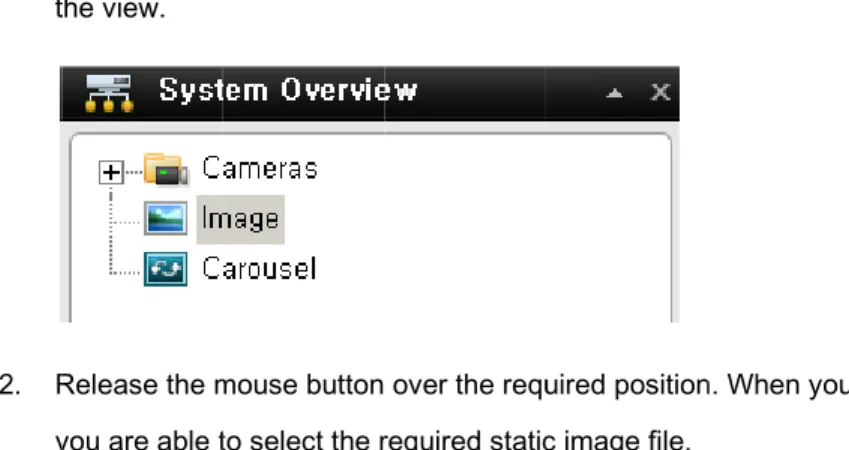
Image item to
n. When you r
osition of navi
in the top righ
logos, for inc
o the required
release the m
igator, timelin
ht corner of th
cluding floor
d position in
mouse button,
ne for playbac
he Smart ck
Page 29
Language Options
In the iPIMS SW, you are often able to select between different language versions.
1. In the Application Options dialog, select the Language tab, then the required language. 2. The SW must be restarted in order for the change to take effect: Close your SW, then log in
again to use the new language version.
Application Options
The Options dialog's Application tab lets you customize the general behavior and look of your SW.
Information: display the version of iPIMS SW.
Application minimization: If you select Minimized button the SW will be positioned on window task bar as icon.
Application maximization: Select how the SW should react when you click the Maximize button in the top right corner. If you select Maximize to full screen, the SW will cover any Windows task bar on your screen when maximized. Quit: stop to run the iPIMS SW.
Page 30 You view live video on the iPIMS Live tab. When you select the iPIMS Live tab, the SW will connect to the surveillance system server, and display live images from the cameras in the selected view.
Tip: The SW supports use of multiple windows. This is
especially useful if your computer has more than one physical display attached.
Live Video Is Not Necessarily Recorded
Even though you can see live video from a given camera, the video stream from the camera is not necessarily being recorded.
This is actually one of the benefits of an IP-based digital surveillance system: Unlike old-style analog surveillance systems, where everything was usually recorded on a tape regardless whether it was relevant or not, an IP-based digital surveillance system allows much more targeted recording. Targeted recording frees security personnel, investigators, etc. from having to go through seemingly endless amounts of recordings in order to find a particular incident. Instead, the reduced amount of recordings..
Basically, live video streams from cameras pass through the surveillance system server. When required, the video stream is saved (recorded) on the server; when not required, the video stream is simply discarded. Video streams are typically saved on the server (recorded) either
z According to a schedule (example: every morning from 10.00 to 11.30) - or/and -
z Whenever the surveillance system detects special events (examples: motion generated by a person entering a room; a sensor registering that a window is being opened; input from users).
The surveillance system server’s recording settings are determined by your surveillance system administrator. However, as a iPIMS SW user, you can also start recording while viewing live video.
Page 31
Tip: When viewing live video on the iPIMS Live tab, you can quickly verify whether the video stream from a camera is being recorded: Look at the yellow bar immediately above the camera’s images. If the video stream from the camera is being recorded, the bar will display Rec. Note that you may occasionally see the Recording letters for short periods only. This is because cameras may have been configured to record only when there is motion, when a door is open, or similar, which can lead to many short periods of recordings.
Views and their Content
Selecting a view
You are basically able to select a view for display on the Live tab as below.
Selecting the required view in the Live tab’s Views pane:
You can (provided you have the necessary user rights) start recording while viewing live video. See page 61 for more information.
Camera Names and Colored Indicators
The bar d connected
Each bar being reco
Live indica camera
Recording
isplays the na d.
will display L
orded.
ator (flashing
g indicator (so
ame of the ca
ive when live
green
olid yell
P amera as well
images are d
): Changes st
ow): display w
age 32 l as the name
displayed, Re
tate every tim
when the dev
e of the device
ec if video from
me a new imag
vice is under r
e to which the
m the camera
ge is received
recording mod
e camera is
a in question i
d from the
de.
Page 33
Carousel Positions
A carousel is used for displaying images from several cameras, one after the other, in a single view position.
If a position in one of your views contains a carousel, you will be able to recognize it by the following characteristics:
z It displays images from different cameras, one after the other z It is marked as Carousel at position
You can enlarge a carousel by double-clicking the carousel position.
Enlarging Camera Positions
To enlarge images from a particular camera in a view, double-click the camera position. To return to normal view, simply double-click the blue image bar again.
Recording for IP camera
Create
To create 1. G 2. S
3. C 4. S b 5. S * d H 6. C 7. A 8. S O O 9. S W D d 10. C
the stora
folder for rec Go to recordin Select ‘Storag
Click ‘Browse’ Select a folder by explore. Set volume siz
Maximum vol determined by HDD driver. Click ‘Add’ but A folder will be Select the reco Once: stop rec Overwrite: ove Select time sy Wait : wait for Delete : delete during recordi
Click ‘Apply’ b
age folder
cording Storag ng item on con ge’ item.
button. r or create ne
ze of the folde lume size will y free space o
tton
e listed on Le ording mode cording when erwrite the da ync mode.
recording on e overlapped
ng.
button to com
P
for record
ge. nfiguration pa ew folder er. l be of physicalft top window
n the space is ata from oldes
HDD when t data when th
plete create s
age 34
ding.
ane of setup t
w.
not enough f st recording d
he time is diff he time is diffe
storage folder tab.
for recording. ata when the
fer from PC a er from PC an
r.
space is full.
and surveillan nd surveillanc
ce system. ce system
Create
You can s Set Contin To create
1. C 2. S 3. In
fo 4. C 5. S is
6. C 7. R
8. C 9. G Set motio To create
Schedule
set recording nuous record profile for co Click ‘Schedul Select Add Pro
nput profile na or profile. The Click ‘Continuo Select a came
s needed to re
Click ‘ OK’ but Right click or d
Click ‘Apply’ b Go to live view
n recording p profile for mo
e profile
parameter as ing profile. ontinuous reco
le’ item on Co ofile
ame and sele e color must b
ous’ item. era from each
ecording.
tton.
dragging of m
button to comp w and check w profile.
otion recordin
P s Profile for re
ording onfiguration p
ect a color be identified.
h device that
mouse at the a
plete the reco whether REC
ng
age 35 ecording.
pane.
area of time ta
ording setup. icon is
able that are
displayed on
needed to ap
n view.
1. C p 2. S 3. In
p 4. C 5. S th 6. S
o 7. S m 8. S 9. C 10. R
11. C 12. G
Set Alarm To create 1. C p 2. S 3. In
p 4. C
Click ‘Schedul pane.
Select Add Pro nput profile na profile. The co Click ‘motion’ Select a came hat is needed Select areas b of mouse. Select proper motion.(10: low Set Pre/Post r Click ‘ OK’ but Right click or d
Click ‘Apply’ b Go to live view
m in recording profile for Ala Click ‘Schedul pane.
Select Add Pro nput profile na profile. The co Click ‘Alarm In
le’ item on Co
ofile
ame and sele olor must be id
item. era from each d to recording by right click o
Sensitivity of west ~100: hi recording dura
tton
dragging of m
button to comp w and check w
profile. arm in record le’ item on Co
ofile
ame and sele olor must be id n’ item.
P onfiguration
ect a color for dentified. h device . or dragging ighest) ation.
mouse at the a
plete the reco whether REC
ing
onfiguration
ect a color for dentified.
age 36 area of time ta
ording setup. icon is
able that are
displayed on
needed to ap
n view.
5. S 6. S 7. S 8. C 9. R
10. C 11. G Set Recor You can s the data s If you set To set rec 1. C C 2. S 3. S 4. C
Select an Alar Select a came Set Pre/Post r Click ‘Ok’ butto Right click or d
Click ‘Apply’ b Go to live view
rding quality f set alternation same as netw
recording qua cording quality Click ‘Schedul Configuration Select one of Select ‘Edit Pr Click ‘Recordi
rm device from era that need recording dura
on.
dragging of m
button to comp w and check w for recording. n recording qu work stream.
ality of profile y.
le’ item on pane profile on list rofile’
ng Quality’ ite
P m device list. to be recordin ation
mouse at the a
plete the reco whether REC
uality for each
e, the SW will
em.
age 37 ng
area of time ta
ording setup. icon is
h profile. If yo
re code the n
able that are
displayed on
ou don’t’ selec
network strea
needed to ap
n view.
ct this. iPIMS
m as configu
pply the profile
SW will recor
red quality. e.
5. S 6. C F 7. C 8. P c
Set Audio You can r To set Au 1. C C 2. S 3. S 4. C 5. S d 6. C 7. P
Hand
Your SW Events re
Select a came Configure item Frame Rate… Click ‘Ok’ butto Press ‘Apply’ b configuration.
o recording. record Audio d
dio recording Click ‘Schedul Configuration Select one of Select ‘Edit Pr Click ‘Audio’ it Select an Aud device list that Click ‘ Ok’ butt Press ‘Apply’ b
ling Sou
may have be lated to one o
era from each ms(Codec, Re …etc)
on.
button to app
data with ima g.
le’ item on pane profile on list rofile’ tem.
io items from t need to be r ton.
button to app
und Not
een configured or more speci
P h device that is esolution,
ly
age from IP ca
m
recording.
ly configuratio
tification
d to notify you ific cameras o
age 38 s needed to r
amera.
on.
ns
u with a sound occur
recording.
Page 39
Audio (Microphones)
The SW supports incoming audio: From the SW you can listen to live recordings from microphones attached to cameras.
You handle audio in the Live tab’s Audio pane.
Listening
To listen to live audio, select the required microphone from the Audio In list.
Audio when Camera is in Playback Mode
If the selected camera is in playback mode, you will hear any recorded audio from that camera's default microphone and, if supported, speaker. The Live tab's Audio pane will in that case have no function.
Page 40
Digital Zoom
The right clicks of mouse lets you use digital zoom on images from any camera displayed in the view. Your use of digital zoom will not affect any recording of the images; any recording will still take place in the camera’s regular format. If you later wish to browse the recordings, you can use digital zoom with same action (mouse right click).
Digital Zoom Features
When digital zoom is enabled, you will see a Zoom ratio in the top right corner of each of the view’s camera positions. Once you zoom in on an area of an image, you can move the other area by simply dragging of mouse.
Zoom with Mouse Wheel
you are able to zoom in and out using the scroll wheel on your mouse, provided your mouse is equipped with a scroll wheel.
Change the zoom ratio up to 10x by mouse wheel scroll.
Page 41
Using PTZ
If your views contain PTZ (Pan/Tilt/Zoom) cameras, you can control the PTZ cameras with the Live tab’s PTZ Control pane.
PTZ Navigation Buttons
Use the navigation buttons in the PTZ Control pane to move the selected PTZ camera.
The Arrow buttons let you move the position of camera view. The item of ‘ZOOM’, ‘FOCUS’ and ‘Iris’ let user can control the item manually.
POSITION STEP is a distance during Pan/ Tilt works.
PTZ Preset Positions
You can set the preset of PTZ camera from PTZ control panel.
If preset positions have been defined for the selected PTZ camera already, you are able to select such positions.
To set preset.
1. Move the PTZ view point by navigator arrow. 2. Select any number for preset numbering. 3. Press [SET] button to save the position. To run preset.
Page 42 1. Select one of preset number on the list.
2. Press [Goto] button, PTZ camera view will move to predefined position.
Manually Activating Output
If external outputs have been defined on your surveillance system, for example for switching on lights or sounding a siren, such output can be activated from the iPIMS Live tab.
Select the required output in the Alarm Out pane. Then click the Active button
Or user can deactivate the alarm out from the active state of Alarm out by [Inactive] button.
Viewing Recorded Video
You view recorded video on the iPIMS Playback tab.
When you select the Playback tab, the SW will
display recording time table and Playback control panel.
1. S
2. S 3. S
*The time l mouse will
4. T
Views o
Selecting You are a
Select a Playb
Select a devic Select a time
ine can be exp compress the
Then press th
of playbac
a View able to change
back Tab.
ce from the re for starting at
panded up to 5
time line.
he Play icon b
ck
e a view durin
P ecording time
t Play control
minute term w
button.
ng playback a
age 43 table. panel or sele
when left click o
as select a vie
ect a start poi
of mouse on tim
ew icon.
nt from recor
me label. Right
ding table.
Video P
Timeline B The timeli your curre The numb Cameras periods w cameras c the view To browse mouse rigPlayback
Browser ine browser d ent view.ber of timeline with an audio with video reco can be displa
e recordings ght or left with
Features
displays an ov
es displayed i o device attac ordings and a ayed with aud
using the time hout releasing
P verview of per
n the timeline ched are repre a timeline disp
io timelines. I
eline browser g the mouse b
age 44 riods with rec
e browser refl esented by a playing period f 16 cameras
r, click inside button or just
cordings from
ects the num double timeli ds with audio s with associa
the timeline b click it
each devices
mber of camer ine: a timeline
recordings. U ated audio are
browser, and
s displayed in
as of device. e displaying Up to 16
e included in
move your n
Orange : Purple : R Blue : Rec Green : R Gray : Re
Tip: You c
. Position the defaul you can c
The Playb browsing Recording pe Recording per cording period Recording per ecording perio
can quickly ch
of the Timelin lt position of t change the po
back tab’s Tim and playing b
eriod with con riod with Alarm
d with motion iod with pre b od with Audio.
hange the tim
ne Browser timeline for re osition as vert
me Navigation back recorded P tinuous m detection. n buffered recor . meline browse ecording data tical view at o
Ti n pane provid d image from
age 45 rding period.
r’s time span
is bottom of v option menu.
ime Navigatio des you with c each device.
by pressing t
view. But
on controls for
Page 46
The area in the upper part of the Time Navigation pane shows the time and date of the recordings viewed.
Browse Buttons.
The Time Navigation pane’s brows buttons lets you manually navigate through recordings from the devices (DVR/ IP camera data on PC server).
From the left to right on browse buttons.
First image : move to the first image in the data base for selected device Previous image: move to the image just before the one currently viewed. Play Reverse: Playback recordings backwards in time.
Stop: stop / pause to playback the image. Forward: playback recording forward in time.
Next image: move to the image just next the one currently viewed. Last image: move to the last image in the data base for selected device.
Speed controller of playback
You can slide the indicator to control the speed of playback during play the image.
Page 47 Digital Zoom
Just like on the live view, the right clicks of mouse lets you use digital zoom on images from any camera displayed during playback.
Your use of digital zoom will not affect any recording of the images; any recording will still take place in the camera’s regular format.
What is the difference between optical and digital zoom?
With optical zoom, a camera’s lens elements physically move to provide the required angle of view. You cannot use optical zoom when viewing recorded video, simply because you cannot move the camera’s lens retroactively. With digital zoom, the required portion of an image is enlarged by cropping the image and then resizing it back to the pixel size of the original image—a process called interpolation. Digital zoom thus simulates optical zoom, but the digitally zoomed portion will have a lower quality than the original image. Digital zoom works equally well on live and recorded video.
Exporting Single Images
You are able to export single still images from selected cameras. Exported images can then be saved (as bitmap/Jpg/Png images) into PC, You can only export a single image from a single camera at a time.
Page 48 To export:
1. Select the required view.
2. Right-click inside the required camera position; you now get access to the menu. 3. In the menu, select ‘snapshot’. You can now export the file as image.
Printing Evidence
In playback screen, you are able to print recorded images.
Select the required camera in the view. Right-click inside the required camera position. In the menu, select ‘Print’, you can print the image on local or network print
Exporting in AVI and Still image
Select the iPIMS Playback tab.
In the Playback tab’s Backup pane, specify when the period to be covered by the export should start. You do this by typing the
Page 49
required date in the first Start Time field and the time in the second field. In the End Time fields, specify end date and time for the backup
Select the required camera from the camera list. You must select an individual camera from the list
Click the Backup button. This will open a separate Backup dialong, the dialog will list the specified start time, end time, and camera.
Only relevant if you are going to backup in AVI format: If the selected camera has a microphone attached—and the surveillance system supports audio—audio from speakers attached to the selected camera is included in the export as well. If you do not want to backup audio, select Video only option.
In the dialog’s backup setting pane, select the required backup format: AVI or still image.
Selected required Codec and quality for AVI format.
Select format of still image when you want to backup as still image.
Select OSD option for AVI and Still image, when you select this option the backup file includes this OSD text data also.
Specify export destination in the backup dialog’s Destination section. Desktop : If you select Desktop, your backup file will be saved in an automatically Created Backup folder on the desktop of your PC.
Local Path : If you select local Path, you are able to specify a path yourself. The backup file will be saved in the path you specify.
You can also select the path on network shared folder in company. Media : If you select media, you are able to backup the file on DVD of PC.
Click the S backup di
Freque
FAQ: Can able to incl include aud
Full S
To view y Screen bu
In full scre located in Full scree tab. To leave f click of mo
Using
The
Start backup alog will disp
ently Aske
I export audio ude audio reco dio.
Screen V
our iPIMS in utton near the
een mode, the the left side en mode is av
full screen mo ouse..
g Multip
Erase button
button to beg lay the status
ed Questio
too? When bac orded by micro
Viewing
full screen mo e middle of the
e SW is displa of the iPIMS, vailable when
ode and retur
le Wind
P allow to rewr
gin the backup s of the backu
ons about
ckup in the AV phones in the
g
ode, click the e iPIIMS top
ayed without and without a
using the Liv
rn to normal m
dows
age 50 rite on rewrita
p procedure. up:
t Exporting
I. you are—wh backup.. When
e Full bar.
the top bar, w any Windows ve and Playba
mode, press E
able media
The status ba
g
en the surveilla n backup in the
without any of s taskbar. ack tabs, but n
ESC or select
ar in the uppe
ance system su e JPEG format,
f the panes n
not when usin
t restore scree
er part of the
upports audio— you cannot
ormally
ng the Setup
en after right —
The iPIMS one physi You can s
Sendin
Sending a display (if
The other features, a
To send a 1. In ri a O b 2. In th
Sendin
S supports us cal display at send live view
ng a View
a view to a Se f available).
r physical disp and it can on
a view to a Se n the Live or P ight-click the a menu.
Or select the m bar.
n the menu, s hey will be nu
ng a chann
se of multiple ttached. ws to separate
to Secon
econdary Disp
play will only s ly show one v
econdary Disp Playback tab’ required view
multi monitor
select Multi M umbered.
nel to a F
P windows. Th
e displays from
dary Disp
play will show
show the sele view at a time
play, do the fo ’s Views pane w. This will bri
icon on Top
Monitor > Disp
loating W
age 51 is is especiall
m the iPIMS’s
play
w the view in a
ected view, no e.
ollowing: e,
ng up
lay2. If more
Window
ly useful if yo
s View pane i
a full-screen w
one of the Liv
than one sec
ur computer h
in Live tab.
window on an
ve or Playbac
condary displa
has more tha
nother physica
ck tab’s other
ay is available n
al
Page 52
Sending a channel to a Floating Window will show the camera in a small separate window on your main display.
The illustration to the right provides an example of a channel sent to a floating window. Note that the main iPIMS window is immediately available behind the floating window.
The floating window will only show the
selected camera. You can use any number of floating windows.
You are able to change the size of a floating window to suit your needs. To send a channel to a Floating Window, do the following:
1. In the Views pane, right-click the required channel. This will bring up a menu.
2. In the menu, select Float View.
Closing Separate Windows
To close a separate view window,
When it is shown on the Primary Display, as a floating window simply click the Close button in the right corner of the windows.
Or on a se
Loggi
To log out top bar.
Remo
To remov
1. In Wind uninstall P 2. In the u
econdary disp
ing Out
t of the iPIMS
oving th
e the Smart C
dows’ start me Programs win uninstall Prog
play, select th
S SW, simply
he iPIMS
Client, do the
enu, select A ndow.
rams window
P he Close butto
click the Log
S SW fr
following:
ll SW, and se
w, select unins
age 53 on after right
Out button in
rom PC.
elect Uninstall
stall button.
click of mous
n the iPIMS
.
in IPIMS fold
se on separate
der. This will o
e window.