Altiris™ Patch Management
Solution for Windows 7.1
from Symantec™ Release
Notes
Altiris™ Patch Management Solution for Windows 7.1
from Symantec™ Release Notes
The software described in this book is furnished under a license agreement and may be used only in accordance with the terms of the agreement.
Legal Notice
Copyright © 2011 Symantec Corporation. All rights reserved.
Symantec and the Symantec Logo, Altiris, and any Altiris or Symantec trademarks used in the product are trademarks or registered trademarks of Symantec Corporation or its affiliates in the U.S. and other countries. Other names may be trademarks of their respective owners. The product described in this document is distributed under licenses restricting its use, copying, distribution, and decompilation/reverse engineering. No part of this document may be reproduced in any form by any means without prior written authorization of Symantec Corporation and its licensors, if any.
THE DOCUMENTATION IS PROVIDED "AS IS" AND ALL EXPRESS OR IMPLIED CONDITIONS, REPRESENTATIONS AND WARRANTIES, INCLUDING ANY IMPLIED WARRANTY OF MERCHANTABILITY, FITNESS FOR A PARTICULAR PURPOSE OR NON-INFRINGEMENT, ARE DISCLAIMED, EXCEPT TO THE EXTENT THAT SUCH DISCLAIMERS ARE HELD TO BE LEGALLY INVALID. SYMANTEC CORPORATION SHALL NOT BE LIABLE FOR INCIDENTAL OR CONSEQUENTIAL DAMAGES IN CONNECTION WITH THE FURNISHING,
PERFORMANCE, OR USE OF THIS DOCUMENTATION. THE INFORMATION CONTAINED IN THIS DOCUMENTATION IS SUBJECT TO CHANGE WITHOUT NOTICE.
Symantec Corporation 350 Ellis Street
Mountain View, CA 94043 http://www.symantec.com
Altiris™ Patch Management
Solution for Windows 7.1
from Symantec™ Release
Notes
This document includes the following topics:
■ About Altiris Patch Management Solution for Windows
■ What's new in Patch Management Solution for Windows 7.1
■ General installation and upgrade information
■ System requirements
■ Platforms supported by Patch Management Solution for Windows
■ Known issues
■ Fixed issues
■ Other things to know
■ Documentation that is installed
■ Other information
About Altiris Patch Management Solution for Windows
Altiris™ Patch Management Solution for Windows from Symantec™ lets you scan computers for security vulnerabilities, report on the findings, and automate thedownloading and distribution of required Microsoft and Adobe security patches. You can review and download specific patches from Microsoft and Adobe, create collections of computers that require a specific patch, and apply the patch to the computers that need it.
Patch Management Solution for Windows helps you automate the installation of updates for the following Adobe products:
■ Adobe Reader for Windows 7.x, 8.x, and 9.x
■ Adobe Acrobat Professional and Standard for Windows 9.x ■ Adobe Flash Player for Windows 9.x and 10.x
No separate license for Adobe is required. The functionality of the Adobe update process is the same as for Microsoft updates.
Patch Management Solution for Windows is a component of Patch Management Solution 7.1. When you install Patch Management Solution using Symantec Installation Manager, the following components are installed:
■ Patch Management Solution for Windows ■ Patch Management Solution for Linux ■ Patch Management Solution for Mac
Patch Management Solution 7.1 is part of the following suites: ■ Altiris™ Client Management Suite from Symantec
■ Altiris™ Server Management Suite from Symantec ■ Altiris™ IT Management Suite from Symantec
What's new in Patch Management Solution for
Windows 7.1
In the 7.1 release of Patch Management Solution, the following new features are introduced:
■ The Software Management Solution Plug-in can be installed on 64-bit operating systems.
■ The solution supports standard hierarchy editable properties.
This feature lets you define which settings of replicated policies can be modified by the child Notification Server administrators.
■ Hierarchy improvements.
Improved performance of hierarchy-related reports. Policies are now using native Notification Server replication rules.
Altiris™ Patch Management Solution for Windows 7.1 from Symantec™ Release Notes What's new in Patch Management Solution for Windows 7.1
General installation and upgrade information
You install this product by using the Symantec Installation Manager. You can download the installation files directly to your server or you can create offline installation packages.
For more information, see the IT Management Suite Implementation Guide at
http://www.symantec.com/docs/DOC3464.
For more information about migrating from 6.x and 7.0 to 7.1, see the following documentation resources:
■ IT Management Suite Migration Guide version 6.x to 7.1 at
http://www.symantec.com/docs/DOC3549
■ IT Management Suite Migration Guide version 7.0 to 7.1 at
http://www.symantec.com/docs/DOC3550
System requirements
Patch Management Solution for Windows requires the following: ■ Symantec Management Platform 7.1.
Platforms supported by Patch Management Solution
for Windows
The Patch Management Solution for Windows component of Patch Management Solution supports the following operating systems:
■ Windows XP SP2 and later, 32-bit and 64-bit. ■ Windows Vista SP1 and later, 32-bit and 64-bit. ■ Windows 7, 32-bit and 64-bit.
■ Windows Server 2003 SP2 and later, 2003 R2 SP2 and later, 32-bit and 64-bit. ■ Windows Server 2008 32-bit and 64-bit, 2008 Core, 2008 R2, 2008 R2 Core. ■ Windows Hyper-V Server 2008.
Known issues
The following are known issues for this release. If additional information about an issue is available, the issue has a corresponding Article link.
5 Altiris™ Patch Management Solution for Windows 7.1 from Symantec™ Release Notes
For the most up-to-date information, latest workarounds, and other technical support information about this solution, see theTechnical Support knowledge base.
The known issues are separated into the following groups: ■ Installation and upgrade issues
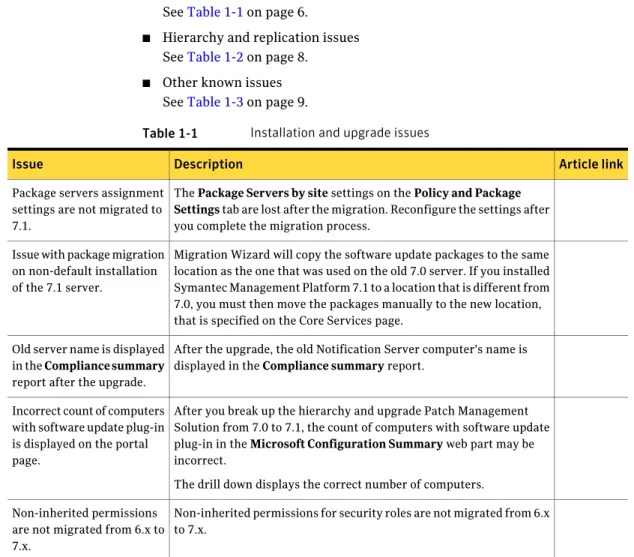
SeeTable 1-1on page 6.
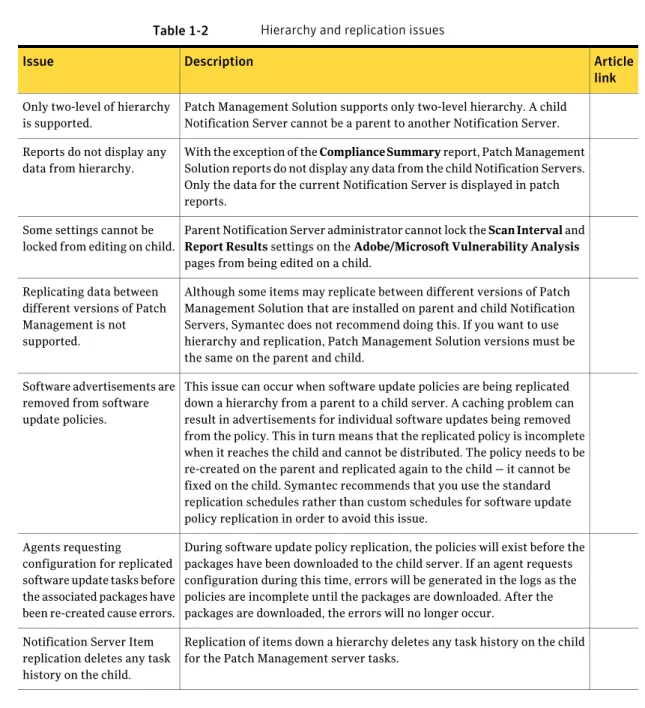
■ Hierarchy and replication issues SeeTable 1-2on page 8.
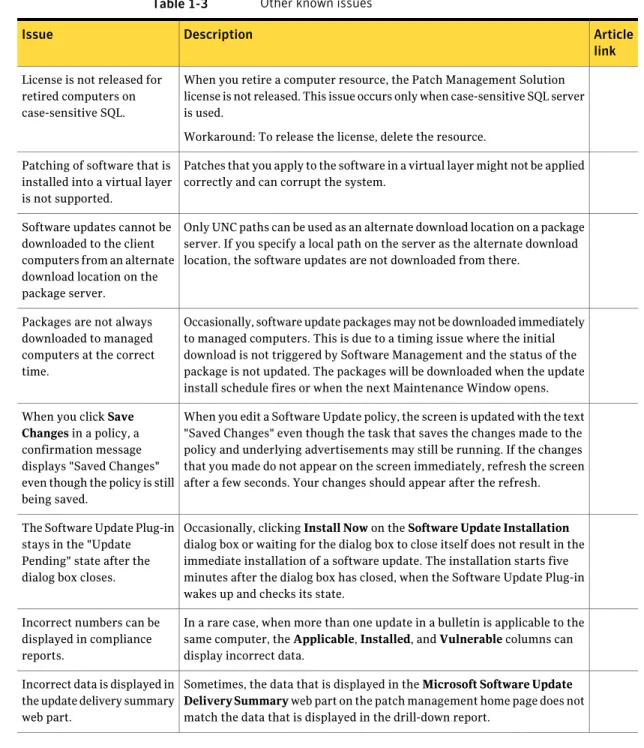
■ Other known issues SeeTable 1-3on page 9.
Table 1-1 Installation and upgrade issues
Article link Description
Issue
The Package Servers by site settings on the Policy and Package
Settings tab are lost after the migration. Reconfigure the settings after
you complete the migration process. Package servers assignment
settings are not migrated to 7.1.
Migration Wizard will copy the software update packages to the same location as the one that was used on the old 7.0 server. If you installed Symantec Management Platform 7.1 to a location that is different from 7.0, you must then move the packages manually to the new location, that is specified on the Core Services page.
Issue with package migration on non-default installation of the 7.1 server.
After the upgrade, the old Notification Server computer's name is displayed in the Compliance summary report.
Old server name is displayed in the Compliance summary report after the upgrade.
After you break up the hierarchy and upgrade Patch Management Solution from 7.0 to 7.1, the count of computers with software update plug-in in the Microsoft Configuration Summary web part may be incorrect.
The drill down displays the correct number of computers. Incorrect count of computers
with software update plug-in is displayed on the portal page.
Non-inherited permissions for security roles are not migrated from 6.x to 7.x.
Non-inherited permissions are not migrated from 6.x to 7.x.
Altiris™ Patch Management Solution for Windows 7.1 from Symantec™ Release Notes Known issues
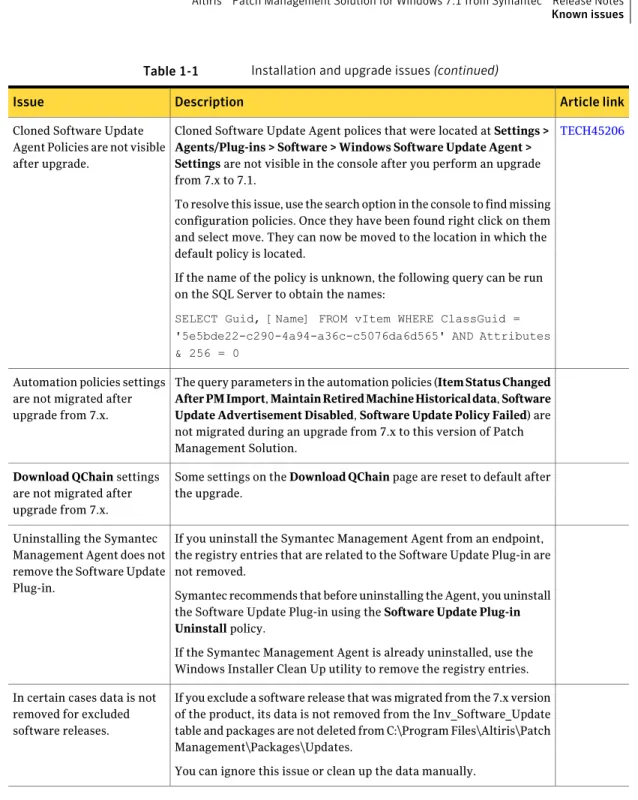
Table 1-1 Installation and upgrade issues (continued)
Article link Description
Issue
TECH45206 Cloned Software Update Agent polices that were located at Settings >
Agents/Plug-ins > Software > Windows Software Update Agent > Settings are not visible in the console after you perform an upgrade
from 7.x to 7.1.
To resolve this issue, use the search option in the console to find missing configuration policies. Once they have been found right click on them and select move. They can now be moved to the location in which the default policy is located.
If the name of the policy is unknown, the following query can be run on the SQL Server to obtain the names:
SELECT Guid, [Name] FROM vItem WHERE ClassGuid = '5e5bde22-c290-4a94-a36c-c5076da6d565' AND Attributes & 256 = 0
Cloned Software Update Agent Policies are not visible after upgrade.
The query parameters in the automation policies (Item Status Changed
After PM Import, Maintain Retired Machine Historical data, Software Update Advertisement Disabled, Software Update Policy Failed) are
not migrated during an upgrade from 7.x to this version of Patch Management Solution.
Automation policies settings are not migrated after upgrade from 7.x.
Some settings on the Download QChain page are reset to default after the upgrade.
Download QChain settings
are not migrated after upgrade from 7.x.
If you uninstall the Symantec Management Agent from an endpoint, the registry entries that are related to the Software Update Plug-in are not removed.
Symantec recommends that before uninstalling the Agent, you uninstall the Software Update Plug-in using the Software Update Plug-in
Uninstall policy.
If the Symantec Management Agent is already uninstalled, use the Windows Installer Clean Up utility to remove the registry entries. Uninstalling the Symantec
Management Agent does not remove the Software Update Plug-in.
If you exclude a software release that was migrated from the 7.x version of the product, its data is not removed from the Inv_Software_Update table and packages are not deleted from C:\Program Files\Altiris\Patch Management\Packages\Updates.
You can ignore this issue or clean up the data manually. In certain cases data is not
removed for excluded software releases.
7 Altiris™ Patch Management Solution for Windows 7.1 from Symantec™ Release Notes
Table 1-2 Hierarchy and replication issues
Article link Description
Issue
Patch Management Solution supports only two-level hierarchy. A child Notification Server cannot be a parent to another Notification Server. Only two-level of hierarchy
is supported.
With the exception of the Compliance Summary report, Patch Management Solution reports do not display any data from the child Notification Servers. Only the data for the current Notification Server is displayed in patch reports.
Reports do not display any data from hierarchy.
Parent Notification Server administrator cannot lock the Scan Interval and
Report Results settings on the Adobe/Microsoft Vulnerability Analysis
pages from being edited on a child. Some settings cannot be
locked from editing on child.
Although some items may replicate between different versions of Patch Management Solution that are installed on parent and child Notification Servers, Symantec does not recommend doing this. If you want to use hierarchy and replication, Patch Management Solution versions must be the same on the parent and child.
Replicating data between different versions of Patch Management is not supported.
This issue can occur when software update policies are being replicated down a hierarchy from a parent to a child server. A caching problem can result in advertisements for individual software updates being removed from the policy. This in turn means that the replicated policy is incomplete when it reaches the child and cannot be distributed. The policy needs to be re-created on the parent and replicated again to the child — it cannot be fixed on the child. Symantec recommends that you use the standard replication schedules rather than custom schedules for software update policy replication in order to avoid this issue.
Software advertisements are removed from software update policies.
During software update policy replication, the policies will exist before the packages have been downloaded to the child server. If an agent requests configuration during this time, errors will be generated in the logs as the policies are incomplete until the packages are downloaded. After the packages are downloaded, the errors will no longer occur.
Agents requesting
configuration for replicated software update tasks before the associated packages have been re-created cause errors.
Replication of items down a hierarchy deletes any task history on the child for the Patch Management server tasks.
Notification Server Item replication deletes any task history on the child.
Altiris™ Patch Management Solution for Windows 7.1 from Symantec™ Release Notes Known issues
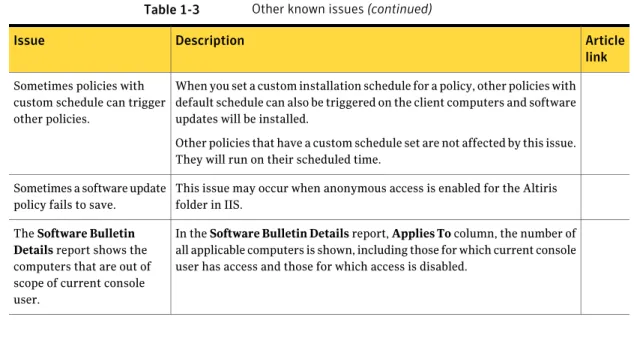
Table 1-3 Other known issues
Article link Description
Issue
When you retire a computer resource, the Patch Management Solution license is not released. This issue occurs only when case-sensitive SQL server is used.
Workaround: To release the license, delete the resource. License is not released for
retired computers on case-sensitive SQL.
Patches that you apply to the software in a virtual layer might not be applied correctly and can corrupt the system.
Patching of software that is installed into a virtual layer is not supported.
Only UNC paths can be used as an alternate download location on a package server. If you specify a local path on the server as the alternate download location, the software updates are not downloaded from there.
Software updates cannot be downloaded to the client computers from an alternate download location on the package server.
Occasionally, software update packages may not be downloaded immediately to managed computers. This is due to a timing issue where the initial download is not triggered by Software Management and the status of the package is not updated. The packages will be downloaded when the update install schedule fires or when the next Maintenance Window opens. Packages are not always
downloaded to managed computers at the correct time.
When you edit a Software Update policy, the screen is updated with the text "Saved Changes" even though the task that saves the changes made to the policy and underlying advertisements may still be running. If the changes that you made do not appear on the screen immediately, refresh the screen after a few seconds. Your changes should appear after the refresh. When you click Save
Changes in a policy, a
confirmation message displays "Saved Changes" even though the policy is still being saved.
Occasionally, clicking Install Now on the Software Update Installation dialog box or waiting for the dialog box to close itself does not result in the immediate installation of a software update. The installation starts five minutes after the dialog box has closed, when the Software Update Plug-in wakes up and checks its state.
The Software Update Plug-in stays in the "Update Pending" state after the dialog box closes.
In a rare case, when more than one update in a bulletin is applicable to the same computer, the Applicable, Installed, and Vulnerable columns can display incorrect data.
Incorrect numbers can be displayed in compliance reports.
Sometimes, the data that is displayed in the Microsoft Software Update
Delivery Summary web part on the patch management home page does not
match the data that is displayed in the drill-down report. Incorrect data is displayed in
the update delivery summary web part.
9 Altiris™ Patch Management Solution for Windows 7.1 from Symantec™ Release Notes
Table 1-3 Other known issues (continued)
Article link Description
Issue
When you set a custom installation schedule for a policy, other policies with default schedule can also be triggered on the client computers and software updates will be installed.
Other policies that have a custom schedule set are not affected by this issue. They will run on their scheduled time.
Sometimes policies with custom schedule can trigger other policies.
This issue may occur when anonymous access is enabled for the Altiris folder in IIS.
Sometimes a software update policy fails to save.
In the Software Bulletin Details report, Applies To column, the number of all applicable computers is shown, including those for which current console user has access and those for which access is disabled.
The Software Bulletin
Details report shows the
computers that are out of scope of current console user.
Fixed issues
The following are the previous issues that were fixed in this release. If additional information about an issue is available, the issue has a corresponding Article link.
Table 1-4 Fixed issues
Article link Description
Issue
When you migrate data from Patch Management Solution 6.x to 7.x, the following Microsoft settings are not migrated:
Generaltab (Software Update Optionstab in 7.x):
■ Schedule
Programstab (Programs tab in 7.x):
■ Run with rights
■ Terminate after
■ Send status events
Advancedtab (Policy and Package Settings tabin 7.x):
■ Delete packages after
■ Allow Package Server distribution
Certain Microsoft settings are not migrated from 6.x to 7.x.
Altiris™ Patch Management Solution for Windows 7.1 from Symantec™ Release Notes Fixed issues
Table 1-4 Fixed issues (continued)
Article link Description
Issue
The Software Update Package Location and Download from staging location settings on the Core Services pages are not migrated and set to their default values. You can customize the settings after the upgrade.
Core Services page settings
not migrated after upgrade from 7.x.
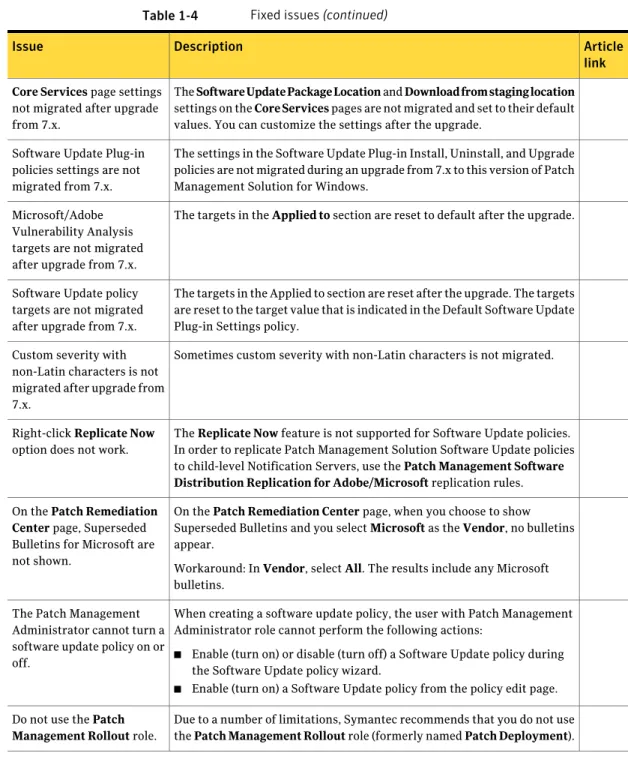
The settings in the Software Update Plug-in Install, Uninstall, and Upgrade policies are not migrated during an upgrade from 7.x to this version of Patch Management Solution for Windows.
Software Update Plug-in policies settings are not migrated from 7.x.
The targets in the Applied to section are reset to default after the upgrade. Microsoft/Adobe
Vulnerability Analysis targets are not migrated after upgrade from 7.x.
The targets in the Applied to section are reset after the upgrade. The targets are reset to the target value that is indicated in the Default Software Update Plug-in Settings policy.
Software Update policy targets are not migrated after upgrade from 7.x.
Sometimes custom severity with non-Latin characters is not migrated. Custom severity with
non-Latin characters is not migrated after upgrade from 7.x.
The Replicate Now feature is not supported for Software Update policies. In order to replicate Patch Management Solution Software Update policies to child-level Notification Servers, use the Patch Management Software
Distribution Replication for Adobe/Microsoft replication rules.
Right-click Replicate Now option does not work.
On the Patch Remediation Center page, when you choose to show Superseded Bulletins and you select Microsoft as the Vendor, no bulletins appear.
Workaround: In Vendor, select All. The results include any Microsoft bulletins.
On the Patch Remediation
Center page, Superseded
Bulletins for Microsoft are not shown.
When creating a software update policy, the user with Patch Management Administrator role cannot perform the following actions:
■ Enable (turn on) or disable (turn off) a Software Update policy during the Software Update policy wizard.
■ Enable (turn on) a Software Update policy from the policy edit page. The Patch Management
Administrator cannot turn a software update policy on or off.
Due to a number of limitations, Symantec recommends that you do not use the Patch Management Rollout role (formerly named Patch Deployment). Do not use the Patch
Management Rollout role.
11 Altiris™ Patch Management Solution for Windows 7.1 from Symantec™ Release Notes
Table 1-4 Fixed issues (continued)
Article link Description
Issue
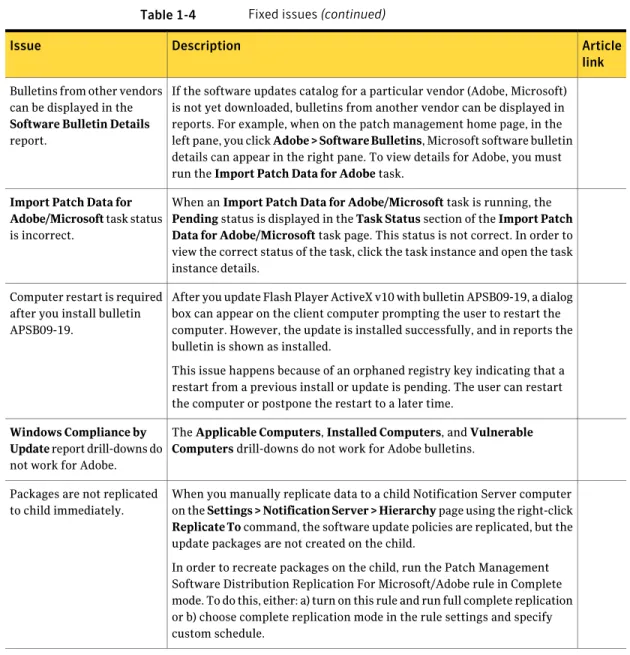
If the software updates catalog for a particular vendor (Adobe, Microsoft) is not yet downloaded, bulletins from another vendor can be displayed in reports. For example, when on the patch management home page, in the left pane, you click Adobe > Software Bulletins, Microsoft software bulletin details can appear in the right pane. To view details for Adobe, you must run the Import Patch Data for Adobe task.
Bulletins from other vendors can be displayed in the
Software Bulletin Details
report.
When an Import Patch Data for Adobe/Microsoft task is running, the
Pending status is displayed in the Task Status section of the Import Patch Data for Adobe/Microsoft task page. This status is not correct. In order to
view the correct status of the task, click the task instance and open the task instance details.
Import Patch Data for Adobe/Microsoft task status
is incorrect.
After you update Flash Player ActiveX v10 with bulletin APSB09-19, a dialog box can appear on the client computer prompting the user to restart the computer. However, the update is installed successfully, and in reports the bulletin is shown as installed.
This issue happens because of an orphaned registry key indicating that a restart from a previous install or update is pending. The user can restart the computer or postpone the restart to a later time.
Computer restart is required after you install bulletin APSB09-19.
The Applicable Computers, Installed Computers, and Vulnerable
Computers drill-downs do not work for Adobe bulletins. Windows Compliance by
Update report drill-downs do
not work for Adobe.
When you manually replicate data to a child Notification Server computer on the Settings > Notification Server > Hierarchy page using the right-click
Replicate To command, the software update policies are replicated, but the
update packages are not created on the child.
In order to recreate packages on the child, run the Patch Management Software Distribution Replication For Microsoft/Adobe rule in Complete mode. To do this, either: a) turn on this rule and run full complete replication or b) choose complete replication mode in the rule settings and specify custom schedule.
Packages are not replicated to child immediately.
Other things to know
The following are things to know about this release. If additional information about an issue is available, the issue has a corresponding Article link. Altiris™ Patch Management Solution for Windows 7.1 from Symantec™ Release Notes
Other things to know 12
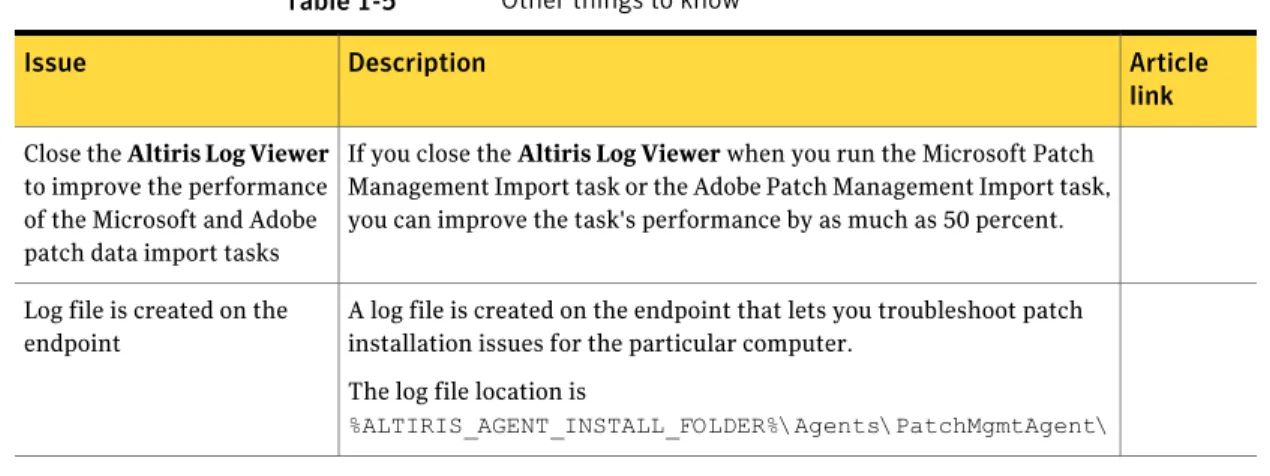
Table 1-5 Other things to know
Article link Description
Issue
If you close the Altiris Log Viewer when you run the Microsoft Patch Management Import task or the Adobe Patch Management Import task, you can improve the task's performance by as much as 50 percent. Close the Altiris Log Viewer
to improve the performance of the Microsoft and Adobe patch data import tasks
A log file is created on the endpoint that lets you troubleshoot patch installation issues for the particular computer.
The log file location is
%ALTIRIS_AGENT_INSTALL_FOLDER%\Agents\PatchMgmtAgent\
Log file is created on the endpoint
Documentation that is installed
Table 1-6 Documentation that is included into the product installation
Location Description
Document
The Documentation Library, which is available in the Symantec Management Console on the Help menu.
Context-sensitive help is available for most screens in the Symantec Management Console.
You can open context-sensitive help in the following ways:
■ The F1 key when the page is active.
■ The Context command, which is available in the Symantec Management Console on the Help menu.
Information about how to use this product.
Help is available at the solution level and at the suite level.
This information is available in HTML help format.
Help
■ The Documentation Library, which is available in the Symantec
Management Console on the Help menu.
The Documentation Library provides a link to the PDF User Guide on the Symantec support Web site.
■ Supported Products page Information about how to use this
product.
This information is available in PDF format.
User Guide
13 Altiris™ Patch Management Solution for Windows 7.1 from Symantec™ Release Notes
Table 1-6 Documentation that is included into the product installation
(continued)
Location Description
Document
Same as above. Information about how to use the
Symantec Management Platform Symantec Management
Platform Help
Other information
Table 1-7 Information resources that you can use to get more information
Location Description
Document
http://www.symantec.com/docs/DOC3464 Information about capacity
recommendations, design models, scenarios, test results, and optimization best practices to consider when planning or customizing ITMS.
ITMS 7.1 Implementation Guide
Symantec Management Platform Documentation page
Information about using the Symantec Management Platform.
Symantec Management Platform User Guide
Symantec Management Platform Documentation page
Information about new features and important issues in the Symantec Management Platform.
Symantec Management Platform Release Notes
http://go.symantec.com/sim_doc Information about using Symantec
Installation Manager to install the Symantec Management Platform products.
Symantec Management Platform Installation Guide
SymWISE support page Articles, incidents, and issues about this
product. Knowledge base
Symantec Connect page An online magazine that contains best
practices, tips, tricks, and articles for users of this product.
Symantec Connect
Altiris™ Patch Management Solution for Windows 7.1 from Symantec™ Release Notes Other information