RE
IZ
EN
RE-435 Amplified Telephone
with Caller ID
™
INTRODUCING RE-435 AMPLIFIED TELEPHONE
• Large, lighted keypad makes it easy for those with low vision
• Powerful adjustable amplifier allows incoming volume up to 43 db
• Super Bright LED Ringer Light allows you to see your phone is
ringing
• Amplified Super Loud Ringer with adjustable volume up to 95 db
• 2-way speakerphone with adjustable volume control
• 100-Entry Memory/Phonebook
• Adjustable Tone Control allows you to adjust the tone of incoming
sound to enhance clarity and to help you distinguish between similar
sounding words
• Amplify / Hold / Voice Mail Waiting / Speakerphone indicators
• Redial / Pause / Flash buttons
• 3 programmable emergency buttons for police, fire & EMS
• Handset is compatible with hearing aids with T-Coil
• 3.5 mm audio jack for a headset, neckloop or other assistive-listening
device
• On-hold music
• Desk or wall-mounted
• Ideal for home or office use
TABLE OF CONTENTS
Contents Check List... Telephone Features...
Installation
Desk/Table Installation... Wall Mount Installation... Setting the Dialing Mode...
Operation
TELEPHONE OPERATION
Making a Call... Answering a Call... Speakerphone... Call Timer... LCD Backlight Display... Placing a Call On Mute... Placing a Call On Hold... Music On Hold... Using Flash... Using Tone Services On a Pulse Line... Programming the Emergency Buttons... AMPLIFICATION FEATURES
Incoming Voice Volume... Incoming Voice Tone... Ringer Volume... Speakerphone Volume Control... Handset Volume ... Handset Tone ... Adjusting Ringer Tone... MEMORY
Storing An Entry... Pause... Review A Number From The Memory... Dialing A Numbers From The Memory... Using The One-Touch Emergency Buttons... Changing a Speed Dial Number... Cloning a Speed Dial Number... Deleting a Speed Dial Number... Deleting All Memory Entry... Redial... 5 6 7 7 7 8 8 8 8 9 9 9 9 10 10 10 11 11 11 12 12 12 12 13 14 14 14 15 15 15 16 16 16
TABLE OF CONTENTS
CALLER ID/MEMORY
Using Caller ID... Setting The Long Distance Code... Setting The Area Code... Caller ID On Call Waiting ... Caller ID Summary ... Call Review ... Missed Call... Phone Record... Answered Call... Dialed Number... Deleting a Call From The Call History... Deleting All Calls... Transfering a Caller ID Number To Speed Dial Memory... Speed Dialing From The Caller ID List... Different Area Code ... Same Area Codes... Display Information... Call Display Messages... Reviewing The Call Forwarding Information... ADVANCED USER OPERATIONS MENU
VIP... VIP Alert On/Off... Name Tagging... Setting The Language... LCD Contrast... Time/Date... Call Wait ID On/Off... Resetting The Phone...
Additional Information Warranty... Specifications... Important Information... 17 17 17 18 18 18 18 18 19 19 19 19 20 20 20 20 21 21 22 23 23 23 23 24 24 24 24 25 26 27
CONTENTS CHECK LIST
Parts Check List: 1. Base Unit 2. Handset
3. Handset Coil Cord 4. Telephone Line Cord
5. AC Power Adaptor 6. Wall Mounting Bracket 7. User’s Manual
Handset Base Unit
Wall Mounting Bracket AC Power Adaptor Telephone Line Cord
Handset Coil Cord
FEATURES
HANDSET
Compatible with hearing aids with T-Coil
3.5MM AUDIO JACK
for a headset, neckloop or other assistive-listening device
SPEAKERPHONE VOLUME
adjusts the volume of the speakerphone up to 20 db
RINGER SWITCH
Amplified super loud ringer with adjustable volume up to 95 db
SUPER BRIGHT LED RINGER LIGHT
allows you to see when your phone is ringing
ADJUSTABLE TONE CONTROL
allows you to adjust the tone of incoming sound to
enhance its clarity.
Also helps you to distinguish between similar-sounding words INCOMING VOLUME CONTROL Powerful adjustable amplifier allows incoming volume up to 43 db
DIGITAL CALLER ID
Lighted LCD Display
RINGER TONE SWITCH
Lo-Hi Selectable Tone Control
EMERGENCY BUTTONS
3 programmable Emergency buttons for Police, Fire & EMS
2-WAY SPEAKER PHONE BUTTON HOLD BUTTON MUTE BUTTON FLASH BUTTON KEYPAD
Large lighted keypad buttons, makes it easy for those with low vision
INDICATORSfor: - Amplify
- Hold
AMPLIFIER SWITCH
On/Off switch for amplifier
REDIAL/PAUSE Speakerphone LED
Call/Voice-Mail Indicator
INSTALLATION
Desk/Table Set-up
1. Plug one end of the line cord into the jack marked LINE in the rear of the unit, and the other end into the telephone wall jack.
2. Insert the DC adaptor's barrel plug into the DC power jack on the rear of the unit, and plug the adaptor into a standard outlet.
Wall Mount
1. Align the tabs of the phone bracket with the notches on the bottom of the phone (figure 1). Press inward and downward firmly on the bracket until it clicks into place.
2. Remove the handset "tooth" from the unit's cradle (figure 2). Reverse its position so that it points upward and will hold the receiver when the phone is mounted.
3. Align the mounting slot on phone bracket with the wall mount fixture that will hold the phone. Slide the unit down to secure it.
4. Plug one end of the line cord into the jack marked LINE in the rear of the unit,
and the other end into the telephone wall jack. 5. Insert the DC adaptor's barrel plug into the DC power jack on the rear of the unit, and plug the adaptor into a standard outlet.
Setting the Dialing Mode
1. At the back of the unit (figure 3), switch Selector tab to "T" for Tone Dialing Mode,
or to "P" for Pulse Dialing Mode.
Figure 3 Figure 1
TELEPHONE OPERATION
Making a Call
1. Pick up the Handset from the base. 2. Dial the desired number.
3. Hang up upon completion of the call.
Answering a Call
1. You will be alerted to an incoming call by both the ringer and the red ring flasher. 2. Pick up the Handset from the base and speak.
3. Hang up upon completion of the call.
Speakerphone
You can place a call on Speakerphone mode anytime by pressing the SPEAKER key (figure 5) during a call, then place the Handset on the base. Also, you can transfer a call to the Handset anytime during a call by simple picking up the Handset. During the speakerphone mode, the display will show SPEAKERPHONE, (figure 4) and the
SPEAKERLED will light up. During the handset display, the display will show == TALK ==and (will appear.
To make a call using the Speakerphone (figure 5) key in desired telephone number and press dial (The phone goes to Speakerphone mode automatically). To hang up, press SPEAKER key.
To receive a call in Speakerphone mode press the speaker key, then speak. To hang up, press the speaker key again.
NOTES:
- While the making a call, the DIAL KEYPADLED will light up
- While the phone is ringing, the RING Flasherand DIAL KEYPADLED will light up
Call Timer
When the handset is picked up or the SPEAKER is pressed, the call counter will begin and show the elapsed time XX-XXon the display.
TELEPHONE OPERATION
LCD Backlight Display
The LCD has a backlight that will turn on under the following conditions: • Any incoming call
• Picking up the handset • Pressing any button/key
NOTE:
The backlight will switch off automatically approximately 15 seconds after the last activity. The AC Adaptor must be plugged into the unit to enable BACKLIGHT to work.
Placing a Call On Mute
Press MUTEto turn off the handset microphone, allowing private conversations in the same room without the other party hearing. PressMUTE(figure 7) again to resume the conversation with the calling party.
NOTE: During the mute condition, the display will show < MIC MUTE >. (figure 6) Placing a Call On Hold
1. To place a call on hold, press HOLD (figure 9) and hang up. The HOLD LEDwill light up; the display will show <CALL ON HOLD> (figure 8).
2. To begin conversation again, pick up the handset or press SPEAKERor pick up an extension phone (if available) and the hold will then be automatically released.
Music On Hold
When a call is placed on hold, the telephone will play a computer melody to reassure your caller that the call has not been disconnected.
Figure 6 Figure 7
TELEPHONE OPERATION
Using Flash
Press FLASHto gain access to special services, such as Call Waiting.
For example, if you have Call Waiting, press FLASHto take an incoming call without disconnecting the current call. Press FLASHagain to return to the first call.
NOTES:
- If you do not have special phone services, pressing FLASHmight disconnect the current call.
- During the memory storage procedure, you may wish to press FLASHto insert a flash; a 'F'will show on the LCD between numbers.
Using Tone Services On a Pulse Line
If you have pulse service, you can still use special services that require tone signals, such as bank-by-phone, by following these steps.
1. Be sure T/Pis set to P (figure 10)
2. Dial the service's main number.
3. When the service answers, press
*
and any additional numbers you dial are sent as tone signals.4. After you complete the call and hang up, the phone resets to pulse dialing.
Programming the Emergency Buttons
3 emergency numbers are provided as one touch speed dial and can be stored. To save precious time in an emergency, store the numbers of your local police, fire department and EMS services on the Emergency Speed-Dial buttons (figure 11), so that you can automatically dial them.
1. Pick up the handset or press the Speaker button.
2. Program these numbers by pressing the STORE button, then the Emergency Button. 3. Enter the phone number you wish to assign to the Emergency Button.
4. Press STORE twice. (keypad will not emit any tones while in memory store mode) 5. Repeat in turn for each emergency service.
NOTE:To call any of your three local emergency services, simply lift the handset or press the Speaker button. Press the corresponding speed-dial button.
Figure 10
AMPLIFICATION FEATURES
Incoming Voice Volume
You can adjust the volume of incoming calls by simply sliding the VOL control (figure 12). This gives you up to 18 dB. If you want more amplification, follow the directions below.
1. While using the handset, press AMPLIFY(figure 14) to turn the incoming voice amplifier on or off. When amplifier is on, the
)))icon appears and AMPLIFYLED comes on.
2. Adjust the volume in the earpiece by moving the VOL slide control. With the amplifier on, incoming volume will be up to 43 dB louder. In standard use, the amplifier turns off whenever you hang up the telephone. This is a useful feature if many people use the phone. If you want the amplifier to always remain on, slide the AUTO/MANUAL switch(figure 13) underneath the phone to AUTO.
NOTE:The amplifier will turn off when you switch to Speakerphone mode
Incoming Voice Tone
The product provides extra amplification at the sound frequency you need to boost. To the sound frequency range that best suits your need, follow these steps:
1. When using the handset while speaking with someone, press AMPLIFY(figure 14).
2. Adjust the TONE slide control to suit you hearing.
Figure 12
Figure 14 Figure 13
AMPLIFICATION FEATURES
Ringer Volume
While the phone is ringing, you can adjust the ringer volume of your telephone by moving the RINGER VOL(figure 15). switch, located at the right side of the telephone, to the desired OFF/LO/HIposition.
Speakerphone Volume Control
While on a call, press VOLUME + or -, located at the right side of the telephone (figure 16), to the desired level.
Handset Volume
While on a call, adjust theVOLswitch, (figure 17) located at the front side of the telephone, to the desired level.
Handset Tone
While on a call, adjust the TONEswitch (figure 18), located at the front side of the telephone, to the desired tone level.
Adjusting Ringer Tone
While the phone is ringing, you can adjust the ringer tone of your telephone by moving the RINGER TONEswitch (figure 19), located at the right side of the telephone, to the desired HI/LOposition.
Figure 18
Figure 19 Figure 16 Figure 15
NOTE:100 phone numbers can be programmed into the MEMORY of your telephone. Each memory location can store a maximum of 32 digits and 15 letters.
- You must complete each step within 15 seconds.
Storing An Entry
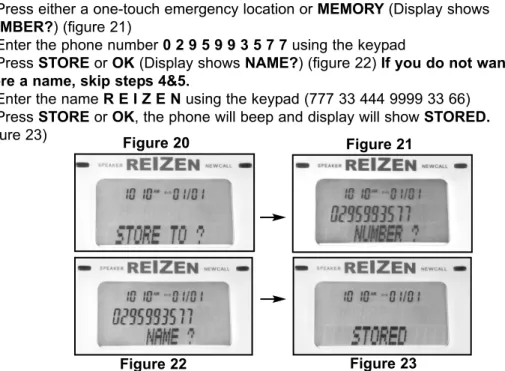
Ex: To program REIZEN telephone number, 0295993577 into memory 1. Press STORE (Display shows STORE TO?) (figure 20)
2. Press either a one-touch emergency location or MEMORY(Display shows
NUMBER?) (figure 21)
3. Enter the phone number 0 2 9 5 9 9 3 5 7 7using the keypad
4. Press STOREor OK(Display shows NAME?) (figure 22) If you do not want to store a name, skip steps 4&5.
5. Enter the name R E I Z E Nusing the keypad (777 33 444 9999 33 66) 6. Press STOREor OK, the phone will beep and display will show STORED.
(figure 23)
NOTES: To add a space before another word, press number 1 once. If you make a mistake press to move the cursor right; press to move the cursor left and press DELETE to delete the letter. Letters are always inserted to the left of the cursor. Always store the area code together with the telephone numbers. (Useful for CID purposes)
MEMORY OPERATION
Figure 20 Figure 21
MEMORY OPERATION
Pause
During the memory storage procedure, you may wish to press R/P
(figure 24) to insert a pause between numbers. (This is sometimes useful for accessing a switchboard, telephone banking or long distance dialing). Pressing R/Pmore than once will increase the pause between digits.
Each time R/Pis pressed, a 'P'will show on the LCD to indicate a 2 second pause in the dialing sequence. Each pause counts as one digit.
NOTE:When you press
*
, an upper o appears; When you press #, a lower o appearsReview A Number From The Memory
Press MEMORY(Display shows ITEM -XX-, XXis the number of memories stored in the MEMORY - figure 25), enter the first letter of the name (e.g. "R" for REIZEN): Press number 7 three times and scroll with until the display shows the name and number that you want to review.
NOTE:If the number is longer than 15 digits, the number will shift left (1 second) automatically until the end of the number has been reached. The phone will exit automatically approximately 15 seconds after the last activity.
Dialing A Numbers From The Memory
There are three different ways to dial a stored speed dial number, depending on your preference.
Method 1: Pick up the handset and follow the above directions for 'REVIEW A NUMBER FROM THE MEMORY'until the display shows the name and number that you want to dial and then press DIAL.
Method 2:Press SPEAKERand choose the desired name in MEMORY (as shown in
Method 1) and then press DIAL.
Method 3:Choose the desired name in MEMORY (as shown in Method 1), and check the LCD shows the correct information. Press DIAL(the phone enters speakerphone mode and dials the displayed number).
Figure 24
MEMORY OPERATION
Using The One-Touch Emergency Buttons
There are two ways to dial a number saved to a one-touch Emergency Button
Method 1:Press the one-touch emergency key. The display will show the emergency number that you want to review or dial out. Press DIALto begin your call
Method 2:Pick up the handset or press SPEAKER, then press a one-touch emergency key. The phone will dial the number that is saved automatically for you.
Changing a Speed Dial Number
1. During one-touch emergency or MEMORY review.
2. Press OK, the display shows NUMBER?and the cursor prompt will be on the right of the last digit
3. Move the cursor to the number you would like to edit by using or
4. Press DELETEto delete the number then key-in the desired number using the keypad
5. Press STOREor OK, and the display will show the name and the cursor prompt will be on the right of the last letter
6. Move the cursor to the letter to be edited by using or
7. Press DELETEto delete the letter then key-in the desired letter using the keypad 8. Press STOREor OK, the phone will beep and the display will show STORED Cloning a Speed Dial Number
1. During one-touch emergency or MEMORY review, bring up the # you wish to clone 2. Press STORE, the display shows STORE TO?
3. Press the one-touch emergency location where you wish to store the number 4. The display shows NUMBER?and the cursor prompt will be on the right of the last digit
5. Move the cursor to the number you would like to edit by using or
6. Press DELETEto delete the number then key-in the desired number using the keypad
7. Press STOREor OK, the cursor prompt will be on the right of the last letter 8. Move the cursor to the letter to be edited by using or
9. Press DELETEto delete the letter then key-in the desired letter using the keypad 10. Press STOREor OK, the phone will beep and the display will show STORED
NOTE:One-touch emergency locations accept duplicate phone numbers, but the MEMORY does not. If the number that matches the one stored in MEMORY, the phone will show REPLACE?Press STOREor OK, the phone
MEMORY OPERATION
Deleting a Speed Dial Number
1. During one-touch emergency or MEMORY review. 2. Press DELETE(Display shows DELETE?) 3. Press the DELETEor OK
4. The phone beeps and the display shows DELETED.
Deleting All Memory Entry
1. Press MEMORY(Display shows ITEM -XX-)
2. Press DELETE(Display shows CLEAR MEMORY?)
3. Press DELETEor OKto confirm your choice and the phone beeps and the display shows DELETED.
Redial
If you want to redial the last number dialed:
Method 1:Press R/Pand the display will show the latest dialed number. Then press the DIAL; the telephone will redial the last number dialed (the phone enters
speakerphone mode and dials the displayed number).Method 2:Pick up the handset or press SPEAKER. Press R/P, the telephone will redial the last number dialed.
NOTES:The redial memory stores the first 32 digits of any number dialed. If the number you dialed exceeds 32 digits, the redial memory will store the first 32 digits only.
Assuming you subscribe to a Caller ID service, the time and date will be automatically updated when the first call is received.
If you do not subscribe to a Caller ID service, or you wish to set the
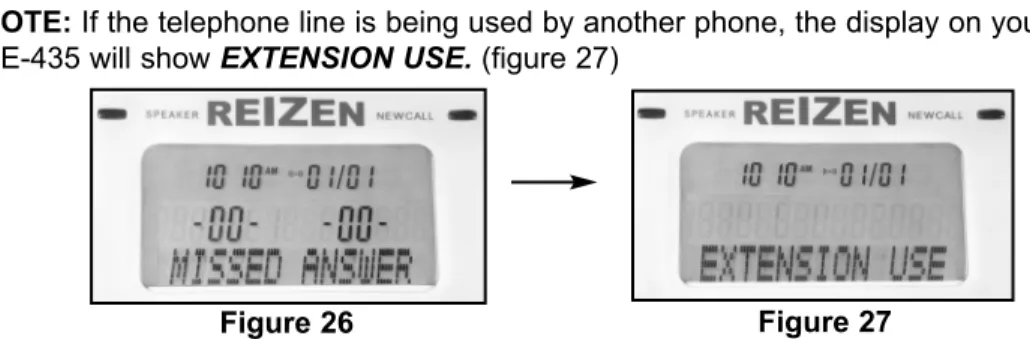
TIME/DATE: (see section on time/date).When you plug the phone in, the phone will beep and the display will show SET TIME /DATE.After 10 seconds the display will show the number of calls received MISSED -00- & ANSWER -00- (figure 26)
NOTE: If the telephone line is being used by another phone, the display on your RE-435 will show EXTENSION USE. (figure 27)
CALLER ID/MEMORY
Using Caller ID
To make use of these features, you must first subscribe to phone company's Caller ID Service. There is usually a fee for this service, and may not be available in all areas.
Setting The Long Distance Code
The Long Distance Code has a default setting of 1.
You can change the code to "9" if you use a PBX telephone system or "0" if your telephone system requires operator assistance to make a long distance call.
NOTE:If you do not complete each step within 15 seconds, the phone exits setup. Start again at Step 1,
1. Press MENUuntil -1- and "SET LDS CODE"
appear and the 1flashes (figure 28). 2. Repeatedly press or to set the long distance code to 1, 9, or 0.
3. Press OKor MENUto complete the setting and go to next setting, or press DELETEto complete the setting and return to standby mode, or you can do nothing and wait for 15 seconds to complete the setting and return to standby mode.
Setting The Area Code
NOTE:If you do not complete each step within 15 seconds, the phone exits setup. Start again at Step 1.
1. Repeatedly press MENUbutton until -000-and
"SET AREA CODE"appears. The first 0flashes
2. Press to increase the setting, to decrease the setting. Or use the keypad buttons to set the code manually
following the cursor position.
3. Press OKto move between the different settings.
4. Press MENUto complete the setting and go to next setting, or press DELETEto complete the setting and return to
standby mode, or you can do nothing and wait for 15 seconds to complete the setting and return to standby mode.
NOTE:The default AREA CODE Setting is 000
Caller ID On Call Waiting
This feature allows you to see the number of the calling party (unless the call is blocked or is from a silent number) and a CWicon appears on the display while you are on call. However, you must first subscribe to your telephone company's Caller ID Service and activate your call waiting service.
Caller ID Summary
The display will show the caller ID summary (MISSED -XX-, ANSWER -XX-) in standby (where XXis the missed (or answered) number of calls stored in the memory)
Call Review
To review call information, you can press MODE. This menu provides functions as MISSED CALL, ANSWERED CALL, DIALED NUMBER. During review, you can use function key to call, store or delete related phone number.
Missed Call
1. Press the MODE, until the display will show primary function MISSED CALL
-XX-(figure 29).
2. Use the or to view the missed calls. The new callLED will flash if there are new missed call store in the call history
Phone Record
When you use this telephone with the Caller ID service, you will see the number of the calling party (unless the call is blocked or is from a silent number) before you answer the phone. This telephone will store and display information for the last 50 missed calls received and the last 50 answered calls received. Each call is numbered in the call history, together with the time and date the call was received. When the memory is full, the oldest call information is deleted to make room for new incoming call information. This telephone also stores and display information about the last 10 dialed numbers (max 11 digits)
CALLER ID/MEMORY
CALLER ID/MEMORY
When all missed calls have been reviewed, the new callLED will stop flashing.
Answered Call
1. Press the MODE, until the display will show primary function ANSWERED CALL -XX-. (figure 30)
2. Use the or to view the answered calls
Pressing MODE can return the phone to standby
Deleting a Call From The Call History
To delete a call from the call history:
1. Use the or until the screen displays the information you wish to delete. 2. Press the DELETE once and the display will show the DELETE?
3. Press the DELETEor OK. The phone will beep once, the displayed call record will be deleted and the display will show DELETED.
Deleting All Calls
To delete all calls from the three primary functions individually, the display must be showing one of the primary functions MISSED CALL, ANSWERED CALL or DIALED NUMBER
1. Press the DELETEonce and the display will show DELETE ALL?
2. Press the DELETEor OK. The phone will beep once, all call records will be deleted and the display will show DELETED.
NOTE:New missed calls cannot be deleted until they have been reviewed.
Dialed Number
10 dialed numbers can be stored into the redial memory. When the redial memory is
full, the oldest dialed information is dialed to make room for new dialed information
1. Press the MODE button until the display will show primary function DIALED NUMBER
-XX-(figure 31)
2. Use the or to view the dialed calls
Figure 30
CALLER ID/MEMORY
Transfering a Caller ID Number To Speed Dial Memory
1. Use the or to scroll through the call history.
2. When you locate the number you wish to transfer - Press STOREwhen the number displayed is correct. The display will show STORE TO?
NOTE:If the number format is not correct, press OK to change the dial format. 3. Press either a one-touch emergency location or MEMORY,whichever place you wish to store the number
4. Press STOREtwice, the phone will beep once, and the display will show STORED. NOTE:One-touch emergency locations accept duplicate phone numbers, but the MEMORY does not. If the number that matches the one stored in MEMORY, the phone will show REPLACE?Press STOREor OK, the phone will beep and the display will show STORED
The OK(figure 32) button also provides dialing options for different phone systems allowing you to select the correct dialing selection for a phone number before you press DIAL.
Speed Dialing From The Caller ID List Different Area Code
When the phone number's area code does not match the area code you stored, the phone provides two different dialing number selections. Press OKonce and the display first shows the ten-digit number (three digits of the area code plus seven digits of the phone number, for example, 818-555-1212). Press OKagain and 1
appears before the ten-digit number (1-818-555-1212).
Same Area Codes
If the phone number's area code matches the area code you stored, the phone provides four different numbers. Repeatedly press OKand the phone cycles through and displays four patterns for dialing numbers.
• Seven-digit number-for example, 555-1212.
• Eight-digit number ("1" plus the phone number) - for example, 1-555-1212.
• Ten-digit number-for example, 817-555-1212.
• Eleven-digit number ("1" plus the area code plus the phone number) -for example,
1-817-555-1212. Figure 32
CALLER ID/MEMORY
You must store your home area code for Callback to work correctly. If the call came from your home area code, the display shows only the seven-digit number (without an area code). Follow these steps to dial a phone number from Caller ID records. 1. Repeatedly press or to select the desired phone number.
2. Then, repeatedly press OK to select the suitable dialing pattern for that phone number.
To callback a phone number from the Caller ID records with the speakerphone, press DIAL. Then, after the phone dials the number, SPEAKERPHONEappears (figure 33), and the phone starts to count the time.
Display Information Call Display Messages
PRIVATEon the screen means;
• The caller has chosen to block their number
• A call from an old type of telephone network exchange • A call from a silent number subscriber
• A call from any analogue cellular mobile telephone
OUT OF AREAon the screen means; • A call coming from overseas
MESSAGE WAITING ON/OFFon the screen means if you subscribe to your phone company's voice message service, your phone informs you when you have a message waiting. If "MSG WAITING ON"is active and a appears and the new call LED on your phone is flashing, you have a voice message in your mailbox. MSG WAITING ONdisappears from the display after 8 seconds, but the and the new callLED flash until you retrieve the message.
NOTE: A STUTTER DIAL TONE can be used. The switch is located underneath the phone. The message waiting feature does not work with stutter dial tone service. There may be a delay in these indicators turning on or off. In certain circumstances, your phone may already been in use, resulting in a delay until the VMWI message is re-sent. Please contact your phone company for more info.
TOLLon the screen means if your phone company sends information indicating that the incoming call is long distance, the phrase TOLLwill appear on the display
CALLER ID/MEMORY
REPEAT XXon the screen means there is the same number entry already stored in memory. The caller's data and the "REPEAT XX"appear alternately. The display on the screen will alternate between the Caller's record and the repeat counter. The maximum repeat counter is 15.
Reviewing The Call Forwarding Information
If you subscribe to your telephone company's call forwarding service, the phone company will forward the phone call from the main telephone to the assigned telephone so you will not miss the phone call. To see the call forwarding information, be sure to connect the phone to the assigned telephone. The phone company offers three call forwarding services - Call Forward Universal, Call Forward Busy, and Call Forward Un-Answer.
If you subscribe to the Call Forward Universal Service, the phone company directly forwards any phone call from the main telephone to the assigned telephone and
"CALL FORWARD"appears on the display.
If you subscribe to the Call Forward Busy Service, the phone company will forward the phone call to the assigned telephone when the main telephone is busy and
"CALL FWD BUSY"appears on the display.
If you subscribe to the Call Forward Un-Answer Service, the phone company will forward the phone call to the assigned telephone when the main telephone does not answer the call, and "CALL FWD UNANS"appears on the display.
END OF LIST"or "TOP OF LIST"(figure 34) on the screen means;
• You have reached the end or start of the caller id history information
• MISSED -00-on the screen means; no missed calls are stored in the missed caller id history
• ANSWER -00-on the screen means; no answered calls are stored in the answered caller id history
• NO RECORDon the screen means; no any calls are stored in the caller id history
ADVANCED USER OPTIONS MENU
VIP
When the phone number of an incoming call is matched with the exact number stored in MEMORY, the symbol VIP will be displayed
• If the phone set VIP ALERT ON, The telephone will sound a special VIP tone to alert you to an incoming VIP call.
VIP Alert On/Off
1. Repeatedly press MENUuntil "VIP ALERT ON"appears. 2. Press or to choose VIP ALERT ON/OFF.
3. Press OKor MENUto complete the setting, or press DELETE or MODEto complete the setting and return to standby mode, or you can do nothing and wait for 15 seconds to complete the setting and return to standby mode.
NOTE:With VIP alert set to ON, the symbol ((•))will be displayed. The default VIP alert setting is ON.
Name Tagging
When the phone number of an incoming call is matched with the exact number stored in MEMORY, the name stored in the MEMORY will automatically be displayed
together with the caller id number. It is useful because the name stored in the speed dial memory can be personalized to suit your particular situation.
Example If the number '555-1212' and the name 'JOHN SMITH' is stored into MEMORY and you receive a call from '555-1212', the name 'JOHN SMITH' will be automatically displayed together with the phone number, time and date of the call.
NOTE:You must subscribe to a Caller ID Service for this feature to work.
TIP:
• Always store names with the numbers in your MEMORY to maximize the benefit of this feature.
• Store area codes together with the phone number in the MEMORY.
Setting The Language
You can choose ENGLISH (default), FRENCH (FRANCAIS) or SPANISH (ESPANOL) language as message showing.
1. Press MENUdisplay shows "ENG FRN SPN"
2. Press or to choose language ENGLISH or FRENCH or SPANISH. 3. Press OKor MENU to complete the setting and go to next setting, or press
DELETEto complete the setting and return to standby mode, or you can do nothing and wait for 15 seconds to complete the setting and return to standby mode.
ADVANCED USER OPTIONS MENU
LCD Contrast
1. Press MENU until -3-and "LCD CONTRAST" appear. -3-flashes. 2. Use the dial pad to key in the value or press to increase the setting, to decrease the setting. Note: The phone has five (1-5) display contrast settings. 3. Press OKor MENUto complete the setting and go to next setting, or press
DELETEto complete the setting and return to standby mode, or you can do nothing and wait for 15 seconds to complete the setting and return to standby mode. The default LCD CONTRASTsetting is 3.
Time/Date
Follow these steps so the phone can record the correct time and date of each call record. Note:If you do not complete each step within 15 seconds, the phone exits setup. Start again at Step 1.
1. Repeatedly press MENUbutton until "SET TIME/DATE"appears and the hour flashing.
2. Use the keypad to key in the value or press to increase the setting, to decrease the setting. Press or to choose AM, PM.
3. Press OKto move between the different settings. The default time/date setting is 12:00 am 01/01(hh:mm mm/dd). The local clock will also be updated automatically when a Caller ID message is received.
4. Press OKor MENUto complete the setting and go to next setting, or press
DELETEto fail the setting and return to standby mode, or you can do nothing and wait for 15 seconds to fail the setting and return to standby mode.
Call Wait ID On/Off
1. Repeatedly press MENUuntil "CALL WAIT ID ON"appears. 2. Press or to choose CALL WAIT ID ON/OFF.
3. Press OKor MENUto complete the setting, or press DELETEto complete the setting and return to standby mode, or you can do nothing and wait for 15 seconds to complete the setting and return to standby mode.
NOTE: The default CALL WAIT IDsetting is OFF. Resetting The Phone
If your phone stops working properly, use a straightened paper clip to press and hold
WARRANTY
What Your Coverage Includes
• Reizen, Inc. Products are warranted from date of purchase against defects in materials for a period of one (1) year.
• If a product fails to function properly, return it prepaid and properly packaged to Reizen, Inc. If the manufacturer determines that a defect of material or in workmanship exists, the customer's sole remedy will be repair or replacement of the product at no charge.
• Replacement will be made with a new or re-manufactured product component. • If the product is no longer available, replacement may be made with a similar product of equal or greater value.
• All parts including repaired and replaced parts are covered only for the original warranty period.
• The original purchaser of the product must provide proof of purchase to receive the warranty service.
• Reizen, Inc. dealers or retail stores who sell Reizen products do not have the right to alter, modify or in any way change the terms and conditions of this warranty.
What Your Coverage Does Not Include
Your Warranty does not cover normal wear of parts or damage resulting from any of the following:
• Negligent use or misuse or the product; • Use on improper voltage or current;
• Any use contrary to the operating instructions;
• Abuse including tampering, damage in transit or unauthorized repair or alterations; • Acts of God such as fire, flood, hurricanes and/or tornados.
This warranty gives you specific legal rights that vary from country to country, state to state, province to province, or jurisdiction to jurisdiction.
SPECIFICATIONS
REIZEN RE-435 Amplified Telephone
Specifications
FCC Registration # US: MTCTE00BSPHONE Ringer Equivalence 1.0 B
Phone Specifications - 100-Entry memory/phonebook - 3 emergency buttons
- Adjustable incoming volume up to 43 dB - Speakerphone w/adjustable volume control - Tone and volume control
- Super bright ring flasher
- Handset compatible with hearing aid T-coil - On-hold music, Redial/Pause, flash buttons - Tone selector for adjusting sound clarity and
distinguishing between similar-sounding words - Desk or wall mounting
- Caller ID w/Call Waiting
Maximum Gain 43 dB (for both High Frequency and Wide Band) Tone Control Range 200 Hz ~ 4 kHz
Size 23.5 cm. x 9.0 cm. x 18.5 cm. 9.25” x 3.5” x 7.5”
Weight 1.25 kg. 2.75 lbs.
Power requirements Input: 120V AC, 60 Hz, 12 W Output: 12V DC, 500 mA
IMPORTANT INFORMATION
THE FCC WANTS YOU TO KNOW …
In the unlikely event that your Reizen RE-435 Amplified Telephone causes problems on the phone line, the phone company can temporarily discontinue your service. If this happens, the phone company attempts to notify you in advance. If advance notice is not practical, the phone company notifies you as soon as possible and advises you of your right to complaint with the FCC.
Also the phone company can make changes to its lines, equipment, operation or procedures that could affect the operation of this telephone. The telephone company notifies you of these changes in advance, so you can take the necessary steps to prevent interruption of your telephone service.