http://gmv.cast.uark.edu A Method Store for Advanced Survey and Modeling Technologies Mon, 01 Apr 2013 03:29:18 +0000 en-US hourly 1 http://wordpress.org/?v=3.5.1
http://gmv.cast.uark.edu/photogrammetry/software-photogrammetry/photomodeler/workflow-photomodeler/pre-processing-digital-images-for-close-range-photogrammetry-crp/
http://gmv.cast.uark.edu/photogrammetry/software-photogrammetry/photomodeler/workflow-photomodeler/pre-processing-digital-images-for-close-range-photogrammetry-crp/#comments Tue, 05 Feb 2013 20:19:06 +0000 adam http://gmv.cast.uark.edu/?p=12226
This page will show you how pre-process digital images for use in Close-Range Photogrammetry (CRP).
Hint: You can click on any image to see a larger version.
A BASIC INTRODUCTION
Why is pre-processing necessary?
For most close-range photogrammetry projects digital images will need to be captured in a RAW format, preserving the maximum pixel information which is important for archival purposes. Therefore it will likely be necessary to do some pre-processing in order to convert RAW images into a file format accepted by the photogrammetry software being used for the project.
If a color chart or gray card was using during image capture, it may also be useful to perform a white balance on the image set. There are a number of tools/software packages available for this purpose, but below we will describe a potential workflow using Adobe products for batch processing.
Overall steps of this workflow:
- Batch convert RAW to DNG (Adobe DNG Converter) - Batch white balance (Camera Raw)
- Batch image adjustments (Camera Raw)
- Batch save to JPEG (or TIFF) format (Camera Raw)
BATCH CONVERT RAW DATA
Batch RAW to DNG with Adobe Digital Negative (DNG)
Converter Software
As an open extension of the TIFF/EP standard with support for EXIF, IPTC and XMP metadata, the Adobe DNG format is rapidly becoming accepted as a standards for storing raw image data (primarily from digital photography).
For more information about file formats for archival, see the Archaeological Data Service (ADS) Guides to Good Practice.
Steps to Batch Convert:
1. Download and install Adobe DNG Converter. As of the date this workflow was published, version 7.2 of Adobe DNG Converter is a free tool available for download on the Adobe website.
Adobe DNG Converter is a free tool available for download on the Adobe website.
2. This tool converts an entire folder (aka batch) of images at one time. Use the tool interface to select the appropriate input folder containing the RAW images.
3. If needed, use the interface to design a naming scheme to be used for the new file names. 4. Set preferences for compatibility (e.g. Camera Raw 5.4 and later) and JPEG Preview (e.g. medium size). As an option, you can embed the original RAW file inside the new DNG files. This will, or course, increase the file size of the new DNG file.
5. Click “Convert” to start the process. Wait for this to finish.
BATCH WHITE BALANCE – 1
Batch white balance, image processing, and exporting with
Adobe – Part 1: Adobe Bridge
It is considered best practice to (correctly) use a quality color chart or gray card when capturing digital images for any CRP project. Performing a white balance for each image set (or each lighting condition) can dramatically enhance the appearance of a final product (i.e. ortho-mosaic). This particular workflow uses Adobe Bridge and the Adobe Camera Raw tool, but a similar process can be done in other (free) software as well.
Adobe Bridge – Open in Camera Raw
1. Open Adobe Bridge and navigate to the folder containing the digital images (DNG files). 2. Select the appropriate images (including images with color chart/gray card).
BATCH WHITE BALANCE – 2
Batch white balance, image processing, and exporting with
Adobe – Part 2 : Camera Raw tool
4. Camera Raw will open and all of the selected images will appear on the left side of the window. Select the image with the color chart/gray card you would like to use for white balancing and other adjustments. Do all adjustments to this one image. We will apply the same changes to all images in the following slide ‘Batch Image Adjustment’.
Adobe Camera Raw – Image Processing Settings
5. By default, Camera Raw may attempt to apply a number of image processing
settings that you should remove. This can be done using the interface on the right hand side of the screen. Check that all settings (with the exception of Temperature and Tint, which are set by the white balance tool in the next step) are set to zero. Be sure to check under each of the tabs. 6. Select the “Color Sampler Tool” found in tool bar at the top of the window and:
A. If using a color chart, add a color sample inside the black and white squares. After adding these you should see the RGB pixel values for each sample.
B. If using a gray card, add a color sample inside the gray portion of the card.
7. Select the “White Balance Tool” from the tool bar at the top of the window and click on the gray portion of the chart (or card) to apply a white balance. At the same time, notice how the RGB values of the color sample(s) change. The RGB values should not differ by more than five or six (e.g. the white sample could be R: 50, G: 50, B: 51). If they differ by too much there could be a problem with the white balance. Try clicking a slightly different spot in the gray portion of the chart.
8. If other adjustments need to be made (i.e. exposure, brightness, contrast) make them now.
BATCH IMAGE ADJUSTMENTS
Applying adjustments to all
Once the white balance and adjustments have been made to this one image, we can apply the same to all the other images open in Camera Raw.
To do this, click “Select All” in the top left corner of the window – then click “Synchronize.” Wait for this to finish.
BATCH SAVE TO JPEG OR TIFF
Saving
Once the Synchronization is complete, click the “Save Images” in the bottom left corner of the window (make sure all images are still selected). The “Save Options” dialog allows you to choose a folder for the images to be saved to, a naming scheme, a file extension and format, and a quality/compression. Choose the settings you prefer and click “Save.”
[/wptabcontent]
CONTINUE TO…
Continue to PhotoScan – Basic Processing for Photogrammetry
]]> http://gmv.cast.uark.edu/photogrammetry/software-photogrammetry/photomodeler/workflow-photomodeler/pre-processing-digital-images-for-close-range-photogrammetry-crp/feed/ 0
http://gmv.cast.uark.edu/modeling/software-visualization/rapidform-xor/workflow-rapidform-xor/working-with-terrestrial-scan-or-photogrammetrically-derived-meshes-in-arcgis/
http://gmv.cast.uark.edu/modeling/software-visualization/rapidform-xor/workflow-rapidform-xor/working-with-terrestrial-scan-or-photogrammetrically-derived-meshes-in-arcgis/#comments Mon, 12 Dec 2011 16:59:53 +0000 Rachel
http://gmv.cast.uark.edu/4039/working-with-terrestrial-scan-or-photogrammetrically-derived-meshes-in-arcgis/
Introduction
Many archaeological projects use a GIS to manage their data. After terrestrial scan or photogrammetric modeling data has been collected and cleaned, it may be convenient to integrate it into a project’s GIS setup. As ArcGIS is widely available and in use both in University research departments and government offices, we’re using it for the example here, but something like this should work for other GIS packages. The first part of the workflow addresses working with meshes created from terrestrial scan data, and assumes you have existing meshes in Rapidform.
Decimation
Before exporting a dataset for use in a GIS you may want to decimate the dataset to produce a lower resolution model for visualization. High resolution models can slow rendering down and make manipulation of the model difficult.
a. Select the model you will be exporting either graphically or through the menu tree on the left hand side of the screen.
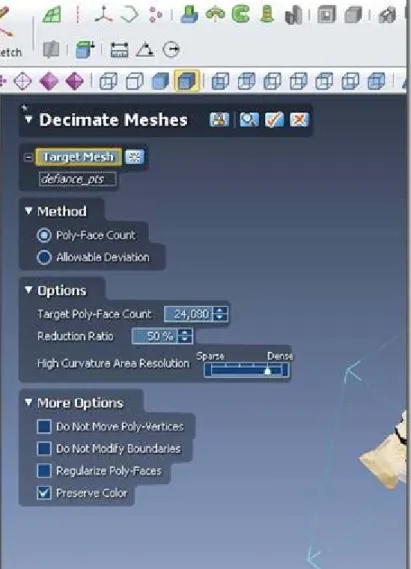
Fig. 1: Select the Decimate Meshes tool
c. In the Decimate Meshes menu confirm the selection of the Target Mesh.
d. Under Method choose Poly-Face Count for best control over the size of the resultant model.
e. Under Options set the Target Poly-Face Count. Numbers under 100,000 will render relatively quickly in ArcGIS. Inclusion of more than 500,000 polyfaces is not recommended.
f. Under More Options select Preserve Color. g. Click “OK” to confirm and decimate the mesh.
Fig. 2: Select options for decimating the mesh.
Subsetting and Splitting Meshes
(Skipping ahead a bit conceptually…) When you import your mesh data into ArcGIS each mesh is stored as a single multipatch. You don’t want to edit the shape of the multipatch in ArcGIS, only the placement (trust us on this). So any subsetting of the mesh needs to be performed before exporting from Rapidform (or other modeling software of your choice). Why subset or split a mesh?
a. Navigating in tight, enclosed spaces. You might want to be able to turn off the visibility of the back wall of a room or one half of a cistern to better visualize its interior.
b. Major sections of a mesh. If you have a scan of a building including several rooms or structures and you want to be able to visualize them individually, then they need to be made into discrete meshes.
Exporting
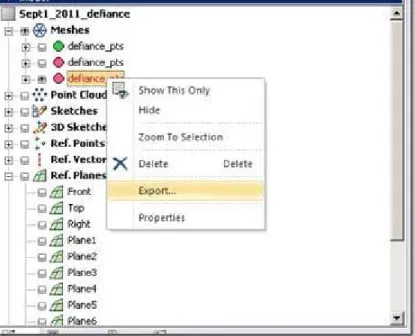
a. Select the model you want to export from the menu tree on the left hand side of the screen. b. Right-click and select “Export”. Select an appropriate file format (see step 2, below, for choices).
Fig. 3: Export via the menu tree. 4. Export Formats
a. Get a list of valid export formats by looking in the dropdown menu of the export dialog box.
Fig. 4: Valid export file formats.
Advice on Textures and Color Data
Modeling software manages color data in several ways. Color data might be recorded as UV coordinates referencing a separate texture file, as per vertex, per face or per wedge color information. Color data imported with scan data will typically default to storage as per vertex color. ArcGIS only recognizes color data stored explicitly in texture files, so if your color data is currently stored in another form you need to convert it.
Textures direct from Rapidform
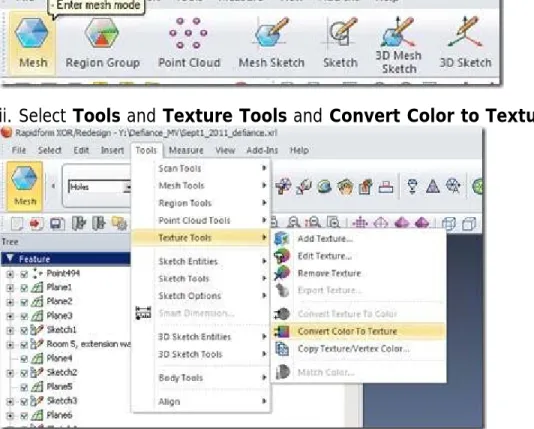
i. Select the Mesh mode from the main toolbar.
ii. Select Tools and Texture Tools and Convert Color to Texture.
Fig. 5: Conver Color to Texture
iii. After creating the texture, export the model as usual.
iv. Export the texture by going in the Main Menu to Texture Tools, then Export Texture to save the texture file. Store it in the same folder as the model.
Color and Texture in Meshlab
Sometimes you want more tools for color editing. Sometimes ArcGIS doesn’t like the textures produced by Rapidform. For this reason, we suggest an alternative method for setting the texture data using Meshlab. Meshlab is open source, and can be found at meshlab.sourceforge.net.
i. From Rapidform export a .VRML file by right-clicking (in the model tree menu on the left land side of the screen) on the mesh you wish to export and selecting Export.
ii. In Meshlab, open a new empty project. Go to File and Import Mesh.
Fig. 6: Import the Mesh to Meshlab
iii. Select the VRML file you just created and hit Open.
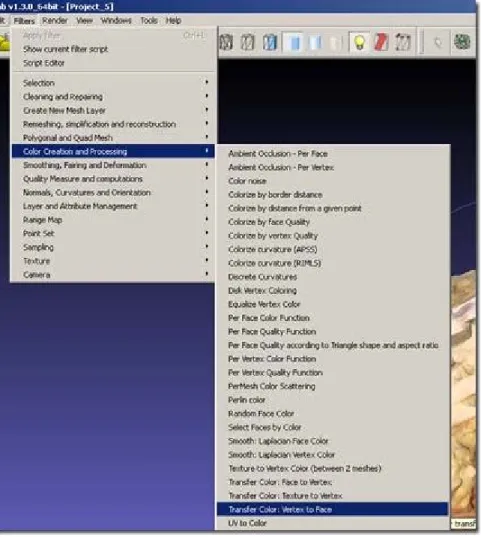
iv. Transfer the color information from per vertex to per face. In the main menu go to Filters, then to Color Creation and Processing, then to Transfer Color: Vertex to Face. Hit Apply in the resulting pop-up menu.
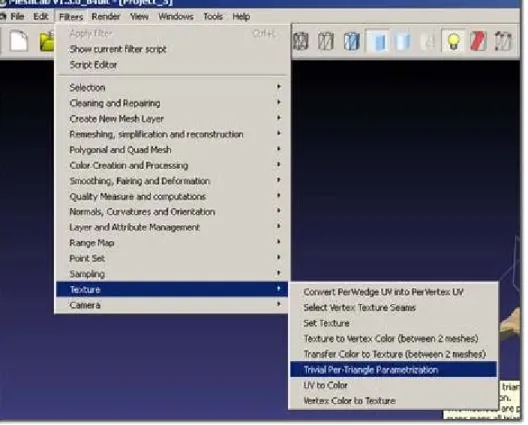
v. From the Main Menu go to Filters, then to Texture, then to Trivial Per-Triangle Parametrization.
Fig. 8: Create texture data.
In the pop-up menu, select 0 Quads per line, 1024 for the Texture Dimension, and 0 for Inter-Triangle border. Choose the Space Optimizing method. Click Apply.
n.b. If you get an error along the lines of “Inter-Triangle area is too much” your Texture Dimension is too small for the dataset. Increase the texture dimension to resolve the error.
Fig. 9: Set the texture data parameters.
vi. In the Main Menu go to Filters and Texture and Vertex Color to Texture. Accept the defaults for the name and size. Tick the boxes next to Assign texture and Fill Texture.
Fig. 10: Transfer color data to the texture dataset.
vii. In the Main Menu go to File and Export Mesh. Make sure to UNTICK the box next to Vertex Color. Otherwise ArcGIS gets confused! Make sure the texture file is present. Click OK to save.
Fig. 11: Export the mesh as collada (dae).
Preparing a GIS to receive Mesh data
Once you have created your mesh files and exported them to collada or something similar and explicitly assigned texture data (not to be confused with vertex color, face color or wedge color data), you are ready to import the data into ArcGIS. Assuming your data is not georeferenced, follow the method below. If your data is georeferenced, head over to our Photoscan to ArcGIS post, and follow the import method described there.
1. Preparing the geodatabase
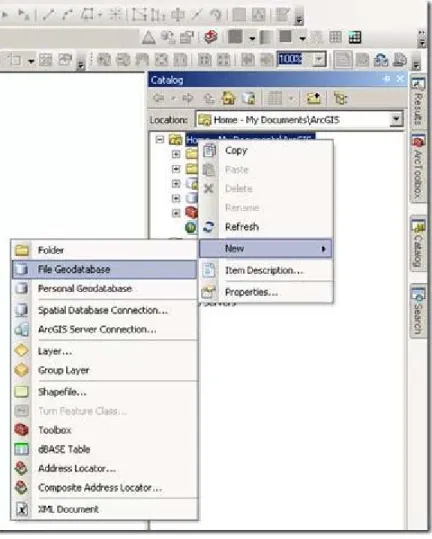
you wish to create the geodatabase and selecting New and File Geodatabase. Only Geodatabases support the import of texture data, so don’t try and use a shapefile.
Fig. 14: Create a geodatabase in ArcGIS.
b. Create a multipatch feature class in the geodatabase.
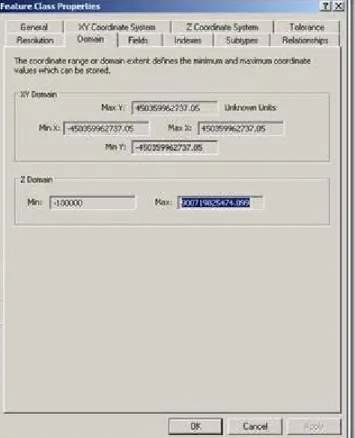
c. Ensure that the X/Y domain covers the coordinates of any meshes you will be importing. View the Spatial Domain by right-clicking on the feature class and going to Properties and then to the Domain tab.
Fig. 15: Check the spatial domain of the new feature class.
d.If the spatial domain is not suitable, adjust the Environment settings by going to the Geoprocessing toolbar in the Main Menu. Scroll down to Geodatabase Advanced and adjust the Output XY Domain as needed. You can also adjust the Z Domain in this dialog box.
Fig. 16: Adjust the spatial domain in the environment settings.
Preparing the scene file.
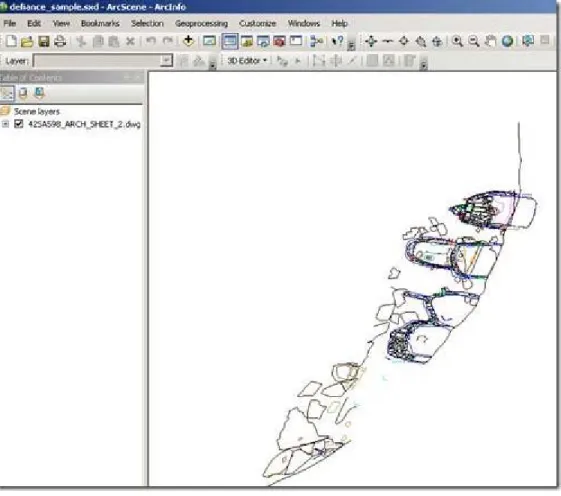
data will allow you to control the location to which the model is imported. Add the empty multipatch feature class you just created.
Fig. 17: Add base data to a Scene.
b. Start editing either from the 3D editor toolbar or by right-clicking on the multipatch feature class in the Table of Contents and choosing Edit Features and Start Editing.
Fig. 18: Start editing in ArcScene.
Importing the Scan data
1. Import the vrml or collada file by selecting the Create Features Template for the multipatch and clicking on the base plan roughly in the location where you would like the mesh data to appear. Select the vrml or collada file from the Open File dialog box that appears. Wait while the file is converted.
Fig. 19: The vrml data is converted to multipatch on import.
2. You can now Move, Rotate, Scale the imported multipatch in ArcScene by selecting the feature using the Edit Placement tool and inputting values in the 3D Editing toolbar or by interactively dragging the multipatch feature.
Fig. 20: Select the multipatch feature to adjust its position and scale.
3. Once you are satisfied with the placement of the multipatch, you can add attribute data.
A note on rotation in Arcscene
You can only rotate in the x-y plane (that is, around z-axis) in ArcScene. If you need to rotate your data around the x or y axis you need to do this in your modeling software before import. Bringing a .dxf of the polygon or point data you are trying to align the mesh with into your modeling software is probably the simplest way to get the alignment right. You may have to translate your .dxf to a local grid because most modeling software doesn’t like real world coordinates. Losing the real coordinates during this step doesn’t matter because you’re just using the polygon data to set orientation around the x and y axes. You’ll get the model in the correct real-world place when you import into ArcScene.
Re-exporting
Fig. 21: The textured mesh data appears over the correct location on the base plan.
4. At this point it’s probably a good idea to re-export a collada model of your newly scaled and located mesh data. If not, every time you update the model you will have to go through the scaling and locating process again.
Fig. 22: Export Multipatch to Collada
b. Select the multipatch for export and the folder where you want the re-exported model to appear.
Fig. 23: Set parameters for export.
c. Check that the model has exported correctly by opening it in your modeling software. n.b. You may have to reapply the textures at this point.
A note on features for attribute management
It may be convenient to store attribute information in other related feature classes so that a single meshed model can have multiple, spatially discrete attributes. How you design your geodatabase will vary greatly dependent on project requirements.
Fig. 19: Additional related feature classes can be used to manage attribute data.
A note on just how much mesh data you can get into ArcScene.
1. If you are using a file geodatabase, in theory the size of the geodatabase is unlimited and you can include all the mesh data you want.
2. In practice, individual meshes with more than 200,000 polygons have problems importing on an average ™ desktop computer.
3. In practice, rendering becomes slow and jumpy with more than 200 MB of mesh data loaded into a single scene on an average ™ desktop computer. The size and quality of your textures will also have an impact here. Compressed textures are probably a good plan.
4. In short, the limitation is on rendering and on what can be cached in an individual scene, rather than on storage in the geodatabase. Consider strategies including having low polygon count meshes for display in a general scene, with links to high polygon count meshes, which can be stored in the geodatabase but not normally rendered in the scene, which can be called up via links in html popup, the attribute table, or via another script.
]]> http://gmv.cast.uark.edu/modeling/software-visualization/rapidform-xor/workflow-rapidform-xor/working-with-terrestrial-scan-or-photogrammetrically-derived-meshes-in-arcgis/feed/ 0