All Rights Reserved Printed in USA NOTICE
The information in this document is subject to change without notice. AT&T assumes no responsibility for any errors that may appear in this document. DEC is a registered trademark of Digital Equipment Corporation.
IBM and SNA are registered trademarks of International Business Machines Corporation.
1
2
3
Preface
About This Guide
Operating Requirements
Related Documentation
Other AT&T 3270 Emulator+ Documentation
HLLAPI and API
Introduction
The High Level Language Application Program
Interface (HLLAPI)
The HLLAPI Tutorial
The Application Program Interface (API)
HLLAPI Overview
AT&T 3270 Emulator+ HLLAPI Concepts
AT&T 3270 Emulator+ HLLAPI Functions
Using the AT&T 3270 Emulator+ HLLAPI
The Environment
HLLAPI Tutorial
Introduction
Using the AT&T 3270 Emulator+ HLLAPI Tutorial
vii
x
xiii xiv
1-1
1-3 1-7 1-8
2-1 2-3 2-8 2-12
4
A
B
c
D
E
Application Program Interface
Introduction
The API Tutorial
Application Development
Manual Pages
Introduction
AT&T 3270 Emulator+ HLLAPI
Examples
Example 1
Example 2
AT&T 3270 Emulator+ HLLAPI
Functions
AT&T 3270 Emulator+ HLLAPI Functions
The
xhllapi.h File
The xhllapi.h File
File Transfer Messages
File Transfer Messages
API Program Check Error Codes
API Program Check Error Codes
Ii HLLAPI PROGRAMMER'S GUIDE
4-1 4-4 4-8
A-1
A-3
8-1
C-1
D-1
F
G
H
I
J
x
API Communication Check Error Codes
API Communication Check Error Codes
API User ISystem Error Codes
API User/System Error Codes
API LUV _ TRC Status Displays
API LUV _TRC Mode Status Line Displays
API External Symbols
API External Symbols
Glossary
Glossary
Index
Index
F-1
G-1
H-1
1-1
J-1
Figure 2-1: HLLAPI
Return Codes
2-11The AT&T 3270 Emulator+ provides interactive data communication
between ASCII terminals at an AT&T 3B Computer and remote mainframe
systems (IBM or other).
Itprovides the following functional features:
• IBM 3270 emulation
• Support for both the Binary Synchronous Communications (BSC) and
the Systems Network Architecture (SNA) Synchronous Data Link
Control (SDLC) protocols
.. The ability to run the AT&T SNA/RJE Emulator+ simultaneously
over the same SDLC link to the remote host computer
II
The 3270 High Level Language Application Program Interface
(HLLAPI)
II
The 3270 Application Program Interface (API)
E'IThe AT&T 3270 Emulator+ ESCORT Interface
This guide provides the information that you will need to use the AT&T
3270 Emulator+ High Level Language Application Program Interface
(HLLAPI) or the AT&T 3270 Emulator+ Application Program Interface
(API).
Who Should Read This Guide
This guide is intended for AT&T 3B Computer users and programmers
who want to write C language application programs that use the functions
of the AT&T 3270 Emulator+ HLLAPI and of the AT&T 3270 Emulator+
API.
In 3270 data stream mode, an application program using either HLLAPI
or API functions to communicate with the remote system is functionally
equivalent to the interactive user interface to the host through a 3278/9
ter-minal. The raw mode, only available in the API, provides a raw data
transfer interface that is independent of any terminal functionality (Le., no
3270 data stream encoding/decoding is done).
In general, the AT&T 3270 Emulator+ API is more difficult to learn and
use than the AT&T 3270 Emulator+ HLLAPI. Therefore, the use of HLLAPI
rather than API functions is recommended, except in those application
pro-grams that must access the remote host computer in raw data stream mode.
Organization of This Guide
The
HLLAPI Programmer's Guide is organized as follows:
• The
Preface discusses prerequisites for the understanding and use of
the AT&T 3270 Emulator+ application programming facilities.
• Chapter 1,
HLLAPI and API, presents an overview of the AT&T 3270
Emulator+ application programming facilities, HLLAPI and API.
• Chapter 2,
HLLAPI Overview, introduces AT&T HLLAPI concepts, and
discusses several important things that you should know before
get-ting started.
• Chapter 3,
HLLAPI Tutorial, explains the on-line tutorial program for
the AT&T 3270 Emulator+ HLLAPI.
• Chapter 4,
Application Program Interface, discusses application program
development using the AT&T 3270 Emulator+ API.
• Manual Pages contains the manual pages for the HLLAPI and API
function calls.
• Appendix A,
AT&T 3270 Emulator+ HLLAPI Examples, provides
exam-ples of how you would code a C language application program using
AT&T HLLAPI function calls.
• Appendix B,
AT&T 3270 Emulator+ HLLAPI Functions, lists the
sup-ported and unsupsup-ported IBM HLLAPI functions and the AT&T 3270
Emulator+ HLLAPI extensions.
• Appendix C,
The
xhllapi.h
File, shows the
xhllapi.h
header file that
you must include in your application program.
• Appendix D,
File Transfer Messages, explains the messages that you
may see when transferring files between an AT&T 3B Computer and
a remote host computer.
• Appendix E,
API Program Check Error Codes, lists the error messages
that you may get when an API system call fails because of errors in
the data received from the remote host computer.
• Appendix F,
API Communication Check Error Codes, lists the error
mes-sages that you may get when an API system call fails because of
con-ditions detected at the local communications interface.
• Appendix G, API
User/System Error Codes, lists the error messages that
you may get when an API system call fails because of user
applica-tion or system errors.
• Appendix H,
API LUV _ TRC Status Displays, explains the API trace
display that appears in the status line.
II
Appendix I,
API External Symbols, lists the global symbols used by the
API library.
• The
Glossary defines important terms that are used in this guide.
• The
Index lists the key subjects treated in this guide and gives page
AT&T 38 Computer
The AT&T 3270 Emulator+ HLLAPI and API are intended for use on an
AT&T 3B Computer.
• The 3B2 Computer must be equipped with a minimum of two
mega-bytes of memory and an Intelligent Serial Controller (ISC) board.
The ISC board should be installed following the procedures in the
AT&T 3B2 Computer Intelligent Serial Controller Manual. (A separate ISC
board is required for each active communication line to a host.) Each
board supports a single line of either BSC or SNA/SDLC protocol. A
user can install multiple ISC boards in the computer with any desired
mix of boards supporting BSC or SNA.
• The 3B5 and 3B15 Computers must be equipped with an
Input/Output Accelerator (lOA) processor and a Synchronous Data
Link (SDLI).
• The 3B4000 Computer requires an ACP with an associated ISC card.
The AT&T 3270 Emulator+ supports up to 9600 baud for BSC and up to
19.2 kilobaud for SNA/SDLC operation.
The 3B Computer connects to the host using the switched telephone
network or a non-switched (leased or private) line and a synchronous
modem. The modem must supply clock to the ISC board. The host
con-nects to the communication line through a communications controller, data
adapter unit, or transmission control unit that is attached to the line using a
modem that is compatible with the modem used by the 3B Computer.
Terminal Requirements
The AT&T 3270 Emulator+ provides screen and keyboard customization
functions to allow work with any ASCII terminal supported by the AT&T
3B Computer. In addition, pre-customized files are provided for the
follow-ing terminals:
• AT&T 4410, 4418, 4425, 605, 610, 615, 620, and 630
• Teletype 5410, 5418, and 5425
• Hewlett-Packard 2621
• Lear-Siegler ADM-3a
• Televideo 910, 924
• DEC VT-100
• Tektronix 4105A
Printer Requirements
The printer emulation procedures require the following operating
features:
• A RETURN is required to advance the print head to column 1 of the
next line.
• A Line Feed (LF) is required to advance the print head position to
the current column of the next line. On some printers you may use
"stty" on the target device to execute a line feed.
• Backspace capability.
• Formfeed capability.
Software Requirements
You must write your HLLAPI application program in the C
program-ming language. This guide assumes that you are familiar with the UNIX
System and the C programming language, although relevant information is
included where needed.
Ifyou need additional information, consult the
following documents for the UNIX System V release running on your
sys-tem:
• AT&T UNIX System V User's Guide
• AT&T UNIX System V User's Reference Manual
• AT&T UNIX System V Programmer's Guide
• AT&T UNIX System V Programmer's Reference Manual
This guide assumes that you have a working knowledge of the IBM
3270 Personal Computer and the BSC and SNA/SDLC protocols.
If
you
need additional information regarding these topics, you may refer to the
following documents:
• IBM 3270 Personal Computer Control Program User's Guide and Reference
• IBM 3270 Personal Computer Control Program Programming Guide
• IBM 3270 Information Display System
• 3274 Control Unit Description and Programmer's Guide
• IBM Systems Network Architecture:' Concepts and Products
• IBM Systems Network Archtecture Technical Overview
• IBM Synchronous Data Link Control (SDLC) Concepts
For more information regarding the AT&T 3270 Emulator+ product,
please refer to the following documents:
• AT&T 3270 Emulator+ Product Overview
• AT&T 3270 Emulator+ User's Guide
• AT&T 3270 Emulator+ System Administrator's Guide
• AT&T 3270 Emulator+ 382 Release Notes
• AT&T 3270 Emulator+ 385/15/4000 Release Notes
1
HLLAPI and API
Introduction
1-1The High Level Language Application
Program Interface (HLLAPI)
1-3AT&T 3270 Emulator+ HLLAPI Sample Scenarios
1-3 • Analyzing, Extracting, and Using Remote HostComputer Messages 1-3
• Sending Keystrokes to a Remote Host Computer 1-4 • Distributed Processing: Intercepting
Communications between the Host and the
Terminal User 1-5
• Distributed Processing: Extracting Data from
Host Sessions 1-5
• Distributed Processing: Transferring Files to
and from a Remote Host Computer 1-6
• Automating Keystrokes 1-6
• Filtering Keystrokes 1-6
The HLLAPI Tutorial
1-7The AT&T 3270 Emulator+ includes two interfaces that allow the user's
C language application programs to communicate a series of 3270 tasks to a
remote host computer. These interfaces are the High Level Language
Application Program Interface (HLLAPI), and the Application Program
Interface (API). Both interfaces are libraries of C language functions that
you can call from a C language application program to do a variety of
func-tions. The AT&T 3270 Emulator+ HLLAPI is a high-level extension of the
AT&T 3270 Emulator+ API that is easier to learn and use.
Although the AT&T 3270 Emulator+ HLLAPI is an extension of the AT&T 3270 Emulator+ API, their use is mutually exclusive. You can-not make function calls to both interfaces from the same application program.
Both inexperienced and experienced users can increase their
produc-tivity by using either interface in their application programs. Both
inter-faces can:
.. save users from writing complicated application programs to produce
complex screens and commands
.. automate logon sequences
• simplify complex 3270 tasks, such as copying and file transfers
• simplify existing remote host computer applications
• monitor 3270 tasks, such as console operation, response time control,
and availability, without human intervention
• create remote host and workstation processing applications that
divide the functions of an application between the host and the
AT&T 3B Computer
The AT&T 3270 Emulator+ HLLAPI provides the following additional
advantages:
• Application programs that use AT&T 3270 Emulator+ HLLAPI
func-tions are often shorter and easier to read and debug than those using
API functions.
• The nature of the AT&T Emulator+ HLLAPI and the C programming
language make structured programming techniques easy to im
ple-ment.
• Application programs that use AT&T 3270 Emulator+ HLLAPI
func-tions are comparatively easy to maintain.
Interface (HLLAPI)
The AT&T 3270 Emulator+ HLLAPI is largely compatible with the IBM
3270 Personal Computer HLLAPI and provides extensions not available in
the IBM product. The supported and unsupported IBM HLLAPI functions
and the AT&T 3270 Emulator+ HLLAPI extensions are listed in Appendix B,
HLLAPI Functions.
A C language application program that uses the AT&T 3270 Emulator+
HLLAPI is capable of performing 3270 tasks without human intervention.
The next section illustrates some situations in which your application
pro-gram can use HLLAPI functions.
AT&T 3270 Emulator+ HLLAPI Sample Scenarios
The scenarios presented in this section illustrate HLLAPI functions that
your application program can perform in these areas:
• analyzing, extracting, and using remote host computer messages
• sending keystrokes to a remote host computer from an AT&T 3B
Computer
• distributed processing: intercepting communications between the
remote host computer and the terminal user
• distributed processing: extracting data from host sessions
• distributed processing: transferring files to and from a remote host
computer
• automating keystrokes
• filtering keystrokes
Analyzing, Extracting, and Using Remote Host Computer Messages
A terminal operator trying to start a transaction with a remote host
com-puter normally follows these steps:
2. wait for a response from the host
3. analyze the response to find out
ifit is the expected one
4. extract and use the data from the response
You can emulate these steps by using a series of AT&T Emulator+ HLLAPI
functions. After determining the correct starting point for the host
transac-tion, your application program can call the h_search (Search Presentation
Space) HLLAPI function to determine which keyword messages or
prompt-ing messages are on the display screen.
Then your application program can use the h_sendkey (Send Key)
HLLAPI function to key data into the remote host session and enter a host
transaction. Your application program can also use the h_copypss (Copy
Presentation Space to String) HLLAPI function (or any of several other
Copy functions) to copy the desired data from the remote host into a
specified data area.
Some host systems do not stay locked in XCLOCK or XSYSTEM mode
until they respond; instead, they quickly unlock the keyboard and allow
the operator to stack other requests. In these situations, the terminal
opera-tor depends on some other visual prompt to know that the data has
returned. h_search (Search Presentation Space) allows your application
pro-gram to search the presentation space while waiting.
Ifno host event
occurs after a reasonable timeout period, then your HLLAPI program can
call a customized error message function.
Your application program must be revised for even minor changes in the display messages. Subtle changes in display message syntax can make your program call a customized error message function erroneously.
Sending Keystrokes to a Remote Host Computer
If
you want to write application programs that send keystrokes to a
remote host computer, you should be aware of several things. Some
appli-cation environments may only require that the terminal operator key in a
string followed by the ENTER key to issue a command. Other applications
may involve more complex 3270 formatted screens in which the terminal
operator can enter data into anyone of several fields. You must understand
the fields that the display needs to have filled in.
You must be aware of the field lengths and contents when you are
sending keystrokes to a field using h_sendkey (Send Key).
Ifyou fill in the
field completely and the next attribute byte is an "autoskip," the cursor will
be moved to the next field.
Ifyou then enter a tab, you will skip to yet
another field.
On the other hand, if your keystrokes do not fill the field completely,
there may be data left from prior input. (You can clear this data using the
Erase End of Field (EOF) key.)
Distributed Processing: Intercepting Communications between the
Host and the Terminal User
There are a number of applications that provide a single end user
inter-face, but perform their processing at two or more different locations. A
HLLAPI application program can interact with host applications by
incepting the communications between the remote host computer and the
ter-minal user. This can be done by having the application program ask to be
notified each time the host presentation space is updated or every time the
terminal user enters an AID key.
Your application program can then use the HLLAPI Copy functions to
update fields or presentation spaces, or send keystrokes to the host using
the h_sendkey (Send Key) function.
Distributed Processing: Extracting Data from Host Sessions
Your application can take the following steps to extract host data for
local use:
1.
Your program must call the h_connect (Connect Presentation Space)
HLLAPI function to connect to the host presentation space
contain-ing the data that will be copied.
2. Your program can call the h_copy (Copy Presentation Space to
String) HLLAPI function to obtain the desired data from the host
presentation space.
3. Your program can then call the h_connect (Connect Presentation
Space) HLLAPI function to connect to a different presentation space
where the data will be entered.
5. Finally, your program can use the h_sendkey Send Key) HLLAPI
function to send the keystrokes that will start the application.
You can also send data from your local application to the remote host
com-puter.
Distributed Processing: Transferring Files to and from a Remote
Host Computer
Your application program can use the h_send (Send File) and h_recv
(Receive File) HLLAPI functions to transfer data and files to and from the
remote host computer. h_send and h_recv are more efficient than the Copy
functions when your are copying many screens of data.
Automating Keystrokes
Your application program may provide all of the keystrokes for another
application or may mingle keystrokes to the target destination with those
from the keyboard. In order to do this, your application must occasionally
lock out other sources of keystroke input that may be destined for a target
application or presentation space. This can be done by calling the h._resv
(Reserve) HLLAPI function. Your program can later unlock the target
application or presentation space by calling the h_rel (Release) function.
Filtering Keystrokes
Your application program can act as a filter by intercepting a keystroke
coming from HLLAPI (either from the keyboard or a source application)
tar-geted for another destination. Once intercepted, the keystroke may then be:
• ignored (Le., deleted)
• redirected to another application
• validated
• converted from upper case to lower case, or from ASCII to EBCDIC
The AT&T 3270 Emulator+ HLLAPI Tutorial is a menu-based full-screen
interactive learning tool that allows you to invoke individual HLLAPI
func-tions and see the results of executing these funcfunc-tions and the parameters
returned by them without writing complex programs. You can also use the
AT &T 3270 Emulator+ HLLAPI Tutorial as an informal testing tool.
The AT&T 3270 Emulator+ HLLAPI Tutorial organizes the HLLAPI
functions into the following seven menus:
• Local Environment Functions Menu - includes the HLLAPI
func-tions that perform basic operational tasks.
• Communications Functions Menu - includes the HLLAPI functions
that support transactions with the remote host computer.
• Keyboard Functions Menu - includes the HLLAPI functions
associ-ated with handling terminal keystrokes between your application
program and the remote host computer.
• File Transfer Functions Menu - includes the HLLAPI functions that
allow an application program to transfer files between an AT&T 3B
Computer and a remote host computer.
• Memory Management Menu - includes the HLLAPI functions that
allow you to preallocate, free and query the blocks of storage used by
the application program.
II
Presentation Space Management Menu - includes the HLLAPI
func-tions that support your application program by helping you manage
the regions in storage where different screens are stored, copy data to
and from these regions, and control how your screens will appear.
• Environment Functions Menu - includes the HLLAPI functions that
provide access to the UNIX System.
The AT&T 3270 Emulator+ Application Program Interface (API) is a
low-level version of the AT&T 3270 Emulator+ HLLAPI. Itis also a library
of C language functions that you can call from a C language application
program to emulate the actions of a 3270 terminal operator. Just like the
AT&T 3270 Emulator+ HLLAPI, the API allows your application program to
communicate with remote host computers from an AT&T 3B Computer.
However, the API provides two modes of accessing a remote host: 3270 data
stream mode and "raw" data stream mode. In 3270 data stream mode, the
application program, using either HLLAPI or API functions to communicate
with the remote system, is functionally equivalent to the interactive user
interface to the host through a 3278/9 terminal. The raw mode, only
avail-able in the API, provides a raw data transfer interface that is independent of
any terminal functionality (Le., no 3270 data stream encoding/decoding is
done).
In general, the AT&T 3270 Emulator+ API is more difficult to learn and
use than the AT&T 3270 Emulator+ HLLAPI. Therefore, the use of HLLAPI
rather than API functions is recommended, except in those application
pro-grams that must access the remote host computer in raw data stream mode.
1-8
A Tutorial is also provided with the AT&T 3270 Emulator+ API. (See "The API Tutorial" in chapter 4.)
2
HLLAPI Overview
AT&T 3270 Emulator+ HLLAPI
Concepts
Host Session
Presentation Space
WS Ctrl
Operator Information Area (OIA)
Attention Identifier Keys
Combination Keys
AT&T 3270 Emulator+ HLLAPI
Functions
Local Environment Functions
Communications Functions
Keyboard Functions
File Transfer Functions
Storage Manager Function
Presentation Space Functions
Environment Functions
Using the AT&T 3270 Emulator+
HLLAPI
Calling Parameters
Returned Parameters
Linking Your Application Program
The Environment
Environment Variables
The
LUTABLE" File
Ii HLLAPI PROGRAMMER'S GUIDE
This section presents basic concepts that you will have to understand to
use the AT&T 3270 Emulator+ HLLAPI.
Host Session
The communications between your application program and the IBM
host computer are called
host sessions.
A
host session
is the logical connection
between a
presentation space
and an application program running on a
remote host computer.
Presentation Space
A
presentation space
is a region in computer storage that can be displayed
on your terminal screen.
The IBM 3270 Personal Computer can display several windows on the screen. The AT&T 3270 Emulator+ HLLAPI allows you to view one window at a time, and this window occupies the size of the entire screen.
The
current connected presentation space
is the active session to which you are
connected.
WS Ctrl
Operator Information Area (OIA)
The
Operator Information Area (OIA) is the bottommost line of the screen
that displays information about the status of your workstation and the
remote host computer.
Attention Identifier Keys
The
Attention Identifier (AID) keys are non-ASCII control keys: PF, PA, or
Enter.
Combination Keys
Combination keys must be used with another key or keys to produce a
desired function. Examples are the Control and Shift keys.
The AT&T 3270 Emulator+ HLLAPI functions are classified into seven
groups, according to the services that they provide to an application
pro-gram. There are:
• Local Environment Functions
• Communications Functions
• Keyboard Functions
• File Transfer Functions
• Storage Manager .Function
• Presentation Space Functions
• Environment Functions
Each HLLAPI function is associated with a Symbolic Name, and a
Func-tion Number. The Symbolic Name of a funcFunc-tion is the name that you use to
refer to that function in a C application program. The Function Number of
a function is the number used by the
IBM 3270 Personal Computer HLLAPI to
refer to that function.
The following sections describe the HLLAPI function groups. Each
description includes the HLLAPI functions that are part of that group, along
with their Function Numbers and Symbolic Names. This information is
useful
ifyou are familiar with the IBM product and want to write C
language application programs using the AT&T 3270 Emulator+ HLLAPI.
Local Environment Functions
Function Name
Function Number
Symbol~cName
Connect Presentation Space
Disconnect Presentation Space
Set Session Parameters
Query Session
Reserve
Release
Work Station Control
Query System
Reset System
Query Session Status
Connect and Interact with
Presentation Space
Communications Functions
1
H_CONNECT
2
H_DISC
9
H_SETPARMS
10
H_QSESS
11
H_RESV
12
H_REL
16
H_WSCTRL
20
H_QSYS
21
H_RESET
22
H_QSTATUS
113
H_CONNINT
The AT&T HLLAPI Communications Functions represent the
fundamen-tal set of functions that support transactions with the remote host computer.
These functions are:
Function Name
Send Key
Wait
Pause
Start Host Notification
Query Host Update
Stop Host Notification
2-4· HLLAPI PROGRAMMER'S GUIDE
Function Number
Symbolic Name
3
H_SENDKEY
4
H_WAIT
18
H_PAUSE
23
H_STRTHOST
24
H_QHOST
Keyboard Functions
The AT&T HLLAPI Keyboard Functions are the set of function calls
associated with handling terminal keystrokes between your application
pro-gram and the host computer. These functions are:
Function Name
Start Keystroke Intercept
Get Key
Post Intercept Status
Stop Keystroke Intercept
File Transfer Functions
Function Number
Symbolic Name
50
H_STARTKEY
51
H GETKEY
52
H POSTINT
53
H_STOPKEY
The AT&T HLLAPI File Transfer Functions allow an HLLAPI
applica-tion program to transfer files between an AT&T 3B Computer and an IBM
host. The two File Transfer Functions are:
Function Name
Send File
Receive File
Storage Manager Function
Function Number
Symbolic Name
90
H SEND
91
H
RECV
The Storage Manager Function preallocates blocks of storage for use by
certain HLLAPI functions.
You can make the following subfunction calls to the Storage Manager
Function:
&I
Free Storage
• Query Free Storage
• Free All Storage
Function Name
Function Number
Symbolic Name
Storage Manager
17
H STMAN
Presentation Space Functions
The AT&T HLLAPI Presentation Space Functions provide support for
your application program by helping you manage presentation spaces, copy
data to and from various regions of storage, and control how your screen
will appear.
The Presentation Space Functions are summarized below.
Function Name
Copy Presentation Space Search Presentation Space Query Cursor Location
Copy Presentation Space to String Copy OIA
Query Field Attribute
Copy String to Presentation Space Search· Field
Find Field Position Find Field Length Copy String to Field Copy Field to String
Convert Position or RowCol Change Cursor Position in Presentation Space
Write a Character in Presentation Space
Environment Functions
Function Number Symbolic Name
5
H_COPY6 H_SEARCH
7 H_QCUR
8 H_COPYPSS
13
H_CPOIA14
H_QATTR15
H_CPSTR30
H_SRCHFLD31
H_FNDPOS32
H_FNDLEN33
H_CPSTRF34
H_CPFIELD99 H_CONV
111
H_CHCUR112
H WRCHARThe AT&T HLLAPI Environment Functions provide direct access to the . UNIX System. Your application program can execute UNIX System
com-mands or programs and place the resulting data in the program segment following the function call or pipe it to other processes. The two Environ-ment Functions are·shown below.
Function Name
Invoke UNIX System Com-mand or Program
UNIX Redirect
Function Number Symbolic Name
You can use an AT&T 3270 Emulator+ HLLAPI function by coding the
hllapi function in your application program with a set of data arguments
referred to as
calling parameters.
After executing the function call, the hllapi
function returns certain parameters that your application program might use
in an error routine.
Both the calling parameters and the returned parameters vary
depend-ing on the HLLAPI function that you are trydepend-ing to call. An overview of
these parameters follows.
Calling Parameters
The AT&T 3270 Emulator+ HLLAPI functions are called by invoking
hllapi in your application program, as follows:
#inc1ude <xhllapi.h>
in t hllapi(func,data,length,position)
int *func;
char *data;
int *length;
int *position;
The data arguments passed to the hllapi function are:
*func
*data
*length
*position
is a pointer to the desired function code, preferably
in the form of a symbolic name for the desired
func-tion. This parameter is always required.
This argument is used in different ways by different
functions; in some functions it is a pointer to a
char-acter array, while in others it is a pointer to a
struc-ture.
This argument usually points to the length of
what-ever the data parameter points to.
is a pointer to a value associated with the emulated
3278/3279 Display Station screen position. This
value can be:
D
1 through 1920 for Model 2's, or
D1 through 3564 for Model 5' s
You must provide all parameters when making a
func-tion call. You can use a filler variable for those funcfunc-tion
calls that do not require all parameters.
The xhllapi.h file that you must include in your
applica-tion program with #inc1ude defines the symbolic names for
the AT&T HLLAPI functions and return codes, and the
structure identifiers used by several HLLAPI functions. This
file is listed in Appendix C,
The xhllapi.h File. The xhllapi.h
file does not define storage; you are responsible for
allocat-ing the storage buffers required by your application
pro-gram.
Returned Parameters
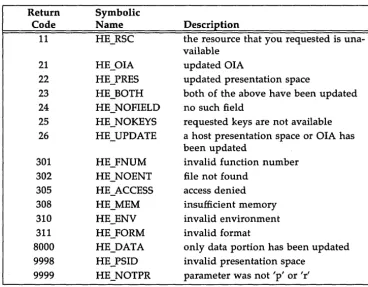
The AT&T 3270 Emulator+ HLLAPI function calls return a return code
from Figure 2-1. For example,
ifyou made the following call in your
appli-cation program
y =
hllapi(func,data,length,position)
the variable
y
would be assigned one of the return code values shown in
Figure 2-1. These values inform your application program of the success,
failure or status of the function call. This information might be used by an
error handling routine in your application program.
In addition, the AT&T 3270 Emulator+ HLLAPI function calls return
requested information at the locations pointed to by the calling parameters,
as shown below; not all four parameters will be changed on return for each
function call.
This parameter is not changed.
This parameter returns different information,
depending on the function; in some functions,
it*length
*position
usually points to the length of whatever the
data
parameter points to, although a
position can be
returned in this field.
The function return code described above is also
placed at the location pointed to by this parameter.
The manual pages for the HLLAPI function calls describe the return
codes that apply to each individual function call, although the general
meanings are consistent with the standard return codes shown below. This
consistency allows you to use a common error-handling routine in your
HLLAPI application program.
Return
Symbolic
Code
Name
0
HE_SUCCESS
1
HE.JNVAL
2
HE_PARM
3
HE_WSCTRL
4
HE BUSY
5
HE_INHBT
6
HE_LENGTH
7
HE_POS
8
HE_PROC
9
HE_SYSERR
10
HE_FUNCT
2-10 HLLAPI PROGRAMMER'S GUIDE
Description
good return
you specified an invalid presentation
space
a parameter error was encountered, or
an invalid function was specified
(refer to the individual function for
details)
WS Ctrl action has occurred
the target presentation was busy
the execution of this function was
inhibited for some reason different
than the one stated in return code 4
a data error was caused by an invalid
length parameter specification
you specified an invalid presentation
space position
.
a functional procedure error was
encountered
Return
Symbolic
Code
Name
Description
11
HE_RSC
the resource that you requested is
una-vailable
21
HE_OIA
updated OIA
22
HE_PRES
updated presentation space
23
HE_BOTH
both of the above have been updated
24
HE_NOFIELD
no such field
25
HE_NOKEYS
requested keys are not available
26
HE_UPDATE
a host presentation space or OIA has
been updated
301
HE_FNUM
invalid function number
302
HE_NOENT
file not found
305
HE_ACCESS
access denied
308
HE_MEM
insufficient memory
310
HE_ENV
invalid environment
311
HE_FORM
invalid format
8000
HE_DATA
only data portion has been updated
9998
HE_PSID
invalid presentation space
[image:39.457.55.423.69.355.2]9999
HE_NOTPR
parameter was not 'p' or 'r'
Figure 2-1: HLLAPI Return Codes
Linking Your Application Program
Once you have written your application program, you must link
itwith
the AT&T HLLAPI library. You can do this at compile time by using the
command line:
Environment Variables
The AT&T 3270 Emulator+ HLLAPI uses the environment variables that
are set and exported by the snaenvset or bscenvset shell scripts. In
addi-tion, the AT&T HLLAPI uses the following UNIX System environment
vari-ables and files:
KY3278
LUPORT
LUTABLE
P3274
RTMSG
SC3278
STSIZE
TE3279.MSG
TM3279
name of the keyboard customization file (object file)
contains the logical channel to be used for a
particu-lar session.
Ifthis environment variable is NULL,
the LUPORT uses the next available logical channel.
file name for LUTABLE
named pipe to the controller process (e.g., sna or
tm3274)
path name for the location of the run-time message
file
name of the screen customization file (object file)
maximum storage size that you can allocate, using
the Storage Manager Function. A practical
max-imum value is 64K, or the amount left over in the
address space by the hllapi process, including your
application program (your application program is
linked with the hllapi library)
name of the 3279 terminal message file
terminal model, either 2 or 5
Refer to the
AT&T 3270 Emulator+ System Administrator's Guidefor more
information on both the snaenvset and bscenvset scripts and the
environ-ment variables listed above.
The
LUT ABLE
File
The LUTABLE file describes the logical units (LU's) that will be
assigned to the controller type. hllapi will first look in your home directory
to see
ifthere is an LUTABLE file.
Ifnot, the file defined by the LUTABLE
environment variable (above) will be used. You or the System
Administra-tor for your installation can restrict access to the LUT ABLE file in your
home directory (see chmod(l) in the
UNIX System V User's Reference Manual
and' chmod(2) in the
UNIX System V Programmer's Reference Manual). This
feature provides additional security, since it in turn restricts hllapi use.
Your application program can interact with up to 4 presentation spaces,
although at any given time it can only be connected to one. Therefore, the
LUTABLE contains a maximum of 4 entries, with a maximum of 6 fields in
each entry. Each entry in the LUTABLE file contains the following fields,
separated by blanks:
• The presentation space short name. You can use any capital letter
from A through Z in the presentation space short name, but no
numbers.
• The presentation space long name. You can use any combination of
8 characters, excluding white space characters (space and tab).
• LU number(s) or number range: the AT&T 3270 Emulator+ allows
up to 32 LU's to be connected at any given time, numbered from 0
through 31. LU numbers are decimal digits separated by commas; LU
number ranges are separated by dashes.
• The name of the controller pipe.
• The terminal model number, either 2 or 5.
• An extended-attribute-bytes indicator, either a 'y' or a blank.
Figure 2-2 shows a sample
LUTABLEfile. This file contains three
entries that define three presentation spaces associated with the user
appli-cation program. The first entry contains the presentation space short name
"T," the presentation space long name "one," and the LU numbers 0 through
2. The name of the controller pipe, and the terminal model are not
specified; therefore, the default values will be used. The default values are
those that were assigned to the environment variables.
The second entry contains the presentation space short name "U," the
presentation space long name "two," and the LU numbers 5 through 17.
The two fields that follow contain a dash (-); this means that default values
will be used for the name of the controller pipe and the terminal model.
The last field contains a
'y,'which indicates that extended attributes will be
used.
The last entry in Figure 2-2 is similar to the second entry, except that
the terminal model is specified, the extended attributes field is left blank,
and three non-consecutive LU numbers are specified.
[image:42.458.44.391.285.376.2]Tone 0-2 U two 5-17 - - Y V three 20,24,26 - 5
Figure 2-2: Sample LUTABLE
3
HLLAPI Tutorial
Introduction
Using the AT&T 3270 Emulator+
HLLAPI Tutorial
• Editing Mode
Environment Variables
3-1
The AT&T 3270 Emulator+ HLLAPI Tutorial is a useful interactive
learning tool that allows you to invoke individual HLLAPI functions, and
see the results of executing these functions and the parameters returned by
them without writing complex programs. You can also use the AT&T 3270
Emulator+ HLLAPI Tutorial as an informal testing tool.
Tutorial
You can run the hllapiprim and hllapisec programs on the same
termi-nal or on different termitermi-nals. When using one termitermi-nal, invoke the
hllap-isec program first as a background task, with the standard output and the
standard error directed to files to avoid cluttering the screens.
Your application program cannot establish a physical connect with the presentation space if hllapisec is running in the background
For example, typing in the command
hllapisec 1
>secout
2
>&1 &
redirects the standard output and the standard error to the file sec out; you
may use another file name
ifyou like. Next, enter
hllapiprim
If
you are using two terminals, the order in which you invoke the two
AT&T 3270 Emulator+ HLLAPI Tutorial programs does not matter; on one
terminal, enter
hllapiprim
on the other
hllapisec
See "The Environment" section in chapter 2 for information regarding
environment variables that must be set before running the hllapiprim and
hllapisec programs.
The hllapiprim program is a menu-based full-screen interactive
pro-gram that organizes the functions supported by the AT&T 3270 Emulator+
HLLAPI into seven menus:
• Local Environment Functions Menu
• Communications Functions Menu
• Keyboard Functions Menu
• File Transfer Functions Menu
• Memory Management Menu
• Presentation Space Management Menu
• Environment Functions Menu
Once you invoke the hllapiprim program, the main menu will appear on
the screen listing these menus, as follows:
HLLAPI Tutorial Main Menu
1 - Weal EnvircIrnrent Functions MfmU c - Camnmications E\mcti.ons Menu k - Keyboard Functions Menu f - File Transfer E\mcti.ons Menu
m - Menmy Management Menu
p - Presentation Space Management Menu e - EnvircIrnrent E\mcti.ons Menu
q - Quit the HLLAPI Tutorial
Select a choice:
The top portion of each menu screen lists the functions in the menu,
and the bottom portion shows the menu-switching commands and other
available response choices.
the latest parameters returned by a function are placed in a text file in
hexa-decimal format. The editor program defined by the
EDITORenvironment
variable will then be invoked, and the text file will be displayed. Typing in
an x at the "Select a choice:" prompt lets you see the non-displayable
char-acters and save the results in files for later use.
For example, after you have run the AT&T 3270 Emulator+ HLLAPI
function number 5 (Copy Presentation Space), the x command might
pro-duce the following display:
E'Ul-C1'IOO' 5
DATA
0000 74686973 20697320 74686520 72657375 0010 6c74206f 6620636f 70792070 72657365 0020 6e746174 696f6e20 66756e63 74696f6e 0030 2063616c 6c
REIO:DE
0000 34
*this.is.the.resu* *It.of.copy.prese*
*ntatian. functian*
*ca11*
The seven AT&T 3270 Emulator+ HLLAPI Tutorial menus that may be
called from the HLLAPI Tutorial Main Menu are shown below.
Local Envi.rorlrrent FUnctions Menu
1 - Connect PS 2 - Discarmect PS
16 - Vbrk station Control 20 - Query System
9 - Set Session Param
10 - Query Sessions
21 - Reset System 22 - Query Session status
11 - Reserve 113 - Carmect and Interact with PS
12 - Release
Select a cix)ice:
1 - IDe Env Menu f - File Trans Menu e - Env Menu x - hex ret:uzn
c - Camuni Menu m - MeIIory Manag Menu M - Main Menu 1 - shell
k - Keyboard Menu p - PS Manag Menu q - quit
Ccmmmications FUnctions Menu
3 - Serd Key
4 - wait
18 - Pause
Select a cix)ice:
23 - Start Host Notification
24 - Query Host Upjate
25 - Stop Host N::ltification
1 - IDe Env Menu f - File Trans Menu e - Env Menu x - hex ret:uzn
c - Camuni Menu m - MeIIory Manag Menu M - Main Menu 1 - shell
Keyboard Functicms Menu
50 - start Keyboard Intercept 51 - Get Key
52 - Post Intercept status
53 - stop Keystroke Intercept
Select a clx:>ice:
1 - IDe Env Menu f - File Trans Menu e - Env Menu c - Camuni Menu m - Mem:>l:y Manag Menu M - Main Menu k - Keyboard Menu P - PS Manag Menu q - quit
File Transfer Functicms Menu
90 - Send File 91 - Receive File
Select a clx:>ice:
1 - IDe Env Menu f - File Trans Menu e - Env Menu c - Camuni Menu m - Mem::>%Y Manag Menu M - Main Menu k - Keyboard Menu P - PS Manag Menu q - quit
3-6 HLLAPI PROGRAMMER'S GUIDE
x - hex retunl 1 - shell
Mem::lIy Mmagarent Menu
17 - Storage Manager
Select a choice:
1 - IDe Env Menu. f - File Trans Menu e - Env Menu x - hex return
c - Camuni Menu. m - MeIIory Manag Menu. M - Main Menu. I - shell
k - Keyboard Menu P - PS Mmag Menu q - quit
Presentation Space Managenent Menu.
5 - Copy Presentation Space 6 - Search Presentation Space
7 - Query Cursor IDeation
8 - Copy PS to StrinJ
13 - Copy OIA
14 - Query Field Attribute 15 - Copy StrlnJ to PS 30 - Search Field
Select a choice:
31 - Find Field Position 32 - Find Field Length
33 - Copy String to Field 34 - Copy Field to String 99 - Convert Position or RowCol 111 - Change Current PS Position 112 - write a Character in PS
1 - IDe Env Menu. f - File Trans Menu e - Env Menu x - hex return
c - Camuni Menu. m - MeIIory Manag Menu. M - Main Menu. I - shell
Eriv:iranment F\mctions Menu
92 - Invoke UNIX Process 93 - UNIX Redirect
Select a clnice:
1 - IDe Env Menu f - File Trans Menu e - Env Menu x - hex return c - Camuni Menu m - Mem:>ry Manag Menu M - Main Menu I - shell k - Keyboard Menu P - PS Manag Menu q - quit
To avoid switching back and forth between menus, you can execute any
valid AT&T 3270 Emulator+ HLLAPI function from all menus, including
the Main Menu; this is useful for experienced HLLAPI users, or when you
must execute a sequence of HLLAPI calls.
Once you choose a function by entering a function number in response
to the "Select a choice:" prompt, you will be asked to enter the calling
parameters required by that function. For example,
Data<-prompts you to enter the data string parameter,
Length<-prompts you to enter the length parameter, and
Retcode<-prompts you for the return code parameter.
Since not every function requires all parameters, you will only be asked
to provide the parameters required by the function you have chosen.
How-ever, if the length parameter can be derived from the data string parameter,
the AT&T 3270 Emulator+ HLLAPI Tutorial will automatically compute the
length parameter and display
iton the screen. You then have the option of
changing the length parameter or pressing the return key to enter it. The
parameters returned by the function will be displayed on the screen with
their labels once the function has executed.
The AT&T 3270 Emulator+ HLLAPI Tutorial will add a + character at
the end of the returning parameters,
iftheir content exceed the width of
the physical screen; non-displayable characters will appear as spaces. Use
the x command to view the entire contents of the returning parameters, .
and non-displayable characters.
Editing Mode
Whenever you are prompted for entries on any of the AT&T 3270
Emu-lator+ HLLAPI Tutorial menus, your terminal is placed in the tutorial
edit-ing mode, In this mode all characters typed, except the backspace, tilde,
escape, and return characters, are immediately saved in an hllapiprim
inter-nal buffer. The normal UNIX System erase and kill characters
(#and
@)are not interpreted as such, and do not have to be preceded by a ''\''. The
non-displayable characters (such as control characters) appear as spaces on
the screen.
A backspace character moves the cursor backwards one position and
erases the current character and all characters to its right. The return
char-acter ends the editing mode; the content of the buffer is taken as input to
the current prompt, and the next prompt,
ifrequired, is displayed. In
edit-ing mode, you can not move the cursor beyond the rightmost position on
the screen; a bell will sound
ifyou try to.
When you enter the escape character from any position, the editor.
specified by the EDITOR variable will be invoked with the current buffer
content. Use the escape character to enter characters beyond the rightmost
screen position and to respond to menu prompts with the full-screen editor
you prefer. This character is also useful
ifyou must enter data for functions
that require hundreds of characters or data that contains large numbers of
non-displayable characters.
When you leave the editor, the file content, which you must write out
ifyou made changes, will be transferred to the hllapiprim internal buffer and
the original screen will be redisplayed with the new buffer contents. When
the buffer content is read by the editor, newline characters will be
If
the escape character is preceded by a tilde character, the buffer
con-tent will be converted into hexadecimal format before the editor is invoked.
The hexadecimal format file content is similar to the result of executing the
"x" command: each line shows the address, hexadecimal displays of 16
char-acters followed by their corresponding character displays.
Once inside the editor, the hexadecimal display portion can be edited
using hex representations of characters. Note that when editing the
hexa-decimal file, the file format must be preserved in order for the file to be
converted properly back to the internal buffer; i.e., hex codes must be in
groups of 4 characters separated by space characters and each line should
have six characters before the first hexadecimal code, although the address
portion is never used when file content is transferred to the internal buffer.
This tilde-escape editing makes it possible for a user to enter any character
as part of a function parameter input, including the four editing control
characters and non-ASCII characters with embedded null characters. For
example, using the tilde-escape editing, the storage address returned by the
HLLAPI function number 17 (H_STMAN - Storage Manager) can be entered
as part of the data parameters for function number 23 (H_STRTHOST - Start
Host Notification).
You can interrupt the editing mode with the
interrupt signal or with
the
quit signal. The interrupt signal ends the current editing mode and
moves the cursor to the "Select a choice:" prompt; all input parameters that
you entered will be discarded, and the chosen function will not be
exe-cuted. The
quit signal ends the AT&T 3270 Emulator+ HLLAPI Tutorial
program.
Environment Variables
The hllapiprim and hllapisec programs communicate through two named pipes that they create if needed. The location of these two named pipes is, by default, the $HOME UNIX System directory; if the HOME variable is not defined or has no value, the current working directory will be used. The default file names for the two named pipes are .hlltutp.l and .hlltutp.2; however, you can set the environment variables HLLTUTDIR and HLLTUTP to override the default pipe names and locations. The AT&T 3270 Emulator+ HLLAPI Tutorial will add the suffixes .1 and .2 to the names defined by HLLTUTP; therefore, you must restrict HLLTUTP names to a length of 12 characters.
The AT&T 3270 Emulator+ HLLAPI Tutorial uses two additional environment variables; EDITOR, and SHELL. EDITOR determines the text editor program that the AT&T 3270 Emulator+ HLLAPI Tutorial will use (e.g., ed or vi); the default is ed. SHELL determines the shell program that will be used when you escape to the UNIX System while running the AT&T 3270 Emulator+ HLLAPI Tutorial; the default is sh.
4
Application Program Interface
Introduction
BSC Operation
SNA Operation
Configuration Files
Include Files
The API Tutorial
Running the API Tutorial Package
• Running with Two Terminals • Running with One Terminal
Application Development
API Execution
Application Program Development
• Application Program Format • Linking with the API Library
• The Application Program Environment • Signals
• 3270 Data Stream Mode • Raw Mode
• Multi-Session • Host Interaction
The API provides two modes of accessing a remote host: in 3270 data
stream mode or in "raw" data stream mode. In 3270 data stream mode, the
application program interface to the remote system is functionally
equivalent to the interactive user interface to the host through a 3278/9
ter-minal. The raw mode provides a block data transfer interface, independent
of any terminal functionality.
The following calls constitute the API interface:
xlu2clos(3X)
power off the logical unit
xlu2ctl(3X)
logical unit control functions
xlu2func(3X)
perform special functions on logical unit
xlu2gets(3X)
get a string from the LUD _3270 logical unit's screen buffer
xlu2info(3X)
obtain 3278/9 status line and cursor position information
xlu2init(3X)
initialize terminal function library
xlu2intr(3X)
interrupt an API call
xlu2open(3X) power on the logical unit
xlu2puts(3X)
put a string to the LUD _3270 logical unit's screen buffer
xlu2read(3X)
read the next raw segment on the LUD_RAW/LUD_TRAW
logical unit
xlu2seek(3X)
position the cursor to a field in screen buffer for LUD _3270
logical unit
xlu2writ(3X)
write a raw segment on the
LUD~W/LUD_TRAWlogical
unit
where:
logical unit
LUD 3270
is an SNA or a BSC terminal port. Logical unit is used
generically, and it applies to both SNA and B5C.
LUD RAW
specifies that the application program is using a block
data interface to the remote system; API does not
exam-ine or alter the data except for BSC control codes, which
are stripped before the data are passed to an application.
In the case of SNA, API presents the RU to the
applica-tion
LUD TRAW
specifies that the application program is using a
tran-sparent block data interface to the remote system; API
does not examine or alter the data except for BSC control
codes, which are stripped before the data are passed to
an application
BSC Operation
When operating in BSC mode, 3274 controller functions are performed
by the BSC controller process, TM3274, and the communication board b3274
program.
TM3274 performs the device interface functions of a 3274 cluster
con-troller, including establishing internal communication with each device
emulation process as it powers up, and validating and/or assigning device
addresses to devices as they power up. TM3274 interfaces with b3274, via
the driver, to transfer data between the emulated device and
communica-tions line, and it also handles the transfer of screen contents during copy
commands.
b3274 performs the protocol level functions of an IBM 3274-51C cluster
controller operating in BSC mode, including data stream validation,
termi-nal status maintenance, and reporting.
Ithandles polling and device
selec-tion, and it also controls BSC timing functions, including timing of line
activities and sync insertion.
SNA Operation
When operating in SNA mode, 3274 controller functions are performed
by the SNA process, SNA, and the communication board sdk program.
SNA emulates the SNA functions of an IBM 3274-51C cluster controller.
Itprovides support for all protocols associated with the Path Control,
Transmission Control (or Connection Point Manager), Session Control, Data
Flow Control, and Presentation Services layers of SNA.
sdlc emulates the link-level SDLC protocols as implemented on the
clus-ter controller.
Configuration Files
An API application uses the following configuration files:
• screen control customization object file
• keyboard mapping customization object file
• message object file.
In addition, the controller configuration object file (BSC or SNA) must
be set up.
Include Files
Application programs are required to include the header file xlu2io.h,
which contains all required definitions and includes all other required files.
Other files of interest to developers are:
xapi.h
ctrl.c
includes most definitions
The API Tutorial is intended to assist API programmers in gaining
fami-liarity with API function calls. The tutorial allows you to enter API calls
from a terminal and observe the results. The package operates interactively;
a menu allows you to choose the call you want, and submenus allow you to
specify options to the call.
The following files are contained in the tutorial package:
primary
shell script
secondary
shell script
mast
slv
README
contains instructions
show_it
This section describes how to use the API Tutorial; installation of the
package is not a prerequisite for developing or running API application
pro-grams. Refer to the appropriate
AT&T 3270 Emulator+ Release Notesfor
ins-tallation instructions.
Running the API Tutorial Package
You can run the tutorial using one or two terminals.
Ifone terminal is
used, only part of the results of each API call can be displayed interactively
following the execution of the call. The remainder of the output can be
sent to a file you designate and can be examined after the tutorial program
is terminated.
If
two terminals are available, the primary script is run on one terminal
and the secondary script on the other.
Ifonly one terminal is available, the
secondary script should be run in the background with output directed to a
file.
Before you run these programs you must have the 3274 controller
pro-cess (SN A or BSe) running, and you should also have read the
AT&T 3270 Emulator+ Application Programmer's Guideand have it available for reference.
You must also create two named pipes in the directory that contains the
tutorial. To create the pipes, you do the following:
Step 1.
Log in as root.
Step 2.
Enter the following sequence of commands:
cd
the_directory _where ...Jfou _have _stored _the _Tutorial
mknod
pip 1 p
mknodpip2 p
Running with Two Terminals
If
the package is to be run from two terminals, you must perform the
following steps. (The two terminals are referred to as liT 1
IIand "T2. ")
Step
1.Log in on T1 and T2.
Step 2.
On both T1 and T2, type
cd
the_directory_where_theseJiles_are_stored
Step 3.
On T1, type
• /secandaJ:y
abc.
where:
a
is the screen file name
b
is the keyboard file name
c is the name of the controller pipe
For example:
a
could be 4410 (from SC.4410)
b
could be std (from KY.std )
c could be I
tmp
I
p327 4.4
and you would enter:
Step 4.
Step 5.
Step 6.
On T2, type
• /pr:imal:y
This causes the following primary menu to be displayed:
API SYSTEM CALL EXERCISER
o.
Exit fran program1. xlu20pen 2. xlu2clos
3. xlu2ct1 4. xlu2gets
5. xlu2puts 6. xlu2seek
7. xlu2info 8. xlu2init
9. xlu2flIDC 10. Xlu2write
11. xlu2read
Enter Option :
If
you select any option from 1 through 11 a series of menu
sub-screens will be displayed, each requesting you to enter a
parame-ter associated with the call. Afparame-ter you have enparame-tered the last
parameter, the output of the call (i.e. the return value of the call
and the return value of certain parameters associated with the
call) is displayed, generally followed by the primary menu.
You may now request execution of API calls. Your first two calls
must be xlu2init followed by xlu2open.
The purpose of Tl is to display additional output from each API
call as it is executed. To cause the API to display the output, you
must use LUV _TRC or LUV _DSP as the
luvmodparameter in the
xlu20pen call. Once the xlu20pen call has been made, the screen
on Tl will display the results of subsequent API calls.
You can also display this output by using the same values for the
luvmodparameter in an xlu2ctl call.
Step 7.
Step 8.
You can now continue with other API calls, eventually closing
each session you open with an xlu2clos call.
The tutorial continues to run even after all open sessions have
been closed with calls to xlu2clos.
Itmay be terminated by
selecting option
"0"in the primary menu.
Ifyou terminate the
tutorial, any sessions still open from T2 will be closed.
Running with One Terminal
If
the package is to be run from one terminal, both the primary and
secondary scripts must be run from this terminal, and any output from an
API call must be directed to a file. The following steps are required:
Step 1.
Type
./secandary
abc
>
logfile &
where
a,
b,and c are the same as in Step 3 above, and
logfile is
the file in which you want the output to be placed.
Step 2.
Type
Step 3.
Step 4.