Thank you for purchasing our product.
This manual provides important information about safe and proper
operations of this Switching Hub.
Please read the "Important Safety Instructions" on pages 3 to 5.
Any problems or damage resulting from disassembly of this Switching
Hub by customers are not covered by the warranty.
Layer 2 Switching Hub
Model Number: PN23129A
PN23169A
PN23249A
Operation Manual
This operation manual is applicable to the following Switching Hubs:
Product name
Model No.
Switch-M12PWR
PN23129A
Switch-M16PWR
PN23169A
Switch-M24PWR
PN23249A
3
Important Safety Instructions
This chapter contains important safety instructions for preventing bodily
injury and/or property damage. You are required to follow them.
Severity of bodily injury and/or property damage, which could result
from incorrect use of the Switching Hub, are explained below.
The following symbols are used to classify and describe the type of
instructions to be observed.
This symbol is used to alert
users to what they must not
d
Do not use power other than AC 100 - 240V.
Deviation could lead to fire, electric shock, and/or equipment failure.
Do not handle the power cord with wet hand.
Deviation could lead to electric shock and/or equipment failure.
Do not handle this Switching Hub and connection cables during a
thunderstorm.
Deviation could lead to electric shock.
Do not disassemble and/or modify this Switching Hub.
Deviation could lead to fire, electric shock, and/or equipment failure.
Do not damage the power cord. Do not bend too tightly, stretch, twist,
bundle with other cord, pinch, put under a heavy object, and/or heat it. Damaged the cord could lead to fire, short, and/or electric shock.
Do not put foreign objects (such as metal and combustible) into the opening
(such as twisted pair port, console port, SFP extension slot), and/or do not drop them into the inside of the Switching Hub.
Deviation could lead to fire, electric shock, and/or equipment failure.
Do not connect equipment other than 10BASE-T/100BASE-TX/1000BASE-T to
twisted pair port.
Deviation could lead to fire, electric shock, and/or equipment failure.
Do not place this Switching Hub in harsh environment (such as near water,
high humid, and/or high dust).
Deviation could lead to fire, electric shock, and/or equipment failure.
This symbol indicates safety instructions. Deviation from these instructions could lead to bodily injury and/or property damage.
This symbol is used to alert
users to what they must do.
WARNING
This symbol indicates a potential hazard that could result inserious injury or death.
CAUTION
Do not place this Switching Hub under direct sun light and/or high temperature.
Deviation could lead to high internal temperature and fire.
Do not install this Switching Hub at the location with continuous vibration or
strong shock, or at the unstable location
Deviation could lead to injury and/or equipment failure.
Do not install any module other than our optional SFP module to SFP
extension slot.
Deviation could lead to fire, electric shock, and/or equipment failure.
Do not connect any cable other than our optional console cable.
Deviation could lead to fire, electric shock, and/or equipment failure.
Do not put this Switching Hub into fire.
Deviation could lead to explosion and/or fire.
Do not use the supplied power cord for anything other than this product.
Deviation could lead to fire, electric shock, and/or equipment failure.
Use the bundled power cord (AC 100 – 240V specifications).
Deviation could lead to electric shock, malfunction, and/or equipment failure.
The warranty does not cover any problems resulting from the use of any power cord other than the one supplied.
Unplug the power cord in case of equipment failure.
Deviation, such as keeping connected for a long time, could lead to fire.
Connect this Switching Hub to ground.
Deviation could lead to electric shock, malfunction, and/or equipment failure.
Connect the power cord firmly to the power port.
Deviation could lead to electric fire, shock, and/or malfunction.
Unplug the power cord if the STATUS LED (Self-diagnosis), TEMP LED
(temperature sensor), or FAN LED (fan sensor) blinks in orange (system fault). Deviation, such as keeping connected for a long time, could lead to fire.
When this Switching Hub is installed on wall surface, mount it firmly so as not
to drop down because of weight of the main body and connection cable. Deviation could lead to injury and/or equipment failure (excluding
Switch-M24PWR).
WARNING
5
Handle the Switching Hub carefully so that fingers or hands may not be
damaged by twisted pair port, SFP extension slot, console port, or power cord hook block.
CAUTION
If you connect a network camera, a wireless access point, or other
devices that can be affected by a lightning strike (in particular,
devices installed outdoors) to the twisted pair port of this Switching
Hub, a lightning surge current/voltage may be conducted to this
Switching Hub through the twisted pair cable, leading to
malfunction. If you connect such a device, it is strongly recommended
that you install a surge protective device (SPD) on the twisted pair
port side of this Switching Hub.
A lightning surge current/voltage may be conducted to this
Switching Hub through the power supply or ground wire connected
to the power port, leading to malfunction. If a lightning surge
current/voltage may flow in through the power supply or ground
wire, it is recommended that you install a surge protective device
(SPD) on the power port side of this Switching Hub.
Basic Instructions for the Use of This Product
For inspection and/or repair, consult the retailer.
Use commercial power supply from a wall socket, which is close and easily accessible to this Switching Hub.
Unplug the power cord when installing or moving this Switching Hub.
Unplug the power cord when cleaning this Switching Hub.
Use this Switching Hub within the specifications. Deviation could lead to malfunction.
Do not touch the metal terminal of the RJ45 connector, the modular plug of connected twisted pair cable, or the metal terminal of the SFP extension slot. Do not place charged objects in the proximity of them. Static electricity could lead to equipment failure.
Do not put the modular plug of the connected twisted pair cable on objects that can carry static charge, such as carpet. Do not place it in the proximity. Static electricity could lead to equipment failure.
Do not put a strong shock, including dropping, to this Switching Hub. Deviation could lead to equipment failure.
Before connecting a console cable to the console port, discharge static electricity, for example by touching metal appliance (do not discharge by touching this Switching Hub).
Do not store and/or use this Switching Hub in the environment with the characteristics listed below.
(Store and/or use this Switching Hub in the environment in accordance with the specification.)
High humidity. Possible spilled liquid (water).
Dusty. Possible static charge (such as carpet).
Under direct sunlight.
Possible condensation. High/low temperature exceeding the specifications environment.
Strong vibration and/or strong shock.
Please use this Switching Hub in place where ambient temperature is from 0 to 40 degrees C.
For Switch-M12PWR:
When the total power supply is 140W or less, please use the Switching Hub in place where ambient temperature is from 0 to 45 degrees C.
When the total power supply is 110W or less, please use the Switching Hub in place where ambient temperature is from 0 to 50 degrees C.
For Switch-M16PWR:
7
For Switch-M24PWR:
When the total power supply is 145W or less, please use the Switching Hub in place where ambient temperature is from 0 to 45 degrees C.
When the total power supply is 130W or less, please use the Switching Hub in place where ambient temperature is from 0 to 50 degrees C.
Failure to meet the above conditions may result in fire, electric shock, breakdown, and/or malfunction. Please take notice because such cases are out of guarantee. Additionally, do not cover the bent hole of this Switching Hub.
Deviation could lead to high internal temperature, equipment failure and/or malfunction.
When using two Switching Hubs, do not stack them. When you place them side by side, allow for a space of 20 mm or more between them. This space is not
necessary if you use PN71052 connection brackets (excluding Switch-M24PWR).
When stacking Switching Hubs, leave a minimum of 20 mm space between them.
1. Panasonic will not be liable for any damage resulting from the operation not
in accordance with this operation manual or the loss of communications,
which may or may not be caused by failure and/or malfunction of this device.
2. The contents described in this document may be changed without prior
notice.
3. For any question, please contact the retailer where you purchased the
product.
* Brands and product names in this document are trademarks or registered
trademarks of their respective holders.
Table of Contents
Important Safety Instructions ··· 3
Basic Instructions for the Use of This Product ··· 6
1. Outline ··· 10
2. Features ··· 11
2.1. Web-browser-based Administration Function ··· 11
3. Web-browser-based Administration ··· 12
3.1. Operating Environment ··· 12
3.2. Accessing WEB Administration Function ··· 13
3.3. General Information ··· 17
4. Switch Configuration ··· 19
4.1. Basic Switch Configuration ··· 19
4.1.1. System Administration Configuration ··· 19
4.1.2. IP Configuration ··· 20
4.1.3. SNMP Configuration ··· 21
4.1.4. Basic Trap Configuration ··· 22
4.1.5. Advanced Trap Configuration ··· 23
4.1.6. Basic Port Configuration ··· 25
4.1.7. Extended Port Configuration ··· 27
4.1.8. System Security Configuration ··· 28
4.1.9. Syslog Transmission Configuration ··· 30
4.1.10. Username and Password Configuration ··· 31
4.1.11. FDB Static Address Table ··· 32
4.1.12. FDB by Port ··· 33
4.1.13. FDB Table (By MAC Address) ··· 34
4.1.14. FDB Table (by VLAN) ··· 35
4.1.15. Time Configuration ··· 36
4.2. Advanced Switch Configuration ··· 37
4.2.1. VLAN Management ··· 37
4.2.1.a. VLAN Modification ··· 38
4.2.2. VLAN Creation ··· 39
4.2.3. VLAN Port Configuration ··· 40
4.2.4. Access Control Configuration(Classifier Configuration) ··· 41
4.2.5. Access Control Configuration (In-Profile Action Configuration) ··· 42
9
4.2.9. Access Control Configuration(Policy List) ··· 46
4.2.10. QoS Configuration ··· 47
4.2.11. Link Aggregation Configuration ··· 48
4.2.11.a. LACP Config Modification ··· 49
4.2.12. Port Priority Configuration ··· 50
4.2.13. Storm Control Configuration ··· 51
4.2.14. Port Monitoring Configuration ··· 52
4.2.15. Spanning Tree Configuration (STP Global Configuration) ··· 53
4.2.15.a. CIST Configuration ··· 55
4.2.15.b. CIST Basic Port Configuration ··· 57
4.2.15.c. CIST Advanced Port Configuration ··· 59
4.2.15.d. MST Instance Configuration ··· 61
4.2.15.e. Designated Topology Information ··· 66
4.2.15.f. Regional Topology Information ··· 67
4.2.16. IGMP Snooping Configuration ··· 68
4.2.16.a. IGMP Querier Configuration ··· 69
4.2.16.b. VLAN Filter Configuration ··· 70
4.2.16.c. Router Port List··· 71
4.2.17. PoE Global Configuration ··· 72
4.2.17.a. PoE Port Configuration ··· 73
4.3. System Tools ··· 74
4.3.1. Software Update ··· 74
4.3.2. Reboot ··· 75
4.3.3. Save Current Configuration ··· 76
4.3.4. Statistics ··· 77
4.3.5. System Log ··· 80
4.3.6. Configuration File Transfer ··· 83
Appendix A.
Specifications ··· 84
Appendix B.
Procedures for Console Port Connection using Windows
HyperTerminal 85
Appendix C.
Easy IP Address Setup Function ··· 86
Troubleshooting ··· 87
1. Outline
Thank you for purchasing our Switching Hub. This operation manual provides
information required to use the Web-browser-based administration function
of the Switching Hub.
11
2. Features
2.1. Web-browser-based Administration
Function
The web-browser-based administration function allows you to easily perform
administration task, such as configuration and monitoring, from a web
browser, such as Microsoft Internet Explorer.
3. Web-browser-based Administration
The web-browser-based administration function (hereafter, WEB
Administrative Function) allows the administrator to perform tasks, such as
configuring the Switching Hub and monitoring the network, by using a web
browser as a user interface. Further, this function shows virtual LEDs,
reflecting the current state of the LEDs on the Switching Hub, so that the
administrator can administrate the Switching Hub remotely as if the
Switching Hub is nearby.
3.1. Operating Environment
To use the WEB Administration Function, you must set the network settings.
1.
Setting the IP Address
Set the IP address for the Switching Hub via the console.
Select as follows: Basic Switch Configuration...
System IP
Configuration
Set IP Address. Set the IP address setting. Then, set a
subnet mask in "Set Subnet Mask." Set a default gateway address, if
needed, in "Set Default Gateway."
2.
Enabling the WEB Administration Function
You need to enable the WEB Administration Function of the Switching
Hub.
Select as follows: Main Menu
Basic Switch Configuration...
System
Security Configuration
Web Server Status. The command prompt
changes to "Enable or Disable web server (E/D)." Enter "e" to enable the
WEB Administration Function. The factory default setting is "Disabled."
The terminal to access the Switching Hub must have a web browser
(Microsoft Internet Explorer 6.0) and Java RE (Ver. 1.4 or above) installed.
Further, the terminal must be connected to the Switching Hub directly or via
network.
Note:
If a proxy server is used, active windows may not be displayed properly on
the terminal. We recommend connecting the terminal and the Switching
Hub directly without using a proxy.
13
3.2. Accessing WEB Administration Function
To use the WEB Administration function, open the browser on the terminal,
enter the IP address of the Switching Hub in the URL field and then press the
"Enter" key. Then, a login screen, as shown in Fig. 2-1, appears. Enter your
username and password.
The default login name is "manager" and the password is "manager."
Fig. 2-1 Login Screen
Note:
If a login screen does not appear, check the following items:
(1) The IP address, subnet mask and default gateway of this switch have
been set properly.
(2) The IP address you entered in the web browser's URL field is the same
as the IP address of this switch.
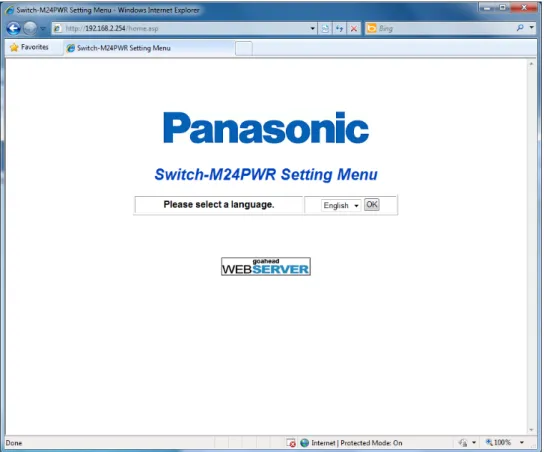
If the authentication succeeds, a language selection screen, as shown in Fig.
2-2, appears.
Select a desired interface language and then press "OK."
15
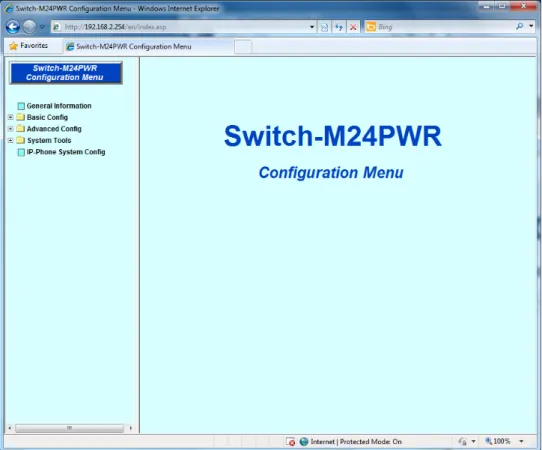
After selecting the interface language, a main screen, as shown in Fig. 2-3,
appears.
The left side of the screen shows functions you can select on the screen.
1.
General Information
Shows a list view of the basic information about the Switching Hub.
2.
Basic Switch Configuration
Sets the basic settings, such as IP address and ports, of the Switching
Hub.
3.
Advanced Config
Sets the advances settings, such as VLAN, QoS, IGMP snooping, of the
Switching Hub.
4.
System Administration Tool
Accesses administration tools, such as firmware update, system log
viewer.
To mange and operate the Switching Hub, we recommend you to set the
“Basic Switch Configuration” first and then to set advanced configurations.
17
3.3. General Information
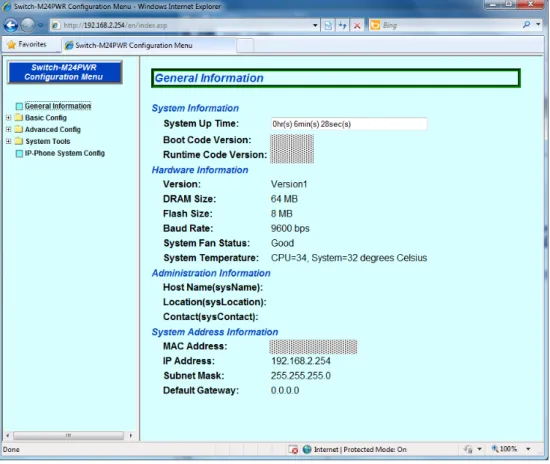
Selecting "General Information" opens a screen, as shown in Fig. 3-1. This
screen shows a list view of the basic information about the Switching Hub.
Screen Description
System UpTime
Shows the cumulative time since the power on of this Switching Hub. Boot Code
Version
Shows this Switching Hub's firmware version.
* The firmware update, as described in 4.3.1, is applicable to the runtime code only.
Runtime Code Version Hardware Information
Shows the hardware information.
Version Shows the hardware version information.
DRAM Size Shows the sizes of installed DRAM.
Flash Size Shows the sizes of installed flash memory.
Console Baud Rate Shows the baud rate of the console.
System Fan Status Shows the operation status of the installed fan.
"Normal" indicates a normal operation. "Error" indicates an error or a stop.
System Temperature
Shows the internal temperatures of the Switching Hub.
The sensors measure the temperature of CPU and system.
Administration Information
This item is configured in accordance with "4.1.1 System Administration Configuration."
Host Name Shows the Switching Hub name. The default value is
empty. For configuration details, refer to 4.1.1.
Location Shows the Switching Hub's location. The default value
is empty. For configuration details, refer to 4.1.1.
Contact Shows the contact information. The default value is
empty. For configuration details, refer to 4.1.1. System Address
Information
This item is configured in accordance with "4.1.2 System IP Configuration."
MAC Address Shows the MAC address of this Switching Hub. This value is uniquely assigned to each device and cannot be changed.
IP Address Shows the Switching Hub's current IP address. 0.0.0.0 is
displayed because no address is set on default setting. For configuration details, refer to 4.1.2.
Subnet Mask Shows the Switching Hub's current subnet mask. 0.0.0.0 is displayed because no address is set on default
setting. For configuration details, refer to 4.1.2. Default
Gateway
Shows the IP address of the router for the default gateway. 0.0.0.0 is displayed because no address is set on default setting. For configuration details, refer to 4.1.2.
19
4. Switch Configuration
After changing the configuration, you must follow the procedure in section
4.3.3 to save the changes. Otherwise, the change will not be applied upon
rebooting the Switching Hub.
4.1. Basic Switch Configuration
4.1.1. System Administration Configuration
Select "Basic Config" and then select "Administration Config." A screen, as
shown in Fig. 4-1-1, appears. This screen shows this Switching Hub's basic
information. On this screen, you can set administrative information, such as
device name.
Fig. 4-1-1 System Administration Configuration
Screen Description
Product Name Shows the system information. This item is not editable.
Object ID Shows the corresponding OID in the MIB. This item is not editable.
Hostname Shows the system name. The default setting is empty.
Location Shows the device installation location. The default setting is empty.
Contact information
4.1.2. IP Configuration
Select "Basic Config" and then select "IP Config." A screen, as shown in Fig.
4-1-2, appears. On this screen, you can configure IP-address-related settings
of this Switching Hub.
Fig. 4-1-2 IP Configuration
Screen Description
MAC
Address Shows the MAC address of this Switching Hub. This value is a unique identifier assigned to the device and unchangeable.
IP Address Shows the current IP address. 0.0.0.0 is default setting.
Subnet Mask
Shows the current subnet mask. 0.0.0.0 is default setting. Default
Gateway
Shows the IP address of the router, set as a current default gateway. 0.0.0.0 is default setting.
Note:
The above item needs to be set in order to use the SNMP control function
and to enable a remote connection by Telnet. You must set them. If you
are unsure, consult the network administrator. Any IP addresses on the
local network must be unique and no duplication is allowed. In addition,
you need to set the subnet mask and the default gateway, which are the
same for other devices on the same subnet using this Switching Hub.
21
4.1.3. SNMP Configuration
Select "Basic Config," select "SNMP" and then select "SNMP Config." A screen,
as shown in Fig. 4-1-3, appears. On this screen, you can configure the SNMP
manager settings.
Fig. 4-1-3 SNMP Configuration
Screen Description
No. Shows the entry number on the SNMP Manager List.
Status Shows the SNMP manager status.
Enabled The SNMP manager is enabled.
Disabled The SNMP manager is disabled.
Access privilege
Shows the access privilege of the SNMP manager.
Read-Write Both the read and write operations are allowed.
Read-Only Only the read operation is allowed.
IP address Shows the IP address of an SNMP manager.
4.1.4. Basic Trap Configuration
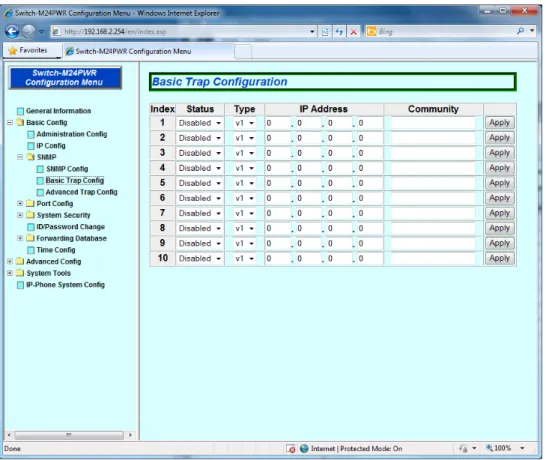
Select "Basic Config," select "SNMP" and then select "Basic Trap Config." A
screen as shown in Fig. 4-1-4, appears. On this screen, you can set the SNMP
Trap settings.
Fig. 4-1-4 Basic Trap Configuration
Screen Description
No. Shows the entry number for the trap receiver.
Status Shows the trap sending setting.
Enabled Sends traps.
Disabled Does not send traps. (Factory default settings)
Type Shows the trap type.
v1 Sends SNMPv1 traps. (Factory default settings)
v2 Sends SNMPv2 traps.
IP address Shows the IP address of a trap receiver.
Community Shows the community name for a trap receiver.
Note:
The SNMP agent must be enabled (refer to 4.1.8 System Security
Configuration).
23
4.1.5. Advanced Trap Configuration
Select "Basic Config," select "SNMP" and then select "Adranced Trap Config."
A screen, as shown in Fig. 4-1-5, appears. On this screen, you can set the trap
sending behaviors.
Screen Description
SNMPAuthenticatio n Failure
Shows the trap sending settings for an SNMP authentication failure.
Enabled Enables the trap sending.
Disabled Disables the trap sending. (Factory default settings)
PoE Supply
Status Change Shows the PoE trap control settings. Enabled Enables the trap sending.
Disabled Disables the trap sending. (Factory default settings)
Link Status Change
Configure the port to which the trap is sent when its link status changes.
Target Ports Shows the current target ports.
Add Ports Enter port numbers to be added.
Delete Ports Enter port numbers to be deleted.
System Temperature
Shows the temperature trap control settings.
Enabled Enables the trap sending.
Disabled Disables the trap sending. (Factory default settings)
Temperature Threshold
Shows the threshold temperature value to send the trap. System Fan
Failure
Shows the fan trap control settings.
Enabled Enables the trap sending. (Factory default settings)
25
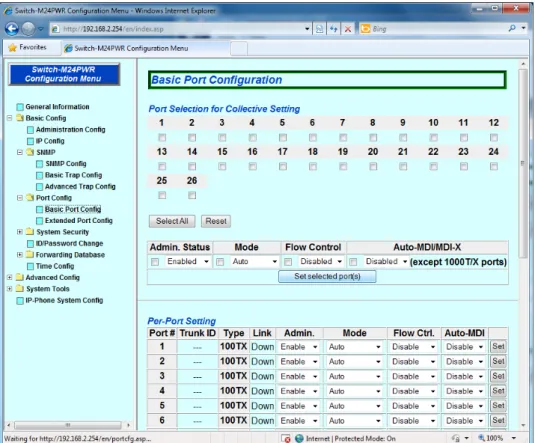
4.1.6. Basic Port Configuration
Select "Basic Config," select "Port Config" and then select "Basic Port Config."
A screen, as shown in Fig. 4-1-6, appears. On this screen, you can configure
port status display settings, mode settings and others.
Screen Description
Port # Shows the port number.
Trunk Shows the group number for a trunked port.
Type Shows the port type.
100TX The port type is 10/100BASE-TX.
1000T The port type is 1000BASE-T.
1000X The port type is SFP port.
Admin Shows the current port status. The factory default setting is "Enabled" for all
ports.
Enable The port is available for use.
Disable The port is not available for use.
Link Shows the current link status.
Up Link is established successfully.
Down Link is not established.
Mode Shows the communication speed and full-duplex/half-duplex settings.
The factory default setting is "Auto" for all ports.
Auto Auto negotiation mode
100M/Full 100 Mbps full-duplex
100M/Half 100 Mbps half-duplex
10M/Full 10 Mbps full-duplex
10M/Half 10 Mbps half-duplex
Flow Ctrl. Shows the flow control settings.
The factory default setting is "Disable" for all ports.
Enable The flow control is enabled.
Disable The flow control is disabled.
Auto-MDI Shows the Auto MDI function settings. The factory default setting is
"Disable."
(The settings for 10/100/1000BASE-T ports are fixed at "Enable.")
Enable The Auto-MDI function is enabled.
27
4.1.7. Extended Port Configuration
Select "Basic Config," select "Port Config" and then select "Extended Port
Config." A screen, as shown in Fig. 4-1-7, appears. On this screen, you can
configure port status display settings, mode settings and others.
Fig. 4-1-7 Advanced Port Configuration
Screen Description
Port # Shows the port number.
Type Shows the port type.
100TX The port type is 10/100BASE-TX.
1000T The port type is 1000BASE-T.
1000X The port type is SFP expansion port.
Link Shows the current link status.
Up Link is established successfully.
Down Link is not established.
Port Name Shows the port name. Jumbo
Frame
Shows the jumbo frame settings. The factory default setting is "Disable" for all ports.
Enable Jumbo frame is enabled.
Disable Jumbo frame is disabled.
EAP Frame Forwarding
Shows the EAP frame forwarding function settings. The factory default setting is "Disable" for all ports. Setting this item to "Enable" forwards EAP frames, used in IEEE802.1X authentication. Setting this item to "Disable" destroys the packets.
Enable The EAP Packet Forwarding function is enabled.
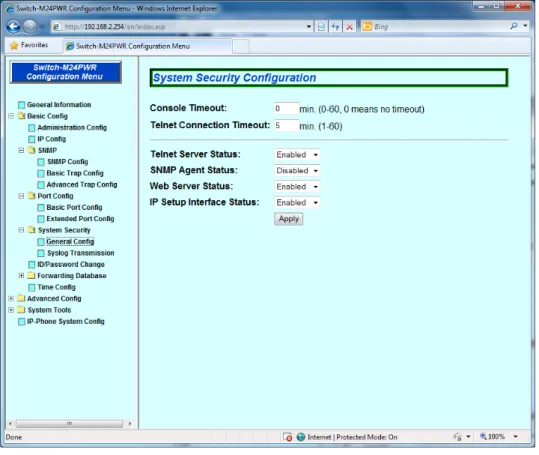
4.1.8. System Security Configuration
Select "Basic Config," select "System Security" and then select "General
Config." A screen, as shown in Fig. 4-1-8, appears. On this screen, you can
configure the access control settings for accessing this Switching Hub for
configuration and management.
29
Screen Description
Console Timeout
Shows the idle timeout settings (in minutes) for terminating a
console-connected session if no input is made. The factory default setting is 5 minutes.
Telnet Connection Timeout
Shows the idle timeout settings (in minutes) for terminating a
Telnet-connected session if no input is made. The factory default setting is 5 minutes.
Telnet Server Status
Shows the Telnet access settings. The factory default setting is "Enabled."
Enabled Access is enabled.
Disabled Access is disabled.
SNMP Agent Status
Shows the SNMP access settings. The factory default setting is "Disabled."
Enabled Access is enabled.
Disabled Access is disabled.
Web Server Status
Shows the web access settings. The factory default setting is "Disabled."
Enabled Access is enabled.
Disabled Access is disabled.
IP Setup
Interface Status
Shows the access settings for the IP address configuration software, bundled with the Panasonic network cameras. The factory default setting is "Enabled."
* For instructions, refer to Appendix C.
Enabled Access is enabled.
4.1.9. Syslog Transmission Configuration
Select "Basic Config," select "System Security " and then select "Syslog
Transmission." A screen, as shown in Fig. 4-1-9, appears. In this screen, you
can set Syslog server information to send a system log.
Fig. 4-1-9 Syslog Transmission Configuration
Screen Description
Global Syslog Transmission Status
Shows the status of Global Syslog Transmission function. The factory default setting is "Disabled."
Enabled Transmits to the syslog server.
Disabled Does not transmit to the syslog server.
Index Shows the entry number for the syslog transmission destination.
Status Shows the status of Syslog Transmission.
The factory default setting is "Disabled."
Enabled Transmits to the syslog server.
Disabled Does not transmit to the syslog server.
Syslog Server IP
Shows the IP address of syslog server.
Facility Shows the value of facility.
31
4.1.10. Username and Password Configuration
Select "Basic Config" and then select "ID/Password Change." A screen, as
shown in Fig.4-1-10, appears. On this screen, you can set a username and a
password.
Fig. 4-1.10 User ID and Password Change
Screen Description
Current User
ID Enter the current username. This is used when logging in to this Switching Hub. The factory default setting is "manager."
Current Password
Enter the current password.
This is used when logging in to this Switching Hub. The factory default setting is "manager."
New User ID Enter a new username.
New Password Enter a new password. Re-input
Password
To confirm the password, enter the same password again.
Note:
Make sure to remember the username and password.
The username and password are required to login to the Switching Hub
via console, Telnet or web.
4.1.11. FDB Static Address Table
Select "Basic Config," select "Forwarding Database" and then select "Static
Addr. Table." A screen, as shown in Fig. 4-1-11, appears. On this screen, you
can enter static MAC addresses in the FDB table.
Fig. 4-1-11 Static Address Table
Screen Description
Port (Add) Select a port to which an MAC address is added.
VLAN ID
(Add) Enter the VLAN ID of the MAC address to be added.
MAC Addr.(Add)
Enter the MAC address to be added, and then click the button to setup. VLAN ID
(Delete)
Enter the VLAN ID of an MAC address to be deleted. MAC Addr.
(Delete)
Enter the MAC address to be deleted, and then click the button to setup.
33
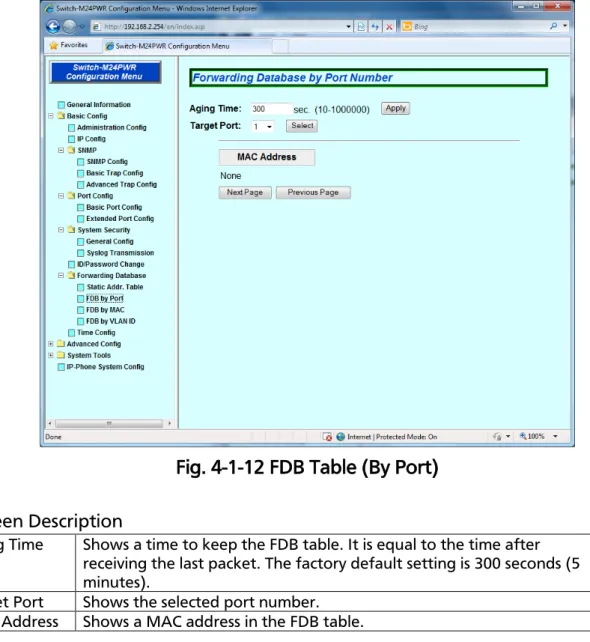
4.1.12. FDB by Port
Select "Basic Config," select "Forwarding Database" and then select "FDB by
Port." A screen, as shown in Fig. 4-1-12, appears. On this screen, the FDB
table shows learned MAC addresses for each port.
Fig. 4-1-12 FDB Table (By Port)
Screen Description
Aging Time Shows a time to keep the FDB table. It is equal to the time after
receiving the last packet. The factory default setting is 300 seconds (5 minutes).
Target Port Shows the selected port number.
4.1.13. FDB Table (By MAC Address)
Select "Basic Config," select "Forwarding Database" and then select "FDB by
MAC." A screen, as shown in Fig. 4-1-13, appears. This screen shows learned
MAC addresses in the FDB table, sorted by MAC address.
Fig. 4-1-13 FDB Table (by MAC Address)
Screen Description
Aging Time Shows a time to keep the FDB table. It is equal to the time after
receiving the last packet. The factory default setting is 300 seconds (5 minutes).
MAC Address Shows a MAC address in the FDB table.
35
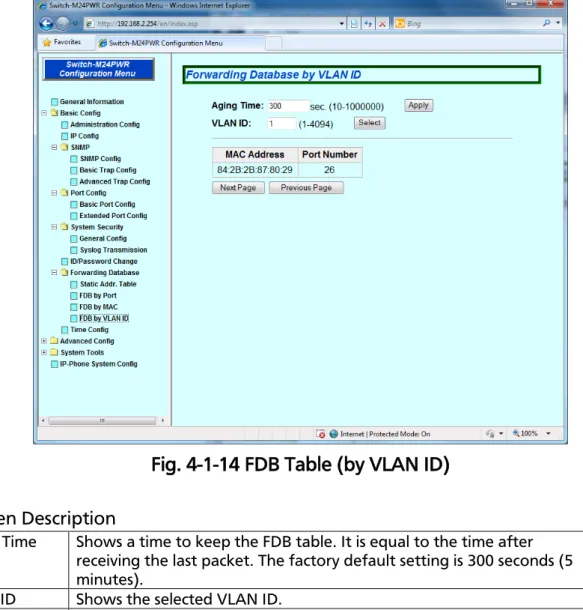
4.1.14. FDB Table (by VLAN)
Select "Basic Config," select "Forwarding Database" and then select "FDB by
VLAN ID." A screen, as shown in Fig. 4-1-14, appears. This screen shows
learned MAC addresses in the FDB table for each VLAN.
Fig. 4-1-14 FDB Table (by VLAN ID)
Screen Description
Aging Time Shows a time to keep the FDB table. It is equal to the time after
receiving the last packet. The factory default setting is 300 seconds (5 minutes).
VLAN ID Shows the selected VLAN ID.
MAC Address Shows a MAC address in the FDB table.
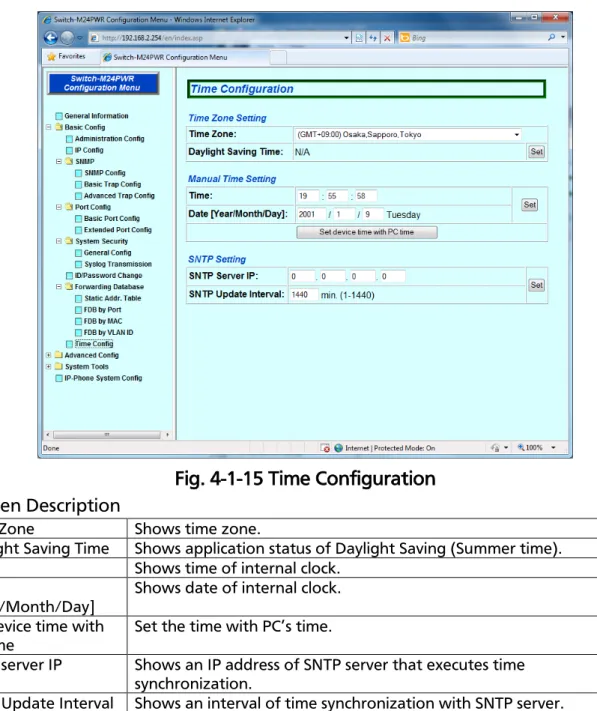
4.1.15. Time Configuration
Select "Basic Config" and then select "Time Config." A screen, as shown in Fig.
4-1-15, appears. In this screen, you can configure the time setting and the
time synchronization setting by SNTP.
Fig. 4-1-15 Time Configuration
Screen Description
Time Zone Shows time zone.
Daylight Saving Time Shows application status of Daylight Saving (Summer time).
Time Shows time of internal clock.
Date
[Year/Month/Day] Shows date of internal clock.
Set device time with PC time
Set the time with PC’s time.
SNTP server IP Shows an IP address of SNTP server that executes time
synchronization.
SNTP Update Interval Shows an interval of time synchronization with SNTP server.
Note:
If SNTP server is located outside of firewall, connection with SNTP server
may not be possible depending on settings by system administrator. For
37
4.2. Advanced Switch Configuration
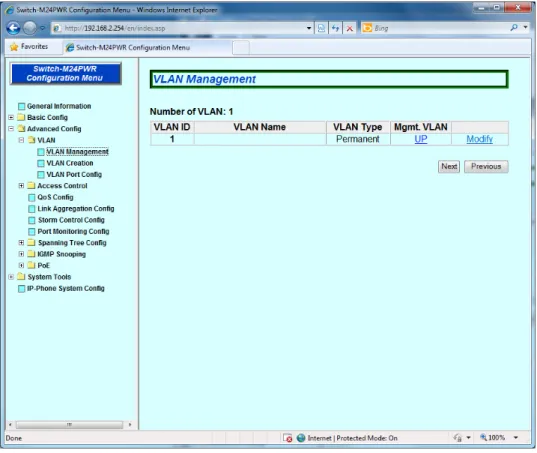
4.2.1. VLAN Management
Select "Advanced Config," select “VLAN” and then select "VLAN
Management." A screen, as shown in Fig. 4-2-1, appears. On this screen, you
can configure VLAN-related settings.
Fig. 4-2-1 VLAN Management
Screen Description
Number of VLAN
Shows the number of VLANs being configured on the Switching Hub.
VLAN ID Shows a VLAN ID of VLAN.
VLAN Name Shows a VLAN name being configured.
VLAN Type Shows a type of VLAN.
Permanent Indicates that the VLAN is the one of initial setting. At least one VLAN must exist and this VLAN cannot be deleted.
Static Indicates that the VLAN is the newly configured one.
Mgmt. VLAN Shows whether the VLAN is a management VLAN or not.
UP Indicates that the VLAN is a management VLAN (which is
able to communicate with CPU).
4.2.1.a. VLAN Modification
On the "VLAN Management" screen, select "Modify." A screen, as shown in
Fig. 4-2-1-a, appears. On this screen, you can modify VLAN-related settings.
Fig. 4-2-1-a VLAN Modification Screen
Screen Description
VLAN ID Shows the VLAN ID.
VLAN Name Shows the VLAN name.
Member Port Shows ports, belonging to the VLAN.
Untagged Port Shows ports that do not use tags.
39
4.2.2. VLAN Creation
Select "Advanced Config," select “VLAN” and then select "VLAN Creation." A
screen, as shown in Fig. 4-2-2, appears. On this screen, you can create a new
VLAN.
Fig. 4-2-2 VLAN Creation Screen
Screen Description
VLAN ID Set the VLAN ID (VLAN Identifier).
VLAN Name Set the name of VLAN.
Member Ports Select ports to be added to the VLAN.
4.2.3. VLAN Port Configuration
Select "Advanced Config," select “VLAN” and then select "VLAN Port Config."
A screen, as shown in Fig. 4-2-3, appears. On this screen, you can configure
VLAN port settings.
Fig. 4-2-3 VLAN Port Configuration
Screen Description
Port No. Shows the port number.
PVID Shows the PVID (Port VLAN ID) being set to the port. PVID indicates
VLAN ID to which an untagged packet should be forwarded when it is received. The factory default setting is 1. When a tagged packet is received, destination port will be determined according to the tag, regardless of PVID.
Acceptable
frame type Indicates type of received frame. The factory default setting is "Admit All" for all ports.
Admit All Receives all the frames.
Tagged Only
41
4.2.4. Access Control Configuration(Classifier
Configuration)
Select "Advanced Config," select “Access Control” and then select "Classifier."
A screen, as shown in Fig. 4-2-4, appears. On this screen, you can set the
classifier settings.
Fig. 4-2-4 Classifier Configuration
Screen Description
Index Enter the index No. for the class.
Source MAC Addr. Enter the MAC address of sender.
Destination MAC Addr.
Enter the MAC address of receiver.
VLAN ID Enter a VLAN ID.
Source IP Addr. Enter the IP address of sender.
Destination IP Addr. Enter the IP address of receiver.
DSCP Enter a DSCP value.
Protocol Number Enter a protocol type.
Source Port # Enter the source port number for TCP/UDP.
Destination Port # Enter the destination port number for TCP/UDP.
IEEE802.1p Priority Enter a priority of IEEE802.1p.
TCP SYN Flag Enable/disable a TCP SYN flag filter.
4.2.5. Access Control Configuration
(In-Profile Action Configuration)
Select "Advance Switch Configuration," select “Access Control” and then
select "In-Profile Action." A screen, as shown in Fig. 4-2-5, appears. On this
screen, you can configure In-Profile actions.
Fig. 4-2-5 In-Profile Action Configuration
Screen Description
Index Shows the index number for the In-Profile action.
Action Select an action to apply.
DSCP Marks DSCP value.
Precedence Marks precedence value.
43
4.2.6. Access Control Configuration
(Out-Profile Action Configuration)
Select "Advanced Config," select “Access Control” and then select "Out-Profile
Action." A screen, as shown in Fig. 4-2-6, appears. On this screen, you can
configure Out-Profile actions for Diffserv.
Fig. 4-2-6 Out-Profile Action Configuration
Screen Description
Index Shows the index number for the Out-Profile action.
Committed Rate
Shows the packet buffer rate.
Burst size Shows the maximum storage size in a token buffer. The burst size is
either 4 K, 8 K, 32 K, or 64 K.
Action Select an action to apply.
DSCP Marks DSCP value.
4.2.7. Access Control Configuration(Port List
Configuration)
Select "Advanced Config," select “Access Control” and then select "Port List."
A screen, as shown in Fig. 4-2-7, appears. On this screen, you can configure a
port list.
Fig. 4-2-7 Port List Configuration
Screen Description
Index Shows the port list Index number.
45
4.2.8. Access Control Configuration(Policy
Configuration)
Select "Advanced Config," select “Access Control” and then select "Policy." A
screen, as shown in Fig. 4-2-8, appears. On this screen, you can configure the
policy settings.
Fig. 4-2-8 Policy Configuration
Screen Description
Policy Index Shows the policy index number.
Classifier Index Shows the class index, created in the classifier configuration.
Policy Sequence Shows the sequence number.
In-Profile Index Shows the In-Profile action index, created in the In-Profile action
configuration.
Out-Profile Index Shows the Out-Profile action index, created in the Out-Profile
action configuration.
4.2.9. Access Control Configuration(Policy List)
Select "Advanced Config," select “Access Control” and then select "Policy List."
A screen, as shown in Fig. 4-2-9, appears. This screen shows policies and
sequence numbers.
Fig. 4-2-9 Policy Sequence List
Screen Description
Target Port # Select a port No. to view.
Policy-Index-Order Shows configured policies, sorted by policy index.
Policy-Sequence-Orde r
47
4.2.10. QoS Configuration
Select "Advanced Config" and then select "QoS Config." A screen, as shown in
Fig. 4-2-10, appears. On this screen, you can configure the QoS settings.
Fig. 4-2-10 QoS Configuration
Screen Description
QoS Status Shows the status (enabled/disabled) of QoS function using
IEEE802.1p.
The factory default setting is "Disabled."
Enabled QoS is enabled.
Disabled QoS is disabled.
Priority Shows the priority value of the packet.
4.2.11. Link Aggregation Configuration
Select "Advanced Config" and then select "Link Aggregation Config." A screen,
as shown in Fig. 4-2-11, appears. On this screen, you can configure the trunk
group settings.
Fig. 4-2-11 Link Aggregation Configuration
Screen Description
System
Priority System priority is an order of priority in this Switching Hub required for constructing link aggregation on the network using LACP. Smaller number has higher priority. The factory default setting is 1.
Key Shows the group number of a link aggregation.
Mode Shows the operation mode of a link aggregation.
Active Sends out LACP packet from this Switching Hub and
constructs a link aggregation by negotiating with other side. The mode of the other side must be Active or Passive.
Passive Does not send out LACP packet from this Switching Hub and
constructs a link aggregation by negotiating with other side using LACP packet received from other side.
The mode of the other side must be Active.
Manual Constructs a link aggregation forcibly without using LACP
49
4.2.11.a. LACP Config Modification
Select "Advanced Config," select "Link Aggregation Config" and then click the
"Modify" button for each group. A screen, as shown in Fig. 4-2-11-a, appears.
On this screen, you can modify a link aggregation.
Fig. 4-2-11-a LACP Config Modification
Screen Description
Mode Shows the operation mode of a link aggregation.
Active Sends out LACP packet from this Switching Hub and
constructs a link aggregation by negotiating with other side. The mode of the other side must be Active or Passive.
Passive Does not send out LACP packet from this Switching Hub and
constructs a link aggregation by negotiating with other side using LACP packet received from other side.
The mode of the other side must be Active.
Manual Constructs a link aggregation forcibly without using LACP
packet. It is required that the other side is the same configuration as this side.
Group Member
4.2.12. Port Priority Configuration
Select "Advanced Config," select "Link Aggregation Config" and then click the
"Port Priority" button. A screen, as shown in Fig. 4-2-12, appears. On this
screen, you can configure the port priority settings.
Fig. 4-2-12 Port Priority Configuration
Screen Description
System
Priority System priority is an order of priority in this Switching Hub required for constructing link aggregation on the network using LACP. Smaller number has higher priority. The factory default setting is 1.
System ID System ID is an identifier of this Switching Hub required for constructing
a link aggregation on the network using LACP.
MAC Address of this Switching Hub becomes this System ID. It cannot be changed.
Port # Shows the port number of this Switching Hub.
Priority This is a priority order of this Switching Hub by port in link aggregation.
Smaller number has higher priority. It is effective when configuring a trunking group of 9 ports or more. The factory default setting is 1 for all ports.
51
4.2.13. Storm Control Configuration
Select "Advanced Config" and then select "Storm Control Config." A screen, as
shown in Fig. 4-2-13, appears. On this screen, you can configure the storm
control settings.
Fig. 4-2-13 Storm Control Configuration
Screen Description
Port # Shows the port number.
Unknown Unicast
Enables/disables the storm control for unknown unicast.
Enabled The storm control for unknown unicast is enabled.
Disabled The storm control for unknown unicast is disabled. (Factory default setting)
Broadcast Enables/disables the storm control for broadcast.
Enabled The storm control for broadcast is enabled.
Disabled The storm control for broadcast is disabled. (Factory default setting)
Multicast Enables/disables the storm control for multicast.
Enabled The storm control for multicast is enabled.
Disabled The storm control for multicast is disabled. (Factory default setting)
Threshold Shows the threshold value for the number of packets.
4.2.14. Port Monitoring Configuration
Select "Advanced Config" and then select "Port Monitoring Config." A screen,
as shown in Fig. 4-2-14, appears. On this screen, you can configure the port
monitoring settings.
Fig. 4-2-14 Port Monitoring Configuration
Screen Description
Monitoring Port Indicates a port number of a port that is possible to monitor other
port's packet.
Be Monitored Port(s) Indicates a port number(s) of a port to be monitored.
Direction Indicates which packet should be monitored either the transmit
packet or the receive packet of a monitored port. The factory default setting is "Both."
Tx Monitors the transmit packet.
Rx Monitors the receive packet.
Both Monitors both of the transmit and receive packets.
Status Indicates whether monitoring is underway or not.
The factory default setting is "Disabled."
Enabled Monitoring the packet is underway.
Disabled Monitoring the packet is not underway.
Note:
VLAN tag of received VLAN ID is attached to a mirror packet in
Tx-direction.
53
4.2.15. Spanning Tree Configuration (STP Global
Configuration)
Select "Advanced Config," select “Spanning Tree Config” and then select "STP
Global Configuration." A screen, as shown in Fig. 4-2-15, appears. On this
screen, you can configure the basic settings of the spanning tree.
Screen Description
STP Global Status Shows the operation status of Spanning Tree.
Enabled The spanning tree is enabled.
Disabled The spanning tree is disabled. (Factory default
setting)
Protocol Version Shows a version of Spanning Tree.
STP-Compatible Operates with IEEE802.1D compatible Spanning Tree Protocol.
RSTP Operates with IEEE802.1w compatible Rapid
Spanning Tree Protocol.
MSTP Operates with IEEE802.1s compatible Multiple
Spanning Tree Protocol. MST
Configuration name
Shows MST configuration name.
No MST region name is set at default setting. MST Revision
Level
Shows a revision of MST region setting. The factory default setting is 0.
MST Config Digest
Shows a message digest of MST configuration. (Shows the list, associating MST instance and VLAN.)
Note:
When STP global status is changed to Enabled, the response is temporarily
stopped.
55
4.2.15.a. CIST Configuration
Select "Advanced Config," select “Spanning Tree Config” and then select
"CIST Configuration." A screen, as shown in Fig. 4-2-16, appears. On this
screen, you can configure the basic settings of CIST.
Screen Description
CIST Root Port # Shows the present root port.
CIST Root Path Cost
Shows a cost from the root port to root bridge.
CIST Root Shows bridge ID of a root bridge.
CIST Regional Root Cost
Shows a path cost to a regional root bridge (root bridge of CIST tree in the MST region).
CIST Regional Root
Shows bridge ID of a regional root bridge (root bridge of CIST tree in the MST region).
CIST Hello Time Shows an access interval with a root bridge for confirming the
spanning tree configuration. CIST Maximum
Age Time
Shows a timeout period of the Hello message. CIST Maximum
Forward Delay Time
Shows transition time of spanning tree status, such as from Listening to Learning or Learning to Forwarding.
CIST Bridge ID Shows bridge ID of the Switching Hub. Bridge ID is configured with
bridge priority and MAC address. The factory default setting of the bridge priority is 8000.
Topology since Topology Change
Shows the elapsed time (sec.) since the configuration of spanning tree changed.
Topology Change Count
Shows the number of changes in configuration of spanning tree. CIST Bridge
Priority Set the priority of the CIST bridge. The factory default setting of the bridge priority is 8000. CIST Bridge Hello
Time
Set the hello time when the Switching Hub becomes the root bridge. The factory default setting is 2 seconds.
CIST Bridge Maximum Age Time
Set the max aging time when the Switching Hub becomes the root bridge.
The factory default setting is 20 seconds. CIST Bridge
Forward Delay Time
Set the forward delay time when the Switching Hub becomes the root bridge.
The factory default setting is 15 seconds. Maximum Hop
Count
57
4.2.15.b. CIST Basic Port Configuration
Select "Advanced Config," select “Spanning Tree Config” and then select
"CIST Basic Port Configuration." A screen, as shown, in Fig. 4-2-17, appears.
On this screen, you can configure basic CIST settings by port.
Screen Description
BPDU GuardRecovery Status
Enable/disable the auto-recovery function of BPDU guard. The factory default setting is "Disabled."
Enabled Auto-recovery is enabled.
Disabled Auto-recovery is disabled.
BPDU Guard Recovery Time
Set the time to auto-recovery.
The factory default setting is 300 seconds.
Port # Shows the port number.
Trunk ID Shows the group number (key) of the trunk if trunking is set.
Link Shows the state of link.
UP Link is established successfully.
DOWN Link is not established.
Status Shows the current port status.
Forwarding Indicates normal communication status based on the
calculation result.
Learning Indicates that calculation is being carried out based
on information.
Discarding Indicates that calculation is not carried out.
Role Shows the role of port in the spanning tree.
Designated Operating as a designated port.
Root Operating as a root port.
Alternate Operating as an alternate port.
Backup Operating as a backup port.
Disabled STP is not working.
Priority Shows priority of each port in the Switching Hub. Higher number has
higher priority. The factory default setting is 128 for all ports. (A value must be a multiple of 16.)
Path Cost Shows the cost of each port. Ports 1-24 are set to 200000 and Ports
25-26 are set to 20000 at default setting.
STP Status Shows enable/disable of the spanning tree of each port.
Enabled The spanning tree is enabled.
Disabled The spanning tree is disabled.
BPUD Guard Shows enable/disable of the BPDU guard of each port.
The factory default setting is "Disabled."
Enabled The BPDU guard is enabled.
59
4.2.15.c. CIST Advanced Port Configuration
Select "Advanced Config," select “Spanning Tree Config” and then select
"CIST Advanced Port Configuration." A screen, as shown in Fig. 4-2-18,
appears. On this screen, you can configure advance settings of CIST for each
port.
Screen Description
Re-migratesthe all ports
Restarts the spanning tree protocol negotiation for the selected port to re-detect.
Port # Shows the port number.
Trunk ID Shows the group number (key) of the trunk if trunking is set.
Link Shows the state of link.
UP Link is established successfully.
DOWN Link is not established.
Status Shows the current port status.
Forwarding Indicates normal communication status based on the
calculation result.
Learning Indicates that calculation is being carried out based on
information.
Discarding Indicates that calculation is not carried out.
Role Shows the role of port in the spanning tree.
Designated Operating as a designated port.
Root Operating as a root port.
Alternate Operating as an alternate port.
Backup Operating as a backup port.
Disabled STP is not working.
Edge Port Setting/Curre nt
Shows the setting of the edge port (a port that can transition to the forwarding state immediately) and the current status.
True Can be set to the edge port.
False Cannot be set to the edge port.
P to P Port Setting/Curre nt
Shows the setting of the Point-to-Point link of this Switching Hub and the current status.
Auto Automatically recognized according to the port status.
(Only Admin)
True P-to-P link is established.
False P-to-P link is not established.
Migration Result
Shows the current operation status of the spanning tree.
STP STP is working.
M/RSTP MSTP or RSTP is working.
61
4.2.15.d. MST Instance Configuration
Select "Advanced Config," select “Spanning Tree Config” and then select
"MST Instance Configuration." A screen, as shown in Fig. 4-2-19, appears. On
this screen, you can configure the settings for spanning tree instances.
Fig. 4-2-19 MST Instance Configuration
Screen Description
Add VLAN Add VLAN ID to be associated with MST instance.
MST Instance ID
Enter a target MST instance ID. If a target MST instance ID does not exist, a new MST instance ID is added.
VLAN ID Enter a VLAN ID to be associated with an MST instance ID.
Delete VLAN MST Instance ID
Enter a target MST instance ID. Canceling all associations with VLAN IDs and the target MST instance ID deletes the MST instance ID.
VLAN ID Enter a VLAN ID to cancel its association with the MST
instance ID.
Instance ID Shows MST instance ID.
No instance ID is created at default setting. Configuration
Menu
4.2.15.d.1. MST Instance Configuration (Configuration for Each Instance
ID)
On the "MST Instance Configuration" screen, select "Instance Config." A
screen, as shown in Fig. 4-2-19-a, appears. On this screen, you can configure
the advanced settings of an MST instance.
Fig. 4-2-19-a MST Instance Configuration
Screen Description
MST instance ID Shows the target MST instance ID.
MSTI Bridge Priority
Select a bridge priority for the target MST instance. 0000 is set when a new MST instance is created.
MSTI Root Port Shows a root port number of MST instance.
MSTI Root Path Cost
Shows a root path cost value of MST instance. MSTI Regional
Root
Shows bridge ID of the regional root bride of MST instance.
MSTI Bridge ID Shows bridge ID of MST instance.
Topology Since Topology Change
Shows the elapsed time (sec.) since the configuration of spanning tree changed.
Topology Change
63
4.2.15.d.2. MST Instance Port Configuration
On the "MST Instance Configuration" screen, select "Port Config." A screen, as
shown in Fig. 4-2-19-b, appears. On this screen, you can configure the MST
instance settings for each port.
Screen Description
MST instance ID Shows selected MST instance ID.
Port No. Shows the port number.
Trunk ID Shows the group number (key) of the trunk if trunking is set.
Link Shows the state of link.
UP Link is established successfully.
DOWN Link is not established.
Status Shows the current port status.
Forwarding Indicates normal communication status based on the
calculation result.
Learning Indicates that calculation is being carried out based
on information.
Discarding Indicates that calculation is not carried out.
N/A Indicates that port is not associated with the selected
MST instance.
Role Shows the role of port in the spanning tree.
Designated Operating as a designated port.
Root Operating as a root port.
Alternate Operating as an alternate port.
Backup Operating as a backup port.
Disabled STP is not working.
N/A Indicates that port is not associated with the selected
MST instance.
Priority Shows priority of each port in the Switching Hub. Higher number has
higher priority. The factory default setting is 128 for all ports. (A value is a multiple of 16.)
Path Cost Shows the cost of each port. Ports 1-24 are set to 200000 and Ports
25-26 are set to 20000 at default setting.
STP Status Shows enable/disable of the spanning tree of each port.
Enabled The spanning tree is enabled.
Disabled The spanning tree is disabled.
N/A Indicates that port is not associated with the selected
65
4.2.15.d.3. MST instance Topology Information
On the "MST Instance Configuration" screen, select "Topology Info." A screen,
as shown in Fig. 4-2-19-c, appears. This screen shows MST instance topology
configurations.
Fig. 4-2-19-c MST Instance Topology Information
Screen Description
MST instance ID Shows selected MST instance ID.
Port No. Shows the port number.
Trunk ID Shows the group number (key) of the trunk if trunking is set.
Link Shows the state of link.
UP Link is established successfully.
DOWN Link is not established.
Desig. Root Shows root bridge ID.
Desig. Cost Shows cost under transmission.
Desig. Bridge Shows bridge ID of a designated bridge.
Desig. Port Shows port ID of a designated port.
4.2.15.e. Designated Topology Information
Select "Advanced Config," select “Spanning Tree Config” and then select
"Designated Topology Information." A screen, as shown in Fig. 4-2-20,
appears. This screen shows configuration information of the spanning tree
for each port.
Fig. 4-2-20 Designated Topology Information
Screen Description
Port No. Shows the port number.
Trunk ID Shows the group number (key) of the trunk if trunking is set.
Link Shows the state of link.
UP Link is established successfully.
DOWN Link is not established.
Cist Desig. Root Shows root bridge ID.
Cist Desig. Cost Shows cost under transmission.
Cist Desig. Bridge Shows bridge ID of a designated bridge.
Cist Desig. Port Shows port ID of a designated port.
67
4.2.15.f. Regional Topology Information
Select "Advanced Config," select “Spanning Tree Config” and then select
"Regional Topology Information." A screen, as shown in Fig. 4-2-21, appears.
This screen shows configuration information of the spanning tree for each
port.
Fig. 4-2-21 Regional Topology Information
Screen Description
Port No. Shows the port number.
Trunk ID Shows the group number (key) of the trunk if trunking is set.
Link Shows the link status.
UP Link is established successfully.
DOWN Link is not established.
CIST port Regional Root
Shows root bridge ID. CIST Port Regional
Path Cost
4.2.16. IGMP Snooping Configuration
Select "Advanced Config," select “IGMP Snooping” and then select "IGMP
Snooping Config." A screen, as shown in Fig. 4-2-22, appears. On this screen,
you can configure the IGMP snooping settings.
Fig. 4-2-22 IGMP Snooping Configuration
Screen Description
IGMP Snooping
Status Shows whether IGMP Snooping is enabled or disabled. Enabled IGMP snooping is enabled. Disabled IGMP snooping is disabled.
Multicast Filtering
Status Shows whether the multicast filtering function is enabled or disabled.
Enabled The multicast filtering function is enabled.
Disabled The multicast filtering function is disabled. Host Port Age-Out
Time
Shows the time between leaving a multicast group and automatically opening the port. The factory default setting is 260 seconds.
Router Port Age-Out Time
Shows the time before the router port is automatically opened. The factory default setting is 5 seconds. Report Forward
Interval
69
4.2.16.a. IGMP Querier Configuration
Select "Advanced Config," select “IGMP Snooping” and then select "IGMP
Querier Config." A screen, as shown in Fig. 4-2-23, appears. On this screen,
you can configure the IGMP querier settings.
Fig. 4-2-23 IGMP Querier Configuration
Screen Description
IGMP Querier Status Shows whether IGMP Querier is enabled or disabled.
Current Role Shows the IGMP querier status.
Querier This Switching Hub is the current Querier.
None Since there is another device that sends queries,
this Switching Hub has stopped sending queries.
IGMP Version Shows the version of IGMP queries to be sent.
Query Interval Shows the query sending interval.
Max Response Time Shows the time to wait for a response to a query.
Querier Timeout Shows the time before determining that there is no longer
another querier.
TCN Query Count Shows the number of queries sent when an STP topology
change is made.
TCN Query Interval Shows the interval of sending queries when an STP topology
4.2.16.b. VLAN Filter Configuration
Select "Advanced Config," select “IGMP Snooping” and then select "VLAN
Filter Config." A screen, as shown in Fig. 4-2-24, appears. On this screen, you
can configure the VLAN filter settings of the IGMP snooping function.
Fig. 4-2-24 VLAN Filter Configuration
Screen Description
VLAN ID Shows the VLAN ID.
71
4.2.16.c. Router Port List
Select "Advanced Config," select “IGMP Snooping” and then select "Router
Port List." A screen, as shown in Fig. 4-2-25, appears. This screen shows the
router port table.
Fig. 4-2-25 Router Port List
Screen Description
Dynamic Detect
Method Shows the method to learn a router port. The factory default setting is "PIM and DVMRP." PIM and
DVMRP
Learns by using PIM or DVMRP.
IGMP Query Learns by using IGMP Query.
PIM, DVMRP, and IGMP Query
Learns by using the methods above.
VLAN ID Shows the VLAN ID.