Capturing Webcam through VB6.0
_________________________________________________________________
Author: Punit Ganshani
Email Address: [email protected]
Downloaded from http://www.ganshani.com Published In: DeveloperIQ, September 2005, Asia
________________________________________________________________________
While I write this article, I am referring to a real-time system that captures the images when needed through a web cam, placed in one corners of the library. The need of the hour was to keep a central monitoring system so that the librarian could have a sight over the people in the library and their behavior.
And while I was designing this system, the first important step was to activate a webcam through my software that could show the frames capture the images when needed. These images could be stored on the hard disk and viewed through and picture editor. The user should have the facility to save the image in any of the three universal image formats i.e. Bitmap, GIF and JPG. After development phase of the same, the goal was to have automatic capturing of the images and storing it with file name of the format:
c:\lbsystems\images\date\pb####.jpg
The desired frequency of capturing an image was once in every 5 minutes. Thus in a day having 24 hours having 1440 minutes, 288 pictures can be captured. So the numbering could follow a pattern from 0000 to 0287 having filename pb0000.jpg to pb0287.jpg
In this article, I am presenting a part of my software which concerns capturing a picture from webcam when the user intends to do the same. I leave the further programming part to the user which is application dependent.
Using Dynamic Link Libraries
Visual Basic can communicate directly to Windows Application Programming Interface (API) which are defined in dynamic link
libraries (abbreviated as DLL’s) that are stored in \windows\system directory.
Some of the core DLL files Windows supports are listed in the table 1. Table 1: DLL supported by Windows
Sr. No DLL Applications it supports
1 user32 User Interface Routines
2 winmm Multimedia
3 advapi Security & Registry Calls
4 gdi32 Graphics Device Interface
5 kernel32 32-bit Windows applications 6 shell32 32-bit Shell applications
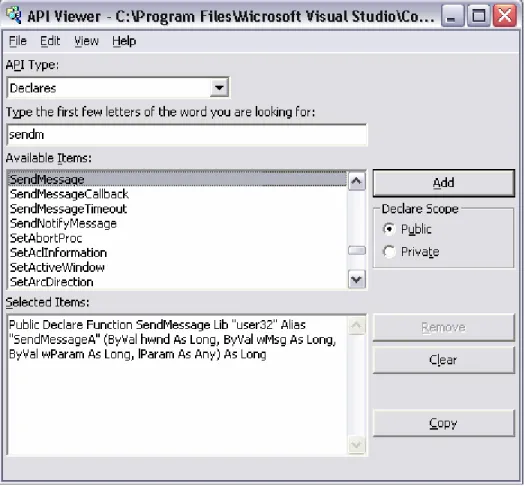
However we need not remember the DLL and their function because they are directly being called by API. The functions of API can be viewed using API Viewer (a tool provided in Microsoft Visual Studio Package) and is shown in Figure 1.
Let’s see the Item : SendMessage which we shall in our program. The SendMessage is defined in API as under:
Public Declare Function SendMessage Lib "user32" Alias "SendMessageA" (ByVal hwnd As Long, ByVal wMsg As Long, ByVal wParam As Long, lParam As Any) As Long
Let’s understand the syntax of this function.
Function Name: SendMessage
Actual Windows Function Name: SendMessageA
DLL: user32
Arguments & their types:
hwnd handle Handle of the Window wMsg unsigned int Message to be sent
wParam unsigned int Message-specific information lParam long Message-specific information The other API reference that we shall use is defined in AVICAP32.DLL and is called as capCreateCaptureWindow. The function call is as under:
Public Declare Function capCreateCaptureWindow Lib "avicap32.dll" Alias "capCreateCaptureWindowA" (ByVal lpszWindowName As String, ByVal dwStyle As Long, ByVal X As Long, ByVal Y As Long, ByVal nWidth As Long, ByVal nHeight As Long, ByVal hwndParent As Long, ByVal nID As Long) As Long
Public mCapHwnd As Long
Now let’s see the core programming of webcam using these API calls.
Designing Form & Coding
The form designed can be considered to have following elements:
Control Number of objects Name
Picture Box 2 picCapture
Timer 1 tmrMain
Common Dialog 1 CommonDialog
Command Buttons 5 cmdStart
cmdSaveAs cmdCopy cmdExit
However to provide alignment, we can introduce frames or picture boxes. I have kept two additional picture boxes; one of it has the command buttons, the other one has the common dialog.
We can avoid the Start button that is used to initialize web cam and start the webcam as soon as the form is loaded. Similarly Stop button can also be omitted as the picture can also be captured and saved by Save As button. Initially, Stop button is kept disabled.
This Save As option can be later modified to capture images at a regular interval without requiring user interface and in that case, we can keep the form as small as an Exit button (the picture box can be kept invisible too!) The timer is used to refresh webcam images.
Let us not analyze the code. Private Sub cmdStart_Click()
mCapHwnd = capCreateCaptureWindow("WebcamCap", 0, 0, 0, 320, 240, Me.hWnd, 0) 'Get hWnd for webcam so we can use it
DoEvents: SendMessage mCapHwnd, 1034, 0, 0 'Capture from webcam
tmrMain.Enabled = True 'Enable timer to refresh webcam images cmdStop.Enabled = True 'Make stop button enabled
End Sub
The first statement calls a API function and as per the syntax mentioned before,
WebcamCap is the window name, the first ‘0’ corresponds to the style, second and the third ‘0’ indicate x and y co-ordinates of capturing window, 320 is the width of capture window and 240 is the height, me.hwnd is the handle of the current window and the last ‘0’ is the Window Identifier.
The style of the window can be set by CreateWindowEx(). The function capCreateCaptureWindow returns a handle of the capture window if successful or NULL otherwise.
We then send a specific message to a window. This message code is 1034. By the number 1034, the computer interprets connection of webcam.
The similar concept is used to stop the webcam. The code will appear as:
Private Sub cmdStop_Click()
tmrMain.Enabled = False 'Disable refreshing of webcam images DoEvents: SendMessage mCapHwnd, 1035, 0, 0
'Stop capturing of images from webcam cmdStart.Enabled = True 'Make start enabled
cmdStop.Enabled = False End Sub
We have used a common dialog control through which we can save the image file when clicked on Save As. So, the code for saving the image will be:
Private Sub cmdSaveAs_Click()
CommonDialog.Filter = "Jpeg (*.JPEG)|*.JPG"
'Supported file-type is JPG since it is compressed format CommonDialog.ShowSave
'Show save dialog
SavePicture picCapture.Image, CommonDialog.FileName ‘Save picture on any drive configured on PC
‘this also includes established LAN drives End Sub
The first line of the code for saving is used to define the default type of file that can the user can give. However, if the user wishes to save it by some other extension, he needs to type the same.
Some applications require capturing the images and copying it to clipboard. To do this job, we need to first capture the frame where the image is being displayed and then copy it to clipboard. This two stage procedure can be summed up as:
Private Sub cmdCopy_Click()
SendMessage mCapHwnd, 1084, 0, 0 'Capture frame from webcam
DoEvents: SendMessage mCapHwnd, 1054, 0, 0 'Stop capturing of images from webcam End Sub
The programmer needs to take care that the co-ordinates of the frame are defined correctly. It should remain the same through-out the program and hence it is advisable to define these constants globally. Here 1084 is the code for getting the frame and 1054 for copying the image.
The most important part which is refreshing the images captured by webcam so that it appears as if the stream is being captured continuously. This can be done by the use of timer tmrMain.
Private Sub tmrMain_Timer() On Error Resume Next
cmdCopy_Click
picCapture.Picture = Clipboard.GetData 'Paste captured frame from clipboard End Sub
The algorithm for saving the file automatically can be implemented in this format. The interval of timer (in milliseconds) needs to be set when the form starts.
Dim counter As Integer
SavePicture picCapture.Image, "c:\lbsystems\images\date" & Counter & ".jpg"
Counter = Counter + 1
With this, one can easily capture any stream of data from webcam but when the form is unloaded or when the program is ended, the webcam is still in the process of connection. This should be terminated so that memory as well the processor is freed.
Private Sub cmdExit_Click()
DoEvents: SendMessage mCapHwnd, 1035, 0, 0 'Stop webcam capturing
Unload Me End Sub
When an interrupted termination occurs, this program will again not be able to free the memory. So a piece of code needs to be written in Form_Unload
Private Sub Form_Unload(Cancel As Integer) DoEvents: SendMessage mCapHwnd, 1035 , 0, 0
'Stop webcam capturing End Sub
With that, one module of capturing webcam is all set to be implemented in any project.