Technical Report
No. 2005-773-04
Department of Computer Science
University of Calgary
Interface Currents:
Supporting Co-Located Collaborative
Work on Tabletop Displays
Uta Hinrichs
University of Magdeburg
Department of Simulation and Graphics
Sheelagh Carpendale
University of Calgary
Department of Computer Science
Stacey D. Scott
University of Calgary
Department of Computer Science
Abstract
Contents
1 Introduction 6
1.1 Motivation and Problem Statement . . . 6
1.2 Results . . . 7
1.3 Chapter Structure . . . 7
2 Basic Principles 9 2.1 Technical Setting of a Tabletop Display . . . 9
2.1.1 Technical Configuration . . . 9
2.1.2 Input Devices . . . 10
2.1.3 Simultaneous user interactions . . . 11
2.2 Collaborative Interaction on Tabletop Displays . . . 12
2.3 Summary . . . 15
3 Related Work 16 3.1 The Interactive Table . . . 16
3.2 The Café Table . . . 17
3.3 Personal Digital Historian and UbiTable . . . 18
3.4 Information Exploration Using The Pond . . . 19
3.5 Interaction with Video Data . . . 20
3.6 Summary . . . 21
4 The Concept of an Interface Current 22 4.1 Motivation . . . 22
4.2 Definition and Properties of Interface Currents . . . 24
4.2.1 Definition . . . 24
4.2.2 Properties . . . 24
4.3 Purpose of a Current . . . 27
Contents
5 Interaction with Currents 31
5.1 Current-User Interaction . . . 31
5.1.1 Controlling the appearance of the Current . . . 31
5.1.2 Manipulation of the Flow on a Current . . . 35
5.2 Current-Item Interaction . . . 37
5.2.1 Adding and Removing Items . . . 37
5.2.2 Varying Magnification . . . 37
5.2.3 Currents as Toolbars . . . 39
5.3 Current-Current Interaction . . . 39
5.3.1 Multiple and Overlapping Currents . . . 39
5.4 Summary . . . 40
6 Implementation 41 6.1 The appearance of a Current . . . 41
6.1.1 Approach using the EPSLens Library . . . 41
6.1.2 Approach using an Interpolating Subdivision Curve . . . 42
6.2 Manipulation of the Current — Technical Background . . . 44
6.3 Movement of the Current . . . 45
6.4 Summary . . . 46
7 Conclusion and Future Work 47 7.1 Conclusion . . . 47
7.2 Future Work . . . 48
Chapter 1
Introduction
Working together in teams or groups is quite usual in our everyday life. This also applies to our exposure to digital information. Letters are written on the computer, and even having photos or videos in digital form is getting more and more common. Thus, research is looking for possibilities to support co-located collaborative work on digital displays.
1.1 Motivation and Problem Statement
The advantage of bringing collaborative work together with digital data is that people can collaborate with this data directly in groups. They do not have to solve group tasks on traditional tables and after that transfer the results of the group work long winded into the computer. Furthermore, digital displays can be used to process digital data and information while people can collaborate directly with this data on the digital display.
It is easy to understand that traditional desktop displays do not support this kind of collaborative work very well. The most obvious problem is the size of the display. It is difficult to work in a four-headed group of people on a 19 inch vertical display. Furthermore, the input devices on traditional desktop computers do not support col-laborative work because only one person can control keyboard and mouse. The other participants are forced to passiveness. One solution for these problems for instance, is offered large displays like wall displays. This technical report concentrates on large horizontal displays, specifically tabletop displays. Tabletop displays have the advan-tage that they are very similar to traditional tables. People often work together on traditional tables and, thus, they find it easy to collaborate on tabletop displays.
Chapter 1 Introduction
the problem of sharing large amounts of items on a limited display space. Further-more, they have to support an efficient organization of items which is fundamental for collaborative tasks. Thus, the goal was to develop an interface for tabletop displays that satisfies these requirements.
1.2 Results
This technical report introduces the concept of Interface Currents. Interface Currents are interface components that solve interaction problems on tabletop displays men-tioned in the last section. In addition, they support features that facilitate co-located collaboration on tabletop displays, for instance, the organization of items on the table-top workspace. The basic characteristic of Interface Currents is their flexibility in terms of shape and position. The user is able to give the Interface Current nearly every desired shape and place it in every desired location in the workspace. This character-istic makes Currents useful for a wide range of collaborative group tasks, for instance, brainstorming sessions or design tasks.
1.3 Chapter Structure
This technical report is structured as follows. The following chapter describes the basic principles of tabletop displays, i.e., the technical settings including the technical con-figuration, possible input devices, and simultaneous user interaction. The system on which the prototype for Interface Currents was developed will be described detailed. Furthermore, the chapter discusses the characteristics of collaborative interaction on tabletop displays and derives the requirements for interfaces on them from these char-acteristics.
Chapter 3 presents several tabletop systems that were built in order to facilitate dif-ferent kinds of collaborative work. In addition, some visualization and interaction techniques for traditional single computers are described that inspired the concept of Interface Currents.
Chapter 4 finally introduces the concept of Interface Currents. It gives a definition of what an Interface Current is and what its characteristics and properties are. Further-more, Chapter 4 demonstrates the different purposes of Interface Currents.
Chapter 1 Introduction
affected by Interface Currents, for instance, how an item can be added to a Current and how it behaves on this Current. The last section of this chapter describes shortly how multiple Currents in the workspace are handled by the system.
Chapter 6 covers details about the most important aspects of implementation. The appearance of Interface Currents was implemented using two different approaches. The advantages and disadvantages of both approaches will be discussed. In addition, the implementation of the interaction with the Current and the movement of items on the Current is explained.
A conclusion is given in Chapter 7 followed by the illustration of future prospects.
Chapter 2
Basic Principles
This chapter describes the technical characteristics of tabletop displays, i.e., the tech-nical configuration and discusses the factors that influence interaction with them.
2.1 Technical Setting of a Tabletop Display
At the moment, there is no standard for tabletop systems in terms of typical design, configuration or interaction with them [DGM03]. Researchers in this area have to build their own systems. The following shows possibilities for the technical configura-tion. It will be discussed in this section which hardware can be used for the tabletop display itself, which input devices are available and favourable with this hardware, and how the problem of simultaneous interaction can be solved sufficiently.
2.1.1 Technical Configuration
Tabletop systems can be set up by projecting a computer display onto a traditional table using projectors and mirrors [SL01]. There is a differentiation between bottom-projecting and top-bottom-projecting systems. Bottom-bottom-projecting means that the projectors and mirrors are placed under the surface of the table; top-projecting requires both above the table surface. A problem with bottom-projecting systems is that big projec-tors and mirrors under the table can force users to stand around the tabletop display. This is not supportive for long-term activities.
A number of researchers have used self-illuminating horizontal displays [SWS+02].
Chapter 2 Basic Principles
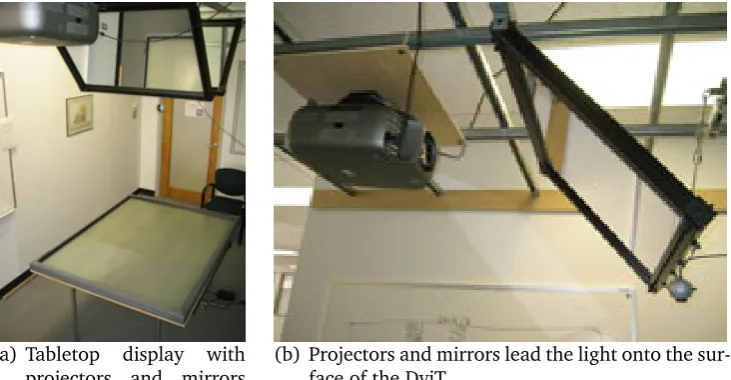
A third possibility is to use a rear-projected tabletop display. The tabletop display on which the prototype for the Current-based interface was developed is a SMART Tech-nologies DViT (Digital Vision Technology) interactive whiteboard for rear-projected displays, Model 1810 (see Figure 2.1(a)) [Sma04b]. It is a rectangular board with the size of 71 inches on the diagonal. The whiteboard is placed on a traditional ta-ble. Above this table two projectors are hanging with two mirrors between them. The mirrors project the light from the projectors onto the surface of the whiteboart (see Fig-ure 2.1(b)). One advantage of the DViT is that it is touch-sensitive and, thus, styli and fingers can be used as input devices [Sma04a]. The next paragraph will explain why the form of input device is very important for fluent co-located collaborative work.
(a) Tabletop display with projectors and mirrors above.
[image:10.595.118.484.273.463.2](b) Projectors and mirrors lead the light onto the sur-face of the DviT.
Figure 2.1:Tabletop display.
2.1.2 Input Devices
The form of the input device is a very important factor for computer-supported col-laboration. Using traditional input devices such as mouse and keyboard on a tabletop display may cause problems like decreasing awareness of action and interfering of gestures [MSI02]. For users it can be very difficult to monitor interactions of other users that can be only perceived as small-cursor movements in a shared environment. Furthermore, using a mouse cursor on a tabletop is not very natural and disables hand gestures. In contrast, using a stylus or the own hands as input devices supports in-teraction and communication between users in a much better way [MSI02, SWS+02].
Chapter 2 Basic Principles
virtual items by finger or stylus. Furthermore, arm movements support awareness of actions [MSI02, TBG04]. With a finger or stylus as an input device hands are free for gestures which are a very important resource for expressing ideas and mediating the group’s interaction [Tan91].
Among these advantages of using finger and styli as input devices there are a num-ber of problems: On a tabletop display that uses projectors placed above the surface, shadows on the table surface resulting from hands and arms can cause problems. Fur-thermore, the tabletop display requires a device that can handle input through touch: It must be touch-sensitive (such as the SMART Technologies DViT interactive white-board [Sma04b] or the DiamondTouch from MERL [DL01]). Another problem is the handling of simultaneous user interactions that is described as followed.
2.1.3 Simultaneous user interactions
Several user studies by different researchers have proven that collaborative systems should provide simultaneous user interactions [DGM03, Tan91, KC02, SVFR04]. It is difficult to work on a table independently if the system does not support multi-user concurrent interactions because users have to monitor other users all the time in order to see if the system is available. This hampers the continuous work-flow.
So far it is not very easy to develop systems that support simultaneous user interactions. On the one hand, the system must handle more than one input event at a specific time which is a complex problem. On the other hand, for a tabletop it is also important that it can differentiate between users through the input device in order to cope with, for instance, the orientation problem (see Section 2.2). For input devices that have a fixed connection to the computer such as mice or keyboards this is not as complicated as for input devices like styli or fingers. The following two systems try to deal with both problems.
The DiamondTouch, for example, works by transmitting signals through antennas in the table. These signals are capacitively coupled through the users and chairs to re-ceivers which identify the parts of the table each user is touching. This information can then be used by a computer in the same way as mouse or tablet data [DL01]. Unfortunately, so far there is no DiamondTouch available bigger than 42.13 inches on the diagonal. A tabletop display of this size is only usable for co-located collaborative work between at most two users.
Chapter 2 Basic Principles
These cameras constantly scan the surface to detect a target object. When a target is detected, the location of this contact is calculated from the angle in which it is located to the particular camera. Unfortunately, by the time the prototype for the Current-based interface was developed, the problem of multi-user input on the DViT Current-based tabletop display was not solved sufficiently to test it with the interface.
[image:12.595.203.395.236.382.2]After the technical setting of a tabletop display has been discussed, the next section will describe the particularities of interaction on tabletop displays.
Figure 2.2:Cameras in each corner of the DViT.
2.2 Collaborative Interaction on Tabletop Displays
Tabletop displays offer a good possibility for co-located collaboration. People have a lot of experience in working together on a traditional table and, thus, it is easy for them to collaborate on a tabletop display. However, because of the specific orientation of tabletop displays (horizontal instead of vertical) and the number of people that can work on the same display (at least two instead of one) new interface concepts are required to make interaction on a tabletop display easy and intuitive. In this section, characteristics of collaborative interaction on tabletop displays will be discussed in order to give a better understanding for these interface requirements.
Chapter 2 Basic Principles
When developing an interface for tabletop displays, the arrangement of the people collaborating around it has to be considered. Several settings such as shoulder-to-shoulder, right-angled, or face-to-face collaboration are possible.
• shoulder-to-shoulder: An arrangement that has the big advantage that all users have the same perspective to the display. However, studies have shown that es-pecially adults do not feel comfortable sitting that close to each other when they do not know each other well [KC02]. Furthermore, it is difficult to communi-cate in this arrangement because of the lack of eye contact. In addition, space limitations get an issue very fast.
• right-angled: Eye contact is enabled in this arrangement and supports commu-nication in a better way although space limitations are still an issue.
• face-to-face: This arrangement encourages both verbal and non-verbal interac-tion while preventing physical interference between users. The disadvantage is that in face-to-face collaboration the specific orientation of items such as photos or documents is problematical.
Even so, studies have shown that face-to-face collaboration is the easiest and most comfortable way for users to collaborate [Tan91]. It naturally works only for two participants. If more than two participants are collaborating together the right-angled arrangement is often used.
Another factor that can influence the interaction of collaborating people around a tabletop display is the shape of the tabletop. On a squared or circular table no position is more advantageous than another one because the distance to specific items on the table does not differ regardless where the participants sit. On rectangular tables, in contrast, the distance from each seat to the center of the table is not the same for every seat. This means, that some users can reach objects easier than others which makes equitable collaborative work more difficult.
The biggest factor that influences co-located collaboration on tabletop displays is the orientation of items. People collaborating on a tabletop display do not share the same view on its workspace and, therefore, on the items in this workspace. The problem is that a big number of items such as documents and photos have a specific orientation. This leads to the problem, that some users on the table might see items “up-side-down” (see Figure 2.3(a)). In the worst case these users could get a information deficit which hinders fluent collaboration. Some systems try to solve this problem by reorienting objects automatically person-based or environment-based in a way that any given individual can view them the right way up. Another approach is to provide multiple copies of objects although this can be very space consuming [KCSG03].
ta-Chapter 2 Basic Principles
? ?
info
?
(a) The orientation problem on horizontal displays.
space for results group space
personal space
(b) Different established spaces on tabletop dis-plays.
(c) Sharing items on a large tabletop display.
Figure 2.3:Requirements for interfaces for tabletop displays.
bles [Tan91, KCSG03]. The reason is that the orientation issue is not only a prob-lem but also a resource for interaction and communication during a collaborative task. Kruger et al. have identified three roles of orientation [KCSG03]. The first role is
comprehension. The user should be able to reorient items in order to read them. As mentioned above, it is difficult to interpret an object including text unless it is oriented correctly. The second role orientation plays in collaborative tasks iscoordination. Ori-entation is used to establish different spaces on the tabletop display, for instance, group and personal spaces. The personal space of a user is the space around her that she uses alone. Other users normally do not intrude in this personal space without previous communication. In contrast the group space is accessible to every user working on the tabletop display. Items in this space can be used and changed by any user. Kruger et al. [KCSG03] found that during a collaborative task personal and group spaces are established at the very beginning — either consciously or unconsciously [KCSG03] (see Figure 2.3(b)). Furthermore, they found that if an item is oriented towards a particular individual, others do not tend to use this item. The orientation of the item assigns the personal space of the individual. Items in the group space that shall be available for everybody working on the table are usually oriented in a compromised angle which is comfortable for everybody. Establishing personal and group spaces is very important for collaborative work in order to be efficient. Orientation can help because it can be used to demonstrate “ownership” over an item.
Chapter 2 Basic Principles
These three roles of orientation show that on tabletop displays the orientation of items is not only a problem but also an major resource for interaction. Thus, the orientation has to be handled very carefully by an interface for tabletop displays.
Another factor that has to be considered is that, on large horizontal displays, shar-ing large amount of items can be difficult due to the big surface. For a sshar-ingle user it is problematical to achieve items easily and without disturbing other users (see Fig-ure 2.3(c)).
2.3 Summary
Many influences affect collaborative work on tabletop displays. By now, there is no standard for tabletop displays and the shown possible systems have all slight disadvan-tages. However, it is very advantageous to have a touch sensitive display that supports input devices such as fingers and styli. However, simultaneous user interaction is es-sential for fluent collaborative work but still a problem.
Interfaces on tabletop displays have to support different spaces on the display in order to facilitate collaborative work. In addition they have to deal with the problem of pass-ing and sharpass-ing items which can be problematical on large displays. Furthermore, they have to solve the orientation problem in an appropriate way. However, the orientation of items on tabletop displays is also a major resource for interaction.
Chapter 3
Related Work
The systems discussed in the following were developed out of different backgrounds and for various tasks but they all have influenced the idea of Interface Currents. The developer of all these systems tried to create interfaces that support interaction and collaboration between users working together on a tabletop display. One of the oldest ideas to support gathering around a traditional table is to use a so-called Lazy Susan, which is the first system described in this section.
3.1 The Interactive Table
In 2001, the Museum of Modern Art, New York, used a physical Lazy Susan — a ro-tating plate on a table — to present information about their exhibits [OPH+00]. The
museum presented an exhibition showing 26 architectural projects. A lot of informa-tion about each project was available in electronic form. The motivainforma-tion for using a Lazy Susan on a table to present this information was that the museum wanted to avoid visible computational elements in the exhibition. At the same time they wanted to make sure that the visitors would have social interaction while browsing through the information. They wanted the visitors to discuss about this information. In collabo-ration with the MIT Media Laboratory, the museum set up a so called Interactive Table. It was a eight-foot-diameter dining table with the capacity to seat eight people. In the center of the table a five-foot-diameter Lazy Susan was installed (see Figure 3.1). On the outer border of this Lazy Susan 26 recessed holes were placed — one for each achitectural project presented in the exhibition. In each recessed hole a coaster was installed presenting the architectural project. As noted before, there were eight place settings around the Lazy Susan on the table, one for each user. Each place setting featured a display projected from above.
Chapter 3 Related Work
caused opening a floorplan of the project that the coaster was representing. This floor-plan consisted of several “hotspots” and every hotspot contained detailed information about specific exhibits of the project. Clicking on these hotspots opened text informa-tion and images about the exhibit. A user was able to share this informainforma-tion with other users by bringing it onto the Lazy Susan. Turning the Lazy Susan caused a rotation of the content to make sure that it was oriented towards the user who was interested in it.
[image:17.595.133.465.290.463.2]This example shows a way to present large amounts of information very intuitively to multiple users on a table. Sharing and discussing this information can be simplified by an interface such as a Lazy Susan. While this example shows the use of a physical Lazy Susan, the next one will show a virtual one.
Figure 3.1:Interactive Table - Museum Of Modern Art [OPH+00].
3.2 The Caf´
e Table
Chapter 3 Related Work
Flow Zone of the Café Table the user has to touch it. Removing the finger continues the flow. Glancing gestures accelerate the flow or invert its direction. This interaction technique supports what De Bruin and Spence call “Opportunistic Browsing”: The user does not have to look for information actively [dBS03]. Objects carrying information are floating on the Flow Zone and can trigger new ideas by the user. The user does not have to browse intentionally through information as in a normal browser. This characteristic makes the Café Table perfect for developing and collecting ideas—alone or in a group of people. Collaboration at a table in a group of people often requires not only to pass items between people but also to rotate the whole workspace in order to get a new point of view. The following two systems have realized this.
[image:18.595.100.492.271.460.2](a) Café Table. (b) Café Table — Screen Zones.
Figure 3.2:Description of the Café Table [Phi00].
3.3 Personal Digital Historian and UbiTable
Chapter 3 Related Work
its digital content can be rotated as well. This means the whole interface can be rotated like a virtual Lazy Susan.
The UbiTable also provides this feature and was designed by Chia Shen as well [SER03]. The goal of this system is to give the users, collaborating on the tabletop display, the possibility to not only share documents but also to differentiate between content that is private or public. Private content is only visible and accessible by the user it belongs to. In contrast, public content is visible by every user. Public content is visible as well as accessible by every user working on the table. The UbiTable is divided in different regions: personal spaces and public space. Content on the public space is oriented to-wards the border of the table and the whole public area is rotatable like a virtual Lazy Susan. The rotation of the whole workspace can also be defined in a water metaphor: It is conceivable that the items in the workspace are moving in a kind of liquid. In the systems mentioned so far this movement is very specific because it is always circular or follows the edges of the workspace. The following system uses this water metaphor in a more general and natural way.
[image:19.595.96.501.355.496.2](a) Personal Digital Historian. (b) UbiTable.
Figure 3.3:PDH [SL01] and UbiTable [SER03].
3.4 Information Exploration Using The Pond
In 2002, Ståhl and Lundberg developed The Pond, an interface on a touchsensitive tabletop display for searching and visualizing data elements [SWS+02]. The Pond is
Chapter 3 Related Work
touching them, for instance, to get music examples. When there is no interaction with specific objects for a long time, they will slowly sink to the bottom of The Pond and disappear after some time. This garbage collection will also happen if The Pond is too crowded. For every user there is a storage area in form of a “creel” where she can save collected information. Ståhl and Lundberg have presented user studies that have shown that The Pond supports a very intuitive way to search for information and to navigate through it [SWS+02]. Collaboration with other users is supported as well.
Users who do not have much experience in working with a computer have found the work with The Pond very intuitiv and fun.
[image:20.595.172.424.294.466.2]The water metaphor is not only used in interfaces for tabletop displays. Continuous series of images such as digital video data are often referred to as “streams”.
Figure 3.4:Information Exploration Using The Pond [SWS+02].
3.5 Interaction with Video Data
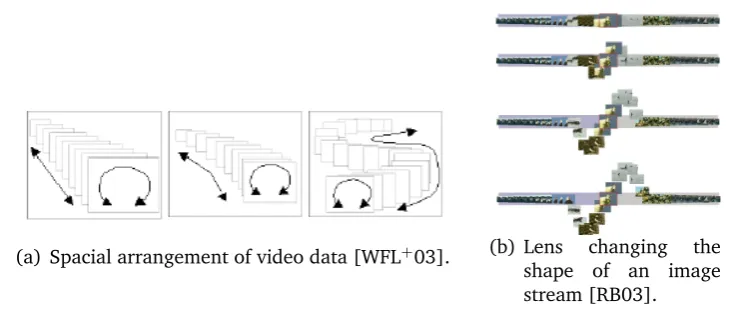
The problem in presenting video data in order to manipulate them is that the data does not only contain information about space but also about time. That is why it is an interesting idea to arrange the data (which exist often in form of single image frames) one after another to get a stream of images. Scrolling forward and backward on that stream has the effect of forward and rewind functions on a normal video device. Image frames are moving like leaves on a stream. The representation of the stream does not always have to be linear. The image frames can also be arranged spatially [WFL+03]. The image frames will stream from far behind towards the user or vice
Chapter 3 Related Work
(a) Spacial arrangement of video data [WFL+03]. (b) Lens changing the
[image:21.595.116.489.111.267.2]shape of an image stream [RB03].
Figure 3.5: Interaction and visualization of video data.
lens expands an area on the stream in order to get a better view over the data (see Figure 3.5(b)).
3.6 Summary
All the systems presented in this chapter have realized the idea of creating an interface under the aspect of flexibility and mobility. The Interactive Table supports a Lazy Susan to activate interaction between different users. In the “Living Memory Flow Zone” on the border of the Café Table items flow around which can help to pass items or to develop ideas. The Personal Digital Historian and the UpiTable provide the feature of rotating the whole workspace. The Pond is a horizontal table designed as a pool. It uses a water metaphor. Information is moving on the display such as water creatures in a pool.
Furthermore, systems for presenting video data show interesting aspects that could be used for tabletop displays.
Chapter 4
The Concept of an Interface Current
After the requirements for interfaces on tabletop displays were exemplified in Chap-ter 2 and related concepts were discussed in ChapChap-ter 3, this ChapChap-ter will introduce the concept of an Interface Current. First the motivation for Interface Currents will be explained shortly. Thereafter a definition for Interface Currents will be given and finally the taxonomy of Interface Currents will be introduced.
4.1 Motivation
Chapter 4 The Concept of an Interface Current
(a) Lazy Susan installed on a table. (b) Principle of a Lazy Susan in a sushi bar.
(c) Band-conveyer for luggage at the air-port.
[image:23.595.96.497.204.576.2](d) Lazy Susan as storage area in a kitchen unit.
Chapter 4 The Concept of an Interface Current
The principle of a Lazy Susan seems to fit perfectly to the requirements for tabletop interfaces. It can be used to define personal space (principle of storage area in kitchen units) and group space (principle of a rotatable plate on a table). It also supports the passing and sharing of items (principle of a sushi bar and a band-conveyer). Further-more, the orientation problem is solved because items rotating on a Lazy Susan can always be oriented towards its outer border.
As mentioned before the concept of Interface Currents is closely related to the principle of Lazy Susans in real life. However, Interface Currents have some more characteristics and properties as described in the following section.
4.2 Definition and Properties of Interface Currents
Based on the principle of a Lazy Susan in real life, the following definition for virtual currents—so-calledInterface Currents—was developed by the author of this technical report. This definition will be given in this section as well as a description of the properties of Interface Currents.
4.2.1 Definition
The author of this technical report defines an Interface Current as an area in the workspace that is affected by a continuous onward power or movement. This move-ment on an Interface Current runs with unbroken continuity comparable to the flow of water in a river. Items that are placed onto the Current are moved by the power that affects the Current. This can be imagined as a leaf drifting in the current of a river. Apart from the movement items can be affected by Interface Currents in terms of size and orientation.
This is a very abstract definition about what an Interface Current is. The following section goes more into detail about the properties of such an Interface Current.
4.2.2 Properties
Chapter 4 The Concept of an Interface Current
Flow
As explained in the definition of Interface Currents above, every Current has the ability to flow. This flow always has a specific direction and velocity. Both direction and ve-locity of the flow are not visible as long as no item is placed on the Current. Direction and velocity are independent from each other and adjustable by the user indepen-dently. The user has the possibility to change the direction of the flow as well as its velocity. This will be described in Chapter 5. Furthermore, different parts of a Current can have different flow rates. This also will be described in Chapter 5.
Path
A Current always flows in a specific path. This path is defined by alocationand bound-aries. The location of the path defines where the Current is placed in the workspace. The path can be mobile, that means its location can be manipulated by the user, or it can be predetermined by the system.
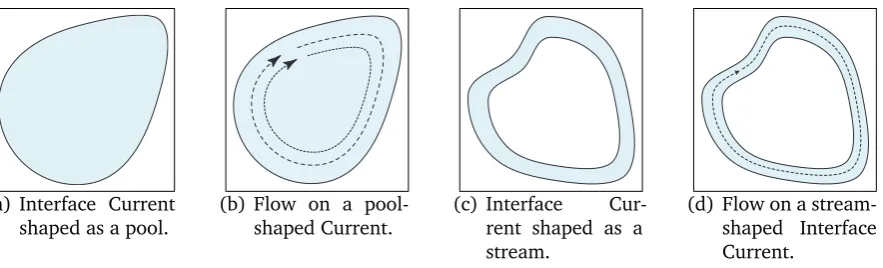
The boundaries of an Interface Current define the area that is affected by its flow. They specify its size and its shape. The Current can be defined by only one outer boundary. In this case, it is shaped like a pool or a lake (see Figure 4.2). In the following, this kind of Interface Current will be calledpool-shaped Current. The flow of a pool-shaped Current follows the outer border whereas items near the border flow slower than items near the center of the Current (see Figure 4.2(b)). That means in the middle of a pool-shaped Current, items will behave as if they are in a water whirl.
(a) Interface Current shaped as a pool.
(b) Flow on a pool-shaped Current.
(c) Interface Cur-rent shaped as a stream.
[image:25.595.82.524.477.611.2](d) Flow on a stream-shaped Interface Current.
Figure 4.2:Different Shapes of an Interface Current.
Chapter 4 The Concept of an Interface Current
Like the location, the boundaries of the Current can be flexible, i.e., manipulatable by the user or fixed. Due to the chosen implementation they can have nearly arbitrary shape whether it is angular or smooth (see Chapter 6).
As mentioned above, the boundaries of a Current define the size of the Current. An Interface Current can be a very small area in the workspace only for storing items. It also can border the whole workspace such as the Memory Flow Zone on the Cafe Table 3.2(a). Using a Current with a flexible border the user has the possibility to resize it which can be very useful if the amount of items on the Current increases or decreases.
Visibility
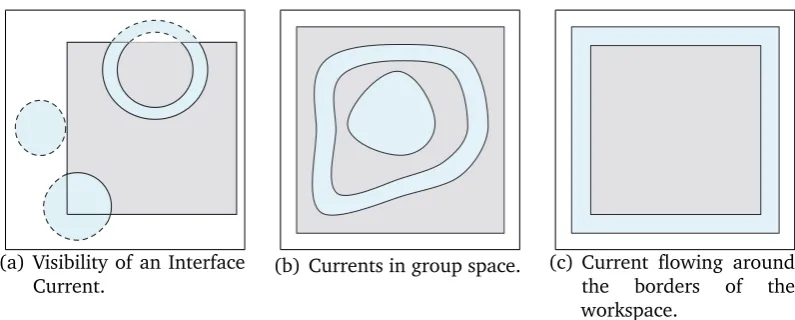
It becomes clear that the path of an Interface Current determines its appearance. In addition, the path, and therefore, the Current can vary its visibility. Depending on the function of the Current, its path can betotally visible, partly visible, orinvisible. If the Current is used mainly as a personal storage area for documents and other items, it is can be reasonable to move it partly out of the workspace in order to save personal space. Such an Interface Current would be located, for instance, in one corner of the personal space of the user (see Figure 4.3(a)).
(a) Visibility of an Interface Current.
[image:26.595.99.497.417.577.2](b) Currents in group space. (c) Current flowing around the borders of the workspace.
Figure 4.3:Visibility of a Current defines its purpose.
Chapter 4 The Concept of an Interface Current
In this section several examples for tasks that could use an Interface Current were already shown. The next section will delve more into how the author sees the purpose of an Interface Current.
4.3 Purpose of a Current
As already explained in Chapter 2, the purpose of a Current is basically to organize items and make them accessible to every participant working on a tabletop display. Furthermore, a Current can ease the orientation problem that often appears in col-laborative tasks on horizontal displays (see Section 2.2). For instance, items can be placed on a Current in order to facilitate working with them. In the following, different scenarios will be shown where different kinds of Currents can be applied.
Currents in Group Space
As mentioned in Section 4.2.2, Currents can be used in the group space of the workspace, i.e., in the space of the table that is accessible for all participants working on the group task (see Section 2.2). In a group space, Currents facilitate the sharing and the acces-sibility of items. By placing items onto a Current that is established in the group space it is easy to see that these items are accessible by everybody in the group due to the movement on the Current. Another major advantage is that all items on the Current are oriented towards its outer border. While items on the Current are moving, once an item comes near to a specific user it will be oriented the right way up to her (see Fig-ure 4.4(a) and 4.4(b)). Beside this, a Current can serve as an area in the workspace
info inf o inf o inf o info
(a) Stream-based and pool-based Current in group space. inf o inf o info inf o inf o info
(b) Items streaming on a rec-tangular Current.
[image:27.595.98.501.533.690.2](c) Interface Current for passing items.
Chapter 4 The Concept of an Interface Current
where results of a group collaboration can be collected. Again, the group can take advantage of the flow on a Current. For example, if the group task is to design the front page of a computer magazine, drafts for this page could be placed onto such a result-Current. Through the movement of the Current every user is able to see the drafts correctly (see Figure 4.3(b)). 1
Currents as Storage Area
In 4.2.2 was already mentioned that Currents can be used as a storage area. In this case, they have either a rather small size, or they are partly invisible (see Fig-ure 4.3(a)). The storage area would usually be personal, i.e., one for each user work-ing on the tabletop display would be provided. The advantage of an Interface Current as storage area is, on the one hand, that it distinguishes the storage area visually form the rest of the workspace which can be very helpful. Furthermore, it is possible to store a large amount of items on the Current without enlarging it to a great extend, but locating it partly outside the workspace. The user can benefit from the flow on the Current to scroll through the items that are not visible. This gives her the opportunity to save personal space in the workspace. This can be very important for the efficiency of work especially if many people are collaborating around the tabletop display.
Currents for Passing Items
On very large tabletop displays it can be difficult to exchange items between different users without disturbing others (see Section 2.2). A Current stretched out over the tabletop display can facilitate this. Here, the velocity of the flow of the Current plays important role because a user does not want to wait very long until the desired item moves near enough to her. On the other hand, fast streaming items could disturb other users. Despite of these considerations this feature was implemented (see Chapter 5).
Another idea was to develop a Current that is visible on two opposite sides of the workspace and flows underground like a tunnel (see Figure 4.4(c)). However, due to a lack of time this was not implemented but is left for future work.
Chapter 4 The Concept of an Interface Current
Currents as a Toolbar
Due to the orientation problem toolbars and menu bars are a big problem on horizontal displays. It is easy to see that the traditional bars used for desktop systems cannot be adopted for tabletop displays. Some systems have tried to solve this problem. One solution is to provide one menu or toolbar for each user (see Chapter 3.3(a)).
However, it is possible to use Currents for these purposes. Toolbars and menu bars can be based on Interface Currents in a way that the tools are located on a Current. Tool-bars on Interface Currents are affected by the flow on the Current similar to regular items. They follow its stream and, while they are moving, they are oriented always to-wards the outer border of the Current. This provides the same advantages mentioned already.
It is also imaginable to provide a small toolbar based on an Interface Current for every user. This would have the same advantage like a Current used as a storage area: the toolbar could be partly visible and hold a large amount of tools without taking away a lot of space.
The example tools that have been implemented for the Interface Current prototype are buttons that produce picture or text objects when they are pressed. Furthermore, tools or rather buttons placed on a Current were implemented that cause other Currents to appear and disappear. This makes it possible to hide a Current and all items placed on it if it is not used permanently.
4.4 Summary
As described in this Chapter, an Interface Current is an area in the workspace of a tabletop display that has a continuous movement. A Current is characterized by its flow, its path, and its visibility. The flow on the Current is invisible until items are placed onto it. It is defined through its direction and its velocity.
The path of an Interface Current determines its visual appearance. It is characterized through its location and its boundaries. Two different kinds of Interface Currents were developed: the pool-based Current (one boundary) and the stream-based Current (two boundaries). The location of the path can either be fixed or manipulatable by the user.
Chapter 4 The Concept of an Interface Current
An Interface Current can be used in group space in order to organize items that are defined as accessible by everyone working on the tabletop display or as an area that can be used to collect results of a group task. In both cases, the Current helps to negotiate the orientation problem. Furthermore, it facilitates the organization of items. When used in the group space the Current would be totally visible in the regular case.
In addition, an Interface Current can be used as a storage area for items. In this case it would be either partly visible or, if only a few items are placed on it, a very small size. The advantage of a storage area based on a Current that is partly visible is that the user can utilize its flow in order to browse through a large amount of items while saving personal space.
Moreover, Interface Currents can help passing items between users. In particular this makes sense on a very large tabletop display.
In addition, not only items such as documents or photos can be placed on a Current but also tools and menus. In this case the Current acts like a menu- or toolbar. The advantage is that a toolbar based on an Interface Current can ease sharing of one single toolbar between several users. It can be a solution for the orientation problem and the problem of reachability of the tools and menus.
Chapter 5
Interaction with Currents
While Interface Currents have the function to facilitate collaborative work on a table-top display, the question of how to interact with such a Current is very important. The interaction should be as intuitive as possible. The first section of this chapter will describe how the user can interact with the Current i.e., how she can control its appearance and its flow. Thereafter, the interaction between items and Currents will be explained, i.e., how items can be affected by Interface Currents. The last section will describe very shortly what happens if there are more than one Currents in the workspace.
5.1 Current-User Interaction
This section describes the interaction between Current and User. Since the intention was to develop an intuitive interface the interaction techniques that allow the user to operate with a Current are very important. The section explains how the user can manipulate the Current’s appearance and, furthermore, how she can control the flow on the Current.
5.1.1 Controlling the appearance of the Current
The appearance of the Current includes its shape, its position, and, if the Current is stream-shaped (see Section 4.2.2), its width. The control of the appearance of the Current is controlled by its eight so-called control points(see Chapter 6) that are located on its outer border. By moving these control points the user is able to change the appearance of the Current. There are three different possibilities for the user to manipulate the Current’s appearance:
Chapter 5 Interaction with Currents
• Controlling the position of the Current, and
• Manipulating its width if it is a stream-shaped Current.
All of these manipulation possibilities have to be covered by every single control point. The idea of a mark-up menu(see [TK95]) solves this problem. Touching one of the Cur-rent’s control points with the stylus invokes a mark-up menu with three items. Each of these items covers one of the three manipulation possibilities (see Figure 5.1(a)). While the control points are arranged evenly, they can be reached easily from all sides of the tabletop display. This means, if the Current is located, for instance, in group space every user collaborating on the tabletop display has the same chance to manipu-late the Current. The mark-up menu that was implemented is shown in Figure 5.1(b). The following describes shortly the particular interactions concerning the appearance of the Current.
Change Shape
Translate Change Width
(a) Invoking the mark-up menu by touching one of the control points.
[image:32.595.174.426.322.477.2](b) Screenshot of a mark-up menu.
Figure 5.1:Mark-up menu.
Manipulation of the Shape
The shape of a Current can be manipulated by touching one of its eight control points with the stylus. As mentioned above, a mark-up menu is invoked at the position of the touched control point. The user has to move her stylus to the symbol with the double-headed arrow without losing the touch to the surface (see Figure 5.3(a)).
Chapter 5 Interaction with Currents
(a) Changing the shape of a Current.
(b) Changing the posi-tion of the whole Cur-rent.
[image:33.595.122.478.109.287.2](c) Changing the width of a stream-shaped Current.
Figure 5.2: Manipulation of the position.
the course of the outer border (if it is a pool-shaped Current) or (if it is a stream-shaped Current) both, the outer and the inner border, are changing as well (see Fig-ure 5.2(a)).
Manipulation of the Position
The position of a Current can be manipulated in a similar way to the manipulation of the shape. After having invoked the mark-up menu, the user has to move the stylus to the symbol with the double-headed arrow cross (see Figure 5.3(b)). The Current can now be moved to an arbitrary location on the workspace (see Figure 5.2(b)). It can also be moved out of the workspace whereby it gets partly or totally invisible. If items are located on a Current during the change of its position they will appear translu-cent in order to prevent other users from adding items onto the Current during the manipulation. Items are displayed opaque again when the manipulation has ended.
Manipulation of the Width
Chapter 5 Interaction with Currents
have some areas on the stream that are very wide and some that are very narrow (see Figure 5.4(b)).
(a) Manipulation of the shape— corresponding symbol in the mark-up menu.
[image:34.595.158.453.169.350.2](b) Manipulation of the position—corresponding symbol in the mark-up menu.
Figure 5.3:Manipulation of the shape and the Currents’ position.
(a) Corresponding symbol in the mark-up menu.
[image:34.595.140.457.426.596.2](b) Varying width on a single Cur-rent.
Figure 5.4:Manipulation of the width of a stream-based Current.
Chapter 5 Interaction with Currents
5.1.2 Manipulation of the Flow on a Current
The Current-User Interaction also includes the possibilities to manipulate the move-ment of a Current. The user is able to start and stop the movemove-ment of items on the Current. She has also the possibility to change the direction in which the items flow on the stream. Furthermore, the user has control over the continuity of the flow on the Current, i.e., if it is a constant or a temporary flow. The following describes these interactions.
Starting and Stopping the Flow
The user can start the flow on a Current by touching it with the stylus and moving the stylus in the desired direction (see Figure 5.5(a)). As soon as the Current is touched, the flow will start and continue as long as the touch continues. The direction of the movement depends on the direction in which the user has moved the stylus (see next Section 5.1.2).
When the stylus loses its touch to the Current, the flow will stop immediately (see Figure 5.5(a)).
(a) Starting and stopping the flow on a Current.
(b) Changing the direction of the flow.
(c) Constant and tempo-rary flow.
Figure 5.5:Manipulating the flow on a Current.
Changing Direction
[image:35.595.103.496.415.562.2]Chapter 5 Interaction with Currents
be moved in the opposite direction as the flow goes: If the Current flows clockwise, moving the stylus clockwise will change the direction of the flow to counter-clockwise (see Figure 5.5(b)).
Temporary and Constant Flow
Items move continuously on the Current as long as the stylus keeps in touch with the Current. This is called temporary flow. It is also possible to invoke constant flow on the Current. In this case items move constantly also if the stylus is not in touch with the Current. To invoke constant flow the user has to start the movement on the Current (see previous paragraphs). After that, she has to move the stylus from the Current into the normal workspace without losing touch to the surface of the display (see Figure 5.5(c)). Tapping the Current with the stylus shortly will stop the continuous flow.
Variant Flow in Single Current
Controlling the velocity of the flow on the Current is realized only indirectly. The more a Current is stretched out over the surface the faster objects move in the stretched areas on the Current. Thus, participants of a group tasks can pass objects very fast one another. On areas that are not stretched out widely, objects move slower. Thus, it is possible to have variant flow on a single Current which can be very useful for collaborative tasks.
Accelerating the Flow
In the current prototype for Interface Currents, accelerating the flow is only possible on rectangular Currents that follow the border of the workspace (see Figure 6.4). On these Currents the user can accelerate the movement of items on the Current as fol-lows: The longer she touches the Current with the stylus, the faster objects move. If the stylus leaves the Current the flow will stop immediately. It is future work to implement this interaction technique for all kinds of Currents (see Chapter 7).
Chapter 5 Interaction with Currents
5.2 Current-Item Interaction
Current-item interaction includes how items are affected by Interface Currents, i.e, how can they added onto the Current, how Interface Currents affect their size and orientation, and what kinds of items flow on a Current. These questions are discussed in this section.
5.2.1 Adding and Removing Items
Every item in the workspace has small buttons on its border that can be used for scaling, rotating, or deleting the item (see Figure 5.6).
When the user adds an item onto a Current in the workspace, these buttons disappear in order to indicate that this item is now on the Current (see Figure 5.7(a)). When the flow on the Current is started, items orient themselves to the outer border of the Current (see Figure 5.7(b)). When an item is moved from the Current into the normal workspace, its buttons will appear again but it will stay in the same orientation it had on the Current. This design decision was made because it is likely that the user who moves the item from the Current into the workspace wants to use it. Thus, it is helpful for her to have it oriented towards her.
5.2.2 Varying Magnification
Items on stream-based Currents are scaled depending on the width of the Current (see Figure 5.7(c)). For example, an item will be scaled as soon as it is added to a stream-based Current. When it is removed again from the Current it will resume its former size.
Chapter 5 Interaction with Currents
rotate item delete item
[image:38.595.237.361.121.244.2]scale item
Figure 5.6:Buttons on the border of each item.
(a) Buttons disappear when the item is added onto the Current.
(b) Items orient them-selves to the outer border of the Current.
[image:38.595.112.484.300.463.2](c) Scaling items depend-ing on the Current’s width.
Figure 5.7:Adding an item onto an Interface Current.
Current with images and the corresponding tool on the Tool Current
Current with text tools and the corresponding tool on the ToolCurrent
ToolCurrent
(a) Tool-Current for invoking other Currents.
(b) Creating image object with Tool-Current.
(c) Dragging new item into the workspace.
[image:38.595.96.500.527.679.2]Chapter 5 Interaction with Currents
5.2.3 Currents as Toolbars
As mentioned in Section 4.2.2, items on a Current do not have to be documents or photos. They can also be tools or buttons that start an event. For instance, tools on Currents can invoke other Currents (see Figure 5.8(a)), act as picture toolbars or that create new image objects or text objects (see Figure 5.8(b) and 5.8(c)). Tools on a Current act similar to other items on Currents, for example, they are affected by its flow. However, they are fixed, i.e., the user cannot grab them from the Current.
The next section describes the Current-Current interaction, i.e., the interaction be-tween Interface Currents.
5.3 Current-Current Interaction
As shown in some of the previous figures it is possible to have more than one single Interface Current in the workspace. They can can even overlap each other.
5.3.1 Multiple and Overlapping Currents
Currents can be very useful to organize items as mentioned in Section 4.2.2. Thus, it can be quite feasible to have more than one Current in the workspace. This is sup-ported by the system. Currents do not hinder each other even if they are overlapping (see Figure 5.9(a)). Items on overlapping Currents simply stay on their own Current.
[image:39.595.215.381.554.685.2](a) Overlapping Interface Currents.
Chapter 5 Interaction with Currents
5.4 Summary
The interaction with Interface Currents is divided into three different parts: the user-Current interaction, the user-Current-item interaction, and the user-Current-user-Current interac-tion.
The user-Current interaction consists of the manipulation of the appearance of the Current through the user and the control over the flow and, accordingly, the movement of objects on the Current.
The user has three options to manipulate the appearance of the Current: She can change its geometrical shape to nearly every favored geometric form, she can control the position of the whole Current, and if the Current is stream-shaped it is possible to change its width. Those three actions are controlled by a mark-up menu that can be invoked by touching one of the eight control points of the Current.
The flow on the Current can be started by touching it with the stylus. As soon as the stylus leaves the Current the flow stops. The direction of the flow is controlled by the direction in which the stylus is moved. Using a specific gesture it is possible to achieve a continuous flow on the Current. Stretching the Current will change the local velocity of items that are moving on the Current. On a rectangular Current the user has the opportunity to change the velocity of flow on the Current directly by using the stylus.
The Current-items interaction defines about how items can be added onto an Inter-face Current and how they can be removed, how Currents can affect the size and the orientation of items and what kind of items can be on an Interface Current.
Items can be added onto an Interface Current by dragging and dropping. When an item is on a Current its buttons disappear to indicate its membership to the Current. Furthermore, items on Currents are always oriented towards the outer border of the Current they belong to.
On stream-shaped Currents, items are scaled depending on the width of the Current. This can cause useful shrinking and magnification effects.
Items do not have to be only documents or photos. They can also be tools fixed on Currents that can be used for instance to produce new images or text objects.
The third part of interaction with Interface Currents is the Current-Current interaction, i.e. the interaction between Currents. It is possible to have multiple Currents in the workspace. These Currents can overlap without disturbing each other. Items stay on the Currents they belong to.
Chapter 6
Implementation
The prototype for a system based on Interface Currents was implemented in C# and Tao.OpenGL [Rid03]. In the following sections, the most important aspects of imple-mentation are described. One of these aspects is the appearance of the Current. For this purpose, two approaches were implemented. These two approaches as well as their advantages and disadvantages will be explained and discussed. Another impor-tant aspect is the technical realization of the interaction with the Current. Furthermore, the implementation of the movement of items on the Current will be a subject of this chapter. The following section will deal with the approaches of implementation of the appearance of the Current.
6.1 The appearance of a Current
The appearance of the Current is the most important aspect of the implementation because all characteristics of the Current are based on it. In Chapter 4, the properties of a Current were defined. These are used as the foundation of the implementation. Basically, the constraints were to build a geometric structure that is very flexible in shape but also very fast to calculate. In particular, the fast calculation is very impor-tant in order to save resources for fast interaction which is essential for fluent group interaction. Depending on these properties, two approaches for the appearance of the Current have been developed.
6.1.1 Approach using the EPSLens Library
Chapter 6 Implementation
[image:42.595.231.364.225.339.2]shapes for the Current (see Figure 6.1). However, it became clear very early that this approach is not flexible enough for the characteristics of a Current. It does not provide the required amount of flexibility, in particular, for the shape of the Current. In contrast, splines have the property to form nearly any desired shape. The disadvantage is that they are very hard to implement and their algorithms are very time consuming. So the idea came up to use a subdivision curve for defining the outer borders of a Current.
Figure 6.1:Appearance of the Current using the EPSLens Library.
6.1.2 Approach using an Interpolating Subdivision Curve
As mentioned before, one of the most important characteristics of a Current is the flexibility in particular, with respect to the flexibility of shape (see Chapter 4). The approach using the EPSLens Library did not support this desired flexibility. However, using a subdivision curve it is possible to generate nearly every desired geometric shape with lower computational effort.
Chapter 6 Implementation v0 v1 v2 v3 v4 v5 v6 v7
(a) Defined control points. v1 v2 v3 v4 v5 v6 v7
w0 w1
(b) Calculation of in-between points.
w2
w0 w
1 w3 w4 w5 w6 w7 w8 w9 w10 w11 w12 w13 w14 w15
[image:43.595.114.484.113.253.2](c) Resulting points.
Figure 6.2: Interpolation Curve Subdivision according to Dyn, Levin and Gregory.
w2i =vi
w2i+1 =−
1
16vi−1+
9
16vi+
9
16vi+1−
1
16vv+2
(6.1)
The control points involved in the calculation of the white point are colored grey. After the first iteration, the number of points doubles and the in-between points between the sixteen new points are calculated. In this way the number of points doubles in every iteration step and with every step the curve gets smoother (see Figure 6.2(c)). In practice, for the calculation of the border of the Current four iteration steps were used. These generate a curve that is smooth enough but still efficient to compute so that it does not hinder the interactions with the Current due to time consuming calculations.
The results can be seen in Figure 6.3. Figure 6.3(a) shows a pool based Current as the system defines it. System-defined Currents are always circular or, if the iteration steps are decreased, rectangular (see Figure 6.4). Figure 6.3(b) shows a pool-shaped Current of which the shape was manipulated by the user. It becomes clear that the interpolating subdivision curve supports nearly every desired shape of the Current.
Chapter 6 Implementation
(a) Pool-shaped Current de-fined by the system.
(b) Pool-shaped Current manip-ulated by the user.
(c) Stream-shaped Current defined by the system.
[image:44.595.82.520.92.251.2](d) Stream-shaped Current manip-ulated by the user.
Figure 6.3: Results of the interpolating curve subdivision.
Figure 6.4:Rectangular Current.
6.2 Manipulation of the Current — Technical
Background
As described in Section 5.1, there are three ways for the user to manipulate the ap-pearance of the Current:
• Manipulating the shape
• Changing the position of the whole Current, and
• Manipulating its width (if it is a stream-shaped Current).
To support an intuitive interaction with the Current the idea was to concentrate all these manipulation possibilities to each of the eight basic control points mentioned in the last section. Therefore, these control points are visualized as small grey circles as shown in Figure 6.3.
[image:44.595.238.358.282.373.2]Chapter 6 Implementation
the stylus touches the menu-item, the control-point follows the movement of the stylus. As soon as the user releases the menu-item, internally the eight basic control points in the double linked list mentioned in the last section are removed from the list and the new eight basic control points (including the one which was relocated) are added to the list. The control points in the second large list including all calculated points for the border of the Current are removed as well. The points for the large list are now calculated based on the new eight control points in the basic list.
For a Current with two borders the mechanism is nearly the same. The linked list for the inner border is changed according to the outer border. To every control point on the outer border a corresponding point on the inner border exists that is invisible for the user. This corresponding point is also changed as soon as the point on the outer border is relocated. Thus, the new inner border can be recalculated in the same way the outer border is determined.
The manipulation of the width of the Current works very similar except that only the lists of the outer border are changed and the lists of the inner border stay the same.
The next section deals with the implementation of the movements of items on the Current.
6.3 Movement of the Current
The movement of items on the Current is implemented as follows: Every item has its own center point (pointc) and every Current has a center point by definition as well (point m). Furthermore, every point of the outer border of the Current is stored in a double linked list as explained in the previous sections. When an item is added to a Current, the system tries to find the closest point on the outer border of the Current to the center point of the item (see Figure 6.5(a)). This point is calledP1. OnceP1 is
determined, the distanceDform the center pointmof the Current toP1 is calculated.
Furthermore, the distancedfrom the center pointmof the Current to the center point
cof the item is calculated. The question is how the center point of the item has to be changed for the following pointP2 of the outer border.
The movement of the item shall follow the outer border of the Current. By definition, once the item is placed onto the Current, the ratio between the distance fromm to c
Chapter 6 Implementation m D P1 P2 d c cnew
(a) Finding the corresponding point on the border of the Current.
m P2_x P 2 _ y c new_y cnew_x P2 cnew
[image:46.595.135.451.118.296.2](b) Applying the theorem on inter-secting lines.
Figure 6.5:The calculation of the movement.
in the list of the points of the outer border is known, it isP2. According to the theorem
on intersecting lines, the following formula can be applied:
d
D =
cnew_x
P2_x
= cnew_y
P2_y
(6.2)
The formula is transposed to cnew_x and cnew_y, respectively, which define the new center point of the item. To simulate a movement, the system goes through the whole list of border points and calculates new centerpoints of the item according to the border points of the Current. A timer is used for refreshing the scene which makes these calculations look like a continuously movement.
6.4 Summary
Chapter 7
Conclusion and Future Work
Tabletop displays are very useful for doing co-located collaborative work. Thus, they require special interfaces that support opportunities for organizing items, solve the orientation problem, and offer an elegant way to share large amounts of items. In this technical report the concept of Interface Currents was introduced. Interface Cur-rents fulfil these requirements in an intuitive way. They are applicable in a variety of tasks, for instance, design tasks or brainstorming sessions. The following section will conclude the concept of Interface Currents that was explained in this technical report. After the conclusion an outlook to future work will be given.
7.1 Conclusion
Interface Currents are areas in the workspace with a continuous power or movement. Items that can be placed onto a Current move driven by this power following the bor-der of the Current. Interface Currents can be employed on large displays, in particular, tabletop displays. One of the most important characteristics of Interface Currents is their flexibility in terms of appearance and position.
Chapter 7 Conclusion and Future Work
the workspace. In this case they are entirely invisible. This can be useful if items on the Current are no longer used. Invisible Currents can be brought back into workspace again when they are needed.
The movement or flow on an Interface Current can be manipulated by the user as well. The user can start and stop the flow. By default, items on the Current stop moving as soon as the stylus stops touching the Current. However, the user can also invoke continuous movement by a special gesture explained in Chapter 5. Items can be added to an Interface Current by dragging them onto it. Every item has five little buttons: one for rotating it, another one for deleting it, and others for scaling it. These buttons disappear when the item is added onto the Current in order to signal the user that it is now affected by the movement on the Current. When the item is removed from the Current into the normal workspace, the buttons appear again. On stream-shaped Currents items are scaled depending on the width of the Current.
Items on Currents can be all kinds of objects like media as pictures or tools as color palettes. Furthermore, a Current can act as a Toolbar as explained in Chapter 4. Sev-eral Interface Currents can be located in the workspace of one tabletop display. They can even overlap each other which does not affect items flowing on them.
As mentioned above, the concept of Interface Currents can solve the orientation prob-lem on interfaces for tabletop displays. Items on a Current orient themselves always towards its outer border. I.e., at a specific time every user can see them the right way up.
Through the floating of items on the Current the problem of sharing large amounts of items with several users is solved as well. Items can be passed along easily through the flow of the Current.
However, the actual value of the concept of Interface Currents is theoretically assumed because of the arguments that were analyzed sufficiently in this technical report. This theoretical assumption will have to be proven in a user study to demonstrate that Interface Currents really facilitate collaborative work around a tabletop display. This and several other issues are future work and are described more detailed in the next section.
7.2 Future Work
Chapter 7 Conclusion and Future Work
with Currents for users that do not know how it could influence items. Furthermore, some ideas for the purpose of Currents exist of which one was already shown in Fig-ure 4.4(c): a Current that is only visible on the two opposite sides of the workspace and otherwise flows underground. Such a Current could be useful for passing items underground between two users in order to save group space.
Accelerating the flow on an Interface Current is also still not supported well enough. So far, users are able to accelerate the movement of items on the Current indirectly by stretching the Current. A direct manipulation of the flow is only realized with rectangular Currents. The expansion of this concept to all kinds of Currents is very important because it can be very disturbing to wait for an item that is needed very fast.
Apart from these design issues, the system has to be optimized and the support of simultaneous multiple user interaction has to be realized. Due to the lack of time the system supports only single user interaction but is prepared for multiple users.
As mentioned in the last section, it is not proven empirically if the concept of Interface Currents is actually useful for realistic group tasks on tabletop displays. Some people that tested the system in the laboratory of the University of Calgary argued, whether it would be easier to stay with the traditional inter-action techniques and, for instance, pass items directly. However, whether the concept of Interface Currents can compete with traditional interfaces and interaction techniques and if it is better or even worse has to be proven by a user study. This user study will be conducted in the end of 2004 by the author of this technical report.
Bibliography
[Car99] Sheelagh Carpendale. A Framework for Elastic Presentation Space, 1999. http://pages.cpsc.ucalgary.ca/~sheelagh/personal/thesis/
thesis.html, as of August 2nd, 2004.
[dBS03] Oscar de Bruin and Robert Spence. Serendipity within a Ubiquitous Com-puting Environment: A Case for Opportunistic Browsing. In Proceedings of UbiComp’01, pages 362–370, London, UK, 2003. Springer-Verlag.
[DGM03] Stacey D.Scott, Karen D. Grant, and Regan L. Mandryk. System Guide-lines for Co-located, Collaborative Work on a Tabletop Display. In In Pro-ceedings of European Conference Computer-Supported Cooperative Work (EC-SCW)2003, pages 159–178, 2003.
[DL01] Paul Dietz and Darren Leigh. DiamondTouch: A MultiUser Touch Technol-ogy. In Proceedings of the 14th annual ACM Symposium on User Interface Software and Technology (UIST)2001, pages 219–226, New York, NY, USA, 2001. ACM Press.
[DMTG03] Roberto A. Diaz-Marino, Edward Tse, and Saul Greenberg. Program-ming for Multiple Touches and Multiple Users: A Toolkit for the Di-amondTouch Hardware, 2003. grouplab.cpsc.ucalgary.ca/papers/
2003/03-DiamondTouch.UISTDemo/03-DiamondTouch-UISTDemo.pdf, as of
May 7th, 2004.
[KC02] Russell Kruger and Sheelagh Carpendale. The e-table: Exploring collabora-tive interaction on a horizontal display. Technical report, The University of Calgary, Departement of Computer Science, 2002.
![Figure 3.1: Interactive Table - Museum Of Modern Art [OPH+ 00].](https://thumb-us.123doks.com/thumbv2/123dok_us/8665540.375922/17.595.133.465.290.463/figure-interactive-table-museum-modern-art-oph.webp)
![Figure 3.2: Description of the Café Table [Phi00].](https://thumb-us.123doks.com/thumbv2/123dok_us/8665540.375922/18.595.100.492.271.460/figure-description-of-the-cafe-table-phi.webp)
![Figure 3.3: PDH [SL01] and UbiTable [SER03].](https://thumb-us.123doks.com/thumbv2/123dok_us/8665540.375922/19.595.96.501.355.496/figure-pdh-sl-and-ubitable-ser.webp)
![Figure 3.4: Information Exploration Using The Pond [SWS+ 02].](https://thumb-us.123doks.com/thumbv2/123dok_us/8665540.375922/20.595.172.424.294.466/figure-information-exploration-using-pond-sws.webp)