TOSHIBA
Office Products GroupApril 2006
Strata CIX Voice Mail System
Publication Information
Toshiba of Canada Limited, reserves the right, without prior notice, to revise this information publication for any reason, including, but not limited to, utilization of new advances in the state of technical arts or to simply change the design of this document.
Further, Toshiba of Canada Limited also reserves the right, without prior notice, to make such changes in equipment design or components as engineering or manufacturing methods may warrant.
STG-AG-LVMU1-VA Version A, March 2006
© Copyright 2006
Toshiba of Canada Limited
All rights reserved. No part of this manual, covered by the copyrights hereon, may be reproduced in any form or by any means—graphic, electronic, or mechanical, including recording, taping, photocopying, or information retrieval systems—without express written permission of the publisher of this material.
Strata is registered trademark of Toshiba Corporation.
Stratagy is a registered trademark of Toshiba America Information Systems, Inc.
Trademarks, registered trademarks, and service marks are the property of their respective owners.
Toshiba Of Canada Limited
Limited Warranty
Toshiba of Canada Limited, (“TCL”) warrants that this voice processing equipment (except for fuses, lamps, and other consumables) will, upon delivery by TCL or an authorized TCL dealer to a retail customer in new condition, be free from defects in material and workmanship for twenty-four (24) months after delivery. This warranty is void (a) if the equipment is used under other than normal use and maintenance conditions, (b) if the equipment is modified or altered, unless the modification or alteration is expressly authorized by TCL, (c) if the equipment is subject to abuse, neglect, lightning, electrical fault, or accident, (d) if the equipment is repaired by someone other than TCL or an authorized TCL dealer, (e) if the equipment’s serial number is defaced or missing, or (f) if the equipment is installed or used in combination or in assembly with products not supplied by TCL and which are not compatible or are of inferior quality, design, or performance.
The sole obligation of TCL or Toshiba Corporation under this warranty, or under any other legal obligation with respect to the equipment, is the repair or replacement by TCL or its authorized dealer of such defective or missing parts as are causing the malfunction with new or refurbished parts (at their option). If TCL or one of its authorized dealers does not replace or repair such parts, the retail customer’s sole remedy will be a refund of the price charged by TCL to its dealers for such parts as are proven to be defective, and which are returned to TCL through one of its authorized dealers within the warranty period and no later than thirty (30) days after such malfunction, whichever first occurs.
Under no circumstances will the retail customer or any user or dealer or other person be entitled to any direct, special, indirect, consequential, or exemplary damages, for breach of contract, tort, or otherwise. Under no circumstances will any such person be entitled to any sum greater than the purchase price paid for the item of equipment that is
malfunctioning.
To obtain service under this warranty, the retail customer must bring the malfunction of the machine to the attention of one of TCL’s authorized dealers within the twenty-four (24) month period and no later than thirty (30) days after such malfunction, whichever first occurs. Failure to bring the malfunction to the attention of an authorized TCL dealer within the prescribed time results in the customer being not entitled to warranty service.
THERE ARE NO OTHER WARRANTIES FROM EITHER TOSHIBA OF CANADA LIMITED, OR TOSHIBA CORPORATION WHICH EXTEND BEYOND THE FACE OF THIS WARRANTY. ALL OTHER WARRANTIES, EXPRESS OR IMPLIED, INCLUDING THE WARRANTIES OF MERCHANTABILITY, FITNESS FOR A PARTICULAR PURPOSE, AND FITNESS FOR USE, ARE EXCLUDED.
No TCL dealer and no person other than an officer of TCL may extend or modify this warranty. No such modification or extension is effective unless it is in writing and signed by the vice president and general manager, Office Products Group.
CIX Voicemail System Administrator Guide 04/06
1
Introduction
This guide has been customized for your use and describes how to use the CIX Voice Mail System Administrator User ID Mailbox (User ID 999).
Organization
This System Administrator User Guide includes one or more of the following topics.
•
System Administrator tells how to create a system-wide distribution list and describes the available System Administration Menu functions.•
How Stratagy Operates covers in detail call processing control and the use of User IDs and User ID mailboxes and how it processes them.•
Users Menu provides detailed information on the three Users Menu screens and how to create, modify, copy, delete and list the User ID mailboxes. Includes instructions on accessing and exiting the menu/screens, menu options, and field descriptions for each screen.•
Auto (Scheduling) Menu provides detailed information on the Auto (Scheduling) Menu and how to create, modify or disable a record. Includes instructions on accessing and exiting the menu, menu options, field descriptions, and information on how the CIX Voicemail uses the records.•
Notify Menu provides detailed information on the Notify Menu and how to create, modify or disable a record or template. Includes instructions on accessing and exiting the menu, menu options, field descriptions and information on how it uses the records.•
Checklists/forms provides the following forms to simplify the System Administrator’s duties and functions.Conventions
Conventions Description
Note
Elaborates specific items or references other information. Within some tables, general notes apply to the entire table and numbered notes apply to specific items.
Important! Calls attention to important instructions or information.
CAUTION! Advises you that hardware, software applications, or data
could be damaged if the instructions are not followed closely.
Introduction
Conventions
CIX Voicemail System Administrator Guide 04/06
2
Helvetica Bold represents tokens. For example: M( ).
Italics represent parameter and menu/screen field names, and book titles.
For example: hot_box parameter, Extension field. “Type” Indicates entry of a string of text.
“Press” Indicates entry of a single key. For example: Type press prog then
Enter.
Plus (+)
Shows a multiple PC keyboard or phone button entry. Entries without spaces between them show a simultaneous entry.
Example: Esc + Enter. Entries with spaces between them show
a sequential entry. Example: # + 5.
Tilde (~) Means “through.” Example: 350 ~ 640 Hz frequency range.
ä Denotes the step in a one-step procedure.
ä
Denotes a procedure.See Figure 10
Grey words within the printed text denote cross-references. In the electronic version of this document cross-references appear in blue hypertext.
Introduction
Related Documents/Media
CIX Voicemail System Administrator Guide 04/06
3
Action/Response Table
Related Documents/Media
Note Some documents listed here may appear in different versions on OPGONLINE, or in print. To find the most current version, check the version/date in the Publication Information on the back of the document’s title page.
You can find additional detailed information about the CIX Voicemail in the following companion documents:
•
Stratagy Voice Processing General Description•
LVMU Installation Manual•
CIX Voicemail User Guide•
Stratagy Quick Reference GuideFor authorized users, Internet site OPGONLINE (http://www.opgonline.ca) contains all current documentation and enables you to view, print, and download current publications.. 1. Actions you perform
appear in this column. They can consist of either a single step or a series of numbered steps.
The immediate response to the action performed appears in this column. Additional notes and comments are also included.
2. When the action you perform results in a screen, menu, etc., the screen displays to the right.
Introduction
Related Documents/Media
Stratagy System Administrator Guide 06/02
4
Overview
The CIX Voicemail has a special User ID mailbox known as the System Administrator User ID mailbox. It is User ID 999, and you access it through the telephone just as any other User ID mailbox.
Note The System Administrator mailbox (User ID 999) cannot be assigned to another User ID number.
In addition to normal options available on the Main Menu, the System Administrator’s Main Menu includes a System Administration option (8).
All procedures in this chapter assume that you are logged on to the System Administrator’s mailbox.
System Administrator
Your company will assign all or some System Administrator functions to an employee who knows your telephone system, organizational structure, and the needs of your customers and employees. The Technical Service Representative will perform the remaining functions. System Administrator functions may include:
© Initial setup (assisting the Installer with defining your company’s configuration and
customization requirements)
© Customizing User ID mailboxes © Customizing special User ID mailboxes © Generating reports
© Performing system shutdown and restart © Backing up the system
© Using the CIX Voicemail’s Filecopy utility © Using the System Administrator User ID mailbox
Overview
System Administrator Menu
Stratagy System Administrator Guide 06/02
5
System Administrator Menu
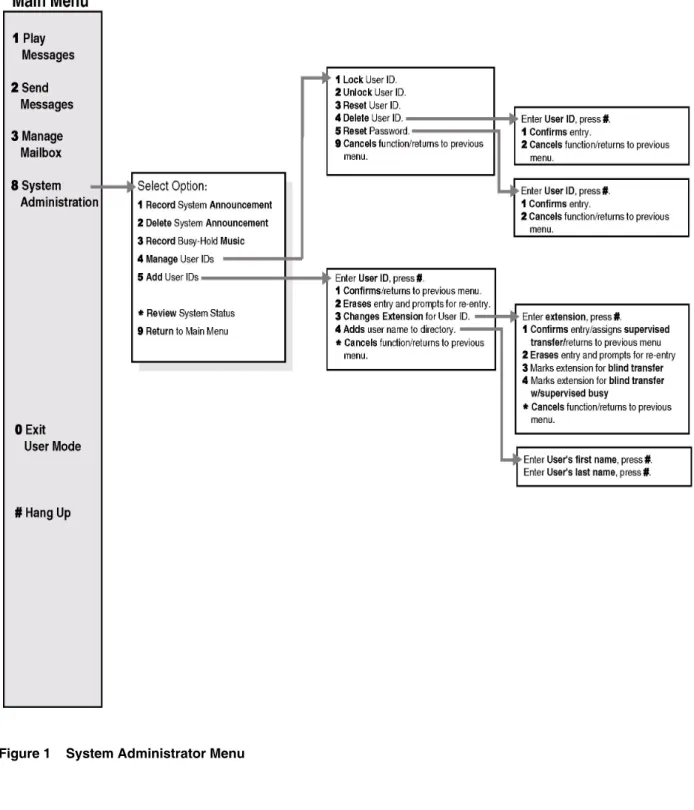
System Administration is an option designed for the System Administrator to create system lists and to manage system-wide functions (see Figure 1).
Overview
System Administrator Menu
Stratagy System Administrator Guide 06/02
6
Select Option on System Administration Menu
1. From the Main Menu,
press 8. The System Administration Menu plays. 2. From the System
Administration Menu, press:
1 Record system announcement
2 Delete system announcement
3 Record busy-hold music
4 Manage User IDs
5 Add User IDs
*
Review system statusFeatures
Record System Announcement
Stratagy System Administrator Guide 06/02
7
Features
Record System Announcement
System announcements are useful in disseminating system-wide information. With this option, you can record an announcement that the CIX Voicemail plays to every user when he/she accesses his/her mailbox.
Users can interrupt the system announcement by selecting from the User Main Menu during playback. However, the announcement plays each time the user accesses his/her mailbox until it has completely played. Once played in its entirety, the CIX Voicemail deletes the announcement from the user’s mailbox.
1. From the Main menu, press 8 System Administration.
You are prompted to enter the User ID.
2. From the System Administration menu, press 1 Record System Announcement.
The CIX Voicemail prompts you to record the system announcement.
3. After recording, you can
press: You can repeat options 1~3 as many times as you wish.
1 Review recording The complete greeting plays.
2 Rerecord
Press # when done.
The system prompts you to record at the beep.
3 Append recording Press # when done.
The appended greeting plays after the already recorded portion of the greeting. The system prompts you to record at the beep.
4 Cancel recording The greeting is canceled. The system returns to the previous menu.
9 Save recording The CIX Voicemail tells you that greeting (number) has been recorded and returns to the previous menu. Again, you are given the option to review or record over the greeting you have just recorded.
Features
Delete System Announcement
Stratagy System Administrator Guide 06/02
8
Delete System Announcement
With this option, you can purge a previously recorded system announcement. 1. From the Main menu,
press 8 System Administration.
You are prompted to enter the User ID.
2. From the System Administration menu, press 2 Delete System Announcement.
The CIX Voicemail confirms the deletion.
Features
Record the Busy-Hold Music
Stratagy System Administrator Guide 06/02
9
Record the Busy-Hold Music
By pressing
*
, the busy-hold music is heard by callers when they elect to hold for a busy extension.The CIX Voicemail plays the entire recording before re-trying the busy extension. When the system is delivered, it plays approximately 30 seconds of music. You can replace this music with another recording which plays either music or recorded information about your company or its products and services. To make a recording, you can use the telephone handset.1. From the Main menu, press 8System Administration.
You are prompted to enter the User ID.
2. From the System Administration menu, press 3Record Busy-Hold Music.
The CIX Voicemail confirms the deletion.
Features
Manage User IDs
Stratagy System Administrator Guide 06/02
10
Manage User IDs
Manage User IDs enables you to perform special User ID functions. 1. From the Main menu,
press 8System Administration.
You are prompted to enter the User ID.
2. From the System Administration menu, press 4 Manage User IDs.
The CIX Voicemail prompts you to enter the User ID.
3. Enter the User ID to be
added and press #. The CIX Voicemail repeats the User ID entered. 4. Select one of the
following:
1 Lock User ID Prohibits the user access to the mailbox.
2 Unlock User ID Unlocks a locked User ID.
3 Reset User ID Clears the User ID specified. Resets the Info/Status field values to 0. Changes the Users Menu and Auto and Notify record field values to those specified in the Defaults Box (default User ID 997).
See Chapter 6 – Menus for information on creating a User ID Mailbox.
4 Delete User ID Enter User ID to be deleted and press #. You are asked to confirm the number:
1 - Confirms entry and returns you to the previous menu.
2 - Cancels functions and returns to previous menu.
5 Reset Password Resets password to password designated in default Mailbox (999). Enter User ID and press #. You are asked to confirm the number:
1 - Confirms entry and returns you to the previous menu.
2 - Cancels functions and returns to previous menu.
9 Cancel Cancels function and returns to the System Administration menu.
Features
Add User IDs
Stratagy System Administrator Guide 06/02
11
Add User IDs
1. From the Main menu, press 8System Administration.
You are prompted to enter the User ID.
2. From the System Administration menu, press 5Add User IDs.
The CIX Voicemail prompts you to enter the User ID.
3. Enter the User ID to be
added and press #. The CIX Voicemail repeats the User ID entered and prompts you to confirm your entry. 4. Select one of the
following:
1 Confirm Confirms and assigns the User ID, and returns you to the System Administration menu.
2 Erase Erases first entry and prompts you to re-enter the correct number.
3 Change Extension Changes the extension number for the User ID.
Enter the extension number and press #. The CIX Voicemail repeats the extension number entered and prompts you for the following:
1 – Confirms and assigns the extension number with a supervised transfer and returns you to Add User ID menu.
2– Erases first entry and prompts you to re-enter the correct number.
3 – Confirms and assigns the extension number for a blind transfer. Returns you to the Add User ID menu.
4– Confirms and assigns the extension number for a blind transfer with supervised busy. Returns you to the Add User ID menu.
*
– Cancels function and returns to the System Administrator menu.4 Add User’s Name to Directory
The CIX Voicemail prompts you to first enter the User’s first name/last name.
Using the telephone’s dial pad, enter the user’s first name. When finished, press #. Enter the user’s last name. When finished, press #. Use 7 for Q and 9 for Z.
The User’s name is added to the directory.
Note Entries made using this option display as numeric characters in the Directory Name 1 and Directory Name 2 fields of the Users Menu (see Chapter 6 – Menus).
*
Cancel Cancels function and returns to the System Administrator menu.Features
System Distribution Lists
Stratagy System Administrator Guide 06/02
12
System Distribution Lists
System lists are available as a special attribute of the System Administrator Main Menu, and are an excellent means of distributing interoffice memos to a large group of people in a timely manner. The lists also eliminate the need of every user creating a similar personal list.You can create up to seven system-wide lists. Examples of such lists include all users in the system or in a specific department and all company managers.
The CIX Voicemail processes mail sent to mailing lists as a low-priority task. Therefore, it may take several minutes to send the message to everyone on a large list, especially if the system is busy.
Create System Distribution List
1. From the Main Menu,
press 3 Manage Mailbox. The Manage Mailbox Menu plays. 2. From the Manage
Mailbox Menu, press 3
Manage Your Lists.
The Manage Your Lists Submenu plays.
3. Select the Distribution
List number (1~7). You are prompted to enter an option. 4. After selecting a list, you
can press:
1 Review your current list
The system prompts you with the name (and extension) of each User ID on the list.
2 Add a User ID to the list
The CIX Voicemail prompts you to enter the User ID. Enter the User ID.
Press # when done.
The name (and extension) plays. You can add additional User IDs as needed.
3 Delete a User ID from the list
The CIX Voicemail prompts you to enter the User ID. Enter the User ID.
Press # when done.
The name (and extension) plays. The system prompts “Deleted.”
4 Record a list Comment Record your comment. Press #
when done.
When sending a message, the comment plays each time the destination list is selected.
The CIX Voicemail prompts you to record the comment.
5. Press 9 to return to the Manage Your Lists Submenu.
You can create another System List or press 99 to return to the Main Menu.
Once defined, you can easily add or delete User IDs as needed to the list.
Features
System Distribution Lists
Stratagy System Administrator Guide 06/02
13
Send Message Using a System List
Each system distribution list (1 ~ 7) in User ID 999 is available to all users and may be accessed when a user sends or forwards a message to a list. For more details, see the The CIX Voicemail User Guide.
1. Access the CIX Voicemail from your telephone by pressing
*
+ your User ID number +#.
2. Enter your security code + #.
3. From the Main Menu,
press 2. The Send Messages Menu plays. 4. Press 02.
5. Select the Distribution List number (1~ 7).
6. Record your message. To pause during the recording, press 4. To restart and continue recording, press 4 again.
7. Press # to send your message immediately and return to the Main Menu.