Setting up Domino Server Archiving
8.0
The software described in this book is furnished under a license agreement and may be used only in accordance with the terms of the agreement.
Last updated: August 30, 2010.
Legal Notice
Copyright © 2010 Symantec Corporation. All rights reserved.
Symantec, the Symantec Logo, Veritas, Enterprise Vault, Compliance Accelerator, and Discovery Accelerator are trademarks or registered trademarks of Symantec Corporation or its affiliates in the U.S. and other countries. Other names may be trademarks of their respective owners.
This Symantec product may contain third party software for which Symantec is required to provide attribution to the third party (“Third Party Programs”). Some of the Third Party Programs are available under open source or free software licenses. The License Agreement accompanying the Software does not alter any rights or obligations you may have under those open source or free software licenses. Please see the Third Party Software file accompanying this Symantec product for more information on the Third Party Programs. The product described in this document is distributed under licenses restricting its use, copying, distribution, and decompilation/reverse engineering. No part of this document may be reproduced in any form by any means without prior written authorization of Symantec Corporation and its licensors, if any.
THE DOCUMENTATION IS PROVIDED "AS IS" AND ALL EXPRESS OR IMPLIED CONDITIONS, REPRESENTATIONS AND WARRANTIES, INCLUDING ANY IMPLIED WARRANTY OF MERCHANTABILITY, FITNESS FOR A PARTICULAR PURPOSE OR NON-INFRINGEMENT, ARE DISCLAIMED, EXCEPT TO THE EXTENT THAT SUCH DISCLAIMERS ARE HELD TO BE LEGALLY INVALID. SYMANTEC CORPORATION SHALL NOT BE LIABLE FOR INCIDENTAL OR CONSEQUENTIAL DAMAGES IN CONNECTION WITH THE FURNISHING,
PERFORMANCE, OR USE OF THIS DOCUMENTATION. THE INFORMATION CONTAINED IN THIS DOCUMENTATION IS SUBJECT TO CHANGE WITHOUT NOTICE.
The Licensed Software and Documentation are deemed to be commercial computer software as defined in FAR 12.212 and subject to restricted rights as defined in FAR Section 52.227-19 "Commercial Computer Software - Restricted Rights" and DFARS 227.7202, "Rights in Commercial Computer Software or Commercial Computer Software Documentation", as applicable, and any successor regulations. Any use, modification, reproduction release, performance, display or disclosure of the Licensed Software and Documentation by the U.S. Government shall be solely in accordance with the terms of this Agreement.
Symantec Corporation
350 Ellis Street, Mountain View, CA 94043 http://www.symantec.com
Symantec Technical Support maintains support centers globally. Technical Support’s primary role is to respond to specific queries about product features and functionality. The Technical Support group also creates content for our online Knowledge Base. The Technical Support group works collaboratively with the other functional areas within Symantec to answer your questions in a timely fashion. For example, the Technical Support group works with Product Engineering and Symantec Security Response to provide alerting services and virus definition updates.
Symantec’s support offerings include the following:
■ A range of support options that give you the flexibility to select the right amount of service for any size organization
■ Telephone and/or Web-based support that provides rapid response and up-to-the-minute information
■ Upgrade assurance that delivers software upgrades
■ Global support purchased on a regional business hours or 24 hours a day, 7 days a week basis
■ Premium service offerings that include Account Management Services For information about Symantec’s support offerings, you can visit our Web site at the following URL:
www.symantec.com/business/support/
All support services will be delivered in accordance with your support agreement and the then-current enterprise technical support policy.
Contacting Technical Support
Customers with a current support agreement may access Technical Support information at the following URL:
www.symantec.com/business/support/
Before contacting Technical Support, make sure you have satisfied the system requirements that are listed in your product documentation. Also, you should be at the computer on which the problem occurred, in case it is necessary to replicate the problem.
When you contact Technical Support, please have the following information available:
■ Operating system
■ Version and patch level
■ Network topology
■ Router, gateway, and IP address information
■ Problem description:
■ Error messages and log files
■ Troubleshooting that was performed before contacting Symantec
■ Recent software configuration changes and network changes
Licensing and registration
If your Symantec product requires registration or a license key, access our technical support Web page at the following URL:
www.symantec.com/business/support/
Customer service
Customer service information is available at the following URL:
www.symantec.com/business/support/
Customer Service is available to assist with non-technical questions, such as the following types of issues:
■ Questions regarding product licensing or serialization
■ Product registration updates, such as address or name changes
■ General product information (features, language availability, local dealers)
■ Latest information about product updates and upgrades
■ Information about upgrade assurance and support contracts
■ Information about the Symantec Buying Programs
■ Advice about Symantec's technical support options
■ Nontechnical presales questions
contact the support agreement administration team for your region as follows:
[email protected] Asia-Pacific and Japan
[email protected] Europe, Middle-East, and Africa
[email protected] North America and Latin America
Technical Support
... 3Chapter 1
About this guide
... 11Introducing this guide ... 11
Where to get more information about Enterprise Vault ... 11
Comment on the documentation ... 13
Chapter 2
Setting up Domino mailbox archiving
... 15About Domino mailbox archiving ... 15
Preparation for Domino mailbox archiving ... 18
Check Enterprise Vault configuration of Domino server ... 18
Configure Enterprise Vault for Web connections ... 19
Vault store group, vault store, and partition ... 20
Configuring Domino targets, tasks and policies in Enterprise Vault ... 21
Check the list of Domino forms ... 21
Adding Domino Server archiving targets ... 21
Configuring mailbox policies ... 23
Domino retention folders ... 30
Configuring desktop policies ... 31
Creating a Domino Provisioning task ... 34
Creating a Domino Mailbox task ... 35
Reviewing the default archiving settings for the Site ... 35
Adding a Provisioning Group ... 36
Installing Enterprise Vault extensions for Lotus Notes and DWA clients ... 39
About Enterprise Vault clients ... 39
Installing Enterprise Vault client extensions ... 40
Setting up an account to use EVInstall.nsf to set up an Enterprise Vault Domino Gateway ... 41
Setting up an account to use EVInstall.nsf to set up a mail server ... 42
Granting Execution Control List permissions ... 43
Installing the extensions ... 44
Completing the installation ... 52
Updating mail files with the new design ... 52
Accessing Enterprise Vault Search features ... 54
Editing automatic messages ... 55
Editing the Welcome message ... 55
Enabling mailboxes for archiving ... 56
Chapter 3
Setting up a vault cache for offline users
... 59About Vault Cache ... 59
Enabling users for Vault Cache ... 60
Setting permissions on the Enterprise Vault Domino Gateway ... 61
Disabling Vault Cache ... 61
Troubleshooting ... 62
Newly-enabled Vault Cache is not populated ... 62
Chapter 4
Setting up Domino Journaling archiving
... 65Preparation for Domino Journaling archiving ... 65
Adding a Domino domain ... 66
Adding a Domino server ... 66
How to assign a vault store ... 66
Creating a Domino Journal archive ... 67
Adding permissions to the journal archive ... 68
Creating a Domino Journal policy ... 68
Creating a Domino Journaling task ... 69
Adding a Domino Journaling location ... 69
How to configure clients ... 70
Lotus Notes client ... 70
Chapter 5
Introduction to filtering
... 73About filtering ... 73
Setting up custom filtering ... 74
Distributed Enterprise Vault environments ... 74
Setting up custom properties ... 74
Chapter 6
Configuring filtering
... 77About configuring filtering ... 77
Configuring custom filtering ... 77
Distributed Enterprise Vault environments ... 78
Configuring registry settings for Domino server journal filtering ... 79
About custom filtering ruleset files ... 81
General format of ruleset files ... 83
Rule actions ... 85
Message attribute filters ... 87
Example ruleset file ... 98
Chapter 7
Configuring custom properties
... 103About configuring custom properties ... 103
Control of default settings ... 105
Setting IGNORENODEFAULT registry entry ... 105
Summary of default archiving actions ... 107
General format of Custom Properties.xml ... 109
How to validate Custom Properties.xml ... 111
Additional properties ... 111
Domino message properties ... 111
Making Domino message properties available to Enterprise Vault ... 112
Content categories ... 113
Assigning content categories in rules ... 115
Defining how properties are presented in applications ... 117
How to display custom properties in the browser search ... 119
Summary of custom property elements and attributes ... 121
About this guide
This chapter includes the following topics:
■ Introducing this guide
■ Where to get more information about Enterprise Vault
■ Comment on the documentation
Introducing this guide
This guide describes how to set up Enterprise Vault so that you can archive items from Domino mail files and journal databases.
The guide assumes that you know how to administer the following Microsoft products:
■ Microsoft Windows Server 2003 or Windows Server 2008
■ IBM Domino Server
■ IBM Lotus Notes client
■ Microsoft SQL Server
■ Microsoft Internet Information Services (IIS)
Where to get more information about Enterprise Vault
Table 1-1lists the documentation that accompanies Enterprise Vault.1
Chapter
Table 1-1 Enterprise Vault documentation set
Comments Document
Includes all the following documentation so that you can search across all files. You can access this file by doing either of the following:
■ On the Windows Start menu, click Start >
Programs > Enterprise Vault > Documentation.
■ In the Administration Console, click Help >
Help on Enterprise Vault.
Symantec Enterprise Vault Help
Provides an overview of Enterprise Vault functionality.
Introduction and Planning
Describes how to check the prerequisite software and settings before you install Enterprise Vault. Deployment Scanner
Provides detailed information on setting up Enterprise Vault.
Installing and Configuring
Describes how to upgrade an existing Enterprise Vault installation to the latest version.
Upgrade Instructions
Describes how to archive items from Microsoft Exchange user mailboxes, journal mailboxes, and public folders.
Setting up Exchange Server Archiving
Describes how to archive items from Domino mail files and journal databases.
Setting up Domino Server Archiving
Describes how to archive the files that are held on network file servers.
Setting up File System Archiving
Describes how to archive the documents that are held on Microsoft SharePoint servers.
Setting up SharePoint Server Archiving
Describes how to archive SMTP messages from other messaging servers.
Setting up SMTP Archiving
Describes how to perform day-to-day
administration, backup, and recovery procedures. Administrator’s Guide
Table 1-1 Enterprise Vault documentation set (continued)
Comments Document
Describes how to implement Enterprise Vault Reporting, which provides reports on the status of Enterprise Vault servers, archives, and archived items. If you configure FSA Reporting, additional reports are available for file servers and their volumes.
Reporting
Describes the Enterprise Vault tools and utilities. Utilities
A reference document that lists the registry values with which you can modify many aspects of Enterprise Vault behavior.
Registry Values
The online Help for the Enterprise Vault Administration Console.
Help for Administration Console
The online Help for Enterprise Vault Operations Manager.
Help for Enterprise Vault Operations Manager
For the latest information on supported devices and versions of software, see the
Enterprise Vault Compatibility Charts book, which is available from this address:
http://entsupport.symantec.com/docs/276547
Comment on the documentation
Let us know what you like and dislike about the documentation. Were you able to find the information you needed quickly? Was the information clearly presented? Report errors and omissions, or tell us what you would find useful in future versions of our guides and online help.
Please include the following information with your comment:
■ The title and product version of the guide on which you want to comment.
■ The topic (if relevant) on which you want to comment.
■ Your name.
Email your comment [email protected]. Please only use this address to comment on product documentation.
Setting up Domino mailbox
archiving
This chapter includes the following topics:
■ About Domino mailbox archiving
■ Preparation for Domino mailbox archiving
■ Configuring Domino targets, tasks and policies in Enterprise Vault
■ Installing Enterprise Vault extensions for Lotus Notes and DWA clients
■ Editing automatic messages
■ Enabling mailboxes for archiving
About Domino mailbox archiving
The Enterprise Vault Domino Gateway provides the interface between Lotus Notes and Enterprise Vault. Although archiving does not use the Enterprise Vault Domino Gateway, actions on archived data, such as opening, restoring, deleting and searching, are handled by the Enterprise Vault Domino Gateway.
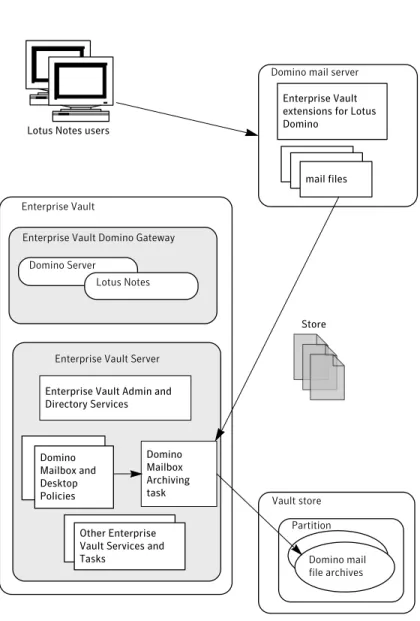
Figure 2-1illustrates the process when archiving an item from a Domino mail file.
2
Chapter
Figure 2-1 Archiving an item
Enterprise Vault extensions for Lotus Domino
Lotus Notes users
mail files
Domino Mailbox Archiving task Domino
Mailbox and Desktop Policies
Other Enterprise Vault Services and Tasks
Store
Enterprise Vault Admin and Directory Services
Domino mail file archives Domino mail server
Enterprise Vault
Enterprise Vault Domino Gateway
Enterprise Vault Server Lotus Notes Domino Server
Vault store Partition
Figure 2-2 Retrieving or restoring an archived item
Lotus Notes users
Retrieve
Restore mail files Enterprise Vault extensions for Lotus Domino
Enterprise Vault Domino Gateway Domino Server Lotus Notes
Enterprise Vault Server Enterprise Vault Admin and Directory Services
Domino Mailbox and Desktop Policies
Enterprise Vault Storage Service
Other Enterprise Vault Services and Tasks
Enterprise Vault
Vault Store Partition
Domino mail file archives Domino mail server
Enterprise Vault Extension Manager, which Enterprise Vault installs on the Enterprise Vault Domino Gateway provides the main functionality of the Enterprise Vault Domino Gateway. Enterprise Vault Extension Manager is a server-side
extension that processes requests from Lotus Notes and DWA clients and passes them on to Enterprise Vault. In order for the extension manager to have unrestricted access to Enterprise Vault data, the Domino server must run under the Vault Service account.
Preparation for Domino mailbox archiving
Before proceeding, ensure that you have done the following:
■ Checked that software prerequisites are satisfied.
■ Installed and configured Domino server on the Enterprise Vault Domino Gateway computer.
■ Installed Enterprise Vault and run the configuration wizard.
See Installing and Configuring for instructions on how to perform these tasks.
Check Enterprise Vault configuration of Domino server
Now you can check the changes made to the Domino server configuration on the Enterprise Vault Domino Gateway.
Enterprise Vault installs the following binary files in the Domino program directory:
■ EVRT.dll
■ nEVDominoEM.dll
■ EVDominoTrace.dll
■ EVNoteStream.dll
■ nEVDominoHousekeeping.exe
Enterprise Vault installs the following mail template and database files in the Domino data directory:
■ EVAttach.ntf
■ EVinstall.nsf
■ help\*help.nsf
■ EV\EVDomino.nsf
The Enterprise Vault configuration wizard edits the notes.ini file in the Domino program directory. This file should then contain the following entries:
ServerTasks= ... ,EVDominoHouseKeeping
Now start the Domino server on the Enterprise Vault Domino Gateway. If the Enterprise Vault Directory Service is running, the following lines are displayed in the console during start-up:
Symantec Enterprise Vault Extension Manager: SERVER ...
EV Housekeeping: Initialization complete.
Symantec Enterprise Vault Extension Manager: HTTP
Configure Enterprise Vault for Web connections
When Lotus Notes users start an archive search, a Web connection is made to the Enterprise Vault Domino Gateway. You need to perform the configuration tasks described in this section to support these connections.
A new IIS virtual directory called EnterpriseVaultDomino is used to authenticate user access to Enterprise Vault archives when users perform an archive search. The virtual directory points to the Enterprise Vault\WebApp folder and has anonymous access enabled. For security, a Web account is required for this virtual directory. It is advisable to create an account specifically for the purpose of Web access.
Do not change the name of the virtual directory, EnterpriseVaultDomino. If you have already configured an account for Exchange Server OWA access, then you must use the same account for Domino mailbox archiving.
Create a Windows domain user account to use as the Enterprise Vault Data Access account. This should be a basic domain account specifically created for the purpose; a local machine account cannot be used. The account must not belong to any administrative group.
To configure the Enterprise Vault Data Access account
1
Log on to the Enterprise Vault Domino Gateway computer using the Vault Service account.2
Start the Enterprise Vault Administration Console.3
Expand the tree and right-click the Directory container.4
Select Properties.5
In the Directory Properties window, click the Data Access Account tab.7
Enter and confirm the password for the account.8
Click OK.The EnterpriseVaultDomino virtual directory is created and Anonymous access is granted automatically to the account specified.
To check the configuration of the Data Access account
1
On a computer that is not a domain controller, open Local Security Policy in Administrative Tools. On a domain controller, open Domain Controller Security Policy.2
Click Local Policies > User Rights Assignment.3
The following permissions should be set:Access this computer from the network (SeNetworkLogonRight). Bypass traverse checking (SeChangeNotifyPrivilege).
Log on as a batch job (SeBatchLogonRight). Allow log on locally (SeInteractiveLogonRight).
4
The following registry value is also created containing the Enterprise Vault Data Access account. This ensures that only this user can obtain a list of archives accessible by a Domino User:HKEY_CURRENT_USER\Software\KVS\Enterprise Vault\AnonymousUser
HKEY_CURRENT_USER is the Vault Service account. The value of this setting is the full name, including the Windows domain, of the anonymous user, for example,mydomain\DomAnonUser.
Vault store group, vault store, and partition
A vault store group, vault store, and vault store partition must exist before you enable mailboxes for archiving. After you enable the target mailboxes for archiving, Enterprise Vault automatically creates an archive for each mailbox in the selected vault store.
A default vault store can be set for the Domino server, or for a Provisioning Group.
Note:The vault store is managed by the local Enterprise Vault Storage service.
Configuring Domino targets, tasks and policies in
Enterprise Vault
You can now configure Domino mailbox archiving in the Enterprise Vault Directory using the Administration Console. The following list summarizes the tasks which are described in more detail in the following sections:
■ Check that the list of Domino forms available is correct for the items that you want to archive from mailboxes.
■ Add the target Domino domain.
■ Add the Domino servers hosting the mailboxes to be archived. Optionally, Domino Provisioning and Mailbox tasks can be added when you add the first target Domino server in the Administration Console.
■ Configure Domino mailbox policies, to define how Enterprise Vault archives target Domino server mailboxes.
■ Configure Domino desktop policies, to control the Enterprise Vault functionality available in the Lotus Notes client.
■ Check the Enterprise Vault site settings.
■ Create provisioning groups for the target mailboxes.
Check the list of Domino forms
The types of items that can be archived from Domino server mailboxes are defined using Domino forms or form aliases. The list of forms available is displayed in the Directory Properties. You select the forms of items to archive in the Domino mailbox policy.
To check the list of available forms
1
Start Enterprise Vault Administration Console.2
Expand the tree and right-click the Directory container.3
Select Properties.4
In the Properties window, select the Domino Forms tab.5
Ensure the list includes all the required forms for the types of documents to be archived. If necessary, use Add to add forms to the list.Adding Domino Server archiving targets
In the Administration Console you need to add the Domino domain and Domino Servers that you want to archive.
Adding a Domino domain
You can now configure the target Domino domain in the Enterprise Vault Administration Console.
To add a Domino domain
1
In the left pane of the Administration Console, expand the Targets container.2
Right-click Domino and, on the shortcut menu, click New and then DominoDomain.
The New Domino Domain wizard starts.
3
Work through the wizard.You will be asked for the following information:
■ The name and password for the ID file that will be used to access Domino domain. This will typically be the ID of the Domino archiving user that you created.
■ The fully-distinguished name of any Domino server in the domain that you are adding.
Adding target Domino mail servers
Next, add the target Domino mail servers in the Enterprise Vault Administration Console. A single Domino mailbox archiving task can archive several target Domino mailbox servers in a domain.
If you use secondary Domino servers to keep replicas of users' mail files, it is possible to archive from those secondary servers instead of from the mail servers. When there are many mail servers and only a few secondary servers this approach can simplify the configuration. If you want to use this method, add the secondary servers instead of the mail servers.
To add a target Domino mail server
1
In the left pane of the Administration Console, expand the Targets container.2
Expand Domino.3
Expand the Domino domain to which you want to add a server.4
Right-click the Domino server container and on the shortcut menu, click New and then Domino Server.The New Domino Server wizard starts.
5
Work through the wizard.■ The Domino Server that you want to archive. In the wizard, the drop-down box under Select the Domino server from which you want to archive lists all the Domino servers in the domain.
■ Cluster options. If the server you are adding is in a Domino cluster, you can choose to add all servers in the cluster to the Enterprise Vault Site. Additionally, you can set the server you are adding to be the preferred server. The archiving task uses the preferred server when archiving from mailboxes, when possible. A mailbox that is on a different server must be replicated to this preferred server in order for the archiving task to be able to archive using this server. If a mailbox is not replicated to this preferred server, the task archives from the server that hosts the mailbox.
■ The Enterprise Vault tasks that you want created. If preferred, you can add these after adding the Domino mail server. There can be only one Domino Mailbox task on an Enterprise Vault server. There must be one (and only one) Domino Provisioning task for each Domino domain.
■ If the tasks are to be created on a different Enterprise Vault server in the site, you will need the name of the Enterprise Vault server.
■ The ID and password to be used to access the Domino mail server, if this is different from the ID used to access the domain. Typically, this will be the ID of the Domino archiving user that you created.
6
The Domino domain is then added to the Enterprise Vault directory and displayed in the tree. You can now add the Domino mail servers that you want Enterprise Vault to archive.7
If you have added a secondary server to archive replica mail files you must also define the DominoHubServers registry value on the Enterprise Vault server that runs the provisioning task.See the Registry Values manual for details of how to create the DominoHubServers registry value.
Configuring mailbox policies
Domino mailbox policies define how Enterprise Vault archives target Domino server mailboxes. You can create multiple policies if you want different groups of mailboxes to be archived using different policy settings. If you wish, you can create a custom mailbox policy for each provisioning group.
A default Domino mailbox policy is created in the Administration Console by the configuration wizard.
To view and modify the properties of the default Domino mailbox policy
1
Expand your Enterprise Vault site.2
Click Policies > Domino > Mailbox.3
Right-click Default Domino Mailbox Policy in the right pane and selectProperties. You can modify the properties of this policy, as required, and
also create new policies.
To create a new Domino mailbox policy
1
In the Administration Console, expand your Enterprise Vault site and then click Policies > Domino > Mailbox.2
Right-click the Mailbox container and select New > Policy to launch the new policy wizard.3
The new policy is displayed in the right pane.4
To adjust the policy properties, right-click the policy and select Properties.General tab
Table 2-1lists the settings on the General tab. These settings provide a name and description for the policy.
Table 2-1 Domino mailbox policy General tab settings
Default value Description
Setting
None. A name for the policy.
Name
None. An optional description for the
policy, which you can change as often as you wish.
Description
Archiving Rules tab
Table 2-2lists the settings on the Archiving Rules tab. Use these settings to control the archiving strategy.
Table 2-2 Domino mailbox policy Archiving Rules tab settings
Default value Description
Setting
2 weeks The minimum age limit at which
items can be archived Young items
Table 2-2 Domino mailbox policy Archiving Rules tab settings (continued)
Default value Description
Setting
Not selected. Whether to archive larger items
before smaller items and, if so, the minimum size of the items that are given priority.
Large items
Items that have not been modified for 6 months are archived. Strategy for archiving the
remaining items. This is based on the period of time since an item was modified.
Archiving strategy
Not selected. Archive an item only if it has an
attachment, assuming all other archiving criteria are met. Note that this is not the same as archiving attachments only. Archive messages
with attachments only
Not selected. Archive messages that are
encrypted.
Note that Enterprise Vault cannot index encrypted messages. This means that it cannot display the body of an archived encrypted message, and users will not be able to find or view the body text when performing browser searches. However, users can view an encrypted message that is retrieved or restored from its shortcut, as normal. Archive encrypted
messages
Archiving Actions tab
Table 2-3describes the settings on the Archiving Actions tab. Use these settings to configure whether the item in the mailbox is to be deleted and a shortcut created, and also whether to archive unread items.
Table 2-3 Domino mailbox policy Archiving Actions tab settings
Default value Description
Setting
Selected. Original item is deleted from
mailbox after archiving. Delete original
item after archiving
Table 2-3 Domino mailbox policy Archiving Actions tab settings (continued)
Default value Description
Setting
Selected. After it has been archived, the
item in the mailbox is replaced with a shortcut.
Create shortcut to archived item after archiving
Not selected. Archive mailbox items even if they
have not yet been read. Archive unread
items
Shortcut Content tab
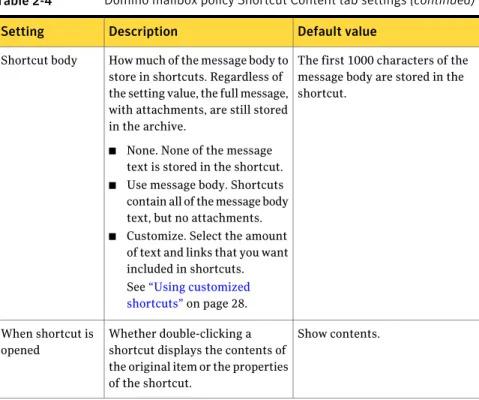
Table 2-4describes the settings on the Shortcut Content tab. Use these settings to configure what is to be included in shortcuts, and what is to be displayed when a shortcut is opened.
Note that Enterprise Vault does not create shortcuts for archived calendar or todo items. Instead, these are kept intact, although you can configure the mailbox archiving policy to strip calendar attachments.
See“Advanced tab”on page 27.
Table 2-4 Domino mailbox policy Shortcut Content tab settings
Default value Description
Setting
Shortcuts include recipient information.
Whether to store recipient information (To: and Cc: details) in shortcuts.
Shortcuts always contain the From and Subject information. Include recipient
Table 2-4 Domino mailbox policy Shortcut Content tab settings (continued)
Default value Description
Setting
The first 1000 characters of the message body are stored in the shortcut.
How much of the message body to store in shortcuts. Regardless of the setting value, the full message, with attachments, are still stored in the archive.
■ None. None of the message text is stored in the shortcut. ■ Use message body. Shortcuts contain all of the message body text, but no attachments. ■ Customize. Select the amount
of text and links that you want included in shortcuts. See“Using customized shortcuts”on page 28. Shortcut body
Show contents. Whether double-clicking a
shortcut displays the contents of the original item or the properties of the shortcut.
When shortcut is opened
The fileLotusShortcutText.txtis required if you configure customized shortcuts.
You can also use this file to process standard shortcuts for untitled attachments. See“Using customized shortcuts”on page 28.
Forms tab
The list shows the types of items that will be archived when the policy is applied. Select or clear Domino forms check boxes, as required.
If you need to edit the list of available forms, go to the Domino Forms tab of the Directory properties.
Advanced tab
Table 2-4briefly describes the settings on the Advanced tab. These settings enable you to change advanced archiving behavior. Information about each advanced setting is given in the Administrator’s Guide.
Table 2-5 Domino mailbox policy Advanced tab settings
Description Setting
Controls the category of settings that are shown in the list. There is only one category:
■ Archiving General. Settings that control archiving behavior. For example, you can configure the archiving task to strip attachments from calendar and todo items before archiving.
Information about each setting is given in the Administrator’s Guide. List settings from
This returns all the settings in the list to their default values. There is a confirmation prompt that asks if you are sure you want to reset all the values.
Reset All
Enables you to change the value for the selected setting. You can also double-click the setting to modify it.
Modify
A brief description of what each setting controls. Description
Targets tab
Later, when you create provisioning groups to add mailboxes as archiving targets, you will assign the required Domino mailbox policy to each group. The associated provisioning groups will then be displayed in the Targets page of the policy.
Using customized shortcuts
You can use custom shortcuts to change the information that is displayed in shortcuts.
In a new installation of Enterprise Vault, a default shortcut contains the following:
■ From and Subject information.
■ Recipient information: To, CC, BCC.
■ A banner containing a link to the complete archived item.
■ The first 1000 characters of the message body.
■ No list of attachments or links to attachments.
You can change the settings so that shortcuts contain as much information as you require.
Note that the changes you make apply to shortcuts that are generated in the future, not to shortcuts that have already been created.
Details of custom shortcut content are held in the file,LotusShortcutText.txt,
in the Enterprise Vault folder (typicallyC:\Program Files\Enterprise Vault).
On a new installation, an English version of this file is placed in the Enterprise Vault folder. Language versions of the file are available in the language folders underEnterprise Vault\Languages\ShortcutText.
To define custom shortcut content
1
Locate the required language version of theLotusShortcutText.txtfile(underEnterprise Vault\Languages\ShortcutText).
2
OpenLotusShortcutText.txtwith Windows Notepad. and make any required changes to the file.See“Layout of LotusShortcutText.txt”on page 29.
3
Save the file as a Unicode file.4
Copy the file to the Enterprise Vault program folder (normallyC:\Program Files\Enterprise Vault).5
Copy the file to the Enterprise Vault program folder on all other Enterprise Vault servers in the Enterprise Vault Site.6
If Domino Mailbox tasks are already created and running, you need to restart them to pick up the changes.To apply the new content to new shortcuts
1
Start the Administration Console and go to the Shortcut Content tab in theLotus Domino Mailbox Policy properties.
2
In the box beside Content of shortcut body, select Customize and then specify which options you want. Click Help on the tab for more information.Layout of LotusShortcutText.txt
LotusShortcutText.txtis laid out using the standard Windows .ini file format: [Section]
Item1="value1" Item2="value2"
You can change any of the values in the file. Remember to enclose each value in quotes.
The entries in this section are displayed in the banner at the top of the shortcut.
The entry that is used for the shortcut is the one that matches the archived item’s Domino form or form alias.
Values in this section all have a space before the final quote. This space separates the text from the link text.
[Archived text]
The entry in this section specifies the text in the banner that is a link to the archived item.
[Link]
The Title entry in this section specifies the text immediately before the list of attachments.
[Attachment table]
Domino retention folders
The Retention Folder feature enables you to create a single folder or a hierarchy of folders automatically in users' mail files. Enterprise Vault archives these folders according to policies that you assign. If a user deletes any folders in the retention folder hierarchy, Enterprise Vault automatically recreates them.
You specify the retention folders and their retention categories in retention plans. You can create as many retention plans as you require.
You use Enterprise Vault provisioning groups to apply retention plans to mail files. Thus, different users can have different retention folders with the appropriate retention categories. You can also define a default retention plan that Enterprise Vault applies to all users for whom a specific plan is not defined.
If a user moves a retention folder, the folder does not retain the retention plan settings. Items that are archived in the future will be archived according to the policy that applies to the folder in its new location. Items that have already been archived from the folder are unaffected and retain the original retention category. If a user creates a subfolder beneath a retention folder, that subfolder inherits the retention folder settings. For example, if you create a 'Projects' folder users could then create a subfolder for each project. The subfolders would automatically use the retention folder settings from the parent 'Projects' folder.
You create an XML file in which you define the retention plans. You then use the
EVDominoRetentionPlans.execommand line tool to upload the XML file to Enterprise Vault.
See the section 'Domino Retention Plan Tool' in the Utilities manual for details of how to create Domino retention plans.
Configuring desktop policies
A Domino desktop policy defines the end user's experience when using the Enterprise Vault Lotus Notes client. It contains settings that determine the Enterprise Vault features and functionality that the client provides. You can create multiple policies if you want different provisioning groups to use different policy settings. If you wish, you can create a custom desktop policy for each provisioning group.
The desktop policy settings include following options:
■ Show or hide Enterprise Vault menu options, such as Search, Store, Restore, and Delete.
■ Control the availability of Vault Cache and its maximum size.
■ Control advanced settings for Vault Cache.
A default Domino desktop policy is created in the Administration Console by the configuration wizard.
If you modify a desktop policy after setting up Domino mailbox archiving, then you need to synchronize the mailboxes using the button on the Synchronization tab in the Domino Provisioning task properties.
To view and modify the properties of the default Domino desktop policy
1
Expand your Enterprise Vault site.2
Click Policies > Domino > Desktop.3
Right-click Default Domino Desktop Policy in the right pane and selectProperties. You can modify the properties of this policy, as required, and
also create new policies.
To create a new Domino desktop policy
1
In the Administration Console, expand your Enterprise Vault site and then click Policies > Domino > Desktop.2
Right-click the Desktop container and select New > Policy to launch the new policy wizard.3
The new policy is displayed in the right pane.4
To adjust the policy properties, right-click the policy and select Properties.General tab
Table 2-6lists the settings on the General tab. These settings provide a name and description for the policy.
Table 2-6 Domino desktop policy General tab settings
Default value Description
Setting
None. A name for the policy.
Name
None, except in the case of an upgrade from Enterprise Vault 2007, in which case the description indicates which mailbox policy the desktop policy settings were copied from. An optional description for the
policy, which you can change as often as you wish.
Description
Options tab
The settings on the Options tab enable you to control the availability of Enterprise Vault menu options on the Domino clients.
The Enabled check box controls whether a feature is displayed as a menu option.
Table 2-7describes the settings on this tab. See the help on the desktop policy properties for more details on the effects of these settings.
Table 2-7 Domino desktop policy Options tab settings
Default value Description
Setting
Enabled. Controls whether client users can
search for archived items, by showing or hiding the 'Enterprise Vault Search' menu option. Search
Enabled. Controls whether client users can
perform manual archiving and cancel pending operations. Shows or or hides the 'Enterprise Vault Store' and 'Enterprise Vault Cancel' menu options. Store and Cancel
Enabled. Controls whether client users can
restore items, by showing or hiding the 'Enterprise Vault Restore' menu option. Restore
Enabled. Controls whether client users can
delete archived items and their corresponding shortcuts, by showing or hiding the 'Enterprise Vault Delete' menu option. Delete
Vault Cache tab
Table 2-8describes the settings on the Vault Cache tab. These settings control the availability of Vault Cache, its maximum size and available features.
Table 2-8 Domino desktop policy Vault Cache tab settings
Default value Description
Setting
Vault Cache is not available. No new Vault Caches are created. Users will have access to existing Vault Caches, but no items will be added.
If you make Vault Cache available, the default is to automatically enable Vault Cache.
Select this to make Vault Cache available in this Enterprise Vault site. If this setting is cleared, no new Vault Caches are created. Users will have access to existing Vault Caches, but no items will be added.
If you make Vault Cache available, additional settings enable you to choose one of the following: ■ Automatically enable Vault
Cache for offline users. ■ Allow users to enable Vault
Cache by displaying the Enable
Vault Cache option from the
Tools button and on the Actions > Tools menu. Make Vault Cache
available for users
10% of the unused disk space. Use these settings to limit the size
of Vault Caches, either as a percentage of unused disk space (calculated dynamically), or as a size in megabytes.
If a Vault Cache reaches the specified size, the oldest items are automatically deleted in order to make room for new items. The space is not allocated until it is needed.
Limit size of Vault Cache
Advanced tab
Table 2-9briefly describes the settings on the Advanced tab, which provide advanced settings for the policy. Information about each advanced setting is given in the Administrator's Guide.
Table 2-9 Domino desktop policy Advanced tab settings
Description Setting
Controls the category of settings that are displayed in the list. There is only one category:
■ Vault Cache
Information about each advanced setting is given in the Administrator’s Guide.
List settings from
This returns all the settings in the list to their default values. There is a confirmation prompt that asks if you are sure you want to reset all the values.
Reset All
Enables you to change the value for the selected setting. You can also double-click the setting to modify it.
Modify
A brief description of what each setting controls. Description
Targets tab
Later, when you create provisioning groups to add mailboxes as archiving targets, you will assign the required Domino desktop policy to each group. The associated provisioning groups will then be displayed in the Targets page of the policy.
Creating a Domino Provisioning task
If you did not request Enterprise Vault to create the Domino Provisioning task in the New Domino Server wizard, you can create this task manually, as described in this section. A separate Provisioning task is required for each domain.
To add a Domino Provisioning task
1
In the left pane of the Administration Console, expand the Site hierarchy until the Enterprise Vault Servers container is visible.2
Expand the Enterprise Vault Servers container.3
Expand the name of the sever to which you want to add the Domino Provisioning task.4
Right-click Tasks and, on the shortcut menu, click New and then DominoProvisioning Task.
The New Domino Provisioning Task wizard starts.
Creating a Domino Mailbox task
If you did not request Enterprise Vault to create the Domino Mailbox task in the New Domino Server wizard, you can create this task manually, as described in this section.
There can be only one Domino Mailbox task on an Enterprise Vault server. A single task can process several Domino servers in different Domino domains.
A single Domino server can be processed by several Domino Mailbox tasks on different Enterprise Vault servers; in this situation, the Domino mailbox archives would be distributed across multiple vault stores.
To add a Domino Mailbox task
1
In the left pane of the Administration Console, expand the Site hierarchy until the Enterprise Vault Servers container is visible.2
Expand the Enterprise Vault Servers container.3
Expand the name of the sever to which you want to add the Domino Mailbox task.4
Right-click Tasks and, on the shortcut menu, click New and then DominoMailbox Task.
The New Domino Mailbox Task wizard starts.
5
Work through the wizard.Reviewing the default archiving settings for the Site
Check the default settings configured in the Enterprise Vault Site properties.
To review the Site settings
1
In the Administration Console, right-click your Enterprise Vault Site.2
On the shortcut menu, click Properties.3
Site properties include the following settings that are applicable to archiving from Domino servers. Note that you can override some of these at a lower level. For example, you can override the Site archiving schedule for a particular task by setting the schedule in the task properties. The indexing level can also be set at policy level and the default retention category can be set at provisioning group or policy level.■ The Site alias and description.
■ The protocol and port to be used for Web Access application requests, for example, when users perform an archive search using integrated or browser search.
■ A system message for users, if required.
■ A system message for administrators, if required. General
■ The default level of indexing. ■ The default retention category.
■ Whether users can delete items from their archive. If you want users to be able to delete items from their archives, you must select the check box Users can delete items from their archives. The setting Enable recovery of user deleted items enables the retention of user-deleted items so that
accidentally-deleted items can be recovered. Archive Settings
■ The schedule for running storage expiry to delete from archives any items that are older than the retention period assigned.
Storage Expiry
■ If required, you can set limits on the size of archives here or in the vault store properties.
Archive Usage Limit
■ The schedule for running automatic, background archiving. Site Schedule
■ Performance counters for monitoring Enterprise Vault. Monitoring
4
Click Help on any of the Site properties screens for further information.5
Now you can create provisioning groups for the mailboxes that are to be archived.Adding a Provisioning Group
A provisioning group enables you to apply a Domino mailbox policy and a Domino desktop policy to individual users or to a group of Domino mailbox users. You can have a single provisioning group, comprising the whole corporate hierarchy, or multiple provisioning groups, if you want to assign different policies to different groups of users.
You can select any of the following target types to associate with a provisioning group:
■ Directory group
■ Organizational Unit
■ Corporate Hierarchy
Note:A mailbox must be added to a provisioning group, and mailboxes in the provisioning group must be configured and enabled by the Domino Provisioning task, before you can archive items from the mailboxes.
Enterprise Vault does not support archiving from Domino when users have mail files that share the same replica ID. For example, the following are not supported:
■ Multiple users sharing the same mail file.
■ Multiple users with mail files that are replicas of each other.
If there are a large number of mailboxes, and automatic enabling of mailboxes is not configured for the provisioning group, then there could be a delay in the mailboxes being available to Enterprise Vault for enabling. If you do not want to wait, you can force an update. To force an update, run the following commands in the Domino server console:
LOAD UPDALL NAMES.NSF -T "($Users)" LOAD UPDALL NAMES.NSF -T "($ServerConfig)" LOAD UPDALL NAMES.NSF -T "($VIMGroups)" LOAD UPDALL NAMES.NSF -T "($VIMPeople)"
LOAD UPDALL NAMES.NSF -T "($PeopleGroupsCorpHier)" LOAD UPDALL NAMES.NSF -T "($Certifiers)"
To add a Provisioning Group
1
In the left pane of the Administration Console, expand Targets.2
Expand the Domino domain that you added.3
Right-click Provisioning Group and, on the shortcut menu, click New and then Provisioning Group.The New Provisioning Group wizard starts.
4
Work through the wizard to add a provisioning group. You will need the following information:■ The domain containing the Domino Servers that you want to archive.
■ The Domino desktop policy to apply.
■ The default retention category to apply, when archiving from the mailboxes. The wizard enables you to create a new retention category, if required.
■ The default vault store in which the mailbox archives are to be created by Enterprise Vault. If mailboxes in the provisioning group are
automatically-enabled for archiving, the vault store will be used for any future mailboxes added to the provisioning group.
If you do not explicitly set the vault store for the provisioning group, the default vault store setting is inherited from the Domino Server properties.
■ The default Indexing Service that will be used for mailboxes in the provisioning group that are automatically-enabled for archiving. If you do not explicitly set the Indexing Service for the provisioning group, the default Indexing Service setting is inherited from the Domino Server properties.
■ Whether you want the Domino Provisioning task to enable new mailboxes for archiving automatically.
A new mailbox is one that is new to Enterprise Vault. When you first start using Enterprise Vault, all the mailboxes are new. With auto-enabling set, all existing mailboxes are enabled when the Domino Provisioning task next runs. All mailboxes created in the future will also be enabled and the associated archives created automatically.
If auto-enabling is not selected, you use the Enable Mailbox wizard to enable the mailboxes for archiving. You can use the Disable Mailbox wizard to explicitly disable individual mailboxes. This prevents the mailbox being enabled automatically, so the mailbox is never archived unless you choose to enable it.
See“Enabling mailboxes for archiving”on page 56.
Ordering provisioning groups
If you create multiple provisioning groups, the order in which they are listed is significant; the groups are processed from the top of the list down. Mailboxes that appear in more than one provisioning group use the settings from the first group in which they appear.
Ensure that the most specific group is at the top of the list and the least specific is at the bottom.
To re-order provisioning groups
1
In Administration Console tree, right-click the Provisioning Group container and select Properties.Installing Enterprise Vault extensions for Lotus Notes
and DWA clients
This section describes the Enterprise Vault client functionality available for Lotus Notes and DWA users, and how to install the necessary mail file design templates to provide the functionality that you require.
About Enterprise Vault clients
The Enterprise Vault functionality for Lotus Notes and DWA is provided by design changes to the mail file. These design changes are applied using revised mail templates.
For Domino mail file users you can configure the following Enterprise Vault client features:
■ Enterprise Vault extensions for Lotus Notes.
If you want users to have the full Enterprise Vault client functionality available, you need to install the Enterprise Vault extensions for Lotus Notes on all the target Domino mail servers.
■ Enterprise Vault extensions for DWA.
If you want users to have the Enterprise Vault client functionality available in their DWA clients, you need to install the Enterprise Vault extensions for DWA on all the target DWA servers.
Enterprise Vault extensions for Lotus Notes
The Enterprise Vault Lotus Notes extensions have the following features:
■ All folders and views are updated with a new column to indicate archived, and archive pending items with a special icon.
■ If the user double clicks an archived item, the contents are retrieved (provided the associated Enterprise Vault mailbox policy is configured to retrieve the item).
■ If an archived item has attachments, the paper clip icon is shown in all the views and folders.
The following options are added to the Tools action bar menu in Notes 6.5 and Notes 7 and to the More action bar in Notes 8 and later:
■ Enterprise Vault Search. Opens the integrated search application.
■ Enterprise Vault Store. This marks the item for archiving but it is only archived
■ Enterprise Vault Cancel. Cancels previous store requests and removes the
pending icon from the view.
■ Enterprise Vault Restore. Restores the item back to the mail file. (This action
is synchronous).
■ Enterprise Vault Delete. Deletes the shortcut and the archived item, if
permitted. (Like restore, this action is synchronous). A prompt enables users to delete the shortcut or both the shortcut and the archived item.
■ Enterprise Vault Help. Opens the Enterprise Vault help database.
■ About Enterprise Vault. This shows version information and technical support
information for Enterprise Vault.
Each of these options can be performed on one or multiple items.
If a user attempts to reply to or forward a shortcut, the content of the archived item is included, if requested.
If a user attempts to use Copy Into a Memo, Calendar Item or To Do item from a shortcut document, the archived content is copied in, not the shortcut.
Enterprise Vault DWA client features
Enterprise Vault DWA client provides similar functionality to the Enterprise Vault extensions for Lotus Notes.
Note that, in order for users to be able to open archived signed or encrypted MIME items, there must be an SSL connection to the Enterprise Vault Domino Gateway. If there is no such connection, users receive the following message:
Unable to complete the current operation. SSL is required for secure mail,
but is not enabled on Domino Server. Please notify your administrator.
Installing Enterprise Vault client extensions
If users are to have full Enterprise Vault functionality available in their Lotus Notes or DWA clients, then you need to install the Enterprise Vault client extensions on each of the target Domino mail servers and DWA servers. The client extensions are installed using the Lotus Notes application, Symantec Enterprise Vault 8.0 - Domino Installer (the filename of the Lotus Notes database isEVinstall.nsf). During the Enterprise Vault installation, this database is
installed in the Domino data directory of the Domino server on the Enterprise Vault Domino Gateway.
For both Enterprise Vault Domino Gateways and mail servers, if language packs are installed, EVInstall.nsf will install the required changes to support them.
Setting up an account to use EVInstall.nsf to set up an Enterprise Vault
Domino Gateway
The account that will run EVInstall.nsf on the Enterprise Vault Domino Gateway must have permissions on a number of files, as described in this section. Note that, depending on the Domino version, not all the files will be present,
In order to run EVInstall.nsf on the Enterprise Vault Domino Gateway, the account must have the following on the Enterprise Vault Domino Gateway:
■ The following permissions on the Security tab of the server document:
■ Sign agents to run on behalf of the invoker of the agent. If this setting is blank then this permission is already granted by default. If the setting is not blank, add the name of the account.
■ Create databases & templates. If this setting is blank then this permission is already granted by default. If the setting is not blank, add the name of the account. (This is not required if you choose the Full Access
Administrator option.)
■ Create master templates. (This is not required if you choose the Full Access Administrator option.)
■ One of the following:
■ Be a Full Access Administrator on the Enterprise Vault Domino Gateway.
■ Manager access to the following files:
■ Mail85.ntf
■ Mail8.ntf
■ Mail7.ntf
■ DWA7.ntf
■ EVAttach.ntf
■ EV\EVDomino.nsf
■ EVinstall.nsf
■ All the Enterprise Vault help files in the Domino server help folder: da_evhelp.nsf; de_evhelp.nsf; en_evhelp.nsf; es_evhelp.nsf;
fr_evhelp.nsf; he_evhelp.nsf; it_evhelp.nsf; ja_evhelp.nsf; ko_evhelp.nsf; nl_evhelp.nsf; pl_evhelp.nsf; ru_evhelp.nsf; sv_evhelp.nsf;
■ If you intend to select the option to modify Domino Web Access forms files you also need Manager access to the following files:
■ Forms85.nsf
■ Forms8.nsf
■ Forms7.nsf
■ Forms6.nsf
EVInstall.nsf will automatically add the LocalDomainAdmins group to the access control lists (ACLs) of the following files, with Manager access:
■ EVAttach.ntf
■ EVOffline.ntf
■ EV\EVDomino.nsf
■ EVinstall.nsf
Setting up an account to use EVInstall.nsf to set up a mail server
The account that will use EVInstall.nsf to set up a mail server must have permissions on a number of files, as described in this section. Note that, depending on the Domino version, not all the files will be present,
In order to use EVInstall.nsf to set up a mail server, the account must have the following permissions on the mail server:
■ The following permissions set on the Security tab of the server document:
■ Sign agents to run on behalf of the invoker of the agent
■ Create master templates. (This is not required if you choose the Full Access Administrator option.)
■ One of the following:
■ Be a Full Access Administrator on the mail server.
■ Manager access to the following files:
■ Mail85.ntf
■ Mail8.ntf
■ Mail7.ntf
■ Mail6.ntf
■ DWA7.ntf
■ If you intend to select the option to modify Domino Web Access forms files you also need Manager access to the following files:
■ Forms85.nsf
■ Forms8.nsf
■ Forms7.nsf
■ Forms6.nsf
Granting Execution Control List permissions
You must grant ECL permissions so that users do not receive Execution Security Alerts when they use the Enterprise Vault client.
You must grant permissions to the following accounts:
■ The account that you use to run EVInstall.nsf
See“Granting permissions to the account that will run EVInstall.nsf”
on page 43.
■ The Enterprise Vault Domino Gateway server account
See“Granting permissions to the Enterprise Vault Domino Gateway server account”on page 44.
■ If you intend to run NSF Migration, the Domino archiving user account. See“Granting permissions to the archiving user account”on page 44.
■ Each user who will use Vault Cache.
See“Granting permissions to users of Vault Cache”on page 44.
Granting permissions to the account that will run EVInstall.nsf
The account that runs EVInstall.nsf requires the following:
■ Ability to export data
■ Ability to modify other databases
■ Ability to read other databases
■ Ability to send mail
■ Access to current database
■ Access to environment variables
■ Access to external code
Granting permissions to the Enterprise Vault Domino Gateway
server account
The Enterprise Vault Domino Gateway server account requires the following:
■ Access to current database
Granting permissions to the archiving user account
For NSF Migration and for retention folders the Domino archiving user account requires the following:
■ Access to current database
Granting permissions to users of Vault Cache
You must grant the following ECL permissions to Vault Cache users:
■ Access to current database
■ Access to environment variables
■ Ability to read other databases
■ Ability to modify other databases
■ Access to external code
Installing the extensions
Now you can install the Lotus Notes and DWA extensions on the Enterprise Vault and a target Domino mail server, as described in this section.
To run EVInstall.nsf you must use the correct Notes client version. The minimum client version that you can use to run EVInstall.nsf is Notes 7.0.2 with appropriate hotfixes.
For the full details of supported versions of Domino software and the required hotfixes, see the Enterprise Vault Compatibility Charts book at the following address:
http://entsupport.symantec.com/docs/276547
Note:If the forms databases have replication enabled, the changes that EVIinstall makes are replicated to all Domino mail servers. To prevent the replication to other mail servers, disable the replication of the Forms6.nsf, Forms7.nsf, Forms8.nsf, and Forms85.nsf databases before you run EVInstall.nsf.
To run EVInstall.nsf to configure standard mail templates
1
Log on to Lotus Notes with the user ID that will run the EVInstall.nsf.Note:If you do not use Notes on the Enterprise Vault Domino Gateway you must use a Notes client that is the same version as or newer than the Notes that is installed on the Enterprise Vault Domino Gateway.
2
SignEVInstall.nsf.3
Open the Symantec Enterprise Vault 8.0 - Domino Installer application (EVInstall.nsf).4
In the application page, select the Enterprise Vault Domino Gateway and target Domino mail server.5
If iNotes (DWA) is required, select Domino Web Access Forms Files.6
If you want to use Vault Cache, select Install Vault Cache.7
Click Install Symantec Enterprise Vault 8.0 database design templates to start the process.The application should take several minutes to create the new Enterprise Vault templates.
8
When the update is complete, double-click each log line in the lower pane of the window and check that there were no errors reported.Changes made by EVInstall.nsf
This section describes the changes made byEVInstall.nsf.
EVInstall.nsf changes on a Domino 8.5 Enterprise Vault Domino
Gateway
Table 2-10 EVInstall.nsf changes on a Domino 8.5 Enterprise Vault Domino Gateway
Comments Master
Template File
This is the mail template for Enterprise Vault Domino Gateway servers running Domino 8.5. It is a new database template;mail85.ntfstill exists and any previous customizations to mail85.ntf are applied to
evdg_mail85.ntf.
The master template name of theevdg_mail85.ntf
is EVDGR85Mail. EVDGR85Mail
evdg_mail85.ntf
This is the DWA forms database that is used by Domino 8.5 servers. For this database, the Enterprise Vault changes are inserted into the existing database instead of creating a new forms database.
forms85.nsf
Installed by the Enterprise Vault installation. It is used to display archived attachments in a separate window when the user clicks a link in a shortcut. This file must be signed. EVInstall.nsf has an option to perform the signing.
evattach.ntf
This is the template that Enterprise Vault uses to create Vault Cache databases. This file must be signed. EVInstall.nsf has an option to perform the signing.
EVOffline.ntf
The Domino Web Server Configuration database (domcfg.nsf) is a database that can contain customized logon forms that will be displayed when using single sign-on. This database is created on the Enterprise Vault Domino Gateway server so that a customized logon form can be displayed for searching Domino mailbox archives.
domcfg.nsf
Installed by the Enterprise Vault installation. This file must be signed. EVInstall.nsf has an option to perform the signing.
EV\evdomino.nsf
Installed by the Enterprise Vault installation and signed by EVInstall.nsf.
\help\*_evhelp.nsf
EVInstall.nsf changes on a Domino 8.5 mail server
Table 2-11 EVInstall.nsf changes on a Domino 8.5 mail server
Comments Master
Template File
This is the mail template for Domino 8.5 servers. It is a new database template;mail85.ntfstill exists and any previous customizations to mail85.ntf are applied toev_mail85.ntf.
The master template name of theev_mail85.ntf
is EVR85Mail. EVR85Mail
ev_mail85.ntf
This is the iNotes forms database that is used by Domino 8.5 servers. For this database, the Enterprise Vault changes are inserted into the existing database instead of creating a new forms database.
forms85.nsf
EVInstall.nsf changes on a Domino 8 Enterprise Vault Domino
Gateway
Table 2-12describes changes made byEVInstall.nsf.
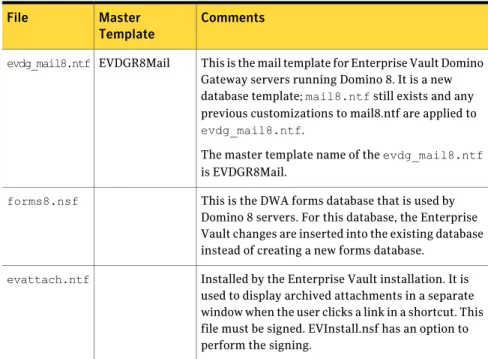
Table 2-12 EVInstall.nsf changes on a Domino 8 Enterprise Vault Domino Gateway
Comments Master
Template File
This is the mail template for Enterprise Vault Domino Gateway servers running Domino 8. It is a new database template;mail8.ntfstill exists and any previous customizations to mail8.ntf are applied to
evdg_mail8.ntf.
The master template name of theevdg_mail8.ntf
is EVDGR8Mail. EVDGR8Mail
evdg_mail8.ntf
This is the DWA forms database that is used by Domino 8 servers. For this database, the Enterprise Vault changes are inserted into the existing database instead of creating a new forms database.
forms8.nsf
Installed by the Enterprise Vault installation. It is used to display archived attachments in a separate window when the user clicks a link in a shortcut. This file must be signed. EVInstall.nsf has an option to perform the signing.
Table 2-12 EVInstall.nsf changes on a Domino 8 Enterprise Vault Domino Gateway (continued)
Comments Master
Template File
This is the template that Enterprise Vault uses to create Vault Cache databases. This file must be signed. EVInstall.nsf has an option to perform the signing.
EVOffline.ntf
The Domino Web Server Configuration database (domcfg.nsf) is a database that can contain customized logon forms that will be displayed when using single sign-on. This database is created on the Enterprise Vault Domino Gateway server so that a customized logon form can be displayed for searching Domino mailbox archives.
domcfg.nsf
Installed by the Enterprise Vault installation. This file must be signed. EVInstall.nsf has an option to perform the signing.
EV\evdomino.nsf
Installed by the Enterprise Vault installation and signed by EVInstall.nsf.
\help\*_evhelp.nsf
EVInstall.nsf changes on a Domino 8 mail server
Table 2-13describes changes made byEVInstall.nsf.
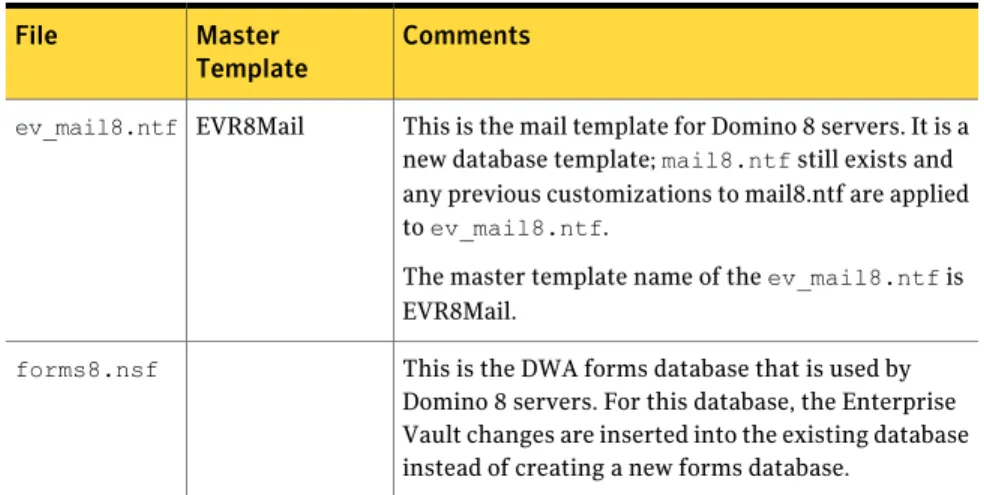
Table 2-13 EVInstall.nsf changes on a Domino 8 mail server
Comments Master
Template File
This is the mail template for Domino 8 servers. It is a new database template;mail8.ntfstill exists and any previous customizations to mail8.ntf are applied toev_mail8.ntf.
The master template name of theev_mail8.ntfis EVR8Mail.
EVR8Mail
ev_mail8.ntf
This is the DWA forms database that is used by Domino 8 servers. For this database, the Enterprise Vault changes are inserted into the existing database instead of creating a new forms database.