Pr
elimina
ry
NBX
®
Telephone Guide
Telephones
■ NBX 3102 Business Telephone
■ NBX 2102 Business Telephone
■ NBX 2102-IR Business Telephone
■ NBX 1102 Business Telephone
■ NBX 3101 Basic Telephone
■ NBX 3101SP Basic Telephone
■ NBX 2101 Basic Telephone
Attendant Consoles
■ NBX 3105 Attendant Console
■ NBX 1105 Attendant Console
■ NBX Complement Attendant Software
http://www.3com.com/
3Com Corporation, 350 Campus Drive, Marlborough, MA 01752-3046
Copyright © 2004, 3Com Corporation. All rights reserved. No part of this documentation may be reproduced in any form or by any means or used to make any derivative work (such as translation, transformation, or adaptation) without written permission from 3Com Corporation.
3Com Corporation reserves the right to revise this documentation and to make changes in content from time to time without obligation on the part of 3Com Corporation to provide notification of such revision or change. 3Com Corporation provides this documentation without warranty, term, or condition of any kind, either implied or expressed, including, but not limited to, the implied warranties, terms, or conditions of merchantability, satisfactory quality, and fitness for a particular purpose. 3Com may make improvements or changes in the product(s) and/or the program(s) described in this documentation at any time.
If there is any software on removable media described in this documentation, it is furnished under a license agreement included with the product as a separate document, in the hardcopy documentation, or on the removable media in a directory file named LICENSE.TXT or !LICENSE.TXT. If you are unable to locate a copy, please contact 3Com and a copy will be provided to you.
UNITED STATES GOVERNMENT LEGEND
If you are a United States government agency, then this documentation and the software described herein are provided to you subject to the following:
All technical data and computer software are commercial in nature and developed solely at private expense. Software is delivered as “Commercial Computer Software” as defined in DFARS 252.227-7014 (June 1995) or as a “commercial item” as defined in FAR 2.101(a) and as such is provided with only such rights as are provided in 3Com’s standard commercial license for the Software. Technical data is provided with limited rights only as provided in DFAR 252.227-7015 (Nov 1995) or FAR 52.227-14 (June 1987), whichever is applicable. You agree not to remove or deface any portion of any legend provided on any licensed program or documentation contained in, or delivered to you in conjunction with, this guide.
Unless otherwise indicated, 3Com registered trademarks are registered in the United States and may or may not be registered in other countries.
3Com, NBX, the 3Com logo, and SuperStack are registered trademarks of 3Com Corporation. NBX NetSet and pcXset are trademarks of 3Com Corporation.
Adobe is a trademark and Adobe Acrobat is a registered trademark of Adobe Systems Incorporated. Microsoft, Windows, Windows 2000, and Windows NT are registered trademarks of Microsoft Corporation.
C
ONTENTS
A
BOUTT
HISG
UIDEHow to Use This Guide 9 Conventions 10
Documentation 11
Comments on the Documentation 11
1
G
ETTINGS
TARTEDSetting Up Your Password and Voice Mail for the First Time 13 NBX NetSet Utility 15
Starting the NBX NetSet Utility 15
Navigation and Shortcut Icons in the NBX NetSet Utility 16 Quick Reference Guides 16
2
NBX 3102 B
USINESST
ELEPHONETelephone Buttons and Controls 18 Programmable Access Buttons 21
Status Lights for System Appearance Buttons 22
3
NBX 1102, 2102,
AND2102-IR B
USINESST
ELEPHONESTelephone Buttons and Controls 24 Programmable Access Buttons 27
Status Lights for System Appearance Buttons 28
4
NBX 3101
AND3101SP B
ASICT
ELEPHONESTelephone Buttons and Controls 30 Programmable Access Buttons 32
5
NBX 2101 B
ASICT
ELEPHONETelephone Buttons and Controls 36 Programmable Access Buttons 38 Status Icons 38
6
NBX M
ESSAGINGNBX Messaging Components 40 Important Considerations 40 Changing Your Password 41
Security Tips 41
Changing Your Name Announcement and Personal Greeting 42 Listening to NBX Messages 42
Message Indicators 43
LIstening from Your Computer 43 LIstening from Your NBX Telephone 44 Listening from Any Internal NBX Telephone 44 Listening from an External Location 44 Managing Your Messages 45
Information About Your Messages 45 Replying to a Message 46
Forwarding a Message 47
Creating and Sending a Message 48 Creating Personal Voice Mail Group Lists 49
Modifying or Deleting Groups 50 Marking a Message as Private or Urgent 51
Forwarding Incoming Calls to Your Call Coverage Point 51 Other Ways to Manage Your Voice Mail Messages 52 Other Kinds of Mailboxes 52
Greeting-Only Mailbox 52 Phantom Mailbox 53 Group Mailbox 53
7
S
TANDARDF
EATURESAnswering a Call 56 Caller ID 56
Answering a Second Call 56
Tips on Using the Lists 58 More Ways to Dial a Call 59
An Internal Call 59 An External Call 59 Redialing a Call 60
Setting Your Call Coverage Point 60 Putting a Call on Hold 61
Dialing Another Call 61 More Than One Call 62 Transferring a Call 63
Announced (Screened) Transfer 64 Blind Transfer 64
Direct Mail Transfer 64
Establishing a Conference Call 65
Disconnecting the Last Person That You Called 66 More About Conference Calls 66
Setting the Volume 67
8
P
ERSONALIZINGY
OURT
ELEPHONEGuidelines About Features on NBX Telephones 70 Ringer Tones 70
Speed Dials 70
Personal Speed Dials 71 System-wide Speed Dials 72
Special Case: One-Touch Speed Dials 73 Printing Speed Dial Lists and Labels 74 Off-Site Notification 75
Do Not Disturb 78
Preventing Unauthorized Use of Your Telephone 79 Telephone Locking 80
Call Permissions 80 Class of Service Override 81 Using a Headset 82
With the NBX 3102 Business Telephone 82 General Headset Instructions 83
9
G
ETTINGM
ORE FROMY
OURT
ELEPHONES
YSTEMListening to Your Messages in Your E-mail or Browser 86 Account (Billing) Codes 86
Caller ID 87
Internal and External Caller ID 87 Calling Line Identity Restriction (CLIR) 87 Call Pickup 88
Directed Call Pickup on a Specific Telephone 89 Group Call Pickup 89
Hunt Groups and Calling Groups 89 Hunt Groups 90
Calling Groups 92 Group Membership 92 Call Park 93
Paging 94
Dialing a Call to a Remote Office 95 Using Unique Extensions 95 Using Site Codes 96 Bridged Extensions 97 Delayed Ringing 97 Using Pulse Dialing 98
Using a Feature Code 98 Using a Mapped Button 98 Using a Personal Speed Dial 98 Additional Applications 99
10
NBX 3105
AND1105 A
TTENDANTC
ONSOLESNBX Attendant Console 102 Access Buttons 102 Feature Buttons 102
Attendant Console Labels 105 Complement Attendant Software 106
Managing Calls 107
A
T
ELEPHONEI
NSTALLATION ANDM
AINTENANCEConnecting the Telephone 109
Installing the 3102 Telephone Label Plate 111
Attaching and Adjusting the 1102/2101/2102 Support Bracket 113 Low-Profile and High-Profile Positions 113
Wall-Mount Position 114
Security Wall-Mount Bracket 115
Opening the 3105 Attendant Console Label Cover 115 Moving Your Telephone 115
Swapping Telephones 115 Cleaning Your Telephone 116 Troubleshooting Problems 116
A
BOUT
T
HIS
G
UIDE
This guide is intended for anyone using NBX® Telephones, NBX Attendant Consoles, or the NBX Complement Attendant Software. It includes information about using the NBX Voice Mail system and the NBX NetSet™ administration utility for personal telephone settings.
If the information in the release notes (readme.pdf) on the NBX Resource Pack CD differs from the information in this guide, follow the instructions in the release notes.
Analog telephones connected through the Analog Terminal Card or the Analog Terminal Adapter can use most of the features described in this book. See the NBX Feature Codes Guide in the NBX NetSet utility.
How to Use
This Guide
Table 1 shows where to look for specific information in this guide. Table 1 Where to Find Information
If you are looking for information about Turn to
How to get started with your new telephone Chapter 1
The NBX 3102 Business Telephone Chapter 2
The NBX 1102, 2102, and 2102-IR Business Telephones Chapter 3
The NBX 3101 and 3101SP Basic Telephones Chapter 4
The NBX 2101 Basic Telephone Chapter 5
NBX Voice Messaging features Chapter 6
Using standard telephone features Chapter 7
Personalizing your telephone Chapter 8
Enhanced system features Chapter 9
The Attendant Console and Complement Attendant Software Chapter 10
Telephone maintenance and troubleshooting information Appendix A
10 ABOUT THIS GUIDE
Conventions
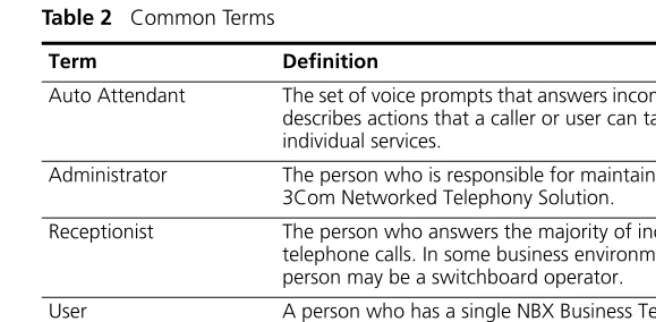
Table 2 defines some commonly used words and phrases in this guide.Table 3 lists conventions that are used throughout this guide. Table 2 Common Terms
Term Definition
Auto Attendant The set of voice prompts that answers incoming calls and describes actions that a caller or user can take to access individual services.
Administrator The person who is responsible for maintaining your 3Com Networked Telephony Solution.
Receptionist The person who answers the majority of incoming telephone calls. In some business environments, this person may be a switchboard operator.
User A person who has a single NBX Business Telephone, an NBX Basic Telephone, or an analog telephone connected to the NBX system through an ATC card or the
single-port ATA device.
Table 3 Icons
Icon Type Description
Information note Information that describes important features or instructions.
Caution Information that alerts you to potential loss of data or potential damage to an application, system, device, or network.
Documentation 11
Documentation
The documentation set for 3Com NBX Networked Telephony Solutions is designed to help NBX telephone users, installers, and administrators maximize the full potential of the system.The NBX Resource Pack CD contains many guides to the NBX products and their related 3Com applications.
When you log in to the NBX NetSet utility as a user, you can view the PDF versions of the NBX Telephone Guide and NBX Feature Codes Guide by clicking the icons at the bottom of the screen. An administrator who logs in can also see the NBX Installation Guide and the NBX Administrator’s Guide. The NBX NetSet utility also includes a searchable Help system with Help buttons on each screen.
Comments on the Documentation
Your suggestions are important to us. They help us to make the NBX documentation more useful to you.
Please send your e-mail comments about this guide or any of the 3Com NBX documentation and Help systems to:
Include the following information with your comments:
■ Document title
■ Document part number (found on the front or back page)
■ Page number
Example:
NBX Telephone Guide
Part Number PhG-EN
Page 25
1
G
ETTING
S
TARTED
As soon as you are given a telephone and extension number, you need to set up a password and record your name announcement and personal greeting.
This chapter covers these topics:
■ Setting Up Your Password and Voice Mail for the First Time ■ NBX NetSet Utility
■ Quick Reference Guides
For how to access NBX features from an analog telephone, set your password as described next and then see the NBX Feature Codes Guide in the NBX NetSet utility.
Setting Up Your
Password and
Voice Mail
for the First Time
The procedure by which you set up your password and voice mailbox for the first time depends on:
■ The kind of telephone that you have
■ The kind of voice messaging system on your NBX system. Ask your administrator what kind of voice messaging is active on your system.
Table 4 describes how to set up your first password.
14 CHAPTER 1: GETTING STARTED
Table 4 Setting Your NBX NetSet and NBX Messaging Password
Feature NBX Business Phones NBX Basic Phones Analog Telephones
Password — Set Initially
If your system uses NBX Messaging, follow the NBX voice prompts to set your NBX password (which is the same for NBX NetSet and voice messaging) OR use the NBX NetSet utility, described next.
If your system uses a voice messaging application other than NBX Messaging, use this code sequence to set your password for the NBX NetSet utility. 3Com recommends that you use the same password for the NBX NetSet utility and your messaging application.
For all voice messaging systems:
■ Use only 4- to 10-digit numbers
■ Do not use letters, *, or # as part of your password.
Msg button (1102, 2102, 2102-IR) or button (3102) and follow the voice prompts
OR, for systems that do not use NBX Messaging:
Feature
+ 434
+ new password + #
+ repeat your new password
+ #
Msg button (2101) or button (3101 and 3101SP) and follow the voice prompts
OR, for systems that do not use NBX Messaging:
Feature
+ 434
+ new password + #
+ repeat your new password
+ #
500 ** and follow the voice prompts
OR, for systems that do not use NBX Messaging:
#
(Feature Entry Tone) + 434
(Feature Entry Tone) + new password + #
(Feature Entry Tone) + repeat your new password
+ #
(Confirmation Tone)
Password — Change
If your system uses NBX Messaging, follow the NBX voice prompts to change your NBX password (which changes your NBX NetSet password, because they are the same) OR use the NBX NetSet utility, described next.
If your system uses a voice messaging application other than NBX Messaging, use this code sequence to change your password for the NBX NetSet utility. 3Com recommends that you use the same password for the NBX NetSet utility and your voice messaging application.
For all voice messaging systems:
■ If you forget your password, the administrator can reset it to your extension. Then use this code (for applications other than NBX Messaging) or the NBX voice prompts to change it.
Msg button (1102, 2102, 2102-IR) or button (3102) + current password + #
+ 9 + 2
+ follow the prompts
OR, for systems that do not use NBX Messaging:
Feature
+ 434
+ current password + #
+ new password + #
+ repeat your new password
Msg button (2101) or button (3101 and 3101SP)
+ current password + #
+ 9 + 2
+ follow the prompts
OR, for systems that do not use NBX Messaging:
Feature
+ 434
+ current password + #
+ new password + #
+ repeat your new password
500 **
+ extension number + current password + #
+ 9 + 2
+ follow the prompts
OR, for systems that do not use NBX Messaging:
#
(Feature Entry Tone) + 434
(Feature Entry Tone) + current password + #
(Feature Entry Tone) + new password + #
(Feature Entry Tone) + repeat your new password
+ #
NBX NetSet Utility 15
NBX NetSet Utility
The NBX NetSet administration utility has two interfaces:■ Administrator — Your administrator logs in with a special password and uses the NBX NetSet utility to manage and configure system-wide telephone settings and many of the settings for your telephone.
■ User — As a telephone user, you log in to the NBX NetSet utility with your own system ID (your extension) and password to:
■ View and change your telephone’s personal settings, such as speed
dials, ringer tone, and specify where you want your calls to go when you cannot answer them (your call coverage point).
■ Listen to and delete your voice messages from your computer as an
alternative to managing calls on your telephone.
■ View your call permissions, certain current feature settings, and the
internal user directory to call other users on your system.
■ Log in to and out of one or all hunt groups and calling groups of
which your telephone is a member.
See Chapter 7, Chapter 8, and Chapter 9 for discussions about the standard and enhanced features that you can monitor and change in the NBX NetSet utility. See Chapter 6 for voice messaging features.
If your NBX system uses a messaging application other than NBX Messaging, off-site notification and other voice messaging features are available through your messaging application. See the application’s documentation rather than using this Guide.
Starting the NBX NetSet Utility
To use the NBX NetSet utility, you need a computer that is connected to your local area network (LAN) and that has a web browser. (You do not need Internet access.) To start the NBX NetSet utility:
1 Ask your administrator for the IP (web) address for your NBX system. In the web browser on your computer (Microsoft Internet Explorer version 5.5 or later is optimal), enter the IP address in the Address field, and then press Enter on your keyboard. The NBX NetSet login screen appears.
You cannot log in to the NBX NetSet utility until you establish your password through your telephone using NBX voice prompts or the Feature Code sequence. See Table 4.
16 CHAPTER 1: GETTING STARTED
3 Type your NBX NetSet user identification (always your 3-digit or 4-digit telephone extension) and your NBX NetSet password, and then click OK.
Navigation and Shortcut Icons in the NBX NetSet Utility
The icons at the lower right of any Personal Settings window allow you or your administrator to navigate to the following features:
Click the icons below the window to go directly to these features:
Quick Reference
Guides
To open and print a copy of the Quick Reference Guides for the most frequently used features on your telephone:
1 Log in to the NBX NetSet utility. See “Starting the NBX NetSet Utility”
earlier in this chapter.
2 Click Telephone Quick Reference. The quick reference that pertains to your telephone (Business, Basic, or analog) appears. Adobe Acrobat Reader 4.0 or higher is required to view the file. Adobe Acrobat Reader is available free from the Adobe Web site: www.adobe.com
Table 5 Navigation Icons
Icon Action Where You Go
Back ■ For the User goes to the main NBX NetSet login dialog box
■ For the Administrator goes to the NBX NetSet main menu window
Help Help for the fields and procedures related to the screen
One-Touch Speed Dials
Off-Site Notification
Telephone Guide (this guide)
2
NBX 3102
B
USINESS
T
ELEPHONE
This chapter describes the buttons, controls, and features on the NBX 3102 Business Telephone. It covers these topics:
■ Telephone Buttons and Controls ■ Programmable Access Buttons
■ Status Lights for System Appearance Buttons
For a description of the features on the NBX 1102, 2102, and 2102-IR Business Telephones, see Chapter 3.
For a description of the features on the NBX 3101 and 3101SP Basic Telephones, see Chapter 4.
For a description of the features on the NBX 2101 Basic Telephone, see
Chapter 5.
18 CHAPTER 2: NBX 3102 BUSINESSTELEPHONE
Telephone Buttons
and Controls
Figure 1 shows the buttons and controls on the NBX 3102 Business Telephone. The features are discussed after the picture.
Figure 1 NBX 3102 Business Telephone
1 Soft buttons — Allow you to select items that are displayed in the telephone display panel. See “Using the NBX Telephone Display Panel” in
Chapter 7. The buttons, from left to right, are: ■ Slct (Select)
■ Back (returns you to the next higher level in the menu)
■ Exit (leaves the display panel menus)
Telephone Buttons and Controls 19
3 Display panel — Displays telephone status messages, Caller ID information (if enabled), and the number of messages that you have in your voice mail mailbox. You can also use it to view these items:
■ Logs of your recent missed, answered, and dialed calls
■ A directory of people’s names in your organization
■ Personal speed dial numbers
■ System-wide speed dial numbers
4 Scroll buttons (Up, Down, Left, Right) — Allow you to scroll through the items in the telephone display panel. See “Using the NBX Telephone Display Panel” in Chapter 7. The left and right buttons are reserved for future use.
5 Program button — Reserved for future use.
6 Programmable Access buttons — Allow you and your administrator to assign features to specific buttons. See “Programmable Access Buttons”
and “Status Lights for System Appearance Buttons” later in this chapter.
7 Microphone (located on the side of the telephone) — Activated when the telephone is in speaker phone mode, that is, after you press the
Speaker button or the (Hands Free) button. For best results, keep the area around the microphone free of obstructions.
8 Label area for Access buttons
9 Telephone key pad
10 Hold button — Places a caller on hold. See “Putting a Call on Hold” in
Chapter 7.
11 Transfer button — Sends the currently active call to another telephone. See “Transferring a Call” in Chapter 7.
12 Conference button — Establishes a single call with up to three additional internal parties, external parties, or both. See “Establishing a Conference Call” in Chapter 7.
13 Redial button — Redials the last telephone number or extension that you called. See “Redialing a Call” in Chapter 7.
14 Speaker button — Enables you to use the speaker phone feature. Press the Speaker button before you dial the call, when your telephone is ringing, or while a call is in progress. To turn the speaker phone off and resume the conversation, pick up the handset.
20 CHAPTER 2: NBX 3102 BUSINESSTELEPHONE
> User Information > Call Forward. See “Forwarding Incoming Calls to Your Call Coverage Point”in Chapter 6.
16 Message button — Accesses your voice mail messages through the NBX Messaging system. See “Listening to NBX Messages” in Chapter 6.
17 Hands Free button — Allows you to answer internal (intercom) calls without picking up the handset. To activate this feature, press the button before calls come in to your telephone. When the feature is enabled, the indicator is lit. When you receive an internal call, your telephone sounds a tone and activates the speaker phone.
An external call (a call from outside your NBX system) rings to your telephone as usual.
18 Headset connector — Located on the underside of the telephone, this RJ-11 connector enables you to plug in a headset so that you can listen to calls and have your hands free. See “Using a Headset” in Chapter 8. To enable the use of a connected headset, press the Headset button (by default, button 16 at the top of the right column of buttons).
19 Volume down — Lowers the volume of the ringer, the speaker, the handset, or the headset. See “Setting the Volume” in Chapter 7.
20 Mute button — Enables you to prevent callers from hearing what you are saying during a telephone call, although you can still hear them. Press the button to turn off the telephone’s microphone when you are using the handset or headset, or when your telephone is in speaker phone mode. To turn off the Mute feature, press the button again.
21 Volume up — Raises the volume of the ringer, the speaker, the handset, or the headset. See “Setting the Volume” in Chapter 7.
Programmable Access Buttons 21
Programmable
Access Buttons
Figure 2 shows the 18 programmable Access buttons on the NBX 3102 Business Telephone. To view or change the current features on your telephone’s buttons (button mappings), click the Shortcut to
One-Touch Speed Dials icon below any NBX NetSet utility screen. Click the Help button for instructions.
Figure 2 3102 Access Buttons
Access buttons have these default settings, which your administrator can change:
1 In most circumstances, your administrator designates these three system appearance buttons as lines for incoming and outgoing calls.
2 Personal Speed Dial 1. See “Speed Dials” in Chapter 8.
3 Personal Speed Dial 2
4 Personal Speed Dial 3
5 Call Park button — Allows you to place a call in a “holding pattern” so that it can be retrieved from any other telephone on the system. See
“Call Park”in Chapter 9.
6 Transfer to Voice Mail button — Sends a call directly to another user’s voice mailbox. See “Direct Mail Transfer” in Chapter 9.
7 Feature button — Allows you to access features that are not directly assigned to an Access button on your telephone. See the NBX Feature Codes Guide in the NBX NetSet utility for a list of features and codes and how to use them.
22 CHAPTER 2: NBX 3102 BUSINESSTELEPHONE
9 Personal Speed Dial 4. See “Speed Dials” in Chapter 8.
10 Personal Speed Dial 5
11 Personal Speed Dial 6
12 Personal Speed Dial 7
13 Personal Speed Dial 8
14 Personal Speed Dial 9
15 Personal Speed Dial 10
16 Headset — Press this button to enable the use of a headset that is connected to the telephone.
Status Lights for
System Appearance
Buttons
An Access button that is set up for incoming and outgoing calls is called a System Appearance button. The light beside each System Appearance button indicates the status. See Table 6.
Table 6 Status Indicator Lights for System Appearance Buttons If the light is The line is
Off Available for use
Steady In use
Blinking quickly Ringing
3
NBX 1102, 2102,
AND
2102-IR B
USINESS
T
ELEPHONES
This chapter describes the buttons, controls, and features on the following NBX telephones:
■ NBX 1102 Business Telephone
■ NBX 2102 Business Telephone
■ NBX 2102-IR Business Telephone
The chapter covers these topics:
■ Telephone Buttons and Controls ■ Programmable Access Buttons
■ Status Lights for System Appearance Buttons
For a description of the features on the NBX 3102 Business Telephone,
see Chapter 2.
For a description of the features on the NBX 3101 and 3101SP Basic Telephones, see Chapter 4.
For a description of the features on the NBX 2101 Basic Telephone, see
Chapter 5.
24 CHAPTER 3: NBX 1102, 2102, AND2102-IR BUSINESS TELEPHONES
Telephone Buttons
and Controls
Figure 3 shows the buttons and controls on the NBX 1102, 2102 and 2102-IR Business Telephones.
Figure 3 NBX Business Telephone (2102-IR Shown)
1 Display panel — Displays telephone status messages, Caller ID information (if enabled), and the number of messages that you have in your voice mail mailbox. You can also use it to view these items:
■ Logs of your recent missed, answered, and dialed calls
■ A directory of people’s names in your organization
■ Personal speed dial numbers
■ System-wide speed dial numbers
2 Soft buttons — Allow you to select items that are displayed in the telephone display panel. See “Using the NBX Telephone Display Panel” in
Telephone Buttons and Controls 25
The soft buttons, from left to right, are:
■ Slct (Select)
■ Back (returns you to the next higher level in the menu)
■ Exit (leaves the display panel menus)
3 Scroll buttons (Up, Down) — Allow you to scroll through the items in the telephone display panel. See “Using the NBX Telephone
Display Panel” in Chapter 7.
4 Program button — Reserved for future use.
5 Programmable Access buttons and label area — Allow you and your administrator to assign features to specific buttons. See “Programmable Access Buttons” and “Status Lights for System Appearance Buttons”
later in this chapter.
6 Programmable Access and label area —Allow you and your
administrator to assign features to specific buttons. See “Programmable Access Buttons” later in this chapter.
7 Hold button — Places a caller on hold. See “Putting a Call on Hold” in
Chapter 7.
8 Transfer button — Sends the currently active call to another telephone. See “Transferring a Call” in Chapter 7.
9 Conference button — Establishes a single call with up to three additional internal parties, external parties, or both. See “Establishing a Conference Call” in Chapter 7.
10 Redial button — Redials the last telephone number or extension that you called. See “Redialing a Call” in Chapter 7.
11 Speaker button — Enables you to use the speaker phone feature. Press the Speaker button before you dial the call, when your telephone is ringing, or while a call is in progress. To turn the speaker phone off and resume the conversation, pick up the handset.
12 Volume up and down buttons — Raises and lowers the volume of the ringer, the speaker, the handset, or the headset. See “Setting the Volume” in Chapter 7.
26 CHAPTER 3: NBX 1102, 2102, AND2102-IR BUSINESS TELEPHONES
14 Infrared Port (2102-IR only) — Receives infrared signals from a hand-held device running the Palm Operating System. See “Palm Integration” in Chapter 8.
15 Hands Free button — Allows you to answer internal (intercom) calls without picking up the handset. To activate this feature, press the
Hands Free button before calls come in to your telephone. When this feature is enabled, the indicator is lit. When you receive an internal call, your telephone sounds a tone and activates the speaker phone.
An external call (a call from outside your NBX system) rings to your telephone as usual.
16 Telephone key pad
17 MSG (Message) button — Accesses your voice mail messages through the NBX Messaging system. See “Listening to NBX Messages” in
Chapter 6. The status light beside this button acts as a message waiting indicator (you have one or more messages in your voice mailbox).
18 FWD MAIL (Forward to Voice Mail) button — Directs all incoming calls to your voice mail (or to wherever you have specified in NetSet > User Information > Call Forward) after one ring. See “Forwarding Incoming Calls to Your Call Coverage Point”in Chapter 6.
Programmable Access Buttons 27
Programmable
Access Buttons
Figure 4 displays the 18 programmable Access buttons. The One-Touch Speed Dials screen in the NBX NetSet utility shows your telephone’s current button mappings.
Figure 4 Access Buttons on NBX 1102, 2102, and 2102-IR Telephones
Access buttons have these default settings, which your administrator can change:
1 Feature button — Allows you to access features that are not directly assigned to an Access button on your telephone. See the NBX Feature Codes Guide in the NBX NetSet utility for a list of features and codes.
2 Direct Mail Transfer button — Sends a call directly to another user’s voice mailbox. See “Direct Mail Transfer” in Chapter 9.
3 Call Park button — Allows you to place a call in a “holding pattern” so that it can be retrieved from any other telephone on the system. See
“Call Park”in Chapter 9.
4 Flashbutton (analog line only) — Toggles the current call to another call if the line has the Call Waiting service from your local telephone company, or enables call transfer if the line has the Call Transfer service.
5 Unassigned — This button has no default assigned function.
6 Releasebutton — Disconnects calls. Useful when you use a telephone headset. See “Using a Headset” in Chapter 8.
7
8 1
2
3
4
5
28 CHAPTER 3: NBX 1102, 2102, AND2102-IR BUSINESS TELEPHONES
7 Typically, you can use these nine buttons for personal speed dial settings, although the administrator can map them to other features. See “Speed Dials” in Chapter 8.
8 In most circumstances, your administrator designates these three system appearance buttons as lines for incoming and outgoing calls.
Status Lights for
System Appearance
Buttons
An Access button that is set up for incoming and outgoing calls is called a System Appearance button. The light beside each System Appearance button indicates the status. See Table 7.
Table 7 Status Indicator Lights for System Appearance Buttons If the light is The line is
Off Available for use
Steady In use
Blinking quickly Ringing
4
NBX 3101
T
ELEPHONES
AND
3101SP B
ASIC
This chapter describes the buttons, controls, and features on the NBX 3101 and 3101SP Basic Telephones.
The chapter covers these topics:
■ Telephone Buttons and Controls ■ Programmable Access Buttons
■ Status Lights for System Appearance Buttons
For a description of the features on the NBX 3102 Business Telephone,
see Chapter 2.
For a description of the features on the NBX 1102, 2102, and 2102-IR Business Telephones, see Chapter 3.
For a description of the features on the NBX 2101 Basic Telephone, see
Chapter 5.
For how these features work on an analog telephone that is connected to the NBX system, click the NBX Feature Codes Guide icon below any screen in the NBX NetSet utility.
The NBX 3101 Basic Telephone (3C10401A) does not include a
30 CHAPTER 4: NBX 3101 AND 3101SP BASIC TELEPHONES
Telephone Buttons
and Controls
Figure 5 shows the buttons and controls on the NBX 3101SP Basic Telephone. The NBX 3101 Basic Telephone does not include a
microphone, 8, ora speaker button and its indicator light, 10.All other controls are identical on the two telephones.
Figure 5 NBX 3101SP Basic Telephone
1 Soft buttons — Allow you to select items that are displayed in the telephone display panel. See “Using the NBX Telephone Display Panel” in
Chapter 7. The buttons, from left to right, are: ■ Slct (Select)
■ Back (returns you to the next higher level in the menu)
■ Exit (leaves the display panel menus)
Telephone Buttons and Controls 31
3 Display panel — Displays telephone status messages, Caller ID information (if enabled), and the number of messages that you have in your voice mail mailbox. You can also use it to view these items:
■ Logs of your recent missed, answered, and dialed calls
■ A directory of people’s names in your organization
■ Personal speed dial numbers
■ System-wide speed dial numbers
4 Scroll buttons (Up, Down, Left, Right, Center) — Allow you to scroll through the items in the telephone display panel. See “Using the NBX Telephone Display Panel” in Chapter 7. The left, right, and center buttons are reserved for future use.
5 Message button— Accesses your voice mail messages through the NBX Messaging system. See “Listening to NBX Messages” in Chapter 6.
6 Hold button — Places a caller on hold. See “Putting a Call on Hold” in
Chapter 7.
7 Label area for Access buttons — You can use the NBX NetSet utility to create a new label if you change any button mappings.
8 Microphone (3101SP only) — Activated when the telephone is in speaker phone mode, that is, after you press the (speaker) button. For best results, keep the area around the microphone free of
obstructions. To minimize the effects of background noise, the
microphone is directional; it performs best when you are directly in front of the telephone.
9 Programmable Access buttons — Allow you and your administrator to assign features to specific buttons. See “Programmable Access Buttons”
and “Status Lights for System Appearance Buttons” later in this chapter.
10 Speaker button(3101SP only) — Enables you to use the speaker phone feature. Press the button before you dial the call, when your telephone is ringing, or while a call is in progress. To turn the speaker off and resume the conversation, pick up the handset.
The NBX 3101SP Basic Telephone includes a microphone and supports speaker phone operation. The NBX 3101 Basic Telephone does not support speaker phone operation and it does not have a button.
11 Telephone key pad
32 CHAPTER 4: NBX 3101 AND 3101SP BASIC TELEPHONES
13 Mute button — Enables you to prevent callers from hearing what you are saying during a telephone call, although you can still hear them. Press the button to turn off the telephone’s mouthpiece when you are using the handset or the microphone (3101SP only) when your telephone is in speaker phone mode. To turn off the Mute feature, press the button again. The indicator lamp is lit when the Mute feature is enabled.
14 Volume up — Raises the volume of the ringer, the speaker, or the handset.See “Setting the Volume” in Chapter 7.
15 Speaker
16 Handset — Supports wide band audio.
Programmable
Access Buttons
Figure 6 displays the Access buttons on the NBX 3101 and 3101SP Basic Telephones. By default, the functions assigned to these buttons are set by your administrator and you cannot change their functions unless your administrator defines one or more buttons as User Speed Dials.
To view or change the current features on your telephone’s buttons, click the Shortcut to One-Touch Speed Dials icon below any NBX NetSet utility screen. Buttons that you can change are marked with an asterisk and the description “User SPD” on the One-Touch Speed Dials screen. Click the Help button on the screen for detailed instructions.
Figure 6 Access Buttons
NBX 3101SP (3C10401SPKRA)
Status Lights for System Appearance Buttons 33
Access buttons have these default settings:
1 System Appearance button 1.
2 System Appearance button 2.
3 Feature button — Allows you to access features that are not directly assigned to an Access button on your telephone. See the NBX Feature Codes Guide in the NBX NetSet utility for a list of features and codes and how to use them.
4 Transfer button — Sends the currently active call to another telephone. See “Transferring a Call” in Chapter 7.
The telephone LabelMaker, which is available through the NBX NetSet utility, enables you to define and print a new label for your Access buttons.
Status Lights for
System Appearance
Buttons
An Access button that is set up for incoming and outgoing calls is called a System Appearance button. The light beside each System Appearance button indicates the status. See Table 8.
Table 8 Status Indicator Lights for System Appearance Buttons If the light is The line is
Off Available for use
Steady In use
Blinking quickly Ringing
5
NBX 2101 B
ASIC
T
ELEPHONE
This chapter describes the buttons, controls, and features that are specific to the NBX 2101 Basic Telephone. It covers these topics:
■ Telephone Buttons and Controls ■ Programmable Access Buttons ■ Status Icons
For a description of the features on the NBX 3102 Business Telephone,
see Chapter 2.
For a description of the features on the NBX 1102, 2102, and 2102-IR Business Telephones, see Chapter 3.
For a description of the features on the NBX 3101 and 3101SP Basic Telephones, see Chapter 4.
36 CHAPTER 5: NBX 2101 BASIC TELEPHONE
Telephone Buttons
and Controls
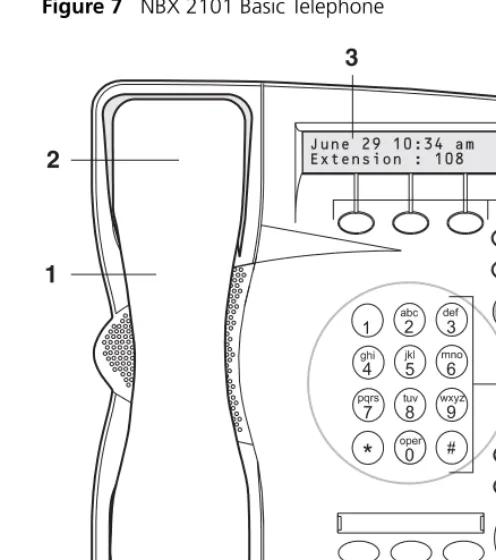
Figure 7 shows the buttons and controls on the NBX 2101 Basic Telephone.
Figure 7 NBX 2101 Basic Telephone
The NBX 2101 Basic Telephone has these features:
1 Handset
2 Hook switch (under the handset) — Pressing and releasing the hook switch gives you a dial tone. This feature is used with Call Park. See “Call Park” in Chapter 9.
3 Display panel — Displays telephone status messages (see Table 9), Caller ID, Locked Telephone, and other feature information (if enabled), and the number of messages in your voice mail mailbox. You can also use it to view these items:
■ Logs of your recent missed, answered, and dialed calls
Telephone Buttons and Controls 37
■ Personal speed dial numbers
■ System-wide speed dial numbers
4 Soft buttons — Allow you to select items that are displayed in the telephone display panel. See “More Ways to Dial a Call” in Chapter 7. The buttons, from left to right, are:
■ Slct (Select)
■ Back (returns you to the next higher level in the menu)
■ Exit (leaves the display panel menus)
5 Scroll buttons — Allow you to scroll through the items in the telephone display panel. See “Using the NBX Telephone Display Panel” in Chapter 7.
6 MSG (Message) button — Accesses your voice mail messages through the NBX Messaging system. See “Listening to NBX Messages” in
Chapter 6.
7 Telephone key pad
8 Volume control buttons — Raise or lower the volume of the ringer, the handset, or the headset. See “Setting the Volume” in Chapter 7.
9 Hold button — Places a caller on hold. See “Putting a Call on Hold”in
Chapter 7.
10 Transfer button — (factory default setting) Sends the currently active call to another telephone. See “Programmable Access Buttons” later in this chapter.
11 Call Toggle button — (factory default setting) Similar to a Hold button, enables you to switch between two calls. See “Programmable Access Buttons” later in this chapter.
38 CHAPTER 5: NBX 2101 BASIC TELEPHONE
Programmable
Access Buttons
The NBX 2101 Basic Telephone has three programmable Access buttons. The factory-default settings for these buttons are (from left to right):
■ Feature — Allows you to access features that are not directly
assigned to an Access button on your telephone. See the NBX Feature Codes Guide in the NBX NetSet utility for a list of features and codes and how to use them.
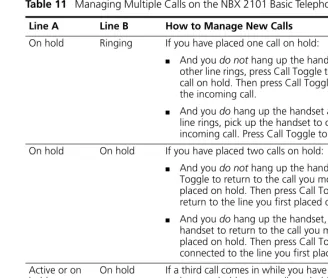
■ Call Toggle — Available only on the NBX 2101 Basic Telephone. Use this button to manage two telephone calls at the same time. See
“Answering a Call” in Chapter 7.
■ Transfer — Sends the currently active call to another telephone. See
“Transferring a Call” in Chapter 7.
Your administrator can program these buttons for other commonly used functions. However, changing the settings for the Feature or Call Toggle buttons greatly reduces your ability to use some of the NBX system features.
Status Icons
Your NBX 2101 Basic Telephone allows you to use two telephone lines at the same time.On the display panel, the behavior of the telephone icon next to the number 1 (for Line 1) on the first row, or 2 (for Line 2) on the second row, indicates the status of the lines. See Table 9.
Table 9 Status Indicator Behavior for the Telephone Icons in the Display Panel If the telephone icon is The line is
Not displayed Available for use
Steady In use
Blinking quickly Ringing
6
NBX M
ESSAGING
This chapter describes the NBX® Networked Telephony Solutions voice messaging features. It covers these topics:
■ NBX Messaging Components ■ Changing Your Password
■ Changing Your Name Announcement and Personal Greeting ■ Listening to NBX Messages
■ Replying to a Message ■ Forwarding a Message
■ Creating and Sending a Message ■ Creating Personal Voice Mail Group Lists ■ Marking a Message as Private or Urgent
40 CHAPTER 6: NBX MESSAGING
NBX Messaging
Components
A key component of the NBX Networked Telephony Solutions is the NBX Messaging system, which includes voice mail, off-site notification, and several administrative features. Voice mail allows callers to leave voice messages in your voice mailbox when you are not able to answer your telephone. You can listen to, save, and forward those messages from any touch-tone telephone.
If your system uses a messaging application other than NBX Messaging, use the documentation for your messaging application instead of the instructions in this chapter. Exception: Use the procedures in “Changing
Your Password” regardless of your messaging application.
Important Considerations
■ The steps are the same for initially setting up the name
announcement, personal greetings, and passwords for personal, greeting-only, and phantom voice mailboxes. See “Setting Up Your Password and Voice Mail for the First Time” in Chapter 1 for details. (Your administrator creates group mailboxes and their passwords.)
■ For changes to passwords and greetings, see “Changing Your
Password” and “Changing Your Name Announcement and Personal Greeting” later in this chapter.
■ The default setting for the maximum length of each voice mail message on the system is 5 minutes. Your administrator can configure your organization’s NBX Messaging system to receive and store voice mail messages that are up to 10 minutes long.
■ Use the Off-Site Notification feature if you want the NBX system to notify you when callers leave voice mail messages in your voice mailbox. See “Off-Site Notification” in Chapter 8.
Changing Your Password 41
Changing Your
Password
You use the same 4-digit to 10-digit password to log in to the NBX NetSet utility and to access your NBX voice mail. You can change this password with your telephone (using the NBX voice prompts or a feature code) or through the NBX NetSet utility.
To set up your password for the first time, see Table 4 and “NBX NetSet Utility” in Chapter 1. Table 4 also describes how to change your
password.
If you forget your password, the administrator can set it to be your extension number. Then follow the instructions in Table 4 in Chapter 1 to change it to a more secure password. Also see “Security Tips” next.
If your NBX system uses a messaging system other than NBX Messaging:
■ Use the feature code method described in Table 4 in Chapter 1 to set
and change the NBX NetSet password.
■ 3Com recommends that you use the same password for your voice
messaging system and for the NBX NetSet utility.
Security Tips ■ Change your password often.
■ Do not use passwords that can easily identify you, such as your phone extension or birth date.
■ Avoid simple passwords such as 1234 or 0000.
■ Use numbers only; do not use * or # as part of your password.
■ Longer passwords are more secure. You can use up to 10-digits for your password.
42 CHAPTER 6: NBX MESSAGING
Changing Your
Name
Announcement and
Personal Greeting
Your name announcement tells callers that they have reached your voice mailbox. Your personal greeting lets callers know important information about you, for instance, that you are on vacation, available at another number, or unavailable for a specified amount of time. Change your personal greeting often, to ensure that callers hear up-to-date information.
If appropriate, you may also want to change the greeting for an extension that is a “greeting-only mailbox,” so that callers do not attempt to leave messages. See “Greeting-Only Mailbox” later in this chapter.
To change your name announcement or personal greeting:
1 Log in to your mailbox at your telephone or remotely.
2 Press 9 for Mailbox Options and then press 1.
3 To review or change your name announcement, press 1 and follow the prompts.
4 To review or change your personal greeting, press 2 and follow the prompts.
If you forget your password, the administrator can set it to be your extension number. Then follow the instructions in Table 4 in Chapter 1 to change it to a more secure password. Also see “Security Tips” earlier in this chapter.
Listening to NBX
Messages
You can listen to your NBX voice mail messages from your NBX
Telephone, from any touch-tone telephone, or by logging in to the NBX NetSet utility. After you listen to messages, you can save or delete them to clear them from the New Messages queue. For how to set up your NBX NetSet password the first time, see Table 4 and “NBX NetSet Utility”
in Chapter 1.
Listening to NBX Messages 43
Message Indicators Here is how you can tell if you have messages in your mailbox:
■ On an NBX 3102 Business Telephone — The indicator bar above the display panel is lit, and the display panel shows the number of messages. Example: 3 Msgs 2 New.
■ On an NBX 1102, 2102, or 2102-IR Business Telephone —The indicator next to the MSG button is lit, and the display panel shows the number of messages. Example: 3 Msgs 2 New.
■ On an NBX 3101 or 3101SP Basic Telephone —The indicator bar above the display panel is lit, and the display panel shows the number of messages. Example: 3 Msgs 2 New.
■ On an NBX 2101 Basic Telephone —The display panel shows the number of messages. Example: 3 Msgs 2 New.
■ On an analog telephone — Pick up the handset. If you hear the New Messages Tone (rapid stutter tone), you have new messages or messages that you have listened to but have not yet saved or deleted. For information on accessing NBX features from an analog telephone, see the NBX Feature Codes Guide in the NBX NetSet utility.
■ In the NBX NetSet utility — Log in as a user. The list of your messages appears in the Voice Mail Messages area on the NBX NetSet > User Information screen. A new message has a* next to it. A forwarded messages has -->Fw: next to it.
LIstening from Your Computer
To listen to your messages from your computer, you must have a way of playing audio files:
■ A USB audio device such as a USB headset and an operating system that supports USB
OR
■ A sound card, a third-party application such as Windows Media Player, and either headphones or speakers
1 Log in to the NBX NetSet utility with your extension and password.
2 Select a message in User Information > Voice Mail Messages.
3 Click Listen.
4 The third-party application downloads the voice message and plays it.
44 CHAPTER 6: NBX MESSAGING
LIstening from Your NBX Telephone
To listen to your messages from your own NBX Business or Basic Telephone:
1 Pick up the handset and press the MSG button (1102, 2102, 2102-IR, and 2101) or the button (3102, 3101, and 3101SP)to access the mailbox.
2 At the prompt, type your password and press #.
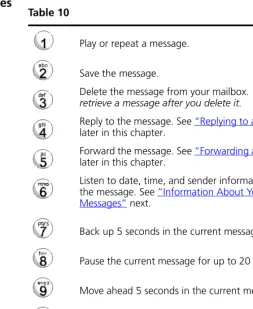
3 See Table 10 for the buttons that you use to manage your messages.
Listening from Any Internal NBX Telephone
To listen to your messages from any NBX Telephone other than your own within your NBX system:
1 Pick up the handset and press the MSG button (1102, 2102, 2102-IR, and 2101) or the button (3102, 3101, and 3101SP).
2 Press * and dial your extension. You hear your name announcement.
3 Dial your password and press #.
4 See Table 10 for the buttons that you use to manage your messages.
Listening from an External Location
To listen to your messages from an external telephone:
■ If you can dial your telephone extension directly — Press * during your personal greeting. At the prompts, enter your extension and password, and press #.
■ If you call the main telephone number of your organization
and:
■ The Automated Attendant answers — Press * * during your
personal greeting. At the prompts, enter your extension and password, and press #.
■ The receptionist answers — Ask to be transferred to your voice
Listening to NBX Messages 45
Managing Your Messages
See Table 10 for the buttons that you use to manage your messages.
Information About Your Messages
To listen to date, time, and sender information about a message in your mailbox, press 6 during or after the message, and then press one of these buttons:
Table 10
Play or repeat a message.
Save the message.
Delete the message from your mailbox. You cannot retrieve a message after you delete it.
Reply to the message. See “Replying to a Message”
later in this chapter.
Forward the message. See “Forwarding a Message”
later in this chapter.
Listen to date, time, and sender information about the message. See “Information About Your Messages” next.
Back up 5 seconds in the current message.
Pause the current message for up to 20 seconds.
Move ahead 5 seconds in the current message.
Move to the next message.
Return to the main menu.
Date and time information.
Sender information.
46 CHAPTER 6: NBX MESSAGING
Replying to a
Message
You can send a reply to the originator of a voice mail message, provided that the NBX system has received the necessary caller ID information.
If you receive a message that is marked Private, you can reply to the originator, but you cannot forward the message to others.
To reply to a message after you listen to it:
1 Press 4.
2 After the tone, record your reply.
3 Hang up, or press # for more options.
4 If you press #, press one of these buttons:
Send your reply.
Re-record your reply.
Listen to your reply.
Mark the message Private or Urgent. See “Marking a Message as Private or Urgent” later in this chapter.
Forwarding a Message 47
Forwarding a
Message
You can forward most messages, with or without comments.
If you receive a message that is marked Private, you cannot forward it.
To forward a message:
1 Log in to your voice mailbox at your telephone or remotely.
2 Listen to a message that you want to forward, and press 5.
3 After the tone, record an introductory message and then press # OR if you choose not to record a comment, press # when you hear the tone.
4 Optionally, press one of these buttons, OR proceed to step 5.
5 When you are ready to forward the message, press 1.
6 Dial one of these destination numbers plus #:
■ The internal extension or mailbox number of the recipient
■ A One-Touch (not available on NBX Basic Telephones), personal, or system-wide speed dial number. See “Speed Dials” in Chapter 8. ■ A personal voice mail group list number. (See “Creating Personal Voice
Mail Group Lists” later in this chapter.)
■ A site code plus extension (to send to a user on another NBX system in your organization). Example: neee or neeee (where n = one or more site code digits and e = the extension digits on the other system)
For valid site codes in your organization, see your administrator.
7 To forward the message to several recipients, dial each destination number followed by #.
8 After the last destination number and its #, press #. Your message is sent.
9 Follow the prompts to delete or save the message that you just forwarded.
Re-record your introductory comment.
Listen to your introductory comment.
Mark the message Private or Urgent. See “Marking a Message as Private or Urgent” later in this chapter.
48 CHAPTER 6: NBX MESSAGING
Creating and
Sending a Message
To create and send a message directly without actually making a call, follow these steps:
1 Log in to your mailbox at your telephone or remotely.
2 Dial 2 to select Create and Send a Message.
3 At the tone, record a message that is at least 2 seconds long, and press #
to end the recording.
4 Optionally, press one of these buttons, OR proceed to step 5.
5 When you are ready to send the message, press 1.
6 Dial one of these destination numbers plus #:
■ The internal extension or mailbox number of the recipient
■ A One-Touch (not available on NBX Basic Telephones), personal, or system-wide speed dial number. See “Speed Dials” in Chapter 8. ■ A personal voice mail group list number. (See “Creating Personal Voice
Mail Group Lists” later in this chapter.)
■ A site code plus extension (to send to a user on another NBX system in your organization). Example: neee or neeee (where n = one or more site code digits and e = the extension digits on the other system)
For valid site codes in your organization, see your administrator.
7 To send the message to several recipients, dial each destination number followed by #.
8 After the last destination number and its #, press #. Your message is sent. Re-record the message.
Review the message.
Mark the message Private or Urgent. See “Marking a Message as Private or Urgent” later in this chapter.
Creating Personal Voice Mail Group Lists 49
Creating Personal
Voice Mail Group
Lists
A Personal Voice Mail List, also called a mail group, is a collection of extensions to which you assign a special “group number.” Use it to send a message to everyone on the list at the same time.
A Personal Voice Mail List is not the same as a Hunt Group or Calling Group. See “Hunt Groups and Calling Groups” in Chapter 9.
To create a personal voice mail list (mail group):
1 Log in to your mailbox at your telephone or remotely.
2 Dial 9 for Mailbox Options.
3 Dial 3 for Group Lists, and then 2 for Create Group.
4 Dial any 2-digit number, which becomes the Group Number.
5 After the tone, speak a name for the group, and press #. Write down the group number and name.
6 Dial one of these numbers:
■ 1 to save the group name and proceed to step 7
■ 2 to change the group name and return to step 5
■ * to exit without saving
7 Dial one of these destination numbers plus #:
■ The internal extension or mailbox number of the recipient
■ A One-Touch (not available on NBX Basic Telephones), personal, or system-wide speed dial number. See “Speed Dials” in Chapter 8. ■ A site code plus extension (to send to a user on another NBX system in
your organization). Example: neee or neeee (where n = one or more site code digits and e = the extension digits on the other system)
For valid site codes in your organization, see your administrator.
8 When you have added all of the destination numbers, press:
■ 1 to save the group list
■ 2 to cancel creating the group
■ ** to return to the previous menu
50 CHAPTER 6: NBX MESSAGING
Modifying or Deleting Groups
You can review your voice mail groups, add members, or delete a group.
To review or modify a voice mail group:
1 Log in to your mailbox at your telephone or remotely.
2 Dial 9 forMailbox Options.
3 Dial 3 for Group Lists.
4 Press 1, 3,or 4:
5 To add members to a group or delete members from one, press 4.
a To add one or more members to the group, dial one of these destination numbers plus #:
■ The internal extension or mailbox number of the recipient
■ A One-Touch (not available on NBX Basic Telephones), personal, or
system-wide speed dial number. See “Speed Dials” in Chapter 8.
■ A site code plus extension (to send to a user on another NBX system in
your organization). Example: neee or neeee (where n = one or more site code digits and e = the extension digits on the other system). For valid site codes for your organization, see your administrator.
b To delete one or more members from the group, dial the destination number that you want to delete and then press 1.
6 When you have added or deleted all of the destination numbers, press:
■ 1 to save the modified group list
■ 2 to cancel this modification to the group
■ ** to return to the previous menu
OR hang up.
Review your list of groups.
Create a group.
Delete a group.
Add or delete group members. See step 5.
Marking a Message as Private or Urgent 51
Marking a Message
as Private or Urgent
When you compose a voice message, you can select Private or Urgent
from the delivery options. If you do not select a delivery option, your message is sent as a Normal message.
■ Private Messages —The recipient cannot forward the message to others.
■ Urgent Messages — Places the message at the beginning of the recipient’s message queue. Urgent messages are heard first.
1 Follow the steps in “Replying to a Message”, “Forwarding a Message”, or “Creating and Sending a Message” earlier in this chapter.
2 In step 4 of those instructions, press 9.
3 To mark the message Urgent, press 1. To mark the message Private,
press 2.
4 To send the marked message, press 1, or listen to the prompts for other choices.
Forwarding
Incoming Calls to
Your Call Coverage
Point
You can configure your NBX Telephone so that all incoming calls go directly to your call coverage point, which may be your voice mailbox, the Auto Attendant or receptionist, or a different telephone number. When a call comes in, the telephone rings once, which gives you the chance to answer the call, and then sends the call to your call coverage point.
On an NBX 3102 Business Telephone:
1 Press the (Forward to Mail) button. The indicator light turns on.
2 To turn off Forward to Mail, press the button again. The light turns off.
On an NBX 1102, 2102, or 2102-IR Business Telephone:
1 Press the FWD MAIL (Forward to Mail) button. The indicator light turns on.
2 To turn off Forward to Mail, press the button again. The light turns off.
On an NBX 2101, 3101, or 3101SP Basic Telephone:
1 Pick up the handset.
2 Press the Feature button and 440. FWD appears in the display panel.
3 To turn off Forward to Mail, pick up the handset and press the Feature
52 CHAPTER 6: NBX MESSAGING
To prevent the telephone from ringing even once, use the Do Not Disturb feature. See “Do Not Disturb” in Chapter 8.
To view your current Forward Calls to Mail setting, log in to
NBX NetSet > User Information > Feature Settings.
Other Ways to
Manage Your Voice
Mail Messages
You can listen to and, in some configurations, delete your voice messages from within an e-mail application or a messaging application using your Internet browser. For details, see “Listening to Your Messages in Your E-mail or Browser” in Chapter 9.
Other Kinds of
Mailboxes
The NBX system allows you (for the greeting-only mailbox) or the
administrator (for phantom or group mailboxes) to set up mailboxes for special situations, as described in this section.
Greeting-Only Mailbox
When you designate your mailbox as a greeting-only mailbox, callers hear your personal greeting but they cannot leave a voice mail message.
To change your voice mailbox to a greeting-only mailbox, select
NBX NetSet > NBX Messaging > Greeting Only Mailbox.
Examples:
■ When you take an extended leave of absence, you can create a personal greeting with your scheduled date of return and whom to call during your absence. Callers can be transferred but are unable to leave voice messages for you. When you return, clear the Greeting Only Mailbox check box so that callers can leave messages again.
■ If you are a teacher, you can create a new personal greeting on the school’s NBX system every day to explain homework assignments. Students call in to the greeting-only mailbox to get the homework information but cannot leave a message for you on this mailbox.
■ If you are the administrator, you can create a greeting-only mailbox and use the personal greeting to post information for employees, such as a notice that the offices are closed because of bad weather.
When you create the personal greeting, remember to tell callers that they cannot leave messages in this voice mailbox. For instructions on changing the personal greeting, see “Changing Your Name Announcement and
Other Kinds of Mailboxes 53
In addition to preventing a caller from leaving a message, a greeting-only mailbox does not allow anyone to forward or create and send a message to it or reply to a message that was sent from its extension
Avoid adding a greeting-only mailbox to a personal voice mail group list.
Phantom Mailbox A phantom mailbox does not have an actual telephone associated with it. The administrator sets up a phantom mailbox.
Examples:
■ If you are a sales representative who travels constantly for your organization and never comes into the office, you still need a way to receive telephone messages. Using your phantom mailbox, you can retrieve, forward, and save messages in the same way that any other employee can but without a physical telephone connected to your NBX system.
■ If you are an employee who lives a long distance from your office and works from home, customers and others can leave messages in the your phantom mailbox and you can call in to the NBX system to retrieve them, or you can listen to them from the NBX NetSet utility.
You retrieve messages from a phantom mailbox in the same way that you retrieve messages from a personal mailbox. See “Listening to NBX Messages” earlier in this chapter.
Group Mailbox A group mailboxis a voice mailbox from which a group of users can retrieve messages. Your administrator creates group mailboxes and can explain how to retrieve messages that are left in the group mailbox.
Example:
■ During nonbusiness hours, the system can send incoming telephone calls for your sales department to a group mailbox. Your administrator assigns to the appropriate sales people the ability to listen to, forward, or otherwise handle all messages that are directed to the group mailbox.
7
S
TANDARD
F
EATURES
This chapter describes standard features of the NBX Business and Basic Telephones. It covers these topics:
■ Answering a Call