User/System Interface Design
Theo Mandel
Interface Design and Development
Encyclopedia of Information Systems, Volume Four
Copyright © 2002 by Academic Press. All rights of reproduction in any form reserved. 256-1
I. DEFINITIONS
II. HISTORY OF HUMAN–COMPUTER INTERFACE III. THE INTERFACE DESIGN AND USABILITY PROCESS IV. FUNDAMENTALS OF INTERFACE DESIGN
V. USER-CENTERED DESIGN PRINCIPLES VI. THE WEB USER EXPERIENCE
VII. NEW DIRECTIONS IN HUMAN–COMPUTER INTERACTION VIII. INTERFACE DESIGN AND USABILITY RESOURCES
GLOSSARY
computer–human interface (CHI) See Interface. graphical user interface (GUI) A user interface which
presents information graphically, typically with win-dows, buttons, and icons that are sizable and mov-able, as opposed to a textual user interface, where information is presented on a text-based screen and commands are typed by the user. A GUI rep-resents and displays a visual metaphor (such as a desktop) for a computer operating system or application.
human–computer interface (HCI) See Interface. human factors The discipline devoted to
under-standing and improving how humans interact with the world around them. Research in human cog-nitive and social psychology, perception, and phys-ical and biologphys-ical characteristics is used to apply that information to the design, operation, and use of products or systems for optimizing human per-formance, health, and safety. (syn.ergonomics.) interface The place where two independent systems
meet and communicate. The presentation, naviga-tion, and interaction of information between a computer system and a user.
intranet A controlled, private network of computer systems for use by employees within a corporation. object-oriented user interface (OOUI) A graphical user interface that also represents objects the user works with and the behaviors and interactions users have with those objects.
usability The ability of a product to be used in an ef-fective and meaningful way by the intended user.
usability evaluation A test of either an actual program or device or a representation (prototype) of the system. Data obtained usually includes user perfor-mance (time, success, errors, and accuracy) and subjective responses of test participants.
user interface (UI) See Interface.
user experience The environment encompassing all aspects of the end-user’s interaction with a com-puter system, program, or Web site. In order to achieve a high-quality user experience, there must be a seamless merging of multiple disciplines, in-cluding engineering, marketing, graphical design, and interface design.
world wide web consortium (W3C) The industry group responsible for establishing guidelines and standards for Web accessibility.
world wide web (WWW) A vast network of computer systems. Also called the Web and the Internet. WYSIWYG An acronym meaning “what you see is
what you get.” WYSIWYG refers to the technology that enables users to see images on-screen exactly as they will appear when printed out. As screen and printer fonts have become more sophisticated, and as GUIs have improved their display, people have come to expect everything to be WYSIWYG. Un-fortunately, this is not always the case.
THE GROWTH of the personal computer and work-station computer markets has meant that sales of com-puters and software, as well as sales of services and products over the World Wide Web, are more directly tied to the quality of their interfaces than ever in the
past. The result has been the gradual evolution of a standardized interface architecture, from hardware support of mice to shared window systems to “appli-cation management layers.” Along with these changes, researchers, designers and developers have begun to develop specification, design, and testing techniques for the production of usable interfaces.
User/system interface design is a complex disci-pline that draws from a number of fields. In simple terms, the basic goals are to design and build systems that are effective, are intuitive, and meet the goals of a set of users. By definition, a user, system, interface, and designer are involved.
• User:He or she uses the system to accomplish tasks and achieve goals.
• System:A set of connected things or parts that form a whole or work together. Specifically, a (computer) program designed to provide information and functionality to the user. • Interface:The presentation, communication, and
interaction between the user and the system. • Designer:The person responsible for building the
system based on his or her understanding of users and their tasks, goals, abilities, and motivations. Because user/system interface design studies a human and a machine in communication, it draws from dis-ciplines on both the human and the machine side. On the human side, relevant disciplines include cognitive psychology, information architecture, communication theory, graphic design, industrial design, linguistics, social sciences, and human performance. On the ma-chine side, the fields of computer science, computer graphics, operating systems, programming languages, and development environments are relevant.
I. DEFINITIONS
The human race spends a great deal of time sitting down, whether working in an office, studying in a li-brary, commuting by bus, car, or airplane, or eating in a restaurant. Some seats are far more comfortable than others.
Barry H. Kantowitz and Robert D. Sorkin (1983) User/system interface design addresses a wide range of both users and systems. Human factors (HF) is the discipline that tries to optimize the relationship be-tween technology and humans. HF discovers and ap-plies information about human behaviors, abilities, limitations, and other characteristics to the design of
tools, machines, systems, tasks, jobs, and an environ-ment for productive, safe, comfortable, and effective human use.
The field of ergonomics arose from studies of how humans interact with their environment, especially in the workplace. The concerns of ergonomics tend to be at the sensory-motor level, but with an additional physiological flavor and an emphasis on stress. Er-gonomic studies of computers and the workplace in-vestigate the relationship between humans and the work setting, including the effects of stress, routine work tasks, sitting posture, keyboard use, mouse us-age, height and distance of computer monitors, and any other factors involved in the work environment.
Human–computer interaction (HCI; also com-puter–human interaction, CHI) is the discipline con-cerned with the design, evaluation, and implementa-tion of interactive computing systems for human use (both hardware and software) and with the study of human interaction with computers. HCI is a subset of the HF discipline, focusing on computer hardware and software as the “system” as defined above.
The term interfaceis used commonly in the HF field and should be more clearly defined. An interface is the place at which independent systems meet and act on or communicate with each other. Narrowly de-fined, the user interface (UI) is composed of input and output devices, as well as the information that users see and interact with on the computer screen. More broadly defined, the UI includes everything that shapes users’ involvement with the systems, informa-tion, and humans as they perform tasks using com-puters. This includes on-line and hardcopy product documentation, additional documentation, training, personal and remote technical support, and other tools needed to perform the task. A more encom-passing description of the computer–user interface is the term “user experience.” Usability guru Jakob Nielsen defines user experience on his Web site (www.nngroup.com/about/userexperience.html) as,
User experience encompasses all aspects of the end-user’s interaction with the company, its services, and its products. The first requirement for an exemplary user experience is to meet the exact needs of the cus-tomer, without fuss or bother. Next comes simplicity and elegance that produce products that are a joy to own, a joy to use. True user experience goes far be-yond giving customers what they say they want, or providing checklist features. In order to achieve high-quality user experience in a company’s offerings there must be a seamless merging of the services of multi-ple disciplines, including engineering, marketing, graphical and industrial design, and interface design.
Perhaps the most common interface term used today is the acronym GUI. A graphical user interface (GUI) utilizes intuitive or familiar symbols (pictures and icons) to display system programs and files that users directly manipulate to perform user tasks and system functions. Today’s computer operating systems (Mi-crosoft Windows and Apple Macintosh) are the most familiar examples of GUIs.
II. HISTORY OF HUMAN–COMPUTER
INTERFACE AND GRAPHICAL USER INTERFACES
HCI arose as a field from intertwined roots in com-puter graphics, operating systems, HF, ergonomics, industrial engineering, cognitive psychology, and com-puter science. The cognitive aspects of users will be discussed later in this article.
The early history of computer graphics, involving cathode-ray tube (CRT) displays and pen devices, led to the development of much of today’s HCI tech-niques in the area of GUIs. Sutherland’s 1963 MIT doctoral thesis on Sketchpad essentially marked the beginning of computer graphics as a discipline. This early work described direct-manipulation interaction techniques, where users performed actions on screen entities to represent commands. The program allowed users to draw lines, circles, and points on a computer’s CRT display using a light pen. While these tasks are simple to program and use with today’s computer hardware, software, and interfaces, nearly 40 years ago this was a revolutionary effort that required im-mense computing power. Sutherland’s program as-signed characteristics to graphic objects and built re-lationships between objects. Users could move, copy, scale, zoom, rotate objects, and save object character-istics. Although this research never was commercially developed, most software engineers credit Suther-land’s Sketchpad research and designs as the first step in the evolution of GUIs.
Early research at the Xerox Palo Alto Research Center (PARC) produced a number of important building blocks for HCI, including the mouse, bitmapped displays, personal computers (PCs), win-dows, the desktop metaphor, and point-and-click edi-tors. The mouse, now a critical input device for most computer users, was developed in the late 1960s. Dou-glas Engelbart began his work in 1964 on a handheld pointing device at SRI International in Menlo Park, CA, and carried on with his experimental designs at Xerox PARC. The culmination of this work was the first patent for the wheel mouse in 1970. Continued research and design on the mouse led to the patent
for the ball mouse in 1974 by Xerox. The idea came suddenly to Ron Rider, “I suggested that they turn a trackball upside down, make it small, and use it as a mouse instead. Easiest patent I ever got. It took me five minutes to think of, half an hour to describe to the attorney, and I was done.” Apple Computer re-designed the mouse in 1979, using a rubber ball rather than a metal one. Variations on the ball mouse are what GUI users mostly mouse with today.
The first operating system designed around the GUI was a Xerox in-house computer system called the Alto in the early 1970s. It had multiple, overlapping windows; used pop-up menus; and, of course, came with a mouse. Around 1976, icons were added to the on-screen desktop. The research and design of the Alto system led to the first commercial GUI product, the Xerox Star, in 1981. The Xerox Star offered both tiled and overlapping windows, a menu bar for each window, and, of course, the mouse. The Xerox Star was the first computer to follow the idea of the “desk-top metaphor.” The desk“desk-top metaphor is still the guid-ing metaphor for GUI today.
Smith et al. (1982) described the Xerox Star as, “Every user’s initial view of Star is the Desktop, which resembles the top of an office desk, together with sur-rounding furniture and equipment. It represents a working environment, where current projects and ac-cessible resources reside. On the screen are displayed pictures of familiar office objects, such as documents, folders, file drawers, in-baskets, and out-baskets. These objects are displayed as small pictures, or icons.” This is the beginning of the desktop metaphor that users now see on computer screens across the world. Metaphors are further discussed later in this article.
The Xerox PARC engineers were successful at re-search and technology, but ultimately unsuccessful at developing commercial products. The Xerox Star was never a success, even though over 30 man-years of work went into the product. The development of the first successful GUI computer systems was left to Ap-ple Computer. The transition of research and tech-nology to product development from Xerox to Apple was both a friendly and profitable one, as Xerox held 800,000 shares of Apple stock when it went public in December 1980.
Steven Jobs, a founder of Apple, visited Xerox PARC and viewed their research on graphical inter-faces. He returned to Apple very excited about GUIs and infused his design teams with that enthusiasm. The rest is history. The Apple Lisa, the precursor to the Macintosh, came out in 1983. Like the Xerox Star, it was not a commercial success. It took the introduc-tion of the Apple Macintosh computer in 1984, with
a revolutionary advertising approach, to successfully bring GUIs to the computer market successfully. Both the Lisa and the Macintosh had a menu bar for the entire screen and the first pull-down menus in a graph-ical interface. An Apple designer received a patent for pull-down menus in 1984.
Apple’s success with the GUI is legendary and still remains the most familiar example of GUIs. As I try to explain what GUIs are to unknowing computer users, I often say, “You know, it’s like the Apple Mac.” After Apple’s immense success with the Macintosh GUI, an operating system revolution was upon us, and both IBM and Microsoft went to work on PC-based GUIs of their own, along with a number of other soft-ware developers. These companies had a lot of catch-ing up to do and had to do it on a hardware platform very different from the Apple Macintosh. One key ad-vantage that Apple had is that they built the whole computer themselves as an integrated system. Their design philosophy followed the Xerox PARC design methodology. Jones described how the Xerox Star was built. “Star began by defining a conceptual model of how users would relate to the system. The interface was completed before the computer hardware had been built on which to run it, and two years before a single line of product software code had been writ-ten.” Many other software and hardware products failed in the marketplace because they did not follow this design approach. Products and their interfaces should be designed for users, and the users should be involved in the product design process.
III. THE INTERFACE DESIGN
AND USABILITY PROCESS
A. The Four-Phase
Interface Design Process
Developing the UI may or may not be separate from the rest of the product development process. How-ever, the focus is most definitely different. Focus must be on the interface elements and objects that users perceive and use, rather than on program function-ality. Throughout the development process, usability test feedback and UI concerns should drive program design.
A process specifically geared toward designing and developing UIs is shown in Fig. 1. The four major phases in the process are:
• Gather/analyzeuser information • Designthe UI
• Constructthe UI • Validatethe UI
This process is independent of the hardware and soft-ware platform, operating system, and tools used for product design and development. Industry UI design guides all promote an iterative interface design process. The IBM Common User Access (CUA) in-terface design guide first described an iterative inter-face design process and used a car dealership sales product as a design case study.
B. Gather/Analyze User
Information (Phase 1)
The interface design process starts with an under-standing of the users. Before designing and building any system, first define the problems that customers or users want solved and figure out how they do their jobs. Learn about users’ capabilities and the tasks they must perform. Watch and learn from people actually going about their work and using the product and other related applications and Web sites. Observe how their current computer systems (both hardware and software) restrict them. Do not limit product designs to what users currently can do with the system. Prod-uct solutions should not only satisfy the users’ current needs, but also their future needs. Thorough analysis of users and their tasks in this stage is critical.
There are key questions to ask during the analysis-gathering phase. If the answers to these questions are not known, do not assume that one individual, design team, development team, or marketing or sales group knows the answers. The only way to understand how users work is to observe users and ask them questions.
Figure 1 The elements of User interface design. [Reprinted with
Phase one’s gathering and analyzing activities can be broken down into five steps:
• Determine user profiles • Perform user task analyses • Gather user requirements • Analyze user environments • Match requirements to tasks
C. Design the User Interface (Phase 2)
Designing a software UI usually requires a significant commitment of time and resources. The design phase includes a number of well-defined steps that should be followed in sequence. It is tempting to start writ-ing code now, rather than designwrit-ing the interface. Follow the steps through the design process. The de-sign phase includes the following steps:
• Define product usability goals and objectives • Develop user scenarios and tasks
• Define interface objects and actions • Determine object icons, views, and visual
representations
• Design object and window menus • Refine visual designs
D. Construct the User Interface (Phase 3)
The first pass through the iterative design process should be one of prototyping, rather than construct-ing, the UI. Prototyping is an extremely valuable way of building early designs and creating product demon-strations and is necessary for early usability testing.
When prototyping, It is most important to remem-ber that prototypes must be disposable. Do not be afraid to throw away a prototype. The purpose of pro-totyping is to quickly and easily visualize design alter-natives and concepts, not to build code that is to be used as a part of the product. Prototypes may show “visualizations” of the interface—the high-level con-cepts—or they may show “functional” slices of a prod-uct, displaying how specific tasks or transactions might be performed with the interface.
A product prototype may take the place of (or in addition to) the product functional specification (PFS). Typically, GUI functional specifications are dif-ficult to use, because it is difdif-ficult to write about graph-ical presentation and interaction techniques. It is eas-ier and more effective to show a prototype of the product interface style and behavior.
Later iterations of UI construction should focus on further refinement of the product interface presenta-tion, navigapresenta-tion, and interaction.
E. Validate the User Interface (Phase 4)
Usability evaluations are a critical part of the iterative development process. A usability evaluation is the best way to get a product in the hands of actual users to see if and how they use it prior to the product’s release. Us-ability evaluations quantitatively and qualitatively mea-sure user behavior, performance, and satisfaction. Some software projects do address usability testing, but only at the end of the development cycle. Unfor-tunately, this is too late in the development cycle to in-corporate changes based on usability test results. Even if product design changes are made, the interface should be evaluated again to ensure that the product meets final product benchmarks and objectives.
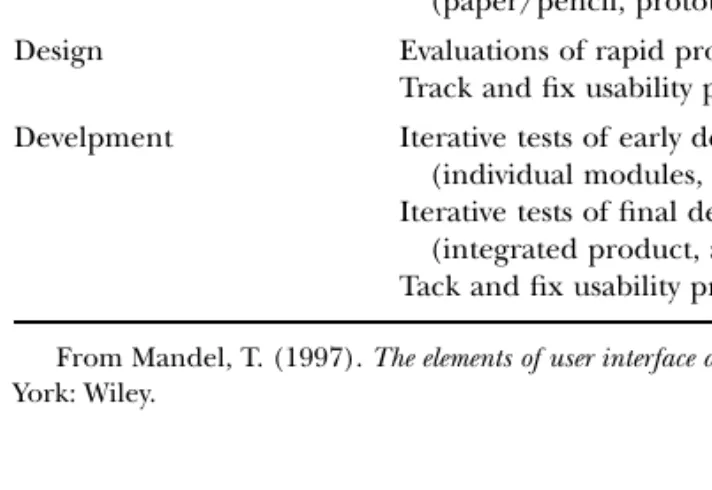
Early usability evaluations include customer walk-throughs of initial designs. As pieces of the product and interface are prototyped and constructed, per-form early usability evaluations on common tasks. When the product is nearing completion and all of the pieces are coming together, then conduct final system usability evaluations. Table I shows when spe-cific usability activities should be conducted during product development stages.
Scenarios developed in Phase 2 are valuable mea-surement tools during usability evaluations in the val-idation phase. Can users perform the defined scenar-ios using the product? How is that known? The
Table I Usability Activities Performed during Product
Development Stages Product development
stage Usability activities
Concept definition User requirements gathering
Conceptual design definition Concept validation Conceptual design evaluations
(paper/pencil, prototypes)
Design Evaluations of rapid prototypes
Track and fix usability problems
Develpment Iterative tests of early designs
(individual modules, key tasks) Iterative tests of final designs
(integrated product, all tasks) Tack and fix usability problems From Mandel, T. (1997). The elements of user interface design.New York: Wiley.
product is validated against predefined usability goals and objectives using the scenarios as the vehicle of measuring user performance.
Every product designer and developer should ob-serve his or her product being usability tested. It is the only way, before the product is released, to see how users really work with a product. Usability activi-ties also should not stop after a product is completed. Usability feedback should be collected from pilot par-ticipants and actual users. The Microsoft Corporation asks product users to send feedback and their wishes for future versions of its products. The “About Mi-crosoft Works” product dialog asks users to send com-ments directly to Microsoft. It asks, “Help us make fu-ture versions even better by sending us your ideas and suggestions.”
F. Create Design Teams
Following an iterative interface design process and design principles, and creating guidelines and stan-dards, will help build usability into products, but they do not guarantee a usable interface. Similarly, there is not a magic design and development process that can guarantee a successful product. A product’s in-terface design process should be tailored to the par-ticular business, users, and development environment. A large company probably has individual departments devoted to each area of the development process. Other companies may rely upon one person or a few individuals. Regardless of the size of the company or organization, follow a design team approach. No one department or individual typically has all of the skills to do all of the required steps in the process. For ex-ample, does the group have the skills to gather user requirements? Is a graphics designer available? Are usability testing professionals on staff?
Baecker et al.points out, “Interface design and de-velopment require software engineering and pro-gramming skills, of course, but can also benefit from the skills of graphic and industrial designers; human factors engineers and psychologists who understand human cognitive, perceptual, and motor skills; tech-nical writers and training specialists’ people knowl-edgeable in group and organizational dynamics; and those with expertise in input devices, display tech-nologies, interaction techniques, dialogue design, and design methodologies. . . . The growing use of sound, voice, video, animation, and three-dimensional dis-play draw upon still other specialties.”
The majority of commercial software products fol-low the design team approach. Sullivan describes how
Microsoft Windows 95 was created, “The design team was truly interdisciplinary, with people trained in product design, graphic design, usability testing, and computer science.”
IV. FUNDAMENTALS OF INTERFACE DESIGN
A. Using Real-World Metaphors
The “desktop” interface used in most of today’s soft-ware applications is built on the belief that users know their way around an office. It assumes that users are fa-miliar with the office environment, know how to use objects in that environment (folders, cabinets, a tele-phone, notepads, etc.), and are comfortable with an of-fice desktop as a working space. This is an example of the use of a metaphor—it maps the way users do things on the computer to the way users would do them (in an office) if they were not using the computer. A metaphor (Webster’s Third New International Dictio-nary) is “a figure of speech in which a work or phrase denoting one kind of object or action is used in place of another to suggest a likeness or analogy between them.” Baecker et al. describe computer metaphors; “Metaphors aid users in understanding a new target do-main(e.g., a word processor) by allowing them to com-prehend it (up to the point of ‘mismatch’ . . .) in terms of a source domainthey already understand (e.g., a type-writer). Metaphors aid designers because adoption of a metaphor allows them to structure aspects of the tar-get system or interface in terms of familiar and com-monly understood aspects of the source domain.” Ba-sically, metaphors allow users to transfer their real-world experiences to their use of the computer.
Metaphors fulfill a variety of important roles in computer systems. They inform users about available information, help users navigate, and create atmos-pheres or settings with desired tones and styles that integrate and unify the application’s visual images and layouts. Intuit’s Quicken financial program is per-haps the most successful example of following a real-world metaphor in a software application. If users know how to use a regular checkbook, then they al-ready know how to use the majority of the Quicken product. Again, the basic premise of metaphors is to use familiar concepts and images to make it easier for users to understand and remember something new. Based on their understanding of the metaphor, users perform actions and tasks and have expectations about the results of their behavior.
When metaphors work well, they help users un-derstand how information is organized based on their
distinctive visual features and contexts. However, when metaphors are improperly used or extended too far, users can be confused by system behaviors that do not meet their expectations (negative transfer).
B. User Interface Models
Inconsistency among programmers’, designers’, and users’ experiences, viewpoints, and skills with a com-puter system’s functions and tasks causes many of the problems users experience using the system. These very different viewpoints can be viewed as different models of a UI. For example, a homeowner, builder, and architect have very different perspectives on the same thing they are all intimately involved in—build-ing a house. Who they are and their role in the house-building project determine the tasks they perform, the goals they desire, the way they define success, the skills they bring to the project, the tools they use, and how they interact with each other.
The homeowners finance and live in the house—they are the real “users.” The builder’s role is to work with the designs and specifications of the ar-chitect to build a house that the homeowners can en-joy. The builder’s skills include knowing all the regula-tions and codes for building an environmentally and functionally sound structure using the appropriate ma-terials and resources. The architect studies the lifestyle of the homeowners and their family and their wishes and desires for the house. Then the architect creates visualizations and, ultimately, the design of a house that (hopefully) can be built to meet the homeowners’ desires within their budget. The architect also acts as the homeowners’ representative in ensuring that the builder follows the home’s plans and specifications.
These three roles and viewpoints form the three models of a UI: the user’s model, the programmer’s model, and the designer’s model. These models and their descriptions are pictured in Fig. 2. A model en-capsulates the users’ experiences and expectations from the world around them.
1. The User’s Conceptual Model
The user’s conceptual model is an internal one, based on his or her experience and expectations, so it is not easy to discover and document. A conceptual model is an internal representation of how users understand and interact with a system. Carroll and Olson describe mental models as, “A representation (in the head) of a physical system or software being run on a com-puter, with some plausible cascade of causal
associa-tions connecting the input to the output.” People are often not aware of their mental models. IBM (1992) states, “A mental model does not necessarily reflect a situation and its components accurately. Still a men-tal model helps people predict what will happen next in a given situation, and it serves as a framework for analysis, understanding, and decision-making.” Users form mental models to:
• Predict future (or infer invisible) events • Find causes for observed events
• Determine appropriate actions to cause desired changes
• Serve as mnemonic devices for remembering relations and events
• Help understand an analogous device
• Use strategies to overcome information processing limitations
The user’s model is the basis for all interaction be-tween the user and the computer and, therefore, is the basis for UI principles and guidelines.
2. The Programmer’s Model
The programmer’s model is explicit and, therefore, is the easiest to visualize and can be more formally
Figure 2 User interface models. [Reprinted with permission
from IBM Corporation. (1992). Object-Oriented Interface De-sign: IBM Common User Access™ Guidelines. New York: QUE.]
defined. In fact, the programmer’s model is usually seen in the form of a product’s functional specifica-tions. The programmer is the person(s) who actually writes the code that comprises the system or program. The product’s underlying business and data objects are of critical interest to the programmer, but do not necessarily reflect how users interact with the infor-mation. A programmer works at the level of a com-puter’s hardware and software, for example, how data is stored and retrieved as fields and records in a data-base. The programmer’s knowledge and expertise typ-ically includes the development platform, operating system, development tools, and programming guide-lines and specifications necessary to build software programs (see Fig. 2). However, these skills do not usually give a programmer the ability to provide users with the most appropriate interface to the product. The programmer’s model deals with efficient and ef-fective use of system resources and development tools available to them in a very detailed and technical way. Users should not be subjected to platform, tool, or programming language terminology or artifacts that make no sense to them.
3. The Designer’s Model
The interface designer’s role is like the home archi-tect’s role in designing and building a house. The de-signer takes the ideas, wishes, desires, and needs of the user(homeowner), merges that with the skills and materials available to the programmer (builder), and designs a software product(house) that not only can be
built, but can be enjoyed by the user. The designer ac-tually acts as the intermediary between the user and the programmer. Programmers often do not meet users of the products they develop. The interface de-signer and others (marketing and customer support) on the design team who work directly with product users bridge the distance between the user’s environ-ment and the programmer’s world.
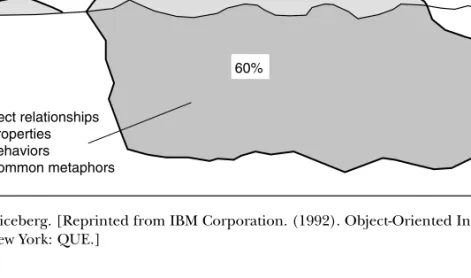
Figure 3 is known as the “look and feel” iceberg chart. This graphic is attributed to David Liddle, for-mer head of Metaphor Computer Company, and it is based on early research of scientists at the Xerox Palo Alto Research Center (Xerox PARC). It shows that the interface designer’s model is actually made up of three components: presentation, interaction,and object relationships. Basically, the designer’s role is to describe the objects users work with, their presentation to users, and the interaction techniques used to manipulate user objects.
The tip of the iceberg is the “look” element, the presentation of information, and it should account for only about 10% of the work of the designer. In-formation presentation includes using color, anima-tion, sound, shapes, graphics, text, and screen layout. Although this is the most obvious part of a UI, and of-ten the easiest to manipulate, it does not affect user behavior and understanding as much as the other parts of the iceberg. Interface designers call this putting lipstick on the bulldog.
The second piece of the iceberg is the “feel” of the interface. This is the interaction area, and it accounts for about 30% of the designer’s model. UI techniques
Presentation – Visual representations – Aesthetics Object relationships – Properties – Behaviors – Common metaphors Interaction – Interaction techniques – Device mappings – Standard menus 10% 30% 60%
Figure 3 The look and feel iceberg. [Reprinted from IBM Corporation. (1992). Object-Oriented Interface Design: IBM Common
involving the keyboard, function keys, and other in-put devices such as a mouse, trackball, or joystick are defined. Interaction also addresses how the system gives users feedback regarding their actions.
The most important part of the iceberg (around 60%) is concerned with the most critical aspects of the UI—objects, their properties, and the relation-ships between objects. Here, interface designers de-termine the appropriate metaphors to match the user’s mental model of the system and the tasks they do. This part of the iceberg is submerged and not easily visible. It is not always obvious to developers to be concerned with this area of interface design. Re-alistically, this is also the most critical piece of the iceberg because a ship (a software product) can be hit and sunk if attention is not paid to this area. For example, do not display a flaming trash can as users discard items. If users can retrieve things from the trash can, the flaming animation is confusing; it does not match their expectation of the trash can’s behavior.
V. USER-CENTERED DESIGN PRINCIPLES
A. Human Cognition and
Information Processing
An understanding of users begins with the study of human information processing and cognitive psy-chology. This field investigates human memory, per-ception, motor skills, attention, problem solving, learning and skill acquisition, and motivation.
The knowledge of how people work and think helps determine the appropriate dimensions of user demo-graphics that can impact interface design. Some of the dimensions of user characteristics are:
• Experience and knowledge of tasks • Domain knowledge and experience
• Knowledge and experience with similar systems • User motor skills (typing skills, mouse usage) • Perceptual abilities: vision, color perception, and
spatial visualization
• Personality traits: confidence, aggressiveness, patience, and exploration
• Social and work styles: collaboration, leadership, teamwork, and workflow
Psychology textbooks cover this area in great detail. A good on-line resource is CogLab (http://coglab.psych. purdue.edu/coglab/), an on-line cognitive psychol-ogy laboratory developed for public use by professors
of Psychological Sciences at Purdue University, West Lafeyette, IN.
B. Golden Rules of Interface Design
Many computer systems force users to adapt to the system. Instead, systems should adapt to the user. User-centered design principles are the basis for building usable systems. These principles are often called the “Golden Rules” of interface design. The UI design principles are:
• Place users in control of the interface. • Reduce users’ memory load.
• Make the UI consistent.
Computer users should enjoy successful experiences that allow them to build confidence in themselves and establish self-assurance about how they work with computers. Each positive experience with a software program allows users to explore outside their area of familiarity and encourages them to expand their knowledge of the interface. Well-designed software in-terfaces, like good educators and instructional mate-rials, should build a relationship that guides users to learn and enjoy what they are doing. Based on metaphors and models (discussed in Section IV) and on our knowledge of human information and psy-chology, general principles of UI design have been developed. Interface design principles address each of the key components of the look and feel iceberg: presentation, interaction, and object relationships.
Rubenstein and Hersch (1984) proposed an early set of interface design principles. This classic book on HCI presents 93 design principles, ranging from “1. Designers make myths; users make conceptual models” to “93. Videotape real users.”
These principles are everlasting, even as new UI technologies emerge. Jakob Nielsen noted, “The prin-ciples are so basic that even futuristic dialogue de-signs such as three-dimensional interfaces with Data-Glove input devices, gesture recognition, and live video images will always have to take them into ac-count as long as they are based on the basic paradigm of dialogues and user commands.”
Major software operating system vendors publish their design guidelines and reference materials as they introduce new operating systems. These guide-lines show that the Golden Rules are common across all development platforms. Software design guides in-clude Apple Computer, Inc., IBM Corporation, Mi-crosoft Corporation, and UNIX OSF/Motif.
1. Place Users in Control of the Interface
The first set of principles addresses placing users in control of the interface. An analogy for this principle is to let users drive a car rather than force them to take a train. In a car, users control their own direc-tion, navigadirec-tion, and final destination. However, dri-vers need a certain amount of skill and knowledge be-fore they can successfully drive a car. Drivers also need to know where they are going! A train forces users to become passengers rather than drivers. If someone is used to driving their own car, they probably will not enjoy a train ride, where they cannot control the schedule or the path a train will take. However, novice and casual users may enjoy a train ride if they do not know exactly where they are going. They also may en-joy relying on the train to guide them on their jour-ney. The decision to drive a car or take the train should be the user’s, not the system’s. Users also should be able to change their mind and take the car one day and the train the next.
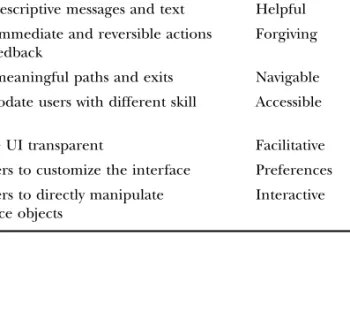
Users in control principles are listed in Table II. Af-ter each principle, a keyword is listed to help re-member each principle.
The classic example of allowing users to be in con-trol is Christopher Alexander’s discussion of how to design walkways between a set of buildings. Rather than assume that an architect knew how people really used the walkways between buildings, the architect did not design and build the walkways when the build-ings were completed. Rather, a grassy field was planted between the buildings. It is rumored that signs were
posted saying, “Please walk on the grass.” A few months after the buildings were completed, the architect ob-served the patterns where people wore paths through the grass. That was where walkways were eventually designed and built. This highlights how observing user behaviors is important first before building an in-terface that allows user to go where they want to go and how they want to get there.
2. Reduce User’s Memory Load
Capabilities and limitations of the human memory and perceptual systems were discussed earlier in this section. The interface should help users remember information while using the computer. We know that people are not good at remembering things, so pro-grams should be designed with this in mind. Table III lists the design principles in this area.
A sign that computer systems do not help users’ memory is the use of external memory aids, such as sticky pads, calculators, reference books, frequently asked questions (FAQs), and sheets of paper. Often, application users must write information down on a piece of paper because they know they will need that information later in the program. Program elements such as undoand redoand clipboard actions such as cut, copy,and pasteallow users to manipulate pieces of information needed in multiple places within an application and across applications.
Filling in on-line forms with common information such as name, address, and telephone number should be remembered by the system once a user has en-tered them or once a customer record has been opened.
Interfaces support long-term memory retrieval by providing users with items for them to recognizerather
Table II Principles that Place Users in Control
User in control Keyword
Use modes judiciously Modeless
Allow users to use either the keyboard Flexible or the mouse
Allow users to change focus Interruptible
Display descriptive messages and text Helpful Provide immediate and reversible actions Forgiving
and feedback
Provide meaningful paths and exits Navigable
Accommodate users with different skill Accessible levels
Make the UI transparent Facilitative
Allow users to customize the interface Preferences
Allow users to directly manipulate Interactive
interface objects
Table III Principles that Reduce Users’
Memory Load
Reduce users’ memory load Keyword
Relieve short-term memory Remember
Rely on recognition, not recall Recognition
Provide visual cues Inform
Provide defaults, undo, and redo Forgiving
Provide interface shortcuts Frequency
Promote an object-action syntax Intuitive
Use real-world metaphors Transfer
User progressive disclosure Context
than having to recallinformation. It is much easier to browse a list to select an item rather than trying to re-member the correct item to type into a blank entry field. For example, sophisticated spell-checking tech-niques offer users a list of possible alternatives to se-lect from for a misspelled word, rather than just iden-tifying that a word is spelled incorrectly.
It is critical to continuously show users where they are, whatthey are doing, and whatthey can do next. These visual feedback indicators provide the context for users to understand where they are and where they can go. Early hypertext techniques allowed users to navigate between pieces of information and docu-ments, but users got lost and could not remember why they were at their current location and how they got there!
3. Make the User Interface Consistent
UI consistency is a key element of usable interfaces. However, consistency should not be looked at as the only critical area of interface design. The benefit of consistency is for users to transfer their knowledge and learning to new programs after they have learned the common interface elements of the operating sys-tem and programs they use frequently. Table IV lists principles that make the interface consistent.
Consistency in presentationmeans that users should see information in the same logical, visual, and phys-ical way throughout the product. Information that users can not change (static text)should be presented in the same font type and color throughout the pro-gram. If one type of information is displayed and in-put using a specific interface control, then the same control should be used to display and input the same information throughout the product. Consistency in behaviormeans that the way an interface element works is the same everywhere. The behavior of interface controls such as buttons, lists, and menu items should
not change within or between programs. Consistency in interaction technique is also important. The same shortcut keys should work in similar programs. Mouse actions should produce the same results anywhere in the interface. Keyboard mnemonics should not change for the same menus from program to pro-gram. Users expect the same results when they inter-act the same way with similar interface elements.
Finally, consistent interfaces encourage users to ex-plore. Users should be able to, without fear of nega-tive consequences, select items and navigate through the system to find out where things are and what hap-pens when they do things.
VI. THE WEB USER EXPERIENCE
The incredible evolution of the World Wide Web (WWW) in the past few years has changed the face and scope of interface design. Although the basic prin-ciples of interface design discussed here have not changed, many things have changed for Web inter-faces. Foremost, users are different. Anyone connected to the Web is a user. Users range from the very young and computer literate to the elderly, often with poor vision and dexterity and minimal computer skills. Cor-porations now use intranets to communicate with em-ployees and allow them to be more productive at their jobs. Public Web sites allow individuals and companies to present information and news, gather information, and conduct business remotely. In fact, the term “user interface” has been replaced with the more global “user experience” or even “customer experience.”
A. Key Differences in
Web Interface Design
The well-know article “The Difference between Web Design and GUI Design” (Nielsen, 1997b) pointed out some of the main differences in Web interface de-sign: (1) device diversity, (2) the user controls navi-gation, and (3) part of a whole. Web interfaces now are used across a wide array of browsers, operating systems, and even very different devices from tradi-tional desktop PCs. Traditradi-tional GUI applications fol-lowed a WYSIWIG (“what you see is what you get”) ap-proach where designers and developers knew exactly how users would view and use their programs. The de-sign principle of user in control has been discussed previously. The Web allows users to access sites and pages in different ways other than those intended or desired by the designer. Users can jump to a Web
Table IV Principles that Make the
Interface Consistent
Make the interface consistent Keyword Sustain the context of users’ tasks Continuity Maintain consistency within and Experience
across products
Keep interaction results the same Expectations
Provide aesthetic appeal and Attitude
integrity
page directly from a search engine, therefore bypass-ing the site’s home page and site navigation structure. Users can also leave a site or page at any time, thereby not necessarily completing the site’s intended flow of information or tasks. Finally, the Web is a community of information and places. Users move between sites rapidly, often not even knowing which site they cur-rently are on. Therefore, even though every site is dif-ferent and there are no formal interface standards for the Web, it is even more important to build a com-mon Web user experience and to follow the basic in-terface design principles discussed here.
Other important user/system design issues on the Web include designing interfaces for public use (In-ternet sites) vs private use (intranet sites). Nielsen highlights the key differences between Internet and intranet sites:
• Users differ. Intranet users are employees who may know a lot about the company, its
organizational structure, and special terminology and circumstances. Customers who know much less about the company and also care less about it use Internet sites.
• Tasks differ. The intranet is used for everyday work inside the company, including some quite complex applications; the Internet site is mainly used to find out information about company products. • Type of information differs. The intranet will have
many draft reports, project progress reports, human resource information, and other detailed information, whereas the Internet site will have marketing information and customer support information.
• Amount of information differs. Typically, an intranet has between ten and a hundred times as many pages as the same company’s public Web site. The difference is due to the extensive amount of work in progress that is documented on the intranet and the fact that many projects and departments never publish anything publicly even though they have many internal documents. • Bandwidth and cross-platform needs differ.
Intranets often run between a hundred and a thousand times faster than most Internet users’ Web access, which is stuck at low band or mid band, so it is feasible to use rich graphics and even multimedia and other advanced content on intranet pages. Also, it is sometimes possible to control what computers and software versions are supported on an intranet, meaning that designs need to be less cross-platform compatible (again allowing for more advanced page content).
B. Components of Web Interface Design
The design of Web interfaces can be subdivided into four areas: content, interaction, navigation, and graphics. They are all important areas, and their rel-ative importance to a Web site varies depending on the nature of the site and its intended use.
Content is king, as is often said. A site must have content that is of value to visitors or there will be no reason for people to visit the site. Depending on the type of content, it must also be timely, accurate, read-able, and printable.
Interactiondefines how users interface with the site. Does the site use text links, buttons, or image maps? Does the user have to log on to get information? Will the site remember the user’s previous session? How can the application learn from user behavior and pro-vide content that the user wants?
Navigationaddresses how users get around within a site. Many sites provide navigation at only the top one or two levels; below those levels the user must use the browser navigation buttons. Does the site navigation structure match the user’s expectation? Must users un-derstand the company’s organization to use the site?
Graphics create the interface style and metaphors for the site. They add to the aesthetics and enjoyment of the user’s experience. Consumer-based sites usually maintain a high degree of aesthetic appeal, but it is not necessarily needed for the site’s success. If the site is primarily information oriented, graphics can dis-tract slow users while they scan, search, and read in-formation. Nielsen’s site, useit.com (www.useit.com), is a valuable resource for design and usability profes-sionals and is heavily trafficked. However, Nielsen chose to use very few graphics to allow the best down-load time for site pages, and he admits he is not a graphic designer, so his graphics would not look very good. Useit.com is an information-intensive site, and its users are not bothered by the site’s lack of graph-ics and attention to aesthetgraph-ics.
The aesthetic and electronic commerce (e-commerce) aspects of Web design have further highlighted the need for usable designs along with more graphic and interactive designs. To enhance the consumer experience, sites strive to enhance the aes-thetics and entertainment of the site, while, at the same time, hopefully enabling site visitors to easily navigate and perform their desired tasks. Thus, the skills of both interface and graphic designers are key and sometimes at odds; it is called the battle between persuading and enabling. The phrase “Cool Us-able” shows that developers are sometimes more con-cerned with aesthetic, persuasive, and entertainment
aspects of the site rather than site’s usability. From the perspective of the interface designer, however, the more appropriate phrase should be “Usable Cool.” Interface designers should strive toward enhancing the user experience by providing an interface that al-lows the user to read, browse, navigate, search, find, print, and purchase in an effective and usable way.
C. Making Web Interfaces Accessible
The Web is the fastest adopted technology in history. Unfortunately, for people with disabilities, the Web is often a mixed blessing. The Web displaces traditional sources of information and interaction—schools, libraries, print materials, and workplace information. Some of those traditional resources are accessible and some are not. The Web is fast becoming an essential, but sometimes inaccessible, resource for news, infor-mation, commerce, entertainment, classroom educa-tion, distance learning, job searching, workplace inter-action, and civic participation (laws, voting, government information, and services). An accessible Web means unprecedented access to information for people with disabilities. Some of the barriers to avoid include: • For users with visual disabilities: unlabeled
graphics, undescribed video, poorly marked-up tables or frames, and lack of keyboard support or screen-reader compatibility
• For users with hearing disabilities: lack of captioning for audio and proliferation of text without visual sign-posts
• For users with physical disabilities: lack of keyboard or single-switch support for menu commands
• For users with cognitive or neurological
disabilities: lack of consistent navigation structure, overly complex presentation or language, lack of illustrative nontext materials, and flickering or strobing designs
Companies are slowly beginning to address accessibil-ity concerns on Internet sites, but rarely on their in-tranets. However, U.S. governmental regulations and international Internet standards are fast becoming the baseline (and sometimes the law) for acceptable Web site development. In “Disabled Accessibility,” Nielsen states, “It would not surprise me if we start seeing money-back guarantee in design contracts that state that clients don’t have to pay for sites that vio-late these rules.” Web development tools are begin-ning to incorporate the accessibility standards into
their tools to help Web designers build the most us-able and accessible Web sites possible.
The World Wide Web Consortium (W3C) Web Ac-cessibility Initiative (WAI) offers three levels of guide-lines for developing accessible Web sites. For more in-formation, checklists, and a complete listing of the accessibility guidelines, visit the W3C Web site (www.w3.org/WAI/). Accessibility also affects tradi-tional applications, not just Web-based interfaces. The U.S. government has mandated legislation that ad-dresses accessibility in the federal workplace. Section 508 requires that federal agencies’ electronic and in-formation technology be accessible to people with dis-abilities. The Federal Information Technology Acces-sibility Initiative (see www.section508.gov) is a federal government interagency effort to offer information and technical assistance to assist in the successful im-plementation of Section 508.
VII. NEW DIRECTIONS IN
HUMAN–COMPUTER INTERACTION
How humans interact with computers is evolving rapidly. Computers themselves are constantly evolv-ing: PCs in some form will continue to evolve and be-come smaller, more powerful, and more mobile. But the rapid pace of technology is drastically changing how people use computers. Some of the forces shap-ing future computshap-ing include:
• Decreasing hardware costs leading to faster systems with larger memories
• Hardware miniaturization leading to device portability
• Power requirements reduction leading to device portability
• New display technologies leading to new forms of computational devices
• Evolving technologies for input techniques (voice, touch, gesture, and pen, for example)
• Integrating computation abilities into existing devices and appliances (video cassette recorders, microwave ovens, and televisions, for example) • Increased development of network
communication and distributed computing • Increased worldwide use of computers by a wider
range of people
• Global social concerns leading to countries and peoples having improved access to computers and computing devices
Pervasive computing is the trend toward casually accessible, often invisible computing devices that are
either mobile or imbedded in the environment. The dictionary definition of pervasive is “having the qual-ity or tendency to pervade or permeate.” The aim of pervasive computing is to allow users to perform tasks and gather information wherever they are, whenever they want. This enables people to accomplish an in-creasing number of personal and professional trans-actions using a new class of intelligent and portable devices. It gives people convenient access to relevant information stored on powerful networks, allowing them to easily take action anywhere, anytime. These devices are connected to an increasingly ubiquitous network structure. Ubiquitous computing spreads in-telligence and connectivity to more or less everything in our world. The dictionary definition of ubiquitous is “existing or being everywhere, or in all places, at the same time; omnipresent.” Cars, homes, aircraft, roads, bridges, tunnels, refrigerators, door handles, lighting fixtures, shoes, and even clothing will, sooner or later, have a computer chip embedded in it. The goal of ubiquitous computing is to build technology so that it recedes into the background of people’s lives. This will allow people to perform their daily ac-tivities in an environment that is capable of support-ing these activities without increassupport-ing the attention level or cognitive load on users in their world.
Other evolving areas affecting the future of inter-face design are:
• Group interfaces: Interfaces that allow groups of people to coordinate activities (meetings, projects, conversation, learning, and so on).
• User tailorability: Users will tailor programs to their own use and invent new individual applications based on their understanding of their own domains and experience. Thus, general-purpose systems will become more useful as individually tailored experiences.
• Information utilities: Public information sources (both general and specialized), such as weather, news, shopping, and finance, will continue to evolve. Their proliferation will accelerate as users interact with high-bandwidth systems and as the system interfaces improve.
• Effective use of media: Alternative media, such as video, voice, and sound, will become more integrated into the interface experience. Sound is underutilized in software and on the Web, in spite of its obvious value to other media, such as film. The performing arts has a long history of creating sound as a powerful impression on human perception and emotion and has accumulated a rich body of theories and practical insights for how this is done.
These theories and insights should be explored for their usefulness in improving sound design in computer systems. For example, sound can be used to (1) suggest physical properties of objects, (2) anthropomorphize and personalize objects, (3) judge distance and therefore size, (4) enhance the believability of images and information, and (5) change our interpretation of events.
VIII. INTERFACE DESIGN
AND USABILITY RESOURCES
A. Web Resources
• HCI Bibliography: www.hcibib.org • HCI Index: http://degraaff.org/hci
• Human–Computer Interaction (Yahoo listing): http://dir.yahoo.com/Science/Computer_Science/ Human_Computer_Interaction_HCL_/
• Human–Computer Interaction, Resource Network: www.hcirn.com
• IBM Ease of Use: www.ibm.com/ibm/easy • Interface Design and Development:
www.interface-design.net
• Usability.gov (resource for designing usable, useful, and accessible Web sites and UIs): www.usability.gov
• Usability News (Software Usability Research Laboratory Newsletter): www.usabilitynews.org • Usability Resources (STC):
www.stcsig.org/usability/resources • Usable Web: www.usableweb.com • Useit.com: www.useit.com
B. Books, Magazines, and Bibliographies
• HCI Bibliography: www.hcibib.org
• Interactions (Association of Computing Machinery on-line and print publication):
www.acm.org/interactions/frntpage/index.htm • Suggested Readings for Usability Testing:
http://www.best.com/~jthom/usability/biblio.htm • Usable Web—Books: http://books.usableweb.com
C. Organizations
• Association of Computing Machinery (ACM): www.acm.org
• ACM Computer–Human Interaction (CHI) Special Interest Group (SIG): www.acm.org/sigchi
• British HCI group: www.bcs-hci.org.uk
• The Ergonomics Society: www.ergonomics.org.uk • Human Factors and Ergonomics Society (HFES):
www.hfes.org
• HFES Internet Technical Group: www.internettg.org
• Institute of Electrical and Electronics Engineers (IEEE): www.ieee.org
• International Federation for Information Processing: www.ifip.or.at
• National Institute of Standards and Technology: www.nist.gov
• Society for Technical Communications (STC) Usability SIG: www.stcsig.org/usability
• Usability Professionals’ Association (UPA): www.upassoc.org
D. Discussion Groups
• UTEST (Internet discussion group on usability): www.upassoc.org/html/utest.html
• comp.human-factors (Usenet discussion group): news:comp.human-factors
SEE ALSO THE FOLLOWING ARTICLES
BIBLIOGRAPHY
Alexander, C., et al.(1977). A pattern language.New York: Ox-ford Univ. Press.
Apple Computer, Inc. (1992). Macintosh human interface guide-lines.Boston: Addison-Wesley.
Baecker, R. M., and Buxton, W. A. S., Eds. (1987). Readings in human-computer interaction: A multidisciplinary approach.San Mateo, CA: Morgan Kaufmann.
Baecker, R. M., Grudin, J., Buxton, W. A. S., and Greenberg, S. (1995). Readings in human-computer interaction: Toward the year 2000.San Francisco: Morgan Kaufmann.
Carroll, J., and Olson, J. (1988). Mental models in human-computer interaction. In Handbook of human-computer inter-action(M. Helander, Ed.). Holland: Elsevier.
Chapanis, A. (1999). The Chapanis chronicles: 50 years of human factors research, education, and design. Santa Barbara, CA: Aegean Publishing Company.
IBM Corporation (1992). Object-Oriented Interface Design: IBM Common User Access™ Guidelines. New York: QUE. Jones, M. (July 1992). Apple interface. DESIGN,Vol. 64. Kantowitz, B. H., and Sorkin, R. D. (1983). Human factors:
Un-derstanding people-system relationships.New York: Wiley. Mandel, T. (1997). The elements of user interface design.New York:
Wiley.
Mayhew, D. (1992). Principles and guidelines in software user in-terface design.Englewood Cliffs, NJ: Prentice-Hall.
Microsoft Corporation. (1995). The Windows® interface guide-lines for software design.Seattle: Microsoft Press.
Nielsen, J. (1990). Traditional dialogue design applied to mod-ern user interfaces. Communications of the ACMVol. 33, No. 10, 109–118.
Nielsen, J. (1997a). “The Difference Between Intranet and In-ternet Design.” Alertbox for September 15, 1997, www.useit.com.
Nielsen, J. (1997b). “The Difference Between Web Design and GUI Design.” Alertbox for May 1, 1997, www.useit.com. Nielsen, J. (1997c). “Disabled Accessibility: The Pragmatic
Ap-proach.” Alertbox for June 13, 1999, www.useit.com. Open Software Foundation (1993). OSF/Motif style guide,
revi-sion 1.2.Englewood Cliffs, NJ: Prentice Hall.
Pake, G. (1985). Research at Xerox PARC: A founder’s per-spective. IEEE Spectrum,Vol. 22, No. 10, 54–61.
Rubenstein, R., and Hersch, H. (1984). The human factor: De-signing computer systems for people.Boston: Digital Press. Smith, D. C., et al.(June 1982). The Star user interface: An
overview. Proceedings of the AFIPS National Computer Confer-ence,515–528.
Sullivan, K. (1996). The Windows® user interface: A case study in usability engineering. Proceedings of the ACM CHI’96.