™ NOTE: Video Intercom using 802.11b is not
recommended or supported for Video Intercom. Control4 recommends Wireless-N for Video Intercom. See “Wireless Network Limitations” and “Power and Network Installation Options.”
• Option 1: Ethernet with PoE. The Ethernet network connection is provided through the PoE Injector. No additional wiring is needed.
• Option 2: Ethernet with AC. Connect the Touch Screen to one of the RJ-45 LAN ports on the gateway/router using the RJ-45 Ethernet cable.
• Option 3: WiFi with AC. The internal WiFi will communicate with the LAN’s WAP. If the LAN has a WAP set up, no additional wiring is needed.
Supported Models
• C4-TW7C0- BL - 7 Inch Wall Mount Capacitive Touch Screen with Camera, Ethernet/WiFi, PoE/ Universal Voltage, Black
• C4-TW7C0- WH - 7 Inch Wall Mount Capacitive Touch Screen with Camera, Ethernet/WiFi, PoE/ Universal Voltage, White
Associated SKUs:
• C4-TSWMC5-EG-WH – 5” In-Wall Touch Screen, White (no camera)
• C4-TSWMC7-EG-WH – 7” In-Wall Touch Screen, White (no camera)
• C4-TSWMC5-EG-BL – 5” In-Wall Touch Screen, Black (no camera)
• C4-TSWMC7-EG-BL – 7” In-Wall Touch Screen, Black (no camera)
Box Contents
Carefully unpack the contents of the box, and make sure the following items are included. If any item is missing or damaged, please contact your Control4 Reseller.
• 7” In-Wall Touch Screen with Camera
• Power box (used to power the Touch Screen) • Two (2) screws to attach the power box • Warranty card
Introduction
The Control4® 7” In-Wall Touch Screen with Camera offers complete system control in an elegant and compact design. This Touch Screen is equipped with a capacitive Touch Screen and four (4) programmable shortcut buttons plus Audio and Video Intercom (with a built-in camera) using SIP. The available power options are AC power or Power-over-Ethernet (PoE); the network options are WiFi or Ethernet connections. This Touch Screen supports new construction or retrofit installations.
• AC. AC power is used to power the Touch Screen when using an Ethernet or WiFi network connection.
• PoE. PoE is used to power the Touch Screen when using an Ethernet or WiFi network connection.
The following table shows the available network options with power.
• Ethernet with PoE • Ethernet with AC • WiFi with AC
7” In-Wall Touch Screen
with Camera
™
Accessories
• PoE. Control4 Power over Ethernet Injector, sold separately (AC-POE1-B).
• Back Box Options. There are four (4) back box options available for this Touch Screen’s installation. Metal and plastic back boxes are available for new construction or retrofit installations.
5” and 7” In-Wall Touch Screen Back Box Kits - New Construction
- 5” and 7” In-Wall Touch Screens Wall Box, New Construction, Plastic (C4-NWB57C-P) - 5” and 7” In-Wall Touch Screens Wall Box, New Construction, Metal (C4-NWB57C-M)
5” and 7” In-Wall Touch Screen Back Box Kit - Retrofit
- 5” and 7” In-Wall Touch Screens Wall Box, Retrofit, Plastic (C4-RWB57C-P)
- 5” and 7” In-Wall Touch Screens Wall Box, Retrofit, Metal (C4-RWB57C-M)
See the Control4 5” or 7” In-Wall Touch Screen Wall Box Installation Guide - New Construction or
5” or 7” In-Wall Touch Screen Wall Box Installation Guide - Retrofit for back box installation details.
Specifications
Screen 7” 16:9 wide VGA Color LCD Module Resolution: 800 x 480 Camera: 640 x 480 VGA
Brightness: 350 nits
Wireless Built In IEEE802.11 b/g/n Wireless LAN Integral Antenna (b/g/n supported) Authentication: WEP, WPA, WPA2
7” In-Wall Touch Screen
with Camera
Installation Guide
Dimensions (H x W x D) 4.88” x 7.2” x .60” (124 mm x 183 mm x 15.24 mm) Weight 1.15 lbs. (.52 kg) Shipping Weight 1.8 lbs. (.81 kg)Network WiFi (802.11 b/g/n) wireless access point (WAP) already configured to communicate with a Control4 Controller (e.g., HC-800). Wireless-N is recommended for Video Intercom. Notes: (1) Intercom usage. 802.11b is not recommended or supported for Video Intercom. (2) Wireless-N is recommended for Video Intercom. Even with Wireless-N, broadcasting to several devices will degrade Video Intercom response time and images. Broadcasting to additional devices will further degrade performance. See “Wireless Network Limitations.”
Requirements
To install the 7” In-Wall Touch Screen with Camera, Control4 requires the following:
• A Home Controller fully installed and configured
with a Control4® system.
• Control4 7” Touch Screen custom back box
installed (OS 2.2.1 or later). See “Accessories.” • If using Ethernet with PoE power:
- Ethernet network installed and available that includes a gateway/router/switch
- Control4 PoE Injector (model #AC-POE1-B) or another third-party PoE Injector or switch (certified to UL/ANSI standards).
- Two (2) Ethernet CAT5 cables: (1) one that runs from the Ethernet gateway/router/switch to the PoE Injector/switch and (2) one that runs from the PoE Injector/switch to the Ethernet connection in the Touch Screen’s back box. • If using Ethernet with AC power:
- Ethernet network installed and available that includes a gateway/router/switch
- Access to in-wall AC power (a neutral connection is required)
- One (1) Ethernet CAT5 cable that runs from the Ethernet gateway/router/switch to the Touch Screen
- A 14-gauge electrical wire long enough to pull between the Touch Screen and the power source • If using wireless with AC power:
Back View
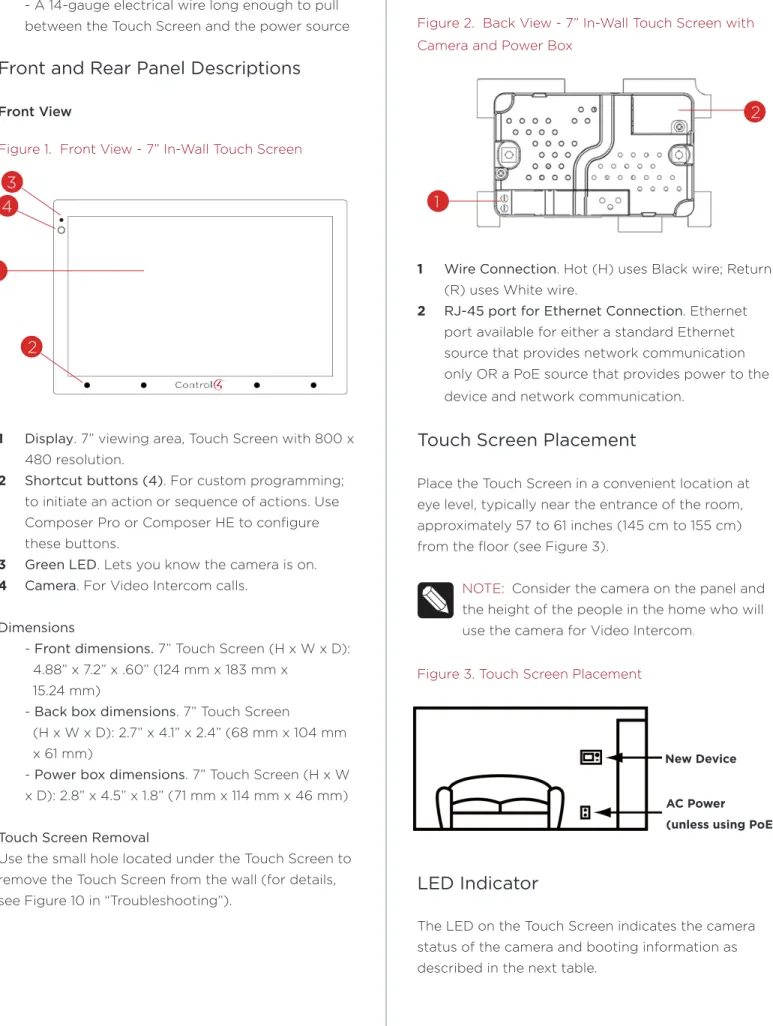
Figure 2. Back View - 7” In-Wall Touch Screen with Camera and Power Box
1 Wire Connection. Hot (H) uses Black wire; Return (R) uses White wire.
2 RJ-45 port for Ethernet Connection. Ethernet port available for either a standard Ethernet source that provides network communication only OR a PoE source that provides power to the device and network communication.
Touch Screen Placement
Place the Touch Screen in a convenient location at eye level, typically near the entrance of the room, approximately 57 to 61 inches (145 cm to 155 cm) from the floor (see Figure 3).
NOTE: Consider the camera on the panel and the height of the people in the home who will use the camera for Video Intercom.
Figure 3. Touch Screen Placement
LED Indicator
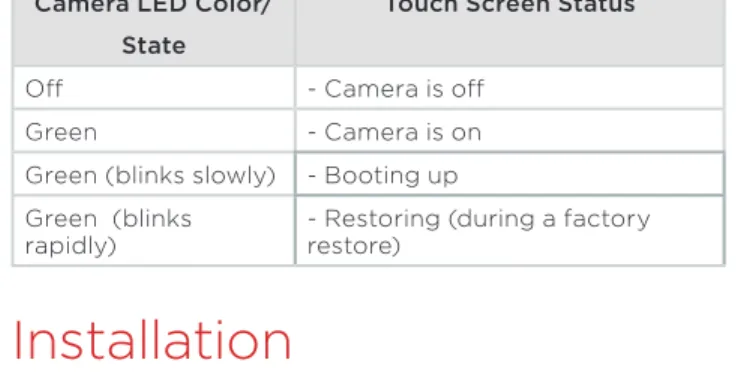
The LED on the Touch Screen indicates the camera status of the camera and booting information as described in the next table.
connection is required)
- A 14-gauge electrical wire long enough to pull between the Touch Screen and the power source
Front and Rear Panel Descriptions
Front ViewFigure 1. Front View - 7” In-Wall Touch Screen
1 Display. 7” viewing area, Touch Screen with 800 x 480 resolution.
2 Shortcut buttons (4). For custom programming; to initiate an action or sequence of actions. Use Composer Pro or Composer HE to configure these buttons.
3 Green LED. Lets you know the camera is on. 4 Camera. For Video Intercom calls.
Dimensions
- Front dimensions. 7” Touch Screen (H x W x D): 4.88” x 7.2” x .60” (124 mm x 183 mm x
15.24 mm)
- Back box dimensions. 7” Touch Screen
(H x W x D): 2.7” x 4.1” x 2.4” (68 mm x 104 mm x 61 mm)
- Power box dimensions. 7” Touch Screen (H x W x D): 2.8” x 4.5” x 1.8” (71 mm x 114 mm x 46 mm)
Touch Screen Removal
Use the small hole located under the Touch Screen to remove the Touch Screen from the wall (for details, see Figure 10 in “Troubleshooting”).
New Device AC Power (unless using PoE)
2
3
4
1
1
2
CAUTION! Do not attempt to use PoE and AC power at the same time. Choose only one power option.
ATTENTION! Ne pas tenter d’utiliser PoE et AC en même temps. Choisir une seule option d’alimentation.
Option 1: Ethernet Connection with a PoE Injector or a Third-Party Injector or Switch
PoE supplies DC power on the Ethernet cable using a PoE Injector (model #AC-POE1-B) or a third-party PoE solution to provide the Touch Screen with power and a network connection. The Touch Screen works with the Control4 PoE Injector or a third-party PoE Injector.
To set up your PoE and Ethernet connection with a PoE Injector, see Figure 4.
1 Attach the PoE Injector according to the instructions in your PoE’s installation guide if provided. Control4 PoE Injector instructions are provided later in this document.
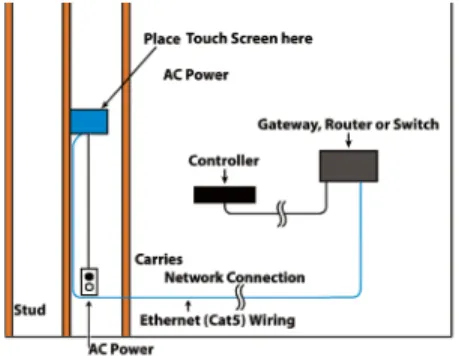
2 Pull the Ethernet cable from that location to where you want to install the Touch Screen. Figure 4. Ethernet with PoE - Requires Ethernet Connection to PoE Injector
Option 2: Ethernet Connection with AC
The Ethernet is connected directly to the switch (see Figure 5). This power connection requires both neutral and hot connections.
Camera LED Color/ State
Touch Screen Status Off - Camera is off
Green - Camera is on Green (blinks slowly) - Booting up Green (blinks
rapidly) - Restoring (during a factory restore)
Installation
WARNING! Before installing the Touch Screen, switch off the circuit breaker or remove the fuse from the fuse box.
AVERTISSEMENT! Pour l’endroit où vous installez l’écran tactile, coupez le disjoncteur ou enlevez le fusible de la boîte de fusible. IMPORTANT! Before you can complete the instructions below, you must have a 7” Touch Screen back box installed according to the documentation provided in the back box kit. See “Accessories” for details.
IMPORTANT! En coupant l’ouverture pour la boîte de mur, ne coupez pas l’ouverture trop grande. Soyez conservateur et agrandissez-avec précaution la comme nécessaire. Voyez que <<Accessories>>.
IMPORTANT! When cutting the opening for the back box, DO NOT cut the opening too large. Be conservative and cautiously enlarge it as needed.
IMPORTANT! En coupant l’ouverture pour la boîte de mur, ne coupez pas l’ouverture trop grande. Soyez conservateur et agrandissez-avec précaution la comme nécessaire.
Power and Network Installation Options
This device uses an Ethernet or WiFi network connection, and can be powered using PoE or AC power.
Choose one of the following options to install the power and network communication.
Figure 5. Ethernet - Requires a Connection to Ethernet and AC Power
Option 3: WiFi Connection with AC
Place the Touch Screen above a power source, for example, an outlet. Ensure that you have WiFi in the home (see Figure 6).
NOTES: (1) Video Intercom. Although this device supports b/g/n, 802.11 b is not supported for Video Intercom use. (2) Wireless-N is recommended for Video Intercom. See the Composer Pro User Guide
for details about the 7” In-Wall Touch Screen with Camera properties.
Wireless Network Limitations
Many WiFi Access Points handle Multicasts (WiFi simultaneously sent to multiple devices, for example, when the 7” In-Wall Touch Screen with Camera broadcasts video to all stations) by slowing down transmission speed to the 1 Mb basic rate. This can cause overall WiFi congestion in the WiFi network during the broadcast. Video Intercom response times and images may degrade at each device.
If a home requires a large number of WiFi Video Intercom devices, ensure that you have a robust WiFi network (possibly consisting of multiple access points).
Figure 6. WiFi - Requires AC Power and WAP
Power Installation
Prepare the plastic power box for installation into the back box by inserting either the Ethernet cable or the AC power cable into the power box (see Figures 7 and 8), and then follow the instructions next.
AC Power Connection
The steps below represent a typical U.S. installation. 1 Connect the wires to the AC power source for
the Touch Screen according to the national and local electrical codes. Installation may require alternative wires and the use of a terminal block. 2 Thread the power cable through the bottom back
hole of the back box to the terminal block (see Figure 7).
3 Strip the black and white power wire ends to 1/4” as necessary. Using a flathead screwdriver, loosen the screws on the power box’s terminal block and connect the power wires to each terminal (see Figure 7).
4 Cap the ground wire from the wall if you are using a plastic back box. Attach the ground wire to the back box if using a metal back box. Figure 7. AC Power Connection
Power Box Back Box
Power Cable Terminal Block Connect Wires to Terminal Block
5 Align and bend the wires carefully to fit them inside the back box.
6 Align and carefully slide the power box into the back box.
7 Secure the power box into the back box using the screws provided.
NOTE: Overtightening the power box screws could result in a poor connection between the Touch Screen and the power box and could also cause the Touch Screen to warp.
8 Align and slide the back of the Touch Screen into the power box. The Touch Screen is magnetic and should snap into place easily.
9 (Optional) To secure the Touch Screen inside the power box, remove the tape covering the bottom security pin (see Figure 10) before attaching the Touch Screen to the power box.
Power Over Ethernet (PoE) Connection
Connect the PoE Injector to power and the network, and then connect it to the power box.
The steps below describe how to install a Control4 PoE Injector.
1 Connect the Control4 PoE Injector to an AC outlet using the power cord.
2 Connect one of the RJ-45 LAN ports on the gateway/router/switch to the PoE Injector’s LAN port using the RJ-45 Ethernet cable.
3 Connect the PoE Injector’s PWR LAN-OUT port to the RJ-45 Ethernet cable that will be connected to the Touch Screen.
4 Pull the Ethernet cable through the top back hole of the back box to the Ethernet connector on the top back of the power box, and then connect it (see Figure 8).
5 Align and carefully slide the power box into the back box until the Touch Screen is attached to the power box.
Figure 8. Ethernet Connection
6 Secure the power box into the back box using the screws provided.
NOTE: Overtightening the power box screws could result in a poor connection between the Touch Screen and the power box and could also cause the Touch Screen to warp.
7 Align and slide the back of the Touch Screen into the power box. The Touch Screen is magnetic and should snap into place easily.
8 (Optional) To secure the Touch Screen inside the power box, remove the tape covering the bottom security pin (see Figure 10) before attaching the Touch Screen to the power box.
Configuration
Configure for Wireless
(WiFi only) Connect to a WAP on the Touch Screen (see Figure 9):
Figure 9. Wireless Configuration
1 After initialization, press and hold the large White
4 in the center of the Touch Screen to enter the configuration screen.
Ethernet Connection Power Box
configuration page. The network configuration screen displays.
3 Under Wireless, select Enable. If you don’t see the network you want, select Other.
4 At Network Name, select to add the SSID or
wireless network when the keyboard appears. Select Done.
5 At Security, select None, WEP 64, WEP 128,
WPA, or WPA2.
6 At Password, type the password on the keyboard that appears. Press Done.
7 Select Connect. Notice that the IP settings change. The IP address is set to DHCP by default. 8 (Optional) If you need to set a static IP address
instead, complete the following steps: a On the Network page, press Static.
b Select each box one at a time and type the address: IP Address, Subnet Mask, Default Gateway, Preferred DNS, and Alternate DNS. c When the keyboard appears, type the
address, and then press Done.
9 Press OK to return to the Network page. You can now connect to a Control4 Director running on a Control4 device on the network.
10 Press OK.
Configure in Composer Pro
When the Touch Screen is physically installed and appears on the home network, you can add and configure it for the Control4 System using Composer Pro. Choose the In-Wall 7” Touch Screen V2 driver in Composer and add it to your project.
See the Composer Pro User Guide for information about how to add and identify the Touch Screen to the Control4 System.
Troubleshooting
Boot Up
When the device is booting up, it may take 30 seconds or longer before the Green LED turns on. When it turns on, it blinks slowly for a time and then turns off. After that, you will see an image on the Touch Screen.
Restore to Factory Default
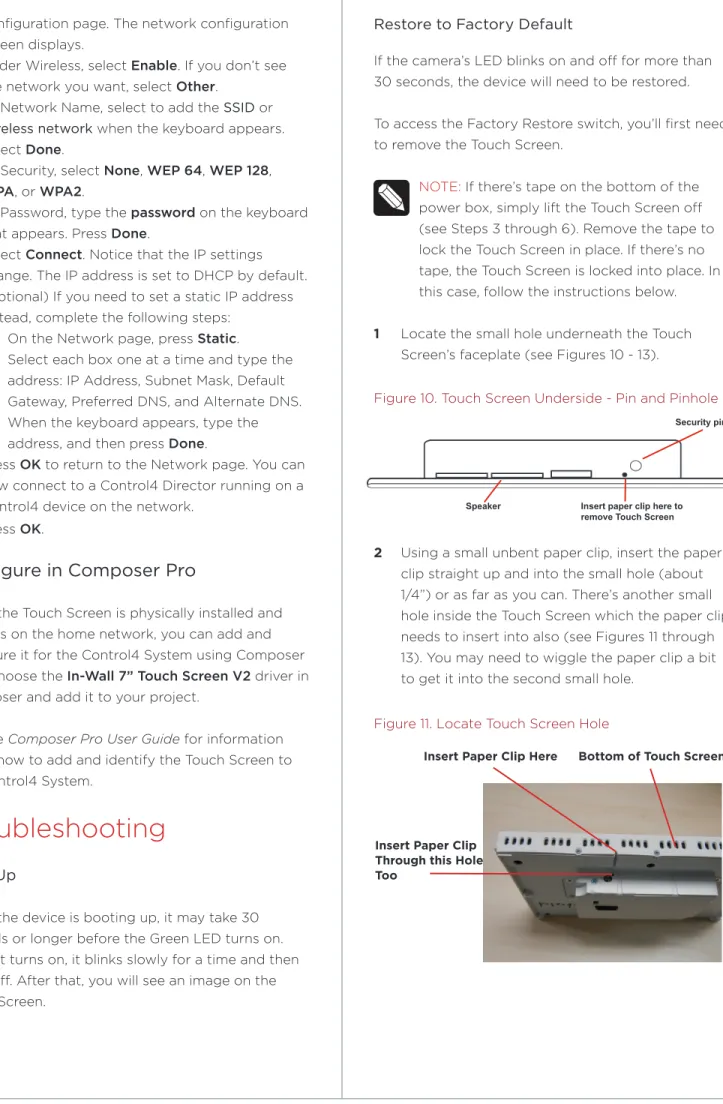
If the camera’s LED blinks on and off for more than 30 seconds, the device will need to be restored. To access the Factory Restore switch, you’ll first need to remove the Touch Screen.
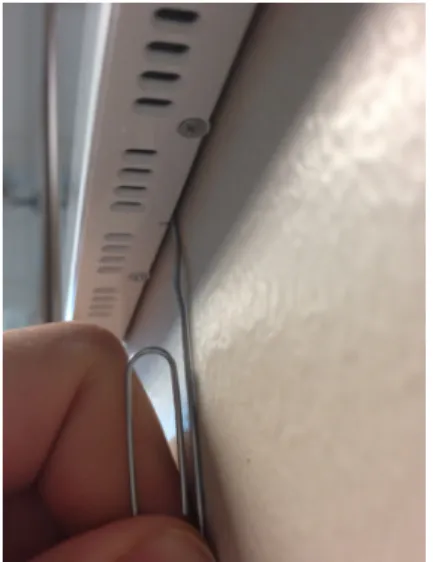
NOTE: If there’s tape on the bottom of the power box, simply lift the Touch Screen off (see Steps 3 through 6). Remove the tape to lock the Touch Screen in place. If there’s no tape, the Touch Screen is locked into place. In this case, follow the instructions below. 1 Locate the small hole underneath the Touch
Screen’s faceplate (see Figures 10 - 13).
Figure 10. Touch Screen Underside - Pin and Pinhole
2 Using a small unbent paper clip, insert the paper clip straight up and into the small hole (about 1/4”) or as far as you can. There’s another small hole inside the Touch Screen which the paper clip needs to insert into also (see Figures 11 through 13). You may need to wiggle the paper clip a bit to get it into the second small hole.
Figure 11. Locate Touch Screen Hole
Speaker Insert paper clip here to remove Touch Screen
Security pin
Insert Paper Clip Here
Insert Paper Clip Through this Hole Too
Figure 12. Insert Paper Clip Through Small Hole
Figure 13. Paper Clip Needs to Engage Release Plate
3 With both hands, tilt the bottom of the Touch Screen out and gently remove the Touch Screen. 4 On the back of the Touch Screen locate the small
switch (see Figure 14). Figure 14. Factory Restore Switch
5 Using the tip of a straight pin or paper clip, change the position of the switch, for example, if
change on the next power up, and will initiate the restore process.
6 When you are finished with the restore, reattach the Touch Screen into the power box in the wall— top first—and then snap the bottom of the Touch Screen back into place.
7 The Touch Screen will reboot and the factory default firmware image will be installed. All settings will reset to the factory default settings. See “LED Indicator” for information about how the LED behaves during a factory restore. 8 After a restore, the Touch Screen will need to be
updated to the same image version of the project (e.g., OS 2.2.2 or later).
Warnings/Considerations
WARNING! The Touch Screen must be protected by an external circuit breaker or a fuse rated at 6A maximum when used in Europe.AVERTISSEMENT! Pour réduire le risque du feu ou de choc électrique, n’exposez pas cet appareil à la pluie ou à l’humidité.
WARNING! Do not place the Touch Screen near sources of heat or expose to direct sunlight for an extended period of time. AVERTISSEMENT! Ne placez pas l’unité près des sources de chaleur ou exposition pour diriger la lumière du soleil pendant une période prolongée.
IMPORTANT! Do not use pens or sharp objects to navigate or make selections on the Touch Screen. To select an item or scroll through a list, use your fingertip.
IMPORTANT! N’employez pas les stylos ou les objets pointus pour diriger ou pour faire des choix sur l’écran. Pour choisir un article ou un rouleau par une liste, employez votre bout du doigt.
IMPORTANT! Improper use or installation can cause DAMAGE OF PROPERTY.
IMPORTANT! L’utilisation ou l’installation inexacte peut causer DAMAGE DE PROPRIÉTÉ.
Factory Restore Switch
C4-7” TOUCH SCREEN IN WALL-V2 1:1 SCALE
Security plate
IMPORTANT! Using this product in a manner other than outlined in this document voids your warranty. Further, Control4 is NOT liable for any damage incurred with the misuse of this product. See “Warranty.”
IMPORTANT! Utilisant ce produit en quelque sorte autre que décrit dans ce document vide votre garantie. De plus, Control4 n’est pas responsable d’aucun dommage encouru avec l’abus de ce produit. Voyez que «Warranty.» WARNING! Install in accordance with all national, state, and local electrical CODES.
AVERTISSEMENT! Installez selon tous les national, état, et codes électriques locaux. WARNING! This product generates heat. The room must have adequate VENTILATION or the ability to dissipate heat effectively. AVERTISSEMENT! Ce produit produit de la chaleur. La salle doit avoir à VENTILATION proportionnée ou la capacité d’absorber la chaleur efficacement.
WARNING! This product must be grounded in accordance with the National Electrical Code (NEC) requirements.
AVERTISSEMENT! Ce produit doit être fondu selon les conditions électriques nationales de code (NEC).
WARNING! Use this product only in dry locations.
AVERTISSEMENT! Employez ce produit seulement dans des endroits secs.
CAUTION! This product is for residential use only.
ATTENTION! Ce produit est pour à l’usage résidentiel ou commercial seulement. MAGNET WARNING! Located within the plastic enclosures of this product are strong (rare earth) magnets that are used to attach the face plate to the electrical box. If someone handling or using the product has a pacemaker, defibrillator, or similar electronic device used for health purposes, avoid close proximity (closer than 20 inches) to the
product until you consult your physician. Magnetic fields can cause damage to magnetic storage media (for example, credit cards, video tapes, computer hard drives, etc). Keep all magnets at least 20 inches away from all types of magnetic media. Certain electronic devices are sensitive to magnetic
FIELDS and may be damaged permanently or temporarily disabled if exposed to a magnetic field that is too strong. Consult the owner’s manuals of your electronic devices for further information. INGESTED magnets can cause serious injuries and may result in death. If magnets have been ingested (or you suspect they might have been), seek competent medical attention immediately.
AVERTISSEMENT! Aimants! Dans l’emballage en plastique de ce produit sont inclus des aimants très puissants utilisés pour attacher les plaques de surface aux boites électriques. Si quelqu’un, manipulant ou utilisant ce produit est muni d’un pacemaker, défibrillateur ou autre dispositif d’ordre médical, il doit éviter de se trouver à proximité (moins de 20 pouces) de ce produit avant d’avoir consulté son médecin. Les champs magnétiques des aimants peuvent endommager le stockage d’information d’ordre magnétique (ex : cartes de crédit, bandes vidéo, disques durs d’ordinateur, etc.) Gardez tous les aimants au moins à 20 pouces de distance de tout type de stockage d’information d’ordre magnétique. Certains dispositifs électroniques sont
sensibles aux champs magnétiques et peuvent être endommagés de façon permanente ou être désactivés si ils sont exposés à un champs magnétique trop puissant. Pour plus d’information, consultez le manuel d’utilisateur propre à votre pièce électronique.
SI avalés, les aimants peuvent causer des blessures graves et aussi causer la mort. Si des aimants ont été avalés (ou vous doutez qu’ils ont pu l’être) obtenez les soins médicaux de personnes compétentes immédiatement.
Third-Party Trademarks
Libertas
Libertas Firmware copyright statement for Touch Screens 6/26/09 Copyright (c) 2006, One Laptop per Child and Marvell Corporation. All rights reserved.
Redistribution. Redistribution and use in binary form, without modification, are permitted provided that the following conditions are met:
* Redistributions must reproduce the above copyright notice and the following disclaimer in the documentation and/or other materials provided with the distribution.
* Neither the name of Marvell Corporation nor the names of its suppliers may be used to endorse or promote products derived from this software without specific prior written permission.
* No reverse engineering, decompilation, or disassembly of this software is permitted.
* You may not use or attempt to use this software in conjunction with any product that is offered by a third party as a replacement, substitute or alternative to a Marvell Product where a Marvell Product is defined as a proprietary wireless LAN embedded client solution of Marvell or a Marvell Affiliate.
DISCLAIMER. THIS SOFTWARE IS PROVIDED BY THE COPYRIGHT HOLDERS AND CONTRIBUTORS “AS IS” AND ANY EXPRESS OR IMPLIED WARRANTIES, INCLUDING, BUT NOT LIMITED TO, THE IMPLIED WARRANTIES OF MERCHANTABILITY AND FITNESS FOR A PARTICULAR PURPOSE ARE DISCLAIMED. IN NO EVENT SHALL THE COPYRIGHT OWNER OR CONTRIBUTORS BE LIABLE FOR ANY DIRECT, INDIRECT, INCIDENTAL, SPECIAL, EXEMPLARY, OR CONSEQUENTIAL DAMAGES (INCLUDING, BUT NOT LIMITED TO, PROCUREMENT OF SUBSTITUTE GOODS OR SERVICES; LOSS OF USE, DATA, OR PROFITS; OR BUSINESS INTERRUPTION) HOWEVER CAUSED AND ON ANY THEORY OF LIABILITY, WHETHER IN CONTRACT, STRICT LIABILITY, OR TORT (INCLUDING NEGLIGENCE OR OTHERWISE) ARISING IN ANY WAY OUT OF THE USE OF THIS SOFTWARE, EVEN IF ADVISED OF THE POSSIBILITY OF SUCH DAMAGE.
GNU
GNU GENERAL PUBLIC LICENSE TERMS AND CONDITIONS FOR COPYING, DISTRIBUTION AND MODIFICATION (Section 3.b.)
You may copy and distribute the Program (or a work based on it, under Section 2) in object code or executable form under the terms of Sections 1 and 2 above provided that you also do one of the following:
Accompany it with a written offer, valid for at least three years, to give any third party, for a charge no more than your cost of physically performing source distribution, a complete machine-readable copy of the corresponding source code, to be distributed under the terms of Sections 1 and 2 on a medium customarily used for software interchange.
The complete text for this license is available on the Control4 website at: http:// www.control4.com.
Regulatory/Safety/Other
Information
To review regulatory information for your particular Control4 products, see the information located on the Control4 website at: http://www.control4.com/regulatory/.
Patent Information
Protected under U.S. Patents 7,335,845, 7,106,261 and licensed under U.S. Patents 5,905,442 and 5,982,103
Warranty
Limited 2-year Warranty. Refer to http://www.control4.com/warranty.