Flexible
Solutions
for
Electronic
Archiving
Perennity
Archiving Edition
Installation and
administration guide
Version 3.00
Administration guide 2 Perennity Archiving edition v3.00
Table of Contents
Table of Contents ...2
Introduction ...6
Perennity Concepts ...7
Understanding Perennity data sources...7
Understanding Perennity targets... 11
Understanding Perennity triggers... 12
Capacity threshold... 12
Trigger file ... 12
Folder latency ... 13
Perennity scanning and scheduling... 14
Scan Interval ... 14
The Perennity Schedule ... 14
The Perennity workflow explained ... 15
Using a database and Perennity Finder ... 16
Perennity application examples ...17
Compliance recording ... 17
Report and log file archiving ... 17
Personal backup and archiving ... 17
System requirements ...18
Hardware + operating systems... 18
Software ... 18
Java VM 1.6... 18
Rimage Software Suite... 18
MySQL, Microsoft SQL Server or MSDE ... 20
Perennity Finder... 20
Installation ...21
Installing Perennity... 21
Installing the MySQL database engine ... 25
Licensing Perennity...27
Configuring Perennity ...31
Create a Target... 31
Rimage settings ... 32
Administration guide 3 Perennity Archiving edition v3.00
Configuring Sources... 37
Configuring an Archive folder ... 38
Source identification and general settings ... 38
Create the archive folder path ... 40
Output settings ... 42 Thumbnail settings ... 43 Advanced settings ... 45 Triggers ... 47 Capacity threshold... 47 Trigger file ... 48 Folder latency ... 48 None ... 48 Schedule ... 49 Email notification... 50 Database configuration... 51
Configuring a Multiple Archive folder ... 54
Source identification and general settings ... 54
Create the Multiple archive folder path ... 56
Output settings ... 58 Thumbnail settings ... 59 Advanced settings ... 61 Triggers ... 63 Capacity threshold... 63 Trigger file ... 64 Folder latency ... 64 None ... 64 Schedule ... 65 Email notification... 66 Database configuration... 67
Configuring a CD/DVD Image Folder ... 70
Source identification and general settings ... 70
Define the Image Folder path list ... 71
Output settings ... 73
Triggers ... 74
Capacity threshold... 75
Administration guide 4 Perennity Archiving edition v3.00 Folder latency ... 76 None ... 76 Schedule ... 77 Email notification... 78 Database configuration... 79
Main settings window... 82
Configuring Perennity Finder ... 84
Using and monitoring Perennity ...85
Source window ... 85
Logs window... 86
Target window ... 86
Start/Stop button ... 87
View source settings ... 87
Main menu ... 88
File menu ... 88
Tools menu ... 88
Help menu ... 90
Data integrity check tool ... 91
Perennity at work ... 93
Perennity Finder...100
Browsing the database... 100
Querying the database ... 102
Technical support...104
Appendix ...105
Appendix 1 - XML syntax for CD/DVD image folders ... 105
Appendix 2 - XML syntax of trigger file ... 107
Appendix 4 – Label Customization ... 110
Appendix 4 – Label Customization ... 110
Appendix 5 – Installing and using MySQL GUI Tools ... 112
Appendix 6 – Installing and using Epson TD-Bridge ... 122
Administration guide 5 Perennity Archiving edition v3.00
Perennity Archive (version 3.00) ...128
Performance improvement... 128
Windows Services... 128
Incremental archiving improvement ... 128
Encryption... 128
Database improvement ... 128
Administration guide 6 Perennity Archiving edition v3.00
Introduction
Perennity is a flexible software solution, developed to address diverse archiving and backup needs. It therefore comes in different flavours: Perennity Archiving Edition, Perennity Dicom Edition, Perennity Dicom Uploader, Perennity EMC Centera Edition, Perennity Audio Extractor. Depending upon demand, other applications and new features will become available in the future.
This manual deals with the Perennity Archiving Edition, a very powerful solution to automate data archiving. A central concept is the “archive folder”, which can be defined as ‘a directory on a computer where people or applications store data that needs to be archived’. Predefined ‘trigger’ mechanisms will launch the actual archiving (to CD/DVD, NAS, tape…). The triggers can be a capacity threshold, the submission of a specific file, or folder latency. Scheduling permits to determine when the actual archiving takes place (e.g. at night).
Perennity Archive Edition offers a lot of flexibility in the configuration of its archive destinations (‘targets’). Out of the box it supports any Rimage Desktop or Producer system (or a cluster consisting of several Rimage autoloaders), but also NAS or robotic libraries (tape, CD/DVD, MO) are potential archive
destinations.
Of course, being able to easily find back the archived information is of the utmost important. Therefore Perennity can store file metadata (file name, file date, file size, media ID…) in a database for easy retrieval. The Perennity Finder application, which comes with the Perennity setup, allows for browsing and querying the database through a simple, user-friendly interface.
Administration guide 7 Perennity Archiving edition v3.00
Perennity Concepts
This part of the manual describes important terms and concepts that you should understand in order to use Perennity to its full potential. We therefore highly recommend you to get acquainted with the notions in this section before you start installing and configuring Perennity.
Perennity basically functions as a sort of ‘connector’ between one or more data
sources (where the data are originally stored), and one or multiple data targets (the archive storage media). Perennity continuously scans its defined
sources (folder scans) and trigger mechanisms (production rules) and
schedules will determine when the actual archiving will happen.
We will also explain the Perennity workflow concept and discuss the Perennity
Finder (which requires a database implementation).
U
NDERSTANDINGP
ERENNITY DATA SOURCESA ‘Data Source’ is a source from which data will be copied or moved to archive media (called the ‘target’).
An ‘Archive Folder’ is a directory, located either locally on the PC running the Perennity Server software or on a remote network volume which will receive the files/folders that need to be archived to the target device(s). The archiving itself is a fully automated process, requiring little or no administrative intervention once the rules have been established.
When Archive folders are located on the Perennity Server, they may be shared over the network, so that workstation clients or applications running on other machines can write their data to them in order to get it archived.
Alternatively the source folders can be located on network servers or client PCs. In such case, there is no need to copy the data to a dedicated archive folder, but obviously the Perennity Server service account needs read/write or full control access to these folders.
Perennity automatically spans the archive data over multiple media if it doesn’t fit on one media. Individual files that exceed media capacity will be split over several media and the media itself contains the tool to reconstruct the file from its different fragments.
Hereunder we will discuss the three types of Archive folders supported by Perennity: the (simple) Archive folder, the Multiple Archive folder and the CD/DVD Image folder.
Administration guide 8 Perennity Archiving edition v3.00 The (simple) Archive Folder will write the data, present in one or more
predefined folders, as soon as it is triggered by a specific event (reaching a certain capacity, presence of a trigger file, latency). A more detailed discussion on these triggering mechanisms follows later.
Example: a document scanner drops TIFF files (scanned invoices, airway bills, …) in a predefined directory (e.g. E:\Invoices). By means of Perennity, these scanned documents will automatically be transferred to CD each time we have a total of 700MB TIFF files. The directory collecting the files to be archived and being permanently watched by Perennity is a Perennity Data Source configured as an Archive folder.
Administration guide 9 Perennity Archiving edition v3.00 The Multiple Archive folder is an extension of the Archive folder: every
subfolder of a predefined directory will be treated as a distinct archive folder. So the triggers (reaching a certain capacity, presence of a trigger file, latency) apply to all individual subfolders, not to the defined root folder.
These subfolders can be in one of two states:
They can be called ‘static’, in that once created they continue to exist and are constantly subject to change (users/applications can add more data). An example of such folder could be a user home directory.
They can also be ‘dynamic’. In that case regularly – on the fly - new subfolders will be created, they will get a number of files and usually not change anymore afterwards. Perennity can optionally erase these folders after successful
archiving. If not, the folders will remain present and they can be erased manually.
Example: a digital video supervision application (supermarket, bank, public transport, …) creates one sub-directory per day containing all video clips and pictures (mpeg & jpeg files) recorded that day. Every day at midnight, the content of the current day folder will be backed up to DVD. If the total size of this folder is higher than the capacity of one DVD, the data will be automatically spread over multiple discs.
Administration guide 10 Perennity Archiving edition v3.00 The CD/DVD Image Folder enables the burning of CD/DVD images created with third party CD/DVD mastering applications (like for example a Roxio Toast HFS image, or a video DVD image from a custom video authoring software).
Example: In a prepress company, different network users create HFS CDs and DVDs using Toast Titanium directly from their Macintosh computer. The
Perennity Client will be installed on every system. One dedicated CD/DVD Image Folder is configured per user on the Perennity Server. The users create new projects using Toast and save them as an image file to their respective
Perennity Image Folder. A popup window will then invite the user to specify the number of copies and what needs to be printed on the CD or DVD.
CD/ DVD Autoloader
Perennity server
Cache Cache
Create your project with Toast and save it as CD/DV D image file to a
predefined network folder
Record & Print to CD/ DVD
3
Specify how many copies must be produced and what label needs to be printed
1
2
Fig. 3 – Perennity CD/DVD Image folder
Perennity CD/DVD Image Folder supports the following image file extensions: .img, .dmg, .iso, .raw and .toast. If you need support for additional extensions, please contact our technical support department. Also, we only support image file types supported by the Rimage software.
Administration guide 11 Perennity Archiving edition v3.00
U
NDERSTANDINGP
ERENNITY TARGETSA Perennity target is a storage device to which data from a source will be written (archived). In the current release, out of the box, Perennity Archive Edition supports Rimage autoloaders equipped with CD/DVD/Blu-Ray writers and Epson PP-100(N). On request, we can propose implementations with NAS or robotic libraries (CD/DVD, tape, MO). Furthermore Perennity can be connected to any backup application that supports scripting.
Perennity offers support for any type of Rimage autoloader, as well Producer as Desktop. The Rimage Software Suite must be version v6.5.6.1 or later. Older versions will not work. We recommended using version 8.x which provides much more flexibility when customizing print templates. The Rimage software suite may run on the Perennity Server or on a dedicated system.
The Rimage target configuration is intentionally kept very simple, and only the messaging server connection must be configured. All other parameters are part of the source configuration, which offers a far-reaching flexibility.
Perennity currently supports one Rimage target, which can of course be a Rimage cluster consisting of several autoloaders.
Administration guide 12 Perennity Archiving edition v3.00
U
NDERSTANDINGP
ERENNITY TRIGGERSA trigger is defined as an event that, when its predefined conditions are fulfilled, instructs Perennity to launch an archiving process (that is if the folder schedule -see later - permits it). All Perennity data sources can be associated with a trigger. For example, you may want to start writing files from an Archive folder to CD when you have enough data to fill this CD. In that case, the trigger is a capacity threshold of for instance 700MB.
You have the choice between three trigger mechanisms:
Capacity threshold
You may decide to launch the actual archiving when the total capacity of the archive folder reaches a minimum predefined capacity (e.g. start the archiving process when the total size of the archive folder exceeds 650MB).
By default only full media will be written out. ‘Full media’ is a configurable parameter (e.g. 650 or 700 MB for a full CD). For long term archiving
applications, it is recommended to limit the usable (full) media capacity to 90% of the total available capacity since media deterioration over time is most likely to happen at the outer side of the media (the edge).
Alternatively the writing can be forced for all data present in the archive folder as soon as the threshold capacity is reached. This will write out all data present in the archive folder on one or several media, without media fill optimisation. If the total size of the files/folders to be archived exceeds the maximum
capacity of the CD/DVD, Perennity will simply spread the files over several discs. Individual files surpassing the media capacity will be split over several media (e.g. a 10GB video file may be split over 3 DVDs).
When reaching the capacity threshold, Perennity will always make sure that all files are ready to be archived (e.g. new files still being added, locked files, …).
Trigger file
If you want to have full control over when the recording should start, the trigger file might be your best option. For instance you might use an archiving
application that generates the data and you want to determine exactly what data must go on what media (and when). By adding a trigger file to the root of the Archive folder, Perennity knows it can start burning to media. The trigger file itself can optionally be included on the media.
If the total size of the files/folders to be archived exceeds the capacity of a CD/DVD, Perennity will simply spread the files over several discs.
The name of the trigger file must be defined in the source configuration (e.g. ‘start.txt’). You may also use special XML trigger files with a ‘.xml’ extension. Then, using specific tags, you can overwrite certain parameters defined by default for this Archive folder (number of copies, print template, values to be printed, volume name, …) and even add custom metadata (for printing and/or
Administration guide 13 Perennity Archiving edition v3.00 writing to the database). Refer to appendix 2 of this manual for a complete description of the XML trigger file.
Folder latency
Latency time can be defined as the time during which an Archive folder is not changing anymore, after a folder scan has run.
An example will make this clear: a mini-lab for photo development generates one folder per film, to which are then copied all the scanned photos for this film. In normal circumstances this is an uninterrupted process and all files are copied one after the other to the folder. Once the last file is copied the latency trigger signals no changes anymore and Perennity processing starts.
It is important to decide upon a ‘correct’ latency time value, since this will determine when a folder is considered complete and not subject to changes anymore. Putting the value too low might trigger the archiving when not all files are present yet. Putting the value too high will result in longer, less efficient archiving cycles. Specifying a minimum number of files and/or a minimum folder size allows for fine-tuning the correct triggering.
Administration guide 14 Perennity Archiving edition v3.00
P
ERENNITY SCANNING AND SCHEDULINGScan Interval
Perennity regularly scans the contents of the active Archive folders to check whether folders are eligible for archiving (trigger conditions met).
The scan interval parameter (found in the Archive folder general source
settings) determines how often Perennity will scan the Archive folder to check if conditions are met. A low value will flag more rapidly, but involves more
processing; a high value will check less often but also require less processing. When Perennity doesn’t run on a dedicated system (for instance on a Rimage server, being used more or less intensively for other purposes too) it is advisable to put a higher value.
The Perennity Schedule
Perennity has a built-in scheduling feature, which allows you to determine during which time frames Perennity production may happen. This permits for instance to schedule Perennity production at night, freeing the Rimage system for other jobs at daytime.
The schedule is also very important when no trigger is specified. If in that case the schedule is enabled, media production will start as soon as the schedule gets active. It will immediately write out all data found in the archive folder to one or multiple media. Any data added to the archive folder afterwards will not be taken into account and will be written the next time the schedule becomes active.
Finally, when no trigger is specified and the schedule is not enabled, the archiving process must be manually forced.
Administration guide 15 Perennity Archiving edition v3.00
T
HEP
ERENNITY WORKFLOW EXPLAINEDNow that all Perennity concepts should be clear to you from the previous
paragraphs, it is time to have a look at the overall picture. In other words, what is happening when, and why?
According to the scan settings discussed earlier, Perennity will at regular intervals check its active Archive folders against the configured triggers. For eligible folders (triggering criteria met) the archiving will start immediately if the folder schedule permits it. If not, the processing for these folders will only start during a later scan when both conditions are met (triggered and schedule active).
When a Perennity archiving process has been successfully completed, the files and folders of the Archive folder can be automatically deleted, they can be left in the folder, or they can optionally be moved to another destination. If you choose to delete the files/folders after archiving, Perennity will proceed to the deletion only after receiving the confirmation from the Rimage Production Server that the CD/DVD recording has been successful.
If you choose to keep the original files/folders in the Archive folder after they have been recorded to CD/DVD, Perennity will reset the archive bit of these files and folders to exclude them from further processing. Only new files, added to the Archive folder after the previous archive cycle, will be considered.
Moving the files/folders to another destination may be interesting in cases where the data should be kept online or nearline for fast access, while a CD/DVD copy is used for backup, long-term archiving or legal purposes.
Administration guide 16 Perennity Archiving edition v3.00
U
SING A DATABASE ANDP
ERENNITYF
INDERIt is of course very convenient to be able to archive or backup your data to off-line media, but after recording hundreds of media how find out where is what file? This is where the Perennity database and the Finder come in.
Perennity indeed offers the possibility to store all file metadata in a database, which can then be interrogated through the Perennity Finder application. The Finder can be installed as part of the Perennity Server installation, or it can also be installed separately, for instance on client PCs.
The Perennity Finder application offers two possible ways to consult the database:
By browsing the contents of all archived folders: the Finder presents the same folder structures as they were originally present in the Archive folders, so this is a very easy way to find back files in a well structured folder organisation. By launching queries using one or a combination of several criteria: file name, content (when using the full-text indexing option), date, size, folder names, … This can be interesting to search for files when you know (part of) the file name/content or when you want to search for files in a specific time range. Please consult the chapter Perennity Finder in this manual for concrete instructions on the use of the Finder.
Administration guide 17 Perennity Archiving edition v3.00
Perennity application examples
As you will probably have noticed, Perennity is a very flexible software solution, which can be deployed to answer several types of archiving, backup and
CD/DVD production needs.
The following cases give some practical examples on how Perennity can fit your particular needs.
C
OMPLIANCE RECORDINGCustomers in audio/video broadcasting are using Perennity for compliance recording. All radio and TV emissions are saved to disk first in a digital format (WMA, MP3, mpeg or other) and by defining the destination folder(s) as
Perennity Archive folder(s), the burning to DVD is triggered automatically by the amount of data present in the Archive folder. As soon as 4,3 GB is present, 2 or more DVDs are written: a master and one or more backups that will often be stored off-site. After successful recording, the files are automatically removed from the Archive folder.
R
EPORT AND LOG FILE ARCHIVINGLots of companies and institutions have to keep several types of log files and reports for legal purposes. They must be stored on WORM (write once read many) type media, to guarantee their non-modifiability over time.
CD and DVD are thus perfectly suited for storing this kind of information, since they have this WORM character and are legally accepted.
Perennity permits to easily automate these types of archive processes. By defining Archive folders where the data will be output by the generating application or an archiving routine, the data will be automatically picked up by Perennity and burned to media.
Perennity offers a far-reaching flexibility in determining the rules for media creation: for instance the archiving can happen every day at a specified time, it can be based on the capacity of the media, or it can be triggered by the
presence of a special file.
P
ERSONAL BACKUP AND ARCHIVINGSeveral customers use Perennity to allow their users to archive data on CD or DVD through Personal Archive Folders. For instance people might want to regularly backup or archive the contents of their My Documents folder, or their Outlook PST files.
In this kind of application, one central CD/DVD production system will deal with the data archiving, and there is no need to have local CD/DVD writers and recording software installed on every desktop.
Administration guide 18 Perennity Archiving edition v3.00
System requirements
H
ARDWARE+
OPERATING SYSTEMSMinimum Intel Pentium IV 2,4Ghz or equivalent processor Microsoft Windows 2000 Professional or Server, XP Professional Microsoft Windows 2003
Minimum 2 GB RAM
S
OFTWAREJava VM 1.6
Perennity has been developed in JAVA and it needs a JAVA Virtual Machine (VM) to function. As the actual Perennity build has been developed with the JAVA SDK 1.6, it is highly recommended to use at least this VM version.
Rimage Software Suite
The Rimage Software Suite should be at least version 6.5.6. Older versions will not work. We recommended to use version 8.x providing much more flexibility when customizing print templates.
Perennity can be installed on the workstation where the Rimage Software Suite runs, or it can be installed on a different machine. The Rimage software suite must be installed in network mode, and the Perennity settings should reflect the correct Rimage configuration. When in doubt, please check with your Rimage administrator.
When Archive Folders are created on a network server or client PC, make sure they are accessible from the Perennity server as well as from the Rimage Control Center (the Windows PC to which the Rimage system is physically connected). In that case, they must be shared with read/write or full control access for the logged on user. For systems that are part of a workgroup, not a domain, you should create a user with identical name and password on both machines.
Pay attention that the Rimage Imaging Server is running as a Windows service. As result you must grant the current user defined for this service with full control access too.
The share permissions have to be either read/write or full control. As Perennity needs to be able to switch the archive bit of files for its internal functioning, it has to be allowed to do so. When Perennity is configured to delete the original files after successfully burning them, it must have full control permissions. Since
Administration guide 19 Perennity Archiving edition v3.00 Perennity runs with the logged on user account, it is this user that should have the appropriate rights.
More information on Rimage networking issues can be found in the Rimage Advanced Administrator Guide.
Administration guide 20 Perennity Archiving edition v3.00
MySQL, Microsoft SQL Server or MSDE
Perennity can run with or without a database. If you choose to use a database to store file metadata (file name, file size, file date, media ID, …) you should plan to have an installation of MySQL, Microsoft SQL Server or MSDE.
MySQL Server v5.1 is included on your Perennity software CD. You can also use an existing MySQL server if desired, but please note that we currently only support v5 and v5.1. Please refer to the Perennity configuration section for more detailed instructions on how to work with the MySQL database.
When using MySQL, and if the MySQL instance is not installed locally on the Perennity server, the MySQL administrator must configure the database security settings accordingly.
Since version 2.1, Perennity also supports MS SQL Server. You should have at least SQL Server 2000 SP3, which support connections with JAVA based programs.
We don’t discuss the installation and usage of MS SQL Server in this manual. Those who want to use one of these database engines should be familiar with their functioning and administration.
Perennity Finder
When running Perennity with a database to store file metadata, a search tool - called Perennity Finder - can be used to query the database. The Perennity Finder will be automatically installed with Perennity Archive.
The Finder allows performing simple queries using one or several search criteria, and it also offers a browsing functionality presenting the original file system structure (including all folders and subfolders) from the archive folders.
Administration guide 21 Perennity Archiving edition v3.00
Installation
I
NSTALLINGP
ERENNITYNow that you are acquainted with the concepts behind Perennity, you can begin the installation. Be sure to log on with a local administrator account (or at least power user) to have the necessary Windows rights. Run
PerennityArchive_v3.00_bxxx.exe (where xxx is the number of the build) from
the installation CD or the downloadable installation package from our web site (http://www.perennitysoft.com/download.asp). The installation wizard will guide you through the installation process.
Administration guide 22 Perennity Archiving edition v3.00
Administration guide 23 Perennity Archiving edition v3.00
Fig. 6 – Installation in progress
Fig. 7 – Perennity installation finished
We also provide several predefined print labels with Perennity. They can be found in the Perennity installation subdirectory (system drive\Program
Files\Perennity\Perennity Archive\Server\labels). There is one default label per printer type (480i, Everest, …). It is recommended to make a copy of these labels to the Rimage Control Center in the shared \Rimage\Labels folder and to use these copies for your archive folders. You can of course later modify these standard labels to personalize them.
Administration guide 24 Perennity Archiving edition v3.00 That’s it for the installation. Perennity is now ready to be licensed and
Administration guide 25 Perennity Archiving edition v3.00
I
NSTALLING THEM
YSQL
DATABASE ENGINEIf you want to store the metadata (file name, file date, files size, media ID) of all archived files for later retrieval through the Perennity Finder utility, you can consider using the included MySQL database with Perennity. Alternatively you can also use an existing MySQL installation, or Microsoft SQL Server (or MSDE). We only discuss the installation of MySQL on the Perennity machine. Please consult your database administrator for other implementations.
F Version 5.1.31 of MySQL is available in the full Perennity installation package
(CD or downloaded zip file). Go to the Tools > MYSQL > MySQL 5.1 Server v5.1.31 folder. It can also be downloaded from our web site (download).
F Run the mysql-essential-5.1.31-win32.exe program. Although it should work,
for support purposes we do not recommend using any other version of MySQL with Perennity.
Strictly apply the following procedure: 1. Setup Type: Typical. Click on ‘Next’. 2. Click on ‘Install’.
3. Advertising: click twice ‘Next’.
4. Setup wizard: enable the ‘Configure the MySQL Server now’ and click on
‘Finish’.
5. Welcome screen: click on ‘Next’.
6. Configuration type: select ‘Detailed configuration’ and click on ‘Next’. 7. Server type: select ‘Server Machine’ and click on ‘Next’.
8. Database usage: select ‘Multifunctional Database’ and click on ‘Next’.
9. InnoDB datafile: keep default settings (C: - Installation Path) and click on ‘Next’.
10.Number of concurrent connections: select ‘Decision Support’ and click on
‘Next’.
11.Networking options: select ‘Enable TCP/IP Networking’, port 3306 and
enable the ‘Add firewall exception for this port’ option. Also enable the ‘Enable Strict Mode’ option and click on ‘Next’.
12.Character set: select the ‘Standard Character Set’ option and click on ‘Next’. It may be required to select the ‘Best Support for Multilingualism’ option depending on the language you are using.
Administration guide 26 Perennity Archiving edition v3.00 13.Windows options: enable the ‘Install As Windows Service’. Keep the default ‘MySQL’ as Service Name. Enable also the ‘Launch the MySQL Server automatically’ and ‘Include Bin Directory in Windows PATH’ options. Then click on ‘Next’.
14.Security options: FIRST enable the ‘Create An Anonymous Account’ option.
THEN disable the ‘Modify Security Settings’ option and click on ‘Next’. 15.Click on ‘Execute’
16.Make sure that the ‘Prepare configuration’, ‘Write configuration file’ and the ‘Start service’ steps have been processed. Click on ‘Finish’.
F Check if the MySQL service is well started. If the installer window tells you
there was a problem starting the service, please check the Windows services console. If the MySQL service is started you may disregard the error and continue with the installation. If however the service cannot be started, you should usually look for port conflicts.
Administration guide 27 Perennity Archiving edition v3.00
Licensing Perennity
Start the “Perennity Archive” application using the link in the Start > All Programs > Perennity menu. A shortcut is also available on the Desktop. Moreover Perennity will be automatically launched every time your start the computer it runs on, since it has been added to the “Startup” program group during the installation process.
The Perennity Archive server needs a license key in order to run. To access the Perennity registration window from within Perennity, open the ‘Help’ menu and select ‘Register’.
The license code (activation key) is based on the following elements:
- The hardware address (MAC) of the Perennity PC network adapter. If you have multiple network adapters only 1 will be used.
- A unique serial number. This is a six digit hexadecimal number (e.g. a63d67) printed on the installation CD. When downloading a demo version from the web, the serial number will be provided in the e-mail containing the download
instructions.
Several licenses are available. At present, there are two types:
Full-text indexing of the content of the text based files (pdf, doc, xls, txt, xml
and eml).
Encryption: allows protecting the content of the archived media with .
- Annual Maintenance Program: if purchased, you are eligible for updates
and upgrades.
- An expiration date. If you have bought an official Perennity license, it will never expire. However, if you request a demo license, it will run until the expiration date.
Without a valid license, Perennity will start in ‘trial mode’. Trial mode allows you to evaluate Perennity by trying out its features and functionalities for a limited period of time. You can start Perennity in trial mode an unlimited number of times.
To effectively register Perennity, open the web link ‘Online registration’ at the bottom of the registration screen. This will open the registration web page on our Perennitysoft server. If you have no Internet access on the Perennity workstation, you can copy the link and open it from another PC. This procedure is fully automated and you should get your license key in minutes.
Administration guide 28 Perennity Archiving edition v3.00 Alternatively you can send an e-mail containing the serial number and the MAC address of one of your network adapters to [email protected]. You will normally get back the activation key within the next 24 hours.
Fig. 8 – Perennity licensing
When receiving your license key request (online or via email), your order will be checked and we will send you the corresponding license by email. Please copy the license key into the licensing window of Perennity Archive and click on ‘Update’ to activate the license.
Administration guide 29 Perennity Archiving edition v3.00 You notice easily that the serial number is now present and that the title of the registration window changed from ‘Trial mode’ to ‘Licensed’.
Administration guide 30 Perennity Archiving edition v3.00
The license key can be requested prior to the installation. Use the
“ipconfig /all” command from a command prompt in order to obtain a list of the MAC addresses (‘Physical Address’) of your network adapters. If multiple
adapters are present, only one MAC address is needed.
Administration guide 31 Perennity Archiving edition v3.00
Configuring Perennity
The first time you start up, Perennity will automatically open the settings window so you can create and define a target, the working folder and then the sources.
C
REATE AT
ARGETThe first step is to configure a Target that in this case will be a Rimage CD/DVD production system (autoloader). Perennity supports any type of network able Rimage system (Desktop or Producer range). You can even simulate the
presence of a Rimage unit (which will create folders on hard disk containing the data that would otherwise be recorded to CD or DVD).
To open the target manager, please click on the ‘Manage’ button from the settings window.
Fig. 11 – Perennity target window
As mentioned in the system requirements, the Rimage Software Suite should be at least version 6.5.6. The new version 8.x is now supported.
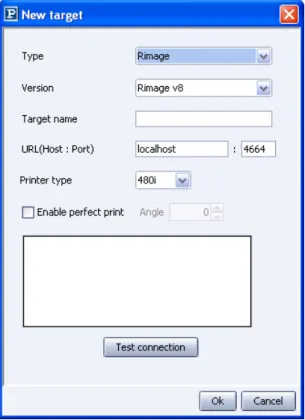
Let’s configure the Rimage system as a target by clicking the “Add” button. This will open a new window where you select Rimage as the type and then enter a name for the target. This name can be maximum 20 characters in length. Try to use a name that clearly identifies the Target. You also need to specify the connection parameters for the Rimage Messaging Server. Enter its host name (computer name) or IP address. The Messaging Server port will by default always be 4664. Please consult your Rimage administrator if you don’t know the correct settings.
Administration guide 32 Perennity Archiving edition v3.00
Rimage settings
Fig. 12 – Rimage configuration
The name of the target may only contain the following characters: A-Z, a-z, space, _ and -. Never use other, special characters like é, è, &, …
Administration guide 33 Perennity Archiving edition v3.00
Epson settings
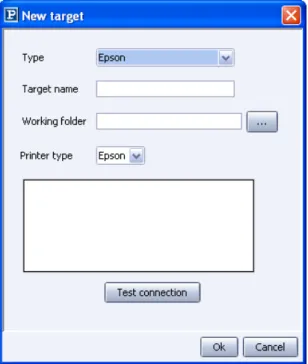
As Perennity Archive is able to work with Epson PP-100 autoloader (using the TD-Bridge API), you can define a target for this robot too.
The Epson TD-Bridge is required in order to interface Perennity with the Epson PP-100 autoloader. Please refer to Appendix XX for installation and
configuration of TD-Bridge.
Select the ‘Epson’ option as type, give a Target Name to clearly identify the Target. Then select the working folder of TD-Bridge (by default:
systemdrive\EPSON\TDBridge\Orders).
Clicking the ‘Test connection’ button tests the connection to the Epson PP-100.
Administration guide 34 Perennity Archiving edition v3.00 If you want to just test or demonstrate Perennity without having an autoloader, you can select the “Virtual Autoloader” option. You just have then to specify a path to a local directory or network volume. Perennity will create one sub-directory per CD or DVD, having the same volume name that would be assigned to the CD/DVD.
Fig. 14 – Virtual Autoloader configuration
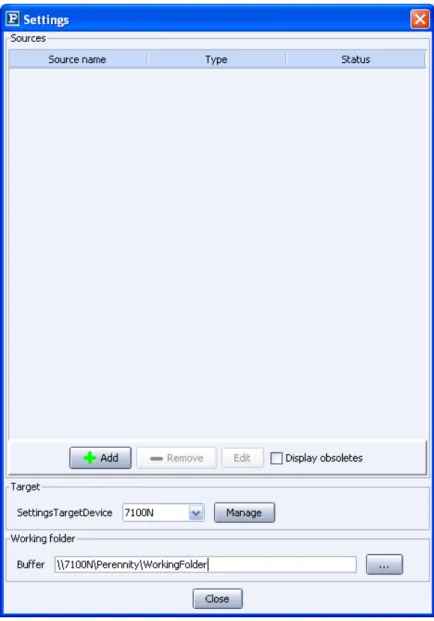
Administration guide 35 Perennity Archiving edition v3.00 When you click on “Ok” after completing the Target setup you will come back to the main settings window. From there you have to select the target you want to use form the target list
.
Fig. 16 – Selecting the target to be used
If your target is a Rimage system but installed on a different computer than Perennity, you must define the working folder on the Rimage PC using UNC path.
Administration guide 36 Perennity Archiving edition v3.00
Fig. 17 – Changing the Working Folder
Once this is done, you can start creating Sources.
Administration guide 37 Perennity Archiving edition v3.00
C
ONFIGURINGS
OURCESAs seen earlier Perennity Archive Edition supports three source types: the (simple) Archive folder, the Multiple Archive folder and the CD/DVD image folder.
Fig. 18 – Configuring the first Perennity source
Click on the “Add” button to create a new source, “Edit” to modify the settings for an existing source or “Remove” to delete a source.
Fig. 19 Under the next headings, we will discuss the setup and configuration for the three different source types.
Administration guide 38 Perennity Archiving edition v3.00
C
ONFIGURING ANA
RCHIVE FOLDERSource identification and general settings
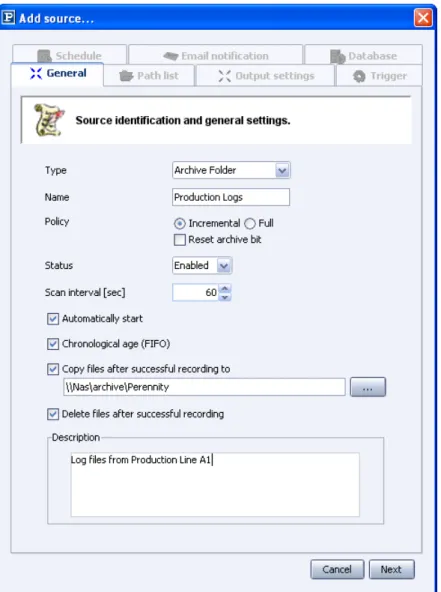
First select the “Archive folder” option in the Type drop-down list.
Fig. 20 – Add source tab
Each source must be given a distinctive name (max. 20 chars.) to clearly identify it. The description field can be used to enter additional information.
The name of the source can only contain the following characters: A-Z, a-z, _ and -. Do not use other, special characters like é, è, &, … or spaces.
The archive policy can be ‘Incremental’ or ‘Full’. Incremental, which is the default policy, will only archive files that have not yet been archived before. A full archival will record all files present in the archive folder, regardless of the archive bit status.. If you choose to delete files after recording, full or
Administration guide 39 Perennity Archiving edition v3.00 incremental doesn’t matter, since the outcome will be the same. The
incremental process needs the use of a database. Optionally you can also ask to reset the archive bit of the files but this can take a long time!
Sources can be in one of three different states: enabled, disabled or obsolete. Use the drop-down arrow to alter the state. Unlike targets, multiple sources can be enabled and thus active concurrently.
The scan interval determines how often Perennity will scan the Archive folder to check if the trigger conditions are met. A low value will flag more rapidly, but involves more processing; a high value will check less often but also require less processing. When Perennity doesn’t run on a dedicated system (for instance on a Rimage server, being used intensively for other purposes too) it is advised to put a higher value here.
When selecting the “Automatically start” option, Perennity will start up the Archive folder as soon as the Perennity application is launched. Otherwise, you will need to start the processing manually.
Selecting “Process chronologically” allows for sorting the files and folders by creation date/time (FIFO = First In First Out). Older files will be recorded before newer ones.
If after successful recording you want all archived files to be copied to another destination (on the local server or to a share), select the option “Copy files after successful recording to” and type the path or browse to select it.
Files can be automatically deleted when the recording has been successful by checking the “Delete files after successful recording” option. If not, they will stay present in the archive folder
Administration guide 40 Perennity Archiving edition v3.00
Create the archive folder path
Click “Next” to continue to the next screen.
Fig. 21 – Select source path
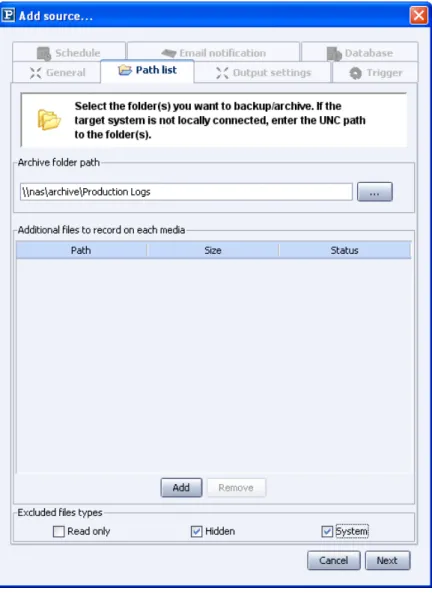
In this window you may enter the path for this source.
Click on the browse button and select a directory that will act as a Perennity Archive folder. Then confirm by clicking on “Choose” and the path will appear in the path list.
If Perennity runs on the same machine as the Rimage Software Suite
(Production, Imaging and Messaging servers), you may select local directories (e.g. C:\Production logs\). You can then share these folders to the network, which will make them accessible for users or applications to drop their files to be archived.
Administration guide 41 Perennity Archiving edition v3.00 If Perennity runs on another machine than the Rimage Software Suite or if your archive folder is created on different systems (server or client workstations), you must always use UNC paths (browse through My Network Places). It is mandatory that both Perennity and the Rimage Imaging server can access the files and folders to be archived (with the logged on user account). Be sure to provide read/write or full control access to the Perennity Archive folders and sub-folders.
Please make sure you have the necessary rights to access these shares before trying to add them to your configuration, otherwise you will not be successful in doing so.
You can add some additional files and folders to every disc (e.g. Acrobat Reader, picture viewer, …).
You may also exclude system files, hidden files and/or read-only files. When finished, click the “Next” button.
Administration guide 42 Perennity Archiving edition v3.00
Output settings
The following screen will ask you to select a target to make an association with. You can only link to one target, even if multiple exist.
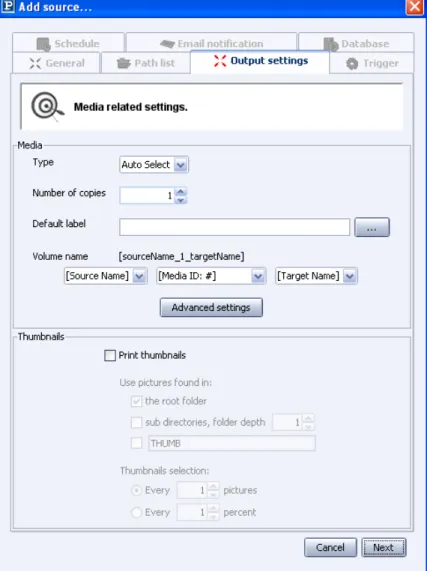
Under the “Output settings” tab you can define all settings with respect to the imaging and production of your CDs and DVDs.
Fig. 22 – Enter Rimage settings
In most cases, it will probably be sufficient to configure the General settings, which include:
The Media type: CD-R, DVD-R, DVD-R Dual Layer (DVDR-DL), Blu-Ray and Blu-Ray Dual Layer. Since Rimage also supports CD-RW, DVD-RW and
DVD+R(W) you may of course also use one of these media types. For archiving however we strongly recommend CD-R or DVD-R, since these media offer the best guarantees for long-term storage. For backup you might envisage using RW media (remember that via the Rimage software you cannot erase these).
Administration guide 43 Perennity Archiving edition v3.00 Selecting ‘Auto Select’ will make Perennity choosing the media type that fits the best the size of the data that will be archived.
The Number of copies
The Label file: select the correct label template for your type of printer
(Everest, Prism, 480i, Epson). This can be the standard label template provided with Perennity, or a custom label template of your own. Please consult appendix 4 if you want to find out how to make your own personalized Perennity labels. Perennity will open the default label directory it created at installation time, but you can also browse to another location to choose a label. If Perennity is not installed on the Rimage Control Center, you will need to use a UNC path to the label. Also make sure that the Rimage Production Server can access and open the label file. When the files to be recorded are pictures, you have the option to also print thumbnails. This is very convenient to visually identify the media. Default labels with the suffix “_thumbnails” allow for printing such thumbnails.
The CD/DVD Volume name: it is composed of a prefix (Source Name, Login, Folder Name or a custom text), a media ID or current date and a suffix (Target Name, Login, Folder Name or a custom text), divided by underscores. The prefix and/or suffix fields can be edited to input a custom text or they can be emptied. Also, the number of digits of the media ID can be defined (5, 05, 005, 0005…). You will get an example of what the volume name will look like.
Thumbnail settings
The ‘Thumbnails’ settings define what pictures will be printed on the media. Supported pictures are jpeg (.jpeg or .jpg), tiff (.tif or .tiff), png or bmp. Gif pictures are not supported.
Be sure to use a template that allows for printing thumbnails. Several default templates are available (file name ends in “_thumbnail”).
Administration guide 44 Perennity Archiving edition v3.00 You may select to use the pictures located in:
• The root of the archive folder.
• All pictures located in sub-directories, up to a specified folder depth. • Pictures located in a specific sub-directory.
These options can be combined.
The number of pictures to be printed is defined by the used CD Designer template. You can modify it to suit your needs.
You may also decide what pictures will be printed:
• Every x pictures (e.g. every 5 pictures: will print pictures 5, 10, 15, …) • Every x percent (e.g. every 20% for a total of 50 pictures; this will
print pictures 10, 20, 30, 40 and 50)
Administration guide 45 Perennity Archiving edition v3.00
Advanced settings
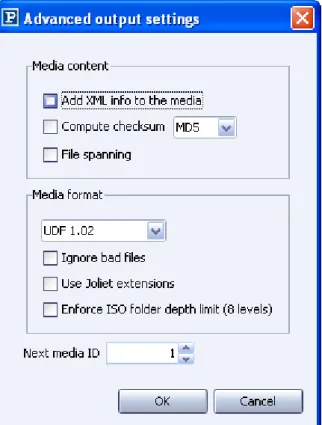
There are two sections in the advanced settings window: Media Content and Media Format.
Fig. 25 – Advanced media settings
Under Media Content settings you can specify:
Add XML info file to media: this file contains a description of what is on the
media (complete file listing with metadata, label information…).
Compute checksum: a checksum will be calculated and added to the XML info
file for every file on the media, allowing for later data integrity checks. You can choose between CRC32, MD5 and SHA checksum algorithms.
File spanning: when activating this option files that do not fit on a media
(max. authorized capacity) will be split over several media. File splitting information will be stored in the XML info file and a checksum will always be calculated to assure data integrity. The Perennity File Restore utility should be used to re-create split files.
Under Media Format settings you can specify:
Encoding format: Perennity supports ISO level 1, ISO level 2 (default) and
Administration guide 46 Perennity Archiving edition v3.00 specific Joliet extensions. The Audio CD format is also supported (CD-R only) if you have WAV or MP3 music files as source data. And also WMA files are supported with Rimage Software Suite version 7. Consult your Rimage manual for more information about these formats.
Bad files ignored: you can ask to ignore all bad files that Perennity would
meet during the archiving process. This is useful to ensure the readability of your media.
Use of Joliet extensions: .
Enforce ISO folder depth limit: if this option is checked, the maximum folder
depth accepted will be of 8 levels (ISO specification). Default: not enforced.
Next media ID: this field shows the media ID for the next media to be
produced and it is updated continuously. You can change its value to restart the numbering.
Administration guide 47 Perennity Archiving edition v3.00
Triggers
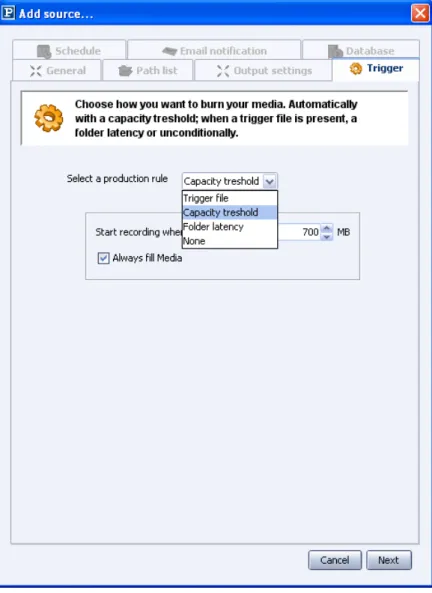
As discussed in the concepts section of this manual, Perennity supports three triggering mechanism (capacity threshold, trigger file and folder latency). A fourth special case is ‘None’, which behaviour depends on whether or not a schedule is active. For more information please review the concepts section.
Fig. 26 – Triggering events
Capacity threshold
Every time the threshold value (in MB) is reached, the recording process will be started. Although this value can correspond with the actual (or usable) media size, it doesn’t have to.
By default ‘always fill CD/DVD media’ is active, meaning that only the data that completely fits on one or more media will be written out. Any additional data that doesn’t yet fill up a complete media will not be included and will wait for the next time the threshold capacity will be reached.
Administration guide 48 Perennity Archiving edition v3.00
Trigger file
Enter the name for the trigger file, which must be copied to the root of the Archive folder to start its processing. Optionally you can add the trigger file to the media. You may also specify a file extension as trigger (e.g. *.arc).
Folder latency
Specify a latency time in seconds. When a folder scan is performed and no more changes are detected in the folder after applying the latency time, the recording will start. You can however specify that a minimum number of files and/or a minimum capacity must be present in the folder.
None
When a schedule is enabled (next step), the recording of all data present in the Archive folder will start when the schedule gets active. Any data added later (even when the schedule is still running) will wait for the next schedule
activation. Without scheduling, the recording must be manually forced from the main Perennity window.
Administration guide 49 Perennity Archiving edition v3.00
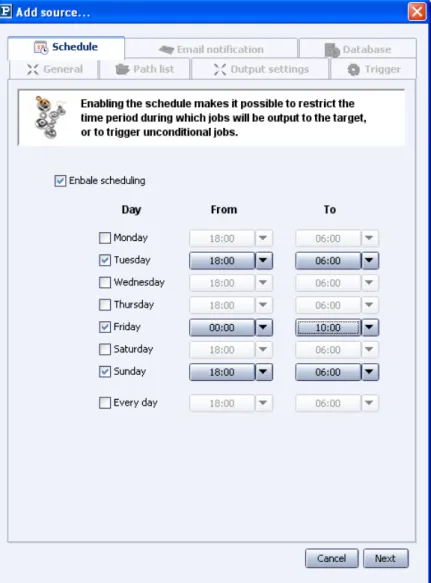
Schedule
Scheduling defines the timeframe during which recording may happen. So if the schedule is only active between 19:00h and 06:00h the recording will not happen during working hours, only at night (freeing the Rimage system for other tasks at daytime). Whether data will be recorded or not depends entirely upon the trigger values. Only when ‘None’ is the selected trigger, all data present in the Archive folder at the beginning of the activation of the schedule (e.g. every day at 19:00h) will be recorded unconditionally. Any data added afterwards, even when the schedule is still active, will wait for the next activation (e.g. the next day).
Fig. 27 – Activating the schedule
Administration guide 50 Perennity Archiving edition v3.00
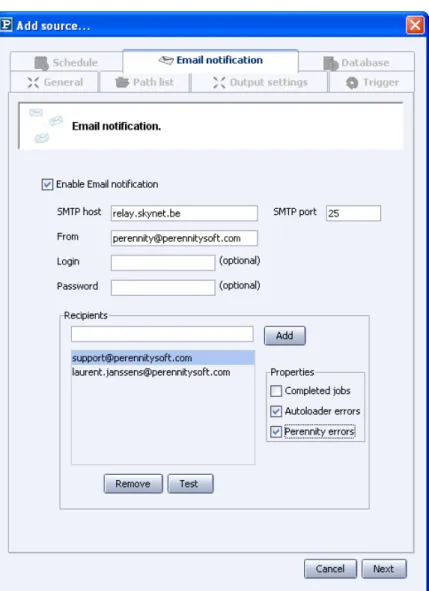
Email notification
By activating the email notification functionality, one or multiple recipients can receive an email in any of the following cases:
• A job is completed
• The Rimage Imaging server has generated an error
• Connection problems with the Rimage Messaging server
• Perennity errors
The only prerequisite to use email notification is to have access to a valid SMTP server.
Administration guide 51 Perennity Archiving edition v3.00 Enter a valid SMTP host (DNS or IP address) and the email address that
Perennity will use to send its emails. If the SMTP server requires authentication, enter the login and password.
Add one or multiple email addresses. You can test the email functionality by selecting one or more recipients and clicking on the “Test” button.
You may also define per user what kind of messages they should get: job completion notifications, errors with Rimage Imaging/Messaging and/or Perennity errors.
Database configuration
Clicking “Next” brings you to the database window. Enable the database if you want to use it for the current Archive folder and configure it correctly (make sure that your database setup is correct).
Administration guide 52 Perennity Archiving edition v3.00 First select the type of database you want to use (SQL server type): MySQL or Microsoft SQL Server. Since MSDE is a feature-limited version of SQL Server, select SQLServer if you want to use MSDE. Please note that when we will talk about SQL Server hereunder, this also refers to MSDE.
By ticking the “Index file content” option, Perennity will store all different keywords of text documents (pdf, doc, xls, txt, xml and eml) in the Perennity database. This will allow searching on the content of the files using the Perennity Finder tool.
You can create a separate database per Archive folder or use the same database for all Archive folders (which is not recommended if you want to use the Finder AND security is an issue). When MySQL runs on the Perennity server enter user name ‘user’ without a password, otherwise check with your database
administrator. Always check with your database administrator when using SQL Server.
The Perennity database user must have the right to create a new database, create tables, modify the structure and insert data.
By default, all local users can access all MySQL databases. Of course it is possible to restrict access to specific authorized users.
When the “Dump database” checkbox is selected, Perennity makes an up-to-date backup copy (including the current CD/DVD) of the complete MySQL database on each media being produced. In this way there is no need to manually backup the database, since the last produced media will always contain the latest database contents. This option is not available for SQL Server (backups must be performed by the database administrator).
Click on the “Check database” button. If the database configuration is correct, you will have a message saying that the connection to the database was
successfully established.If the database does not exist, it will be created. If one of the parameters is not valid, you will be warned.
Administration guide 53 Perennity Archiving edition v3.00
Fig. 31 - Confirmation of database creation
Click on Yes. The structure will be modified without data loss. However, it is highly recommended to backup the database prior to any update or
modification.
From now on, all archival operations for this archive folder will be logged into the just configured MySQL or SQL Server database.
In case of a power failure or interruption of an archiving process of Perennity, it is possible that the Perennity contains records related to files that have not be burned to CD or DVD. You should then clean the database by clicking on the “Clean database” button. It will remove all unnecessary records.
Administration guide 54 Perennity Archiving edition v3.00
C
ONFIGURING AM
ULTIPLEA
RCHIVE FOLDERSource identification and general settings
The Multiple Archive folder allows you to define a folder, for which each subfolder will be considered to be an Archive folder (so not the root folder itself). These subfolders can be dynamically created or deleted as needed, without having to reconfigure Perennity.
First select the “Multiple Archive folder” option in the Type drop-down list.
Fig. 32 – Multiple archive folder
Each source must be given a distinctive name (max. 20 chars.) to clearly identify it. The description field can be used to enter additional information.
The name of the source can only contain the following characters: A-Z, a-z, _ and -. Do not use other, special characters like é, è, &, … or spaces.
Administration guide 55 Perennity Archiving edition v3.00 The archive policy can be ‘Incremental’ or ‘Full’. Incremental, which is the default policy, will only archive files that have not yet been archived before. A full archival will record all files present in the archive folder, regardless of the archive bit status. If you choose to delete files after recording, full or
incremental doesn’t matter, since the outcome will be the same.
The incremental process needs the use of a database. Optionally you can also ask to reset the archive bit of the files but this can take a long time!
Sources can be in one of three different states: enabled, disabled or obsolete. Use the drop-down arrow to alter the state. Unlike Rimage targets, multiple sources can be enabled and thus active concurrently.
The scan interval determines how often Perennity will scan the Archive folder to check if the trigger conditions are met. A low value will flag more rapidly, but involves more processing; a high value will check less often but also require less processing. When Perennity doesn’t run on a dedicated system (for instance on a Rimage server, being used intensively for other purposes too) it is advised to put a higher value here.
When selecting the “Automatically start” option, Perennity will start up the Archive folder as soon as the Perennity application is launched. Otherwise, you will need to start the processing manually.
Selecting “Process chronologically” allows for sorting the files and folders by creation date/time (FIFO = First In First Out). Older files will be recorded before newer ones.
If after successful recording you want all archived files to be copied to another destination (on the local server or to a share), select the option “Copy files after successful recording to” and type the path or browse to select it.
Files can be automatically deleted when the recording has been successful by checking the “Delete files after successful recording” option. If not, they will stay present in the archive folder
Administration guide 56 Perennity Archiving edition v3.00
Create the Multiple archive folder path
Click “Next” to continue to the next screen.
Fig. 33 – Select source path
In this window you may enter the path for this source.
Click on the browse button and select a directory that will act as a Perennity Multiple Archive folder. Then confirm by clicking on “Choose” and the path will appear in the path list.
If Perennity runs on the same machine as the Rimage Software Suite
(Production, Imaging and Messaging servers), you may select local directories (e.g. C:\Production logs\). You can then share these folders to the network, which will make them accessible for users or applications to drop their files to be archived.
Administration guide 57 Perennity Archiving edition v3.00 If Perennity runs on another machine than the Rimage Software Suite or if your multiple archive folder is created on different systems (server or client
workstations), you must always use UNC paths (browse through My Network Places). It is mandatory that both Perennity and the Rimage Imaging server can access the files and folders to be archived (with the logged on user account). Be sure to provide read/write or full control access to the Perennity Archive folders and sub-folders.
Please make sure you have the necessary rights to access these shares before trying to add them to your configuration, otherwise you will not be successful in doing so.
You can add some additional files and folders to every disc (e.g. Acrobat Reader, picture viewer, …).
You may also exclude system files, hidden files and/or read-only files. When finished, click the “Next” button.
Administration guide 58 Perennity Archiving edition v3.00
Output settings
The following screen will ask you to select a target to make an association with. You can only link to one target, even if multiple exist.
Under the “Output settings” tab you can define all settings with respect to the imaging and production of your CDs and DVDs.
Fig. 34 – Enter Output settings
In most cases, it will probably be sufficient to configure the General settings, which include:
The Media type: CD-R, DVD-R, DVD-R Dual Layer (DVDR-DL), Blu-Ray and Blu-Ray Dual Layer. Since Rimage also supports CD-RW, DVD-RW and
DVD+R(W) you may of course also use one of these media types. For archiving however we strongly recommend CD-R or DVD-R, since these media offer the best guarantees for long-term storage. For backup you might envisage using RW media (remember that via the Rimage software you cannot erase these).
Administration guide 59 Perennity Archiving edition v3.00 Selecting ‘Auto Select’ will make Perennity choosing the media type that fits the best the size of the data that will be archived.
The Number of copies
The Label file: select the correct label template for your type of printer
(Everest, Prism, 480i, Epson). This can be the standard label template provided with Perennity, or a custom label template of your own. Please consult appendix 4 if you want to find out how to make your own personalized Perennity labels. Perennity will open the default label directory it created at installation time, but you can also browse to another location to choose a label. If Perennity is not installed on the Rimage Control Center, you will need to use a UNC path to the label. Also make sure that the Rimage Production Server can access and open the label file. When the files to be recorded are pictures, you have the option to also print thumbnails. This is very convenient to visually identify the media. Default labels with the suffix “_thumbnails” allow for printing such thumbnails.
The CD/DVD Volume name: it is composed of a prefix (Source Name, Login, Folder Name or a custom text), a media ID or current date and a suffix (Target Name, Login, Folder Name or a custom text), divided by underscores. The prefix and/or suffix fields can be edited to input a custom text or they can be emptied. Also, the number of digits of the media ID can be defined (5, 05, 005, 0005…). You will get an example of what the volume name will look like.
Thumbnail settings
The ‘Thumbnails’ settings define what pictures will be printed on the media. Supported pictures are jpeg (.jpeg or .jpg), tiff (.tif or .tiff), png or bmp. Gif pictures are not supported.
Be sure to use a template that allows for printing thumbnails. Several default templates are available (file name ends in “_thumbnail”).
Administration guide 60 Perennity Archiving edition v3.00 You may select to use the pictures located in:
• The root of the archive folder.
• All pictures located in sub-directories, up to a specified folder depth. • Pictures located in a specific sub-directory.
These options can be combined.
The number of pictures to be printed is defined by the used CD Designer template. You can modify it to suit your needs.
You may also decide what pictures will be printed:
• Every x pictures (e.g. every 5 pictures: will print pictures 5, 10, 15, …) • Every x percent (e.g. every 20% for a total of 50 pictures; this will
print pictures 10, 20, 30, 40 and 50)
Administration guide 61 Perennity Archiving edition v3.00
Advanced settings
There are two sections in the advanced settings window: Media Content and Media Format.
Fig. 37 – Advanced media settings
Under Media Content settings you can specify:
Add XML info file to media: this file contains a description of what is on the
media (complete file listing with metadata, label information…).
Compute checksum: a checksum will be calculated and added to the XML info
file for every file on the media, allowing for later data integrity checks. You can choose between CRC32, MD5 and SHA checksum algorithms.
File spanning: when activating this option files that do not fit on a media
(max. authorized capacity) will be split over several media. File splitting information will be stored in the XML info file and a checksum will always be calculated to assure data integrity. The Perennity File Restore utility should be used to re-create split files.
Under Media Format settings you can specify:
Encoding format: Perennity supports ISO level 1, ISO level 2 (default) and
Administration guide 62 Perennity Archiving edition v3.00 specific Joliet extensions. The Audio CD format is also supported (CD-R only) if you have WAV or MP3 music files as source data. And also WMA files are supported with Rimage Software Suite version 7. Consult your Rimage manual for more information about these formats.
Bad files ignored: you can ask to ignore all bad files that Perennity would
meet during the archiving process. This is useful to ensure the readability of your media.
Use of Joliet extensions: .
Enforce ISO folder depth limit: if this option is checked, the maximum folder
depth accepted will be of 8 levels (ISO specification). Default: not enforced.
Next media ID: this field shows the media ID for the next media to be
produced and it is updated continuously. You can change its value to restart the numbering.
Administration guide 63 Perennity Archiving edition v3.00
Triggers
As discussed in the concepts section of this manual, Perennity supports three triggering mechanism (capacity threshold, trigger file and folder latency). A fourth special case is ‘None’, which behaviour depends on whether or not a schedule is active. For more information please review the concepts section.
Fig. 38 – Triggering events
Capacity threshold
Every time the threshold value (in MB) is reached, the recording process will be started. Although this value can correspond with the actual (or usable) media size, it doesn’t have to.
By default ‘always fill CD/DVD media’ is active, meaning that only the data that completely fits on one or more media will be written out. Any additional data that doesn’t yet fill up a complete media will not be included and will wait for the next time the threshold capacity will be reached.
Administration guide 64 Perennity Archiving edition v3.00
Trigger file
Enter the name for the trigger file, that must be copied to the root of the Archive folder to start its processing. Optionally you can add the trigger file to the media. You may also specify a file extension as trigger (e.g. *.arc).
Folder latency
Specify a latency time in seconds. When a folder scan is performed and no more changes are detected in the folder after applying the latency time, the recording will start. You can however specify that a minimum number of files and/or a minimum capacity must be present in the folder.
None
When a schedule is enabled (next step), the recording of all data present in the Archive folder will start when the schedule gets active. Any data added later (even when the schedule is still running) will wait for the next schedule
activation. Without scheduling, the recording must be manually forced from the main Perennity window.
Administration guide 65 Perennity Archiving edition v3.00
Schedule
Scheduling defi