Entry System
SILENT KNIGHT
5000 Series
Section 1
Overview
... 1-1 1.1 User Features ... 1-1 1.2 What’s In the Box ... 1-2 1.3 About this Manual ... 1-2 1.3.1 Terminology ... 1-2Section 2
Telephone Requirements
... 2-1 2.1 Before Connecting The Control Panel ... 2-1 2.2 INDUSTRY CANADA WARNINGS ... 2-2 2.2.1 AVIS D’INDUSTRIE CANADA ... 2-3Section 3
Installation Instructions
... 3-1 3.1 Model 5083/84 Parts ... 3-1 3.1.1 Keypad and LCD ... 3-1 3.1.2 Main Control Board ... 3-2 3.1.3 Main Control Board Components Description ... 3-2 3.1.3.1 Main Power Switch ... 3-2 3.1.3.2 Programming Dip Switch ... 3-2 3.1.3.3 Battery Connector ... 3-2 3.1.3.4 AC Power Input Terminals ... 3-3 3.1.3.5 Door and Auxiliary Relay Terminals ... 3-3 3.1.3.6 The Door and Auxiliary Reset Terminals ... 3-3 3.1.3.7 SBUS Terminals ... 3-3 3.1.3.8 Phone line Terminals ... 3-3 3.1.4 Board Components Description ... 3-4 3.2 Mounting Instructions ... 3-4 3.3 Flush Mount ... 3-5 3.4 Surface Mount ... 3-6 3.5 Wiring Instructions ... 3-7 3.5.1 Power Requirements ... 3-7 3.5.2 Installing the AC Transformer ... 3-7 3.5.3 Transient Protection For 5083/5084 Panels ... 3-8 3.5.4 How to Verify Earth Ground ... 3-8 3.5.5 Battery Connections ... 3-9 3.5.6 SBUS Wiring ... 3-10 3.5.6.1 Calculating Wiring distance for SBUS modules ... 3-10 3.5.7 Wiring and Configuring Master and Satellite Units ... 3-133.5.7.3 Configuring Master and Satellite Unit IDs ... 3-15 3.5.8 Installing DC Doorstrike ... 3-16 3.5.9 Installing an AC Doorstrike ... 3-17 3.5.10 Doorstrike Reset Switch ... 3-17 3.5.11 Installing Phone Lines ... 3-18 3.5.11.1 Using Ground Start ... 3-18 3.5.12 Installing a Mail Carrier Lock panel. ... 3-19 3.5.13 Installing a Sonalert/Piezo to the Alarm Output ... 3-20 3.6 Model 5076 Heater Kit ... 3-21 3.6.1 To Install the 5076 Heater ... 3-21
Section 4
Operation Modes
... 4-1 4.1 Entering, Changing Options and Exiting Operating Modes ... 4-2 4.1.1 To enter an operating mode: ... 4-2 4.1.1.1 If The Access Code Is Not Known: ... 4-2 4.1.2 To Change a Selection. ... 4-2 4.1.3 To Skip a Selection. ... 4-2 4.1.4 To Exit Any Operating Mode. ... 4-2 4.2 Operating Modes ... 4-34.2.1 Operation Mode 0: System Options 4-3 4.2.2 Operation Mode 1
User Information 4-6
4.2.2.1 Add User Information ... 4-6 4.2.2.2 Edit User Information ... 4-7 4.2.2.3 Delete User Information ... 4-8 4.2.3 Operating Mode 2
Time Set 4-8 4.2.4 Operating Mode 3
Activate Door Relay 4-9 4.2.5 Operating Mode 4
Activate Auxiliary Relay 4-9 4.2.6 Operating Mode 5 Telephone 4-10 4.2.7 Operating Mode 6 Memory Clear 4-10 4.3 Quick Chart ... 4-11
Section 5
Testing and Troubleshooting
... 5-1 5.1 5083/5084 Field Test ... 5-1 5.1.1 Test the Doorstrike Operation ... 5-1 5.1.2 Test the Dialing Operation ... 5-1Section 6
User Operation
... 6-1 6.1 Visitor Operation ... 6-1 6.2 Tenant Access Operation ... 6-1 6.3 Auxiliary Door Access Operation ... 6-2 6.4 Postal Access Operation ... 6-2 6.5 Door Attendant Notification Operation ... 6-2Section 7
Programming information record
... 7-1 7.1 System Options Record ... 7-1 7.2 User Information Record ... 7-2Overview
The Silent Knight Models 5083 Handsfree and 5084 Handset make up a family of entry security systems which provide reliable entry control for large multi-tenant buildings.
1.1
User Features
• Only resident-side telephones will open doors
• Door-strike time lengths are programmable to fit the installation requirements • Programmable user codes for keyless entry (4 to 6 digits)
• All tenant phone numbers remain confidential
• Optional automatic enable/disable times for auxiliary relay • Optional touch-tone auxiliary relay activation from user phone • Rotary or DTMF dialing
• 20-digit phone numbers
• Audio On or Off option when dialing • 1,000 user capacity
• Ground start telephone systems • Call length 1-255 seconds • User number length 1-8 digits • Dial through PBX systems • Door open time 1-255 seconds • Selectable system messages
1.2
What’s In the Box
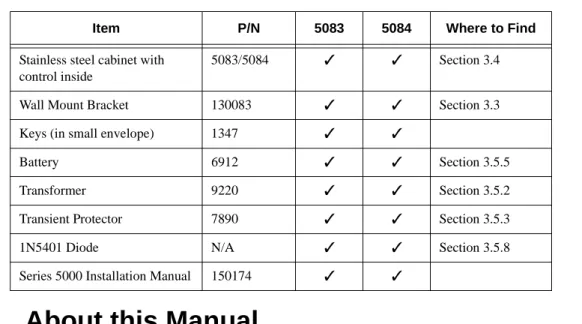
Table 1-1 describes what you will find when you open the box of the 5083/5084 Entry System Control Panel.
1.3
About this Manual
This manual explains the installation and operation procedures for the 5000 Series System. Section 2 describes telephone company requirements and other specifications that must be met before installing the system. Section 3 provides installation instructions. The
Programming sequence and operating procedures are described in Section 4. Section 5 describe field test procedures and troubleshooting concerns. Section 6 describes user and visitor operation of the system.
1.3.1
Terminology
In this manual the term “User” refers to any one that will be using the system such as a tenant or resident of the facility using the 5000 series entry system.
Table 1-1: What’s in the Box
Item P/N 5083 5084 Where to Find
Stainless steel cabinet with control inside
5083/5084 Section 3.4
Wall Mount Bracket 130083 Section 3.3 Keys (in small envelope) 1347
Battery 6912 Section 3.5.5 Transformer 9220 Section 3.5.2 Transient Protector 7890 Section 3.5.3 1N5401 Diode N/A Section 3.5.8 Series 5000 Installation Manual 150174
Telephone Requirements
This section contains information about the telephone companies’ installation requirements and should be reviewed prior to system installation.
2.1
Before Connecting The Control Panel
The following information must be provided before connecting this system to the phone lines if it is requested by the telephone company.
Manufacturer Silent Knight Model Number 5083 & 5084
FCC Registration AC6USA-27622-MT-T Ringer Equivalence 0.4B AC and 0.3 DC Type of jack RJ11X
This device may not be directly connected to coin telephone or party line service.
Under certain circumstances the telephone company may temporarily discontinue service and/ or make changes in its facilities and services that may affect the operation of this device. However, the telephone company is required to give adequate notice in writing of such changes or interruptions.
**Important Notice**
Due to wide variations in telephone company exchange switching equipment, Silent Knight can no longer guarantee that the 5000 Series Apartment Entry System will function properly when used to decode the digit “6” from rotary (dial type) telephones. For those exchanges where rotary phones will not work, each apartment must have a Touch-Tone® telephone.
2.2
INDUSTRY CANADA WARNINGS
NOTICE:The Industry Canada Label identifies certified equipment. This certification means that the equipment meets telecommunications network protective, operational and safety requirements as prescribed in the appropriate Terminal Equipment Technical Requirements document(s). The Department does not guarantee the equipment will operate to the user’s satisfaction. Before installing this equipment, users should ensure that it is permissible to be connected to the facilities of the local telecommunications company. The equipment must also be installed using an acceptable method of connection. The customer should be aware that compliance with the above conditions may not prevent degradation of service in some situations. Repairs to certified equipment should be coordinated by a representative designated by the supplier. Any repairs or alterations made by the user to this equipment, or equipment malfunctions, may give the telecommunications company cause to request the user to disconnect the equipment.
Users should ensure for their own protection that the electrical ground connections of the power utility, telephone lines and internal metallic water pipe system, if present, are connected together. This precaution may be particularly important in rural areas.
Caution: Users should not attempt to make such connections themselves, but should contact
the appropriate electric inspection authority, or electrician, as appropriate.
NOTICE: The Ringer Equivalence Number (REN) assigned to each terminal device provides
an indication of the maximum number of terminals allowed to be connected to a telephone interface. The termination on an interface may consist of any combination of devices subject only to the requirement that the sum of the Ringer Equivalence Number of all the devices does not exceed 5.
2.2.1
AVIS D’INDUSTRIE CANADA
AVIS:
L’étiquette d’Industrie Canada identifie le matériel homologué. Cette étiquette certifie que le matériel est conforme aux normes de protection, d’exploitation et de sécurité des réseaux de télécommunications, comme le prescrivent les documents concernant les exigences
techniques relatives au matériel terminal. Le Ministère n’assure toutefois pas que le matériel fonctionnera à la satisfaction de l’utilisateur.
Avant d’installer ce matériel, l’utilisateur doit s’assurer qu’il est permis de le raccorder aux installations de l’entreprise locale de télécommunication. Le matériel doit également être installé en suivant une méthode acceptée de raccordement. L’abonné ne doit pas oublier qu’il est possible que la comformité aux conditions énoncées ci-dessus n’empêche pas la
dégradation du service dans certaines situations.
Les réparations de matériel homologué doivent être coordonnées par un représentant désigné par le fournisseur. L’entreprise de télécommunicationspeut demander à l’utilisateur de
débrancher un appareil à la suite de réparations ou de modifications effectuées par l’utilisateur ou à cause de mauvais fonctionnement.
Pour sa propre protection, l’utilisateur doit s’assurer que tous les fils de mise à la terre de la source d’énergie électrique, des lignes téléphoniques et des canalisations d’eau métalliques, s’il y en a, sont raccordés ensemble. Cette précaution est particulièrement importante dans les régions rurales. Avertissement: L’utilisateur ne doit pas tenter de faire ces raccordements lui-même; il doit avoir recours à un service d’inspection des installations électriques, ou à un électricien, selon le cas.
AVIS:
L’indice d’équivalence de la sonnerie (IES) assigné à chaque dispositif terminal indique le nombre maximal de terminaux qui peuvent être raccordés à une interface. La terminaison d’une interface téléphonique peut consister en une combinaison de quelques dispositifs, à la seule condition quela somme d’indices d’équivalence de la sonnerie de tous les dispositifs n’excède pas 5.
Installation Instructions
This section describes the different parts of the 5000 Series Entry System circuit board.
3.1
Model 5083/84 Parts
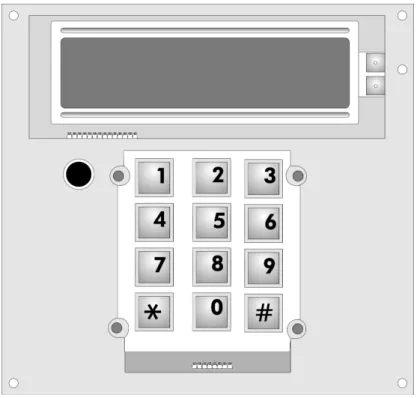
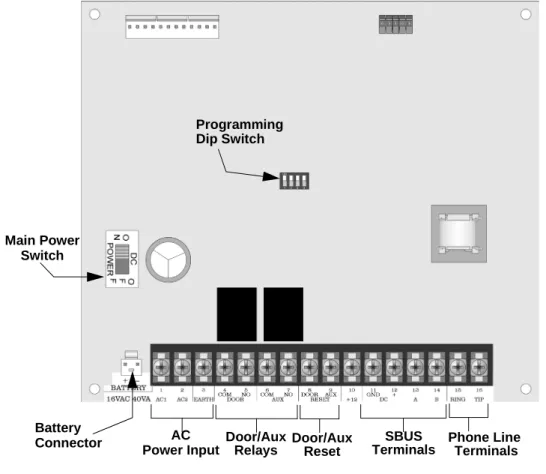
Figure 3-1 and Figure 3-2 show the printed circuit boards of the 5083 and 5084 main module. These printed circuit boards contain the switches, LCD, keypad and terminals required to run the main control system.
3.1.1
Keypad and LCD
The LCD is used for prompting the user and reflecting the numbers pressed on the keypad. When the user sees that the correct data is displayed, pushing the key will enter the data into memory.
3.1.2
Main Control Board
The main control board contains the circuitry for charging the standby battery, dialing and controlling a maximum of four Remote Satellite Units (5083/5084).
Figure 3-2 050800(Hands Free) and 050849 (Handset) Board Assembly
3.1.3
Main Control Board Components Description
This section describes the components on the main control board as shown in Figure 3-2.
3.1.3.1 Main Power Switch
The main power switch, in the On position applies power to the main control panel. In the Off position power is removed from the main control panel and all system options and user information is stored in Flash memory.
3.1.3.2 Programming Dip Switch
The programming dip switch is used to configure the unit as a master unit or as a satellite unit. Each satellite unit requires a unique unit ID number. See also Section 3.5.7.3.
3.1.3.3 Battery Connector
Battery Connector AC Power Input Main Power Switch Programming Dip Switch SBUS Terminals Door/Aux Relays Door/Aux Reset Phone Line Terminals3.1.3.4 AC Power Input Terminals
The AC power input terminal are used to connect the AC transformer to the control panel. See Section 3.5.2 for AC transformer wiring instructions.
3.1.3.5 Door and Auxiliary Relay Terminals
The door and auxiliary relay terminal can be used to connect a AC or DC door strike which is control by the control panel. The maximum allowable draw from a doorstrike is 250 VAC @ 1A.
3.1.3.6 The Door and Auxiliary Reset Terminals
The Door and Auxiliary Reset Terminals are used to connect a door reset switch to the control panel. See Section 3.5.10 for more information.
3.1.3.7 SBUS Terminals
The SBUS terminals are used to connect satellite units to the master control unit in a system. See Section 3.5.7 for more information.
3.1.3.8 Phone line Terminals
The phone line terminals are used to connect the system phone line to the control panel. See Section 3.5.11 for more information.
3.1.4
Board Components Description
3.2
Mounting Instructions
This section contains information necessary to properly mount the 5083, and 5084 panels. • Avoid installing the 5083 and 5084 in a high noise environment such as a noisy lobby or
outside where there is a large amount of traffic or airplane noise.
• Do Not mount the 5000 series units in locations subject to high temperatures, such as over a lobby heater.
• Be sure to seal any openings into the entry system back box that connect to the interior walls. This is to prevent water damage that could occur if warm moist air entered the back box and condensed on the board surfaces.
• The operating temperature range must be between 0° C and +50 ° C (32 ° F and +120° F) or humidity outside the range of 10%-85% at 86° F (30° C) non-condensing. With the addition of the model 5076 Heater Kit, the operating temperature range can be extended to between -28 ° C and +50° C (-20° F and +120° F). (See Section 3.6.1.)
Note: The 5000 Entry System is designed for use in a sheltered outdoor environment and the system circuitry will operate normally in the temperature ranges listed.
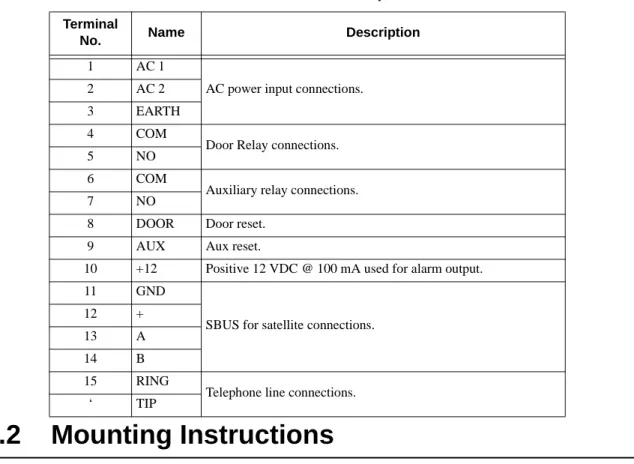
Table 3-1: Terminal Descriptions
Terminal
No. Name Description
1 AC 1
AC power input connections. 2 AC 2
3 EARTH 4 COM
Door Relay connections. 5 NO
6 COM
Auxiliary relay connections. 7 NO
8 DOOR Door reset. 9 AUX Aux reset.
10 +12 Positive 12 VDC @ 100 mA used for alarm output. 11 GND
SBUS for satellite connections. 12 +
13 A 14 B 15 RING
Telephone line connections. ‘ TIP
3.3
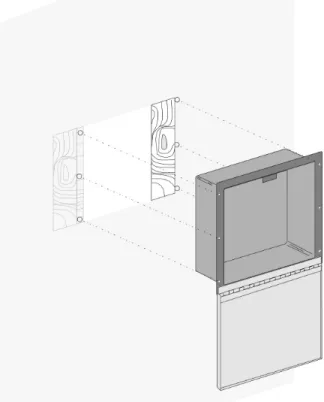
Flush Mount
Note: In order to flush mount the unit, the wall must be at least 3-1/2 inches thick.
1. Make a hole in the wall near a stud at the desired location. This hole should be 11-1/4 inches wide and 11 inches high.
2. If the studs are farther apart than the width required, attach some shims to the stud inside the wall so that the shims and the first stud are the right width.
3. Screw the back box to the stud on one side and the shims on the other. Three holes are pro-vided in each side flange of the back box (see Figure 3-3).
3.4
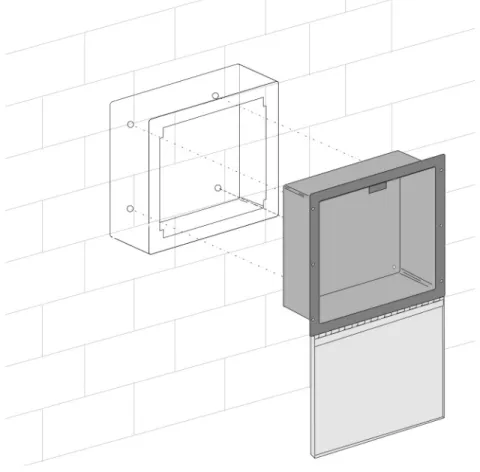
Surface Mount
1. Make a cardboard template to locate the hole positions. When mounting on interior walls, use appropriate screws and anchors in plaster. When mounting on concrete, especially where moisture is present, attach a piece of 3/4 inch plywood to the concrete surface. 2. Slide the unit into the wall adapter.
3. Mount to the wall through the 4 holes in the back of the box (see Figure 3-4).
3.5
Wiring Instructions
The following section contains information necessary to properly wire the Model 5000 Entry System.
3.5.1
Power Requirements
The 5083 and 5084 main units are powered from a UL listed Class II, 16.5 VAC 40 VA transformer that plugs directly into a 120 VAC 60Hz wall outlet. The transformer provides power for the 5083 and 5084 main units and charging current for the 12 VDC backup battery. In the event of a power outage, the 12 VDC, 1.2 AH battery (shipped with the unit) will provide enough current to run the system for a minimum of 2 hours. The actual time will depend on how much the system is used. All programmed data will be stored in Flash memory if AC power is lost and the backup battery becomes depleted.
3.5.2
Installing the AC Transformer
Wire the transformer (Model 9220) to terminals 1 and 2 on the 5083 and 5084 printed circuit board. Use 16-gauge or larger (14, 12, etc.) shielded wire. Ground the shield to terminal #3 on the 5083 or 5084 and to the center screw terminal on the transformer as shown in Figure 3-5. Also verify that the outlet is a non-switching circuit.
3.5.3
Transient Protection For 5083/5084 Panels
The AC lines are the most common source of transient or lighting damage in electronics. The transient protection on the 5083 and 5084 control panel will only work if the panel is correctly earth grounded.
Warning: To avoid risk of electrical shock, you may wish to have a licensed electrician ground the electrical outlet.
3.5.4
How to Verify Earth Ground
To verify earth ground at the AC outlet the 5083/5084 control panel is powered from, use the following steps:
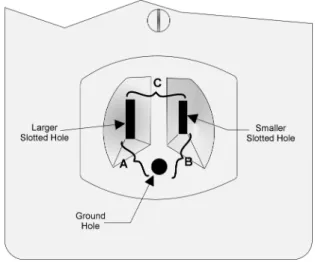
1. Measure the AC voltage between the center ground post and each side of the outlet (see A & B in Figure 3-6). You should read approximately 120 VAC at measurement point B and nominal VAC at measurement point A.
Figure 3-6 Outlet Voltage Measurement Points
2. Measure the voltage between the two slotted holes. It should be equal to the voltage read-ing at measurement point B. (See Figure 3-6.)
If these voltages are not equal, the outlet does not have a proper earth ground. 3. Ground the outlet by running a wire (18 gauge or higher) to a good earth ground.
The wire should be of equal or greater diameter to the wires used to feed the outlet. It may be necessary to have a licensed electrician ground the outlet.
3.5.5
Battery Connections
The transformer provides power for the 5083 and 5084 main units and charging current for the 12 VDC backup battery. In the event of a power outage, the 12 VDC, 1.2 AH battery (shipped with the unit) will provide enough current to run the system for a minimum of 2 hours. The actual time will depend on how much the system is used. All programmed data will be stored in Flash memory if AC power is lost and the backup battery becomes depleted.
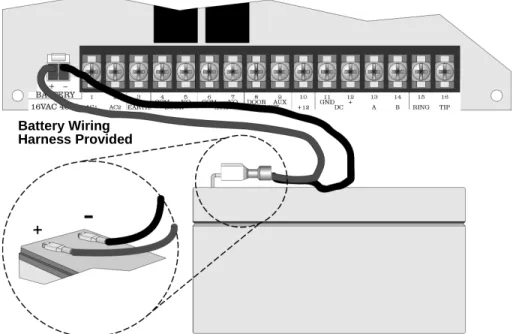
To connect the backup battery (Model 6912).
1. Connect the black battery cable to the minus (-) terminal of the battery. (See Figure 3-7 for battery cable location.)
2. Connect the red battery cable to the positive (+) terminal of the battery.
Figure 3-7 Backup Battery Connection
Battery Wiring Harness Provided
3.5.6
SBUS Wiring
This section contains information on calculating SBUS wire distances and the types of wiring configurations.
3.5.6.1 Calculating Wiring distance for SBUS modules
The following instructions will guide you in determining the type of wire and the maximum wiring distance that can be used with control panel SBUS accessory modules.
To calculate the wire gauge that must be used to connect SBUS modules to the control panel, it is necessary to calculate the total worst case current draw for all modules on a single 4-conductor bus. The total worst case current draw is calculated by adding the individual worst case currents for each module. The individual worst case values are shown in the table below.
Note: Total worst case current draw on a single SBUS cannot exceed 1 amp.
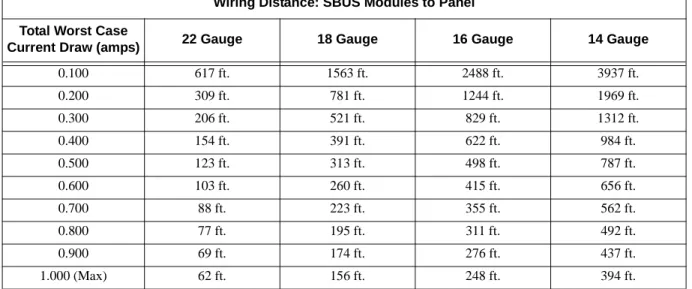
After calculating the total worst case current draw, Table 3-2 specifies the maximum distance the modules can be located from the panel on a single wire run. The table insures 2.0 volts of line drop maximum. In general, the wire length is limited by resistance, but for heavier wire gauges, capacitance is the limiting factor.
Model Number Worst Case Current Draw
5083 .200 amps 5084 .200 amps
(The formula used to generate this chart is shown in the note below).
Note: The following formulas were used to generate the wire distance chart:
Table 3-2: Wire Distances Per Wire Gauge
Wiring Distance: SBUS Modules to Panel
Total Worst Case
Current Draw (amps) 22 Gauge 18 Gauge 16 Gauge 14 Gauge
0.100 617 ft. 1563 ft. 2488 ft. 3937 ft. 0.200 309 ft. 781 ft. 1244 ft. 1969 ft. 0.300 206 ft. 521 ft. 829 ft. 1312 ft. 0.400 154 ft. 391 ft. 622 ft. 984 ft. 0.500 123 ft. 313 ft. 498 ft. 787 ft. 0.600 103 ft. 260 ft. 415 ft. 656 ft. 0.700 88 ft. 223 ft. 355 ft. 562 ft. 0.800 77 ft. 195 ft. 311 ft. 492 ft. 0.900 69 ft. 174 ft. 276 ft. 437 ft. 1.000 (Max) 62 ft. 156 ft. 248 ft. 394 ft.
Maximum Resistance (Ohms) = 2.0 Volts
Total Worst Case Current Draw (amps)
Maximum Wire Length (Feet) = (6000 feet maximum)
Maximum Resistance (Ohms)
* 500 Rpu
where: Rpu = Ohms per 1000 feet for various Wire Gauges (see table below)
Table 3-3: Typical Wire Resistance Per 1000 ft.
Wire Gauge Ohms per 1000 feet (Rpu)
22 16.2
18 6.4
16 4.02
Wiring Distance calculation example:
Suppose a system is configured as follows: 1 - 5083 as the Master unit.
2 - 5083 satellite units
The total worst case current is calculated as follows:
Using this value, and referring to the Wiring Distance table, it can be found that the available options are:
154 feet maximum using 22 Gauge wire 391 feet maximum using 18 Gauge wire 622 feet maximum using 16 Gauge wire 984 feet maximum using 14 Gauge wire
Two 5083 satellite units = 2 x .200 amps = .400 amps
3.5.7
Wiring and Configuring Master and Satellite Units
This Section describes how to properly wire and configure satellite units to the master unit in an installation.
In installations where users have access to more than one entry point a satellite units can be installed. Each 5083 or 5084 can be configured as a master or a satellite unit (see Section 3.5.7.3). Only one unit in the system can be the master unit.
3.5.7.1 Wiring a Satellite to the Master unit
Connect a satellite to the master unit as shown in Figure 3-8.
Figure 3-8 Connecting a Satellite to the Master Unit
Note: Satellite units Do Not require a separate transformer. Satellite power is provided by terminals 11 & 12 of the master unit. Do Not connect backup batteries to the satellite unites.
3.5.7.2 Connecting Multiple Satellites to the Master Unit
In installations requiring more than one satellite unit in the system, connect multiple satellites as shown in Figure 3-9.
Figure 3-9 Multiple Satellites Connected to Master Unit
Note: Phone lines must be run to each satellite unit. The phone lines can be run in parallel from the master unit. Master Unit
Satellite 1
Satellite 2
Satellite 3
3.5.7.3 Configuring Master and Satellite Unit IDs
For the system to communicate properly between the master unit and the satellite units, the master unit must be be identified and each satellite unit must have its own ID number. Refer to Table 3-4 to properly configure the dip switches on each unit in your installation.
Table 3-4: Dip Switch Configurations
Unit Name
Dip Switch Number
1 2 3 4
Master ON ON For Handsfree Any Position
Any Position OFF For Handset
Satellite 1 OFF ON For Handsfree ON ON OFF For Handset
Satellite 2 OFF ON For Handsfree ON OFF OFF For Handset
Satellite 3 OFF ON For Handsfree OFF ON OFF For Handset
Satellite 4 OFF ON For Handsfree OFF OFF OFF For Handset
3.5.8
Installing DC Doorstrike
1. Install the electric doorstrike in the door frame according to the manufacturer’s specifica-tions.
Figure 3-10 DC Doorstrike Wiring Diagram
2. For a DC power doorstrike place a jumper wire between terminals 5 and 12 (see Figure 3-10).
3. Connect the doorstrike to terminals 4 and 11 (see Figure 3-10).
Note: Only ONE doorstrike per system can be installed this way. Any additional doorstrikes must be AC-driven or powered by a separate power supply.
4. Install a reverse bias diode (1N5401 supplied with the 5083 and 5084 panels) across the DC doorstrike coil to suppress arcing and electrical noise. (See Figure 3-10.)
Caution: The maximum allowable current to operate a DC doorstrike is 1A. Damage to the power supply and to the battery charging circuit will occur if this is exceeded.
3.5.9
Installing an AC Doorstrike
1. Install the electric doorstrike in the door frame according to the manufacturer’s specifica-tions.
Figure 3-11 AC Doorstrike Wiring Diagram
2. Wire a transformer (24 VAC maximum) in series with the door strike opener, to terminals 4 and 5. (See Figure 3-11.)
Note: Do Not use the transformer that powers the 5083 or 5084 control panel. All AC doorstrikes must be pow-ered by a separate AC transformer. The maximum voltage rating of the door strikes contacts is 250VAC @ 1A. Do Not install a reverse bias diode across the coil.
3.5.10 Doorstrike Reset Switch
In installation sites requiring a magnetic contact to re-lock a door prior to the expiration of the programmed time (“DOOR TIME”—see section 4.2.1 step 22) use the following steps. 1. Wire the contact to terminals 8 and 11. (See Figure 3-10 or Figure 3-11.)
3.5.11 Installing Phone Lines
The 5000 Series Entry System requires a RJ11X or RJ11W telephone jack to be installed by the phone company. Wire the phone lines to 5083 or 5084 control panel terminals 15 and 16. (See Figure 3-12.)
Figure 3-12 Telephone Wiring Diagram
3.5.11.1 Using Ground Start
If the phone system at the installation site is a ground start system, the auxiliary relay must be programmed for Ground Start (See 4.2.1 step 28 for instruction on Auxiliary relay
programming). See Figure 3-13.
3.5.12 Installing a Mail Carrier Lock panel.
Note: The “mail carrier lock” is optional and is supplied by the Post Office.
1. Remove the Mail Carrier Lock hole plug. (See Figure 3-14.)
Figure 3-14 Mail Carrier Lock Hole Plug Location
2. Install the lock on the 4 posts on the inside of the door. Use the the #8-32 nuts and lock washers (both supplied) to secure the mail carrier lock (see Figure 3-15).
Figure 3-15 Inside view of 5083/5084 Control Panel
Mail Carrier Lock Hole Plug
3. Remove the red cap from the mail carrier lock button. (See Figure 3-15 for red cap loca-tion.)
4. Adjust the push-button switch so that the button is completely out when the mail carrier key is turned in the lock.
Note: If the mail carrier lock is not used, do not remove the red cap from the mail carrier button.
3.5.13 Installing a Sonalert/Piezo to the Alarm Output
In installation sites requiring an alarm output when the door access codes are tampered with, a sonalert/piezo (12 VDC, 100 mA maximum) can be installed.
Follow these instructions to install a sonalert to the control panel. 1. Connect a sonalert across terminals 7 and 10. (See Figure 3-16.)
Figure 3-16 Sonalert/Piezo to 5083/5084 Control Panel Wiring Diagram
2. Connect a jumper wire across terminals 6 and 11. (See Figure 3-16.)
3. Set the auxiliary relay to the “ALARM” selection in “System Options” in programming. (See Section 4.2.1 step 28.)
Note: 5083 and 5084 installations using a secondary touch-tone relay or a ground start telephone system CAN-NOT use the alarm output.
3.6
Model 5076 Heater Kit
The Model 5076 Heater Kit can be used with the Model 5083/5084 Control Panel. It is designed to maintain the temperature inside the cabinet above 32 ° F when the outside
temperature is -20° F. The heater uses a self-regulating positive temperature coefficient (PTC) material for the heating element.
The heater is powered by a 16.5 VAC, 50VA Class II transformer. The heater bracket is electrically insulated from the heater element.
3.6.1
To Install the 5076 Heater
1. Remove the four #6 nuts that retain the keypad circuit board. (See Figure 3-17.)
Figure 3-17 Keypad Circuit Board Retaining Nuts
2. Replace them with the threaded stand-offs.
3. Mount the 5076 on the threaded stand-offs with the #6 nuts and lock-washer provided. (See Figure 3-18.)
4. Connect the 16.5 VAC Class II transformer to the two terminals on the 5076 Heater. (See Figure 3-18.)
Operation Modes
Operating modes are used to program tenant and time information and to select system operating features such as telephone, etc. Table 4-1 shows the seven different operating modes and a description of each. (See 4.2 for more information about operation modes.)
Table 4-1: Operation Modes and Descriptions
Operation
Mode Description Comments
0
Programs “System Options”.
The following information can be programmed in the “System Options”: Rotary dialing (yes/no), USA rotary (yes/no), Speaker on (yes/no), Ground start (yes/no), * before 6 (yes/no), PBX number, apartment number length, Call length, Door time, Speaker Volume, Hide Codes (yes/No), Aux Time, and System Message.
System Messages select the message displayed to visitors and tenants at the entry system. Choose either ENTER APT#, ENTER SUITE #, or ENTER UNIT #, ENTER CODE #.
These operating modes are used to program the system.
1
User Options. This mode is used to add, edit and remove a user from the
system. Each user has the following data fields which may be programmed in this mode; user number, user code, phone number, dial PBX, door enabled, aux enabled.
2 Time Set. Used to set the real time clock and the auxiliary enable/disable times.
3 Open Door Relay. Activates the door relay.
Theses operating modes are system features and do not perform any system programming. 4 Activate Auxiliary Relay. Used to activate auxiliary door relays at any time.
5 Telephone. Make the 5083 0r 5084 a normal telephone so it can be used to make a phone call outside the complex system.
6 CLR Memory? Deletes all programmed system and user information. This operation mode resets the system to factory defaults.
4.1
Entering, Changing Options and Exiting
Operating Modes
This section contains information that will help you enter, exit and change different selections in the various operating modes.
4.1.1
To enter an operating mode:
1. Press * followed by the operating mode number (0 through 6). See Table 4-1 for choices. The display will show ACCESS #.
2. Enter the 6-digit access code. (Factory default is 123456.) 3. Press *.
4.1.1.1 If The Access Code Is Not Known:
1. Turn the power switch to the “off” position.
2. Press and hold the 0 key on the keypad while turning the power switch back to the “on” position. The system will power up in the programming mode. The display will show
ACCESS # 123456 (see section 4.1.1).
4.1.2
To Change a Selection.
1. Press # to clear display. 2. Enter new data.
If the programming field your in has pre-selected choices, press any number key (0-9) to toggle through the selections.
3. When the display shows the choice you want, Press *.
4.1.3
To Skip a Selection.
To skip a step without changing the selection of the option: Press *.
4.2
Operating Modes
This section gives step-by-step instructions for each mode. It is recommended that you read through Section 4.1 and the Operating Mode steps once to become familiar with the
procedure. After you are familiar with the procedure you may find the Quick Chart easier to use. (See Section 4.3.)
4.2.1
Operation Mode 0:
System Options
In Operation Mode 0 system options can be programmed. System options are; access code, rotary dialing, usa rotary, speaker on/off, hide codes, * before 6, PBX access #, user number length, call length, door time, aux time, system message, CIC #, aux relay enable/disable and aux time window enable/disable.
To enter Operation Mode 0: 1. Press * then 0.
The display will show ACCESS #.
2. Enter the 6-digit access code. (Factory default is 123456.) The display will show SYSTEM OPTIONS
3. Press *.
4. The display will show ACCESS CODE
XXXXXX. (X = a number from 0-9.) 5. Enter new 6-digit access code then *.
If you don’t wish to change the access code just press *. 6. Display shows ROTARY DIALING ?
YES or NO.
YES = rotary dialing NO = TouchTone dialing 7. Press any key other than * or # to toggle between yes or no. 8. Press *. The display shows USA ROTARY ?
YES or NO.
YES = USA rotary standards NO = EURO rotary standards 9. Press any key other than * or # to toggle between yes or no. 10. Press *. The display shows SPEAKER ON ?
11. Press any key other than * or # to toggle between yes or no. 12. Press *. The display shows HIDE CODES ?
YES or NO.
YES = Hide access & keyless entry codes while entering them NO = Show access code & keyless entry code while entering them 13. Press any key other than * or # to toggle between yes or no. 14. Press *. The display shows * BEFORE 6
YES or NO
YES = visitor must press * before tenant can open door by pressing 6. NO = tenant just needs to press 6.
This feature is used to prevent unauthorized entry using a TouchTone beeper to activate doorstrike.
15. Press any key other than * or # to toggle between yes or no. 16. Press *. The display will show PBX ACCESS #
XX. X = a number from 0-9.
17. Enter the number (up-to two digits) necessary to access a PBX system. This may be necessary for phone lines that are run through a PBX system. 18. Press *. The display shows USER # LENGTH
X.
X = a number from 1-8 which is the number of digits to be used on the user directory. 19. Enter 1, 2, 3, or 4 depending on the number of digits to be used on the user directory. 20. Press *. The display shows CALL LENGTH
1-255.
This is how much time is allowed between the time the system is finished dialing and the time it automatically hangs-up, 1-255 seconds.
21. Enter the Call Length time.
22. Press *. The display shows DOOR TIME
1-255.
This selects the length of time (1-255 seconds) the door relay will be activated for entry. 23. Enter the Door Time.
24. Press *. The display shows AUX TIME
26. Press *. The display shows SYSTEM MESSAGES
ENTER APT #
This selects the display message that the user will see during normal operation.
27. Press any number to toggle through the display message choices. (See Table 4-2 for list of choices.)
28. Press *. The display shows AUX RELAY DISABLED
If enabled the aux relay is operational as a secondary tone or rotary controlled relay. If Alarm is selected the auxiliary will be used as an alarm output. If ground start is selected the auxiliary relay will be used for phone systems that use ground start phone operations. If disable the auxiliary relay will not operate. If ring detect is selected the control panel will activate a sounding device connected to the auxiliary relay, that will notify an
attendant that there is an incoming call to the control panel (see Section 6.5 for operation). 29. Press any number to toggle the display between ENABLE, ALARM, GROUND START,
RING DETECT or DISABLE.
30. Press *. The display shows AUX TIME WINDOW
ENABLED
This option enables or disables the programmed auxiliary time window which is
programmed in operating mode 2 “Time Set”. If Aux Time Window is enabled and Aux
Relay is enabled, then the aux relay will only be enabled during the programmed time
window. If Aux Time Window is disabled and Aux Relay enabled, then the auxiliary can be used anytime (see Section 6.3 for Auxiliary Door Access Operation). If Aux Relay is disabled, then Aux Time Window will not function. If the continuous option is chosen then the auxiliary relay will be energized for the entire aux time window.
31. Press any number to toggle the display between ENABLE, DISABLE and CONTINUOUS.
32. Press *. The display shows SPEAKER VOLUME
The speaker volume can be set to low, medium, or high. 33. Press any number to toggle to the desired choice. 34. Press *. The display shows ANSWER RINGS
Enter the number of rings before the entry system will automatically pick up to communicate with the up/down loading computer. Range from 0 to 15.
Note: If 0 is selected for Answer Rings the control panel will never begin communication with up/down loading software.
4.2.2
Operation Mode 1
User Information
Operation Mode 1 is used to program the User Information. Operation Mode 1 can be used to add, edit or delete user information.
To program user information:
1. Press * then 1. The display showsACCESS #
2. Enter the 6-digit access code. (Factory default is 123456.) The display shows USER OPTIONS
USER #
At this point you can choose to Add Edit or Delete a user. To Add a user, refer to Section 4.2.2.1. To Edit a user, refer to Section 4.2.2.2. To Delete a user refer to Section 4.2.2.3.
4.2.2.1 Add User Information
To add a user:
1. Do steps 1 through 2 of Section 4.2.2.
2. Enter the new user number. This the number that appears next to the user’s name on the directory. The user number can be 1 to 8 digits in length and is set in system options (see section 4.2.1 step 18 for step-by-step instructions for User # Length).
3. Press *. The display shows USER PHONE
4. Enter the users phone number. Up to 20 digits in length. 5. Press *. The display will show USER CODE
111111 (111111 is the default user code)
The user code is the code the user will enter into the system to gain keyless entry. The user must press # and then their user code to gain keyless entry.
6. Enter the user code number. The user code must be 4 to 6 digits in length. 7. Press *. The display shows DIAL PBX
YES or NO
If the system needs to dial the programmed PBX access number (see 4.2.1 for information about PBX access number) before dialing this users phone number then set this option to YES.
9. Press *. The display shows DOOR ACCESS
YES or NO
This feature allows the user a keyless enter option. If programmed “yes” the tenant can enter # followed by their user code to gain keyless entry to the building. If programed “no” the tenant must use a key to enter building.
10. Press any key to toggle between Yes or No. 11. Press *. The display shows AUX ACCESS
YES or NO
This feature allows the user to active the auxiliary relay by pressing 9 when a visitor calls. 12. Press *.
4.2.2.2 Edit User Information
To change a users information:
1. Do steps 1 through 2 of Section 4.2.2.
2. Enter the number of the user you wish to edit. 3. Press *. The display shows USER PHONE
4. Enter the users phone number. Up to 20 digits in length. 5. Press *. The display will show USER CODE
111111 (the default user code is blank)
The user code is the code the user will enter into the system to gain keyless entry. The user must press # and then their user code to gain keyless entry.
6. Enter the user code number. The user code must be 4 to 6 digits in length. 7. Press *. The display shows DIAL PBX
YES or NO
If the system needs to dial the programmed PBX access number (see 4.2.1 for information about PBX access number) before dialing this users phone number then set this option to YES.
8. Press any key to toggle between Yes or No. 9. Press *. The display shows DOOR ACCESS
YES or NO
This feature allows the user a keyless enter option. If programmed “yes” the tenant can enter # followed by their user code to gain keyless entry to the building. If programed “no” the tenant must use a key to enter building.
11. Press *. The display shows AUX ACCESS
YES or NO
This feature allows the user to active the auxiliary relay by pressing 3 when a visitor calls. 12. Press *.
4.2.2.3 Delete User Information
To delete a user from the system:
1. Do steps 1 through 2 of Section 4.2.2.
2. Enter the number of the user you wish to delete. 3. Press # to clear the user number.
4. Press *. 5. Press ## to exit
4.2.3
Operating Mode 2
Time Set
Operating Mode 2 is used to set the real-time clock and the auxiliary relay enable/disable
times.
To set the real-time clock and auxiliary enable/disable times: 1. Press * then 2. The display will showACCESS #.
2. Enter the 6-digit access code. (Factory default is 123456.) The display shows TIME SET
3. Press *. The display shows SET SYSTEM TIME
XX:XX
X = a time based on a 24 hour clock (military time).
4. Enter the correct time in military time. Example 1:00 pm in military time = 13:00. 5. Press *. The display shows 12 hour time ?
YES or NO
This feature selects whether the time will be displayed in a 12 -hour (with am & pm) or 24-hour (military) format. Yes = 12-hour display. No = 24-hour display.
8. Enter the time you wish to enable the auxiliary door relay. 9. Press *. The display shows AUXDISABLE TIME
XX:XX.
X = a number from 0-9. Enter time based on a 24 hour clock (military time). This feature sets the ending time of the auxiliary relay time window.
10. Enter the time you wish to disable the auxiliary door relay. 11. Press *.
4.2.4
Operating Mode 3
Activate Door Relay
Operating Mode 3 activates door relay for the time set in Door Time of the system options (see 4.2.1 step 22 for step-by-step instructions on how to set Door Time).
To activate door relay use the following procedure: 1. Press * then 3. The display will showACCESS #
2. Enter the 6-digit access code. (Factory default is 123456.) The display shows DOOR IS OPEN. The door relay stays active for the “door time”.
4.2.5
Operating Mode 4
Activate Auxiliary Relay
Operating Mode 4 activates the auxiliary relay when Aux Relay is programmed as Enabled (see also Section 4.2.1 step 28 for Aux relay programming).
To activate the auxiliary relay:
1. Press * then 4. The display will showACCESS #
2. Enter the 6-digit access code. (Factory default is 123456.) The display shows DOOR IS OPEN. The auxiliary door remains open for “door time”.
4.2.6
Operating Mode 5
Telephone
Operating Mode 5 is used to make the 5083 or 5084 control panel act as a normal phone. To use the control panel as a normal phone:
1. Press * then 5. The display will showACCESS #.
2. Enter the 6-digit access code. (Factory default is 123456.) 3. Enter the phone number you wish to call.
4. Press *.
5. Press # to hang-up. 6. Press # again to exit.
4.2.7
Operating Mode 6
Memory Clear
Operating Mode 6 deletes all user information and resets the system options back to factory defaults.
To clear the control panel memory: 1. Press * then 6.
The display will show ACCESS #.
2. Enter the 6-digit access code. (Factory default is 123456.) The display shows CLR MEMORY? NO
XX:XX (current time) 3. Press any key to toggle between Yes or No.
When the display shows CLR MEMORY? YES 4. Press *
4.3
Quick Chart
The Quick chart is to be used once your have become familiar with the programming procedures discussed in Sections 4.1 and 4.2.
Table 4-2: Quick Chart
Operating Mode
Display Shows/
Feature Choices Default Comments
0
ACCESS CODE
Enter a six digit number to access any operation mode.
123456 See Section 4.2.1 step 4 for step-by-step instructions.)
ROTARY DIALING ?
YES or NO NO Yes = Rotary dialing. No = TouchTone dialing.
(See Section 4.2.1 step 6 for step-by-step instructions.)
USA ROTARY ?
YES or NO YES Yes = USA rotary dialing standards. No = EURO rotary dialing standards. (See Section 4.2.1 step 8 for step-by-step instructions.)
SPEAKER ON ?
YES or NO NO Yes = Speaker will remain “on” while dialing. No = Speaker will be “off” while dialing (See Section 4.2.1 step 10 for step-by-step instructions.)
HIDE CODES ?
YES or NO NO Yes = Hide Access and Keyless Entry codes at the display when entering them.
No = Don’t hide Access and Keyless Entry codes at the display when entering them.
(See Section 4.2.1 step 12 for step-by-step instructions.)
* BEFORE 6
YES or NO NO Yes = * must be dialed before 6 to gain access No = * not necessary.
(See Section 4.2.1 step 14 for more information).
PBX ACCESS #
Enter the one or two digit number needed to access the PBX system.
Blank The system will dial the number programmed for PBX access before the phone number is dialed. (See Section 4.2.1 step 16 for step-by-step instructions.)
USER # LENGTH
Enter any digit from 1 to 8.
4 Specify the number of digits to be used in the apartment directory.
(See Section 4.2.1 step 18 for step-by-step instructions.)
CALL LENGTH
1-255 Seconds 255 seconds
How much time is allowed between the time the system is finished dialing and the time it automatically hang up.
(See Section 4.2.1 step 20 for step-by-step instructions.)
DOOR TIME
1-255 Seconds 5 seconds The length of time the door relay will be activated for visitor entry.
(See Section 4.2.1 step 22 for step-by-step instructions.)
AUX TIME
1-255 seconds 5 seconds The length of time the auxiliary relay will be activated for entry.
0 (Cont.) SYSTEM MESSAGE ENTER APT # ENTER SUITE # ENTER UNIT # ENTER CODE # ENTER APT #
Change the display message to accommodate the installation site. (See 4.2.1 step 26 for step-by-step instructions.)
AUX RELAY
Enabled, Alarm, Ground Start or Disabled
Disabled If enabled the aux relay is operational. If Alarm is selected the auxiliary will be used as an alarm output. If ground start is selected the auxiliary relay will be used for phone systems that use ground start phone operations. If disable the auxiliary relay will not operate. (See 4.2.1 step 28 for step-by-step instructions.)
AUX TIME WINDOW
Enabled, Disabled, or Continuous
Disabled If this feature is enabled the system will make the auxiliary relay operable during the programmed time window. The time window On/Off times are programmed in the Operating Mode 2 “Time Set”. (See Section 4.2.1 step 30 for step-by-step
instructions.) Continuous means that the relay will be energized for the entire Aux Time Window.
SPEAKER VOLUME LOW MEDIUM HIGH
LOW This feature selects the volume of the system speaker. This allows you to adjust the speaker volume to facilitate the installation environment. ANSWER RINGS
0 - 15 3 This feature set the number of rings before the control panel will answer the phone to begin communication with the up/down loading software.
1 User Options
USER NUMBER Blank Enter the number of the user as listed on user directory. See Section 4.2.2 for step-by-step procedure.
USER PHONE Blank Enter the phone number to the user’s office/ apartment. See Section 4.2.2 for step-by-step procedure.
USER CODE Blank Enter the code the user will use for keyless entry. See Section 4.2.2 for step-by-step procedure.
DIAL PBX No If the user’s phone number requires a PBX access number (see Operating Mode 0) dialed before dialing select Yes. See Section 4.2.2 for step-by-step procedure.
DOOR ACCESS No Yes, enables keyless entry for the user being programmed. No, disables keyless entry for that user. See Section 4.2.2 for step-by-step procedure. AUX ACCESS No Yes, allows the user to energize the aux. relay with a
9 from user phone. 2 Time Set
Sets the real-time clock and auxiliary enable /disable times.
See Section 4.2.3 for step-by-step procedure. 3 Activate Door Relay See Section 4.2.4 for step-by-step procedure. 4 Activate Auxiliary
Relay
Disabled See Section 4.2.5 for step-by-step procedure.
Operating Mode
Display Shows/
Testing and Troubleshooting
This section contains information on how to test and trouble shoot both the 5083 and 5084 Control Panels.
5.1
5083/5084 Field Test
This section describes the procedures to field test a 5083 and 5084 Control Panel.
5.1.1
Test the Doorstrike Operation
To test the doorstrike operation on a 5083 or 5084 control panel: 1. Press #.
2. Enter a valid user access code (programmed in section 4.2.2 step 5.)
Note: Keyless entry will only operate if the Door Access feature has been selected as “yes” in Section 4.2.2 step 9.
The display shows DOOR IS OPEN. Verify the door is open. The door relay will remain active for the “Door Time” (see Section 4.2.1 step 22).
5.1.2
Test the Dialing Operation
This test will require the assistance of a resident caretaker or tenant (referred to as the assistant in the following procedure).
To test the dialing operation:
1. At the message prompt enter the correct user number of the assistant.
2. When the assistant answers, identify yourself. The phone will automatically hang up when the “Call Length” has expired (see Section 4.2.1 step 20). Both the tenant and the visitor will hear a short warning beep 15 seconds before the system hangs up.
3. The assistant will then press or dial 6 on the telephone.
The door strike will remain open for the programmed “Door Time” (see Section 4.2.1 step
**Important Notice**
Due to wide variations in telephone company exchange switching equipment, Silent Knight can no longer guarantee that the 5000 Series Apartment Entry System will function properly when used to decode the digit “6” from rotary (dial type) telephones. For those exchanges where rotary phones will not work, each apartment must have a Touch-Tone® telephone.
5.2
Satellite Field Test
This section describes the procedures to field test Remote Satellite Units.
5.2.1
Test the Doorstrike Operation
To test the doorstrike operation on a satellite control panel: 1. Press #.
2. Enter a valid user access code (programmed in Section 4.2.2 step 5).
Note: Keyless entry will only operate if the Door Access feature has been selected as “yes” in Section 4.2.2 step 9.
The display shows DOOR IS OPEN. Verify the door is open. The door relay will remain active for the “Door Time” (see Section 4.2.1 step 22).
5.2.2
Test the Dialing Operation
This test will require the assistance of a resident caretaker or tenant (referred to as the assistant in the following procedure).
To test the dialing operation:
1. At the message prompt enter the correct user number of the assistant.
2. When the assistant answers, identify yourself. The phone will automatically hang up when the “Call Length” has expired (see Section 4.2.1 step 20). Both the tenant and the visitor will hear a short warning beep 15 seconds before the system hangs up.
3. The assistant will then press or dial 6 on the telephone.
The door strike will remain open for the programmed “Door Time” (see Section 4.2.1 step 22).
5.3
Troubleshooting
This section contains information that will help avoid problems down the road in an installation site as well as standby voltage readings and error messages.
5.3.1
To Avoid Problems
• Telephones without polarity protection will operate the system 50% of the time. The telephone company will correct this problem after you contact them. Any TouchTone phones manufactured before 1975 may be affected.
• Telephone systems using a “concentrator” will not generate a large enough pulse to be decoded when using rotary telephones. If these symptoms occur call the telephone company to verify if a “concentrator” is being used.
• Do not share telephone lines when using the 5000 Entry System.
• Wire runs to satellite units from the master unit should not exceed guide lines described in Section 3.5.6.
Figure 5-1 Block diagram of the 5000 Entry System Hub
• Never connect the remote satellite units while power is supplied to the control panel. If an attempt is made to install a satellite with “hot” wires, the equipment may be damaged. • Only one unit in the system can be used as a Master unit all other units must be
programmed as a satellite unit (see Figure 5-1). Each satellite unit must use a unique SBUS ID. (See Section 3.5.7 for wiring and configuring a master and satellite panels.) • All connections made between the control panel and the remote satellites must be tight.
Any loose connections WILL cause problems. • Any splice points should be soldered not crimped.
• If frequent or lengthy power outages are expected, it may be necessary to add more battery
Master Unit Satellite
Four Satellites Max.
5.3.2
Standby Electrical Voltages
Table 5-1 shows the correct standby voltages for the various terminals on the 5083/5084 Control Panel.
5.3.3
System Messages
This section lists the possible error massages that may be seen at the 5083/5084 Control Panel. (See Table 5-2.)
Table 5-1: 5083/5084 Standby Voltages
Between Terminals Voltage 1 to 2 16.5 VAC 8 to 11 8 - 9 VDC 9 to 11 8 - 9 VDC 10 to 11 12 - 14 VDC 11 to 12 12 - 14 VDC 11 to 13 .8 - .9 VDC 11 to 14 .8 - .9 VDC
Table 5-2: Error Messages and Meanings
System Message Meaning
TRY AGAIN This message will display during programming, if the entered data is out of range, or has too many or to few characters. During user operation this message will appear to indicate that a user is not found.
NO ROOM TO ADD User information memory location is full. System can have up to 1000 users.
NOT AUTHORIZED This message will appear during user operation if the user code or aux relay is not enabled and it is attempted to be used.
SYSTEM TIMEOUT This message indicates the call time length has expired.
INVALID CODE If an incorrect user or access code is entered this message will display.
!!CODE TAMPER!! If four consecutive invalid access or user codes have been entered the alarm relay will energize and this message will be displayed.
User Operation
6.1
Visitor Operation
1. Visitors locate the user number next to the name of the tenant/resident they wish to visit. 2. When “Enter Apt. #” (see Section 4.2.1 step 26 to change display message) is indicated by
the LCD display, they enter the number on the keypad.
The tenant is automatically dialed. After the visitor has spoken with the tenant, the tenant can remotely activate the doorstrike by pressing or dialing a 6 on his or her phone. The tenant may also hang up the 5083/84, before entering 6, by pressing or dialing #.
If the tenant has not pressed a valid key, the user must press # to hang up the phone.
6.2
Tenant Access Operation
The tenant can operate the doorstrike directly from the keypad in the lobby without using a building door key by:
Pushing #, then entering their user access code. The user access code is programmed by the caretaker or installer.
If the code entered is valid the doorstrike will open. the display will show:
DOOR IS OPEN
XX:XX PM (Where XX:XX is the system time.)
If the access code is invalid an INVALID CODE will be displayed. If there are four
consecutive errors the ALARM output will activate for programmed Aux Time to discourage tampering.
**Important Notice**
Due to wide variations in telephone company exchange switching equipment, Silent Knight can no longer guarantee that the 5000 Series Apartment Entry System will function properly when used to decode the digit “6” from rotary (dial type) telephones. For those exchanges where rotary phones will not work, each apartment must have a Touch-Tone® telephone.
6.3
Auxiliary Door Access Operation
The auxiliary door may be programmed to be active during certain hours of the day. It may only be activated during the time that the Aux Time Window. When a visitor calls a tenant, the user can press a 9 to activate the Auxiliary relay. The auxiliary relay may also be activated by entering operation mode 4 (see Section 4.2.5). If the Auxiliary Relay is programmed for “Continuous” then the auxiliary relay will remain active for the entire duration of the Aux Time Window (see Section 4.2.3 step 7 through step 10 to set Aux time window parameters).
6.4
Postal Access Operation
Turning the postal key in the lock will automatically open the door. The mail carrier then has access to the mail boxes inside the building.
6.5
Door Attendant Notification Operation
In installations where a door attendant is stationed at the control panel, a tenant can call the attendant to inform him that they will have a guest arriving and provide the attendant with the visitors name, and the approximate time of arrival. When the tenant wishes to contact the door attendant they dial the phone number to the control panel. When the control panel detects ring voltage the auxiliary relay activates a sounding device (see Section 3.5.13 for installation example of sounding device) to notify the attendant of an incoming phone call. When the sounding device activates the attendant presses the 5 button to answer. The attendant can hang up the phone by pressing the * button.
Programming information record
This section is used to record and store the programmed system options and the user information. Table
7.1
System Options Record
Use the following Table 7-1 to record the programmed System Options.
Table 7-1: System Options Record
Programming Option Your Selection Notes ACCESS CODE ROTARY DIALING ? USA ROTARY ? SPEAKER ON ? HIDE CODES ? * BEFORE 6 PBX ACCESS # USER # LENGTH CALL LENGTH DOOR TIME AUX TIME SYSTEM MESSAGE SPEAKER VOLUME AUX RELAY AUX TIME WINDOW
7.2
User Information Record
Table 7-2 has spaces for ten user’s information, make as many copies of this table as necessary to record all system user information.
Table 7-2: User Information Record
User Name Programmable
Options Selection Notes
USER NUMBER USER PHONE USER CODE DIAL PBX DOOR ACCESS AUX ACCESS USER NUMBER USER PHONE USER CODE DIAL PBX DOOR ACCESS AUX ACCESS USER NUMBER USER PHONE USER CODE DIAL PBX DOOR ACCESS AUX ACCESS USER NUMBER USER PHONE USER CODE DIAL PBX DOOR ACCESS AUX ACCESS USER NUMBER USER PHONE USER CODE DIAL PBX DOOR ACCESS AUX ACCESS USER NUMBER USER PHONE USER CODE DIAL PBX DOOR ACCESS AUX ACCESS
USER NUMBER USER PHONE USER CODE DIAL PBX DOOR ACCESS AUX ACCESS USER NUMBER USER PHONE USER CODE DIAL PBX DOOR ACCESS AUX ACCESS USER NUMBER USER PHONE USER CODE DIAL PBX DOOR ACCESS AUX ACCESS
Table 7-2: User Information Record
User Name Programmable
General Terms and Conditions
• All new fire products manufactured by Silent Knight have a limited warranty period of 18 months from the date of manufacture against defects in materials and workmanship. See limited warranty statement for details.
• This limited warranty does not apply to those products that are damaged due to misuse, abuse, negligence, exposer to adverse environmental conditions, or have been modified in any manner whatsoever.
Repair and RA Procedure
• All products that are returned to Silent Knight for credit or repair require a RA (Return Authorization) number. Call Silent Knight Customer Service at 800-446-6444 or 763-493-6435 between 8:00 A.M. and 4:45 P.M. CST, Monday through Friday to obtain a return authorization number. Silent Knight Technical Support is available at 800-328-0103 between 8:00 A.M. and 6:00 P.M. CST, Monday through Friday.
• RA number must be prominently displayed on the outside of the shipping box. See return address example under Advanced Replacement Policy.
• Include a packing slip that has the RA number, a content list, and a detailed description of the problem should be included with each return.
• All products returned to Silent Knight must be sent freight pre-paid. After product is pro-cessed, Silent Knight will pay for shipping product back to customer via UPS ground. • Return the Silent Knight product circuit board only. Products that are returned in cabinets
will be charged an additional $50 to cover the extra shipping and handling costs over board only returns. Do not return batteries. Silent Knight has the authority to determine if a product is repairable. Products that are deemed un-repairable will be returned to the customer.
• Product that is returned that has a board date code more than 18 months from date of man-ufacture will be repaired and the customer will be assessed the standard Silent Knight repair charge for that model.
Advanced Replacement Policy
• Silent Knight offers an option of advance replacement for fire product printed circuit boards that fail during the first 6 months of the warranty period.
• For advance replacement of a defective board contact your local Silent Knight Distributor or call Silent Knight at 800-446-6444 or 763-493-6435 to obtain a RA (Return Authoriza-tion) number and request advanced replacement.
received at Silent Knight. All returned products must comply with the guidelines described under “General Terms and Conditions”.
• The defective board must be returned within 30 days of shipment of replacement board for customer to receive credit. No credit will be issued if the returned board was damaged due to misuse or abuse.
• Repairs and returns should be sent to: Silent Knight
Attn: Repair Department 7550 Meridian Circle Suite 100 Maple Grove, MN 55369-4927 RA Number:___________________
Limited Warranty
Silent Knight warrants that the products of its manufacture shall be free from defects in materials or workmanship for 18 months from the manufacturing date code on the printed circuit board, if such goods have been properly installed, are subject to normal proper use, and have not been modified in any manner whatsoever. Upon return of the defective product, Silent Knight will at its sole discretion, either repair or replace, at no cost, such goods as may be of defective material or workmanship. Customers outside the United States are to return products to their distributor for repair.
Silent Knight SHALL NOT UNDER ANY CIRCUMSTANCES BE LIABLE FOR ANY INCIDENTAL OR CONSEQUENTIAL DAMAGES ARISING FROM LOSS OF
PROPERTY OR OTHER DAMAGE OR LOSSES OWING TO THE FAILURE OF Silent Knight PRODUCTS BEYOND THE COST OF REPAIR OR REPLACEMENT OF ANY DEFECTIVE PRODUCTS.
Silent Knight MAKES NO WARRANTY OF FITNESS OR MERCHANTABILITY AND NO OTHER WARRANTY, ORAL OR WRITTEN, EXPRESS OR IMPLIED, BEYOND THE 18 MONTH WARRANTY EXPRESSLY SPECIFIED HEREIN.