Curriculum
Mapper®
User
Manual
User Guide: CD101 Printed: August 2011
Information in this guide is subject to change without notice and does not constitute a commitment on the part of Collaborative Learning Inc. It is supplied on an “as is” basis without any warranty of any kind, either explicit or implied. Information may be changed or updated in this guide at any time.
Copyright Information
All rights reserved. Use and reproduction of this manual is restricted to administration of schools contracted to use Instruction Planner & Curriculum Mapper. All other use, reproduction, and distribution are prohibited.
© 2011 Collaborative Learning Inc. Mailing Address
Collaborative Learning Inc. 1S660 Midwest Road #310 Oakbrook Terrace, Illinois 60181‐4461
• Preface
Welcome . . . . v
Collaborative Learning . . . . v
About this manual . . . vi
Logging into the System . . . vi
Part One: First Time Logging In . . . . vii
Part Two: Confirmation of Email Address . . . . vii
Part Three: Ongoing Login Instructions . . . viii
Creating Your Profile . . . viii
Select Instruction Planner to Begin… . . . ix
Getting assistance . . . ix
Conventions . . . . x
1 • Curriculum Mapper® User Manual
Step‐by‐Step to Get Started: . . . .11 Welcome To Curriculum Mapper . . . .11 Step 1: Creating Curriculum Maps . . . .11 Step 2: Editing Curriculum Maps . . . .14 Step 3: Printing or Viewing Maps . . . .22 Step 4: Printing or Viewing School or District Maps . . . .23 Resources . . . .24 Working with Document Library . . . .24 View/Print Standards . . . .26 Links . . . .27 Search . . . .30 Locally Searching Maps . . . .30 Globally Searching Maps . . . .31 Document Search . . . .32 Reports . . . .33 My Reports . . . .33 Administrative Settings . . . .38 Manage Courses . . . .38 School Statistics . . . .41Welcome
0 Thank you for purchasing Instruction Planner™ of Collaborative Learning Inc.™ This manual containsinstructions for setting up and using your new web‐based productivity program.
Collaborative
Learning
0Collaborative Learning Inc., founded in 1999, is the leading company in productivity software enabling schools to plan, monitor, and analyze instruction and curriculum with targets, benchmarks, and standards.
From our roots in curriculum mapping (Curriculum Mapper) to the July 2009 release of the “next generation,” Curriculum Improvement Studio – an integrated suite of programs – we remain dedicated to outcomes‐based planning of instruction, the refinement and publishing of curricula, and the analyzing of student performance, all web‐based, in real‐time.
Used by thousands of schools and over one million educators, we guarantee successful implementation for every school, with a team of professional development consultants who are experts in curriculum, mapping, instructional planning, and assessment. They have highly valued academic and real‐world classroom
experience to work with you to reach your achievement goals.
Research has shown that the variance in student learning is directly related to curriculum and instruction that is aligned, or misaligned, to desired outcomes and standards. We strive to produce programs that provide quality tools necessary to the critical decisions that improve student performance, making schools, teachers, students, and communities more successful.
Tip • It is important to remember that after logging in to Instruction Planner™ one is no longer browsing
the Internet, but interacting with software located online. For this reason, it is imperative to use the
About
this
manual
0 This manual is designed to help you get started using Instruction Planner. It contains the following:• Customer service information
• Introduction to Instruction Planner
• Detailed directions for setting up the system
• Detailed instructions for creating, revising, and using your plans and sending them to Curriculum Mapper • Administrative Functions of Instruction Planner
Part
One:
First
Time
Logging
In
0 To log in for the first time:1 Use an approved Internet browser to navigate to the website – login.clihome.com
2 Enter the User ID (Universal ID) and Password provided. (All passwords are case sensitive) 3 Click Log In.
4 Enter primary email address, either school or personal.
5 Change Password. (Passwords are case sensitive; must be 6‐12 characters in length, and include only letters and numbers.)
6 Accept the terms and agreement when requested.
7 Click Continue.
8 The Personal Profile Page will appear.
9 Complete the Personal Profile Page and SAVE the profile 10 The Product Selection Page will appear
Part
Two:
Confirmation
of
Address
0To confirm your email address:
1 A Confirmation Link will be sent from Collaborative Learning to your email address. This is the “Confirmation” step. Click on the Link provided within the email.
2 Clicking this link confirms your email address and you will see a pop‐up window notification that your email address is now confirmed. This means that you can now use your email address as your User ID.
3 Close out of the email once completed.
Tip • Should you not confirm your email within 72 hours, when you attempt to log in to the program, you
again will be asked for your email, which will generate a second confirmation email to which you must
Part
Three:
Ongoing
Login
Instructions
0 To log in later:1 Go to www.clihome.com and click on Login at the top of the page.
2 Enter your new User Name (your email address) and new Password (if you changed it). 3 Click Log In.
4 The Product Selection Page will appear. 5
Tip • Keep in mind:
• For future logins, the Universal ID or primary email may serve as the user name • Confirmation of the email address must occur in order to use your email. • Until confirmation occurs, the User ID (Universal ID) may be used.
Click on Instruction Planner
Creating
Your
Profile
0Users have the ability to provide information that will customize their program and help Collaborative Learning communicate information relevant to their grade, subject or interest.
Select
Instruction
Planner
to
Begin…
0Getting
assistance
0Collaborative Learning Inc. is committed to assisting our customers. The Help system is simple. The system is designed to provide you a variety of tools for finding answers to your questions using a variety of resources: • Call: 800.318.4555 and speak with an Account Manager
• Email: [email protected]
• Call our Tech Support Hotline at 630.282.1646 – we are available from 8 am to 9 pm Eastern time • Contact your Sales associate
•
Grab
a
variety
of
resources
from
our
online
help
indicated
by
a
on
most
pages
Conventions
0 Some or all of the following conventions appear in this guide:Symbol or Type
Style Represents Example
Bold a new term ...called a source object.
Alternate color (online only) hotlinked cross‐references to other sections in this guide; if you are viewing this guide online in PDF format, you can click the cross‐reference to jump directly to its location
...see Chapter 3, Data Migration.
Italic words that are emphasized ...the entry after the current entry...
the titles of other documents PLATINUM General Facilities Reference Guide
syntax variables COPY filename
Monospace directories, file names, command names, computer code &HIGHLVL.SRCLIB computer screen text, system responses, command line commands Copy file? Y/N
Monospace bold what a user types ...enter RUN APP.EXE in the Application field
choosing a command from a cascading menu File Import Object Highlighted Screen Text used to callout screen text on character‐ based screen captures.
(When viewed online, the screen text will be blue.)
Dataset.... Product.... Parmlib...
1
Curriculum
Mapper®
User
Manual
Step
‐
by
‐
Step
to
Get
Started:
1Step Description
1 Creating A Curriculum Map 2 Editing Curriculum Maps 3 Printing or Viewing Maps 4 School and District Map
Welcome
To
Curriculum
Mapper
1instruction within a specific timeframe. Data can be placed within one block or any number of blocks, depending on preference. Blocks can be named for easy reference. For example, a unit on the American Revolution might have one block on Causes, another on Events, and another on Effects. In Language Arts, blocks can be used to separate Reading, Writing, Listening, and Speaking. Blocks simply help organize thinking and teaching.
Thought must be given to the outline structure. Assessments are typically grouped to match the skills being assessed. The optional 4th and 5th columns may also need to be formatted in order to align information for consistency and readability.
Note • Refer to The Tool Bar in Edit Mode for a visual representation of tool bar functionality when editing a block.
To add new maps:
1 Under the Maps tab, select My Maps. 2 Click Add New Map link on right.
3 Select course, month, and year. Click OK.
4 The school name, teacher, e‐mail, course #, and grade level will be listed under the course name of the map. The month created will appear below.
5 Click Add New Block on the right to begin entering map data.
7 Each month of a curriculum map will contain at least one block. A block with a green perimeter is in active Edit mode.
8 Title the block, if desired. (Such as “Reading” or “Events” mentioned above.) 9 Enter information into desired columns.
10 Click Save and Close to exit block. 11
Note • Click Save often to prevent data loss.
Click Back to Maps List to return to listing of personal maps or click Change Map to use dropdown list to select Course, Month, and Year of another map.
Important
Considerations
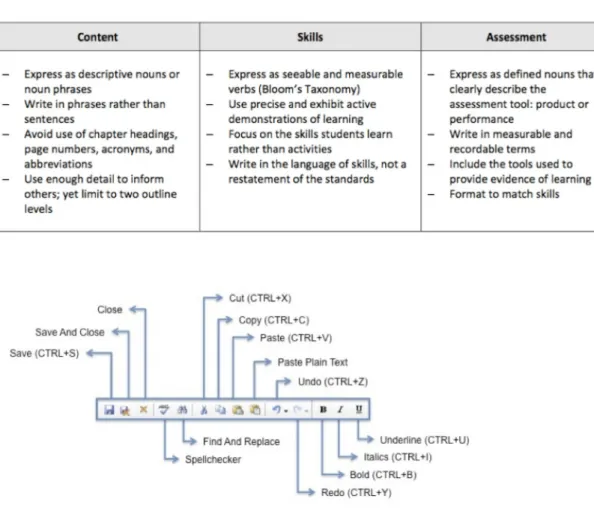
Guidelines for writing Content, Skills, and Assessments:
Step
2:
Editing
Curriculum
Maps
1Editing
Maps
Often when a new year begins a Master Map will need to be edited. Maps copied from year to year will also naturally need to be adjusted to reflect changes in curriculum requirements or student need. This will become increasingly important with the adoption of the Common Core State Standards and adjustments being made by the state and federal government requirements. The next few years will require more than just individual adjustments. Rather multiple grade level adjustments will be made as the Common Core are implemented into our schools.
To edit maps:
1 Under the Maps tab, select My Maps.
3 The screen will refresh and display data in the current month, by block.
4 Click Edit to add information to desired block. A block with a green perimeter is in active Edit mode.
5 Click Add New Block on right for additional blocks. Title the block, if desired. 6 Click Save and Close to exit block.
Copying
Maps
This feature will be very helpful in the coming months as the Common Core State Standards are beginning to be implemented in the schools. As teachers need to shift units around in their school year and from grade level to grade level, copying maps will become even more
important.
A teacher’s own maps can be copied from one class or year to another class or year.
To copy personal maps:
1 Under the Maps tab, select My Maps. 2 Click on the month of the map to copy. 3 Click Copy Map link on right.
4 Choose the Course, Year, and Month; click OK.
Teachers may copy maps from another teacher or Master Maps, if permission is given by the District or School Coordinator.
To copy maps from another teacher or Master Maps: 1 Under the Maps tab, select My Maps.
2 Click Copy Map link on right.
3 Choose the School Display Options, School and Year from the drop down menus. 4 Click on the Course name to be copied.
5 To copy one month at a time, click Add This Month Map. Choose the Course, Year and Month to which the month will be copied. Click OK.
6 To copy all months, click Add All Months. Choose the Course and Year; click OK. 7 The copied map(s) will appear in the My Maps list of Courses.
Inserting
Standards
The goal of standards is to set priorities on what students need to know and be able to do. Maps should be developed with the standards in mind. Standards from multiple grade levels and/or subject areas can be added to any block. Standards can be attached to the Content, Skills, and/or Assessment Column.
Standards can be attached to every Content or Skill statement, or can be attached to the last statement in a series, in which case it can be assumed that the standard is associated with all Content or Skills statements above. Standards are inserted directly into curriculum maps through the Edit mode of a map. The level of the Standards (introduced, developed, or
reinforced) may be indicated if desired.
To insert standards:
1 Click Edit for the block in which standards will be entered. 2 Place cursor where the standard is to be attached. 3 Click Select Standards.
4 Select the Set, Subject, and Level from the dropdown menus.
5 Use Search to isolate standards containing a word or word part (example below, “political”).
6 Place a check in the box(es) next to the desired standard(s).
7 From the dropdown menu to the right of the box, select Introduced, Developed, or Reinforced to qualify the Level at which each standard currently lies on the path towards mastery.
8 Repeat steps 5‐7 until all desired standards are selected.
9 Click Attach Standards. The Standards icon assigned to this set of standards will be placed in the map where the cursor was flashing.
10 Click Select Standards to close the Attach Standards window. Save the map.
Note • Clicking on a Standards icon when viewing a map will show the attached
Standard number, Description, Level and the Section of the Standard if available.
Note • For customers who have purchased StandardsScore as well you will note that you can see your class Average and Trend for this benchmark as well.
When viewing any map from My Maps, School Maps or Global Search Maps, choosing Show
Standard, the text of all standards associated with the standards icons will appear in the block.
Selecting, Show Aligned Standards, the text of sets of standards aligned in the Standards Alignment and Management System (SAMS) and attached to a map can be viewed.
To edit Standards:
1 Click Edit for the block in which standards will be edited.
2 Click the Standards Icon to highlight. Eight white boxes will surround the icon. 3 Click Select Standards.
4 Locate the standard(s) to be added or deleted. Currently attached standards will have a checkmark in the box before the Standard.
5 Place a check in the box(es) to add desired standard(s).
6 Remove the a check in the box(es) to remove the desired standard(s).
7 From the dropdown menu to the right of the box, select Introduced, Developed, or
Reinforced to qualify where each standard currently lies on path towards mastery. 8 Repeat steps 4‐7 until all desired standards are selected.
9 Click Attach Standards. The Standards Icon will now contain the most recently selected standards.
10 Click Select Standards to close the Attach Standards window. 11 Save the map.
Adding
Hyperlinks
Hyperlinks are an excellent way to share with other teachers/administrators websites utilized with students, or accessed while planning instruction. This sharing often leads to other teachers using the same websites, as well as searching for and adding websites of their own. To add Hyperlinks:
1 Click Hyperlink Manager.
2 In the Hyperlink Manager window, type or paste the URL of the desired website.
Example: http://www.si.edu
3 In the Link Text box, type in the word or words to be associated with this link in the map. Text highlighted before clicking Hyperlink Manager will appear in the Link Text line. 4 In the Target dropdown, select how the new website should open.
6 Save.
To remove Hyperlinks:
1 Highlight the hyperlinked text. 2 Click Remove Link.
3 The text remains but the link to the website has been removed.
4 Save.
Uploading
Documents
to
a
Curriculum
Map
Documents must be uploaded to Collaborative Learning™ before they can be attached to a Map.
Documents, images, and other types of files can be attached to maps in any column, making them useful as a repository for items used to teach, reinforce, or assess. Inserting documents help to provide explicit criteria on assessments such as projects, labs, writing rubrics, formative assessments, and much more. Resources such as videos, a PowerPoint, or multi‐ media presentations can become a part of a curriculum map, providing easy access to teaching materials as well as a wealth of information for teachers new to the school/district. To upload and attach new documents when creating or editing a map:
1 Click on the Month of a Map. 2 Click Edit
3 Click Select Documents. Follow steps 2‐6 to upload files to the Document Library, and steps 7‐8 to attach to the map.
4 Click Upload to add a new file to the Document Library.
5 Click Browse to locate the file.
6 Choose Share Option. (Remember: Global Access is free storage space but will allow all
Curriculum Mapper users to see and download the documents with a Global document or
map search. Guest access is available only where Districts or Schools allow persons without
Mapper accounts to view maps.)
7 Enter Document Title and Description, and select Category, File Type, and Library. 8 Click Add File.
9 Click in the location on the map where the document is to be attached. Documents will attached where the cursor has been placed.
10 ClickAttach to attach the desired document.
To attaching documents from a Document Library: 1 Click Edit Block.
2 Click on the location where the document will be attached. 3 Click the Select Document icon.
4 Choose documents from the Personal Library, School Library, or District Library 5 Check all documents to be attached.
6 Click the Attach Documents.
7 To close the Document section, click Select Documents. 8 Save the Map.
To delete attached documents :
1 Click on the line above the document icon. 2 Click on the Select Documents icon.
3 Uncheck the document or documents
4 To close the Document section, click Select Documents. 5 Save the Map.
Step
3:
Printing
or
Viewing
Maps
1Printing
or
Viewing
One
Month
of
Your
Maps
The web page view of personal maps may be printed for one or all months. Maps may also be exported to Microsoft Word for printing.
To print or view one month of your map:
1 Under the Maps tab, select My Maps. 2 Click the month name.
3 If desired, select Show Standards from the Show Icon dropdown to display the text of the standards in the map in place of the standards icon. Displaying the standards will increase the length of the document.
4 In the web browser, select File, Page Setup to change from Portrait to Landscape. 5 Click Print for the web page view.
6 To export the map to Microsoft Word, click the icon in top right corner. A dialog box will appear.
7 Select Open to open the map in Microsoft Word. Select Save to save map and then open in Microsoft Word.
8 Select Print within Microsoft Word to print the map. To print or view all months of your map:
1 Under the Maps tab, select My Maps.
2 Click the course name. The map will appear in a popup window; maximize the window. 3 If desired, select Show Standards from the Show Icon dropdown to display the text of the
standards in the map in place of the standards icon. Displaying the standards will increase the length of the document.
4 In the web browser, select File, Page Setup to change from Portrait to Landscape. 5 Click Print for the web page view.
To print, view and save your map as a Word document:
1 To export the map to Microsoft Word, click the icon in top right corner. A dialog box will appear.
2 Select Open to open the map in Microsoft Word. Select Save to save map and then open in Microsoft Word.
3 Select Print within Microsoft Word to print the map. 4
Note • If the vertical lines separating columns do not print, a browser setting may need to
be changed. In Internet Explorer, select Tools Internet Options, and click the Advanced
tab. Scroll to locate the Printing choice and click the box next to Print Background Colors
and Images. Many schools have security settings and this feature in Internet Explorer may
be disabled.
Click Close to return to My Maps.
Step
4:
Printing
or
Viewing
School
or
District
Maps
1The School Maps page shows every curriculum map from every course and teacher in the school the user originates as well as providing the user access to the maps of all schools in the district or cluster associated with the school of the user. School Maps allows for transparency in the curriculum. Any teacher or administrator has access to the curriculum map data for any
To print or view school or district maps: 1 Under the Maps tab, select School Maps.
2 To view the curriculum map for a particular course and teacher, click the Course name. 3 Maps can be sorted on this page by clicking on a column heading.
4 Switch between schools in the district by choosing the desired school in the dropdown list at the top of the page.
5 To view or print, follow the steps above for printing and viewing all months of a your own
personal maps.
Resources
1Working
with
Document
Library
1Attachments placed in the Document Library may be shared in a variety of ways. Each share option allows for different levels of sharing Documents. Each School is given 1 GB storage space for documents. If a document is shared at the Global Access Level, the storage space for that document is not included in the total for the school, it is free storage space.
Sharing Level Outline: School Access
None: Shared to no one, private to the teacher Teachers: Shared only with teachers in the school District Access
Teachers and Guests: Shared with teachers and any guest who have access to maps Teachers: Shared only with teachers across the District
Global Access
Teachers and Guests: Shared with anyone who has access to Curriculum Mapper and may be found in a Global search
Teachers: Shared with any teacher or administrator who has access to Curriculum Mapper and may be found in a Global search
Editing
Your
Document
Library
Both folders and files may be added or deleted. If there are a number of files to be uploaded, it is a good idea to create folders for organization.
Adding
a
New
Folder
or
Subfolder
To add a folder to the Document Library main organizational structure: 1 Under the Resources tab, select Document Library.
2 Click on Add New Folder
3 Name the Folder with a unique name. 4 Click on Add Folder
To add a subfolder to an existing folder in the Document Library: 1 Click on Add New Subfolder
2 Name the Subfolder
3 Click on Add Subfolder
To uploading documents to the Document Library: 1 Go to Resources and Document Library
2 Click Add New File across from the folder name 3 In the box that opens, click Browse to locate the file.
4 Choose Share Option. (Remember: Global Access is free space.)
5 Enter Document Title and Description, and select Category, File Type, and Library. 6 Click Add File.
7 The file will appear in the list of documents.
View/Print
Standards
1Teachers can view and print selected Standards in a complete Standard Sets, Subjects and Levels without accessing their maps.
To view or print Standards:
1 Click Resources and then Search/Print Standards. 2 Choose the Standard Set.
3 Check Subject and Level desired for viewing and printing.
4 Type a word or words in the search box to narrow the focus of the search to only the standards that relate to a particular concept, topic, and/or skill.
5 Click Run Report.
6 To print the report click Print. The report will show every standard for the standard set, subjects, and levels selected.
Links
1 Curriculum Mapper™ has a customizable page for schools to list important web links. By default, several national links and your state standards link are shown on this page. Please note: Collaborative Learning Inc™ is not affiliated with the entities represented on this page and receives no compensation of any kind for providing the links.
Add
District
and
School
Links
to
Websites
To add links to a teacher’s page:
1 Click Links under the Resources menu item 2 Click on +Add Link
3 Enter the URL, name and description of the link to be added. 4 Click Add Link
To edit an existing link:
Click Edit to update an existing link. To remove a link:
Click Delete to remove a link from the list.
Note • All hyperlinks must begin with http:// for them to work To access links from a Teacher Account:
1 Under the Resources tab, select Links.
Search
1Locally
Searching
Maps
1
The Local Search function searches subscribing schools within the school or district according to particular criteria entered by the users. Sharing information among teachers in a school or within a district will assist all staff in being more productive and informed about the teaching and learning.
Note • This is the same report as you can generate from the “Keyword Search” in the
Reports area of the program.
To perform a Local Search:
1 Under the Search tab, select Local Search. 2 A Keyword Search term can be entered.
3 NOTE: Use a wildcard search to search for maps that contain various forms of a term. For example, estimat* will return estimate, estimated, estimation, etc.
4 Check the Search in: options to search only course titles. 5 Check the columns of the map to include in the search.
6 Click on Show Only Maps That Match Keyword Search to show only those containing the
keyword.
7 Select your view in each category (Map Type, Month, Years, School Subject, and Grade Level) to further narrow your search.
9 The Map Search Results displays all courses that match the search criteria.
10 The month column identifies which map(s) are available for each course. To view a map
click on an underlined month. These maps contain the search term displayed in bold,
red type.
11 Check the boxes to include maps in the comparison. 12 Check the column(s) to be displayed.
13 Click Compare. Results will open in a new window.
14 The term entered in the Search will be displayed in bold, red type.
15 A second term to analyze can be entered in the highlight text box. Click Highlight; that term will be highlighted in yellow within the results.
16 These reports can be printed or converted to a Microsoft Word document for viewing or printing. Click on and follow the computer prompts.
17 To view a chart of the results click on Create Chart Results. 18 To print the results click on Print .
Globally
Searching
Maps
1The Global Search function searches all subscribing schools of Curriculum Mapper® according to particular criteria entered by the users. Curriculum Mapper® houses a wealth of curriculum data and resources that teachers share with other teachers. We teach our students, beginning in Kindergarten, the importance of sharing. As professional educators, sharing should be our mantra as well. Teaching is a rewarding but challenging profession and the more we can do to assist each other, the more productive our profession.
2 A Search for: term can be entered or a course title can be searched by checking the in course title only checkbox.
3 Click on Show Additional Criteria to focus the search by Subject Area, Grade, State and
School Type
4 Choose a Subject Area from the drop down menu to limit the search.
5 Select a School Year from the drop down menu. To include multiple years, press the Ctrl key or Mac Command key, then click each year desired.
6 To view all the months for a particular course click on the course title. 7 To view one month, click on the underlined month.
8 Search results will appear in bold, red type.
Document
Search
1To perform a document search:
1 Under the Search tab, select Document Search. 2 Select Local Search or Global Search
3 A Search for attached documents that contain this word or phrase: term can be entered that is contained in the document title or the body of the document.
4 Click on Show Additional Criteria to focus the search by Subject Area, School, School Year,
5 To search multiple years in the School Year, press the Ctrl key or Mac Command key, then click each year desired.
6 Click Search
7 Click on the Title of the map to view the where documents are attached to the map. The
icons appear in red.
8 Click on the icon to Download the File.
Reports
1The reporting features of Curriculum Mapper provide robust search tools enabling teachers and administrators to discover a total picture of the whole curriculum. From searching for a keyword in maps to analyzing the depth to which standards have been taught, Reports allow teachers and administrators easy access to the information they will require to analyze and refine the curriculum, choose the best practices and make those best practices available for future years.
My
Reports
1Curriculum
Maps
How do I search maps by keywords?
Curriculum Mapper search by keyword report allows the individual teacher to search their own maps or the maps of others by keyword. Under the Reports tab, look under the My
Reports or School Reports the first area focuses on searching the text of individual
Curriculum Maps. Selecting the first option, How do I search my (school or district) maps
by keywords?, will provide these results. Keyword Search provides information to:
• Determine when a particular concept or skill is taught.
• Identify concepts or skills that have not been taught or that have been repeated during the year.
• Identify consistent language of state tests throughout the grade level and across the curriculum.
• Determine when skills were assessed.
• Inform instruction related to a particular concept or skill. To search maps by keywords:
1
Note • Use a wildcard search to search for maps that contain various forms of a term.
For example, estimat* will return estimate, estimated, estimation, etc. A Keyword Search term can be entered.
2 Check the Search in: options to search only course titles. 3 Check the columns of the map to include in the search.
4 Click on Show Only Maps That Match Keyword Search to show only those containing the
keyword.
5 Select your view in each category (Map Type, Month, Years, School Subject, and Grade Level) to further narrow your search.
6 Click Search.
7 The Map Search Results displays all courses that match the search criteria.
8 The month column identifies which map(s) are available for each course. To view a map
click on an underlined month. These maps contain the search term displayed in bold,
red type.
9 Check the boxes to include maps in the comparison. 10 Check the column(s) to be displayed.
12 The term entered in the Search will be displayed in bold, red type.
13 A second term to analyze can be entered in the highlight text box. Click Highlight; that term will be highlighted in yellow within the results.
14 These reports can be printed or converted to a Microsoft Word document for viewing or printing. Click on and follow the computer prompts.
15 To view a chart of the results click on Create Chart Results. 16 To print the results click on Print
Standards
How do I view standards in my curriculum maps over time?
• Determine the number of times each month that standards were taught. • Determine at what level in each case the standard taught. (For example, was it
“introduced,” “developed,” “reinforced,” or whether the level was “not specified.”)
Note • The labels for each instructional level may be edited by each district. • Determine class performance on these standards (for StandardsScore users).
How do I view or compare the frequency and instructional level of standards?
To view or compare the frequency and instructional level of standards: 1 Select the Grade Level
2 Click on Select Standards button
3 From the pull‐down menu, select the standards set, subject and level for the standards to review.
4 Check the individual standards for the report, or select a standards level from the drop down box.
5 Click “Add/Remove Standards.”
6 Click “Run Report.”
How do I view standards in my curriculum maps for multiple years?
How do I view standards not associated with my curriculum maps? To compare courses:
1 Click Reports; click Compare and Search Report. 2 Choose the Search Criteria for the report. 3 Click Search.
4 Results will be displayed.
5 The month column identifies which month(s) exist for each map. 6 Check the boxes to include maps in the comparison.
7 Check the column(s) to be displayed.
8 Click Compare.
9 Results will open in a new window.
10 Analysis is aided through the use of the Highlight feature. Enter a term, click Highlight; that term will be highlighted in yellow within the results.
To Search and Compare by Keyword 1
Note • Use a wildcard search to search for maps that contain various forms of a term.
For example, estimat* will return estimate, estimated, estimation, etc. To search by a particular word or words enter keyword(s) in Keyword Search.
2 Click Search.
3 Results will be displayed.
4 The month column identifies which month(s) exist for each map. 5 Check the boxes to include maps in the comparison.
6 Check the column(s) to be displayed.
7 Click Compare.
8 Results will open in a new window.
9 The term entered in the Search will be displayed in red.
10 A second term to analyze can be entered in the highlight text box. Click Highlight; that term will be highlighted in yellow within the results.
11 These reports can be printed or converted to a Microsoft Word document for viewing or printing. Click on and follow the computer prompts.
Standards
and
Performance
Report
How do I view or compare the frequency and instructional level of standards?
To compare the frequency and instructional level of standards: 1 Choose the School Year, School, and Teacher.
2 The maps associated with the teacher will be listed. Place a checkmark in the box of the map or maps to run the report.
3 Click Select Standards.
4 Choose the Standard Set, Subject, and Level.
5 To search by a particular word or words enter Keyword(s) in Search. 6 Click Search.
8 To begin again, check Clear All.
9 Click Select Standards.
10 At the bottom of the page click Run Report.
11 Scroll down to see results.
12 The number of times the standard(s) was taught, as well as the month taught, will show in the chart.
13 To view the map where the standard(s) was addressed, click on the number under the month and/or the Total at the end of the chart. A new window will open showing the standard(s) in bold red. To close the window, click Close at the bottom right of the screen. 14 To include subtopics in the report, click Include Subtopics.
15 To remove subtopics, click Ignore Subtopics.
16 To view a graph of each standard, click on the particular standard under the heading Topics.
17 To view results of only the standards addressed in the map, click Show Standards
Addressed.
18 To view results of missing standards in the map, click Show Standards Not Addressed. 19 To compare the occurrences of the standards, check the box in front of the standards.
20 Click Compare.
Administrative
Settings
1Manage
Courses
1
Courses may be added by clicking on Add New Course. The required fields to identify the course being added are indicated by an asterisk*. To mark a course as inactive, click on Edit and mark the option inactive. Each column may be sorted by clicking on the column title.
Add
New
Courses
As course offerings are expanded new courses may be added to the course list.
To add new courses: 1 Click Add New Course
2 Enter the course information.
3 Required information is indicated with an asterisk * 4 Click Add This Course
Edit
Courses
Changes in course names and the status of a course (active or inactive) may be adjusted with the Edit Course function.
To edit courses:
1 Click Edit to the right of the course name and subject area. 2 Enter changes in the course information.
3 Required information is indicated with an asterisk *
4 Click Save Changes. The changes will appear in the course list.
Activate
or
Inactivate
Courses
To activate or inactivate courses:
1 Click Edit to the right of the course name and subject area. 2 Scroll to the bottom of the window
3 Click the radio button to Active or Inactive
4 Click Save Changes. The changes will appear in the course list.
Delete
Courses
When a course is no longer in the school roster, the course may be deleted. Deleting a course from the course list does not remove the maps for that course from previous years, but does remove the ability for a teacher to select that course for creating curriculum maps.
To delete courses:
1 Click Delete to the right of the course name and subject area.
2 Click on Delete when prompted “Are you sure you want to delete this course?” 3 Click Cancel to return to the Manage Courses page.
School
Statistics
1School
Mapping
Progress
School Mapping Progress provides information for each school, each course, teacher and months of the course’s available. The School Mapping Progress area displays a chart about the maps completed. It also displays teachers as well as courses without maps.
Note • An account does not become active until the user logs on for the first time. Thus, the school may have received one hundred user accounts but only ninety active users are listed. This is because ten users have not yet logged on for the first time. Select each school in the drop down menu School Year: to view the information for individual years or in the district account for individual schools.
Document
Library
Usage
The Document Library usage can be monitored and documents viewed from this
Administrative area. To view the document, click on the document Title. Information included for each teacher includes the Titles of the documents uploaded by the teacher, a Description
of the document, the Attachment Category, File Size, Upload Date, Doc Library (in which Library the document resides) and permissions for Who Can View the document.
Export
Maps
1 With the Export Maps feature, data may be downloaded from the school account to a personal computer. This Utility will export selected curriculum maps. The exported files may be accessed at a web address indicated in the popup window after the export as be activated. The exported data may be received as a MS Word document or in comma delimited format.
To export data from your school:
1 In the Select Snapshot Criteria area choose a School, School Year, Subject Area, and/or Courses from the drop down lists. To choose every course in your school, select the first option labeled All Courses. Limit the data exported by choosing particular courses (use the CTRL or COMMAND key to select multiple courses) pull down menus.
2 Check Master Maps Only, if only Master Maps will be exported.
3 In the On All Maps, Show: Check information to be shown on all exported Maps.
4 To export maps as a Word document, select Portrait or Landscape format, click on Create
Word Document
5 To export maps to comma‐delimited file click on Create CSV File.
7 Read and record the information in the pop‐up indicating the maps have been set up for export.
Settings
1Update
School
Information
This area helps to keep school and contact information up‐to‐date. Not only is the information on this page used by Collaborative Learning to contact your curriculum coordinator, it also controls the information displayed to other users about your school(s). Each designated School Coordinator is responsible for keeping school information updated.
To update school information:
1 Click Settings under the Admin menu 2 Click Update School Information.
3 Enter the appropriate information in all fields on this page. Required Fields are marked with an asterisk*
Configure
Curriculum
Map
Format
This option allows you to name columns, add columns and change the order of your columns. Curriculum Mapper™ enables the customization of the map template for a school by
customizing the name and display order for up to five fields or columns (in addition to the month). Note that the first three fields are required, although they may be re‐named and the order in which they appear may be changed.
Important Note • Providing up‐to‐date information on this page insures more accurate
To configure the Curriculum Map format: 1 Click Settings under the Admin menu 2 Click Configure Curriculum Map Format
3 Select the options decided on by district or school administrators. Name all fields in the map and choose the Display Order.
4 District Coordinator only: The district coordinator may also choose to lock these settings
so that individual School Coordinators may not change them and may choose to apply these changes to all schools in the district at once.
5 Check Apply these settings to all the Schools in the District. 6 Click Save Changes.
7 The new settings will show after logging out and back into the program.
Configure
Copy
Map
Settings
This area will allow you to determine the types of maps that can be copied. By default, any teacher using Curriculum Mapper may copy a Master Map from any school in his/her district into his/her own account.
Important Note • Any changes made to the map format will apply to the entire school. Extra columns will be applied to all users and guests. Choosing Don’t use a field for a column will not erase any data already entered by teachers; moreover, if Use a Field is later choose to show this column, all previously entered data into this field will again be visible.
The School Coordinator may change this setting to allowing teachers the ability to copy any map in the school (a District Coordinator may allow teachers to copy any map from the entire district).
1 Click Settings under the Admin menu 2 Click Configure Copy Map Settings 3 Choose settings for the entire school.
4 District Coordinator only: The district coordinator may also choose to lock these settings
so that individual School Coordinators may not change them and may choose to apply these changes to all schools in the district at once.
Check Apply these settings to all the Schools in the District. 5 Click Save Changes.
Set
Custom
Cluster
Settings
Here the administrator can identify feeder schools that you may want to place in a cluster group. Custom Clusters reduce the number of schools to choose from in viewing maps and running reports. Setting Custom Clusters within a District reduces the number of schools a teacher need to choose from in viewing maps and running reports.
To set Custom Cluster settings:
1 Click Settings under the Admin menu 2 Click Set Custom Cluster Settings
3 Check the schools to appear in the menus for all teachers from this school.
4 District Coordinator only: The district coordinator may lock these settings so that
individual School Coordinators may not change them. 5 To remove a Custom Cluster, Uncheck All
Update
Announcements
This area allows you to display a custom message to teachers from your school or district when they log in.
An announcement might include a welcome message, announcements, information for teachers, reminders of milestones in the mapping process, or congratulations to teachers who have made exceptional strides in mapping.
To update announcements:
1 Click Settings under the Admin menu
2 Click Update Announcement
3 Answer Display Announcement?
4 Enter the text to be seen by the school or district.
5 Under Additional Options, School Coordinator Settings, choose to lock settings from being altered by others.
6 If desired, check Apply these settings to all the Schools in the District. 7 Click Save Changes.
Manage
Standard
Coverage
You have the ability to change the identifiers for all standards. The default Introduced,
Developed, and Reinforced can be changed to terms that meet needs of the school or district.
To manage Standard Coverage:
1 Click Settings under the Admin menu
2 Click Manage Standard Coverage
3 Select the Coverage you wish to change. 4 Enter the desired Coverage language
5 Under Additional Options, School Coordinator Settings, choose to lock settings from being altered by others.
6 If desired, check Apply these settings to all the Schools in the District. 7 Click Save Changes.
Manage Document Library
The intention of this area is to allocate document space among users. Each school has 1 GB of storage space available for uploaded files. Sharing options determines which of the uploaded files will use space from the total available for the school.
To manage the Document Library: 1 Click Settings under the Admin menu
2 Click Manage Document Library
3 If the School or District Coordinator wants to allocate the same amount of space to each teacher, the number of MB may be entered in the Allocated Space area, then click on Allocate This Space To All Teachers.
4 To allocate varying amount of space to each teacher, click the check box in front of the teacher’s name and enter the amount of allocated space in MB into the Allocated Space
(MB) column.
Update Public Maps
Some Districts or Schools choose to share Read‐Only access to Curriculum Maps. Curriculum Mapper® allows a District Coordinator to select maps as Public Maps, identifying them to be viewed via a web link. Once this selection is complete, please call Collaborative Learning to
request a hyperlink for others to access your Public Maps. Anyone clicking on this hyperlink can instantly view these Public Maps with no logon required. All teacher names and emails are removed and replaced with the district name and notes.
To update Public Maps:
1 Click Settings under the Admin menu 2 Click Update Public Maps
3 Complete the information on the page (District name and Email address, whether or not to display Email address above public maps, welcome message, and header note).
4 Click Save Changes
5 At the bottom of the page, Click here designate maps as Public Maps. This will open a window where desired maps can be included in Public Maps by checking the box in the left hand column. Then click Save Changes.
Important Note • Public Maps and Master Maps are different things. Any curriculum map
6 To select columns to show in Public Maps, Click here to hide/unhide columns in Public
Maps. Select the School from the drop down, click the checkbox next to the desired columns. As an Additional Option, click the checkbox Apply all these settings to all the
schools in the District and Save Changes.
7 Please call Collaborative Learning Inc ™ to request a link for others to access your Public
Maps.
Set Curriculum Mapper Version Level
To set Curriculum Mapper version level: 1 Click Settings under the Admin menu 2 Click Set Curriculum Mapper Version 3 Select the school from the drop down list
4 Click the radio button to the left of the permissions listed
5 The Coordinator may Lock Settings or Unlock the settings, to control who may change the settings.
6 To include all schools in the district click the checkbox after Apply these setting to all
schools in the district. 7 Click Save Settings
SAMS
1
Standards
Alignment
and
Management
System
While in Curriculum Mapper, hover over Admin menu and select SAMS.
This system is designed to help manage the standards that teachers use in their classroom each day.
Select from the menu items below to manage standards sets; select the icon to view a short 1‐2 minute instructional video on the many functions of the SAMS system.
• Create and Revise Standards Sets
• Manage Subject Areas
• Create a New Custom Standards Set
• Align Standards and Benchmarks • Manage Standards Set Display
• Manage Standards Icons
EasyStart
1EasyStart is an account management tool that allows program administrators to control a variety of functions and permission levels in all three products. This new functionality replaced the User Accounts options previously located in the Admin Menu of Curriculum Mapper. There are two ways to access this area:
Log in; click the EasyStart logo on the Product Selection Page
Or
While in Curriculum Mapper, hover over Admin menu and select EasyStart. EasyStart allows School/District Coordinators to do the following:
• Manage User Account
• Create and Print User Reports
• View the number of paid, active, and available subscriptions • Transfer or Request Subscriptions
• Import Users
• Deactivate Users to remove teachers from the active, temporarily or permanently, list so they will no longer be able to log in and create/edit maps.
• Create New Accounts and add a new teacher to a school. This can only be accomplished if enough accounts are available.
Support
1 Feedback and Technical Support• Select Support in the menu bar, click Feedback & Technical Support.
• Select Type of feedback from the drop‐down list. (Question, Comment, Problem) • Enter feedback into Comments text box.
• Click Submit Feedback.
My Suggestions
• Select Support in the menu bar, click My Suggestions. • A new window will open.
• Complete the form.
• Click Done
My Suggestions can also be accessed from the Feedback & Technical Support page by clicking Click here to share your ideas and suggestions with Collaborative Learning.
Phone support
• Call 800.318.4555
• Monday – Friday
A
access
hyperlinks 29
activate courses 40
add
courses 39
hyperlinks 19, 29
map 11
new folder 26
Administrator 28
managing
Document Library 51
Standard Coverage 50
reports 33
settings 38
Curriculum Mapper version levels 53
Custom Cluster 48
updating
announcements 49
Public Maps 52
announcements
Administrators updating 49
Assessment 13
attaching documents 20, 22
attachments sharing 24
B
blocks 11
courses 36
configure columns 45
Copy Map Settings 46
Curriculum Map format 45
Content 13
copy map settings 46
copying maps 15
from another teacher 16
from Master Maps 16
My Maps 15, 16
courses
activating 40
adding 39
comparing 36
deleting 40
editing 40
inactivating 40
managing 38
create
Curriculum Maps 11
My Maps 11
Curriculum Mapper
setting versions levels 53
Curriculum Maps configure format 45
creating 11
editing 14
searching by keywords 34