Component Writer’s Guide
Borland
®Delphi
™you can distribute in accordance with the Delphi 7 License Statement and Limited Warranty.
Borland Software Corporation may have patents and/or pending patent applications covering subject matter in this document. Please refer to the product CD or the About dialog box for the list of applicable patents. The furnishing of this document does not give you any license to these patents.
Chapter 1
Overview of component creation
1-1
Class library . . . . 1-1 Components and classes . . . . 1-2 Creating components . . . . 1-3 Modifying existing controls . . . . 1-3 Creating windowed controls . . . . 1-4 Creating graphic controls . . . . 1-4 Subclassing Windows controls . . . . 1-5 Creating nonvisual components . . . . 1-5 What goes into a component? . . . . 1-5 Removing dependencies . . . . 1-5 Setting properties, methods,
and events . . . . 1-6 Properties . . . . 1-6 Methods . . . . 1-7 Events . . . . 1-7 Encapsulating graphics . . . . 1-7 Registering components . . . . 1-8 Creating a new component . . . . 1-8
Creating a component with the
Component wizard . . . . 1-9 Creating a component manually . . . 1-11 Creating a unit file . . . 1-11 Deriving the component . . . 1-12 Registering the component . . . 1-13 Creating a bitmap for a component . . . . 1-13 Installing a component on the
Component palette . . . 1-15 Making source files available . . . 1-16 Testing uninstalled components . . . 1-16 Testing installed components . . . 1-18
Chapter 2
Object-oriented programming for
component writers
2-1
Defining new classes . . . . 2-2 Deriving new classes . . . . 2-2
To change class defaults to
avoid repetition . . . . 2-2 To add new capabilities to a class . . . . 2-3
Controlling access . . . 2-4 Hiding implementation details . . . 2-5 Defining the component
writer’s interface . . . 2-6 Defining the runtime interface . . . 2-6 Defining the design-time interface . . . 2-7 Dispatching methods . . . 2-7 Static methods . . . 2-7 An example of static methods . . . 2-8 Virtual methods . . . 2-8 Overriding methods . . . 2-8 Dynamic methods . . . 2-9 Abstract class members . . . 2-10 Classes and pointers . . . 2-10
Chapter 3
Creating properties
3-1
Why create properties? . . . 3-1 Types of properties . . . 3-2 Publishing inherited properties . . . 3-3 Defining properties . . . 3-3 Property declarations . . . 3-4 Internal data storage . . . 3-4 Direct access . . . 3-5 Access methods . . . 3-5 The read method . . . 3-6 The write method . . . 3-7 Default property values . . . 3-7 Specifying no default value . . . 3-8 Creating array properties . . . 3-8 Creating properties for subcomponents . . . . 3-9 Creating properties for interfaces . . . . 3-11 Storing and loading properties . . . . 3-11
Using the store-and-load
mechanism . . . 3-12 Specifying default values . . . 3-12 Determining what to store . . . 3-13 Initializing after loading . . . 3-14 Storing and loading unpublished
properties . . . 3-14 Creating methods to store and
load property values . . . 3-15
Creating events
4-1
What are events? . . . . 4-1 Events are method pointers . . . . 4-2 Events are properties . . . . 4-3 Event types are method-pointer types . . . 4-3
Event-handler types are
procedures . . . . 4-3 Event handlers are optional . . . . 4-4 Implementing the standard events . . . . 4-5 Identifying standard events . . . . 4-5 Standard events for all controls . . . . . 4-5 Standard events for
standard controls . . . . 4-5 Making events visible . . . . 4-6 Changing the standard event
handling . . . . 4-6 Defining your own events . . . . 4-7 Triggering the event . . . . 4-7 Two kinds of events . . . . 4-7 Defining the handler type . . . . 4-8 Simple notifications . . . . 4-8 Event-specific handlers . . . . 4-8 Returning information from
the handler . . . . 4-8 Declaring the event . . . . 4-9 Event names start with “On” . . . . 4-9 Calling the event . . . . 4-9
Chapter 5
Creating methods
5-1
Avoiding dependencies . . . . 5-1 Naming methods . . . . 5-2 Protecting methods . . . . 5-2 Methods that should be public . . . . 5-3 Methods that should be protected . . . . . 5-3 Abstract methods . . . . 5-3 Making methods virtual . . . . 5-4 Declaring methods . . . . 5-4
Using graphics in components
6-1
Overview of graphics . . . 6-1 Using the canvas . . . 6-3 Working with pictures . . . 6-3 Using a picture, graphic, or canvas . . . . 6-4 Loading and storing graphics . . . 6-4 Handling palettes . . . 6-5 Specifying a palette for a control . . . . 6-5 Off-screen bitmaps . . . 6-6
Creating and managing
off-screen bitmaps . . . 6-6 Copying bitmapped images . . . 6-7 Responding to changes . . . 6-7
Chapter 7
Handling messages and system
notifications
7-1
Understanding the message-handling
system . . . 7-2 What’s in a Windows message? . . . 7-2 Dispatching messages . . . 7-3 Tracing the flow of messages . . . 7-3 Changing message handling . . . 7-4 Overriding the handler method . . . 7-4 Using message parameters . . . 7-4 Trapping messages . . . 7-5 Creating new message handlers . . . 7-6 Defining your own messages . . . 7-6 Declaring a message identifier . . . 7-6 Declaring a message-record type . . . . 7-6 Declaring a new message-handling
method . . . 7-7 Sending messages . . . 7-8
Broadcasting a message to all
controls in a form . . . 7-8 Calling a control’s message
handler directly . . . 7-9 Sending a message using the
Windows message queue . . . 7-9 Sending a message that does not
Responding to system notifications
using CLX . . . 7-10 Responding to signals . . . 7-11 Assigning custom signal handlers . . . 7-11 Responding to system events . . . 7-12 Commonly used events . . . 7-13 Overriding the EventFilter
method . . . 7-15 Generating Qt events . . . 7-15
Chapter 8
Making components available
at design time
8-1
Registering components . . . . 8-1 Declaring the Register procedure . . . . 8-2 Writing the Register procedure . . . . 8-2 Specifying the components . . . . 8-3 Specifying the palette page . . . . 8-3 Using the RegisterComponents
function . . . . 8-3 Providing Help for your component . . . . 8-4 Creating the Help file . . . . 8-4 Creating the entries . . . . 8-4 Making component Help
context-sensitive . . . . 8-6 Adding component Help files . . . . 8-6 Adding property editors . . . . 8-6 Deriving a property-editor class . . . . 8-7 Editing the property as text . . . . 8-8 Displaying the property value . . . . 8-8 Setting the property value . . . . 8-9 Editing the property as a whole . . . 8-10 Specifying editor attributes . . . 8-11 Registering the property editor . . . 8-12 Property categories . . . 8-13 Registering one property at a time . . . . 8-13 Registering multiple properties
at once . . . 8-14 Specifying property categories . . . 8-14 Using the IsPropertyInCategory
function . . . 8-15 Adding component editors . . . 8-16 Adding items to the context menu . . . . 8-16 Specifying menu items . . . 8-16 Implementing commands . . . 8-17
Chapter 9
Modifying an existing component
9-1
Creating and registering the component . . . 9-1 Modifying the component class . . . 9-2 Overriding the constructor . . . 9-2 Specifying the new default
property value . . . 9-3
Chapter 10
Creating a graphic control
10-1
Creating and registering the
component . . . 10-1 Publishing inherited properties . . . 10-2 Adding graphic capabilities . . . 10-3 Determining what to draw . . . 10-3 Declaring the property type . . . 10-3 Declaring the property . . . 10-4 Writing the implementation
method . . . 10-4 Overriding the constructor
and destructor . . . 10-5 Changing default
property values . . . 10-5 Publishing the pen and brush . . . 10-6 Declaring the class fields . . . 10-6 Declaring the access properties . . . . 10-6 Initializing owned classes . . . 10-7 Setting owned classes’ properties . . . 10-8 Drawing the component image . . . 10-9 Refining the shape drawing . . . . 10-10
Chapter 11
Customizing a grid
11-1
Creating and registering the component . . . 11-1 Publishing inherited properties . . . . 11-3 Changing initial values . . . . 11-4 Resizing the cells . . . . 11-4 Filling in the cells . . . . 11-6 Tracking the date . . . . 11-6 Storing the internal date . . . . 11-7 Accessing the day, month,
and year . . . . 11-7 Generating the day numbers . . . . 11-9 Selecting the current day . . . 11-11 Navigating months and years . . . 11-11
Moving the selection . . . 11-12 Providing an OnChange event . . . 11-13 Excluding blank cells . . . 11-14
Chapter 12
Making a control data aware
12-1
Creating a data browsing control . . . 12-2 Creating and registering
the component . . . 12-2 Making the control read-only . . . 12-3 Adding the ReadOnly property . . . . 12-4 Allowing needed updates . . . 12-4 Adding the data link . . . 12-5 Declaring the class field . . . 12-6 Declaring the access properties . . . . 12-6 An example of declaring
access properties . . . 12-6 Initializing the data link . . . 12-7 Responding to data changes . . . 12-8 Creating a data editing control . . . 12-9
Changing the default value
of FReadOnly . . . 12-9 Handling mouse-down and
key-down messages . . . 12-9 Responding to mouse-down
messages . . . 12-10 Responding to key-down
messages . . . 12-10 Updating the field data link class . . . . 12-11 Modifying the Change method . . . 12-12 Updating the dataset . . . 12-13
Making a dialog box a component
13-1
Defining the component interface . . . 13-2 Creating and registering the
component . . . 13-2 Creating the component interface . . . 13-3 Including the form unit . . . 13-3 Adding interface properties . . . 13-3 Adding the Execute method . . . 13-4 Testing the component . . . 13-6
Chapter 14
Extending the IDE
14-1
Overview of the Tools API . . . 14-2 Writing a wizard class . . . 14-3 Implementing the wizard interfaces . . . 14-4 Installing the wizard package . . . 14-4 Obtaining Tools API services . . . 14-5 Using native IDE objects . . . 14-6 Using the INTAServices interface . . . 14-6 Adding an image to
the image list . . . 14-6 Adding an action to
the action list . . . 14-7 Deleting toolbar buttons . . . 14-8 Debugging a wizard . . . 14-9 Interface version numbers . . . 14-9 Working with files and editors . . . . 14-10 Using module interfaces . . . . 14-10 Using editor interfaces . . . 14-11 Creating forms and projects . . . . 14-12 Creating modules . . . . 14-12 Notifying a wizard of IDE events . . . . 14-15
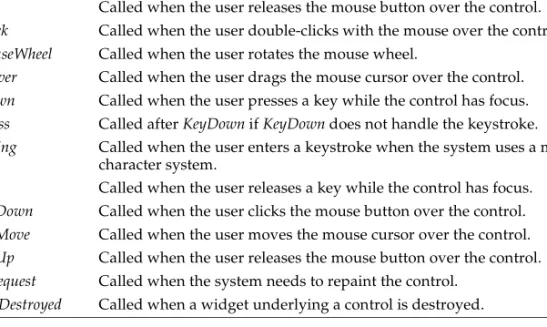
1.1 Component creation starting points . . . . 1-3 2.1 Levels of visibility within an object . . . . 2-4
3.1 How properties appear in the Object
Inspector . . . 3-2 6.1 Canvas capability summary . . . 6-3 6.2 Image-copying methods . . . 6-7
7.1 TWidgetControl protected methods for
responding to system notifications . . . . 7-14
7.2 TWidgetControl protected methods for
responding to events from controls . . . . 7-14
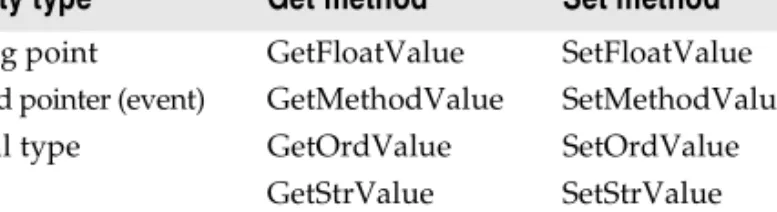
8.1 Predefined property-editor types . . . . 8-7
8.2 Methods for reading and writing
property values . . . . 8-8 8.3 Property-editor attribute flags. . . 8-11 8.4 Property categories . . . 8-14 14.1 The four kinds of wizards . . . 14-3 14.2 Tools API service interfaces . . . 14-5 14.3 Notifier interfaces. . . 14-16
Tables
1.1 Visual Component Library
class hierarchy . . . 1-2 1.2 Component wizard . . . .1-10
7.1 Signal routing . . . 7-11 7.2 System event routing . . . 7-13
C h a p t e r
1
Chapter1
Overview of component creation
This chapter provides an overview of component design and the process of writing components for Delphi applications. The material here assumes that you are familiar with Delphi and its standard components.
• Class library
• Components and classes • Creating components
• What goes into a component? • Creating a new component • Testing uninstalled components • Testing installed components
• Installing a component on the Component palette
For information on installing new components, see “Installing component packages” on page 16-10 of the Developer’s Guide.
Class library
Delphi’s components reside in a component library that includes the Visual Component Library (VCL) and the Component Library for Cross-Platform (CLX). Figure 1.1 shows the relationship of selected classes that make up the VCL hierarchy. The CLX hierarchy is similar to the VCL hierarchy but Windows controls are called widgets (therefore TWinControl is called TWidgetControl, for example), and there are other differences. For a more detailed discussion of class hierarchies and the
inheritance relationships among classes, see Chapter 2, “Object-oriented
programming for component writers.” For an overview of how the hierarchies differ from each other, see “WinCLX versus VisualCLX” on page 15-7 of the Developer’s
The TComponent class is the shared ancestor of every component in the component library. TComponent provides the minimal properties and events necessary for a component to work in the IDE. The various branches of the library provide other, more specialized capabilities.
Figure 1.1 Visual Component Library class hierarchy
When you create a component, you add to the component library by deriving a new class from one of the existing class types in the hierarchy.
Components and classes
Because components are classes, component writers work with objects at a different level from application developers. Creating new components requires that you derive new classes.
Briefly, there are two main differences between creating components and using them in applications. When creating components,
• You access parts of the class that are inaccessible to application programmers. • You add new parts (such as properties) to your components.
Because of these differences, you need to be aware of more conventions and think about how application developers will use the components you write.
C r e a t i n g c o m p o n e n t s
Creating components
A component can be almost any program element that you want to manipulate at design time. Creating a component means deriving a new class from an existing one. You can derive a new component in several ways:
• Modifying existing controls • Creating windowed controls • Creating graphic controls • Subclassing Windows controls • Creating nonvisual components
Table 1.1 summarizes the different kinds of components and the classes you use as starting points for each.
You can also derive classes that are not components and cannot be manipulated on a form, such as TRegIniFile and TFont.
Modifying existing controls
The simplest way to create a component is to customize an existing one. You can derive a new component from any of the components provided in the component library.
Some controls, such as list boxes and grids, come in several variations on a basic theme. In these cases, the component library includes an abstract class (with the word “custom” in its name, such as TCustomGrid) from which to derive customized versions.
For example, you might want to create a special list box that does not have some of the properties of the standard TListBox class. You cannot remove (hide) a property inherited from an ancestor class, so you need to derive your component from something above TListBox in the hierarchy. Rather than force you to start from the abstract TWinControl (or TWidgetControl in CLX applications) class and reinvent all Table 1.1 Component creation starting points
To do this Start with this type
Modify an existing component Any existing component, such as TButton or TListBox, or an abstract component type, such as TCustomListBox
Create a windowed (or widget-based in CLX applications) control
TWinControl (TWidgetControl in CLX applications)
Create a graphic control TGraphicControl
Subclassing a control Any Windows (VCL applications) or widget-based (CLX applications) control
the list box functions, the component library provides TCustomListBox, which implements the properties of a list box but does not publish all of them. When you derive a component from an abstract class like TCustomListBox, you publish only the properties you want to make available in your component and leave the rest
protected.
Chapter 3, “Creating properties,” explains publishing inherited properties. Chapter 9, “Modifying an existing component,” and Chapter 11, “Customizing a grid,” show examples of modifying existing controls.
Creating windowed controls
Windowed controls in the component library are objects that appear at runtime and that the user can interact with. Each windowed control has a window handle, accessed through its Handle property, that lets the operating system identify and operate on the control. If using VCL controls, the handle allows the control to receive input focus and can be passed to Windows API functions. CLX controls are widget-based controls. Each widget-widget-based control has a handle, accessed through its Handle
property, that identifies the underlying widget.
All windowed controls descend from the TWinControl (TWidgetControl in CLX) class. These include most standard windowed controls, such as pushbuttons, list boxes, and edit boxes. While you could derive an original control (one that’s not related to any existing control) directly from TWinControl (TWidgetControl in CLX), Delphi provides the TCustomControl component for this purpose. TCustomControl is a specialized windowed control that makes it easier to draw complex visual images. Chapter 11, “Customizing a grid,” presents an example of creating a windowed control.
Creating graphic controls
If your control does not need to receive input focus, you can make it a graphic control. Graphic controls are similar to windowed controls, but have no window handles, and therefore consume fewer system resources. Components like TLabel, which never receive input focus, are graphic controls. Although these controls cannot receive focus, you can design them to react to mouse messages.
You can create custom controls through the TGraphicControl component.
TGraphicControl is an abstract class derived from TControl. Although you can derive controls directly from TControl, it is better to start from TGraphicControl, which provides a canvas to paint on and on Windows, handles WM_PAINT messages; all you need to do is override the Paint method.
Chapter 10, “Creating a graphic control,” presents an example of creating a graphic control.
W h a t g o e s i n t o a c o m p o n e n t ?
Subclassing Windows controls
In traditional Windows programming, you create custom controls by defining a new
window class and registering it with Windows. The window class (which is similar to the objects or classes in object-oriented programming) contains information shared among instances of the same sort of control; you can base a new window class on an existing class, which is called subclassing. You then put your control in a dynamic-link library (DLL), much like the standard Windows controls, and provide an interface to it.
You can create a component “wrapper” around any existing window class. So if you already have a library of custom controls that you want to use in Delphi applications, you can create Delphi components that behave like your controls, and derive new controls from them just as you would with any other component.
For examples of the techniques used in subclassing Windows controls, see the components in the StdCtls unit that represent standard Windows controls, such as
TEdit. For CLX applications, see QStdCtls.
Creating nonvisual components
Nonvisual components are used as interfaces for elements like databases (TDataSet or TSQLConnection) and system clocks (TTimer), and as placeholders for dialog boxes (TCommonDialog (VCL applications) or TDialog (CLX applications) and its
descendants). Most of the components you write are likely to be visual controls. Nonvisual components can be derived directly from TComponent, the abstract base class for all components.
What goes into a component?
To make your components reliable parts of the Delphi environment, you need to follow certain conventions in their design. This section discusses the following topics: • Removing dependencies
• Setting properties, methods, and events • Encapsulating graphics
• Registering components
Removing dependencies
One quality that makes components usable is the absence of restrictions on what they can do at any point in their code. By their nature, components are incorporated into applications in varying combinations, orders, and contexts. You should design
try to access a windowed control until you have created it by calling the
CreateWindow API function. Delphi windowed controls relieve users from this concern by ensuring that a valid window handle is always available when needed. By using a property to represent the window handle, the control can check whether the window has been created; if the handle is not valid, the control creates a window and returns the handle. Thus, whenever an application’s code accesses the Handle
property, it is assured of getting a valid handle.
By removing background tasks like creating the window, Delphi components allow developers to focus on what they really want to do. Before passing a window handle to an API function, you do not need to verify that the handle exists or to create the window. The application developer can assume that things will work, instead of constantly checking for things that might go wrong.
Although it can take time to create components that are free of dependencies, it is generally time well spent. It not only spares application developers from repetition and drudgery, but it reduces your documentation and support burdens.
Setting properties, methods, and events
Aside from the visible image manipulated in the Form designer, the most obvious attributes of a component are its properties, events, and methods. Each of these has a chapter devoted to it in this book, but the discussion that follows explains some of the motivation for their use.
Properties
Properties give the application developer the illusion of setting or reading the value of a variable, while allowing the component writer to hide the underlying data structure or to implement special processing when the value is accessed. There are several advantages to using properties:
• Properties are available at design time. The application developer can set or change initial values of properties without having to write code.
• Properties can check values or formats as the application developer assigns them. Validating input at design time prevents errors.
• The component can construct appropriate values on demand. Perhaps the most common type of error programmers make is to reference a variable that has not been initialized. By representing data with a property, you can ensure that a value is always available on demand.
• Properties allow you to hide data under a simple, consistent interface. You can alter the way information is structured in a property without making the change visible to application developers.
Chapter 3, “Creating properties,” explains how to add properties to your components.
W h a t g o e s i n t o a c o m p o n e n t ?
Methods
Class methods are procedures and functions that operate on a class rather than on specific instances of the class. For example, every component’s constructor method (Create) is a class method. Component methods are procedures and functions that operate on the component instances themselves. Application developers use methods to direct a component to perform a specific action or return a value not contained by any property.
Because they require execution of code, methods can be called only at runtime. Methods are useful for several reasons:
• Methods encapsulate the functionality of a component in the same object where the data resides.
• Methods can hide complicated procedures under a simple, consistent interface. An application developer can call a component’s AlignControls method without knowing how the method works or how it differs from the AlignControls method in another component.
• Methods allow updating of several properties with a single call.
Chapter 5, “Creating methods,” explains how to add methods to your components.
Events
An event is a special property that invokes code in response to input or other activity at runtime. Events give the application developer a way to attach specific blocks of code to specific runtime occurrences, such as mouse actions and keystrokes. The code that executes when an event occurs is called an event handler.
Events allow application developers to specify responses to different kinds of input without defining new components.
Chapter 4, “Creating events,” explains how to implement standard events and how to define new ones.
Encapsulating graphics
Delphi simplifies Windows graphics by encapsulating various graphics tools into a canvas. The canvas represents the drawing surface of a window or control and contains other classes, such as a pen, a brush, and a font. A canvas is like a Windows device context, but it takes care of all the bookkeeping for you.
If you have written a graphical Windows application, you are familiar with the requirements imposed by Windows’ graphics device interface (GDI). For example, GDI limits the number of device contexts available and requires that you restore graphic objects to their initial state before destroying them.
You still have full access to the Windows GDI, but you will often find that your code is simpler and runs faster if you use the canvas built into Delphi components. CLX graphics encapsulation works differently. A canvas is a painter instead. To draw on a form or other component, you access the component’s Canvas property. Canvas
is a property and it is also an object called TCanvas. TCanvas is a wrapper around a Qt painter that is accessible through the Handle property. You can use the handle to access low-level Qt graphics library functions.
If you want to customize a pen or brush, you set its color or style. When you finish, Delphi or Kylix disposes of the resources. CLX applications also cache the resources. You can use the canvas built into CLX components by descending from them. How graphics images work in the component depends on the canvas of the object from which your component descends.Graphics features are detailed in Chapter 6, “Using graphics in components.”
Registering components
Before you can install your components in the IDE, you have to register them. Registration tells Delphi where to place the component on the Component palette. You can also customize the way Delphi stores your components in the form file. For information on registering a component, see Chapter 8, “Making components available at design time.”
Creating a new component
You can create a new component two ways:
• Creating a component with the Component wizard • Creating a component manually
You can use either of these methods to create a minimally functional component ready to install on the Component palette. After installing, you can add your new component to a form and test it at both design time and runtime. You can then add more features to the component, update the Component palette, and continue testing.
There are several basic steps that you perform whenever you create a new component. These steps are described below; other examples in this document assume that you know how to perform them.
1 Create a unit for the new component.
2 Derive your component from an existing component type.
3 Add properties, methods, and events.
C r e a t i n g a n e w c o m p o n e n t
5 Create a bitmap for the component.
6 Create a package (a special dynamic-link library) so that you can install your component in the IDE.
7 Create a Help file for your component and its properties, methods, and events. Note Creating a Help file to instruct component users on how to use the component is
optional.
When you finish, the complete component includes the following files: • A package (.BPL) or package collection (.DPC) file
• A compiled package (.DCP) file • A compiled unit (.DCU) file • A palette bitmap (.DCR) file • A Help (.HLP) file
You can also create a bitmap to represent your new component. See “Creating a bitmap for a component” on page 1-13.
The chapters in the rest of Part V explain all the aspects of building components and provide several complete examples of writing different kinds of components.
Creating a component with the Component wizard
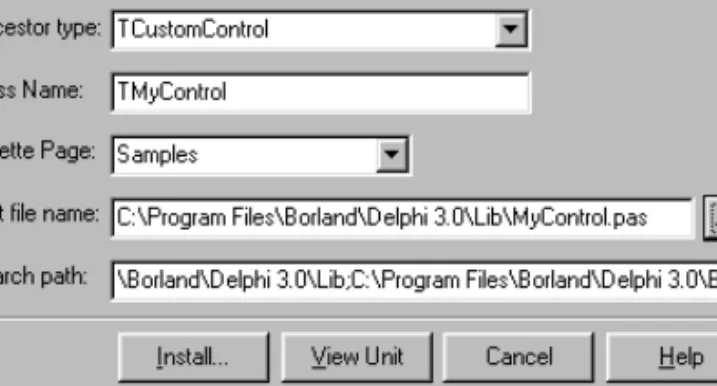
The Component wizard simplifies the initial stages of creating a component. When you use the Component wizard, you need to specify:
• The class from which the component is derived. • The class name for the new component.
• The Component palette page where you want it to appear. • The name of the unit in which the component is created. • The search path where the unit is found.
• The name of the package in which you want to place the component. The Component wizard performs the same tasks you would when creating a component manually:
• Creating a unit.
• Deriving the component. • Registering the component.
The Component wizard cannot add components to an existing unit. You must add components to existing units manually.
1 To start the Component wizard, choose one of these two methods: • Choose Component|New Component.
2 Fill in the fields in the Component wizard:
• In the Ancestor Type field, specify the class from which you are deriving your new component.
Note In the drop-down list, many components are listed twice with different unit names, one for VCL applications and one for CLX applications. The CLX-specific units begin with Q (such as QGraphics instead of Graphics). Be sure to descend from the correct component.
• In the Class Name field, specify the name of your new component class. • In the Palette Page field, specify the page on the Component palette on which
you want the new component to be installed.
• In the Unit file name field, specify the name of the unit you want the component class declared in. If the unit is not on the search path, edit the search path in the Search Path field as necessary.
Figure 1.2Component wizard
3 After you fill in the fields in the Component wizard, either:
• Click Install. To place the component in a new or existing package, click Component|Install and use the dialog box that appears to specify a package. See “Testing uninstalled components” on page 1-16.
4 Click OK. The IDE creates a new unit.
Warning If you derive a component from a class whose name begins with “custom” (such as TCustomControl), do not try to place the new component on a form until you have overridden any abstract methods in the original component. Delphi cannot create instance objects of a class that has abstract properties or methods.
To see the source code for your unit, click View Unit. (If the Component wizard is already closed, open the unit file in the Code editor by selecting File|Open.) Delphi creates a new unit containing the class declaration and the Register procedure, and adds a uses clause that includes all the standard Delphi units.
C r e a t i n g a n e w c o m p o n e n t The unit looks like this:
unit MyControl;
interface uses
Windows, Messages, SysUtils, Types, Classes, Controls;
type
TMyControl = class(TCustomControl)
private { Private declarations } protected { Protected declarations } public { Public declarations } published { Published declarations } end; procedure Register; implementation procedure Register; begin
RegisterComponents('Samples', [TMyControl]); //In CLX, use a different page than “Samples”
end;
end.
Note Where CLX applications uses separate units, they are replaced with units of the same name that are prefaced with a Q. For example, QControls replaces Controls. If descending from TCustomControl in the QControls unit, the only difference is the uses clause, which looks like this:
uses
SysUtils, Types, Classes, QGraphics, QControls, QForms, QDialogs, QStdCtrls;
Creating a component manually
The easiest way to create a new component is to use the Component wizard. You can, however, perform the same steps manually.
To create a component manually, follow these steps:
1 Creating a unit file
2 Deriving the component
3 Registering the component
Creating a unit file
When you create a component, you either create a new unit for the component or add the new component to an existing unit.
To create a new unit for a component:
1 Choose either: • File|New|Unit.
• File|New|Other to display the New Items dialog box, select Unit, and choose OK.
The IDE creates a new unit file and opens it in the Code editor.
2 Save the file with a meaningful name.
3 Derive the component class. To open an existing unit:
1 Choose File|Open and select the source code unit to which you want to add your component.
Note When adding a component to an existing unit, make sure that the unit contains only component code. For example, adding component code to a unit that contains a form causes errors in the Component palette.
2 Derive the component class.
Deriving the component
Every component is a class derived from TComponent, from one of its more specialized descendants (such as TControl or TGraphicControl), or from an existing component class. “Creating components” on page 1-3 describes which class to derive different kinds of components from.
Deriving classes is explained in more detail in the section “Defining new classes” on page 2-2.
To derive a component, add an object type declaration to the interface part of the unit that will contain the component.
A simple component class is a nonvisual component descended directly from
TComponent.
To create a simple component class, add the following class declaration to the interface part of your component unit:
type
TNewComponent = class(TComponent)
end;
So far the new component does nothing different from TComponent. You have created a framework on which to build your new component.
C r e a t i n g a n e w c o m p o n e n t Registering the component
Registration is a simple process that tells the IDE which components to add to its component library, and on which pages of the Component palette they should appear. For a more detailed discussion of the registration process, see Chapter 8, “Making components available at design time.”
To register a component:
1 Add a procedure named Register to the interface part of the component’s unit.
Register takes no parameters, so the declaration is very simple:
procedure Register;
If you are adding a component to a unit that already contains components, it should already have a Register procedure declared, so you do not need to change the declaration.
Note Although Delphi is a case insensitive language, the Register procedure is case sensitive and must be spelled with an uppercase R.
2 Write the Register procedure in the implementation part of the unit, calling
RegisterComponents for each component you want to register. RegisterComponents is a procedure that takes two parameters: the name of a Component palette page and a set of component types. If you are adding a component to an existing
registration, you can either add the new component to the set in the existing statement, or add a new statement that calls RegisterComponents.
To register a component named TMyControl and place it on the Samples page of the palette, you would add the following Register procedure to the unit that contains
TMyControl’s declaration:
procedure Register;
begin
RegisterComponents('Samples', [TNewControl]);
end;
This Register procedure places TMyControl on the Samples page of the Component palette.
Once you register a component, you can compile it into a package (see Chapter 8, “Making components available at design time”) and install it on the Component palette.
Creating a bitmap for a component
Every component needs a bitmap to represent it on the Component palette. If you don’t specify your own bitmap, the IDE uses a default bitmap. Because the palette bitmaps are needed only at design time, you don’t compile them into the
component’s compilation unit. Instead, you supply them in a Windows resource file with the same name as the unit., but with the .dcr (dynamic component resource)
When you create a new component, you can define your own bitmaps for custom components.
To create a new bitmap:
1 Choose Tools|Image Editor.
2 In the Image Editor dialog box, choose File|New|Component Resource File (.dcr).
3 In the untitled1.dcr dialog box, right-click Contents. Choose New|Bitmap.
4 In the Bitmaps Properties dialog box, change both the Width and Height to 24 pixels. Make sure VGA (16 colors) is checked. Click OK.
5 Bitmap and Bitmap1 appear below Contents. Select Bitmap1, right-click, and choose Rename. Give the bitmap the same name as the class name for your new component, including the T, using all uppercase letters. For example, if your new class name is going to be TMyNewButton, name the bitmap TMYNEWBUTTON. Note You must name all uppercase letters, no matter how you spell the class name in
the New Component dialog box.
6 Double-click TMYNEWBUTTON to display a dialog box with an empty bitmap.
7 Use the color palette at the bottom of the Image Editor to design your icon.
8 Choose File|Save As and give the resource file (.dcr or .res) the same base name as the unit you want the component class declared in. For example, name the resource file MyNewButton.dcr.
9 Choose Component|New Component. Follow the instructions for creating a new component using the Component wizard on page 1-9. Make sure that the
component source, MyNewButton.pas, is in the same directory as MyNewButton.dcr.
I n s t a l l i n g a c o m p o n e n t o n t h e C o m p o n e n t p a l e t t e The Component wizard, for a class named TMyNewButton, names the component source, or unit, MyNewButton.pas with a default placement in the LIB directory. Click the Browse button to find the new location for the generated component unit.
Note If you are using a .res file for the bitmap rather than a .dcr file, then add a reference to the component source to bind the resource. For example, if your .res file is named MyNewButton.res, after ensuring that the .pas and .res are in the same directory, add the following to MyNewButton.pas below the type section:
{*R *.res}
10Choose Component|Install Component to install your component into a new or existing package. Click OK.
Your new package is built and then installed. The bitmap representing your new component appears on the Component palette page you designated in the Component wizard.
Installing a component on the Component palette
To install components in a package and onto the Component palette:
1 Choose Component|Install Component. The Install Component dialog box appears.
2 Install the new component into either an existing or a new package by selecting the applicable page.
3 Enter the name of the .pas file containing the new component or choose Browse to find the unit.
4 Adjust the search path if the .pas file for the new component is not in the default location shown.
5 Enter the name of the package into which to install the component or choose Browse to find the package.
6 If the component is installed into a new package, optionally enter a meaningful description of the package.
7 Choose OK to close the Install Component dialog box. This compiles/rebuilds the package and installs the component on the Component palette.
Note Newly installed components initially appear on the page of the Component palette that was specified by the component writer. You can move the components to a different page after they have been installed on the palette with the Component| Configure Palette dialog box.
Making source files available
Component writers should make all source files used by a component should be located in the same directory. These files include source code files (.pas) and additional project files (.dfm/.xfm, .res, .rc, and .dcr).
The process of adding a component results in the creation of a number of files. These files are automatically put in directories specified in the IDE environment options (use the menu command Tools|Environment Options, navigate to the Library tab page). The .lib files are placed in the DCP output directory. If adding the component entails creating a new package (as opposed to installing it into an existing package), the .bpl file is put in the BPL output directory.
Testing uninstalled components
You can test the runtime behavior of a component before you install it on the Component palette. This is particularly useful for debugging newly created
components, but the same technique works with any component, whether or not it is on the Component palette. For information on testing already installed components, see “Testing installed components” on page 1-18.
You test an uninstalled component by emulating the actions performed by Delphi when the component is selected from the palette and placed on a form.
To test an uninstalled component,
1 Add the name of component’s unit to the form unit’s uses clause.
2 Add an object field to the form to represent the component.
This is one of the main differences between the way you add components and the way Delphi does it. You add the object field to the public part at the bottom of the form’s type declaration. Delphi would add it above, in the part of the type
declaration that it manages.
Never add fields to the Delphi-managed part of the form’s type declaration. The items in that part of the type declaration correspond to the items stored in the form file. Adding the names of components that do not exist on the form can render your form file invalid.
3 Attach a handler to the form’s OnCreate event.
4 Construct the component in the form’s OnCreate handler.
When you call the component’s constructor, you must pass a parameter specifying the owner of the component (the component responsible for destroying the component when the time comes). You will nearly always pass Self as the owner. In a method, Self is a reference to the object that contains the method. In this case, in the form’s OnCreate handler, Self refers to the form.
T e s t i n g u n i n s t a l l e d c o m p o n e n t s
5 Assign the Parent property.
Setting the Parent property is always the first thing to do after constructing a control. The parent is the component that contains the control visually; usually it is the form on which the control appears, but it might be a group box or panel. Normally, you’ll set Parent to Self, that is, the form. Always set Parent before setting other properties of the control.
Warning If your component is not a control (that is, if TControl is not one of its ancestors), skip this step. If you accidentally set the form’s Parent property (instead of the component’s) to Self, you can cause an operating-system problem.
6 Set any other component properties as desired.
Suppose you want to test a new component of type TMyControl in a unit named
MyControl. Create a new project, then follow the steps to end up with a form unit that looks like this:
unit Unit1;
interface uses
SysUtils, WinTypes, WinProcs, Messages, Classes, Graphics, Controls,
Forms, Dialogs, MyControl; { 1. Add NewTest to uses clause }
type
TForm1 = class(TForm)
procedure FormCreate(Sender: TObject); { 3. Attach a handler to OnCreate }
private
{ Private declarations }
public
{ Public Declarations }
MyControl1: TMyControl1; { 2. Add an object field }
end;
var
Form1: TForm1;
implementation
{$R *.DFM}
procedure TForm1.FormCreate(Sender: TObject);
begin
MyControl1 := TMyControl.Create(Self); { 4. Construct the component }
MyControl1.Parent := Self; { 5. Set Parent property if component is a control }
MyControl1.Left := 12; { 6. Set other properties... )
ƒ ...continue as needed }
end;
Testing installed components
You can test the design-time behavior of a component after you install it on the Component palette. This is particularly useful for debugging newly created
components, but the same technique works with any component, whether or not it is on the Component palette. For information on testing components that have not yet been installed, see “Testing uninstalled components” on page 1-16.
Testing your components after installing allows you to debug the component that only generates design-time exceptions when dropped on a form.
Test an installed component using a second running instance of the IDE:
1 Choose Project|Options|and on the Directories/Conditionals page, set the Debug Source Path to the component’s source file.
2 Then select Tools|Debugger Options. On the Language Exceptions page, enable the exceptions you want to track.
3 Open the component source file and set breakpoints.
4 Select Run|Parameters and set the Host Application field to the name and location of the Delphi executable file.
5 In the Run Parameters dialog, click the Load button to start a second instance of Delphi.
6 Then drop the components to be tested on the form, which should break on your breakpoints in the source.
C h a p t e r
2
Chapter2
Object-oriented programming for
component writers
If you have written applications with Delphi, you know that a class contains both data and code, and that you can manipulate classes at design time and at runtime. In that sense, you’ve become a component user.
When you create new components, you deal with classes in ways that application developers never need to. You also try to hide the inner workings of the component from the developers who will use it. By choosing appropriate ancestors for your components, designing interfaces that expose only the properties and methods that developers need, and following the other guidelines in this chapter, you can create versatile, reusable components.
Before you start creating components, you should be familiar with these topics, which are related to object-oriented programming (OOP):
• Defining new classes
• Ancestors, descendants, and class hierarchies • Controlling access
• Dispatching methods • Abstract class members • Classes and pointers
Defining new classes
The difference between component writers and application developers is that component writers create new classes while application developers manipulate instances of classes.
A class is essentially a type. As a programmer, you are always working with types and instances, even if you do not use that terminology. For example, you create variables of a type, such as Integer. Classes are usually more complex than simple data types, but they work the same way: By assigning different values to instances of the same type, you can perform different tasks.
For example, it is quite common to create a form containing two buttons, one labeled OK and one labeled Cancel. Each is an instance of the class TButton, but by assigning different values to their Caption properties and different handlers to their OnClick
events, you make the two instances behave differently.
Deriving new classes
There are two reasons to derive a new class: • To change class defaults to avoid repetition • To add new capabilities to a class
In either case, the goal is to create reusable objects. If you design components with reuse in mind, you can save work later on. Give your classes usable default values, but allow them to be customized.
To change class defaults to avoid repetition
Most programmers try to avoid repetition. Thus, if you find yourself rewriting the same lines of code over and over, you place the code in a subroutine or function, or build a library of routines that you can use in many programs. The same reasoning holds for components. If you find yourself changing the same properties or making the same method calls, you can create a new component that does these things by default.
For example, suppose that each time you create an application, you add a dialog box to perform a particular operation. Although it is not difficult to recreate the dialog each time, it is also not necessary. You can design the dialog once, set its properties, and install a wrapper component associated with it onto the Component palette. By making the dialog into a reusable component, you not only eliminate a repetitive task, but you encourage standardization and reduce the likelihood of errors each time the dialog is recreated.
Chapter 9, “Modifying an existing component,” shows an example of changing a component’s default properties.
A n c e s t o r s , d e s c e n d a n t s , a n d c l a s s h i e r a r c h i e s
To add new capabilities to a class
A common reason for creating new components is to add capabilities not found in existing components. When you do this, you derive the new component from either an existing component or an abstract base class, such as TComponent or TControl. Derive your new component from the class that contains the closest subset of the features you want. You can add capabilities to a class, but you cannot take them away; so if an existing component class contains properties that you do not want to include in yours, you should derive from that component’s ancestor.
For example, if you want to add features to a list box, you could derive your component from TListBox. However, if you want to add new features but exclude some capabilities of the standard list box, you need to derive your component from
TCustomListBox, the ancestor of TListBox. Then you can recreate (or make visible) only the list-box capabilities you want, and add your new features.
Chapter 11, “Customizing a grid,” shows an example of customizing an abstract component class.
Declaring a new component class
In addition to standard components, Delphi provides many abstract classes designed as bases for deriving new components. Table 1.1 on page 1-3 shows the classes you can start from when you create your own components.
To declare a new component class, add a class declaration to the component’s unit file.
Here is the declaration of a simple graphical component: type
TSampleShape = class(TGraphicControl)
end;
A finished component declaration usually includes property, event, and method declarations before the end. But a declaration like the one above is also valid, and provides a starting point for the addition of component features.
Ancestors, descendants, and class hierarchies
Application developers take for granted that every control has properties named Top
and Left that determine its position on the form. To them, it may not matter that all controls inherit these properties from a common ancestor, TControl. When you create a component, however, you must know which class to derive it from so that it inherits the appropriate features. And you must know everything that your control inherits, so you can take advantage of inherited features without recreating them.
Together, all the ancestor-descendant relationships in an application constitute a hierarchy of classes. Each generation in the hierarchy contains more than its ancestors, since a class inherits everything from its ancestors, then adds new properties and methods or redefines existing ones.
If you do not specify an immediate ancestor, Delphi derives your component from the default ancestor, TObject. TObject is the ultimate ancestor of all classes in the object hierarchy.
The general rule for choosing which object to derive from is simple: Pick the object that contains as much as possible of what you want to include in your new object, but which does not include anything you do not want in the new object. You can always add things to your objects, but you cannot take things out.
Controlling access
There are five levels of access control—also called visibility—on properties, methods, and fields. Visibility determines which code can access which parts of the class. By specifying visibility, you define the interface to your components.
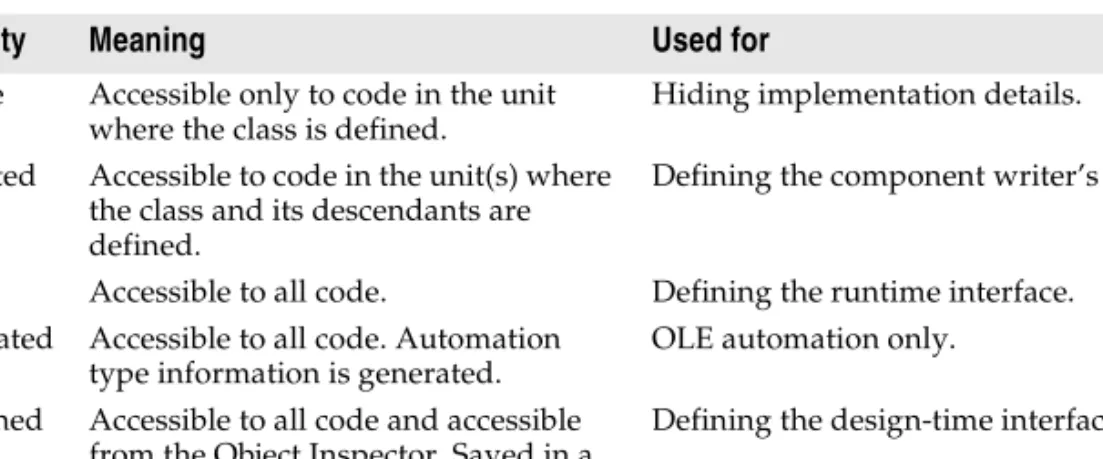
Table 2.1 shows the levels of visibility, from most restrictive to most accessible:
Declare members as private if you want them to be available only within the class where they are defined; declare them as protected if you want them to be available only within that class and its descendants. Remember, though, that if a member is available anywhere within a unit file, it is available everywhere in that file. Thus, if you define two classes in the same unit, the classes will be able to access each other’s private methods. And if you derive a class in a different unit from its ancestor, all the classes in the new unit will be able to access the ancestor’s protected methods. Table 2.1 Levels of visibility within an object
Visibility Meaning Used for
private Accessible only to code in the unit where the class is defined.
Hiding implementation details. protected Accessible to code in the unit(s) where
the class and its descendants are defined.
Defining the component writer’s interface.
public Accessible to all code. Defining the runtime interface. automated Accessible to all code. Automation
type information is generated.
OLE automation only. published Accessible to all code and accessible
from the Object Inspector. Saved in a form file.
C o n t r o l l i n g a c c e s s
Hiding implementation details
Declaring part of a class as private makes that part invisible to code outside the class’s unit file. Within the unit that contains the declaration, code can access the part as if it were public.
The following example shows how declaring a field as private hides it from application developers. The listing shows two VCL form units. Each form has a handler for its OnCreate event which assigns a value to a private field. The compiler allows assignment to the field only in the form where it is declared.
unit HideInfo;
interface
uses SysUtils, WinTypes, WinProcs, Messages, Classes, Graphics, Controls, Forms, Dialogs;
type
TSecretForm = class(TForm) { declare new form }
procedure FormCreate(Sender: TObject);
private { declare private part }
FSecretCode: Integer; { declare a private field }
end;
var
SecretForm: TSecretForm;
implementation
{$R *.dfm}
procedure TSecretForm.FormCreate(Sender: TObject);
begin
FSecretCode := 42; { this compiles correctly }
end;
end. { end of unit }
unit TestHide; { this is the main form file }
interface
uses SysUtils, WinTypes, WinProcs, Messages, Classes, Graphics, Controls, Forms, Dialogs,
HideInfo; { use the unit with TSecretForm }
type
TTestForm = class(TForm)
procedure FormCreate(Sender: TObject);
end;
var
TestForm: TTestForm;
implementation
procedure TTestForm.FormCreate(Sender: TObject);
begin
SecretForm.FSecretCode := 13; { compiler stops with "Field identifier expected" }
end;
Although a program using the HideInfo unit can use classes of type TSecretForm, it cannot access the FSecretCode field in any of those classes.
Note Names and locations of some of the units differ in CLX applications. For example, the Controls unit is QControls in a CLX application.
Defining the component writer’s interface
Declaring part of a class as protected makes that part visible only to the class itself and its descendants (and to other classes that share their unit files).
You can use protected declarations to define a component writer’s interface to the class. Application units do not have access to the protected parts, but derived classes do. This means that component writers can change the way a class works without making the details visible to application developers.
Note A common mistake is trying to access protected methods from an event handler. Event handlers are typically methods of the form, not the component that receives the event. As a result, they do not have access to the component’s protected methods (unless the component is declared in the same unit as the form).
Defining the runtime interface
Declaring part of a class as public makes that part visible to any code that has access to the class as a whole.
Public parts are available at runtime to all code, so the public parts of a class define its runtime interface. The runtime interface is useful for items that are not meaningful or appropriate at design time, such as properties that depend on runtime input or which are read-only. Methods that you intend for application developers to call must also be public.
Here is an example that shows two read-only properties declared as part of a component’s runtime interface:
type
TSampleComponent = class(TComponent)
private
FTempCelsius: Integer; { implementation details are private }
function GetTempFahrenheit: Integer;
public
property TempCelsius: Integer read FTempCelsius; { properties are public }
property TempFahrenheit: Integer read GetTempFahrenheit;
end; ƒ
function TSampleComponent.GetTempFahrenheit: Integer;
begin
Result := FTempCelsius * 9 div 5 + 32;
D i s p a t c h i n g m e t h o d s
Defining the design-time interface
Declaring part of a class as published makes that part public and also generates runtime type information. Among other things, runtime type information allows the Object Inspector to access properties and events.
Because they show up in the Object Inspector, the published parts of a class define that class’s design-time interface. The design-time interface should include any aspects of the class that an application developer might want to customize at design time, but must exclude any properties that depend on specific information about the runtime environment.
Read-only properties cannot be part of the design-time interface because the application developer cannot assign values to them directly. Read-only properties should therefore be public, rather than published.
Here is an example of a published property called Temperature. Because it is published, it appears in the Object Inspector at design time.
type
TSampleComponent = class(TComponent)
private
FTemperature: Integer; { implementation details are private }
published
property Temperature: Integer read FTemperature write FTemperature; { writable! }
end;
Dispatching methods
Dispatch refers to the way a program determines where a method should be invoked when it encounters a method call. The code that calls a method looks like any other procedure or function call. But classes have different ways of dispatching methods. The three types of method dispatch are
• Static • Virtual • Dynamic
Static methods
All methods are static unless you specify otherwise when you declare them. Static methods work like regular procedures or functions. The compiler determines the exact address of the method and links the method at compile time.
The primary advantage of static methods is that dispatching them is very quick. Because the compiler can determine the exact address of the method, it links the
A static method does not change when inherited by a descendant class. If you declare a class that includes a static method, then derive a new class from it, the derived class shares exactly the same method at the same address. This means that you cannot override static methods; a static method always does exactly the same thing no matter what class it is called in. If you declare a method in a derived class with the same name as a static method in the ancestor class, the new method simply replaces the inherited one in the derived class.
An example of static methods
In the following code, the first component declares two static methods. The second declares two static methods with the same names that replace the methods inherited from the first component.
type
TFirstComponent = class(TComponent)
procedure Move;
procedure Flash;
end;
TSecondComponent = class(TFirstComponent)
procedure Move; { different from the inherited method, despite same declaration }
function Flash(HowOften: Integer): Integer; { this is also different }
end;
Virtual methods
Virtual methods employ a more complicated, and more flexible, dispatch mechanism than static methods. A virtual method can be redefined in descendant classes, but still be called in the ancestor class. The address of a virtual method isn’t determined at compile time; instead, the object where the method is defined looks up the address at runtime.
To make a method virtual, add the directive virtual after the method declaration. The virtual directive creates an entry in the object’s virtual method table, or VMT, which holds the addresses of all the virtual methods in an object type.
When you derive a new class from an existing one, the new class gets its own VMT, which includes all the entries from the ancestor’s VMT plus any additional virtual methods declared in the new class.
Overriding methods
Overriding a method means extending or refining it, rather than replacing it. A descendant class can override any of its inherited virtual methods.
To override a method in a descendant class, add the directive override to the end of the method declaration.
D i s p a t c h i n g m e t h o d s Overriding a method causes a compilation error if
• The method does not exist in the ancestor class. • The ancestor’s method of that name is static.
• The declarations are not otherwise identical (number and type of arguments parameters differ).
The following code shows the declaration of two simple components. The first declares three methods, each with a different kind of dispatching. The other, derived from the first, replaces the static method and overrides the virtual methods.
type
TFirstComponent = class(TCustomControl)
procedure Move; { static method }
procedure Flash; virtual; { virtual method }
procedure Beep; dynamic; { dynamic virtual method }
end;
TSecondComponent = class(TFirstComponent)
procedure Move; { declares new method }
procedure Flash; override; { overrides inherited method }
procedure Beep; override; { overrides inherited method }
end;
Dynamic methods
Dynamic methods are virtual methods with a slightly different dispatch mechanism. Because dynamic methods don’t have entries in the object’s virtual method table, they can reduce the amount of memory that objects consume. However, dispatching dynamic methods is somewhat slower than dispatching regular virtual methods. If a method is called frequently, or if its execution is time-critical, you should probably declare it as virtual rather than dynamic.
Objects must store the addresses of their dynamic methods. But instead of receiving entries in the virtual method table, dynamic methods are listed separately. The dynamic method list contains entries only for methods introduced or overridden by a particular class. (The virtual method table, in contrast, includes all of the object’s virtual methods, both inherited and introduced.) Inherited dynamic methods are dispatched by searching each ancestor’s dynamic method list, working backwards through the inheritance tree.
Abstract class members
When a method is declared as abstract in an ancestor class, you must surface it (by redeclaring and implementing it) in any descendant component before you can use the new component in applications. Delphi cannot create instances of a class that contains abstract members. For more information about surfacing inherited parts of classes, see Chapter 3, “Creating properties,” and Chapter 5, “Creating methods.”
Classes and pointers
Every class (and therefore every component) is really a pointer. The compiler automatically dereferences class pointers for you, so most of the time you do not need to think about this. The status of classes as pointers becomes important when you pass a class as a parameter. In general, you should pass classes by value rather than by reference. The reason is that classes are already pointers, which are
C h a p t e r
3
Chapter3
Creating properties
Properties are the most visible parts of components. The application developer can see and manipulate them at design time and get immediate feedback as the components react in the Form Designer. Well-designed properties make your components easier for others to use and easier for you to maintain.
To make the best use of properties in your components, you should understand the following:
• Why create properties? • Types of properties
• Publishing inherited properties • Defining properties
• Creating array properties • Storing and loading properties
Why create properties?
From the application developer’s standpoint, properties look like variables.
Developers can set or read the values of properties as if they were fields. (About the only thing you can do with a variable that you cannot do with a property is pass it as a var parameter.)
Properties provide more power than simple fields because
• Application developers can set properties at design time. Unlike methods, which are available only at runtime, properties let the developer customize components before running an application. Properties can appear in the Object Inspector, which simplifies the programmer’s job; instead of handling several parameters to