Availability Guide
T E C H N I C A L M A R K E T I N G D O C U M E N T A T I O NTable of Contents
Overview . . . . 3
Availability Requirements of vCenter Server 5.5 . . . . 3
How Availability Is Defined . . . .3
Service-Level Agreements . . . .4
vCenter Server Components . . . .4
Compute Node . . . .5
Data Node(s) . . . .5
vCenter Availability Based on VMware vSphere High Availability . . . . 5
VMware vSphere High Availability and Resource Management . . . .5
Recommendations for Protecting vCenter Server with vSphere HA . . . .6
Additional Recommendations . . . .8
Load-Balancing vCenter Single Sign-On Server . . . .8
Data Node Availability Options . . . . 8
vSphere HA . . . .8
vCenter Availability Based on Windows Server Failover Clustering (WSFC) . . . . 8
Introduction . . . .8
A Case for Enabling Protection of vCenter with WSFC . . . .8
Protecting vCenter Services . . . .9
Protecting the vCenter Database . . . .10
Installing vCenter Server with WSFC . . . .10
Creating the Microsoft Cluster . . . .11
Configuring the vCenter Server Role . . . . 12
Replicating vCenter Data Using DFS . . . .13
Testing the Failover Setup . . . .16
Recommendations . . . .16
Upgrading vCenter . . . .16
Considerations When Using Custom Certificates . . . . 18
Additional Considerations . . . . 18
Recovery Options . . . . 18
VMware vSphere Replication . . . . 18
VMware vSphere Data Protection . . . . 19
Recommendations for Protecting vCenter Server with vSphere Data Protection . . . 19
Conclusion . . . . 20
References . . . . 20
Overview
A correctly architected and highly available solution provides applications with the largest amount of acceptable operational uptime by countering the impact of unplanned downtime. Although downtime can also be planned—for maintenance and patching, for example—it is the unplanned outages that have the greatest effect on production uptime. This paper will discuss the requirements of defining high availability for VMware vCenter Server™ on Microsoft Windows and VMware vCenter™ Server Appliance™, with
recommendations and best practices for providing acceptable levels of protection.
Availability Requirements of vCenter Server 5.5
How Availability Is Defined
Availability is critical for enterprise customers that have solutions requiring continuous connectivity to vCenter Server. These requirements are typically defined as service-level agreements (SLAs) on uptime and are adhered to by mission-critical solutions within the data center.
Although this is true for many production workloads, having an SLA specifically for vCenter Server is rare. Any SLA applied to a production workload managed by vCenter Server takes into account the underlying infrastructure, including the management solution, because existing workloads continue to operate when vCenter Server becomes unavailable. And although vCenter Server has proven itself to be reliable, short interruptions to its service potentially can go unnoticed. Over time, the lack of a management server can cause a greater impact on production workloads.
To avoid extended periods of downtime, users should run vCenter Server in highly available configurations and measure their uptime percentage. When an SLA is present, uptime is measured in terms of the probability of downtime, as is presented in the following:
Probability of Uptime = 1 – Probability of Downtime Probability of Downtime = MTTR / (MTTR + MTBF)
Mean Time Between Failures (MTBF) is the amount of time from the occurrence of one failure to the occurrence of the next one, including the time to repair.
Mean Time to Repair (MTTR) is the amount of time between the failure and the recovery.
• A = 1 – F
• F = MTTR/(MTBF + MTTR) = (approx.) MTTR/MTBF
MTTR = 26 mins
Time 0 Month 6 Month 12
Failure
Recovery Failure Recovery Failure
MTBF = 6 months
Service-Level Agreements
SLAs are dependent upon both the frequency of failure and the length of time between failure and recovery. Therefore, a four nines configuration can have multiple interpretations, as is shown in Table 1.
FAIL S R ECOVERY TIM E AVAIL ABILIT Y
Every year 52.56 minutes 99.99%
6 months 26.28 minutes 99.99%
4 months 17.5 minutes 99.99%
1 month 4.38 minutes 99.99%
Every day 14 seconds 99.99%
I don’t care I don’t care 99.99%
Table 1. Interpretations of a Four Nines Configuration
When SLAs are important, users should record both the MTBF and MTTR to get an accurate assessment of system uptime. The remainder of this document focuses on the components that vCenter Server comprises and how to make them highly available.
vCenter Server Components
vCenter Server comprises multiple components. To provide reliable availability options, an understanding of what these components entail, including dependencies, is required.
Compute Node(s) Data Node(s)
vCenter
Server
vCenter Database
vCenter Inventory Service vSphere Web Client VMware vCenter Single Sign-On™ ServerFigure 2. vCenter Server Components
vCenter Server comprises the following components, divided into two major categories: compute node and data node.
Compute Node
vCenter Server application – This is the solution for managing VMware vSphere® hosts. Although most of the configuration is stored in the vCenter Server database, vCenter Server is not stateless. It includes additional data such as SSL certificates and a Microsoft Active Directory Lightweight Directory Services (AD LDS) database, which is used to store roles, permissions, and licensing data.
vCenter Inventory Service – This is a cache of the vCenter Server inventory for use by VMware vSphere Web Client, stored as an XDB file on the local disk of the vCenter Server virtual machine. It also stores the tags and storage-based policy management (SBPM) configuration.
VMware vCenter Single Sign-On™ server – This provides an authentication broker for vCenter Server and vCenter Single Sign-On enabled vSphere solutions such as VMware vRealize™ Automation™— formerly VMware vCloud® Automation Center™. Its configuration consists of an LDAP server, SSL certificates, KDC service, and a certificate server.
vSphere Web Client – This is a centralized Web-based client server application for accessing a vSphere environment.
Data Node(s)
vCenter Server database – This is a repository for the configuration, metrics, and inventory data within a vCenter Server environment. To ensure availability of the database, a Microsoft SQL Server or Oracle RDBMS server can be deployed in a highly available configuration.
All vCenter Server compute and data node components must be available, and in a specific order, when recovering from an outage.
1. vCenter Server database 2. vCenter Single Sign-On services 3. vCenter Inventory Service 4. vCenter Server application
5. vCenter Server Management Webservices 6. vSphere Web Client
vCenter Availability Based on
VMware vSphere High Availability
In most cases, the following technologies and best practices provide an acceptable level of vCenter Server availability regardless of whether there is an SLA for vCenter Server specifically or vCenter Server is part of a workload SLA.
VMware vSphere High Availability and Resource Management
When virtualizing vCenter Server, virtualization technologies such as VMware vSphere High Availability (vSphere HA) and VMware vSphere Distributed Resource Scheduler™ (vSphere DRS) provide recovery and optimal performance for vCenter Server virtual machines.
vSphere HA enables monitoring of virtual machines via heartbeats with VMware Tools™. It also monitors datastore and network communication and can initiate a reboot of the virtual machine when heartbeats are missed—for example, with a crashed operating system (OS). vSphere HA also protects against a physical host failure by restarting the virtual machines on another host in the same vSphere cluster.
vSphere DRS enables virtual machines to move between hosts in a vSphere cluster by utilizing VMware vSphere vMotion®. This is important during a high-availability event such as a host failure.
If sufficient resources are not available, vSphere DRS moves virtual machines to other hosts in the cluster to enable vSphere HA to restart the virtual machines of the failed host. vSphere DRS runs on the vCenter Server virtual machine; as a result, it is available to redistribute load for vSphere HA only if the vCenter Server virtual machine is available.
vSphere HA is configured using vCenter Server at the vSphere cluster level. After it has been enabled, there no longer is a dependency on the vCenter Server virtual machine to restart virtual machines protected by vSphere HA—that is, vSphere HA monitors hosts and virtual machines at the VMware ESXi™ hypervisor and takes its configured action with or without vCenter Server availability.
VMware vCenter Operations Manager™ VMware vRealize™ Automation™ VMware vCenter Site Recovery Manager™ vCenter
Database Server Update Manager™VMware vSphere VMware vCenterOrchestrator™
vCenter Server (1) vCenter Server (2) VMware vCenter Log Insight™
Management Cluster
Figure 3. Typical Management Cluster
Recommendations for Protecting vCenter Server with vSphere HA
• Place all management solutions within a dedicated vSphere management cluster. Creating a separate management cluster accomplishes the following:
– Provides more predictable performance by reducing the likelihood that nonmanagement workloads will impact management workload performance; also ensures that management workloads will not impact nonmanagement workloads
– Eases identification of management virtual machines when a failure occurs – Creates a scalable architecture
• For example, as a vCenter Server system reaches its capacity or when a new vCenter Server system is required for cloud or desktop workloads, a new vCenter Server system can be created in the same management cluster without the need to create multiple management clusters in the same physical location.
• Enable vSphere HA on the cluster and enable virtual machine monitoring—it is disabled by default.
– Configure the virtual machine restart priority for the vCenter Server virtual machine(s) to High. This setting is configured in the “vCenter Availability Based on Windows Server Failover Clustering” section in virtual machine overrides.
• Enable and properly configure admission control for the vSphere cluster.
– The failover host policy is recommended for the management cluster because if the vCenter Server system is not available, vSphere DRS cannot defragment hosts. Using the spare host option ensures that the vCenter Server system can be restarted.
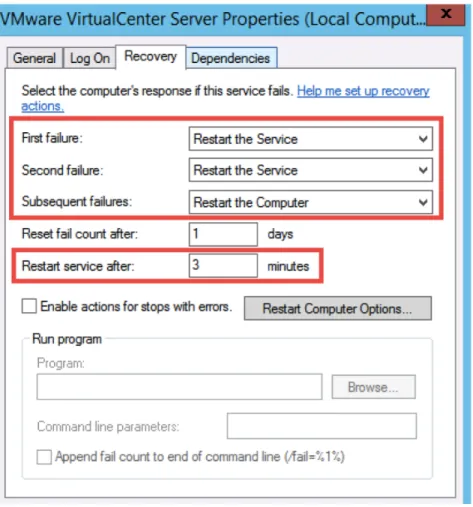
• For vCenter Server components running in Windows-based virtual machines, configure vCenter Server services to automatically restart using the Windows Server Update Services snap-in.
– Configure each service to attempt the restart after 2 to 3 minutes.
– Consider setting the final attempt to restart the computer. Be cautious: This can cause a constantly rebooting vCenter Server virtual machine if an external factor such as the database is down and is causing the service failure.
Figure 4. vCenter Server – Automatic Restart Configuration
• If vCenter Server components are distributed across multiple virtual machines, create a “should” vSphere DRS virtual machine–host affinity rule. This groups these virtual machines together on the same vSphere host to maximize performance and ensure availability when all virtual machines cannot be placed on the same host. The following are recommendations for optimizing performance of vCenter Server components:
• Set virtual machine memory reservations.
– To ensure that vCenter Server node(s) and database node(s) have access to their configured memory resources, VMware recommends setting a memory reservation equal to the configured memory size. This ensures that these virtual machines have access to physical memory in the hosts.
• Enable vSphere DRS on the management cluster in automatic mode.
Additional Recommendations
Load-Balancing vCenter Single Sign-On Server
In physical locations where there are two or more vCenter Single Sign-On enabled solutions, such as vCenter Server and vRealize Automation, VMware supports the use of a load balancer to make vCenter Single Sign-On highly available.
For more information on this solution and how to configure it, see the Deploying a Centralized VMware vCenter Single Sign-On Server with a Network Load Balancer technical reference.
Data Node Availability Options
vSphere HA
As with the compute node(s), the data node(s) should be configured to benefit from vSphere HA. The following are recommendations for protecting the vCenter Server database server with vSphere HA: • Place all database servers in the dedicated vSphere management cluster.
• If using a database clustering solution, create vSphere DRS virtual machine host antiaffinity rules to ensure that the database servers do not run on the same host.
• If using a database clustering solution, set the ForceAffinePoweron advanced vSphere DRS option to 1 to enable strict enforcement of vSphere DRS rules at power-on.
• Enable vSphere HA with both host and virtual machine monitoring. • Enable and properly configure admission control for the vSphere cluster.
• Set the virtual machine restart priority for the virtual machine(s) hosting the vCenter Server database to High. This setting is configured in the “vCenter Availability Based on Windows Server Failover Clustering” section in virtual machine overrides.
vCenter Availability Based on
Windows Server Failover Clustering (WSFC)
Introduction
Because VMware vCenter is central to the operations of the virtual infrastructure of many customers, it has evolved into a business-critical application. Business requirements necessitate that vCenter Server be highly available with minimal downtime. A majority of VMware customers currently run vCenter backed by an external SQL Server database.
A Case for Enabling Protection of vCenter with WSFC
vCenter can be a single point of failure in the environment. Many VMware solutions, such as VMware Horizon® Suite, vRealize Automation, and so on, are layered on top of vCenter; its availability impacts the usability of these components. Loss of vCenter curtails the ability of these solutions to perform many critical functions, such as making changes and creating new virtual machines.
Although vSphere HA protects against hardware failures, the following are among the scenarios for which it does not offer protection:
• Application- and database-level failures • Downtime during OS patching
vCenter Server
vCenter
Inventory Service Inventory ServicevCenter vSphere Web Client vSphere Web Client
Windows Server 2012 Virtual Machine
vCenter Server
Two-Node WSFC Cluster
DFS-R External vCenter
Single Sign-On
Shared RDM Where vCenter Files Are Stored vCenter Database
SQL Server 2012
Windows Server 2012 Virtual Machine vCenter Cluster
Role
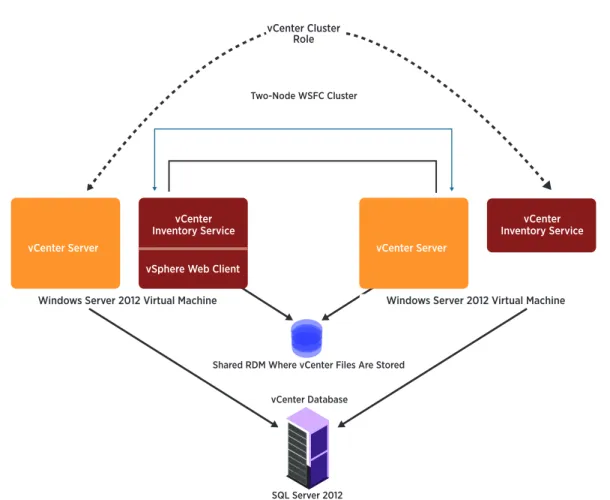
Figure 5. vCenter Server Components for Use with Windows Server Failover Cluster
Protecting vCenter Services
High availability of vCenter Server can be implemented using WSFC, formerly known as MSCS, and DFS replication technology. Prior to the vCenter 5.5 Update 2 release, VMware had not certified vCenter high availability using WSFC. VMware has qualified vCenter high availability with vCenter 5.5 Update 2 using WSFC. This section aims to leverage Microsoft clustering to increase the availability of the vCenter application. • VMware vCenter Inventory Service
• VMware VirtualCenter Management Webservices • VMware VirtualCenter Server
• VMware vSphere Profile-Driven Storage • VMware vSphere Web Client
• VMwareVCMSDS • VMware Log Browser
• VMware vSphere Auto Deploy™ Waiter • VMware vSphere ESXi Dump Collector
• VMware vSphere ESXi Dump Collector Web Server • VMware vSphere Syslog Collector
• VMware vCenter Orchestrator™ Server • VMware vCenter Orchestrator Service
Protecting the vCenter Database
1. SQL Server 2012 or SQL Server 2008 can be used as a database for vCenter Server. The database should be installed in a separate virtual machine, and the database for vCenter must be created.
2. vCenter database high availability can be achieved by using SQL Server 2012 or SQL 2008 failover cluster. 3. For protecting vCenter using WSFC, vCenter Single Sign-On components must be installed in a separate
virtual machine.
Installing vCenter Server with WSFC
1. Identify the static IP and the host name (sin2vc.cpdWSFC.vmware.com) to be used for vCenter Server. They are used for the vCenter cluster role creation and float around both virtual machines during WSFC failover. Clients can access vCenter Server using this IP. Table 2 has example IP address settings. 2. Create a Windows virtual machine and join the domain with the IP address and host name previously
identified. Add an RDM to the virtual machine; format it as NTFS.
3. Create a 64-bit DSN in the virtual machine for vCenter to connect with the database. For connecting with an SQL Server 2012, “Sql native client 11.0 driver” must be used. For SQL Server 2008, “Sql native client 10.0 driver” must be used.
4. Install vCenter Server on the virtual machine. vCenter Inventory Service, VirtualCenter Server, and vSphere Web Client must be installed in custom mode. The installation drive should be the RDM added in the previous step. vSphere Auto Deploy, Netdump, and syslog can also be installed in a similar manner, with installation and data location on the RDM.
5. vCenter should be installed using the domain administrator account.
6. After the installation has completed, verify that all previously referenced services related to vCenter are running.
7. Edit the services individually and make the startup type Manual for all of them. 8. Shut down the virtual machine and remove the RDM.
9. Clone the virtual machine to another ESXi host.
10. Power on the cloned virtual machine and change the host name (sin2vc-2.cpdWSFC.vmware.com) and IP. Join it to the domain.
11. Power on the original virtual machine and change it to workgroup. Assign a new host name (sin2vc-1.cpdWSFC.vmware.com).
12. Rejoin the domain.
13. Ensure that the host name and the IP for nodes sin2vc-1.cpdWSFC.vmware.com and sin2vc-2. cpdWSFC.vmware.com can be resolved properly through DNS by using the nslookup command. 14. Share the RDM between the two virtual machines as mentioned in the VMware WSFC setup guide. 15. Share another RDM between the two virtual machines for the purpose of WSFC quorum.
16. Other notes
a. Consider the first virtual machine as the primary vCenter node and the cloned virtual machine as the secondary vCenter node.
b. Use the first virtual machine for all future vCenter upgrades.
c. Similarly, for connecting any other solutions such as backup agent, VMware vCenter Site Recovery Manager™, and VMware vSphere Update Manager™, vCenter role ownership should be with the primary node.
NODE NAM E PRIVATE IP
ADDR ESS PU B LIC IP ADDR ESS DESCRIPTION
Sin2vc 192.168.10.20 Client access point for vCenter Sin2vc-1 10.10.10.20 192.168.10.21 Node 1 for vCenter cluster Sin2vc-2 10.10.10.21 192.168.10.22 Node 2 for vCenter cluster Table 2. Cluster Nodes and IP Address Information
Creating the Microsoft Cluster
1. Now both virtual machines are running, all referenced vCenter services are stopped, and their startup type is manual.
2. Verify that the two virtual machines can communicate with each other. Also verify that each virtual machine has a separate, private network configured for heartbeat communications between cluster nodes, per Table 2.
3. Install the Failover Clustering feature on both virtual machines for configuring the WSFC cluster.
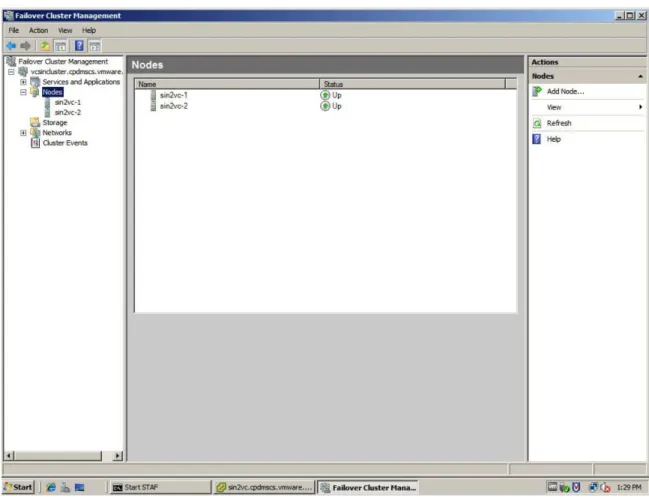
4. Create a Windows failover cluster—vCenter cluster, for example—for vCenter clustering. Add both virtual machines as cluster nodes.
Configuring the vCenter Server Role
1. The cluster has now been created and the vCenter Server role must be configured. The vCenter IP, the original IP that was used before installing vCenter, and services are resources for this role. Clients can connect with vCenter using this IP address. vCenter services run only on the node that owns the cluster role.
2. Open Failover Cluster Manager and select vCenter Cluster. 3. Configure roles and RDM storage:
a. Right-click Roles -> Configure role -> Next -> Generic Service -> Next.
b. Choose VMware VirtualCenter Server. Give it the same name as that of the original vCenter Server prior to cloning, along with the same IP address—vcsimple.cpdWSFC.vmware.com, for example. c. Next -> Select Storage: Select the shared RDM disk where vCenter is installed.
d. Next -> Registry Replication (No registry replication). e. Finish.
4. The vCenter Server cluster role has now been created. 5. Now the rest of the services must be added to the same role. 6. Add resources:
a. Right-click vCenter Server cluster role -> Add Resource -> Generic Service. b. Select VMware vCenter Inventory Service -> Next until completion.
c. Do the same for all previously mentioned services.
7. The dependencies of these services must be configured so as to prioritize the way in which they start. 8. Additional configuration:
a. In the role pane, click Resources. Right-click VMware VirtualCenter Server service: -> Properties -> Dependencies.
b. Insert these services as AND (VMwareVCMSDS and VMware vCenter Inventory Service); they can be chosen from the drop-down menu.
c. Click OK.
9. Inventory services configuration:
a. In the role pane, right-click VMware vCenter Inventory Service -> Properties -> Dependencies. Insert the Server name, IP, and the Cluster Service.
b. vCenter Inventory Service will start only after the role name, IP, and cluster disk appear online on the failover node.
10. Webservices configuration:
a. In the role pane, right-click VMware VirtualCenter Management Webservices -> Properties -> Dependencies.
b. Insert VMware VirtualCenter Server as a dependency. c. Click OK.
d. Do the same for all other services so they will start after vCenter service.
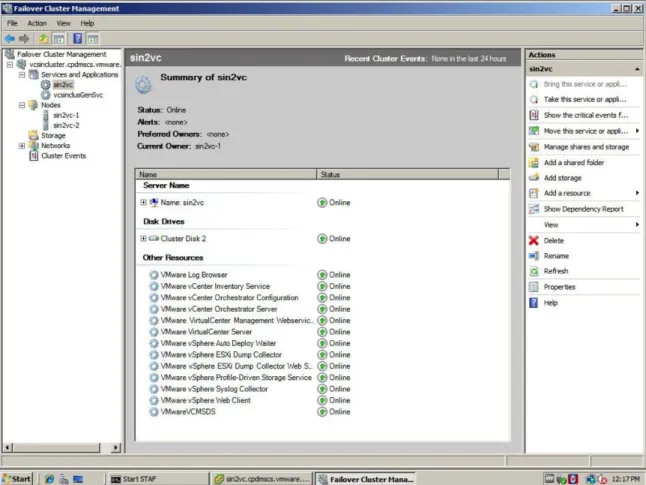
11. Right-click vCenter Server. Click Start role. After all services have started, the screen should resemble the following:
Figure 7. WSFC Cluster Services Configuration for vCenter
Replicating vCenter Data Using DFS
Continuous replication can be configured using DFS. The following folders must be synchronized across both cluster nodes:
• C:\ProgramData\VMware
• C:\Program Files\Common Files\VMware 1. Add the DFS Replication role on both servers. 2. Open DFS Management.
3. Create a new replication group:
a. On Replication, right-click New replication group -> Multipurpose Replication Group. Provide a name for it.
b. Add both servers: Topology full mesh -> Bandwidth full.
c. Select the one with the current vCenter Server role as the primary node. d. Add the previously referenced folders to replication.
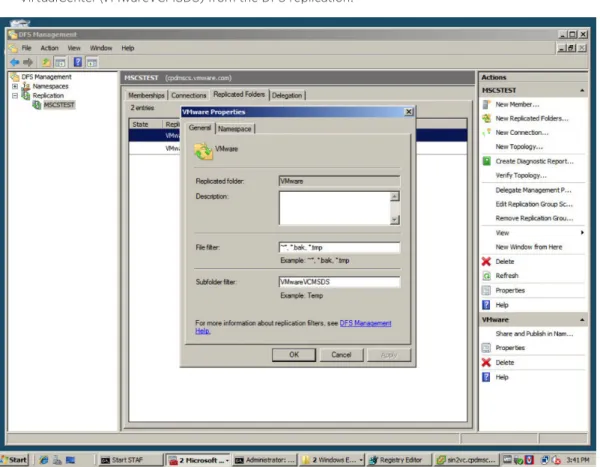
4. Add the same folders as destination. The screen should resemble the following:
Figure 8. Configuring Folder Replication
5. Exclude the Active Directory Application Mode (ADAM) database folder (C:\ProgramData\VMware\VMware VirtualCenter\VMwareVCMSDS) from the DFS replication.
6. Back up the ADAM database separately and copy it to the standby node on a regular basis. In the event of a failover to the standby node, this database backup must be restored after the cutover to ensure that all custom roles, licensing, and other attributes stored in ADAM are up to date. This can potentially be scripted via batch to create automation regarding the replication and restoration of changes to ADAM.
a. Click Start. Right-click Command Prompt.
b. Click Run as administrator to open a command prompt. c. Run the command.
• dsdbutil
d. At the dsdbutil: prompt, run the command. • activate instance VMwareVCMSDS
e. Run this command to open the ifm prompt. • ifm
f. At the ifm: prompt, run this command for the type of installation media that you want to create. • create full location
g. Exit dsdbutil.
• At the ifm: prompt, type Quit. Press Enter. • At the dsdbutil: prompt, type Quit. Press Enter.
7. Follow these steps to restore the vCenter Server ADAM data that was backed up using dsdbutil on the second host after a failover:
a. Stop these services in this order:
• VMware VirtualCenter Management Webservices • VMware VirtualCenter Server
• VMwareVCMSDS
b. Back up the files in the folder that contains the instance data files to an alternate location. By default, the database and log files are located at %ProgramFiles%\VMware\Infrastructure\VirtualCenter Server\VMwareVCMSDS.
NOTE: In Windows 2008 and 2008 R2, the default path is C:\%ProgramData%\VMware\VMware VirtualCenter\VMwareVCMSDS.
c. Run this command to copy the ADAM backup that was created using dsdbutil.exe to the folder that contained the original ADAM database and log files.
In vSphere 5.0 and previous versions, the VMwareVCMSDS folder is located at xcopy /os backup_ location\adamntds.dit” %ProgramFiles%\VMware\Infrastructure\VirtualCenter Server\ VMwareVCMSDS”.
In vSphere 5.1 and vSphere 5.5, the VMwareVCMSDS folder is located at xcopy /os backup_location\
adamntds.dit “%ProgramData%\VMware\VMware VirtualCenter\VMwareVCMSDS”
where backup_location is the folder path within which the ADAM database was backed up. The following is an example:
xcopy /os C:\Backup\VMwareVCMSDS\adamntds.dit “c:\Program Files\VMware\ Infrastructure\VirtualCenter Server\VMwareVCMSDS”
d. Start these services in this order: • VMware VirtualCenter Server • VMwareVCMSDS
8. In the event of a failover to the standby node, this database backup must be restored after the cutover to ensure that all custom roles, licensing, and other attributes stored in ADAM are up to date.
9. Execute the dfsrdiag/pollad command on both nodes.
10. After configuring DFS-R, wait for the initial synchronization to complete. DFS-R takes the primary node as the source for initial synchronization. Monitor the event viewer of both nodes regarding the DFS-R messages. The secondary node event viewer shows the Initial Synchronization Complete message after the synchronization has completed.
11. There shouldn’t be any failover in the WSFC cluster before the DFS-R initial synchronization completes. Otherwise, there might be file loss in one of the nodes, which might cause startup problems for vCenter. 12. The DFS-R health report can be executed to verify that DFS is working fully on both nodes.
13. The DFS-R propagation test and propagation report can be generated from each node to verify that both nodes are capable of replicating.
Testing the Failover Setup
After the vCenter Server role has been configured and DFS-R initial synchronization has completed, running the failover of role ownership should be tested by moving the role ownership to the secondary node from the failover cluster manager.
Recommendations
• Network adapter teaming should be used for the public network used by clients to connect with the virtual center.
• An antiaffinity rule can be used so both clustered vCenter virtual machines are never on the same host. See VMware Knowledge Base article 1037959.
• Create a backup of the C:\ProgramData\VMware and C:\Program Files\Commonfiles\VMware folders on the source machine before starting the DFS-R.
• Before the DFS-R, create a backup of the ADAM database. See VMware Knowledge Base article 1029864. • Copy the ADAM database backup to the standby node.
• DFS-R autorecovery mode should be disabled to enbable backup of files in the failed node and manual replication restart after a sudden power failure.
Upgrading vCenter
vCenter stops services during upgrade, so an upgrade requires downtime. Collect the inventory database backup before an upgrade. Make sure that no vCenter services are running on the secondary node—that is, the node not owning the vCenter cluster role—virtual machine. Also stop the cluster service on the secondary node to prevent failover during the upgrade.
The vCenter upgrade should be planned only on the primary node—that is, the node where vCenter previously has been installed or upgraded. Do not use the second node for vCenter upgrade because that might impact the future upgrade.
1. Connect the vCenter installation ISO.
2. From the Failover Cluster Manager, stop the cluster service of the secondary node.
3. Failover Cluster Manager -> Nodes. Right-click the node not currently owning the vCenter role: -> More Actions -> Stop Cluster service.
a. From the Failover Cluster Manager role pane, click vCenter Role -> Resources. Right-click all services: Properties -> Policies. Select If resource fails, do not restart.
4. Repeat step 3 for all services that are part of the role.
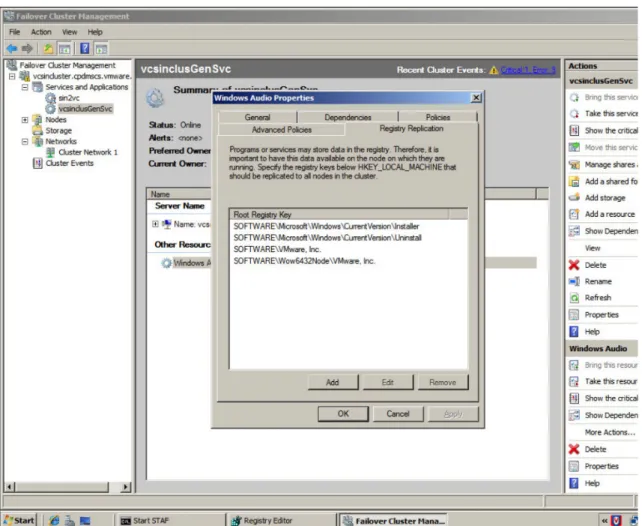
5. During vCenter upgrade, registry changes must be replicated between the nodes. WSFC creates a
checkpoint of the configured registry values when converted to the OFFLINE state and restores the registry values when it comes back ONLINE. vCenter services might go offline during upgrade, so a dummy cluster role must be created using one of the Windows services for registry replication. This role must be in the ONLINE state during the upgrade. After the upgrade, bring the dummy role to OFFLINE and start the cluster service on the other node. After the cluster service is running on both nodes, bring the dummy role to the ONLINE state. This starts the registry replication process. The following registry entries must be replicated during vCenter upgrade:
a. HKLM\Software\Microsoft\Windows\CurrentVersion\Installer b. HKLM\Software\Microsoft\Windows\CurrentVersion\Uninstall c. HKLM\Software\VMware, Inc.
d. HKLM\Software\WoW6432Node\VMware, Inc.
Start the vCenter upgrade on the vCenter owner node role from the vCenter installer ISO. Using custom mode —that is, upgrading the vCenter components individually—is recommended.
1. After all components have been successfully upgraded, move the resources of the cluster role to the default state by the Failover Cluster Manager role pane. Click vCenter Role -> Resources. Right-click all services: Properties -> Policies. Select If resource fails, attempt restart on current node.
2. This might leave all services in a FAILED or OFFLINE state.
3. After the update has completed, start the role and the cluster service on the other node. To replicate the registry entries, change the dummy role created in the previous step to OFFLINE and ONLINE state. 4. Check the vCenter version from C:\Program Files\Vmware\Infrastructure\VirtualCenter Server\vpxd.exe –v
and verify that the registry is replicated to the secondary node.
5. Windows Add or Remove Programs should show the same version for the VMware components in both nodes.
6. Verify that all vCenter services are to be protected in the Manual startup type. 7. Attempt to log in to vCenter using vSphere Web Client.
8. Stop the role.
9. Test failover after starting the cluster service on the secondary node. Verify that the vCenter version has been upgraded on both nodes.
Considerations When Using Custom Certificates
The certificate must be created with the host name of the vCenter Server—that is, the vCenter role server name (sin2vc)—not with the individual hosts. Make both nodes of the certificate trusted. Certificates cannot be replaced after deployment, so any certificate changes should be made beforehand. A rebuild is required if changes to certificates are required.
Additional Considerations
• When adding custom roles or licensing, a backup must be created on the current active vCenter node and restored on the passive vCenter node. See VMware Knowledge Base article 1029864. This syncs the ADAM database on the node with the new custom role, the license key, and the permissions assigned to the new role.
• There is a potential for permission-related issues with vCenter Site Recovery Manager and vSphere Update Manager in the event of a vCenter failover. Failing back vCenter resolves the issue.
Recovery Options
The following technologies and best practices provide an acceptable level of vCenter Server recoverability, regardless of whether there is an SLA for vCenter Server specifically or vCenter Server is part of a workload SLA.
VMware vSphere Replication
VMware vSphere Replication™ can replicate virtual machines within a site or across sites to add another layer of protection. To perform a virtual machine recovery, vSphere Replication requires that vCenter Server and vSphere Web Client be online. Even with this requirement, it might still be possible to utilize vSphere Replication to protect vCenter Server. For example, with multiple vCenter Server systems—one that is still available can be used to recover the failed vCenter Server—this might be in the same physical location or in a different one.
VMware vSphere Data Protection
VMware vSphere Data Protection™ is a backup-and-recovery solution included with all vSphere 5.5 editions. It is deployed as a virtual appliance and is based on industry-leading EMC Avamar technology. vSphere Data Protection is an agentless solution that utilizes virtual machine snapshots to back up and restore entire virtual machines, individual virtual disks (VMDK files), and individual files inside the virtual machine.
vSphere Data Protection is managed using vSphere Web Client. If vCenter Server and the corresponding vSphere Web Client server go offline, Emergency Restore can be used to restore virtual machines, including those running vCenter Server components. Emergency Restore enables direct-to-host recovery of a virtual machine without the need for vCenter Server and vSphere Web Client. This makes it useful for backing up vCenter Server components when they are running in one or more virtual machines.
vSphere Data Protection utilizes the Windows Volume Shadow Copy Service (VSS) provider built into VMware Tools. When an image-level backup of a Windows virtual machine is performed, applications for which a VSS writer is installed—such as SQL Server and the Windows file system—are quiesced just before the virtual machine snapshot for the backup job is created. This results in application-level and file-level consistent backups. Backups of Linux-based virtual machines are considered crash consistent.
Recommendations for Protecting vCenter Server with vSphere Data Protection • Run all vCenter Server components in one or more virtual machines.
• Verify that DNS is properly configured for all vCenter Server virtual machines, vSphere hosts, and vSphere Data Protection virtual appliances in the environment. Name resolution must be possible using both the fully qualified domain name (FQDN) and the host or short name for each virtual machine, as well as by reverse lookups.
• Deploy vSphere Data Protection to the same cluster where vCenter Server is located.
• Create an image-level (entire virtual machine) backup job for all virtual machines that contain and support vCenter Server components. Having a backup job for only the vCenter Server virtual machines makes it easy to run a manual backup job, in addition to the scheduled job, before patching or updating vCenter Server components and virtual machines.
• Schedule the backup job to run daily, with a retention policy of at least 10 days. • Schedule the backup job for when vCenter Server utilization is typically low.
• Configure a vCenter Server alarm to notify administrators when a protected virtual machine is running on a snapshot. See VMware Knowledge Base article 1018029.
• Configure a vCenter Server alarm to notify administrators when a protected virtual machine requires consolidation. See VMware Knowledge Base article 2061896.
• Configure email notification to provide information on the status of the vSphere Data Protection appliance and its backup jobs.
Conclusion
There are multiple options for high availability VMware vCenter 5.5. VMware vSphere High Availability and a watchdog process can be leveraged to protect vCenter services. Windows Server Failover Clustering (WSFC) can be used to further improve availability and protect a vCenter environment.
References
Disk Quorum and Clustering Requirement vCenter Deployment and System Requirement
Windows Server Failover Clustering Failover Knowledge Base vCenter Installation
Database Full Recovery Model for vCenter
Troubleshooting Guide for vSphere and vCenter 5.5
About the Authors
Mike Brown is a senior technical marketing manager in the Cloud Infrastructure Technical Marketing group. Mike has worked in the IT industry for more than 17 years. His focus is on reference architectures for VMware vCloud Suite and the software-defined data center (SDDC) as well as VMware vCenter Server, vCenter Single Sign-On, VMware vSphere Web Client, and resource management technologies such as vSphere Distributed Resource Scheduler, VMware vSphere Network I/O Control, VMware vSphere Storage DRS™, and VMware vSphere Storage I/O Control. Mike has multiple industry certifications, including VMware Certified Design Expert (VCDX). Follow Mike on the vSphere Blog and on Twitter @vMikeBrown.
Anil Kapur is a product manager focusing on VMware vCenter distributed resource management, availability, and scale. Follow Anil on the vSphere Blog.
Justin King has been involved with the IT industry for more than 15 years. He has had various roles and responsibilities, from administration to architecting solutions. Since joining VMware in 2009, Justin has supported sales teams as a sales engineer and has evangelized business continuity and disaster recovery (BCDR) technologies. He currently is part of the Technical Product Management team, instilling confidence in the VMware cloud infrastructure suite of products. Follow @vCenterGuy on Twitter for news and information. Mohan Potheri is currently a senior solutions architect for VMware, focusing on VMware vCenter and the virtualization of business-critical applications. He has more than 20 years of experience in IT infrastructure with VMware virtualization, enterprise UNIX, and business-critical applications. Mohan is a CISSP and VMware Certified Design Expert (VCDX#98). He holds master’s degrees in electrical engineering and business administration from the University of Houston. Follow @ITVista on Twitter and on the vSphere Blog.