Using a pen
Customizing your pen
Troubleshooting
Using a tablet
Customizing your tablet
Digital inking
Using a cordless mouse
User’s manual for
Windows & Macintosh
® ®Index Contents
2 Index
Contents
Bamboo™ Fun
User’s Manual for Windows® & Macintosh® English version 1.0, March 21, 2007
Copyright © Wacom Company, Limited, 2007
All rights reserved. No part of this manual may be reproduced except for your express personal use. Wacom reserves the right to revise this publication without obligation to provide notification of such changes. Wacom does its best to provide current and accurate information in this manual. However, Wacom reserves the right to change any
specifications and product configurations at its discretion, without prior notice and without obligation to include such changes in this manual.
Reuse, recycling, and recovery. You are urged to recycle this product when replacing it with a newer product or when it has outlived its useful life by bringing it to an appropriate collection point for recyclable materials in your community or region. By doing this, you can help improve the environment of your community as well as minimize the potential negative effects created should any hazardous substance that may possibly be present within waste material reach the environment during the disposal process.
Within the European Union, users are required not to dispose of Waste Electrical and Electronic Equipment (WEEE) as unsorted municipal waste, according to the Directive 2002/96/EC of the European Parliament and of the Council of 27 January 2003, or the corresponding local laws of the Member States. Products for which this is applicable will be marked with the WEEE symbol shown at the beginning of this note unless this is not feasible because of the size or the function of the product. Wacom products are subject to the Directive 2002/96/EC and therefore you should always collect them separately and bring them to the appropriate collection point in your community or region.
Wacom pen tablet products comply with the European Union RoHS Directive 2002/95/EC (RoHS Directive).
Bamboo is a trademark and Wacom is a registered trademark of Wacom Company, Limited.
Adobe, Reader, and Photoshop are either registered trademarks or trademarks of Adobe Systems Incorporated in the United States and/or other countries. Microsoft, Windows, and Vista are either registered trademarks or trademarks of Microsoft Corporation in the United States and/or other countries. Apple, the Apple logo, and Macintosh are registered trademarks of Apple Computer, Inc., registered in the U.S. and other countries. Any additional company and product names mentioned in this documentation may be trademarked and/or registered as trademarks. Mention of third-party products is for information purposes only and constitutes neither an endorsement nor a recommendation.
3 Index
Contents
CONTENTS
About the manual 4
Navigating the manual 5
WORKING WITH BAMBOO FUN 6
Tablet features 6
Input tools 7
Setting up your work area 8
Using the cordless pen 9
Holding the pen 9
About the active area 10
Pointing 11 Clicking 12 Dragging 12
Using the pen buttons 13
Drawing with pressure sensitivity 14
Erasing 14
Eye-hand coordination exercise 15
Using the cordless mouse 16
Working with the tablet 17
Using the ExpressKeys 18
Using the Touch Ring 19
CUSTOMIZING 20
Opening the control panel 20
Control panel overview 21
Control panel settings 21
Customizing the pen 22
Adjusting tip feel, eraser feel,
and double-click 23
Customizing the pen buttons 24
Button functions 25
Customizing the cordless mouse 28 Customizing the mouse buttons 29
Tablet tracking 30
Mapping to multiple monitors 32
Portion of screen area 32
Portion of tablet area 33
Setting mouse speed 33
Customizing the tablet functions 34 Customizing the Pop-up Menu 35
TROUBLESHOOTING 36
Testing your tablet and tools 37
Troubleshooting tables 39
General problems 39
Windows-specific problems 42 Macintosh-specific problems 42
Technical support options 43
Obtaining driver downloads 44
APPENDIX 45 Pen and digital ink capabilities in Windows Vista 46 About the Windows Vista Tablet PC Input Panel 47 Caring for your tablet and tools 48
Replacing the pen tip 48
Uninstalling the tablet software 49
Product specifications 50
General specifications for
all Bamboo Fun pen tablets 50 Small Bamboo Fun tablet (model CTE-450) 50 Medium Bamboo Fun tablet (model CTE-650) 50 Bamboo Fun pen (model EP-155E) 51 Bamboo Fun cordless mouse (model EC-155) 51
Product information 52
Ordering parts and accessories 52 Radio and television interference 53
FCC notice 53
Industry Canada (Canada only) 53
CE declaration 53
License and Warranties
(Worldwide, Except for Europe,
Africa and Middle East) 54
Software License 54
Limited Warranty 54
Warranty Service in the U.S.A. and Canada 55 Warranty on Sales Outside of
the U.S.A. and Canada 56
License and Warranty
(Europe, Africa and Middle East) 57 Software License Agreement 57 Entitlement to Use the Software 57
Limited Warranty 57
4 Index
Contents
ABOUT THE MANUAL
This manual provides quick access to information about Bamboo Fun. Click on a navigation button or highlighted word to move through the document. The information is common to Windows and Macintosh computers and Windows screen captures are shown, unless otherwise noted.
• In the contents you can go directly to a topic by clicking on it.
• Working with Bamboo Fun is the learning chapter. It describes the pen tablet, the features and function of each Bamboo Fun tool, and includes exercises for new users.
• Customizing describes how you can change the control panel settings to optimize your Bamboo Fun pen, mouse, and tablet for the way you like to work.
• Want to test your tablet and tools? Need troubleshooting guidelines? Troubleshooting is where you will find the answers to most common questions.
• The appendix includes a variety of information: an overview of the new pen and digital inking capabilities found in Microsoft Windows Vista, tips on caring for your tablet and tools, a how-to on uninstalling the software, your license and warranty, and more.
Note: This manual does not contain information on installing your tablet. Please refer to your product Quick Start Guide and to the automated software installer (located on the Bamboo Fun Pen Tablet Driver CD) for complete details on installing your pen tablet.
If you are new to electronic documentation, be sure to read navigating the manual.
• SMALLCAPITALLETTERS are used to identify the names of keyboard keys, dialog boxes, and control panel options.
• You can use your viewer zoom-in tool to increase the size of the manual on your display screen. • The following information is not included with this product: information about your specific computer
hardware or operating system, or information about your application software. Your best source for this information is the set of manuals and disks that came with your hardware, operating system, or
application.
• Many applications have built-in support for Bamboo Fun features (such as pressure sensitivity
and the pen eraser). See product information for a listing of applications that support these features. For information on how best to use Bamboo Fun features within a specific application, see the
5 Index
Contents
NAVIGATING THE MANUAL
Use the navigation controls to move through the manual:
Go to front page.
Go to table of contents. Go to index.
Go back to previous view.
Page back, or page forward.
Go to beginning of section. Go to topic.
Topic continued.
Adobe Reader provides you with additional tools for using and printing the manual. See the Adobe Reader help for more information.
CONTENTS
INDEX
HEADINGTEXT
6 Index
Contents
WORKING WITH BAMBOO FUN
This section introduces you to the Bamboo Fun pen tablet, which consists of two basic elements: a tablet that serves as your work area, and the input tools you use on the tablet.
If you are new to using a pen tablet and tablet input tools, read the following sections.
Tablet features Input tools
Setting up your work area Using the cordless pen Using the cordless mouse Working with the tablet
TABLET FEATURES
Active area. See about the active area.
Clear plastic overlay. ExpressKeys.
See working with the tablet and customizing the tablet functions.
Detachable USB cable. Touch Ring. A backlit status ring surrounds the customizable Touch Ring, and glows when the tablet power is on.
• Standby mode. The ring slowly pulses at a low light level.
• Active mode. The ring glows constantly at a brighter light level.
7 Index
Contents
INPUT TOOLS
Your Bamboo Fun input tools are cordless and battery-free.
Programmable buttons can be customized. Eraser. Pen buttons. Replaceable nib (pen tip).
Fingerwheel. The integrated middle button and rolling wheel can be used for up and down scrolling in the active window. It can also be customized for a variety of button functions.
Bamboo Fun pen.
A pressure-sensitive freehand tool for image editing and creating natural-looking pen strokes. It is also efficient for document annotation and taking notes in applications that support handwriting recognition.
Bamboo Fun cordless mouse. An ideal tool for navigation or performing any other task you may have done previously with a standard mouse.
Note: Some product configurations may not include the cordless mouse.
8 Index
Contents
SETTING UP YOUR WORK AREA
To minimize fatigue, organize your work area so you can work comfortably. Position your tablet, input tools, and keyboard for easy access without unnecessary reaching. Position your monitor so you can view it comfortably with a minimum of eyestrain. For best results, orient the tablet so the screen cursor follows the same direction as your hand movements on the tablet.
Note: Wacom makes no representation, promise or guarantee that Wacom products will cure or prevent, in whole or in part, mouse-induced repetitive stress symptoms, injuries or conditions. Individual results may vary. Always obtain competent medical advice to determine the most appropriate treatment for your specific situation.
See working with the tablet for more information.
• Take short breaks between tasks to stretch and relax your muscles.
• Use a gentle grip when working with your tools.
• Alternate tasks and tools throughout the day.
• Maintain a good posture at all times. Minimize awkward postures and repetitive movements that cause discomfort.
• Change your position if you feel any discomfort due to your work position.
9 Index
Contents
USING THE CORDLESS PEN
There are four basic techniques for using the pressure-sensitive pen: pointing, clicking, double-clicking, and dragging. If you are unfamiliar with using the pen, try the exercises on the following pages.
Holding the pen About the active area Pointing
Clicking Dragging
Using the pen buttons
Drawing with pressure sensitivity Erasing
Eye-hand coordination exercise
HOLDING THE PEN
Hold the Bamboo Fun pen like you would a normal pen or pencil. Make sure the pen buttons are in a convenient location where you can toggle them with your thumb or forefinger, but not accidently press them while drawing or navigating with the pen. Tilt the pen in any way that feels most comfortable.
Position for drawing and navigating. Position for erasing.
Important: When the pen is not in use, place it in the pen stand or lay it flat on your desk. To maintain the sensitivity of your pen tip, do not store the pen in a container where it will rest on its tip. Leaving a Bamboo Fun tool on the tablet may interfere with screen cursor positioning when using other pointing devices. Also, leaving a Bamboo Fun tool on the
Use the pen stand to store the pen between tasks. The stand allows vertical or horizontal placement of the pen.
10 Index
Contents
ABOUT THE ACTIVE AREA
The active area is the area of the tablet that senses pen movement. The screen area is the corresponding area on the screen.
The tablet active area is a mapped representation of your computer screen (a one-to-one relationship), and uses the entire screen. Wherever you place the pen on the tablet, the screen cursor will jump to the
corresponding point on the screen. This is the default setting for the pen.
The pointer in the screen area indicates pen position, and the pointer follows the movements of the pen.
Screen area.
Pointer.
11 Index
Contents
POINTING
The Bamboo Fun pen positions the pointer (or cursor) on your screen. You can position the screen cursor two different ways, like a pen (PEN MODE) or like a mouse (MOUSE MODE).
• In PEN MODE, the tablet active area is a mapped representation of your computer screen; wherever you
place the pen on the tablet, the screen cursor will jump to the corresponding point on the screen. This is the default setting for the pen.
• In MOUSE MODE, the default setting for the cordless mouse, you move the cursor with a “pick up and
slide” motion similar to using a traditional mouse.
Hints:
• If you find that using a pen is somewhat difficult, try the eye-hand coordination exercise. • Pointing is easier when you orient the tablet so the screen cursor follows the same
When positioning the screen cursor and operating a pen button, the pen tip needs to be within 5 mm (0.20 inch) of the tablet surface. You do not need to touch the tablet with the pen tip in order to move the screen cursor or use a pen button.
The cordless mouse works similarly to the pen, and works only over the active area of the tablet.
5 mm (0.20 inch)
Try moving the screen cursor by lifting the pen and placing the pen tip in a new location on the tablet. The cursor instantly jumps to the new location.
12 Index
Contents
CLICKING
Click to highlight or select something on the screen. Double-click to open it.
Clicking. Tap the pen tip once on the tablet, or press the pen tip on the tablet with enough force to
register a click. (If CLICK SOUND is selected in the Pen Tablet control panel and your computer speakers are
on, then you will hear a “click” sound when the pen tip is pressed hard enough to generate a button click.) Try clicking on a folder icon by moving the screen cursor over the icon and pressing down on the pen tip. The folder should highlight when you press.
Double-clicking. Quickly tap the tablet twice in the same place with the pen tip. This is like clicking twice with a mouse button. Try double-clicking on a folder icon to open it.
DRAGGING
To drag, first point to an object. Then press the pen tip to the tablet and slide it across the tablet surface. The selected object will move across the screen. To select text, move the screen cursor to the beginning of a text line, then drag the pen across the tablet until the text is highlighted.
Hint: You can configure Windows to select when the pen is over an icon and to launch the icon with a single click. To turn on this feature, first open a folder.
For Windows Vista, from the ORGANIZE pull-down menu choose FOLDERAND SEARCH OPTIONS.... From the GENERAL tab select SINGLE-CLICKTOOPEN ANITEM (POINTTOSELECT).
For other Windows versions, from the TOOLS pull-down menu choose FOLDER OPTIONS.... From the GENERAL tab select SINGLE-CLICKTOOPENANITEM (POINTTOSELECT).
Hint: Set a pen button to DOUBLE CLICK. This is easier than tapping twice with the pen tip.
First, try moving an icon on the screen. Then, within a document, select some text by pressing and dragging the pen tip across the text.
13 Index
Contents
USING THE PEN BUTTONS
The Bamboo Fun pen has two buttons. Each button has a programmable function that is selected when you press the button. You can use a pen button whenever the pen tip is within 5 mm (0.20 inch) of the tablet active area. You do not have to touch the pen tip to the tablet to use a button.
To assign new switch functions, see customizing the pen buttons.
Hint: Set a pen button to DOUBLE CLICK. This is easier than tapping twice with the pen tip.
The upper pen button is set to RIGHT CLICK, and the lower button is set to PAN/SCROLL by default.
• Use RIGHT CLICK to bring up application-specific or icon-specific menus.
• PAN/SCROLL lets you position a document or image in any direction within the active window by pressing the pen button and moving the pen tip across the tablet’s active area. As you move the pen tip, the document or image is repositioned to follow the direction of pen movement on the tablet. Release the pen button or lift the pen tip from the tablet surface when you are done. In some application windows the document will precisely follow the screen cursor as you move the pen tip, while in others it will simply move in the same general direction as the screen cursor.
Example of pan/scroll movement on computer display.
Example of right click on computer display.
14 Index
Contents
DRAWING WITH PRESSURE SENSITIVITY
The Bamboo Fun pen responds to your hand movements, enabling you to create natural-looking pen and brush strokes. Many graphics applications have drawing tools that respond to the pressure you place on the pen. The digital ink tools in Microsoft Windows Vista and Office 2007 also respond to the pressure you place on the pen.
ERASING
The Bamboo Fun pen eraser works like the eraser on a pencil.
For more information, see adjusting tip feel, eraser feel, and double-click.
Visit our web site for a list of graphics applications that support the eraser (see product information). If the eraser is not supported in an application, you can still use the eraser for navigating, drawing, or annotation.
To draw with pressure sensitivity, first select a pressure-sensitive tool from your application’s tool palette. Then draw along the surface of the tablet while applying various amounts of pressure downward on the tip of the pen. Press hard for thick lines or dense color. Press gently for thin lines or softer color. To adjust the tip feel, see adjusting tip feel, eraser feel, and double-click.
Visit our web site for a list of graphics applications that support pressure. See product information.
In graphics applications that support the pen eraser, you can erase intuitively and naturally. When you use the pen eraser, the application will automatically switch to the eraser tool. In applications that support pressure sensitivity, you can select
pressure-sensitive tools in an application’s tool palette to vary the width and depth of your erasures as you change the amount of pressure you exert upon the pen.
For Microsoft Windows Vista and Office 2007, you can use the eraser to erase notes or sketches made with digital ink, and to select and delete text or spreadsheet cells within an application.
15 Index
Contents
EYE-HAND COORDINATION EXERCISE
This exercise is designed to retrain your eye-hand coordination for using the pen:
1. Open any graphics application. Use the line tool to sketch a rectangular grid with line spacings of about 20-25 mm (3/4 to 1 inch). You can use your traditional mouse to do this.
2. Choose a free-hand tool in your application and use the pen to draw a dot at each grid intersection. 3. Draw an X at each grid intersection.
4. Now sketch a circle around each intersection. Your screen should look like this:
5. Clear your screen and make a simple drawing of your own. The more you use your pen, the easier drawing and navigation will become.
USING THE CORDLESS MOUSE
The Bamboo Fun cordless mouse is battery-free and works on your Bamboo Fun pen tablet. Note that some product configurations may not include the cordless mouse.
Important: When the cordless mouse is not in use, place it on your desk. Leaving a Bamboo Fun tool on the tablet may interfere with screen cursor positioning when using other pointing devices, or may prevent your computer from going to sleep.
To adjust the mouse behavior for your preferences, see customizing the cordless mouse.
The right button is set to RIGHT CLICK by default, and displays a context menu when pressed.
The left button is set to CLICK by default, and is the primary button used for selecting.
The fingerwheel can be rolled, or pressed for an additional button function.
• Rolling. By default, the fingerwheel is set to SCROLL 3 lines per wheel step in most windows and applications. Move the
fingerwheel forward to scroll up, and back to scroll down.
• Wheel button. Press down on the wheel to perform a button click. The wheel button is set to MIDDLE CLICK by default.
Hint: For Microsoft Office
applications that support a wheel mouse, press the CTRL key and move the fingerwheel to zoom in and out.
17 Index
Contents
WORKING WITH THE TABLET
The middle area of the tablet is the working, or active, area for the pen and cordless mouse. Rest your hand on the tablet and then work with the pen on the active area of the tablet just as if you were using a ball point pen on a piece of paper. Wherever you place your pen on the tablet active area, the screen cursor will jump to the corresponding point on the screen. See using the cordless pen and using the cordless mouse for more information.
Your tablet also features a customizable Touch Ring and ExpressKeys for frequently used functions.
Touch Ring. Slide your finger over the Touch Ring to zoom or scroll. By default the Touch Ring is set for zoom functionality.
• Move your finger clockwise to zoom in on a document or image.
• Move your finger
counterclockwise to zoom out. See also customizing the tablet functions.
ExpressKeys. Press the customizable
ExpressKeys to perform frequently used functions or keystrokes, or to emulate button clicks or modifier keys.
ExpressKeys can be used separately or in combination with your Bamboo Fun pen. For example, you can set a pair of keys to commonly used keystrokes, such as [ and ] to decrease and increase your brush size in Photoshop. In this manner you can change the properties of your pen as you work without removing your hands from the tablet. By default, the upper keys are set to move FORWARD (right key) or BACK (left key) within your Internet browser.
On Windows Vista systems the lower left button defaults to JOURNAL when the Journal application is available. Otherwise, the button is set to SHOW DESKTOP.
For the lower right button, the default condition is SWITCH APPLICATION on Windows systems and EXPOSÉ on Macintosh systems.
USING THE EXPRESSKEYS
Press the ExpressKeys to perform frequently used functions. You can do this with your secondary hand while using your primary hand to work with your Bamboo Fun pen on the tablet. The ExpressKey default settings will vary depending on which operating system you are using.
The ExpressKeys are fully customizable. Consider some of these alternate ways of using the ExpressKeys: • Set a key to a commonly used keyboard shortcut.
• Set a key to launch a commonly used file or application, such as your email program. • Choose from any of the other available functions.
Note also that the tablet ExpressKeys are chordable, which means you can operate them simultaneously. For example, if you program one key to simulate the CTRL key and another to simulate an ALT keystroke, when you press both keys a CTRL+ALT is simulated. An ExpressKey which is set to a modifier or button click function can be pressed simultaneously while using the pen to modify the pen function.
See customizing the tablet functions for more details on the available settings.
BACK
SHOW DESKTOP
FORWARD
• Windows Vista (Aero): APPLICATION SWITCH (FLIP 3D) • Windows Vista, XP, or 2000:
APPLICATION SWITCH • Macintosh: EXPOSÉ
19 Index
Contents
USING THE TOUCH RING
The Touch Ring lets you scroll and zoom in your current document.
• Zooming: Slide your finger clockwise to zoom in, and counterclockwise to zoom out.
• Continuous scrolling: Press and hold your finger on the up arrow to continuously scroll up. Press and hold your finger on the down arrow to continuously scroll down.
• Single step scrolling: Tap your finger on the up arrow to scroll up one step at a time. Tap your finger on the down arrow to scroll down one step at a time.
You can also set the Touch Ring to scroll when you slide your finger around the ring. See customizing the tablet functions.
Example of zooming in.
Example of zooming out.
Press and hold here for continuous operation, or press and release for single step operation.
CUSTOMIZING
After you master the basics of Bamboo Fun, you may want to customize the way the pen, mouse, or tablet works. This chapter describes how to adjust your tablet and tool settings.
Opening the control panel Control panel overview Control panel settings
OPENING THE CONTROL PANEL
To open the control panel, use the Bamboo Fun pen or cordless mouse on the tablet:
• Windows. Click on the Windows START button and choose ALL PROGRAMS. (For Windows 2000, choose the PROGRAMS group.) Then select TABLET and choose the PEN TABLET option.
• Macintosh. Open SYSTEM PREFERENCES from either the Dock, the Apple menu, or from the APPLICATIONS folder. Then click on the PEN TABLET icon.
After you have opened the Pen Tablet control panel, you can begin customizing Bamboo Fun.
Note: When more than one Wacom tablet is installed on a single computer, any changes made in the Pen Tablet control panel will be applied only to the tablet that was last used before opening the control panel.
21 Index
Contents
CONTROL PANEL OVERVIEW
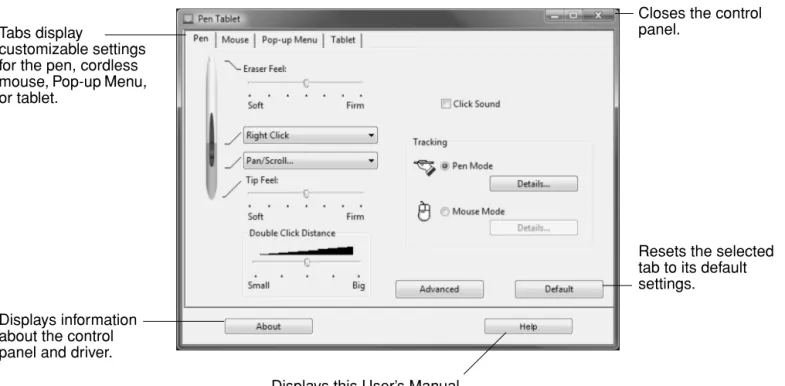
Use the Pen Tablet control panel to customize your Bamboo Fun pen, mouse, and tablet.
Experiment with different settings to find what works best for you. Any changes you make will take effect immediately. Click DEFAULT to return a tab to the factory settings.
Tool Tips are available for most control panel items. Position the screen cursor over an item and let it rest there; in a few moments the Tool Tip will pop up.
Your keyboard tab and arrow keys can be used to navigate the control panel.
CONTROL PANEL SETTINGS
The following sections provide detailed information about each control panel tab. Many of the sections also contain useful customizing tips.
Customizing the pen
Customizing the cordless mouse Tablet tracking
Customizing the tablet functions Customizing the Pop-up Menu
Tabs display
customizable settings for the pen, cordless mouse, Pop-up Menu, or tablet.
Displays information about the control panel and driver.
Displays this User’s Manual.
Resets the selected tab to its default settings.
Closes the control panel.
CUSTOMIZING THE PEN
First open the Pen Tablet control panel and select the PEN tab to choose from the available options.
Tablet tracking Adjusting eraser feel
Customizing the pen buttons
23 Index
Contents
ADJUSTING TIP FEEL, ERASER FEEL, AND DOUBLE-CLICK
Select the PEN tab. To create broad brush strokes or to click with a light touch, use a soft tip setting.
For maximum control while drawing thin lines, use a firm tip setting. To erase with a broad stroke or to click with a light touch, use a soft eraser setting. For maximum control while erasing, use a firm eraser setting.
Customizes the amount of pressure needed to click, draw, or ink. Drag the slider to a softer or firmer setting.
Hints:
• Use a soft TIP FEEL for a wider range of pressure values with most pressure-sensitive applications. • In some applications, a soft pressure setting can make the pen overreact – any small press on the pen is
magnified on the screen. If you experience this, try a firmer TIP FEEL setting.
• To make double-clicking easier, expand the tap area that accepts a double-click (the double-click distance). Note: A large double-click distance may cause a delay at the beginning of brush strokes in some drawing applications. This may also cause a delay at the beginning of a drag action or inking stroke. If you notice such effects, try setting a smaller double-click distance and using a pen button to double-click (see using the pen buttons).
When checked, an audible “click” sound will be heard whenever a pen click occurs and your computer speakers are turned on. Adjusts the size of the
double-click area and the double-click speed. A larger setting makes double-clicking easier. Customizes the amount of pressure needed to erase. Drag the slider to a softer or firmer setting.
CUSTOMIZING THE PEN BUTTONS
Select the PEN tab to change the functions assigned to the buttons. Each pen button can be set for a variety
of mouse functions; the pull-down menus enable you to choose the function that will be performed.
Select the function to perform when pressing the upper or lower pen button. When you bring the pen tip within 5 mm (0.20 inch) of the tablet surface without touching the tablet and press the upper or lower pen button, the selected function occurs.
Hint: To make double-clicking easier, set a pen button to double-click automatically by selecting DOUBLE CLICK.
Note: You can change the SIDE SWITCH MODE for the way you like to use the pen when making right-clicks or other click functions. Click on the ADVANCED button. In the dialog box that appears: • Select HOVER CLICK to perform click functions
without touching the pen tip to the tablet surface.
• When CLICK & TAP is selected, you must first press the pen button and then touch the pen tip to the tablet surface in order to perform a click function. CLICK & TAP enables the precise placement of your click functions.
25 Index
Contents
BUTTON FUNCTIONS
The following options are available for tool and tablet button settings. Not all options are available for all controls.
CLICK. Default setting for the pen tip. Simulates a primary mouse button click.
DOUBLE CLICK. Simulates a double-click. For easier double-clicking, use this function instead of tapping twice with the tip of your pen.
MIDDLE CLICK. Simulates a middle mouse button click.
RIGHT CLICK. Simulates a right mouse button click, which displays a context menu.
CLICK LOCK. Simulates holding down the primary mouse button. Press the tool button once to initiate click lock. Press the button again to release click lock. Click lock is useful for dragging objects or selecting blocks of text. BACK. Simulates a 4th mouse button click, which on Windows systems typically issues the BACK command in browser applications.
FORWARD. Simulates a 5th mouse button click, which typically issues the FORWARD command in browser applications.
Pan/Scroll. (Pen only.) Enables you to move a document or image in any direction within the active window using your Bamboo Fun pen.
ERASE. (Pen only.) Sets a button so that when the button is pressed, the pen tip will act like the eraser in applications that support the ERASE function. See erasing for information on using the eraser.
INK TOGGLE. (Macintosh.) Toggles the INK ANYWHERE function of Inkwell on and off. Inkwell automatically recognizes and converts your handwriting into text and inserts it into a document. Note that Ink must be turned on for this function to work. See your Macintosh help for information on working with Inkwell.
TABLET PC INPUT PANEL. (Tablet PCs and Windows Vista systems that support the Tablet PC Input Panel.) Opens the Tablet PC Input Panel when you press a tool button set to this function.
JOURNAL. (Windows Vista and Tablet PC systems that include Microsoft Journal.) Opens Microsoft Journal.
MODE TOGGLE.... Toggles between PEN MODE and MOUSE MODE. See setting mouse speed for details.
MODIFIER.... Enables you to simulate modifier keys. KEYSTROKE.... Enables you to simulate keystrokes. OPEN/RUN.... Opens an application, file, or script.
POP-UP MENU. Displays a Pop-up Menu on your screen. See customizing the Pop-up Menu for more information.
PRESSURE HOLD. Locks the pressure at the current pressure level until the
button is released. For example, you can paint with pressure sensitivity until you reach the brush size that you like. You can then press the button and continue painting with the same size brush until the button is released. SHOW DESKTOP. Minimizes all open windows to display a clean desktop. SWITCH APPLICATIONS. Brings up the application switching dialog with focus on the next open application. On Windows Vista systems running Aero, Flip 3D will be activated with focus on the next open application.
EXPOSÉ. (Macintosh.) Tiles all open windows. DISABLED. Disables the button function.
27 Index
Contents
• PAN/SCROLL. (Pen only.) Lets you position a document or image in any direction within the active pane
by pressing a pen button set for PAN/SCROLL and then sliding the pen tip across the tablet’s active area.
• KEYSTROKE.... Enables you to simulate keystrokes. Selecting this option displays the DEFINE
KEYSTROKE dialog box where you can enter a keystroke or keystroke sequence to play back. When you select PAN/SCROLL, the PEN SCROLLING
SPEED dialog box prompts you to set a scrolling speed that will be used in applications that do not support grabber hand (pixel-level) panning within a document or image.
A slower setting reduces the scroll rate and is useful for close-up and detail work where you need precise control of the image.
You can manually enter a keystroke or keystroke combination in the KEYS entry box.
Keystroke combinations can include letters, numbers, function keys (such as F3) and modifier keys (such as SHIFT, ALT, or CTRL for Windows, or SHIFT, OPTION, COMMAND, and CONTROL for Macintosh).
You can also select special keystrokes or keystroke combinations from the ADD SPECIAL drop-down menu.
After defining a keystroke sequence, click OK.
Important: Because the ENTER (Windows) and RETURN (Macintosh) keys can be selected as a defined keystroke, they cannot be used to select OK. You must use your Bamboo Fun tool to click on the OK button.
If prompted, enter a name for the keystroke definition. The name will be displayed with the respective control or in the Pop-up Menu list, as applicable.
Clears the keystroke entry box.
Deletes only the last entry in the keystroke entry box.
• OPEN/RUN.... Opens a dialog box where you can select a specific application, file, or script to launch.
• MODIFIER.... Enables you to assign modifier key(s) (such as SHIFT, ALT, or CTRL for Windows, or SHIFT,
OPTION, COMMAND, and CONTROL for Macintosh). Many applications use modifier keys to constrain the
size or placement of objects.
CUSTOMIZING THE CORDLESS MOUSE
Open the Pen Tablet control panel and select the MOUSE tab to choose from the available options. Note that some product configurations may not include the cordless mouse.
Click BROWSE... to locate an application, file, or script to launch. The selection you make appears in the APPLICATIONTORUN box. Click OK to accept the selection. The dialog box will close and the OPEN/RUN... option will be assigned as your tool button option. If your selection is for the Pop-up Menu, it will be displayed in the Pop-up Menu list.
In addition to choosing one or more modifier key options, you can select the CLICK box if you want a mouse click to occur whenever you press the tool button.
Mouse mode settings Customizing the mouse buttons
29 Index
Contents
CUSTOMIZING THE MOUSE BUTTONS
Select the MOUSE tab to customize the mouse functions. See button functions.
Select the function to perform when pressing a button.
Notes:
• The MOUSE tab will not display until you have used a cordless mouse on the tablet.
• To configure the cordless mouse for left-handed use, reassign the button functions as needed. • If you frequently switch between
PEN MODE and MOUSE MODE, you can assign the MODE TOGGLE... function to one of your tool buttons.
The fingerwheel scrolls in most windows and applications. By default, the fingerwheel scrolls 3 lines for each step of wheel movement.
The TRACKING mode controls how the screen cursor moves.
In MOUSE MODE, the screen cursor moves with relative positioning. This is the default
TRACKING mode for the cordless mouse.
Click DETAILS... for setting mouse speed.
TABLET TRACKING
The tablet TRACKING options enable you to define the relationship between pen (or cordless mouse)
movement on the tablet surface and cursor movement on the monitor screen. By default the entire active area of the tablet maps to the entire monitor. If more than one monitor is in use the tablet will map to all monitors. See mapping to multiple monitors.
The TRACKING mode you select controls how the screen cursor moves:
• Select PEN MODE to set the cursor so that its movement corresponds with the position of your Bamboo Fun tool on the tablet – wherever you place your tool on the tablet, the cursor will jump to a corresponding point on the screen. This is known as absolute positioning, and is the default setting for the Bamboo Fun pen. Click DETAILS... to customize the tablet mapping.
• Select MOUSE MODE to move the screen cursor with a “pick up and slide” motion similar to using a traditional mouse. This is the default setting for the cordless mouse. Click DETAILS... for setting mouse speed.
Note: If you frequently switch between PEN MODE and MOUSE MODE, you can assign the MODE TOGGLE... function to one of your tool buttons or
31 Index
Contents
When you click on the PEN MODE DETAILS... button, the PEN MODE DETAILS dialog box is displayed.
Returns settings to their factory defaults. Use the SCREEN AREA options to select a screen area
for tablet to screen mapping.
• ALL SCREENS. The entire monitor(s) area is
mapped; this is the default setting. See mapping to multiple monitors for more information.
• MONITOR. The entire area of a single monitor that you choose is mapped.
• PORTION. A portion of the desktop area is mapped. Click SET... to open a dialog box where you can set the portion of screen area.
FORCE PROPORTIONS. Check or uncheck the box to set the tablet to screen mapping relationship.
• When unchecked, the correct scale or proportions are not maintained. The selected tablet area is mapped to the selected display area. Drawing a circle on the tablet may create an ellipse on the display screen. This is the default setting.
• When checked, the correct vertical and horizontal proportions are maintained. Drawing a circle on the tablet results in a circle on the display screen. Depending on your settings, some portions of the tablet active area may no longer be usable when this option is selected.
Use the TABLET AREA options to select a tablet area for tablet to screen mapping.
• FULL. The entire active area of the tablet is mapped. This is the default setting.
• PORTION. A portion of the tablet area is mapped. Click SET... to open a dialog box where you can set the portion of tablet area.
Note: Although Bamboo Fun is optimized for use with 16 : 10 aspect ratio displays, the default settings automatically adjust for use with other aspect ratio displays.
MAPPING TO MULTIPLE MONITORS
If your computer has more than one monitor, Bamboo Fun will map to your monitors based upon how they are configured in the DISPLAY PROPERTIES control panel. If ALL SCREENS is selected and you are in extended
monitor mode, the tablet will map to all monitors as if they were one large display. If the monitors are in mirror mode, the tablet will map to the entire space on each monitor and the screen cursor will be displayed on each monitor simultaneously.
See your hardware and operating system documentation for details on configuring your computer and operating system for use with multiple monitors.
PORTION OF SCREEN AREA
The tracking options in the PEN MODE DETAILS dialog box allow you to define which portion of the display screen your tablet will map to:
• ALL SCREENS. Maps the entire monitor(s) area. This is the default setting. • MONITOR. Maps the entire area of a single monitor that you choose.
• PORTION. Allows you to select a portion of the display for tablet to screen mapping. Click SET... to open
the PORTIONOF SCREEN dialog box.
Choose a method for defining a portion of the display:
• Drag corners of the foreground graphic to select the screen area. • Move the screen cursor to select the screen area. Select the CLICK TODEFINESCREENAREA button. As you define PORTIONOF SCREEN, follow any MESSAGE prompts to set the portion of your display screen that will be used for mapping.
After defining a portion of the screen, you may need to use a different input device to access other portions of the screen area.
33 Index
Contents
PORTION OF TABLET AREA
The tracking options in the PEN MODE DETAILS dialog box allow you to define the tablet area that will be
mapped to the screen area:
• FULL. Maps the entire active area of the tablet for tablet to display mapping. This is the default setting.
• PORTION. Allows you to select a portion of the tablet active area for tablet to screen mapping. Click SET... to open the PORTIONOF TABLET dialog box.
SETTING MOUSE SPEED
To change the screen cursor acceleration and speed when in MOUSE MODE, click on the MOUSE MODE
DETAILS... button (located on the PEN or MOUSE tabs).
Choose a method for defining a portion of the tablet:
• Drag corners of the foreground graphic to select the tablet area that will be mapped to your selected screen area.
• Use your tool on the tablet to select the tablet area. Select the CLICKTO DEFINE TABLET AREA button. As you define PORTIONOF TABLET, follow any MESSAGE prompts to set the portion of your tablet that will be used for
mapping.
Sets the screen cursor acceleration when in MOUSE MODE.
Sets the screen cursor tracking speed when in MOUSE MODE.
Returns settings to their factory defaults.
Note: The dialog box will also appear when you set a tool button to MODE TOGGLE.... Although MOUSE MODE settings can be accessed from a number of different locations within the control panel, only one ACCELERATION and
CUSTOMIZING THE TABLET FUNCTIONS
The TABLET tab is used to customize the ExpressKeys and Touch Ring.
Returns the tab settings to their factory default conditions. To customize the Touch Ring:
• Choose a FUNCTION. ZOOM is the default setting. When selected, the Touch Ring enables you to zoom in or out of documents and images in the active window. You can also set the ring to SCROLL, or disable it.
• Choose an option to set the SPEED at which you would like to zoom or scroll.
• When checked (the default setting), ENABLE FAST SCROLLING allows you to zoom or scroll by pressing on the up or down arrows of the Touch Ring with your finger. See using the Touch Ring for details.
Choose a function that will be performed when the key is pressed. • By default, you can use the upper
keys to move BACK and FORWARD within Internet browsers.
• On Windows Vista systems the lower left button defaults to JOURNAL when the Journal application is available. Otherwise, the button is set to SHOW DESKTOP.
• The default condition for the lower right button is SWITCH
APPLICATION on Windows systems and EXPOSÉ on Macintosh systems.
35 Index
Contents
CUSTOMIZING THE POP-UP MENU
Use the POP-UP MENU tab to define the available functions on the Pop-up Menu list.
To display the Pop-up Menu, set a tool button to the POP-UP MENU function. Whenever you press that button, the Pop-up Menu is displayed. Select from available items in the Pop-up Menu by clicking on them. To close the Pop-up Menu without making a selection, click outside of the Pop-up Menu.
Displays a list of functions that have been added to the Pop-up Menu. To change the order of an item, drag it to a new location. Double-click on an item to make edits.
Sets the FONT and FONT SIZE of the Pop-up Menu.
Returns all tab settings to their default values.
Important: This action will delete all Pop-up Menu items that have been defined.
Removes the selected item from the list. Select a button function to add to the Pop-up Menu list.
TROUBLESHOOTING
Most of the time your tablet will work flawlessly. But if you are having trouble, Wacom recommends you do the following:
1. If the pen tablet driver failed to load properly, first perform the recommended action in any error message that may appear on your screen. If that does not solve the problem, refer to the troubleshooting
procedures in this chapter.
2. Look in the troubleshooting tables. Your problem may be described there and you can try the solution offered.
3. Open the pen tablet Read Me file for late-breaking information. 4. Test your tablet and input tools. See testing your tablet and tools.
5. If you are having a compatibility conflict between Bamboo Fun and a new hardware or software product, check if a newer pen tablet software driver is available. See obtaining driver downloads for information on downloading an updated software driver. Wacom periodically updates the software driver to maintain compatibility with new products.
6. Check the FAQs (Frequently Asked Questions) on the Wacom web site for your region.
7. If you have tried the suggestions in this manual and still cannot resolve the problem, then contact Wacom for Technical Support. See technical support options and the Read Me file for information on where to obtain support for your region.
Testing your tablet and tools Troubleshooting tables Technical support options Obtaining driver downloads
37 Index
Contents
TESTING YOUR TABLET AND TOOLS
1. Turn on your computer and wait until the system has fully loaded.
2. Check the connection. The tablet status ring should glow whenever the tablet is properly connected and your computer has registered it as a USB device. In standby mode, the ring slowly pulses at a low light level. In active mode, the ring glows constantly at a brighter light level. If not:
• Make sure the tablet USB cable is securely connected to the tablet and to an active USB port on your computer.
• If you are connecting the tablet to a USB hub (or hub device such as a keyboard with USB ports), be sure the USB hub is properly connected to your computer and is active.
• Connect the tablet to a different USB port or try connecting to the USB port on another computer. • If the tablet status ring does not illuminate after your computer is on and has finished booting up, your USB port may be disabled. Verify that you have connected the tablet to an active USB port. 3. Activate the tablet diagnostics. First open the Pen Tablet control panel and select the TABLET tab.
Use the pull-down menus to DISABLE all of the ExpressKeys. Now press both the upper left and lower right ExpressKeys and hold them down for three (3) seconds.
• Check the ExpressKeys by pressing each one in turn. The tablet status ring should glow at a brighter level each time you press a key.
• Check the Touch Ring by sliding your finger around it. The tablet status ring should glow at a brighter level when you touch the ring.
• Check the pen by first opening the Pen Tablet control panel and selecting the PEN tab. Click on the DEFAULT button to return the pen to its default settings. Next:
A. Touch the pen tip and then the eraser to the tablet active area. The tablet status ring should glow brightly each time the tip or eraser makes contact with the tablet surface.
B. Without applying pressure to the pen tip, hold the pen tip within approximately 5 mm (0.20 inch) of the tablet surface and press each pen button in turn. The tablet status ring should glow brightly each time a pen button is pressed.
C. While within proximity, but without touching the tablet surface, move your pen across the active area of the tablet. The screen cursor should move in the corresponding direction on your monitor or display screen.
• Check the cordless mouse by opening the Pen Tablet control panel and selecting the MOUSE tab.
Click on the DEFAULT button to return the mouse to its default settings. Next:
A. Move the cordless mouse across the active area of the tablet; the screen cursor should move in the corresponding direction on your monitor.
B. Test the buttons on your cordless mouse by clicking each button. The tablet status ring should glow brightly each time a button is pressed.
When done, exit the diagnostics mode by pressing both the upper left and lower right ExpressKeys and holding them down for three (3) seconds. In the Pen Tablet control panel, select the TABLET tab and use
the pull-down menus to return the ExpressKeys to their previous settings.
4. Check the Touch Ring. Open the Pen Tablet control panel and select the Tablet tab. Click on the DEFAULT button to return to the tablet default settings.
• Open a Microsoft Office or image file.
• Move your finger in a clockwise direction along the Touch Ring to zoom in on the image.
• Move your finger in a counterclockwise direction along the Touch Ring to zoom out of the image. 5. Check the ExpressKeys. Open the Pen Tablet control panel and select the TABLET tab. Click on the
DEFAULT button to return to the tablet default settings.
• Open your Internet browser and click on a couple of links. Press the upper left ExpressKey to move back within the browser. Press the upper right key to move forward within the browser.
• Press the lower left ExpressKey. For Windows Vista, Microsoft Journal should launch if the application is available. Otherwise, all open windows should minimize to display a clean desktop. • Press the lower right ExpressKey. On Windows Vista systems running Aero, Flip 3D should be
activated with focus on the next open application. Otherwise, the Windows application switching dialog should appear with focus on the next open application. On Macintosh systems, all open windows should be tiled.
6. If any of these tests fail you may have defective hardware. See technical support options.
7. After testing, use the Pen Tablet control panel to reconfigure your tablet and pen for any custom settings you may originally have been using.
39 Index
Contents
TROUBLESHOOTING TABLES
If you encounter problems with your Bamboo Fun tools or tablet, see the following tables. Your problem may be described here, and you can try the solution offered. Be sure you refer to the Read Me file for the latest information updates.
For additional information, visit Wacom’s web site at http://www.wacom.com/productsupport and follow the links to the FAQs.
General problems
Windows-specific problems Macintosh-specific problems
GENERAL PROBLEMS
The computer does not have an available USB port.
Check if there is an available USB port on a USB hub device. If not available you will need to add a USB hub or USB card.
The tablet status ring does not illuminate.
Verify that your tablet’s USB cable is properly connected to the tablet and to an active USB port. If you are connecting to a USB hub device, make sure the hub is connected to an active USB port and that the hub is active.
When using the pen to operate the Touch Ring, the Touch Ring does not work well.
The Touch Ring is designed to be used with your finger or similar shaped object, and does not work well with the pen tip due to its small contact area.
The pen works only in MOUSE
MODE, and does not draw or
ink with pressure sensitivity.
The tablet driver software was not installed or did not load properly. Make sure the tablet driver software is installed and functioning. Insert the Bamboo Fun Pen Tablet Driver CD into your computer and install the driver software for the tablet.
The pen does not draw or ink with pressure sensitivity.
Some applications require that you turn on the pressure capabilities within the application or the selected tool before the pen will respond as a pressure-sensitive tool.
Clicking is difficult. Try using a lighter Tip Feel (see adjusting tip feel, eraser feel, and double-click).
Select the CLICK SOUND option so that you can hear when the pen
registers a mouse click. Your computer speakers must be turned on and the volume audible before you can hear CLICK SOUND.
Double-clicking is difficult. Be sure you are quickly tapping the tablet twice in the same place on the tablet active area.
Using a pen button to double-click is recommended (review the techniques in clicking).
Set one of the tablet ExpressKeys to DOUBLE CLICK and use it to issue
double-clicks.
See adjusting tip feel, eraser feel, and double-click: • Try increasing the DOUBLE CLICK DISTANCE. • Try using a lighter TIP FEEL.
Windows: Try setting your system to launch programs with a single click. See clicking.
The pen selects everything, will not stop selecting.
Open the Pen Tablet control panel and go to the PEN tab. Move the TIP
FEEL slider toward FIRM. If this does not help, see testing your tablet and
tools. The eraser selects everything
or will not stop erasing.
Open the Pen Tablet control panel and go to the PEN tab. Move the ERASER FEEL slider toward FIRM. If this does not help, see testing your tablet and tools.
You notice a screen delay at the beginning of pen or inking strokes.
Try decreasing the DOUBLE CLICK DISTANCE (see adjusting tip feel,
eraser feel, and double-click). You have to press hard with
the pen when clicking, drawing, or writing.
Open the Pen Tablet control panel and go to the PEN tab. Move the TIP
FEEL slider toward SOFT.
The pen tip does not function. Be sure you are using the pen that originally came with your pen tablet. Other pens may not function properly on the Bamboo Fun tablet.
See testing your tablet and tools to verify pen operation. If any of the tests fail you may have defective hardware.
The upper or lower pen button does not work.
Be sure you press the pen button when the pen tip is within 5 mm (0.20 inch) of the tablet active area – do this without pressing down on the pen tip.
In the Pen Tablet control panel, click on the PEN tab ADVANCED button. If CLICK & TAP is selected, you will need to first press the pen button and then touch the pen tip to the tablet surface in order to perform a click function. See customizing the pen buttons.
From the Pen Tablet control panel, verify that the pen button is set to the function you are expecting to occur.
See testing your tablet and tools to verify pen operation. If any of the tests fail you may have defective hardware.
41 Index
Contents
The screen cursor jumps back. Do not place the pen or cordless mouse on the tablet when they are not in use, or when you are using another pointing device. Leaving your tool on the tablet may interfere with screen cursor positioning when using other input devices.
Cannot move the cursor where you want to on the screen, or the line you are drawing does not line up with the location of the pointer in paint
applications.
Open the Pen Tablet control panel. Verify that PEN MODE is selected. If this does not help, click on the DEFAULT button to reestablish the
default tablet to screen mapping. If you are still having difficulty, remove the tablet preferences (see next tip).
You suspect the tablet
preferences may be corrupted, or want to make certain that all settings are at their factory defaults.
Delete the tablet preferences as follows:
Windows: Click the START icon and select ALL PROGRAMS. Then select TABLET or PEN TABLET and TABLET or PEN TABLET PREFERENCE FILE
UTILITY. In the dialog box that appears, click on the REMOVE MY
PREFERENCE FILE button to delete the preferences for the current user. To delete preferences for multiple users on Windows Vista or XP systems, click on the REMOVE ALL PREFERENCE FILES button. Note that
administrator rights are required to delete preferences for all users. Relaunch any currently open tablet-aware applications that you may be running.
Macintosh: For a single user, delete the tablet preferences by first choosing your HOME folder from the GO menu. Then open your home LIBRARY folder. Within your home LIBRARY folder, open the
PREFERENCES folder and delete the COM.WACOM.PENTABLET.PREFS file.
Log out, then log back in. When the tablet driver loads it will create a new preferences file with the factory defaults.
For multiple users, delete all tablet preferences by first opening the main APPLICATIONS folder. Then open the TABLET folder and run the REMOVE
PEN TABLET utility. When the utility starts, click on the REMOVE ALL
PREFERENCE FILES button. Log out, then log back in. When the tablet
driver loads, it will create new preferences files with the factory defaults.
Note: Do not manually remove the PEN TABLET.PREFPANE file from
the main LIBRARY PREFERENCEPANES folder. This file is only to be removed when uninstalling the tablet software driver, and then only when using the REMOVE PEN TABLET utility.
The computer does not go to sleep.
When you are not using the pen or cordless mouse, remove them from the tablet surface or the tablet will continue to send data, keeping the computer awake.
When using the tablet the screen cursor is very erratic or jumps around.
On rare occasions the tablet may receive interfering radio frequencies from a computer monitor or nearby AM radio station. If you notice interference from a monitor, try moving the tablet at least six (6) inches away from the monitor, or change the monitor refresh rate or monitor resolution.
WINDOWS-SPECIFIC PROBLEMS
MACINTOSH-SPECIFIC PROBLEMS
After changing right- and left-handed settings in the
system’s Mouse control panel, the pen tip no longer functions properly and the cordless mouse button functions are reversed.
This will reverse the right and left button settings on your Wacom tools. Restart Windows for your Wacom tool settings to be correctly
recognized.
At startup, a dialog box appears telling you that either the driver failed to load or the tablet preferences have not yet been created.
The tablet was not detected at startup. Make sure the USB interface cable is securely connected to the tablet and to an active USB port on your computer. Make sure also that the tablet status ring is illuminated. (In standby mode, the ring slowly pulses at a low light level.) If your tablet is plugged into a USB hub, make sure the hub is connected and active.
From the GO menu, select the UTILITIES folder and launch the SYSTEM
PROFILER. Select USB from the Hardware section of the CONTENTS list. A Wacom USB tablet model should be listed. If a tablet model is not listed, check the USB tablet cable connection or try plugging the tablet into a different USB port.
If this does not help, contact Wacom for Technical Support. See technical support options.
Inkwell does not work correctly with the tablet.
There may be a problem with the Inkwell preferences. Remove the damaged preference files as follows. They will be recreated when you enable handwriting recognition.
1. From the Apple menu, choose SYSTEM PREFERENCES. From the System Preferences menu, choose SHOW ALL and select INK.
Then turn off handwriting recognition.
2. From the GO menu, choose your HOME. Open the LIBRARY and
PREFERENCES folders. Then remove the following preferences:
• com.apple.ink.framework.plist • com.apple.ink.inkpad.plist • com.apple.ink.inkpad.sketch
3. Go back to SYSTEM PREFERENCES and INK, and then enable handwriting recognition.
4. Test the Inkwell function using your pen tablet and pen.
5. If this procedure does not resolve your problem with Inkwell, contact Apple Support for further assistance. Wacom is not the software manufacturer for Inkwell and we are limited in our abilities to support a third party software application.
43 Index
Contents
TECHNICAL SUPPORT OPTIONS
If you have a problem with your pen tablet, first check the tablet installation guide to be sure the unit is installed correctly. Then review the troubleshooting procedures within this manual.
If you cannot find the answer in this manual, you may find updated information about your problem in the Read Me file for your platform (located on the Bamboo Fun Pen Tablet Driver CD). You can also check the product FAQs (Frequently Asked Questions) on the Wacom web site for your region.
If you have an Internet connection you can download the latest software drivers from the Wacom web site for your region. See obtaining driver downloads for your region.
If you cannot solve the problem and you think your pen tablet is not working properly, contact the Wacom support staff for the area where your product was purchased. See the pen tablet Read Me file, located on the Bamboo Fun Pen Tablet Driver CD, for contact information.
When you call, you should be at your computer with the following information available: • This manual.
• Tablet serial and model number. (Look on the bottom of the tablet.)
• Driver version number. (See the Bamboo Fun Pen Tablet Driver CD or the Pen Tablet control panel.) • The make and model of your computer, and operating system version number.
• A list of peripheral devices attached to your computer.
• The software application and version you were using when the problem occurred. • The exact wording of any error message that appeared on your screen.
• What happened and what you were doing when the problem occurred. • How you tried to solve the problem.
OBTAINING DRIVER DOWNLOADS
Wacom periodically updates the tablet software driver to maintain compatibility with new products. If you are having a compatibility problem between Bamboo Fun and a new hardware or software product, it may be helpful to download a new pen tablet software driver (when available) from the Internet.
USA, Canada, Central and South America
Europe, Middle East and Africa
Japan
Asia Pacific (English)
China
Korea
Taiwan
Worldwide Web: http://www.wacom.com/productsupport Driver downloads.
Worldwide Web: http://www.wacom.eu Software updates. Anonymous FTP Site: ftp://ftp.wacom.eu/pub/ Software updates.
Worldwide Web: http://tablet.wacom.co.jp Software updates. (Japanese)
Worldwide Web: http://www.wacom-asia.com Software updates. (English)
Worldwide Web: http://www.wacom.com.cn Software updates. (Simplified Chinese)
Worldwide Web: http://www.wacomdigital.co.kr Software updates. (Korean)
Worldwide Web: http://www.wacom.com.tw Software updates. (Traditional Chinese)
45 Index
Contents
APPENDIX
This section contains information about digital inking, tips on caring for your tablet and tools, instructions on how to uninstall the tablet software, your license and warranty, and more.
Pen and digital ink capabilities in Windows Vista Caring for your tablet and tools
Uninstalling the tablet software Product specifications
Product information
Ordering parts and accessories Radio and television interference
License and Warranties (Worldwide, Except for Europe, Africa and Middle East) License and Warranty (Europe, Africa and Middle East)
PEN AND DIGITAL INK CAPABILITIES IN WINDOWS VISTA
Microsoft Windows Vista provides extensive support for pen and touch input. When using the pen tablet with a computer running Windows Vista, your experience is enhanced by powerful note taking, handwriting recognition, fast navigation, and other digital inking options designed to give you quick, intuitive results with the Bamboo Fun pen.
• Note taking. Use your Bamboo Fun pen to jot notes and capture quick sketches in Microsoft Journal. Journal simulates a physical notebook, but with the advantages of digital note taking – you can choose from a variety of pen, marker, and highlighter tools, plus an eraser that is easily activated by the eraser end of your Bamboo Fun pen. Journal also includes a powerful search engine that can even locate your handwritten content.
• Handwriting recognition. Because Windows Vista includes powerful handwriting recognition
capabilities, you can use your Bamboo Fun pen to quickly enter handwritten information anywhere the computer accepts typed input. You can convert your handwritten content to typed text at any time. • Gestures. Use your Bamboo Fun pen to make simple gestural movements on the tablet to trigger
customizable actions for navigation, editing, and other functions. To customize your gestures, select the FLICKS tab in the PENAND INPUT DEVICES control panel.
• Digital Ink in Microsoft Office 2007. Use your Bamboo Fun pen to full advantage with the enhanced digital mark-up and inking tools available in Microsoft Office 2007 applications running on Windows Vista. Found on the REVIEW tab within applicable applications, these tools provide a consistent set of
inking options. For quick access, you can add specific inking tools to the Quick Access Toolbar located at the top of each application.
Note: The following workarounds have been implemented in the pen tablet driver to improve drawing performance and to minimize spurious double-clicks issued by Vista under the following settings:
• The Vista Flicks and Press-and-hold-to-right-click features were disabled in most graphics applications using the Wintab API.
• There is no pressure sensitivity in Journal and other Vista Ink features when both the Flicks and Press-and-hold-to-right-click features are disabled in the Vista PENAND INPUT DEVICES control panel.
47 Index
Contents
ABOUT THE WINDOWS VISTA TABLET PC INPUT PANEL
The Windows Vista Tablet PC Input Panel enables you to use handwriting or an on-screen keyboard to directly enter text with your Bamboo Fun pen. There are a number of ways to launch the Input Panel: • Click on the Input Panel icon which appears when you move the screen cursor into a text entry area. • Click on the Input Panel tab, located by default on the left edge of the display screen.
• Click on the Tablet PC Input Panel icon located on the Windows taskbar. If the icon is not visible, right-click on the taskbar, select TOOLBARS, and TABLET PC INPUT PANEL.
To customize the Input Panel:
1. First open the Input Panel and then click on TOOLS in the menu bar.
2. Select OPTIONS to open the Input Panel Options dialog box.
3. Customize the Input Panel settings for the way you like to work.
To learn more about using your Bamboo Fun pen in Microsoft Windows Vista and Office 2007, study the documentation that came with your system and Microsoft Office applications. Be sure to take advantage of the Windows Vista training tools, including the Tablet PC tutorial, available from Microsoft.
You can visit also the Wacom web site at www.wacom.com/vista for additional information on working with your Bamboo Fun pen in Windows Vista.