FileMaker
®Pro
9
5201 Patrick Henry Drive Santa Clara, California 95054
FileMaker is a trademark of FileMaker, Inc., registered in the U.S. And other countries, and ScriptMaker and the file folder logo are trademarks of FileMaker, Inc. All other trademarks are the property of their respective owners.
FileMaker documentation is copyrighted. You are not authorized to make additional copies or distribute this documentation without written permission from FileMaker. You may use this documentation solely with a valid licensed copy of FileMaker software.
All persons and companies listed in the examples are purely fictitious and any resemblance to existing persons and companies is purely coincidental. Credits are listed in the
Acknowledgements document provided with this software. Mention of third-party products is for informational purposes only and constitutes neither an endorsement nor a recommendation. FileMaker, Inc. assumes no responsibility with regard to the performance of these products. For more information, visit our website at www.filemaker.com.
Contents
Lesson 1
FileMaker Pro basics
How to use this tutorial 7
Where to find the sample file 7
Database concepts 8
What is a database? 8
Why use a database? 8
How is a database organized? 8
How is field data displayed? 8
FileMaker Pro basics 8
About FileMaker Pro modes 9
For more information 9
Lesson 2
Browsing information
Open a database and move between records 11
View information in different ways 12
See a different layout 12
View your layouts as forms, lists, and tables 13
Save a copy of the sample file 14
Create a file using a Starter Solution 14
For more information 14
Lesson 3
Finding and sorting records
Find records based on criteria in a single field 15
Find records based on criteria in separate fields 16
Find records that match multiple criteria in the same field 16
Find records that match a range of criteria in the same field 17
Narrow your search 17
Sort your found set 18
For more information 19
Lesson 4
Creating a database and entering records
Create a simple database and define fields 21
About field definitions 21
Create a database 21
Enter data into the database 22
Create the first record 22
Create another record 22
Copy data with drag and drop 22
Modify data in a record 23
Delete a record 23
Insert a file in a container field 23
For more information 23
Lesson 5
Customizing what you see
About layouts and tables 25
About customizing layouts 25
Resize, move, and add a field 25
Select and resize a field 25
Move a field 26
Add a field 26
Add a tab panel 27
Display a number as currency 28
Add color to a tab panel 28
Change text size and color 29
Add a graphic to the layout 29
Lesson 6
Creating lists, mailing labels, and form letters
Create a columnar list 31
Create mailing labels 32
About label layouts 32
Create a label layout 32
Create a form letter 33
About form letter layouts 33
Create a one-page blank layout 33
Customize the letter with the company name 35
Add the closing 35
For more information 35
Lesson 7
Simplifying data entry
Enter data using value lists 37
Define a value list 37
Assign a value list to a field and display it as radio buttons 37
Generate values with a calculation field 38
Create a calculation field 38
Test your calculation 39
Automatically enter a serial number 40
Create a field for serial numbers 40
For more information 40
Lesson 8
Automating tasks with buttons and scripts
Perform a task using a button 41
Create the button 41
Perform a series of tasks using a script 42
About scripts 42
Create a script to preview the Labels layout 42
Assign a script to a button 42
Rename the button 43
Test the button 43
Find records using a script 43
View the script 43
For more information 43
Lesson 9
Creating and running reports
Generate a report with grouped data 45
About subsummary reports 45
Create a subsummary report 45
Generate a report with grouped data and totals 48
Create a report with grouped data and totals 48
Save and send a report as a PDF file 51
For more information 51
Lesson 10
Making databases relational
Display a related record in a file 53
Define a relationship to another table 53
Display data from a related record 54
Display a list of related records 54
Create a portal to display matching records 54
Add the fields in the portal 55
| Contents 5
Lesson 11
Sharing and exchanging data
About sharing data 57
Enable FileMaker network sharing 57
Opening a remote file 58
About exchanging data 59
Saving and sending data 59
Supported import/export file formats 59
About importing data 59
Import data into the sample file 59
For more information 60
Lesson 12
Protecting data in FileMaker Pro
Create an account and password 61
About accounts 61
Create a privilege set 62
About privilege sets 62
Create a custom privilege set 63
For more information 63
Lesson 13
Keeping your data safe
How to back up your database 65
When to back up 65
Lesson 1
FileMaker Pro basics
Welcome to the FileMaker® Pro tutorial. This tutorial shows you
how you can manage your information in FileMaker Pro. You will learn how to use FileMaker Pro software to:
1
locate and sort information1
create and enter records in a simple database1
create mailing labels1
create calculations, buttons, and scripts1
create and run reports1
create relationships between FileMaker Pro database tables1
learn how files can be shared with other users on your network orover the Internet
1
protect information in your database by assigning user accountsand privilege sets and by backing up your databases
It takes approximately four hours to complete this tutorial, which can be done in one session or several shorter sessions.
How to use this tutorial
These lessons are based on the membership database of a fictitious travel firm, The Corporate Travelers Club. Corporate travelers who are members of this club save their businesses money on travel costs, and the club’s expenses are offset by an annual membership fee. FileMaker Pro is used to track the members’ names, addresses, and membership status, as well as to generate labels and form letters to contact members.
You must complete these lessons sequentially, as concepts introduced in early lessons are assumed to be understood in later lessons. The sample file that you work in progresses through the lessons.
This tutorial assumes that you are familiar with your computer’s operating system. Opening files, locating folders, and other activities that require some knowledge of your computer’s OS are a necessary part of completing this tutorial.
Because using FileMaker Pro is the most effective way to learn the application, each lesson features a hands-on activity designed to guide you through menus, screens, and concepts step by step. The file included with this tutorial is intended to illustrate the features of FileMaker Pro, and as such, might be unsuitable for use as a template for further development.
Where to find the sample file
The sample file contains data for the Corporate Travelers Club and provides a place for you to practice building the database elements that are described in each lesson. If the sample file was installed, it is in:
FileMaker Pro 9\English Extras\Tutorial or
FileMaker Pro 9 Advanced\English Extras\Tutorial
You can also download the sample file by choosing Help menu >
Learning Center. Tutorial files are located with other electronic FileMaker Pro documentation.
If you need to start over, replace your existing sample file with a new copy.
Database concepts
What is a database?
A database is a method of organizing and analyzing information. You’ve probably used several databases recently without realizing it. A date book, a parts list, and even your own address book are databases.
Why use a database?
Storing information in a database file has many benefits. A database doesn’t just hold information—it helps you organize and analyze the information in different ways. For example, databases allow you to group information for reports, sort information for mailing labels, count your inventory, or find a particular invoice.
Computerized databases offer many additional advantages over their paper-based counterparts: speed, reliability, precision, and the ability to automate many repetitive tasks.
How is a database organized?
A database file is organized into one or more tables. Tables store
records. Each record is a collection of fields.
Imagine your address book is a FileMaker Pro database file. Each listing in your address book is one record in an Address Book table. Each record has information, such as name, address, city, and so on. Each of these pieces of information—name, address, and city—is stored in a separate field.
How is field data displayed?
FileMaker Pro displays fields on layouts. Each layout is based on a
single table, and displays records from that table.
Imagine that your database has a Tasks table in addition to the Address Book table. A layout based on the Address Book table will display fields and records from the Address Book table. A layout based on the Tasks table will display fields and records from the Tasks table.
FileMaker Pro basics
FileMaker Pro is a cross-platform application. Files created on a
Mac can be opened in FileMaker Pro on a computer running Windows, and vice versa.
Unlike most word processing or spreadsheet programs,
FileMaker Pro saves your work automatically. Consequently, it’s important to carefully consider your actions when making sweeping changes to your files, especially when deleting records. Once records are deleted, they are completely removed from your database. As you will learn in lesson 13, you should back up your files on a regular basis. Backups can save you many hours of unnecessary work and worry in the event that your files become lost or damaged, or records are inadvertently deleted.
Lesson 1 | FileMaker Pro basics 9
About FileMaker Pro modes
When you work in FileMaker Pro, you work in one of four modes.
1
Use Browse mode to enter data and view records.1
Use Find mode to locate a record or a group of records quickly.1
Use Layout mode to specify how information will appear on the screen or when you print it.1
Use Preview mode to see what the pages will look like when you print them.Once you have opened a database, you can switch from one mode to another using either the View menu, mode buttons, or the mode pop-up menu at the bottom of the application window.
For more information
For more information on FileMaker Pro basic concepts, see chapter 2
of the FileMaker Pro User’s Guide.
You can also find comprehensive information about procedures and concepts in FileMaker Pro Help. To access FileMaker Pro Help,
choose Help menu > FileMaker Pro Help.
To access the FileMaker Learning Center on the web,
choose Help menu > Learning Center.
Name of layout
Number of the current record
Fields Filename
Mode buttons Current mode (Browse)
Lesson 2
Browsing information
You view, enter, or change data in Browse mode. This is the simplest way to interact with your database.
In this lesson you will:
1
open a database with data already in it1
move between records1
view information in different ways by switching layouts1
see the difference between form view, list view, and table view1
save a copy of the database1
create a new database using a Starter SolutionOpen a database and move
between records
To open the sample database:
1. Open the Tutorial folder on your hard drive. For the tutorial folder
location, see chapter 1, “Where to find the sample file.”
2. Open Sample.fp7.
3. Notice that the database is in Browse mode. FileMaker Pro
defaults to Browse mode when a database is opened.
In the status area, notice that there are 29 records and that the first record is displayed.
4. Click the right page of the book icon to move forward one record
at a time, and click the left page to move back one record at a time.
5. Drag the slider to the right and release to move forward a number
of records at one time. Drag the slider to the left and release to move backwards a number of records.
You can also click the current record number, type the record number you want, then press Enter (Windows) or Return (Mac OS).
Tip The Records menu also provides commands to move between
records. Choose Records menu > Go to Record and choose either
Next, Previous, or Specify.
The current mode is identified at the top of the status area
Slider Book icon
Number of records Record currently
displayed
View information in different ways
Even though you enter information only once in FileMaker Pro, you can use that information in many ways. Layouts let you view some or all of your fields.
Because it is not necessary to see all of your fields in each layout, layouts are a powerful tool for working with or printing just the information you need to accomplish a particular task.
See a different layout
To see some layouts in action, use the file you just opened.
1. Click the Layout pop-up menu, located above the book icon.
A list appears showing the layouts available in this file.
2. Notice the check mark next to the Data Entry layout, your current
layout. The Data Entry layout shows all of the fields in the table. Steve Williams
789 Ninth Avenue New York, NY 10001
Juanita Alvarez 555-1234 Michelle Cannon 555-1234 Andre Common 555-1234 Marie Durand 555-1234
Jean Durand 555-1234
William Johnson 555-1234
John Lee 555-1234
Patrick Murphy 555-1234
Le Nguyen 555-1234
Kentaro Ogawa 555-1234
Mary Smith 555-1234
John Smith 555-1234
Sophie Tang 555-1234
Steve Williams 555-1234 Betty Wilson 555-1234
Phone List
Dear Sophie,
Thank you for reserving a cruise with us. We value your business and appreciate the opportunity to serve you. If you have any questions about your reservations, please call us—we want you to be satisfied with your cruise. Sincerely, John Lee
The same data can be arranged differently with multiple layouts
Layout pop-up menu
Lesson 2 | Browsing information 13
3. Choose the Club List layout from the Layout pop-up menu.
This layout shows each record as one row in a columnar list. Notice that the Club List layout contains only four of the fields that were present in the Data Entry layout. Because fewer fields are present on this layout, some data is simply not displayed. However, no data has been removed from the database.
4. Go to the Layout pop-up menu and return to the Data Entry layout.
No data has been lost.
View your layouts as forms, lists, and tables
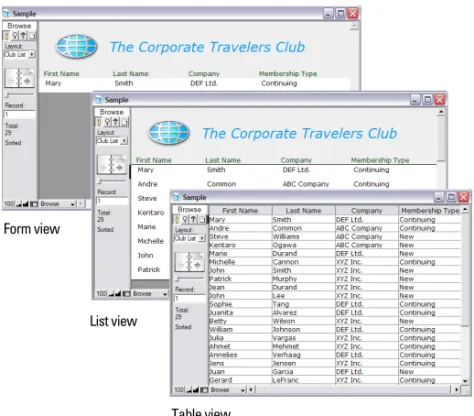
You can view your layouts in three different ways: as a form, as a list, and as a table.
1
Form view displays your current layout one record at a time.1
List view shows your current layout as a list, with one recordappearing beneath another.
1
Table view shows you many records at one time in a grid.Generally, layouts can be toggled between form view, list view, and table view while the database is in Browse mode.
Switch between form view, list view, and table view in the same layout to see how they are different.
1. In the sample file, switch to the Club List layout. You see many
records, displayed as a list.
2. Choose View menu > View as Form.
You now see a single record, displayed in the same layout. Only the viewing option has changed.
3. Choose View menu > View as Table.
The View as Table feature allows you to view many records at once in a grid.
4. Choose View menu > View as List to return to the original view of
the Club List layout.
The Club List layout displays only four of the fields present on the Data Entry layout
Form view
List view
Table view
Save a copy of the sample file
You will use a copy of the sample file in the lessons ahead. To save a copy of the sample file:
1. Choose File menu > Save a Copy As.
2. Select the Tutorial folder as the location for the copy.
Sample Copy.fp7 is automatically entered for File Name.
3. Click Save.
4. Close the original sample file by choosing File menu > Close.
Create a file using a Starter Solution
FileMaker Pro Starter Solutions are pre-designed database templates. These files contain fields and are set up for tasks commonly performed in databases, such as creating purchase orders or expense reports. Starter Solutions contain no data and provide a quick way to start using FileMaker Pro right away.
To create a file using a Starter Solution:
1. Choose File menu > New Database.
You see the FileMaker Quick Start Screen. If you do not see the
Quick Start Screen, choose Edit menu > Preferences (Windows) or
FileMaker Pro menu > Preferences (Mac OS). Under General, select
Show Starter Solutions in FileMaker Quick Start Screen, click OK, then repeat step 1.
2. Select Create database using Starter Solution.
3. Select Business - Finance under All Solutions, then select Purchase
Orders on the right.
4. Click OK, then save Purchase Orders.fp7 in the Tutorial folder.
You see the Purchase Orders database, ready for you to add new records.
5. Browse the Layout pop-up menu to familiarize yourself with the
layouts.
You will add data to this file in lesson 8.
6. When you are finished with this lesson, close the file by choosing
File menu > Close.
For more information
You have opened a database, browsed through records, switched layouts, learned the differences between form view, list view, and table view, created a copy of a database that contains data, and created a new empty database from a Starter Solution. For more about browsing information in FileMaker Pro, see chapter 2 of the
FileMaker Pro User’s Guide.
Select Business - Finance
Select Purchase Orders
Lesson 3
Finding and sorting records
Your database is a collection of records. Sometimes you’ll work with all of the records in the database (to mail out an annual catalog for each customer, for example). Often, however, you’ll work with a subset of your database—people who come from a particular city, for example, or records that fall within a particular range of dates. In FileMaker Pro, this process of searching for records that match
particular criteria is called finding records. Once you’ve found the
records you want to work with, you can change their order by sorting
them. Records can be sorted in ascending or descending order. In this lesson, you will:
1
find records matching criteria in a single field and multiple fields1
find records matching a range of data1
narrow your searches by omitting records1
sort records in ascending and descending orderNote Verify that you have a copy of Sample.fp7 before beginning this lesson. See lesson 2 for information on accessing the Tutorial folder and making a copy of Sample.fp7.
Find records based on criteria in
a single field
In the membership database, find all of the members that are from New York City.
1. Open the Tutorial folder on your hard drive.
2. Open Sample Copy.fp7.
3. Notice that the database is in Browse mode and that the active
layout is Data Entry.
The first record is for a member from New York City.
4. Right-click (Windows) or Control-click (Mac OS) the City field.
5. From the shortcut menu, choose Find Matching Records.
Your find request returns records for four members who live in
New York. This is the found set.
6. Click the book icon or slider to view each of the four records in
the found set.
Choose this item from the shortcut menu
Number of records in the found set
Total number of records in the database
Find records based on criteria in
separate fields
You can find records that match multiple criteria, for example members who are both from the United States and are new members. This type of search is commonly referred to as an AND search. To perform an AND search in FileMaker Pro, type each search criterion directly into the appropriate field in Find mode.
To find all members who live in the United States and are new members:
1. Choose View menu > Find Mode.
Use Find mode to perform more advanced searches. In Find mode, you create a find request using the fields in the layout you see. Type the criteria you want to search for directly into the fields on the request.
2. Type USA in the Country field.
3. Type New in the Membership Type field.
4. Click the Find button in the status area.
Your find request returns a found set of two records for the two new members who live in the United States.
5. To find all of the records in your database, choose Records menu >
Show All Records.
Note It is not necessary to choose Show All Records before performing a Find, as FileMaker Pro finds records from the entire database by default.
Find records that match multiple criteria
in the same field
Sometimes you need to find records that match more than one criterion in a single field. For example, you may need to find all members located in either New York or London. This type of search is commonly referred to as an OR search, because your found set will consist of records that match any one of the find criteria.
To perform an OR search in FileMaker Pro, you will need to use multiple find requests.
1
Type the first search criterion into the appropriate field of the firstfind request.
1
Create a second find request and enter the second search criterionin the same field.
When you click the Find button, FileMaker Pro will retrieve all of the records that match any of the criteria you’ve entered.
To find all members living in New York or London:
1. Choose View menu > Find Mode.
2. Type New York in the City field.
3. Choose Requests menu > Add New Request.
Find button Find Mode is currently selected
Lesson 3 | Finding and sorting records 17
Notice that the status area shows that there are two requests.
4. Type London in the City field of this second request.
5. Click Find in the status area.
Your find request returns a found set of six records for six members who live in either New York or London.
Find records that match a range of criteria
in the same field
Sometimes, you might want to find records that match a range of criteria within a single field. For example, you might want to find all of the records that fall within a one-month period, or locate all of the sales invoices numbered between 500 and 1000.
To perform this type of search in FileMaker Pro, you use a special range symbol in your find request to specify the lower and upper limits of your find criteria.
To find the members who paid their membership fees between January 1, 2008 and June 30, 2008:
1. Choose View menu > Find Mode.
2. Type 1/1/2008 in the Date Paid field.
3. In the status area, click the Symbols pop-up menu. Select range
from the list, or type an ellipsis (...).
Your find request should now have 1/1/2008... in the Date Paid
field.
4. Immediately after the ellipsis (...), type 6/30/2008.
5. Click Find.
Your search returns six records, for six members who paid their fees within the first six months of the year 2008.
Narrow your search
Sometimes, you might need to find records that match certain criteria while at the same time excluding others (for example, finding all of the records that were added in a given year except for those added in February, or finding all customers who reside in New York state except for those in New York City). You can perform these types of finds by using a combination of multiple find requests and omitting certain records.
Number of requests
Symbols pop-up menu
Because FileMaker Pro processes multiple find requests in the order they are created, it is possible to create very specific, layered searches in this manner. Omitting records in a search does not delete them from the database.
To find the records of members who paid their fees in the first six months of 2008, except for those who paid their fees in February:
1. Choose View menu > Find Mode.
2. Type 1/1/2008 in the Date Paid field.
3. In the status area, click the Symbols pop-up menu. Select range
from the list, or type an ellipsis.
4. After the ellipsis, type 6/30/2008.
5. Choose Requests menu > Add New Request. Notice that the status
area shows that this is the second request.
6. Type 2/1/2008 in the Date Paid field.
7. In the status area, click the Symbols pop-up menu and select range
from the list, or type an ellipsis.
8. After the ellipsis, type 2/29/2008 in the Date Paid field.
9. Click Omit in the status area to select it.
10. Click Find.
Your search returns five records for five members who paid their fees within the first six months of 2008, except the month of February.
Sort your found set
Once you have a found set of records to work with, you might want to sort those records. For example, you might want to display the records in alphabetical order, or sort them from newest to oldest. To sort records in alphabetical order by the members’ last names:
1. Go to the Layout pop-up menu and choose the Club List layout.
This layout will make it easier to see the results of the sorting.
2. Choose Records menu > Sort Records.
3. If any fields appear in the Sort Order column on the right side of
the dialog box, click Clear All.
4. In the list of available fields, select Last Name and click Move.
Notice the sort direction symbol to the right of the Last Namefield increases in size from left to right. This indicates that when the database is sorted by this field, the data will be in ascending order (from a to z).
5. Click Sort.
The names in the Club List are now in alphabetical order by last name.
6. Choose Records menu > Show All Records.
7. When you are finished with this lesson, close the file by choosing
File menu > Close.
Omit checkbox
Sort direction buttons become active when a field is selected
Lesson 3 | Finding and sorting records 19
For more information
You have found records based on a variety of criteria, and narrowed your searches by using Omit. You have sorted the results of your searches. For more information on finding and sorting records in
Lesson 4
Creating a database and entering records
In the previous lessons, you saw how to use a simple database with existing data. Now you will create your own file and add records. In this lesson you will:
1
create a simple database1
define fields to hold different types of data1
create records1
enter data1
modify data1
delete records1
insert data in a container fieldCreate a simple database and define fields
About field definitions
You create a field for each category of information you want, such as First Name or City. To find, sort, calculate, and display data correctly, the field type should match the kind of data it contains (text, number, date, and so on). For example, you can’t search for text values in a field of type Number.
You will learn about other field types in later lessons.
Create a database
1. Choose File menu > New Database.
2. If you see the FileMaker Quick Start Screen, choose Create empty
database, then click OK. If not, go to step 3.
3. Go to the Tutorial folder and select it as the location for this file.
4. For File name, type MyFile.fp7.
5. Click Save.
The Manage Database dialog box appears. By default, FileMaker Pro creates a table for you, with the same name as your file. You will now create fields to store information.
6. To create the first field, type First Name in the Field Name box.
7. Notice that the field type is Text.
8. Click Create.
9. Type Last Name in the Field Name box, then click Create.
10. Type Fee Paid in the Field Name box, select Number from the
Type list, then click Create.
11. Type Date Paid in the Field Name box, select Date from the
Type list, then click Create.
Specify the field type Name
12. Type Container in the Field Name box, select Container from the
Type list, then click Create.
13. Click OK.
You see the empty fields in a new, blank record. Field labels identify
the fields. Your file is ready for data entry.
Note FileMaker Pro automatically saves your changes as you work.
Enter data into the database
Now you can begin to enter members’ data.
Create the first record
1. If you don’t see field boxes, press Tab to begin data entry.
2. Type Jane in the First Name field.
3. Press Tab to move to the next field.
4. Type Doe in the Last Name field.
5. Type 25 in Fee Paid.
You will learn how to format number fields to display as currency in the next lesson.
6. Type 11/11/2009 in Date Paid.
The completed record should look like this:
Create another record
1. Choose Records menu > New Record.
2. As you did for Jane Doe’s record, enter data for John Smith,
who paid 75 dollars on 2/2/2009.
Your database now contains two records. Click the book icon to see each record.
Copy data with drag and drop
1. Switch to View as List.
2. Choose Records menu > New Record and enter a First Name and
Last Name of your choice.
3. Select the text in the Fee Paid field in record 2.
4. Drag the highlighted text to the Fee Paid field in record 3 and
release the mouse.
Note If you can’t drag the text, drag and drop might not be turned on in FileMaker Pro. To turn on drag and drop, choose
Edit menu > Preferences (Windows) or FileMaker Pro menu >
Preferences (Mac OS). Under General, select Allow drag and drop text selection, click OK, then repeat steps 3 and 4.
5. Repeat steps 3 and 4 for the Date Paid field.
6. Switch back to View as Form.
Field labels
Lesson 4 | Creating a database and entering records 23
Modify data in a record
Suppose you realize that Jane Doe paid 75 dollars, not 25. You can easily correct the entry.
1. Go to the first record.
2. Select the amount in Fee Paid.
3. Type the new amount, 75.
4. Click an empty area outside the field to save the change.
Delete a record
1. Go to the third record you created.
2. Choose Records menu > Delete Record.
3. Click Delete in the confirmation dialog box.
Notice in the status area that only two records remain in the database.
Insert a file in a container field
A container field can store pictures, QuickTime files, sounds you record, or any other type of file that you want to track in a database.
1. Go to the first record.
2. Select the container field.
3. Choose Insert menu > File.
4. Choose the logo.gif file located in the Tutorial folder.
5. Click Open.
When you insert a file, FileMaker Pro displays the file's icon and name in the container field but not the actual content of the file.
6. When you are finished with this lesson, close the file by choosing
File menu > Close.
For more information
You have created a simple database and defined fields, then added, modified, and deleted records and copied data between records. For
more information, see chapters 2 and 3 in the FileMaker Pro User’s
Guide. You will learn more about entering data in different field types and by different methods in lesson 7. For further information,
see chapters 2 and 5 in the FileMaker Pro User’s Guide.
The text in the Fee Paid field is selected
The GIF filename and icon are displayed in the container field
Lesson 5
Customizing what you see
You can enhance the way your data looks by adding graphics and other effects.
In this lesson, you will:
1
learn how layouts determine what you see1
add, resize, and move fields1
add a tab panel and change its color1
display values in a number field as currency1
change text size, style, and color1
add graphics1
see where to find other ways you can customize a layoutAbout layouts and tables
Each layout is based on a single table, and shows records from that
table. If your file contains only one table, all layouts in your file will be based on that table. If your file contains more than one table, you must choose which table your layout will use at the time you create the layout, although you can change this later if necessary.
The table you choose as the basis for your layout is important because it determines which fields and records are available for use on that layout. Fields and records that are not stored in the current table can still be used, but must be accessed through relationships. For more information on relationships, see lesson 10, “Making databases relational.”
About customizing layouts
Design layouts in Layout mode. You can include any combination of
fields, text, and graphics on a layout. You can change the font and color of fields and text and you can change the way data appears in Number or Date fields. For example, you can set a Number field to include currency notation or you can set a Date field to include the day of the week with the month, day, and year.
Changes you make in Layout mode affect only the way data appears. The data itself remains as it was entered.
Resize, move, and add a field
Select and resize a field
1. Open Sample Copy.fp7 in the Tutorial folder.
2. Choose View menu > Layout Mode.
3. Choose Data Entry from the Layout pop-up menu.
4. In Layout mode, click the First Name field to select it.
5. Drag the handle at the lower-right corner of the field to the left
until the field is smaller, yet large enough to display the longest first name you expect in your file.
6. Choose View menu > Browse Mode.
Click and drag the handle to resize Click to select
7. Click Save to save changes to this layout, if prompted.
FileMaker Pro can save layout changes automatically, or prompt you to save changes before leaving Layout mode. To save layout changes
automatically, select the Save layout changes automatically checkbox
in the Save changes to this layout dialog box.
8. In Browse mode, flip through the records.
If the field doesn’t display all names completely, return to Layout mode and make the field larger.
9. Repeat this process for Last Name.
Move a field
1. Choose View menu > Layout Mode.
2. Click inside the Last Name field and drag it beside the First Name field.
In the next steps, you’ll align these fields.
3. Press Shift and click the First Name field to add it to your selection.
Both the First Name and Last Name fields are selected.
4. Choose Arrange menu > Align > Top Edges.
The Last Name field moves until it aligns with the top of the
First Name field.
5. Drag the Last Name field label above the Last Name field.
6. Drag the First Name field label above the First Name field.
7. Experiment with the Align commands to align the field labels with
each other.
8. Choose View menu > Browse Mode to see your results.
Add a field
If a field has been defined in a table, you can display it on any layout based on that table. In this database, a defined field is not on this layout. You will add this field now.
Note You can also place fields from other tables on your layouts, as explained in Lesson 10.
1. Choose View menu > Layout Mode.
2. Using the Field tool, drag the field to the Contact info tab.
3. In the Specify Field dialog box, select Member Since, select
Create Label, then click OK.
The new field appears on the layout.
4. Resize the new field by dragging a right handle so the field is the
same size as the Date Paid field.
Field tool
Lesson 5 | Customizing what you see 27
5. Select the Text tool.
6. Select the Member Since field label and highlight the text.
7. Choose Format menu > Text.
8. Select 12 for Size, Plain for Style, and dark gray for Color.
9. Click OK.
10. Select the Selection tool .
11. Select the Member Since field, and drag it to align it with the
Date Paid field.
Note You can use the arrow keys on your keyboard to move a selected layout object in small increments.
12. Select the Member Since field label and repeat step 11.
13. Choose View menu > Browse Mode to see the new field.
14. Choose Records menu > New Record.
You see a year date entered in the Member Since field in the new
record. The current year will be entered in the Member Since field in
each subsequent new record.
Add a tab panel
1. Choose View menu > Layout Mode.
2. Select the Contact info tab panel.
3. Choose Format menu > Tab Control Setup.
4. In the Tab Control Setup dialog box, enter Membership info
for Tab Name.
5. Click Create, then OK.
You see the new tab panel to the right of the Contact Info tab.
Text tool
Select Plain for Style
Select 12 for Size
Select dark gray for color
6. In the Contact info tab panel, select the Company, Membership Type,
Fee Paid, Date Paid, and Member Since fields and their labels.
7. Choose Edit menu > Cut.
8. Select the Membership info tab panel.
9. Choose Edit menu > Paste Layout Object(s) (Windows) or
Paste (Mac OS).
10. With the fields and labels selected, drag to position them near the
top of the tab panel.
11. Choose View menu > Browse Mode to see your results.
Display a number as currency
You can display a number as currency, even though only the number is typed into the field.
Formatting affects only the way data is displayed. It does not change the data.
1. Choose View menu > Layout Mode.
2. In the Membership info tab panel, select the Fee Paid field.
3. Choose Format menu > Number.
4. Select options as shown in the following Number Format dialog box.
5. Click OK.
6. Choose View menu > Browse Mode to see the formatted data.
Note You might need to browse to another record to see formatted
data in the Fee Paid field.
Add color to a tab panel
You will change the color of the Membership info tab panel to match the color of the header.
1. Choose View menu > Layout Mode.
2. Choose Data Entry from the Layout pop-up menu.
Lesson 5 | Customizing what you see 29
4. Choose the fill color palette.
5. Choose Other Color from the fill color palette.
6. Mac OS: Select the sliders icon and choose RGB Sliders from
the Colors dialog box pop-up menu. (Windows users can skip this step.)
7. Enter these values in the Color dialog box:
8. Do one of the following:
1
Windows: Click Add to Custom Colors, then OK.1
Mac OS: Click OK.The color of the Membership info tab panel now matches the color of the header.
Change text size and color
1. Select the Text tool .
2. Click the The Corporate Travelers Club text to select the
text block.
3. Choose Format menu > Text.
The Text Format dialog box appears.
4. Choose Custom from the Size list, type 25 and click OK.
5. For Style, choose Italic.
6. For Color, choose another color.
7. Click OK.
Add a graphic to the layout
Next you will add a logo beside the club name.
1. Click to the left of the The Corporate Travelers Club text,
where you want to place the club logo. You will see no change onscreen yet.
2. Choose Insert menu > Picture.
3. Open the Tutorial folder.
4. Make sure all file types are showing, and select logo.gif.
5. Click Open.
6. Drag the logo or text block to move it, if necessary.
7. Choose View menu > Browse Mode to see the finished layout.
8. When you are finished with this lesson, close the file by choosing
File menu > Close.
Color Value
Red 238
Green 238
Blue 238
For more information
You have learned how to enhance the appearance of your data by using tab panels, graphics, custom text, field formatting, and creative positioning of objects on layouts.
There are many other ways to customize the appearance of fields and layouts.
For example, after you’ve created a layout, you can:
1
add effects like embossing or patterns to objects1
use lines or boxes to highlight or separate information1
add scroll bars to individual fields1
change background or field colorWhen you create a new layout, you can apply color and style
using a theme.
Lesson 6
Creating lists, mailing labels, and form letters
You can easily create layouts to view and print information in many different ways.
In this lesson, you will create:
1
a list of your records1
mailing labels1
a form letterCreate a columnar list
A columnar list shows many records simultaneously. Each row is one record. Each column holds one category of data, such as Last Name or Phone Number.
1. Open the Tutorial folder on your hard drive.
2. Open Sample Copy.fp7.
3. Choose View menu > Layout Mode.
4. Choose Layouts menu > New Layout/Report.
5. For Layout Name, type List of Members.
6. Select Columnar list/report for the new layout type and click Next.
7. Select the Columnar list/report layout again, then click Next.
8. Double-click each of the following fields in the order you want it
to appear in the list:
1
Last Name1
First Name1
Company1
Membership TypeThese fields move to the Layout fields list.
9. Click Next.
10. Click Next again to accept the default sort order.
11. Select Standard from the list of layout themes, and click Next.
12. Click Next on each of the two remaining panels to accept the
defaults.
13. Click Finish.
The data in all records for the fields Last Name, First Name, Company,
and Membership Type appears in the List of Members layout. The completed layout is displayed in Preview mode, which shows items as they will appear when printed.
Create mailing labels
About label layouts
Label layouts use merge fields. Merge fields expand or contract to fit
the data in the field, and take no space if the field is empty. Merge fields are for display and printing only. You can’t enter data into merge fields.
Create a label layout
In this section, you will use the New Layout/Report assistant to:
1
create a label layout1
select fields to include on the labelsCreate the label
1. Choose View menu > Layout Mode.
2. Choose Layouts menu > New Layout/Report.
3. For Layout Name, type Labels.
4. Select Labels for the new layout type.
5. Click Next.
6. Choose Avery 5160 from the Use label measurements for list.
7. Click Next.
Now you’re ready to specify the label contents.
Choose the fields that will appear on the labels
1. Double-click First Name in the list.
<<First Name>> appears in the Label Contents area. Angle brackets around the field name indicate this is a merge field and data (in this case the first name in the record) will appear on labels rather than the placeholder text “First Name.” The insertion point flashes.
2. After <<First Name>>, type a space.
3. Double-click Last Name in the list.
4. After <<Last Name>>, press Enter (Windows) or Return (Mac OS).
This moves the cursor to the next line.
5. Double-click Home Address 1 in the list, then press Enter (Windows)
or Return (Mac OS).
6. Double-click Home Address 2 in the list, then press Enter (Windows)
or Return (Mac OS).
7. Double-click City in the list.
8. Type a comma, then a space.
9. Double-click Country in the list.
Now you have set up the merge fields. Your label contents should look like this:
Lesson 6 | Creating lists, mailing labels, and form letters 33
10. Click Next.
11. Select View in Layout mode.
12. Click Finish.
13. When you finish viewing your label layout, choose View menu >
Preview Mode.
You see a page of labels as it will print.
Notice that not all records have the same number of lines of text. Records with four-line addresses display all lines. In records needing only three lines, the extra line is automatically omitted so there is no blank line in the labels.
Create a form letter
About form letter layouts
A form letter in FileMaker Pro is simply a layout containing text. For this letter, you will include merge fields so the appropriate company information appears for the address and salutation, and for the company name in the body of the letter. A graphic is included that depicts the travel club’s logo.
Create a one-page blank layout
1. Choose View menu > Layout Mode.
2. Choose Layouts menu > New Layout/Report.
3. For LayoutName, type Welcome Letter.
4. Select Blank layout for the new layout type.
5. Click Finish.
Because this letter will not use a header or footer, you will delete them now.
6. On the layout, click the Header tab, then press Backspace
(Windows) or Delete (Mac OS).
7. Click the Footer tab, then press Backspace (Windows) or Delete
(Mac OS).
8. Drag the Body tab down to about 11 inches.
When you release the mouse button, you will see the page boundary.
If you don’t see the page boundary, drag the Body tab down farther.
9. Now drag the Body tab up to just above the page boundary.
The page boundary line will disappear. Dragging the body tab above the page boundary limits your form letter to a single page.
10. Use the scroll bar at the bottom of the screen to scroll a few
inches to the right.
You see a heavy dotted line along the right side. This is the right-side page boundary. Your letter will be within these boundaries.
11. Scroll back all the way to the left.
12. Scroll up to the top of the layout.
Create the text block
You will create a text block with a 2 inch margin on all sides.
1. Select the Text tool .
2. Drag a rectangle starting about 2 inches from the top left side of the layout, and ending about 2 inches from the bottom right side, as indicated by the page boundary lines.
When you release the mouse, the insertion point flashes in the top left of the text box. You will type the letter inside this box.
Add the address
1. Choose Insert menu > Merge Field.
2. Select First Name in the list and click OK.
3. Type a space.
4. Choose Insert menu > Merge Field.
5. Select Last Name in the list and click OK.
6. Move to the next line (enter a line space):
1
Windows: Press the Enter key above the Shift key on the keyboard.1
Mac OS: Press Return.7. Add merge fields for the street address, city, and country, with
appropriate spaces, new lines, and punctuation.
Type the letter
1. Press Enter (Windows) or Return (Mac OS) twice to create two
line spaces at the end of the address.
2. Start the salutation line: type Dear and a space.
3. Insert merge fields for the first and last name, separated by a space.
In your own letters, you can use more fields (for example, a title field) for a more elegant salutation.
4. Type a comma and two line spaces.
5. Type the letter:
The Corporate Travelers Club welcomes you and your company to our organization.
We look forward to doing business with you and hope you have many pleasant trips with us!
If you misspell a word, you’ll see a red dotted line under it. To turn
off this special underlining in this file, choose File menu >
File Options. In the File Options dialog box, click the Spelling tab.
Clear Indicate questionable words with special underline.
If a field is likely to contain words (such as names) that a spelling checker will mark as misspelled, you can turn off spelling checking on specific fields.
The Text tool is selected
Clear this checkbox to turn off underlining of misspelled words
Lesson 6 | Creating lists, mailing labels, and form letters 35
Customize the letter with the company name
1. Click after the word company in the first paragraph.
2. Type a comma and a space.
3. Insert a merge field for the company name.
4. Type another comma.
Add the closing
1. Click at the end of the text and enter two line spaces.
2. Type With regards, then enter four line spaces.
3. Type John Jones and a comma.
4. Enter a line space, then type President.
5. Choose View menu > Browse Mode to see your personalized letter,
ready to print, for every record in the database.
See “Add a graphic to the layout” on page 29 to learn how to add a logo to the letterhead.
6. When you are finished with this lesson, close the file by choosing
File menu > Close.
For more information
In this lesson, you have created list, label, and form-letter layouts. You can create as many layouts as you like, to organize your information in any way you like. To learn how to create other layouts, see lesson 9 in this tutorial and chapter 3 in the
FileMaker Pro User’s Guide. For information about turing off spelling checking in specific fields in a file, see FileMaker Pro Help.
Lesson 7
Simplifying data entry
You can simplify the way you enter data in FileMaker Pro and improve accuracy by using value lists, calculation fields, and data auto-entry.
In this lesson, you will:
1
see how value lists can aid data entry1
write and test a calculation formula1
use a field’s auto-entry options to automatically enter dataEnter data using value lists
Value lists let you choose the value you want from a scrolling list, a pop-up menu, checkboxes, or radio buttons. These lists can contain predefined values, or can be constructed dynamically based on the values in a particular field. They are an efficient way to enter frequently used values into your database.
Define a value list
1. Open the Tutorial folder on your hard drive.
2. Open Sample Copy.fp7.
3. Choose Data Entry from the Layout pop-up menu if it is not already
selected.
4. Choose File menu > Manage > Value Lists.
5. Click New.
6. Name the new value list by typing Membership Types.
7. Click in the large box and enter the values for this list, New and
Continuing, by typing each value on its own line.
8. Click OK to close the Edit Value List dialog box.
9. Click OK to finish.
Assign a value list to a field and display it as radio buttons
1. Choose View menu > Layout Mode.
2. Select the Membership info tab, if it is not already displayed.
3. Select the Membership Type field.
4. Choose Format menu > Field/Control > Setup.
5. For Display as, choose Radio Button Set.
6. For Display values from, choose Membership Types.
7. Click OK. Your radio buttons should be visible in Layout mode.
8. In Browse mode, test your value list and buttons by clicking them.
Generate values with a calculation field
When you want FileMaker Pro to perform a calculation for you, for example to determine the amount of tax owed or the proper fee to be paid, you use a calculation field. Calculation fields are one of the FileMaker Pro field types. FileMaker Pro can perform simple and complex calculations.
The calculation formula uses values from the current record or related records. The formula can use values from all field types. You can use calculations to return text values (for example, combining the contents of first name and last name fields into a full name field), dates, times, timestamps, and the contents of container fields.
Create a calculation field
Members of the Corporate Travelers Club pay an annual fee. New members pay a fee of $200, while continuing members pay $100. The following calculation returns a membership renewal fee based on membership type.
There are several ways of formulating a calculation, each of which can yield the correct result. The following method uses an If statement to compare the data entered in the Membership Type field with one of the membership types. The calculation returns one of two results.
1. Switch to Layout mode.
2. Select the Membership info tab panel to bring it forward.
3. Choose File menu > Manage > Database.
4. In the Manage Database dialog box, click the Fields tab if it is not
already selected.
5. For Field Name, type Renewal Fee.
6. For Type, select Calculation to make this a calculation field.
7. Click Create.
The Specify Calculation dialog box appears.
Select Radio Button Set
Select Membership Types value list
Membership Type field formatted as radio buttons
Lesson 7 | Simplifying data entry 39
8. Scroll through the list of functions in the upper-right corner of the
Specify Calculation dialog box until you locate
If (test ; resultOne ; resultTwo). Double-click this function so that it appears in this dialog box.
This function has three parts: a test, a result if the test evaluates as true (result one), and a result if the test evaluates as false (result two).
You will replace the placeholders test, resultOne, and resultTwo with
the actual components of the calculation.
9. Select the placeholder test and type:
Membership Type = “Continuing”
exactly as it appears here.
10. Select the placeholder resultOne, and type 100.
11. Select the placeholder resultTwo, and type 200.
12. Make sure the calculation result is set to Number.
13. Click OK.
If you receive an error message, make sure that all spaces and punctuation are identical to the formula shown above.
14. Click OK to close the Manage Database dialog box.
The Renewal Fee field appears at the bottom of the layout, below the Membership info tab panel. Depending on the size of your screen, you may need to scroll down to see it.
15. Select the Renewal Fee field and its label and drag them under
the Member Since field.
16. Notice that the format of the Renewal Fee label does not match
the format of other labels in the sample database.
17. Select the Renewal Fee label.
18. Choose Format menu > Text.
19. Select 12 for Size and Plain for Style, and dark gray for color.
20. Click OK.
Your calculation formula is now complete. When data is entered in the Membership Type field, FileMaker Pro will compare it to the word we are testing for, “Continuing.” The test is true if it matches this word, and the calculation will return your first result, 100. If it doesn’t match, the test is false, and the second result is returned.
Test your calculation
To see if your calculation works, switch to Browse mode and try
changing the value in the Membership Type field to Continuing.
Notice the result in the Renewal Fee field—it changes as the membership type changes.
Field list
Verify the type of data to be returned by the calculation
Function list Replace these placeholders with your calculation The completed calculation
Automatically enter a serial number
FileMaker Pro lets you automatically enter certain types of data—for example, incremental numbers—when you create a new record.
Create a field for serial numbers
1. Switch to Layout mode.
2. Choose File menu > Manage > Database.
3. In the Manage Database dialog box, click the Fields tab if it is not
already selected.
4. For Field Name, type Member Number.
5. Select Number as the field type.
6. Click Create.
7. Click Options.
8. Select Serial number on the Auto-Enter tab. You don’t need to
change the Generate choice, or the amounts for next value or
increment by for this exercise.
9. Click OK, then click OK again to close the dialog box.
The new field appears at the bottom of the layout. (You might need to scroll down to see it.)
10. Switch to Browse mode.
11. Test your new field entry option by choosing Records menu >
New Record. Each time you create a new record, the value in the Member Number field increments by one.
12. When you are finished with this lesson, close the file by choosing
File menu > Close.
For more information
You have learned how to simplify data entry by defining and formatting value lists, calculation fields, and auto-entered serial numbers. For more information on calculation fields and field auto-enter options, as well as defining and formatting value lists, see FileMaker Pro Help.
Select Serial number
Lesson 8
Automating tasks with buttons and scripts
FileMaker Pro lets you automate many database tasks with buttons and scripts. These powerful features can save you a lot of time by performing a series of actions with a single click.
In this lesson you will:
1
make and use a button to perform a task1
create and run a simple script to perform a multi-step task1
use a button to perform a script1
find records using a scriptPerform a task using a button
A button is an object on a layout that you can click to perform many FileMaker Pro commands. You can use a button to switch layouts in your database.
Create the button
1. Open the Tutorial folder.
2. Open Sample Copy.fp7.
3. Choose Data Entry from the Layout pop-up menu, if it is not
already selected.
4. Select View menu > Layout Mode to switch to Layout mode.
5. Select the Button tool .
6. Draw the button at the top of the layout.
7. In the Button Setup dialog box, select the Go to Layout command
from the list.
8. In the Options area, select the Club List layout.
9. Select Rounded button for button style.
10. Click OK.
11. Notice that the insertion point is now in the center of your button.
Type Go to Club List in your button to identify it.
12. Click outside the button.
If you need to move the button, select it and drag it to the desired location, as with any other layout element.
To test your button, go to Browse mode and click it. The button takes you to the Club List layout.
Place the button here
Specify the Club List layout
Select Rounded button
Perform a series of tasks using a script
As you have just seen, you can use a button to perform a single command. To make FileMaker Pro perform a sequence of commands, use a script.
About scripts
A script lets you construct a series of instructions for FileMaker Pro to perform. Like buttons, scripts allow you to automate most of the FileMaker Pro menu commands, as well as activate some commands not found in the FileMaker Pro menu structure. Simple scripts can perform a single task, while complex scripts might combine elements (such as user feedback and control) with programming techniques (such as branching and looping) to make powerful, dynamic instruction sets.
Create a script to preview the Labels layout
1. Choose Scripts menu > ScriptMakerTM.
2. Click to create a new script.
3. In the Script Name text box, type Preview Labels Layout.
4. Select the Go to Layout script step and click the Move button. (You
can also select and move script steps by double-clicking them.)
5. In the Script Step Options area, select the Labels layout in Specify.
6. From the list on the left, scroll down and select the Enter Preview
Mode script step, and move it over to your script.
7. Close the Edit Script dialog box, click Save, then close Manage
Scripts dialog box.
8. To run the script you have just created, choose Scripts menu >
Preview Labels Layout. FileMaker Pro displays the Labels layout and switches to Preview mode.
Assign a script to a button
While buttons are generally more convenient for users, scripts are a more powerful feature, allowing you to combine many menu commands into a single executable action. Using a button to run a script gives you the best of both features.
To assign the script you just created to the button you created earlier:
1. Choose Data Entry from the Layout pop-up menu.
2. Choose View menu > Layout Mode.
3. Double-click the button you created earlier in this lesson.
4. In the Button Setup dialog box, select the Perform Script script step
near the top of the list on the left.
5. In the Options area, for Current Script click Specify. Select Preview
Labels Layout from the list of available scripts, and click OK. Leave the
rest of the default button settings as they are and click OK.
The finished script
Lesson 8 | Automating tasks with buttons and scripts 43
Rename the button
1. Select the Text tool .
2. Click the button once. The text insertion point appears in the button.
3. Type Preview Labels Layout to rename this button. It may
be necessary to resize this button after renaming it.
Test the button
1. In Browse mode, test the button by clicking it.
Clicking this button performs the script, which displays the Labels layout and switches to Preview mode.
2. Close Sample Copy.fp7 by choosing File menu > Close.
Find records using a script
You can test a more complex script in the Purchase Orders Starter Solution that you created in lesson 2.
1. Open the Tutorial folder.
2. Open Purchase Orders.fp7.
3. Add four records, entering ABC Company in the Supplier field in
two records and DEF Ltd. in the Supplier field in two records.
4. Click the Find button under the Purchase Orders heading in
the file.
5. Enter ABC in the Supplier field.
FileMaker Pro completes the company name for you.
6. Click Continue in the status area.
The Find script finds all records that match your request and displays them in list view.
View the script
1. Choose Scripts menu > ScriptMaker.
2. Double-click Find in the list of scripts.
The Find script appears. Comments that describe how the script works appear in bold text.
3. Close the Edit Script “Find” in “Purchase Orders” dialog box, then
close the Manage Scripts for “Purchase Orders” dialog box.
4. When you are finished with this lesson, close the file by choosing
File menu > Close.
For more information
In this lesson, you have created buttons and scripts, and used these two features together. For more information on creating buttons and scripts, see FileMaker Pro Help.