
Contents at a Glancevi
Contents at a Glance
Introduction xxi
Chapter 1 Introduction to Microsoft Exchange 1
Chapter 2 Microsoft Exchange Architecture 43
Chapter 3 Component Communication 75
Chapter 4 Installing Microsoft Exchange Server 109
Chapter 5 Recipients in a Microsoft Exchange Environment 147
Chapter 6 The Architecture and Installation of the
Microsoft Exchange Clients 185
Chapter 7 Configuring Microsoft Exchange Clients 231
Chapter 8 Microsoft Exchange Forms 267
Chapter 9 Public Folders as a Client Resource 289
Chapter 10 Advanced Security 311
Chapter 11 Internet-Based Exchange Clients 349
Chapter 12 Managing an Exchange Environment 409
Chapter 13 Connecting Exchange Sites 479
Chapter 14 Internet Mail Service (IMS) 529
Chapter 15 Connecting to Microsoft Mail and Lotus cc:Mail 565
Chapter 16 Migrating to Exchange 603
Chapter 17 Planning an Exchange Environment 627
Appendix A Review Answers 655
Appendix B Glossary 741
Index 759
C H A P T E R
1
Introduction to Microsoft Exchange
icrosoft Exchange is a client/server enterprise messaging product. “OK,” you say, “but what is a client/server enterprise messaging product?” This chapter answers that question and shows how Microsoft Exchange meets the criteria. This chapter also discusses the major industry standards on which Microsoft Exchange is based. All of this information serves as an introduction to the Exchange product and to the topics in the remainder of the book.
In this chapter, we will address the following subjects:
■ Messaging systems
■ The client/server model
■ Enterprise-wide computing
■ Industry standards used by Exchange
The first three items relate to our previous question, “What is a client/
server enterprise messaging product?” Messaging systems relate to what
Exchange does, client/server models relate to how it does it, and
enterprise-wide computing relates to the context in which it does it.
Messaging Systems
A
n enterprise needs information in order to get work done.Informa-tion is its oxygen. Frequently informaInforma-tion is the work and the product (for
Messaging Systems 3
this category. The category of messaging can be divided into the following subcategories:
■ Workflow
■ Electronic forms
■ Groupware
■ Other messaging applications
Each of these categories, and how Exchange addresses them, are briefly dis-cussed in the following text.
G
H
Due to the multiple functionality of some of the client programs, a single pro-gram could fit into more than one of the previous categories. For example, Microsoft Outlook includes e-mail functions and groupware functions like group scheduling.An e-mail program allows a user to create, send, read, store, and manipulate
electronic messages and attachments. E-mail is an example of push-style
com-munication, meaning that the sender initiates the communication. Because of the importance of e-mail in the overall communication of organizations, these programs have evolved from merely creating and sending text messages, into multifeatured programs.
Microsoft Exchange ships with the Outlook client applications for
Microsoft Windows 3.x, Windows 95 and Windows NT, and Macintosh.
Also included is an Exchange client application for MS DOS.
Microsoft also has server components that enable Internet clients to be Exchange e-mail clients. Those Internet clients include:
■ Web browsers
■ Internet e-mail programs with the Post Office Protocol version 3 (POP3)
■ Internet e-mail programs with Internet Message Access Protocol version
4 (IMAP4) support
Chapter 1 ■ Introduction to Microsoft Exchange
4
Microsoft Exchange Client
The Exchange Client is a feature-rich e-mail program. Some of its features include the following:
■ Universal inbox (mailbox) This central storage area can hold not only
e-mail messages, but other data such as word processing documents, spreadsheet files, faxes, electronic forms, even voice mail files.
G
H
Two terms refer to a user’s mailbox, mailbox and inbox. The most common usage in this book will be mailbox. This is our primary term for two reasons. One, Microsoft divides a mailbox into folders, one of which is labeled the inbox. Using the term inbox for only the folder helps prevent confusion. The other reason is that the Exchange object name for a mailbox is mailbox.■ Hierarchical data storage The Exchange Client organizes the client’s
mailbox into four default folders: Inbox, Outbox, Deleted Items, and Sent Items. Users can also create their own folders, thereby creating a personalized organization of their data.
■ Customized views Users have the ability to determine what and how
data is presented to them on their screens. Messages can be ordered by sender, date, priority, subject, and other properties.
■ Search tool Users can search and retrieve messages in their mailboxes
using a variety of search criteria, such as sender, date, and subject.
F I G U R E 1 . 1
E-mail clients to Exchange Server
Messaging Systems 5
■ AutoAssistants Exchange includes software routines that can
automat-ically carry out actions based upon rules the user defines. This functionality is referred to as AutoAssistants. Some of the actions AutoAssistants can perform are alerting, deleting, moving, copying, forwarding, and replying.
■ Rich-text message content Historically, most e-mail content was
simple text. The Exchange Client message editor enables the creation of rich-text message content which can include multiple fonts, sizes, colors, alignments, and other formatting controls.
■ Microsoft Word as message editor Even though the Exchange Client
includes a rich message editor, it can be configured to use Microsoft Word as its message editor.
■ Compound messages and drag-and-drop editing The Exchange
Client program is OLE 2.0 (Object Linking and Embedding) com-pliant, and therefore allows the creation of compound documents. For example, a user could drag-and-drop a group of cells from a spread-sheet into an e-mail message.
■ Secure messages Digital signatures and message encryption are
advanced security features built into the Exchange Client.
■ Remote mail Because more and more workers spend some of their
work time outside of the office, special features relating to remote mail have been incorporated. One example is the ability to remotely access a mailbox and selectively download new mail to the remote computer, and to send out all outgoing mail that was created on the remote computer.
■ Delegate access Some users need to allow other users to access their
mailbox. For example, a manager might want a secretary to read meeting request messages in order to handle the manager’s schedule. In many mail systems, this would be accomplished by having the secretary log on as the manager. This creates an obvious security hole. Microsoft solves this problem by allowing the manager to grant the secretary permission to access the manager’s mailbox. This permission can be restricted to certain folders. The secretary can also be granted permission to send messages “on behalf of” the manager, or even send messages as the manager, called “send as.”
■ Send/Receive electronic forms Users can send and receive electronic
Chapter 1 ■ Introduction to Microsoft Exchange
6
These are just some of the many features of the Exchange Client program. Chapters 6 and 7 discuss these features in greater detail.
Microsoft includes versions of this e-mail program for the following oper-ating system platforms:
■ MS-DOS
■ Microsoft Windows 3.x
■ Microsoft Windows for Workgroups
■ Microsoft Windows 95
■ Microsoft Windows NT
■ Apple Macintosh
Microsoft Outlook
Outlook is a new e-mail client that ships with Exchange Server and Microsoft Office 97 as a stand-alone product. It has a 32-bit version designed for Win-dows 95 and WinWin-dows NT, as well as versions that run on WinWin-dows 3.x and Macintosh. Outlook is referred to as a desktop information manager because it is more than just an e-mail client. It also performs such tasks as calendaring, scheduling, and task and contact management. Outlook is intended to be a central program for client management of data.
Microsoft Outlook includes the feature set listed previously for the Exchange Client, but also adds some additional advanced features. Some of them that specifically relate to e-mail are listed here:
■ MessageFlags These tags can be associated with e-mail messages to
help the user prioritize follow-up action. MessageFlags include reply, read, and “for your information.” Users can sort their messages by these MessageFlags, which helps with task management.
■ Voting Outlook has the ability to add voting buttons in the header of a
mail message and to collect the responses. This allows surveys to be con-ducted through e-mail.
■ MessageRecall Permits a sent message to be recalled, provided the
recipient has not opened the message. Users can also replace a sent mes-sage with a new mesmes-sage.
■ AutoPreview Outlook can automatically display the first three lines of
Messaging Systems 7
■ AutoCreate Outlook can automatically convert one Outlook item into
another. For example, a mail message may contain an action item which the user can simply drag-and-drop into the Task folder. Outlook would automatically convert the mail message into a task. This saves the user from retyping.
■ Recover deleted items Enables users of Outlook version 8.03 to
recover deleted items in a mailbox or public folder.
■ Expanded storage capacity Users can store up to 64,000 items in their
personal folder or an offline folder.
These are just some of the e-mail features of Microsoft Outlook. This client program will be discussed further in Chapters 6 and 7.
Web Browsers
Exchange Server 5.5 ships with a component called Outlook Web Access that can run on Microsoft Internet Information Server (IIS) and enable Web browsers to access Exchange resources such as mailboxes. Any standard Web browser can be used, such as Microsoft Internet Explorer or Netscape Navigator. This Exchange functionality permits users of other operating system platforms, such as UNIX or IBM’s OS/2, to also be Exchange clients. Chapter 11 covers the Exchange components required for web browser clients.
Internet E-Mail Programs with POP3
Exchange has built-in support for the Post Office Protocol version 3 (POP3). POP enables mail clients to retrieve mail messages stored on a remote mail server. Exchange’s support for this protocol allows Internet e-mail programs that support POP3 to access their Exchange mailbox and download their mes-sages. Chapter 11 will cover POP in the Exchange environment.
Internet E-Mail Programs with IMAP4
Chapter 1 ■ Introduction to Microsoft Exchange
8
Electronic Forms
Electronic forms are electronic messages with built-in fields. They can be used instead of paper-based forms to automate and streamline organizational pro-cesses. Items such as expense reports, order entry, and purchase requests can all be implemented with electronic forms.
The two Exchange e-mail clients—Exchange Client and Outlook—can send and receive electronic forms. Exchange also ships with two programs that can be used to create customized electronic forms:
■ Microsoft Exchange Forms Designer
■ Microsoft Outlook Forms Designer
Microsoft Exchange Forms Designer
The Exchange Forms Designer is a visual, nonprogrammatic design and cre-ation tool for electronic forms. Users simply draw a form’s appearance and choose its behavior. The Forms Designer program is actually a special version of Microsoft’s Visual Basic development tool. Because of this, forms created in the Forms Designer environment can be further modified in Visual Basic.
Electronic forms can be used with two types of applications:
■ Stand-alone form applications
■ Folder-based applications
Stand-alone form applications are electronic forms that are going to be sent from one person to another person or persons. An example is an expense report form that would be filled out and sent to the user’s manager.
Folder-based applications utilize public folders and can have electronic
forms associated with them. Both public folders and the way in which elec-tronic forms relate to them will be discussed in the Groupware section that follows. Chapter 8 will cover the topic of forms in detail.
Microsoft Outlook Forms Designer
Workflow
Microsoft Exchange Server 5.5 makes it possible to create simple workflow applications using the Microsoft Exchange Scripting Agent. This capability enables developers to create event- or time-based workflow applications using VBScript or JavaScript that run on the server. For example, a user could submit a purchase request via an electronic form that is sent to a designated public folder. Once the form reaches the public folder, a script could activate, which would examine the value in the cost field of the form. If the amount is less than $100, the request is sent to the purchasing department. If the amount is greater than $100, the request is sent to a manager for approval. Chapter 9 will examine creating workflow applications with public folders and the Microsoft Exchange Scripting Agent.
Groupware
A simple definition of groupware is any application (the ware in groupware)
that allows groups to store and share information. That is a very broad
defini-tion, and one that includes applications like e-mail and electronic forms. And indeed, as you will see, they are important ingredients in groupware. But the emphasis in groupware is collaboration, not merely sending something—but enabling many people to collaborate.
Microsoft Schedule+, which comes with the Exchange Server, is a straight-forward groupware application. One of its functions is to enable many people to share calendar and scheduling information. A user, with the necessary per-missions, can view the schedule of another user. This allows people to collab-orate on their schedules. Microsoft Outlook also incorpcollab-orates many
groupware functions, such as the ability to share a calendar, schedule, task list, and contact list.
Another example of groupware is folder-based applications. These
applica-tions utilize public folders. A public folder is a special storage area for group access. Various types of information can be contained in a public folder, such as documents, spreadsheets, graphics, e-mail messages, forms, and many other types of information. Along with storing information, a public folder can be assigned security, so that only selected users or groups can access the public folder. Other features like views and rules can be assigned to a public folder. A simple folder-based application would be where a sales department places all their sales letters in a specified sales public folder. Only the employees in the sales department would be given permission to access this public folder.
out and “post” the form to the public folder. Other users can access the public folder and view the posted information. An example of this type of applica-tion is a discussion-and-response applicaapplica-tion. A product manager could create a public folder for discussion about a product under development. That man-ager could also create customized electronic forms that people could use to enter their comments and then send, through e-mail, to the public folder. The product manager and product developers could then access the public folder to read the comments. It is even possible to set up customized views of the content in the public folder in order to view only data on a specific topic. A marketing person might want to see only comments relating to the possible
market for the product. Folder-based applications are examples of pull-style
communication, because users go to the information and decide what is rele-vant to them. See Chapter 9 for more on the topic of public folders. Figure 1.2 illustrates folder-based applications.
Another groupware element of Exchange is the Microsoft Exchange Chat Service. The Chat Service enables users to conduct online meetings, discus-sions, or collaborate on documents or projects online and in real time. The Chat Service is based on the Internet protocol Internet Relay Chat (IRC). Chapter 11 will discuss this service.
F I G U R E 1 . 2
Other Messaging Applications
Along with e-mail, electronic forms, and groupware, there are many other types of messaging applications. Exchange provides an open platform that encourages the integration of other types of applications, some of which include:
■ Workflow While Exchange includes some basic workflow capabilities,
some third-party workflow solutions that work with Exchange are also available, such as Keyflow from Keyfile Corporation.
■ Fax Fax software can be integrated with the Exchange clients so that
e-mail and faxes can be sent and received from the same location, as well as share the same address book.
■ Paging Some paging products can enable an Exchange client to send an
electronic page through an Exchange server, to a wireless paging service, and to another person’s pager.
■ Video conferencing Products like Microsoft’s NetMeeting can be
inte-grated with the Exchange clients to provide video conferencing, as well as
other features like whiteboard conferencing (i.e., collaborative drawing)
and text-based chatting.
■ Voice mail There are various voice mail products that integrate with
Exchange and store their messages in an Exchange mailbox.
Client/Server Model
M
icrosoft Exchange uses a client/server computing model to implementits messaging system. To better understand the client/server model, two other models will be briefly discussed to provide a contrast to the client/server model. The three models discussed in this section are:
■ Host-based computing
■ LAN-based shared-file computing
Host-Based Computing
Host-based computing consists of a powerful host computer, such as a main-frame computer or minicomputer, and numerous input-output devices attached to the host, such as terminals, printers, and personal computers running ter-minal emulation software. The advantages of this architecture are the powerful, centralized computing processing, administration, and backup. These features permit a large number of users on these systems. The disadvantages are that these features incur high costs, that personal computing power and applications are not leveraged, and that most of these systems have a proprietary architec-ture. Examples of messaging systems that use this type of model are IBM PROFS (Professional Office System) and OfficeVision.
Figure 1.3 illustrates the host-based computing model.
LAN-Based Shared-File Computing
This network computing model works in a local area network (LAN) context. At least one powerful personal computer is used as a server computer to store files. Users, working on their own networked personal computers, access and share the files on the server computer. Microsoft Mail is a messaging system that uses this type of architecture.
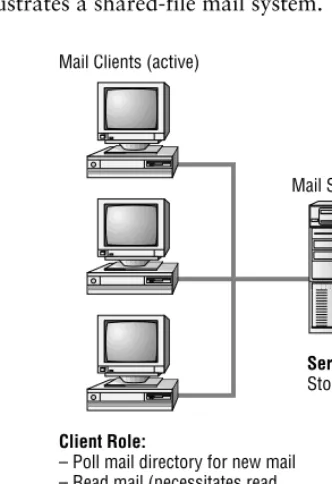
Using this model, a shared-file mail system has active clients and passive
servers. Each mail user is assigned a mailbox. A mailbox is actually a directory on the server where mail messages will be placed. The server software is pas-sive in that its main task is to store mail messages.
The client software is said to be active because it performs almost all mail activities. Along with the normal mail activities of creating and reading mail, the client software is also responsible for sending mail to mailboxes and
checking for new mail (this is referred to as polling).
This could be compared to a postal system where people must take their outgoing mail to the post office and place it in the respective recipients’ mail slots. They must also visit the post office to check their mail slots for any new mail. The primary duty of the post office is to store the mail. This is analogous to the shared-file mail system in that the clients are active and the server is passive.
The advantages of shared-file mail systems include the following:
■ Minimal server requirements Because the server has a passive role, it
does not need to run on a high-end hardware platform.
■ Minimal server configuration in a single-server environment Because the
The disadvantages of shared-file mail systems include the following:
■ Limited security Because the client software is responsible for sending
mail to a recipient’s mailbox, each client must have write permissions on each mail directory. Each client must also have read permissions on the entire mail directory structure in order to read forwarded or copied mes-sages. From a security standpoint, this is considered an excessive level of permissions.
F I G U R E 1 . 3
■ Increased network traffic The periodic client polling of mailboxes for
new mail increases network traffic.
■ Increased client load The active clients do almost all of the
pro-cessing work.
■ Limited scalability These systems cannot accommodate large numbers
[image:15.612.230.396.214.456.2]of users due to the shared-file model. Users must access common files that can be opened by only one process at a time.
Figure 1.4 illustrates a shared-file mail system.
Client/Server Computing
Client/server computing is where a computer task is divided between the client processes and server processes. Each side, while performing specific parts of the task, works to accomplish the task. The two processes are usually running on separate computers and are communicating over a network. The commu-nication is in the form of requests and replies passed back and forth through messages.
F I G U R E 1 . 4
The client side includes a user’s personal computer or workstation and client software. The client software provides the interface to the user for manipulating data and making requests to and receiving replies from the server. The processing power to carry out those tasks is provided by the client’s computer.
The server side includes the server computer and server software. The server software receives and processes client requests, provides storage capabilities, implements security, provides for administrative functions, and performs many more duties. The server’s processor, or processors, power these functions.
When this model is applied to a mail system, both the client side and the server side are active participants. Mail activities are divided between the two sides in a way that takes advantage of both parties. The client software enables users to initiate mail activities like creating, sending, reading, storing, and for-warding mail and attachments.
The server software also has an active role. Some of its tasks are imple-menting security, placing messages in mailboxes (as opposed to the client soft-ware doing it), notifying clients of new mail (which eliminates clients polling their mailboxes), and performing specified actions on mail, such as applying rules, rerouting messages, along with many other tasks. Many of the mail activities that are initiated by the client software are actually implemented on the server. For example, when a client initiates the reading of a message, the client software sends a read request to the server where the message physically resides. The server software receives this request, processes it (for example, checks security to see if this user is permitted to read this message), and then sends the message to the client. The user can then use the client software and processor to manipulate the message (edit the message, for example). This illustrates how both sides are active.
In this model, the software running on the client machine is frequently
referred to as the front-end program, while the software running on the server
is referred to as the back-end program.
The advantages of the client/server model include the following:
■ Distributed computer processing The computer processing power of
■ Tight security The server software is responsible for the security of the
mail system. The server software is the entity that actually places mes-sages in mailboxes. The clients therefore do not need permissions to all mailboxes. This creates a much more secure mail system.
■ Reduced network traffic Becausethe server software informs clients
of new mail, the client software does not have to poll the server, thus reducing network traffic.
■ Scalable The term scalable relates to the ability to grow easily. A client/
server mail system can scale to any size organization.
The primary disadvantage of the client/server model is the following:
■ Increased server hardware requirements Because the server has an
active role in the messaging environment, there are greater requirements for the server hardware platform. This should not be seen as much of a disadvantage in light of the advantages of scalability, central administra-tion, backup, and other advantages.
Figure 1.5 illustrates the client/server mail system.
The Big Ox Fallacy
Exchange is a client/server messaging system. The Exchange Server soft-ware runs as an application on a Windows NT Server. It provides server-side messaging functions for the client applications. Exchange also ships with the client applications noted earlier in this chapter. These programs, along with third-party applications like Web browsers, provide the client-side functions such as making requests to the server and creating and manipulating data.
So far we have learned what features make up Exchange 5, and how the
system is implemented, namely the client/server model. Now we need to turn our attention to the context or scale in which Exchange can be implemented.
Enterprise-Wide Computing
M
icrosoft Exchange was designed to be an enterprise messagingsystem, meaning one that spans an entire organization. While an enterprise can be of small or medium size with straightforward requirements, it can also be very large and have very complex requirements. For Exchange to be an
F I G U R E 1 . 5
enterprise messaging system, a large number of technologies had to be included or leveraged from other products (such as Microsoft Windows NT Server). This section briefly discusses the technologies that make Exchange a true enterprise messaging system. Those technologies fall into six categories:
■ Enterprise-quality application platform
■ Scalability
■ Interoperability
■ Performance
■ Administration
■ Reliability
Enterprise-Quality Application Platform
Before a determination can be made as to whether or not a product can scale to the size an organization needs, it must be determined that the product can do the things it needs to do. Exchange provides the necessary application plat-form to meet the requirements of almost any organization. The following are some of the elements of the Exchange application platform:
■ Supports large number of messaging services E-mail, electronic forms,
groupware, and add-on products for fax, paging, video conferencing, voice mail, and many services are supported.
■ Supports large number of client platforms There is client software that
runs on MS-DOS, Windows 3.x, Windows 95, Windows NT
Work-station, Apple Macintosh, UNIX, and IBM OS/2.
■ Integrates with other client applications The Exchange client programs
that ship with Exchange have very tight integration with the most pop-ular application suite on the market, Microsoft Office.
■ Provides open architecture/extensibility Exchange is based on an open
architecture, meaning that the specifications of many of its protocols are available in the public domain. Examples of published protocols include the Messaging Application Programming Interface (MAPI), Internet pro-tocols, and various CCITT protocols. Developers can use this openness to create additional applications and programs that work with or extend
Exchange. That is what is meant by extensible. One example of the way
Microsoft Visual InterDev product with Exchange Server. Developers can use Visual InterDev to create Web-based applications that enable Web clients to access Exchange resources. Chapter 11 will briefly cover this topic.
■ Based on industry standards The Exchange protocols, along with
being open and extensible, are based on industry standards (protocols can be open and extensible but not industry standards). The MAPI pro-tocol is considered an industry standard. Some of the industry standard Internet and CCITT protocols used in Exchange are:
Internet mail Simple Mail Transfer Protocol (SMTP), Post Office Protocol 3 (POP3), and Internet Message Access Protocol version 4 (IMAP4). See Chapter 11.
Internet Chat Internet Relay Chat (IRC). See Chapter 11.
Internet directory access Lightweight Directory Access Protocol (LDAP). See Chapter 11.
Internet news services Network News Transfer Protocol (NNTP). See Chapter 11.
Internet management Simple Network Management Protocol (SNMP). See Chapter 12.
Internet security Secure MIME (S/MIME), Secure Sockets Layer ver-sion 3 (SSL), and Simple Authentication and Security Layer (SASL).
Internet Web protocols HyperText Transfer Protocol (HTTP) and HyperText Markup Language (HTML). See Chapter 11.
CCITT message transfer (International Telegraph and Telephone Consultative Committee): X.400. See the section “Industry Stan-dards” later in this chapter.
CCITT directory X.500. See the section “Industry Standards” later in this chapter.
■ Security features Using the Internet security protocols listed above, along
features, and ones that are leveraged from Microsoft Windows NT Server, include:
Mandatory logon A user must have a domain account and pass-word to log on to a Windows NT Server domain.
Discretionary access control An Exchange administrator can use NT security to control access to Exchange resources. For example, one administrator could have security to manage one particular Exchange server, but not other servers.
Auditing Windows NT can be configured to monitor and record certain events. This can help diagnose security events. The audit infor-mation is written to the Windows NT Event Log.
Scalability
Once a product has been determined to accomplish the types of things you need to get done, then you must find out if it can do it on the scale you need. Exchange is extremely scalable due to the following features:
■ Software scalable Exchange can be implemented with a single Exchange
server, or dozens of servers, depending on the message requirements. Even with multiple Exchange servers, a single enterprise messaging system exists. This is due to the Exchange features that enable communi-cation between servers. Some of those features include message routing, directory replication, and data replication. This functionality permits Exchange to scale from a single server to multiple server implementa-tions. Microsoft itself uses Exchange for its worldwide messaging system.
■ Hardware scalable Scalability is also evidenced by the maximum
hard-ware specifications that Exchange can utilize.
■ CPUs Scalable from 1–8 processors.
■ RAM Maximum is 4 gigabytes.
■ Disk Storage Storage is limited only by hardware capacity.The
Interoperability
For a product to fit into an enterprise, it might need to work with an existing
messaging system. This is called interoperability or coexistence. An
organiza-tion might need to move all its existing messaging data to a new messaging
product. This is called a migration. Exchange addresses both of these issues.
To interoperate with various non-Exchange systems, referred to as foreign
systems, Microsoft had to write special software programs called connectors. Connectors are similar to translators who understand both Exchange and the foreign system and translate between them. Third-party companies also have
written similar programs. Microsoft refers to these programs as gateways.
Some of the messaging systems that Exchange can interoperate with include:
■ Internet mail
■ X.400 mail systems
■ Microsoft Mail
■ Lotus cc:Mail
■ Lotus Notes
■ IBM PROFS and OfficeVision
■ Digital Equipment Corporation (DEC) All-IN-1
■ Verimation MEMO
The Standard edition of Exchange Server 5.5 ships with connectors for Internet mail, Microsoft Mail, Lotus cc:Mail, and Lotus Notes. The Enterprise edition adds to that list connectors for X.400 systems, and IBM OfficeVision/ PROFS and IBM SNADS–based systems. Connectivity to other systems, such as DEC ALL-IN-1 or Verimation MEMO, is provided through third-party gateway products.
G
Some of the messaging systems that Exchange can perform a migration with include:
■ Microsoft Mail
■ Lotus cc:Mail
■ Novell GroupWise
■ Netscape Collabra
■ IBM PROFS and OfficeVision
■ DEC All-IN-1
■ Verimation MEMO
G
H
For Exchange to perform a migration with some of the previous systems, third-party software is required. Migration is discussed in Chapter 16.Performance
A messaging system requires adequate performance to be used on an enter-prise scale. Exchange meets that requirement by being a 32-bit, multithreaded program running on a high-performance operating system, Microsoft Win-dows NT Server. Exchange also ships with a program to help optimize perfor-mance, called the Exchange Optimizer. Another Exchange program that relates to performance is Load Simulator. This program can simulate load on the system and predict the system’s performance.
Administration
the creation of mailboxes in a batch process, and provides for the tracking of messages. The Exchange Administrator program includes these administrative utilities:
■ Link Monitor Examines the link between two servers.
■ Server Monitor Examines the status of a particular server.
Exchange Server 5.5 has also added support for the Simple Network Man-agement Protocol (SNMP). This enables third-party SNMP monitor programs to collect various management information about an Exchange server, such as performance information collected by NT Performance Monitor. The topic of Exchange Server administration is covered in Chapter 12.
Along with its own administrative utilities, Exchange can leverage the administrative capabilities of the Windows NT Server operating system. Exchange integrates with Windows NT Server utilities like Performance Mon-itor and Event Viewer.
Reliability
Because of the importance of a messaging system to an enterprise, it must be reliable. Exchange provides reliability through the following:
■ Transaction log files Data that is to be written to an Exchange
data-base is first written to these log files (which can be done very fast). The data is later written to the appropriate database, which takes longer because of the structured nature of a database. If for whatever reason, a server has an unintended shutdown, data that has not been written to the database is not lost; it can be automatically recon-structed from the transaction log files. Chapter 12 will discuss this topic further.
■ Windows NT Backup program When Exchange is installed, it adds
extensions to the Windows NT Backup program, allowing that pro-gram to backup Exchange information.
■ Replicas Exchange can be configured to have multiple copies, called
replicas, of a single public folder on different servers. This prevents a single point of failure in terms of data access.
■ Intelligent message routing This feature allows multiple routes to a
■ Windows NT Server fault tolerance Exchange takes advantage of
the many fault tolerant features of the Windows NT Server operating system, such as disk mirroring and disk striping with parity. The Enterprise Edition of Exchange Server 5.5 supports Microsoft’s Cluster Server product. Cluster Server provides fault tolerance in the event of an NT server malfunction. If a server fails, another server can take its place, thereby providing uninterrupted service to users.
Industry Standards
M
icrosoft Exchange is based on industry standard technologies.Someone once joked that the best thing about standards was that there were so many of them from which to choose. But being a standards-based product ensures an open architecture and therefore extensibility (i.e., the ability to easily add on to the product). An adequate understanding of the standards used in Exchange will help in utilizing it. This section presents a brief coverage of the following standards:
■ Messaging Application Programming Interface (MAPI)
■ The Remote Procedure Call (RPC) protocol
■ CCITT X.400
■ CCITT X.500
G
H
The Internet standards are also very important in Exchange, and they will be discussed in Chapters 11 and 14.Messaging Application Programming Interface (MAPI)
example, if a program has the ability to read a message, there is a specific API
instruction, also called a function call, that can invoke that ability. If two
pro-grams need to interact, they must do so with an API they both understand. For
example, if program A sends the instruction Read_Message 4 to program B, but
program B only understands the instruction Message_4_Read then the
instruc-tion will not be understood. Humans can use slightly different grammar and still understand one another, but computers are not that forgiving.
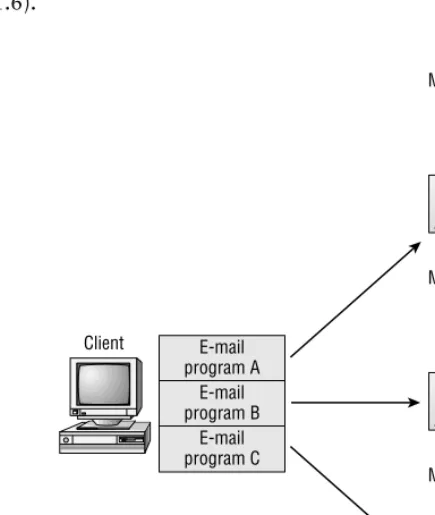
In the past, many client/server messaging products had their own APIs for the client/server interaction. If someone wrote a client program, it would only work with the messaging system whose API it used. If a user needed to connect to multiple messaging systems, multiple client programs were needed (see Figure 1.6).
Microsoft decided to remedy that situation by creating a standard mes-saging architecture, referred to as the Mesmes-saging API (MAPI). MAPI accom-plishes two broad goals. One, it provides a standard API for client/server
F I G U R E 1 . 6
[image:26.612.229.447.248.505.2]messaging interaction. This role makes MAPI a type of middleware, meaning that it stands in the middle between clients and servers. Some authors refer to middleware as the slash (/) between the words client and server. MAPI makes it possible for a single client application to access different messaging servers (see Figure 1.7 for an illustration).
The second broad goal of MAPI is to provide a standard set of services to client messaging applications. These services include address books, message storage, and transport mechanisms. Even when using different types of MAPI applications, like e-mail, fax, and voice mail, a user can access a single address book (universal address book) and store different data types in the same folder (universal inbox). The transport mechanisms relate to a single client application connecting to different messaging systems. A single MAPI e-mail application can access a Exchange server, a Microsoft Mail post office, an Internet mail server, and others. Chapter 6 examines the MAPI services in more detail.
F I G U R E 1 . 7
Although MAPI includes individual API instructions, it most often commu-nicates those instructions in an object-oriented manner. An object is a con-tainer: in this context, it functions as a container of API instructions. The Microsoft specification for object-oriented programming is called the Compo-nent Object Model (COM). MAPI, OLE, ActiveX, and other technologies are part of the COM standard.
The original version of MAPI (called Simple MAPI) was developed by Microsoft. But in the subsequent version (MAPI 1.0), Microsoft worked with over 100 different vendors to develop an industry standard. Microsoft has also turned over the vast majority of the MAPI specification to standards organiza-tions, while still taking a leadership role by including the core MAPI compo-nent with the Microsoft Windows 95 and Windows NT operating systems.
While MAPI deals with instructions, the next section discusses the proto-cols that enable those instructions to be passed between clients and servers.
Procedure Calls
We now know the instruction standard used by the Exchange client/server messaging applications, namely MAPI. But client/server applications are divided across physical machines. When a client issues a read instruction for a message, that message could be on the server. The server could understand that instruction and could send the message, but the instruction has to get to the server and the message has to get back to the client. MAPI does not handle those procedures. From MAPI’s perspective, the physical distinction of the client and the server does not exist, it is transparent. Microsoft uses the Remote Procedure Call protocol (RPC) to pass instructions and data between machines. Before discussing the RPC protocol, we will first define what a procedure call is, and discuss the two types of procedure calls, local and remote.
Procedure calls handle the transfer of instructions and data between a program and processor, or processors. When a program issues an instruc-tion, that instruction is passed to the processor for execuinstruc-tion, and the results of the execution are passed back to the program. There are two main types of procedure calls:
■ Local procedure calls
Local Procedure Calls
When a program issues an instruction that is executed on the same computer as
the program executing the instruction, the procedure is referred to as a local
procedure call. When Exchange Server components perform activities on that server, they issue instructions that are executed by that server’s CPU or CPUs. That is an example of a local procedure call. Exchange uses a Microsoft pro-tocol called the Local Procedure Call (LPC) to implement this mechanism. Examples of how Exchange uses LPCs will be forthcoming in Chapter 2.
Remote Procedure Calls
A remote procedure call is similar to a local procedure call in that it relates to the transfer of instructions and data between a program and processor. But unlike a local procedure call, a remote procedure call enables an instruction issued on one computer to be sent over the network to another computer for execution, with the results being sent back to the first computer. The com-puter making the instruction and the comcom-puter performing the execution are remote from each other. The transfer of instructions and data between the computers is totally transparent to the original program and to the user. To the program issuing the instruction, all its instructions appear to be locally executed. Remote procedure calls are a key ingredient in distributed pro-cessing and client/server computing.
The RPC mechanism permits the optimizing of different computers for specific tasks. For example, some programs require lots of processor power, memory, storage, or all three. It would be impractical to give every computer running these applications those level of resources. But one specialized com-puter could be given, for example, 4 processors, 512MB of RAM, and 16GB of storage. Clients could use those resources through the RPC mechanism.
Because the request/reply aspect of RPC is intended to be transparent to the client program and user, the speed of network communication is a factor. The computers involved in a RPC session need to have a high-speed permanent link between them, such as a local area network (LAN) or a high-speed wide area network (WAN).
Remote Procedure Call (RPC) Protocol
As previously stated, the protocol that Exchange uses to implement remote procedure calls is also called Remote Procedure Call (RPC). It is based on a protocol created by the standards group Open Software Foundation (OSF) and is part of the OSF’s Distributed Computing Environment (DCE) protocol suite. Microsoft includes the RPC protocol with their Windows NT operating system, and this is what Exchange uses for much of its communication.
When a user chooses to read a message, the Exchange client program issues a MAPI instruction (MAPIReadMail). The RPC protocol on the client trans-fers this instruction to the Exchange server where the message physically
resides. This is called a request. The RPC protocol on the server receives this
request, has it executed, and sends the message back to the client’s screen. The
is called a reply. RPC clients make requests, and RPC servers make replies.
RPC is sometimes referred to as a request/reply protocol. RPCs are also used in some Exchange server-to-server communications. Figure 1.8 illustrates the RPC mechanism.
CCITT X.400
For most of the history of electronic messaging in the private sector, there were no widely accepted messaging standards. Different messaging prod-ucts used vastly different messaging protocols. This prevented, or made dif-ficult and costly, interoperability between different systems. To address this situation, different standards organizations began to develop what they
F I G U R E 1 . 8
hoped would become internationally recognized messaging standards. One of those standards organizations was the Comité Consultatif International Telegraphique et Telephonique (CCITT). This is translated in English as the International Telegraph and Telephone Consultative Committee. One of the standards they developed was the X.400 Message Handling System (MHS) standard. Exchange uses some of the technologies of the X.400 standard.
G
H
The CCITT is now a subdelegation of the International Telegraph Union (ITU), which is an agency of the United Nations. The State Department is the voting member from the United States.The different versions of the X.400 standard are referred to by the year they were officially published and by a specified color. Versions to date are:
■ 1984 “Red Book”
■ 1988 “Blue Book”
■ 1992 “White Book”
G
H
The Message Handling System (MHS) discussed in this section is not the same standard as the Novell-related Message Handling System (MHS).X.400 is a set of standards relating to the exchange of electronic messages (messages can be e-mail, fax, voice mail, telex, etc.). The goal of X.400 is to enable the creation of a global electronic messaging network. Just as you can make a telephone call from almost anywhere in the world to almost anywhere in the world, X.400 hopes to make that a reality for electronic messaging. X.400 only defines application-level protocols and relies on other standards for the physical transportation of data (e.g., X.25, and others).
X.400 Addressing: Originator/Recipient Address
and problems: hence a standard numbering scheme exists. Electronic messaging also needs a standard addressing scheme to avoid the same sort of chaos.
One might think that you could simply list people’s names in alphabetical order. But there are many problems with that scheme. The addressing scheme needs to potentially scale to the entire world’s population. An alphabetical list would be quite long. There is also the problem of what constitutes a last name, different countries have different methods (e.g., Anwar el-Sadat, Willem de Kooning). A truly global address scheme needs to be totally unambiguous.
The address scheme that X.400 uses is called the Originator/Recipient Address (O/R Address). It is similar to a postal address in that it uses a hierar-chical format. While a postal address hierarchy is country, zip code, state, city, street, and recipient’s name, the O/R address hierarchy consists of coun-tries, communication providers (like AT&T), companies or organizations, and other categories. Figure 1.9 and Table 1.1 present some of these catego-ries, called fields.
F I G U R E 1 . 9
The O/R Address specifies an unambiguous path to where the recipient is located in the X.400 network (it does not specify a path the message might take, only the path to where the recipient is located).
G
H
In actual practice, this addressing scheme is not as standardized as Table 1.1 seems to indicate, nor is it used in the standardized way. Although the address fields have always been specified, the order in which to write them was not specified until 1993. Consequently, you will see them written in dif-ferent ways. Some X.400 implementations have modified the standard.X.400 Message Format: Interpersonal Messaging (IPM)
X.400 also specifies the protocols for formatting messages. The most common one is called Interpersonal Messaging (IPM), and is used for e-mail messages. There are other protocols for other types of messaging, such as electronic data interchange (EDI).
X.400 Message Routing: Message Transfer Agent (MTA)
Another very important X.400 protocol is Message Transfer Agent (MTA). MTA is the protocol that runs in the message routing machines (i.e., routers). MTA is like a local post office, in that it receives and routes
Field Abbreviation/ Example
Description
Country code c=us Country
Administrative Management Domain (ADMD)
a=mci The third-party networking system used (e.g., ATT, MCI, Sprint, etc.)
Private Management Domain (PRMD)
p=WidgetNet Subscriber to the ADMD (company name)
Organization o=Widget Name of company or organization
Surname s=Wilson Last name
Given name g=Jay First name
T A B L E 1 . 1
messages to their ultimate destinations. And just like a postal system (a snail mail system), electronic messages can go through several MTAs before they arrive at their ultimate destinations. This type of delivery method is called
store and forward. An MTA machine receives a message, stores it so it can calculate its next route, and then forwards it either to another MTA machine or its ultimate destination. This method eliminates the need for the sender’s application and the recipient’s application to perform any simultaneous actions in order to exchange data. A sender’s message is simply packaged with all the necessary addressing information, and is sent to the next store-and-forward MTA machine (i.e., router). That MTA can route it to the next MTA, and so on, until it reaches it final destination.
Other X.400 Information
While the X.400 standard does not define the protocols for the physical trans-porting of messages, it does specify what other standards it can use. They include the following OSI (Open Systems Interconnection) protocols:
■ TP0/X.25
■ TP4 (CLNP)
■ TP0/RPC 1006 to TCPIP
G
H
TP stands for Transport Protocol.Third-party X.400 networks that can be subscribed to include: AT&T Mail, AT&T EasyLink, MCI Mail, Sprintmail, Atlas 400 (France), Envoy 100 (Canada), Telebox 400 (Germany), and Telecom Australia. Microsoft Exchange is an X.400 messaging product.
CCITT X.500
The CCITT X.500 standard defines the protocols for a global directory service. A directory service is a database of information about resources. Resources can be user accounts, user groups, mailboxes, printers, fax machines, and many other items. These resources are officially referred to as objects. The informa-tion about an object, such as a mailbox, can include the owner of the mailbox, the owner’s title, phone number, fax number, and many other types of
attributes. A directory enables objects and their properties to be made available to users and administrators.
The directory’s importance cannot be overstated. To use a telephone analogy, imagine the current global telephone system without telephone direc-tories. The technology to make a call would be in place, but you would have a hard time locating a person’s number to call. The creation of a global, elec-tronic yellow pages could go a long way toward solving the “I know it’s out there, I just can’t find it” problem.
To create a directory service, X.500 addresses two main areas:
■ Directory structure How resources should be organized.
■ Directory access How one is able to read, query, and modify a
directory.
X.500 Directory Structure
The X.500 directory structure is hierarchical, which facilitates a logical organi-zation of information, which leads to finding information easier. Figure 1.10 illustrates the X.500 directory structure, and Table 1.2 explains it.
F I G U R E 1 . 1 0
G
H
The X.500 terminology for the structure of a directory is the Directory Information Tree (DIT). The term for the information in the directory is Directory Information Base (DIB).To communicate the location of an object in the directory hierarchy, list the path to that object, starting at the top and moving down. This is called a Dis-tinguished Name (DN). The DN of the example in Figure 1.10 is:
c=us; o=widget; ou=Chicago; ou=Education; cn=jaywilson
The differences between an X.500 address, the distinguished name (DN), and an X.400 address are due to their different purposes. A DN is the location of an object in the directory, whereas the X.400 address is the location of an object in a message system. Getting back to the telephone analogy, a DN is the location of a person in the phone book, and an X.400 address is where they are in the physical telephone system. This is illustrated by the fact that an X.400 address can include information about third-party messaging networks used to physically deliver a message, some examples being AT&T, MCI, and Sprint.
X.500 Object Abbreviation/Example Description
Country c=us Country of the organization
Organization o=Widget Name of the organization
Organization Unit ou=Chicago ou=Detroit
Subcategory of the organization
Organization Unit ou=Sales ou=Education
Subcategories under the ou=Chicago
Common Name cn=JayWilson Name of a specific resource (username, fax name, printer name, etc.)
T A B L E 1 . 2
G
H
The 1988 release of X.400 incorporated the use of a DN address instead of, or along with, an O/R address. Some implementations of X.400 also incorpo-rated some of the X.500 fields, like ou= and cn=.A directory also puts a more natural interface to network resources. Many communication objects have long numeric identifiers that are hard to remember. A directory allows objects to be presented to users by a natural descriptive term. The directory then maps the descriptive term to the numeric.
G
H
X.500 has a 1988 version and a 1993 version.Directory Access
Having a directory is only half the equation. Users and administrators must also be able to access it to read, query, and write to it. A user might query the directory for a printer in the sales department, fourth floor, and the directory could respond with the needed information about the printer. Other issues that must be addressed are security (e.g., who can access an object and modify its properties) and directory replication (a true global directory would need to be on more than one machine). These issues are addressed by directory access protocols.
Summary
T
he Exchange product is a powerful client/server enterprise messagingproduct.
The types of applications in an Exchange environment are:
■ Electronic mail (e-mail)
■ Electronic forms
■ Workflow
■ Groupware
■ Other applications, such as fax, paging, video conferencing, and
voice mail
The client applications that are shipped with Exchange are:
■ Exchange Client
■ Exchange Forms Designer
■ Schedule+ 7.5
■ Outlook
■ Outlook Forms Designer
The network computing model that Exchange uses to implement its mes-saging system is the client/server model. This model utilizes the computing power of both client computers and server computers.
Exchange was designed for enterprise-wide implementations and conse-quently meets the following requirements:
■ Enterprise-quality application services
■ Scalability
■ Interoperability
■ Performance
■ Administration
The following industry standards are used by Exchange:
■ Messaging Application Programming Interface (MAPI)
■ Internet protocols (e.g., POP3, IMAP4, LDAP, SNMP, and others)
■ Remote Procedure Call (RPC)
■ X.400
■ X.500
Review Questions
1.The type of utility that would allow you to transfer data from a foreign
message system to Exchange is:
A. Administrative tool
B. Security utility
C. X.500
D. Migration tool
2.This type of mail system has a passive server:
A. Shared-file mail system
B. Client/server mail system
C. Host-based mail system
D. Exchange server
3.Which of the following is NOT a feature of a client/server messaging
system?
A. Distributed processing
B. Tight security
C. Passive client application
4.Microsoft Outlook is a desktop information manager application that runs on the following operating system:
A. Windows 3.x
B. Windows for Workgroups
C. Windows NT
D. 32-bit UNIX
5.The following types of components can be used to connect Exchange to
a foreign messaging system:
A. Gateway
B. Connector
C. Groupware
D. Key Management
6.The universal inbox is part of this software:
A. Exchange Client
B. SMTP clients
C. POP3 clients
D. LDAP clients
7.The following is an e-mail protocol:
A. LDAP B. PNP
C. PPP
8.Which of the following could NOT be used as an Exchange e-mail client?
A. Word processing program
B. Web browser
C. Internet e-mail program
D. Microsoft Outlook
9.Which Exchange Client feature enables e-mail content to include
mul-tiple format types, such as fonts, sizes, and colors?
A. WordPerfect
B. This software cannot do this
C. Richman message content
D. Rich-text message content
10.This Microsoft technology enables the Exchange Client to create
com-pound documents using drag-and-drop:
A. OLE
B. OOP
C. DLL
D. SNADS
11.Recalling a sent, but unopened, message is a feature of what program or
programs?
A. Outlook
B. Exchange Client
C. Public folders
12.Which of the following relate to the performance of Exchange?
A. Load Simulator
B. 32-bit program
C. Multithreaded
D. Auditing
13.Since Exchange is scalable, it cannot be used in small to medium
environments.
A. True
B. False
14.Exchange could use the Internet as part of its WAN design.
A. True
B. False
15.The following feature enables a Exchange client to create rules for
pro-cessing incoming mail:
A. Search tool
B. Customized views
C. Universal inbox
D. AutoAssistants
16.What is the name of the mechanism when two Exchange components on
the same machine pass instructions and data?
A. Remote procedure call
B. Remote instruction call
C. Local instruction call
17.What is the name of the mechanism when a client-read instruction is sent to an Exchange server for execution?
A. Local procedure call
B. Local instruction call
C. Remote instruction call
D. Remote procedure call
18.Exchange Server 5.5 supports what newer Internet protocol that enables
the retrieval of e-mail messages from a remote server?
A. SNMP B. IMAP
C. POP
D. SSL
19.The addition of the Microsoft Exchange Scripting Agent enables the
adding of event or time-based features to a public folder thereby creating what type of application?
A. Chat
B. Remote mail
C. Security
D. Workflow
20.Which of the following is an Internet management protocol that has
been added to Exchange Server 5.5?
A. SNMP
B. SMTP
C H A P T E R
2
Microsoft Exchange Architecture
n architecture is a description of the structure of something. A structure can be something physical, like a building or bridge, or something abstract, like the principles of a philosophy. When applied to a software product, an architecture is a description of the software components of the product, what they are, what they do, and how they relate to each other. Part of what software components do is create and manage objects (i.e., resources) like servers, mailboxes, public folders, address books, etc. How those objects are structured or organized is also part of a software architecture.
There are many practical benefits to understanding the architecture of Microsoft Exchange. It will aid a person in designing, installing, adminis-tering, and troubleshooting an Exchange system. For example, understanding component functionality will assist in deciding what optional components, if any, to choose during an installation. Troubleshooting can frequently benefit from a good understanding of an architecture; just understanding some error messages requires this knowledge. This chapter also serves as a good concep-tual background for the topics in the remainder of the book.
In this chapter, we will address the following issues:
■ The organization of Microsoft Exchange objects ■ Core components of Microsoft Exchange ■ Optional components of Microsoft Exchange
Microsoft Exchange Object Organization
M
any of the Microsoft Exchange components create and manage objects. Objects, as stated earlier, are resources such as servers, mailboxes, public folders, and address books. The organization of these objects is part ofMicrosoft Exchange Object Organization 45
the architecture of Microsoft Exchange. Finding an object in the Exchange directory requires understanding object organization and object management. As you will learn, if a number of objects need the same configuration, and those objects are all grouped under a single object, the configuration can be given to the single object and then inherited by the objects underneath it.
Exchange is organized hierarchically. A hierarchy is the grouping and arrangement of items by rank, order, class, etc. A family tree is a good example of a hierarchy. At the top of the tree are the family patriarch and matriarch. Below them are their children, and their children below them, and so on. The family tree shows the relationships between people. One of these relationships is the parent-child relationship. Inherent to that relationship is the passing of traits from parent to children. A person can be both a parent and a child. A person will always be a child in reference to their parents, and that person can have children, making them also a parent. All of these concepts will relate to Microsoft Exchange.
Three objects constitute the main structures in the Exchange hierarchy:
■ Organization ■ Sites
■ Servers
These objects contain other objects, but these three form the major structure of the hierarchy. Later in this chapter, under “Core Components” and “Direc-tory Service,” additional information will be given on them, as well as the other objects contained in them. Figure 2.1 illustrates the three main structures.
Organization
The largest unit, and the one at the top of the Exchange hierarchy, is the orga-nization. All other Exchange structures are contained under this unit. The organization is the parent to the sites. This relationship permits an adminis-trator to configure something at the organization level and have it apply or be available at all the sites (its children).
Chapter 2 ■ Microsoft Exchange Architecture
46
Sites
Sites are logical groupings of one or more Exchange servers. Even though resources reside on different servers in the site, the site groups all those resources without ref-erence to their locations. This grouping makes using resources in the site very easy. For example, let us say that a certain mailbox physically resides on site server A. That site server is called the mailbox’s home server. Senders do not need to know the physical location of the mailbox in order to send messages to it. They simply see the mailbox in the site listing, and send it a message. The same principle applies to public folders in a site. The particular server a public folder is stored on is of no concern to the users wanting to access it. They simply see the public folder listed in their site and access it. This is called location transparency. From the user’s perspective, a site creates a transparent messaging environment.
A site also creates a smaller, more manageable Exchange network within the larger network of the organization. Administrators can assign a setting to the site (the parent), and it will be inherited by its site servers (the children).
There are two primary prerequisites for a site to be created:
■ Permanent, high-speed connections between the site servers All
com-munication that takes place within a site is done with RPCs. As you learned earlier, the RPC protocol transfers instructions issued at one machine to another machine for execution, and waits for the data to be
F I G U R E 2 . 1
Core Components 47
sent back (a request/reply mechanism). For this to work efficiently, there must be a relatively high-speed connection between all the machines in the site. The connection also needs to be permanent. It is strongly recom-mended that all site servers be within a local area network (LAN) or high-speed wide area network (WAN) with permanent links.
■ All the site servers must be in the same Windows NT security context
(context relates to location) When an Exchange component on one site server initiates communication with a component on another site server, the initiating component logs on to the other site server. The Windows NT account that is used for logging on is called the Site Ser-vices Account (the actual name of the account could be anything, Jane, Steve, etc., but it is referred to as the Site Services Account). This means all the site servers must be in the same Windows NT domain or domains with trust relationships.
Servers
Exchange servers comprise the final main structure in the Exchange hierarchy. These computers run the Windows NT Server operating system and the Exchange Server software. The Exchange servers are the physical location for mailboxes, folders, and other data and information for the site. Individual servers, while inheriting certain configuration parameters from the site (the parent), can also be individually configured. For example, even though recipients can be man-aged at the site level, they can also be manman-aged at the server they were created on, their home server. All Exchange objects, as well as all related processes, are created and managed by the software components that make up the Exchange product. These components are divided into two main groups, core compo-nents and optional compocompo-nents, which are covered in the following discussion.
Core Components
Chapter 2 ■ Microsoft Exchange Architecture
48
referred to as services, because they run as services on the Microsoft Windows NT Server operating system. The core components include:
■ Directory Service (DS) ■ Information Store (IS)
■ Message Transfer Agent (MTA) ■ System Attendant (SA)
Table 2.1 uses a post office analogy to illustrate the functions of the core components.
Directory Service (DS)
The Directory Service (DS) creates and manages the storage of all informa-tion about Exchange objects, such as the organizainforma-tion, site, servers, mail-boxes, distribution lists, and public folders. The characteristics of these objects are called properties or attributes. The DS organizes all this infor-mation into a hierarchical database called the Directory, which is contained in the file DIR.EDB. The Directory hierarchy is patterned after the X.500 standard.
Structure and Objects of the Directory
This section provides additional details about the main objects in the Direc-tory—organization, site, and server— and information on the other objects in the Directory. Figure 2.2 and Table 2.2 illustrate an X.500 directory structure along with the corresponding Exchange structures.
As can be seen in Figure 2.2 and Table 2.2, the Exchange Directory uses the same basic hierarchical structure as X.500. A minor difference is the nami


![CompTIA Security+ Study Guide & Practice Exam, 2nd Ed [Exam JK0 010] pdf](data:image/gif;base64,R0lGODlhAQABAIAAAP///wAAACH5BAEAAAAALAAAAAABAAEAAAICRAEAOw==)