vCenter Hyperic Configuration Guide
vCenter Hyperic 5.8
This document supports the version of each product listed and
supports all subsequent versions until the document is
replaced by a new edition. To check for more recent editions
of this document, see
http://www.vmware.com/support/pubs
.
You can find the most up-to-date technical documentation on the VMware Web site at:
http://www.vmware.com/support/
The VMware Web site also provides the latest product updates.
If you have comments about this documentation, submit your feedback to:
Copyright © 2015 VMware, Inc. All rights reserved. Copyright and trademark information.
VMware, Inc.
3401 Hillview Ave. Palo Alto, CA 94304 www.vmware.com
About vCenter Hyperic Configuration Guide 5
1
Configuring and Running a vCenter Hyperic Agent 7
Using a Command Line to Run the Agent Launcher 8
Running the Agent Launcher from the vCenter Hyperic User Interface 9 Run the vCenter Hyperic Agent Without a Java Service Wrapper 10 Configuring Agent Logging 10
Configuring Plug-in Loading 13
Configuring an Agent to Enable a Resource Plug-in 14 Managing the vCenter Hyperic Agent 16
Agent Properties 21
Configuring the Agent Java Service Wrapper 36 Tailoring the Agent Wrapper Configuration 38
Automated Deployment of Multiple vCenter Hyperic Agents 39
2
Configuring and Running the vCenter Hyperic Server 41
Starting the vCenter Hyperic Server 41
Configuring Metric Baselining and Alert Processing Behavior 42 Scaling and Tuning vCenter Hyperic Performance 44
Integrating vCenter Hyperic Server with Other Systems 48 Managing the vCenter Hyperic Database 53
Clustering vCenter Hyperic Servers for Failover 63 vCenter Hyperic Server Properties 66
Tuning the vCenter Hyperic vApp 73
The vCenter Hyperic Configuration Guide provides information about configuring and running the vCenter Hyperic agent and server.
Configuring and Running a
vCenter Hyperic Agent
1
There are various options that you can use to run a vCenter Hyperic agent. You can customize certain parameters to suit your environment requirements.
n Using a Command Line to Run the Agent Launcher on page 8
You can use the command line to initiate the vCenter Hyperic agent launcher and agent lifestyle commands.
n Running the Agent Launcher from the vCenter Hyperic User Interface on page 9
In vCenter Hyperic, you can issue selected commands to a running vCenter Hyperic agent.
n Run the vCenter Hyperic Agent Without a Java Service Wrapper on page 10
If you run a If you run an Hyperic agent on a system that does not support the Java Service Wrapper, or for other reasons prefer not to use the wrapper, you can start the agent without the wrapper.
n Configuring Agent Logging on page 10
You can configure the name, location, and logging level for vCenter Hyperic agent logs. You can also redirect system messages to the agent log, and configure the debug log level for an agent subsystem.
n Configuring Plug-in Loading on page 13
At startup, a vCenter Hyperic agent loads all the plug-ins in the AgentHome/bundles/agent-x.y.z-nnnn/pdk/plugins directory. You can reduce the agent's memory footprint by configuring it to load
only the plug-ins that you use.
n Configuring an Agent to Enable a Resource Plug-in on page 14
You can configure a vCenter Hyperic agent to enable a specific plug-in to perform one or more of its management functions.
n Managing the vCenter Hyperic Agent on page 16
You can monitor your vCenter Hyperic agents and tune them to your requirements. You can view the status of all the agents, view the metrics of a specific agent and reduce the memory footprint of an agent.
n Agent Properties on page 21
Multiple properties are support in the agent.properties file for a vCenter Hyperic agent. Not all
supported properties are included by default in the agent.properties file. n Configuring the Agent Java Service Wrapper on page 36
The configuration file for the vCenter Hyperic agent;s Java service wrapper is located in
AgentHome/bundles/BundleHome/conf/wrapper.conf. n Tailoring the Agent Wrapper Configuration on page 38
The Java options that are supplied to the vCenter Hyperic agent at startup are configured in the Java Additional Parameters section of the wrapper.conf file.
n Automated Deployment of Multiple vCenter Hyperic Agents on page 39
You can deploy multiple vCenter Hyperic agents simultaneously, using
vCenter Infrastructure Navigator. You configure the agent properties prior to deployment.
Using a Command Line to Run the Agent Launcher
You can use the command line to initiate the vCenter Hyperic agent launcher and agent lifestyle commands.
n Run the Agent Launcher from a Linux Command Line on page 8
You initiate the agent launcher and agent life cycle commands with the hq-agent.sh script in the AgentHome/bin directory.
n Run the Agent Launcher from a Windows Command Line on page 8
You initiate the agent launcher and agent life cycle commands with the hq-agent.bat script in the AgentHome/bin directory.
Run the Agent Launcher from a Linux Command Line
You initiate the agent launcher and agent life cycle commands with the hq-agent.sh script in the AgentHome/bin directory.
Procedure
1 Open a command shell or terminal window.
2 Type the required command using the format sh hq-agent.sh command where command is one of the
following.
Option Description
start Starts the agent as a daemon process. stop Stops the agent's JVM process.
restart Stops and then starts the agent's JVM process. status Queries the status of the agent's JVM process..
dump Runs a thread dump for the agent process, and writes the results to the agent.log file in AgentHome/log .
ping Pings the agent process.
setup Causes the vCenter Hyperic agent to prompt you for the agent-server connection properties, enabling you to change values that were provided at first agent startup.
Run the Agent Launcher from a Windows Command Line
You initiate the agent launcher and agent life cycle commands with the hq-agent.bat script in the AgentHome/bin directory.
Procedure
1 Open a terminal window.
2 Type the required command using the format hq-agent.bat command where command is one of the
following.
Option Description
start Starts the agent as an NT service. stop Stops the agent as an NT service.
Option Description
install Installs the agent NT service
remove Removes the agent's service from the NT service table query Queries the current status of the agent NT service (status) ping Pings the agent process.
setup Prompts for setup configuration for the agent process.
Running the Agent Launcher from the vCenter Hyperic User Interface
In vCenter Hyperic, you can issue selected commands to a running vCenter Hyperic agent.Agent control commands are available on the Views tab for a vCenter Hyperic agent or a group of agents in inventory.
n Restart an Agent from the Hyperic User Interface on page 9
You can use the restart action to invoke the restart command in the Java Service Wrapper of the vCenter Hyperic agent.
n Ping an Agent from the vCenter Hyperic User Interface on page 9
You can ping an agent or group of agents to check connectivity.
n Upgrade an Agent from the vCenter Hyperic User Interface on page 10
You can upgrade agents directly from the vCenter Hyperic user interface.
n Push a Resource Plug-in to an Agent from the vCenter Hyperic User Interface on page 10
The push plugin action sends new and changed resource plug-ins to the target agent or agents.
Restart an Agent from the Hyperic User Interface
You can use the restart action to invoke the restart command in the Java Service Wrapper of the vCenter Hyperic agent.
The restart action shuts down the JVM process in which the agent runs, waits for the process to terminate cleanly, and generates a new JVM process for the agent. During the restart process, the agent's metric collection and resource control functionality is interrupted.
The restart action occurs asynchronously. To verify that the restart succeeded go to the page for the agent in the vCenter Hyperic user interface and check its availability. Alternatively, you could configure an alert for the agent that is triggered when the agent's availability changes.
Procedure
1 On the Views tab for a vCenter Hyperic agent or group of agents, select restart from the drop-down menu.
2 Click Execute. The agent restarts.
Ping an Agent from the vCenter Hyperic User Interface
You can ping an agent or group of agents to check connectivity. Procedure
1 On the Views tab for a vCenter Hyperic agent or group of agents, select ping from the drop-down menu.
Example:
What to do nextUpgrade an Agent from the vCenter Hyperic User Interface
You can upgrade agents directly from the vCenter Hyperic user interface. Procedure
1 On the Views tab for a vCenter Hyperic agent or group of agents, select upgrade from the drop-down menu.
2 Select the relevant agent bundle and click Execute.
1 The agent bundle is transferred from the vCenter Hyperic server to the target agent or agents. 2 The agent expands the bundle locally.
3 The agent updates the local bundle property. 4 The server restarts the agent.
The configuration properties in the agent's /conf/agent.properties file are preserved.
Push a Resource Plug-in to an Agent from the vCenter Hyperic User Interface
The push plugin action sends new and changed resource plug-ins to the target agent or agents. Procedure
1 On the Views tab for a vCenter Hyperic agent or group of agents, select push plugin from the drop-down menu.
2 Select the required plugin and click Execute.
1 The plug-in is transferred from the vCenter Hyperic server to the target agent or agents. 2 The server restarts the agent.
Run the vCenter Hyperic Agent Without a Java Service Wrapper
If you run a If you run an Hyperic agent on a system that does not support the Java Service Wrapper, or for other reasons prefer not to use the wrapper, you can start the agent without the wrapper.
Procedure
u From the AgentHome/bundles/agent-x.y.z/bin directory, run the hq-agent-nowrapper.sh agent start
script using nohup.
nohup AgentHome/bundles/agent-x.y.z/bin/hq-agent-nowrapper.sh
Configuring Agent Logging
You can configure the name, location, and logging level for vCenter Hyperic agent logs. You can also redirect system messages to the agent log, and configure the debug log level for an agent subsystem.
n Agent Log Files on page 11
n Configuring the Agent Log Name or Location on page 11
Use these properties to change the name or location of the agent log file.
n Configuring the Agent Logging Level on page 12
Use this property to control the severity level of messages that the vCenter Hyperic agent writes to the agent log file.
n Redirecting System Messages to the Agent Log on page 12
You can use these properties to redirect system-generated messages to the vCenter Hyperic agent log file.
n Configuring the Debug Level for an Agent Subsystem on page 12
For troubleshooting purposes, you can increase the logging level for an individual agent subsystem.
Agent Log Files
The vCenter Hyperic agent log files are stored in the AgentHome/log directory.
Agent log files include the following:
n agent.log
n agent.startup.log n wrapper.log
The Java service wrapper-based agent launcher writes messages to the wrapper.log file.
Configuring the Agent Log Name or Location
Use these properties to change the name or location of the agent log file.
agent.logDir
You can add this property to the agent.properties file to specify the directory where the vCenter Hyperic
agent will write its log file. If you do not specify a fully qualified path, agent.logDir is evaluated relative to
the agent installation directory.
This property does not exist in the agent.properties file unless you explicitly add it. The default behavior is
equivalent to the agent.logDir=log setting, resulting in the agent log file being written to the AgentHome/log
directory.
To change the location for the agent log file, add agent.logDir to the agent.properties file and enter a path
relative to the agent installation directory, or a fully qualified path.
The name of the agent log file is configured with the agent.logFile property.
agent.logFile
This property specifies the path and name of the agent log file.
In the agent.properties file, the default setting for the agent.LogFile property is made up of a variable and
a string, agent.logFile=${agent.logDir}\agent.logDir.
n agent.logDir is a variable that supplies the value of an identically named agent property. By default, the
value of agent.logDir is log, interpreted relative to the agent installation directory. n agent.log is the name for the agent log file.
By default, the agent log file is named agent.log and is written to the AgentHome/log directory.
To configure the agent to log to a different directory, you must explicitly add the agent.logDir property to
Configuring the Agent Logging Level
Use this property to control the severity level of messages that the vCenter Hyperic agent writes to the agent log file.
agent.logLevel
This property specifies the level of detail of the messages that the vCenter Hyperic agent writes to the log file. Available values are INFO and DEBUG. The default value is INFO.
Setting the agent.logLevel property value to DEBUG level is not advised. This level of logging across all
subsystems imposes overhead, and can also cause the log file to roll over so frequently that log messages of interest are lost. It is preferable to configure debug level logging only at the subsystem level.
Redirecting System Messages to the Agent Log
You can use these properties to redirect system-generated messages to the vCenter Hyperic agent log file.
agent.logLevel.SystemErr
This property redirects System.err to agent.log. Commenting out this setting causes System.err to be
directed to agent.log.startup.
The default value is ERROR.
agent.logLevel.SystemOut
This property redirects System.out to agent.log. Commenting out this setting causes System.out to be
directed to agent.log.startup.
The default value is INFO.
Configuring the Debug Level for an Agent Subsystem
For troubleshooting purposes, you can increase the logging level for an individual agent subsystem. To increase the logging level for an individual agent subsystem, uncomment the appropriate line in the section of the agent.properties file that is labelled Agent Subsystems: Uncomment individual subsystems to see debug messages.
Agent log4j Properties
This is the log4j properties in the agent.properties file. log4j.rootLogger=${agent.logLevel}, R
log4j.appender.R.File=${agent.logFile} log4j.appender.R.MaxBackupIndex=1 log4j.appender.R.MaxFileSize=5000KB
log4j.appender.R.layout.ConversionPattern=%d{dd-MM-yyyy HH:mm:ss,SSS z} %-5p [%t] [%c{1}@%L] %m%n log4j.appender.R.layout=org.apache.log4j.PatternLayout
log4j.appender.R=org.apache.log4j.RollingFileAppender ##
## Disable overly verbose logging ##
log4j.logger.org.apache.http=ERROR
log4j.logger.org.springframework.web.client.RestTemplate=ERROR
log4j.logger.org.hyperic.hq.agent.server.AgentDListProvider=INFO log4j.logger.org.hyperic.hq.agent.server.MeasurementSchedule=INFO log4j.logger.org.hyperic.util.units=INFO
log4j.logger.org.hyperic.hq.product.pluginxml=INFO # Only log errors from naming context
log4j.category.org.jnp.interfaces.NamingContext=ERROR log4j.category.org.apache.axis=ERROR
#Agent Subsystems: Uncomment individual subsystems to see debug messages. #---#log4j.logger.org.hyperic.hq.autoinventory=DEBUG
#log4j.logger.org.hyperic.hq.livedata=DEBUG #log4j.logger.org.hyperic.hq.measurement=DEBUG #log4j.logger.org.hyperic.hq.control=DEBUG #Agent Plugin Implementations
#log4j.logger.org.hyperic.hq.product=DEBUG #Server Communication
#log4j.logger.org.hyperic.hq.bizapp.client.AgentCallbackClient=DEBUG #Server Realtime commands dispatcher
#log4j.logger.org.hyperic.hq.agent.server.CommandDispatcher=DEBUG #Agent Configuration parser
#log4j.logger.org.hyperic.hq.agent.AgentConfig=DEBUG #Agent plugins loader
#log4j.logger.org.hyperic.util.PluginLoader=DEBUG
#Agent Metrics Scheduler (Scheduling tasks definitions & executions)
#log4j.logger.org.hyperic.hq.agent.server.session.AgentSynchronizer.SchedulerThread=DEBUG #Agent Plugin Managers
#log4j.logger.org.hyperic.hq.product.MeasurementPluginManager=DEBUG #log4j.logger.org.hyperic.hq.product.AutoinventoryPluginManager=DEBUG #log4j.logger.org.hyperic.hq.product.ConfigTrackPluginManager=DEBUG #log4j.logger.org.hyperic.hq.product.LogTrackPluginManager=DEBUG #log4j.logger.org.hyperic.hq.product.LiveDataPluginManager=DEBUG #log4j.logger.org.hyperic.hq.product.ControlPluginManager=DEBUG
Configuring Plug-in Loading
At startup, a vCenter Hyperic agent loads all the plug-ins in the
AgentHome/bundles/agent-x.y.z-nnnn/pdk/plugins directory. You can reduce the agent's memory footprint by configuring it to load only the
plug-ins that you use.
plugins.exclude
Use this property to specify the plug-ins that the vCenter Hyperic agent must not load at startup. This property is useful for reducing an agent's memory footprint.
You supply a comma-separated list of plugins to exclude. For example,
plugins.exclude=jboss,apache,mysql.
plugins.include
Use this property to specify the plug-ins that the vCenter Hyperic agent must load at startup. This property is useful for reducing an agent's memory footprint.
You supply a comma-separated list of plugins to include. For example, plugins.include=weblogic,apache.
Configuring an Agent to Enable a Resource Plug-in
You can configure a vCenter Hyperic agent to enable a specific plug-in to perform one or more of its management functions.
n Configuring Agent Account Privileges under Solaris 10 on page 14
To auto-discover certain products under Solaris 10, the vCenter Hyperic agent must run as root, or
you must grant additional permissions to the account where the agent runs.
n Configuring the Agent HTTP Request Header on page 15
If you monitor a remote HTTP server, it is useful to configure the HTTP request header for agent HTTP requests.
n Configuring the Agent to Monitor JBoss on page 15
You can specify the location of the JBoss root directory so that the vCenter Hyperic agent can monitor JBoss.
n Configuring the Data to Log Windows Events on page 15
When log tracking is enabled for a Windows resource, you can use the platform.log_track.eventfmt
agent property to customize the content of events that the vCenter Hyperic agent logs for Windows events.
Configuring Agent Account Privileges under Solaris 10
To auto-discover certain products under Solaris 10, the vCenter Hyperic agent must run as root, or you
must grant additional permissions to the account where the agent runs.
Under Solaris 10's Least Privilege Model (LPM), default privileges are minimal. The vCenter Hyperic agent must be able to read ./proc/$pid/ files on the platform.
Problems with auto-discovery on Solaris 10 might be the result of insufficient privileges. Depending on your account privilege implementation you might need to grant the proc_zone privilege to the agent account.
For example, you could add the following line to /etc/user_attr, to grant the proc_owner privilege to the
vCenter Hyperic user and to deny the proc_session privilege:
hq::::type=normal;defaultpriv=basic,proc_owner,!proc_session
After changing account privileges, you need to re-login. Your approach tp enabling agent access to /proc/$pid/ files is dependent on your company's LPM implementation and best practices.
Configuring the Agent HTTP Request Header
If you monitor a remote HTTP server, it is useful to configure the HTTP request header for agent HTTP requests.
http.useragent
The http.useragent property defines the value for the User-Agent request header in HTTP requests issued
by the vCenter Hyperic agent.
By default, the User-Agent in agent requests includes the vCenter Hyperic agent version, and so changes
when the agent is upgraded. Therefore, if a target HTTP server is configured to block requests with an unknown User-Agent, agent requests fail following an agent upgrade.
You can use http.useragent to define a User-Agent value that is consistent across upgrades.
The agent.properties file does not contain this property by default. You must add it to the file.
The default is Hyperic-HQ-Agent/Version For example, Hyperic-HQ-Agent/4.1.2-EE.
Configuring the Agent to Monitor JBoss
You can specify the location of the JBoss root directory so that the vCenter Hyperic agent can monitor JBoss.
jboss.installpath
To enable the agent to monitor JBoss, specify the location of the JBoss root directory. The default location is /usr/local/jboss-4.0.0.
Configuring the Data to Log Windows Events
When log tracking is enabled for a Windows resource, you can use the platform.log_track.eventfmt agent
property to customize the content of events that the vCenter Hyperic agent logs for Windows events.
platform.log_track.eventfmt
This property specifies the content and format of the Windows event attributes that a vCenter Hyperic agent includes when logging a Windows event as an event in Hyperic. agent.properties does not contain the platform.log_track.eventfmt property, you must add it if before you can customize the data logged for
Windows events.
By default, when Windows log tracking is enabled, an entry in the format [Timestamp] Log Message (EventLogName):EventLogName:EventAttributes is logged for events that match the criteria you specified on
the resource's Configuration Properties page.
Attribute Description
Timestamp The time at which the event occurred. Log Message A text string.
EventLogName The Windows event log type, System, Security, or Application.
EventAttributes A colon-delimited string comprising the Windows event Source and Message attributes.
The following example is for a Windows event that was written to the Windows System event log at 6:06 AM on 04/19/2010. The Windows event Source and Message attributes, are Print and Printer HP LaserJet 6P was paused., respectively.
Configuration
You can use the following parameters to configure the Windows event attributes that the agent writes for a Windows event. Each parameter maps to a Windows event attribute of the same name.
Parameter Description
%user% The name of the user on whose behalf the event occurred. %computer% The name of the computer on which the event occurred. %source% The software that logged the Windows event.
%event% A number identifying the particular event type. %message% The event message.
%category% An application-specific value used for grouping events.
For example, if you set the following properties, platform.log_track.eventfmt=%user%@%computer% %source %:%event%:%message%, the vCenter Hyperic agent will write the following data when logging a Windows
event.
04/19/2010 06:06 AM Log Message (SYSTEM): SYSTEM: HP_Admistrator@Office Print:7:Printer HP LaserJet 6P was paused
The entry is for as for a Windows event that was written to the Windows System event log at 6:06 AM on 04/19/2010. The software associated with the event was running as HP_Administrator on the Office host. The Windows event's Source, Event, and Message attributes, are Print, 7, and Printer HP LaserJet 6P was paused., respectively.
Managing the vCenter Hyperic Agent
You can monitor your vCenter Hyperic agents and tune them to your requirements. You can view the status of all the agents, view the metrics of a specific agent and reduce the memory footprint of an agent.
n Viewing the Status of All Agents on page 17
You can view the health status of your vCenter Hyperic agents, including the number of platforms an agent monitors, the number of resource metrics that an agent collects, and the number of licenses consumed by an agent.
n Viewing the Metrics for an Agent on page 18
A vCenter Hyperic agent monitors itself. You can tailor the metric collection settings for an agent, use agent metrics to troubleshoot problems, and base alerts on agent metrics or events.
n View Agent Indicator Charts on page 18
The Indicators page for an agent charts the agent's indicator metrics.
n View Agent Metric Data on page 18
The Metric Data page for an agent displays all of the metrics collected for the agent.
n vCenter Hyperic Agent Metrics on page 19
This table lists the metrics that can be collected for a vCenter Hyperic agent.
n Reducing the Agent Memory Footprint on page 20
Viewing the Status of All Agents
You can view the health status of your vCenter Hyperic agents, including the number of platforms an agent monitors, the number of resource metrics that an agent collects, and the number of licenses consumed by an agent.
You view the status of all agent that are registered with the vCenter Hyperic server on the Agents tab of the HQ Health page.
Health Data for an Agent
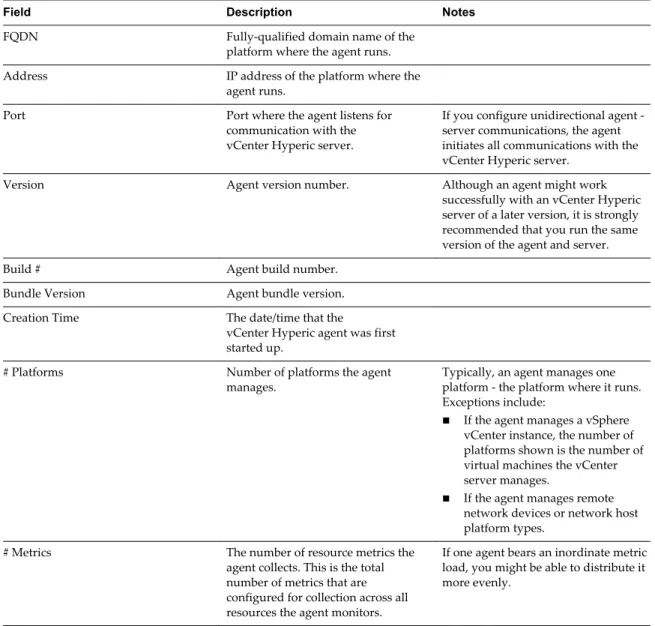
The data that you can view is described in the following table. Table 1‑1. Agent Health Data
Field Description Notes
FQDN Fully-qualified domain name of the platform where the agent runs. Address IP address of the platform where the
agent runs.
Port Port where the agent listens for communication with the vCenter Hyperic server.
If you configure unidirectional agent -server communications, the agent initiates all communications with the vCenter Hyperic server.
Version Agent version number. Although an agent might work successfully with an vCenter Hyperic server of a later version, it is strongly recommended that you run the same version of the agent and server. Build # Agent build number.
Bundle Version Agent bundle version. Creation Time The date/time that the
vCenter Hyperic agent was first started up.
# Platforms Number of platforms the agent
manages. Typically, an agent manages oneplatform - the platform where it runs. Exceptions include:
n If the agent manages a vSphere vCenter instance, the number of platforms shown is the number of virtual machines the vCenter server manages.
n If the agent manages remote network devices or network host platform types.
# Metrics The number of resource metrics the agent collects. This is the total number of metrics that are configured for collection across all resources the agent monitors.
If one agent bears an inordinate metric load, you might be able to distribute it more evenly.
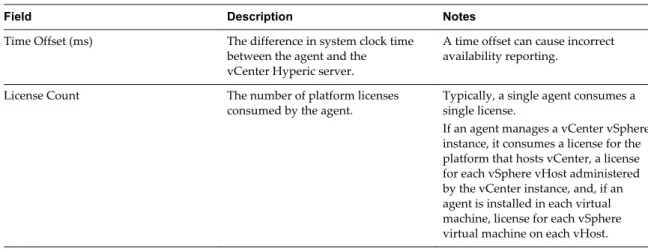
Table 1‑1. Agent Health Data (Continued)
Field Description Notes
Time Offset (ms) The difference in system clock time between the agent and the vCenter Hyperic server.
A time offset can cause incorrect availability reporting.
License Count The number of platform licenses
consumed by the agent. Typically, a single agent consumes asingle license. If an agent manages a vCenter vSphere instance, it consumes a license for the platform that hosts vCenter, a license for each vSphere vHost administered by the vCenter instance, and, if an agent is installed in each virtual machine, license for each vSphere virtual machine on each vHost.
Viewing the Metrics for an Agent
A vCenter Hyperic agent monitors itself. You can tailor the metric collection settings for an agent, use agent metrics to troubleshoot problems, and base alerts on agent metrics or events.
The metrics that an agent reports for itself are:
n Availability n JVM Free Memory n JVM Total Memory
n Number of Metrics Collected Per Minute n Number of Metrics Sent to the Server Per Minute n Server Offset
n Total Time Spend Fetching Metrics per Minute
View Agent Indicator Charts
The Indicators page for an agent charts the agent's indicator metrics. By default, the indicator metrics include
n JVM Free Memory n JVM Total Memory
n Number of Metrics Collected Per Minute
Procedure
1 Click Resources > Browse. 2 Click Servers.
3 Select HQ Agent from the Server Type menu.
View Agent Metric Data
The Metric Data page for an agent displays all of the metrics collected for the agent. Procedure
2 Click Servers.
3 Select HQ Agent from the Server Type menu.
vCenter Hyperic Agent Metrics
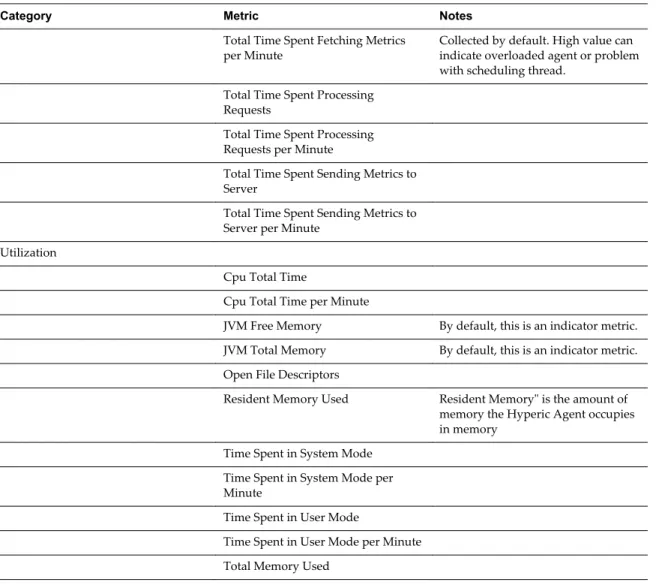
This table lists the metrics that can be collected for a vCenter Hyperic agent. Table 1‑2. Available Metrics for a vCenter Hyperic Agent .
Category Metric Notes
Availability
Availability Collected by default. Start Time
Up Time Throughput
Number of Active Threads Number of Metrics Collected Number of Metrics Collected per
Minute By default, this is an indicator metric Number of Metrics that Failed to be
Collected
Number of Metrics that Failed to be Collected per Minute
Number of Requests Served Number of Requests Served per Minute
Number of Scheduled Metrics Performance
Maximum Time Spent Fetching a Metric
Maximum Time Spent Processing a Request
Minimum Time Spent Fetching a Metric
Minimum Time Spent Processing a Request
Number of Connection Failures Number of Connection Failures per Minute
Number of Metric Batches Sent to Server
Number of Metric Batches Sent to Server per Minute
Number of Metrics Sent to Server Number of Metrics Sent to Server per
Minute Collected by default. Server Offset Collected by default. Total Time Spent Fetching Metrics
Table 1‑2. Available Metrics for a vCenter Hyperic Agent . (Continued)
Category Metric Notes
Total Time Spent Fetching Metrics
per Minute Collected by default. High value canindicate overloaded agent or problem with scheduling thread.
Total Time Spent Processing Requests
Total Time Spent Processing Requests per Minute
Total Time Spent Sending Metrics to Server
Total Time Spent Sending Metrics to Server per Minute
Utilization
Cpu Total Time
Cpu Total Time per Minute
JVM Free Memory By default, this is an indicator metric. JVM Total Memory By default, this is an indicator metric. Open File Descriptors
Resident Memory Used Resident Memory" is the amount of memory the Hyperic Agent occupies in memory
Time Spent in System Mode Time Spent in System Mode per Minute
Time Spent in User Mode
Time Spent in User Mode per Minute Total Memory Used
Reducing the Agent Memory Footprint
There are various options you can employ to reduce the amount of memory an agent uses.
Limit Plug-in Loading
The best way to reduce an agent's footprint is to configure it to load only the plug-ins for the resource types you want to monitor. See “Configuring Plug-in Loading,” on page 13.
Reduce Java Heap
To reduce the Java heap size that an agent allocates to itself on startup, add the agent.javaOpts property to
the agent's agent.properties file. This property does not exist in the default agent.properties file.
You can reduce the heap from 128m to 64m.
Delete JavaDocs File
In an environment in which every MB is critical, you can delete the agent's javadocs folder,
agent-4.x.x/bundles/agent-4.x.x-yyyy/pdk/javadoc;. Note that this action only reduces the agent
Agent Properties
Multiple properties are support in the agent.properties file for a vCenter Hyperic agent. Not all supported
properties are included by default in the agent.properties file.
You must add any properties that you want to use that are not included in the default agent.properties file.
Following is a list of the available properties.
agent.eventReportBatchSize Property
This property specifies the maximum number of events that a vCenter Hyperic agent sends per contact with the server.
Default
By default, the agent.properties file does not include this property.
The default behavior of the agent is to send a maximum of 100 events per contact with the server.
agent.keystore.alias Property
This property configures the name of the user-managed keystore for the agent for agents configured for unidirectional communication with the vCenter Hyperic server.
Example: Defining the Name of a Keystore
Given this user-managed keystore for a unidirectional agenthq self-signed cert), Jul 27, 2011, trustedCertEntry,
Certificate fingerprint (MD5): 98:FF:B8:3D:25:74:23:68:6A:CB:0B:9C:20:88:74:CE hq-agent, Jul 27, 2011, PrivateKeyEntry,
Certificate fingerprint (MD5): 03:09:C4:BC:20:9E:9A:32:DC:B2:E8:29:C0:3C:FE:38
you define the name of the keystore like this
agent.keystore.alias=hq-agent
If the value of this property does not match the keystore name, agent-server communication fails.
Default
The default behavior of the agent is to look for the hq keystore.
For unidirectional agents with user-managed keystores, you must define the keystore name using this property.
agent.keystore.password Property
This property configures the password for a vCenter Hyperic agent's SSL keystore.
Define the location of the keystore using the “agent.keystore.path Property,” on page 22 property. By default, the first time you start the vCenter Hyperic agent following installation, if
agent.keystore.password is uncommented and has a plain text value, the agent automatically encrypts the
property value. You can encrypt this property value yourself, prior to starting the agent.
It is good practice to specify the same password for the agent keystore as for the agent private key.
Default
agent.keystore.path Property
This property configures the location of a vCenter Hyperic agent's SSL keystore. Specify the full path to the keystore. Define the password for the keystore using the
agent.keystore.password property. See “agent.keystore.password Property,” on page 21.
Specifying the Keystore Path on Windows
On Windows platforms, specifiy the path to the keystore in this format.
C:/Documents and Settings/Desktop/keystore
Default
AgentHome/data/keystore.
agent.listenIp Property
The IP address to which the agent binds at startup.
Default
The default value allows the agent to listen on all IP addresses on the agent host. This behavior is equivalent to setting the property to an asterisk.
agent.logDir Property
You can add this property to the agent.properties file to specify the directory where the vCenter Hyperic
agent writes its log file. If you do not specify a fully qualified path, agent.logDir is evaluated relative to the
agent installation directory.
To change the location for the agent log file, enter a path relative to the agent installation directory, or a fully qualified path.
Note that the name of the agent log file is configured with the agent.logFile property.
Default
By default, the agent.properties file does not include this property.
The default behavior is agent.logDir=log, resulting in the agent log file being written to the AgentHome/log
directory.
agent.logFile Property
The path and name of the agent log file.
Default
In the agent.properties file, the default setting for the agent.LogFile property is made up of a variable and
a string
agent.logFile=${agent.logDir}\agent.log
where
n agent.logDir is a variable that supplies the value of an identically named agent property. By default, the
n agent.log is the name for the agent log file.
By default, the agent log file is named agent.log, and is written to the AgentHome/log directory.
agent.logLevel Property
The level of detail of the messages the Agent writes to the log file. Allowable values are INFO and DEBUG.
Default
INFO
agent.logLevel.SystemErr Property
Redirects System.err to the agent.log file.
Commenting out this setting causes System.err to be directed to agent.log.startup.
Default
ERROR
agent.logLevel.SystemOut Property
Redirects System.out to the agent.log file.
Commenting out this setting causes System.out to be directed to agent.log.startup.
Default
INFO
agent.maxBatchSize Property
The maximum number of metrics that the agent will send per contact with the server.
Default
The default behavior of the agent is to send a maximum of 500 per contact with the server. By default, the agent.properties file does not include this property.
agent.proxyHost Property
The host name or IP address of the proxy server that the vCenter Hyperic agent must connect to first when establishing a connection to the vCenter Hyperic server.
This property is supported for agents configured for unidirectional communication. Use this property in conjunction with agent.proxyPort and agent.setup.unidirectional.
Default
Noneagent.proxyPort Property
The port number of the proxy server that the vCenter Hyperic agent must connect to first when establishing a connection to the vCenter Hyperic server.
This property is supported for agents configured for unidirectional communication. Use this property in conjunction with agent.proxyPort and agent.setup.unidirectional.
Default
Noneagent.storageProvider.info Property
This property is used to configure data storage on the agent side.
Default
By default, the agent.properties file does not include this property.
The default setting of the agent is
agent.storageProvider.info=$\{agent.dataDir\}|m|100|20|50
that specifies that the data directory is used to store the disk lists, of a maximum size of 100MB. The 20 and 50 numbers are used for purging data, meaning that a check runs to see if the list can be shortened when the size is greater than 20MB and the list is 50% empty.
agent.setup.acceptUnverifiedCertificate Property
This property controls whether an End Point Operations Management agent issues a warning when the vRealize Operations Manager server presents an SSL certificate that is not in the agent's keystore, and is either self-signed or signed by a different certificate authority than the one that signed the agent's SSL certificate.
When the default is used, the agent issues the warning
The authenticity of host 'localhost' can't be established. Are you sure you want to continue connecting? [default=no]:
If you respond yes, the agent imports the server's certificate and will continue to trust the certificate from
this point on.
Default
agent.setup.acceptUnverifiedCertificate=no
agent.setup.camIP Property
Use this property to define the IP address of the vCenter Hyperic server for the agent. The vCenter Hyperic agent reads this value only in the event that it cannot find connection configuration in its data directory. You can specify this and other agent.setup.* properties to reduce the user interaction required to configure
an agent to communicate with the server.
The value can be provided as an IP address or a fully qualified domain name. To identify an server on the same host as the server, set the value to 127.0.0.1.
If there is a firewall between the agent and server, specify the address of the firewall, and configure the firewall to forward traffic on port 7080, or 7443 if you use the SSL port, to the vCenter Hyperic Server.
Default
Commented out, localhost.
agent.setup.camLogin Property
At first startup after installation, use this property to define the vCenter Hyperic agent username to use when the agent is registering itself with the server.
The permission required on the server for this initialization is Create, for Platforms.
Login from the agent to the server is only required during the initial configuration of the agent.
The agent reads this value only in the event that it cannot find connection configuration in its data directory. You can specify this and other agent.setup.* properties to reduce the user interaction required to configure
an agent to communicate with the server.
Default
Commented our hqadmin.
agent.setup.camPort Property
At first startup after installation, use this property to define the vCenter Hyperic agent server port to use for non-secure communications with the server.
The agent reads this value only in the event that it cannot find connection configuration in its data directory. You can specify this and other agent.setup.* properties to reduce the user interaction required to configure
an agent to communicate with the server.
Default
Commented out 7080.
agent.setup.camPword Property
Use this property to define the password that the vCenter Hyperic agent uses when connecting to the vCenter Hyperic server, so that the agent does not prompt a user to supply the password interactively at first startup.
. (The password for the user is that specified by agent.setup.camLogin.
The agent reads this value only in the event that it cannot find connection configuration in its data directory. You can specify this and other agent.setup.* properties to reduce the user interaction required to configure
an agent to communicate with the server.
The first time you start the vCenter Hyperic agent after installation, if agent.keystore.password is
uncommented and has a plain text value, the agent automatically encrypts the property value. You can encrypt these property values prior to starting the agent.
Default
agent.setup.camSSLPort Property
At first startup after installation, use this property to define the vCenter Hyperic agent server port to use for SSL communications with the server.
The agent reads this value only in the event that it cannot find connection configuration in its data directory. You can specify this and other agent.setup.* properties to reduce the user interaction required to configure
an agent to communicate with the server.
Default
Commented out 7443.
agent.setup.agentIP Property
Specifies the IP address that the vCenter Hyperic server uses to contact the vCenter Hyperic agent. This If the agent is on the same host as the server, a value of 127.0.0.1 is valid.
If there is a firewall between the server and agent, specify the IP address of the firewall, and configure the firewall to forward traffic intended for the agent to the agent's listen address, which can be configured with
agent.listenIP.
The agent reads this value only in the event that it cannot find connection configuration in its data directory. You can specify this and other agent.setup.* properties to reduce the user interaction required to configure
an agent to communicate with the server.
Default
Commented out default.
If you use the agent.setup.* properties to supply an agent's configuration at first startup, then uncomment this property, leaving the value default, the vCenter Hyperic server contacts the agent using the IP address
that SIGAR detects on the agent host.
agent.setup.agentPort Property
This property specifies the port (on the IP address configured with agent.setup.agentIP) on the
vCenter Hyperic agent on which the vCenter Hyperic server communicates with the agent.
If there is a firewall between the agent and the server, set agent.setup.agentPort to the appropriate port on the firewall, and configure the firewall to forward traffic intended for the agent to the agent listen port. The agent reads this value only in the event that it cannot find connection configuration in its data directory. You can specify this and other agent.setup.* properties to reduce the user interaction required to configure
an agent to communicate with the server.
Default
Commented out default.
If you use the agent.setup.* properties to supply an agent's configuration at first startup, then uncomment this property, leaving the value default, the vCenter Hyperic server contacts the agent on port 2144, unless
agent.setup.resetupToken Property
Use this property to configure a vCenter Hyperic agent to create a new token to use for authentication with the server at startup. Regenerating a token is useful if the Agent cannot connect to the server because the token has been deleted or corrupted.
The agent reads this value only in the event that it cannot find connection configuration in its data directory. Regardless of the value of this property, an agent generates a token the first time it is started after
installation.
Default
Commented out no.
agent.setup.unidirectional Property
Enables unidirectional communications between the vCenter Hyperic agent and vCenter Hyperic server. If you configure an agent for unidirectional communication, all communication with the server is initiated by the agent.
For a unidirectional agent with a user-managed keystore, you must configure the keystore name in the
agent.properties file.
Default
Commented out no.
agent.startupTimeOut Property
The number of seconds that the agent startup script waits before determining that the agent has not started up successfully. If the agent is determined to not be listening for requests within this period, an error is logged, and the startup script times out.
Default
By default, the agent.properties file does not include this property.
The default behavior of the agent is to timeout after 300 seconds.
autoinventory.defaultScan.interval.millis Property
Specifies how frequently the agent performs a default autoinventory scan.
The default scan detects servers and platform services, typically using the process table or the Windows registry. Default scans are less resource-intensive than runtime scans.
Default
The agent performs the default scan at startup and every 15 minutes thereafter. Commented out 86,400,000 milliseconds, or one day.
autoinventory.runtimeScan.interval.millis Property
Specifies how frequently the agent performs a runtime scan.
A runtime scan may use more resource-intensive methods to detect services than a default scan. For example, a runtime scan might involve issuing an SQL query or looking up an MBean.
Default
86,400,000 milliseconds, or one day.
http.useragent Property
Defines the value for the user-agent request header in HTTP requests issued by the vCenter Hyperic agent. You can use http.useragent to define a user-agent value that is consistent across upgrades.
By default, the agent.properties file does not include this property.
Default
By default, the user-agent in agent requests includes the vCenter Hyperic Agent version, and so changes when the agent is upgraded. If a target HTTP server is configured to block requests with an unknown user-agent, agent requests fail after an agent upgrade.
Hyperic-HQ-Agent/Version, for example, Hyperic-HQ-Agent/4.1.2-EE.
log4j Properties
The log4j properties for vCenter Hyperic are described here. log4j.rootLogger=${agent.logLevel}, R
log4j.appender.R.File=${agent.logFile} log4j.appender.R.MaxBackupIndex=1 log4j.appender.R.MaxFileSize=5000KB
log4j.appender.R.layout.ConversionPattern=%d{dd-MM-yyyy HH:mm:ss,SSS z} %-5p [%t] [%c{1}@%L] %m%n log4j.appender.R.layout=org.apache.log4j.PatternLayout
log4j.appender.R=org.apache.log4j.RollingFileAppender ##
## Disable overly verbose logging ##
log4j.logger.org.apache.http=ERROR
log4j.logger.org.springframework.web.client.RestTemplate=ERROR
log4j.logger.org.hyperic.hq.measurement.agent.server.SenderThread=INFO log4j.logger.org.hyperic.hq.agent.server.AgentDListProvider=INFO log4j.logger.org.hyperic.hq.agent.server.MeasurementSchedule=INFO log4j.logger.org.hyperic.util.units=INFO
log4j.logger.org.hyperic.hq.product.pluginxml=INFO # Only log errors from naming context
log4j.category.org.jnp.interfaces.NamingContext=ERROR log4j.category.org.apache.axis=ERROR
#Agent Subsystems: Uncomment individual subsystems to see debug messages. #---#log4j.logger.org.hyperic.hq.autoinventory=DEBUG
#log4j.logger.org.hyperic.hq.livedata=DEBUG #log4j.logger.org.hyperic.hq.measurement=DEBUG #log4j.logger.org.hyperic.hq.control=DEBUG #Agent Plugin Implementations
#Server Communication
#log4j.logger.org.hyperic.hq.bizapp.client.AgentCallbackClient=DEBUG #Server Realtime commands dispatcher
#log4j.logger.org.hyperic.hq.agent.server.CommandDispatcher=DEBUG #Agent Configuration parser
#log4j.logger.org.hyperic.hq.agent.AgentConfig=DEBUG #Agent plugins loader
#log4j.logger.org.hyperic.util.PluginLoader=DEBUG
#Agent Metrics Scheduler (Scheduling tasks definitions & executions)
#log4j.logger.org.hyperic.hq.agent.server.session.AgentSynchronizer.SchedulerThread=DEBUG #Agent Plugin Managers
#log4j.logger.org.hyperic.hq.product.MeasurementPluginManager=DEBUG #log4j.logger.org.hyperic.hq.product.AutoinventoryPluginManager=DEBUG #log4j.logger.org.hyperic.hq.product.ConfigTrackPluginManager=DEBUG #log4j.logger.org.hyperic.hq.product.LogTrackPluginManager=DEBUG #log4j.logger.org.hyperic.hq.product.LiveDataPluginManager=DEBUG #log4j.logger.org.hyperic.hq.product.ControlPluginManager=DEBUG
jboss.installpath
Specifies the location of the JBoss root directory to enable the agent to monitor JBoss.
Default
/usr/local/jboss-4.0.0
platform.log_track.eventfmt Property
Specifies the content and format of the Windows event attributes that a vCenter Hyperic agent includes when logging a Windows event as an event in vCenter Hyperic.
By default, the agent.properties file does not include this property.
Default
When Windows log tracking is enabled, an entry in the form [Timestamp] Log Message
(EventLogName):EventLogName:EventAttributes is logged for events that match the criteria you specified on
the resource's Configuration Properties page.
Attribute Description
Timestamp When the event occurred Log Message A text string
EventLogName The Windows event log type System, Security, or Application
EventAttributes A colon delimited string made of the Windows event Source and Message attributes
For example, the log entry: 04/19/2010 06:06 AM Log Message (SYSTEM): SYSTEM: Print: Printer HP LaserJet 6P was paused. is for a Windows event written to the Windows System event log at 6:06 AM on
04/19/2010. The Windows event Source and Message attributes, are "Print" and "Printer HP LaserJet 6P was paused.", respectively.
Configuration
Use the following parameters to configure the Windows event attributes that the agent writes for a Windows event. Each parameter maps to Windows event attribute of the same name.
Parameter Description
%user% The name of the user on whose behalf the event occurred. %computer% The name of the computer on which the event occurred. %source% The software that logged the Windows event.
%event% A number identifying the particular event type. %message% The event message.
%category% An application-specific value used for grouping events.
For example, with the property setting platform.log_track.eventfmt=%user%@%computer% %source%:%event %:%message%, the vCenter Hyperic agent writes the following data when logging the Windows event 04/19/2010 06:06 AM Log Message (SYSTEM): SYSTEM: HP_Admistrator@Office Print:7:Printer HP LaserJet 6P was paused.. This entry is for a Windows event written to the Windows system event log at
6:06 AM on 04/19/2010. The software associated with the event was running as "HP_Administrator" on the host "Office". The Windows event's Source, Event, and Message attributes, are "Print", "7", and "Printer HP LaserJet 6P was paused.", respectively.
plugins.exclude Property
Specifies plug-ins that the vCenter Hyperic agent does not load at startup. This is useful for reducing an agent's memory footprint.
Usage
Supply a comma-separated list of plug-ins to exclude. For example,
plugins.exclude=jboss,apache,mysql
plugins.include Property
Specifies plug-ins that the vCenter Hyperic agent loads at startup. This is useful for reducing the agent's memory footprint.
Usage
Supply a comma-separated list of plug-ins to include. For example,
plugins.include=weblogic,apache
postgresql.database.name.format Property
This property specifies the format of the name that the PostgreSQL plug-in assigns to auto-discovered
PostgreSQL Database and vPostgreSQL Database database types.
By default, the name of a PostgreSQL or vPostegreSQL database is Database DatabaseName, where
DatabaseName is the auto-discovered name of the database.
To use a different naming convention, define postgresql.database.name.format. The variable data you use
must be available from the PostgreSQL plug-in.
Use the following syntax to specify the default table name assigned by the plug-in,
where
postgresql.db is the auto-discovered name of the PostgreSQL or vPostgreSQL database.
Default
By default, the agent.properties file does not include this property.
postgresql.index.name.format Property
This property specifies the format of the name that the PostgreSQL plug-in assigns to auto-discovered
PostgreSQL Index and vPostgreSQL Index index types.
By default, the name of a PostgreSQL or vPostegreSQL index is Index DatabaseName.Schema.Index,
comprising the following variables
Variable Description
DatabaseName The auto-discovered name of the database. Schema The auto-discovered schema for the database. Index The auto-discovered name of the index.
To use a different naming convention, define postgresql.index.name.format. The variable data you use
must be available from the PostgreSQL plug-in.
Use the following syntax to specify the default index name assigned by the plug-in,
Index ${db}.${schema}.${index}
where
Attribute Description
db Identifies the platform that hosts the PostgreSQL or vPostgreSQL server. schema Identifies the schema associated with the table.
index The index name in PostgreSQL.
Default
By default, the agent.properties file does not include this property.
postgresql.server.name.format Property
This property specifies the format of the name that the PostgreSQL plug-in assigns to auto-discovered
PostgreSQL and vPostgreSQL server types.
By default, the name of a PostgreSQL or vPostegreSQL server is Host:Port, comprising the following
variables
Variable Description
Host The FQDN of the platform that hosts the server. Port The PostgreSQL listen port.
To use a different naming convention, define postgresql.server.name.format. The variable data you use
must be available from the PostgreSQL plug-in.
Use the following syntax to specify the default server name assigned by the plug-in,
${postgresql.host}:${postgresql.port}
Attribute Description
postgresql.host Identifies the FQDN of the hosting platform. postgresql.port Identifies the database listen port.
Default
By default, the agent.properties file does not include this property.
postgresql.table.name.format Property
This property specifies the format of the name that the PostgreSQL plug-in assigns to auto-discovered
PostgreSQL Table and vPostgreSQL Table table types.
By default, the name of a PostgreSQL or vPostegreSQL table is Table DatabaseName.Schema.Table,
comprising the following variables
Variable Description
DatabaseName The auto-discovered name of the database. Schema The auto-discovered schema for the database. Table The auto-discovered name of the table.
To use a different naming convention, define postgresql.table.name.format. The variable data you use
must be available from the PostgreSQL plug-in.
Use the following syntax to specify the default table name assigned by the plug-in,
Table ${db}.${schema}.${table}
where
Attribute Description
db Identifies the platform that hosts the PostgreSQL or vPostgreSQL server. schema Identifies the schema associated with the table.
table The table name in PostgreSQL.
Default
By default, the agent.properties file does not include this property.
scheduleThread.cancelTimeout Property
The maximum time, in milliseconds, the ScheduleThread will allow a metric collection process to run before attempting to interrupt it.
When the timeout is exceeded, collection of the metric is interrupted, if it is in a wait(), sleep() or
non-blocking read() state.
Usage
scheduleThread.cancelTimeout=5000
Default
scheduleThread.fetchLogTimeout Property
The property controls when a warning message is issued for a long-running metric collection process. If a metric collection process exceeds the value of this property, measured in milliseconds, the agent writes a warning message to the agent.log file.
Usage
scheduleThread.fetchLogTimeout=2000
Default
2000 milliseconds.
scheduleThread.poolsize Property
This property allows a plug-in to use multiple threads for metric collection. The property can increase metric throughput for plug-ins known to be thread safe.
Usage
Specify the plug-in by name and the number of threads to allocate for metric collection
scheduleThread.poolsize.PluginName=2
where PluginName is the name of the plug-in to which you are allocating threads. For example,
scheduleThread.poolsize.vsphere=2
Default
1
scheduleThread.queuesize Property
Use this property to limit the metric collection queue size (the number of metrics) for a plug-in.
Usage
Specify the plug-in by name and the maximum metric queue length number:
scheduleThread.queuesize.PluginName=15000
where PluginName is the name of the plug-in on which you are imposing a metric limit.
For example,
scheduleThread.queuesize.vsphere=15000
Default
1000
sigar.mirror.procnet Property
mirror /proc/net/tcp on Linux.
Default
snmpTrapReceiver.listenAddress Property
Specifies the port on which the vCenter Hyperic agent listens for SNMP traps By default, the agent.properties file does not include this property.
Typically SNMP uses the UDP port 162 for trap messages. This port is in the privileged range, so an agent listening for trap messages on it must run as root (or as an administrative user on Windows).
You can run the agent in the context of a non-administrative user, by configuring the agent to listen for trap messages on an unprivileged port.
Usage
Specify an IP address (or 0.0.0.0 to specify all interfaces on the platform) and the port for UDP
communications in the format
snmpTrapReceiver.listenAddress=udp:IP_address/port
To enable the vCenter Hyperic agent to receive SNMP traps on an unprivileged port, specify port 1024 or higher. The following setting allows the agent to receive traps on any interface on the platform, on UDP port 1620.
snmpTrapReceiver.listenAddress=udp:0.0.0.0/1620
weblogic.auth.method Property
Enables a vCenter Hyperic agent to communicate with a WebLogic administration server using two-way SSL.
Usage
By default, the agent.properties file does not include this property.
Add the following line to the agent.properties file to specify that the agent uses two-way SSL for
communications with the administration server.
weblogic.auth.method=ssl2ways
Default
noneweblogic.discovery.new Property
This property controls how WebLogic Server Administration Servers and Managed Servers are discovered. Define this property only if recommended by vCenter Hyperic Support.
By default, the agent.properties file does not include this property.
weblogic.installpath Property
Enables the vCenter Hyperic agent to monitor WebLogic 8.1.
Usage
Specify the location server/lib/weblogic.jar.
Default
weblogic.ssl2ways.cert Property
Enables a vCenter Hyperic agent to communicate with a WebLogic administration server using two-way SSL.
Usage
By default, the agent.properties file does not include this property.
Add weblogic.ssl2ways.cert to the agent.properties file and set its value to the location of the client
certificate that the vCenter Hyperic agent presents to the administration server
weblogic.ssl2ways.cert=Client2Cert.pem where Client2Cert.pem is the path to the client certificate that the
vCenter Hyperic agent presents to the administration server that it manages.
Default
none
weblogic.ssl2ways.key Property
Enables a vCenter Hyperic agent to communicate with a WebLogic administration server using two-way SSL.
Usage
By default, the agent.properties file does not include this property.
Add weblogic.ssl2ways.key to the agent.properties file and set its value to the location of client's private
key weblogic.ssl2ways.key=clientKey.pem where clientkey.pem is the path to the private key that the
vCenter Hyperic agent presents to the administration server that the agent manages.
Default
none
weblogic.ssl2ways.key.pass Property
Enables a vCenter Hyperic agent to communicate with a WebLogic administration server using two-way SSL.
Usage
By default, the agent.properties file does not include this property.
Add weblogic.ssl2ways.key.pass to the agent.properties file and set its value to the pass phrase for the
client private key weblogic.ssl2ways.key.pass=ClientKey where ClientKey is the pass phrase for the client
private key.
Default
nonewebsphere.installpath Property
This property enables the agent to monitor WebSphere.
Usage
Default
/opt/WebSphere/AppServer
websphere.useext Property
This property is required to enable management of WebSphere 6.0 and 6.1. Do not define the websphere.useext property to monitor WebSphere 7.
Usage
By default, the agent.properties file does not include this property.
For a vCenter Hyperic agent that manages WebSphere 6.0 or 6.1, add websphere.useext to the agent.properties file.
Configuring the Agent Java Service Wrapper
The configuration file for the vCenter Hyperic agent;s Java service wrapper is located in
AgentHome/bundles/BundleHome/conf/wrapper.conf.
Following is a list of the Java Service Wrapper Properties for the vCenter Hyperic agent:
#******************************************************************** # Java Service Wrapper Properties for the vCenter
Hyperic Agent
#******************************************************************** # default JAVA_HOME in case it is not already set
set.default.HQ_JAVA_HOME=../../jre # Java Application
wrapper.java.command=%HQ_JAVA_HOME%/bin/java
# Java Main class. This class must implement the WrapperListener interface # or guarantee that the WrapperManager class is initialized. Helper # classes are provided to do this for you. See the Integration section # of the documentation for details.
wrapper.java.mainclass=org.tanukisoftware.wrapper.WrapperStartStopApp # Java Classpath (include wrapper.jar) Add class path elements as # needed starting from 1
wrapper.java.classpath.1=../../bundles/%HQ_AGENT_BUNDLE%/lib/*.jar wrapper.java.classpath.2=../../bundles/%HQ_AGENT_BUNDLE%/pdk/lib/*.jar wrapper.java.classpath.3=../../wrapper/lib/*.jar
wrapper.java.classpath.4=../../bundles/%HQ_AGENT_BUNDLE%/lib
wrapper.java.classpath.5=../../bundles/%HQ_AGENT_BUNDLE%/pdk/lib/jdbc/*.jar wrapper.java.classpath.6=../../bundles/%HQ_AGENT_BUNDLE%/pdk/lib/mx4j/*.jar # Java Library Path (location of Wrapper.DLL or libwrapper.so)
wrapper.java.library.path.1=%LD_LIBRARY_PATH% wrapper.java.library.path.2=../../wrapper/lib # Java Additional Parameters
wrapper.java.additional.1=-Djava.security.auth.login.config=../../bundles/%HQ_AGENT_BUNDLE %/jaas.config
wrapper.java.additional.2=-Xmx128m
wrapper.java.additional.3=-Djava.net.preferIPv4Stack=true wrapper.java.additional.4=-Dagent.install.home=../..
wrapper.java.additional.5=-Dagent.bundle.home=../../bundles/%HQ_AGENT_BUNDLE% wrapper.java.additional.6=-Dsun.net.inetaddr.ttl=60
# Initial Java Heap Size (in MB) #wrapper.java.initmemory=3 # Maximum Java Heap Size (in MB) #wrapper.java.maxmemory=64
# Application parameters. Add parameters as needed starting from 1 #wrapper.app.parameter.1=
wrapper.app.parameter.1=org.hyperic.hq.bizapp.agent.client.AgentClient wrapper.app.parameter.2=1
wrapper.app.parameter.3=start
# The start parameters are followed by the name of the class whose main # method is to be called to stop the application. The stop class name # is followed by a flag that controls whether the Wrapper should # wait for all non daemon threads to complete before exiting the JVM. # The flag is followed by the number of parameters to be passed to the # stop class's main method. Finally comes the actual parameters. wrapper.app.parameter.4=org.hyperic.hq.bizapp.agent.client.AgentClient wrapper.app.parameter.5=true
wrapper.app.parameter.6=2 wrapper.app.parameter.7=die wrapper.app.parameter.8=30
#******************************************************************** # Wrapper Logging Properties
#******************************************************************** # Format of output for the console. (See docs for formats)
wrapper.console.format=PM
# Log Level for console output. (See docs for log levels) wrapper.console.loglevel=INFO
# Log file to use for wrapper output logging. wrapper.logfile=../../log/wrapper.log
# Format of output for the log file. (See docs for formats) wrapper.logfile.format=LPTM
# Log Level for log file output. (See docs for log levels) wrapper.logfile.loglevel=INFO
# Maximum size that the log file will be allowed to grow to before # the log is rolled. Size is specified in bytes. The default value # of 0, disables log rolling. May abbreviate with the 'k' (kb) or # 'm' (mb) suffix. For example: 10m = 10 megabytes.
wrapper.logfile.maxsize=0
# files are deleted. The default value of 0 implies no limit. wrapper.logfile.maxfiles=0
# Log Level for sys/event log output. (See docs for log levels) wrapper.syslog.loglevel=NONE
#******************************************************************** # Wrapper Windows Properties
#******************************************************************** # Title to use when running as a console
wrapper.console.title=Hyperic HQ Agent
#******************************************************************** # Wrapper Windows NT/2000/XP Service Properties
#******************************************************************** # WARNING - Do not modify any of these properties when an application # using this configuration file has been installed as a service. # Uninstall the service before modifying this section. The # service can then be reinstalled.
# Name of the service
wrapper.ntservice.name=Hyperic HQ Agent # Display name of the service
wrapper.ntservice.displayname=Hyperic HQ Agent # Description of the service
wrapper.ntservice.description=Agent for Hyperic HQ
# Service dependencies. Add dependencies as needed starting from 1 wrapper.ntservice.dependency.1=
# Mode in which the service is installed. AUTO_START or DEMAND_START wrapper.ntservice.starttype=AUTO_START
# Allow the service to interact with the desktop. wrapper.ntservice.interactive=false
# restart the JVM for all exit codes except the exit code 0 wrapper.on_exit.default=RESTART
wrapper.on_exit.0=SHUTDOWN
# limit the number of JVM restarts wrapper.max_failed_invocations=5
# if running for over 60 sec assume it was successfully started wrapper.successful_invocation_time=60
Tailoring the Agent Wrapper Configuration
The Java options that are supplied to the vCenter Hyperic agent at startup are configured in the Java Additional Parameters section of the wrapper.conf file.
You can edit the lines in the Java Additional Parameters section, to specify the Java options to apply at