EMC
®
Documentum
®
Documentum Administrator
Version 6.7
Deployment Guide
EMC Corporation Corporate Headquarters: Hopkinton, MA 017489103 1-508-435-1000 www.EMC.com
EMC believes the information in this publication is accurate as of its publication date. The information is subject to change without notice.
The information in this publication is provided as is. EMC Corporation makes no representations or warranties of any kind with respect to the information in this publication, and specifically disclaims implied warranties of merchantability or fitness for a particular purpose. Use, copying, and distribution of any EMC software described in this publication requires an applicable software license.
For the most up-to-date listing of EMC product names, see EMC Corporation Trademarks on EMC.com. All other trademarks used herein are the property of their respective owners.
Table of Contents
Preface
...
7Chapter 1 Planning for Deployment
...
9Documentum Administrator
...
9Required and optional supporting software
...
9Typical configuration
...
10Application server host requirements
...
10Deploying language packs
...
10Customizing Documentum Administrator
...
11Chapter 2 Preparing the Client Hosts
...
13Ensuring a certified JVM on browser clients
...
13Enabling HTTP content transfer in Internet Explorer 7
...
13Enabling UCF content transfer in Internet Explorer 7 on Windows Vista
...
14Enabling content transfer in Firefox 2 and 3.x
...
15Using Citrix Presentation Server Client
...
17Turning off the pop-up blocker in Internet Explorer
...
17Chapter 3 Preparing the Application Server Host
...
19Application servers
...
19Setting the Java memory allocation
...
19Turning off failover
...
20Preparing environment variables for non-default DFC locations
...
20Preparing JBoss and Apache Tomcat
...
21Preparing Oracle WebLogic
...
21Preparing IBM WebSphere
...
22Supporting failover in a cluster
...
22Applying policies for WebSphere security
...
22Preparing Oracle Application Server
...
24Preparing Sun Java System Application Server
...
24Turning off tag pooling
...
24Modifying the Sun policy file
...
25Preparing to use an external web server
...
25Chapter 4 Deploying Documentum Administrator
...
27Deploying the WAR file
...
27Enabling DFC connections to repositories
...
27Enabling DFC memory optimization
...
29Table of Contents
Enabling external searches
...
29Fully-qualified domain name for full-text indexing
...
30Resource Management availability
...
30Enable presets for Administrator Access and Resource Management
...
30Modal popup
...
31Configuring the modal popup
...
31Chapter 5 Post-deployment Tasks
...
33Configuring IBM WebSphere
...
33Configuring WebLogic class loading behavior
...
34Configuring UCF on WebLogic Server11g
...
34Configuring Oracle Application Server
...
35Deploying default virtual link support
...
35Configuring single sign-on for security servers
...
36Starting Documentum Administrator
...
38Testing Documentum Administrator samples
...
39Chapter 6 Troubleshooting Deployment
...
41Wrong JRE used for application server
...
41No global registry or connection broker
...
42No connection to repository
...
42Login page incorrectly displayed
...
42Slow performance
...
42Out of memory errors in console or log
...
43Slow display first time
...
43DFC using the wrong directories on the application server
...
43Tag pooling problem
...
43UCF client problems
...
44Citrix client problems
...
44Connection issues between an ECI Services server and IPv6 clients
...
45Table of Contents
List of Tables
Table 1. Preferences configuration elements
...
29 Table 2. Authentication elements (<authentication>)...
38 Table 3. Preinstallation tasks...
47Preface
This guide describes how to deploy the Documentum Administrator application.
Intended Audience
This guide is intended for administrators who are deploying Documentum Administrator.
Readers are expected to be familiar with the Windows, UNIX, or Linux operating system and are able to install and configure a J2EE application server.
Documentum Administrator is a WDK-based application. The deployment process is generally the same for all other WDK-based applications.
Revision History
The following changes have been made to this document: Revision History
Revision Date Description
Chapter 1
Planning for Deployment
This chapter discusses the following topics: • Documentum Administrator, page 9
• Required and optional supporting software, page 9 • Typical configuration, page 10
• Application server host requirements, page 10 • Deploying language packs, page 10
• Customizing Documentum Administrator, page 11
Documentum Administrator
Documentum Administrator is a Content Server and repository administration tool. Documentum Administrator runs on an application server host.
TheEMC Documentum Content Server Administration and Configuration Guideand the Documentum Administrator online help contain information about how to use Documentum Administrator to administer and configure Content Server and Documentum repositories.
Required and optional supporting software
Before deploying Documentum Administrator, the following components must be installed: • Content Server and its associated database• Content Server global repository • Connection broker
Planning for Deployment
Typical configuration
When deployed on a single application server, a Documentum Administrator requires the following network components:
• Application server host on which to deploy Documentum Administrator
• Separate Content Server host with a repository and one or more Content Servers • Global registry repository
• Client hosts that run a supported web browser
Documentum Administrator can be deployed in supported clustered environments. Refer to the Documentum Administrator release notes for information about the supported clustered server configurations.
Caution: For security and performance reasons, do not install the Content Server and Documentum Administrator on the same host. Also, Content Server installs an internal JBoss server that, for licensing reasons, cannot be used to deploy web applications.
Application server host requirements
The application server host used for Documentum Administrator requires the following: • Directory name restriction
Java does not allow directories containing the following characters, which must not appear in the directory names or paths of Documentum applications:
! \ / : * ? " < > | • Content transfer directory permissions
The content transfer directory on the application server host is used to store files temporarily when they are transferred between the repository and the client machine. The default content transfer directory is specified in the app.xml file as the value of <server>.<contentlocation>. The application server instance owner must have write permissions on this temporary content transfer location. Some application servers require policies that grant permissions to write to these directories. Refer to deployment information for your application server to see Documentum policy settings. • DNS resolution
The Domain Name Server (DNS) must be configured to resolve IP addresses properly based on the URL used to access the server.
Deploying language packs
Language packs are available to localize (translate) Documentum Administrator. A language pack is a language-specific archive file. The file contains a graphical user interface (GUI) and user
Planning for Deployment
documentation that has been localized into a language other than the default application language, U.S. English. To deploy language packs, unpack your product WAR file and add the language packs.
Customizing Documentum Administrator
Customization of Documentum Administrator is not supported.Chapter 2
Preparing the Client Hosts
This chapter contains the following topics:
• Ensuring a certified JVM on browser clients, page 13
• Enabling HTTP content transfer in Internet Explorer 7, page 13
• Enabling UCF content transfer in Internet Explorer 7 on Windows Vista, page 14 • Enabling content transfer in Firefox 2 and 3.x, page 15
• Using Citrix Presentation Server Client, page 17
Ensuring a certified JVM on browser clients
Browser client hosts require a certified version of the Sun Java virtual machine (JVM or VM) to initiate content transfer in Documentum Administrator. Check the release notes for supported the JVM product versions.For UCF content transfer, UCF downloads a lightweight applet to the browser when the client makes the first content transfer or preferences request. If the JVM required for UCF is not present on a Windows client, UCF uploads a private JVM that does not affect the browser JVM.
For non-Windows browser hosts with a 1.4.x JVM, pre-install version 1.5.0_06.x of the Sun JRE for UCF. Since the UCF VM file size (Sun JRE) is larger than 10 MB, the installation can cause a delay. To avoid this delay, install a compatible local JVM before using UCF transfer.
Enabling HTTP content transfer in Internet
Explorer 7
Internet Explorer version 7 (IE7) has a default security setting that prevents the display of the file download dialog. To perform checkout, view, or edit in HTTP mode, add the Documentum Administrator URL to the list of trusted sites in the browser.
If the browser security settings are disabled forAutomatic prompting for file downloadsandFile download, nothing happens when a user exports as CSV. These settings are disabled by default in IE7. The user must enable them.
Preparing the Client Hosts
To enable HTTP file download in IE7:
1. In IE7, navigate toTools>Internet Optionsand click theSecuritytab. 2. SelectTrusted sitesand clickCustom level.
3. Scroll to theDownloadssection and enableAutomatic prompting for file downloadsandFile download.
4. ClickOKtwice to save the settings.
5. Close all browser windows and restart the browser.
Enabling UCF content transfer in Internet
Explorer 7 on Windows Vista
Internet Explorer 7 (IE7) on Windows Vista OS does not display a file download dialog to permit UCF content transfer unless it is enabled by adding the application server host to the trusted sites list. In addition, one of the following is required:
• Turning off User Account Control (UAC) security for each client. • Configuring the application to use file registry mode.
To add the application server host to the list:
1. In IE7, navigate toTools>Internet Optionsand click theSecuritytab.
2. SelectTrusted sitesand then clickCustom levelin theSecurity level for this zonesection. 3. Scroll to theDownloadssection and enableAutomatic prompting for file downloads. 4. ClickOKtwice to save the settings.
5. Close all browser windows and restart the browser.
To turn off UAC on each client:
1. Log in as a user who has administrator privileges on the Windows Vista machine. 2. Open the Control panel and selectAdministrative Tools.
3. In the left pane, selectUser Accounts. 4. SelectTurn User Account Control on or off.
5. ClearUse User Account Control (UAC) to help protect your computer. 6. ClickOKand restart the system.
To configure UCF to use file registry mode:
1. Ensure that the clients have checked in all checked out files.
2. Open the file ucf.installer.config.xml located in the /wdk/contentXfer directory.
Preparing the Client Hosts
4. Locate the child element <defaults>.<configuration name="com.documentum.ucf">.<option name="registry.mode">.
5. Change the value element to the following: <value>file</value>
6. Save and restart the application.
Enabling content transfer in Firefox 2 and 3.x
Firefox 2 requires a setting to enable content transfer.To enable file download in Firefox:
1. Open theOptionsmenu in Firefox.2. In theMaindialog,Downloadssection, selectShow the Downloads window when downloading a fileandClose it when all downloads are finished.
3. SelectAlways ask me where to save files.
4. On theTabsdialog, selectNew pages should be opened in: a new window.
5. On theContentdialog, selectLoad images automatically,Enable JavaScript, andEnable Java. 6. Install the Firefox add-on FireBug, which is available from mozilla.org.
In Firefox version 3.x, the file browse tag (<input type=’file’…./>) returns only the file name by default to address privacy concerns. For more information, refer to the developer information that is available athttps://developer.mozilla.org/en/Updating_web_applications_for_Firefox_3#File_upload_fields. WDK based applications, such as Documentum Administrator, require an absolute file path. Therefore Firefox must be configured to return the absolute file path by adding and enabling a new preference calledsigned.applets.codebase_principal_support. The preference can either be added by end users on an individual basis or an administrator can push the configuration to all end users.
To add the preference on an individual end user basis:
1. Typeabout:configin the browser location bar.A warning message displays.
2. Click theI’ll be careful, I promise! button or pressEnterto acknowledge the error message. The about:config tab displays.
3. Search for signed.applets.codebase_principal_support preference by typing the preference name in the Filter field.
Preparing the Client Hosts
Do one of the following:
• If the preference is found and the value isfalse, change the value totrueby double-clicking the value or right-click and selectToggle.
• If the preference is not available, add the preference:
— Right-click the empty window space and selectNew > Boolean.
— Enter signed.applets.codebase_principal_support as the preference name.
— Close the browser, relaunch Firefox, search for the preference, and verify that the preference value istrue.
To push the preference to all end users:
1. Create a file named user.js and add the following line to the file:
user_pref("signed.applets.codebase_principal_support",true);
2. Push the user.js file into the user profile location of Mozilla Firefox. For more information, consult the update available at:https://developer.mozilla.org/En/A_Brief_Guide_to_Mozilla_Preferences The user profile directory location for Mozilla Firefox differs depending on the operating system. For more information, seehttp://kb.mozillazine.org/Profile_folder.
Preparing the Client Hosts
Using Citrix Presentation Server Client
Citrix Presentation Server Client can be used as a web browser.In the Citrix environment, content files are exported or checked out to the Presentation Server host, not to individual client hosts. Each individual user works on a client host with an image of a web browser that is running on the Presentation Server host. For detailed information on enabling applications on Presentation Server, refer to documentation provided by Citrix.
Note:If you previously attempted to transfer content to the client, the transfer uses the client location machine. Delete the UCF directory that was installed on the local client machine under the OS home directory of the user, for example: C:\Documents and Settings\JDoe\Documentum\ucf.
Turning off the pop-up blocker in Internet
Explorer
Windows XP SP2 installs a pop-up blocker in Internet Explorer that is enabled by default. The pop-up blocker prevents HTTP content transfer operations in WDK applications. Turn off the pop-up blocker for HTTP transfer.
Chapter 3
Preparing the Application Server Host
This chapter contains the following topics: • Application servers, page 19
• Setting the Java memory allocation, page 19 • Turning off failover, page 20
• Preparing environment variables for non-default DFC locations, page 20 • Preparing JBoss and Apache Tomcat, page 21
• Preparing Oracle WebLogic, page 21 • Preparing IBM WebSphere, page 22
• Preparing Oracle Application Server, page 24
• Preparing Sun Java System Application Server, page 24 • Preparing to use an external web server, page 25
Application servers
Before deploying Documentum Administrator, ensure that your J2EE application server or servlet container is a supported version that serves sample JavaServer Pages successfully. Your selected application server and optional external web server must be certified for Documentum Administrator. EMC does not provide support for installing or running application servers. Refer to the
documentation for each application server for instructions on how to install, stop, start, and run the application server. Contact the application server vendor for technical support.
Setting the Java memory allocation
The Java memory allocation affects the application server performance. We recommend using the following settings:
• Minimum memory allocation
The minimum recommended Sun Java memory allocation values for application servers on a small system are:
Preparing the Application Server Host
-Xms1024m -Xmx1024m • MaxPermSize
Application servers can slow down, throw exceptions, or crash with an application that has many JavaServer Pages. Set the MaxPermSize parameter to 128 or higher to avoid these problems. • Session caching
Document caching can consume at least 80 MB of memory. User session caching can consume approximately 2.5 MB to 3 MB per user and 50 connected users can consume over 200 MB of VM memory on the application server. Increase the values to meet the demands of the expected user load.
To achieve better performance, add these parameters to the application server startup command line:
-server
-XX:+UseParallelOldGC
The first parameter on the command line must be-server.
Performance improves because the Java client VM is not suitable for long running server jobs. The default Java garbage collector cannot clean up the heap quickly enough, especially when the application server machine runs on multiple CPUs.
For more information on these settings, refer to Java documentation at the Sun web site
(http://java.sun.com). More information on application server performance tuning and benchmarking for Documentum products is available from your EMC Documentum SE or EMC Documentum Consulting.
Turning off failover
If your application server and environment combination does not support failover, you can turn off failover in app.xml. Refer to your product release notes to determine whether failover is supported for your environment.
If you do not turn off failover, you see failover validation messages in the application server log, but these validations do not interfere with operations. Do not use the application in a failover environment that is not certified.
To turn off failover for the application, open app.xml in the custom directory and add the following element:
<failover>
<enabled>false</enabled> </failover>
Preparing environment variables for
non-default DFC locations
Preparing the Application Server Host
located within the application WAR file in WEB-INF/classes. If this variable is not set in the environment for the application server, the default location is the Documentum subdirectory of the current working directory. (The current working directory contains the application server executable.) For example, in Tomcat the location is %CATALINA_HOME%/bin. On WebLogic, it is %BEA_HOME%/domains/wl_server/documentum.
By default, the checkout and export directories are subdirectories of the dfc.data.dir directory, and the user directory is the same as dfc.data.dir. If you wish to use non-default locations for these directories, create environment variables for dfc.checkout.dir, dfc.export.dir, and dfc.user.dir, respectively. The default value of dfc.registry.mode, which corresponds to the key dfc.registry.mode in dfc.properties, isfile. The full path to this file by default is dfc.user.dir/documentum.ini. For a non-default file name or location, specify it as the value of the environment variable dfc.registry.file.
Preparing JBoss and Apache Tomcat
Disable tag reuse in JBoss and Apache Tomcat in the web.xml file of the /conf directory. Find the JSP servlet entry in the web.xml file. Add the enablePooling initialization parameter and disable pooling: <servlet>
<servlet-name>jsp</servlet-name>
<servlet-class>org.apache.jasper.servlet.JspServlet</servlet-class> <init-param>
<param-name>enablePooling</param-name> <param-value>false</param-value> </init-param> <init-param> <param-name>fork</param-name> <param-value>false</param-value> </init-param> <init-param> <param-name>xpoweredBy</param-name> <param-value>false</param-value> </init-param> <load-on-startup>3</load-on-startup> </servlet>
When starting a JBoss 5.1 server, enable the -Djboss.vfs.forceVfsJar option: -Djboss.vfs.forceVfsJar=true
Preparing Oracle WebLogic
If you are deploying in a WebLogic Managed Server environment and use UCF to perform large content operations, set the WLIOTimeoutSecs parameter for the web server plug-in to a large value. UCF requires a sticky session for a single operation. For additional details, refer to the Oracle documentation on Web Serve Plug-ins parameters.
Preparing the Application Server Host
Preparing IBM WebSphere
Running Documentum Administrator on an IBM WebSphere application server requires the following:
• Preparing the application server to support failover in a cluster • Applying policies for Java 2 security
• Supporting non-default content transfer locations
Supporting failover in a cluster
Failover in a clustered environment requires that you set the NoAffinitySwitchBack custom property totruein the WAS cluster. For more information on this setting, refer to the WebSphere documentation. Refer to your product release notes to determine whether failover is supported for your application.
Applying policies for WebSphere security
If WebSphere global security is enabled for the application server, by default it enables Java 2 security. Java 2 security requires security policies. Apply the policies in the Documentum files app.policy, library.policy, and was.policy. EMC Documentum provides these files on the download site in the compressed archive PolicyFiles.zip. These files contain the minimum set of policies that are required for the application to run without error. Add these policies to your existing files.
Set up the environment variables that are referenced in these policies. The application server instance owner must have write permission on these directories. Define the following environment variables: • dfc.data.dir
By default, the dfc.data.dir directory is the Documentum subdirectory of the directory that contains the application server executable.
• webtop.content.xfer
Specifies the temporary content transfer directory on the application server. Must match the value in app.xml of the element <contentxfer>.<server>.<contentlocationwindows> or <contentlocationunix>.
The policy files in PolicyFiles.zip contain the minimum required policies for the dfc.data.dir directory. To add policies for non-default content transfer locations, add the following lines to library.policy. For each policy that you add, set up an environment variable that specifies the non-default location.
Policy for Documentum Administrator —
permission java.io.FilePermission "${da.content.xfer}${/}-", "read, write, delete"; permission java.io.FilePermission "${da.content.xfer}", "read, write, delete";
Policy for local user directory (non-default location) — This policy is required if the user directory for the application server host machine is a non-default location. The default location is the same
Preparing the Application Server Host
permission java.io.FilePermission "${dfc.user}${/}-", "read, write, delete"; permission java.io.FilePermission "${dfc.user}", "read, write, delete";
Policy for checkout and export directories (non-default location) — These environment variables must specify the same location as the value of the dfc.properties keys dfc.checkout.dir and
dfc.export.dir. The default locations for these directories are checkout and export subdirectories of dfc.data.dir.
permission java.io.FilePermission "${dfc.checkout}${/}-", "read, write, delete"; permission java.io.FilePermission "${dfc.checkout}", "read, write, delete"; permission java.io.FilePermission "${dfc.export}${/}-", "read, write, delete"; permission java.io.FilePermission "${dfc.export}", "read, write, delete";
Policy for DFC registry file (non-default location) — The value of the dfc.registry environment variable must match the location specified in dfc.properties for the key dfc.registry.file.
permission java.io.FilePermission "${dfc.registry}${/}-", "read, write, delete"; permission java.io.FilePermission "${dfc.registry}", "read, write, delete";
Policy for Webtop temporary content transfer directory (non-default location) —
permission java.io.FilePermission "${webtop.content.xfer}${/}-", "read, write, delete";
permission java.io.FilePermission "${webtop.content.xfer}", "read, write, delete";
Policy for non-Webtop WDK-based temporary content transfer (non-default location) — You can use this policy for TaskSpace or another application that is not based on Webtop:
permission java.io.FilePermission "${wdk.content.xfer}${/}-", "read, write, delete"; permission java.io.FilePermission "${wdk.content.xfer}", "read, write, delete";
Policy for documentum applications directory (non-default location) — The default location is dfc.data.dir.
permission java.io.FilePermission "${documentum}${/}-", "read, write, delete"; permission java.io.FilePermission "${documentum}", "read, write, delete";
Policy for DFC class cache directory (non-default location) — The default location is dfc.data.dir/cache.
permission java.io.FilePermission "${dfc.cache.dir}${/}-", "read, write, delete"; permission java.io.FilePermission "${dfc.cache.dir}", "read, write, delete";
Policy for Web Publisher —
permission java.io.FilePermission "${wp.content.xfer}${/}-", "read, write, delete"; permission java.io.FilePermission "${wp.content.xfer}", "read, write, delete";
Policy for Digital Asset Manager —
permission java.io.FilePermission "${dam.content.xfer}${/}-", "read, write, delete"; permission java.io.FilePermission "${dam.content.xfer}", "read, write, delete";
Policy for Content Intelligence Services —
permission java.io.FilePermission "${cis.content.xfer}${/}-", "read, write, delete"; permission java.io.FilePermission "${cis.content.xfer}", "read, write, delete";
Preparing the Application Server Host
Preparing Oracle Application Server
Disable tag pooling for the application server.To disable tag pooling for the application:
1. Open the orion-web.xml file.2. Change the default value of the <init-param> tags_reuse_default fromcompiletimetonone
as shown in the following example: <servlet>
<servlet-name>jsp</servlet-name>
<servlet-class>oracle.jsp.runtimev2.JspServlet</servlet-class> <init-param>
<param-name>tags_reuse_default</param-name> <param-value>none</param-value>
</init-param> </servlet>
To disable tag pooling for all applications:
1. Open the global-web-application.xml file in the < ORACLE_HOME >\j2ee\home\config directory.
2. Add the following init-param in the <servlet> element: <servlet>
<init-param>
<param-name>tags_reuse_default</param-name> <param-value>none</param-value>
</init-param> </servlet>
Preparing Sun Java System Application Server
Deploying Documentum Administrator on the Sun Java System Application Server requires turning off tag pooling and modifying the Sun policy file.Turning off tag pooling
Turn off tag pooling for the domain in which you deploy Documentum Administrator. Open the default-web.xml file, for example,install path/domains/domain1/config/default-web.xml. Add the following <init-param> to the jsp servlet declaration as follows:
<servlet> <servlet-name>jsp</servlet-name> <servlet-class>org.apache.jasper.servlet.JspServl <init-param> <param-name>xpoweredBy</param-name> <param-value>true</param-value> </init-param> <init-param>
Preparing the Application Server Host
<param-value>false</param-value> </init-param>
<load-on-startup>3</load-on-startup> </servlet>
Modifying the Sun policy file
Modify the server.policy file located in the server instance /config directory to add permissions for DFC location variables. Add the following policies if they are not already present in your file: grant
{
permission java.util.PropertyPermission "*", "read,write";
permission java.io.FilePermission "${user.home}/-", "read, write, delete"; permission java.io.FilePermission "/tmp/-", "read, write, delete";
permission java.io.FilePermission "${java.io.tmpdir}/-", "read, write, delete"; permission java.io.FilePermission "${instance.config.dir}/-", "read, write, delete"; permission java.lang.RuntimePermission "createClassLoader";
permission java.net.SocketPermission "*", "connect,accept"; permission java.lang.RuntimePermission "getProtectionDomain"; permission java.lang.RuntimePermission "shutdownHooks"; permission java.lang.reflect.ReflectPermission "*"; permission java.security.AllPermission;
};
Replace the following variable in these policies or create an environment variable for it so that it can be resolved:
• $(instance.config.dir): The instance configuration directory, example: /var/opt/SUNWappserver7/ domains/domain1/server1/config/
Preparing to use an external web server
External web servers are sometimes used as a front end to the application server. For example, an external web server can be used for balancing the loads on a collection of application servers or used as a forward or reverse proxy server.
UCF content transfer uses chunked transfer encoding, a standard of the HTTP 1.1 specification. Many proxy web servers such as the Sun server implement chunked transfer encoding in a way that does not work properly with UCF. If the external server does not support HTTP 1.1 chunked encoding, configure UCF to use an alternative chunked encoding.
If you are deploying in a manager server or network deployment environment, the external web server must provide session affinity support.
Chapter 4
Deploying Documentum Administrator
This chapter contains the following topics: • Deploying the WAR file, page 27
• Enabling DFC connections to repositories, page 27
Deploying the WAR file
Perform the following procedure to prepare the Documentum Administrator WAR file.
To deploy Documentum Administrator:
1. Download the Documentum Administrator WAR file from theEMC download siteto a temporary directory on the application server host.
2. Unpack the WAR file and modify the dfc.properties file by following the instructions inEnabling DFC connections to repositories, page 27. Perform this procedure before attempting to connect to Documentum repositories.
3. Enable the optional presets and preferences repositories in dfc.properties by following the instructions inEnabling presets and preferences repositories, page 29.
4. Apply language packs if you have purchased them. 5. Re-archive the WAR file.
6. Deploy the WAR file according to the deployment instructions in your application server documentation.
Enabling DFC connections to repositories
Before Documentum Administrator can connect to repositories, provide connection broker and global registry values in dfc.properties.Documentum Administrator requires a Content Server version 6 or later global registry. The global registry is a central repository that serves several purposes:
• Deploys service-based business objects (SBOs) • Stores network location objects
Deploying Documentum Administrator
• Stores application presets, unless another repository is configured in app.xml
• Stores persistent user preferences, unless another repository is configured in app.xml
TheDocumentum Content Server Installation Guidecontains information about enabling a repository as a global registry.
You can copy information from the dfc.properties file that the Content Server installer generated onto your global registry host. The generated dfc.properties file contains the connection broker address and the encrypted global registry user login information.
To locate dfc.properties file values:
1. On the global registry repository host, locate the Content Server installation directory. On Windows hosts, the default installation directory is C:\Documentum. On UNIX hosts, the environment variable $DOCUMENTUM specifies this directory.
2. Open the file dfc.properties that is located in the config subdirectory. 3. Copy the following keys and their values from the file:
dfc.docbroker.host[0]=address
dfc.globalregistry.repository=repository_name
dfc.globalregistry.username=username
dfc.globalregistry.password=encrypted_password
To configure connections in the dfc.properties file before deployment:
1. Unpack the application WAR file.2. Open the file dfc.properties in WEB-INF/classes.
3. Add the fully qualified host name for the connection broker to the following key. You can add backup hosts by incrementing the index number within brackets.
dfc.docbroker.host[0]=host_name
4. To use a port for the connection broker other than the default of 1489, add a port key to dfc.properties:
dfc.docbroker.port=port_number
5. Add the global registry repository name to the following key: dfc.globalregistry.repository=repository_name
6. Add the user name of the dm_bof_registry user to the following key: dfc.globalregistry.username=dm_bof_registry_user_name
The global registry user, who has the user name dm_bof_registry, has read access only to objects in the /System/Modules and /System/NetworkLocations.
7. Add an encrypted password value for the following key: dfc.globalregistry.password=encrypted_password
You can either copy the username and encrypted password from the dfc.properties file on the global registry Content Server host, or you can select another global registry user and encrypt the password using the following command from a command prompt (assumes the directory containing javaw.exe is on the system path):
Deploying Documentum Administrator
8. Save the dfc.properties file.
Note:If you create a WAR file from this application directory, ensure that any paths that you specify in dfc.properties are valid directories on the application server. Also ensure that the application server instance owner has write permission on the specified directories.
Enabling DFC memory optimization
The DFC diagnostics are enabled by default. To free up memory resources, disable the
dfc.diagnostics.resources.enable parameter in the dfc.properties file. Add the following line to your dfc.properties file:
dfc.diagnostics.resources.enable=false
Enabling presets and preferences repositories
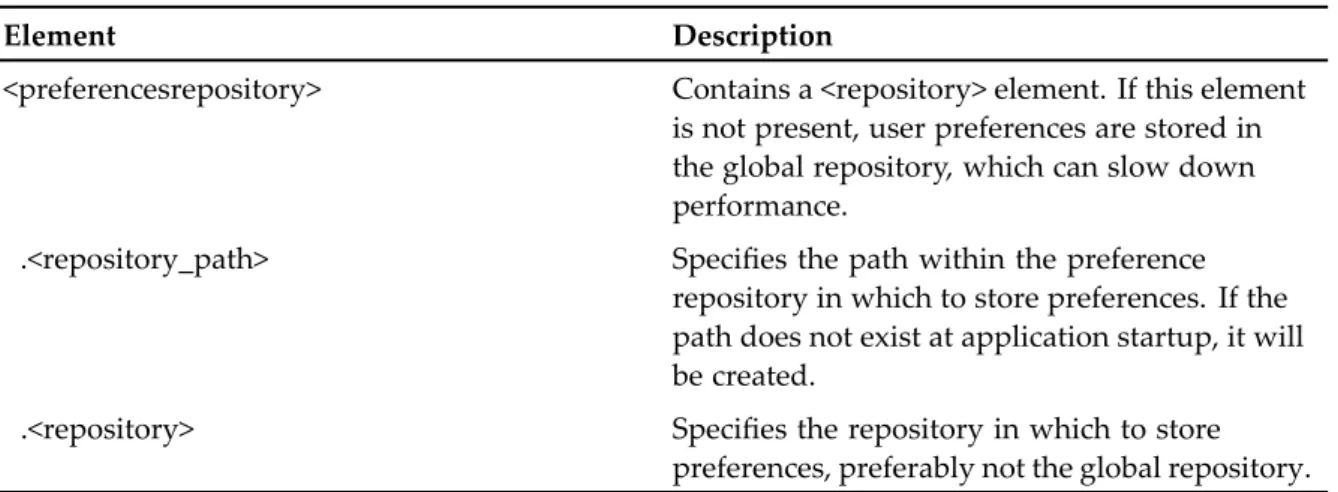
By default, presets and persistent preferences are stored in the global repository. For better performance, you can configure your Documentum Administrator to use different repositories for presets and persistent preferences.Add your preferences repository settings to app.xml in the /custom directory of the application. Copy the entire <preferencesrepository> element from /wdk/app.xml into /custom/app.xml and then specify your repository.
Table 1. Preferences configuration elements
Element Description
<preferencesrepository> Contains a <repository> element. If this element is not present, user preferences are stored in the global repository, which can slow down performance.
.<repository_path> Specifies the path within the preference repository in which to store preferences. If the path does not exist at application startup, it will be created.
.<repository> Specifies the repository in which to store preferences, preferably not the global repository. To enable users to create presets using the presets editor, assign those users the role
dmc_wdk_presets_coordinator.
Enabling external searches
To allow users to search external sources, an administrator must configure a connection to an ECIS search server. The ECI search server is a product that is purchased separately from Webtop and
Deploying Documentum Administrator
Content Server. If this connection has not been configured, you cannot include external sources in your search.
To configure the connection to an ECIS search server:
1. Unpack the client application WAR file.2. Open the file dfc.properties in WEB-INF/classes. 3. Enable the ECIS search server by setting the following:
dfc.search.ecis.enable=true
4. Specify the RMI Registry host for the ECI Server by setting the following: dfc.search.ecis.host=host_IP
dfc.search.ecis.port=port Where
• host_IPis IP address or machine name of the ECI Server.
• portis the port number that accesses the ECI server. The default port number is 3005.
Fully-qualified domain name for full-text
indexing
If you use Documentum Administrator to administer full-text indexing, a fully-qualified domain name must identify where the application server is installed. For example, the host name
tristan.documentum.com is acceptable, but an IP address (for example, 123.45.6.789) is not acceptable.
Resource Management availability
If Resource Management is installed, the RMI port used to manage the resources must be open. If a firewall separates the machine hosting Documentum Administrator from the remote resource, the RMI port must be open and not obstructed by the firewall. Also, the Domain Name Server must be configured to resolve IP addresses properly based on the URL used to access the server.
Enable presets for Administrator Access and
Resource Management
When deploying Documentum Administrator, theEnable/Disable Presetsflag in the application custom app.xml file must be set to True, as it impacts the following functionality:
• Administrator Access: If the preset flag is disabled, the Administrator Access functionality in Documentum Administrator is disabled.
Deploying Documentum Administrator
functions for resource agents defined in the static configuration file, but administrators cannot add, modify, or delete resource agents using Documentum Administrator.
The Enable/Disable Presets flag in the custom app.xml file for Documentum Administrator overrides the presets flag in WDK.
Modal popup
When you invoke a component that has been configured for modal popup, the user interface for the component is displayed in a modal popup window. This modal popup window is placed on top of the current window. The title of the modal popup window shows the title of the component page followed by "— Webpage Dialog”. You can resize the modal popup window but cannot access the parent window until you dismiss the popup window (also known as child window). When you try to close a modal popup window by clicking the [X] button on the window, the framework treats it as a canceling an action.
When you invoke another component that is configured for modal popup from the child window, another modal popup window is placed on top of the child window to show the component user interface. With stacked modal windows, you cannot access a parent window until you dismiss the child window.
Modal popup is only supported in Internet Explorer, but in the 508 accessibility mode.
Configuring the modal popup
You can configure a nested component to display in a modal popup. If a component is tied to an action, you can modify the action definition by adding the <invocation> element.
<action id="about"> <params>
<param name="enableTools" alias="CtrlKeyPressed" required="false" </params> <execution class="com.documentum.web.formext.action.LaunchComponent"> <component>about</component> </execution> <invocation> <modalpopup> <windowsize>small</windowsize> <refreshparentwindow>never</refreshparentwindow> </modalpopup> </invocation> </action>
This configuration is added to the action definition because the modal popup behavior is tied to how a component is invoked. The idea is to have the modal popup configuration in the action definition. In the invocation element, you can specify the size of the modal popup and whether the framework must refresh the parent window when the child window is closed. All action controls read the configuration. If the configuration indicates that the component tied to this action should display in a
Deploying Documentum Administrator
modal popup, it opens a modal popup window and submits the request to the component during action invocation. The response is displayed in the modal popup window.
Chapter 5
Post-deployment Tasks
This chapter contains the following topics: • Configuring IBM WebSphere , page 33
• Configuring WebLogic class loading behavior, page 34 • Configuring Oracle Application Server, page 35 • Deploying default virtual link support, page 35
• Configuring single sign-on for security servers, page 36 • Starting Documentum Administrator, page 38
• Testing Documentum Administrator samples, page 39
Configuring IBM WebSphere
To complete the Documentum Administrator deployment on IBM WebSphere:
1. Navigate toApplication Servers > Server1 > Web container > Custom Properties in Adminconsoleand set the com.ibm.ws.webcontainer.invokefilterscompatibilitycustom property to True. 2. Add the dfc.diagnostics.resources.enable=false parameter in dfc.properties file of Documentum
Administrator.
3. Copy the xml.jar file from the Websphere/AppServer/java/jre/lib directory to the Documentum Administrator WEB-INF/lib directory.
4. Change the classloader setting for the WDK-based application module in WebSphere in the
Manage Modulessection of the administration console. a. Select the WAR file.
b. ForClassloader orderchooseClasses loaded with application class loader first. c. ClickSave.
5. Set the JSP compiler option touseJDKCompilertotrueand the source level to 1.5 (JRE 5) in the configuration file ibm-web-ext.xmi under the application deployment directory, for example: WAS_INSTALL/AppServer/profiles/AppSrv01/config/cells/host_name/
Node01Cell/applications/da_war.ear/deployments/da/da_war/ da.war/WEB-INF/ibm-web-ext.xmi
Post-deployment Tasks
<jspAttributes xmi:id="JSPAttribute_1178213473751" name="jdkSourceLevel" value="15"/>
<jspAttributes xmi:id="JSPAttribute_3" name="useJDKCompiler" value="true"/>
6. Restart the application server.
Configuring WebLogic class loading behavior
Oracle WebLogic changed classloader precedence in version 9.2 and later, which can cause SSL validation to fail. Configure the WebLogic class loading behavior to load the application level classes first, instead of the Oracle classes.To configure the class loading behavior:
1. Navigate to the .\WEB-INF\classes folder and open theweblogic.xmlfile. 2. Modify the file as follows:
<!DOCTYPE weblogic-web-app PUBLIC "-//BEA Systems, Inc.//
DTD Web Application 8.1//EN" "http://www.bea.com/servers/wls810/ dtd/weblogic810-web-jar.dtd">
<weblogic-web-app>
<description>Weblogic Webapp</description> <container-descriptor>
<prefer-web-inf-classes>true</prefer-web-inf-classes> </container-descriptor>
</weblogic-web-app> 3. Save your changes.
4. Repeat steps 1 through 3 for each WDK application that is deployed on the Oracle WebLogic server.
Configuring UCF on WebLogic Server11g
Oracle WebLogic Server 11g and later requires a modification in the weblogic.xml file to configure UCF clients. Without the modification, the Content Server throws an exception when users attempt to view the server log file in Documentum Administrator.
To configure UCF on WebLogic Server11g
1. Navigate to the .\WEB-INF\classes folder and open theweblogic.xmlfile. 2. Add the following lines:
<session-descriptor>
<cookie-http-only>false</cookie-http-only> </session-descriptor>
Post-deployment Tasks
Configuring Oracle Application Server
For the Oracle Application Server, comment out the following lines in da\WEB-INF\web.xml: <init-param>
<param-name>wdk_cache_control_redirect_includepages</param-name> <!-- ending with ($) certain file extensions -->
<param-value><![CDATA[(\.jar)$] ]></param-value> </init-param>
Deploying default virtual link support
A virtual link is a URL that resolves to a document in a repository. The virtual link URL contains the repository name, folder path, and object name of the content to access. All WDK-based applications support virtual links in the following form:
http(s)://server:port/app-name/repository-name:/folder-path/.../objectname
You can install default virtual link support for URLs that do not contain the web application names. These links are redirected to the current application. Default virtual links URLs have the following form:
http(s)://server:port/repository-name:/folder-path/.../objectname
http(s)://server:port/RightSite/repository-name:/folder-path/.../objectname http(s)://server:port/rs-bin/RightSite.dll//folder-path/.../objectname
To install default virtual link support:
1. Deploy the vlink.war file as the root web application on the application server.
Some application servers have an existing root web application that you must replace with the default virtual link application. Others require you to create a root web application manually or during application server installation. Refer to the documentation for the application server for information on a root web application.
2. Deploy the virtual link war file (vlink.war or ROOT.war) to the application server. Use the mechanism recommended by the application server for deploying a default web application. 3. Modify theDefaultWdkAppNameparam-value in the web.xml of the virtual link WAR file.
This parameter value specifies the WDK-based application that handles the virtual link request if there is no current repository session for the user. If you do not specify a parameter value, it defaults towebtop.
On Weblogic, add the following line to weblogic.xml file or use the weblogic.xml file that is bundled with vlink.war:
<context-root>/</context-root>
Post-deployment Tasks
Configuring single sign-on for security servers
Content Server supports authentication plug-ins, SSO using RSA Access Manager (formerly known as ClearTrust), or CA SiteMinder.RSA Access Manager users must have the same login names as the Content Server repository. User names are case sensitive for the Content Server, so Access Manager user names must be at least 8 characters in length and have the same case as the repository login. Errors in authentication are logged in the /Documentum/dba/log/dm_rsa.log file.
For CA SiteMinder, set up a SiteMinder realm to perform authentication for Documentum Administrator. The dm_netegrity plug-in installed in the Content Server decodes the SMSESSION token sent from Documentum Administrator for authentication. The plugin contacts the CA server to verify that the token is valid. Errors in authentication are logged in the /Documentum/dba/log/dm_netegrity.log file.
To enable single sign-on (SSO):
1. Configure the RSA Access Manager or CA SiteMinder security server to authenticate repository users. (Refer to the security server documentation.)
2. Configure the web application server to use an external HTTP Server supported by the security server. (Refer to the RSA or CA security server documentation.)
3. Configure the Content Server plug-in. (Refer to the Documentum Content Server documentation.) 4. Configure Documentum Administrator in the app.xml file.
5. RSA only: Create a directory named rsaConfig under the Documentum Administrator root directory. Copy two files: aserver.conf from the Access Manager server and webagent.conf from the RSA web agent. Paste them into the rsaConfig directory.
If you change the original files, copy them to your Documentum Administrator rsaConfig directory. For more information on these files, refer to the RSA documentation.
6. Locate the file AuthenticationScheme.properties in WEB-INF/classes/com/documentum/web/ formext/session. The SSO authentication scheme classes. Modify the properties file to make your preferred SSO authentication scheme (SSOAuthenticationScheme or RSASSOAuthenticalScheme) first in the list of authentications that are attempted during login.
If the repository login scheme is listed before the SSO scheme, the user is presented with a login screen instead of single sign-on.
7. Restart the application server.
To configure app.xml for a security server single sign-on:
The WDK SSO Authentication Scheme for CA SiteMinder needs three pieces of information to authenticate an HTTP session against a repository:
• Name of the authentication plug-in that is used in the content server. • Name of the ticket to retrieve from a vendor-specific cookie.
• User name, which is retrieved from a vendor-specific HTTP requests header or remote user. 1. Open the app.xml file in your applications /custom directory.
Post-deployment Tasks
2. Copy from app.xml the <authentication> element and its entire contents, and paste into your custom app.xml file.
3. Update the <sso_config> element under the existing <authentication> element as shown in the following example:
<authentication> <domain/>
<docbase>secure_docbase</docbase> <service_class>
com.documentum.web.formext.session.AuthenticationService </service_class>
<sso_config>
<ecs_plug_in>dm_rsa</ecs_plug_in>
<ticket_cookie>CTSESSION</ticket_cookie> <user_header>HTTP_CT_REMOTE_USER</user_header> </sso_config>
</authentication>
Note: This example is for RSA.
Post-deployment Tasks
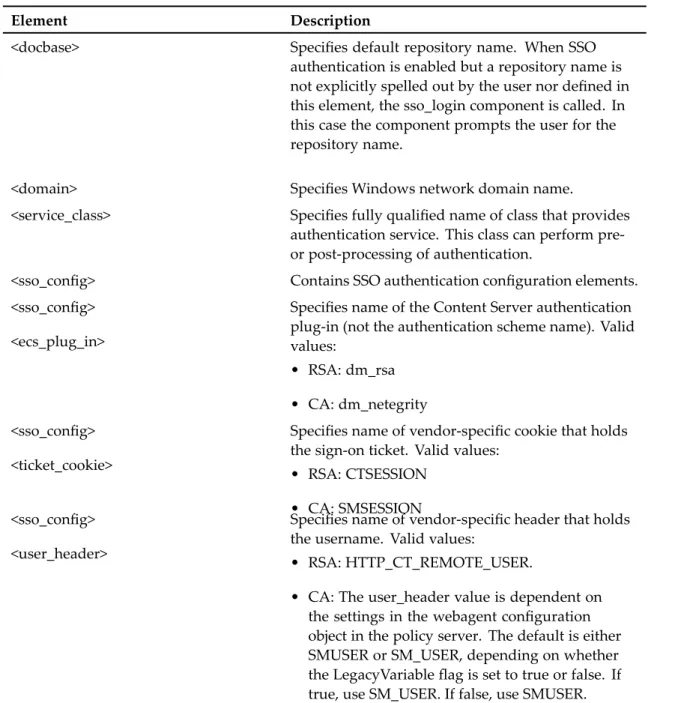
Table 2. Authentication elements (<authentication>)
Element Description
<docbase> Specifies default repository name. When SSO authentication is enabled but a repository name is not explicitly spelled out by the user nor defined in this element, the sso_login component is called. In this case the component prompts the user for the repository name.
<domain> Specifies Windows network domain name.
<service_class> Specifies fully qualified name of class that provides authentication service. This class can perform pre-or post-processing of authentication.
<sso_config> Contains SSO authentication configuration elements. <sso_config>
<ecs_plug_in>
Specifies name of the Content Server authentication plug-in (not the authentication scheme name). Valid values:
• RSA: dm_rsa • CA: dm_netegrity <sso_config>
<ticket_cookie>
Specifies name of vendor-specific cookie that holds the sign-on ticket. Valid values:
• RSA: CTSESSION • CA: SMSESSION <sso_config>
<user_header>
Specifies name of vendor-specific header that holds the username. Valid values:
• RSA: HTTP_CT_REMOTE_USER.
• CA: The user_header value is dependent on the settings in the webagent configuration object in the policy server. The default is either SMUSER or SM_USER, depending on whether the LegacyVariable flag is set to true or false. If true, use SM_USER. If false, use SMUSER.
Starting Documentum Administrator
Before you test the deployment, ensure that Documentum Administrator is started in the application server. For information on starting the application, refer to the application server documentation.
To verify Documentum Administrator deployment and configuration:
Post-deployment Tasks
Where:
• host_nameis the host where the application server is installed. If the browser is on the application server machine, substitute localhost for host_name. For example:
http://localhost.
• port_numberis the port where the application server listens for connections. • virtual_directoryis the virtual directory for your application.
For example, if the application server host is named iris, the port number is 8080, and the application virtual directory is da, the URL ishttp://iris:8080/da.
2. Use Documentum Administrator to log in to a repository.
If the login succeeds, the application is correctly deployed and configured.
Testing Documentum Administrator samples
After deploying Documentum Administrator, you can view sample pages after logging in to a repository. The sample JavaServer Pages, component definitions, and supporting compiled class files are provided in a zip file along with the product download. Unzip them to your application root directory, preserving the folder hierarchy in the zip file.To view the Documentum Administrator samples:
1. Ensure that the application server is running.2. Open a browser and type the following URL:
http://host_name:port_number/virtual_directory/component/login Where:
• host_nameis the host where the application server is installed.
• port_numberis the port where the application server listens for connections. • virtual_directoryis the virtual directory for the application.
A login dialog box appears. 3. Log in to a test repository.
The login dialog box reappears with the status messageLogin Successful. 4. Type the following URL:
http://host_name:port_number/virtual_dir/wdk/samples/index.jsp This page displays a list of the available samples.
5. ClickSession Zooand type a valid repository username, password, repository name, and domain (if necessary), then clickCreate Connection.
The repository is listed in theAll Connected Repositoriessection of the page. The Status message line starts with Successfully connected to repositoryrepository_name.
Post-deployment Tasks
Some samples haveCreate Test CabandDestroy Test Cabbuttons. Click these buttons to create and delete a test cabinet in the repository and require Create Cabinet privileges.
Chapter 6
Troubleshooting Deployment
This chapter contains the following topics:
• Wrong JRE used for application server, page 41 • No global registry or connection broker, page 42 • No connection to repository, page 42
• Login page incorrectly displayed, page 42 • Slow performance, page 42
• Out of memory errors in console or log, page 43 • Slow display first time, page 43
• DFC using the wrong directories on the application server, page 43 • Tag pooling problem, page 43
• UCF client problems, page 44 • Citrix client problems, page 44
• Connection issues between an ECI Services server and IPv6 clients, page 45
Wrong JRE used for application server
If the application server host has multiple JREs on the system, the application server can use the wrong JRE. Check your application server documentation for instructions to use the correct JRE with your application server. For example, the Tomcat application server uses a JAVA_HOME environment variable. This variable value is specified in the application startup batch file catalina.bat or in the service.bat file for Windows services.
If the application server uses the wrong JRE, Tomcat displays the following error: ERROR [Thread-1]
org.apache.catalina.core.ContainerBase.[Catalina].[localhost].[/webtop] - Error configuring application listener of class
com.documentum.web.env.NotificationManager java.lang.UnsupportedClassVersionError: com/documentum/web/env/NotificationManager (Unsupported major.minor version 49.0)at
Troubleshooting Deployment
No global registry or connection broker
Global registry information must be configured in dfc.properties. The application server must be able to download the required BOF modules from the global registry repository. If the information in dfc.properties is incorrect, the application server cannot download the appropriate BOF modules, and the following exception is thrown:
ERROR...Caused by: DfDocbrokerException:: THREAD: main; MSG:
[DFC_DOCBROKER_REQUEST_FAILED] Request to Docbroker "10.8.3.21:1489" failed; ERRORCODE: ff; NEXT: null
To fix this error, provide the correct BOF registry connection information in dfc.properties or do not provide any connection information at all. Refer to theDocumentum Content Server Installation Guide for information on enabling a repository as a global registry.
No connection to repository
If a connection broker is not specified in the dfc.properties file of the Documentum Administrator WAR file, the application server log contains the following error during application initialization: at org.apache.catalina.startup.Bootstrap.main(Bootstrap.java:432)
Caused by: DfDocbrokerException:: THREAD: main; MSG: [DFC_DOCBROKER_REQUEST_FAIL ED] Request to Docbroker "10.8.3.21:1489" failed; ERRORCODE: ff; NEXT: null
To establish a connection to repositories, Documentum Administrator must have information about the available connection broker. Refer toEnabling DFC connections to repositories, page 27for information on enabling the connection in the dfc.properties file.
If the repository that is specified as the global repository is down, the following message appears: Caused by: DfNoServersException:: THREAD: main; MSG:
[DM_DOCBROKER_E_NO_SERVERS_FOR_DOCBASE]error: "The DocBroker running on host (10.8.3.21:1489) does not know of a server for the specified docbase
(wtD6winsql)"; ERRORCODE: 100; NEXT: null
Login page incorrectly displayed
If the login page displays several login buttons, the browser does not have the Sun Java plug-in installed. Download and install the Sun Java plug-in for the browser.
If the login page displays several controls with the same label, you have not turned off tag pooling in the application server. Refer toTag pooling problem, page 43for troubleshooting information on this problem.
Slow performance
Troubleshooting Deployment
Set dfc.diagnostics.resources.enable tofalsein dfc.properties unless you are using the DFC diagnostics. This setting uses a significant amount of memory.
Out of memory errors in console or log
Verify that you have allocated sufficient RAM for the application server VM. For more information, refer toSetting the Java memory allocation, page 19.
The following error is common when MaxPermSize is set too low: java.lang. OutOfMemoryError: PermGen space
Slow display first time
The application server must compile a JSP the first time it is accessed. It is much faster on subsequent accesses. If you have tracing turned on, or if you have a large log file (of several megabytes), the browser response time decreases dramatically.
DFC using the wrong directories on the
application server
If you have not specified content transfer directories in dfc.properties, DFC looks first for global environment variables that set directory locations.
Tag pooling problem
If you have not properly disabled tag pooling in the application server, you see several instances of the same control on the login page. For instructions to disable pooling in JBoss and Tomcat, refer to Preparing JBoss and Apache Tomcat, page 21. For the Sun Java System server, refer toTurning off tag pooling, page 24. For Oracle, refer toPreparing Oracle Application Server, page 24.
Caution:After you disable tag pooling, clear the cached JSP class files which can still contain pooled tags. Refer to your application server documentation to find the location of the generated class files. For example, Tomcat displays the following error message:
com.documentum.web.form.control.TagPoolingEnabledException: JSP tag pooling is not supported.
Troubleshooting Deployment
UCF client problems
If the error message "Compatible Java Run time environment is not installed” is displayed on a non-Windows client, verify that you have installed version 1.5.0_06 of the Sun JRE on the client. UCF uses this version, which does not interfere with the browser VM. The client browser VM must be one that is certified in the release notes. It is used for non-UCF applets.
If a UCF error is reported on the client, the following troubleshooting steps can help:
• For UCF timeouts, check whether anti-virus software on the application server is monitoring port 8080 or the application server port that is in use. Turn off monitoring of the application server port. • For slow UCF downloads, ensure that virus scanning within zip files is not turned on.
• Ensure that the user has a supported JRE version on the machine to initiate UCF installation. Supported JRE versions are listed in the DFC and Webtop application release notes. To verify the presence and version of a JRE, you can point the client browser to a Java tester utility such asJavatester utility.
• Verify if the process from the launch command is running: Open the browser Java console look for invoked runtime: ... connected, uid: ... A UID indicates successful connection to the UCF server. • Check the application server console for errors on the UCF server.
• Restart the browser and retry the content transfer operation.
• Kill the UCF launch process and retry the content transfer operation.
• If UCF operations still do not launch, delete the client UCF folder located in USER_HOME/username/Documentum/ucf.
• Search the client system for files that start with ucfinit.jar- and delete them.
Citrix client problems
On the Citrix Server, ensure the following: • The WDK-based application is published. • The Citrix desktop is published.• The roaming profile of the user is set up correctly so that UCF does not download to the local host. Perform the following procedure to clean up UCF for roaming users if the roaming profile was not set up properly.
To configure the web application for roaming profiles:
1. Delete the documentum directory that was installed in the home directory of the user. For example: C:\Documents and Settings\Pradeep\Documentum.
2. Edit ucf.installer.config.xml in /wdk/contentXfer in the WDK application. Change every environment variable in this file that uses the Java home directory $java{user.home} to use the roaming profile environment variable:
Troubleshooting Deployment
<ucfInstallsHome="$env(USERPROFILE)/Documentum/ucf"/> <configuration name="com.documentum.ucf">
<option name="user.dir">
<value>$env{USERPROFILE}/Documentum</value></option> 3. Save and restart the application server.
Connection issues between an ECI Services
server and IPv6 clients
ECI Services server uses the RMI protocol to communicate with the client applications. When the client application launches a request against the ECI Services server, it indicates the IP address that the ECI Services server must use to respond. However, it can happen that the client sends a link-local address instead of a global address. To avoid any connection issue, update the catalina.bat script that launches the WDK application. The following setting forces the RMI IP to connect:
Appendix A
Pre-Installation Checklist
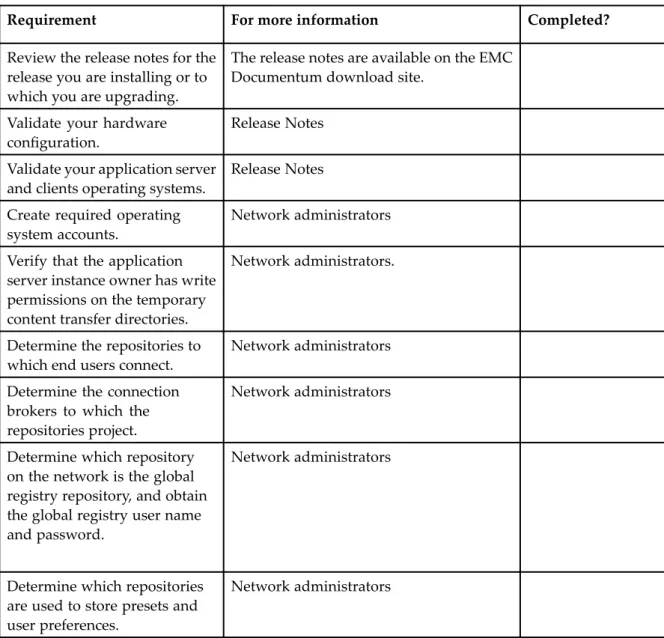
Use the following checklist to verify that you have performed all required tasks when you install or upgrade a WDK-based application.
Table 3. Preinstallation tasks
Requirement For more information Completed?
Review the release notes for the release you are installing or to which you are upgrading.
The release notes are available on the EMC Documentum download site.
Validate your hardware configuration.
Release Notes Validate your application server
and clients operating systems.
Release Notes Create required operating
system accounts.
Network administrators Verify that the application
server instance owner has write permissions on the temporary content transfer directories.
Network administrators.
Determine the repositories to which end users connect.
Network administrators Determine the connection
brokers to which the repositories project.
Network administrators
Determine which repository on the network is the global registry repository, and obtain the global registry user name and password.
Network administrators
Determine which repositories are used to store presets and user preferences.
Pre-Installation Checklist
Requirement For more information Completed?
Determine whether language packs are required.
Web Development Kit Applications Language Pack Installation and Release Notes
Prepare the application server host and application server software according to the vendor’s requirements.
Specific requirements are described in Chapter 3, Preparing the Application Server Host.
Index
A
Administrator Access, enabling, 30 Apache Tomcat, Java heap size, 19 application servers
performance tuning, 19 starting, 33
verifying, 33
B
browsers
Citrix client, 17
slow display, debugging, 43
C
CA, configuration, 36 Citrix client, 17
ClearTrust, configuration, 36 clients
preparing, 13 set JVM, 13
clustered environments, Oracle Application Server, 24
configuration, typical, 10 connection broker, 27
deployment requirement, 9 troubleshooting, 42
connection, troubleshooting, 42 Content Server, deployment
requirement, 9 content transfer
enable in Firefox 2, 15 enable in Firefox 3.x, 15 enable in IE7, 13
D
default web applications, 35 deploying
Documentum Administrator, 27
single application server, 10 supporting software, 9 deployment
completing, 33 testing, 39
DFC, global registry, 27 dfc.properties, 28
connection broker, 27 Documentum Administrator
full-text indexing, 30 starting, 38
verifying, 38
domains, Oracle WebLogic, 21
E
environment variables, 20 external web servers, 25
F
Firefox 2, content transfer, 15 Firefox 3.x, content transfer, 15 forward proxy preparation, 25
fully-qualified domain names, indexing, 30
G
global registry, 27 troubleshooting, 42
global security on IBM WebSphere, 33
I
IBM WebSphere global security, 33 Java heap size, 19
predeployment requirements, 22 session affinity support, 25 installing
application server software, 19 fully-qualified domain names, 30