Contents
Introduction · · · vi
Getting Started · · · 1
Requirements · · · 1
Setting up the Logic Analyzer · · · 2
Connecting to the Training Board · · · 3
TLA7QS QuickStart Training Board Power Connections · · · 4
Installing the Tutorial Setup Files · · · 5
Copy Tutorial Files to Logic Analyzer · · · 5
D-Type Flip-Flop · · · 5
Getting Familiar with TLA Basics · · · 7
TLA User Interface Overview · · · 8
Power Up the TLA · · · 8
Load Default System and View TLA Windows · · · 8
System Window · · · 8
Run · · · 10
Alternative Method of Navigating the TLA Application Windows · · · 11
What You Learned · · · 12
Tutorial 1 – General Purpose Timing · · · 13
Load the Setup and Run · · · 13
View the Data and Make a Timing Measurement · · · 15
View the Trigger Setup · · · 16
View the Channel Setups · · · 16
What You Learned · · · 17
Tutorial 2 – Glitch Detection and Display· · · 19
Load the Setup from Tutorial 1 · · · 19
Introduction to Logic Analysis: A Hardware Debug Tutorial
iv www.tektronix.com/la
Modify an Existing Trigger Setup · · · 19
Run · · · 20
View the Data · · · 20
Change the Acquisition Mode to Glitches · · · 21
Run · · · 21
View the Data · · · 21
Adding High Speed Timing (MagniVu™) to the Display · · · 22
Changing the Height of the Displayed Channels · · · 23
View the Glitch · · · 23
Measure Glitch Pulse Width · · · 24
Document the Glitch · · · 25
Copy and Paste Entire Screen · · · 25
Save Your Glitch Setup · · · 25
What You Learned · · · 26
Tutorial 3 – Capture a Setup or Hold Violation · · · 27
Load the Setup and Run · · · 27
View the Resultant Data · · · 28
View the Trigger Setup · · · 28
What You Learned · · · 29
Tutorial 4 – Transitional Storage · · · 31
Load the Setup for Conventional Timing and Run · · · 31
View the Resultant Data · · · 31
Modify the Trigger for Transitional Timing · · · 32
Run and View the Acquired Data Using Transitional Storage · · · 32
Save Your Transitional Timing Setup · · · 33
Pre-configured Transitional Timing Setup · · · 33
What You Learned · · · 33
Tutorial 5 – How to Create Setups · · · 35
Load the Default Setup · · · 35
Define the Setup Window · · · 35
Define New Channels and Groups · · · 35
Assign Channels to Groups · · · 37
Complete the Setup Window · · · 37
Define the Trigger Window · · · 37
Define the Waveform Window · · · 38
Create a New Waveform Window · · · 38
Run · · · 38
Create a MagniVu™ Waveform Window (Optional) · · · 38
Save Your Setup · · · 39
What You Learned · · · 40
Resources for You · · · 41
Tektronix Logic Analyzers on the Web · · · 41
Technical Support · · · 41
XYZs of Logic Analyzers · · · 41
QuickStart Training Manual · · · 42
Tutorial CD-ROM · · · 42
TLAVu · · · 42
Appendix · · · 43
Installation of TLAVu on a PC · · · 43
Viewing Data · · · 43
Load System · · · 43
New Data Window · · · 44
Load Data Window · · · 44
vi www.tektronix.com/la
vi
This Tutorial booklet contains selected exercises designed to quickly familiarize you with using the TLA logic analyzer and to make typical timing measurements useful in hardware debug of digital circuits. In addition, you will be introduced to the basic operation of the TLA as well as key features that can enable you to debug your digital designs quicker and more efficiently. The TLA600 and TLA700 Series logic analyzers use the same powerful, yet intuitive, Windows interface and application software. This allows users to learn on one logic ana-lyzer and easily use any other member of the TLA family.
After using this booklet, you can easily begin making most standard timing measurements required to debug your own applications. For those users who would like to fully explore the powerful TLA platform, the TLA7QS Training Manualis a rich collection of exercises based on the target board used in this tutorial. This is available through the Tektronix sales office nearest you or can be downloaded on the web (see information in Resources for Youat the end of this booklet). You can also explore the TLA user interface without a logic ana-lyzer by using TLAVu, an offline version of the TLA application software
included on the Tutorial CD-ROM, that you can load on your PC. TLAVu comes with both hardware and software debug examples.
The focus of this tutorial is on "hardware debug" which fundamentally is about making critical digital timing measurements and the detection of elusive prob-lems such as glitches and setup/hold violations. We will also introduce you to the powerful TLA user interface and its philosophy of operation.
This Tutorial assumes that you: are familiar with Microsoft Windows
have a basic understanding of digital electronics are looking for faster digital debug solutions
If you are unfamiliar with logic analyzer concepts, it is suggested that you read the XYZs of Logic Analyzers. You can also get a printed version of the XYZs by going online at
www.tektronix.com/tla
Introduction
Requirements Any TLA600 Series logic analyzer
Version 3.2 or greater software installed on logic analyzer
Keyboard and mouse P6418 probe Tutorial booklet Tutorial CD-ROM
TLA7QS QuickStart training board with power adapter
Note:If you are using a TLA60x series or a 72x series logic analyzer, be aware that the front-panel adjustments referred to in this tutorial will be unavailable to you. However, they are available under mouse control.
Figure 1-1:TLA61x/62x Tutorial components.
Getting Started
2 www.tektronix.com/la
Setting up the Logic Analyzer
1. For the following steps refer to Figure 1-2. 2. Connect the AC line cord to the logic analyzer AC
line input connector located on the rear panel. 3. Connect the mouse and the keyboard to the rear
panel.
4. Connect the P6418 probe to the C2/C3 connector, which is located on the lower front panel of the TLA600 logic analyzer as shown in Figure 1-3 and Figure 1-4. (This will be located on the right hand side of the analyzer if you are using a TLA714). The probe should be oriented with the slotted key facing upwards. Press the probe into the logic ana-lyzer connector firmly.
Figure 1-2:TLA600 rear-panel connections.
AC Power Fuses
Primary ON/OFF Power Switch CD-ROM
Keyboard PS2 Port
Mouse PS2 Port
Connecting to the Training Board
In this section you will connect the P6418 probe and the AC power adapter to the QuickStart training board.
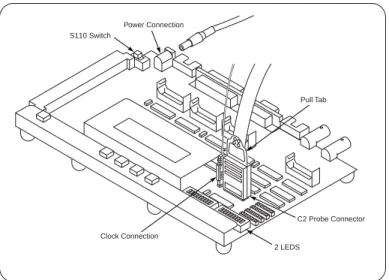
1. Connect the P6418 clock channel labeled CK3, of the C2-C3 probe to J760 (CNTR/CLK) as shown in Figure 1-5. The side of the clock probe labeled “CK3” should be facing J860 or away from the LCD display assembly. The “GND” side of the probe should connect to the top or backside of the header. If you examine the side of the probe carefully, you will notice that “GND” is molded into the plas-tic. If the “CK3” label is oriented towards J860, the ground will be located cor-rectly.
Figure 1-3:TLA61X/62X front panel showing location of C2 probe connection. General-Purpose Knob
Run/Stop Key
Logic Analyzer Probe Connectors
C2 Probe Connector Active-Matrix TFT LCD
Soft On/Standby Power Switch
Horizontal + Vertical Function Knobs 3.5" Floppy Disk Drive
Figure 1-4:Connecting the P6418 probe to the TLA61X/62X. C2
Figure 1-5:Connecting the CK3 clock probe. Ground
Clock Connection
4
2. Connect the P6418 C2 probe directly over the entire header J860 as shown in Figure 1-6. Make sure that the side of the probe labeled C2 7---0 is facing towards the front of the training board (towards the LEDs). The rear pins on the header are all ground pins.
TLA7QS QuickStart Training Board Power Connections
1. Connect the power adapter to the DC power input jack at the rear left corner of the training board as shown in Figure 1-6 and plug into an appropriate AC source.
2. Apply power to the training board by toggling switch S110 to the “On” position (move switch towards green LED). The adjacent green LED should now be on. 3. The training board will execute the power-on diagnostics. When the power-on diagnostics are complete, the display should display some menu text and two of the LEDs should be lit. The training board is now ready.
www.tektronix.com/la
Figure 1-6:Connecting the P6418 C2 probe to header J860 – label shown fac-ing towards signal side of header J860.
C2 Probe Connector Clock Connection
2 LEDS Pull Tab Power Connection
Installing the Tutorial Setup Files Copy Tutorial Files to Logic Analyzer
1. Open the CD-ROM located on the rear panel of the TLA600 Series logic analyzer and load the Tutorial CD-ROM.
2. Using Windows Explorer, locate the tutorial setup files on the CD-ROM in the folder:
D:\Tutorial\Hardware\Setups\*.tla
3. Copy these files to the following location on the logic analyzer’s hard drive: C:\Program Files\TLA 700\Tutorial\Hardware\
Note: If the folders \Tutorial\Hardware\ are not present on your TLA, cre-ate these under Program Files/TLA 700.
D-Type Flip-Flop
In the following tutorials, you will make timing measurements on signals from a “D” type flip-flop. This versatile device is one of the basic building blocks in digital circuits, and although they are often buried inside complex ASICS and other devices, they are very useful to illustrate hardware debug techniques using a logic analyzer.
As you get familiar with the TLA, it is easy for you to expand the measurements to 10’s, 100’s, and even 1000’s of channels!
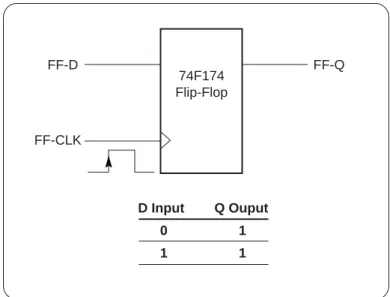
The logic for the D flip-flop used on the training board is shown in Figure 1-7. The flip-flop only changes it’s output state on a rising clock edge. The Q output follows the D input upon receipt of a valid clock edge.
Figure 1-7:D-type flip-flop with state table.
FF-CLK
FF-D FF-Q
74F174 Flip-Flop
D Input Q Ouput 0 1 1 1
When using a logic analyzer, it is useful to understand the basic steps in set-ting up the instrument to take an acquisition. These steps are fundamental to all logic analyzers regardless of manufacturer. Where differences occur is in how the user interface is implemented. In this introduction tutorial, we will explore the main windows that you will be interacting with, and will reinforce this with practical examples in the subsequent tutorials. You will make use of saved or modified setups, and the last tutorial will guide you through the process of creating your own setup so that you can apply what you learned to your own application.
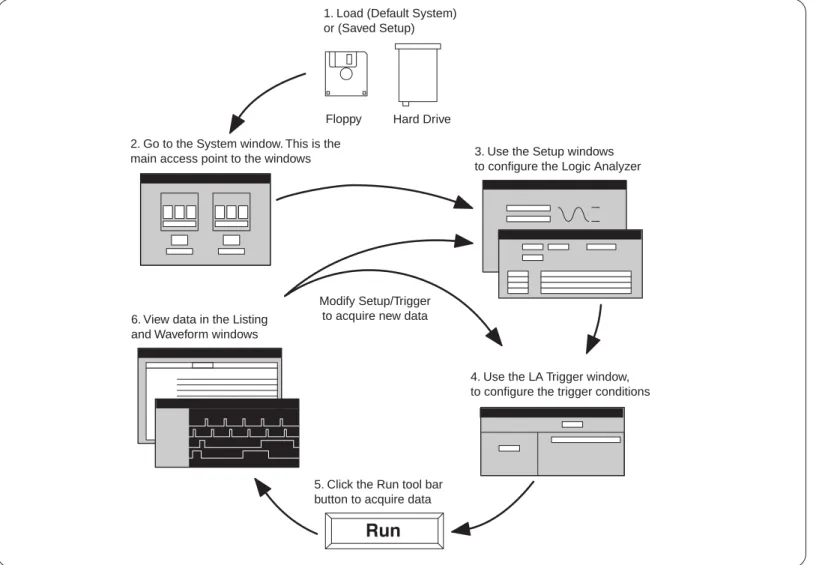
The fundamental steps and windows involved in setting up the TLA to take an acquisition are:
1. User loads the default system or loads a saved setup.
2. System Window – this is the starting point for using the other windows. 3. Setup Window – configure the TLA to the physical connections on the target. 4. Trigger Window – set up the trigger conditions.
5. Run – acquire the data.
6. Data Window – set up how and what data will be displayed.
Figure 2-1:Basic steps in setting up a TLA to take an acquisition.
2. Go to the System window. This is the main access point to the windows
1. Load (Default System) or (Saved Setup)
Hard Drive Floppy
3. Use the Setup windows to configure the Logic Analyzer
4. Use the LA Trigger window, to configure the trigger conditions
5. Click the Run tool bar button to acquire data
Modify Setup/Trigger to acquire new data 6. View data in the Listing
and Waveform windows
8
TLA User Interface Overview
The logic analyzer user interface is a Windows-based application. You will use many familiar controls, such as Cut, Copy, Paste, toolbar buttons, and click-ing/dragging screen elements. Many powerful features can be invoked using the right mouse button, such as placement of cursors, zoom in on an area of interest, etc. In the following tutorials, you will be introduced to many of these TLA user interface features.
Power Up the TLA
First, ensure that the rear-panel power switch (see Figure 1-2) is in the “On” position. Then, power up the TLA600 logic analyzer by pressing the power switch located on the lower left front panel. The TLA will power up with Windows and one of three possible setups depending on what user option “Start-Up option” is set:
1. Last System open in previous session 2. Default System Setup
3. Saved System
Load Default System and View TLA Windows
In this section, you will place the TLA into its known “Default System Setup” state. You will then open and examine each of the key windows that we will be working with in the rest of the tutorials.
1. On the top menu bar, select “File” and “Default System” with your mouse. 2. When the dialog box comes up warning you “This operation will default the
cur-rent system configuration… etc.,” select “OK.”
The TLA will load the default system configuration and present the System Window, which should look similar to the screen in Figure 2-2 taken from a TLA624.
System Window
The System Window, shown in Figure 2-2, is the main access point to the other TLA windows. By clicking on the various buttons, you can go directly to the Setup, Trigger, and Data (Waveform, Listing) Windows.
Alternately, you can use the “Window” pull-down menu on the main menu bar or use “Cntrl” + “Tab” to select the same windows. It should be noted that we will not be using the “Listing 1” Window in these tutorials, since it is used for state and assembly code listing.
1. Using your mouse, left click on the “Setup” button in the System Window. This opens the Setup window as shown in Figure 2-3.
www.tektronix.com/la
Figure 2-2:Default System Window.
Click here to go to Setup Window
Click here to go to Trigger Window
Click here to go to Waveform Window
Setup Window
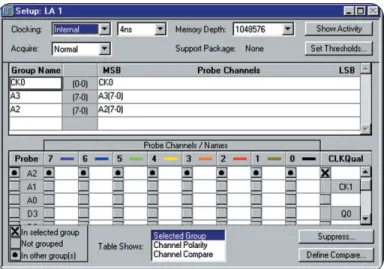
The Setup Window shown in Figure 2-3, consists of three main sections. These are (from top to bottom):
a) Acquisition control
This is where clocking is set for internal (asynchronous), or external (synchro-nous), acquisition mode is set (normal, glitch, block), and sampling speed selected. In addition, memory depth and logic thresholds are set here. “Show Activity" provides a function similar to a logic probe so that the user can check for proper connections.
b) Group section
In this section, the user creates channel groups. A channel group can consist of one or several channels. All channels must belong to a group even if there is only one channel in the group. Groups are typically created prior to chan-nel assignments.
c) Probe/channel assignment section
This is where the user maps the probe physical connections to the logic ana-lyzer user interface and to a group. All of the probes available will be shown in the left column labeled “Probe.” Each physical probe has 16 channels and one clock (CK) or one qualifier (Q). There are eight vertical columns where the user can enter meaningful signal names that correspond to connections on the target board. This is the “Probe Channels/Names” section. A button to the left of each channel is used to assign the individual channel to a group. The far right column corresponds to dedicated clock or clock qualifier inputs and is labeled “CLKQual.”
2. Click on the “System” icon on the main menu bar to return to the System Window.
3. Click on the “Trig” button (see Figure 2-2). This will take you to the Trigger win-dow as shown in Figure 2-5.
Figure 2-3: Setup Window – default.
Figure 2-4: Toolbar buttons.
System Button Zoom Out/In Buttons Run Button Acquisition Indicator Single/Recurring Acquisition
10
Trigger Window
One of the most powerful characteristics of a logic analyzer is the ability to trigger on a wide range of hardware and software conditions across multi-ple channels. In the Trigger Window, the user sets up the conditions, which will cause the logic analyzer to start or stop acquiring data. In the Trigger Window shown in Figure 2-5, the user can construct trigger conditions ranging from simple hardware high/low conditions to multi-level state and code execution sequences. With the trigger capabilities of the TLA, the user is able to capture even the most elusive problems.
4. Click on the “System” icon on the main menu bar and you will be returned to the System Window.
5. Click on the “Waveform 1” button (see Figure 2-2). This will bring up the Waveform window as shown in Figure 2-6.
Waveform and Listing Windows
In these data windows, the user can choose to display any of the channels created in the Setup Window. The user may choose to display a Waveform data window for timing applications or a Listing data window to show state information. Figure 2-6 shows the default Waveform window with no data. High-speed timing data, acquired around the trigger, may also be dis-played using MagniVu™ feature channels. With the Windows interface, the user can also choose to display timing and state simultaneously with time correlation between displays.
Run
Once the user has completed or loaded a setup, an acquisition is initiated by pressing the "Run" button on the main menu bar. Do not activate at this time.
www.tektronix.com/la
Figure 2-6:Waveform window – default condition without data.
You will use this button in the following tutorials. While taking an acquisition, this button will change to “Stop” until the trigger condition is met and the acquisition memory fills up. Once the acquisition is completed, the button will revert back to “Run.”
The button immediately to the right of "Run" is used to set the acquisition to either single (default)
or recurring acquisition (continuously re-acquires data automatically).
A small window in the far right corner will scroll continuously until the acquisi-tion is completed. This is a visual indicator to the user that the logic analyzer is running and waiting for the trigger, acquiring data, or is processing data for display.
4. Return to the System Window by clicking on the “System” icon.
Alternative Method of Navigating the TLA Application Windows
In the following tutorials, you will be asked to start from the “System Window” and asked to open another window such as Trigger, Setup, Waveform, etc. You can access all of these from this one convenient location as we did in the Introductory Tutorial.
You can also navigate from the “Window” pull-down menu on the top menu bar and select the window that you need as shown in Figure 2-7. This method is
12
recommended when starting to use the TLA so that you only deal with one win-dow at a time. If you have minimized the System Winwin-dow or are lost, you can always go to the “Windows” pull-down menu and recall the window that you need.
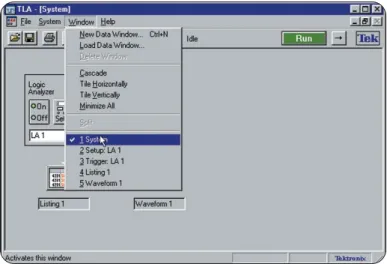
1. Using your mouse, left click on the “Window” pull-down menu on the top toolbar. You will notice the same windows are listed that we explored earlier. You may experiment jumping to these windows and returning to the System Window using this pull-down method. When finished, return to the “System Window.”
Note:Once you “maximize” one of the windows, all the other windows will be maximized when accessed. This is the method that we will be using for the rest of the tutorials.
What You Learned
In this tutorial you were introduced to the basic steps in setting up the TLA and navigating the user interface. From a known condition (Default System), you examined all of the primary windows that will be used when creating setups, configuring triggers, and displaying data. You also learned more than one way to navigate between windows.
Congratulations! You are now ready to start Tutorial 1 – General Purpose Timing.
Ensuring proper timing relationships between critical signals in a digital design is a common and increasingly challenging task for hardware designers today. In the process of debugging and verifying their hardware design, they typically examine a wide range of timing parameters, including propagation delay, pulse width, setup or hold characteristics, signal skew, clock phases, etc.
Digital designers need a tool that can provide high-resolution timing measure-ments across large numbers of channels with minimal impact or loading on the circuit being measured. The tool must have powerful triggering capabilities so that the designer can trigger on specific problems quickly. In addition, the tool must provide excellent display and analysis capabilities so that the problems are easily detected. These are all areas where the TLA excels.This tutorial shows how you can set up the Tektronix Logic Analyzer to capture, display, and quickly make timing measurements on a D-type flip-flop shown in Figure 3-1. For the purpose of this tutorial, we are only going to make use of three signals; however, you can easily expand what you learn here to take simultaneous measurements on 100’s, even 1000’s of signals, using the TLA. Load the Setup and Run
1. Select “Load System” from the “file” menu.
2. Load the system setup “1–GP_Timing.tla.” This is located in the folder: C:\Program Files\TLA 700\Tutorial\Hardware
3. You will receive a confirmation message as shown in Figure 3-2. Click on “Yes” to proceed.
Tutorial 1 – General Purpose Timing
Figure 3-1:Basic timing measurement – edge-to-edge timing shown using internal logic analyzer asynchronous sampling.
T
CK
D
Q
LA Sampling
14
Configuring Your TLA600 to Match Saved Setup When a setup is loaded on a TLA that is not the same channel width as the original where the setup was created, there is an additional step required to properly configure the logic analyzer. Setups created on TLAs of lower channel count can easily be transferred to logic analyzers of equal or higher count. All the setups for these tutorials were created on a 34 channel TLA611.
An information window will appear as shown in Figure 3-3 advising you of this.
4. Click on “OK” to proceed.This will bring up the “Load System Options” dia-log box as shown in Figure 3-4.
5. Drag the logic analyzer icon from the GP_Timing box to the Current System box. This will load the saved setup onto the logic analyzer you are using.
6. Click on “OK” to complete loading the saved setup. This will take you to the System Window shown in Figure 3-5.
7. Click on the “FF Analysis” waveform button (see Figure 3-5). This will take you to the Data Window.
Tip:Setups can be saved either with or without data. Often it is useful to capture data and save it along with the setup for future reference or doc-umentation. In some applications it is also useful to save data in a "refer-ence memory" and compare known good data to acquired data.
8. Click on the “Run” button to begin acquiring new data. The logic analyzer is set up to trigger on anything, so it will immediately acquire data and display in the waveform window as shown in Figure 3-6. The data should look similar but will not necessarily be the same from acquisition to acquisition.
www.tektronix.com/la
Figure 3-4:Load System Options dialog window.
Figure 3-3:Information window asking user to use "Load Systems Options" dia-log to configure setup on new dia-logic analyzer.
View the Data and Make a Timing Measurement
1. Click on the “Run” button a few times to see if the data changes. 2. Use the “Horizontal Position” knob on the front panel to position the data on
screen so that you can see the trigger indicator (“T”) clearly. See Figure 3-6 to see what the trigger indicator looks like.
Tip:You can also move the data window to the Trigger cursor position by dragging the slider button in the memory scroll bar or pressing “Cntrl” + “T.” Try both methods.
3. Place the mouse cursor on the leading (rising) edge of one of the FF-Q signals and right-click the mouse. Select “Move cursor 1 here” (see Figure 3-7). This will move the first cursor to this location.
4. Place the mouse cursor on the trailing (falling) edge of the same FF-Q signal. right-click and select “Move cursor 2 here.” This positions the second cursor.
Figure 3-5: Restored system for Tutorial 1.
Figure 3-6:Captured signals from flip-flop showing trigger "T" at start of data.
Figure 3-7: FF-Q pulse width measured.
Waveform Button
Trigger
Indicator Memory
Location Bar
Spin Control
Boxes Right-click here and select
16
Tip:To line up the cursors exactly over the signal edge, you can fine tune the cursor placement by clicking on the cursor spin box controls as shown in Figure 3-7.
5. By reading the number in the “Delta Time” box, you are measuring the time dif-ference between the two cursors. In this case, we are measuring the pulse width of the FF-Q signal. The resolution for this measurement is 10 ns as indicated by the sample ticks on the display. As you will see later, sample resolution is set in the Setup window.
Tip: There are several useful key commands available to the user to posi-tion cursors, move data, take acquisiposi-tions, etc. For a quick reference, go to the “Help Topics” in the Help menu and search on “Shortcut.” There are several shortcut topics listed. Try exploring a few of these to find use-ful shortcut keys or control functions.
View the Trigger Setup
1. Click on the “Window” pull-down on the top menu bar and select “Trigger: LA 1.” The Trigger window that appears should be similar to Figure 3-8.
The Trigger window shows the conditions that the logic analyzer used to detect and capture the data of interest. In this case, the TLA is set up to trigger on "Anything," which means that the logic analyzer triggers as soon as the “Run” button is pushed. Notice that the "Trigger Pos" is set to 0%. With this setting, all data collected appears after the trigger.
View the Channel Setups
1. Click on the “Window” pull-down menu on the top toolbar and select “Setup: LA 1.”
Figure 3-9 shows the Setup window used in this tutorial. This is where the channel mappings to our training board were defined and given names. Notice that the “Clocking:” box is set to “Internal” which means that we are sampling asynchronously or using the internal logic analyzer clock to acquire data. If you are unfamiliar with this terminology, please refer to XYZs of Logic Analyzers.
www.tektronix.com/la
Figure 3-8:Trigger condition for Tutorial 1.
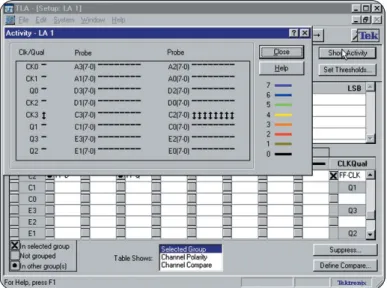
2. Click on the box in the upper right hand corner labeled “Show Activity.” This will display all the logic analyzer probes and will indicate which ones have active sig-nals as shown in Figure 3-10. Try removing the C2 probe from the logic analyzer front panel and observe how the activity arrows behave. When done, close the dialog box.
Tip:Use the Activity dialog box to see if you have connection and live sig-nals when setting up your own acquisitions. This function is like having a logic probe across all of your channels.
3. After viewing the setups, make sure that the C2 probe is reconnected and return to the System Window.
Note:If you wish to stop at this point and come back to Tutorial 1 at a later time, select “File” and “Exit” from the main menu bar. Answer “Yes” to Exit without saving changes. It is now safe to shut down the logic ana-lyzer.
What You Learned
In this tutorial you learned how to load an existing setup into a TLA, acquire waveform data, move the cursors, and make basic timing measurement on a D flip-flop. You also examined the setups and trigger windows to view how the TLA was setup to capture this data and used the “Show Activity” function to check for signal activity from the target board.
Congratulations! You have just completed Tutorial 1 – General Purpose Timing
You are now ready to move on to the next section,Tutorial 2 – Glitch Detection.
In system design, glitches are annoying and sometimes fatal pulses that can be difficult to detect and capture. Any number of conditions such as cross talk, inductive coupling, race conditions, or timing violations can cause glitches. Glitches can be extremely intermittent and hard to find. They are usually narrow pulses and require high-speed logic analyzer timing to capture (see Figure 4-1). Their effects on a system-under-test are often unpredictable.
The Tektronix Logic Analyzer uses high-speed timing to watch for, trigger, and store these elusive events. High-speed timing is available on all channels of the logic analyzer.
This tutorial shows how you can set up the Tektronix Logic Analyzer to trigger and capture a glitch on any channel. You will modify the trigger and setup from Tutorial 1 so that the logic analyzer triggers on any glitch detected on the flip-flop Q output. You will also use the Tektronix MagniVu feature with 2 GHz tim-ing resolution to accurately display and characterize the glitch.
Load the Setup from Tutorial 1
1. If the logic analyzer application is still open from Tutorial 1, go directly to the next section: “Modify an Existing Trigger Setup.”
2. Select “Load System” from the “file” menu.
3. Load the system setup “1–GP_Timing.tla.” This is located in the folder: C:\Program Files\TLA 700\Tutorial\Hardware\
Modify an Existing Trigger Setup
1. Navigate to the Trigger window by selecting “Window” and “Trigger: LA 1” from the main toolbar. The trigger window should look like Figure 4-2.
2. Change the “Trigger Pos” box to read 10%. This can be done by any one of the following methods: a) Dragging the Trigger Pos slider until the box reads 10; b) Directly entering 10 into the entry box; or c) Using the spin box up/down scrolling buttons until box reads 10% pre-trigger information.
Tutorial 2 – Glitch Detection and Display
Figure 4-1:Unwanted glitch pulse captured using asynchronous high-speed sampling.
MagniVu Sampling
CK
D
Q
GlitchFigure 4-2:Trigger setup from Tutorial 1 to be modified.
Trigger position “spin” box and
20
3. Click on the “If-Then” button to view the clause definition for the trigger state. 4. In the “If” pull-down definition box, select “Glitch.” The “Then” pull-down
defini-tion box should still read “Trigger.”
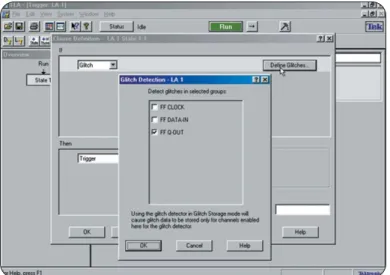
5. Click on the “Define Glitches” button in the upper right corner of the dialog box. The Glitch Detection dialog box defines which groups of channels the logic ana-lyzer will look at to find glitches. With the TLA, the user may wish to check for glitches on a large number of channels or groups at the same time. In this exer-cise you are only interested in the Q output of the flip-flop, so make sure that only "FF Q-OUT" is selected. The dialog box should be similar to Figure 4-3. 6. After making sure that “FF Q-OUT” is the only box checked, close the “Glitch
Detection” and “Clause Definition” dialog boxes by clicking on “OK” at the bottom of each box.
7. In the box to the right of “State 1,” delete “Trigger on Anything” and type in “Trigger on Glitches.” This provides a useful way to document the trigger condi-tion.
8. The “Trigger Window” should look like Figure 4-4 when you are finished.
Run
1. Open the waveform data window labeled “FF Analysis” by using the “Window” pull-down menu at the top of the screen.
2. Click on the “Run” button to begin acquiring data. The logic analyzer will trigger on the first glitch that it detects on the FF-Q signal and stop. Try clicking on the “Run” button a few times to see if the data changes.
Tip:Use the “Repetition” button next to “Run” to continuously acquire new data. Press “Run” when you are ready to “Stop” the acquisition.
View the Data
1 The waveform should look similar to that shown in Figure 4-5. If necessary, use the “Horizontal Position” knob on the front panel to scroll the data until the “T” indicator (trigger indicator), is in the center of the screen.
www.tektronix.com/la
Figure 4-4:Trigger window for for “Trigger on Glitches.”
Tip:You can also use “Cntrl” + “T” to move the data window to the trig-ger position if it is off screen. This method will bring the Trigtrig-ger indicator to mid screen which is often the most useful position when zooming in.
The logic analyzer has detected and triggered on a glitch in the vicinity of the trigger indicator but we cannot see the actual fault. Some logic analyzers have this ability to trigger on a glitch but very few can indicate what channel it occurred on and actually capture and display the glitch.
Change the Acquisition Mode to Glitches 1. Open the Setup window by using the “Window” pull-down menu at the top of the
screen and select “Setup: LA 1.”
2. In the “Acquire” pull-down box select “Glitches.” This configures the TLA to acquire and store glitches on all channels.
3. Go to the waveform window by selecting “FF Analysis” under the “Windows” pull-down menu.
Run
Click on the “Run” button to begin acquiring data. The logic analyzer will acquire, trigger, capture, and display glitches.
View the Data
1. You should see a display similar to Figure 4-7. If the cursors one and two are not on screen, they can be brought into view by dragging the cursor indicators at the bottom of the waveform window.
Tip:Place your mouse in the waveform area and right-click. Select “Go To” and “Go To” again. Click on where you want the data to be located. In the above example, you would select “Cursor 1.”
2. Click on the “Run” button a few times to see if the glitch data changes. Notice the red area to the left of the trigger indicator. This marking indicates the presence of a glitch between the trigger sample point and the previous data sample point. To find out what actually caused these glitches, you will use the
Figure 4-5: Glitch detected but not displayed.
22
MagniVu feature (500 ps timing resolution) of the Tektronix Logic Analyzer to ana-lyze the glitch more closely.
Adding High Speed Timing (MagniVu™) to the Display
In this section, we will show how you can set up the analyzer to store, display, and measure glitches using MagniVu. This innovative Tektronix feature provides a 2K buffer of high-speed timing around the trigger point at all times. This allows the user to zoom in on areas of high interest or probable causes of tim-ing faults with maximum resolution.
1. Right-click on the open area under the last channel using the right mouse button. Select “Add Waveform.” This will bring up the Add Waveform dialog box. 2. Select “LA1-MagniVu” in the Data Source pull-down box.
3. Highlight “Sample” under the Group column as shown in Figure 4-9 and click on the Add button. This will add the MagniVu sample indicator to the Waveform window.
www.tektronix.com/la
Figure 4-7:Glitch Indicator.
Figure 4-8:Location to add waveform.
Cursor Indicators
Red Glitch Indicator
Right-click in this area to add
waveform
4. Refer to Figure 4-10. Select the radio button “By Name.” This will change the listing in the main display box.
5. Highlight all three rows as shown in Figure 4-10 by using the “Cntrl” key and the left mouse button. Click on the “Add” button. This will add all of the FF signals with MagniVu timing to the display. Close the dialog box by selecting “Close.” Changing the Height of the
Displayed Channels
In the next couple of steps, you will change the height of the MagniVu display channels to better see the data. Refer to Figure 4-11 for these steps.
1. Highlight the three channel names added in the previous step (far left column) by using your left mouse button and the “Cntrl” key. Do not highlight the Sample channel.
2. Using the right mouse button to open a pop-up menu, select “Properties.” In the Properties dialog box, select the “Waveform” tab and change the “Height’" box to read 36. Click on “OK” when you are done. The MagniVu channels should now be the same height as the original timing signals.
Tip:You can also change the height of any channel or selected group of channels by clicking on them (use “Cntrl” key to select more than one) and using the “Size” knob on the front panel. The height can also be changed by dragging the edge of a channel in the left column and expanding its size.
Tip: Change the color of individual waveforms so that they stand out bet-ter in the same Properties dialog box.
View the Glitch
1. Notice the greater resolution available with the 2 GHz sampling. The MagniVu feature provides the ability to make measurements with 500 ps resolution. The glitch in Figure 4-12 now appears as a single narrow pulse. The glitch only became visible using the MagniVu feature with 2 GHz sampling.
2. Look at the relationship of other channels using the MagniVu feature to make some deductions about the events that caused the glitch. The glitch is a pulse
Figure 4-10:Add Waveform dialog box.
24
that appeared between two adjacent samples (these pulses are often missed by basic logic analyzers).
Measure Glitch Pulse Width
The next steps show how to measure the pulse width of the captured glitch using the cursors in the Waveform window:
1. Click on the “Zoom In” button (under the “Run” button) until the Time/Div reads 2ns.
You can also use the front-panel horizontal “SCALE” knob of the logic analyzer to zoom in on the pulse. You may have to adjust the trace horizontally using the Horizontal “POSITION” control knob on the front panel or by using the scroll but-ton on the bottom of the waveform window to center the glitch pulse.
2. Move the mouse pointer to the leading (rising) edge of the glitch pulse (on the Mag_FF-Q channel). Right-click the mouse and select “Move Cursor 1 Here.” Cursor 1 will be placed at the position of the pointer.
3. Move the mouse pointer to the trailing (falling) edge of the glitch pulse. Right-click the mouse and select “Move Cursor 2 Here.”
4. Determine the actual pulse width by reading the “Delta Time” readout at the top of the display. Your screen should look similar to, but not exactly like, Figure 4-13. Note that the glitch may vary in width depending on the acquisition. You may wish to take several acquisitions to determine the range.
Tip:Use the procedure in the above steps to move the cursors from any-where outside the displayed information in the window to the mouse posi-tion. This saves time by not having to scroll through the data to find the cursors. You can also use “Cntrl” + “1” and “Cntrl” + “2” to move the cursors to the middle of the screen.
www.tektronix.com/la
Figure 4-12:Waveform display showing the glitch using MagniVu feature.
Document the Glitch
Often, it is useful or necessary to document your results. The following steps show how to draw a box around the point of interest and copy a bitmap to WordPad.
1. Set the Time/Div: to 5ns using the pull-down menu or the “SCALE” control knob. 2. If necessary, center the data so the trigger indicator and the glitch are
approxi-mately at center screen.
3. Click on your left mouse key and drag the cursor around the area of interest. In this case, drag it around the glitch and the leading edges of the FF-CLK and FF-D signals. This will create a dotted-line rectangle as shown in Figure 4-14. 4. Right-click within the rectangle that you created and select “Copy Bitmap.” This
will copy a bitmap of the information inside the box to the clipboard.
5. Open WordPad from the Microsoft Windows® Start/Programs/Accessories menu.
6. Right-click your mouse inside the WordPad document and select “Paste.” This will place a bitmap image of what you had enclosed in the box from the TLA tim-ing window.
Copy and Paste Entire Screen
If you would like to capture the entire screen, use the “Print Screen” key on your keyboard or the “Prt Sys” key on the TLA600 front panel. This will place a bitmap of the whole screen onto the clipboard. Pressing “Alt” + “Print Screen” will capture the application (TLA application screen). You can use the “Paste” command or “Cntrl” + “V” to paste the information to Wordpad. This process will work with any Microsoft Windows word processor or graphics program.
Note:The TLA700 does not have a “Prt Sys” key on the front panel. Use the keyboard to perform the above functions.
Printer drivers can be installed on the TLA just like any other PC. If you do not have the printer installation disk or CD-ROM that you wish to connect to, it is often possible to search the manufacturer’s website and download the latest printer driver.
Save Your Glitch Setup
At this point, it is useful to save your setup in case you wish to use it again or recall the setup for further modification to fit your own application.
1. On the top “Windows” menu bar, select “File” and “Save System As.” In the Setups folder, select the radio button next to “Save all Acquired Data.” This will save the current setup along with the data acquired.
2. Under C:\My Documents\User save the file as <yourname_glitch>. If this folder does not exist, create it using the New folder command.
3. Return to the main System Window.
Note:If you wish to proceed at a later time, you can leave the application by going to the “File” menu and selecting “Exit.”
26
What You Learned
In this tutorial, you learned that glitches can be very disruptive to proper circuit operation and are very hard to detect, especially across a large number of channels. You learned how to modify an existing setup so that the logic ana-lyzer would trigger on a glitch. By enabling glitch storage, and using MagniVu high-speed timing, you were able to capture and display the glitch and were
also able to measure its width with the TLA cursors. You also copied a bitmap of the glitch to a word processor for documentation. Finally, you saved your setup for further use.
Congratulations! You have just completed Tutorial 2 – Glitch Detection and Display. You are now ready to begin Tutorial 3 – Capture a Setup or Hold Violationwhere you will learn how to detect a common cause of glitches.
Setup or hold violations can be difficult to detect and capture, even with a high-speed logic analyzer. It may even be impossible to detect the violations with a high-channel count, general-purpose logic analyzer. With the Tektronix Logic Analyzer and MagniVu, capturing setup or hold violations becomes an easy task. Once the designer has determined which signal is faulty using the logic analyzer, he can analyze the circuit further to determine the cause. Setup time is defined as the minimum time that data must be valid and stable prior to the clock edge (see Figure 5-1). Hold time is the minimum time that data must be valid and stable after the clock edge occurs. The manufacturer specifies these parameters and digital designers take great care to ensure that their designs do not violate the specifications. Despite these efforts, with today’s tighter tolerances and tendency to use faster parts and drive more throughput, setup or hold violations are common faults. These violations may cause the device output to become unstable (metastability) and perhaps cause unexpected glitches or signals. Setup or hold violations are one of the causes of glitches. Once detected, the designer needs to closely examine the circuit to determine if any design rules are being violated that result in setup or hold vio-lations.
In the following tutorial, you will use a pre-defined setup to capture setup or hold violations on a D flip-flop. Unlike the previous two tutorials where you acquired the data asynchronously using the internal logic analyzer clock to acquire the sample, you will be using the clock signal from the QuickStart Training Board to acquire data. This is referred to as synchronous acquisition. If you are unfamiliar with any concepts, the XYZs of Logic Analyzersfrom Tektronix is an introductory primer to the fundamentals of logic analysis. You will be using MagniVu channels to view the data with the highest possible timing resolution since setup or hold times are specified with 500 ps
resolu-tion. For this tutorial, we have constructed a data window that only includes MagniVu channels. It should be noted that the MagniVu feature is always avail-able and provides a 2K buffer of 2 GS/sec data around the trigger point. Since you will be triggering on a setup or hold violation, the MagniVu feature can give you the best possible timing resolution around the violation.
Load the Setup and Run
1. On the top Windows toolbar, select “File” and “Load System.” 2. Load the saved setup “3-Setup_Hold.tla.” This is located in the folder:
C:\Program Files\TLA 700\Tutorial\Hardware\
3. From the top Windows toolbar select “Windows” and “MAG_FF–Anlys.”
Tutorial 3 – Capture a Setup or Hold Violation
Figure 5-1:Setup or Hold parameters – synchronous acquisition using external clock from circuit-under-test.
Hold Setup
MagniVu Sampling
EXT
CK
D
Q
28
4. Maximize the waveform window (if not maximized already). 5. Click on the “Run” button to begin acquiring data.
6. Center the Trigger indicator on the screen by pressing “Cntrl” + “T” (if required). 7. Take several acquisitions to see how the data changes. You will notice that the
logic analyzer will detect several different setup or hold violations on the FF-D input signal. When you get an acquisition that looks similar to the one in Figure 5-2, stop and proceed to the next section.
View the Resultant Data
1. Measure the setup or hold times nearest the trigger mark (measure from the ris-ing edge of the clock to the data transition of the FF-D channel). If necessary, refer to Tutorial 1 and 2 for moving cursors.
Tip:If the cursors are already on screen, you can easily drag them to position by grabbing the cursor handles above the waveform window using your mouse with the left button depressed.
Notice the excellent (500 ps) resolution available with the MagniVu feature using the 2 GHz sampling. The waveform display should look similar to Figure 5-2. 2. Click on the “Run” button several times to see how the timing violation varies
with each data acquisition.
The logic analyzer actually evaluates every rising edge of the clock for a setup or hold violation. While the logic analyzer monitors millions of events, it captures only those that fail the setup or hold requirements. In the example shown in Figure 5-2, the setup time was only 1.48 ns, which is less than the limit of 2.5 ns.
View the Trigger Setup
To understand how the logic analyzer captured the setup or hold violation, view the setups in the Trigger window.
1. From the Windows pull-down menu on the top toolbar select “Trigger: LA1.” 2. Click on the “If-Then” button to view the clause definition. The “If” clause is set to
“S & H fault.”
3. Click on the “Define Violation” button to open the dialog box.
The dialog box lets you define the setup or hold parameters for the channels. The designer will typically use the setup or hold specifications listed in the
manufac-www.tektronix.com/la
Figure 5-2:Timing waveform display for Tutorial 3.
turer’s data sheet for the part being monitored. For our flip-flop, the setup speci-fication is listed at 2.5 ns at room temperature.
The dialog box should be similar to Figure 5-3. If you wish to see the effects of changing the setup or hold parameters on your acquisition, you can try changing the values and testing the results by taking further acquisitions.
4. Close the open dialog boxes by clicking on “Cancel” in each case.
5. Select Windows pull-down menu from the top toolbar and click on “Setup: LA1.”
Note that the Clocking: pull-down box is set up to use the clock from the QuickStart board as the “External” clock source. To trigger on a setup or hold vio-lation, use External clocking.
6. Click on the “More…” button to view the “Clocking” dialog box. You can see that “CK3” is the selected clock, which is physically connected to the clock “CNTR-CLK” from header J760 on our QuickStart training board. It is set to acquire using a positive going edge. Your display should look similar to Figure 5-4. 7. After viewing the Setup Window, close the Clock Definition dialog box and return
to the System Window. You are now ready to proceed to the next Tutorial. What You Learned
In this tutorial, you successfully learned how to capture and analyze a setup or hold violation, which is a common cause of glitches and missed signals in digi-tal designs. You also learned how to change the TLA to synchronous acquisi-tion, so that sampling is controlled by a clock from the circuit-under-test. By using the MagniVu feature high-speed timing, you were able to measure the setup violation with 500 ps resolution.
Congratulations! You have just completed Tutorial 3 – Capture a setup or hold Violation. You are now ready to proceed to the next section,Tutorial 4 – Transitional Storage.
Figure 5-4:Setup window for Setup or Hold Tutorial showing Clock Definition dialog box.
There are times when you need to capture a series of events that are sepa-rated by wide time intervals of inactivity. An example of this is widely sepasepa-rated data bursts feeding a D/A converter in a radar system or some other communi-cations system bus where the data is “bursty” in nature. Using “store all,” sometimes referred to as conventional storage, the logic analyzer quickly fills its acquisition memory with non-changing data thereby limiting the time span of acquired data. What's needed is a method whereby the logic analyzer stores data only when there is a transition. This is called transitional storage. With transitional storage as shown in Figure 6-1, the logic analyzer only sam-ples when the data changes. Events that are seconds, minutes, hours, or even days apart are captured with 4 ns timing resolution.
In this exercise, you will setup the TLA to capture a repetitive signal consisting of four groups of eight 16 to 24 ns pulses separated by 1.3 ms of inactivity using both conventional and transitional storage techniques and see the differ-ence in effective overall time window.
Load the Setup for Conventional Timing and Run
1. On the top Windows toolbar, select “File” and “Load System.” 2. Load the saved setup “4-Storage_All.tla.” This is located in the folder:
C:\Program Files\TLA 700\Tutorial\Hardware\
3. From the top Windows pull-down menu toolbar select “Windows” and “Burst.” 4. Click on the “Run” button to begin acquiring data.
View the Resultant Data
1. Adjust the position of the waveform on the screen until you see the bursts shown in Figure 6-2. Try using the Horizontal Position knob on the front panel of the logic analyzer to scroll the data to the end of the waveform (to the right of the screen).
Tutorial 4 – Transitional Storage
Figure6-2:Burst data captured using Conventional Storage.
Figure 6-1: Transitional sampling – acquisition taken on each change in data only.
Sample Stored on Transition
Burst
32
You will see four groups of eight pulses following the trigger. You will not see any more sets of pulses on the display; however, the next set of four data bursts occur approximately 1.31 ms later with no signal activity in between. Since we are using 1K memory depth in our setup (you can view the “Setup Window”), we can only see the first burst of four groups of pulses. With 1K of memory depth, we don't see the next burst, which we suspect to be 1.3 ms away.
2. Place your cursor on any unused part of the data display window (dark back-ground area) and right-click on the mouse. Select “Zoom” and “All.” This will compress the whole acquisition memory window onto the screen.
Notice how the memory slider at the bottom of the window now fills up the whole bar and that the overall time window is only slightly over 4 µs.
There is clearly not enough memory depth to capture the second burst of data. We would need at least 325 times more memory depth using conventional mem-ory (1.31 ms/4 ns x 1K = 325K memmem-ory depth).
Observe that there is a tremendous amount of unchanging data being stored; i.e., all zeros. What if we could only store when data transitioned, thereby widen-ing our time window to see the next data burst, yet maintain the 4 ns timwiden-ing res-olution?
Tip:You can also use the “SCALE” knob on the front panel to change the timebase and show the full acquisition on screen.
Modify the Trigger for Transitional Timing 1. Select “Trigger: LA1” from the Window pull-down menu.
2. In the Storage pull-down box, change the mode from “All” to “Transitional.” Notice that a new “If-Then” clause is added to the window.
3. If you click on the “Change Detect” button, the “Burst” box should be checked. 4. Verify that your settings match those in Figure 6-3. Click on “OK” to exit the
“Change Detection” box. The TLA is now set to trigger on the first data burst of the Burst signal with transitional storage enabled.
Run and View the Acquired Data Using Transitional Storage
1. Open the waveform window labeled “Burst,” from the Windows pull-down menu and ensure that it is maximized. This should still contain data from the last acqui-sition.
2. Press “Run.” You should now see the same four bursts of pulses; however, the memory indicator in the scroll bar at the bottom of the window is now much smaller, indicating that we have acquired data over a much greater time span. 3. Right-click the mouse button in the dark area under the burst signals and select
“Zoom” and “All.” This will show the entire acquisition compressed into the win-dow. Notice that we are looking at a time span of over 19 ms with several bursts displayed. Your display should now look like Figure 6-4.
Notice that instead of one burst (four groups of eight pulses), the memory is filled with 16 bursts. The time window went from ~4.1 µs to 19.7 ms. For the Burst
www.tektronix.com/la
signal, this represents an overall time window that is almost 4,800 times greater using transitional storage compared to conventional storage (store all). If you examine the sample indicator you will also note that sample acquisitions are not taken during the “dead time” between bursts. This optimizes acquisition memory by only taking samples when there is a change in the data.
4. Right-click in the same area as was done in step 3 and select “Zoom” and “Previous.” This will take you back to the original waveform view. You may also try using the “SCALE” knob on the front panel to accomplish the same task.
Save Your Transitional Timing Setup
If you would like to save your setup for future reference, perform the following steps:
1. Select “Save System As…” under the Windows “File” pull-down menu. 2. Check off the radio button “Save all Acquired Data” under Save Options. This will
save the data that you collected along with the setup. 3. Save the file as <yourname_transitional> in:
C:\My Documents\User
Pre-configured Transitional Timing Setup If you would like to explore a pre-saved setup for transitional timing, you can perform the following steps.
1. Load the saved setup “4-Storage_Transitional.tla.” This is located in the folder: C:\Program Files\TLA 700\Tutorial\Hardware\
What You Learned
In this tutorial, you have learned how to optimize the logic analyzer acquisition by using transitional storage. The logic analyzer only takes an acquisition when the data changes. By using this feature, you can capture widely spaced or “bursty” data. Transitional storage can help you optimize the memory depth that you currently have on your logic analyzer.
Congratulations! You have just completed Tutorial 4 – Transitional Storage. You are now ready to proceed to Tutorial 5 – How to Create and Save Setups.
Figure 6-4:Timing waveform using Transitional storage showing widely spaced burst signals.
Multiple data bursts captured with 19.6 ms window
Memory Scrollbar Full
Before using the logic analyzer to capture signals from your own application, it is important to know how to create and save a setup. Designers often keep a library of setups that can be used directly or with some modification for other similar applications. This saves much time and effort over creating setups for each application.
This exercise will familiarize you with this procedure by creating the setup that is used in Tutorial 1. We will also add a separate MagniVu feature waveform-timing window. In Tutorial 2, we simply loaded the setup and learned how to modify it for another application. Once you have these basics, you are ready to start making setups specific to your own applications.
Load the Default Setup
Before creating a new setup it is a good idea to start from a known reference point. The easiest way to start from a known reference point is to start from the default setup.
1. Select “Default System” from the “file” menu. The logic analyzer will load a default setup and display the screen shown in Fig 7-1.
Delete Default Data Windows
1. Right click your mouse on the “Listing 1” data window and select “Delete.” 2. Repeat this process for the “Waveform 1” data window. We will be creating our
own data window later in this tutorial. Define the Setup Window
After you have set the logic analyzer to the default setup, you need to define which channel groups and probe channels you will be using. In this tutorial you will delete any unused channel groups and define the ones you use with the C2 probe.
1 Click on the “Setup” button on the logic analyzer Icon to open the Setup Window. Alternately you could click on the Windows pull-down menu at the top of the screen and select the “Setup: LA1” window.
Perform the following steps to delete unused default channel groups:
2. Right-click on any one of the channel groups under the Group Name column (see Fig 7-2).
3. Select “Delete All Groups” from the menu. This will remove all of the default groups.
Define New Channels and Groups
This will assign channels on the logic analyzer to the actual physical connec-tions on the training board. You can rename any of the probe or clock channels to help display information. This makes it easier to relate individual channel
Tutorial 5 – How to Create Setups
36
names to the signals on the system-under-test. You will also assign the chan-nels to “Groups.” A “Group” may consist of any number of chanchan-nels including only one. All channels, including single channels, must be assigned to a group. This feature is most commonly used to group together signals on data, address, and control busses.
In the following steps, channel names are assigned first and groups are cre-ated second. This order can be reversed if desired. The following also assumes that you are using the P6418 probe directly connected to header J860 and CK3 connected to J760.
The physical mappings on the training board for the flip-flop that we will be examining are shown in Table 7-1.
Refer to the completed “Setup” window in Figure 7-3 to help you with the fol-lowing steps.
1. In the lower half of the Setup window, select the empty probe C2, channel 5 field and enter the name FF-Q. This assigns channel 5 to the Q output of the flip-flop.
2. Select the empty probe C2, channel 7 field and enter the name FF-D. This assigns channel 7 to the D input of the flip-flop.
3. Select the empty CK3 clock field and enter FF-CLK. This assigns the clock chan-nel CK3 to the clock signal of the flip-flop.
Note:Although it is useful to assign target signal names to channels for better recognition, it is not mandatory. If no signal name is entered, the logic analyzer will use the default channel number when it is assigned to a group.
www.tektronix.com/la
Figure 7-2:Delete default groups.
Delete groups here
Figure 7-3:Setup window for Tutorial 5.
Click button to left of channel to assign to group
Table 7-1. Physical Mapping of Flip-Flop on Training Board
Signal Pins on PCB Connections on TLA
D J860 pins 7,8 7 Q J860 pins 5,6 5 CLK J760 pin 1 CK3
Assign Channels to Groups
Now that you have identified the individual probe channels, you must assign the channels to a channel group. In this case, we will be creating three groups, each with one channel. Multiple related signals such as address and data busses are often grouped together. The resultant waveform display of a “Group” of more than one signal is a composite and known as a “Busform.” The user can view the busform or open it up to look at the individual channels. For high channel count acquisitions, this conserves display space and keeps the user from being swamped with detail until it is needed. It also allows the data on these buses to be displayed in the Listing Waveform in radix format (binary, octal, hex, etc.)
1. Click on the top “Group Name” field and enter the name FF CLOCK. Now click on the box to the left of the FF-CLK field under “CK3.” An X appears indicating that the FF-CLK channel is assigned to the FF CLOCK group.
2. Click on the next Group Name field and enter the name FF DATA-IN. Now assign the FF-D channel to the FF DATA-IN group by clicking the box to the left of FF-D. 3. Click on the next Group Name field and enter the name FF Q-OUT. Now assign
the FF-Q channel to the FF Q-OUT group.
Multiple channels can easily be added to a group by clicking on more than one channel for a given group. This works very well for address and data buses.
Tip:If all of the channels on a given probe are to belong to the same group, the button to the left of the probe name in the Probe column can be clicked to assign all the channels from that probe to a group selected under “Group Name.”
Channels marked by an “X” belong to the currently selected group. Those chan-nels marked by a “•” belong to other groups not currently selected.
Complete the Setup Window
1. To complete the changes to the Setup window, set the following fields to the val-ues shown in Table 7-2.
2. Return to the System Window using the “System” icon in the main menu bar.
Define the Trigger Window
After you have defined the channel groups, you can define the trigger parame-ters. Refer to Figures 7-4 and 7-5 for these steps.
1. In the System Window, click on the “Trig” button to open the Trigger window. Alternatively click on the Window pull-down menu at the top of the screen and select the “Trigger: LA1” window.
2. Set the Storage field to “All;” the logic analyzer will store all data samples.
Figure 7-4:Trigger Clause Definition dialog box.
Table 7-2. Parameters for Setup Window
Field Value
Clocking Internal, 10 ns Memory Depth 1024 Acquire Normal
38
3. Set the Trigger Position to 0%.
4. Enter the name “Trigger on any signal” in the “State 1” field box. This is where you can assign meaningful names or comments to each trigger state to help you identify at a glance what each trigger state is doing.
5. Click on the “If-Then” button to open the State 1 “Clause Definition” dialog box. The top left field should read “Anything.” Explore the pull-down to see what other choices are offered.
6. The “Then” pull-down box should read “Trigger.” Explore the pull-down to see what other choices are offered.
7. Click on “OK” to save your changes and to exit the “Clause definition” dialog box. 8. The Trigger window should look similar to Figure 7-6 when you are finished. 9. Click the minimize button to close the Trigger window.
You have now completed the setups for the Trigger window. If necessary, you could create a more complex Trigger window by adding several states with
spe-cific test conditions. However, for the purposes of these setups, you need only one trigger state.
Define the Waveform Window
After you define the Setup and Trigger windows, you need to determine how you will display the acquired data. You can display acquired data in a list (Listing window), or you can display the data as a waveform (Waveform win-dow). Because you are interested in timing, you will set up a new Waveform data window.
Create a New Waveform Window
1. Click on “New Data Window” in the Window pull-down menu. A New Data Window dialog box will display.
2. Select “Waveform” as the type of data window you would like to create and click on “Next.”
www.tektronix.com/la
3. Select “Data from:” and “LA1;” then click on “Next.” 4. Enter “FF Analysis” in the data window name field. 5. Click “Finish” to complete the creation of the new window. A new Waveform window displays that looks like Figure 7-6. Run
Connect the P6418 probe to the TLA7QS training board as described in Tutorial 1. Test your new setup by clicking on the “Run” button. You should see data similar to that seen in Tutorial 1.
Create a MagniVu™ Feature Waveform Window (Optional)
Often, designers find it useful to have a waveform window dedicated to high-speed MagniVu sampling. The following shows you how to create a MagniVu only, waveform window. This step is basically a repeat of the previous steps from “Create a New Waveform Window” with the following modifications:
1. Click on “New Data Window” in the Window pull-down menu. A New Data Window dialog box will display.
2. Select “Waveform” as the type of data window you would like to create and click on “Next.”
3. Select “MagniVu columns/waveforms based on the active data window” (bottom radial button); then click on “Next.”
4. Enter “MAG FF-Anlys” in the data window name field.
5. Click “Finish” to complete the creation of the window.
A new Waveform window displays similar to that shown in Figure 7-7. Save Your Setup
1. Under “file” from the main toolbar, select “Save System As.”
2. Save the setup as “<yourname>_Timing.tla” in C:\My Documents\User.
40
What You Learned
In this tutorial, you have learned how to create your own TLA setup, including adding a MagniVu only data window for viewing data with 500 ps resolution. With this knowledge, you can begin creating and modifying setups for your own applications.
Congratulations! You have now successfully completed the five tutorials in this booklet. If you would like to explore the TLA further using your own PC, you can
install an offline TLA viewer called TLAVu which is included on the CD-ROM that came with this Tutorial package. If you would like further information on other resources that Tektronix can provide to you, please check the next sec-tion in this booklet,Resources for You.
If you wish to explore the TLA Family of Logic Analyzers further, this section will provide you with directions to a number of useful information sources and con-tact information. Instructions on loading the offline viewer TLAVu onto your PC are also included here.
Tektronix Logic Analyzers on the Web
Tektronix home page: http://www.tektronix.com
Logic analyzers: http://www.tektronix.com/LA
Product information and data sheets Processor and bus supports Application notes, technical briefs Software drivers and downloads Press releases, articles Manuals
Worldwide sales and
service offices: http://www.tek.com/Measurement/wheretobuy/
Technical Support
If you have technical questions with regards to this tutorial, the TLA, or any other Tektronix product, you can contact your local sales office or our central Technical Support Center in Beaverton, Oregon, USA. A complete listing of worldwide country sales and support offices can be found in the Tektronix cata-log or on the worldwide web.
Expert Tektronix Application Engineers provide technical support on:
Applications Product operation Measurement specifications Hardware and software
Email Support: Send email to [email protected]
24 hours a day, 7 days a week. XYZs of Logic Analyzers
The XYZs of Logic Analyzers is a primer for hardware or software engineers who have had little or no experience using logic analyzers and who need to understand basic concepts and terminology. A printed and bound version can be ordered online at http://www.tektronix.com/TLA. Simply register and get a free printed copy sent to your attention.