Adobe
®Integrated Runtime (AIR) for
JavaScript Developers
Pocket Reference
Mike Chambers, Daniel Dura, and
Kevin Hoyt
Adobe® Integrated Runtime (AIR) for JavaScript Developers Pocket Guide
by Mike Chambers, Daniel Dura, and Kevin Hoyt
Copyright © 2007 Adobe Systems, Inc. All rights reserved. Printed in Canada.
Published by O’Reilly Media, Inc., 1005 Gravenstein Highway North, Sebastopol, CA 95472.
O’Reilly books may be purchased for educational, business, or sales promotional use. Online editions are also available for most titles (safari.oreilly.com). For more information, contact our corporate/ institutional sales department: (800) 998-9938 or[email protected].
Editor: Steve Weiss
Production Editor: Philip Dangler
Copyeditor: Michele Filshie
Indexer: John Bickelhaupt
Cover Designer: Karen Montgomery
Interior Designer: David Futato
llustrators: Robert Romano and Jessamyn Read
Printing History:
June 2007: First Edition.
Nutshell Handbook, the Nutshell Handbook logo, and the O’Reilly logo are registered trademarks of O’Reilly Media, Inc. ThePocket Reference/Pocket Guide series designations,Adobe Integrated Runtime (AIR) for JavaScript Developers, the image of a red-footed falcon and related trade dress are trademarks of O’Reilly Media, Inc.
Many of the designations used by manufacturers and sellers to distinguish their products are claimed as trademarks. Where those designations appear in this book, and O’Reilly Media, Inc. was aware of a trademark claim, the designations have been printed in caps or initial caps.
v
Contents
Preface
vii
Chapter 1: Introduction to the Adobe Integrated
Runtime (AIR)
1
A Short History of Web Applications
1
Problems with Delivering Applications via the Browser
4
Introducing the Adobe Integrated Runtime
6
Primary AIR Technologies
7
Chapter 2: Getting Started with AIR Development
20
What Do You Need to Develop AIR Applications?
20
Uninstalling Pre-Beta Versions of Adobe AIR
22
Installing Adobe AIR
22
Uninstalling Adobe AIR Beta
23
Setting Up the AIR SDK and
Command-Line Tools
24
Creating a Simple AIR Application with HTML
and JavaScript
28
Testing the Application
34
Chapter 3: Working with JavaScript
and HTML Within AIR
43
WebKit Within the Adobe Integrated Runtime
43
JavaScript Within AIR
45
AIR Implementation of Functionality
46
Accessing AIR APIs from JavaScript
54
Chapter 4: AIR Mini-Cookbook
62
Application Chrome
62
Windowing
66
File API
76
File Pickers
94
Service and Server Monitoring
101
Online/Offline
105
Drag and Drop
108
Embedded Database
113
Command-Line Arguments
127
Networking
129
Sound
137
Appendix A: AIR Command-Line Tools
141
Appendix B: AIR JavaScript Aliases
144
vii Chapter 1
Preface
This book provides a quick introduction to developing appli-cations for the public Beta 1 build of the Adobe Integrated Runtime (AIR). AIR, which prior to the Beta was referred to by its code name, Apollo, is a new cross-platform desktop application runtime being developed by Adobe. While Adobe AIR allows both Flash- and HTML-based application development, this book focuses on building AIR applica-tions using HTML and JavaScript.
The book gives an overview of Adobe AIR, shows how to set up your development environment, and discusses new AIR functionality and APIs. Once you have finished reading this book, you should have a good understanding of what AIR is as well as how to build HTML and JavaScript applications for it.
AIR Runtime Naming Conventions
What This Book Covers
This book gives a general overview of Adobe AIR, shows how to set up your development environment to start build-ing applications, provides an overview of the HTML and JavaScript engines within AIR, and shows how to perform a number of common programming tasks within AIR.
As a general rule, features and functionality already in the Beta build are relatively stable and should not change radi-cally (although they may be tweaked based on developer feedback). Any details discussed around unimplemented fea-tures and functionality are much more tentative and may change in future builds.
Table P-1. AIR runtime naming conventions
Name Meaning
Adobe Integrated Runtime (AIR)
The cross-platform desktop runtime that enables the running of AIR applications.
AIR Application An application built with Flash, HTML and/or PDF that runs on top of Adobe AIR.
Flash Any content contained within a SWF 9 file format that runs in the Flash Player or AIR.
ActionScript The ECMAScript-based programming language used to program Flash content. Unless otherwise noted, all references to ActionScript in this book refer to ActionScript 3. HTML Standard web-based markup language used to create and
layout web pages.
JavaScript Web-based implementation of ECMAScript used to program content within HTML applications.
PDF Short for Portable Document Format, a technology that allows for seamless distribution and display of electronic documents.
Flex Framework An XML and ActionScript-based Framework designed to make developing Flash-based rich Internet applications easy. Flex Builder An Eclipse-based IDE used to build Flash-based rich Internet
Preface | ix It is also important to note that the Beta 1 build of AIR is not feature complete, and a number of significant AIR features have not been implemented and/or included in the build. The following is a partial list of features and functionality included in the Adobe AIR Beta 1:
• Mac support (OS X 10.4.8 and above; Intel and PPC) • Windows support (Windows XP and Windows Vista
Home Ultimate Edition) • File I/O API
• SQLite embedded database
• All functionality within Flash Player 9, including com-plete network stack
• Windowing APIs
• Command-line tools (ADL and ADT) • HTML within Flash content
• Top-level HTML applications • ActionScript/JavaScript script bridging
• Flex Builder and Flex Framework support for authoring AIR application
• Application command-line arguments • Drag and drop support
• Rich Clipboard access
• Native Menu API (Mac-only in Beta) • Service Connectivity API
Here is partial list of features planned for Adobe AIR 1.0, which are not included in Beta 1:
• Right-click and contextual menu control • System notifications
• Flash content within HTML applications
• Support for additional versions of Microsoft Windows We will highlight any features that we know may change in future builds.
What Beta Means
As discussed in the previous section, the Adobe AIR Beta 1 build is not feature complete, and some of the features are only partially implemented. Thus, the implementation of specific features or availability of any particular feature is subject to change between the Beta build and 1.0 release. This also applies to the information within this book. The book was written at the same time that the Beta 1 build was being finalized and thus it is possible that some of the APIs or features may have changed between the time the book was completed and the time that the Beta build was finalized. This is particularly the case with API names. If something isn’t working as the book suggests it should, make sure to check the online documentation, which will always have the latest information on the Beta 1 APIs.
You can find the latest information and documentation on AIR at:
http://www.adobe.com/go/air
You should also check the book’s errata web site for the lat-est updates and corrections:
Preface | xi
Audience for This Book
We hope this book is for you, but just to be sure, let’s dis-cuss some of the assumptions that we made, as well as what type of developers the book targets.
What Does This Book Assume?
The book assumes that the reader has at least a basic famil-iarity with creating HTML based web applications and con-tent using HTML and JavaScript.
You should be familiar with web technologies such as HTML, JavaScript, Ajax, and CSS, as well as general web development concepts.
Who This Book Is For
This book is for developers interested in leveraging HTML and JavaScript to build and deploy applications to the desk-top via the Adobe AIR. If you don’t have any experience with developing with HTML and JavaScript, then we suggest that you spend some time getting up to speed on these technologies.
Who This Book Is Not For
How This Book Is Organized
This book contains the following chapters and appendixes: Chapter 1,Introduction to the Adobe Integrated Runtime (AIR)
Provides a general overview of what AIR is, and the types of applications it targets.
Chapter 2,Getting Started with AIR Development
Covers tips on starting your AIR development, and the steps for creating your first AIR application.
Chapter 3,Working with JavaScript and HTML Within AIR Gives an overview of the HTML and JavaScript runtime environments within AIR, and provides an introduction to using JavaScript to access AIR functionality and APIs. Chapter 4,AIR Mini-Cookbook
Provides tips and tricks for accomplishing common tasks within AIR applications, presented in the O’Reilly Cook-book format.
Appendix A,AIR Command-Line Tools
Lists AIR-specific command-line tools and their usage options.
Appendix B,AIR JavaScript Aliases
Lists JavaScript Aliases to Adobe AIR APIs
How to Use This Book
Preface | xiii This will make it much easier to then jump into the specific areas of AIR functionality that interest you.
Once you have read through the book and understand the basics of how to build an AIR application with HTML and JavaScript, then you can use the book as a reference, refer-ring to specific sections when you need to know how to tackle a specific problem. In particular, the Cookbook sec-tions should prove useful as you develop AIR applicasec-tions. Finally, this book is just an introduction to AIR and does not cover all of the features and functionality included within it. It is meant to complement, but not replace, the extensive and in-depth documentation on AIR provided by Adobe. Make sure to explore the AIR documentation in order to make sure you’re familiar with all of the APIs and functionality not cov-ered in this book.
Conventions Used in This Book
The following typographical conventions are used in this book:
Plain text
Indicates menu titles, menu options, menu buttons, and keyboard accelerators (such as Alt and Ctrl).
Italic
Indicates new terms, URLs, email addresses, filenames, file extensions, pathnames, directories, and Unix utili-ties.
Constant width
Constant width bold
Shows commands or other text that should be typed lit-erally by the user.
Constant width italic
Shows text that should be replaced with user-supplied values.
License and Code Examples
This work, including all text and code samples, is licensed under the Creative Commons Attribution-Noncommercial-Share Alike 3.0 License.
To view a copy of this license, visithttp://creativecommons. org/licenses/by-nc-sa/3.0/; or, (b) send a letter to Creative Commons, 543 Howard Street, 5th Floor, San Francisco, California, 94105, USA.
You can find more information on Creative Commons at http://www.creativecommons.org.
Support and More Information
Accessing the Book Online
You can always find the latest information about this book, as well as download a free electronic version of it from the book’s web site at:
Preface | xv
Online AIR Resources
Although AIR is a new technology, there are already a num-ber of resources where you can find more information on AIR and Rich Internet Application (RIA) development.
Official AIR site
Primary web site for information, downloads, and documen-tation on AIR:
http://www.adobe.com/go/air
AIR Developer FAQ
Official AIR FAQ, answering common questions about AIR development:
http://www.adobe.com/go/airfaq
AIR Developer Center
Developer Center with articles, information, and resources on developing applications for AIR:
http://www.adobe.com/go/airdevcenter
AIR API Reference
AIR JavaScript API Reference: http://www.adobe.com/go/airapi
AIR Documentation
Complete AIR documentation: http://www.adobe.com/go/airdocs
AIR Forum
Official Adobe forum for discussing developing applications for AIR:
AIR coders mailing list
Mailing list for discussing AIR application development: http://www.adobe.com/go/airlist
Mike Chambers’ weblog
Mike Chambers’ weblog. One of the authors of the book and a member of the AIR team who posts frequently on AIR:
http://www.adobe.com/go/mikechambers
MXNA AIR Smart Category
AIR Smart Category that lists any discussions about AIR within the Adobe online development community:
http://www.adobe.com/go/airmxna
Ajaxian.com
Ajax news site with information, tips, tricks and the latest news on developing with JavaScript and Ajax techniques.
http://www.ajaxian.com
YUI-Ext
JavaScript Library and Framework useful for building HTML- and JavaScript-based applications.
http://extjs.com
Flex Developer Center
Developer Center with articles, information, and resources on working with the Flex Framework:
http://www.adobe.com/go/flex2_devcenter
Flex coders mailing list
Preface | xvii
Universal Desktop Weblog
Ryan Stewart’s weblog, which focuses on the latest develop-ments in the world of RIAs:
http://blogs.zdnet.com/Stewart/
How to Contact Us
Please address comments and non-technical questions con-cerning this book to the publisher:
O’Reilly Media, Inc.
1005 Gravenstein Highway North Sebastopol, CA 95472
800-998-9938 (in the United States or Canada) 707-829-0515 (international or local)
707-829-0104 (fax)
We have a web page for this book, where we list errata, examples, and any additional information. You can access this page at:
http://www.oreilly.com/catalog/9780596515195
For more information about our books, conferences, Resource Centers, and the O’Reilly Network, see our web site at:
http://www.oreilly.com
About the Authors
Mike Chambers
AIR. He has written and spoken extensively on Flash and rich Internet application development and is coauthor of Adobe Apollo for Flex Developers Pocket Guide, Flash Enabled: Flash Design and Development for Devices, and Generator and Flash Demystified.
Mike received his Masters in International Economics and European Studies from the John Hopkins School of Advanced International Studies (SAIS) in 1998.
When he is not programming, Mike can be found playing Halo, trying to recover from his World of Warcraft addic-tion, or hanging out with his two daughters, Isabel and Aubrey and wife Cathy.
Mike maintains a weblog at http://www.mikechambers.com/ blog/.
Daniel Dura
Currently based in San Francisco, California, Daniel Dura is a Platform Evangelist at Adobe focusing on Apollo and Flash. Before joining Macromedia (which merged with Adobe in 2005), Daniel and his brother Josh founded Dura Media LLC, a rich Internet application development company based in Dallas, Texas. While at Adobe, he was a member of the Central and Flex teams, as well as a Product Manager for Developer Relations.
Daniel has given presentations on Flash, Apollo, and Flex all over the world at user group meetings, conferences, and pretty much anywhere someone is willing to listen. Outside of his day job, he enjoys general aviation and is well on his way to earning his private pilot license.
Kevin Hoyt
Preface | xix opportunity to congregate with other like-minded develop-ers, and explore ways to escape any lines that form a box. Pushing the envelope of what technology can do, and how people perceive and interact with it, is his passion.
Afrequent traveler, Kevin can generally be found deep in code while speaking with customers, at conferences, in front of user groups, or anywhere else they will give him time in front of an audience. The rest of the time he enjoys spending with his family at home in Parker, CO and indulging his photography habit.
This current chapter in Kevin’s career started when he accepted a job with Allaire Corporation, circa 2000, with focus on ColdFusion and JRun. Allaire was purchased by Macromedia, Inc. in 2001, where he was able to unleash the latent designer within and help promote the value of rich Internet applications. Adobe acquired Macromedia in 2005, and Kevin now finds himself helping the company and its customers make sense of the increasingly large stable of products.
Acknowledgments
The authors would like to thank Mark Nichoson from Adobe and Steve Weiss, Philip Dangler, and Michele Filshie from O’Reilly for helping make the book possible in an incredibly short amount of time. We would also like to thank Adrian Ludwig, Laurel Reitman, Chris Brichford, Lucas Adamski, Rob Dixon and Jeff Swartz, all from Adobe, for input and work on the book.
1
CHAPTER 1
CHAPTER 1
Introduction to the Adobe
Integrated Runtime (AIR)
The Adobe Integrated Runtime (AIR) is a cross-platform desktop runtime being developed by Adobe that allows web developers to use web technologies to build and deploy Rich Internet Applications and web applications to the desktop.
TIP
Prior to the public beta release, the Adobe Integrated Runtime (AIR) was referred to in public by its code name of Apollo.
In order to better understand what Adobe AIR enables, and which problems it tries to address, it is useful to first take a look at the (relatively short) history of web applications.
A Short History of Web Applications
Over the past couple of years, there has been an accelerating trend of applications moving from the desktop to the web browser. This has been driven by a number of factors, which include:• Growth of the Internet as a communication medium • Relative ease of deployment of web applications
• Ability to target multiple operating systems via the browser
Early web applications were built primarily with HTML and JavaScript, which, for the most part, relied heavily on client/ server interactions and page refreshes. This page refresh model was consistent with the document-based metaphor for which the browser was originally designed, but provided a relatively poor user experience when displaying applications. With the maturation of the Flash Player runtime, however, and more recently Ajax-type functionality in the browser, it became possible for developers to begin breaking away from page-based application flows. Developers began to be able to offer richer application experiences via the browser. In a whitepaper from March 2002, Macromedia coined the term rich Internet application (RIA), to describe these new types of applications in browsers, which “blend content, applica-tion logic and communicaapplica-tions...to make the Internet more usable and enjoyable.” These applications provided richer, more desktop-like experiences, while still retaining the core cross-platform nature of the Web:
Internet applications are all about reach. The promise of the web is one of content and applications anywhere, regardless of the platform or device. Rich clients must embrace and support all popular desktop operating sys-tems, as well as the broadest range of emerging device platforms such as smart phones, PDAs, set-top boxes, game consoles, and Internet appliances.
TIP
You can find the complete whitepaper and more informa-tion on RIAs at: http://download.macromedia.com/pub/ flash/whitepapers/richclient.pdf
The paper goes on to list some features that define RIAs: • Provide an efficient, high-performance runtime for
exe-cuting code, content, and communications.
A Short History of Web Applications | 3 • Provide powerful and extensible object models for
inter-activity.
• Enable rapid application development through compo-nents and reuse.
• Enable the use of web and data services provided by application servers.
• Embrace connected and disconnected clients.
• Enable easy deployment on multiple platforms and devices.
This movement toward providing richer, more desktop-like application experiences in the browser (enabled by the Flash Player runtime, and more recently by Ajax) has led to an explosion of web applications.
Today the web has firmly established itself as an application deployment platform that offers benefits to both developers and end users. Some of these benefits include the ability to:
• Target multiple platforms and operating systems. • Develop with relatively high-level programming and
lay-out languages.
• Allow end users to access their applications and data from virtually any Internet-connected computer.
• Easily push application updates to users.
Problems with Delivering Applications
via the Browser
As web applications have become more complex, they have begun to push the boundaries of both the capabilities of the browser and the usability of the application. As their popu-larity grows, these issues become more apparent and impor-tant and highlight the fact that there are still a number of significant issues for both developers and end users when deploying and using applications within the browser. The web browser was originally designed to deliver and dis-play HTML-based documents. Indeed, the basic design of the browser has not significantly shifted from this purpose. This fundamental conflict between document- and applica-tion-focused functionality creates a number of problems when deploying applications via the browser.
Conflicting UI
Problems with Delivering Applications via the Browser | 5
Distance from the Desktop
Due in part to the web security model (which restricts access to the user’s machine), applications that run in the browser often do not support the type of user interactions with the operating system that people expect from applications. For example, you cannot drag a file into a browser-based applica-tion and have the applicaapplica-tion act on that file. Nor can the web application interact with other applications on the user’s computer.
RIAs have tried to improve on this by making richer, more desktop-like interfaces possible in the browser, but they have not been able to overcome the fundamental limitations and separation of the browser from the desktop.
Primarily Online Experience
Because web applications are delivered from a server and do not reside on the user’s machine, web applications are a pri-marily online experience. While there are attempts under-way to make offline web-based applications possible, they do not provide a consistent development model and they fail to work across different browsers or require additional exten-sions to the browser to be installed by the user. In addition, they often require the user to interact with and manage their application and browser in complex and unexpected ways.
Lowest Common Denominator
While JavaScript frameworks are a popular way to help address these issues, they can offer only the functionality provided by the browser, and often resort to the lowest com-mon denominator of features between browsers to ease the development model. The end result for JavaScript- or DHTML-based applications is a lowest common denomina-tor user experience and interaction model, as well as increased development, testing, and deployment costs for the developer.
The fact that web applications have flourished despite these drawbacks is a testament to the attractiveness of having a platform with a good development model that has the ability to deliver applications to multiple operating systems. Aplat-form that offered the reach and development model of the browser, while providing the functionality and richness of a desktop application, would provide the best of both worlds. This is what the Adobe Integrated Runtime aims to provide.
Introducing the Adobe Integrated
Runtime
So, what is Adobe AIR, and how can it make web applica-tion development and deployment better?
The Adobe Integrated Runtime (AIR) is a cross-operating system runtime being developed by Adobe that allows web developers to leverage their existing web development skills (such as Flash, Flex, HTML, JavaScript, and PDF) to build and deploy rich Internet applications and content to the desktop.
Primary AIR Technologies | 7 It is important to step back for a second and point out what Adobe AIR is not. Adobe AIR is not a general desktop run-time meant to compete with lower-level application runt-imes. Adobe AIR is coming from the web to the desktop and is targeted at web developers. Its primary use case is enabling web applications and RIAs to be deployed to the desktop. This is a very important but subtle distinction, as enabling web applications and RIAs on the desktop is the primary use case driving the Adobe AIR 1.0 feature set.
At its core, AIR is built on top of web technologies, which allow web developers to develop for and deploy to the desk-top using the same technologies and development models that they use today when deploying applications on the Web.
Primary AIR Technologies
There are three primary technologies included within Adobe AIR, which fall into two distinct categories: application tech-nologies and document techtech-nologies.
Primary Application Technologies
Application technologies are technologies that can be used as the basis of an application within Adobe AIR. Adobe AIR contains two primary application technologies, HTML and Flash, both of which can be used on their own to build and deploy AIR applications.
HTML / JavaScript
The first core application technology within Adobe AIR is HTML and JavaScript. This is a full HTML-rendering engine, which includes support for:
• XHTML
• Document Object Model (DOM)
Yes, you read that right. You don’t have to use Flash to build Adobe AIR applications. You can build full-featured applica-tions using just HTML and JavaScript. This usually surprises some developers who expect Adobe AIR to focus only on Flash. However, at its core, Adobe AIR is a runtime targeted at web developers using web technologies—and what’s more of a web technology than HTML and JavaScript?
The HTML engine used within Adobe AIR is the open source WebKit engine. This is the engine behind a number of brows-ers, including KHTML on KDE and Safari on Mac OS X.
TIP
You can find more information on the WebKit open source project athttp://www.webkit.org.
See Chapter 3, “Working with JavaScript and HTML within Adobe AIR”, for a more in-depth discussion of WebKit within Adobe AIR.
Flash
The second core application technology that Adobe AIR is built on is the Flash Player. Specifically, Adobe AIR is built on top of Flash Player 9, which includes the ECMAScript-based ActionScript 3, as well as the open source Tamarin vir-tual machine (which will be used to interpret JavaScript in future versions of Firefox).
TIP
Primary AIR Technologies | 9 Not only are all of the existing Flash Player APIs available within Adobe AIR, but some of those APIs have also been expanded and/or enhanced. Some of the functionality that the Flash Player provides to Adobe AIR includes:
• Just-in-time Interpreted ActionScript engine for speedy application performance
• Full networking stack, including HTTP and RTMP, as well as Binary and XML sockets
• Complete vector-based rendering engine and drawing APIs
• Extensive multimedia support including bitmaps, vec-tors, audio, and video
TIP
Flash Player and ActionScript APIs are available to JavaScript within Adobe AIR applications.
Of course, the Flex 2 RIAframework is built on top of ActionScript 3, which means that you can take advantage of all of the features and functionality that Flex offers in order to build Adobe AIR applications.
Primary Document Technologies
Document technologies within Adobe AIR refer to technolo-gies that can be used for the rendering of and interaction with electronic documents.
PDF and HTML are the primary document technologies available within Adobe AIR.
PDF functionality requires that Adobe Reader version 8.1. be installed on the user’s computer. If Adobe Reader 8.1 is installed, then Adobe AIR applications will be able to take full advantage of all of the features that reader also exposes when running within a web browser.
HTML
HTML was originally designed as a document technology, and today it provides rich and robust control over content and text layout and styling. HTML can be used as a docu-ment technology within Adobe AIR—both within an existing HTML application as well as within a Flash-based applica-tion.
What Does an Adobe AIR Application Contain?
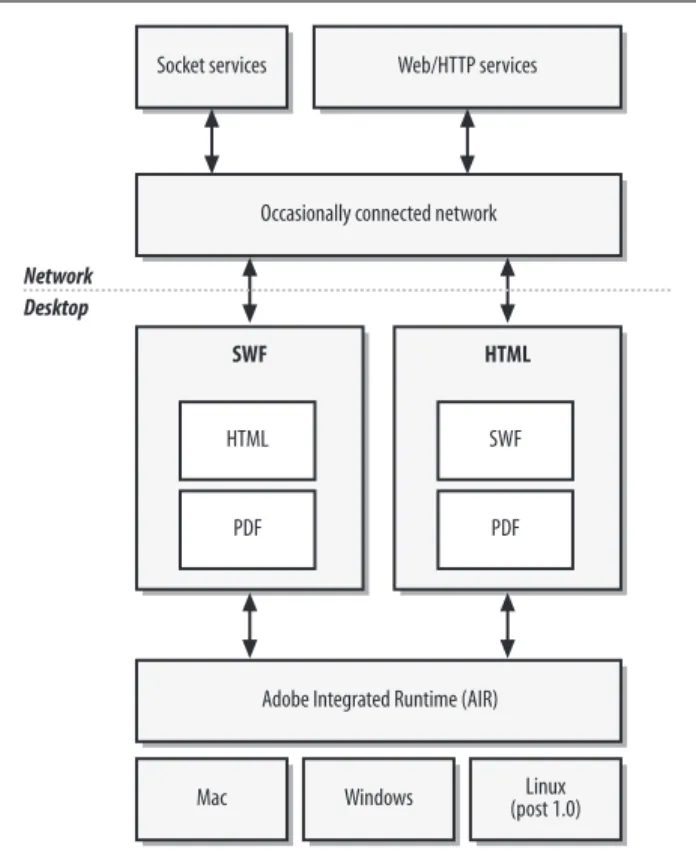
Now that we know what technologies are available to appli-cations running on top of the Adobe Integrated Runtime (see Figure 1-1), let’s look at how those technologies can be com-bined to build an Adobe AIR application.
Applications can consist of the following combinations of technologies:
• HTML/JavaScript only
• HTML/JavaScript-based with Flash content • Flash only (including Flex)
• Flash-based with HTML content
• All combinations can leverage PDF content
TIP
Primary AIR Technologies | 11
Technology Integration and Script Bridging
Because WebKit and the Flash Player are both included within the runtime, they are integrated together on a very low level. For example, when HTML is included within Flash content, it’s actually rendered via the Flash display pipeline, which, among other things, means that anything that you can do to a bitmap within Flash (blur, rotate, transform, etc.) you can also do to HTML.
Figure 1-1. Adobe AIR application structure
Socket services Web/HTTP services
Occasionally connected network
HTML
PDF SWF
SWF
PDF HTML
Adobe Integrated Runtime (AIR)
Mac Windows Linux
(post 1.0) Network
This low-level integration also applies to the script engines within Adobe AIR that run ActionScript and JavaScript. Adobe AIR provides script bridging between the two languages and environments, which makes the following possible:
• JavaScript code can call AIR, Flash Player and Action-Script APIs
• ActionScript code can call JavaScript APIs
• ActionScript code can directly manipulate the HTML DOM
• Event registration both ways between JavaScript and ActionScript
Note that the script bridging is “pass by reference.” So when passing an object instance from JavaScript to ActionScript (or vice versa), changes to that instance in one environment will affect the instance in the other environment. Among other things, this makes it possible to instantiate and use Flash Player APIs directly from JavaScript, or to register and listen for events.
This low-level script bridging between the two environments makes it very easy for developers to create applications that are a combination of both HTML and Flash.
TIP
Accessing ActionScript and Adobe AIR APIs from JavaS-cript is covered in more detail in Chapter 3.
The end result of all of this is that if you are a web developer using HTML and JavaScript, then you already have all of the skills necessary to build an Adobe AIR application.
Adobe AIR Functionality
Primary AIR Technologies | 13 desktop, it would not be quite as compelling. Fortunately, Adobe AIR provides a rich set of programming APIs, as well as close integration with the desktop that allows developers to build applications that take advantage of the fact that they’re running on the user’s desktop.
Adobe AIR Programming APIs
In addition to all of the functionality and APIs already offered by the Flash Player and WebKit engine, Adobe AIR provides additional functionality and APIs.
TIP
Adobe AIR APIs are available to both ActionScript and JavaScript.
Some of the new functionality includes, but is not limited to: • Complete file I/O API
• Complete native windowing API
• Complete native menuing API (Mac only in beta) • Online/Offline APIs to detect when service connectivity
has changed
• Complete control over application chrome • Local storage/settings APIs
• System notification APIs that tie into OS-specific notification mechanisms (not implemented in Beta) • Application update APIs
• SQLite embedded database
Adobe AIR Desktop Integration
As discussed earlier, applications deployed via the browser cannot always support the same user interactions as desktop applications. This leads to applications that can be cumber-some for the user to interact with, as they do not allow the type of application interactions with which users are familiar. Because an Adobe AIR application is a desktop application, it’s able to provide the type of application interactions and experience that users expect from an application. This func-tionality includes, but is not limited to:
• Appropriate install/uninstall rituals
• Desktop install touch-points (such as shortcuts) • Rich drag-and-drop support:
—Between operating system and Adobe AIR applications —Between Adobe AIR applications
—Between native applications and Adobe AIR applications • Rich clipboard support
• System notifications • Native icons
Primary AIR Technologies | 15
Security
All of this talk of APIs and desktop functionality brings up an important question: what about security? Because Adobe AIR applications have access to local resources, couldn’t they theoretically do something harmful?
First, it is important to note that Adobe AIR runs on top of the operating system’s security layer. It does not provide any way to get around or subvert this security. This is important, because it means Adobe AIR applications can work only within the permissions given to it by the operating system— and all current and any new security capabilities that the OS implements.
In order to run an Adobe AIR application, a user must down-load the application to the desktop, go through an install rit-ual, and then launch the application. This is an experience very similar to downloading and installing a desktop tion. The similarity is not an accident. Adobe AIR applica-tions run in a fundamentally different security content than applications that run within a browser. It is a security context closer to that of a native application than a web application.
Some web developers have also stretched the browser secu-rity model by integrating data from multiple sources and/or by experimenting with user interfaces that are inconsistent with the browser chrome. Some of these applications require browser plug-ins with capabilities that aren’t currently pro-vided by the browsers. Others take advantage of browser fea-tures like user notification or customized security configurations to allow greater or lesser security to applica-tions from specific domains. These mechanisms allow web developers to build more powerful applications, but they also are straining the browser security model.
Rather than trying to extend the web browser so that it can act as both a browser and as a flexible application runtime, Adobe AIR provides a flexible runtime for building applica-tions using web technologies. Adobe AIR allows web devel-opers to build applications that incorporate data from multiple sources, provide users with control over where and how their data is stored, and produce user experiences that are not possible within the browser’s user interface. Because Adobe AIR applications must be installed on the desktop and require users to specifically trust the Adobe AIR application, Adobe AIR applications can safely exercise these capabili-ties. Browser-based applications cannot be granted these capabilities if the browser is to continue to fulfill its role as an application for safely browsing any web site on the Internet.
Primary AIR Technologies | 17 This also means that users should not install Adobe AIR applications from sources they do not trust. This is very simi-lar to current practices for native desktop applications and for browser plug-ins. Many applications and web content require that browser plug-ins (such as Flash Player or Apple Quicktime) be installed in order to work. The Firefox browser has a very accessible extensibility layer that essen-tially allows any developer to extend the browser. These applications, plug-ins, and extensions can do potentially harmful things and therefore require that the user trust the source of the content.
Finally, one of the capabilities that will be included in the Adobe AIR 1.0 release is the ability of the runtime to verify the identity of an application’s publisher. Users should care-fully consider whether they want to trust the publisher of an application, as well as whether they want to install an appli-cation that hasn’t been signed.
Adobe AIR Development Toolset
One of the reasons web applications have been successful is that they allow developers to easily deploy applications that users can run regardless of which OS they are on. Whether on Mac, Windows, Linux, Solaris, or cell phones, web appli-cations provide reach.
Because Adobe AIR applications are built with existing web technologies such as HTML and Flash, you can use the same tools that you use to create browser-based content to create Adobe AIR applications. The Adobe AIR SDK provides a number of free command-line tools that make it possible to test, debug, and package Adobe AIR applications with virtually any web development and design tool.
While Adobe will add support to its own web development and design tools for authoring Adobe AIR content, Adobe programs are not required to create applications. Using the Adobe AIR command-line tools, you can create an AIR appli-cation with any web development tool. You can use the same web development and design tools that you are already using today.
TIP
The Development Workflow will be covered in depth in Chapter 2.
Is Adobe AIR the End of Web Applications in the
Browser?
So, by this point, you may be saying to yourself, “Gee, Adobe AIR sure sounds great! Why would anyone ever want to deploy an application to the browser again? Is Adobe AIR the end of web applications within the browser?”
No.
Let’s repeat that again. No.
Adobe AIR solves most of the problems with deploying web applications via the browser. However, there are still
Primary AIR Technologies | 19 advantages to deploying applications via the browser. The fact that there are so many web applications despite the dis-advantages discussed earlier is a testament to the dis-advantages of running within the browser. When those advantages out-weigh the disadvantages, developers will still deploy their applications via the web browser.
But it’s not necessarily an either/or question. Because Adobe AIR applications are built using web technologies, the appli-cation that you deploy via the web browser can be quickly turned into an Adobe AIR application. You can have a web-based version that provides the browser-web-based functionality, and then also have an AIR-based version that takes advan-tage of running on the desktop. Both versions could leverage the same technologies, languages, and code base. Indeed, some of the most popular early Adobe AIR applications, such as FineTune and eBay Desktop, complement existing web applications.
TIP
You can find more information on Finetune Desktop at
http://www.finetune.com/desktop/.
You can find more information on eBay’s “San Dimas” Ado-be AIR application project at http://blogs.ebay.com/ projectsandimas.
CHAPTER 2
CHAPTER 2
Getting Started with AIR
Development
This chapter discusses how to get started developing applica-tions for the Adobe Integrated Runtime using HTML and JavaScript. It covers:
• Installing Adobe AIR
• Configuring the Adobe AIR SDK and command-line tools • Creating your first AIR application
• Testing AIR applications
• Packaging and deploying AIR applications
Once you have completed this chapter, your environment for developing AIR applications should be correctly configured, and you should have an solid understanding of how to begin to build, test, and deploy AIR applications.
What Do You Need to Develop AIR
Applications?
There are a number of required items needed in order to begin developing AIR applications.
Adobe Integrated Runtime Beta
What Do You Need to Develop AIR Applications? | 21
Adobe AIR SDK
The Adobe AIR SDK contains command-line tools, sample files, and other resources to make developing AIR applica-tions easier. In particular, we will be using the command-line tools included in the SDK (ADL and ADT), which will allow us to test and package our AIR applications from virtually any development environment.
You can download the AIR SDK for free from: http://www.adobe.com/go/air
HTML/JavaScript IDE or Editor
Building AIR applications with HTML and JavaScript requires that you have a way to create the HTML and JavaScript files. You can use any tool that supports creating and editing text files (such as VIM or Notepad), although it’s recommended that you use a tool that has richer support for working with HTML and JavaScript files, such as Adobe Dreamweaver, Panic’s Coda, or Aptana.
Supported Operating System
While it is possible to develop and package AIR applications on virtually any operating system (including Linux), you can test and deploy the application only on operating systems supported by Adobe AIR.
The supported operating systems for the Beta are: • Windows XP SP2
• Windows Vista Home Ultimate Edition • Mac OS 10.4.8 and 10.4.9 (Intel and PowerPC)
Uninstalling Pre-Beta Versions
of Adobe AIR
If you have previously installed an earlier version of Adobe AIR (formerly referred to as Apollo), you need to uninstall those versions before installing the Beta version.
Uninstalling on Windows
1. In the Windows Start menu, select Settings ➝ Control Panel.
2. Select the Add or Remove Programs control panel. 3. Select Adobe Apollo 1.0 Alpha1 to uninstall the Apollo
runtime.
4. Click the Change/Remove button.
Uninstalling on Mac
1. Delete the /Library/Frameworks/Adobe Apollo.framework directory.
2. Delete the/Library/Receipts/Adobe Apollo.pkg file. 3. Empty the Trash.
Once you have done this, you are ready to install the Beta runtime.
Installing Adobe AIR
Uninstalling Adobe AIR Beta | 23 Installing the runtime is simple, and requires downloading and running the Adobe Integrated Runtime Installer.
1. Download AIR Installer fromhttp://www.adobe.com/go/air 2. Launch the installer. On a Mac, you must first mount the
.dmg file, which contains the installer. 3. Follow the installation instructions.
As Adobe AIR is simply a runtime and not an application that can be launched, the easiest way to confirm that it is installed correctly is to try installing an AIR application. You can do this by either downloading an AIR application and installing it, or following the instructions later in the chapter to build a simple AIR application.
TIP
You can download sample AIR applications from Adobe’s web site at:http://www.adobe.com/go/air.
Uninstalling Adobe AIR Beta
The process for uninstalling Adobe AIR is different depend-ing on the operatdepend-ing system that you are runndepend-ing on.
Uninstalling on an Mac
Uninstalling on Windows
On Windows, you can uninstall Adobe AIR the same way that you uninstall any other application. Just select the Adobe Integrated Runtime in the add/remove programs sec-tion of the control panel.
Setting Up the AIR SDK and
Command-Line Tools
The Adobe AIR SDK Beta contains tools, samples, and code that makes it easier to develop, test and deploy applications. In particular, it contains two command-line tools that we will use:
Installing the SDK
In order to ease development, you should place the path to these files within your system’s path. This will allow you to execute the tools from anywhere on your system.
The command line tools are located in the bin directory within the SDK.
1. Download the AIR SDK Beta fromhttp://www.adobe.com/ go/air.
2. Open the SDK
a. On Windows, uncompress the ZIP archive. b. On Mac, mount the.dmg file.
3. Copy the contents of the SDK to your system (we will refer to this location as<SDK_Path>.
Setting Up the AIR SDK and Command-Line Tools | 25 TIP
In order to run the command-line tools, you need to copy only thebin andruntime directories from the SDK. It’s important that thebinandruntimedirectories within the SDK maintain their relative paths to each other.
4. At this point, you should have at least the following two directories:<SDK_Path>/bin and<SDK_Path>/runtime. The ADL and ADT command-line tools are located in the bin directory.
Placing the Command-Line Tools Within the
System Path
All that’s left is to place the<SDK_Path>/bindirectory into your system path, so that you can execute the command line applications from anywhere on your system.
The instructions for this are different depending on whether you are on a Mac- or Windows-based system.
Windows
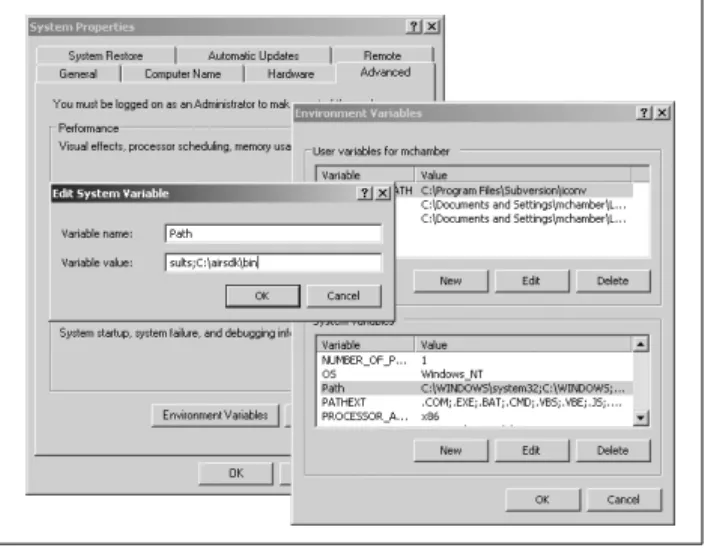
1. Open the System Properties dialog box and click the Advanced tab. You can find this in the System settings in the Control Panel.
2. Click the Environment Variables button.
3. Select the PATH entry and then click the Edit button. Add the path to thebindirectory to the end of the cur-rent variable value, separating it from previous values with a semicolon:
;<SDK_Path>/bin
In order to test the installation, open a new Windows Con-sole (Start➝ Run ➝ Console), and type:
adt
TIP
Make sure you open a new Console window; don’t use a Console window that was already open.
You should see output similar this: Too few arguments.
Usage: adt -package air_file app_xml [ file_or_dir | -C dir file_or_dir ... ] ...
This means that the tools are configured correctly.
Setting Up the AIR SDK and Command-Line Tools | 27 If you get an error that the file cannot be found, then check the following things:
• Make sure that the bin and runtime directories are included in the<SDK_Path> directory
• Make sure that you included the path to <SDK_Path> directory correctly in the PATH environment variable. • Make sure that you opened a new Console window
before running the command.
Mac
There are a number of ways to add the path to the AIR SDK to your system path, depending on which shell you are using, and how you specify user environment variables.
The instructions below show how to modify your path envi-ronment variable if you are using the bash shell.
1. Open the Terminal program (/Applications/Utilities/ Terminal)
2. Make sure you’re in your home directory by typing cd and pressing enter.
3. We need to check to see if one of two files are present. Run the following commandls –la
4. Look for a file named either.profile or.bashrc.
5. If you have neither the.profileor.bashrcfile, then create the.profile file with the following command:
touch .profile
6. Open the.profile or.bashrc file with a text editor. 7. Look for a line that looks similar to this:
export PATH=$PATH:/usr/local/bin
8. Add the path to the <SDK_Path>/bindirectory to the end of this line. For example, if<SDK_Path>/binis at /airsdk/bin, the export path should look something like this:
export PATH=$PATH:/usr/local/bin;/airsdk/bin
9. If the file is empty, add the following line: export PATH=$PATH:/airsdk/bin
10. Save and close the file.
11. Run the following command to load the new settings source,.profile (or.bashrc, if that is the file you edited). 12. You can confirm that the new settings have taken effect
by typingecho $PATHand pressing Enter. Make sure that the<SDK_Path>/bin path is included in the output. 13. In order to test the installation, open a Terminal window
and typeadt.
You should see output similar this: Too few arguments.
Usage: adt -package air_file app_xml [ file_or_dir | -C dir file_or_dir ... ] ...
meaning that the tools are configured correctly.
If you get an error that the file cannot be found, then check the following things:
• Make sure thebinandruntimedirectories are included in the<SDK_Path> directory.
• Make sure you included the path to <SDK_Path>/bin correctly in the PATH environment variable.
• Make sure you either opened a new Terminal window, or ransource on your configuration file.
Creating a Simple AIR Application with
HTML and JavaScript
Now that you have installed and configured Adobe AIR and the Adobe AIR SDK Betas, we are ready to build our first AIR application.
Creating a Simple AIR Application with HTML and JavaScript | 29
Creating the Application Files
Every AIR application contains a minimum of two files. The first file is the root content file. This is the main HTML or SWF file for the application, and is the file that will be dis-played/executed when the application first starts up.
The second file is called the application descriptor file, which is an XML file that provides metadata to Adobe AIR about the application.
Let’s create these files for our application: 1. Create a new folder calledAIRHelloWorld.
2. Inside of this folder, create two new files called AIRHelloWorld.html andAIRHelloWorld.xml.
3. Open each of these files using your favorite text or HTML editor/IDE.
Understanding application descriptor files
The application descriptor file is an XML file required for each AIR application. It provides general metadata (such as application name and description) to Adobe AIR, as well as information on how the application should be run. This includes specifying the root application file for the applica-tion and the window mode that the initial applicaapplica-tion win-dow should use.
First, let’s look at the entire application descriptor file (AIRHelloWorld.xml) for our application, and then we will go into more detail on each item within the file.
TIP
Open AIRHelloWorld.xml and type in the following text: <?xml version="1.0" encoding="UTF-8"?>
<application xmlns="http://ns.adobe.com/air/application/1.0.M4" appId="com.oreilly.AIRHelloWorld" version="1.0">
<name>AIRHelloWorld</name>
<title>AIRHelloWorld Installer</title> <description>Simple Hello World Example using HTML</description>
<copyright></copyright>
<rootContent systemChrome="standard"
transparent="false" visible="true"> ApolloHelloWorld.html</rootContent>
</application>
The content should be pretty self-explanatory, but let’s go through it line by line to understand what is going on.
<application xmlns="http://ns.adobe.com/air/application/1.0.M4" appId="com.oreilly."
version="1.0">
There are two items worth pointing our here. First, the namespace definition:
xmlns="http://ns.adobe.com/air/application/1.0.M4"
This specifies the build of Adobe AIR that the application targets. In this case, it specifies 1.0.M4, which is the public Beta.
TheappId property is important, and specifies a unique ID for the AIR application. Adobe AIR uses this ID to deter-mine one application from another.
Creating a Simple AIR Application with HTML and JavaScript | 31 The next section of elements specify general metadata about the application:
<name>AIRHelloWorld</name>
<title>AIRHelloWorld Installer</title>
<description>Simple Hello World Example using HTML </description>
<copyright></copyright>
The next element is therootContenttag, which tells Adobe AIR which application file is the main root content of the application:
<rootContent systemChrome="standard"
transparent="false" visible="true"> ApolloHelloWorld.html</rootContent>
The value of the element should point to the main root file of the application, which, in this case, is an HTML file.
TIP
The application descriptor file and root content file must be in the same folder.
The rootContent element has a number of attributes that specify the initial window parameters and chrome of the application when it is first launched.
Element Description
name The name of the application. This is the name that will be exposed to the operating system and user.
title The title that will be used for the application installer.
description A human readable description of the application that will be presented to the user during the installation process.
For our example, we will use the operating system’s window chrome.
This is all that is required for the application descriptor file for our application. At this point, we are ready to create the main HTML file for our application.
Creating the root application file
The root application file is the main file for the application that will be loaded when the application is launched. This file can be either a compiled Flash file (SWF) or an HTML file. For this chapter, we will create a very simple HTML file in order to ensure that our development environment is config-ured correctly. We will cover more advanced AIR API usage in Chapters 3 and 4.
<html> <head>
<title>AIRHelloWorld</title>
<script>
function init( ) {
runtime.trace("init function called"); }
</script>
</head>
<body onload="init( )">
<div align="center">Hello World</div> Element Description
systemChrome The type ofsystemChrome that the application should use (“standard” or “none”).
transparent Whether the application background should be transparent. If
systemChrome is set to standard, this property istrue.
Creating a Simple AIR Application with HTML and JavaScript | 33 As you can see, this is a very basic HTML file that displays “Hello World” and calls a JavaScript function once the file has loaded and initialized.
There are a couple of lines worth pointing out: <body onload="init( )">
We just use the standard onload event on the body element to get an entry point for JavaScript into our application:
<script>
function init( ) {
... } </script>
We then use a standard JavaScript function to capture the onload event.
Accessing AIR APIs
Looking at theinitJavaScript function, you’ll see some code you may not be familiar with:
runtime.trace("init function called");
This is the only AIR-specific code/markup in the entire appli-cation. The runtime property is a property placed on the windowobject by Adobe AIR which provides an entry point into the Adobe AIR engine and APIs. Thetracefunction is a top-level AIR API which takes a string, and prints it out to the command line (when the application is launched via the command line).
TIP
Checking for the existence of the runtime property is a simple way to determine whether your HTML and JavaScript application is running within Adobe AIR.
if(window.runtime) {
//running within AIR
}
Now that we have created both the application descriptor file, as well as the root HTML application file, we are ready to run and test our application within the runtime.
Testing the Application
While there are a number of HTML IDEs (such as Dreamweaver) that are adding support for launching and testing AIR applications directly from within the IDE, we will focus on launching and testing AIR applications using the ADL command-line tool included within the SDK. This will provide a solid basis for an understanding of what is going on. It will also provides the most flexibility in integrating the development process with other IDEs, editors and work-flows.
Using ADL to Launch the Application
The first step in testing the application is to run it as an AIR application to make sure that:
• There are no errors in the application descriptor file • The application launches
• The HTML renders correctly
Testing the Application | 35 While we could package up the entire application and then install it, this would be tedious, and make it difficult to quickly iterate on and test new versions. Luckily, the Adobe AIR SDK provides a command-line tool called ADL, which allows you to launch an AIR application without having to first install it.
In order to test our application:
1. Open a Terminal window (on Mac) or a Console win-dow (on Winwin-dows).
2. Change to the directory that contains the
AIRHelloWorld.html andAIRHelloWorld.xml files. 3. Run ADL with the following command, passing in the
name of the application descriptor file:
adl AIRHelloWorld.xml
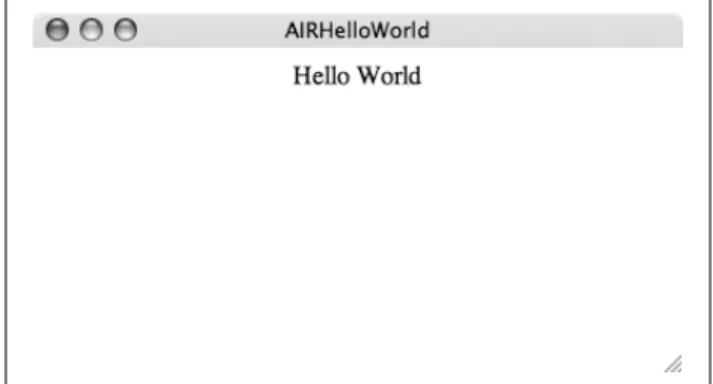
This should launch your application within the standard sys-tem chrome of your operating syssys-tem.
If the application does not launch correctly, or if you get an error, check the following:
• Make sure you have configured the SDK correctly, so that the ADL tool can be found.
• Make sure that you are running the ADL command from the same directory that contains theAIRHelloWorld.xml file.
• Make sure that your application descriptor file contains well-formed XML.
• Make sure the information in the application descriptor file is correct. Pay particular attention to the application attributes and therootContent value.
• Make sure that the AIRHelloWorld.html and
AIRHelloWorld.xml files are in the same directory. Once you have fixed any issues, and your application is run-ning correctly, you can explore how to get information from the application at runtime.
Capturing Output from the Application at
Runtime
When running applications from the command line via ADL, there are a number of ways to get runtime information and debugging information from the application.
Runtime JavaScript errors
Any runtime errors that arise from JavaScript execution while an AIR application launched via ADL is running will be output to ADL’s standard out.
Let’s modify our application to cause it to generate a JavaScript runtime error. Change the contents of AIRHelloWorld.html to:
<html> <head>
Testing the Application | 37 function init( )
{
runtime2.trace("init function called"); }
</script>
</head>
<body onload="init( )">
<div align="center">Hello World</div> </body>
</html>
All we did was change theinitfunction to try and access a property namedruntime2 that does not exist:
runtime2.trace("init function called");
Save the file, and run the application from ADL:
adl AIRHelloWorld.xml
The application should launch, and you should see the fol-lowing error output from the command line that you launched the application from:
ReferenceError: Can't find variable: runtime2 init at app-resource:/AIRHelloWorld.html : 8 init at app-resource:/AIRHelloWorld.html : 8 onload at app-resource:/AIRHelloWorld.html : 13
This output provides the error, which in this case is that the variable namedruntime2cannot be found, as well as the line number that the error occurred on, and a stack trace of the execution call.
This information can be used to track down any errors within your application.
Adobe AIR provides a function to make it possible to send information from the application to standard out at runtime.
runtime.trace
As we touched on earlier in the chapter, Adobe AIR provides a mechanism for sending Strings from JavaScript to the com-mand line.
Thetracefunction on the runtime property takes a string, which will then be output to ADL’s standard out. Here is an example of its usage:
runtime.trace("This will be sent to standard out");
This can be useful for tracking information about the state of the application without having to interrupt the execution of the program.
Any non-String objects passed to trace will have their toString( )function called. The JavaScriptObjectobject pro-vides a default toString( ) implementation, although some classes (such as Array) implement more context-sensitive toString( ) functions.
Here is an example of tracing an Array that contains various data types:
var a = ["a", 1, {foo:"bar"}]; runtime.trace(a);
This will result in the following output on the command line from ADL:
a,1,[object Object]
Packaging and Deploying the AIR Application | 39
Packaging and Deploying the AIR
Application
Now that we understand how to build, test and debug an AIR application, we are ready to create an AIR file which will allow us to deploy and distribute our application.
What Is an AIR File?
An AIR file is a zip-based application distribution package that is used to distribute AIR applications. It contains all of the files necessary to install and run an AIR application, and is used by the Adobe Integrated Runtime to create and install an AIR application onto the user’s system.
The AIR file is created by the ADT command line tool included in the AIR SDK and is used to distribute the appli-cation to other users.
TIP
AIR files require that Adobe AIR already be installed on the user’s system.
ADL will be able to also create OS-specific native install-ers that will be able to first install Adobe AIR and then in-stall the AIR application for systems where Adobe AIR is not already installed.
This functionality is not yet implemented in the public Beta.
Creating an AIR File Using ADT
The ADT command-line tool included in the Adobe AIR SDK is used to create AIR files. Its usage format is:
adl –packageAIRFILENAME FILESTOINCLUDE
To create an AIR file for our application:
1. Open a terminal (Mac OS X) or Console (Windows) window.
2. Change to the directory which containsAIRHelloWorld. htmlandAIRHelloWorld.xml.
3. Run the following command:
adt -package AIRHelloWorld.air AIRHelloWorld.xml AIRHelloWorld.html
This should create a file named AIRHelloWorld.air in the same directory. If the file is not created, or if you receive any errors:
• Make sure you have configured the SDK correctly in order to ensure that the ADT tool can be found.
• Make sure that you are running the ADT command from the same directory that contains the AIRHelloWorld.xml file.
• Make sure that your application descriptor file contains well formed XML.
• Make sure the information in the application descriptor file is correct. Pay particular attention to the application attributes, and therootContent value.
• Make sure that the AIRHelloWorld.html and
AIRHelloWorld.xml files are in the same directory
Testing the AIR File
Packaging and Deploying the AIR Application | 41 Testing the AIR file requires trying to install it onto the sys-tem, and then launching it:
1. Switch to the directory that contains the AIR file in Win-dows Explorer (WinWin-dows) or the Finder (Mac OS X). 2. Double-click the AIR file.
3. Follow the instructions in the install dialog box.
4. On the last screen of the install dialog box, make sure Run Application is checked.
You application should launch and run.
If it does not launch, or if you receive an error, check the following:
1. Make sure that you have correctly installed the Beta version of Adobe AIR.
2. Make sure that there were no errors when you created the AIR file via ADL.
3. Make sure that you have uninstalled any previous versions of Adobe AIR.
Once you have confirmed that the application is installed and runs correctly, you can relaunch it by clicking its icon. The default shortcut location varies, depending on your operating system:
Deploying the AIR File
Once you have successfully created and packaged your AIR application, all that is left is to distribute the application. This is done by distributing the AIR file, either via the web, or directly via CD-ROM or other distribution mechanisms.
System Shortcut
Mac OS X /Users/<USERNAME>/Applications
Setting the MIME type
One thing to watch out for when distributing AIR files for download from a web server, is to ensure that the MIME type is set correctly on the server. If the MIME type is not set correctly, web browsers may treat an AIR file as a zip file (and in the process rename it), or may display the raw bytes of the AIR file in the browser, instead of downloading it to the user’s system.
The correct MIME type for an AIR file is:
application/vnd.adobe.air-application-installer-package+zip
For example, to set the MIME type for the Apache server, you would add the following line to your Apache configuration file:
AddType application/vnd.adobe.air-application-installer-package+zip .air
Check the documentation for your web server for specific instruction on how to set the MIME type.